Algo IP Speakers, Pagers, Alerters
Algo IP Speakers, Pagers, Alerters & CyberGate Configuration Guide
Section titled “Algo IP Speakers, Pagers, Alerters & CyberGate Configuration Guide”Version: 1.0.5 ENG
Date: November 13, 2024
Product: CyberTwice CyberGate with Algo IP Products
Introduction
Section titled “Introduction”Microsoft Teams is the hub for team collaboration in Microsoft Office 365 that integrates people, content, conversations, and tools your team needs. Via the CyberGate application that runs in Microsoft Azure, you can connect Algo IP products to your Microsoft Teams environment.
Microsoft Teams users can set up calls to Algo IP Speakers with 2-way audio on the Teams desktop client, Teams desk phone, or Teams smartphone app.
What is CyberGate?
Section titled “What is CyberGate?”CyberGate is a subscription-based Software-as-a-Service (SaaS) hosted in Azure. With CyberGate there is:
- ✅ No need to setup a hosting environment
- ✅ No need to download or install any software from CyberTwice or a 3rd party
- ✅ No need to install additional Virtual Machines
- ✅ No need for a Session Border Controller (SBC) or extra licenses for your existing SBC
- ✅ No need for additional PSTN-like phone numbers for your SIP intercoms
Note: For instructions on how to purchase and configure the CyberGate service, see our Tech Note: Connect a SIP Intercom to MS Teams using the CyberGate service
Supported Algo Products
Section titled “Supported Algo Products”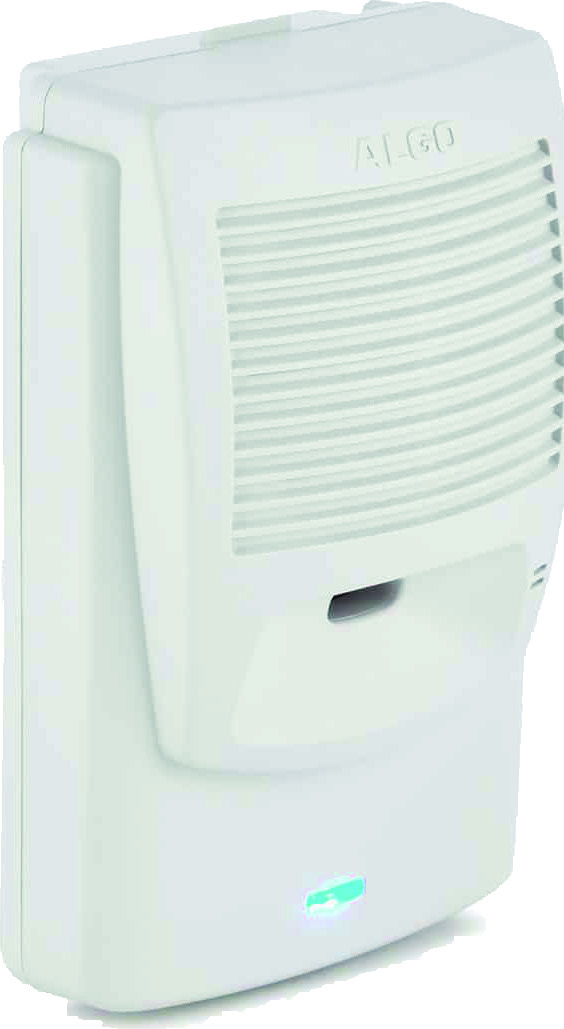
This document uses the Algo 8180 IP Audio Alerter as the reference device. The following Algo products are also supported:
IP Speakers
Section titled “IP Speakers”| Model | Description |
|---|---|
| 8180 | IP Audio Alerter |
| 8186 | IP Horn Speaker |
| 8196 | IP PoE+ Horn Speaker |
| 8188 | IP Ceiling Speaker |
| 8189 | IP Surface Mount Speaker |
| 8190 | IP Speaker – Clock |
| 8190S | IP Speaker – Clock & Visual Alerter |
| 8198 | IP PoE+ Ceiling Speaker |
IP Paging Adapters
Section titled “IP Paging Adapters”| Model | Description |
|---|---|
| 8301 | IP Paging Adapter & Scheduler |
| 8373 | IP Zone Paging Adapter |
IP Visual Alerters
Section titled “IP Visual Alerters”| Model | Description |
|---|---|
| 8128 | IP Visual Alerter |
| 8138 | IP Color Visual Alerter |
All listed Algo products are certified for secure communication with CyberGate.
Document Contents
Section titled “Document Contents”| Section | Description |
|---|---|
| Basic Configuration | Steps to configure the Algo for CyberGate |
| Secure Communication | Enable encrypted SIP-TLS connection |
| Calling from Teams | How to initiate calls from Teams to the device |
| Appendix: CyberGate App | Installation and usage of the CyberGate Teams app |
Note: This manual describes the most basic configuration of the Algo IP Speaker for use with CyberGate. Advanced Algo paging and multicast features work with CyberGate but are not described here. Refer to Algo documentation for additional options.
CyberGate Teams App Features
Section titled “CyberGate Teams App Features”The CyberGate app for Microsoft Teams provides:
- 📊 Device status — View device online/offline status and initiate calls with one click
- 👥 Availability — Set your status in CyberGate Multi-ring groups
Recommendation: Installation of the CyberGate app for Microsoft Teams is highly recommended.
Configuration Steps
Section titled “Configuration Steps”Step 1: Connect to the Algo
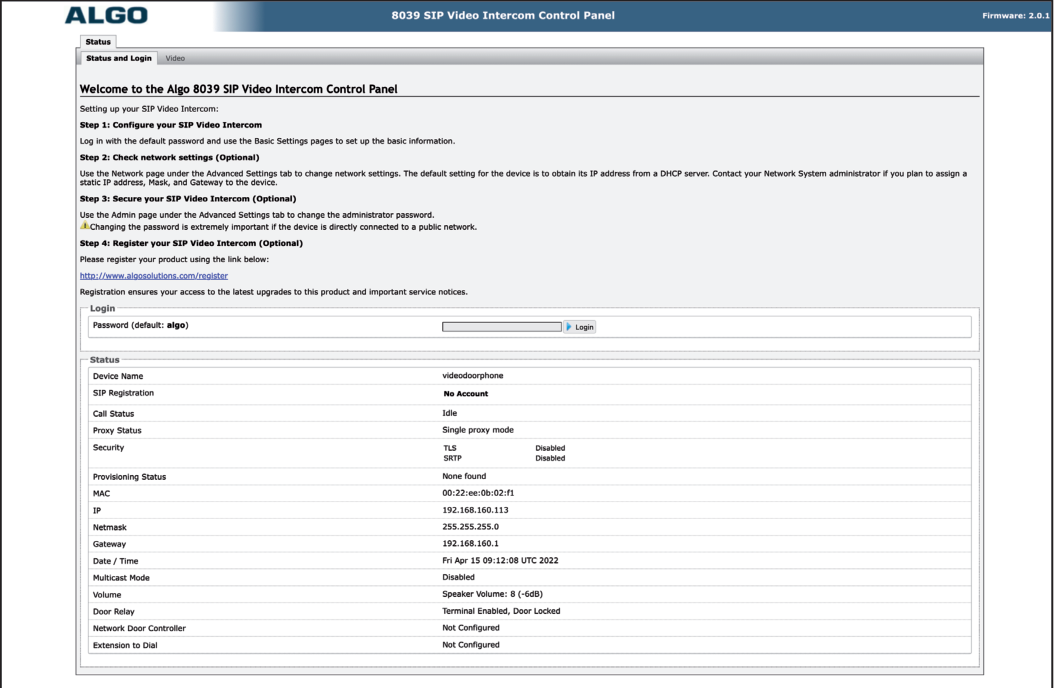
Section titled “Step 1: Connect to the Algo”- Connect the Algo to the network
- Power it on
- Open a web browser and navigate to the device’s IP address
- Sign in with the configured or supplied password
Step 2: Configure SIP Settings
Section titled “Step 2: Configure SIP Settings”After signing in successfully, the Basic Settings → SIP menu is shown.
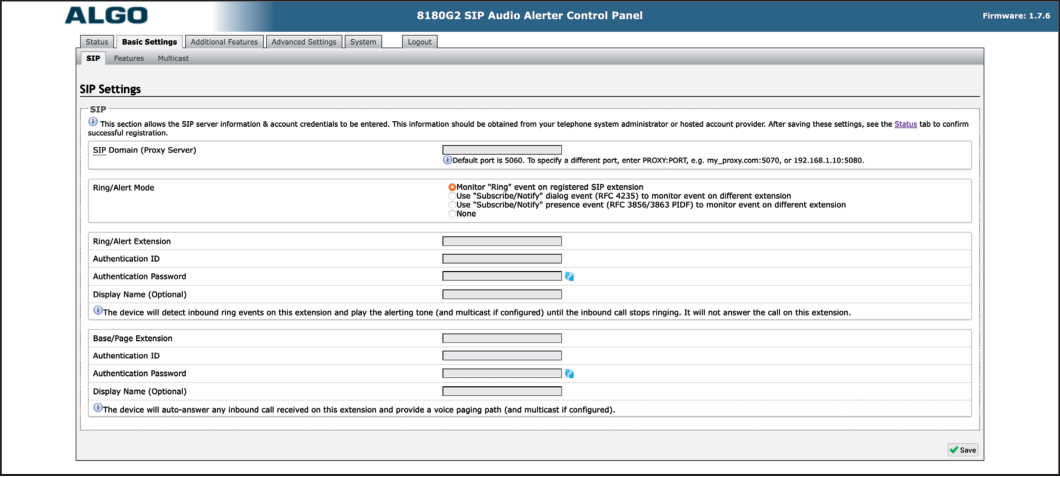
Configure the following settings:
| Field | Value |
|---|---|
| SIP Domain | cybergate.cybertwice.com |
| Base/Page Extension | Use the Username from CyberGate Management Portal |
| Authentication ID | Use the Username from CyberGate Management Portal |
| Authentication Password | Use the Password from CyberGate Management Portal |
Click ‘Save’ when done.
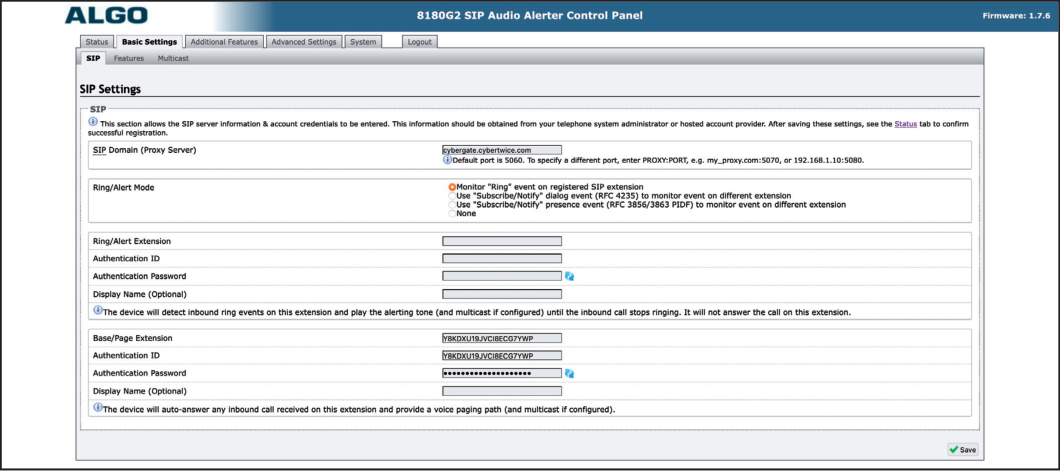
Step 3: Verify Registration
Section titled “Step 3: Verify Registration”Check the registration status in Status → Device Status menu.
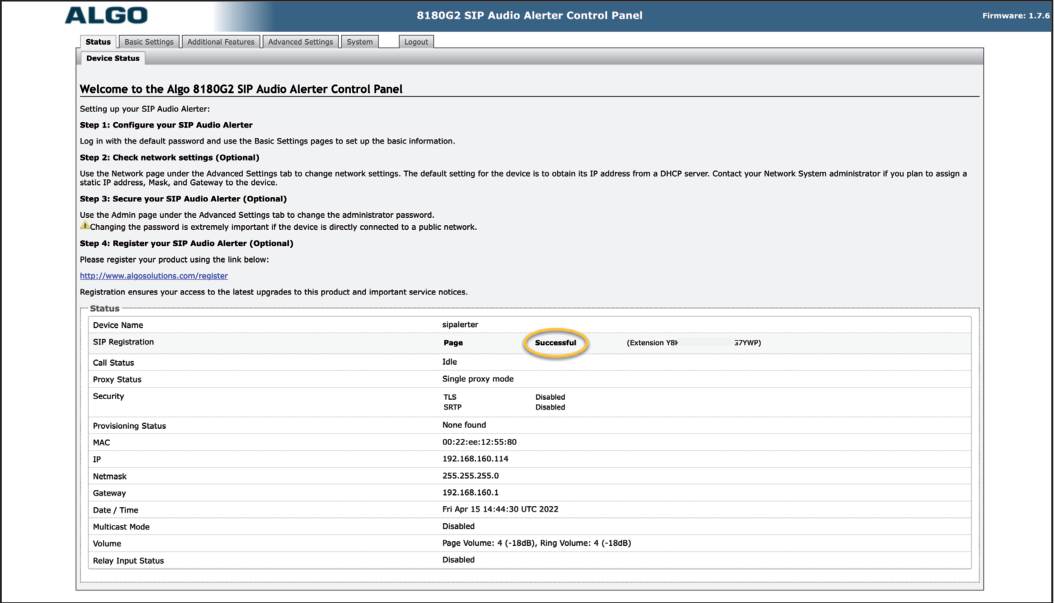
The basic configuration of the Algo for use with CyberGate is now complete!
Step 4: Configure CyberGate Admin Portal
Section titled “Step 4: Configure CyberGate Admin Portal”Before calls can be initiated from Microsoft Teams to the Algo, additional configuration in the CyberGate Admin portal is necessary.
-
Navigate to: https://admin.cybergate.cybertwice.com
-
Log in using a Microsoft account with admin privileges
-
Navigate to Device Settings menu
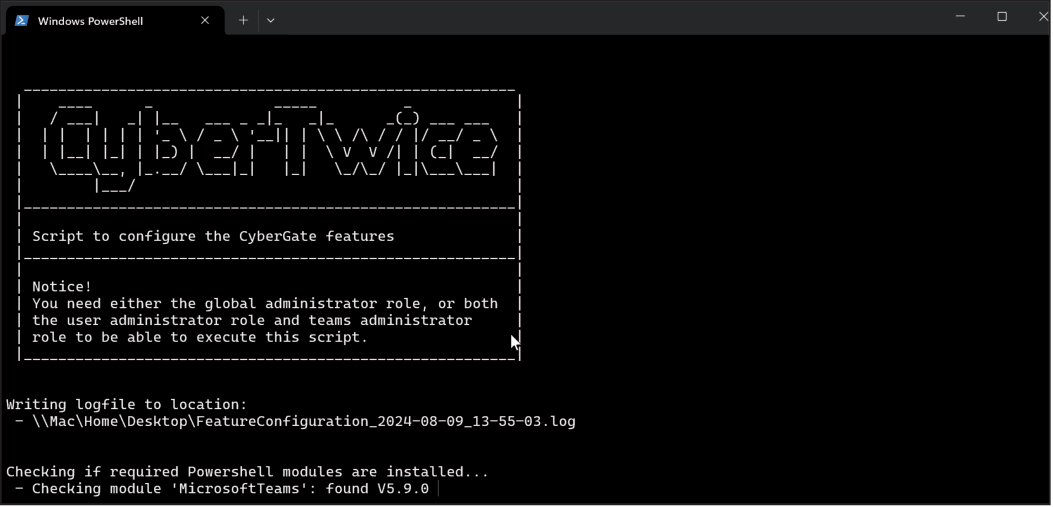
- If the display name shows a warning symbol ⚠️, download and run the Feature configuration PowerShell script:
- Click the blue ‘Download’ button
- Open PowerShell on your PC with administrator privileges
- Run:
./FeatureConfiguration.ps1 - When prompted, authenticate with the same Microsoft account used for the CyberGate Admin portal
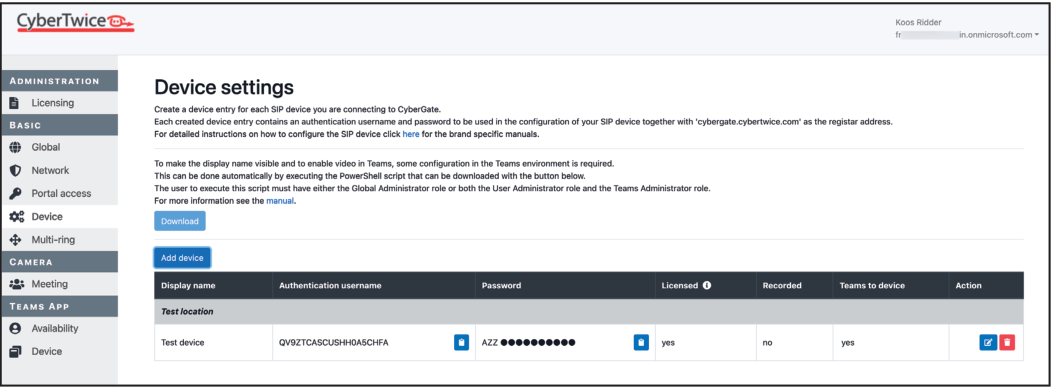
After successful execution, the warning symbol will disappear.
Calling from Microsoft Teams
Section titled “Calling from Microsoft Teams”To initiate a call from Microsoft Teams to the Algo, you have two options:
Option 1: Using the Teams Calls Menu
Section titled “Option 1: Using the Teams Calls Menu”- Login to Microsoft Teams
- Navigate to the ‘Calls’ menu
- Either:
- Type the display name of the Algo in the call field, or
- Search for ‘cybergate’ to see all your CyberGate devices
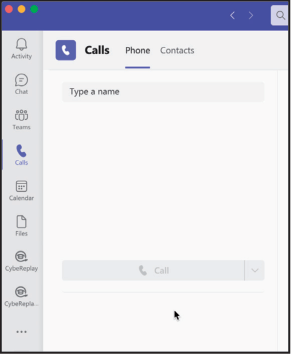
- Select the device to call and click the blue ‘Call’ button
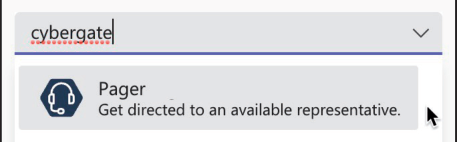
- The Algo will answer automatically
Tip for Multicast: When Multicast is enabled with multiple zones, click the three dots (…) in the call screen and select ‘Keypad’. Use the keypad to control zone features of the Algo.
Option 2: Using the CyberGate Teams App
Section titled “Option 2: Using the CyberGate Teams App”A more convenient method is using the CyberGate for Microsoft Teams app. See the Appendix for installation and operating instructions.
Secure Communication over SIP-TLS
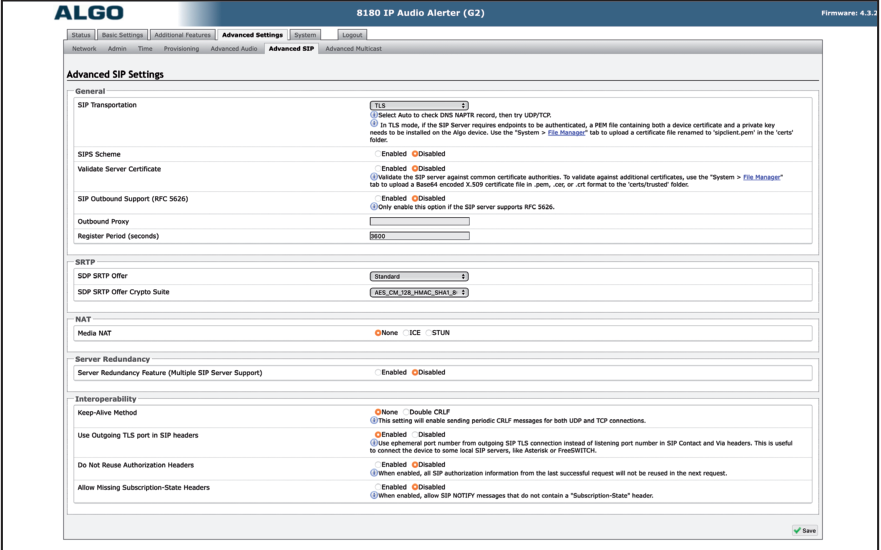
Section titled “Secure Communication over SIP-TLS”For encrypted communication with CyberGate, modify the configuration as follows:
Enable TLS and SRTP
Section titled “Enable TLS and SRTP”- Navigate to Advanced Settings → Advanced SIP
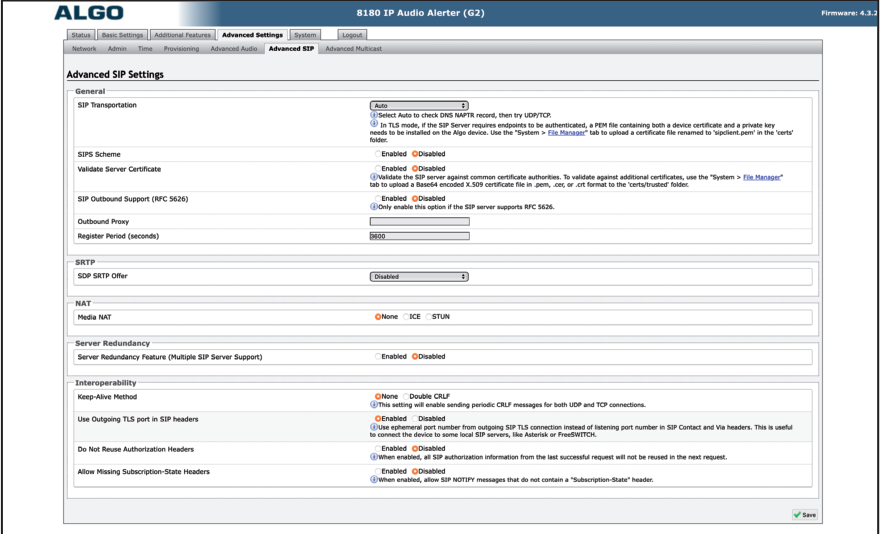
- Modify the following settings:
General
Section titled “General”| Field | Value |
|---|---|
| SIP Transportation | TLS |
| Field | Value |
|---|---|
| RTP Mode | Standard |
- Click ‘Save’
Verify Secure Connection
Section titled “Verify Secure Connection”Check the registration status in the ‘Status’ menu to confirm the secure connection.
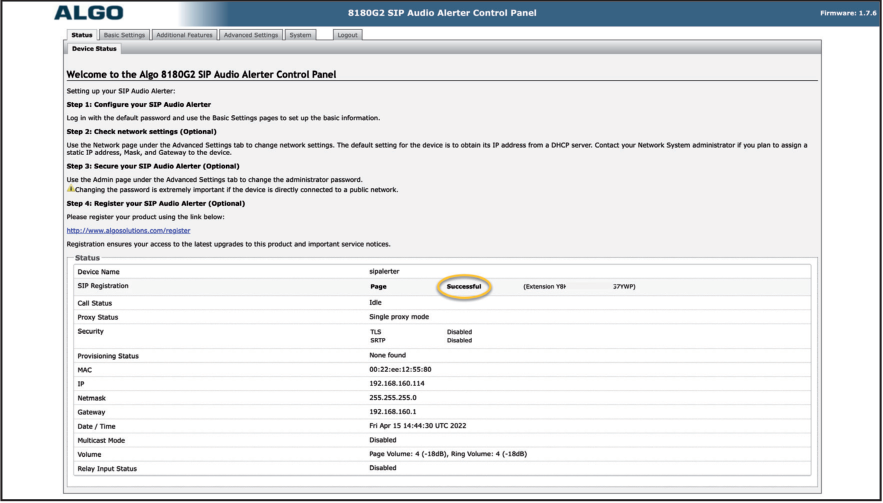
All SIP and audio traffic to/from CyberGate will now be encrypted.
Quick Reference
Section titled “Quick Reference”CyberGate Connection Details
Section titled “CyberGate Connection Details”| Setting | Value |
|---|---|
| SIP Domain | cybergate.cybertwice.com |
| SIP Transport (Standard) | TCP |
| SIP Transport (Secure) | TLS |
| RTP Mode (Secure) | Standard |
Appendix - CyberGate Teams App
Section titled “Appendix - CyberGate Teams App”Requirements
Section titled “Requirements”To use the CyberGate App, you need a subscription to one of the following CyberGate SaaS solutions:
- ✅ CyberGate for IP Cameras with Teams
- ✅ CyberGate for IP Paging with Teams
- ✅ CyberGate for IP Intercoms with Teams
App Features Overview
Section titled “App Features Overview”The CyberGate Teams app provides these main features:
| Feature | Description |
|---|---|
| Availability | Set your availability status in Multi-ring groups |
| Devices | View device status and initiate calls with one click |
Installation
Section titled “Installation”How to Install
Section titled “How to Install”-
Open Microsoft Teams and click on the ‘Apps’ button in the sidebar
-
Search for ‘cybergate’
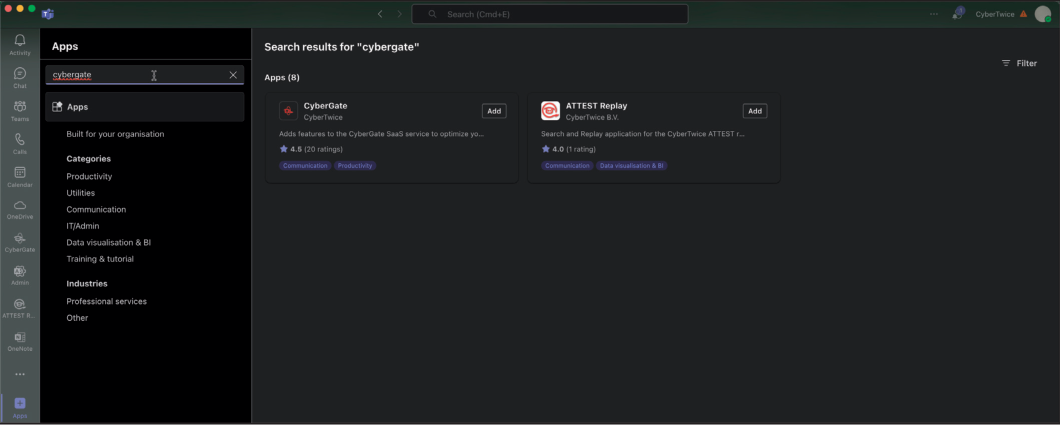
- Click ‘Add’ to add CyberGate to Microsoft Teams
Note: You may be asked to provide consent for basic permissions (View your basic profile, Maintain access to data you have given it access to). Accept these permissions to use the app.
-
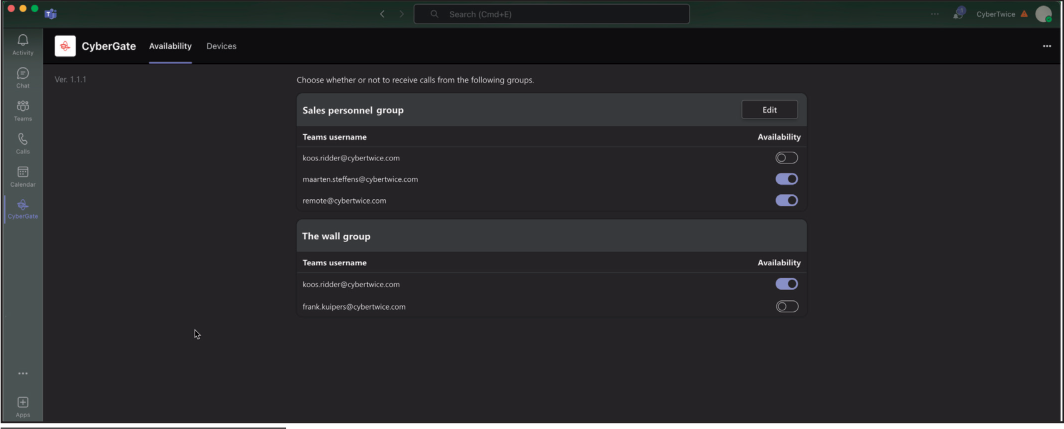
After installation, the CyberGate app will open and show the availability menu
-
Pin the app (recommended): Right-click on the CyberGate icon and select ‘Pin’
Feature 1: Availability
Section titled “Feature 1: Availability”How It Works
Section titled “How It Works”The CyberGate app uses the same credentials as Microsoft Teams and automatically retrieves information about Multi-ring groups you belong to.

Example Scenario
Section titled “Example Scenario”In this example, the user koos.ridder@cybertwice.com is part of two Multi-ring groups:
| Group | Members | User Role |
|---|---|---|
| Sales personnel group | 3 users | Supervisor (*) |
| The wall group | 2 users | Normal user |
User Roles
Section titled “User Roles”| Role | Permissions |
|---|---|
| Supervisor | Can set availability for ALL users in the group, can add/remove users |
| Normal User | Can only set their OWN availability status |
Availability Status
Section titled “Availability Status”| Status | Effect |
|---|---|
| Available | You can be called by CyberGate |
| Unavailable | You won’t be called by CyberGate |
Note: Availability status changes take effect immediately.
Tip: To configure the supervisor role for a Multi-ring group, use the CyberGate Management Portal.
Feature 2: Devices
Section titled “Feature 2: Devices”How It Works
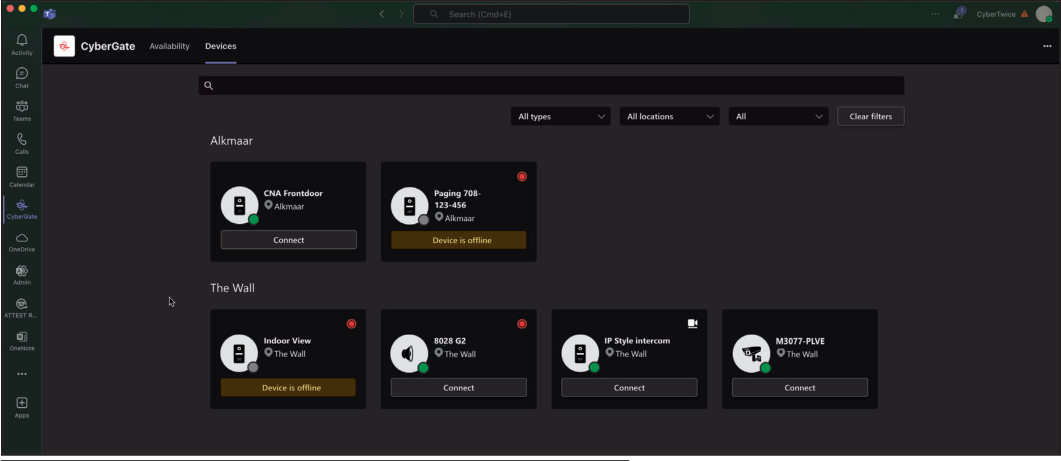
Section titled “How It Works”The Devices menu shows an overview of all configured devices in your Tenant, sorted by location. You can filter results to find specific devices.
Device Tile Information
Section titled “Device Tile Information”Each device tile displays:
| Information | Description |
|---|---|
| Device Type | Intercom, camera, or audio/paging |
| Device Name | Configured name of the device |
| Online Status | Whether the device is online or offline |
| Recording Status | Whether recording is enabled |
| Two-Way Video | Whether two-way video is configured |
Connect Button
Section titled “Connect Button”If a device is configured to receive calls from Microsoft Teams, a Connect button will appear. Clicking this button initiates a call to the device.
Note: The devices shown to a user can be limited using the Device access settings in the CyberGate Management Portal.
Document History
Section titled “Document History”| Version | Date | Author | Change |
|---|---|---|---|
| 1.0.0 | 2022-04-15 | KR | Initial version |
| 1.0.1 | 2022-05-16 | KR | Fixed typos |
| 1.0.2 | 2022-07-26 | KR | Added supported devices (Pagers, Alerters) |
| 1.0.3 | 2022-08-29 | KR | Added Secure Communication (SIP-TLS / SRTP) |
| 1.0.4 | 2024-10-08 | KR | Updated images |
| 1.0.5 | 2024-11-13 | KR | Fixed text and added CyberGate app appendix |