Commend SIP Intercom Terminal
Version: 1.0.7 ENG
Date: August 13, 2025
Product: CyberTwice CyberGate with Commend SIP Intercom Terminal
Commend SIP Intercom Terminal Overview
Section titled “Commend SIP Intercom Terminal Overview”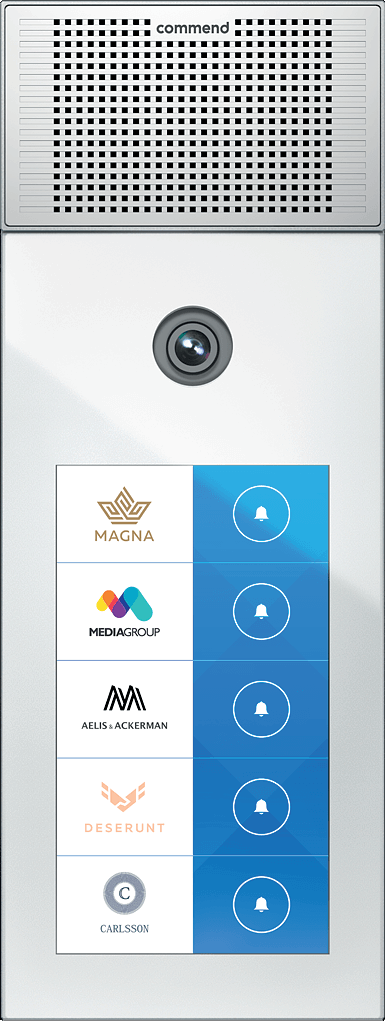
This document uses the OD5 TDCM Outdoor Station as the reference device. Other Commend SIP Intercom Terminals are also supported:
| Model | Description |
|---|---|
| OD5 | Outdoor Station |
| OD10 | Outdoor Station |
| ID5 | Indoor Station |
| ID8 | Indoor Station |
| IM6 | Indoor Station |
Security Features
Section titled “Security Features”Commend SIP Intercoms are certified for secure communication with CyberGate using:
- SIP TLS (Transport Layer Security)
- SRTP (Secure Real-time Transport Protocol)
Recommendation: Start by configuring the Commend using TCP first. Once the connection and test calls are successful, modify the configuration to use secure communication (see Secure Communication).
Document Contents
Section titled “Document Contents”| Section | Description |
|---|---|
| Configuration Steps | Steps to configure the Commend for CyberGate |
| Secure Communication | Enable encrypted SIP-TLS connection |
| Appendix: CyberGate App | Installation and usage of the CyberGate Teams app |
CyberGate Teams App Features
Section titled “CyberGate Teams App Features”The CyberGate app for Microsoft Teams provides:
- 🚪 Open door — Click a button to open the intercom door during a call
- 📊 Device status — View device online/offline status and initiate calls with one click
- 👥 Availability — Set your status in CyberGate Multi-ring groups
Recommendation: Installation of the CyberGate app for Microsoft Teams is highly recommended.
Configuration Steps
Section titled “Configuration Steps”Step 1: Connect to the Commend
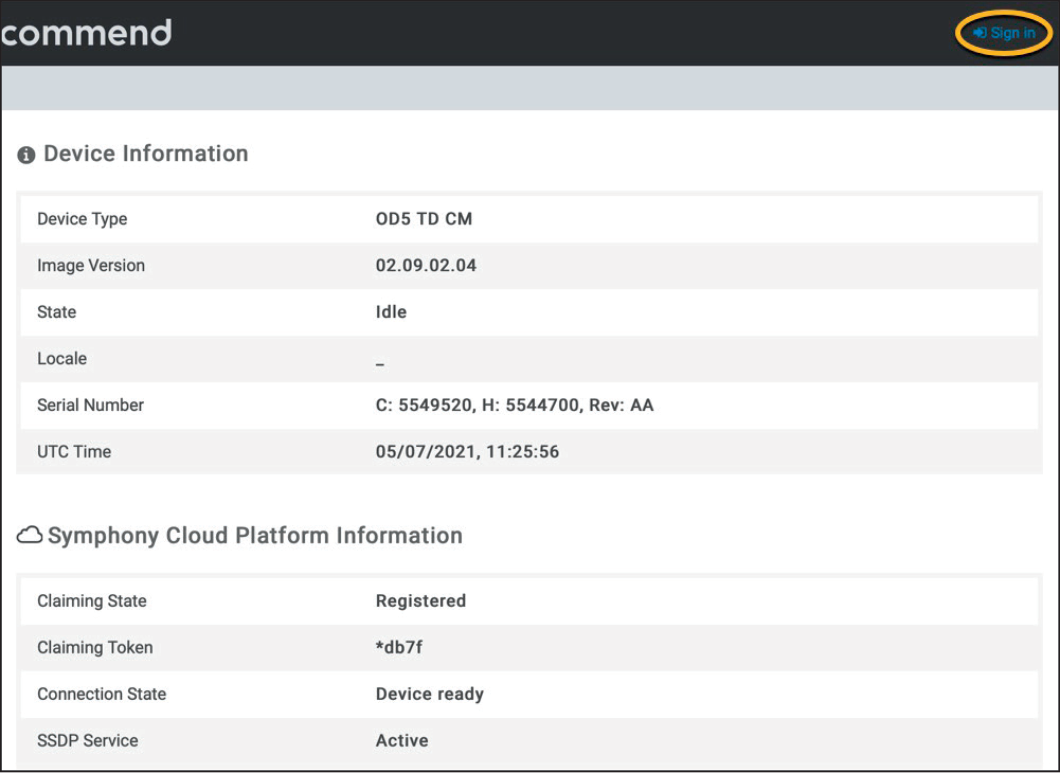
Section titled “Step 1: Connect to the Commend”- Connect the Commend to the network
- Power it on
- Open a web browser and navigate to the device’s IP address
- Sign in as ‘admin’ with the configured or default password
Step 2: Configure SIP Settings
Section titled “Step 2: Configure SIP Settings”- After signing in successfully, navigate to the SIP → SIP menu
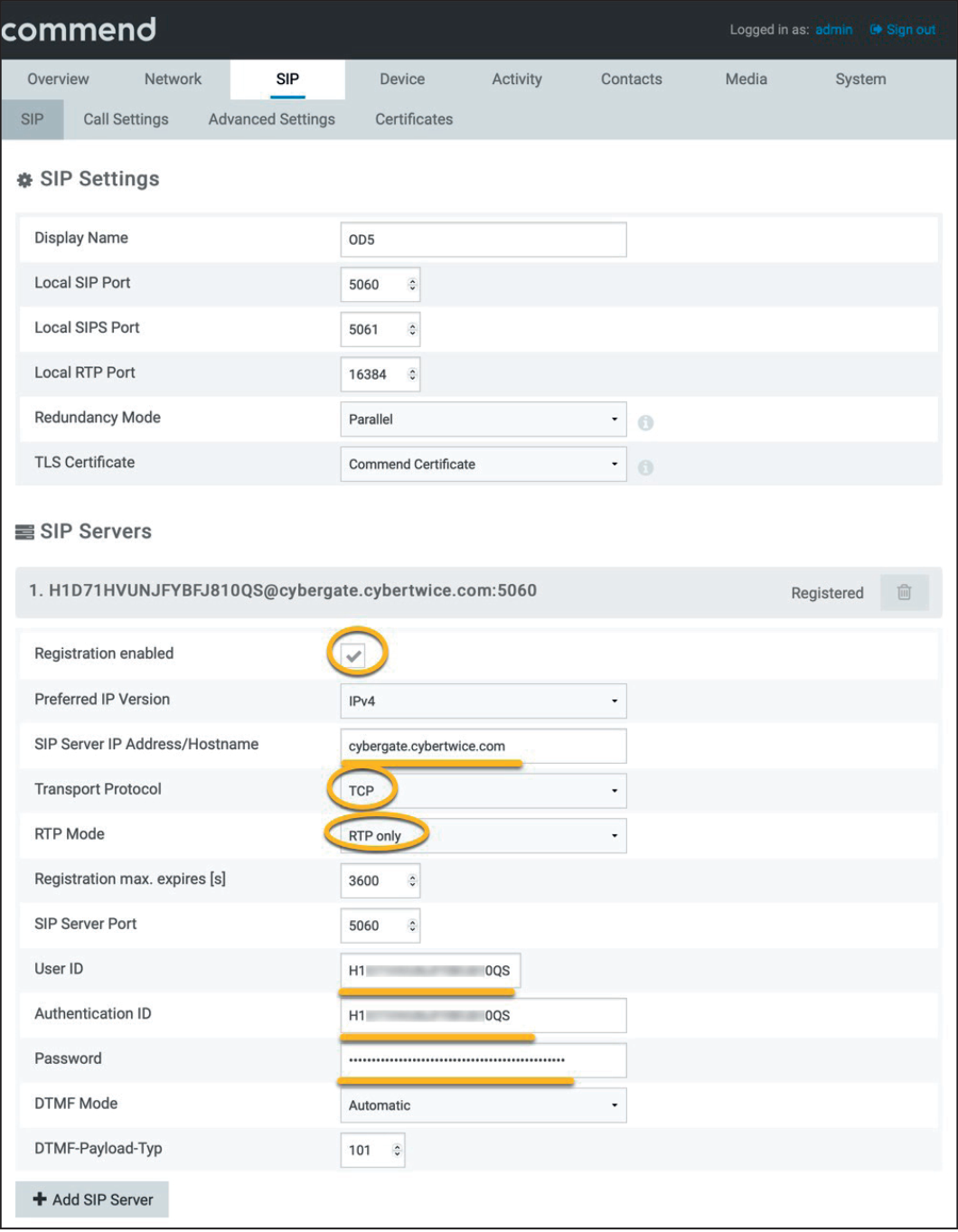
- Configure the following settings:
SIP Servers
Section titled “SIP Servers”| Field | Value |
|---|---|
| Registration enabled | Yes |
| Preferred IP Version | IPv4 |
| SIP server IP Address / Hostname | cybergate.cybertwice.com |
| Transport Protocol | TCP |
| RTP Mode | RTP only |
| User ID | Use the Username from CyberGate Management Portal |
| Authentication ID | Use the Username from CyberGate Management Portal |
| Password | Use the Password from CyberGate Management Portal |
- Click the blue ‘Save’ button when done
Step 3: Configure Call Settings
Section titled “Step 3: Configure Call Settings”- Navigate to the SIP → Call Settings menu
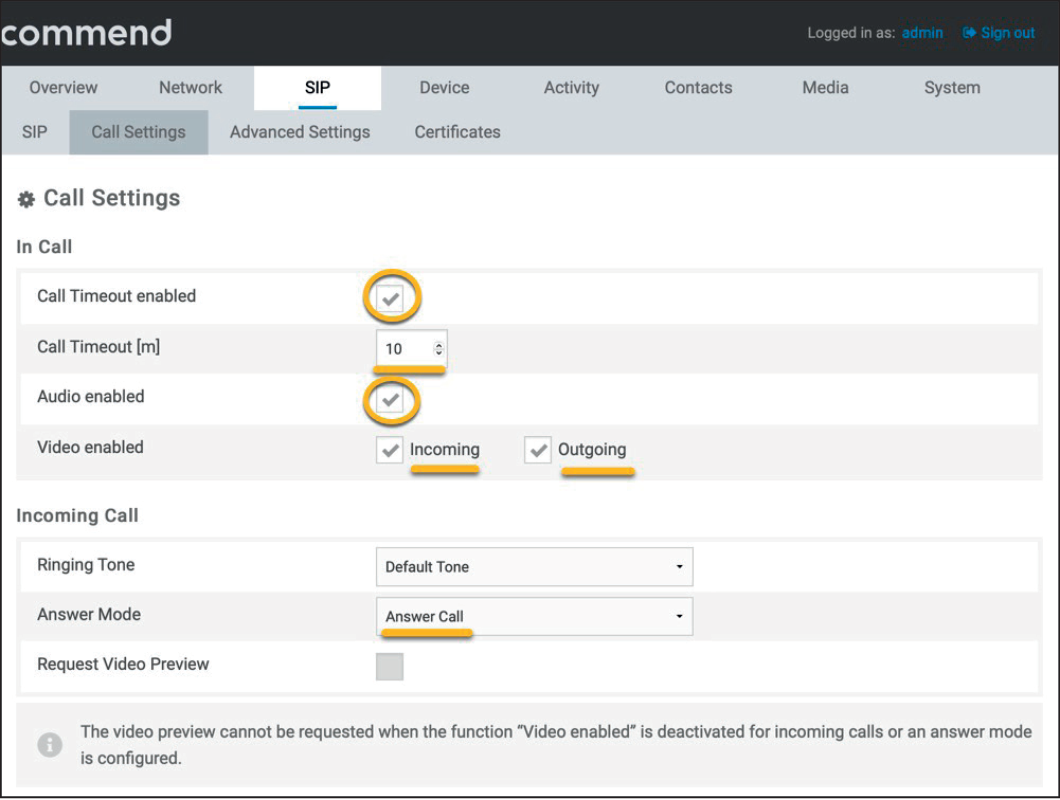
- Configure the following settings:
In Call
Section titled “In Call”| Field | Value |
|---|---|
| Call Timeout enabled | Yes |
| Call Timeout [m] | 10 |
| Audio enabled | Yes |
| Video enabled | Incoming and Outgoing |
| Answer Mode | Answer Call |
Step 4: Add Contact (Call Destination)
Section titled “Step 4: Add Contact (Call Destination)”- Navigate to the Contacts → Contacts menu
- Click the ’+’ symbol to add a contact
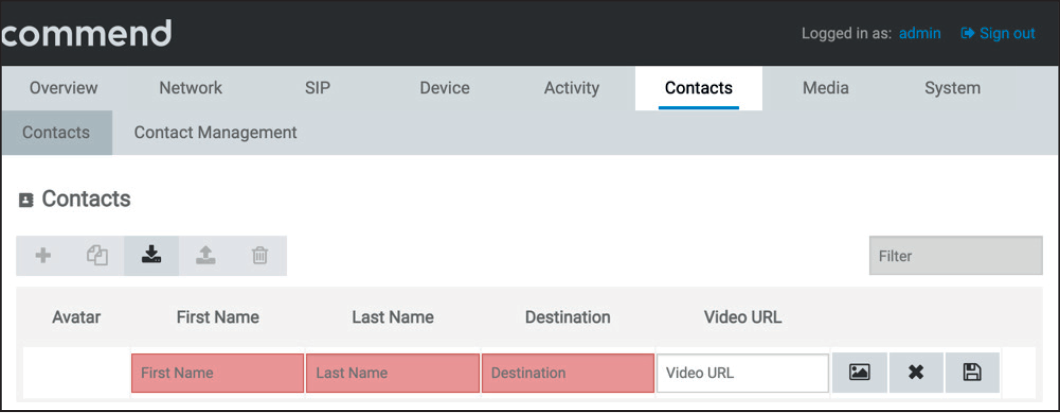
- Configure the following settings:
| Field | Value |
|---|---|
| First name | First name of the contact |
| Last name | Last name of the contact |
| Destination | Teams user name followed by the domain (see format below) |
Destination Address Format
Section titled “Destination Address Format”Use the format: <name.name>@cybergate.cybertwice.com
Example:
For Teams user John Doe with emailjohn.doe@mycompany.com
Enter:john.doe@cybergate.cybertwice.com
- Click ‘Save’ when done
Step 5: Configure Device Button
Section titled “Step 5: Configure Device Button”- Navigate to the Device → Device menu
- Change the layout to your preference (e.g., ‘Door’)
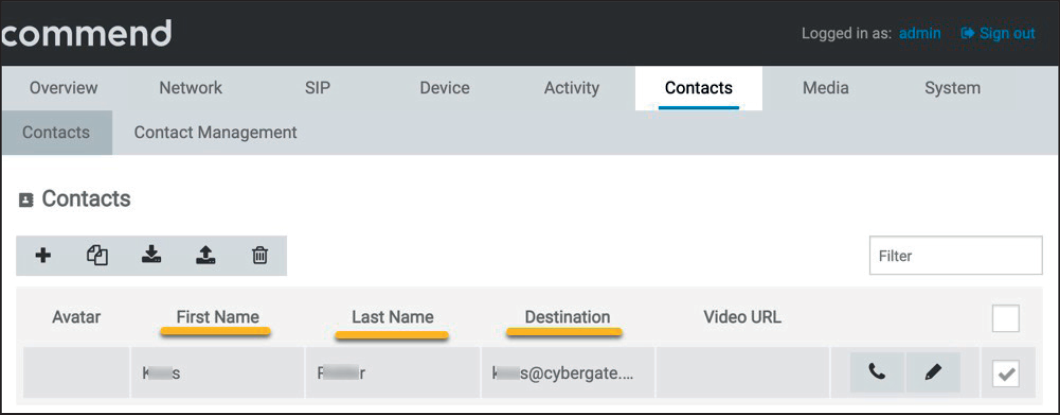
- Configure the button:
| Field | Value |
|---|---|
| Text | Descriptive name for the person to call (e.g., Reception, Sales, Person name) |
| Action or Action Sequence | Select the contact you created in Step 4 |
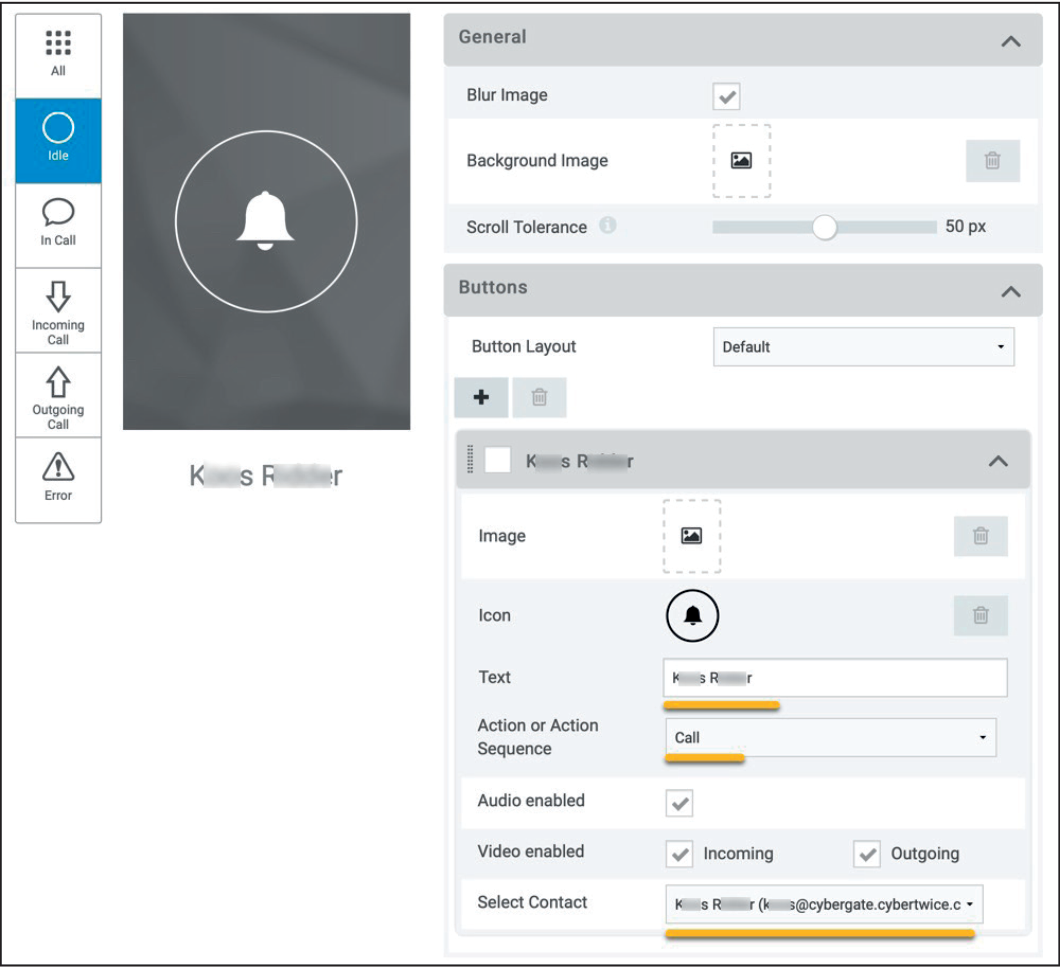
- Click the blue ‘Save’ button when done
Testing the Configuration
Section titled “Testing the Configuration”Configuration is now complete!
Making a Test Call
Section titled “Making a Test Call”-
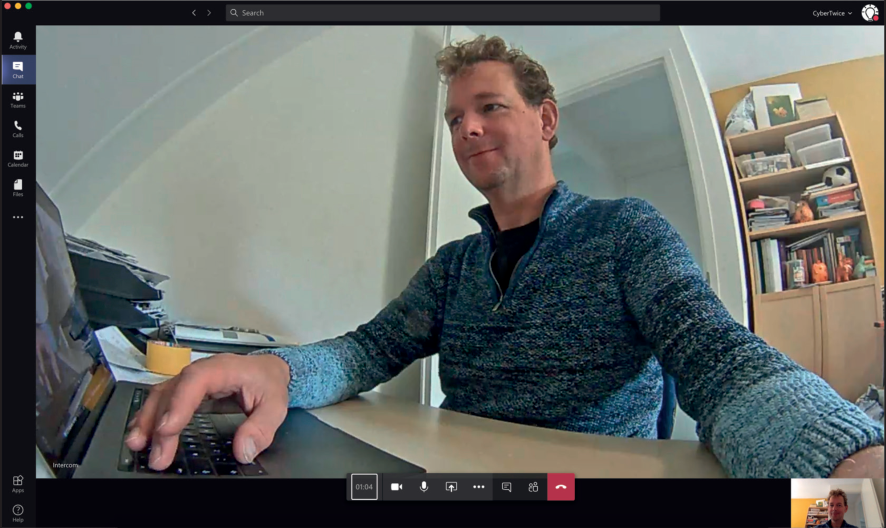
Press the button on the Commend to initiate a call to the configured Teams user
-
If configured correctly, the Teams client will notify you of an incoming call
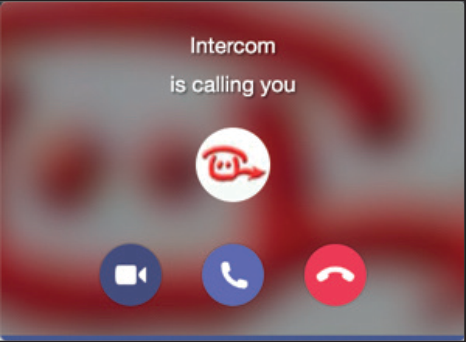
-
Answer the call by clicking the camera symbol
-
The call will be established and video will display within approximately 3 seconds
Opening the Door
Section titled “Opening the Door”To open the door from the Teams call:
- Click on the Dial pad symbol in the call screen
- Use the default DTMF code ‘1’ to trigger the relay in the Commend and open the door
Secure Communication over SIP-TLS
Section titled “Secure Communication over SIP-TLS”For encrypted communication with CyberGate, modify the configuration as follows:
Step 1: Enable TLS and SRTP
Section titled “Step 1: Enable TLS and SRTP”-
Navigate to the SIP → SIP menu
-
Modify the following settings:
| Field | Value |
|---|---|
| Transport Protocol | TLS |
| RTP Mode | SRTP Only |
- Click ‘Save’ when done
Step 2: Upload CA Certificate
Section titled “Step 2: Upload CA Certificate”-
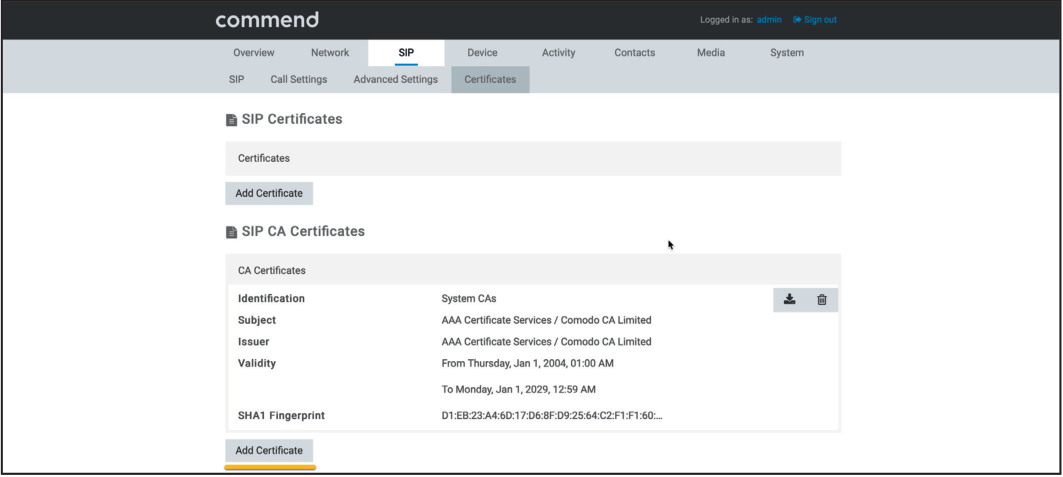
Navigate to the SIP → Certificates menu
-
Download the CA Root Certificate from the CyberTwice support site:
https://support.cybertwice.com/knowledgebase.php?article=36 -
At ‘SIP CA Certificates’, click ‘Add Certificate’
- Configure the certificate:
| Field | Value |
|---|---|
| Identification | Describe the certificate (e.g., ‘System CAs’) |
| CA Certificate | Upload the CA Root Certificate |
- Click ‘OK’ to upload the certificate
Verify Secure Connection
Section titled “Verify Secure Connection”Check the registration status in the ‘Overview’ menu to confirm the secure connection.
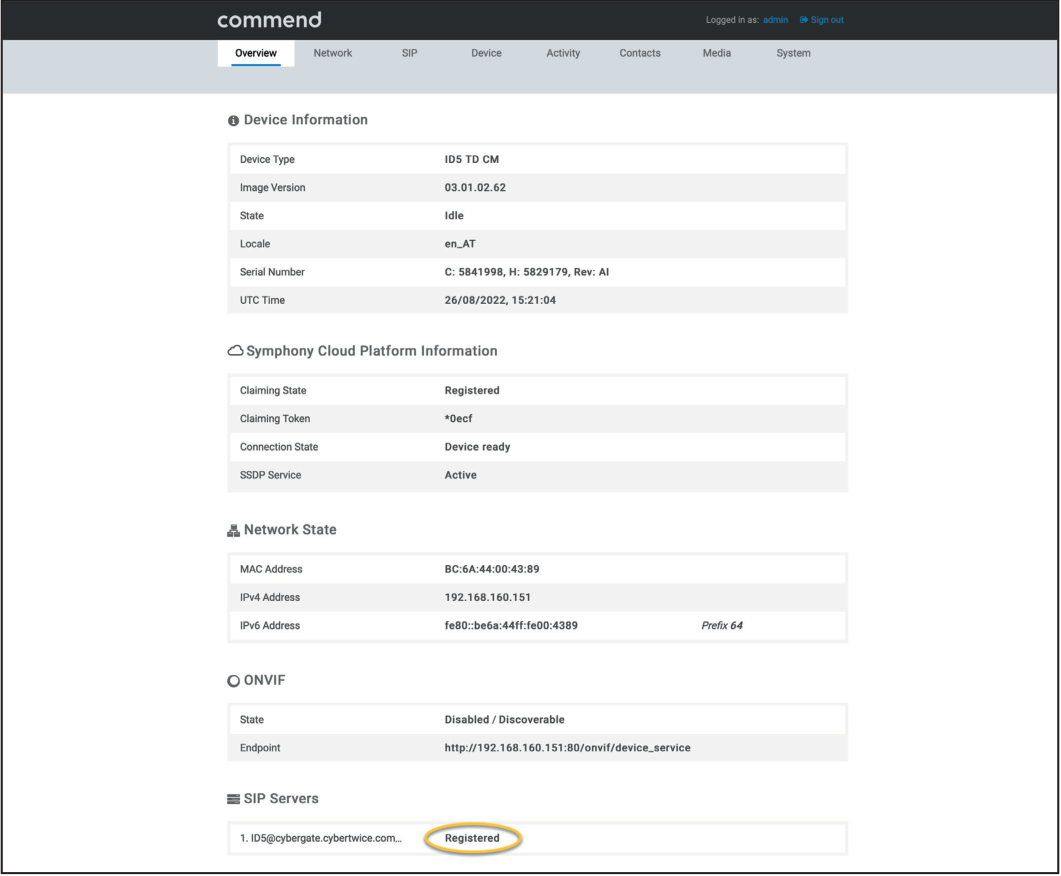
All SIP and Audio/Video traffic to CyberGate will now be encrypted.
Quick Reference
Section titled “Quick Reference”CyberGate Connection Details
Section titled “CyberGate Connection Details”| Setting | Value |
|---|---|
| SIP Server | cybergate.cybertwice.com |
| Transport Protocol (Standard) | TCP |
| Transport Protocol (Secure) | TLS |
| RTP Mode (Standard) | RTP only |
| RTP Mode (Secure) | SRTP Only |
Teams User Address Format
Section titled “Teams User Address Format”username@cybergate.cybertwice.comReplace username with the Teams user’s email prefix (the part before @).
Appendix - CyberGate Teams App
Section titled “Appendix - CyberGate Teams App”Requirements
Section titled “Requirements”To use the CyberGate App, you need a subscription to one of the following CyberGate SaaS solutions:
- ✅ CyberGate for IP Cameras with Teams
- ✅ CyberGate for IP Paging with Teams
- ✅ CyberGate for IP Intercoms with Teams
App Features Overview
Section titled “App Features Overview”The CyberGate Teams app provides three main features:
| Feature | Description |
|---|---|
| Availability | Set your availability status in Multi-ring groups |
| Devices | View device status and initiate calls with one click |
| Door Open | Open doors during calls with a single button click |
Installation
Section titled “Installation”How to Install (Admin Portal Method)
Section titled “How to Install (Admin Portal Method)”- Log in to the Microsoft Teams Admin Portal: https://admin.teams.microsoft.com
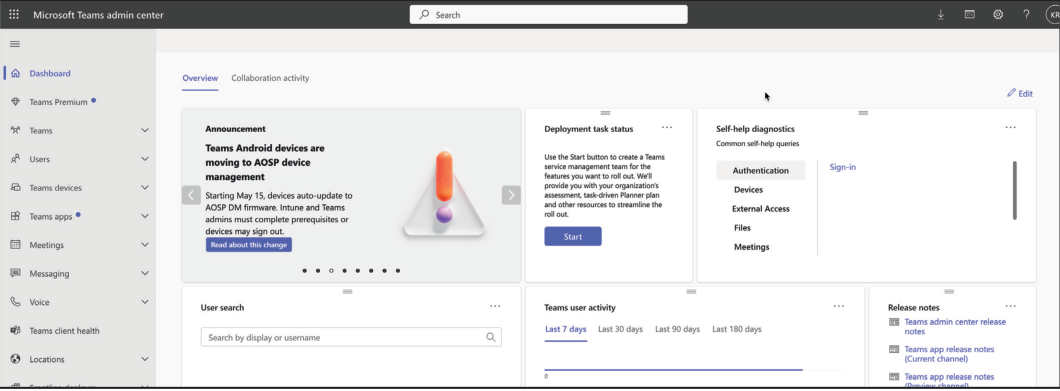
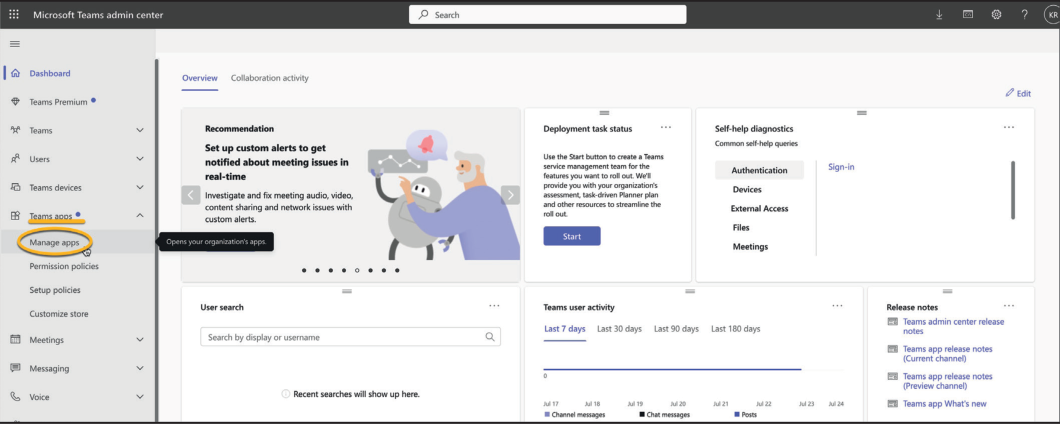
- Navigate to Teams apps → Manage apps
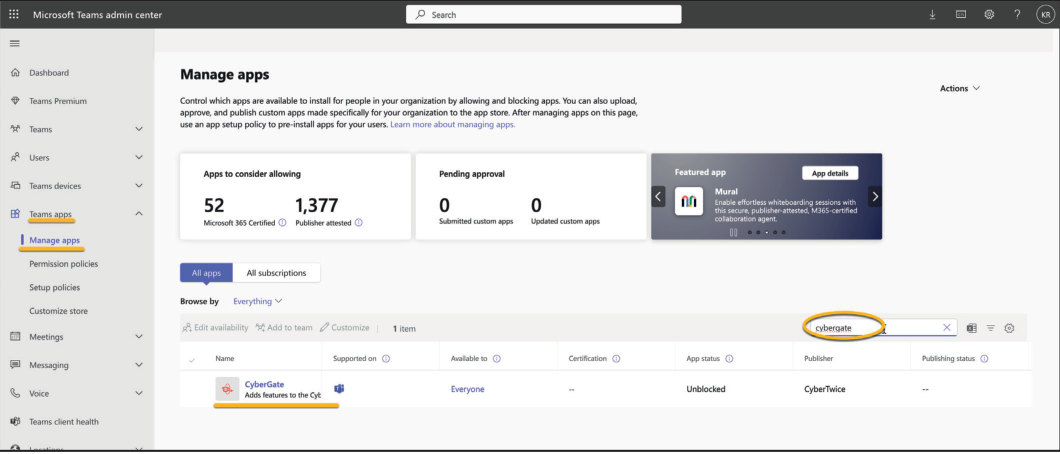
- Search for ‘CyberGate’ using the search box
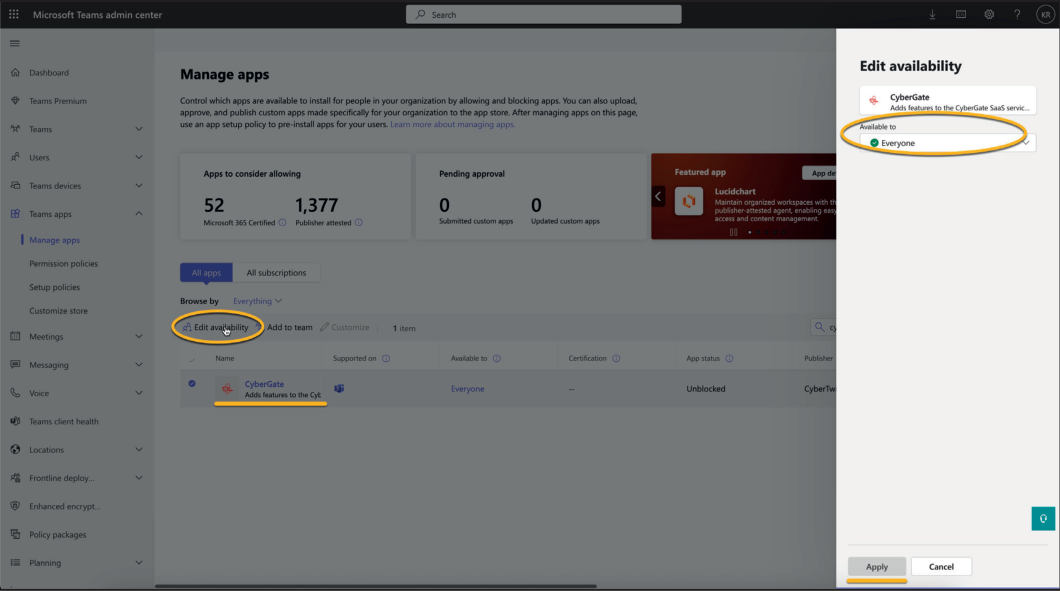
- Select ‘CyberGate’ and click ‘Edit availability’
- Set the CyberGate availability to ‘Everyone’ and click ‘Apply’
Configure Setup Policy
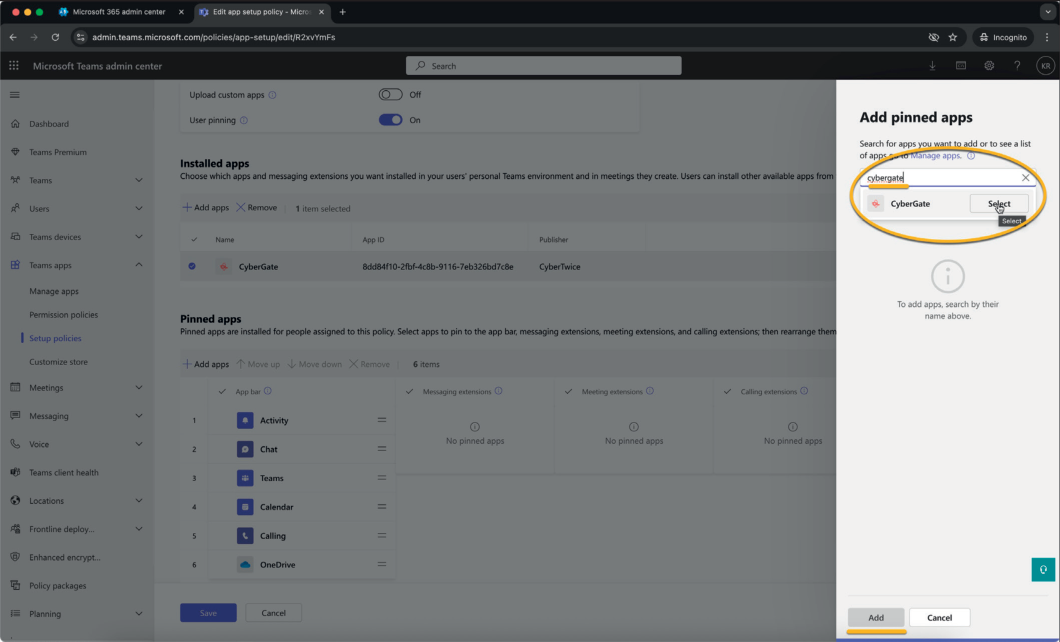
Section titled “Configure Setup Policy”- Navigate to Teams apps → Setup policies
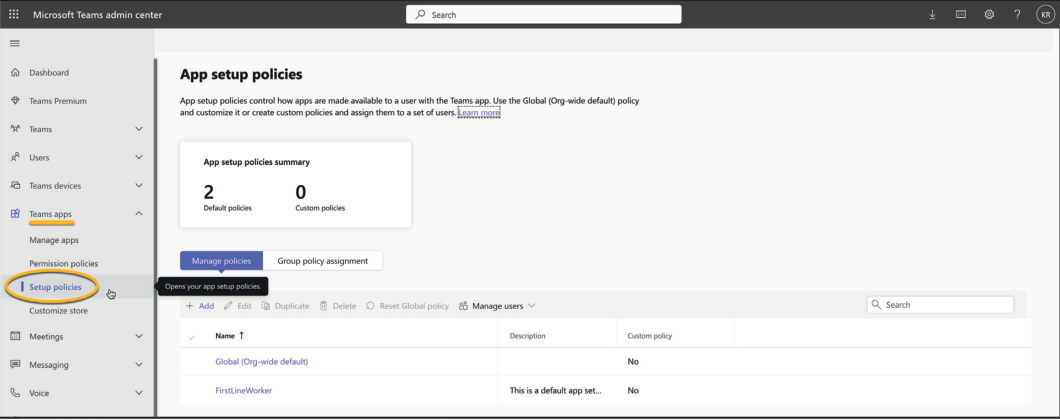
- Select the policy ‘Global (Org-wide default)’
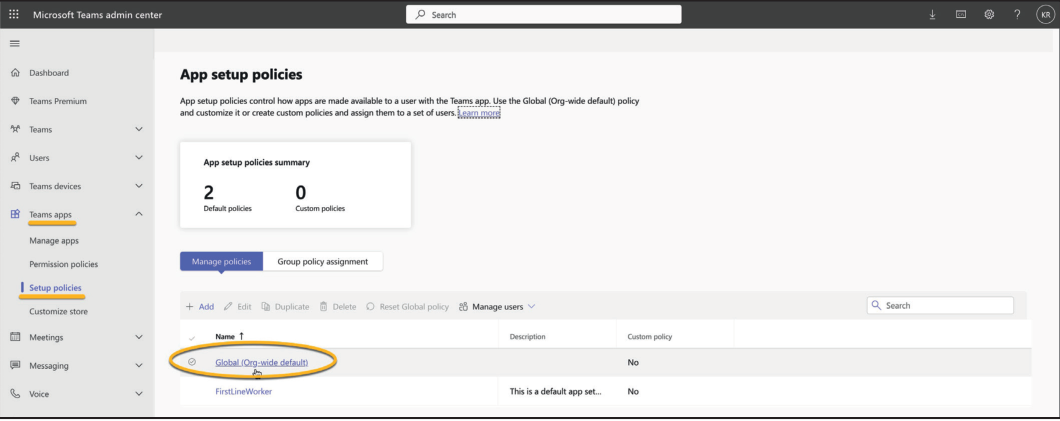
- At ‘Installed apps’, click ‘Add apps’
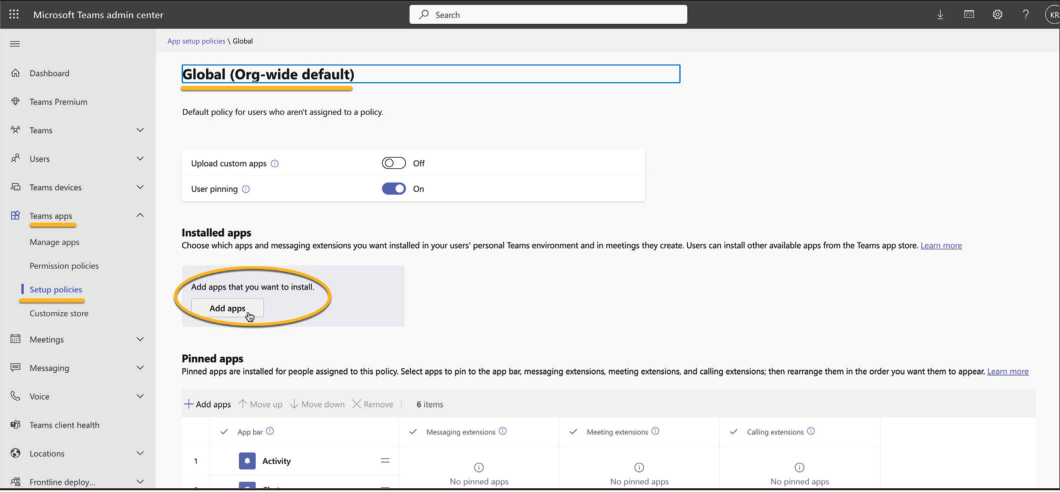
- Search for ‘CyberGate’, select it, and add it
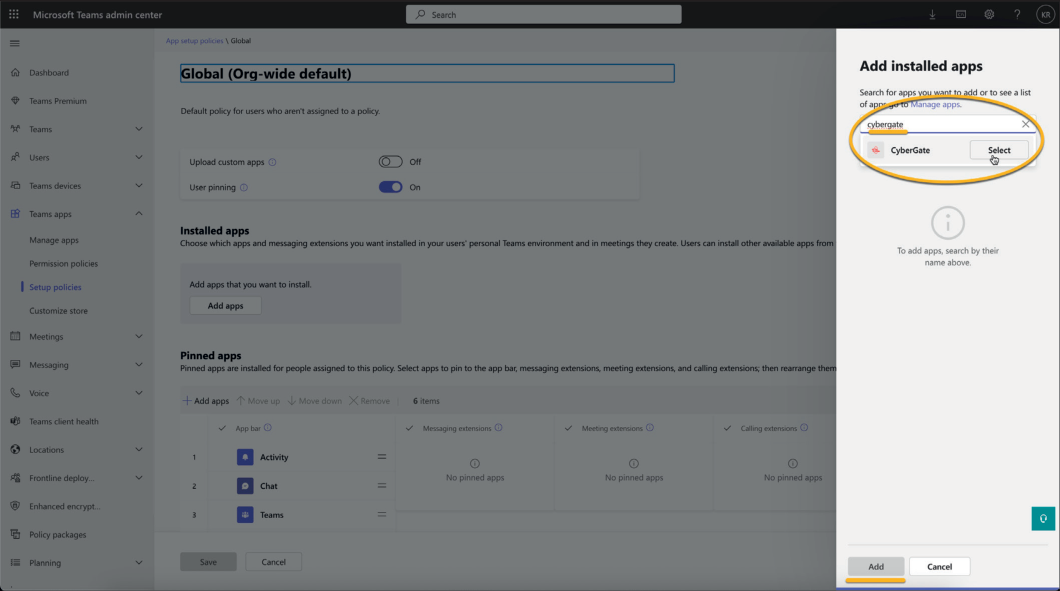
- At ‘Pinned apps’, click ‘Add apps’ and add CyberGate
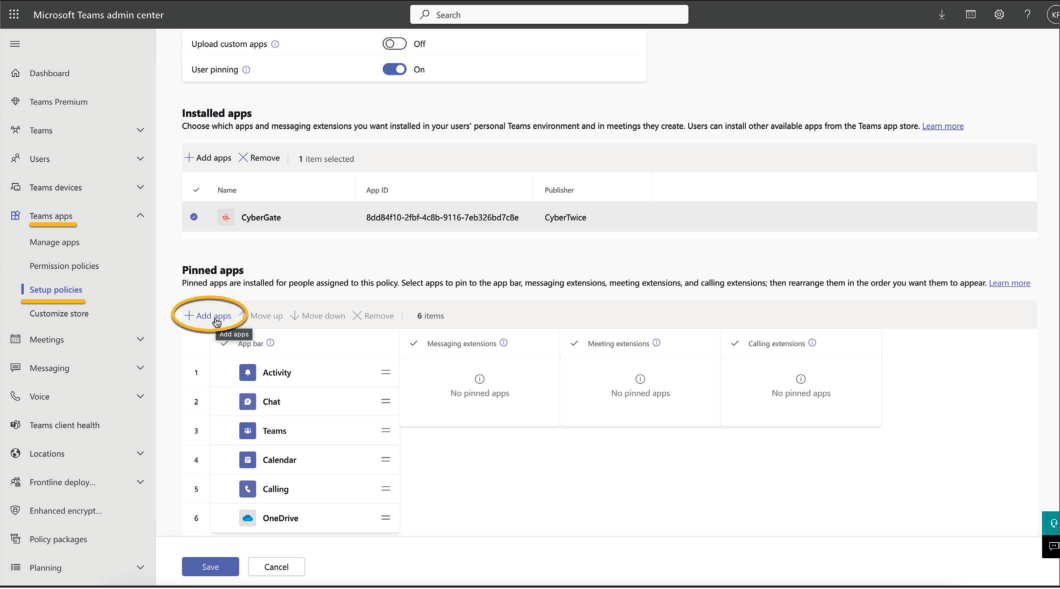
- Search for ‘CyberGate’, select it, and add it
The CyberGate app will show as pinned in the App bar and in the ‘Calling extensions’.
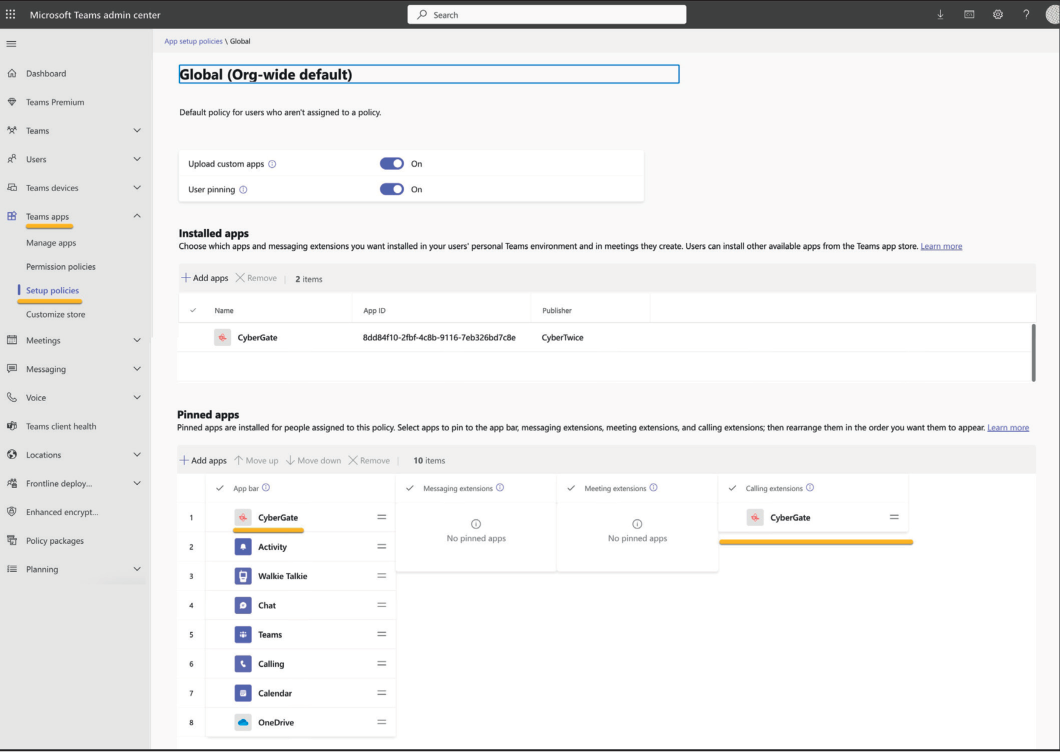
Note: The policy change will take up to 24 hours. After that, the CyberGate app will be available for all Teams users in the organisation.
Feature 1: Availability
Section titled “Feature 1: Availability”How It Works
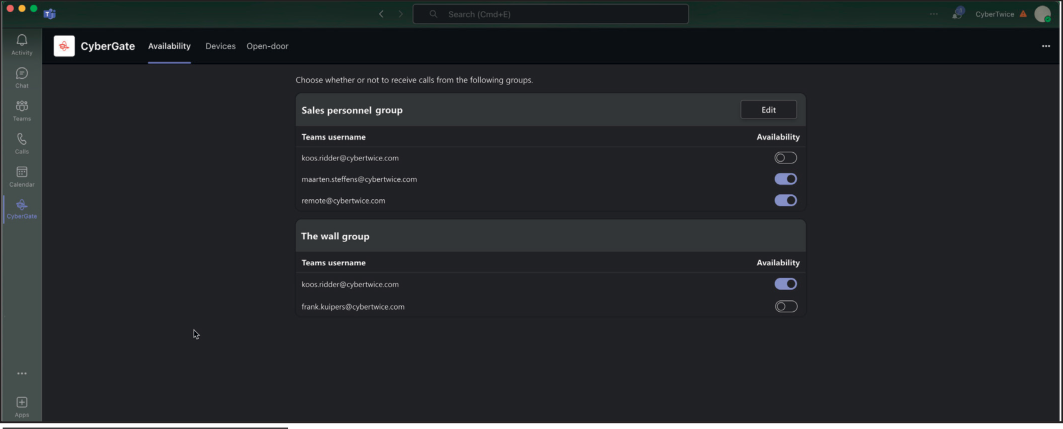
Section titled “How It Works”The CyberGate app uses the same credentials as Microsoft Teams and automatically retrieves information about Multi-ring groups you belong to.
Example Scenario
Section titled “Example Scenario”In this example, the user koos.ridder@cybertwice.com is part of two Multi-ring groups:
| Group | Members | User Role |
|---|---|---|
| Sales personnel group | 3 users | Supervisor (*) |
| The wall group | 2 users | Normal user |
User Roles
Section titled “User Roles”| Role | Permissions |
|---|---|
| Supervisor | Can set availability for ALL users in the group, can add/remove users |
| Normal User | Can only set their OWN availability status |
Availability Status
Section titled “Availability Status”| Status | Effect |
|---|---|
| Available | You can be called by CyberGate |
| Unavailable | You won’t be called by CyberGate |
Note: Availability status changes take effect immediately.
Tip: To configure the supervisor role for a Multi-ring group, use the CyberGate Management Portal.
Feature 2: Devices
Section titled “Feature 2: Devices”How It Works
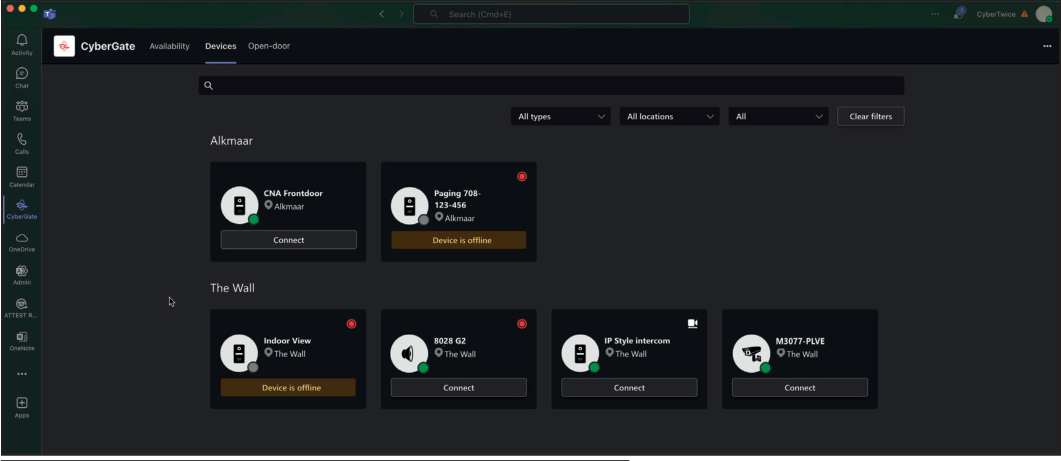
Section titled “How It Works”The Devices menu shows an overview of all configured devices in your Tenant, sorted by location. You can filter results to find specific devices.
Device Tile Information
Section titled “Device Tile Information”Each device tile displays:
| Information | Description |
|---|---|
| Device Type | Intercom, camera, or audio/paging |
| Device Name | Configured name of the device |
| Online Status | Whether the device is online or offline |
| Recording Status | Whether recording is enabled |
| Two-Way Video | Whether two-way video is configured |
Connect Button
Section titled “Connect Button”If a device is configured to receive calls from Microsoft Teams, a Connect button will appear. Clicking this button initiates a call to the device.
Note: The devices shown to a user can be limited using the Device access settings in the CyberGate Management Portal.
Feature 3: Door-Open Button
Section titled “Feature 3: Door-Open Button”Introduction
Section titled “Introduction”During a call between the intercom and a Teams user, you can easily open the door by clicking a button on the sidebar.
How to Activate
Section titled “How to Activate”Step 1: Configure Open Door Code
Section titled “Step 1: Configure Open Door Code”-
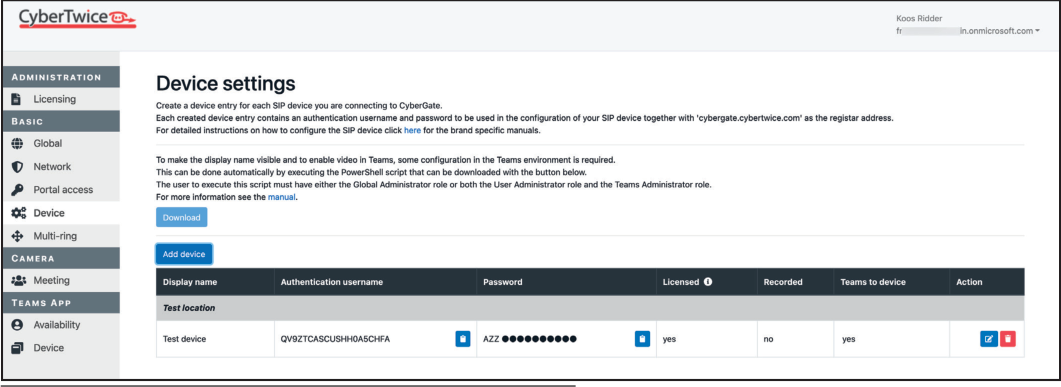
Log in to the CyberGate Management Portal
-
Navigate to Basic → Device
-
Click the blue edit button to open device details
-
Fill in the ‘Open door code’
Important: The ‘Open door code’ must match the configured open door code in the intercom device!
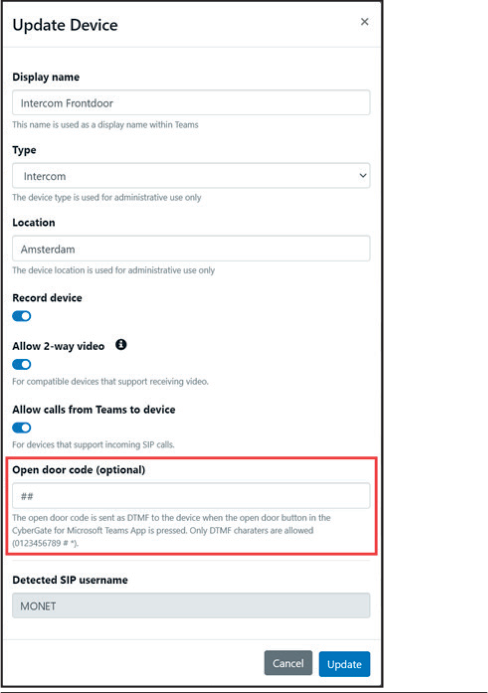
- Click the blue ‘Update’ button
Step 2: Use the Door-Open Button
Section titled “Step 2: Use the Door-Open Button”-
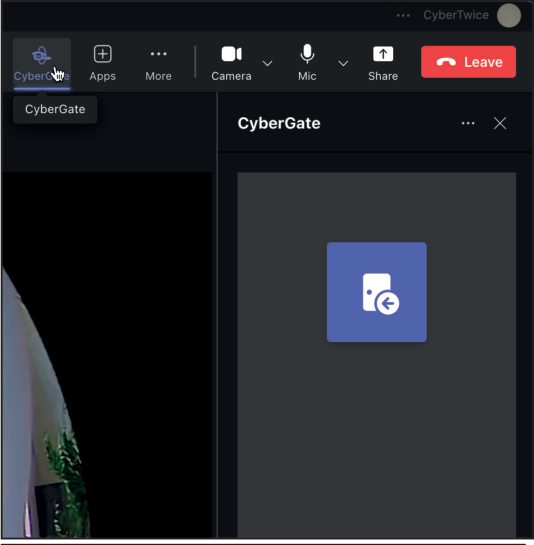
During a call from the intercom, click on the CyberGate logo in the top bar
-
A sidebar will open revealing the Open door button
-
Click the button to open the door
-
End the call when finished
Tip: The Open door button is available automatically during intercom calls.
Document History
Section titled “Document History”| Version | Date | Author | Change |
|---|---|---|---|
| 1.0.0 | 2021-07-06 | KR | Initial version |
| 1.0.1 | 2021-07-12 | KR | Fixed typos |
| 1.0.2 | 2022-08-26 | KR | Added Security (SIP TLS and SRTP) |
| 1.0.3 | 2024-03-14 | KR | Modified text and added ID8 & IM6 as certified devices |
| 1.0.4 | 2024-06-05 | KR | Fixed typos |
| 1.0.5 | 2024-10-14 | KR | Updated screenshots |
| 1.0.6 | 2024-11-07 | KR | Fixed text and added CyberGate app appendix |
| 1.0.7 | 2025-08-13 | KR | Updated appendix - CyberGate app |