Commend VirtuoSIS
Version: 1.0.2 ENG
Date: November 7, 2024
Product: CyberTwice CyberGate with Commend VirtuoSIS Intercom Server
Commend VirtuoSIS Overview
Section titled “Commend VirtuoSIS Overview”
This document uses an OD5 TDCM Outdoor Station configured behind a VirtuoSIS Intercom Server to connect to the CyberGate service. All other Commend stations that can be connected to VirtuoSIS can also communicate with CyberGate. Video on Teams is only supported with video-compatible devices.
Document Contents
Section titled “Document Contents”| Section | Description |
|---|---|
| Part 1: CyberGate Configuration | Configure CyberGate Admin Portal for SIP Trunk |
| Part 2: VirtuoSIS Configuration | Configure SIP trunk in VirtuoSIS |
| Appendix: CyberGate App | Install and use the CyberGate Teams app |
Important: Technical knowledge of VirtuoSIS and connected Commend devices is required to complete this configuration.
How SIP Trunk Works
Section titled “How SIP Trunk Works”VirtuoSIS communicates with CyberGate via a SIP Trunk. The SIP trunk is one active connection to CyberGate that allows all intercom systems connected to VirtuoSIS to communicate with Microsoft Teams.
CyberGate has a SIP Trunk option that needs to be enabled. It allows you to create a SIP Trunk account with unique credentials. Once this SIP Trunk account is configured in VirtuoSIS, each device that communicates via VirtuoSIS through the SIP Trunk to CyberGate will automatically be added as a “SIP Trunk device” in CyberGate.
SIP Trunk Device Licensing
Section titled “SIP Trunk Device Licensing”- Each SIP Trunk device needs a CyberGate license
- Each SIP Trunk device can be edited (change name, enable/disable two-way video) or deleted
- If more SIP Trunk devices are detected than licenses available, newly added devices are disabled by default
- Free up licenses by deleting unused devices or adding licenses in the License Overview menu
- Added licenses become active within a few minutes
CyberGate Teams App Features
Section titled “CyberGate Teams App Features”The CyberGate app for Microsoft Teams provides:
- 🚪 Open door — Click a button to open the intercom door during a call
- 📊 Device status — View device online/offline status and initiate calls with one click
- 👥 Availability — Set your status in CyberGate Multi-ring groups
Recommendation: Installation of the CyberGate app for Microsoft Teams is highly recommended.
Part 1: CyberGate Admin Portal Configuration
Section titled “Part 1: CyberGate Admin Portal Configuration”Step 1: Enable Trunk Support
Section titled “Step 1: Enable Trunk Support”-
Login to the CyberGate admin portal: https://admin.cybergate.cybertwice.com
-
Navigate to the Tenant settings menu
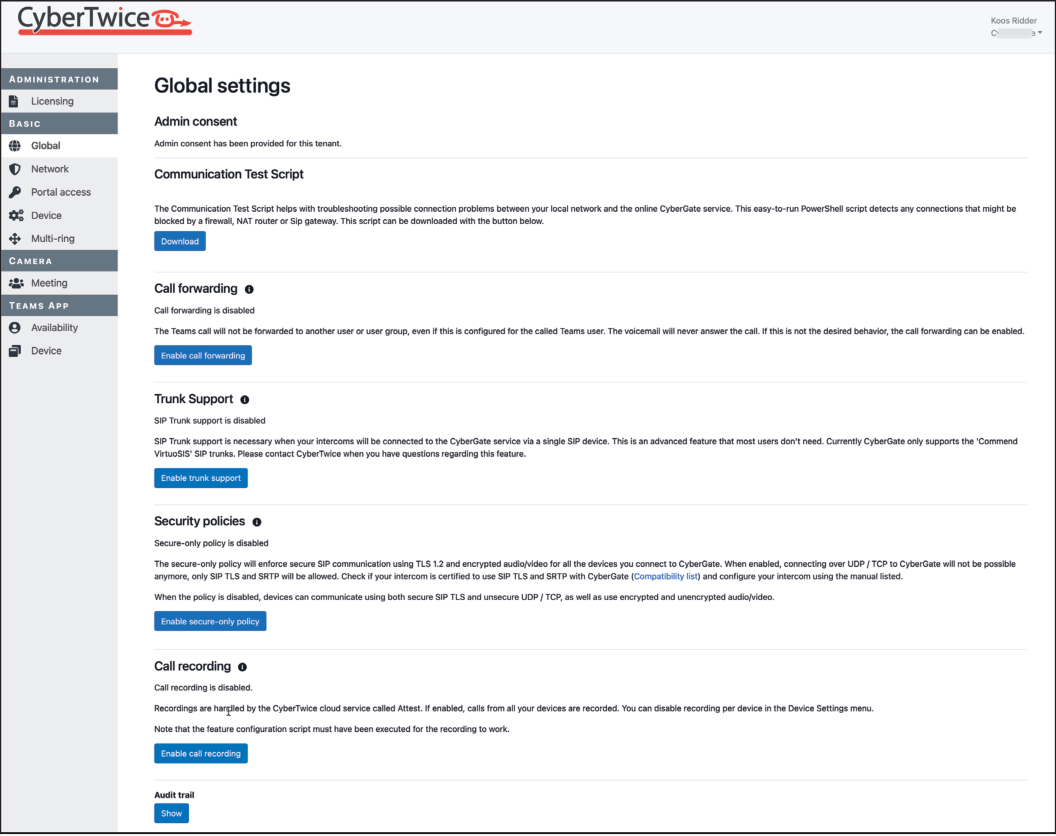
- Trunk support is disabled by default. Click the blue ‘Enable trunk support’ button
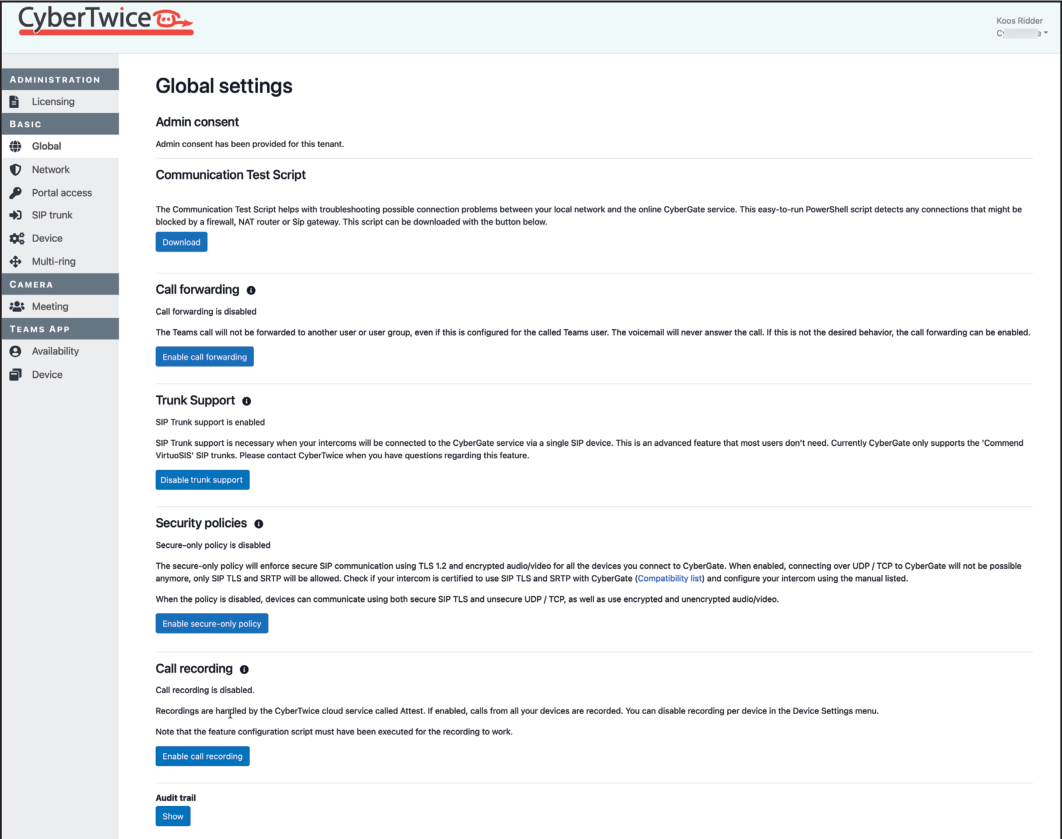
After trunk support is enabled, a new menu called ‘SIP trunk settings’ is added.
Step 2: Create SIP Trunk
Section titled “Step 2: Create SIP Trunk”-
Navigate to the ‘SIP trunk settings’ menu
-
Click the blue ‘Add SIP trunk’ button
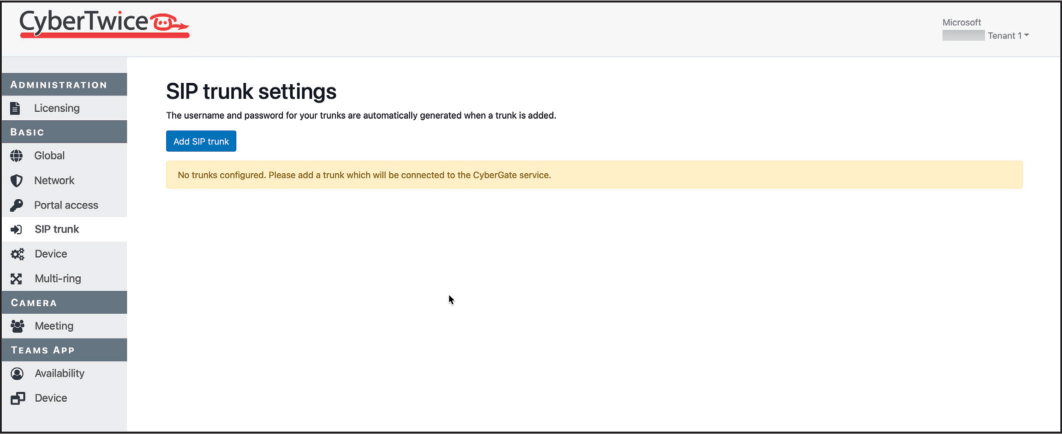
- Provide the following information:
| Field | Value |
|---|---|
| Name | Name the SIP trunk (e.g., “VirtuoSIS”) |
- Click the blue ‘Add’ button
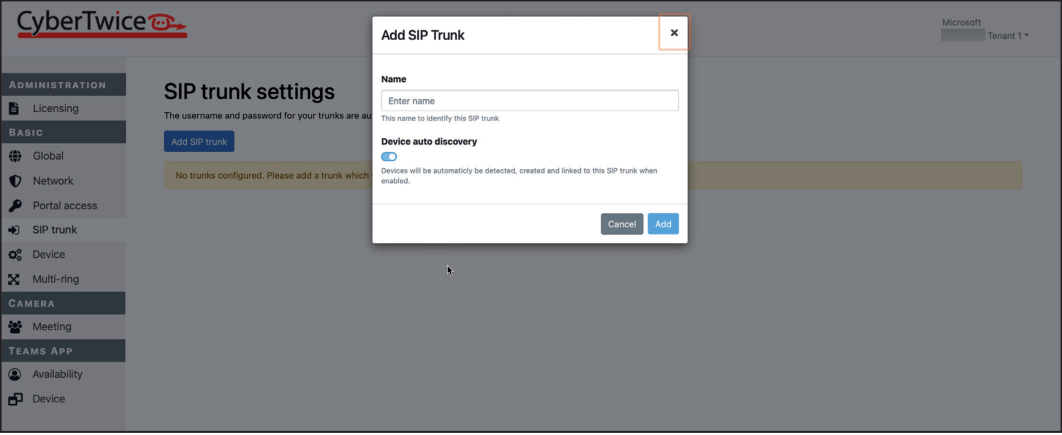
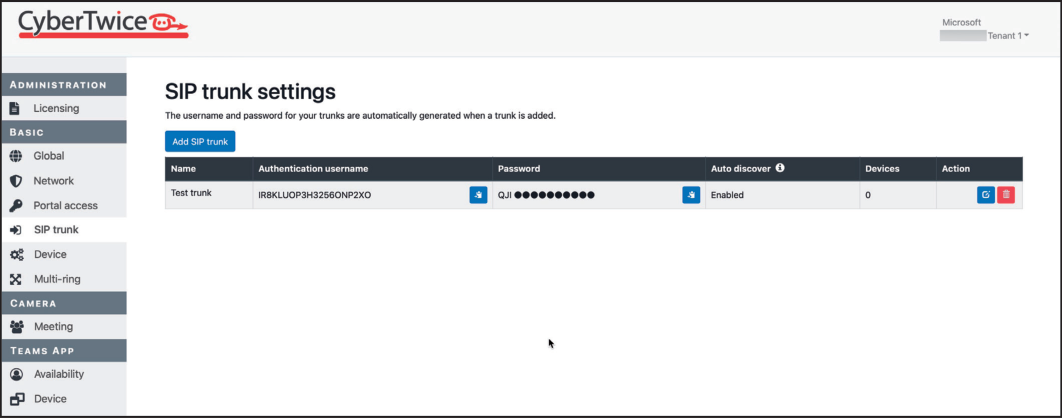
A SIP trunk with the provided name is generated. The Authentication username and password are automatically generated and will be needed for VirtuoSIS configuration.
Step 3: Verify Device Settings
Section titled “Step 3: Verify Device Settings”- Navigate to the Device settings menu
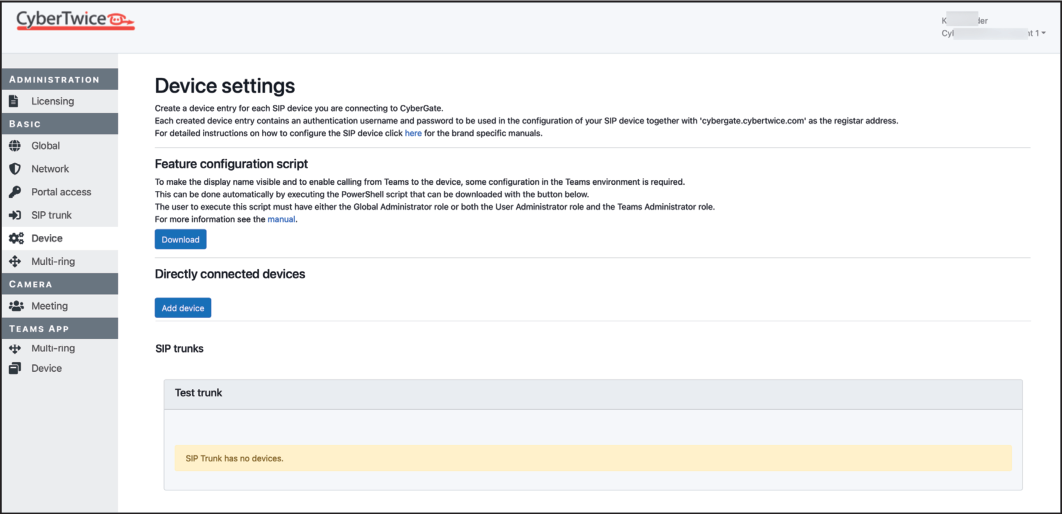
The SIP trunk is shown, but no devices are detected yet. Each device that calls to Microsoft Teams through CyberGate will be automatically added.
Step 4: Create Multi-ring Group
Section titled “Step 4: Create Multi-ring Group”The VirtuoSIS SIP trunk and calls routed through it are addressed as numbers. Teams, however, works with user names (e.g., koos.ridder@domain.com). To address this, you must create at least one Multi-ring group in CyberGate with a number as its name.
-
Navigate to the Multi-ring settings menu
-
Click the blue ‘Add multi-ring group’ button
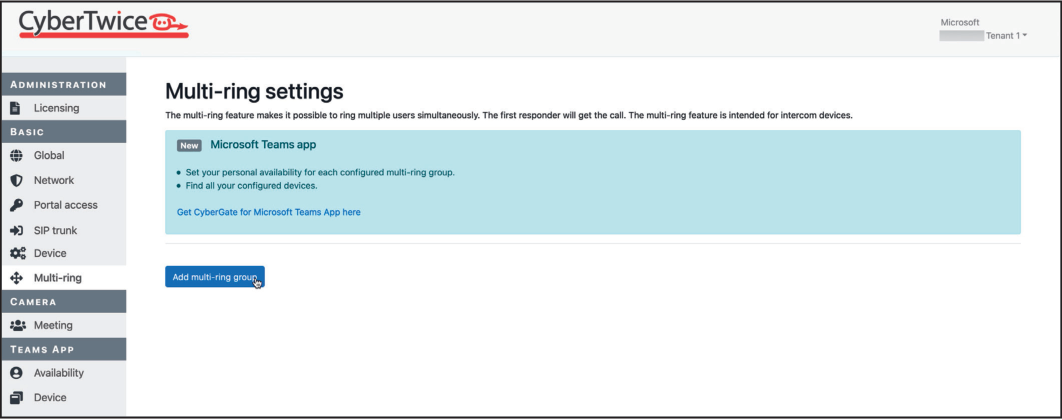
- Provide the following information:
| Field | Value |
|---|---|
| Name | A number (e.g., “123”) |
| Description | Describe this Multi-ring group (e.g., “Demo group”) |
- Click the blue ‘Save’ button
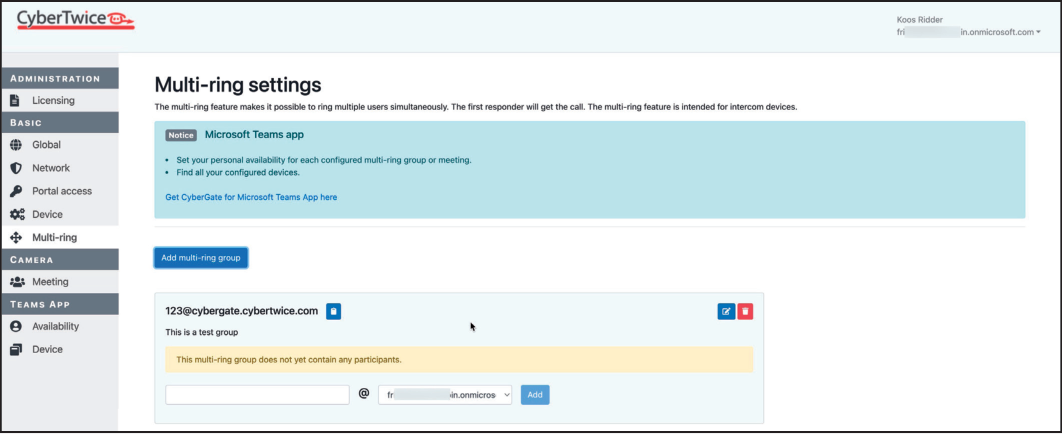
- Add at least one Teams user to this Multi-ring group
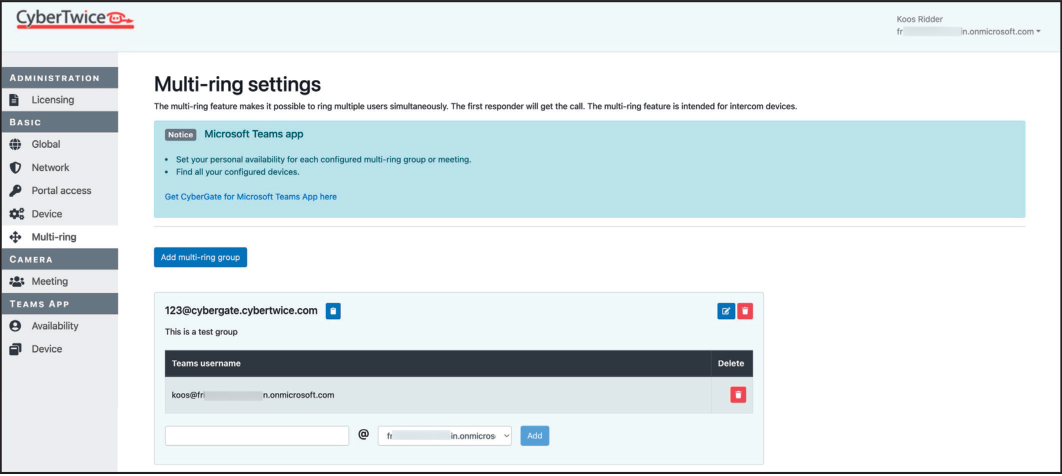
Configuration in the CyberGate Admin Portal is now complete.
Part 2: VirtuoSIS Configuration
Section titled “Part 2: VirtuoSIS Configuration”Step 1: Configure SIP Trunk Settings
Section titled “Step 1: Configure SIP Trunk Settings”-
Login to VirtuoSIS
-
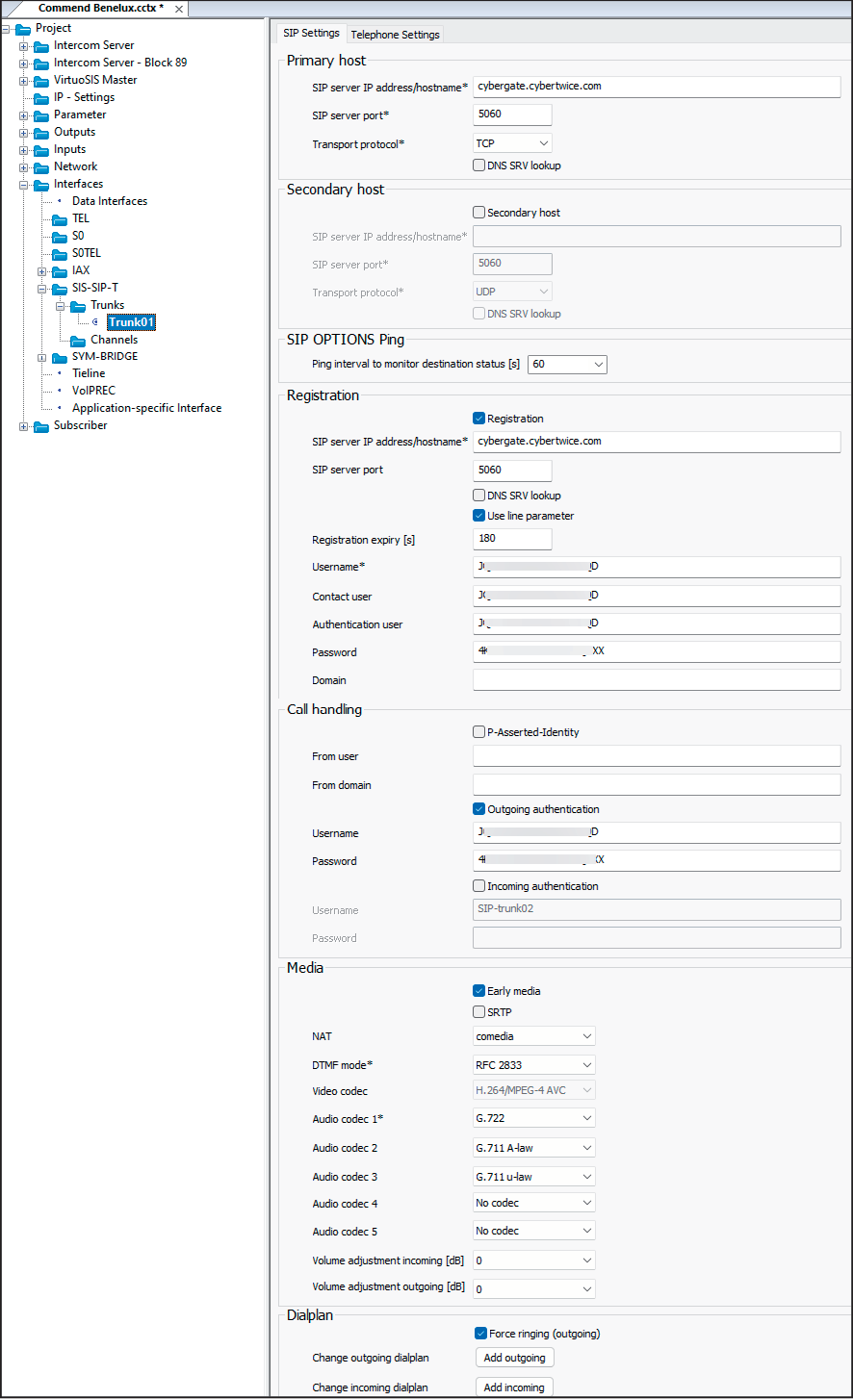
Navigate to Interfaces → SIS-SIP-T → Trunks → Trunk01 → SIP Settings
-
Configure the following settings:
Primary Host
Section titled “Primary Host”| Field | Value |
|---|---|
| SIP server IP address/hostname | cybergate.cybertwice.com |
| Transport protocol | TCP |
Registration
Section titled “Registration”| Field | Value |
|---|---|
| Registration | Enable |
| SIP server IP address/hostname | cybergate.cybertwice.com |
| Username | Use the SIP trunk Authentication username from CyberGate |
| Contact user | Use the SIP trunk Authentication username from CyberGate |
| Authentication user | Use the SIP trunk Authentication username from CyberGate |
| Password | Use the Password from CyberGate |
Call Handling
Section titled “Call Handling”| Field | Value |
|---|---|
| Outgoing authentication | Enable |
| Username | Use the SIP trunk Authentication username from CyberGate |
| Password | Use the Password from CyberGate |
Dial Plan
Section titled “Dial Plan”| Field | Value |
|---|---|
| Force ringing | Enable |
Step 2: Configure Trunk Channels
Section titled “Step 2: Configure Trunk Channels”-
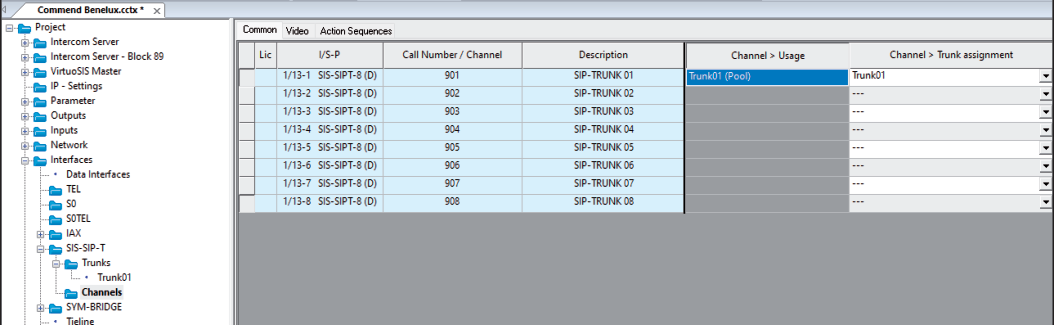
Navigate to Trunks → Channels → Common
-
For the desired Call Number/Channel (e.g., 901), set:
| Field | Value |
|---|---|
| Channel → Trunk assignment | Trunk01 |
This links Channel 901 to Trunk01.
-
Navigate to Trunks → Channels → Video
-
For the desired Call Number (e.g., 901), configure:
| Field | Value |
|---|---|
| Mode | Camera and Monitor |
| Camera Number | 901 |
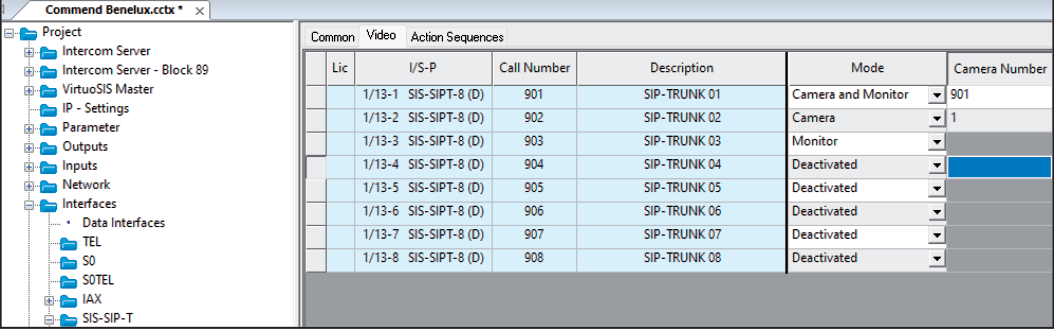
Configuration of the SIP Trunk in VirtuoSIS is now complete.
Making Calls from VirtuoSIS Devices
Section titled “Making Calls from VirtuoSIS Devices”To call from a device behind VirtuoSIS, you need two things:
- The call number for the SIP trunk — Use this as a prefix to route the call through the SIP trunk to CyberGate
- The Multi-ring group number — The number defined in CyberGate that contains the Teams user(s) to call
By dialing prefix + Multi-ring group number, the Teams user will be called.
Example
Section titled “Example”| Item | Value |
|---|---|
| Trunk number | 901 |
| Multi-ring group number | 123 |
| Teams user in group | koos.ridder@domain.com |
Program your device to call 901123 to dial out to Teams user koos.ridder@domain.com.
Testing the Configuration
Section titled “Testing the Configuration”-
Press the button on the intercom to initiate a call
-
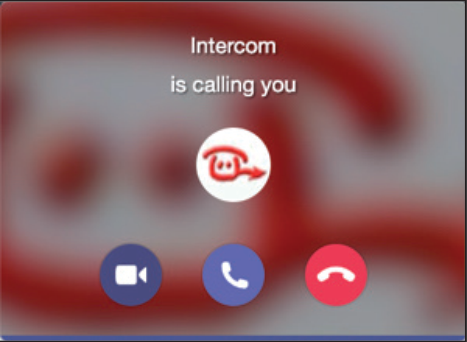
If configured correctly, the Teams client will notify you of an incoming call
-
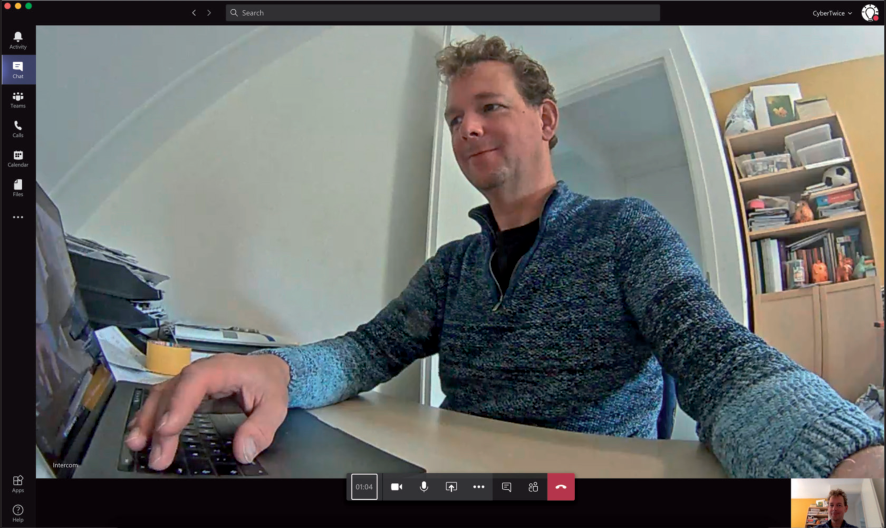
Answer the call by clicking the camera symbol
-
The call will be established and video will display within approximately 3 seconds
Quick Reference
Section titled “Quick Reference”CyberGate Connection Details
Section titled “CyberGate Connection Details”| Setting | Value |
|---|---|
| SIP Server | cybergate.cybertwice.com |
| Transport Protocol | TCP |
Dialing Format
Section titled “Dialing Format”[Trunk Number][Multi-ring Group Number]Example: 901123 calls Multi-ring group 123 via Trunk 901
Appendix - CyberGate Teams App
Section titled “Appendix - CyberGate Teams App”Requirements
Section titled “Requirements”To use the CyberGate App, you need a subscription to one of the following CyberGate SaaS solutions:
- ✅ CyberGate for IP Cameras with Teams
- ✅ CyberGate for IP Paging with Teams
- ✅ CyberGate for IP Intercoms with Teams
App Features Overview
Section titled “App Features Overview”The CyberGate Teams app provides three main features:
| Feature | Description |
|---|---|
| Availability | Set your availability status in Multi-ring groups |
| Devices | View device status and initiate calls with one click |
| Door Open | Open doors during calls with a single button click |
Installation
Section titled “Installation”How to Install
Section titled “How to Install”-
Open Microsoft Teams and click on the ‘Apps’ button in the sidebar
-
Search for ‘cybergate’
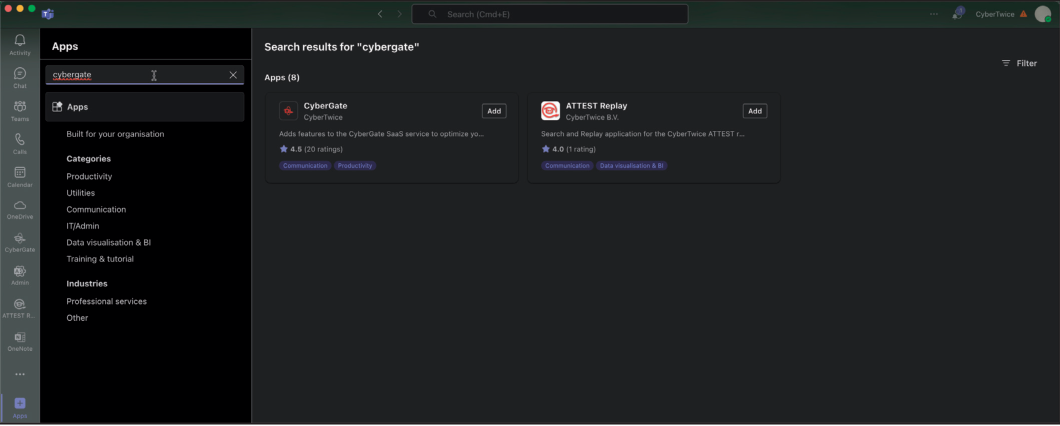
- Click ‘Add’ to add CyberGate to Microsoft Teams
Note: You may be asked to provide consent for basic permissions (View your basic profile, Maintain access to data you have given it access to). Accept these permissions to use the app.
-
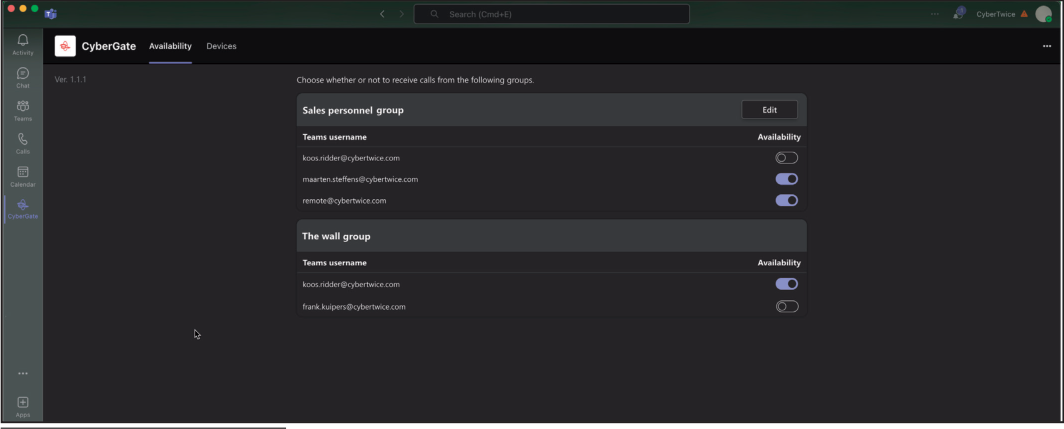
After installation, the CyberGate app will open and show the availability menu
-
Pin the app (recommended): Right-click on the CyberGate icon and select ‘Pin’
Feature 1: Availability
Section titled “Feature 1: Availability”How It Works
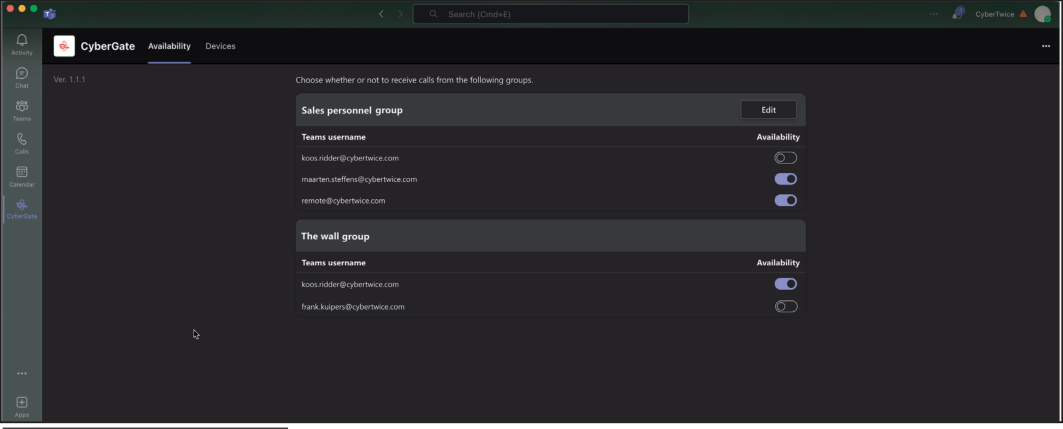
Section titled “How It Works”The CyberGate app uses the same credentials as Microsoft Teams and automatically retrieves information about Multi-ring groups you belong to.
Example Scenario
Section titled “Example Scenario”In this example, the user koos.ridder@cybertwice.com is part of two Multi-ring groups:
| Group | Members | User Role |
|---|---|---|
| Sales personnel group | 3 users | Supervisor (*) |
| The wall group | 2 users | Normal user |
User Roles
Section titled “User Roles”| Role | Permissions |
|---|---|
| Supervisor | Can set availability for ALL users in the group, can add/remove users |
| Normal User | Can only set their OWN availability status |
Availability Status
Section titled “Availability Status”| Status | Effect |
|---|---|
| Available | You can be called by CyberGate |
| Unavailable | You won’t be called by CyberGate |
Note: Availability status changes take effect immediately.
Tip: To configure the supervisor role for a Multi-ring group, use the CyberGate Management Portal.
Feature 2: Devices
Section titled “Feature 2: Devices”How It Works
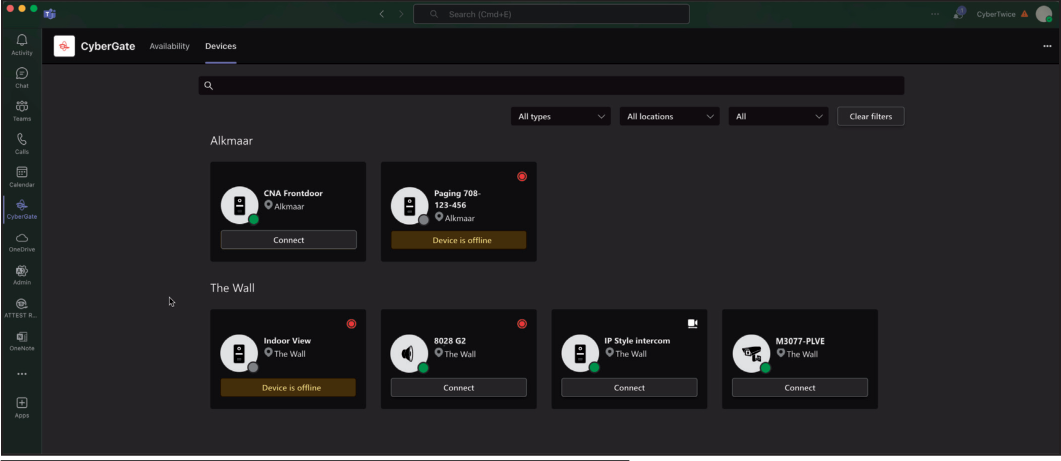
Section titled “How It Works”The Devices menu shows an overview of all configured devices in your Tenant, sorted by location. You can filter results to find specific devices.
Device Tile Information
Section titled “Device Tile Information”Each device tile displays:
| Information | Description |
|---|---|
| Device Type | Intercom, camera, or audio/paging |
| Device Name | Configured name of the device |
| Online Status | Whether the device is online or offline |
| Recording Status | Whether recording is enabled |
| Two-Way Video | Whether two-way video is configured |
Connect Button
Section titled “Connect Button”If a device is configured to receive calls from Microsoft Teams, a Connect button will appear. Clicking this button initiates a call to the device.
Note: The devices shown to a user can be limited using the Device access settings in the CyberGate Management Portal.
Feature 3: Door-Open Button
Section titled “Feature 3: Door-Open Button”Introduction
Section titled “Introduction”During a call between the intercom and a Teams user, you can easily open the door by clicking a button on the sidebar.
How to Activate
Section titled “How to Activate”Step 1: Configure Open Door Code
Section titled “Step 1: Configure Open Door Code”-
Log in to the CyberGate Management Portal
-
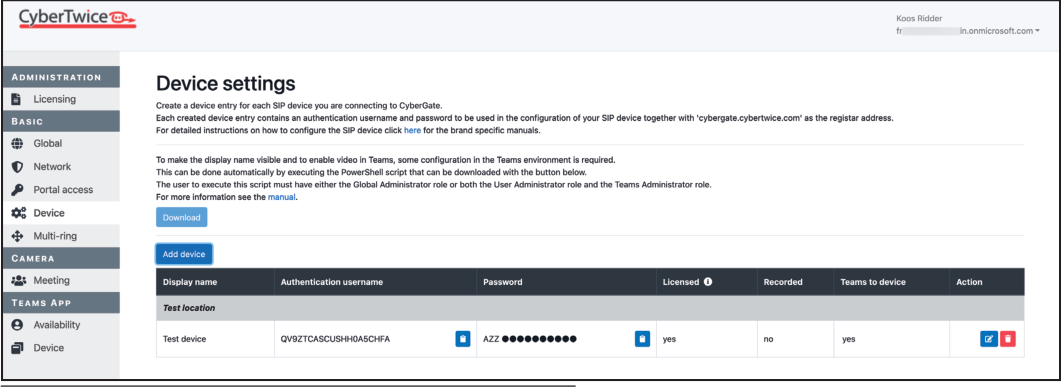
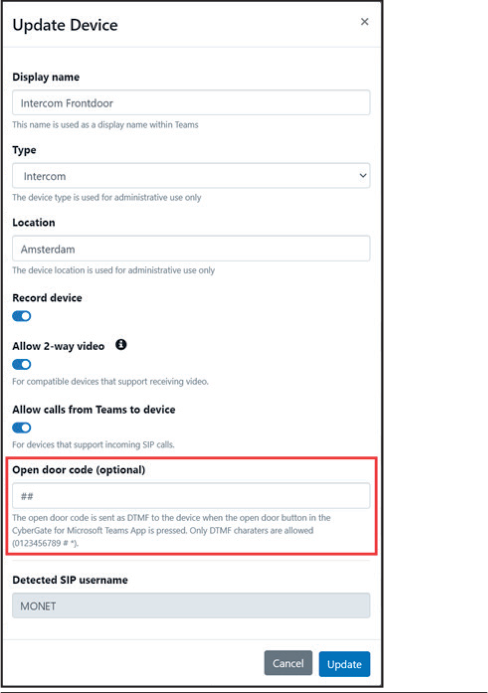
Navigate to Basic → Device
-
Click the blue edit button to open device details
-
Fill in the ‘Open door code’
Important: The ‘Open door code’ must match the configured open door code in the intercom device!
- Click the blue ‘Update’ button
Step 2: Add CyberGate to a Call
Section titled “Step 2: Add CyberGate to a Call”-
Make a call from the intercom to your Teams client and accept the call
-
Click on the ‘Apps’ icon in the top bar

- Add CyberGate — a dialog will open
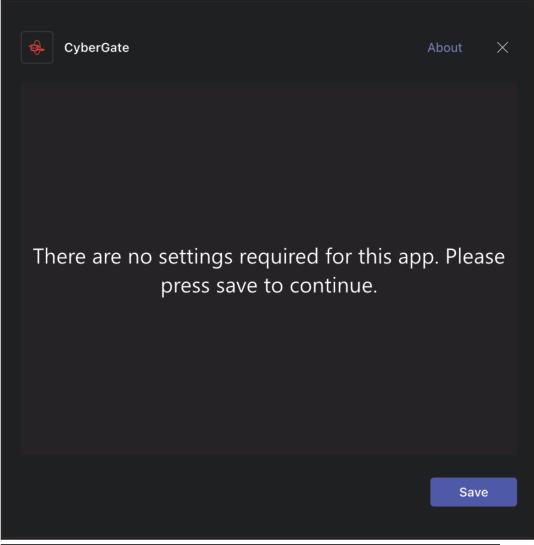
- Press ‘Save’ to continue
Step 3: Use the Door-Open Button
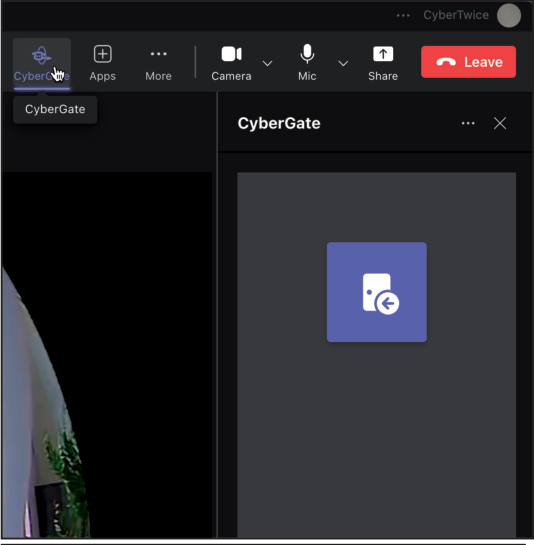
Section titled “Step 3: Use the Door-Open Button”- A sidebar opens on the left of the call window with the Open door button
-
Click the button to open the door
-
End the call when finished
Tip: The Open door button can be added to all future calls by clicking on the CyberGate icon in the top bar during any call.
Document History
Section titled “Document History”| Version | Date | Author | Change |
|---|---|---|---|
| 1.0.0 | 2022-03-09 | KR | Initial version |
| 1.0.1 | 2024-11-01 | KR | Updated layout and screenshots |
| 1.0.2 | 2024-11-07 | KR | Fixed text and added CyberGate app appendix |