Verkada TD52 Video Intercom
Version: 1.0.5 ENG
Date: September 23, 2025
Product: CyberTwice CyberGate with Verkada TD52 Video Intercom
Verkada TD52 Video Intercom Overview
Section titled “Verkada TD52 Video Intercom Overview”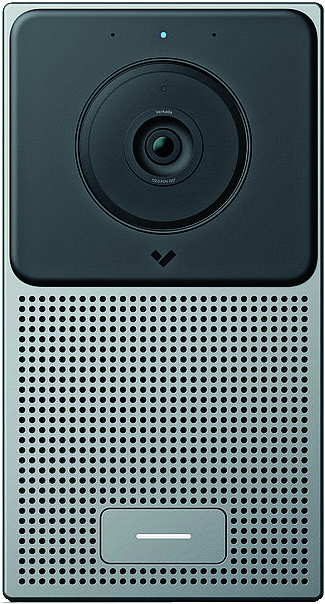
This document describes how to configure the Verkada TD52 Video Intercom to connect to the CyberGate service.
Security Features
Section titled “Security Features”The Verkada TD52 is certified for secure communication with CyberGate using:
- SIP TLS (Transport Layer Security)
- SRTP (Secure Real-time Transport Protocol)
Document Contents
Section titled “Document Contents”| Section | Description |
|---|---|
| Configuration Steps | Steps to configure the Verkada for CyberGate |
| Testing the Configuration | How to verify your setup |
| Appendix: CyberGate App | Installation and usage of the CyberGate Teams app |
Configuration Steps
Section titled “Configuration Steps”Step 1: Connect to the Verkada
Section titled “Step 1: Connect to the Verkada”- Connect the Verkada to the network and power it on
- Open a web browser and navigate to:
https://command.verkada.com - Create a new organization or log in to your existing organization
- Add the Verkada TD52 to your organization
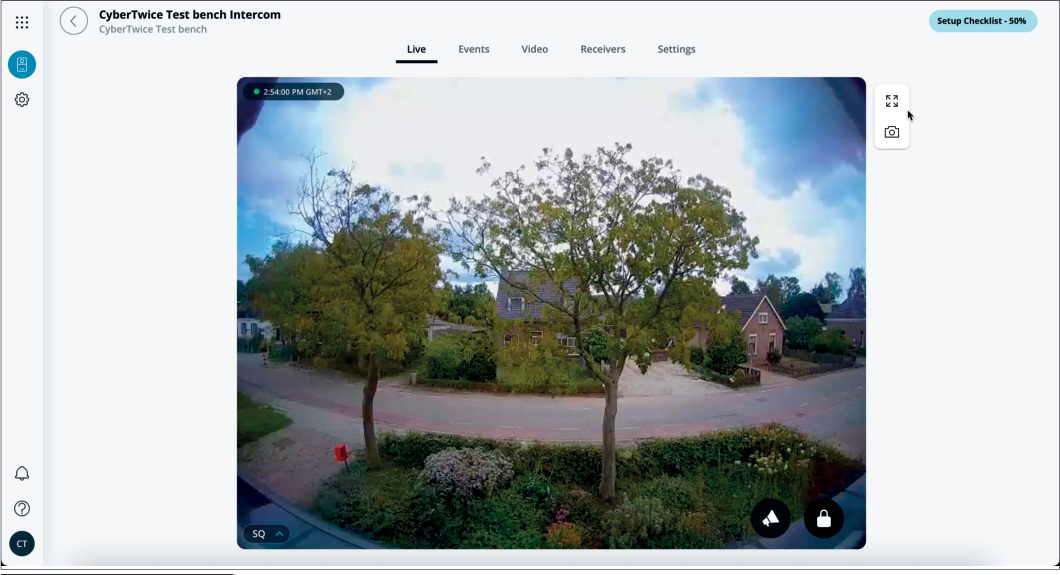
Step 2: Configure SIP Account
Section titled “Step 2: Configure SIP Account”- Navigate to the Settings menu
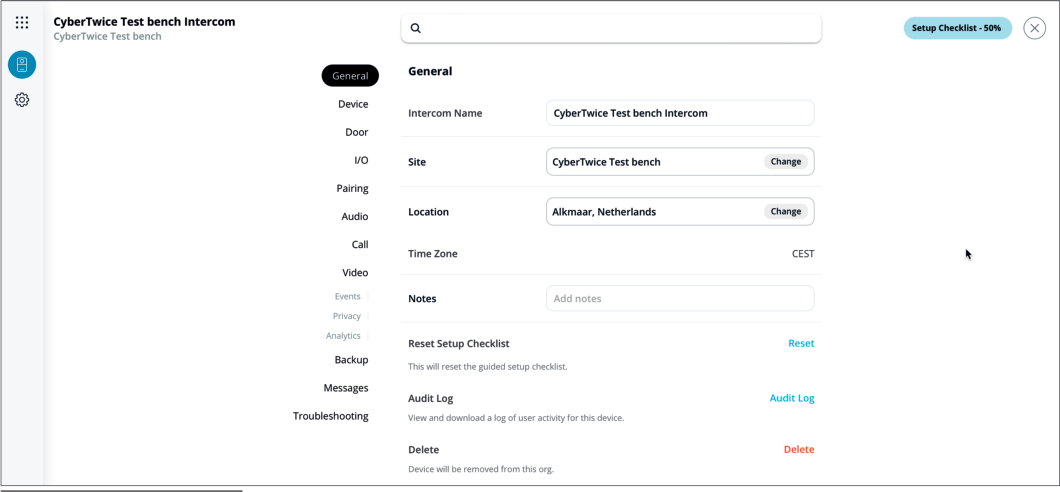
- Scroll down to the Call settings section
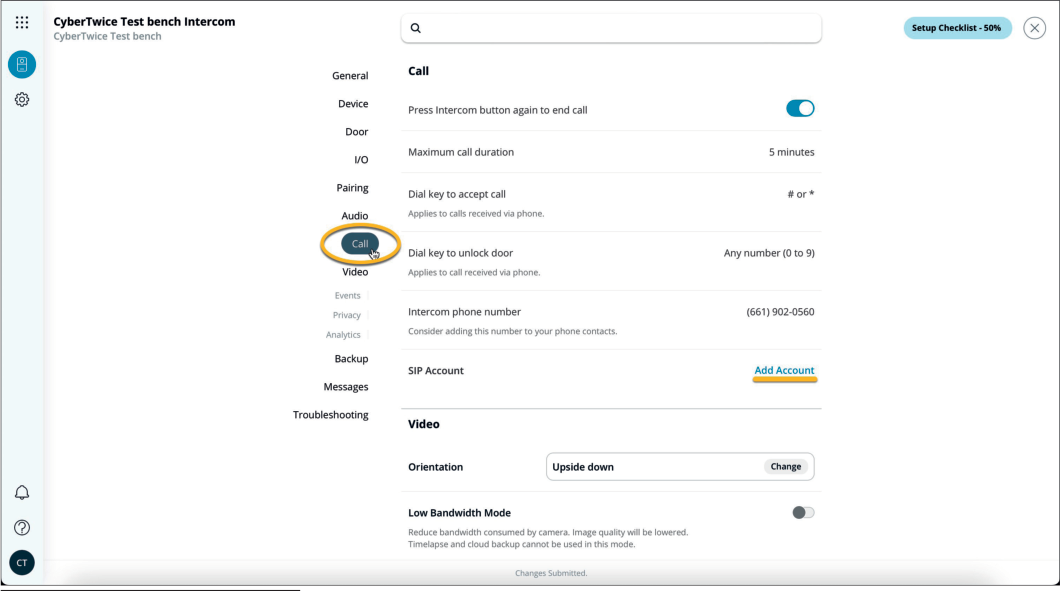
- Click ‘Add Account’ to add the CyberGate SIP account
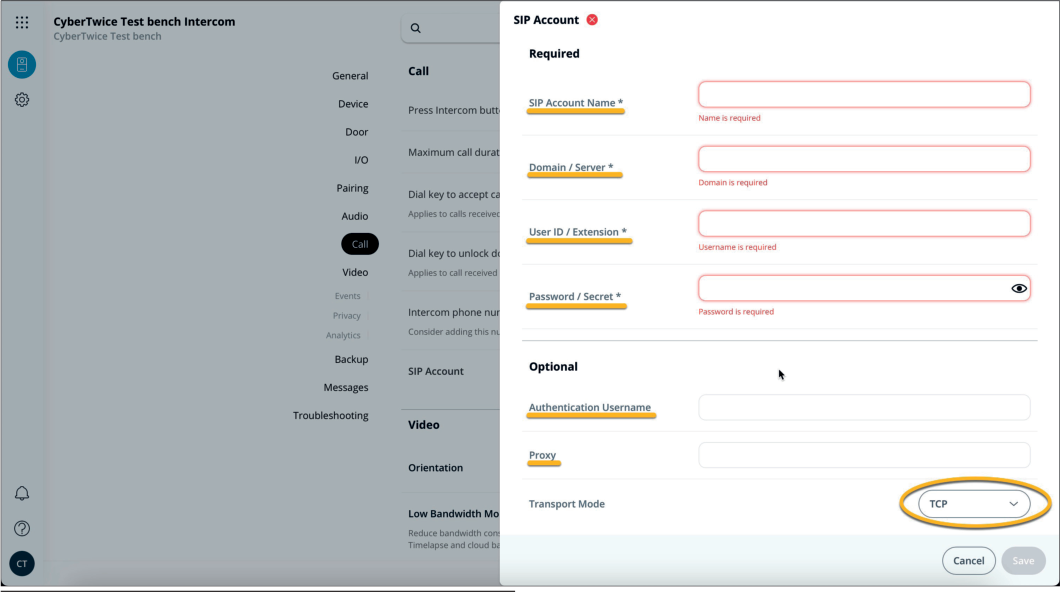
- Configure the following settings:
| Field | Value |
|---|---|
| SIP Account Name | Enter a name for the SIP account (e.g., CyberGate) |
| Domain / Server | cybergate.cybertwice.com |
| User ID / Extension | Use the Username from CyberGate Management Portal |
| Password / Secret | Use the Password from CyberGate Management Portal |
| Authentication Username | Use the Username from CyberGate Management Portal |
| Proxy | cybergate.cybertwice.com |
| Transport Mode | Select TCP (unencrypted) or TLS (encrypted) |
| Secure RTP | Enable (when TLS is selected) |
- Click the blue ‘Save’ button to confirm
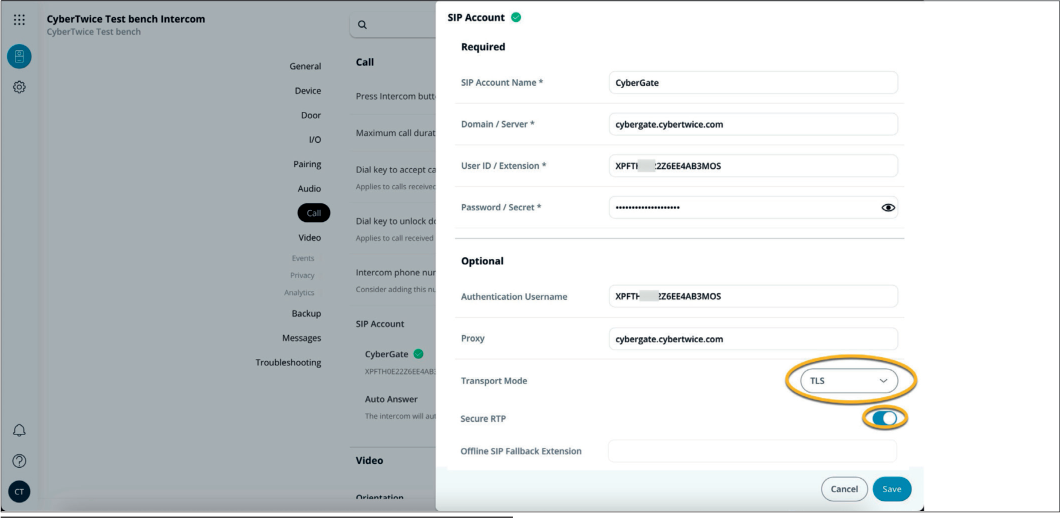
Step 3: Enable Auto Answer
Section titled “Step 3: Enable Auto Answer”- In the Call settings, enable the ‘Auto Answer’ option
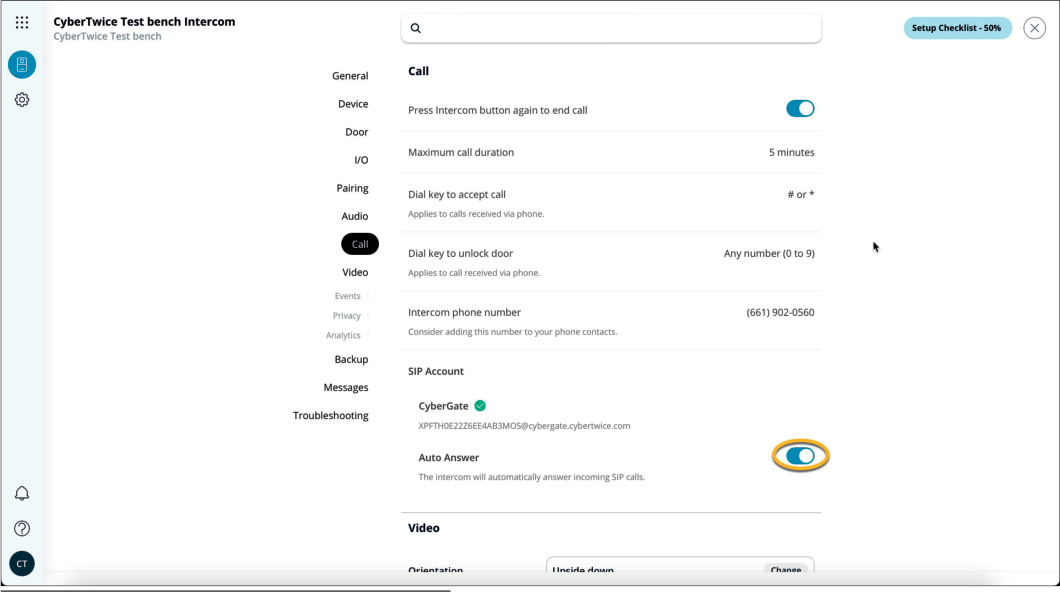
Step 4: Configure Call Receivers
Section titled “Step 4: Configure Call Receivers”- Navigate to the Receivers menu
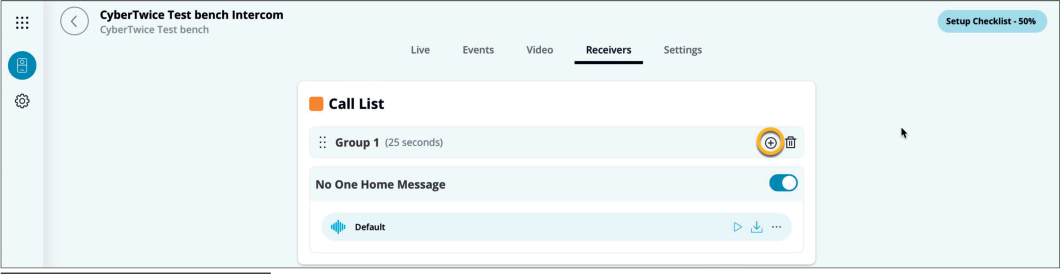
- Click the + symbol to add a receiver for the SIP Phone
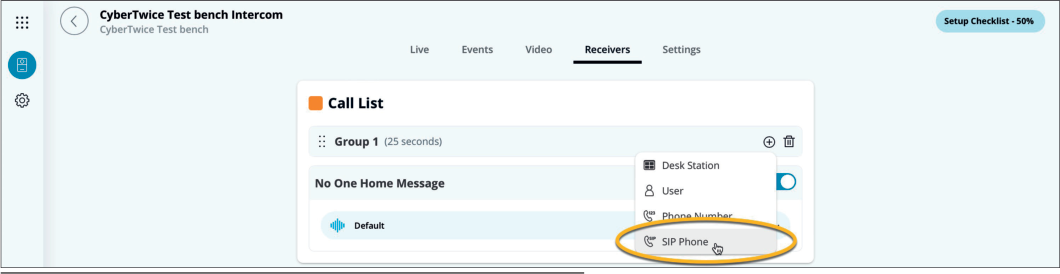
- Add the Teams user to dial using the username without the domain
Example:
For Teams user Koos Ridder with emailkoos.ridder@mycompany.com
Enter:koos.ridder
- Confirm the input by clicking the ‘Check mark’
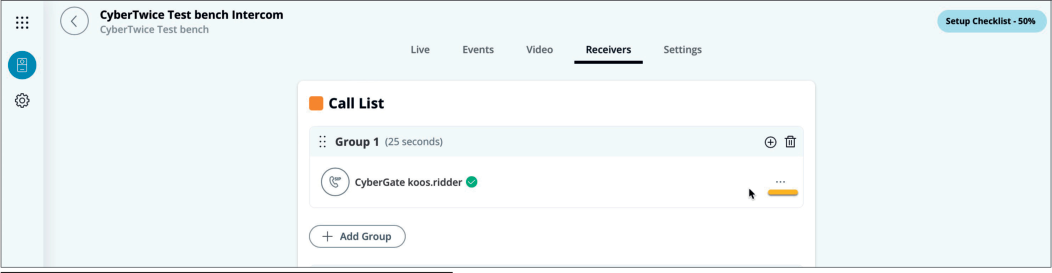
- Click on the three dots (…) right of the name to open options
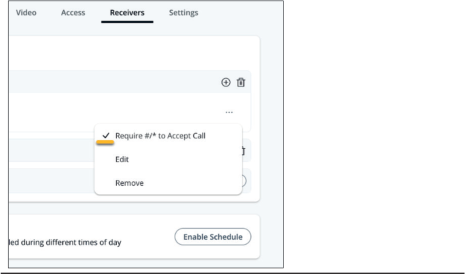
- Disable the option ‘Require #/* to Accept Call’
Testing the Configuration
Section titled “Testing the Configuration”Configuration of the Verkada TD52 is now complete!
Making a Test Call
Section titled “Making a Test Call”-
Press the green button on the touchscreen of the Verkada to initiate a call to the configured Teams user
-
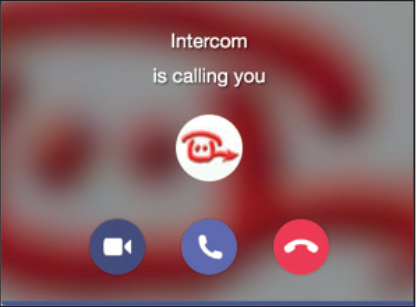
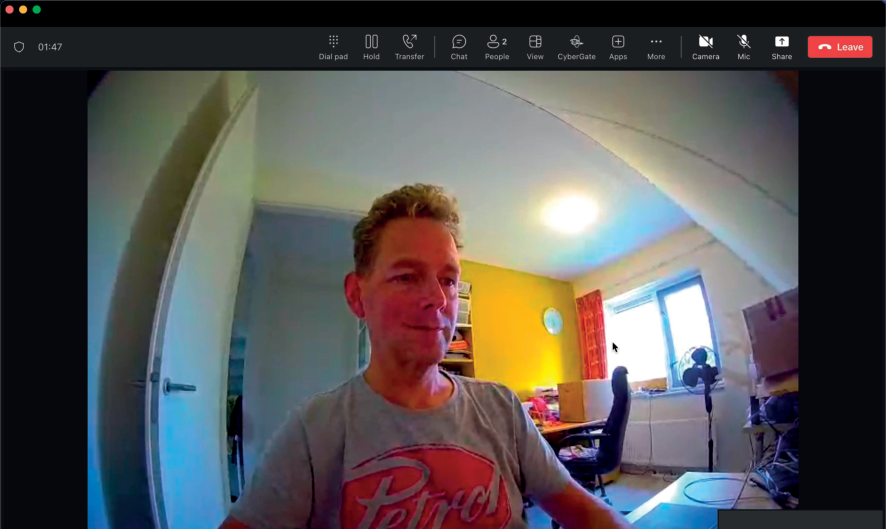
If configured correctly, the Teams client will notify you of an incoming call
-
Answer the call by clicking the phone horn or camera symbol
-
The call will be established and video will be displayed
Opening the Door
Section titled “Opening the Door”To open the door from the Teams call, use the dial pad (already open) and click on one of the numbers (0-9) to trigger the relay in the Verkada TD52 and open the door.
Quick Reference
Section titled “Quick Reference”CyberGate Connection Details
Section titled “CyberGate Connection Details”| Setting | Value |
|---|---|
| Domain / Server | cybergate.cybertwice.com |
| Proxy | cybergate.cybertwice.com |
| Transport Mode (Standard) | TCP |
| Transport Mode (Secure) | TLS |
| Secure RTP | Enable (with TLS) |
Teams User Address Format
Section titled “Teams User Address Format”usernameUse the Teams user’s email prefix only (the part before @), without the domain.
Appendix - CyberGate Teams App
Section titled “Appendix - CyberGate Teams App”Requirements
Section titled “Requirements”To use the CyberGate App, you need a subscription to one of the following CyberGate SaaS solutions:
- ✅ CyberGate for IP Cameras with Teams
- ✅ CyberGate for IP Paging with Teams
- ✅ CyberGate for IP Intercoms with Teams
App Features Overview
Section titled “App Features Overview”The CyberGate Teams app provides three main features:
| Feature | Description |
|---|---|
| Availability | Set your availability status in Multi-ring groups |
| Devices | View device status and initiate calls with one click |
| Door Open | Open doors during calls with a single button click |
Installation
Section titled “Installation”How to Install
Section titled “How to Install”-
Open Microsoft Teams and click on the ‘Apps’ button in the sidebar
-
Search for ‘cybergate’
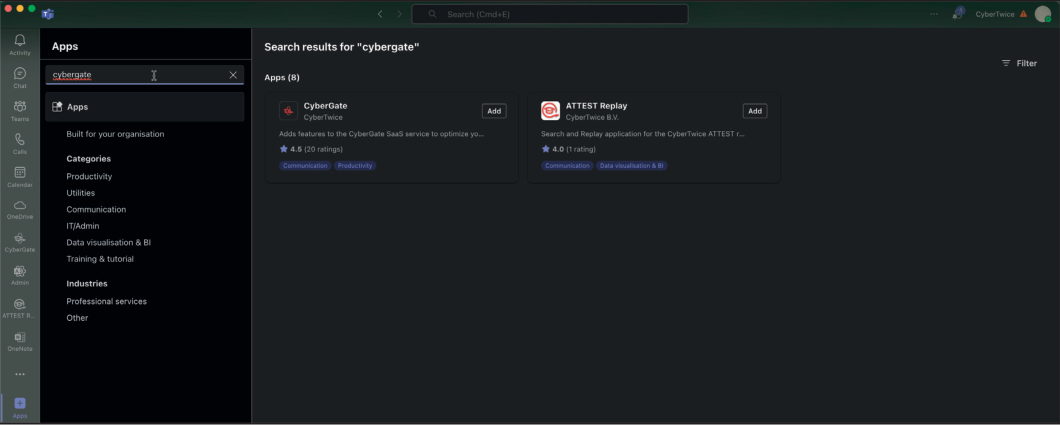
- Click ‘Add’ to add CyberGate to Microsoft Teams
Note: You may be asked to provide consent for basic permissions (View your basic profile, Maintain access to data you have given it access to). Accept these permissions to use the app.
-
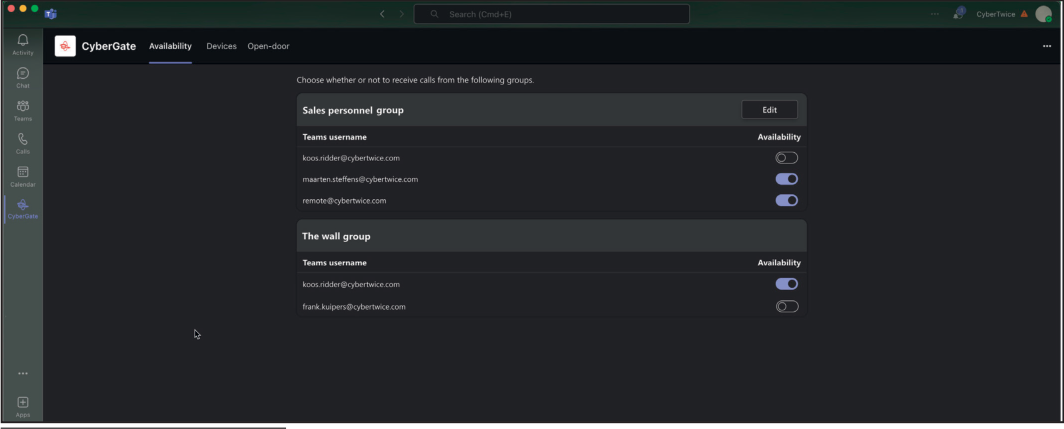
After installation, the CyberGate app will open and show the availability menu
-
Pin the app (recommended): Right-click on the CyberGate icon and select ‘Pin’
Feature 1: Availability
Section titled “Feature 1: Availability”How It Works
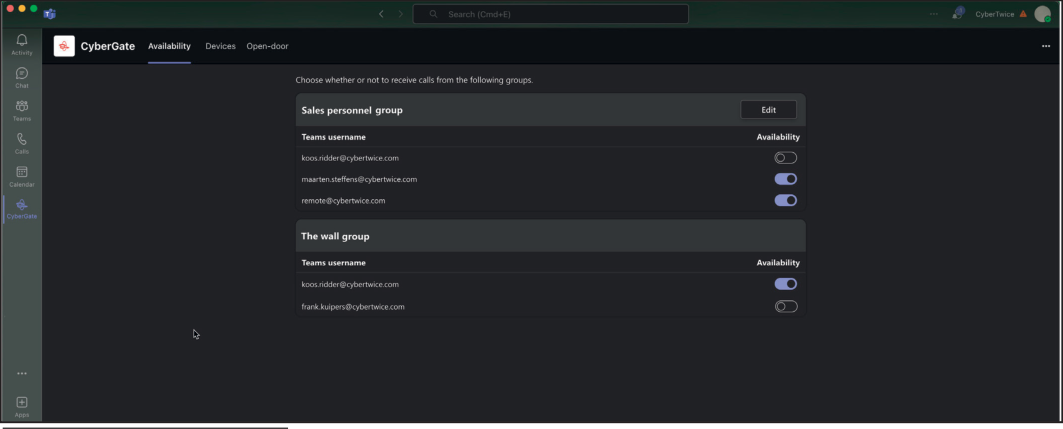
Section titled “How It Works”The CyberGate app uses the same credentials as Microsoft Teams and automatically retrieves information about Multi-ring groups you belong to.
Example Scenario
Section titled “Example Scenario”In this example, the user koos.ridder@cybertwice.com is part of two Multi-ring groups:
| Group | Members | User Role |
|---|---|---|
| Sales personnel group | 3 users | Supervisor (*) |
| The wall group | 2 users | Normal user |
User Roles
Section titled “User Roles”| Role | Permissions |
|---|---|
| Supervisor | Can set availability for ALL users in the group, can add/remove users |
| Normal User | Can only set their OWN availability status |
Availability Status
Section titled “Availability Status”| Status | Effect |
|---|---|
| Available | You can be called by CyberGate |
| Unavailable | You won’t be called by CyberGate |
Note: Availability status changes take effect immediately.
Tip: To configure the supervisor role for a Multi-ring group, use the CyberGate Management Portal.
Feature 2: Devices
Section titled “Feature 2: Devices”How It Works
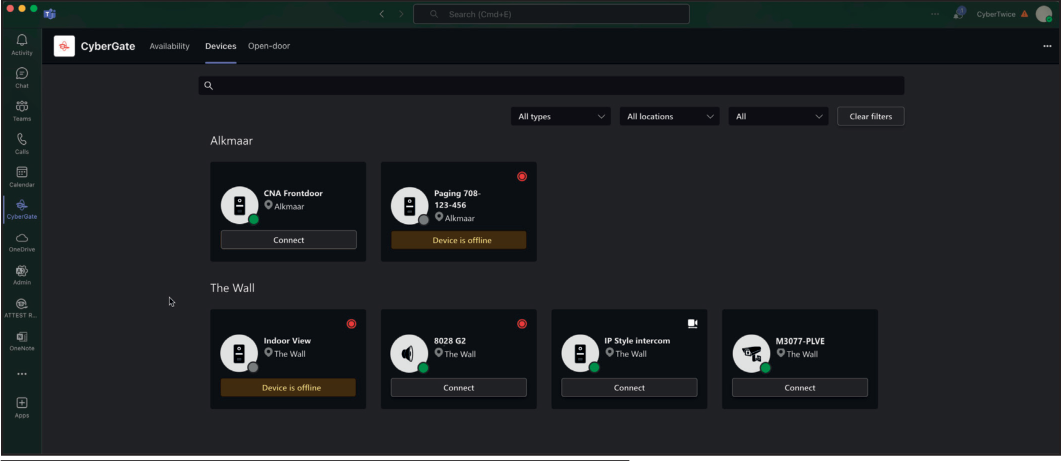
Section titled “How It Works”The Devices menu shows an overview of all configured devices in your Tenant, sorted by location. You can filter results to find specific devices.
Device Tile Information
Section titled “Device Tile Information”Each device tile displays:
| Information | Description |
|---|---|
| Device Type | Intercom, camera, or audio/paging |
| Device Name | Configured name of the device |
| Online Status | Whether the device is online or offline |
| Recording Status | Whether recording is enabled |
| Two-Way Video | Whether two-way video is configured |
Connect Button
Section titled “Connect Button”If a device is configured to receive calls from Microsoft Teams, a Connect button will appear. Clicking this button initiates a call to the device.
Note: The devices shown to a user can be limited using the Device access settings in the CyberGate Management Portal.
Feature 3: Door-Open Button
Section titled “Feature 3: Door-Open Button”Introduction
Section titled “Introduction”During a call between the intercom and a Teams user, you can easily open the door by clicking a button on the sidebar.
How to Activate
Section titled “How to Activate”Step 1: Configure Open Door Code
Section titled “Step 1: Configure Open Door Code”-
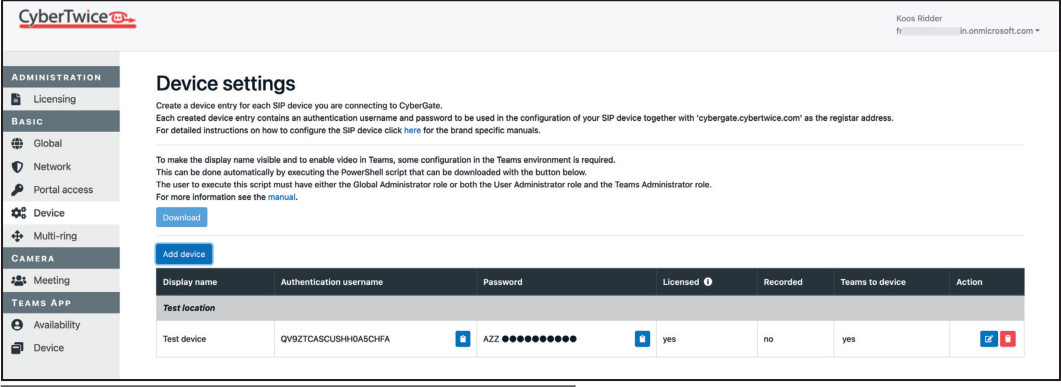
Log in to the CyberGate Management Portal
-
Navigate to Basic → Device
-
Click the blue edit button to open device details
-
Fill in the ‘Open door code’
Important: The ‘Open door code’ must match the configured open door code in the intercom device!
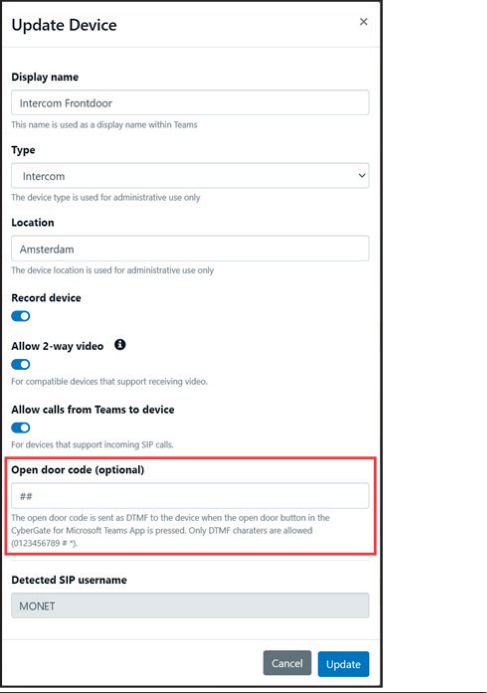
- Click the blue ‘Update’ button
Step 2: Add CyberGate to a Call
Section titled “Step 2: Add CyberGate to a Call”-
Make a call from the intercom to your Teams client and accept the call
-
Click on the ‘Apps’ icon in the top bar

- Add CyberGate — a dialog will open
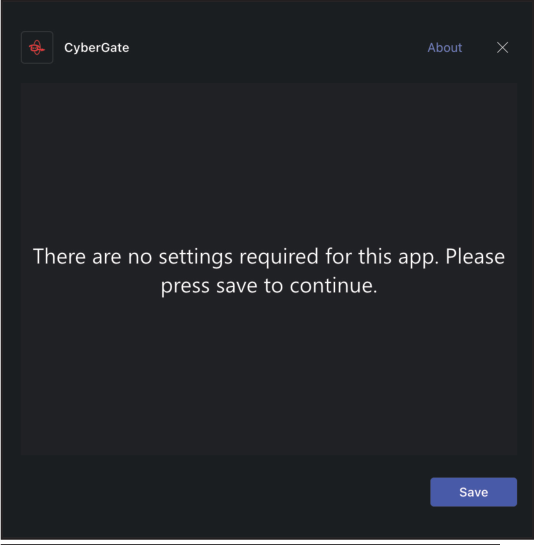
- Press ‘Save’ to continue
Step 3: Use the Door-Open Button
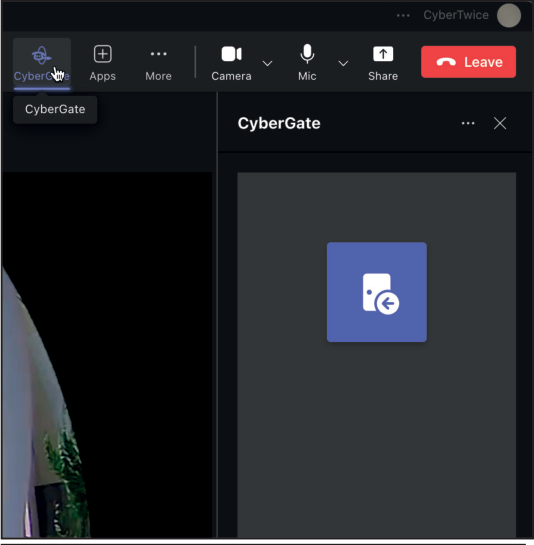
Section titled “Step 3: Use the Door-Open Button”- A sidebar opens on the left of the call window with the Open door button
-
Click the button to open the door
-
End the call when finished
Tip: The Open door button can be added to all future calls by clicking on the CyberGate icon in the top bar during any call.
Document History
Section titled “Document History”| Version | Date | Author | Change |
|---|---|---|---|
| 1.0.0 | 2023-10-10 | KR | Initial version |
| 1.0.1 | 2023-12-13 | KR | Textual changes |
| 1.0.2 | 2024-10-28 | KR | Layout improvements |
| 1.0.3 | 2024-11-14 | KR | Fixed text and added CyberGate app appendix |
| 1.0.4 | 2025-04-28 | KR | Modified screenshot |
| 1.0.5 | 2025-09-23 | KR | Modified screenshots and added required settings |