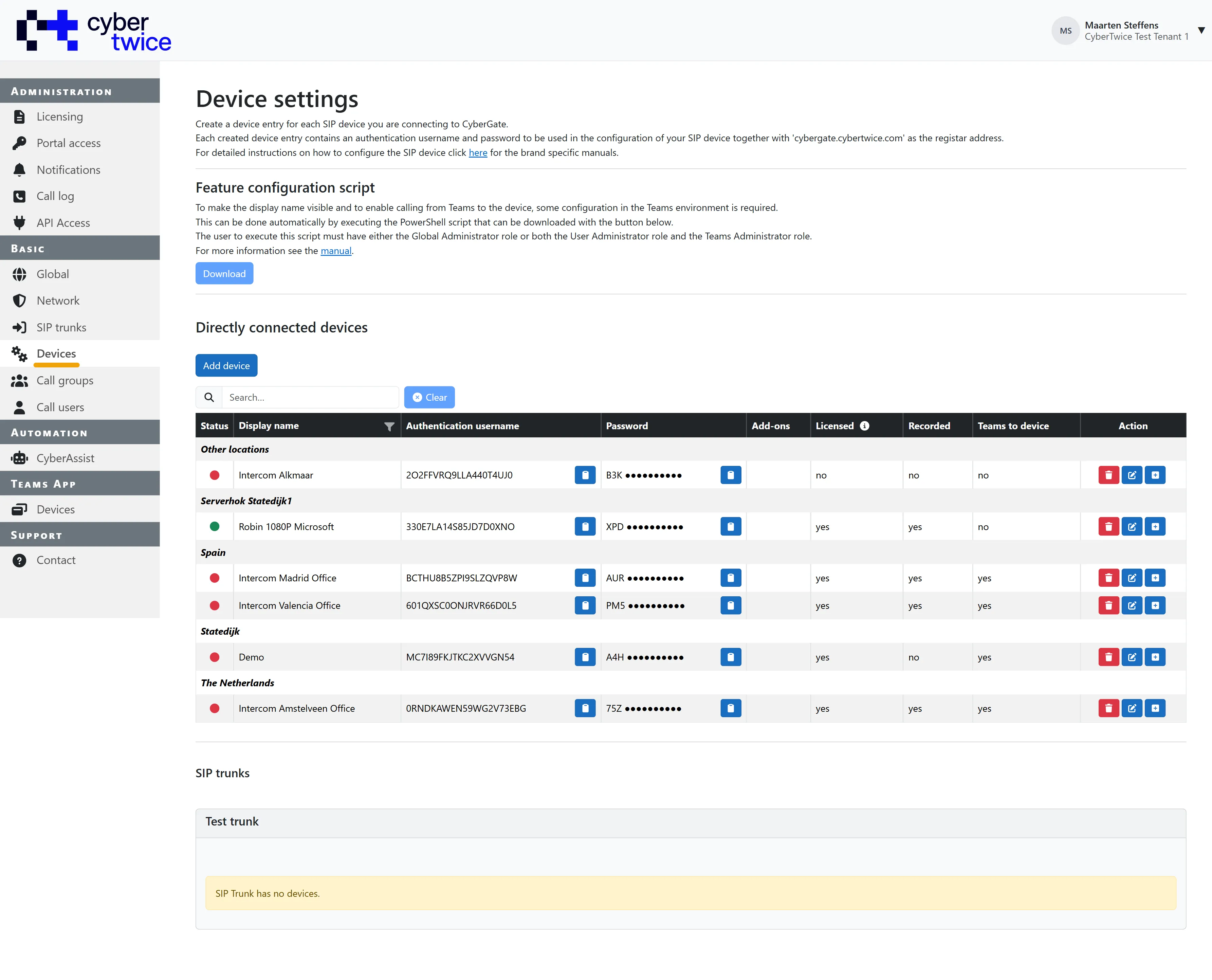
Feature Configuration script
The Feature Configuration script
After adding or modifying devices in CyberGate, the devices need to be synced with the Entra ID. CyberGate offers a PowerShell script to do this, called: 'Feature Configuration'. Run this script to:
- Set the display name of a device, so an incoming call will announce the device by his given name.
- Enable the option to call a device directly from Teams
- Enable the option to record a device
The option to call a device directly from Teams and the option to record a device are available in the 'Edit' menu of a device. Both options only start working after the Feature Configuration script is executed successfully.
How to Configure the display name of a CyberGate Device
By default, incoming calls from the device will be announced in Teams as 'Intercom' instead of their given name.
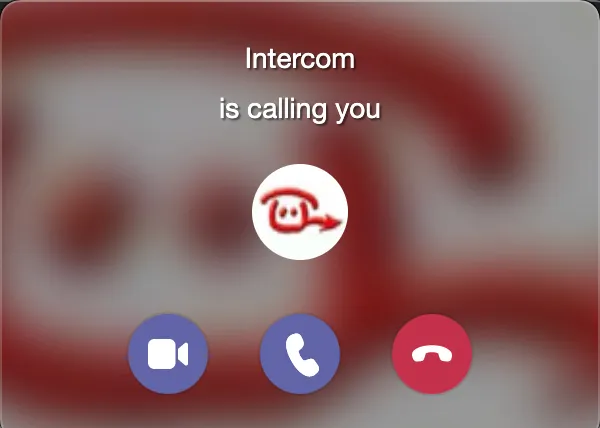
In the CyberGate Management Portal, the Basic - Devices section will show devices with a Warning sign next to the name.
If the display name of the device shows the warning symbol, it is necessary to download and run the Feature configuration PowerShell script.
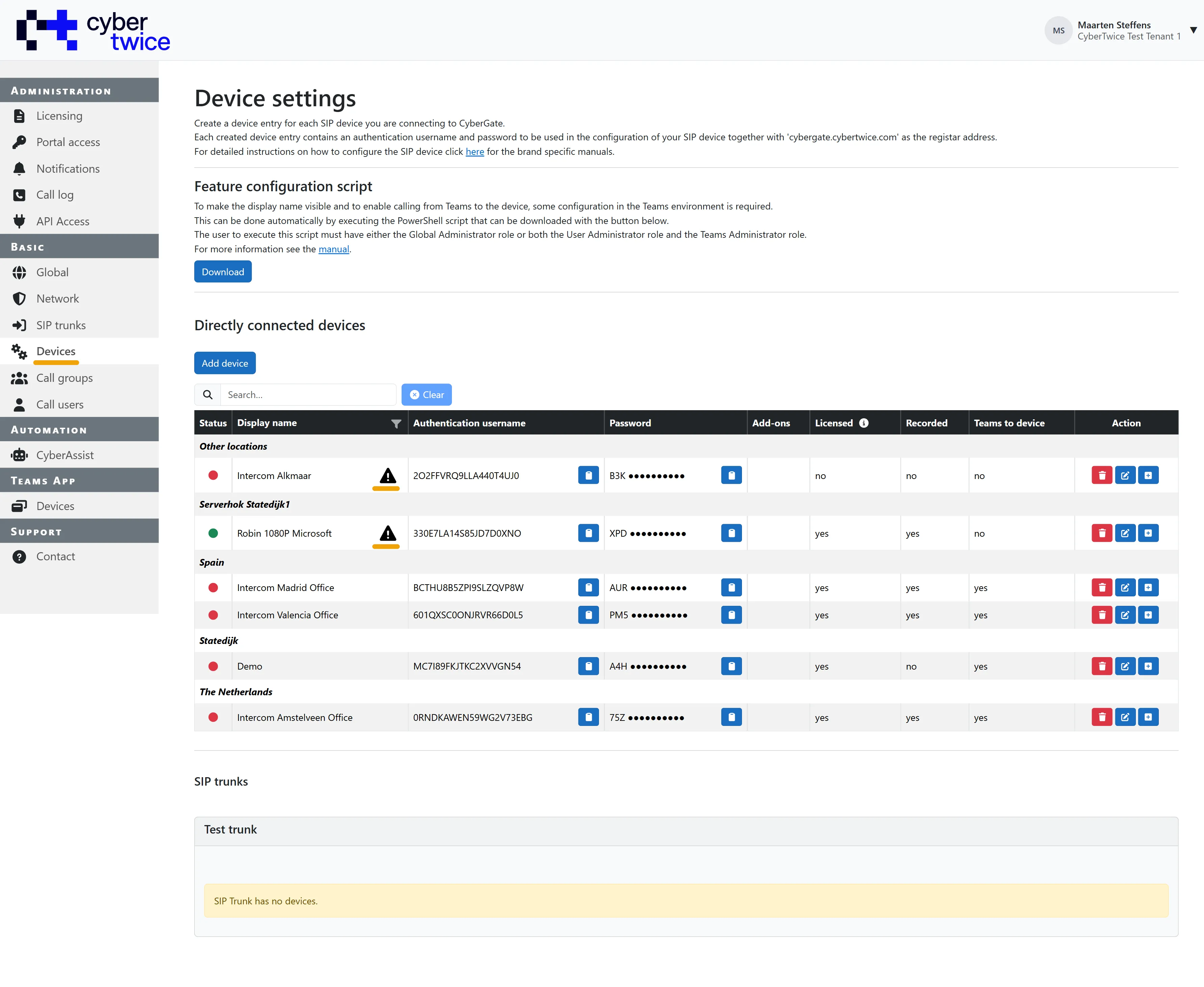
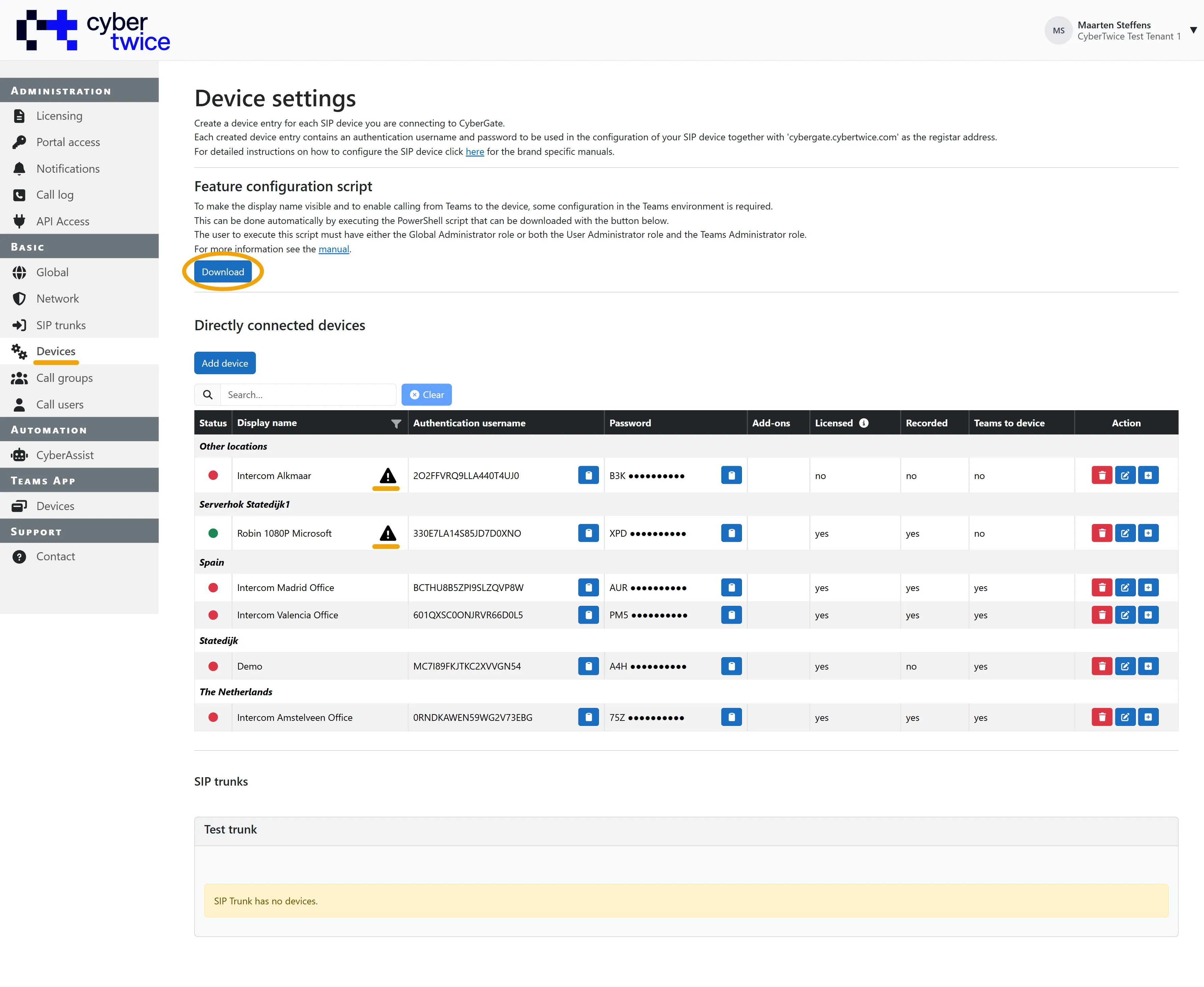
Steps to run the Feature Configuration script:
- Make sure you have a PC with Microsoft PowerShell installed.
- Make sure your account has either the Global Administrator role, or both the User Administrator role and the Teams Administrator role.
- Click on the blue 'Download' button to download the script
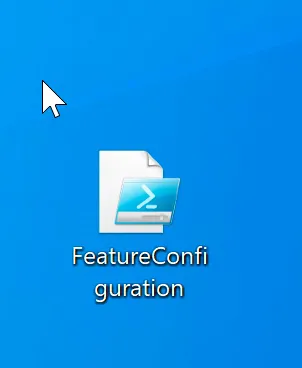
- Right-click on the downloaded script and select 'Run with PowerShell'. You do not need to start PowerShell as an administrator.
The downloaded script is customized and contains device information such as its display name. Do not re-use an earlier downloaded version of this script. The script checks its own version and stops with the message 'Script is not up-to-date please download the latest version from the CyberGate management portal.'
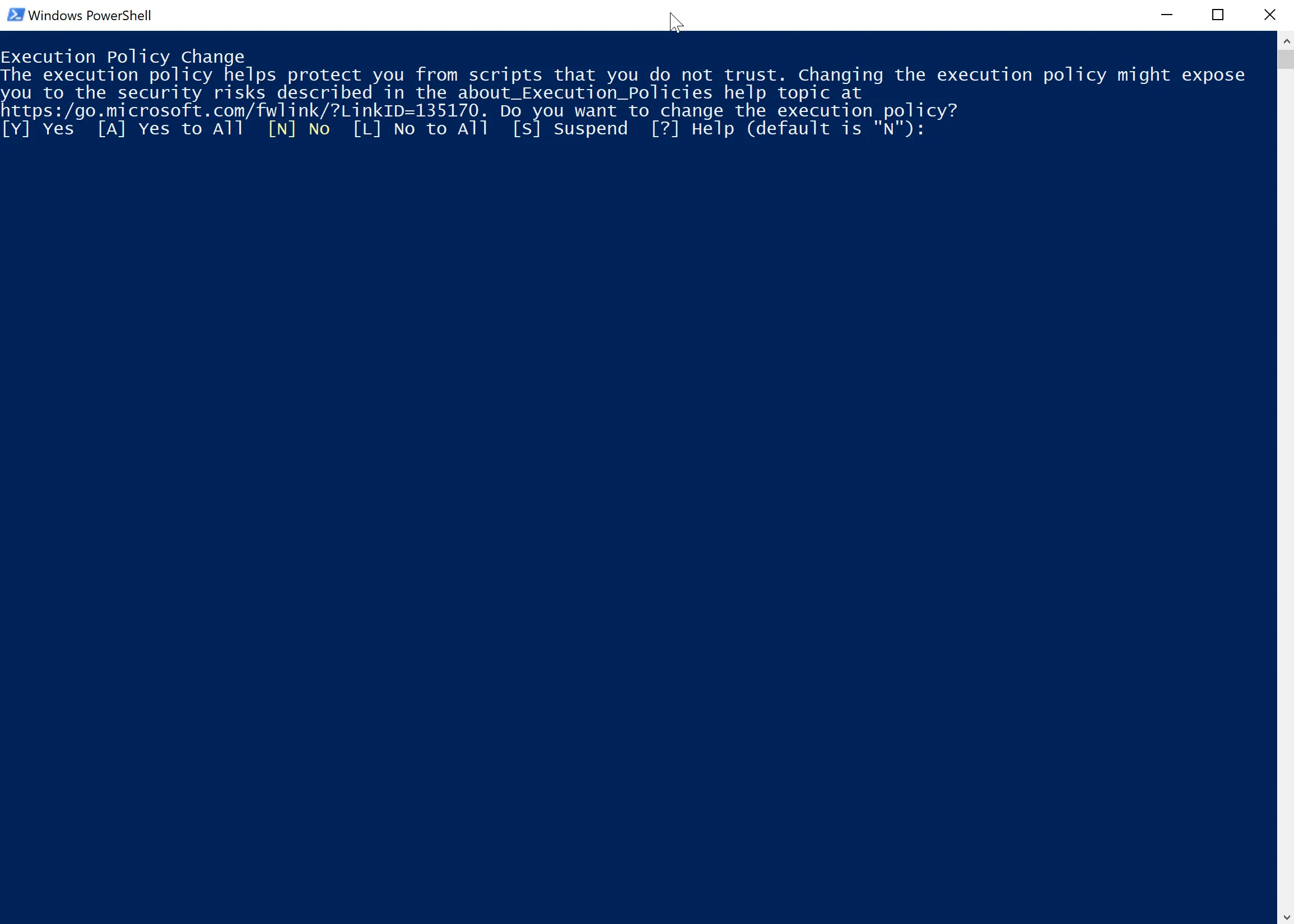
- Depending on the Windows environment used a warning can be displayed. Select 'Yes' to execute this script.
- On the first run, the script has to install the PowerShell modules it needs. It then asks you to press a key to open a second window with administrator privileges. Press a key, wait for that window to report 'Powershell modules are all up-to-date', and press a key again to close it. The first window continues on its own.
- The script asks you to sign in three times in your browser: to Microsoft Teams, to Microsoft Graph, and to the CyberGate Management Portal. Use the same account you used to configure CyberGate.
- If you have two-factor authentication enabled, follow the steps asked for.
- After successful authentication, the script will run and will display 'Script successfully done' if no errors occurred. Press Enter to exit the script.
The script writes a log file next to the downloaded script. Send us that file if a step fails.
It can take up to an hour before the change will be in effect, up to that moment the device will be shown in Teams as 'Intercom'.
When in effect, the configured Display name will be displayed in Teams when the intercom is operated. Also, the Warning sign in the Device section of the CyberGate management portal is removed.