CyberAssist configuration script
The CyberAssist configuration script
Before a CyberAssist can be called from Microsoft Teams, some configuration in your Teams environment is required. CyberGate offers a PowerShell script to do this. Run this script after you add a CyberAssist, and again after you change the name of a CyberAssist.
The CyberAssist feature is currently in Beta and must be enabled for your tenant before you can use it. See the CyberAssist manual for details.
Before you start
- Make sure you have a PC with Microsoft PowerShell installed.
- Make sure your account has either the Global Administrator role, or both the User Administrator role and the Teams Administrator role.
Download the script
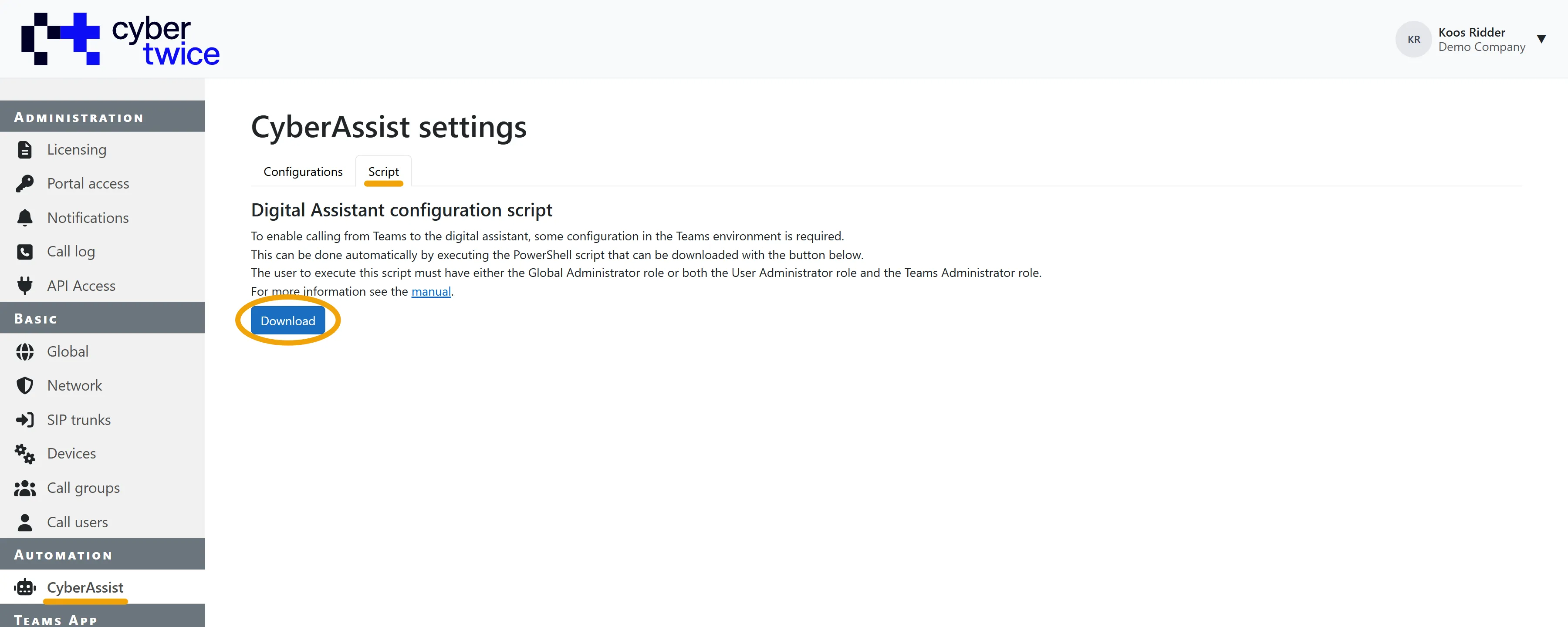
- In the CyberGate Management Portal, go to Automation - CyberAssist and open the 'Script' tab.
- Click on the blue 'Download' button to download the script.
The downloaded script is customized and contains the data of your assistants. Do not re-use an earlier downloaded version of this script. The script checks its own version and stops with the message 'Script is not up-to-date please download the latest version from the CyberGate management portal.'
Run the script
- Right-click on the downloaded script and select 'Run with PowerShell'. You do not need to start PowerShell as an administrator.
- Depending on the Windows environment used a warning can be displayed. Select 'Yes' to execute this script.
- On the first run, the script has to install the PowerShell modules it needs. It then asks you to press a key to open a second window with administrator privileges. Press a key, wait for that window to report 'Powershell modules are all up-to-date', and press a key again to close it. The first window continues on its own.
- The script asks you to sign in three times in your browser: to Microsoft Teams, to Microsoft Graph, and to the CyberGate Management Portal. Use the same account you used to configure CyberGate.
- If you have two-factor authentication enabled, follow the steps asked for.
- After successful authentication, the script will run and will display 'Script successfully done' if no errors occurred. Press Enter to exit the script.
After the script has run
It can take up to an hour before the change will be in effect.
The script writes a log file next to the downloaded script, it can be used for debugging purposes if the script fails.