CyberGate Call Log - in depth
The Call Log provides a detailed overview of all calls processed by CyberGate. You can view call details, filter and sort entries, inspect individual call events, export logs to CSV, and configure how long call data is retained.
Call Log contents
The Call Log table displays the following columns by default:
Caller | The party that initiated the call. |
|---|---|
Responder | The party that answered the call. |
Status | The call status (e.g., Established, In Progress). |
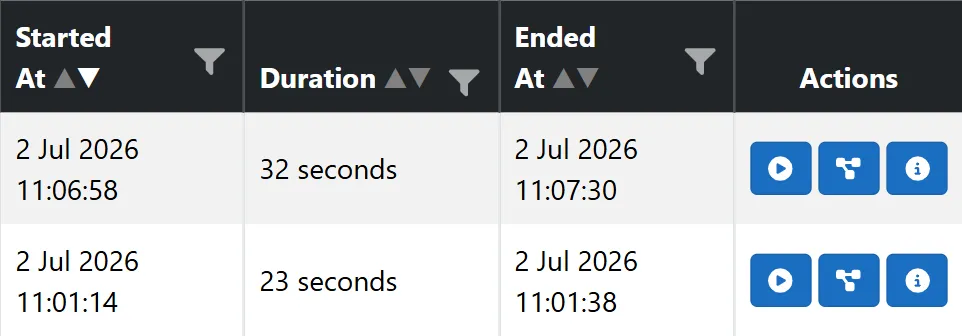
Started At | The date and time the call began. |
Duration | The call duration in seconds. Blank if the call is still in progress. |
Ended At | The date and time the call ended. |
Actions | Buttons to replay the call, open the call overview, and view detailed call events (see Call Actions). |
Show Detail
Toggle the Show Detail checkbox in the top-right corner to display or hide additional columns:
Caller Type | The type of the caller (e.g., SIP Device, Teams meeting). |
|---|---|
Destination | The destination address of the call. |
Responder Type | The type of the responder (e.g., SIP Device, Teams meeting). |
Location | The location associated with the call. |
DTMF Sent | Whether DTMF tones were sent during the call (Yes or No). |
Call Actions
The Actions column on the right of each row contains up to three buttons:
Button | Icon | Availability | What it does |
|---|---|---|---|
Replay | Blue play (▶) circle | Only for recorded calls | Opens the recording in the ATTEST Replay portal (see Replaying a Call). |
Call Overview | Blue diagram | Always available | Opens a visual map of how the call was routed (see Call Overview). |
Events | Blue info (ⓘ) circle | Always available | Opens the detailed event timeline for the call (see Viewing Call Events). |
Replaying a Call
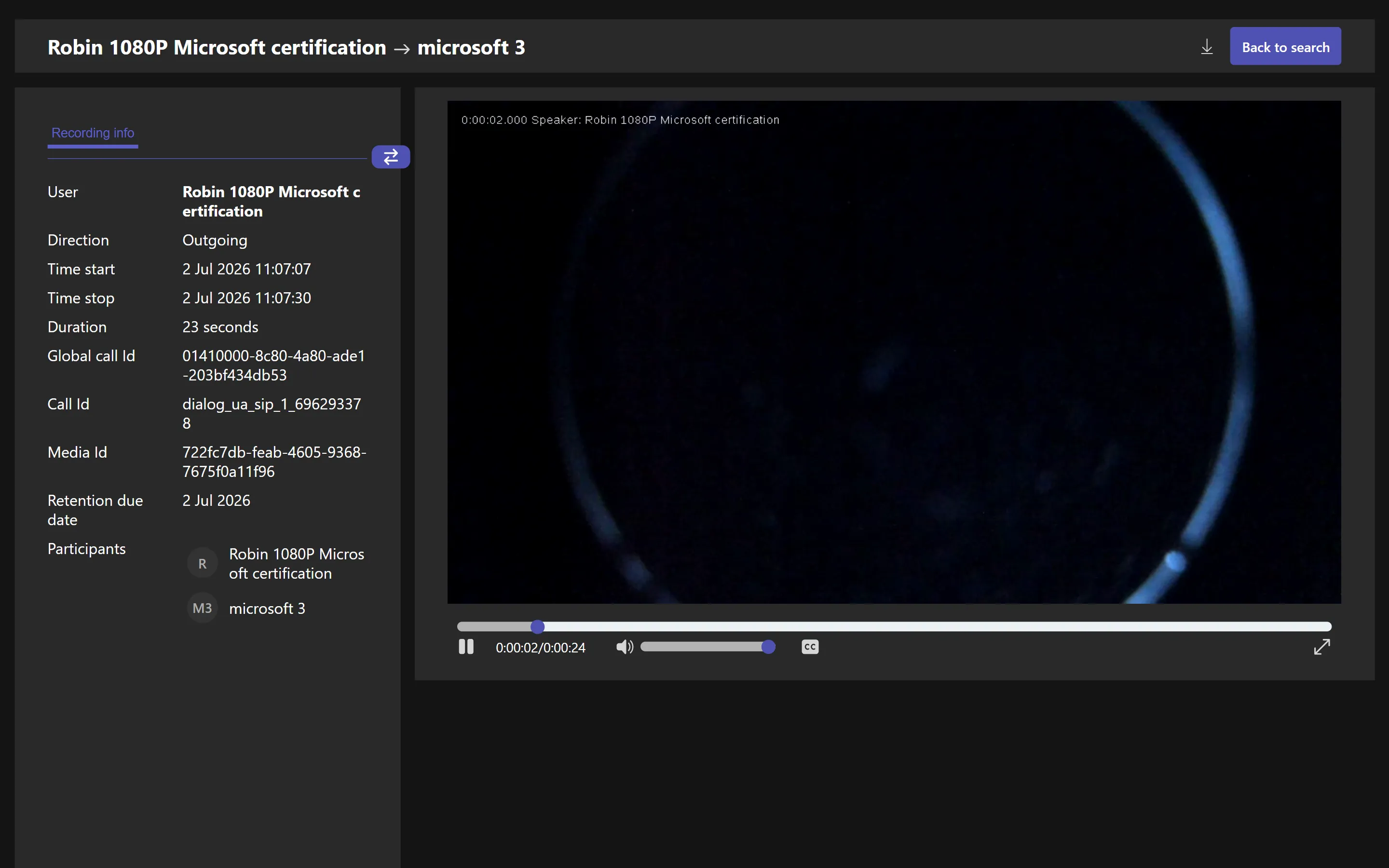
If a call was recorded, a blue play button appears in the Actions column. Recording is enabled per tenant in the recording settings; calls made before recording was enabled, or calls that were not recorded, do not show this button.
- Click the Replay button on the call you want to listen back to.
- The ATTEST Replay portal opens in a new browser tab, jumping straight to the selected recording.
- Use the ATTEST Replay controls to play, pause, and scrub through the recording.
ATTEST Replay is a separate CyberTwice service and opens in its own tab. You need the appropriate ATTEST Replay access rights to listen to a recording: access is managed in the ATTEST management portal.
Call Overview
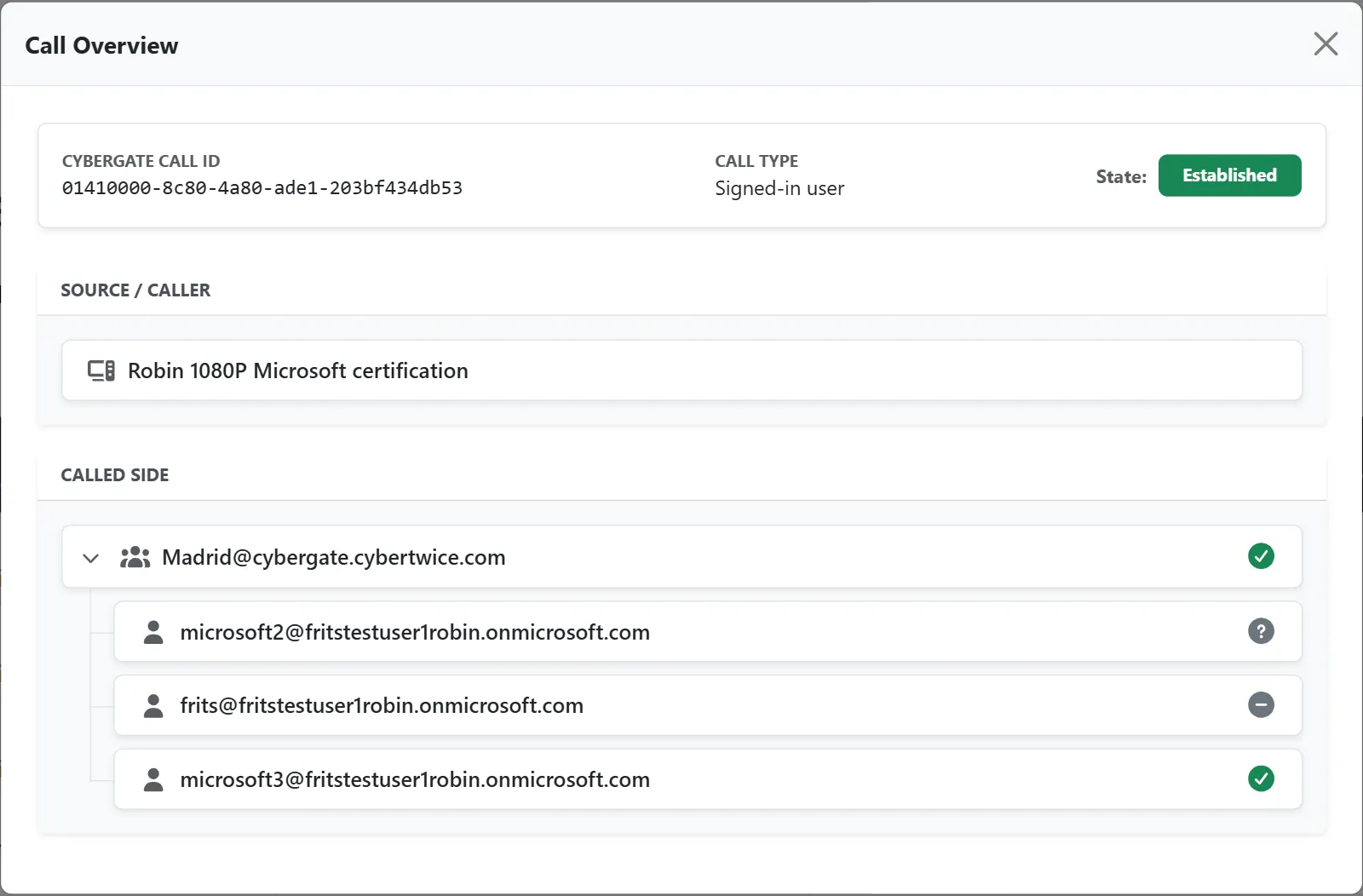
The Call Overview gives a visual map of how a call was routed — from the original caller, through any groups or transfers, to the party that finally handled it. This is especially useful for calls that passed through call groups, digital assistants, or were transferred.
- Click the Call Overview button (diagram icon) on the call you want to inspect.
- A Call Overview dialog opens with a header showing:
- CyberGate Call ID — the unique call identifier.
- Call Type — the type of the responding party (e.g., SIP Device, Teams Meeting).
- State — a colour-coded badge with the overall outcome of the call (e.g., Established, Missed, Declined, Transferred, Cancelled, Unavailable, Error).
- Below the header, the call is shown as two trees:
- Source / Caller — the party that started the call.
- Called Side — the destination, including every group, device, or user the call rang, plus any transfers.
- Each node in the tree shows its type and name. Node types include SIP Device, Digital Assistant, Sequential Group, Multiring Group, Teams Meeting, and User.
- On the Called Side, each node also shows a colour-coded termination reason describing what happened at that step:
Reason | Meaning |
|---|---|
Established (green) | The call was answered here. |
Transferred (green) | The call was passed on to another destination. |
Declined (red) | The call was actively rejected. |
Missed (yellow) | The call rang but was not answered. |
Cancelled (grey) | The caller hung up before this destination answered. |
Unavailable (grey) | The destination could not be reached. |
Error (grey) | An error prevented the call from completing. |
Larger trees can be expanded and collapsed to focus on the part of the call flow you are interested in. Click Close to return to the Call Log.
Viewing Call Events
To see the detailed event timeline of a specific call:
- Click the blue Events button (info icon) in the Actions column of the call you want to inspect.
- A dialog opens showing:
- CyberGate Call ID — the unique call identifier.
- SIP Call ID — shown when the caller or responder is a SIP Device and the ID is available.
- Caller and Responder information including their type.
- Destination address.
- Below the header, an event log table lists all events for that call:
DateTime | The timestamp of the event. |
|---|---|
Event Type | The type of event that occurred. |
Message | Additional details about the event. |
- Click Close to return to the Call Log.
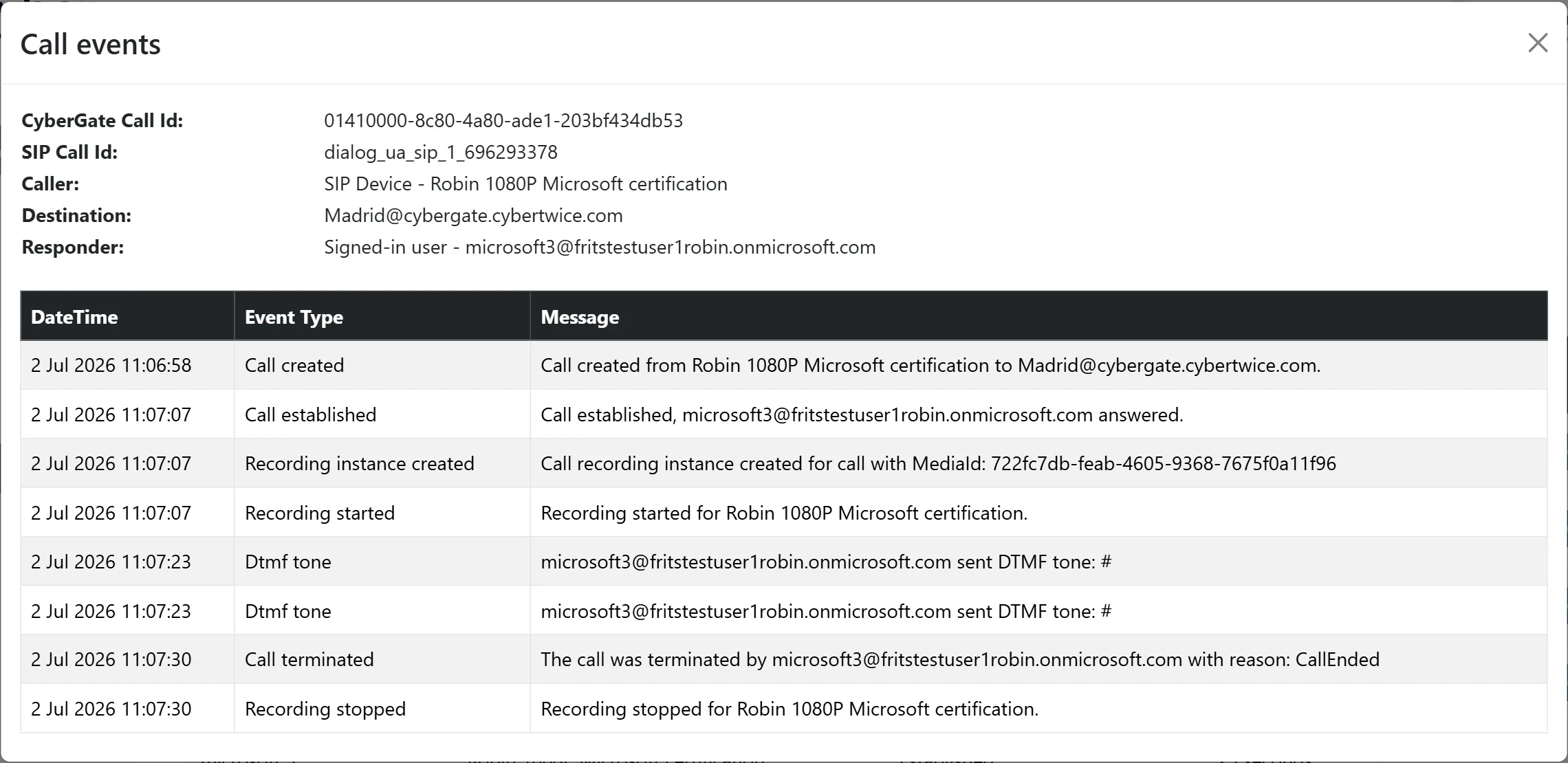
DTMF events
The event log also records the DTMF tones sent during a call, either by a Teams user pressing keys or by the open-door button in the CyberGate for Microsoft Teams App. Two event types are used:
DtmfTone | A single DTMF tone was sent during the call. |
|---|---|
DtmfDoorOpen | The complete open-door code of the device was sent, so the door was opened. |
What the message shows depends on the DTMF security policy of your tenant. With the policy enabled, the message names the sender but not the digits:
- Koos Ridder sent a DTMF tone
- Koos Ridder has sent the door open DTMF sequence
With the policy disabled, the digits are included:
- Koos Ridder sent DTMF tone: #
- Koos Ridder has sent the door open DTMF sequence: 313
With the DTMF security policy enabled you can still see that a code was sent and that the door was opened, but never the code itself. The policy is set on the Security tab of the Global page. See CyberGate Management PortalCyberGate Management Portal.
Filtering
Each column has a filter icon that allows you to narrow down the displayed call logs:
- Text columns (Caller, Responder, Status, etc.): Click the filter icon to open a multi-select dropdown. Select one or more values to show only matching entries.
- Date columns (Started At, Ended At): Filter by selecting a date/time with a "greater than" or "less than" comparison.
- Duration: Filter by entering a value in seconds with a "greater than" or "less than" comparison.
- DTMF Sent: Filter by Yes or No.
Active filters are indicated by a highlighted filter icon on the column. Click the filter icon again to modify or clear the filter.
Sorting
Click any column header to sort the table by that column. By default, the table is sorted by Started At in descending order (newest first).
Loading Older Entries
The Call Log loads up to 2,500 entries at a time. If more entries exist than can be loaded in a single batch, a warning message indicates that the result is truncated.
To load older entries:
- Use the date picker at the top of the page to select a date and time.
- Click Update to reload the table starting from the selected date.
The date picker automatically adjusts to the timestamp of the oldest loaded entry, making it easy to continue loading further back in time.
Exporting Call Logs
You can export all call log entries within the retention period to a CSV file.
- Switch to the Export tab.
- Click Generate CSV to start the export. A progress bar shows the generation progress.
- Once complete, click Download CSV to save the file.
The exported CSV file is semicolon-separated and includes all call log entries. The file is named CallLogReport_[timestamp].csv.
CSV generation runs in the background. You can navigate away and return later — the download button will appear once the export is ready.
If an error occurs during generation, an error message is displayed. You can retry by clicking Generate CSV again.

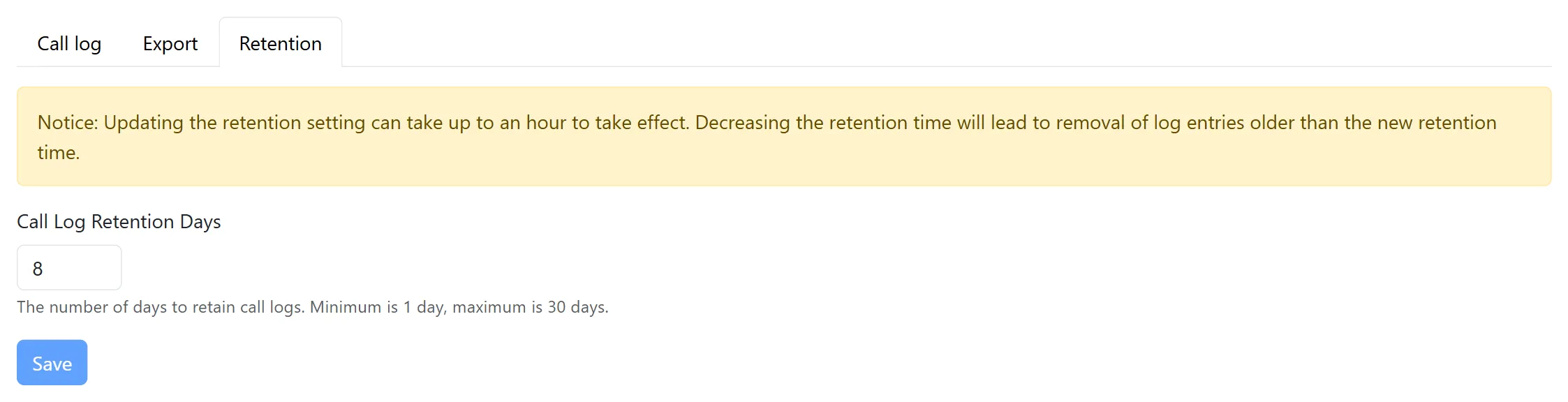
Managing Retention
The Retention tab allows you to configure how long call log data is stored.
- Switch to the Retention tab.
- Enter the number of days to retain call logs (between 1 and 30 days).
- Click Save to apply the new retention period.
Changes to the retention period can take up to one hour to take effect. Decreasing the retention period will permanently remove call log entries older than the new retention time.