CyberGate Call Scheduling
Call scheduling decides when a user can be reached. You give a call user a list of schedule rules for office hours, a lunch break or a holiday, and CyberGate only rings that user at the moments their rules allow. Calls to a call group are still routed as usual; users whose schedule says they are unavailable are simply skipped.
Overview
Call scheduling is configured in two places in the portal:
- Basic > Global > Features: switch scheduling on for your organization by selecting a timezone.
- Basic > Call users: create the schedule rules for each individual user.
A rule answers one question: on these days, between these times, during this period, should this user be called or not? When a call comes in on a call group, CyberGate walks through the rules of every participant and rings only the users who are available at that moment.
Schedule rules are only applied to a user who has set their availability for that Call group to Scheduled. Users can override a configured schedule themselves in the CyberGate app for Microsoft Teams or a supervisor of the Call group can do it for them. A user who is set to Online will always be called and a user who is set to Offline will never be called, regardless of their configured schedule rules.
Enabling call scheduling
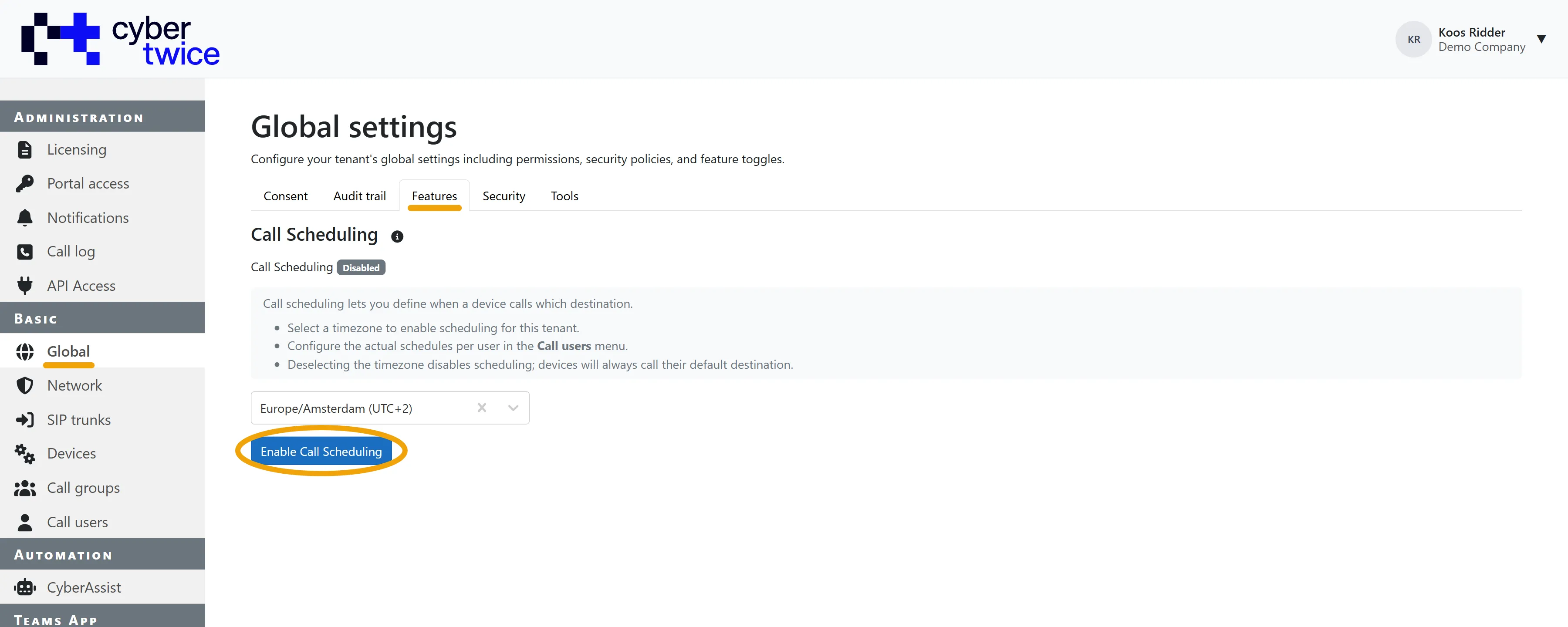
Scheduling is disabled until a timezone is selected for your organization. That timezone is the reference for every schedule rule, so a rule that says 08:00 – 17:30 means 08:00 – 17:30 in the selected timezone, no matter where the caller or the user is located.
- Go to Basic > Global and open the Features tab.
- Scroll to Call Scheduling and select a timezone. The portal already suggests the timezone of your browser.
- Click Enable Call Scheduling and confirm.
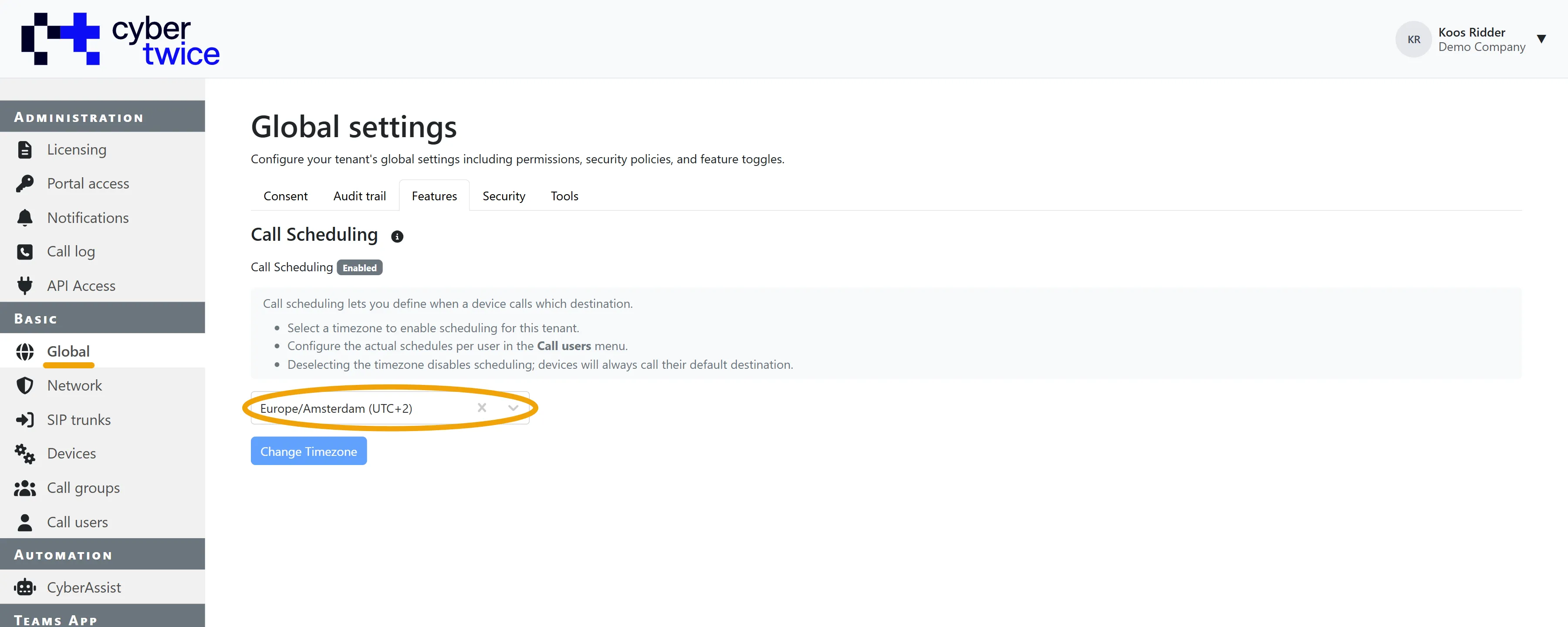
Once enabled, the badge changes to Enabled and the button becomes Change Timezone. Select another timezone and confirm to move all schedules to that timezone.
Clearing the timezone diasbles call scheduling for the whole organization. Existing rules are kept but are no longer evaluated, so every user is called again as if no schedule existed.
Schedule rules of a user
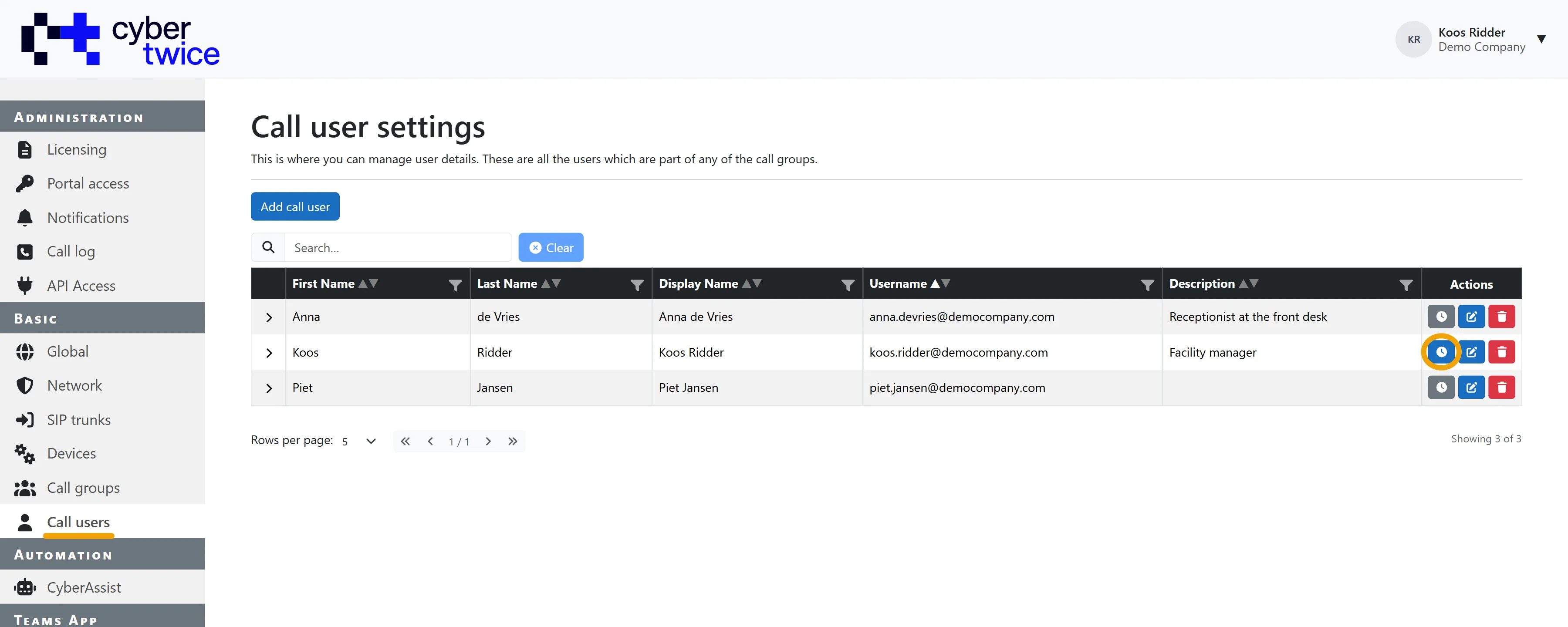
Go to Basic > Call users. Every row has a clock button in the Actions column:
- Grey: this user has no schedule rules yet (Add Schedule).
- Blue: this user already has schedule rules (Modify Schedule).
The clock button only appears when call scheduling is enabled for your organization.
Click it to open the schedule rules of that user.
The table lists the rules in the order in which they are evaluated:
Name | The name and description of the rule. |
|---|---|
Time Condition | A plain-language summary of the rule: whether the user will be called, on which days, between which times and during which period. |
Timezone | The timezone the rule is evaluated in. This is the timezone of your organization, unless the rule overrides it. |
Enabled | Whether the rule is taken into account. Disabled rules are skipped completely. |
Actions | Edit or delete the rule. |
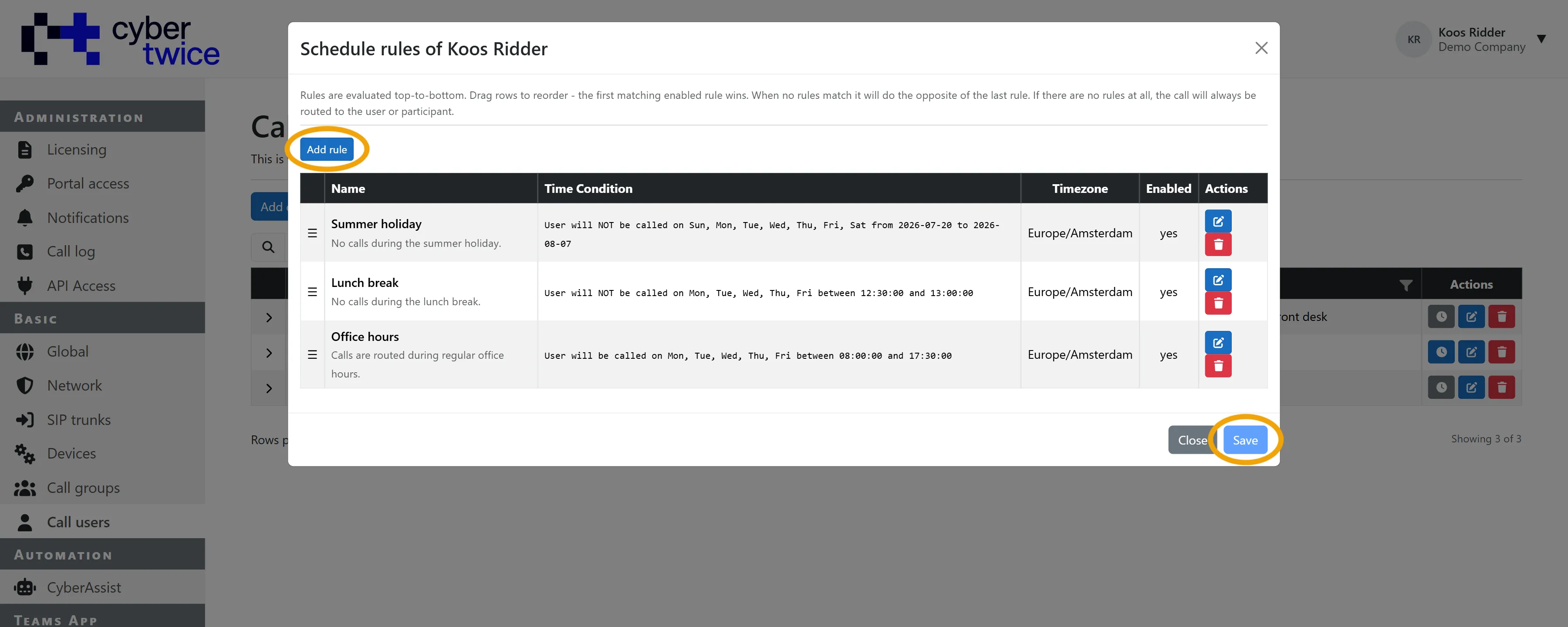
Adding, editing, deleting and reordering rules only takes effect after you click Save. Cancel discards everything you changed in this dialog.
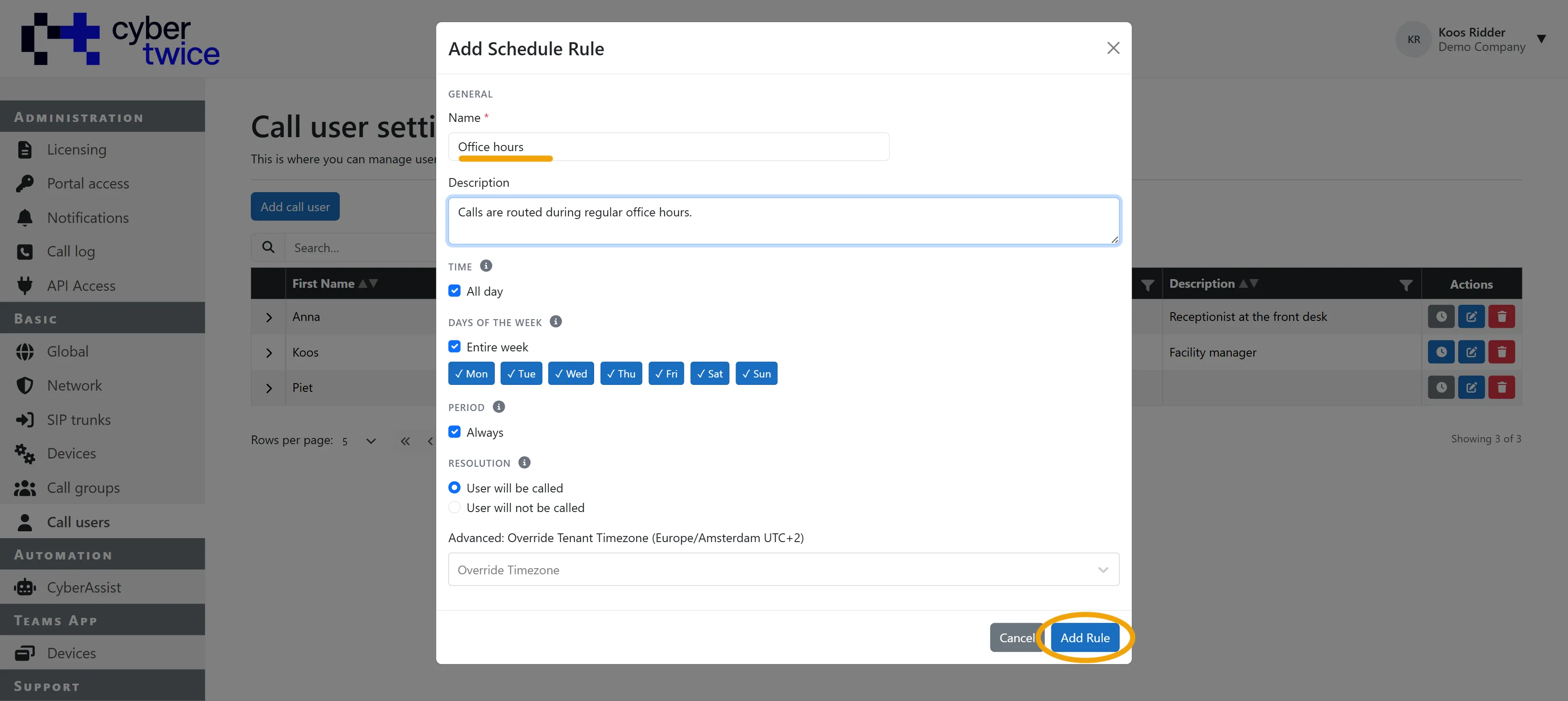
Adding a rule
- Click Add rule.
- Fill in the fields below.
- Click Add Rule to addt the rule to the bottom of the list.
- Click Save to store the changes.
Name | A descriptive name for the rule, for example Office hours. |
|---|---|
Description | An optional description explaining when the rule applies. |
Enabled | Only shown when editing an existing rule. Clear it to park a rule without deleting it. |
Time | All day covers the full 24 hours. Clear it to enter a From and To time. |
Days of the week | Entire week selects all seven days. Clear it and click the days the rule should apply to. |
Period | Always means the rule never expires. Clear it to enter a From and to date, for a holiday or a one-off event. |
Resolution | What happens when the rule matches: User will be called or User will not be called. |
Advanced: Override Tenant Timezone | Evaluate this one rule in a different timezone. Leave it empty to use the timezone of your organization. |
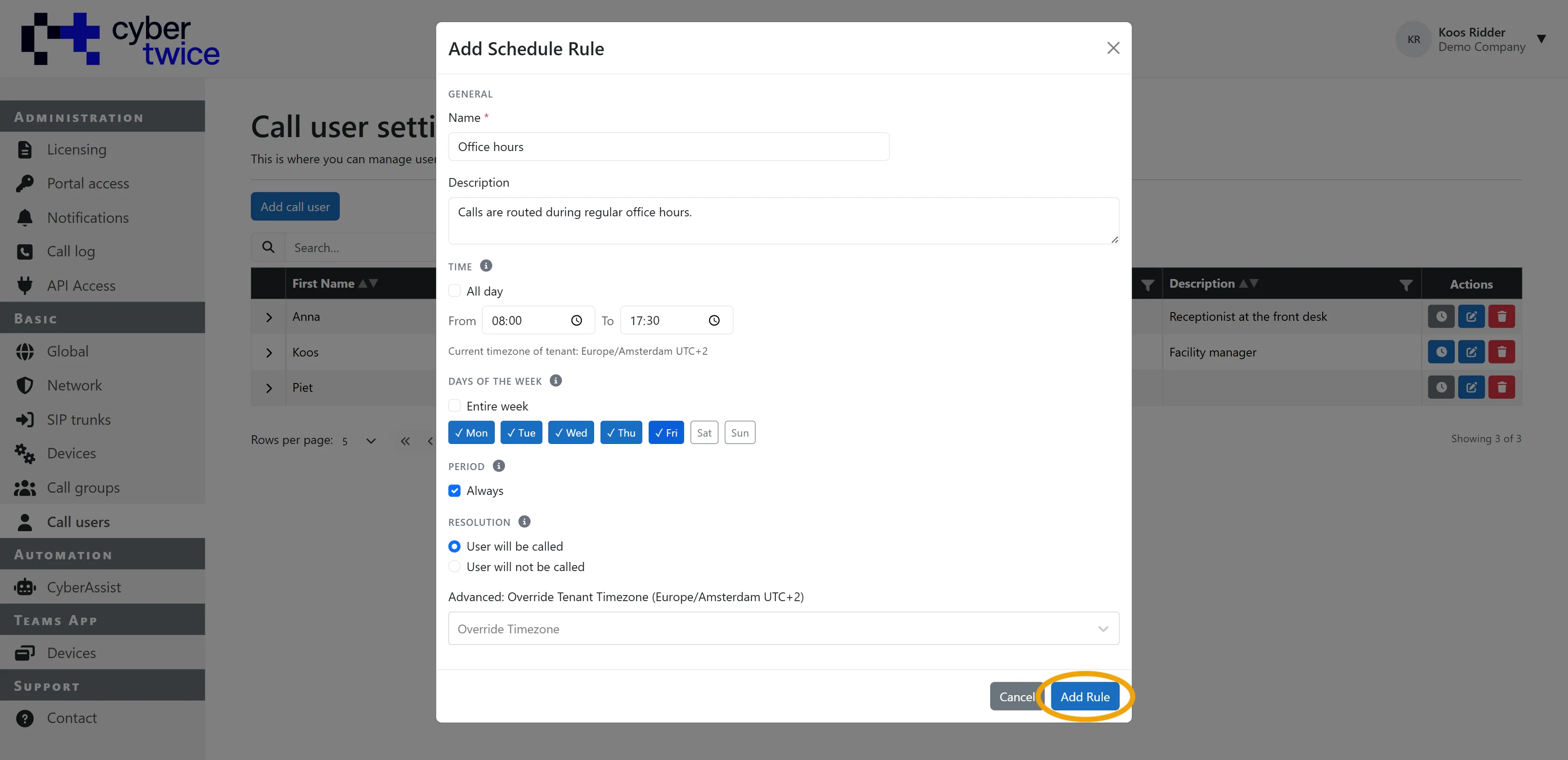
A time range may cross midnight. A rule from 22:00 to 06:00 covers the evening and the night that follows it.
How rules are evaluated
Rules are evaluated from top to bottom, and the first matching enabled rule decides. Drag a row by its handle (☰) to move it up or down. The order in the table is the order of evaluation.
- A rule matches when the moment of the call falls inside its period, on one of its days and inside its time range.
- Disabled rules are skipped as if they were not there.
- When no rule matches, the opposite of the last enabled rule in the list applies. So a list that ends with "will be called" means: outside of the rules, the user is not called.
- When a user has no rules at all, they are always called.
Take the three rules from the example above: Summer holiday, Lunch break and Office hours.
Moment of the call | Result |
|---|---|
Wednesday 10:00 | Office hours matches, so the user is called. |
Wednesday 12:45 | Lunch break matches first, so the user is not called. |
Wednesday 19:00 | No rule matches, so the opposite of Office hours applies: no call. |
Saturday 10:00 | No rule matches, so no call. |
25 July, any time | Summer holiday matches, so the user is not called for the entire period. |
Order matters. If Office hours were at the top of the list, it would already match at 12:45 and the Lunch break rule would never be reached. Put your exceptions above the general rule.
Testing a schedule
You do not have to wait for a real call to see whether your rules do what you expect. Every call group has a Test Availability button in the Actions column.
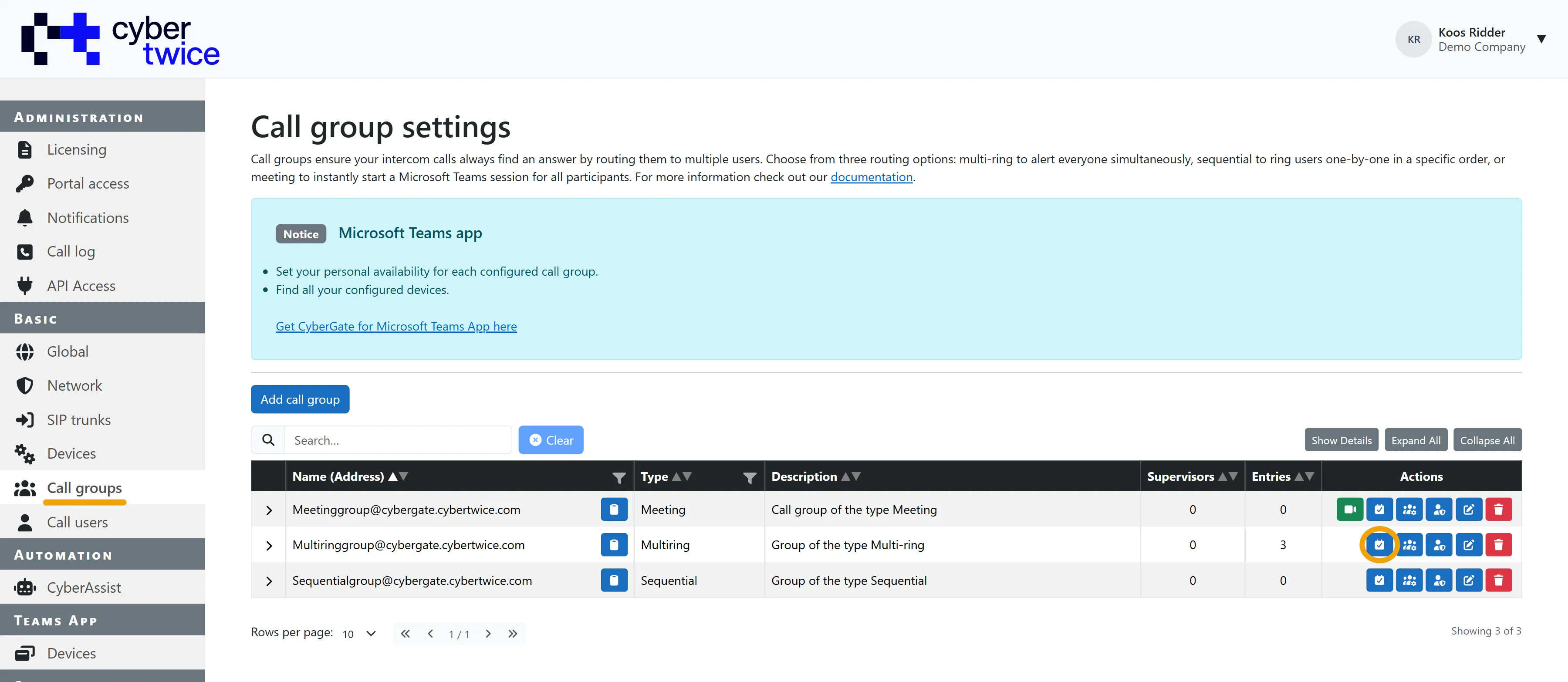
- Click Test Availability on the call group you want to check.
- Pick a Date, a Time and a Timezone. The timezone of your organization is filled in by default.
- Click Test.
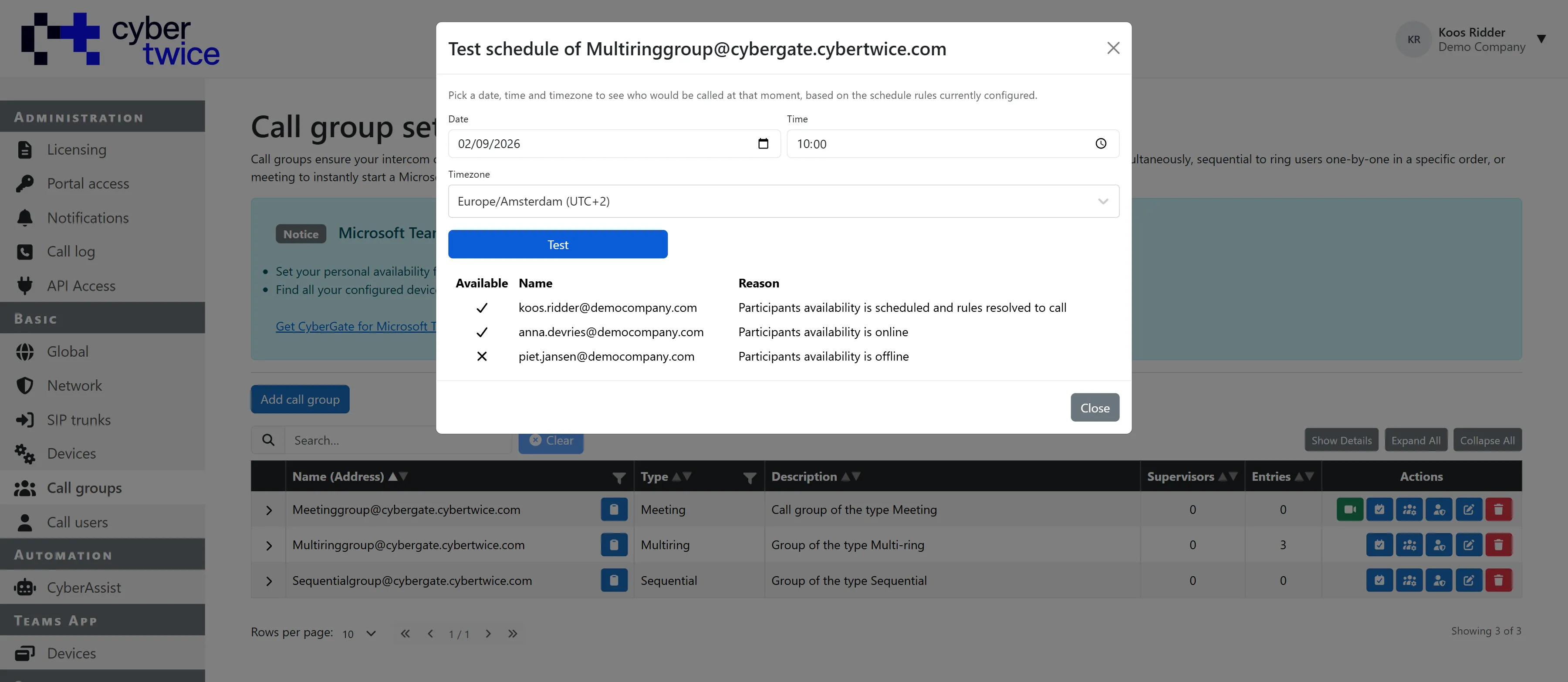
The result lists every participant of the call group:
Available | A check mark when this participant would be called at that moment, a cross when they would not. |
|---|---|
Name | The participant. |
Reason | Why the participant is or is not called. |
The Reason follows from the availability the participant set for this call group:
Participants availability is online | The participant is always available. Their schedule rules are not evaluated. |
|---|---|
Participants availability is offline | The participant is never available. Their schedule rules are not evaluated. |
Participants availability is scheduled and rules resolved to call | The schedule rules of this participant allow a call at the tested moment. |
Participants availability is scheduled and rules resolved to not call | The schedule rules of this participant do not allow a call at the tested moment. |
For a Sequential call group an extra # column shows the order in which the participants would be rung.
Running a test changes nothing, it only displays what would happen.