CyberGate Call Recording
CyberGate Call Recording
CyberGate offers the option to record all intercom calls made through CyberGate. The recording feature is powered by the CyberTwice cloud service called ATTEST.
With call recording enabled, all calls made by your devices in CyberGate will be recorded by default, but can be disabled per device. The recordings are securely stored in Microsoft Azure (West-Europe) for a period of 10 days, recordings older than 10 days will be deleted automatically.
The recordings are stored fully encrypted in the CyberTwice ATTEST Cloud service (Azure). To access the recordings ATTEST Replay is used. ATTEST Replay offers an easy, convenient way of searching the recordings and playing them back. You can access ATTEST Replay in three ways:
- Via a link on the CyberGate Management portal
- Via the Teams App store (within the Teams App), search for ATTEST Replay
- Directly via this Link to ATTEST Replay in Teams
Please check the applicable national and state legislation and regulations related to Call Recording before activating this feature.
Steps to follow to enable recording in CyberGate
To enable recording follow the next steps:
Activation of the recording feature
Describes the procedure to enable the recording feature in the CyberGate Management Portal
Search and replay recorded calls
Describes ATTEST Replay to search and replay the recordings
Modify the recording related settings
Describes the recording related settings in the ATTEST Management Portal
Activation of the recording feature
The call recording feature can be enabled in the CyberGate Management Portal (Link).
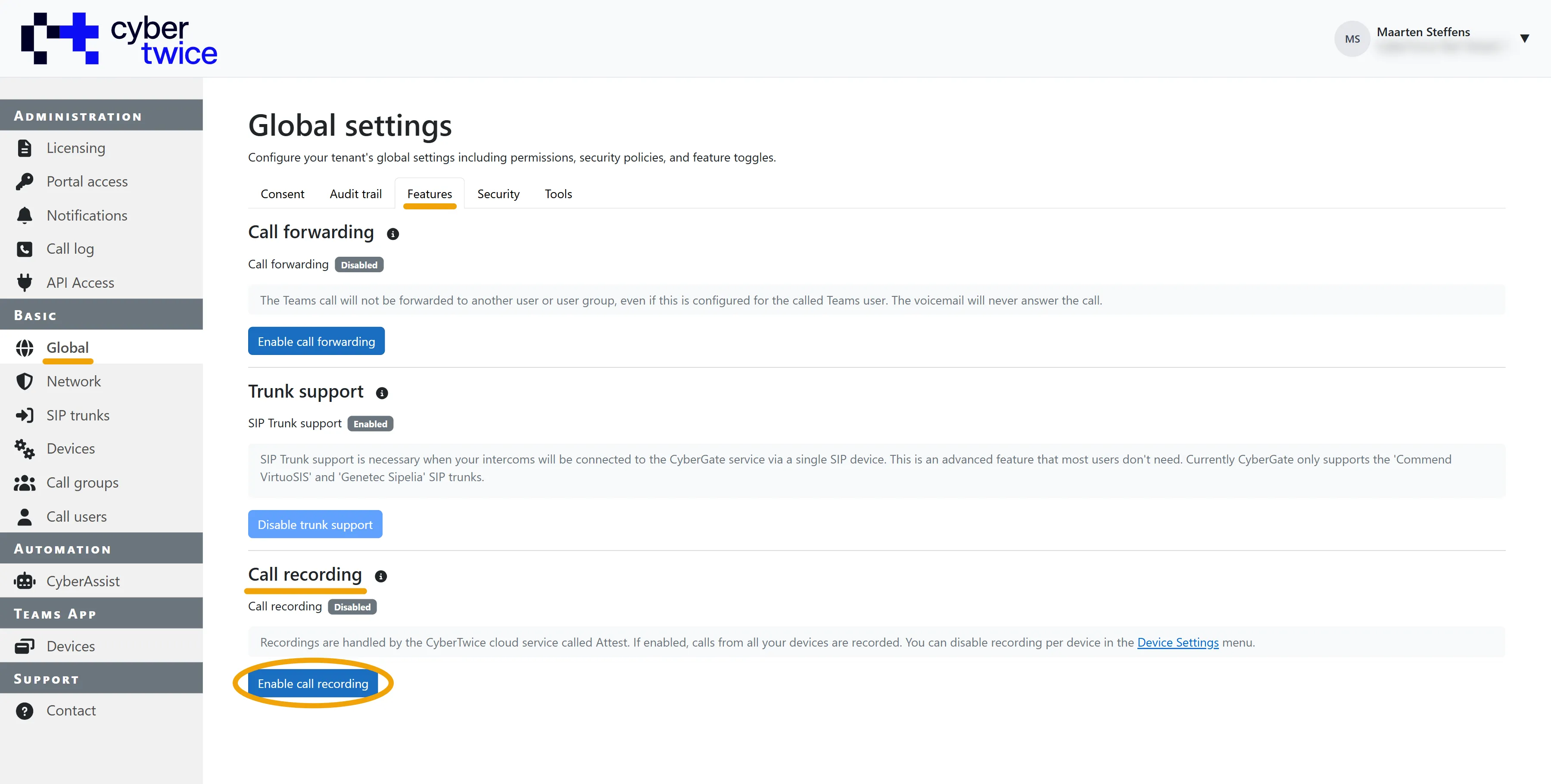
- The first step is to login to the Cybergate Management portal using your Microsoft credentials and navigate to Basic-Global. In the 'Features' tab, scroll down to the 'Call recording' section.
- Click 'Enable call recording' to start the recording procedure
Call recording can only be enabled if the Feature Configuration PowerShell script has been run at least once. See the Feature Configuration scriptConfigure Display name document ** for instructions on how to run this script.
- Click confirm to enable recording.
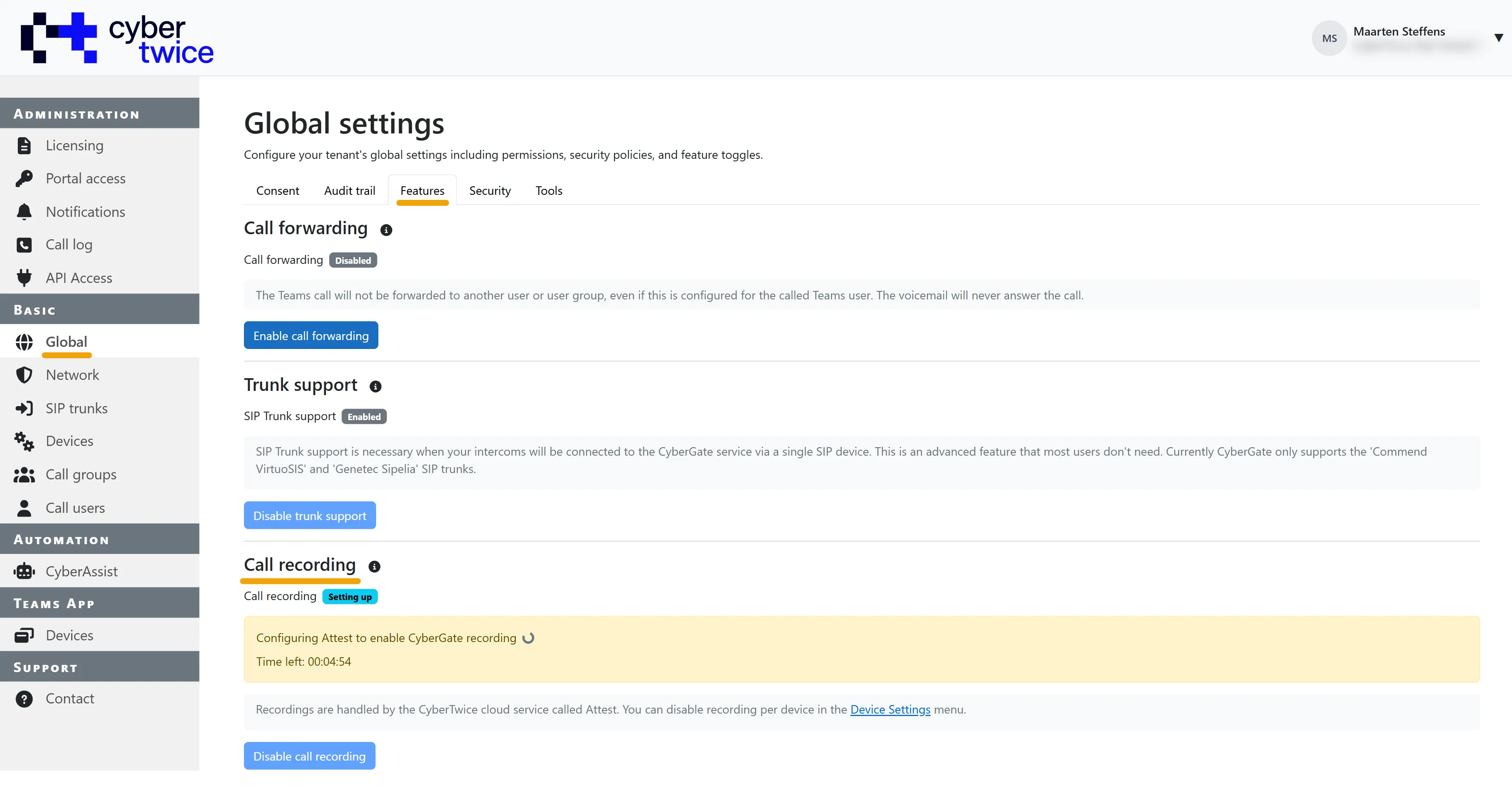
Recording will be set up for your Tenant. This can take up to 5 minutes.
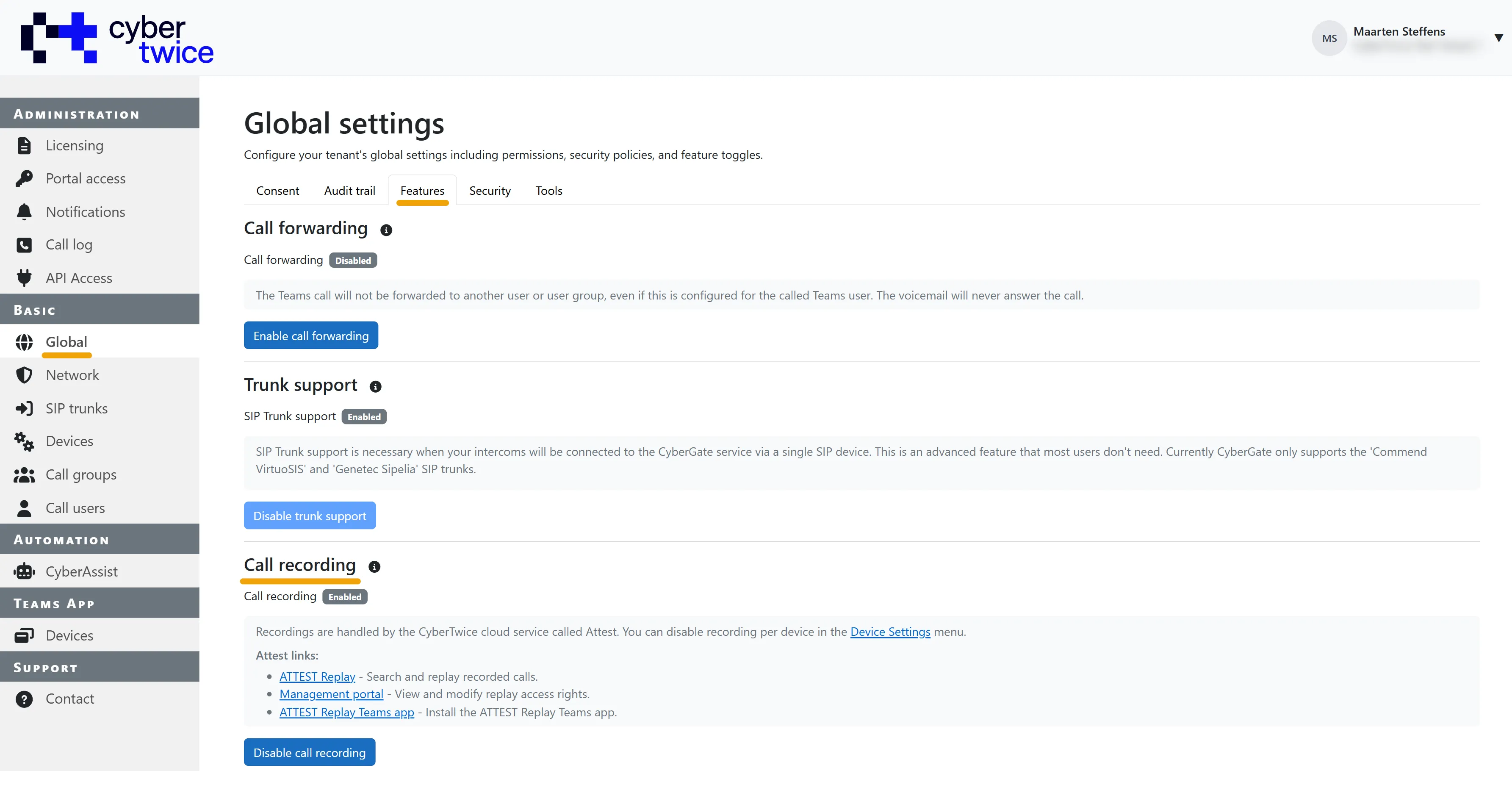
When enabled, the Call recording section will show some links to get started.
- Replay - The website link to ATTEST Replay, the Search and Replay website where you can search calls, play them and see call transcriptions and -details. ATTEST Replay URL: https://replay.attest.cybertwice.com
- Management portal - The link to the management portal of ATTEST, where you can view and modify the access rights for call playback and change the selected transcription language. Management portal URL: https://admin.attest.cybertwice.com
- ATTEST Replay Teams app - Direct link to ATTEST Replay that runs directly in Microsoft Teams. Click this Link to install the app in your Microsoft Teams.
The recording configuration is now complete! You can logout of the Cybergate Management portal and start using CyberGate with recordings.
It can take up to 15 minutes before a recorded call appears in ATTEST Replay.
Search and replay recorded calls
The search and Replay of calls is done in the web application ATTEST Replay: https://replay.attest.cybertwice.com or in the ATTEST Replay Teams app in Microsoft Teams.
Features:
- Find recordings fast using the Facet Search that lets you filter the recordings quickly
- Play the recordings
You can access ATTEST Replay using your Microsoft credentials.
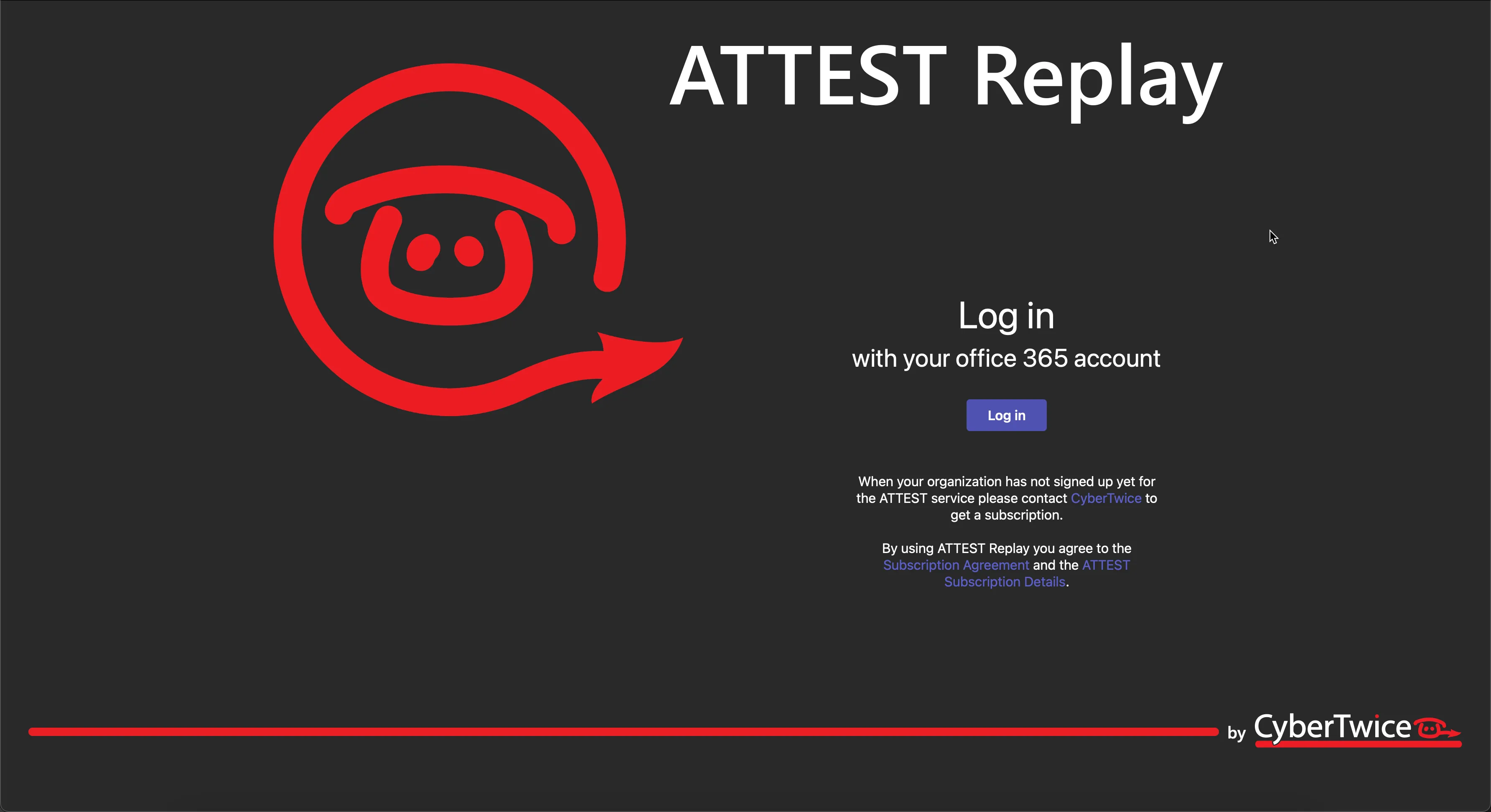
- Log in using your Microsoft credentials
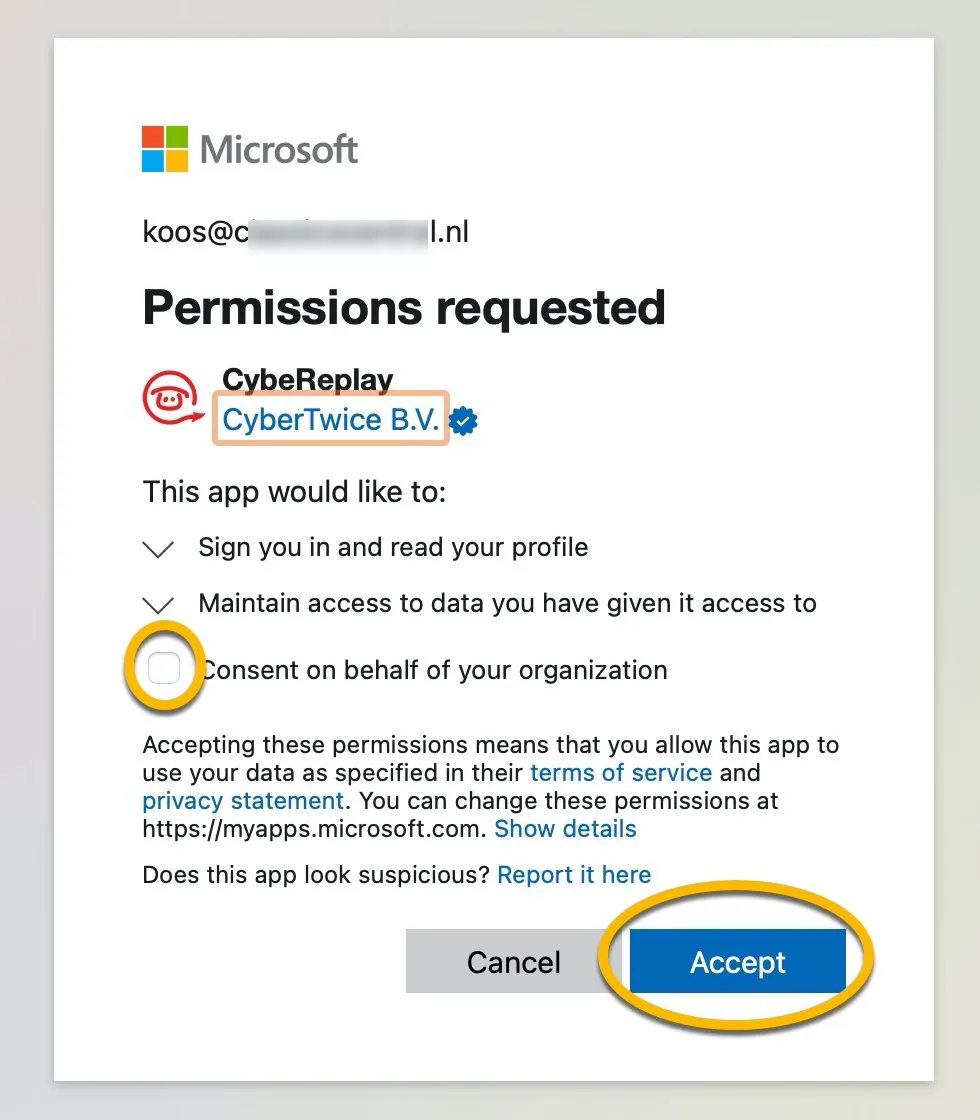
- After logging in, a Microsoft Permission Request appears. Consent this either for your own account or for everyone in your organisation
ATTEST Replay features a search screen and a replay screen. ATTEST Replay will open by default in the search screen.
The Search screen is divided into three main parts:
- Search
- Filers
- Results
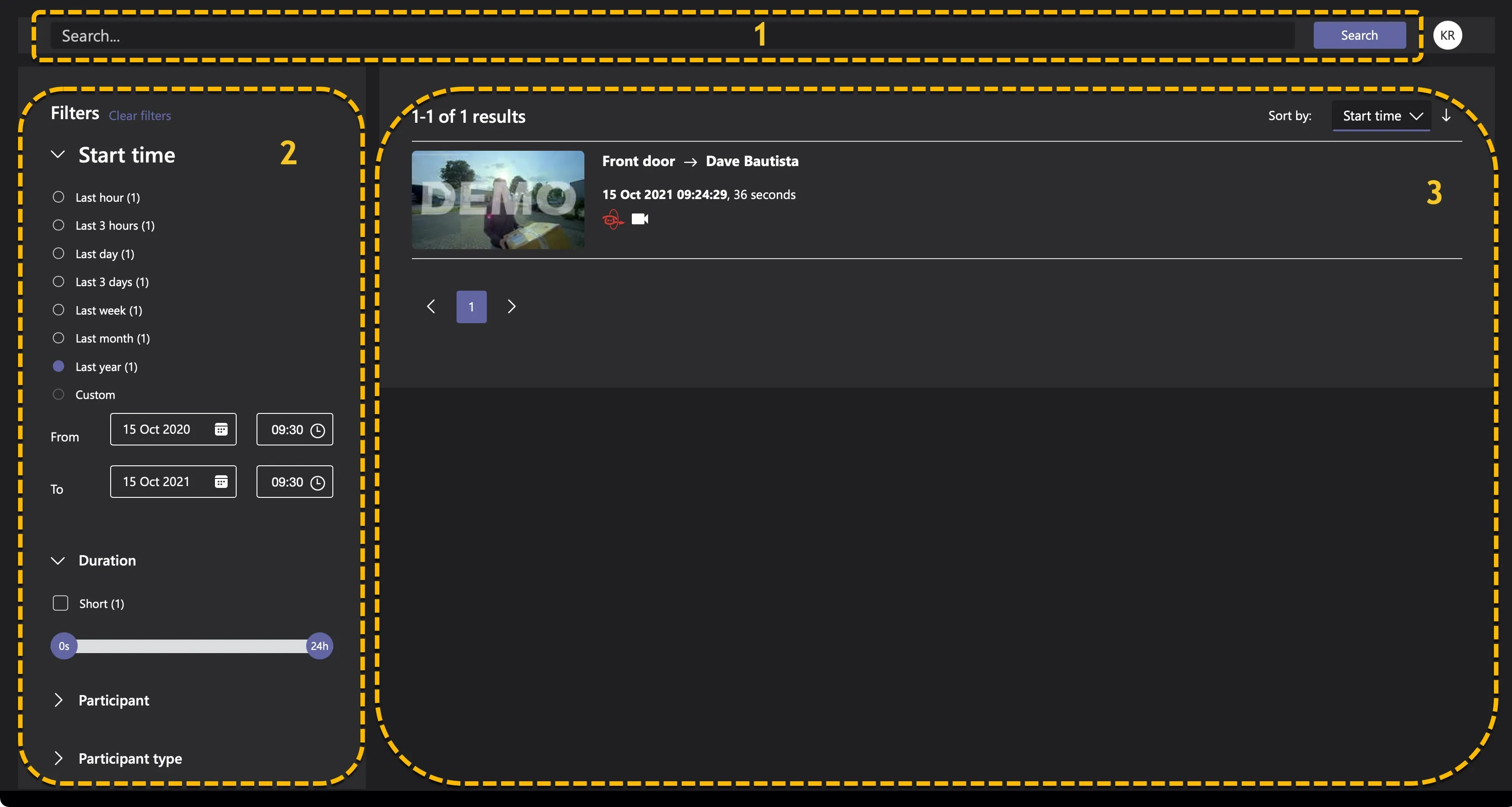
1. Search
Search features a search bar and a search button that you can use to find recordings.
Use Search for:
- Names of participants in recording
- Words in the recordings transcribed text
2. Filters
Filters is a powerful tool to quickly filter search results. Select one or more items in Filters to display the results.
- By selecting or deselecting an item in a filter, the search results and the other filters will be updated automatically
- The number displayed behind each filter indicate the number of results for that filter.
3. Results
Results display all found recordings in a sortable card-style.
A card consists of:
- A preview
- The participants in the call
- The time and date of the recording
- The duration of the recording
- The recording type(s)
You can sort the calls by:
- Score, higher score = more relevant result
- Start time
- Duration
- User
- Number of participants
To play a recording:
- Click on the card of the recording to play to open the replay window.
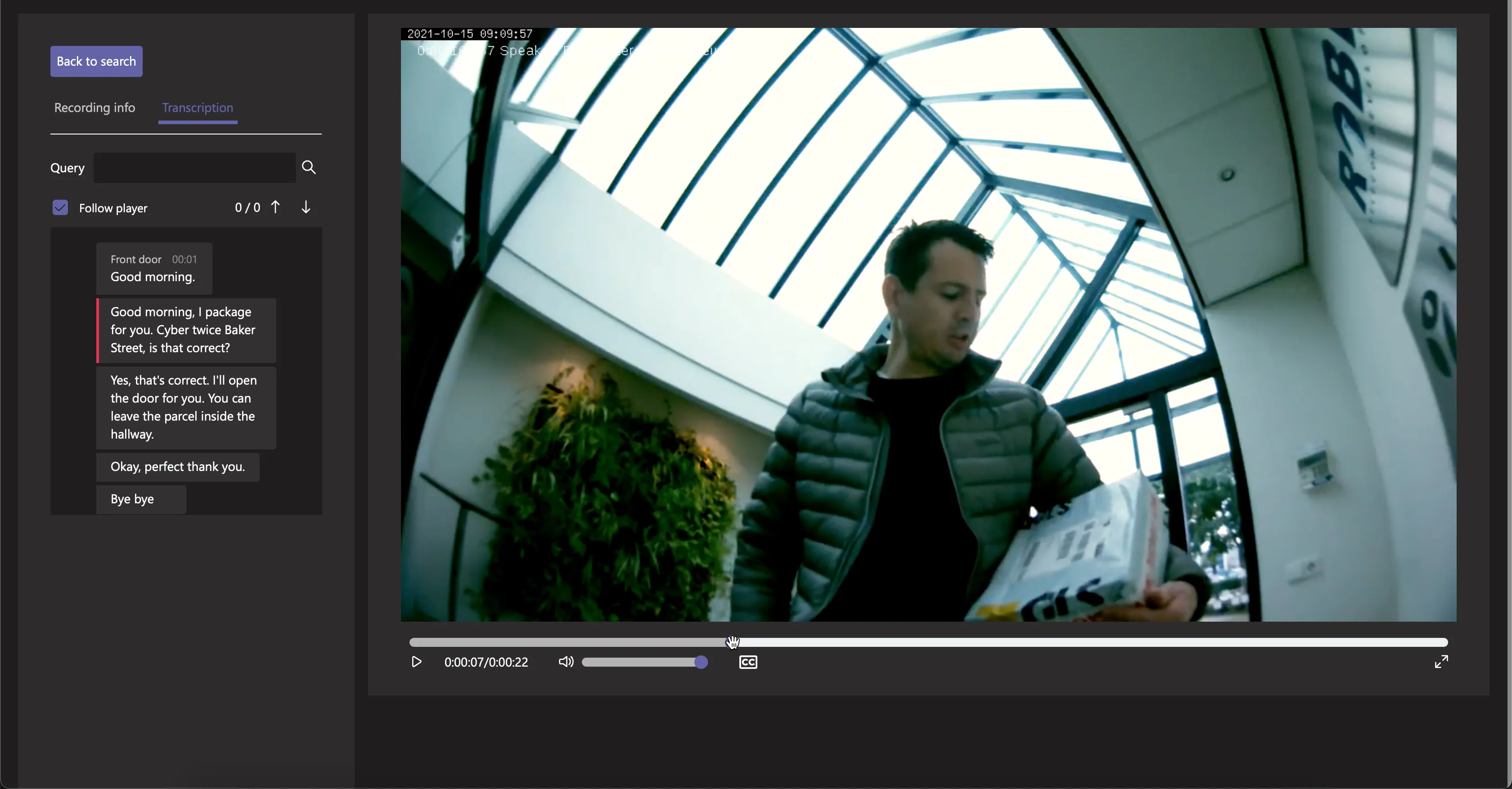
The Replay screen allows you to:
- See the Recording info
- See the Transcription of the recording with the option to follow the player (when available)
- Play the recording
- Pause the recording
- Skip through the recording
- Control the playback volume
- Enable / disable subtitling
- Change to full screen
- Return to the search results
Modify the recording related settings
The recording related settings can be modified in the management portal of ATTEST. The management portal of ATTEST can be accessed through this link: https://admin.attest.cybertwice.com
- Log into the ATTEST Management portal as an Administrator.
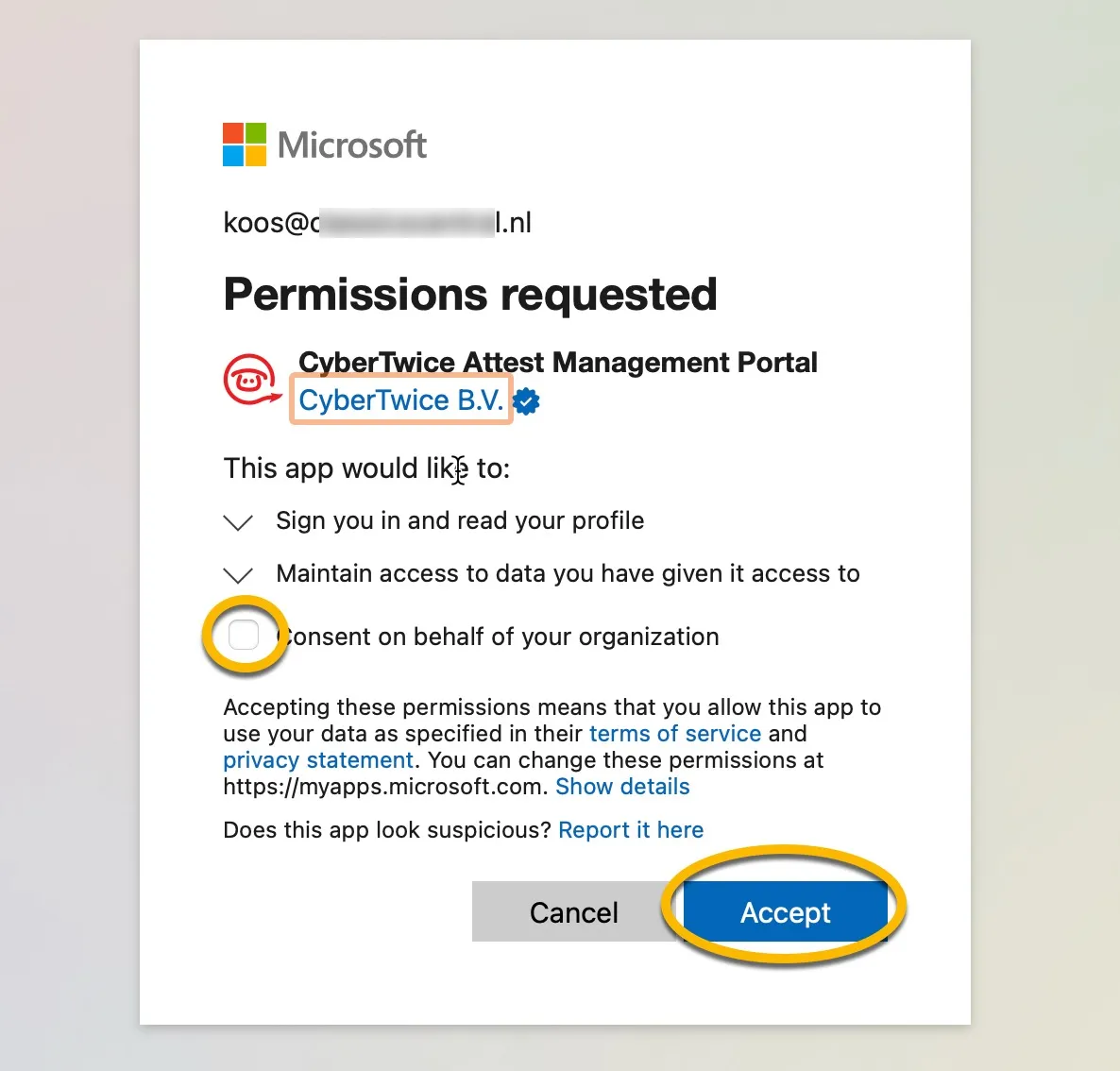
When logging in you'll be asked to accept the requested permissions. These are necessary for the portal to read your profile and display the data of the CyberGate recordings. You can choose to accept it only for you or for all administrators of your Tenant.
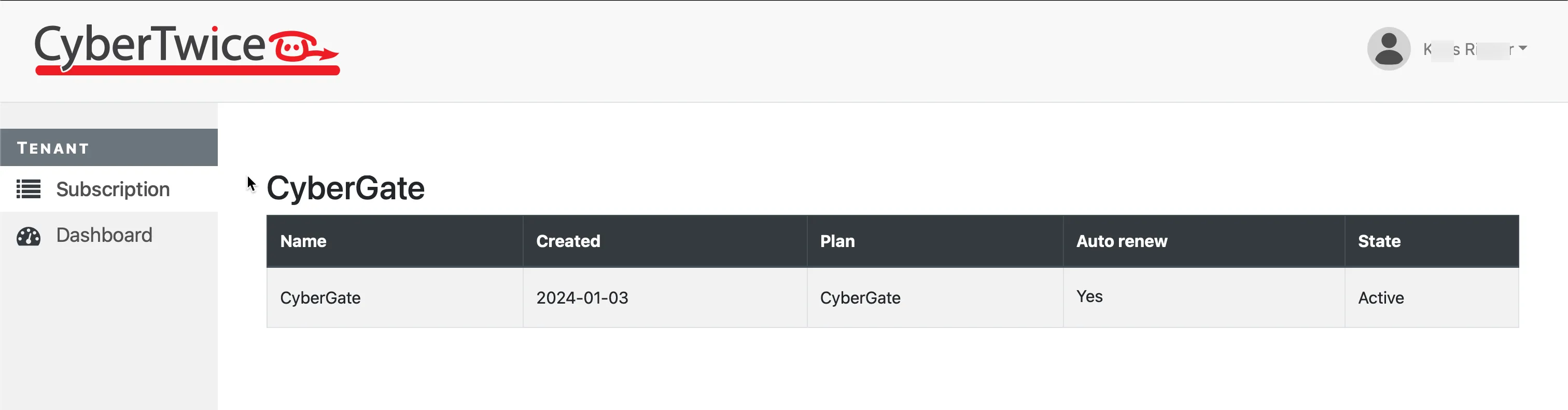
When logged in successfully you’ll be taken to the Subscription menu.
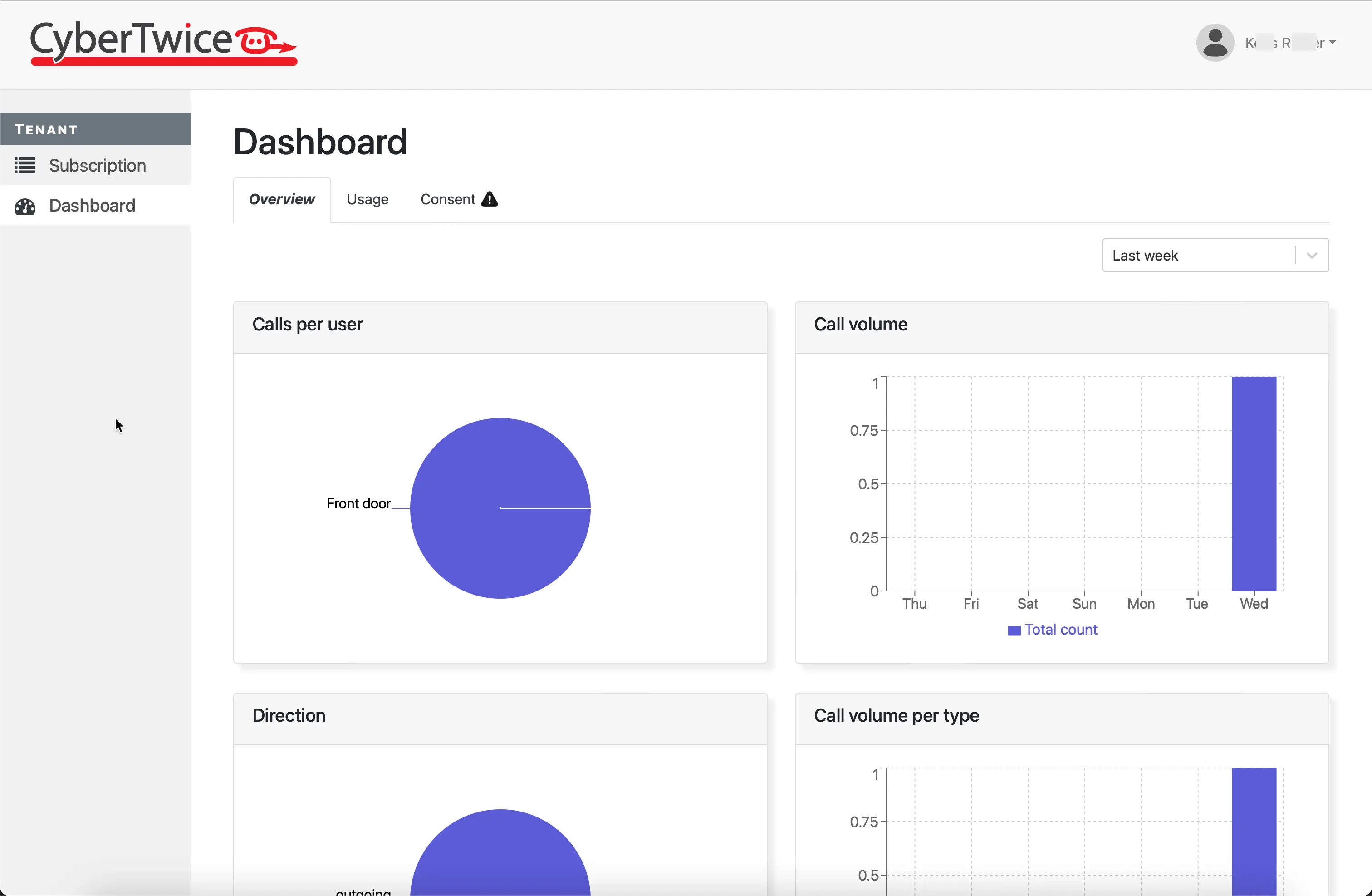
- Click on 'Dashboard' to show a graphical overview related to the recorded calls.
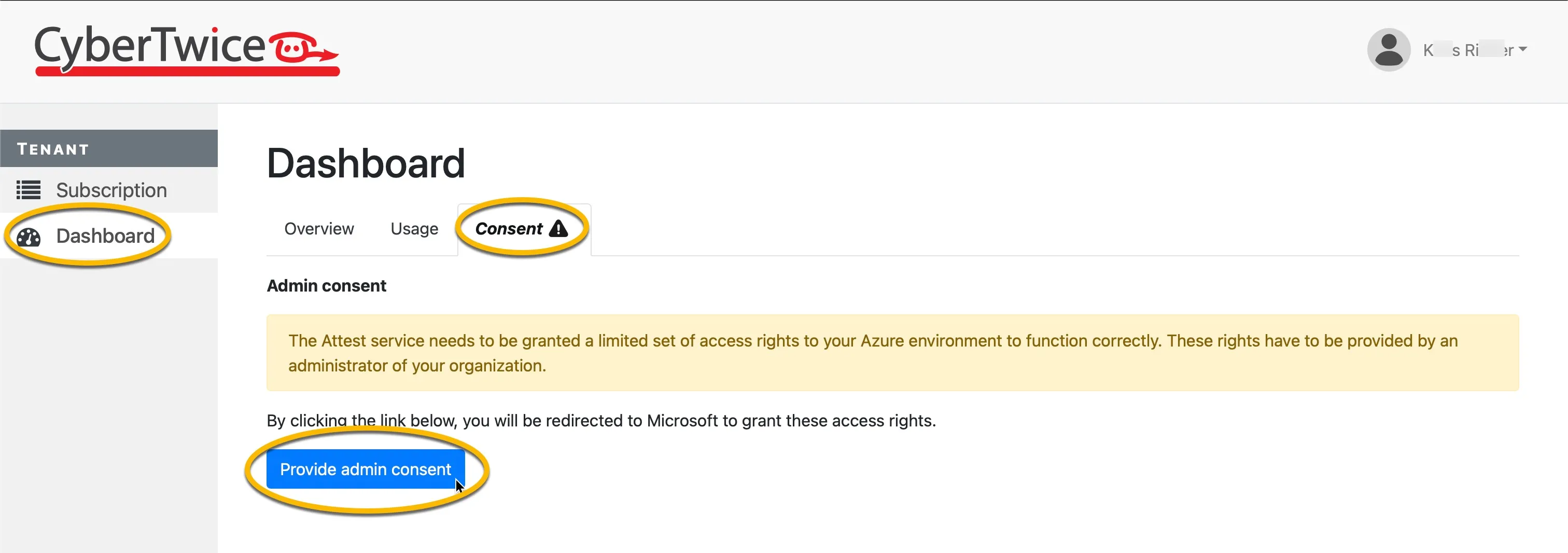
Before any recording related settings can be modified, consent has to be given to ATTEST.
- Click on the 'Consent tab' and click the 'Provide admin consent' button.
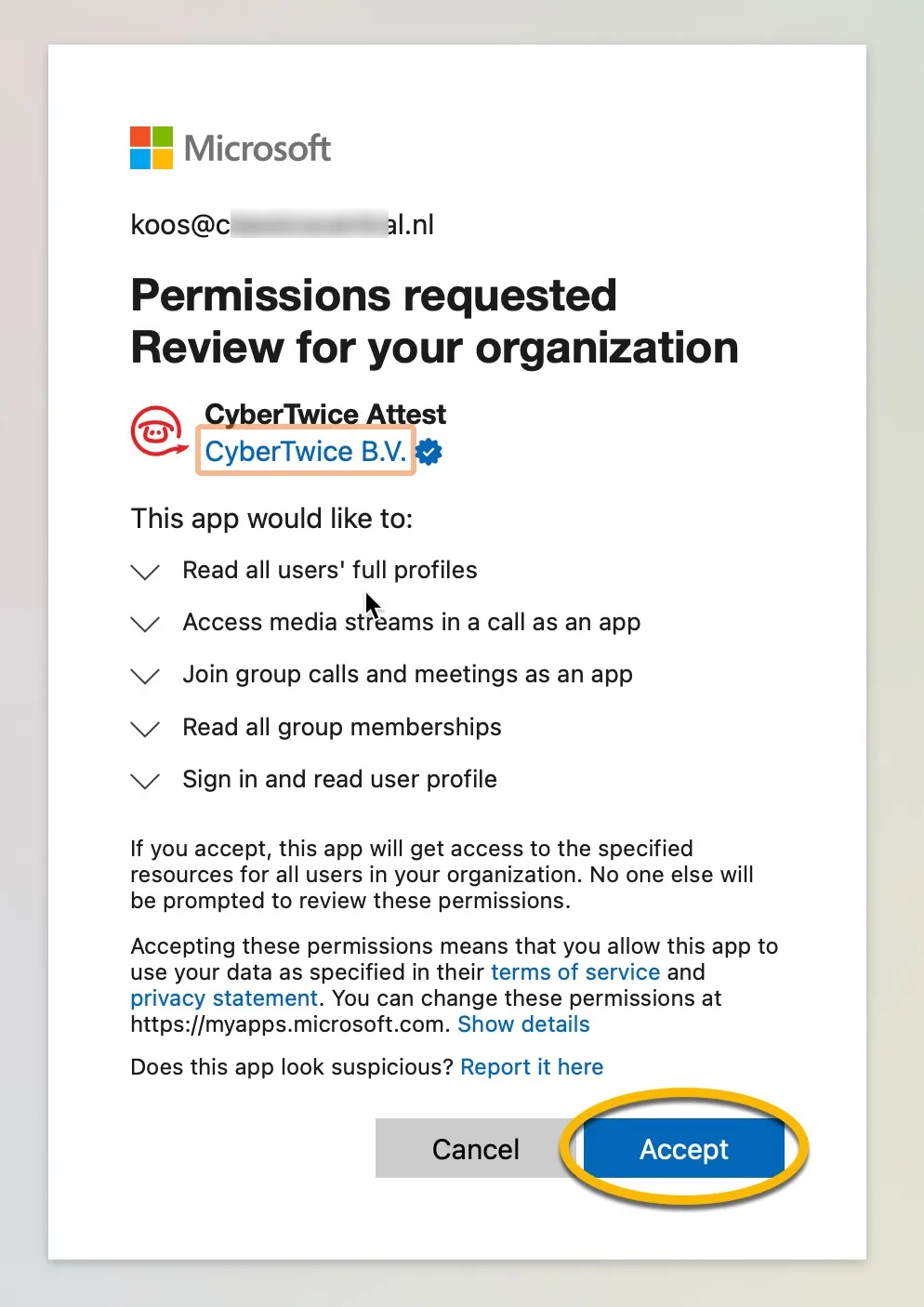
- Log in using a user account with global administrator privileges of your organization and accept the requested permissions
After consent has been given, the ATTEST management portal displays all features available.
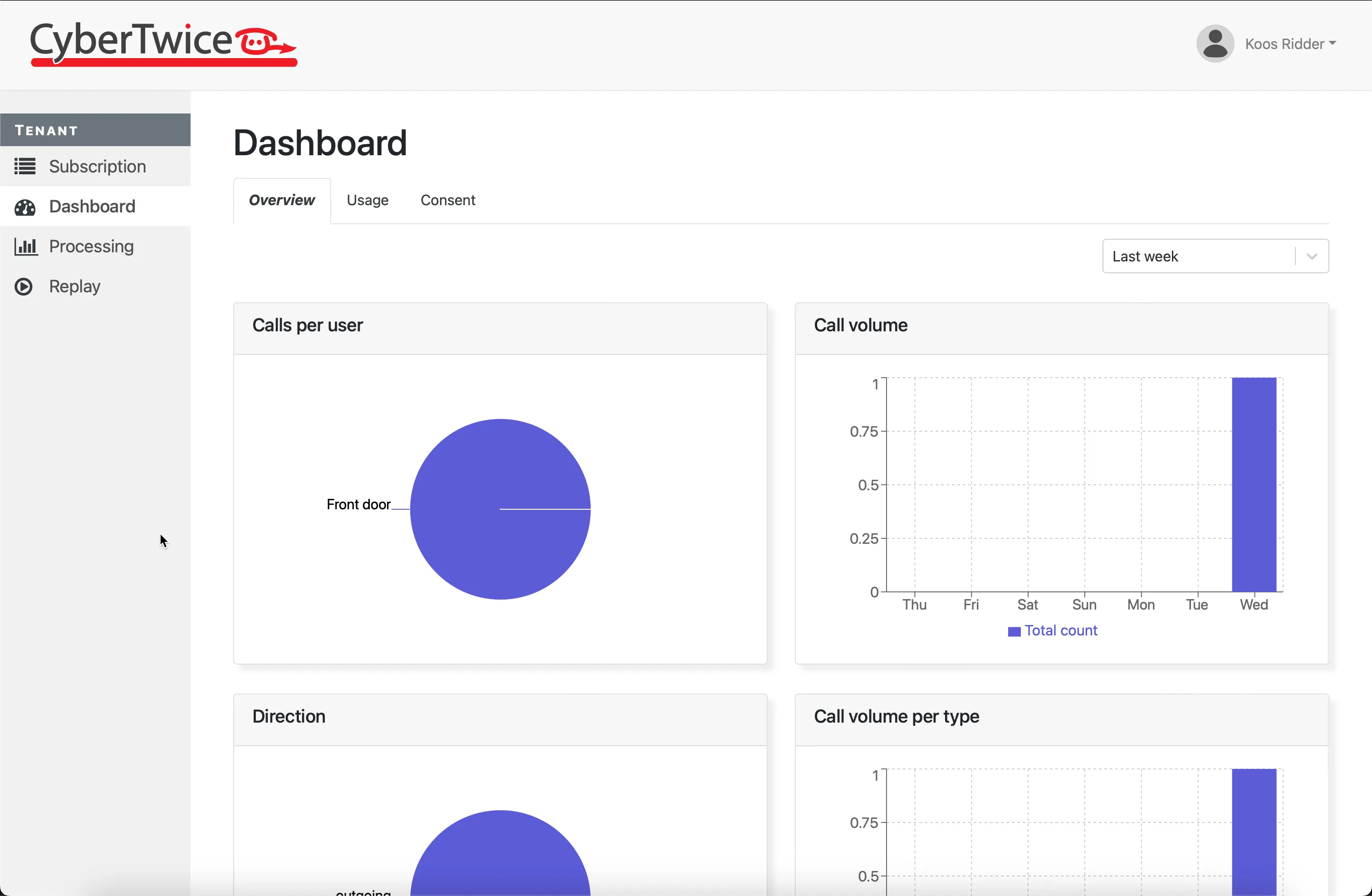
Allowing access to ATTEST Replay is done via groups, so people in an EntraID, M365 or Teams groups can be granted permission to access the call recordings.
It can take up to 30 minutes after Admin consent has been granted before group permissions can be set!
- Click on the 'Groups' tab to set group permissions.
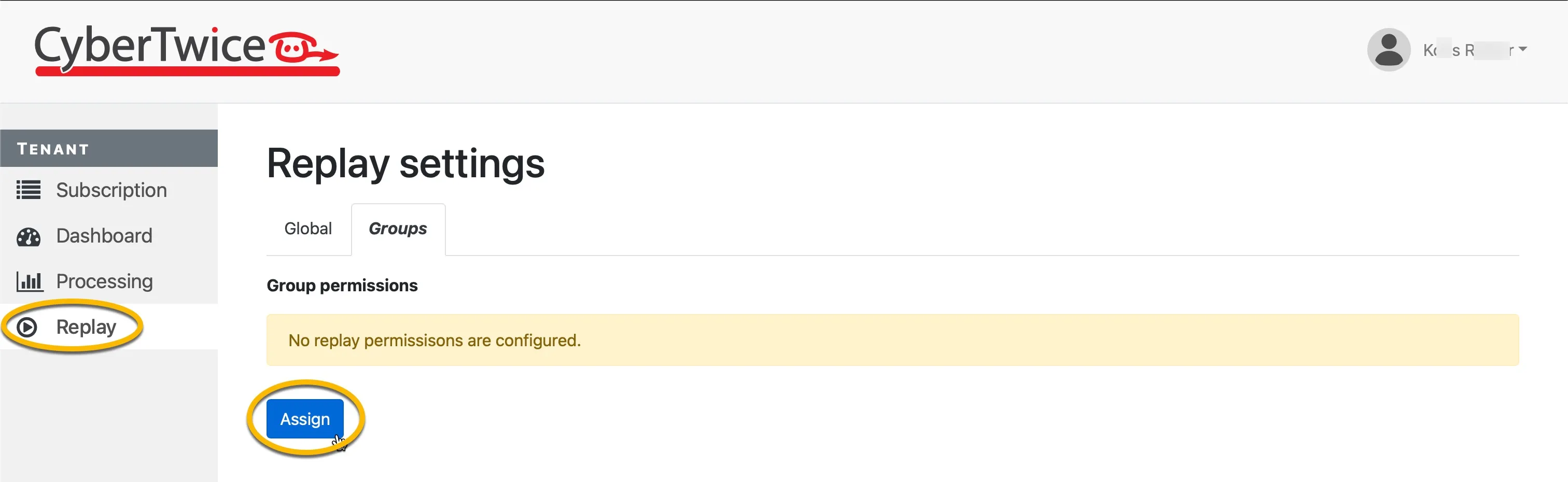
In this example we are assigning a group with the two permissions ‘Search own calls’ and ‘Play own calls’. This means that a user who is part of this specific group can search and play all calls.
- Click on ‘Assign’ to assign replay access rights to a specific group
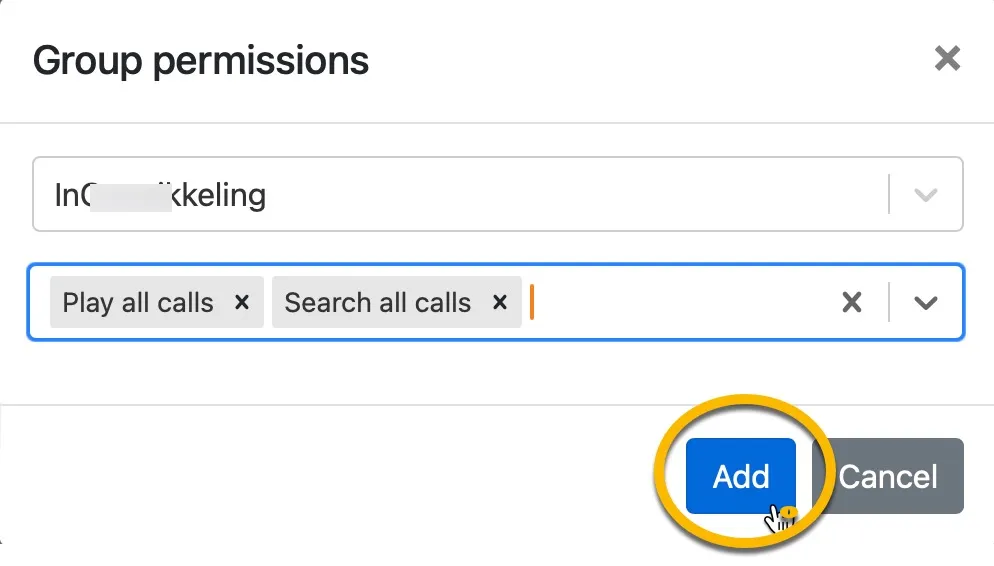
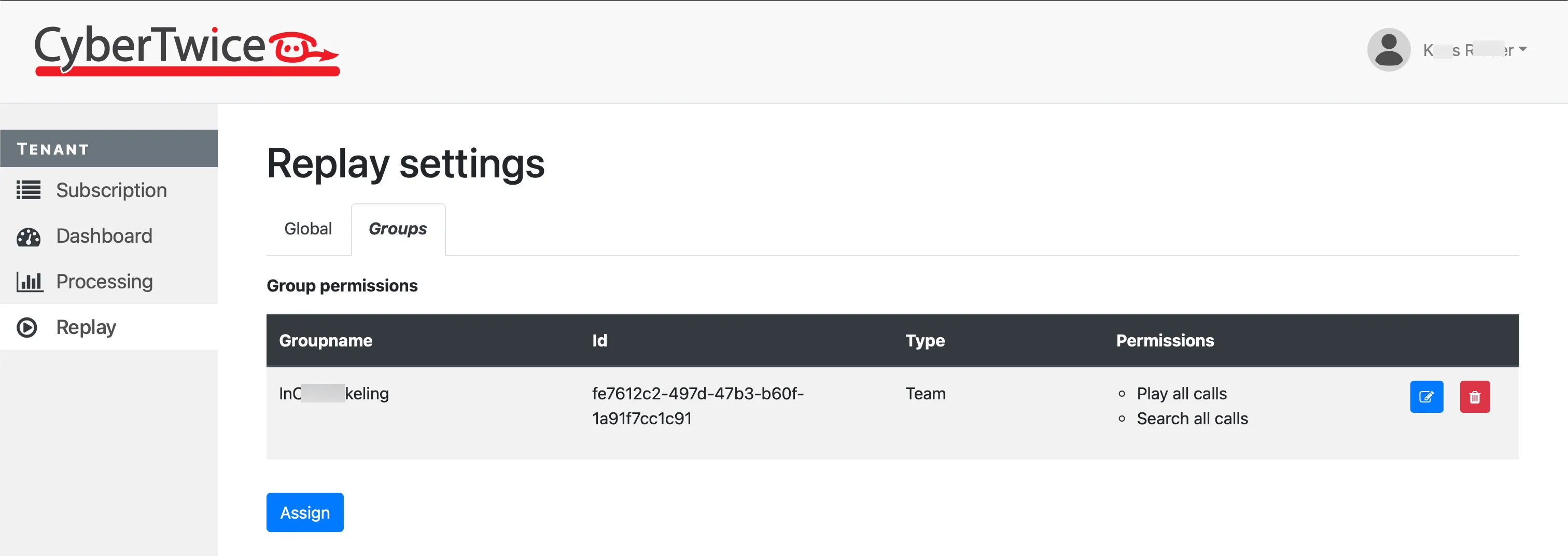
To be able to view calls, select at least one of the two 'Search' permissions. If only Play permissions are set, no calls will be visible in the ATTEST Replay site.