CyberGate Call Group Settings
CyberGate Call Group Settings
Call groups ensure your intercom calls always find an answer by routing them to multiple users. Choose from three routing options: Multi-ring to alert everyone simultaneously, Sequential to ring users one-by-one in a specific order, or Meeting to instantly start a Microsoft Teams session for all participants. Call groups are intended to be used from intercom devices or IP cameras.
Overview
The Call group settings page lets you create and manage call groups for your organization. Each call group has a unique SIP address (e.g., [email protected]) that can be configured on your SIP device. When a call comes in on that address, CyberGate routes it to the group's participants according to the group's type.
You can navigate to the Call group settings page from the left sidebar under Basic > Call group.
Call Group Types
Multi-ring
All participants are rung simultaneously. The first person to answer picks up the call. This is the simplest routing option and works well when you want the fastest possible response.
Sequential
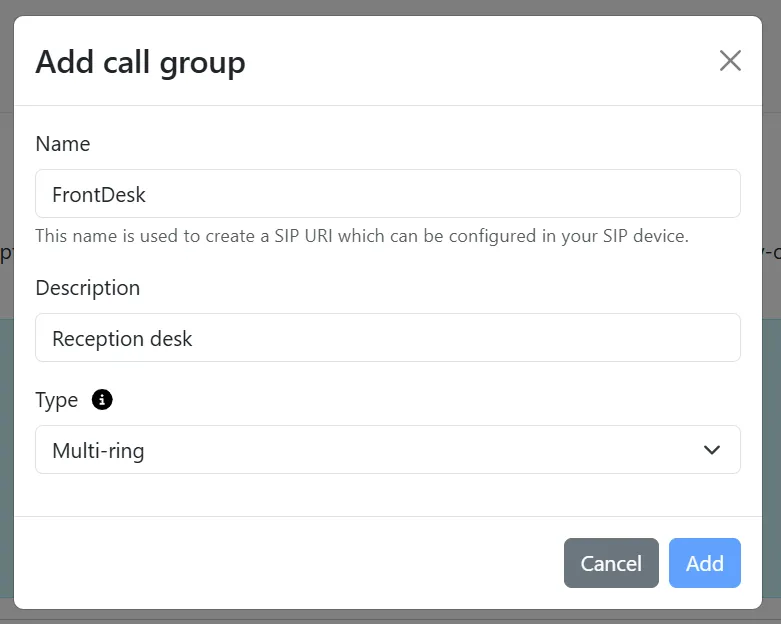
Participants are rung one at a time in a specified order. If the first participant does not answer within the configured ring duration, the call moves to the next participant in the list, and so on.
- Ring duration: The number of seconds each participant is rung before moving on (between 5 and 30 seconds).
- The order of participants can be rearranged (see Managing ParticipantsManaging Participants).
Make sure the intercom timeout is set to a value that allows sufficient time for all participants to be rung.
Meeting
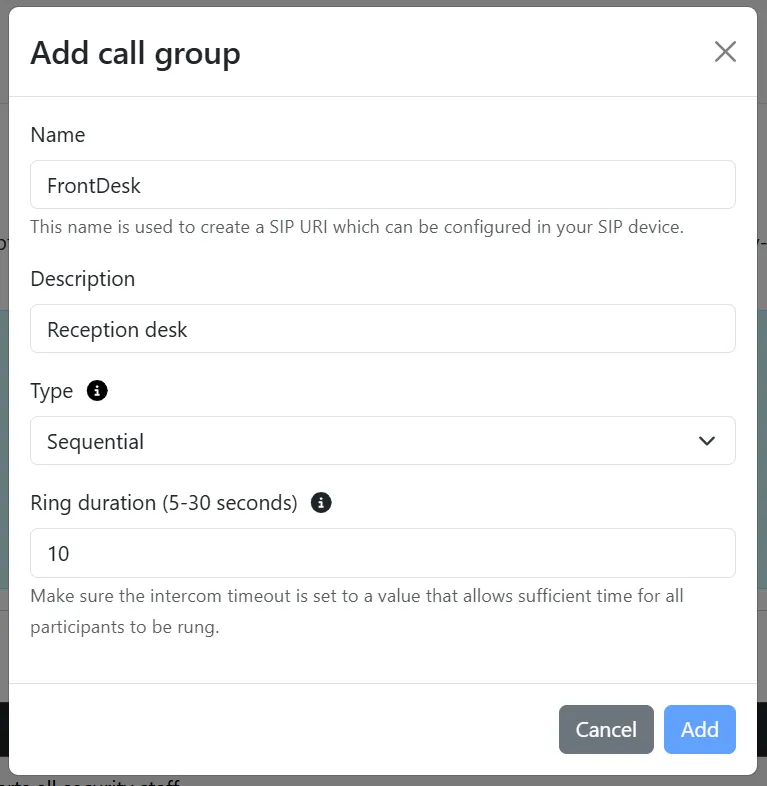
When a call arrives from an IP camera or door station, a Microsoft Teams meeting is automatically started for all participants. This makes it ideal for camera-based scenarios such as access control points or monitored entrances. Where multiple people need to see the camera feed and decide together how to respond. The device (camera) continues to ring until the first participant joins the meeting. If no participants join within the configured timeout, the call ends.
- Teams Meeting URL: A valid Microsoft Teams meeting URL is required.
- Timeout no participants joined: If no one joins the meeting within this time (15–600 seconds), the call ends.
- Timeout no participants left: If all participants leave the meeting, the call ends after this time (1–600 seconds).
Viewing Call Groups
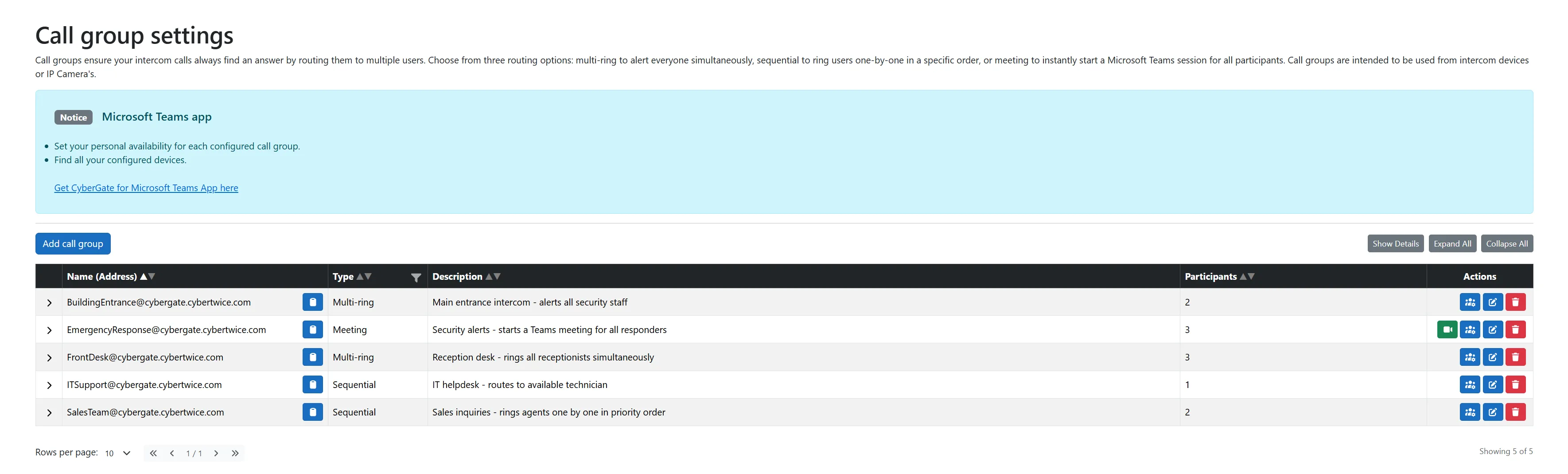
The main table displays all configured call groups with the following columns:
Column | Description |
|---|---|
Name (Address) | The full SIP address of the call group. Click the copy icon to copy it to your clipboard. |
Type | The routing type: Multi-ring, Sequential, or Meeting. |
Description | A text description of the call group. |
Participants | The number of participants in the group. |
Actions | Buttons for managing the call group (see below). |
Expanding Rows
Click the arrow (>) on the left side of a row to expand it and see the list of participants. For Sequential groups, participants are shown in numbered order.
Use the Expand All and Collapse All buttons in the top-right corner to expand or collapse all rows at once.
Show Details
Click the Show Details button in the top-right corner to add a Details column to the table. This column shows type-specific settings:
- Multi-ring: No details.
- Sequential: Ring duration in seconds.
- Meeting: Timeout values for "no users joined" and "no users left".
Click Hide Details to remove the column again.
Filtering and Sorting
- Click any column header to sort the table by that column.
- Use the filter icon on the Type column to filter call groups by one or more types (e.g., show only Meeting groups).
Pagination
The table shows 10 rows per page by default. Use the pagination controls at the bottom to navigate between pages.
Adding a Call Group
The call group type cannot be changed after creation. If you need a different type, delete the group and create a new one.
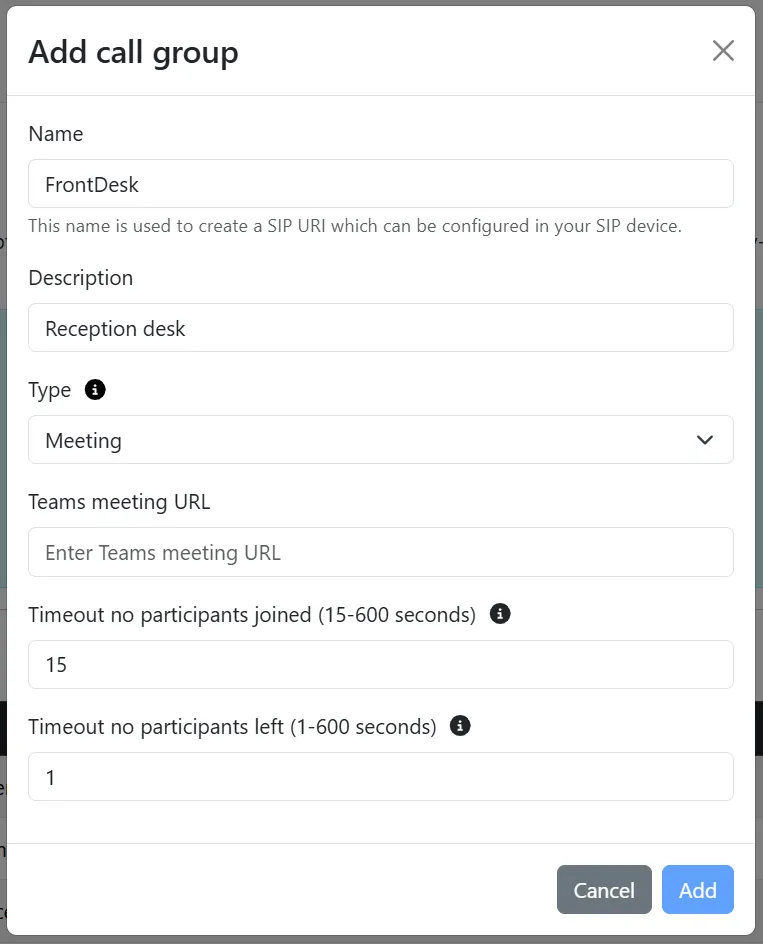
- Click the Add call group button at the top-left of the page.
- Fill in the required fields:
Field | Description |
|---|---|
Name | A unique name for the call group. This name becomes part of the SIP address (e.g., entering Reception creates [email protected]). Only valid SIP characters are allowed (letters, numbers, and characters like -, _, .). Maximum 64 characters. |
Description | A text description of the call group. Maximum 256 characters. |
Type | Select the routing type: Multi-ring, Sequential, or Meeting. Click the info icon (ℹ) for a description of each type. |
Depending on the selected type, additional fields appear:
Sequential:
Field | Description |
|---|---|
Ring duration (5-30 seconds) | How long each participant rings before moving to the next. Default: 10 seconds. |
Meeting:
Field | Description |
|---|---|
Teams Meeting URL | A valid Microsoft Teams meeting URL. |
Timeout no participants joined (15-600 seconds) | Time to wait for the first participant to join. Default: 15 seconds. |
Timeout no participants left (1-600 seconds) | Time to wait after the last participant leaves before ending the call. Default: 1 second. |
- Click Add to create the call group, or Cancel to discard.
Editing a Call Group
- Click the edit button (pencil icon) in the Actions column of the call group you want to edit.
- Modify the fields as needed. The Name and Type fields cannot be changed.
- Click Update to save your changes, or Cancel to discard.
The Update button is only enabled when you have made changes.
Deleting a Call Group
- Click the delete button (trash icon, red) in the Actions column of the call group you want to delete.
- A confirmation dialog appears: "Are you sure you want to delete call group 'GroupName'?"
- Click Delete to confirm, or Cancel to keep the group.
Deleting a call group is permanent and also removes all associated participants.
Managing Participants
Viewing Participants
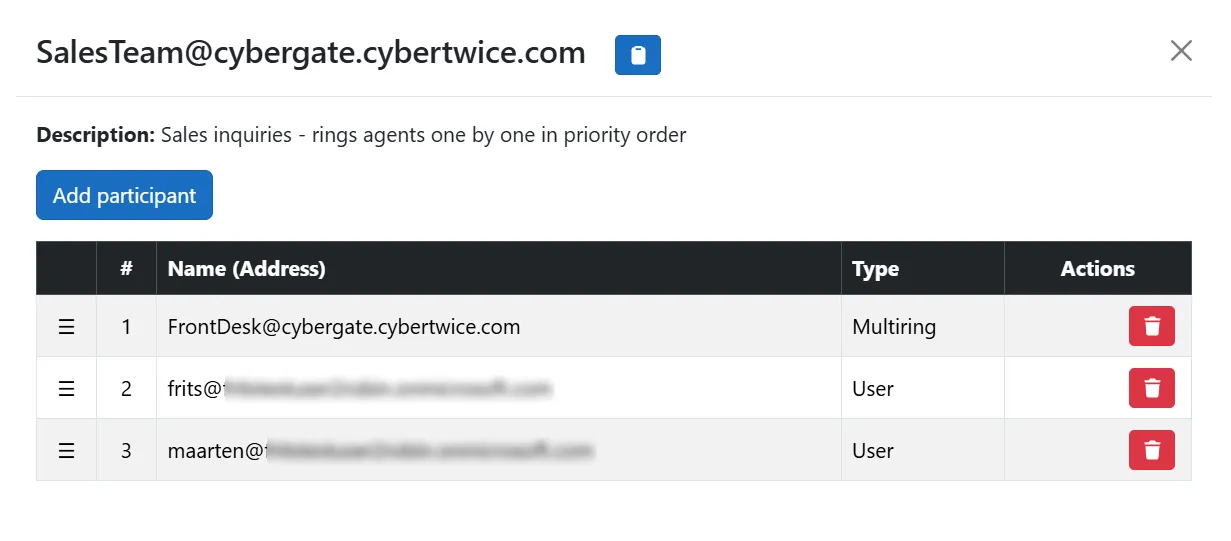
Click the manage participants button (group icon) in the Actions column to open the participant management dialog. This shows a table of all current participants with their name/address and type (User or Group).
Adding Participants
- In the participant management dialog, click Add participant.
- A dialog appears where you can add participants in two ways:
- Select from the list: Start typing a name and select from the dropdown of available users and groups.
- Type an email address: Enter an email address manually. The email domain must be one of your organization's verified domains. Click show to see the list of accepted domains.
- You can select multiple participants at once.
- Click Add to add the selected participants, or Cancel to discard.
Removing Participants
Click the delete button (trash icon) next to a participant to remove them from the call group.
Reordering Participants (Sequential Only)
For Sequential call groups, the order of participants determines the ringing sequence. To change the order:
- Open the participant management dialog.
- Drag participants using the grab handle (☰) on the left side of each row.
- Drop the participant at the desired position.
- The new order is saved automatically.
Joining a Meeting
For Meeting type call groups that have a Teams Meeting URL configured, a green video camera button appears in the Actions column. Click this button to open the Microsoft Teams meeting in a new browser tab.