CyberGate Device Notifications
CyberGate monitors the SIP connection of every device and alerts you when a device stops reporting in, and again when it comes back. This is how you find out that an intercom lost power, was unplugged or was cut off by a network change, instead of finding out when a visitor presses the button and nobody answers.
Device notifications are sent by email and to Microsoft Teams channels. You configure who receives them under Administration - Notifications; you decide per device whether it is monitored.
Device is one of the five notification categories. For the other categories, and for what applies to every notification, see CyberGate Notifications - in depthCyberGate Notifications - in depth.
When is a device online or offline
CyberGate does not poll devices. It looks at the SIP traffic it receives from a device: every device re-registers with CyberGate periodically, and every call starts with an INVITE.
Online | CyberGate recently received a SIP REGISTER or INVITE from the device, and the device is enabled. |
|---|---|
Offline | CyberGate has not heard from the device for a while, or the device is disabled. |
This is exactly the status shown by the coloured dot in front of each device on the Basic - Devices page: green is online, red is offline. Hover over a red dot to see Offline since with the time of the last contact.
A device is not reported offline the moment one registration is missed. Most intercoms re-register every few minutes, so a short network hiccup or a device reboot would otherwise raise a false alarm. CyberGate first waits out a hold-off period, and only reports the device when it stays silent.
When a notification is sent
CyberGate checks the status of all monitored devices every 15 minutes and compares the result with the status it recorded last time. Only a change produces a message:
- Online to offline — an alert that the device has dropped off.
- Offline to online — a recovery message that the device is back.
As long as the status does not change, nothing is sent. You receive one message per state change, not a repeated reminder every 15 minutes while a device stays offline.
Example: an intercom loses its network connection in the morning. CyberGate keeps the device on its last known status while the hold-off period runs; the first check after that period marks the device as offline and sends the alert. When the intercom re-registers in the afternoon, the recovery message follows within 15 minutes.
Setting up monitoring
You need two things: the device must be marked for monitoring, and there must be at least one recipient subscribed to the Device notification category.
1. Enable notifications on the device
Go to Basic - Devices and add or edit a device. Switch on Notifications Enabled.
Notifications Enabled | When enabled, this device is included in the status check and reported when it goes offline or comes back online. New devices have this switched on by default. |
|---|
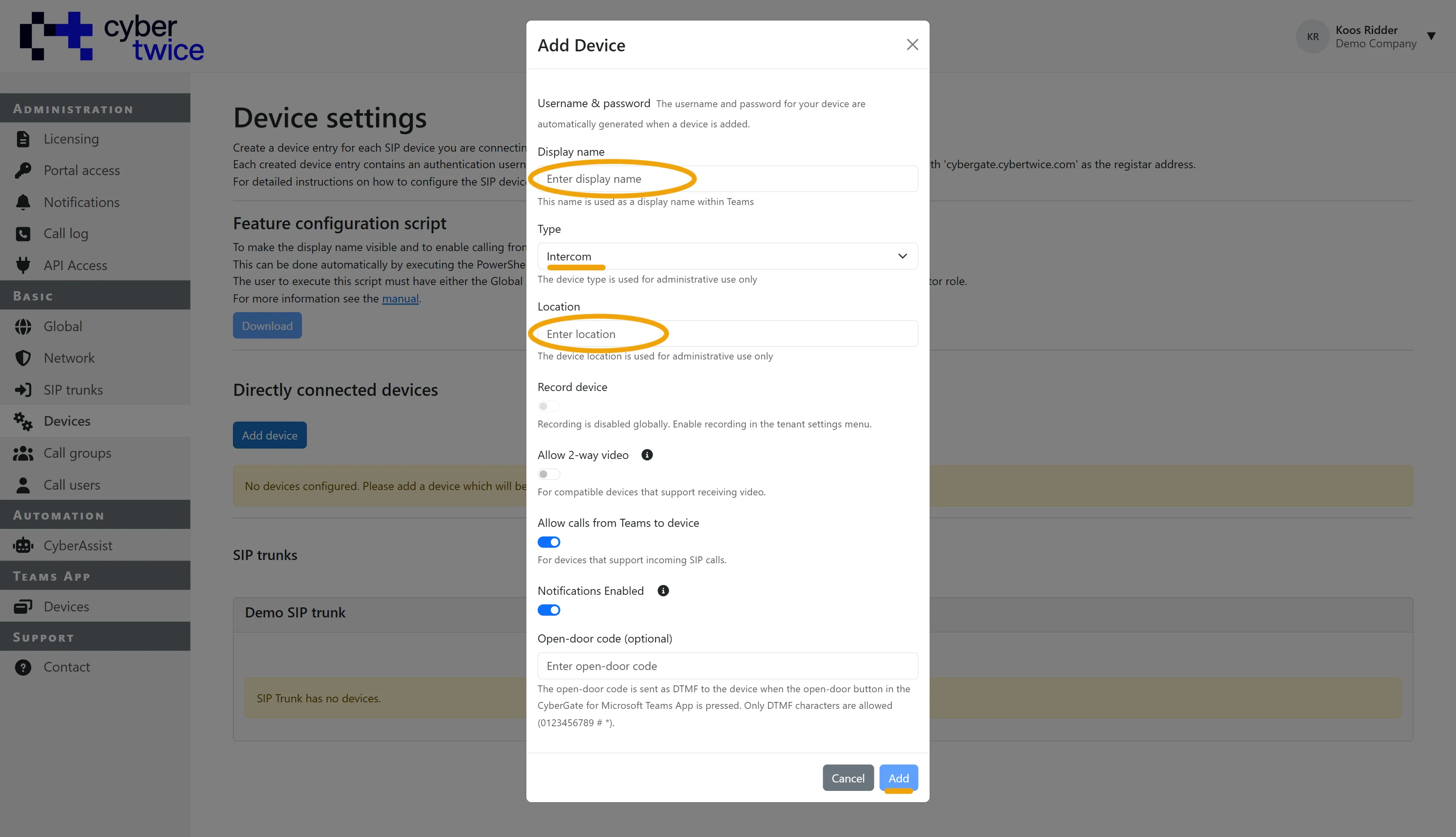
The Location and Type you enter for a device are repeated in every notification. Filling them in makes an alert immediately actionable: "Intercom - Main entrance north" tells you where to go, "Device 4" does not.
2. Add a contact for email alerts
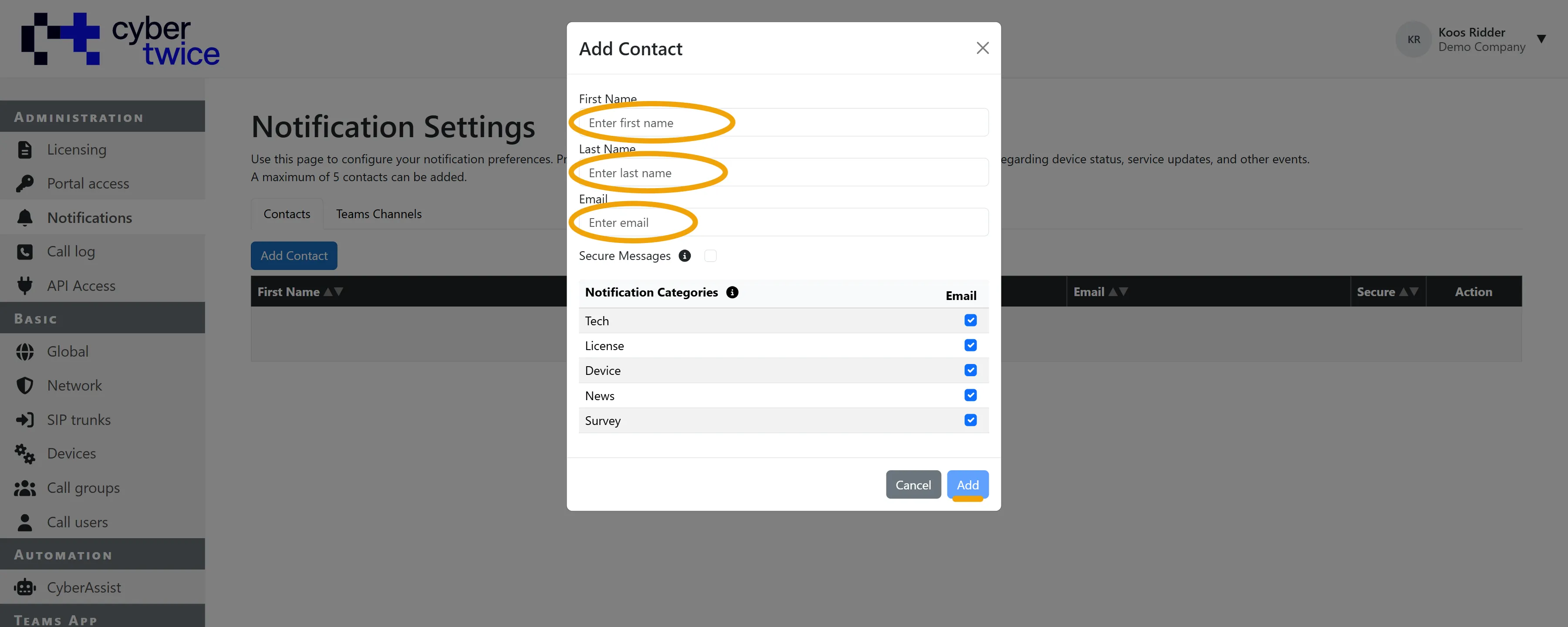
Go to Administration - Notifications - Contacts and click Add Contact. In the Notification Categories table, make sure Device is ticked. A maximum of 5 contacts can be added.
3. Add a Teams channel (optional)
Go to Administration - Notifications - Teams Channels and click Add Teams Channel. Tick Device in the Notification Categories table. The channel receives the same alerts as an Adaptive Card.
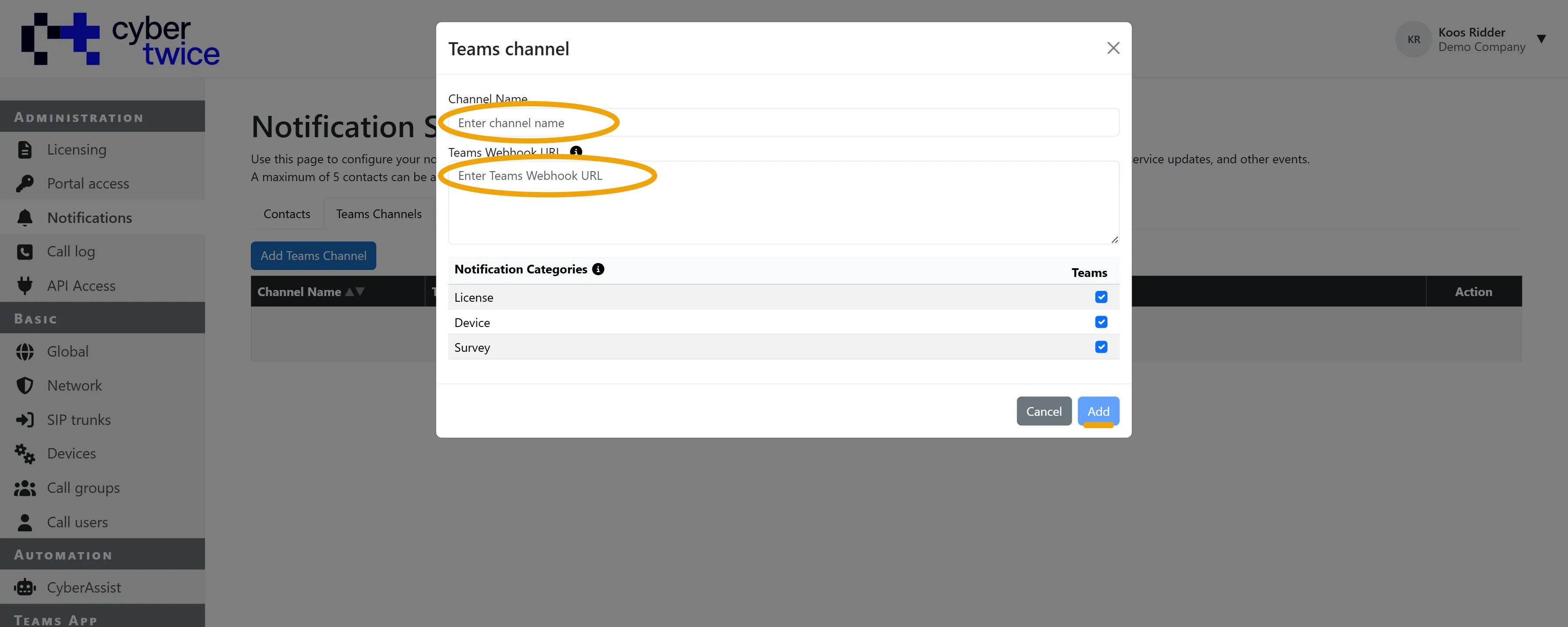
For the steps to create the webhook URL in Microsoft Teams, and for editing or deleting contacts and channels, see the Notifications section of the CyberGate Management PortalCyberGate Management Portal document.
Points of attention
A device is only monitored once CyberGate has seen it online. A device that has never registered successfully — a device entry created but not yet configured, for example — is not reported as offline. The same applies when you switch on notifications for a device that is already offline: you get the first alert only after the device has been online once.
- A disabled device counts as offline. Disabling a device in the portal can therefore produce an offline alert on the next check.
- Without recipients there is no monitoring. If no contact and no Teams channel is subscribed to the Device category, no status changes are tracked at all.
- Times in the email are UTC, not your local time zone.
- Device notifications require admin consent for CyberGate to be granted for your tenant. Consent is set under Basic - Global.
Troubleshooting
Symptom | What to check |
|---|---|
No alert while a device is visibly offline | Is Notifications Enabled switched on for the device? Is there a contact or Teams channel with the Device category ticked? Has the device ever been online? |
Alert arrives later than expected | Expected behaviour: an alert is not immediate. CyberGate first waits out the hold-off period so that a brief interruption does not raise an alarm, and the status check itself runs every 15 minutes. |
Email does not arrive | Use the test button next to the email address in the contact screen and check the spam filter of the receiving mailbox. |
Teams channel stays silent while emails do arrive | Check the webhook with the Test button in the Teams channel screen. A Teams workflow webhook stops working when the flow is disabled or its owner leaves the organisation. |
Alerts for a device you never call | A device only stays online by re-registering. Check the registration expiry configured in the device: registering every few minutes is normal, and a device that registers rarely can stay silent long enough to be reported offline. |
Repeated offline and online alerts for the same device (flapping) | The device reaches CyberGate intermittently. Check the local network, the SIP ALG setting in the firewall, and the device's registration interval. |