2N Indoor View and CyberGate
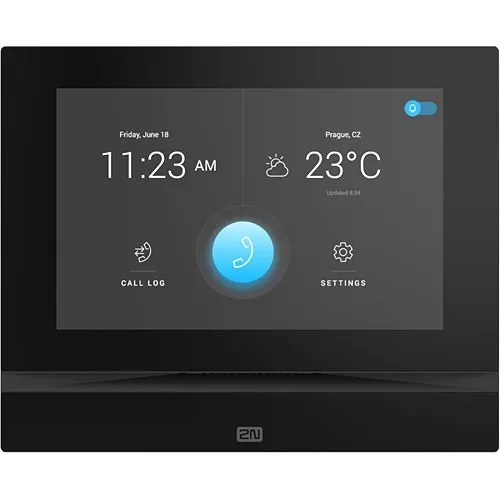
2N IP Indoor View
For this document we used the 2N IP Indoor View (from now on named '2N') to connect to the CyberGate service (from now on named 'CyberGate').
Described use cases:
- Call from 2N Indoor View through CyberGate to a Teams user or a Call group
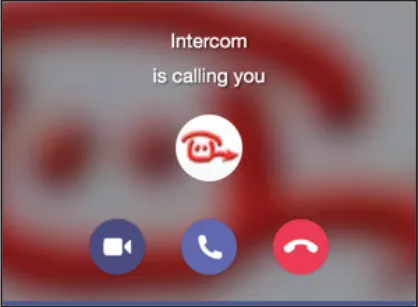
- Call from a Teams user through CyberGate to the 2N Indoor View
- Connection: as the 2N Indoor View is not equipped with a camera, the connection is two-way audio only
- Not supported: call from 2N IP (Video) Door Intercom through CyberGate to the 2N Indoor View or vice versa.
The 2N IP Indoor View is able to set up a secure connection to CyberGate using SIP TLS and SRTP.
Follow the steps below to configure the 2N and connect it to CyberGate.
Configure to the 2N
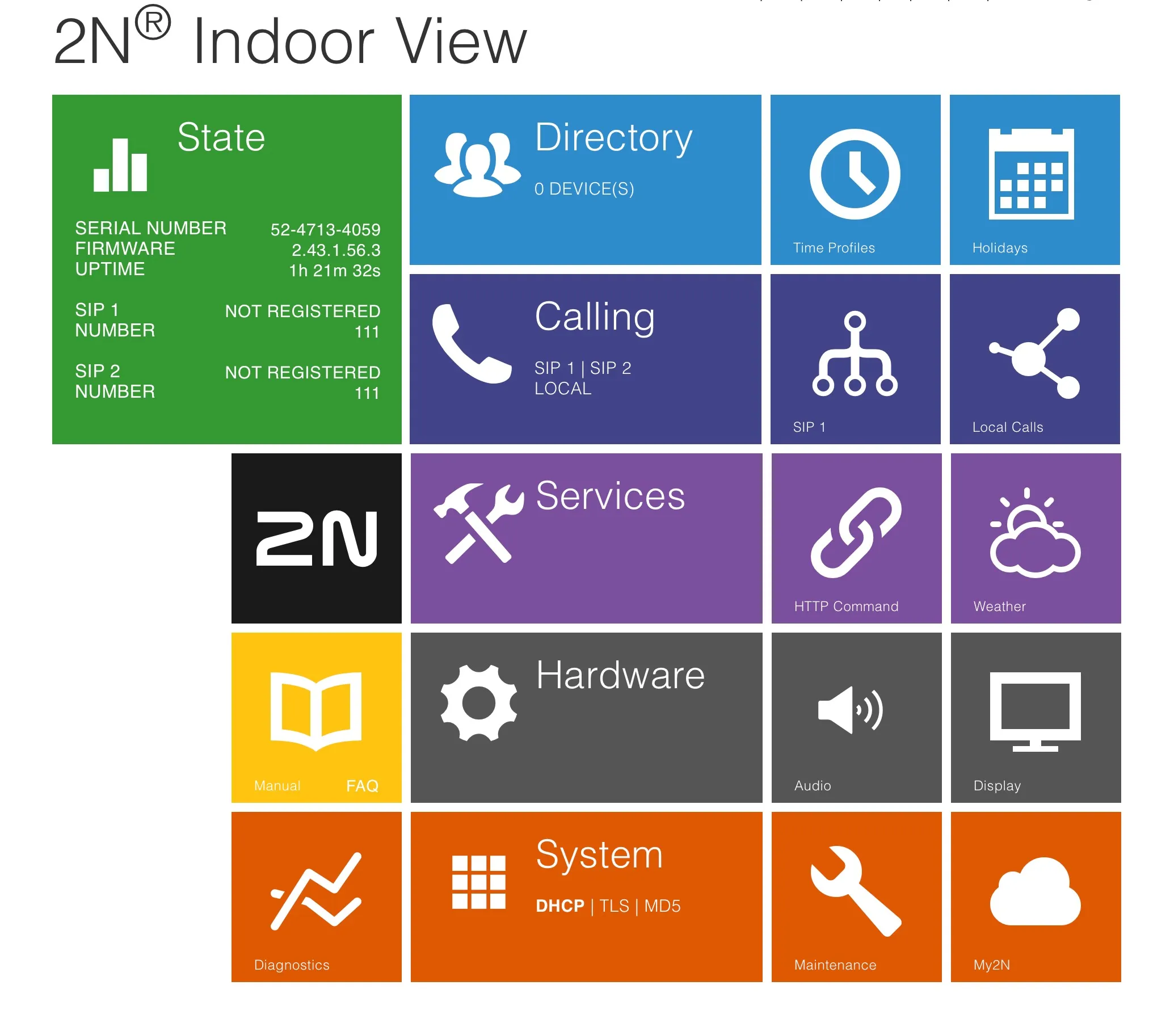
Connect the 2N to the network, power it on and open a web browser to its IP address. Sign in as 'admin' with the configured or supplied password of the 2N. After successful login the start screen will appear.
SIP configuration
Click on the blue 'Calling' tile and open the SIP 1 settings.
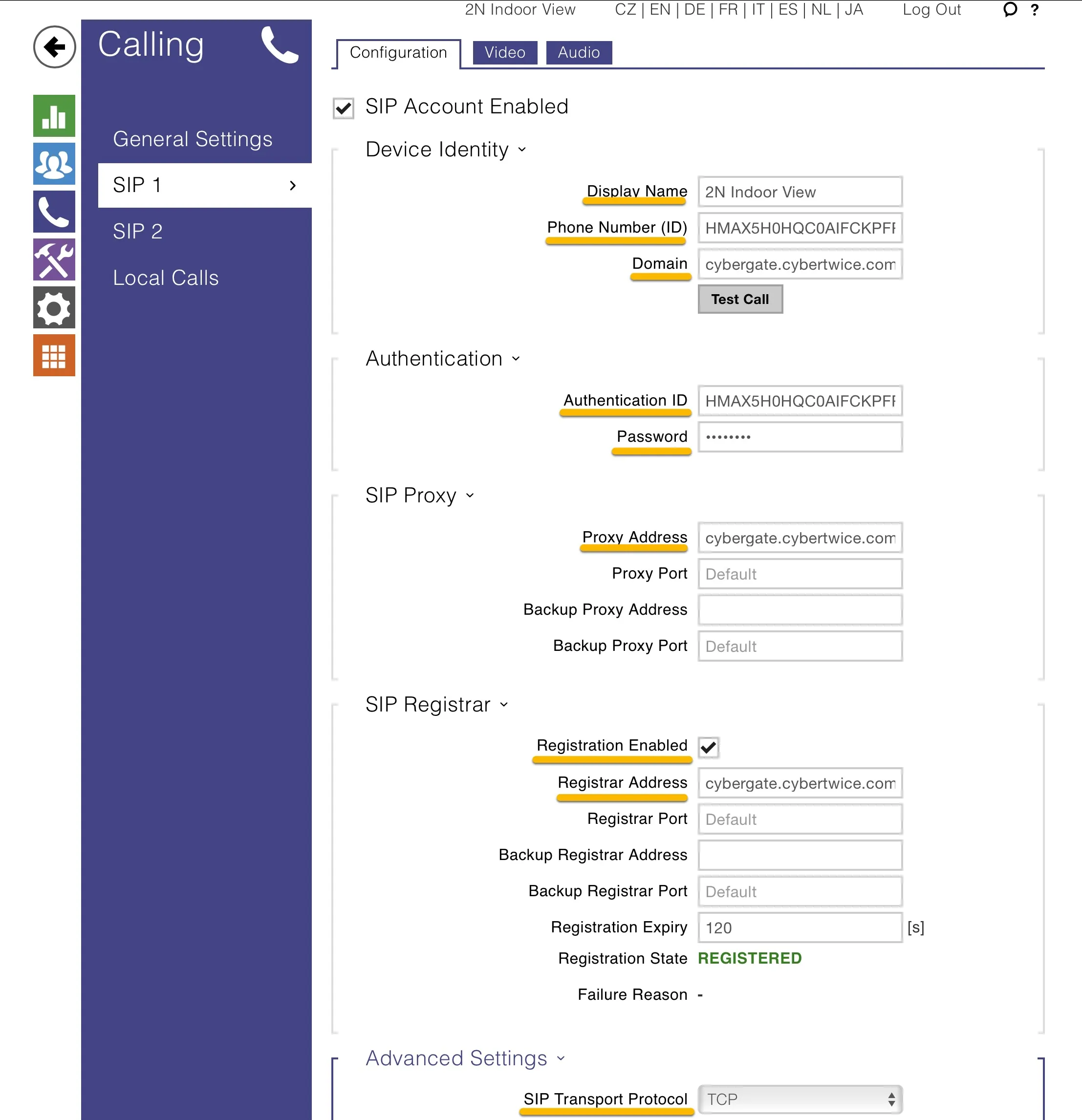
Provide the following information:
Device Identity | |
|---|---|
Display name | Use a descriptive name for this account |
Phone Number (ID) | Use the Username provided by the CyberGate Management Portal |
Domain | cybergate.cybertwice.com |
Authentication | |
Authorization ID | Use the Username provided by the CyberGate Management Portal |
Password | Use the Password provided by the CyberGate Management Portal |
SIP Proxy | |
Proxy Address | cybergate.cybertwice.com |
SIP Registrar | |
Registration Enabled | Enable |
Registrar Address | cybergate.cybertwice.com |
Advanced settings | |
SIP Transport Protocol | Select TCP |
Click 'Save' to register the 2N to CyberGate over TCP.
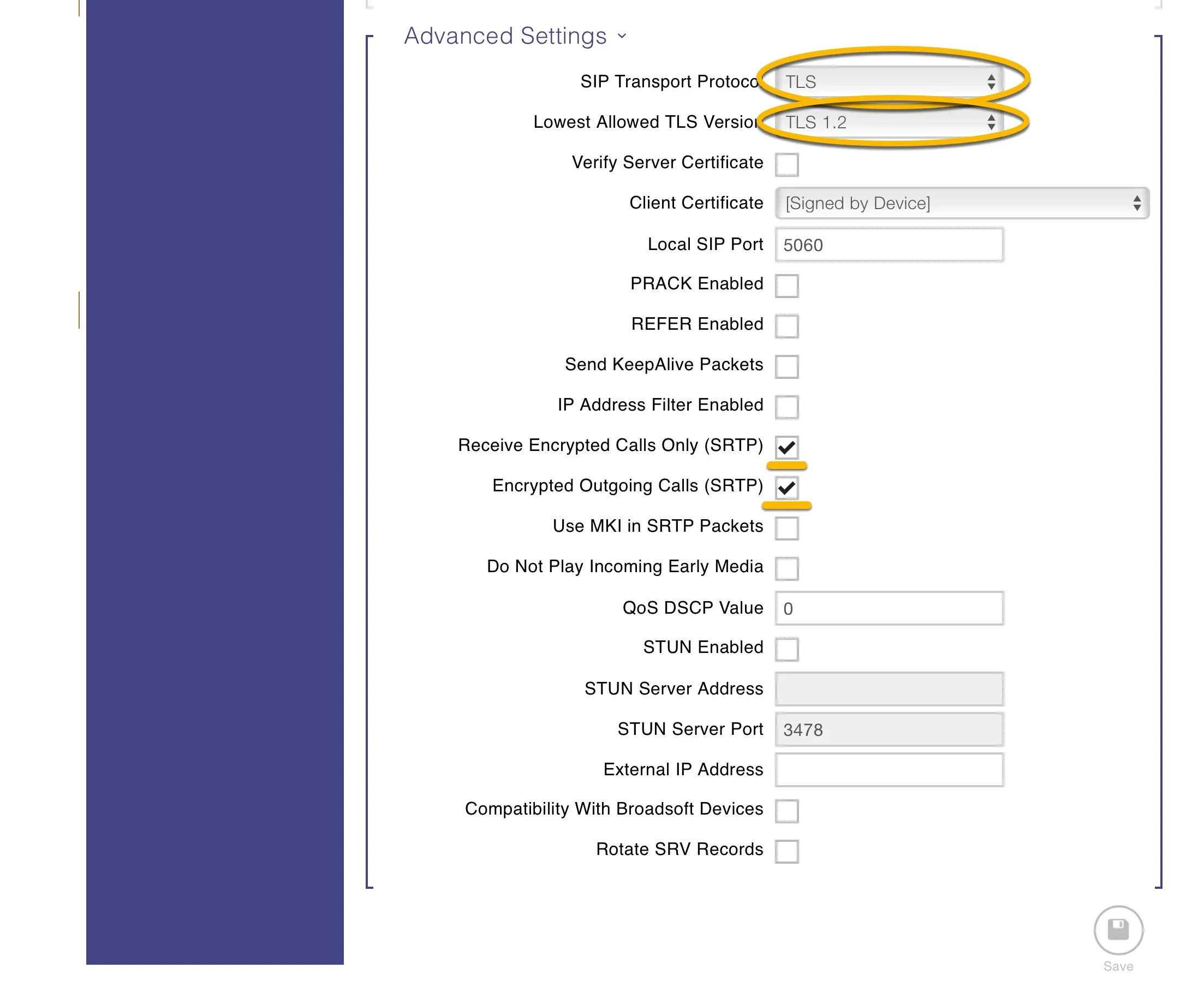
When a secure connection is required, modify the following fields:
Advanced settings | |
|---|---|
SIP Transport Protocol | Select TLS |
Lowest Allowed TLS Version | Select TLS 1.2 |
Receive Encrypted Calls Only (SRTP) | Enable |
Encrypt Outgoing Calls (SRTP) | Enable |
Click 'Save' to register the 2N to CyberGate over TLS.
Call destination
Navigate to the blue 'Directory' section, then select 'Devices'.
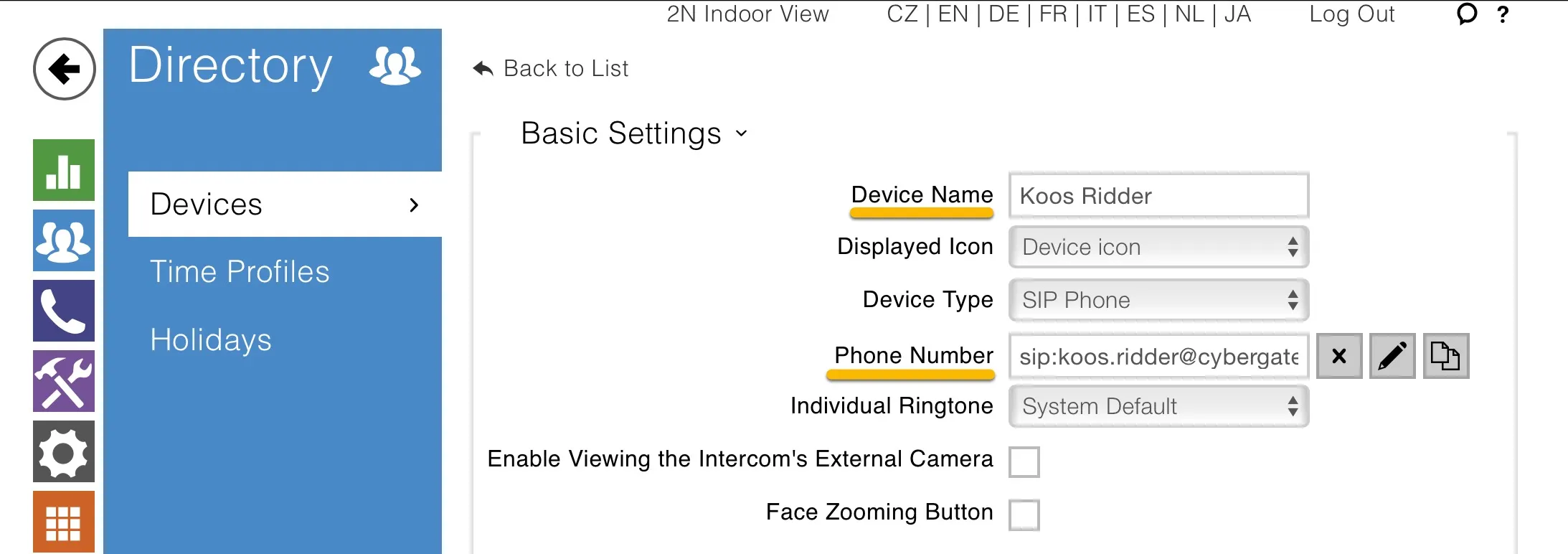
In this section you can define one or more contacts to call. Provide or update the following information:
Basic Settings | |
|---|---|
Device Name | Descriptive name for this directory entry |
Phone Number | Teams user to call in the format: sip:[email protected] * |
* For example, the user 'Koos Ridder', with the Teams name:
will translate to this destination address:
sip: [email protected]
Click the 'Save' button to save.
Configuration of the 2N is now complete.
Testing the 2N
Press the call button on the display of the 2N to initiate a call to the configured Teams user.
If configured correctly, the Teams client will notify you of an incoming call. Answer it by clicking the phone icon.
The call will now be established.