Akuvox and CyberGate
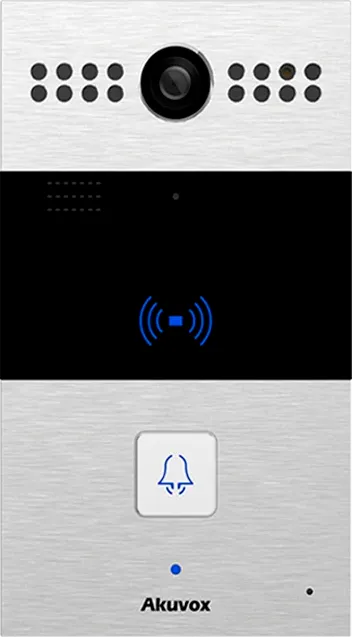
Akuvox SIP video doorphone
This guide was written and tested with the Akuvox R26C SIP video doorphone. Other Akuvox SIP video doorphones from the R2x series are also able to connect to CyberGate.
CyberGate App for Microsoft Teams
The CyberGate App for Microsoft Teams offers more CyberGate features directly from Microsoft Teams. One of these features is the Open-door button. This button can be utilized during a call to CyberGate and lets you open the the door by clicking just one button.
For a description on how to install the CyberGate app and use the Open door button please see the CyberGate App for Teamsmanual.
Configure the Akuvox doorphone
Complete the following steps in order. All steps are performed in the Akuvox web interface.
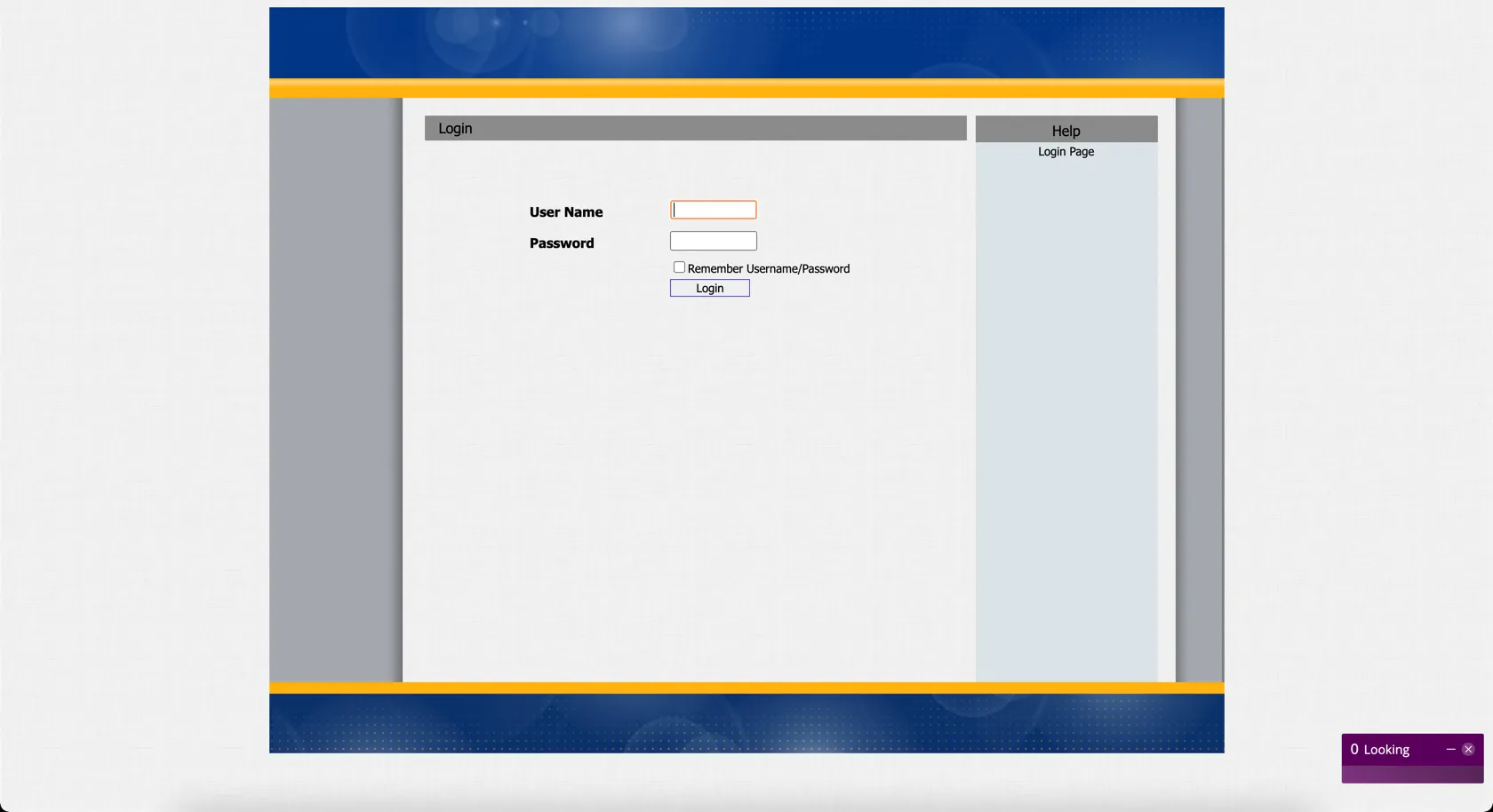
Connect the Akuvox to the network, power it on, and open a web browser to its IP address. Log in with username admin and click Login.
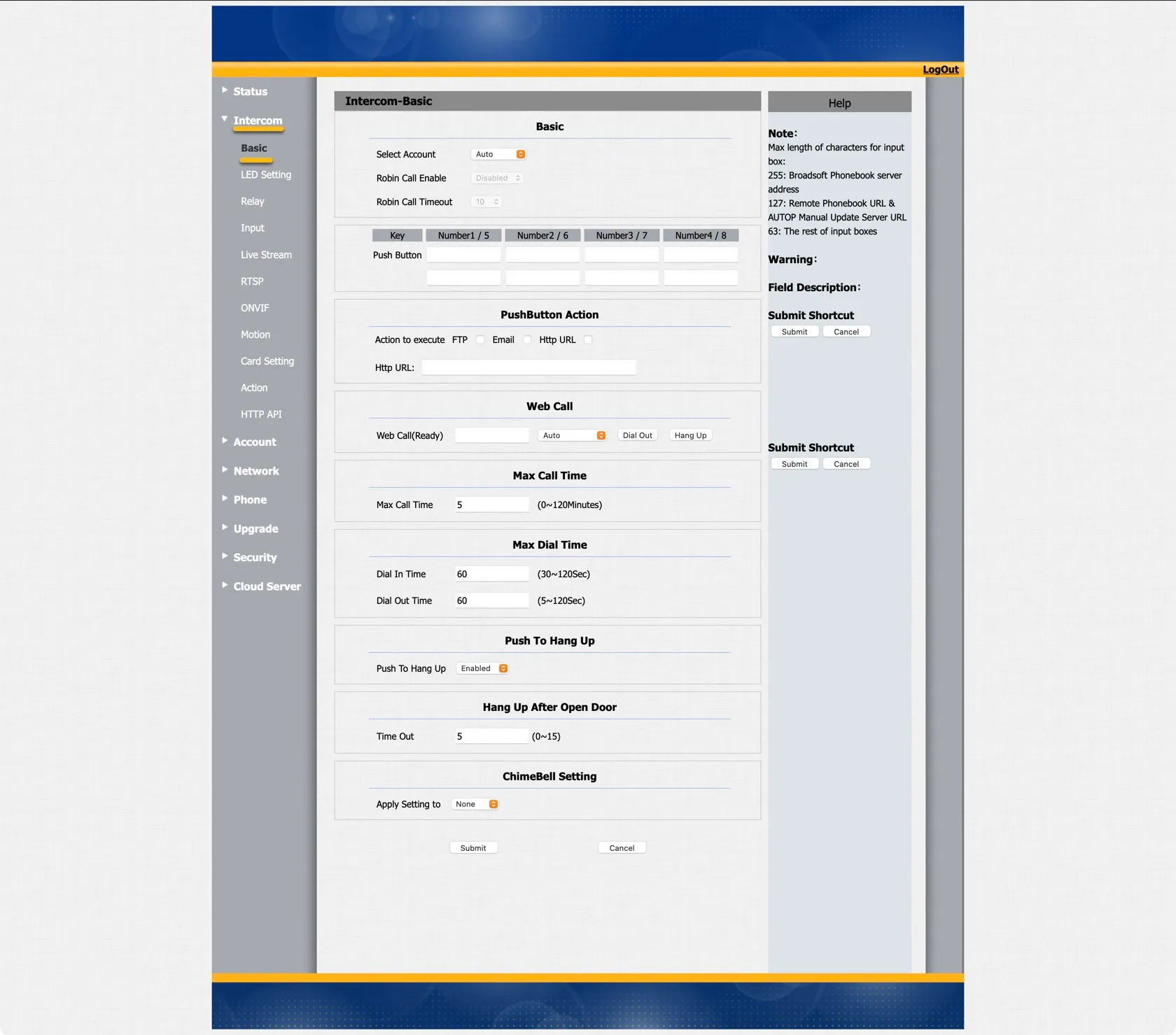
The Intercom-Basic menu is shown.
Call destination
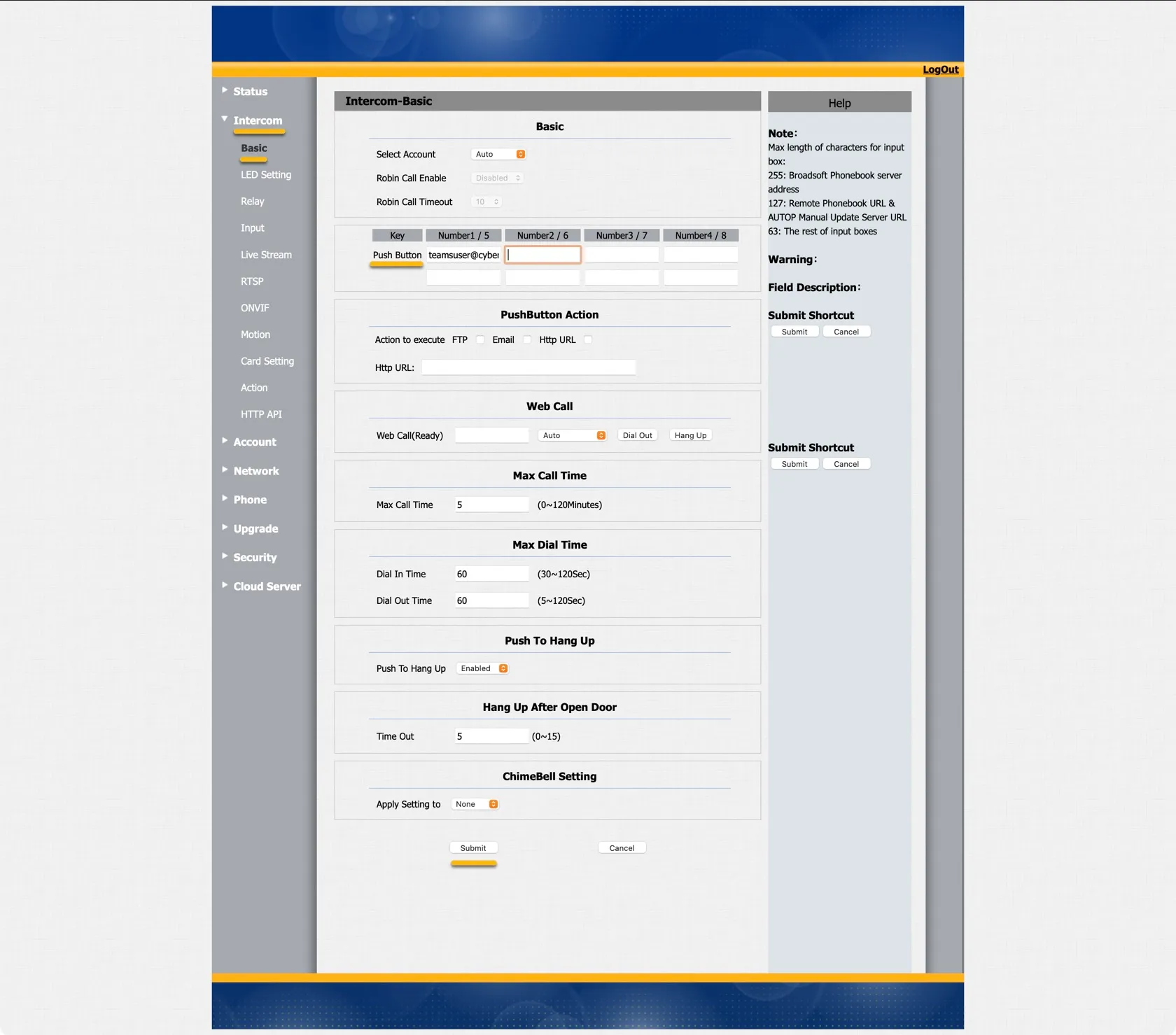
In the Akuvox web interface, under Push Button, add the recipient to call. Use the Teams user address — either [email protected] or only the name.name portion — and click Submit.
SIP configuration
In the Akuvox web interface, navigate to Account-Basic.
Provide the following values.
SIP Account
SIP Account | |
|---|---|
Account | Select Account 1 |
Account Active | Select Enabled |
Display Label | A name like CyberGate to describe this account |
Display Name | Use the same value as Display Label |
Register Name | The Username provided by the CyberGate service |
User Name | The Username provided by the CyberGate service |
Password | The Password provided by the CyberGate service |
SIP Server 1 | |
Server IP | cybergate.cybertwice.com |
Outbound Proxy Server | |
Enable Outbound | Select Enabled |
Server IP | cybergate.cybertwice.com |
Transport Type | |
Transport Type | TCP |
Click Submit.
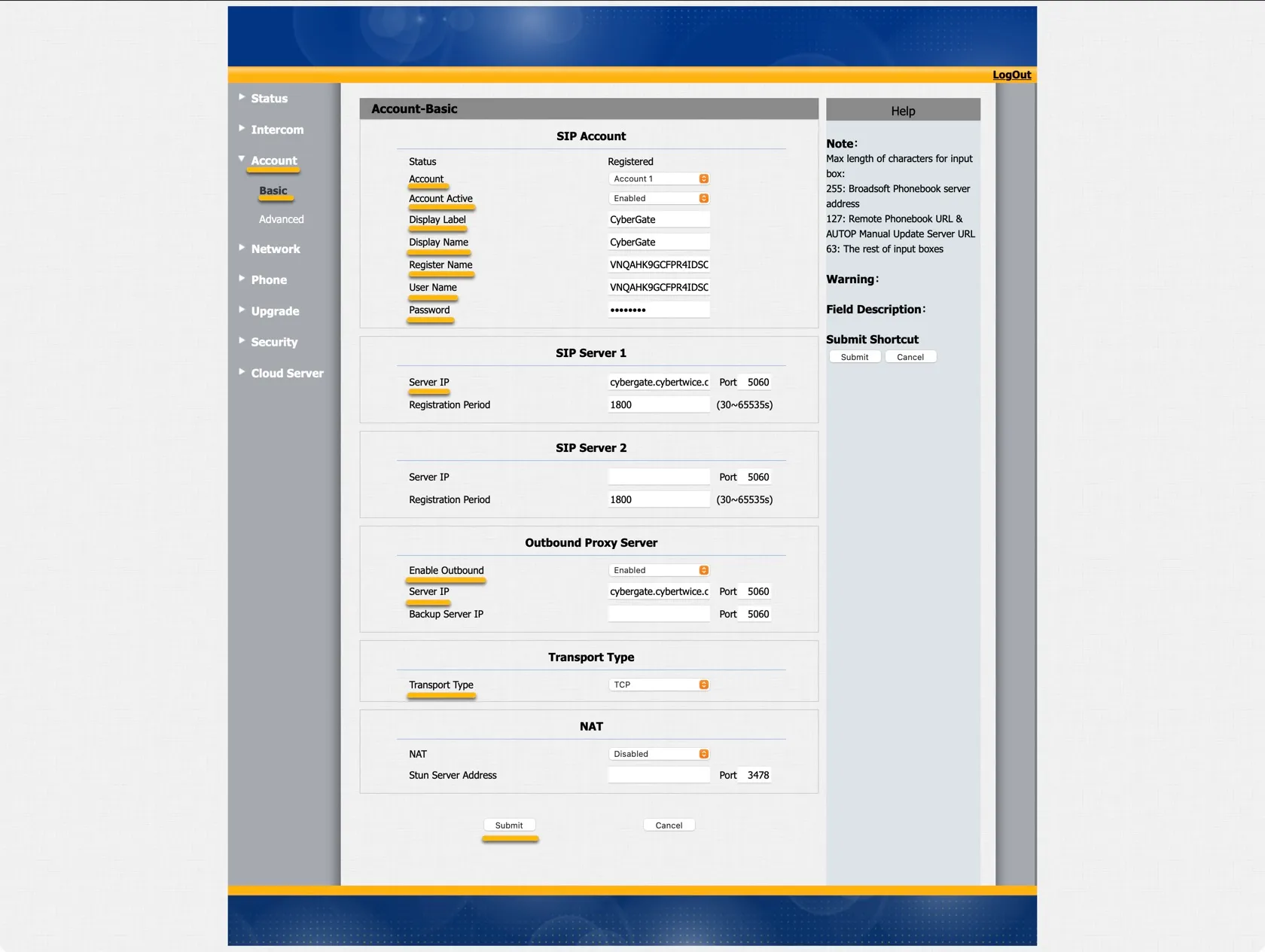
Under SIP Account, the Status should change to Registered. If it does not, check the account and server details for typos.
Video configuration
In the Akuvox web interface, navigate to Account-Advanced and set:
Video Codec | |
|---|---|
Codec Resolution | Select 720p |
Click Submit.
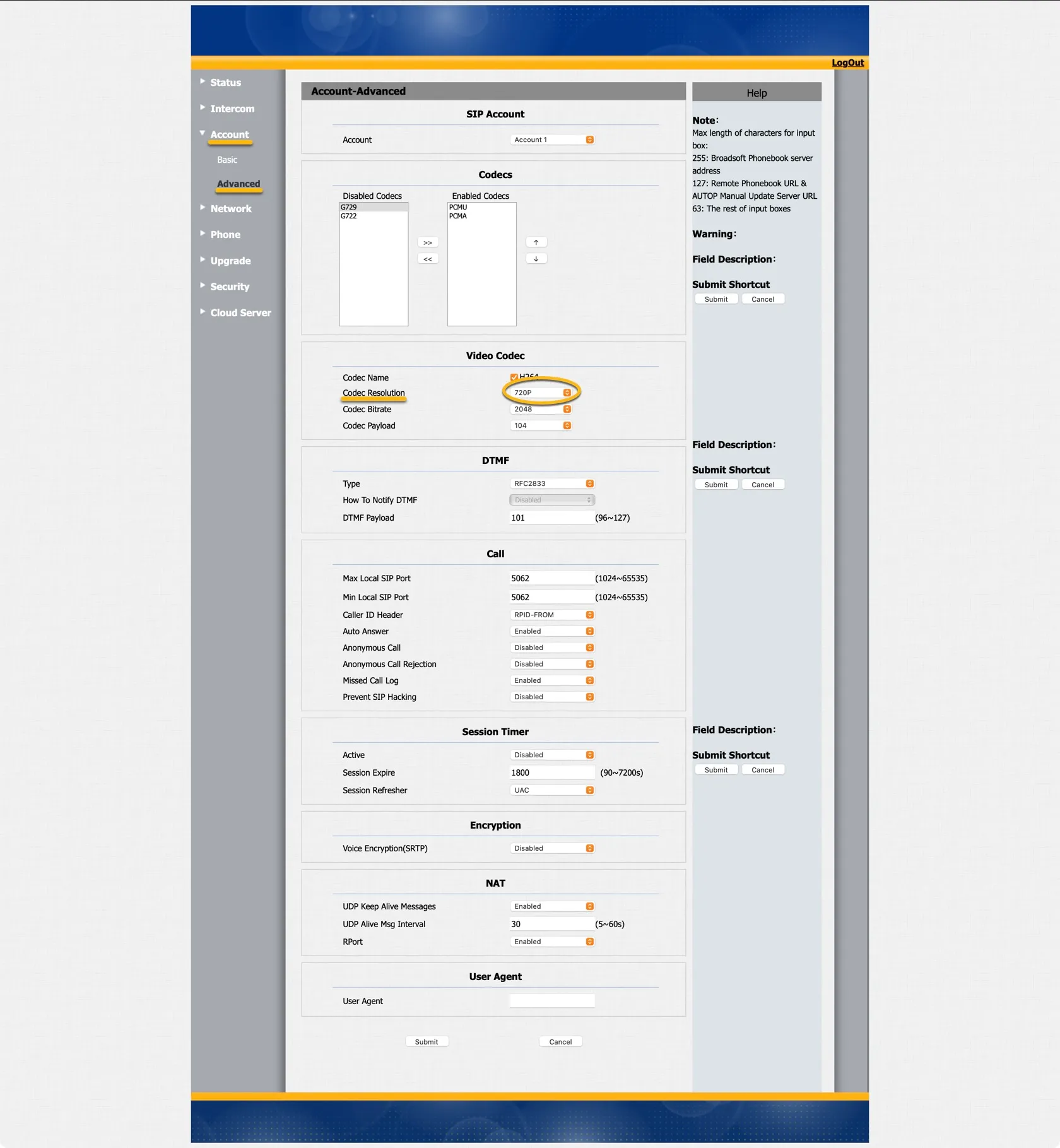
Test the Akuvox
Configuration is now complete. Press the button on the Akuvox to initiate a call to the configured Teams user.
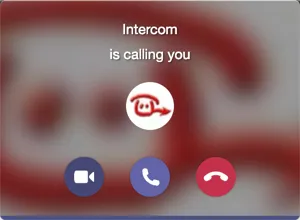
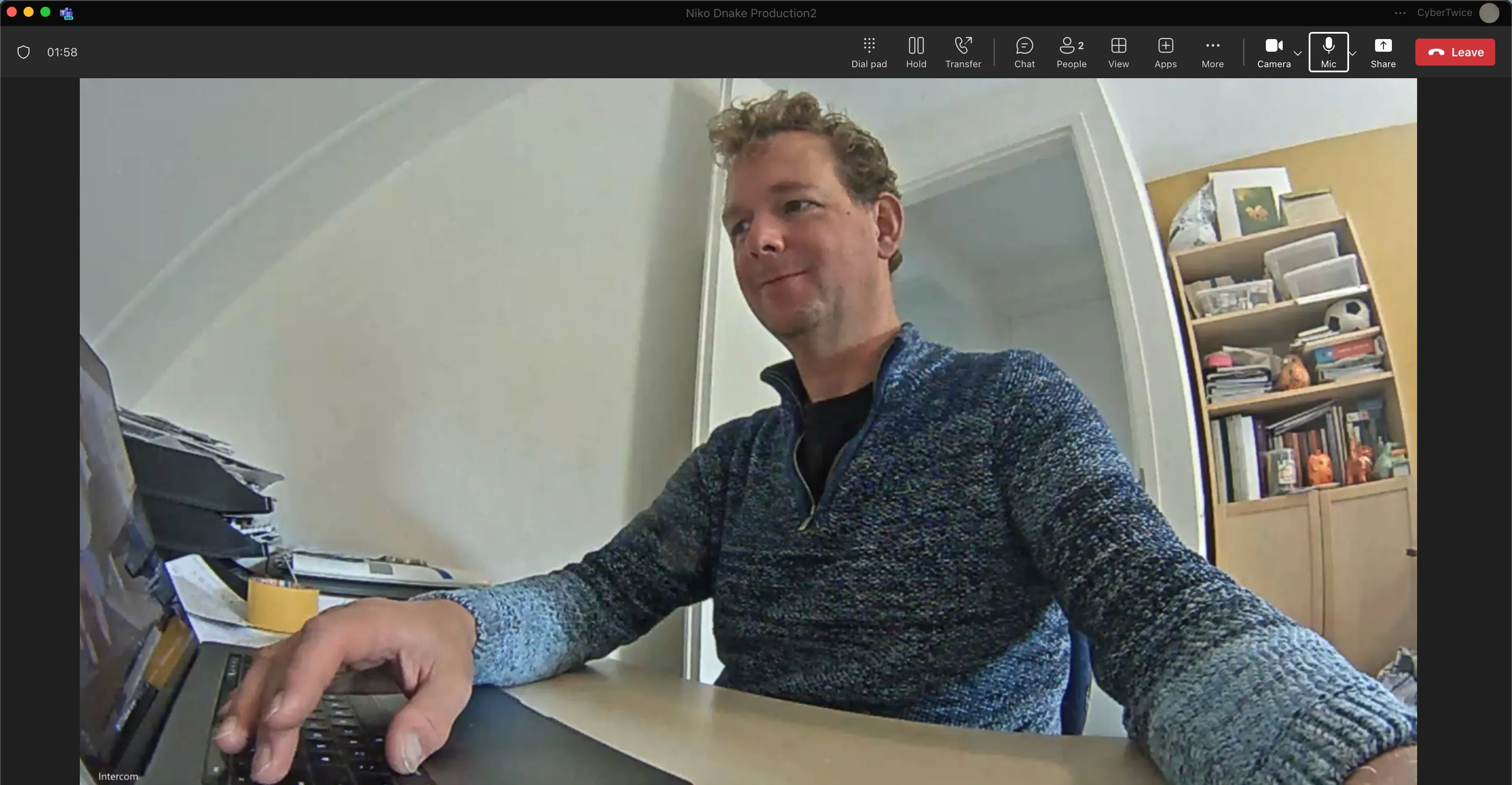
If everything is configured correctly, the Teams client notifies the user of an incoming call. Answer it by clicking the camera symbol. The call is established and video is displayed within roughly 3 seconds.
CyberGate App for Microsoft Teams
The CyberGate App for Microsoft Teams offers more CyberGate features directly from Microsoft Teams. One of these features is the Open-door button. This button can be utilized during a call to CyberGate and lets you open the the door by clicking just one button.
For a description on how to install the CyberGate app and use the Open door button please see the CyberGate App for TeamsCyberGate App for Teams manual.