Algo and CyberGate

Configure the Algo SIP Video Intercom for the CyberGate Service
This guide explains how to configure an Algo SIP video intercom to connect to your Microsoft Teams environment through the CyberGate service. Microsoft Teams users can then answer incoming intercom calls – with 2-way audio and live video – on the Teams desktop client, Teams desk phone or Teams Smartphone app, and open the door for visitors.
For instructions on how to purchase and configure the CyberGate service, see our CyberGate Purchase and SetupConnect a SIP Intercom to MS Teams using the CyberGate service
About the Algo SIP Video Intercom
For this document we used an Algo 8039 SIP Video Intercom (from now on named 'Algo') to connect to the CyberGate service (from now on named 'CyberGate').
Connect and configure the Algo
Follow the next steps to configure the Algo to connect it to CyberGate.
Connect the Algo to the network
- Connect the Algo to the network and power it on.
- Open a web browser to the Algo's IP address.
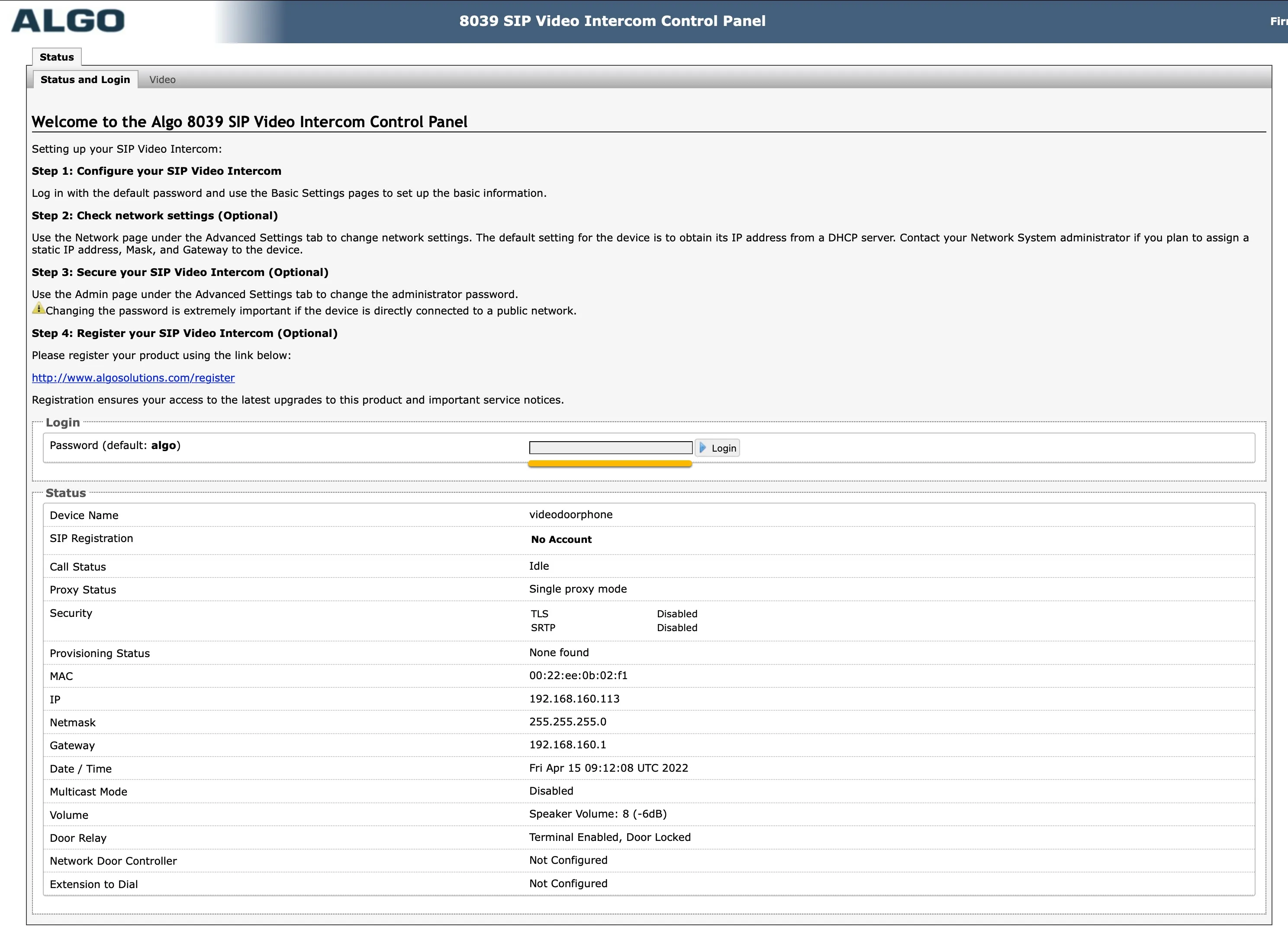
- Sign in with the configured or supplied password of the Algo.
When you sign in successfully, the first menu shown is the Basic Settings - SIP menu.
Configure SIP settings
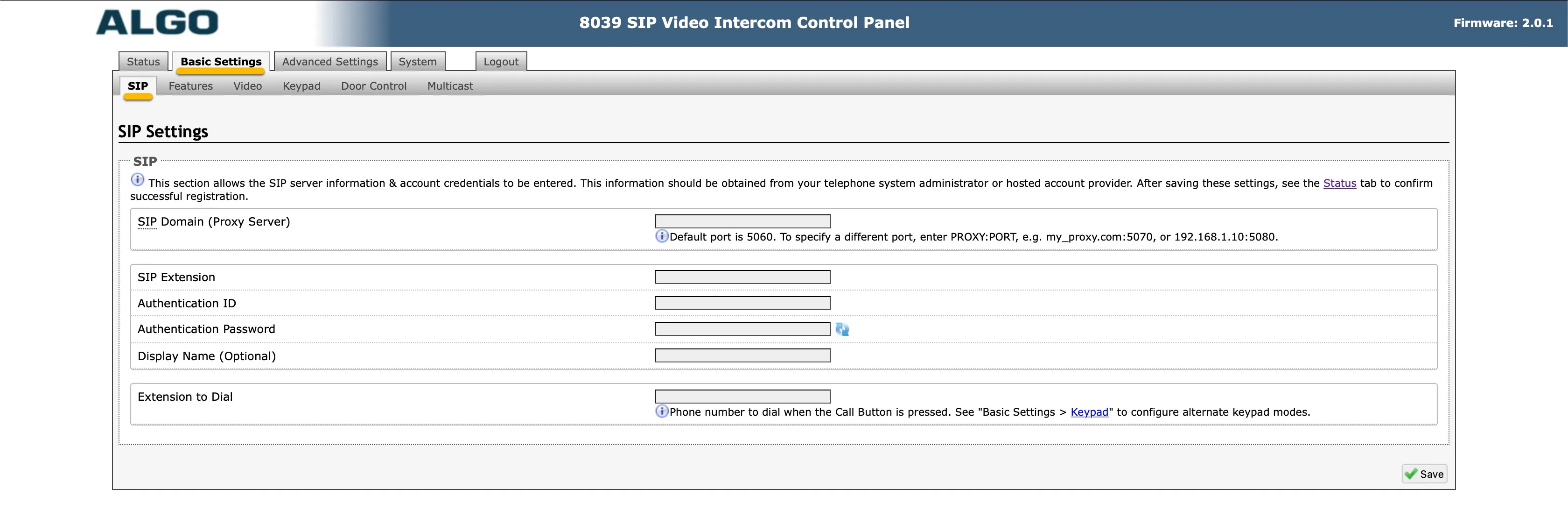
On the Basic Settings - SIP menu, enter the following information, then click Save:
SIP | |
|---|---|
SIP Domain | cybergate.cybertwice.com |
SIP Extension | Use the Username provided by the CyberGate Management Portal |
Authentication ID | Use the Username provided by the CyberGate Management Portal |
Authentication Password | Use the Password provided by the CyberGate Management Portal |
Extension to Dial * | 123 |
The Extension to Dial is the default number to dial when the Call button on the Algo is pushed.
Configure video settings
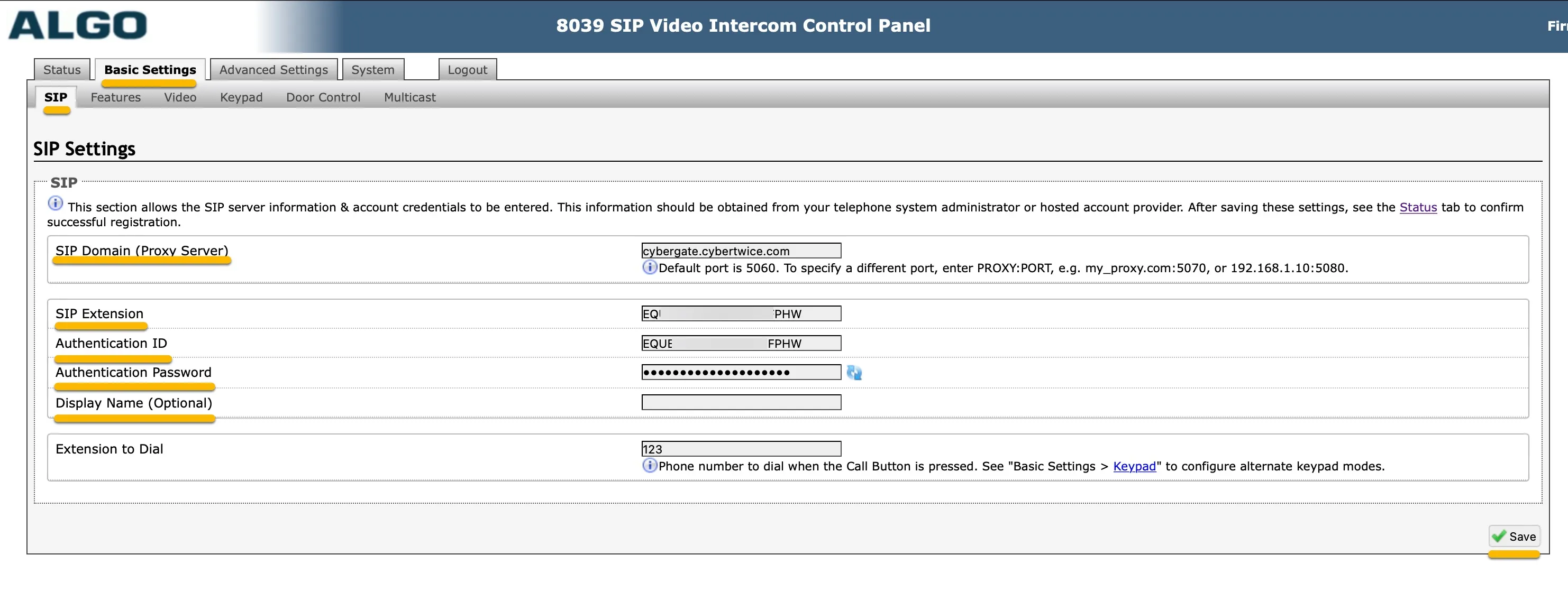
Navigate to the Basic Settings - Video menu, change the following information, then click Save:
SIP Video Settings | |
|---|---|
SIP Video Capacity | Change to Auto |
SIP Video Stream | Change to Auto Negotiation |
Configure advanced SIP settings
Navigate to the Advanced Settings - Advanced SIP menu.
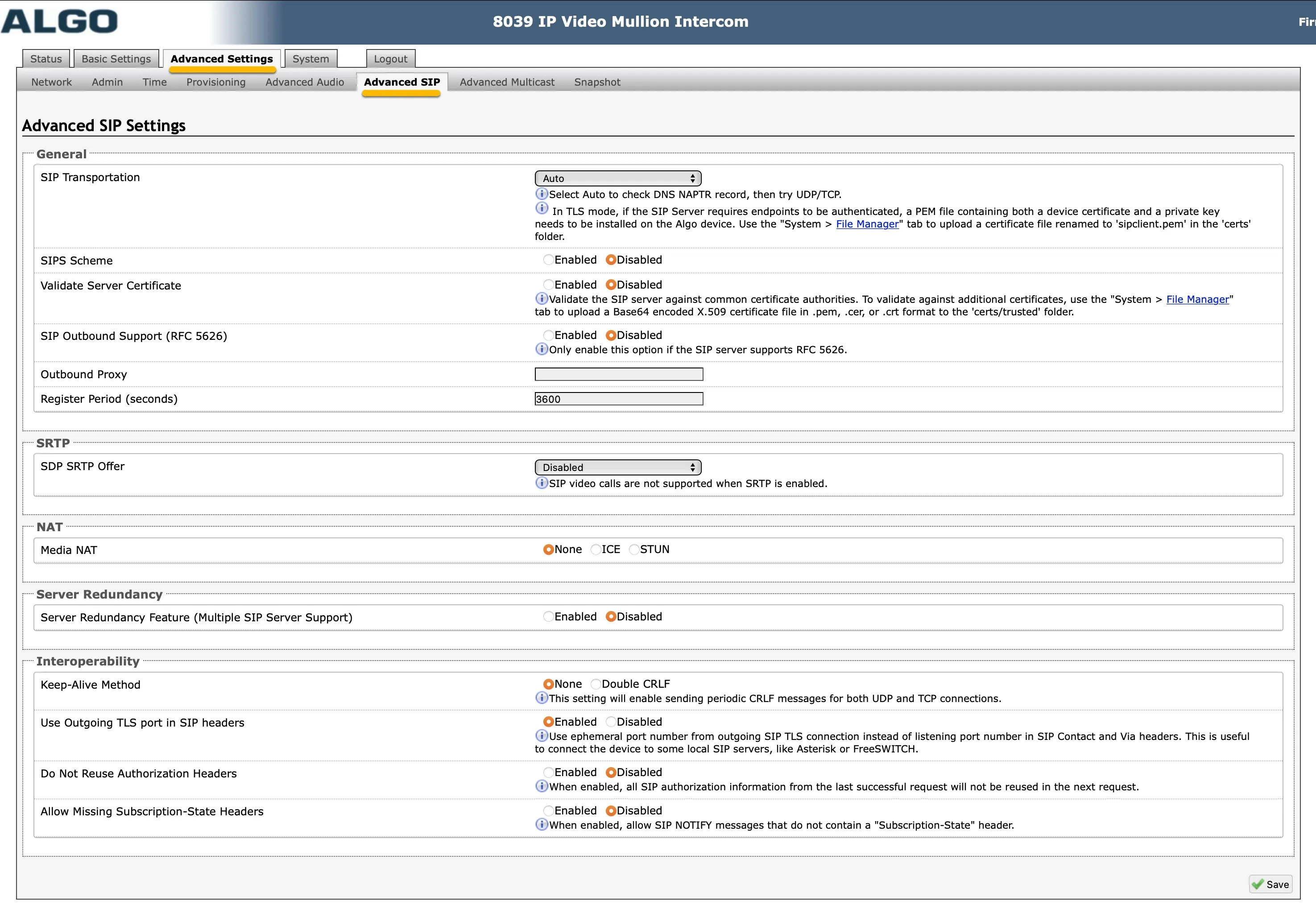
Change the following information, then click Save:
General | |
|---|---|
SIP Transportation | Change to TCP |
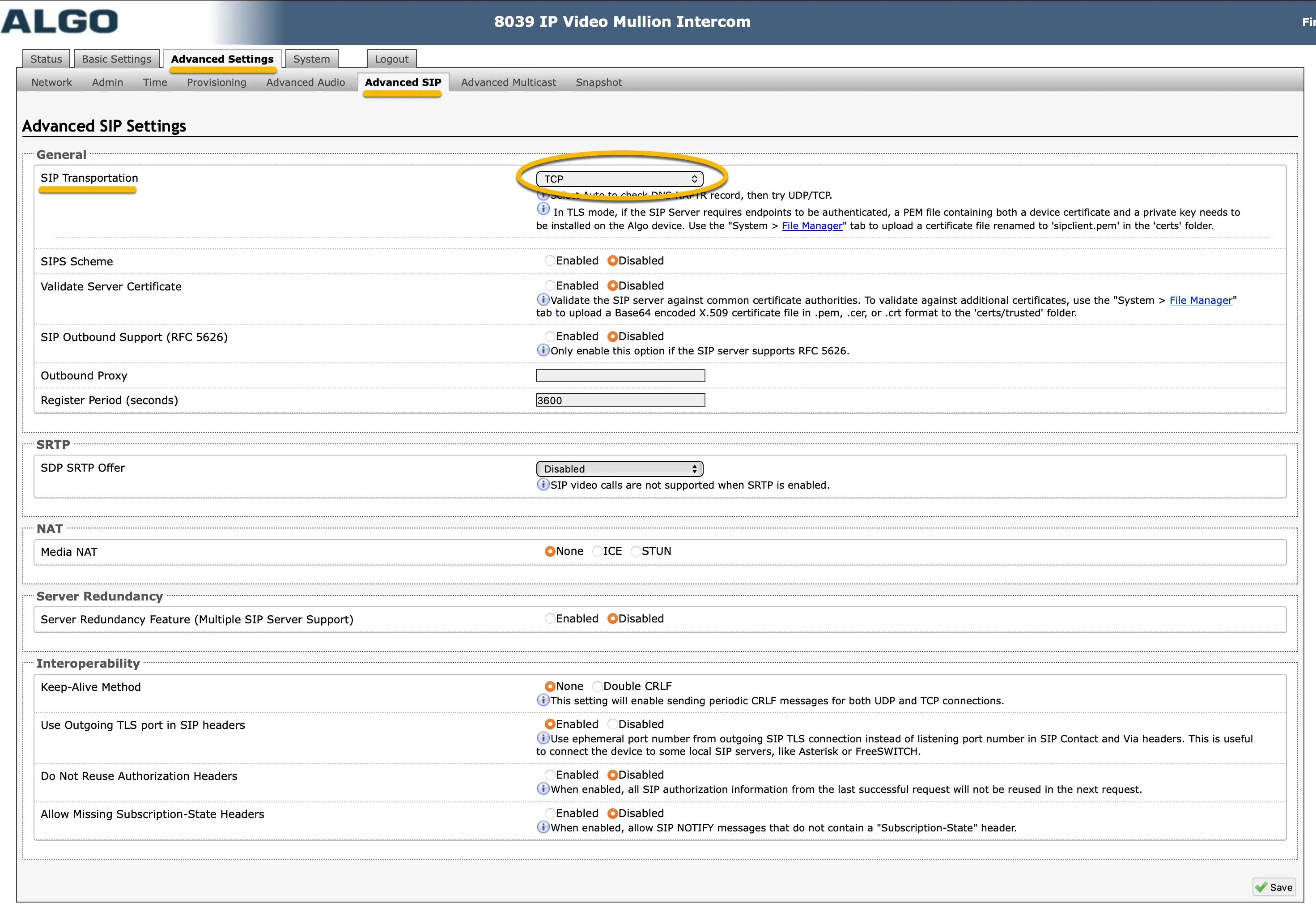
Configuration of the Algo is now finished. Pressing the call button on the Algo will initiate a call to the number you've configured as Extension to Dial in the Basic Settings - SIP menu.
Create a Multi-ring group in the CyberGate Management Portal
Because 123 is not a valid Teams user within your Teams environment, you must configure a Multi-ring group via the CyberGate Management Portal. The Multi-ring group lets you 'translate' the dialed number (123) to one or more valid and existing Teams user(s).
- Navigate to the CyberGate admin portal.
- Log in using a Microsoft account with admin privileges.
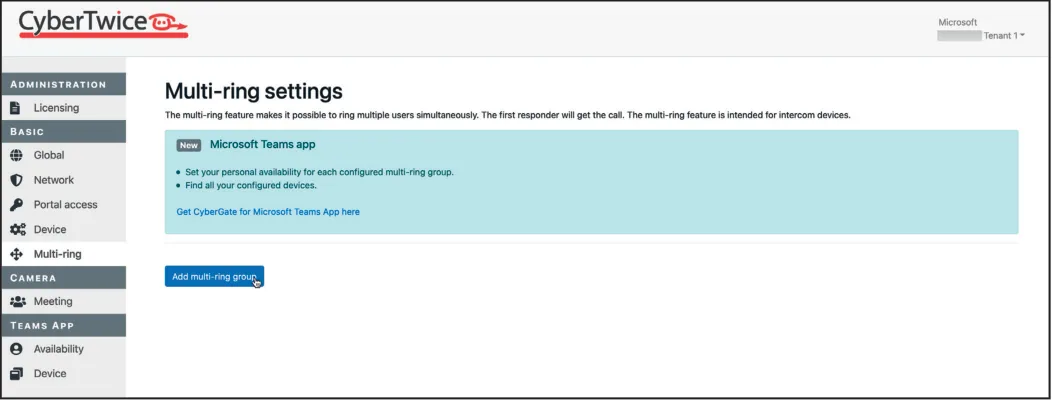
- Navigate to the Multi-ring Settings menu.
- Click the blue Add multi-ring group button, enter the following information, and click the blue Save button:
Name | Enter 123 (the number the Algo dials) |
|---|---|
Description | Describe this Multi-ring group |
The Multi-ring group is now created.
Add Teams users to the Multi-ring group
Add the person or persons you would like to be notified when a person rings the Algo. Use the first part of the Teams user name, so don't add the domain name as it will be added automatically.
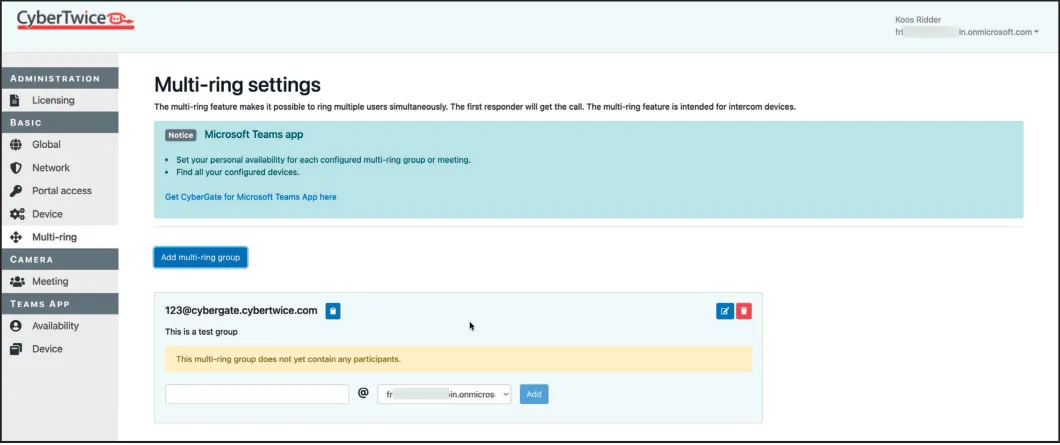
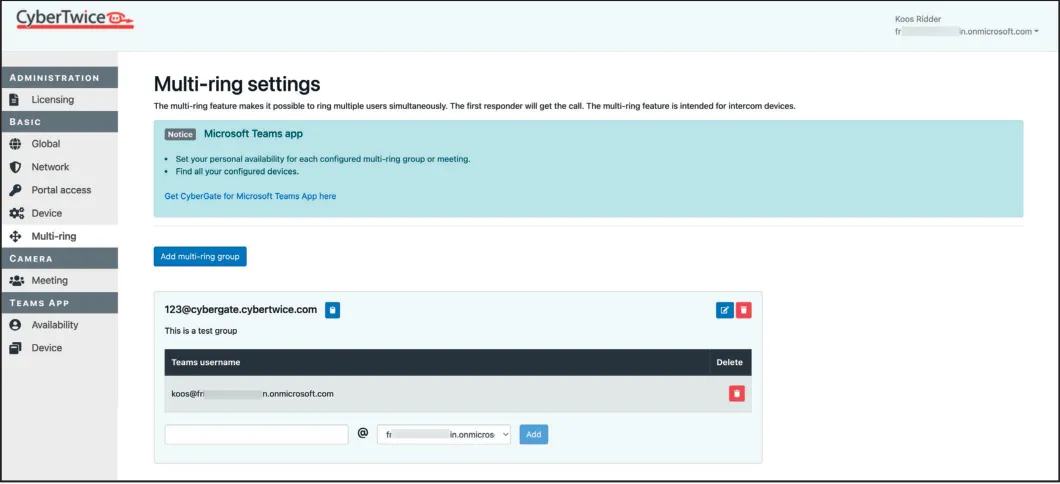
The configuration is now done.
What happens when you press the call button
The following sequence will take place when pressing the call button on the Algo:
- The Algo will place a call to the CyberGate using the number 123
- The CyberGate will answer the call to 123, recognizes the 123 number as a 'Multi-ring group'
- The CyberGate checks what Teams user(s) to call (as configured in the Multi-ring group) and will place the call to all Teams users in this group
- The first Teams user that answers the incoming call in Teams (by clicking the pick-up symbol) will be connected to the Algo
The call will be established and video will be displayed within ±3 seconds.
Open the door from a Teams call
- In the Teams call screen, click the three dots (...).
- Select Keypad.
- Enter the 6 code as configured in the Algo.
This will trigger the relay in the Algo and open the door.
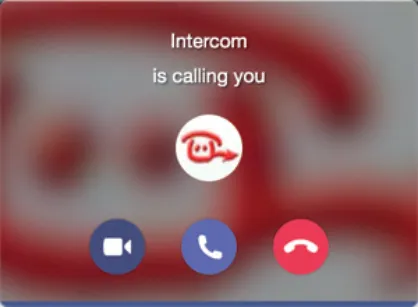
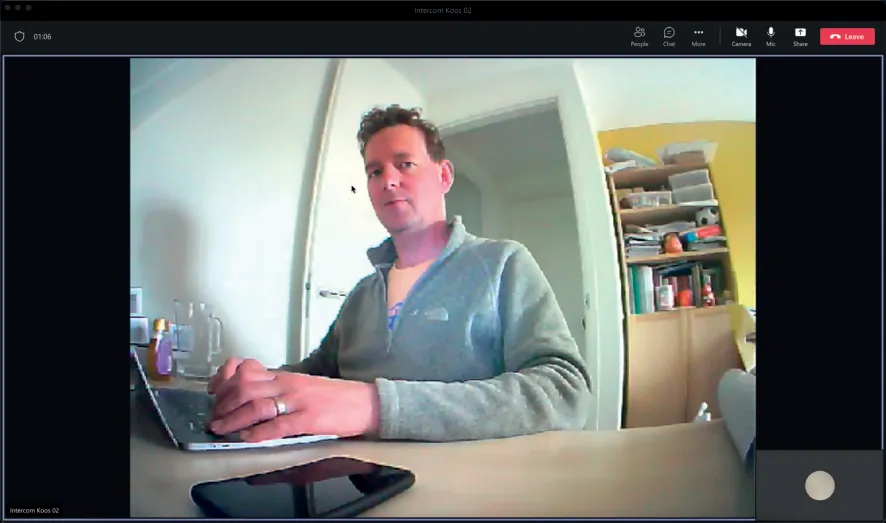
CyberGate App for Microsoft Teams
The CyberGate App for Microsoft Teams offers more CyberGate features directly from Microsoft Teams. One of these features is the Open-door button. This button can be utilized during a call to CyberGate and lets you open the the door by clicking just one button.
For a description on how to install the CyberGate app and use the Open door button please see the CyberGate App for TeamsCyberGate App for Teams manual.