CyberGate Purchase and Setup
Connect a SIP Intercom / Pager / Camera to Teams using CyberGate
Introduction
With CyberGate you can connect a SIP audio- or video intercom, a SIP pager or SIP camera to your Microsoft Teams environment.
Teams users can answer incoming calls or initiate outgoing calls with 2-way audio and live video on a Teams desktop client, Teams desk phone and the Teams smartphone app and control relay switches on the devices (e.g. to open a door or a gate).
About this manual
This manual describes the procedure to purchase and configure CyberGate.
Follow the three steps to get CyberGate up and running in the default configuration:
Step 1: Purchase of CyberGateStep 1: Purchase of CyberGate
Purchase a license for CyberGate
Step 2: Configure CyberGate in the Management PortalStep 2: Configure CyberGate in the Management Portal
Set up CyberGate and the connected Devices
Step 3: Configure the deviceStep 3: Configure the device
All compatible CyberGate brands and links to the installation instructions that are needed to configure the device for use with CyberGate
Related documents
For more CyberGate information:
- CyberGate Management PortalCyberGate Management Portal Configure CyberGate for your Teams Tenant, manage subscriptions and connected Devices.
- Feature Configuration scriptConfigure the Display name Assign a Display Name to your connected Devices in CyberGate. The display name is the name of the device that is shown in Microsoft Teams.
- CyberGate Call Group Settings Create Call groups for Sequential or Multi-ring calling.
- CyberGate Call RecordingCyberGate Call Recording An optional and complementary feature to record audio & video communications from / to your connected Devices.
- CyberGate Network RequirementsCyberGate Network Requirements A summary of the required network settings and troubleshooting suggestions.
The configuration of the intercom, pager, speaker, camera or amplifier is not described in this manual as each compatible device has its own manual. The device configuration manuals can be found on this documentation site, in the 'CyberGate Device manuals' section.
Prerequisites
To be able to purchase and use CyberGate, the following prerequisites apply:
- Microsoft Office 365 Business subscription with Teams
- A device (IP Intercom, IP Pager, IP Camera) compatible with CyberGate
Start with the purchase of CyberGate in Microsoft Marketplace. Microsoft Marketplace is the main store for software purchases hosted by Microsoft.
Log in to Microsoft Marketplace with global administrator privileges of your organisation!
At the end of the purchase & activation process, you will be redirected to the CyberGate Management Portal where you must activate your CyberGate subscription. Please use the same user with global administrator privileges as used to purchase CyberGate for this activation step.
Step 1: Purchase of CyberGate
Follow the instructions below to purchase CyberGate in Microsoft Marketplace and Microsoft Azure
Want to assign the CyberGate subscription to a specific **Resource group** and give it your own **subscription name**? Then purchase CyberGate via Microsoft AzureMicrosoft Azure and not via Microsoft Marketplace. These options are only available in the Azure purchase flow.
Purchase in Microsoft Marketplace
- Click on the following link to go to Microsoft Marketplace: https://marketplace.microsoft.com
- Search for 'cybergate'. You'll find multiple CyberGate results. Depending on the device type you're connecting, choose between:
- CyberGate for IP Video Intercoms with Teams
- CyberGate for IP Cameras with Teams
- CyberGate for IP Paging with Teams
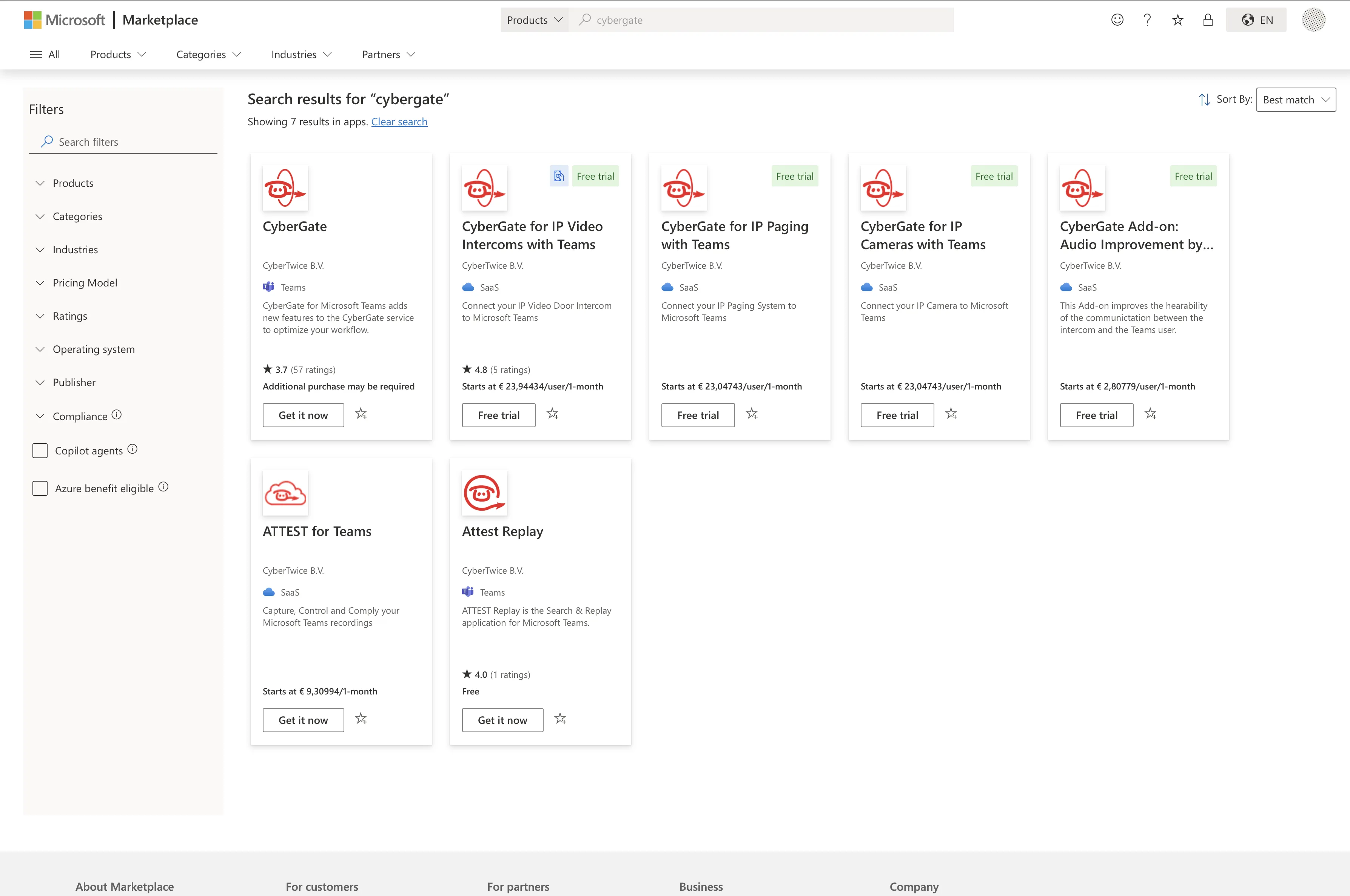
- Click on 'Free trial' to start the purchasing procedure
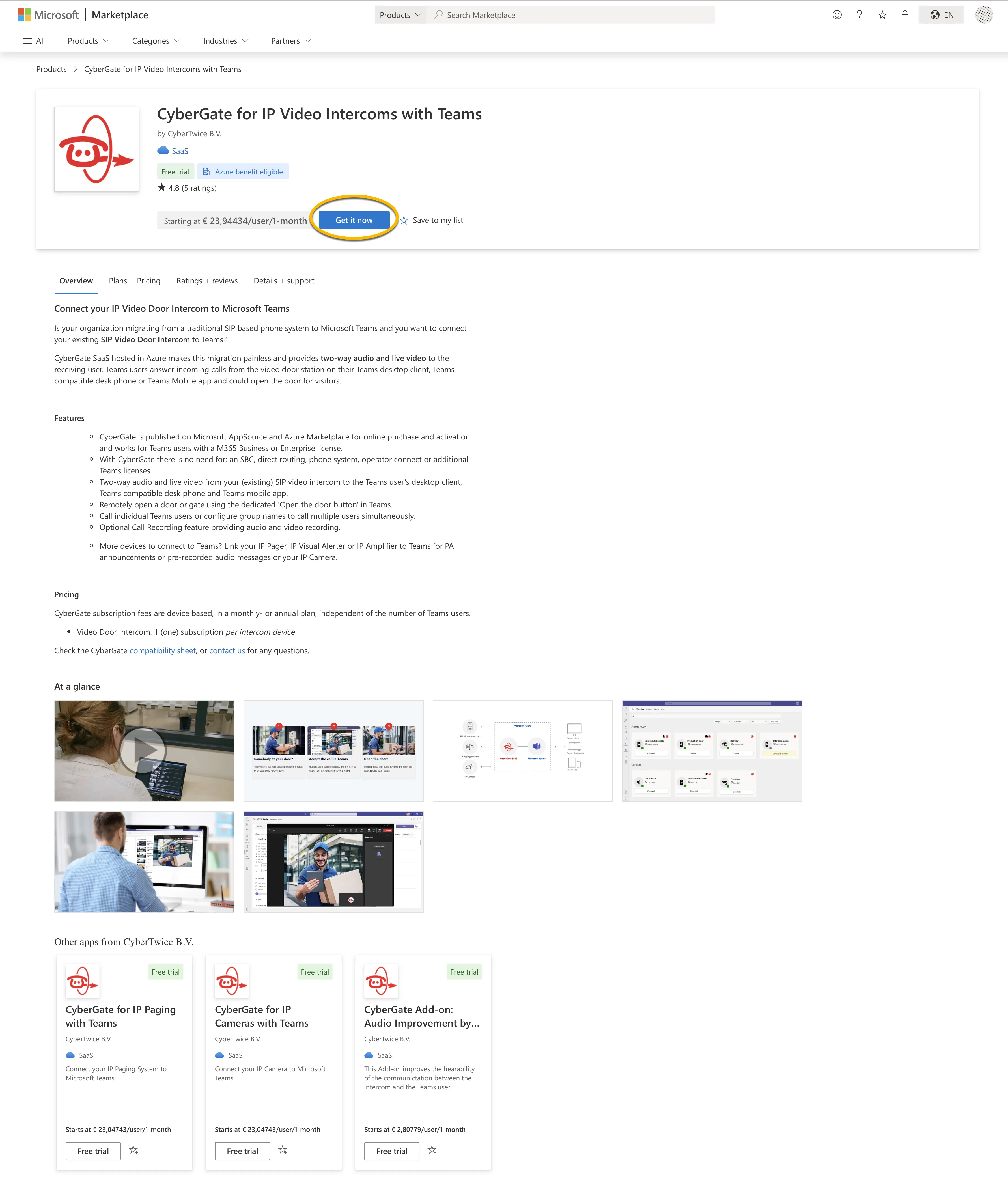
- The overview page provides information regarding CyberGate, plans, pricing information and reviews.
- Click 'Get it now' to start the purchasing procedure.
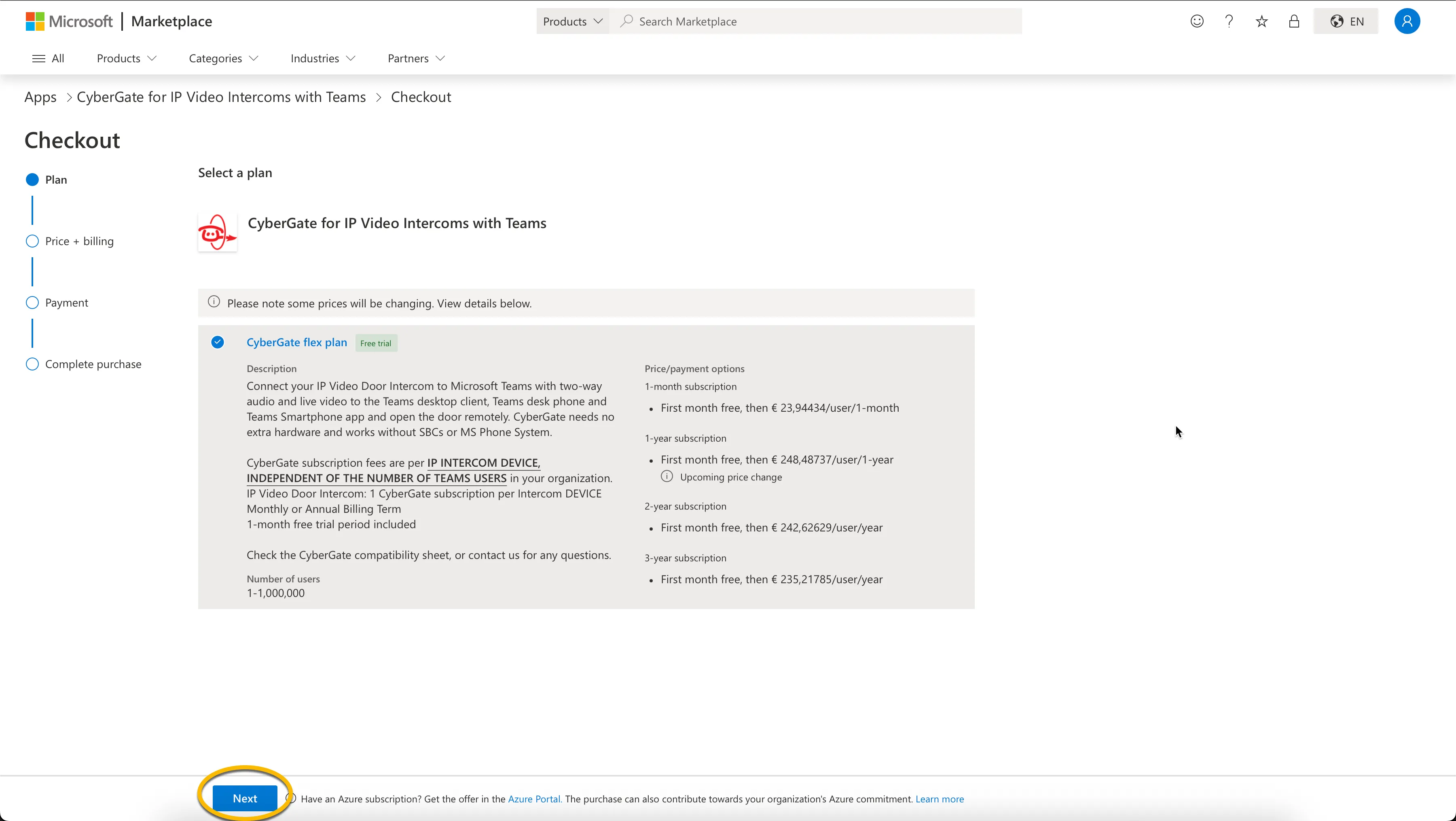
- Select the CyberGate flex plan and click 'Next'
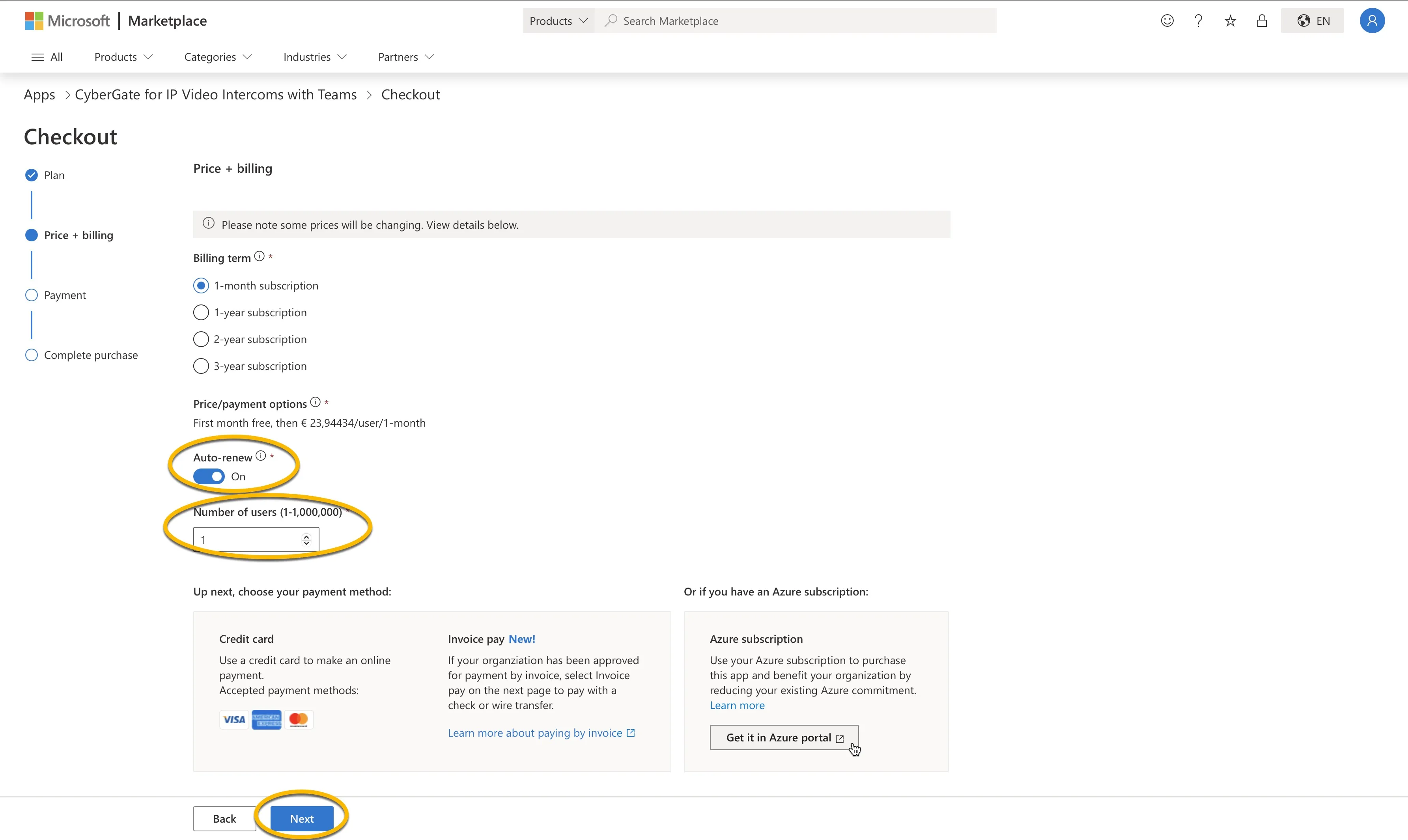
- Select the billing term.
- For pricing check the CyberGate pricing page
All CyberGate Billing Terms come with a 30-day free trial period.
You can have one subscription to CyberGate and use multiple devices with that subscription. The 'Number of Users' can be read as the 'number of devices' used with this subscription. You can always modify the number of devices on this subscription later on in the CyberGate Management Portal.
- Make sure that 'Auto-renew' is 'On' (the 1st month is a free trial period, and subscriptions auto-renew until cancelled).
- Select the 'Number of Users' (read: number of devices)
- If your Tenant has an Azure subscription, you'll be offered the option to purchase CyberGate in Azure. Payment will be handled through the Azure subscription.
Payment via Azure? See Purchase in Microsoft AzurePurchase in Microsoft Azure for instructions how to continue purchasing CyberGate
- When done, click 'Next'
- Review the details (address & payment method). You can also add a new payment method if no payment method is available.
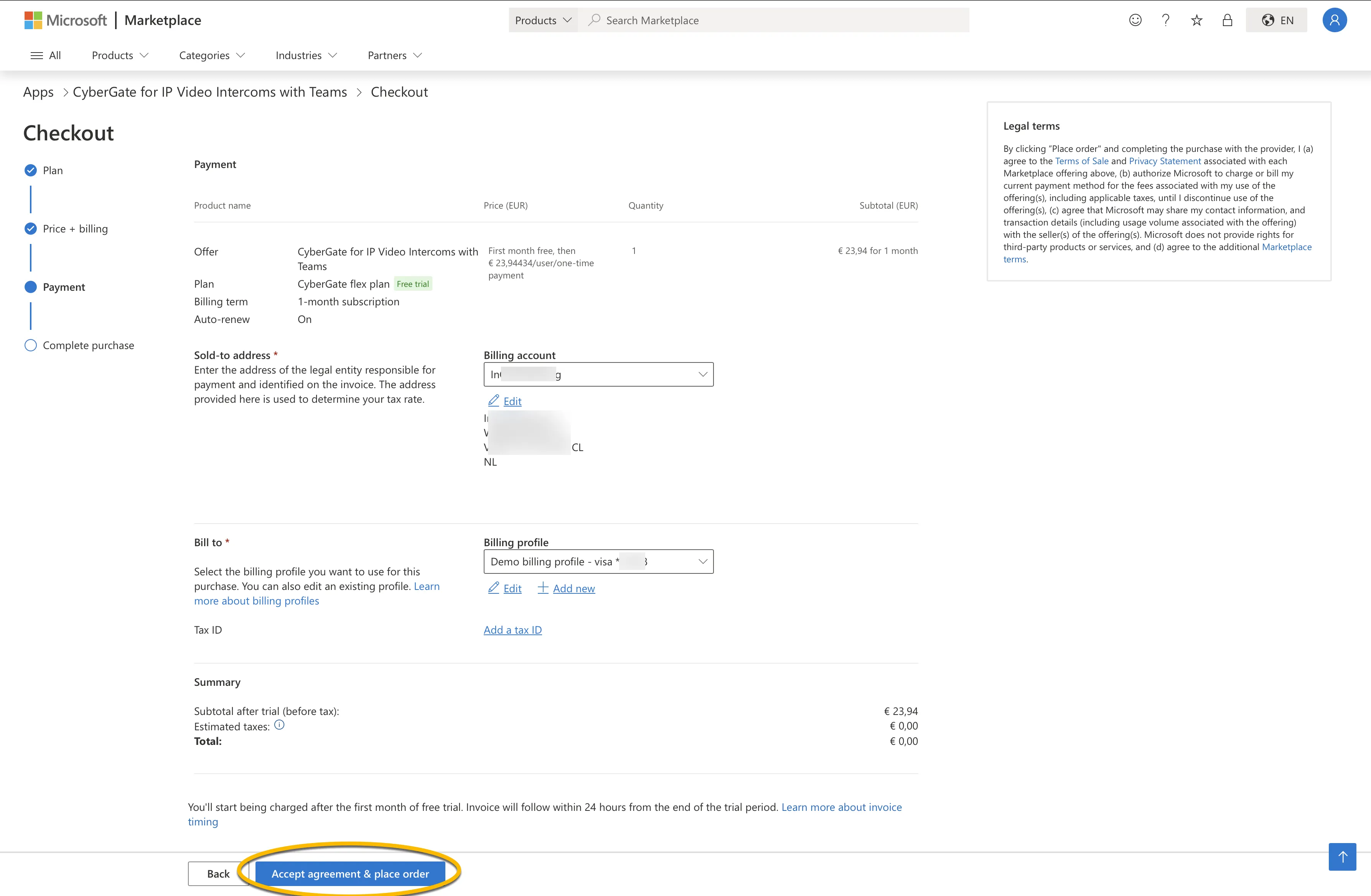
- When done, click 'Accept agreement & place order'.
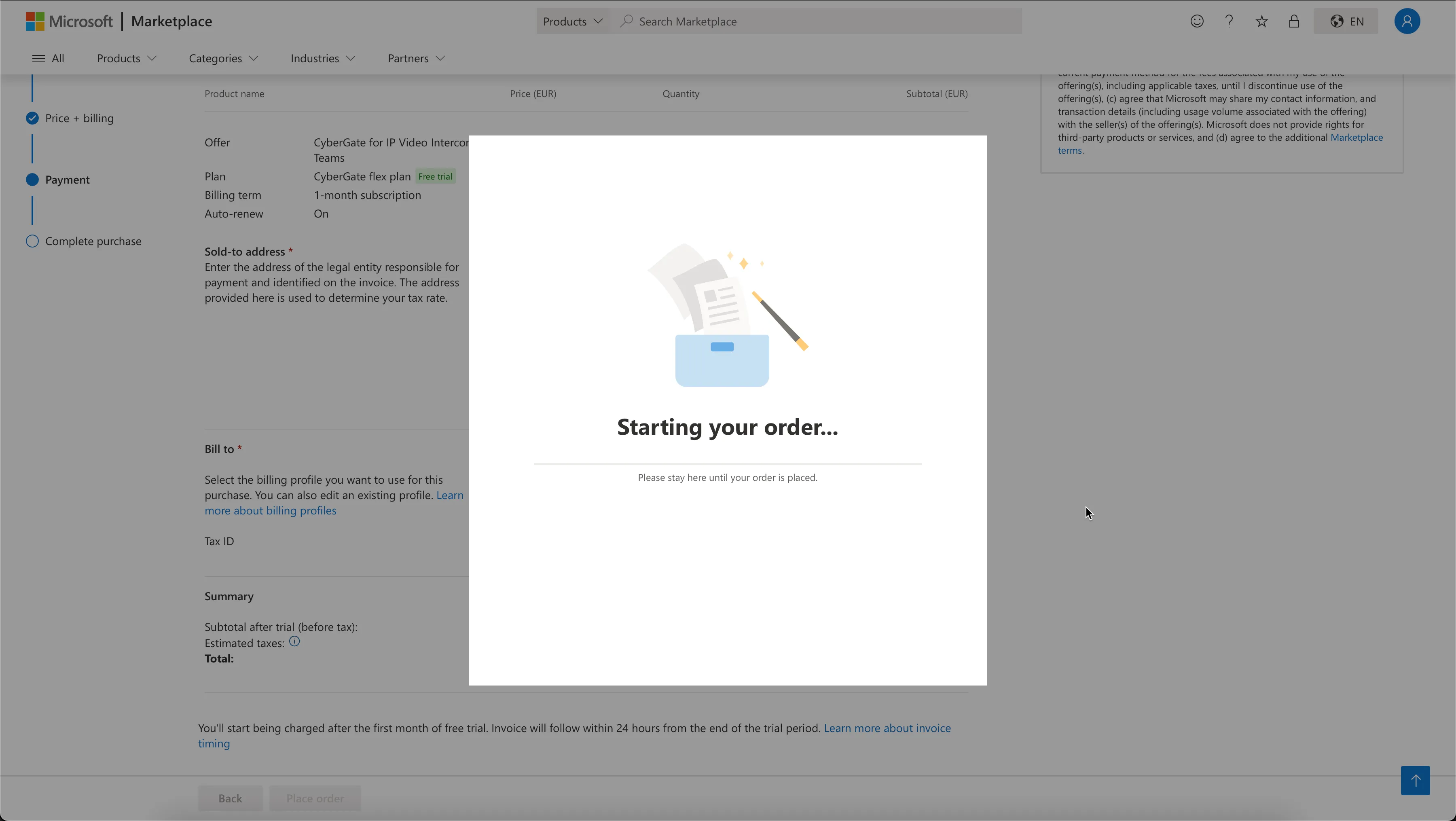
- The Microsoft Marketplace will redirect you to the CyberGate Management Portal where you can activate your CyberGate Purchase.
Continue with the Activate CyberGate steps below to finish the purchase.
Purchase in Microsoft Azure
- Go to the Azure portal and open the SaaS resources blade: https://portal.azure.com/#browse/Microsoft.SaaS%2Fresources
- Click 'Create', search for 'CyberGate' and select the offer.
In Azure, the CyberGate offer will be opened automatically.
- Select a Resource group for your CyberGate purchase or create a new Resource group
- Name the CyberGate subscription
Choose the subscription name carefully: the Azure portal does not allow you to change the subscription name later on.
- Select the billing term and payment method.
- For pricing check the CyberGate pricing page
All CyberGate Billing Terms come with a 30 day free trial period.
You can have one subscription to CyberGate and use multiple devices on that subscription. The 'User count' must be read as the 'number of devices' used with this subscription. You can always modify the number of devices on this subscription later on, in the CyberGate Management portal.
- Select the number of users (=devices)
- Make sure that 'Recurring billing' is 'On' (the 1st month is a free trial period, and subscriptions auto-renew until cancelled).
- When finished, click 'Review + Subscribe'.
- Review all details, accept the terms of use and click 'Subscribe'.
- Wait for the subscription process to complete.
- Click 'Configure account now' to finish the configuration of CyberGate
Azure Marketplace will redirect you to the CyberGate Management Portal where you can activate your CyberGate Purchase.
Continue with the Activate CyberGate steps below to finish the purchase.
Activate CyberGate
After purchasing CyberGate in Microsoft Marketplace or Microsoft Azure, you are redirected to the CyberGate Management Portal to activate your subscription. The activation steps are the same for both purchase methods.
Log in with a user with **global administrator privileges** of your organization, this is mandatory to activate CyberGate.
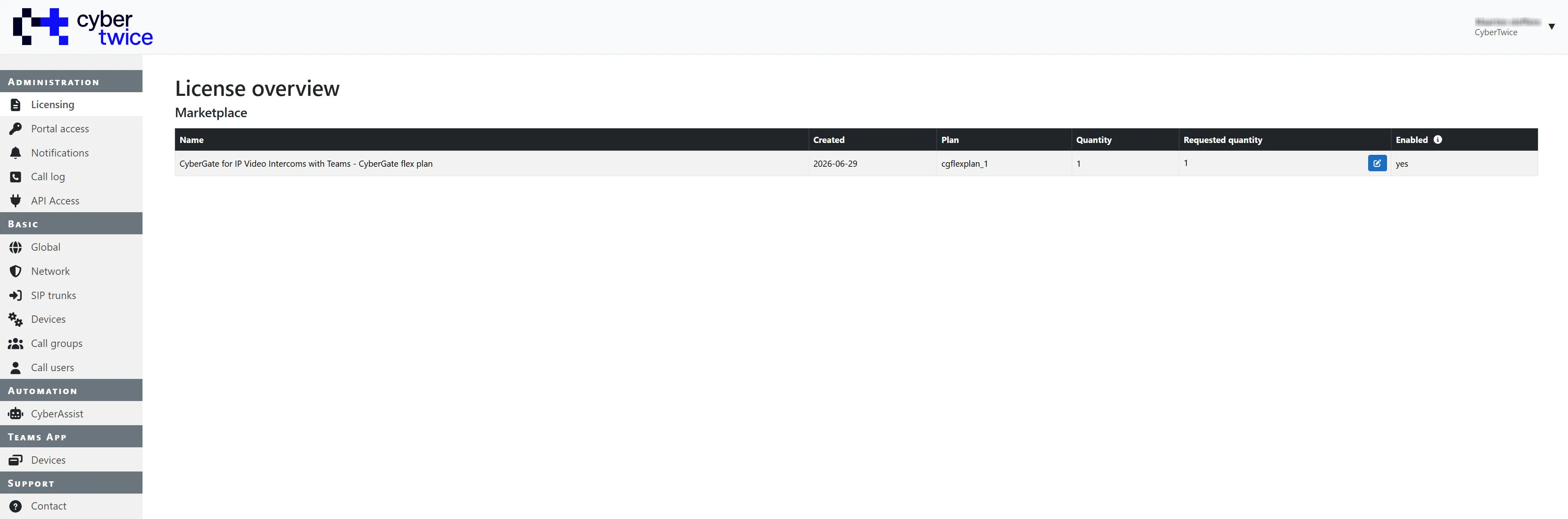
- View the subscription details and click 'Activate' to activate your CyberGate subscription. It will take you to the dashboard of the admin portal.
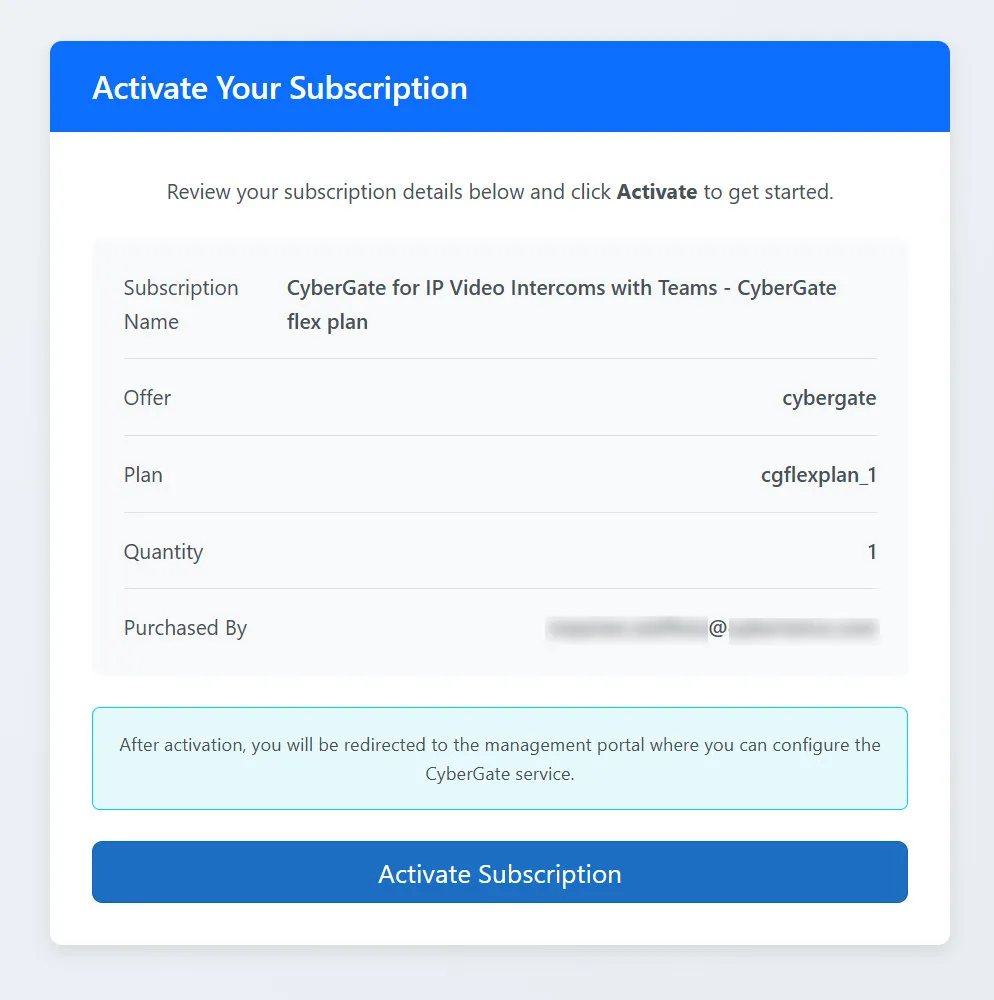
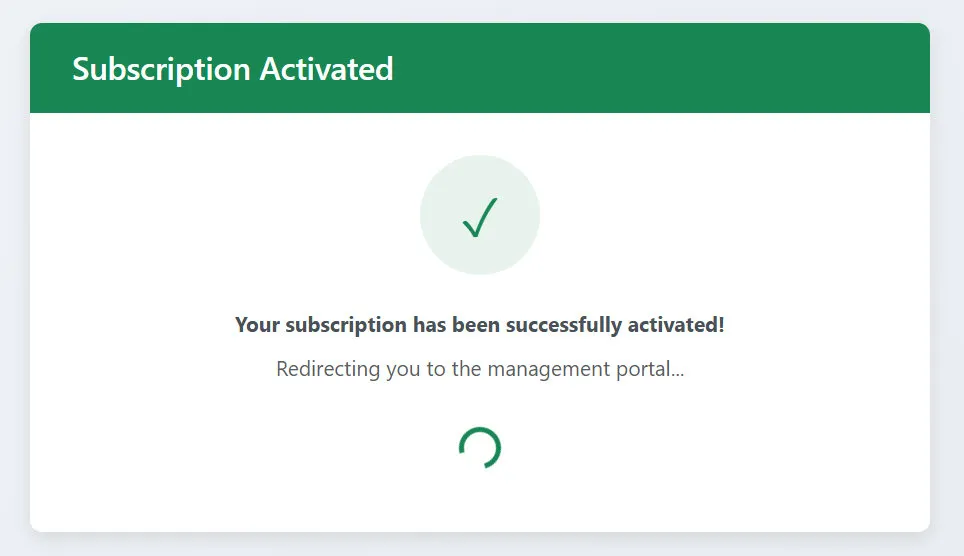
The CyberGate Management Portal will open and show the License overview.
Continue with Step 2: Configure CyberGate in the Management portalStep 2: Configure CyberGate in the Management portal .
Step 2: Configure CyberGate in the Management portal
The CyberGate Management Portal can be accessed here: https://admin.cybergate.cybertwice.com
The portal is divided into multiple sections, shown in the sidebar.
Follow the steps in this chapter for the basic configuration of CyberGate.
For a detailed description of the CyberGate Management portal, please see the CyberGate Management Portal documentCyberGate Management Portal document.
Steps to follow
Provide Admin Consent
Provide Admin Consent to CyberGate. This has to be done by a Global Administrator
Network settings
Configure the Public WAN IP address that the device uses to connect to CyberGate
Device settings
Create a device in CyberGate. This will generate the details needed to configure the device's SIP settings
Continue with the device configuration using the device-specific CyberGate manual
Provide Admin Consent
Global settings
In the section 'Global' you have to grant CyberGate limited access to your Azure environment. This is mandatory to be able to call Teams users in your organisation.
- Use the 'Provide admin consent' button to grant the set of access rights
You have to be a Global administrator to provide admin consent!
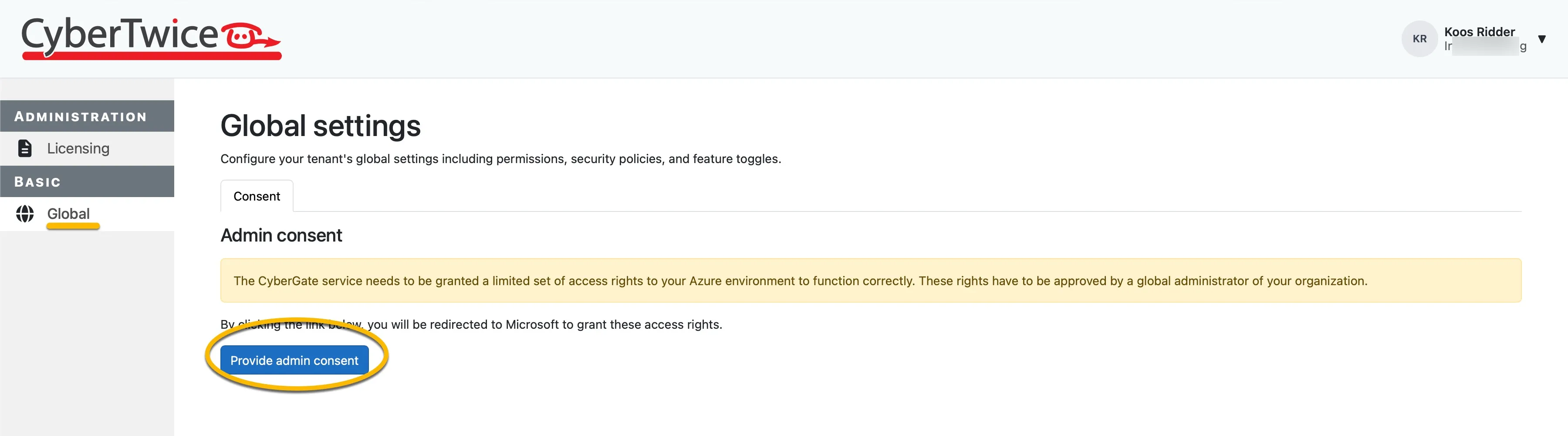
- Follow the steps to provide consent to your Tenant.
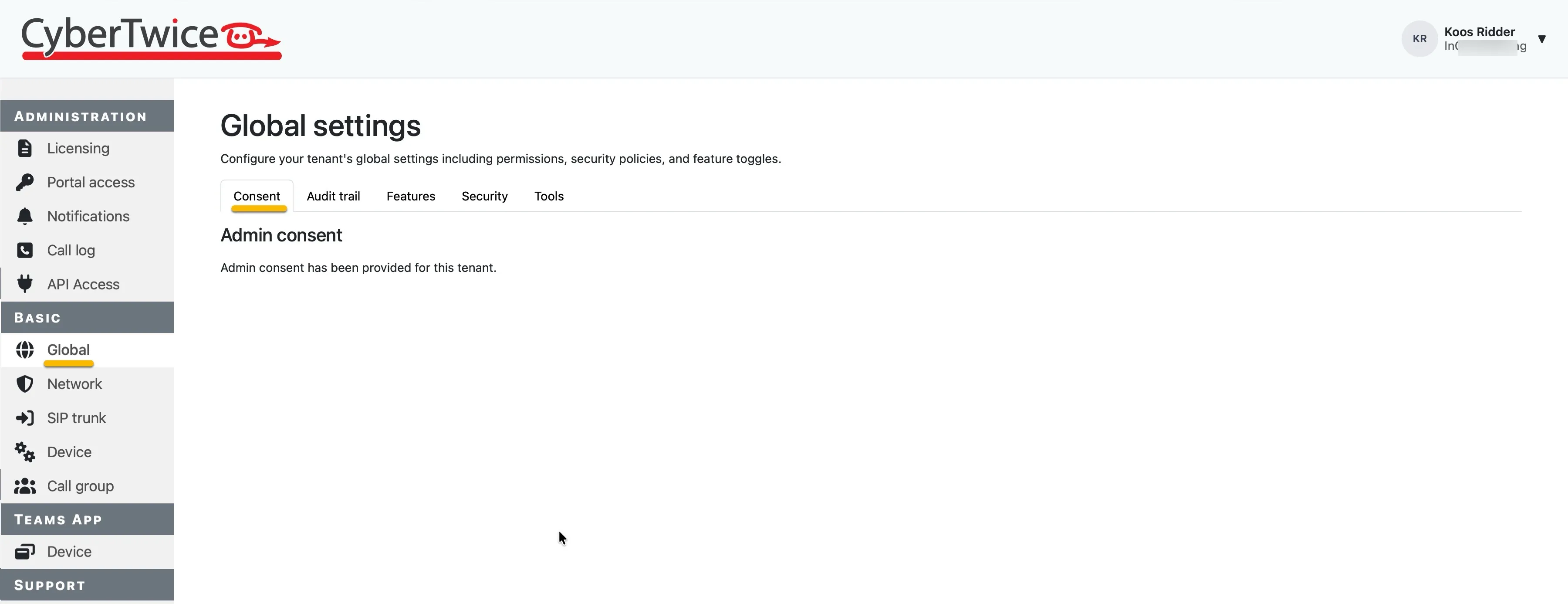
- Navigate to -Basic-Network- for the next step.
Network settings
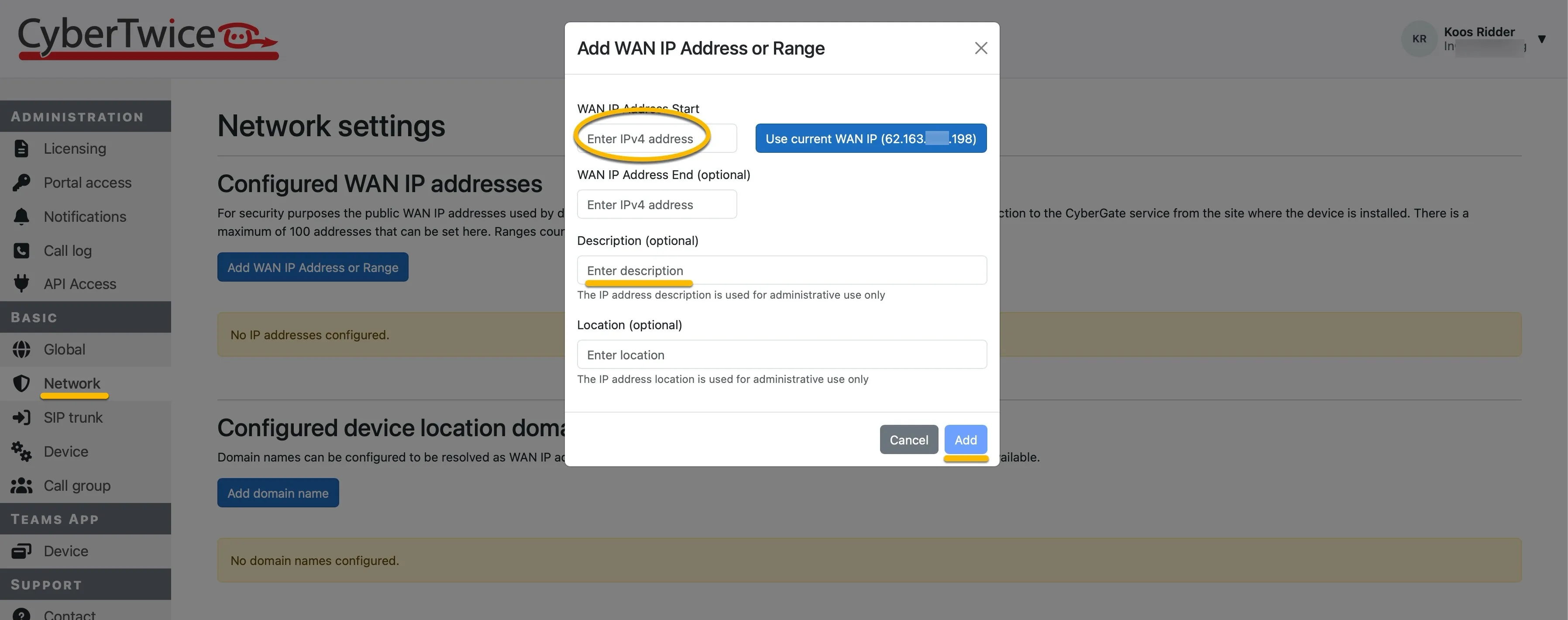
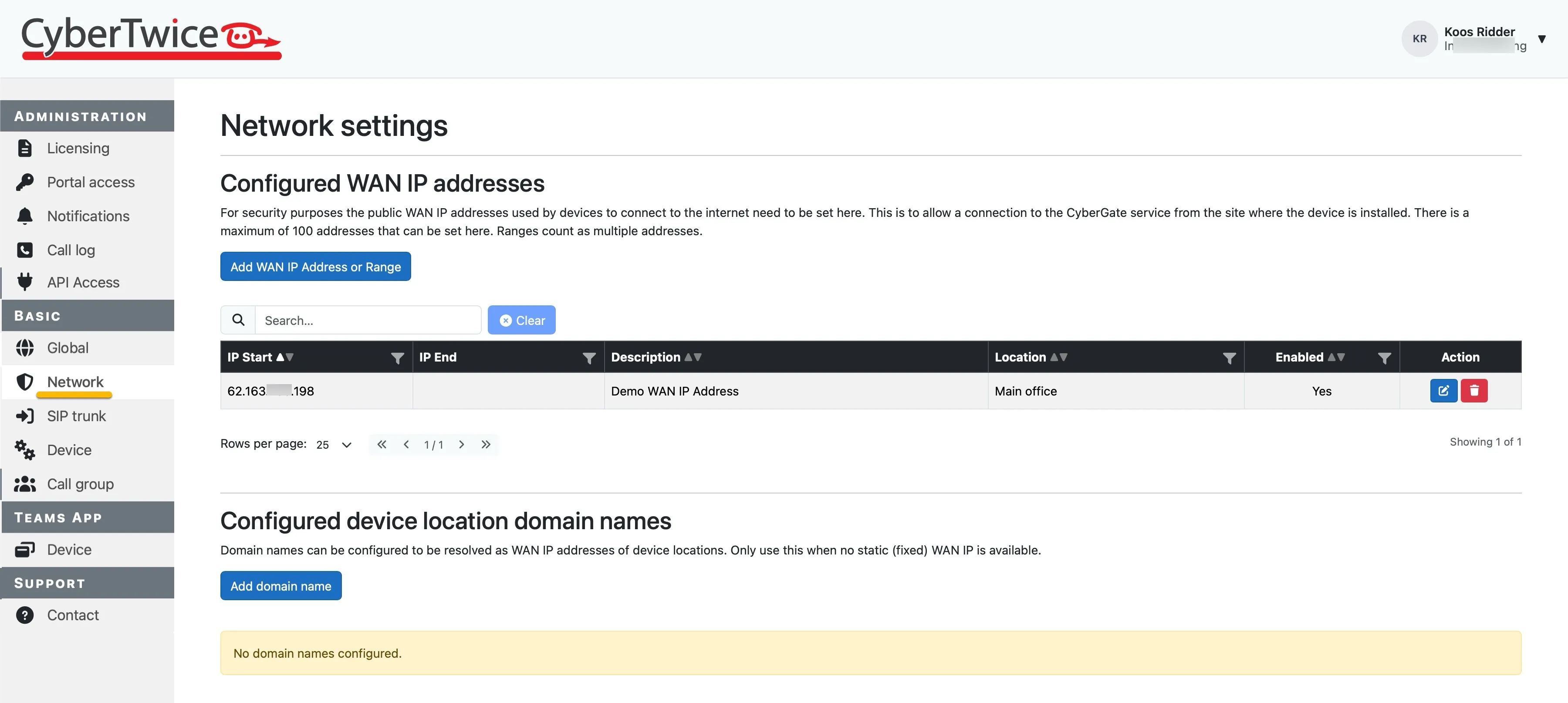
One of the security measures of CyberGate is a whitelist that contains the public WAN IP addresses used to connect to CyberGate. In order for a device to register with CyberGate, the public WAN IP address your Device is using to connect to CyberGate has to be configured in the Basic-Network menu.
- Click 'Add WAN IP Address or Range' The setting is saved automatically.
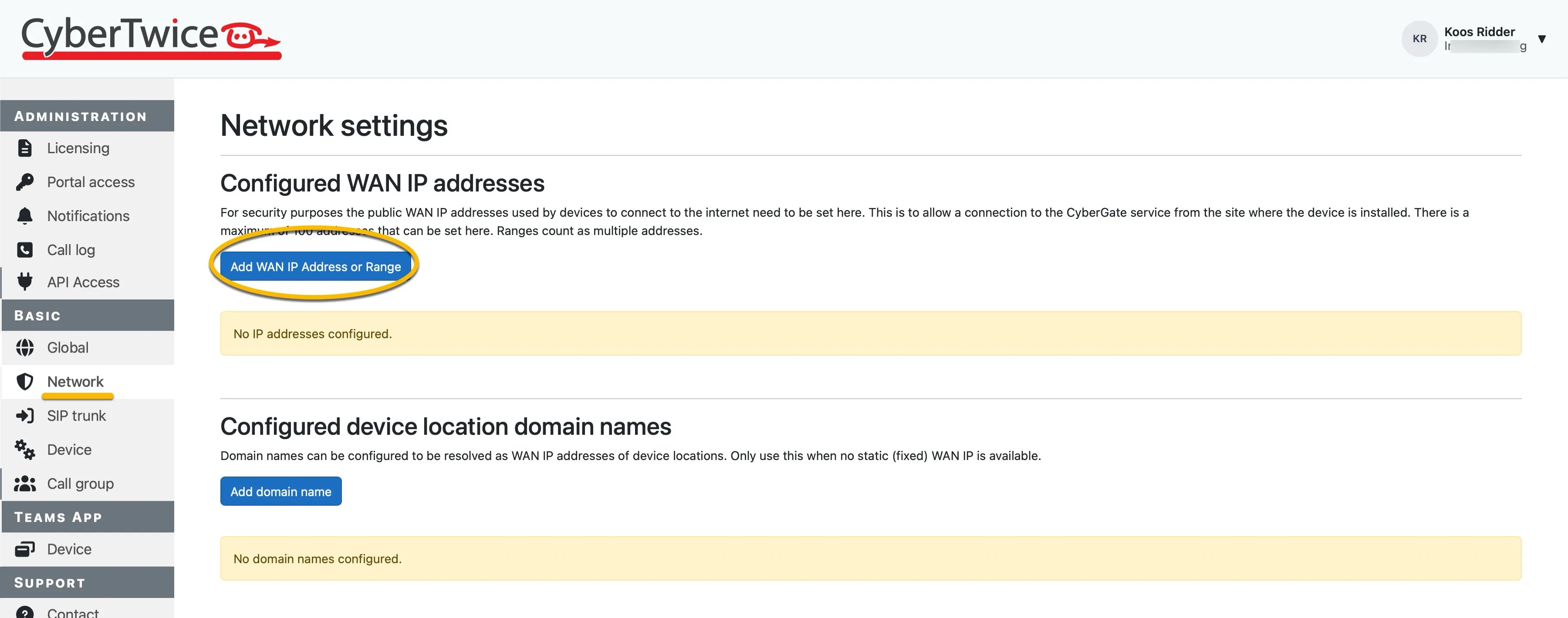
- Add the WAN IP address (optional: define a range of addresses)
- Add an optional description and / or location
- Click -Basic-Device- for the next step.
Device settings
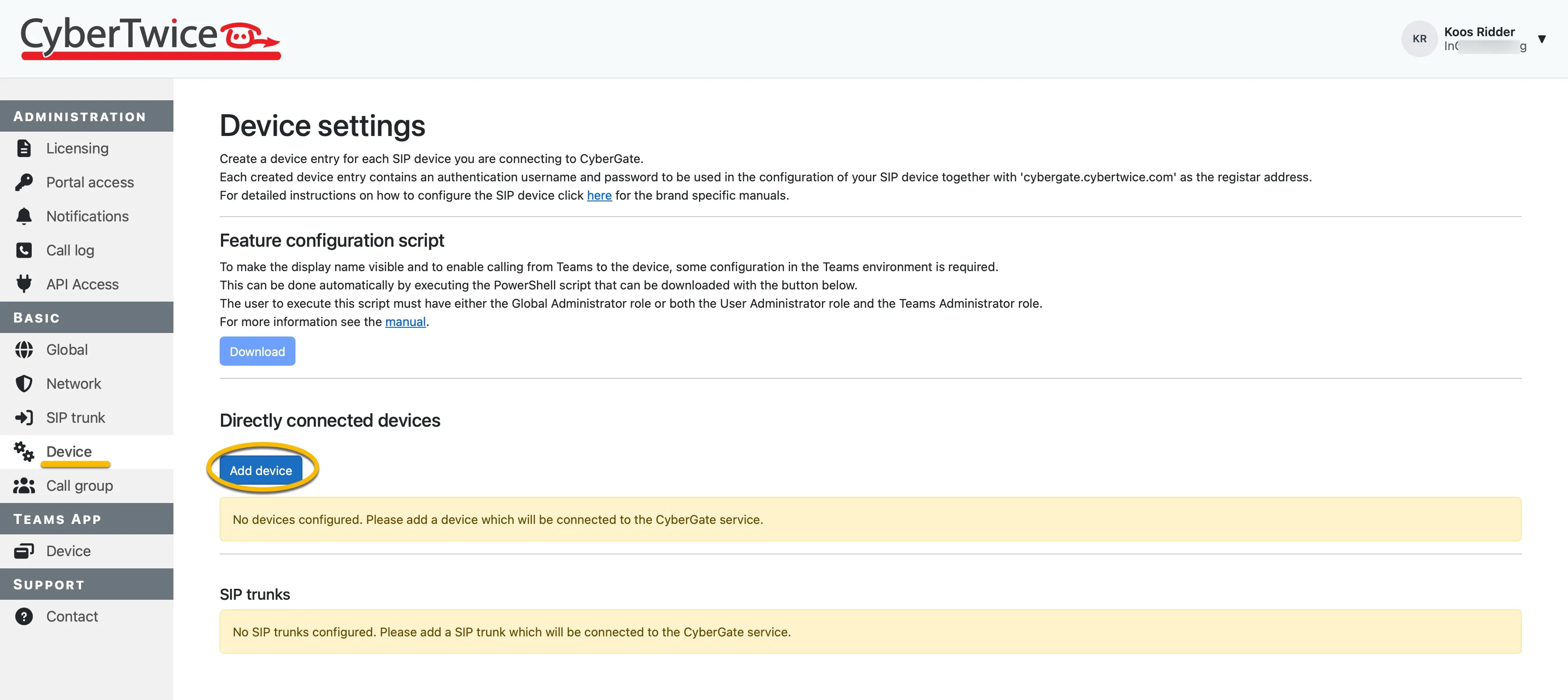
In the section 'Device' you will need to add a 'device' for each intercom/pager/camera you are using on this subscription. It will automatically generate a SIP username and SIP password that has to be used in your SIP device configuration.
- Click 'Add device'
- Configure:
- Display Name (a descriptive name for this device)
- Type (Intercom, Pager or Camera)
- Location (location of the device)
- Click 'Add' to add this device
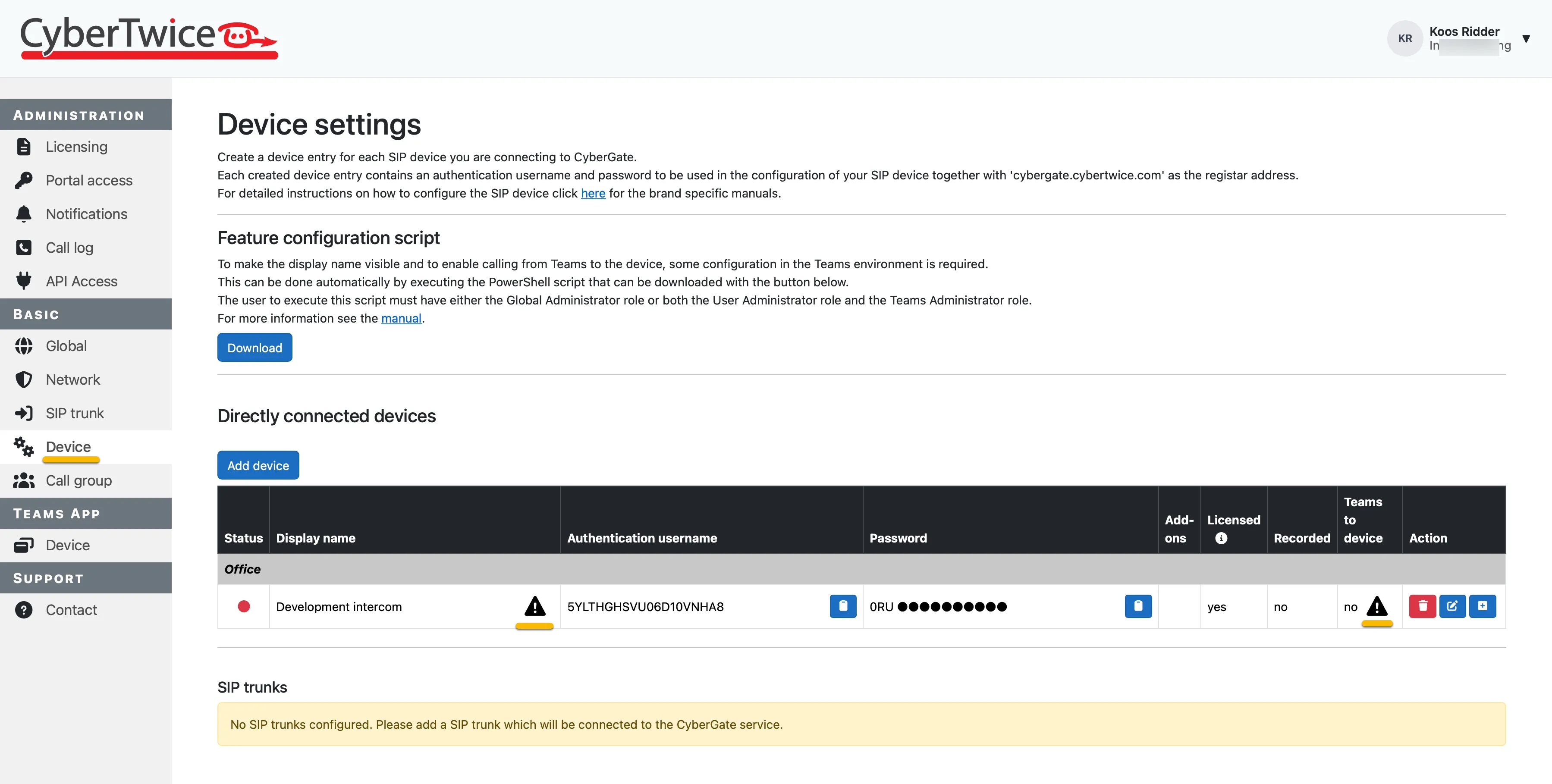
Each device added shows:
- Authentication username - The username is necessary when configuring the SIP device
- Password - The password is necessary when configuring the SIP device
Use the blue copy buttons to conveniently copy the username and password into your device's configuration. The Authentication username and the password are necessary to successfully register the device to CyberGate.
The Display name field will show the device name and will also show an exclamation mark. The device will be able to call Microsoft Teams, but will show the name 'Intercom' instead of the custom Display name until you execute the PowerShell script that can be downloaded on this page.
See the Feature Configuration scriptConfigure Display name document for instructions on how to modify the display name from the default 'Intercom' to the Display name given.
Continue with Step 3: Configure the deviceStep 3: Configure the device .
Step 3: Configure the device
Now that CyberGate is ready, the next thing to do is configure the device. This step is done in the device's own web interface. As each device make and model has its own configuration method, there are manuals for all certified devices available.
See the CyberGate Device manual section on this documentation site for the device-specific manuals.
Manufacturers of compatible devices:
2N | Castel | IPDoor |
|---|---|---|
ABB | Commend | Mobotix |
Akuvox | Digital Accoustics | PortaDial |
Algo | Dnake | Robin |
Alphatech | Doorbird | Suprema |
Amphitech | Fanvil | TOA |
Avigilon | Fasttel | Verkada |
Axis | Fermax | Verkada |
Barix | Genetec | Zenitel |
BAS-IP | Grandstream | |
Behnke | Hanwha | |
When the instructions in the device installation manual are followed successfully, CyberGate is up and running and the device will be able to call Microsoft Teams users.
CyberGate Management Portal
See the separate document on all features of the CyberGate Management portal:
CyberGate Management portal documentationCyberGate Management portal documentation