CyberGate App for Teams
CyberTwice CyberGate App for Microsoft Teams Introduction
This document describes the installation and usage of the CyberGate App for Microsoft Teams.
The CyberGate App for Microsoft Teams app should be version 1.6.4 or higher.
The CyberGate App
Requirements for the CyberGate app
Requirements for using the CyberGate App:
- A subscription to one of the following CyberGate SaaS solutions:
- CyberGate for IP Cameras with Teams
- CyberGate for IP Paging with Teams
- CyberGate for IP Intercoms with Teams
Introduction
The CyberGate Teams app is an app that can be installed in your Microsoft Teams client. It is developed to offer extra functionality using CyberGate.
The CyberGate app has four main features:
- When using CyberGate Call groups, the app allows you to set availability status in a Call group. *
- Call scheduling lets you decide when you can be called, using schedule rules for office hours, a lunch break or a holiday. *
- The Devices overview shows the current status of the device (online or offline) and features a Connect-button to initiate a call from Teams to the device with just one click.
- Easily open the door during a Teams call with an intercom device by simply clicking a Door open button, either in the Open-door tab of the app or in the call window.
* A standard Teams user can set his/hers availability and schedules in the CyberGate for Teams app. If a user has a supervisor role set in the CyberGate Management portal, that supervisor can manage the rules of the users they supervise. For more information regarding supervisors see Supervisors
This manual decribes the installation of the app and all four features in detail.
Installation
Installation of the CyberGate for Teams app is easily done in the Teams Apps store, directly from Teams. Follow the steps below to install it in your Teams environment.
Not every organisation allows users to install apps in their own Teams environment. If installation of apps is restricted, the option ‘Requested approval’ is shown instead of ‘Add’. If so, click on Request approval. An IT Administrator in your organisation will receive the request to install the app. After approval you'll be notified that the app is installed successfully.
How to install
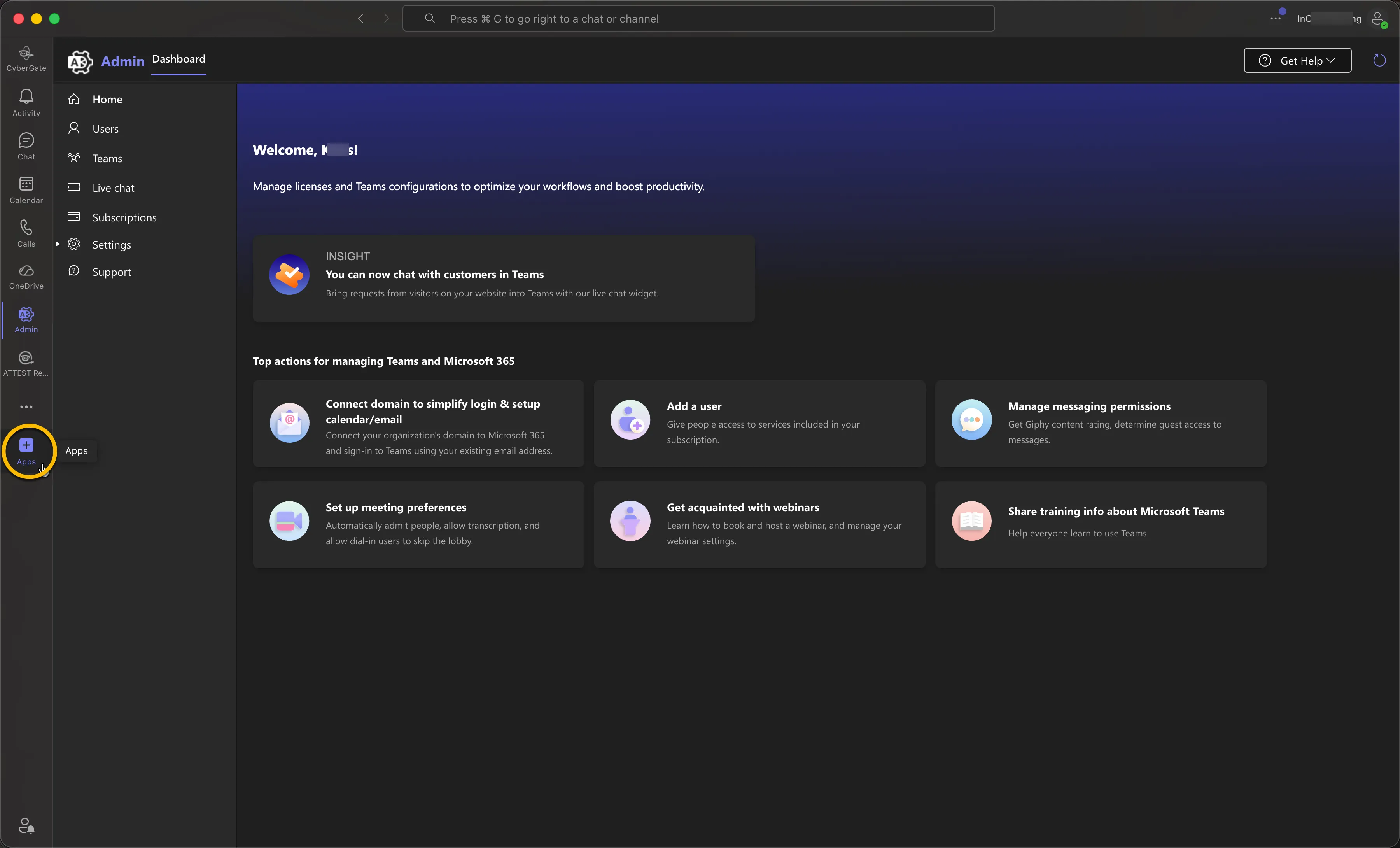
- Open Microsoft Teams and click on the ‘Apps’ button in the side bar and search for ‘cybergate’
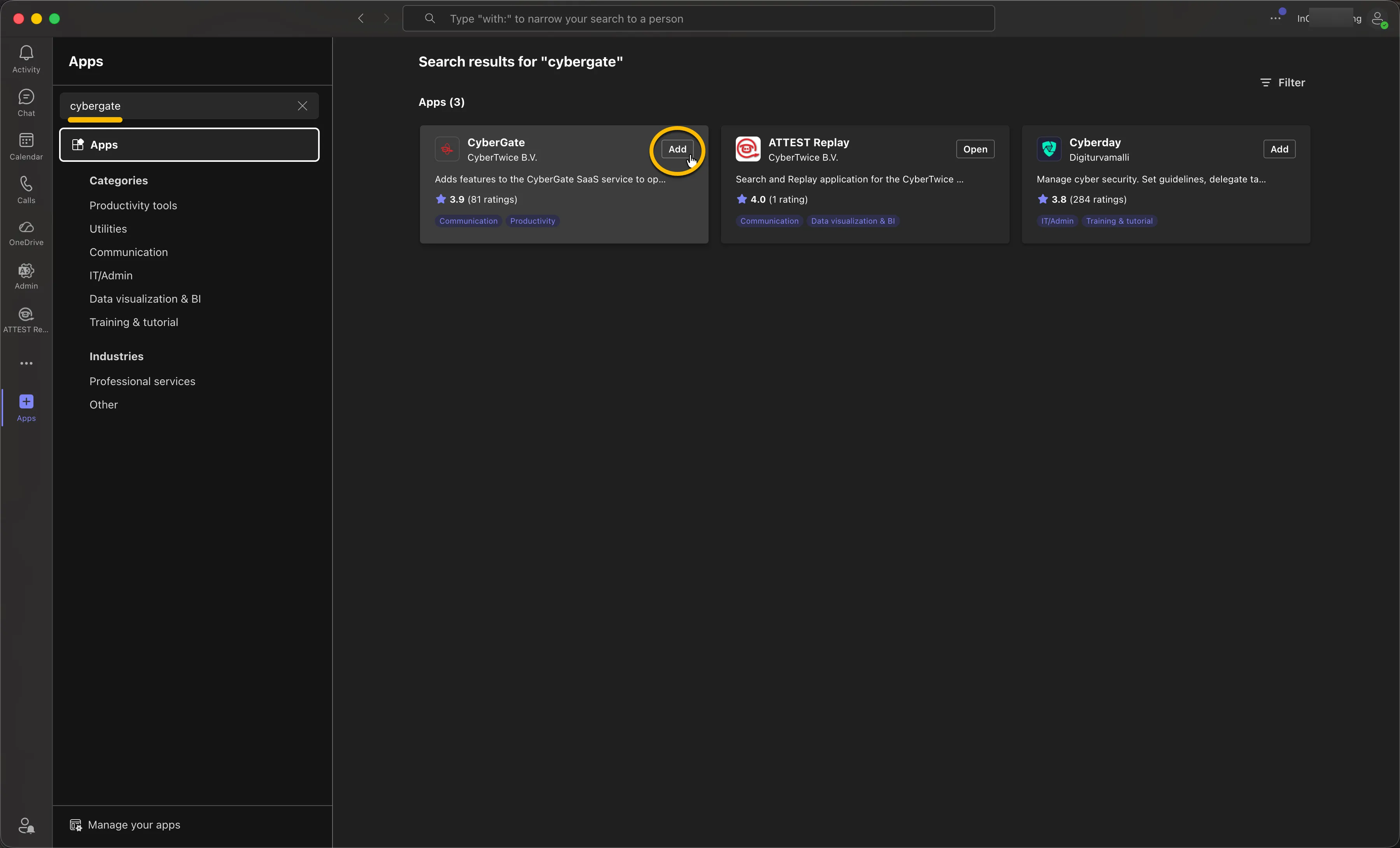
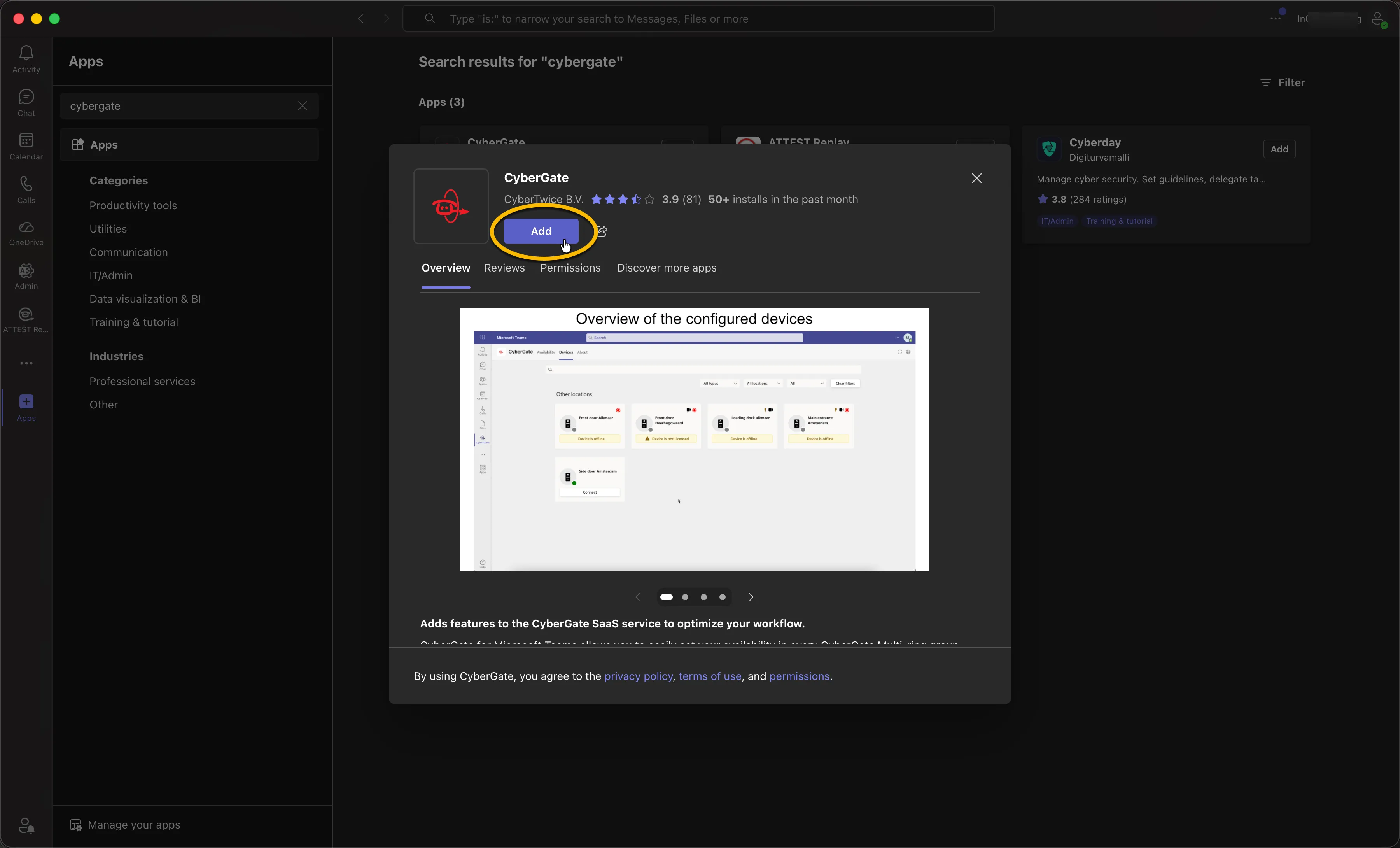
- Click on 'Add' to add CyberGate to Microsoft Teams.
During installation consent for basic permissions might be required (view your basic profile, Maintain access to data you have given it access to). Accept these permissions to use the app.
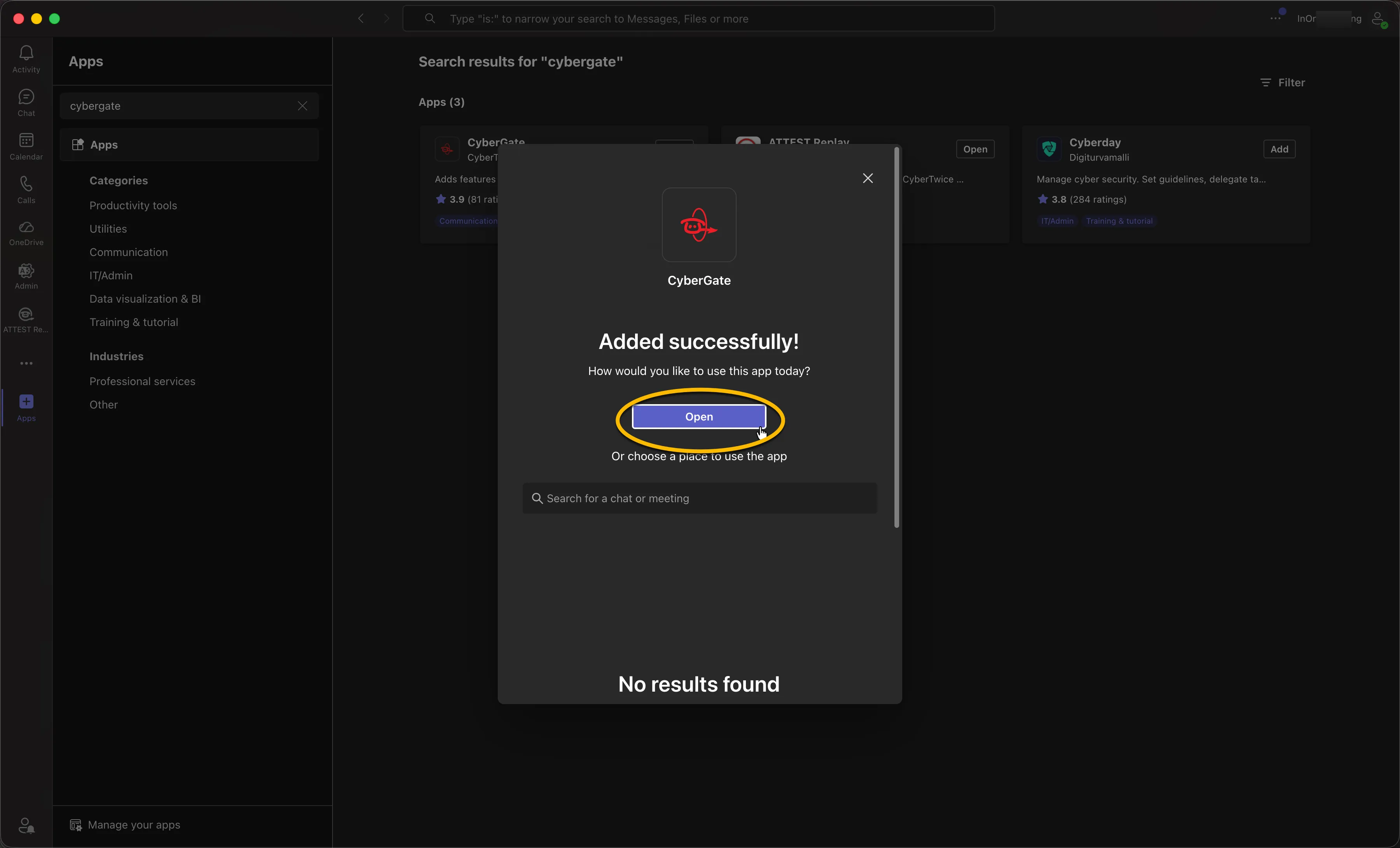
After installation, the CyberGate app will open and show the 'Availability' menu.
For easy access to the CyberGate App, pinning the CyberGate app to the sidebar is a good idea. Do this by right-clicking on the CyberGate icon and select ‘Pin’.
Availability
How to use Availability
The CyberGate app uses the same credentials as used for Microsoft Teams. It automatically retrieves information from CyberGate regarding the Call groups the user is part of.
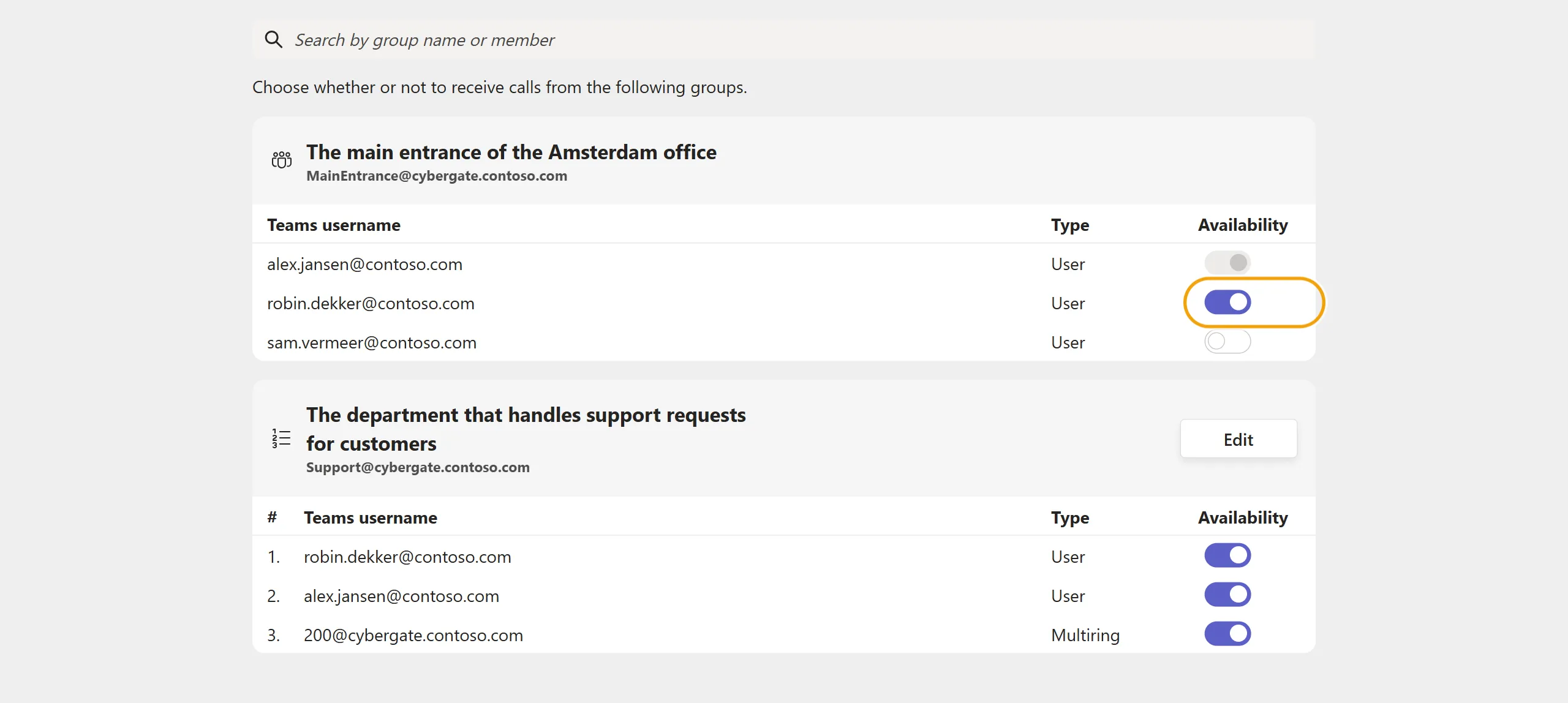
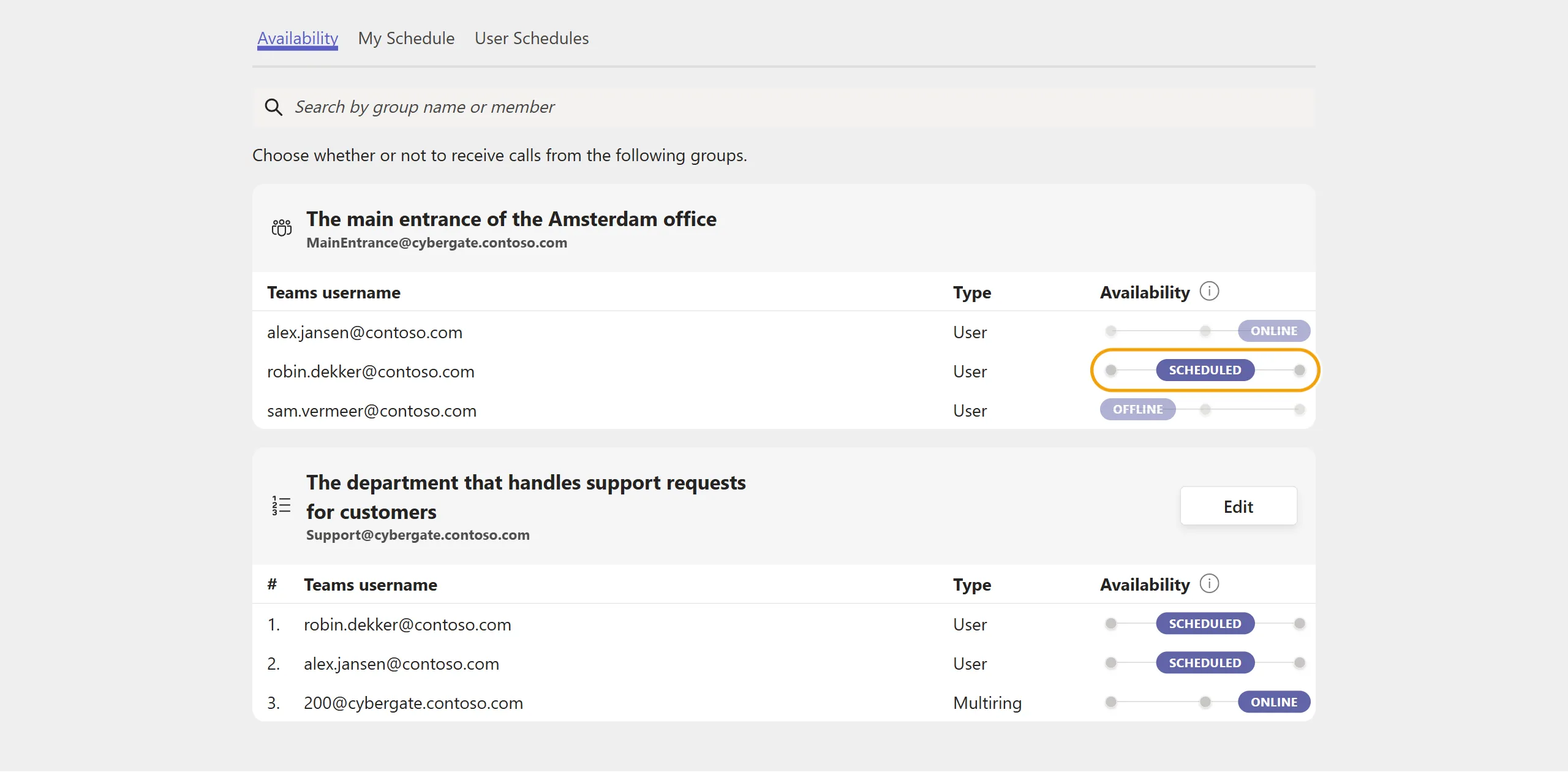
In this example, the user [email protected] is part of two Call groups: ‘The main entrance of the Amsterdam office’ and ‘The department that handles support requests for customers’.
The main entrance group contains three users. The support group is a Sequential group and contains two users and a Call group.
- In ‘The main entrance of the Amsterdam office’ the user is a normal participant and can only set their own availability status. The settings of the other participants are shown greyed out.
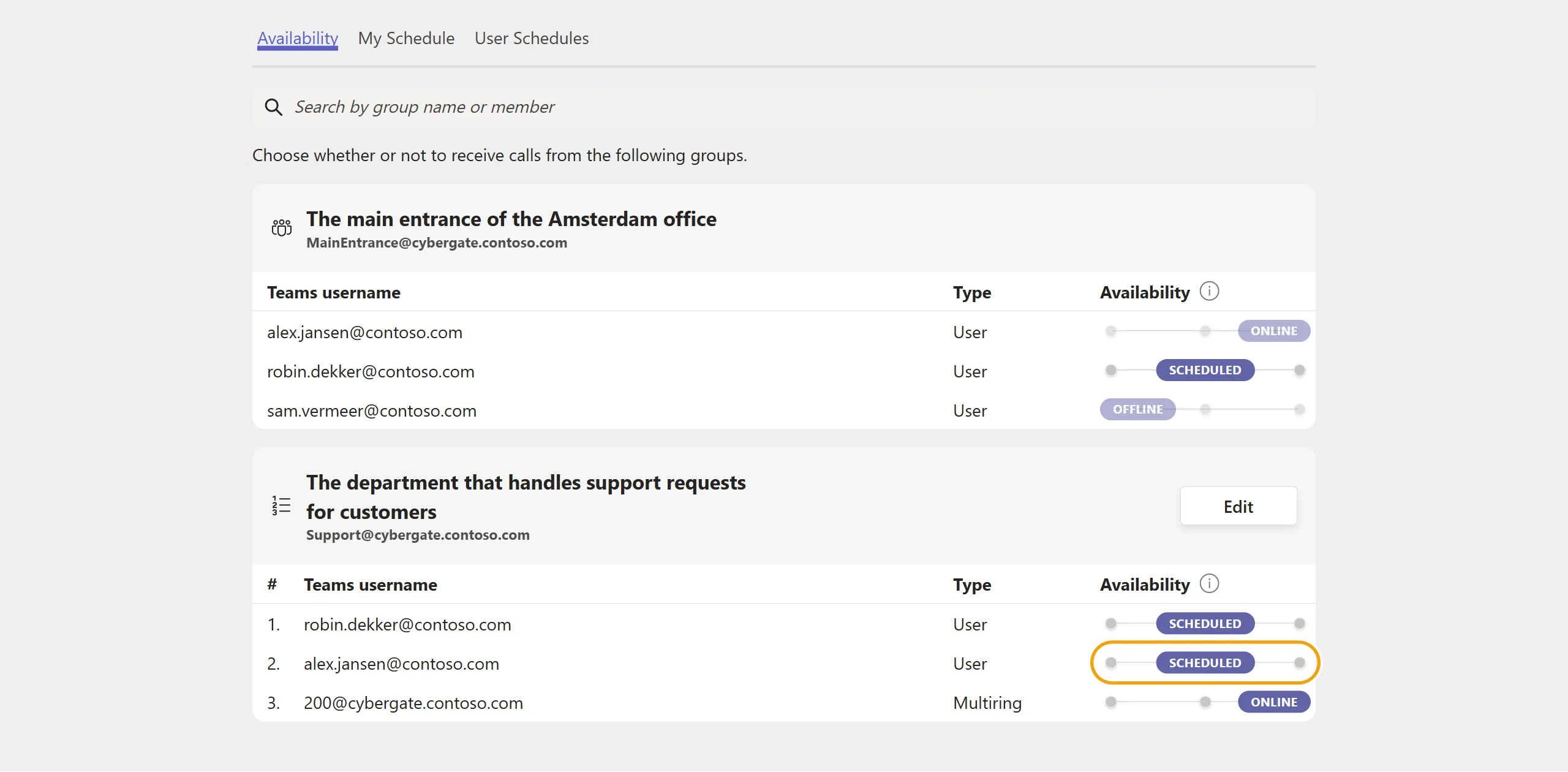
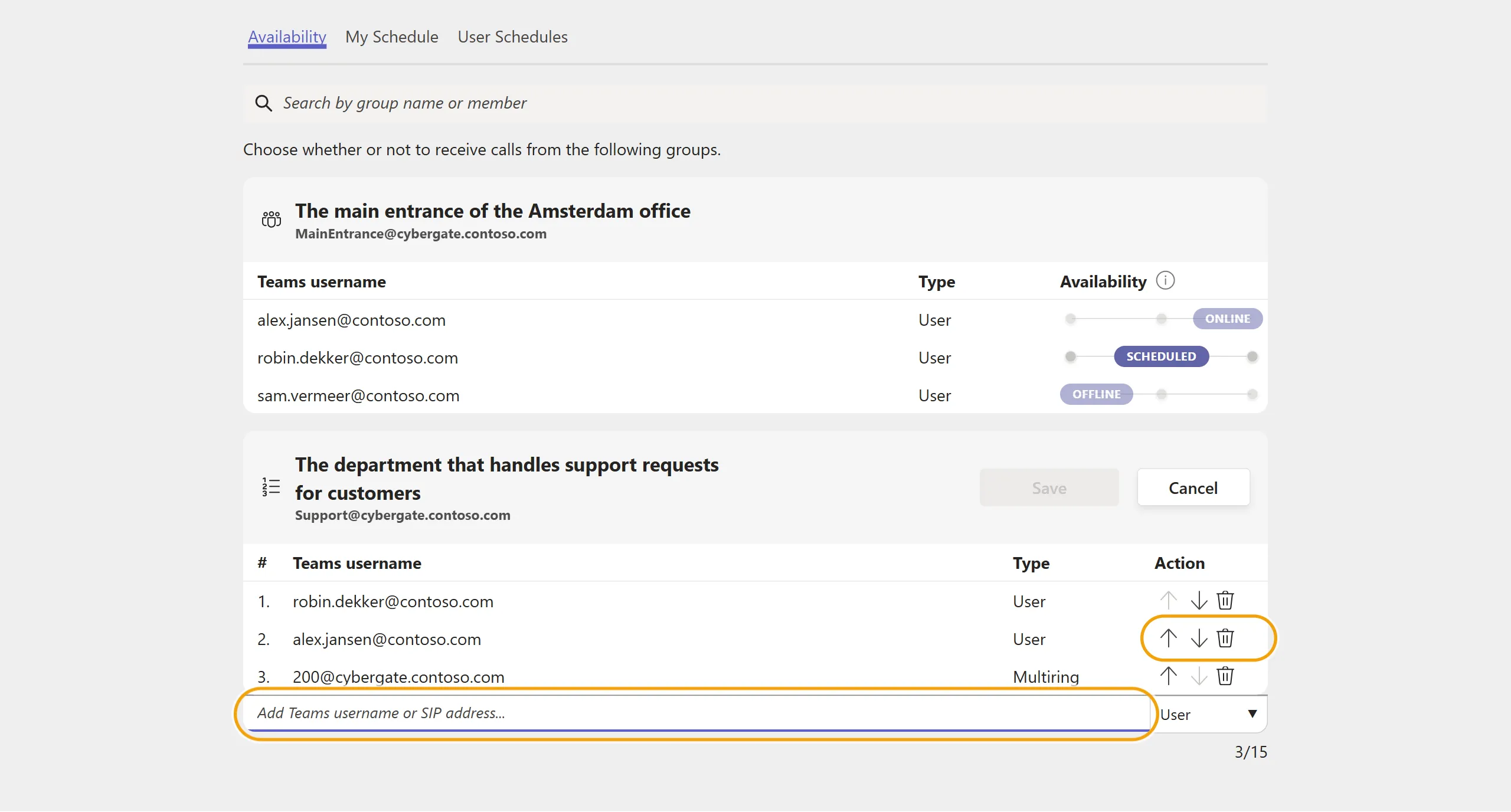
- In ‘The department that handles support requests for customers’ the user is supervisor * and has the right to do the following:
- Set the availability status of all users in this Call group
- Add and remove users from this Call group
- Modify the calling order of the Call group participants (as this is a Sequential call group)
The availability of a participant has three settings:
Status | Information |
|---|---|
Online | You are available in the Call group and can be called by CyberGate. |
Scheduled | Your schedule rules decide whether you are called at that moment. See Call scheduling below. |
Offline | You are not available in the Call group and won't be called by CyberGate. |
The availability status takes effect immediately.
The Scheduled setting is only available when call scheduling is enabled for your organization. Until then a participant is either Online or Offline.
To configure the supervisor role for a Call group, use the CyberGate Management PortalCyberGate Management Portal.
Call scheduling
Introduction
Availability decides whether you can be called right now. Call scheduling decides when you can be called: you keep a list of schedule rules for your office hours, a lunch break or a holiday, and CyberGate only rings you at the moments your rules allow.
Schedule rules are only evaluated for a participant whose availability in that Call group is set to Scheduled. A participant who is Online is always called and a participant who is Offline is never called, whatever their rules say.
Two tabs in the app are about scheduling:
- My Schedule — your own schedule rules.
- User Schedules — the schedule rules of the users you supervise.
Call scheduling has to be enabled for your organization first: an administrator selects a timezone in Basic > Global > Features of the CyberGate Management Portal. Until a timezone is selected, the Scheduled setting is not offered. See CyberGate Call SchedulingCyberGate Call Scheduling for the portal side of the feature.
How to use My Schedule
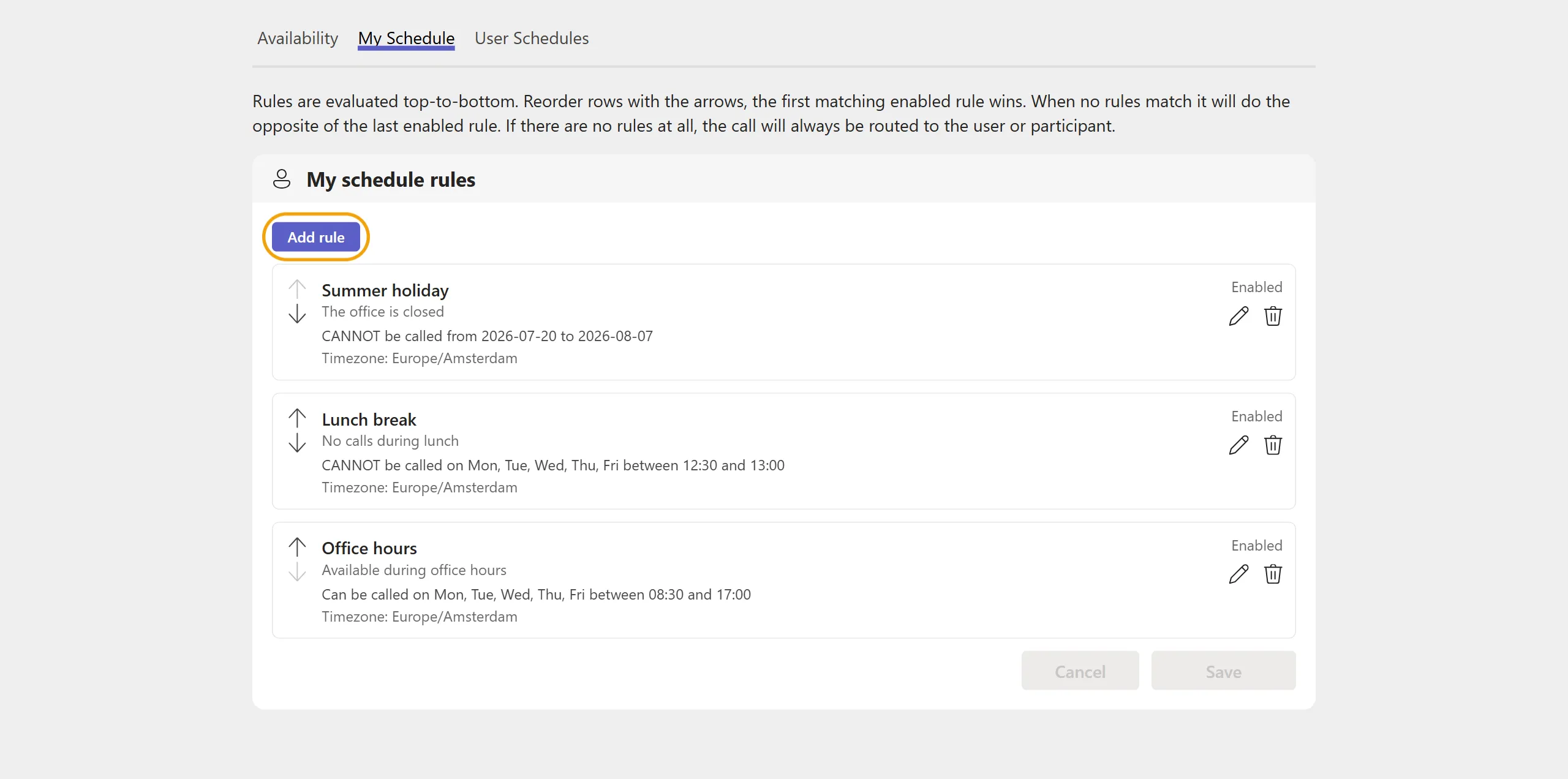
The My Schedule tab lists your own schedule rules in the order in which they are evaluated. Every row shows the name and description of the rule, a plain-language summary of when it applies, the timezone it is evaluated in, and whether it is enabled.
- Add rule opens a dialog to add a rule to the bottom of the list.
- The arrows move a rule up or down. The order in the list is the order of evaluation.
- Enabled takes a rule out of the evaluation without deleting it.
Adding, editing, deleting and reordering rules only takes effect after you click Save. Cancel discards everything you changed.
Adding a rule
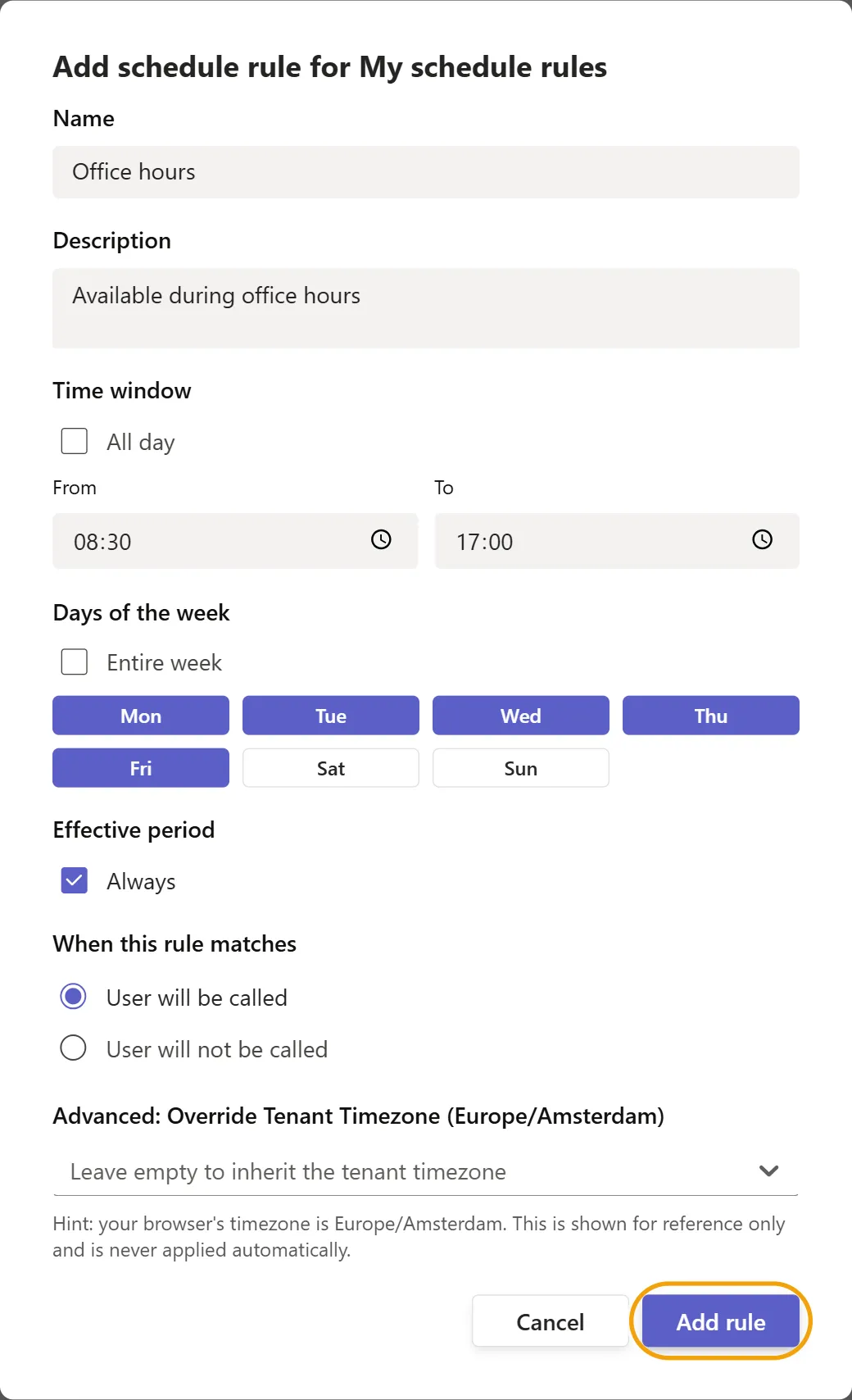
Click Add rule, fill in the fields below and click Add rule in the dialog. Click Save to store the changes.
The dialog opens with All day, Entire week and Always selected, so a new rule covers every moment until you narrow it down.
Name | A descriptive name for the rule, for example Office hours. Required: Add rule stays disabled until you enter one. |
|---|---|
Description | An optional description explaining when the rule applies. |
Time window | All day covers the full 24 hours. Clear it to enter a From and To time. |
Days of the week | Entire week selects all seven days. Clear it and click the days the rule should apply to. |
Effective period | Always means the rule never expires. Clear it to enter a from and to date, for a holiday or a one-off event. |
When this rule matches | What happens when the rule matches: User will be called or User will not be called. |
Advanced: Override Tenant Timezone | Evaluate this one rule in a different timezone. Leave it empty to inherit the timezone of your organization. |
A time range may cross midnight. A rule from 22:00 to 06:00 covers the evening and the night that follows it.
How rules are evaluated
Rules are evaluated from top to bottom and the first matching enabled rule decides.
- A rule matches when the moment of the call falls inside its effective period, on one of its days and inside its time window.
- Disabled rules are skipped as if they were not there.
- When no rule matches, the opposite of the last enabled rule applies. A list that ends with User will be called therefore means: outside of your rules you are not called.
- When you have no rules at all, you are always called.
Put your exceptions above the general rule. A Lunch break rule below your Office hours rule is never reached, because Office hours already matches at 12:45.
To check a schedule without waiting for a real call, a supervisor can use the Test Availability button on a Call group in the CyberGate Call SchedulingCyberGate Call Scheduling.
How to use User Schedules
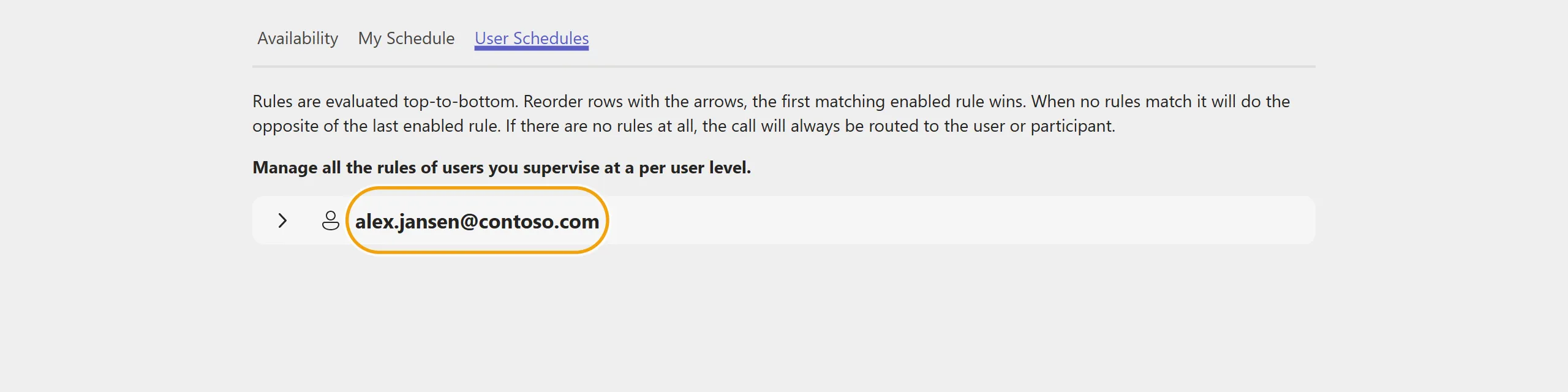
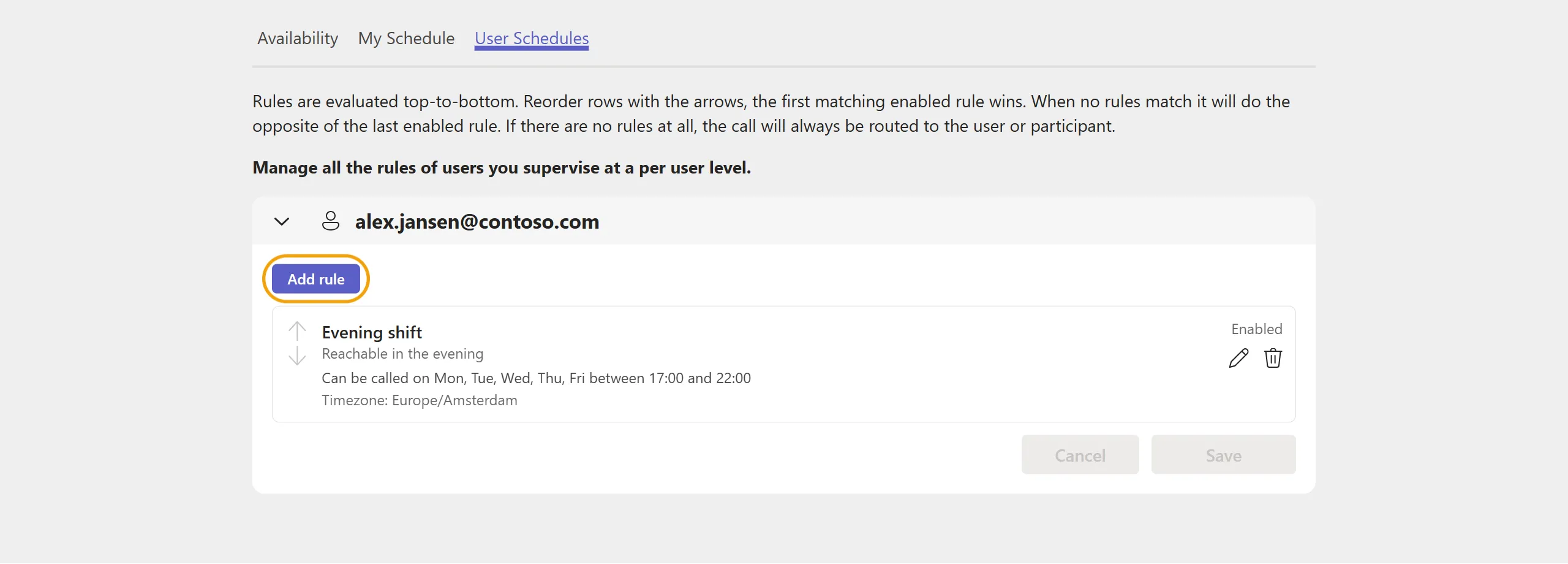
A supervisor of a Call group can also manage the schedule rules of the participants they supervise. The User Schedules tab lists those users; click a user to expand their rules. The tab is only shown when you are a supervisor of at least one Call group.
Adding, editing, reordering and deleting works exactly as in My Schedule, and here too the changes are only stored after you click Save.
To configure the supervisor role for a Call group, use the CyberGate Management PortalCyberGate Management Portal.
Devices
How to use Devices
The Devices menu provides an overview of the configured devices in your Tenant. the view is sorted by location of the devices and the results can be filtered to search a specific device.
Each device is shown as a tile. The tile shows the following information:
- The device type - intercom, camera or audio / paging
- The device name
- The online status - is a device online or offline
- Recording status - is recording enabled for this device
- Two way video - is two-way video configured for this device
A 'Connect' button is available if a device is configured to be called to from Microsoft Teams. Clicking on this button initiates a call to this device.
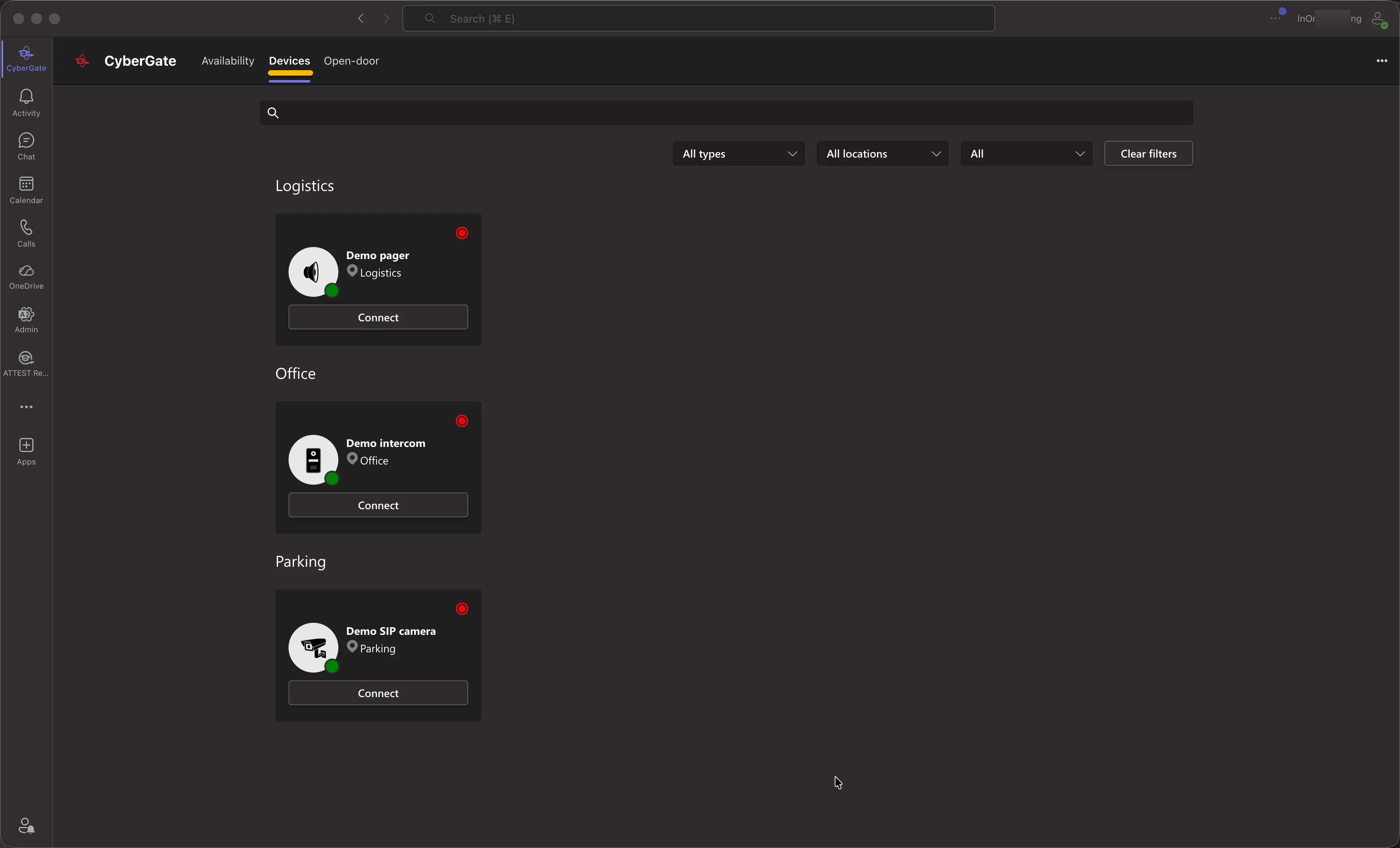
The devices shown to a user in the Devices menu can be limited using the Device access settings in the CyberGate Management PortalCyberGate Management Portal.
Door-open button
Introduction
The CyberGate app also features a so called ‘Door-open button’. During a call between the intercom and a Teams user you can open the door with one click instead of using the Teams Dial pad. The button is available in two places:
- The Open-door tab of the CyberGate app. See Open-door tab below.
- A sidebar in the call window. See How to activate below.
When you have enabled the 'Call forwarding' feature in CyberGate and the call is actually forwarded from the Teams user to another person or phone number, the 'Door-open button' feature will not work.
How to activate
Follow the next steps to activate the Door-open button.
- Log in to the CyberGate Management portal and navigate to the Basic-Device menu.
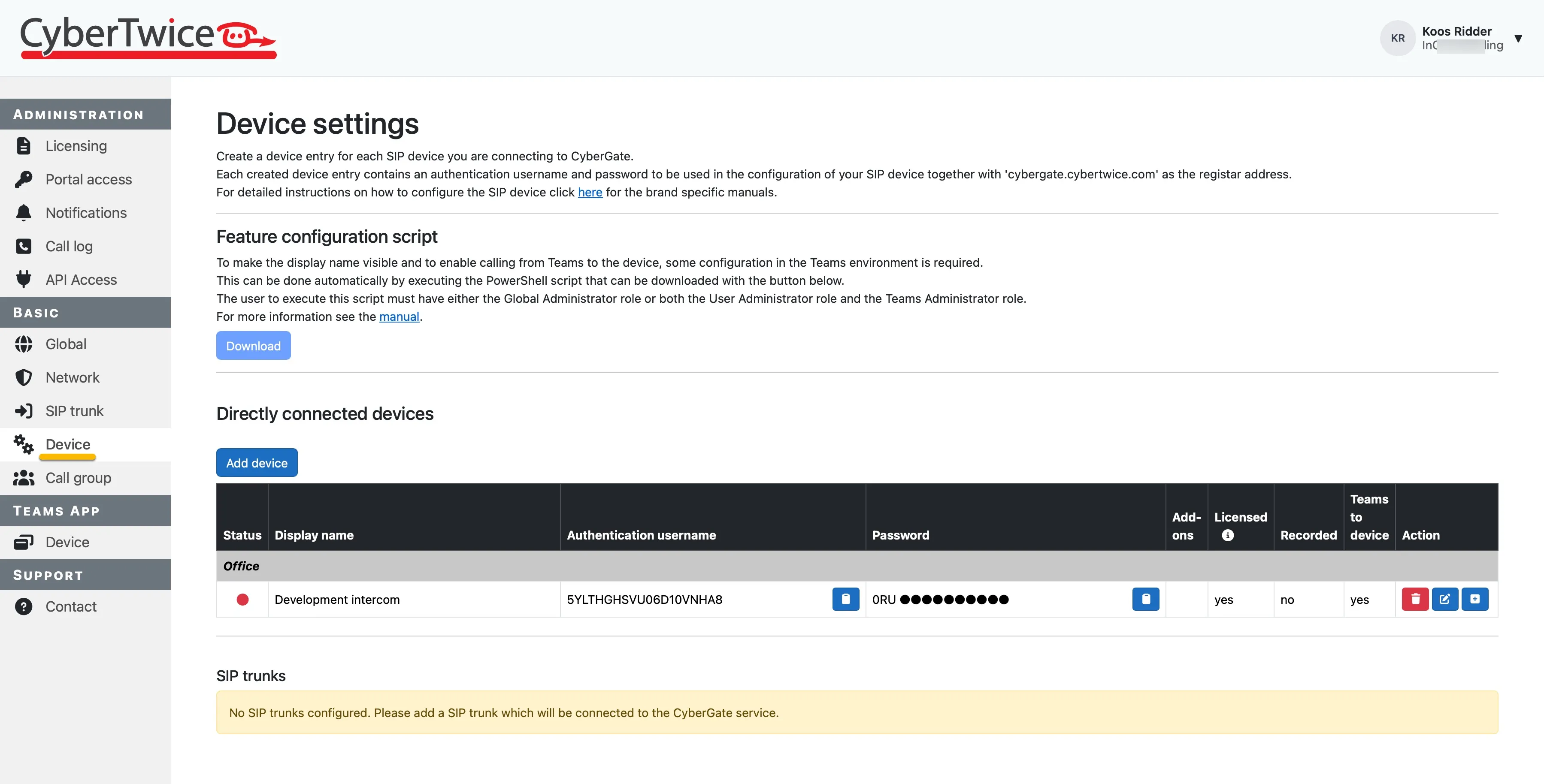
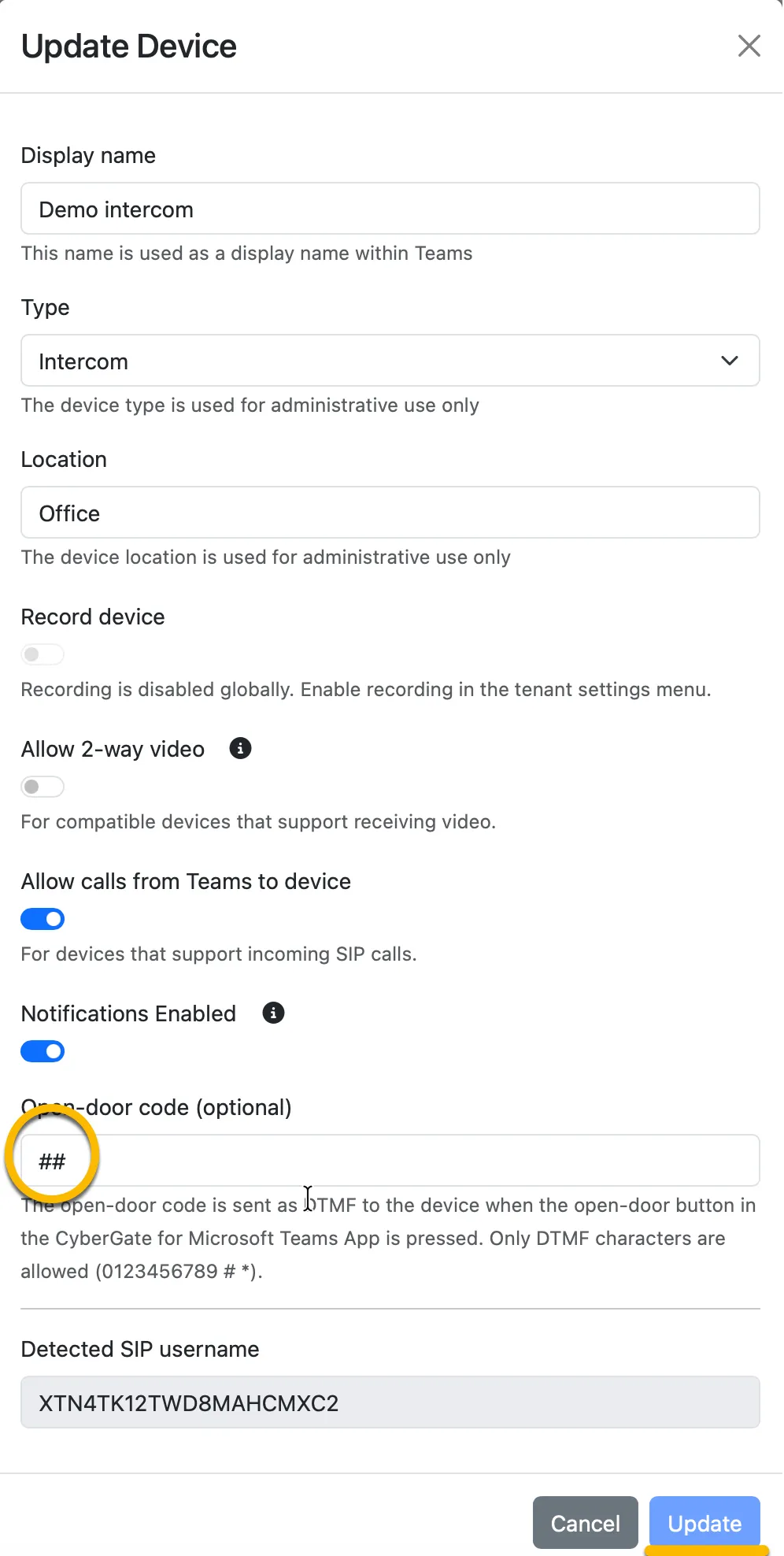
- Click on the blue 'edit' button in the Action column to open the device details and enter the DTMF code necessary for the intercom to open the door in the ‘Open door code’ field.
- Click on the blue 'Update' button when done.
The ‘Open door code’ must match the configured open door code in the intercom device!
Make a call from the intercom to your Teams client and accept the call. Leave the call open.
- Click on the ‘Apps’ icon in the top bar
- Search for 'CyberGate'
- Click on the 'CyberGate' tile to add it to the topbar.
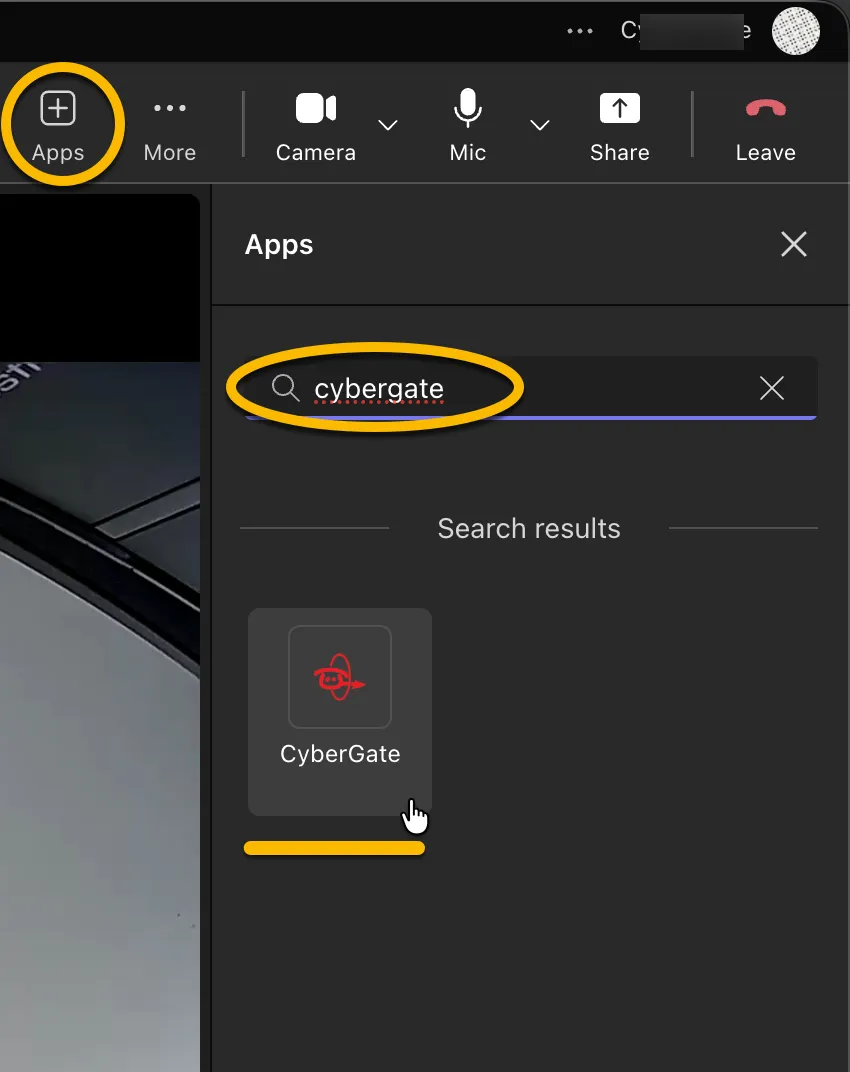
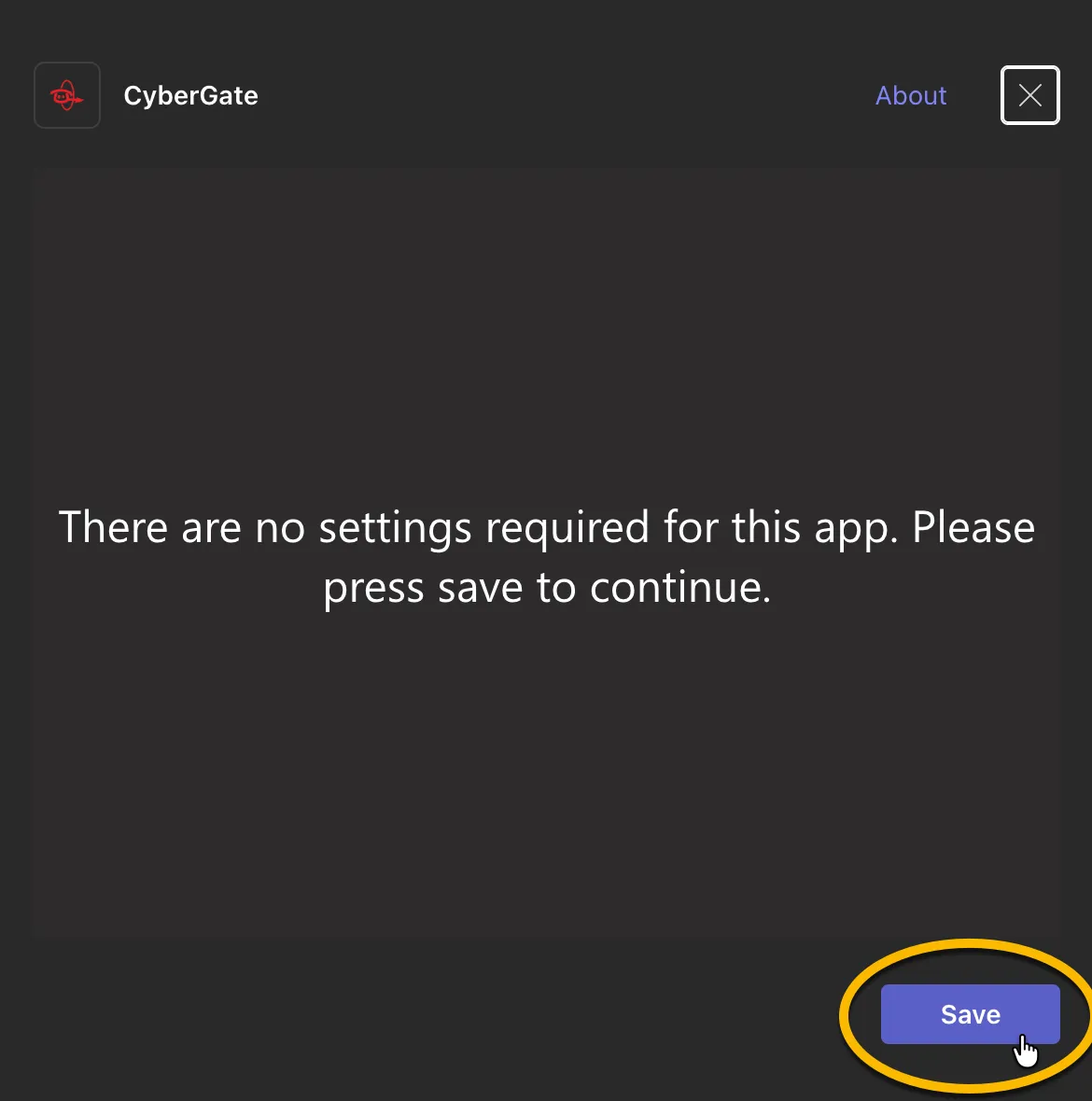
- Press save to continue.
On the left of the call window a sidebar opens with the Open door button.
- Click the button to open the door.
- End the call.
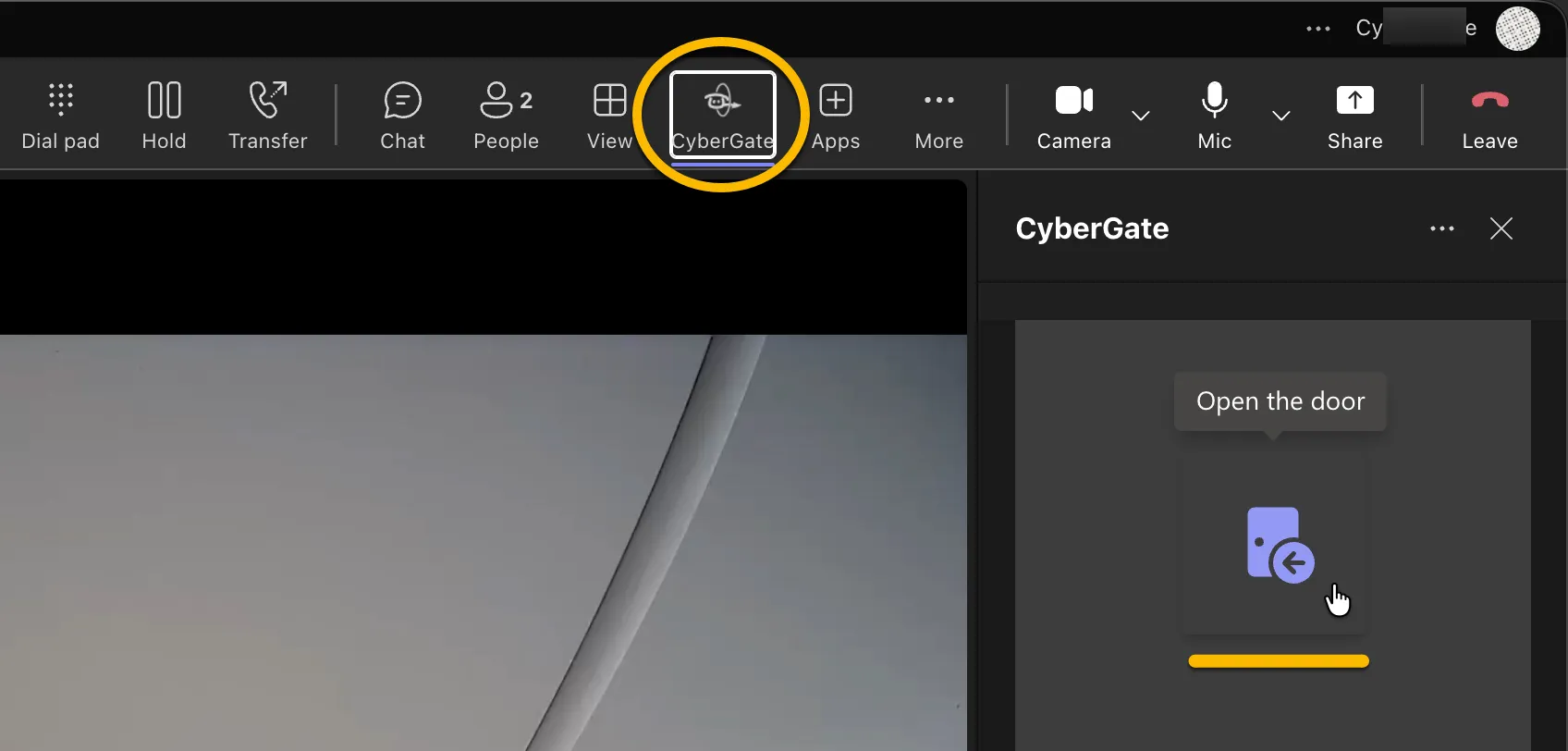
After installing the CyberGate app in the topbar once it will be visible always when the intercom makes a call to this Teams user.
The Open door button can be added to all future calls made to this client by simply clicking on the CyberGate icon in the topbar.
Open-door tab
The CyberGate app has its own Open-door tab next to tabs like Availability and Devices. You get the same button there without adding the app to the call window first.
- Accept the call from the intercom in Teams. Leave the call open.
- Open the CyberGate app and go to the Open-door tab.
- Click the button to open the door.
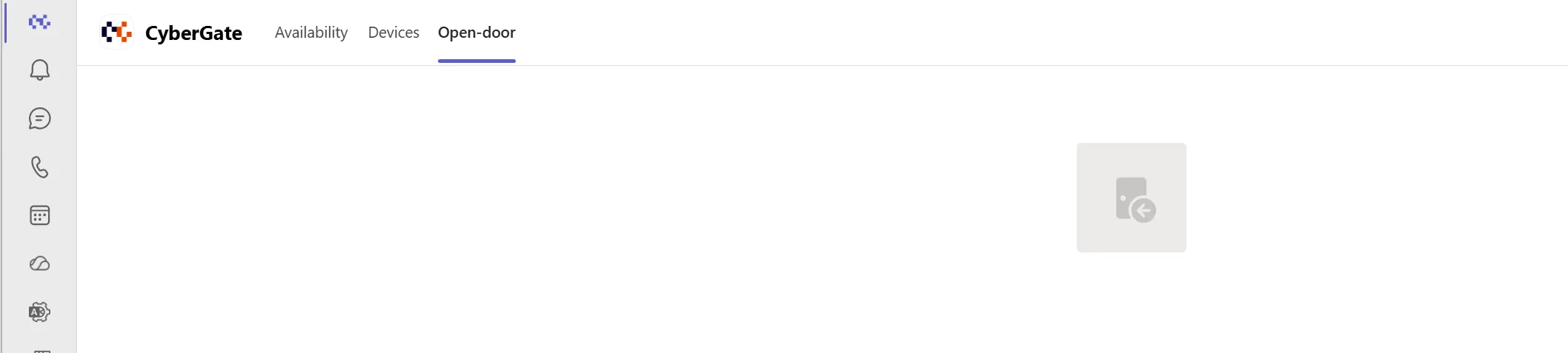
You don't have to select a device: the tab finds the intercom call you are in. The button stays grey until you are in a call with an intercom. The tab notices on its own when that call starts or ends, so you don't need to refresh it.
The tab sends the same ‘Open door code’ as the sidebar in the call window. If no code is set for the intercom in the Basic-Device menu, the door can't be opened from the tab either. See How to activate above.