Algo IP Speakers, Pagers, Alerters and CyberGate
Connect Algo IP Speakers, Pagers, Alerters to CyberGate
This manual describes how to connect Algo IP speakers, paging adapters, and visual alerters to Microsoft Teams using the CyberGate service from CyberTwice. It covers the basic Session Initiation Protocol (SIP) configuration of the Algo device, the required settings in the CyberGate Admin portal, calling the device from Microsoft Teams, and enabling secure communication over SIP-TLS.
Supported Algo devices
For this document an Algo 8180 IP Audio Alerter (from now on named 'Algo') is used to connect to the CyberGate service (from now on named 'CyberGate').
This manual also applies to the following Algo products:
Algo IP Speakers:
- 8180 IP Audio Alerter
- 8186 IP Horn Speaker
- 8196 IP PoE+ Horn Speaker
- 8188 IP Ceiling Speaker
- 8189 IP Surface Mount Speaker
- 8190 IP Speaker – Clock
- 8190S IP Speaker – Clock & Visual Alerter
- 8198 IP PoE+ Ceiling Speaker
Algo IP Display Speakers:
- 8410 IP Display Speaker
IP Paging Adapter:
- 8301 IP Paging Adapter & Scheduler
- 8305 Multi-Interface IP Paging Adapter
- 8373 IP Zone Paging Adapter
IP Visual Alerter:
- 8128 IP Visual Alerter
- 8138 IP Color Visual Alerter
The Algo speakers, paging adapters and visual alerters are certified for secure communication with CyberGate. Start by configuring the Algo using the basic steps below first. If the connection and test calls are successful, modify the configuration to use secure communication. For instructions, see Enable secure communication over SIP-TLS in this document.
This manual describes the most basic configuration of the Algo IP Speaker for use with CyberGate. The advanced Algo paging and multicast features can be used with CyberGate without any issues, but are not described in this manual. Refer to the documentation of Algo for additional configuration options.
Configure the Algo SIP settings
Follow these steps to configure the Algo to connect it to CyberGate:
- Connect the Algo to the network and power it on.
- Open a web browser and navigate to the IP address of the Algo.
- Sign in with the configured or supplied password of the Algo.
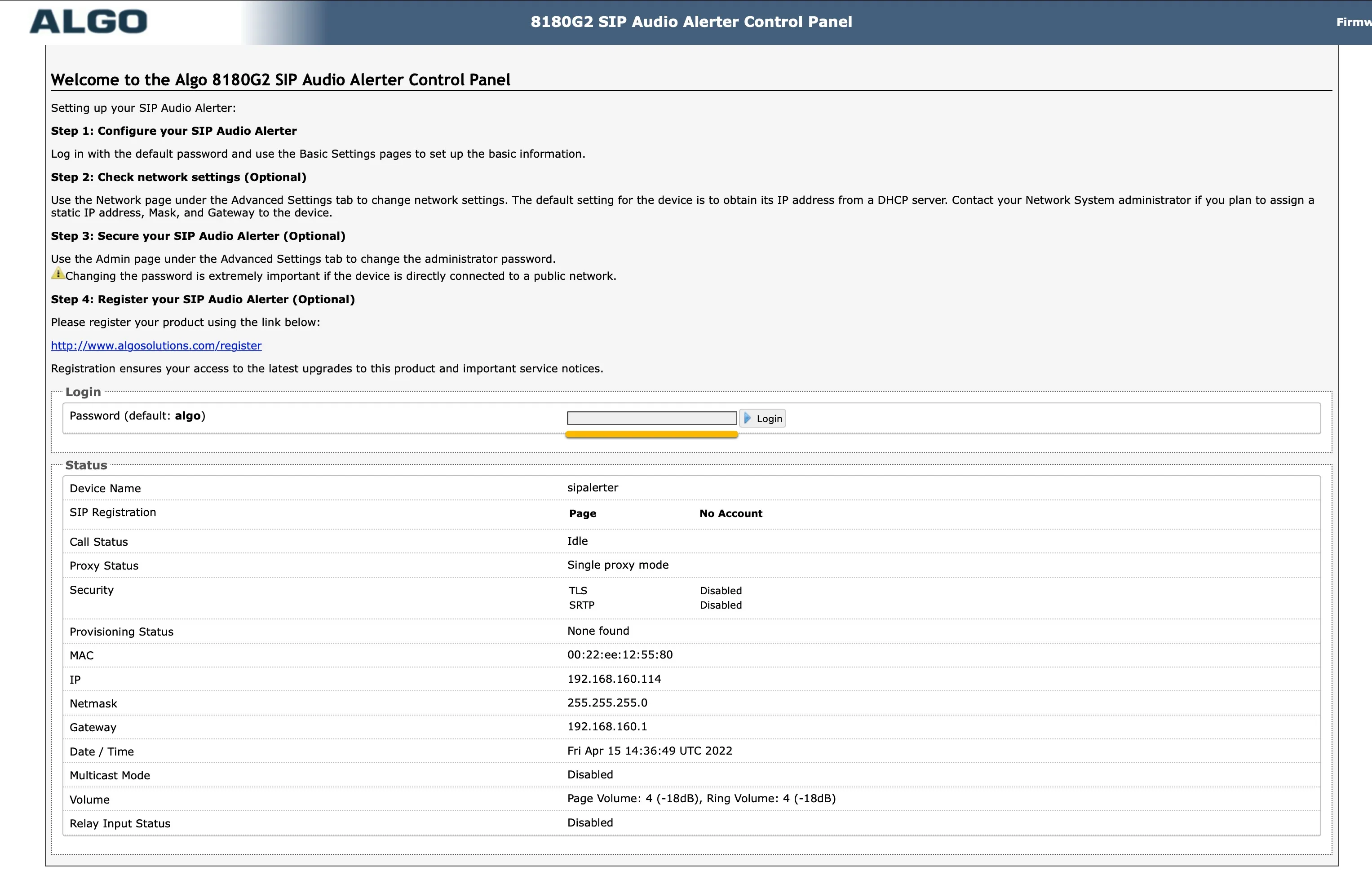
- When signed in successfully, the first menu shown is the Basic Settings > SIP menu. Provide the following information:
SIP | |
|---|---|
SIP Domain | cybergate.cybertwice.com |
Base/Page Extension | Use the Username provided by the CyberGate Management Portal |
Authentication ID | Use the Username provided by the CyberGate Management Portal |
Authentication Password | Use the Password provided by the CyberGate Management Portal |
- Click the Save button when done.
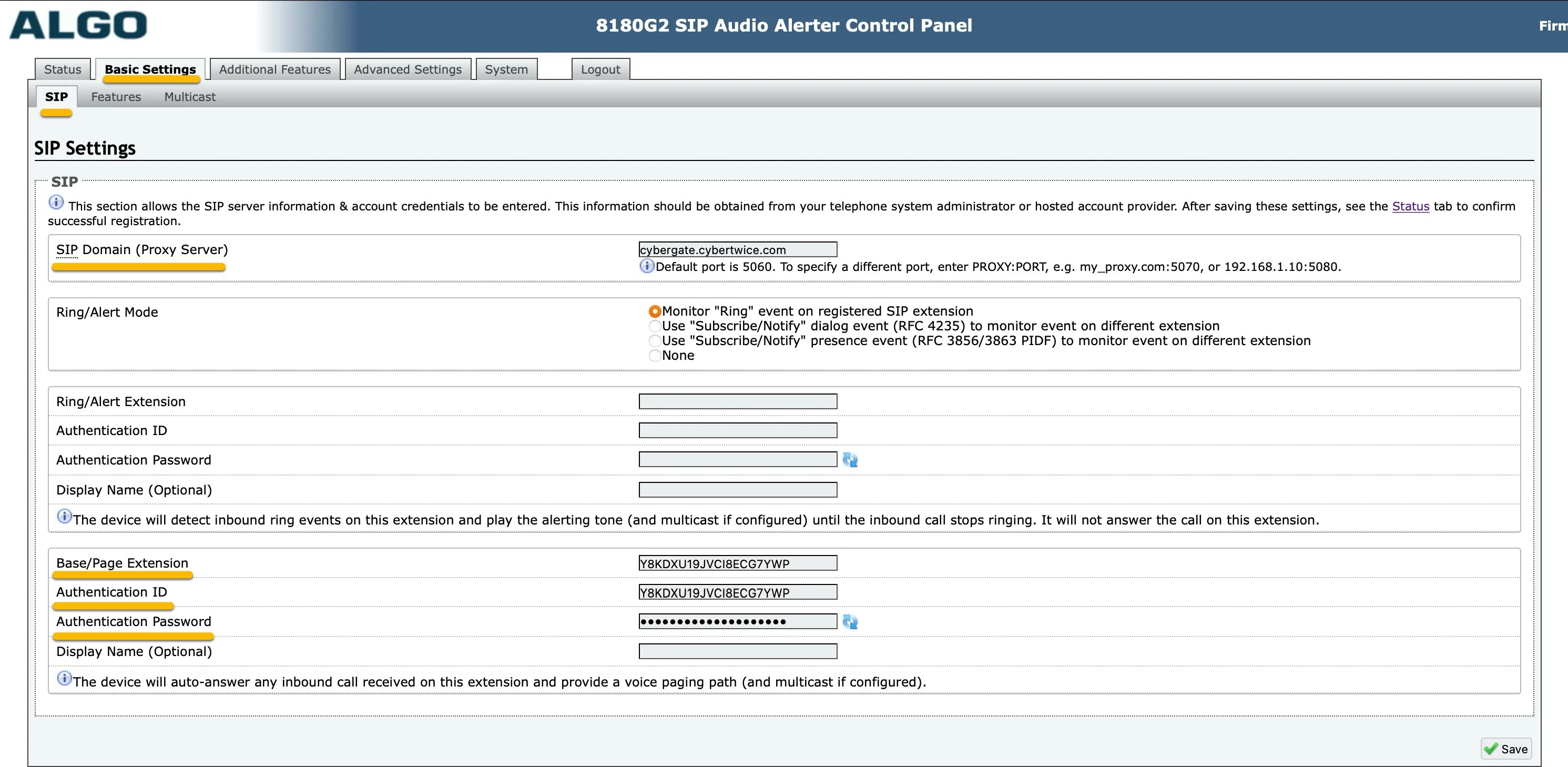
- Check the registration status in the Status > Device Status menu.
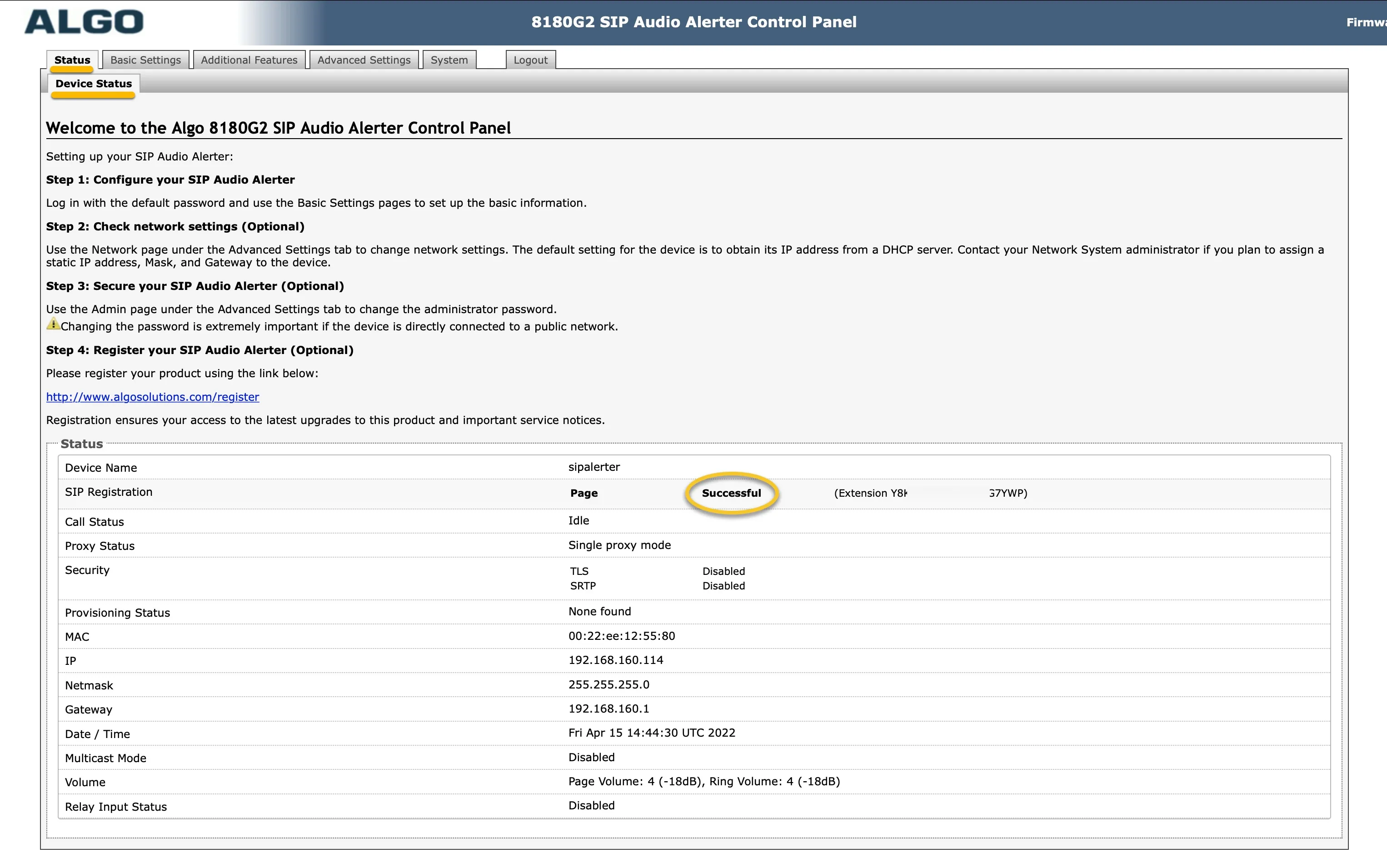
The basic configuration of the Algo for use with CyberGate is now done.
Enable secure communication over SIP-TLS
To use secure communication between the Algo and CyberGate, SIP-TLS and SRTP have to be used. Follow the next steps to enable secure communication on the Algo.
Modify the Algo configuration as follows:
- Navigate to the Advanced Settings > Advanced SIP menu.
- Modify the following information at Advanced SIP Settings:
General | |
|---|---|
SIP Transportation | Change to TLS |
SRTP | |
RTP Mode | Change to Standard |
- Click Save when done.
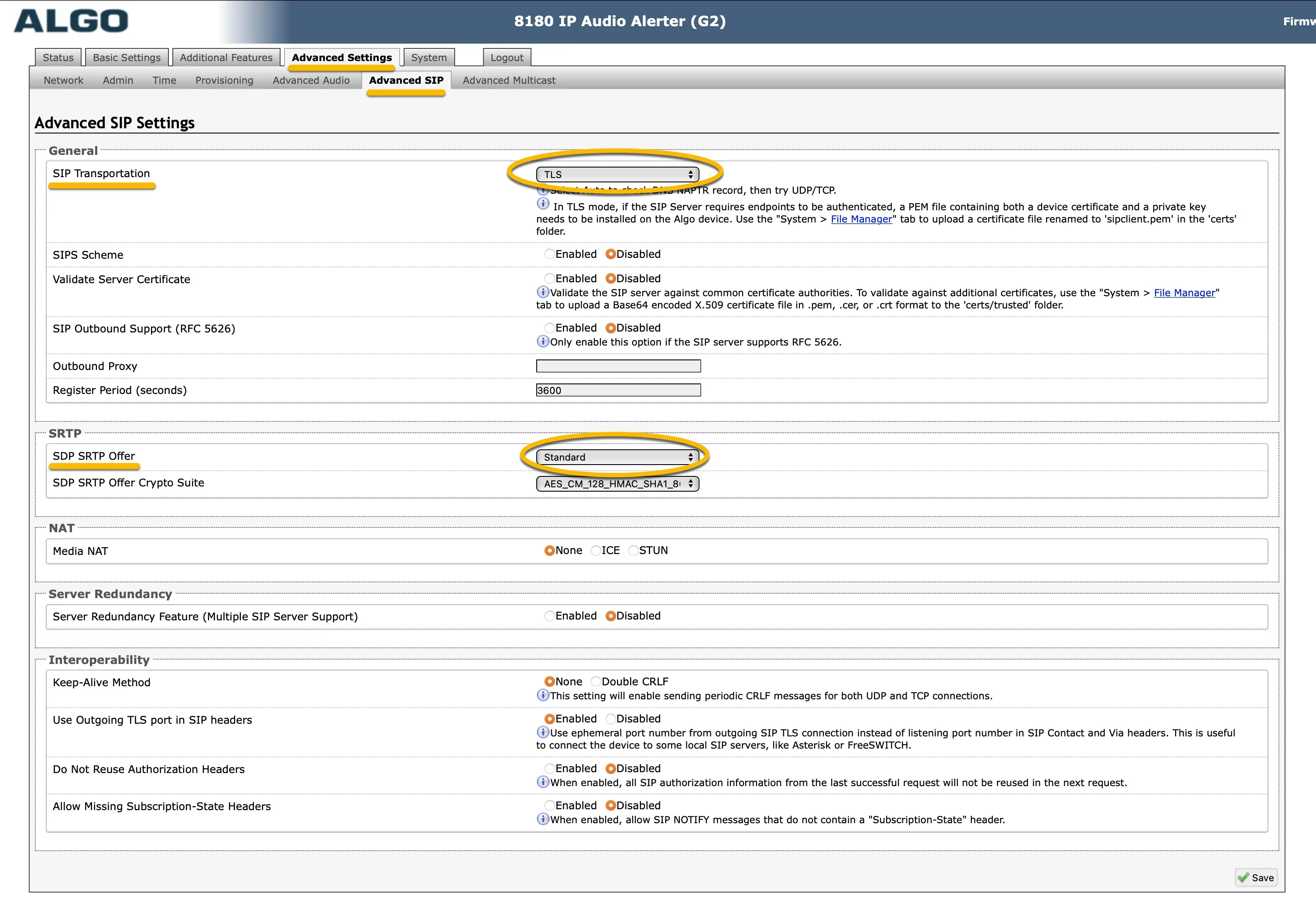
Configuration of the secure communication is done. All SIP and audio traffic to/from CyberGate will be encrypted using TLS and Secure Real-time Transport Protocol (SRTP).
- Check the registration status in the Status menu.
Call the ALGO device from Microsoft Teams
You can initiate a call from Microsoft Teams to the ALGO device. Before calls can be made from Microsoft Teams, additional configuration in the CyberGate Admin portal is necessary.
The feature configuration script
The feature configuration script is a PowerShell script that needs to be executed before certain CyberGate features are available. One of these features is the ability to call devices directly from Teams.
Follow the steps in the Feature Configuration script manual:
Call the device from the Teams Calls menu
To initiate a call from Microsoft Teams you can use one of two options:
- Call the ALGO device using the Teams Calls menu.
- Use the CyberGate for Microsoft Teams app to find the ALGO device and call it with one click.
Using the Calls menu:
- Log in to Microsoft Teams and navigate to the Calls menu.
- Type the (display) name of the ALGO device directly in the call field (at 'Type a name'), or search for 'cybergate' to show all of your CyberGate devices.
- Select the device to call and click the blue Call button. A call to the ALGO device is initiated and the device answers automatically.
Call the device from the CyberGate for Teams app
The CyberGate for Teams app offers many features that make working with CyberGate more convenient. One of these features is the ability to initiate calls directly to devices. This eliminates the need to search for your device in the Teams calls menu.
See this manual for all the information on how to install and use the CyberGate for Teams app: