Avigilon and CyberGate
Avigilon and CyberGate
Prerequisites
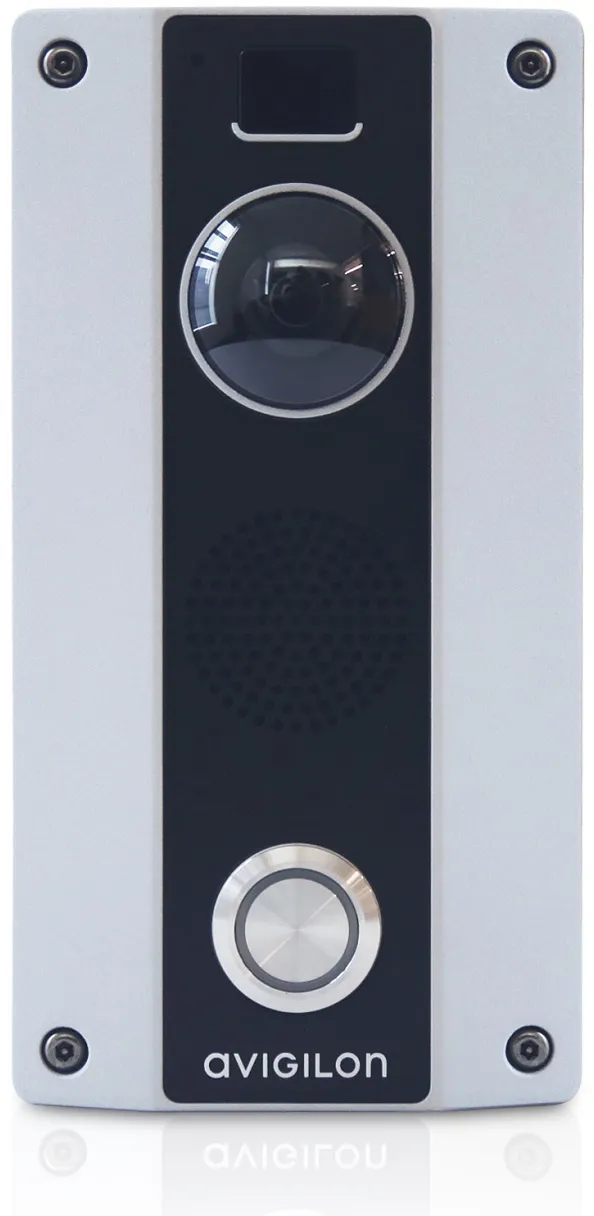
This guide uses an Avigilon H4 video intercom (referred to as "the Avigilon" below) connecting to the CyberGate service (referred to as "CyberGate" below).
Make sure the following prerequisites are met before you begin:
The Avigilon has the latest available firmware installed.
The configured MTU (Maximum Transmission Unit) for your internet connection is 1400 or higher.
The Avigilon is set to factory default settings. To restore defaults, use the System menu on the device.
Configure the Avigilon
Sign in to the Avigilon web interface
- Connect the Avigilon to the network and power it on.
- Open a web browser and go to the device's IP address.
- Sign in as administrator using the configured password.
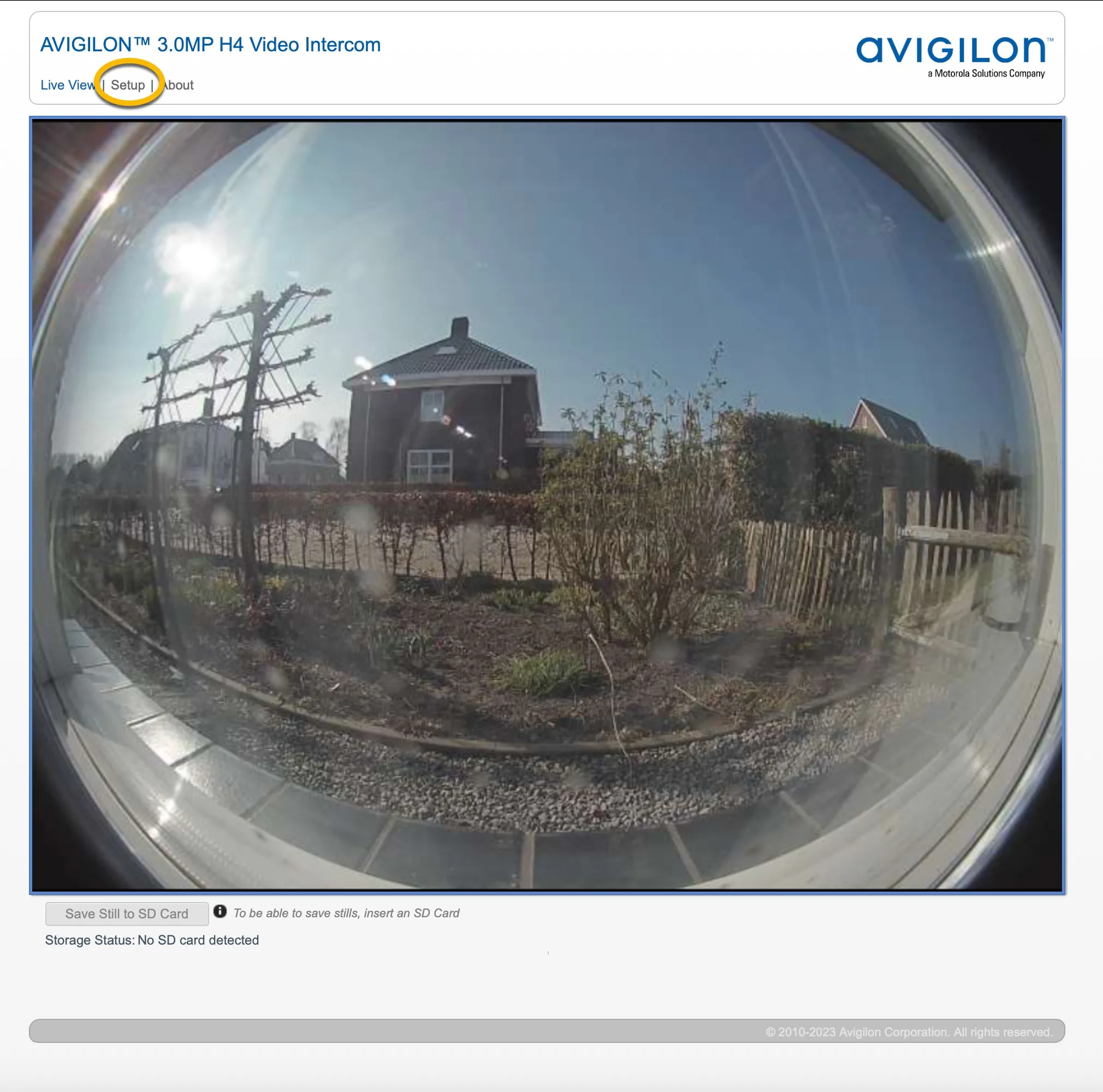
- On the Live View screen, click Setup to start the configuration.
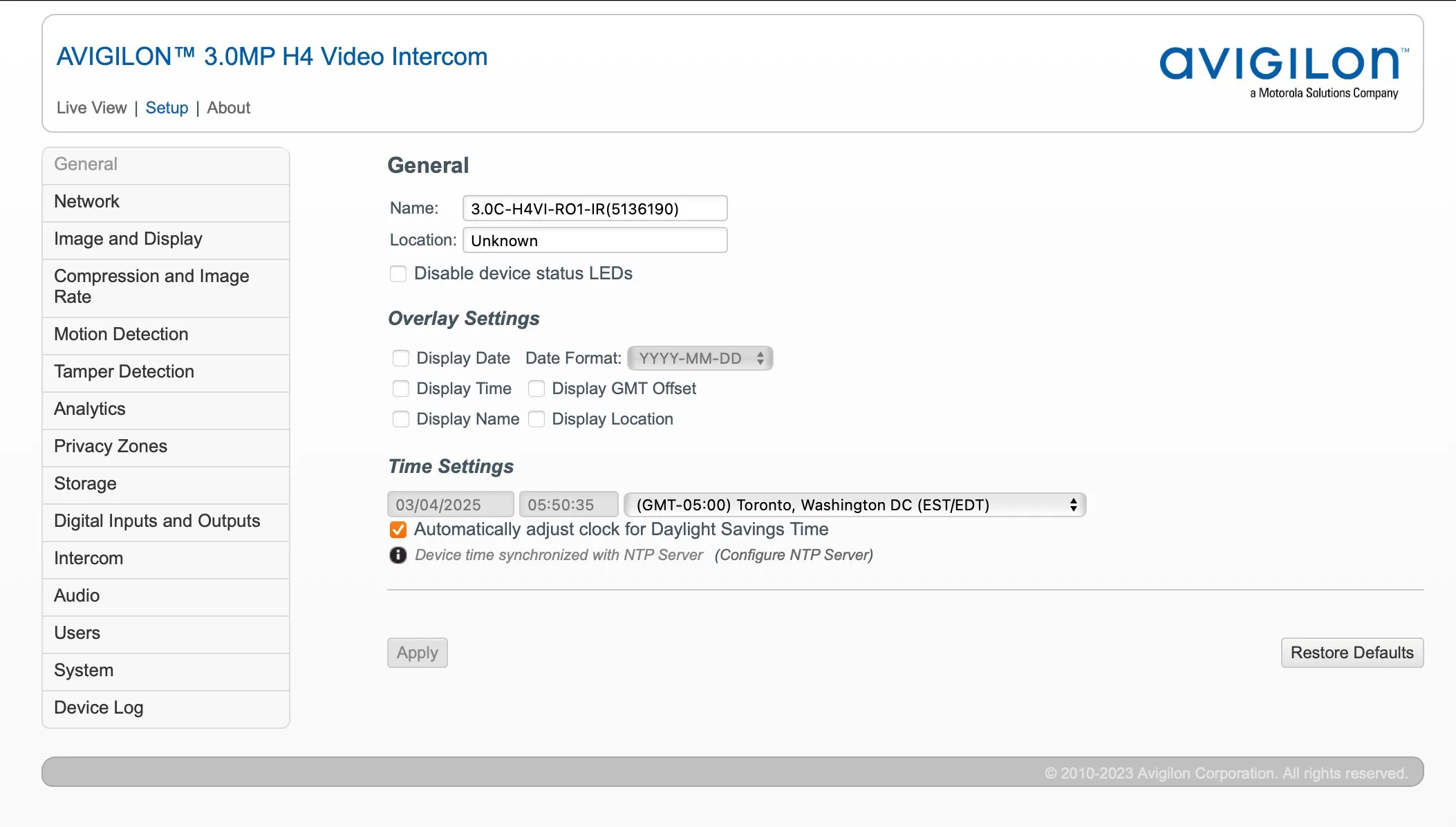
Set the flicker frequency
The flicker frequency must match your local electricity grid to prevent visible flicker in the video stream.
- Open the Image and Display menu.
- Under Exposure Settings, set Flicker Control to the frequency that matches your electricity grid.
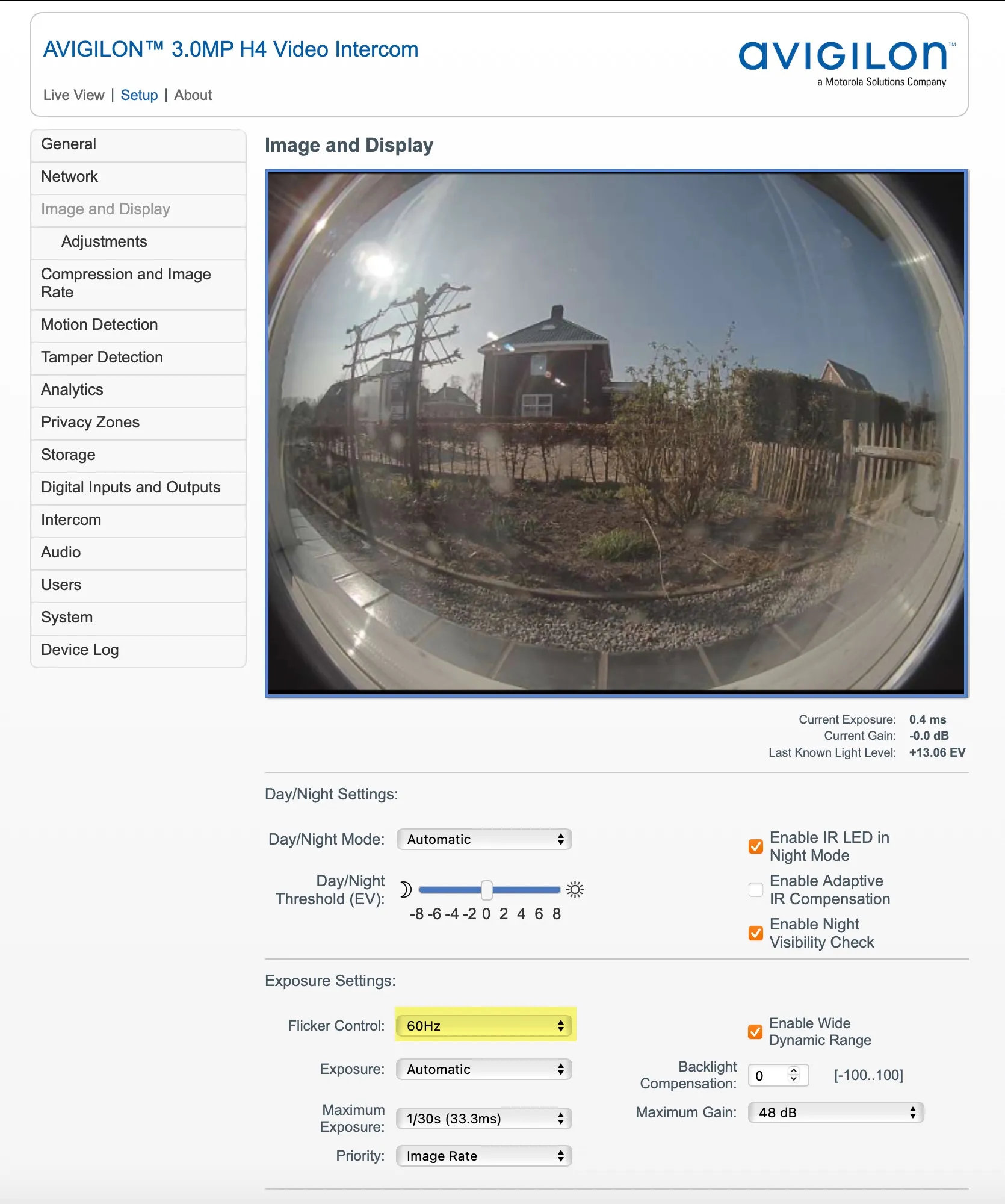
- Click Apply.
Configure the SIP server connection to CyberGate
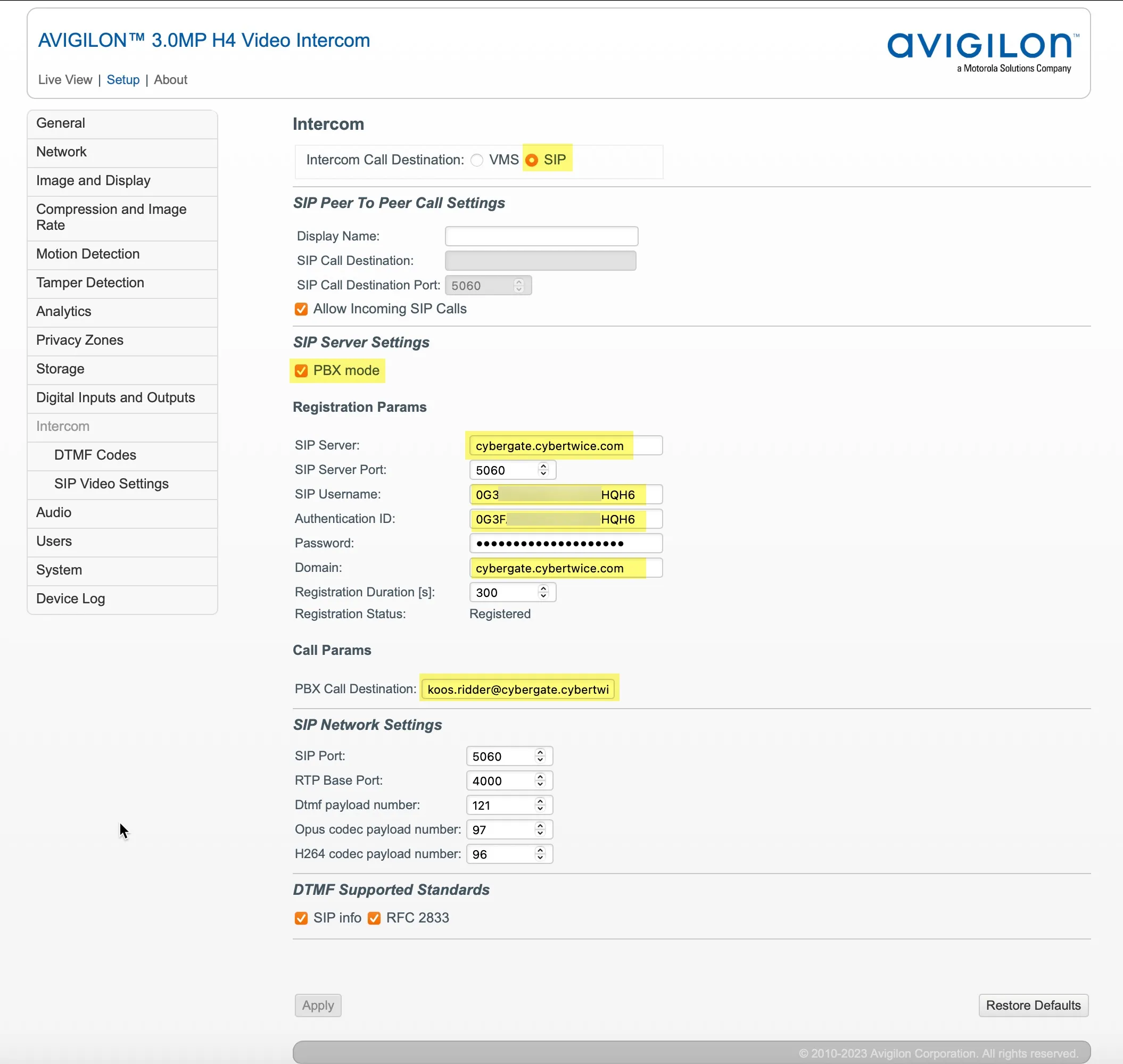
This section connects the Avigilon to the CyberGate service over SIP and sets which Microsoft Teams user the intercom calls when the button is pressed.
- Open the Intercom menu.
- Set the fields as shown in the table below, using the credentials from the CyberGate Management Portal.
Field | Value |
|---|---|
Intercom Call Destination | Select SIP |
SIP Server Settings | |
PBX mode | Enable |
SIP Server | cybergate.cybertwice.com |
SIP Username | The Username from the CyberGate Management Portal |
Authentication ID | The Username from the CyberGate Management Portal |
Password | The Password from the CyberGate Management Portal |
Domain | cybergate.cybertwice.com |
Call Params | |
PBX Call Destination * | The Teams user to call, in the format [email protected] (see example below) |
The Teams user [email protected] translates to the PBX Call Destination [email protected].
- Click Apply.
Add a DTMF sequence to open the door
DTMF (Dual-Tone Multi-Frequency) tones let the Teams user trigger the door relay on the Avigilon from inside the Teams call.
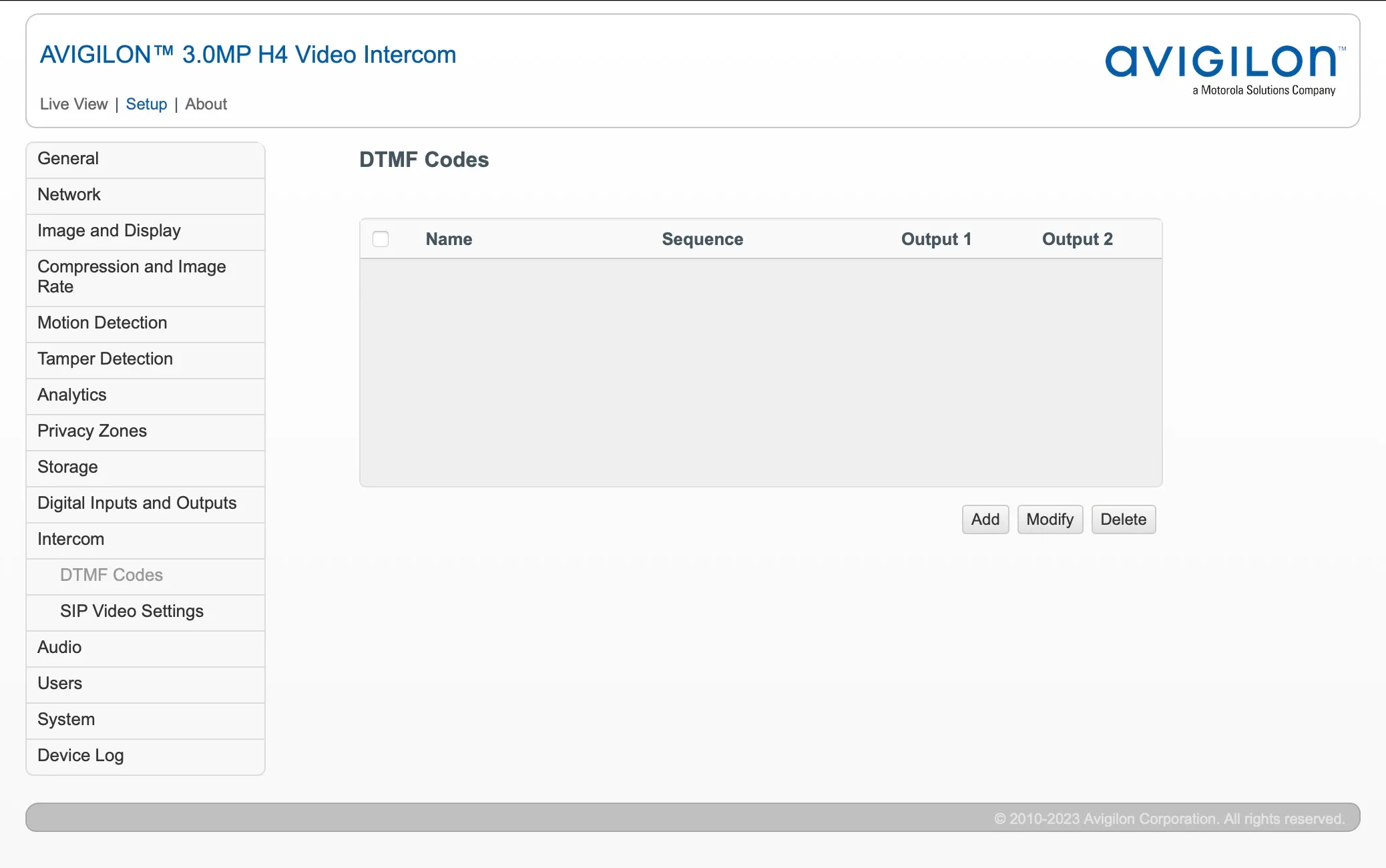
- Open the Intercom → DTMF Codes menu.
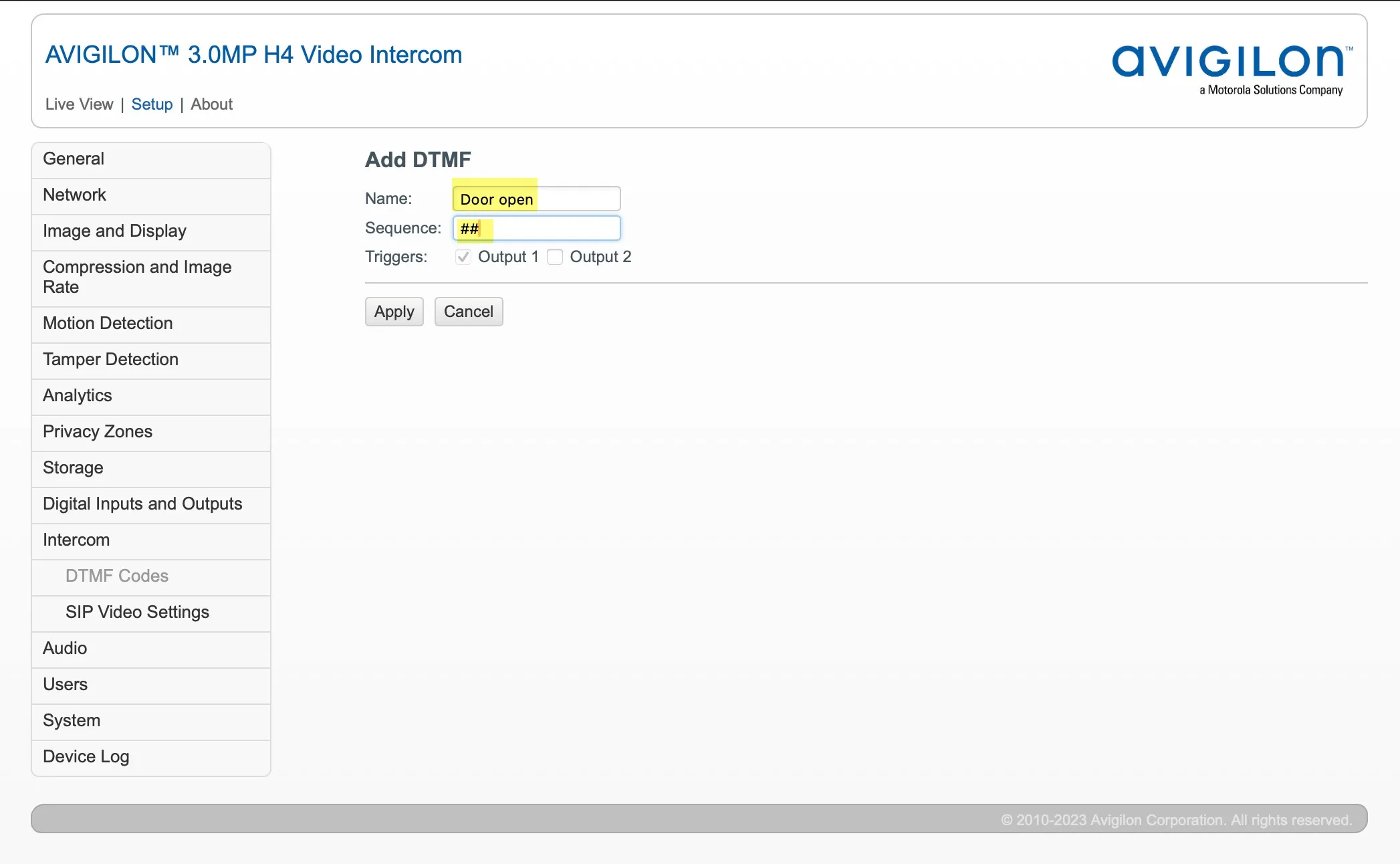
- Click Add to create a new DTMF sequence.
- Set the fields as shown in the table below.
Field | Value |
|---|---|
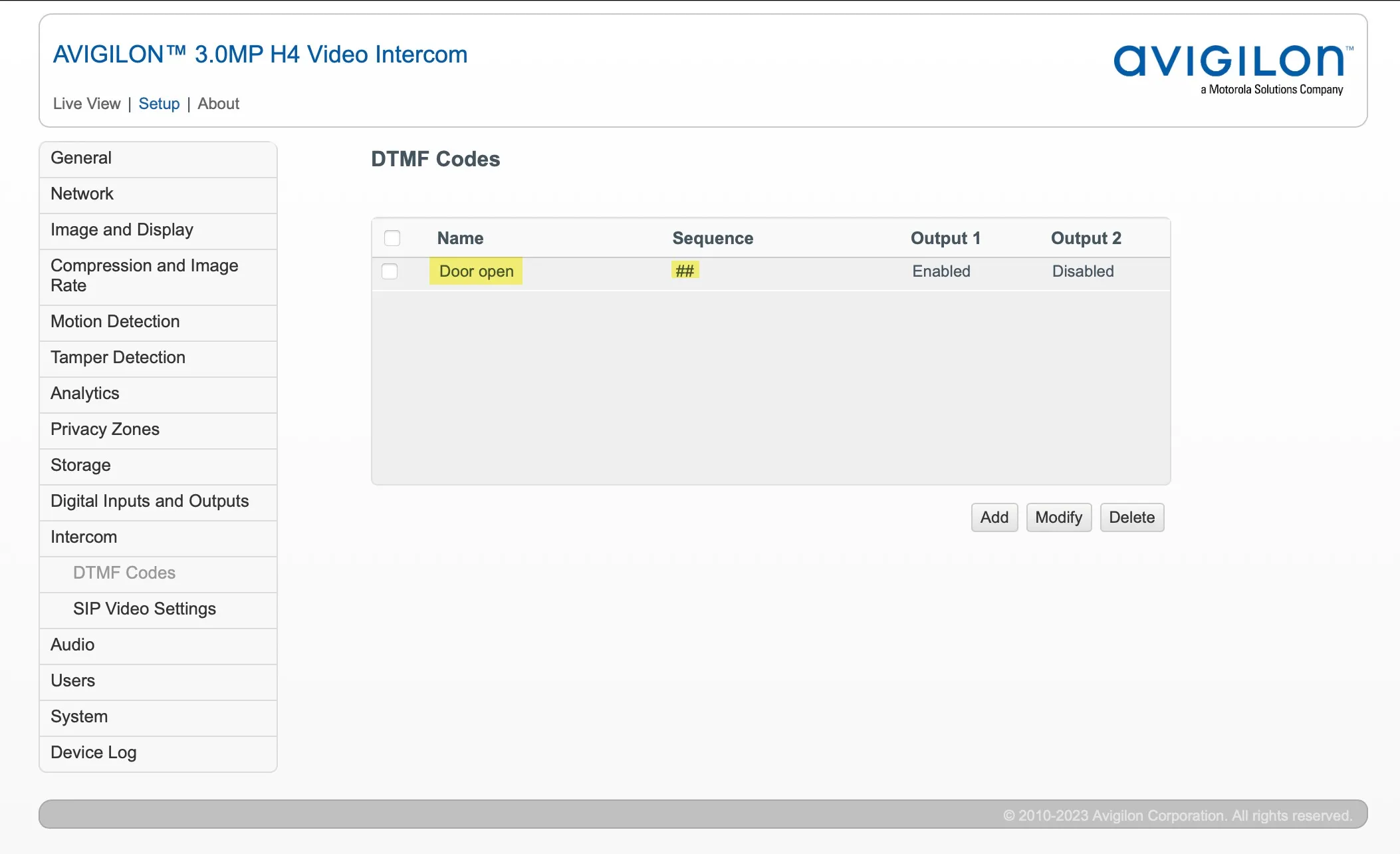
Name | Door open |
Sequence | The DTMF sequence to send (this example uses ##) |
- Click Apply.
Set the SIP video quality
These settings make sure the video stream sent to Teams uses the right resolution and bitrate.
- Open the Intercom → SIP Video Settings menu.
- Set the fields as shown in the table below.
Field | Value |
|---|---|
Max Quality | 20 |
Max Bitrate | 1024 |
SIP Video Resolution | 1920x1080 |
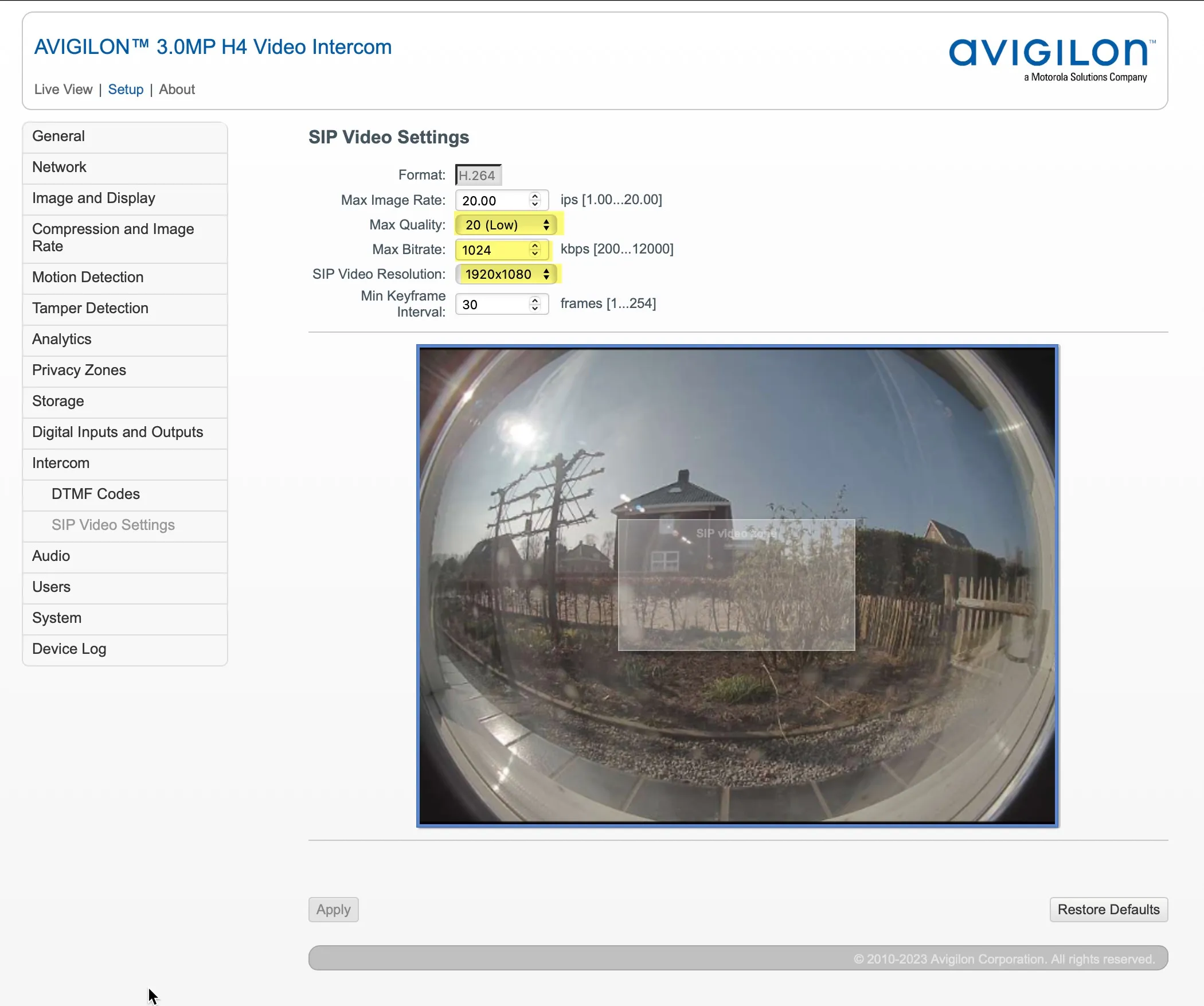
- Click Apply.
The Avigilon is now fully configured for CyberGate.
Test the call and door opening
Use these steps to verify the configuration end-to-end.
- Press the call button on the Avigilon to start a call to the configured Teams user.
- In the Teams client, answer the incoming call by clicking the phone or camera icon. The call connects and the Avigilon video stream appears.
- To open the door, open the Dial Pad in the Teams call bar and enter the DTMF sequence you configured (in this example, ##). The Avigilon relay triggers and the door opens.
A more convenient way to open the door during a call is to use the CyberGate for Teams app. See the CyberGate App for Teams on how to to install and use the CyberGate for Teams app.