AXIS and CyberGate
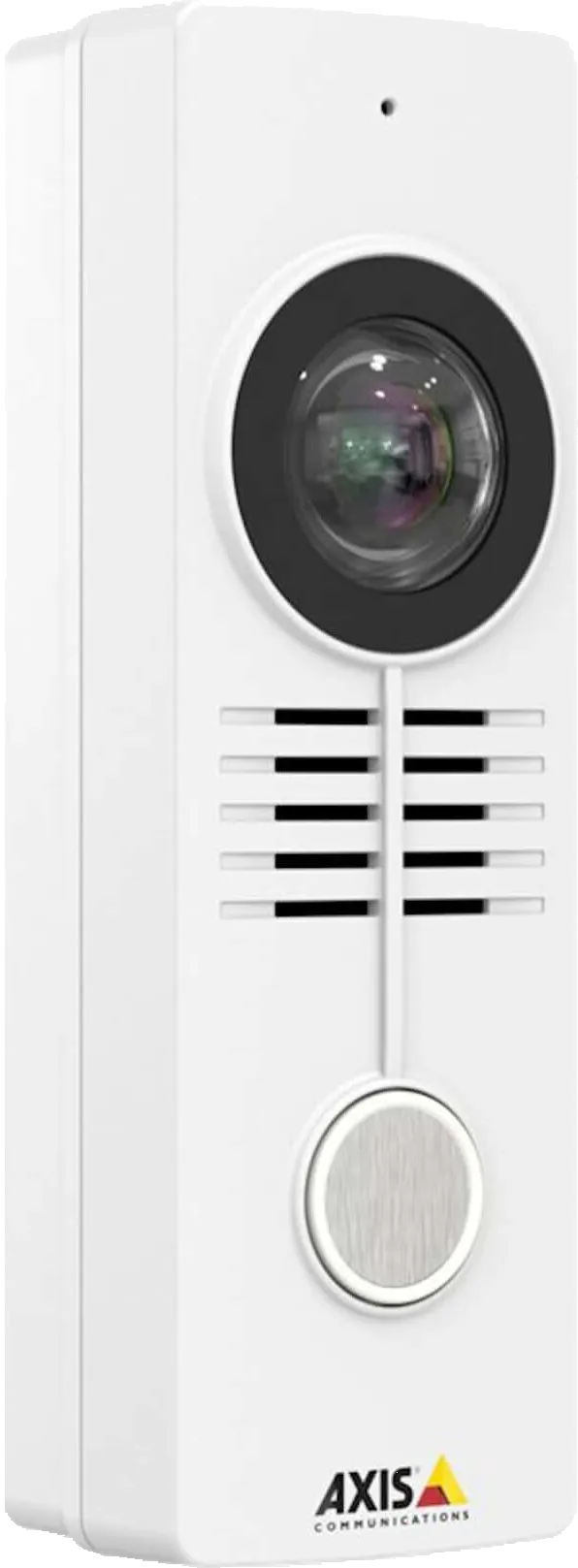
AXIS Network Video Doorstation
For this document the AXIS A8105-E Network Video Doorstation (from now on named ‘AXIS’) is used to connect to the CyberGate service (from now on named ‘CyberGate’).
This manual also applies to the following Axis Video Doorstations:
- Axis A8004-VE
- Axis A8207-VE
- Axis I8016-LVE
Follow the next steps to configure the AXIS to connect it to CyberGate.
Connect the AXIS
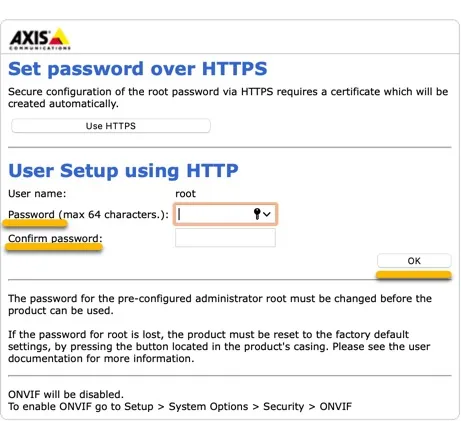
Connect the AXIS to the network, power it on and open a webbrowser to its IP-address. Create a password for the ‘root’ user and click ‘OK’
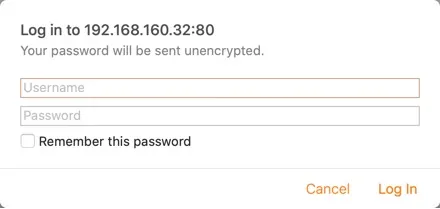
Login as ‘root’ with the just created password.
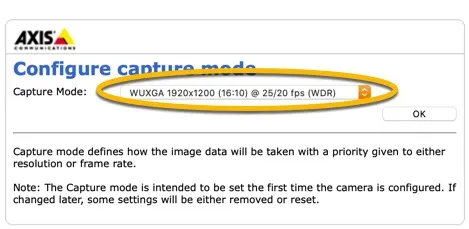
Set the Capture Mode:
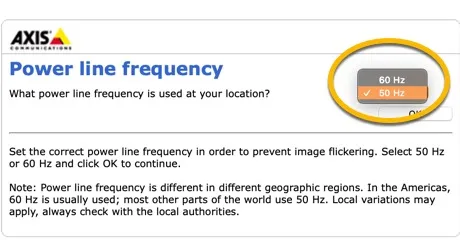
Set the used power line frequency:
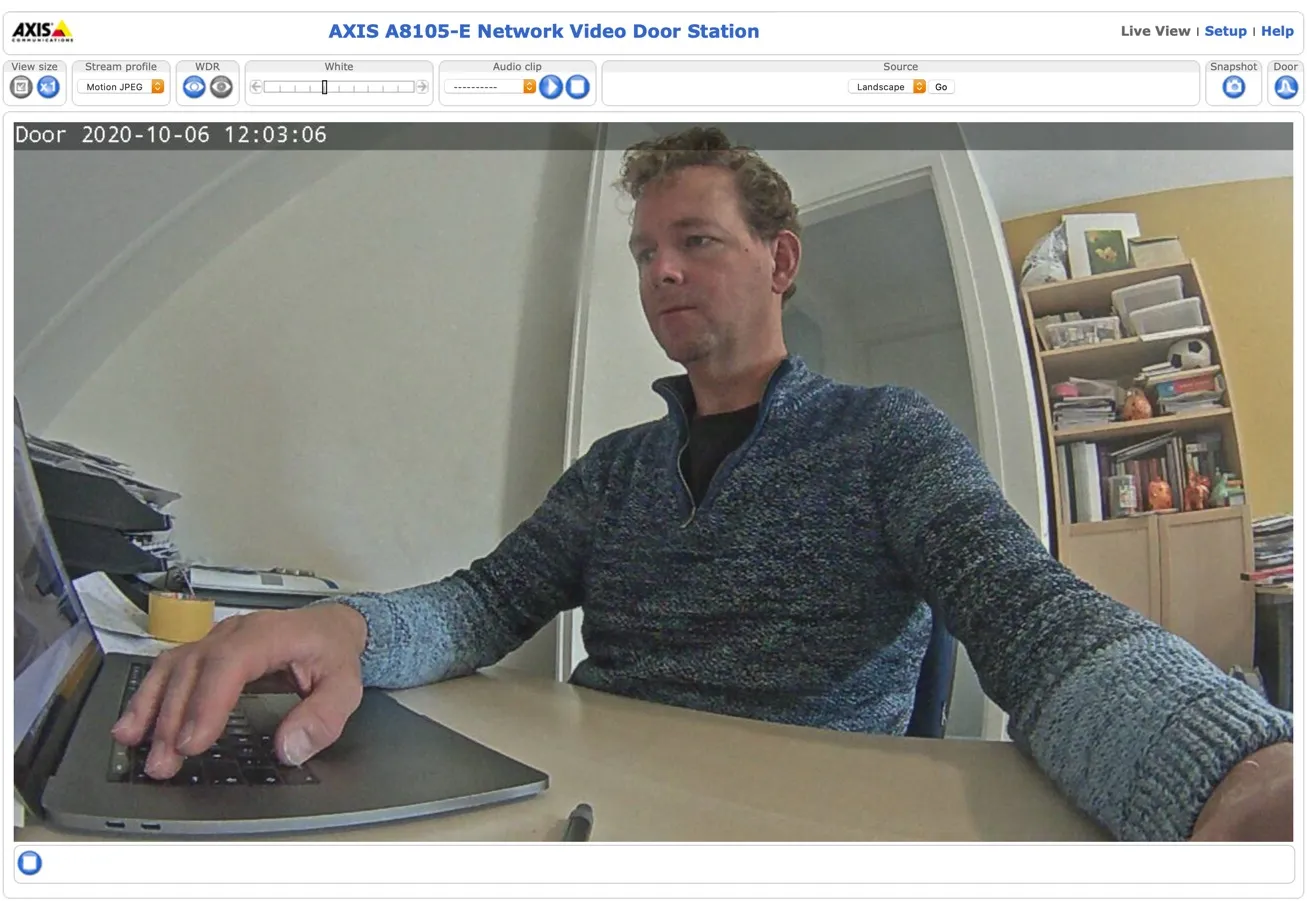
When logged-in, the live view opens
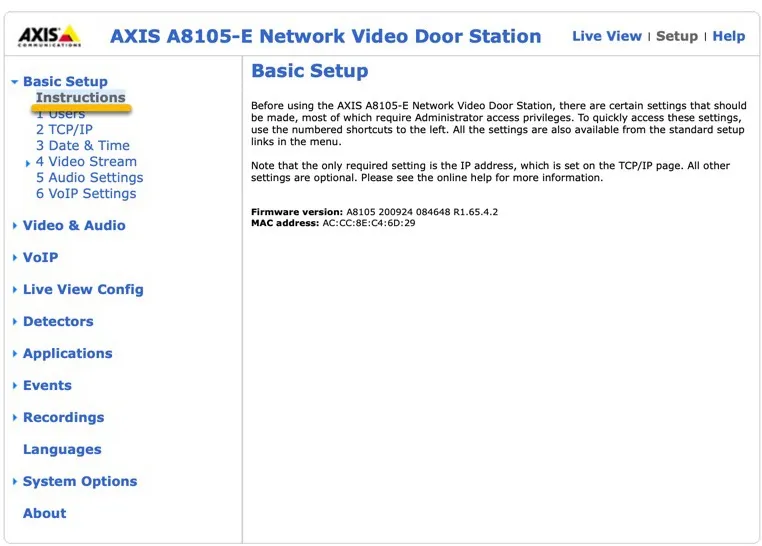
Date & Time settings
At the top, click ‘ Basic Setup’
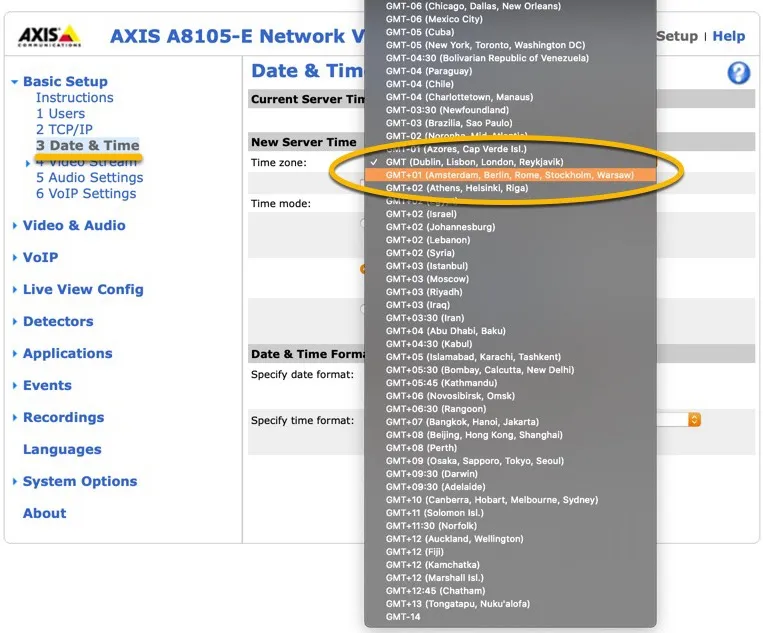
Click on ‘Date& Time’ to set the correct Time zone.
Click the Save button to confirm.
VoIP Settings
Click on ‘VoIP’, Account settings - ‘Configure’
Remove the default ‘peer-to-peer entry with ‘Remove’, after that add a new entry by clicking on ‘Add’
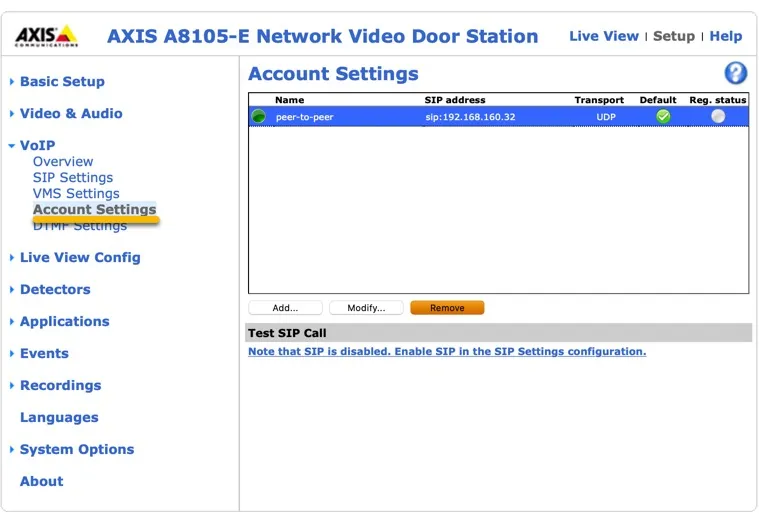
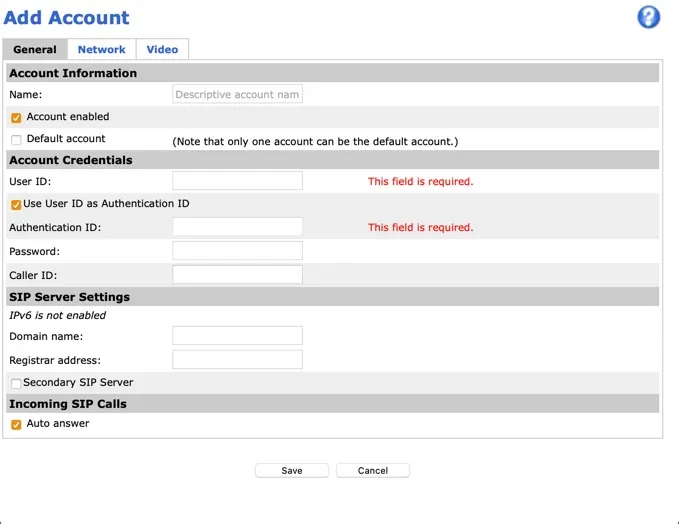
Provide the following information:
Name | Name of the SIP account, in this example ‘CyberGate’ |
|---|---|
Default account | Enable by checking the checkbox |
User ID | Use the Username provided by the CyberGate service |
Authentication ID | Will be the same as the User ID |
Password | Use the Password provided by the CyberGate service |
Caller ID | Use the Username provided by the CyberGate service |
Domain name | Use the domain name of your organisation |
Register address | cybergate.cybertwice.com |
Click the Save button to confirm.
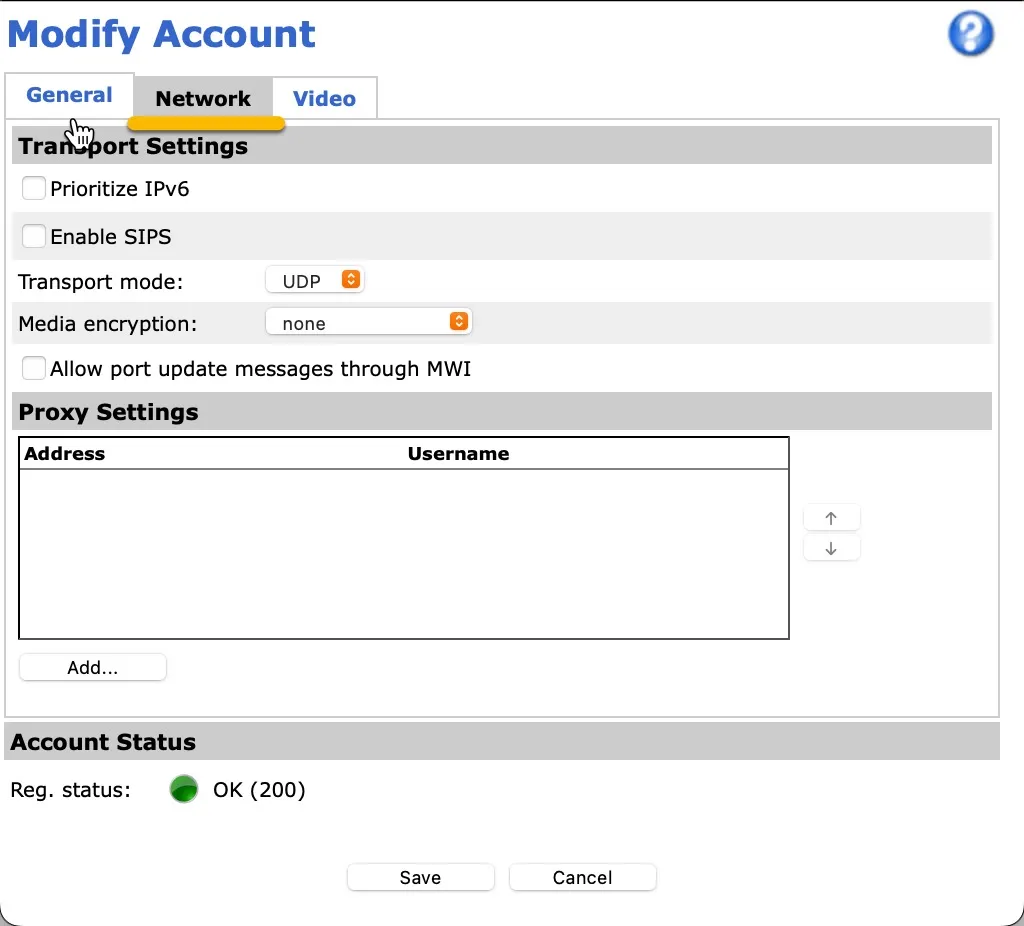
Network Settings
Click ‘Network’ to set the SIP connection parameters By default it uses UDP to connect to CyberGate. You can change it to TCP when needed.
To establish a secure connection to CyberGate, modify the following settings:
Transport Mode | Change to TLS |
|---|---|
Media Encryption | Change this to SRTP Mandatory |
Click the Save button to confirm.
These settings ensure that the SIP traffic and the audio / video are encrypted.
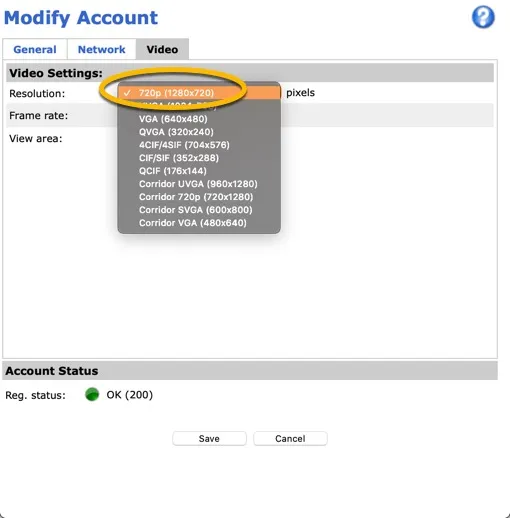
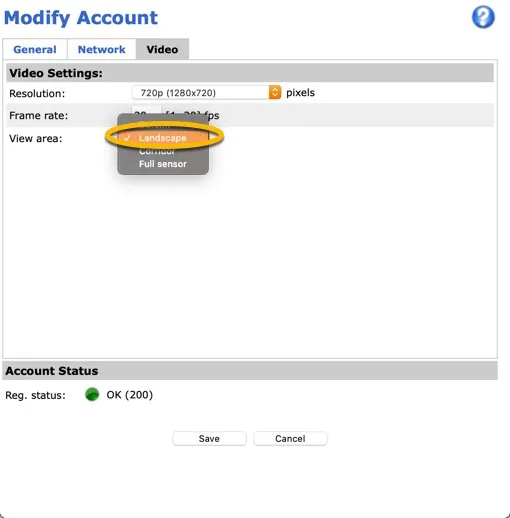
Click ‘Video’ to set the video parameters for SIP Set the Resolution to 720p and set the View area to Landscape.
Click the Save button to confirm.
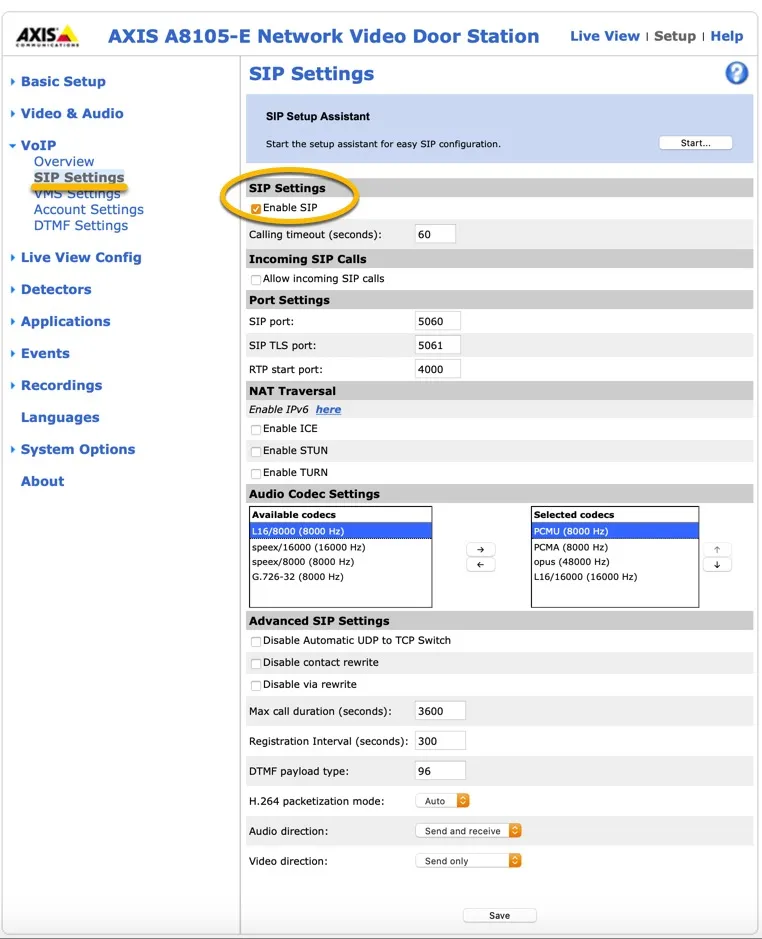
SIP Settings
Click on ‘SIP Settings’ and enable SIP by checking ‘Enable SIP’’:
Click the Save button to confirm.
Events
Click on ‘Events’:
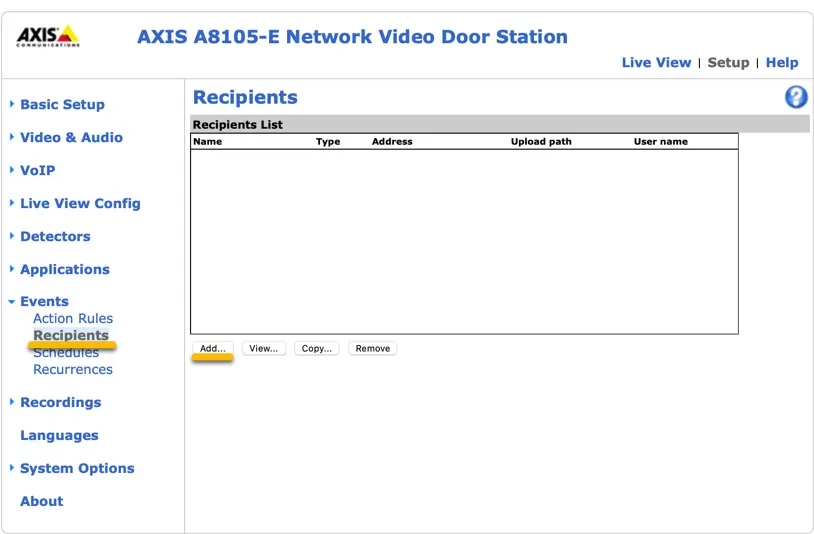
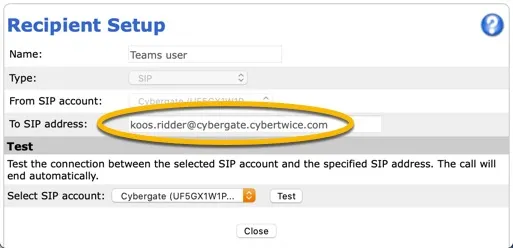
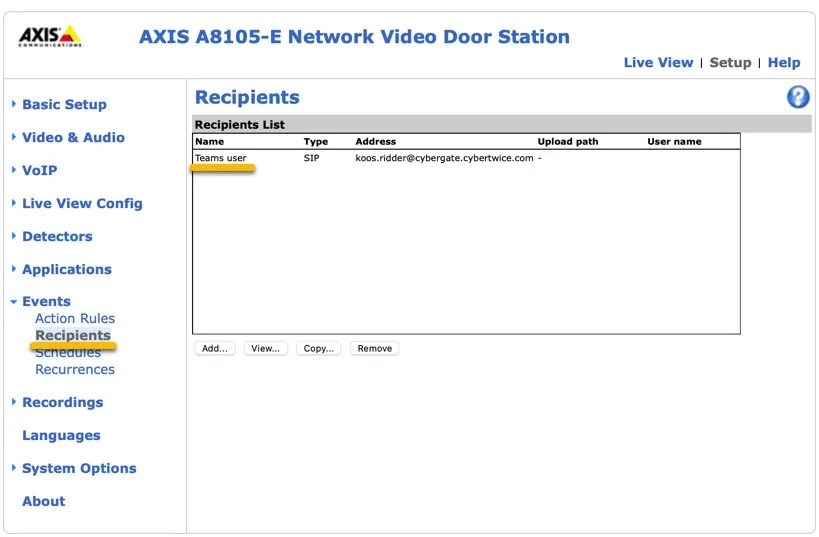
Click on ‘Recipients’ and ‘Add’ to add the recipient to call
Provide the following information:
Name | Name of the recipient, in this example ‘Teams User’ |
|---|---|
Type | Select ‘SIP’ |
To SIP address | Use the Teams user address with after the @ cybergate.cybertwice.com instead of your own domain. ([email protected]) |
Click the Close button.
The recipient is added
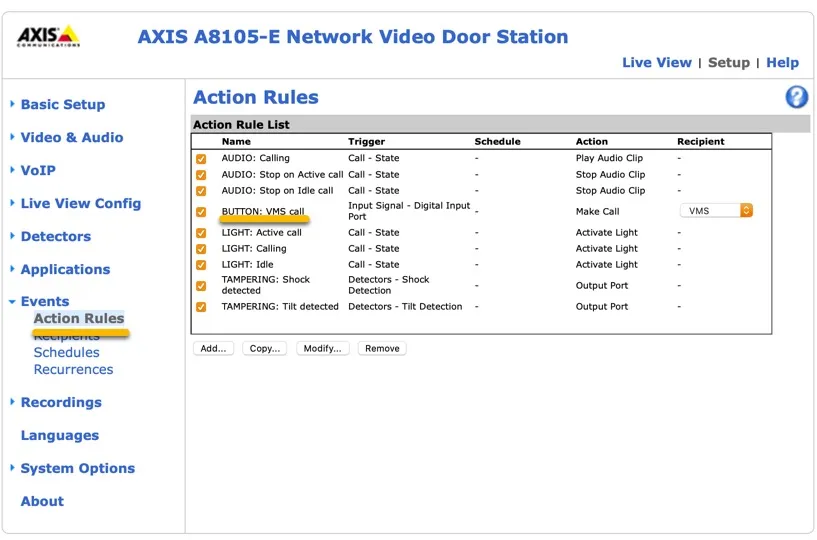
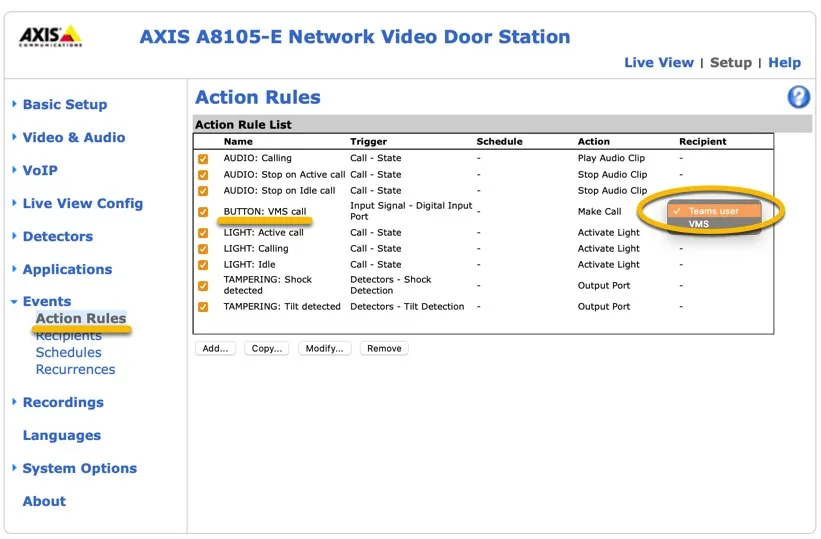
Click on ‘Action Rules’ and select the Teams user at the ‘Button’ action. Doing this will result in the calling of the Teams recipient when the button on the AXIS is pressed.
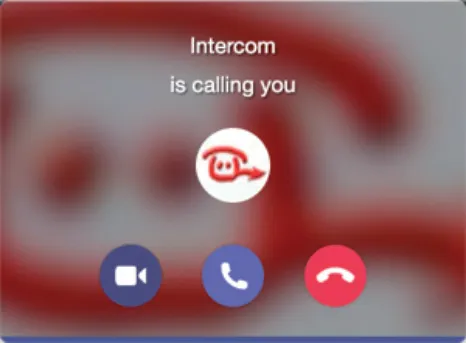
After this, press the button on the AXIS to call the Teams recipient. If configured correctly, the Teams client will notify you of an incoming call. Answer it by clicking the answer button.
The call will be established and video will be displayed within ±3 seconds.
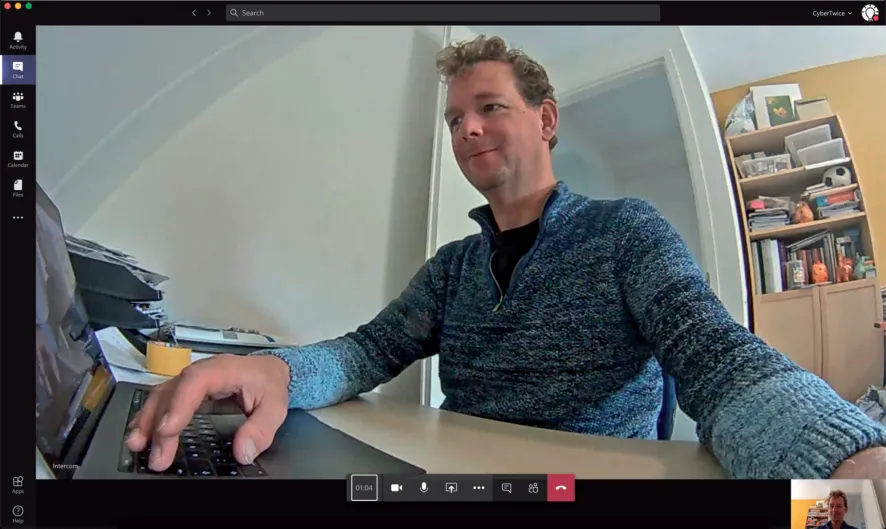
To run configured actions (such as door opening) from the Teams call, click on the three dots (...) in the call screen and select the ‘Keypad’. Use the dtmf code (as configured in the menu VoIP-DTMF Settings), this will trigger any action to use dtmf (as configured in the menu Events-Action Rules).
A more convenient way to open the door during a call is to use the CyberGate for Teams app. See the CyberGate App for Teams on how to to install and use the CyberGate for Teams app.
For instructions on how to configure DTMF on the AXIS A8105-E, please see page 40 of the AXIS A8105-E manual.
CyberGate App for Microsoft Teams
The CyberGate App for Microsoft Teams offers more CyberGate features directly from Microsoft Teams. One of these features is the Open-door button. This button can be utilized during a call to CyberGate and lets you open the the door by clicking just one button.
For a description on how to install the CyberGate app and use the Open door button please see the CyberGate App for TeamsCyberGate App for Teams manual.