AXIS Intercoms and CyberGate
AXIS Intercoms and CyberGate
This guide shows you how to configure an AXIS Network Video Doorstation to connect to the CyberGate service, so that pressing the call button on the doorstation rings a recipient in Microsoft Teams. It covers the SIP account setup, DTMF for door-opening, the recommended SIP-TLS (SIP over Transport Layer Security) hardening, and a pointer to the companion CyberGate App for Microsoft Teams, which adds a one-click Open-door button inside Teams.
Supported AXIS doorstation models
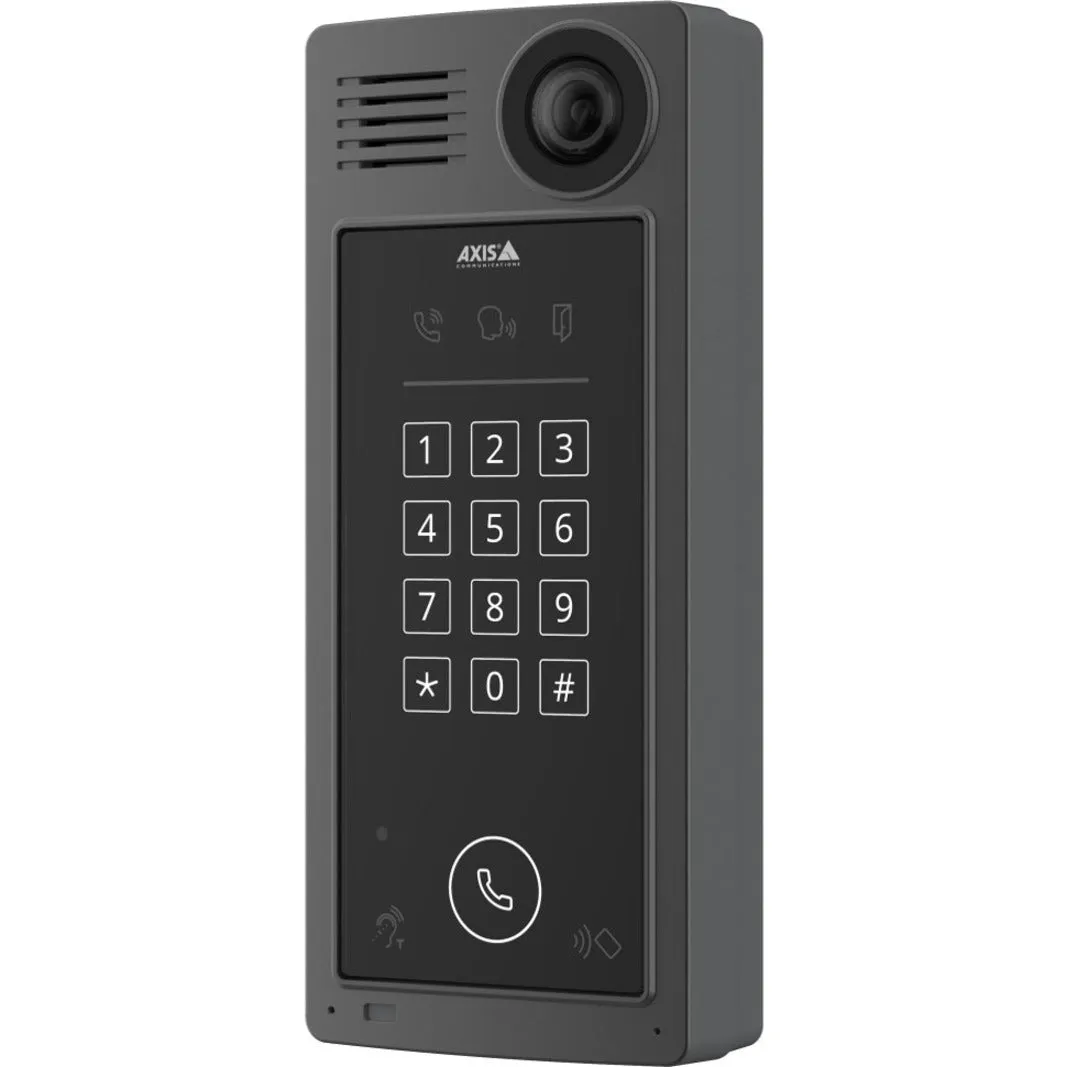
This document uses the AXIS A8207-VE MK II Network Video Doorstation (from now on named 'AXIS') to connect to the CyberGate service (from now on named 'CyberGate').
This manual also applies to the following AXIS Video Doorstations running AXIS OS 11:
- AXIS I8116-E
- AXIS I7010-VE
- AXIS I8016-LVE
After setting up the AXIS intercom, install the CyberGate App for Microsoft Teams. The app lets you:
- Open the door of the intercom by clicking an Open-door button
- See the status of your intercom and call the intercom from Teams with a single click
- Set your availability status in a configured CyberGate Calling group with one click
Installation of the CyberGate App for Microsoft Teams is highly recommended.
Follow the steps below to configure the AXIS and connect it to CyberGate.
Configure the AXIS SIP account in CyberGate
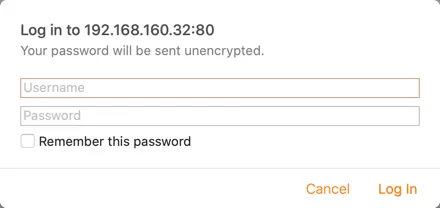
- Log in as root with the configured password.
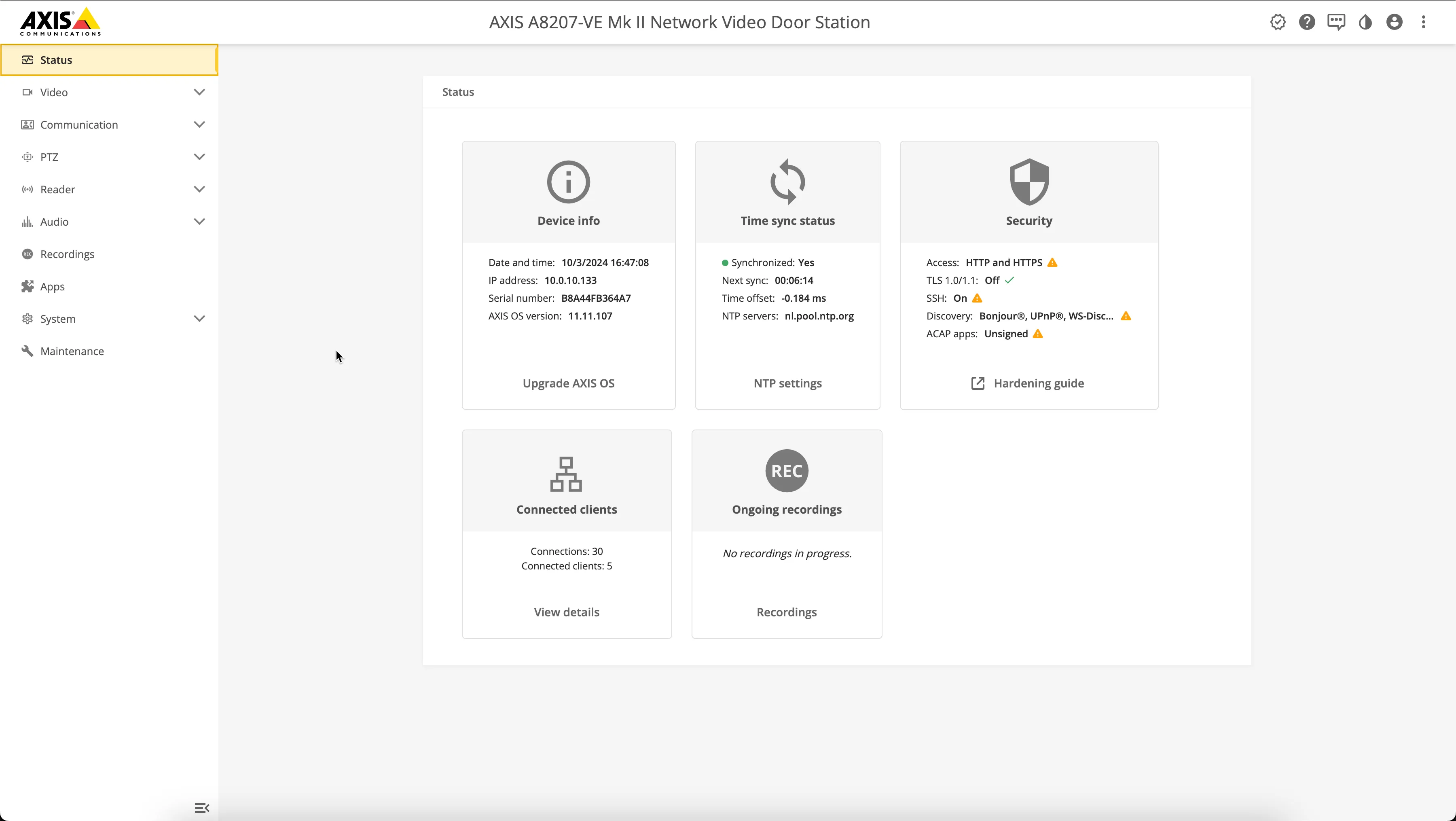
The Status menu opens.
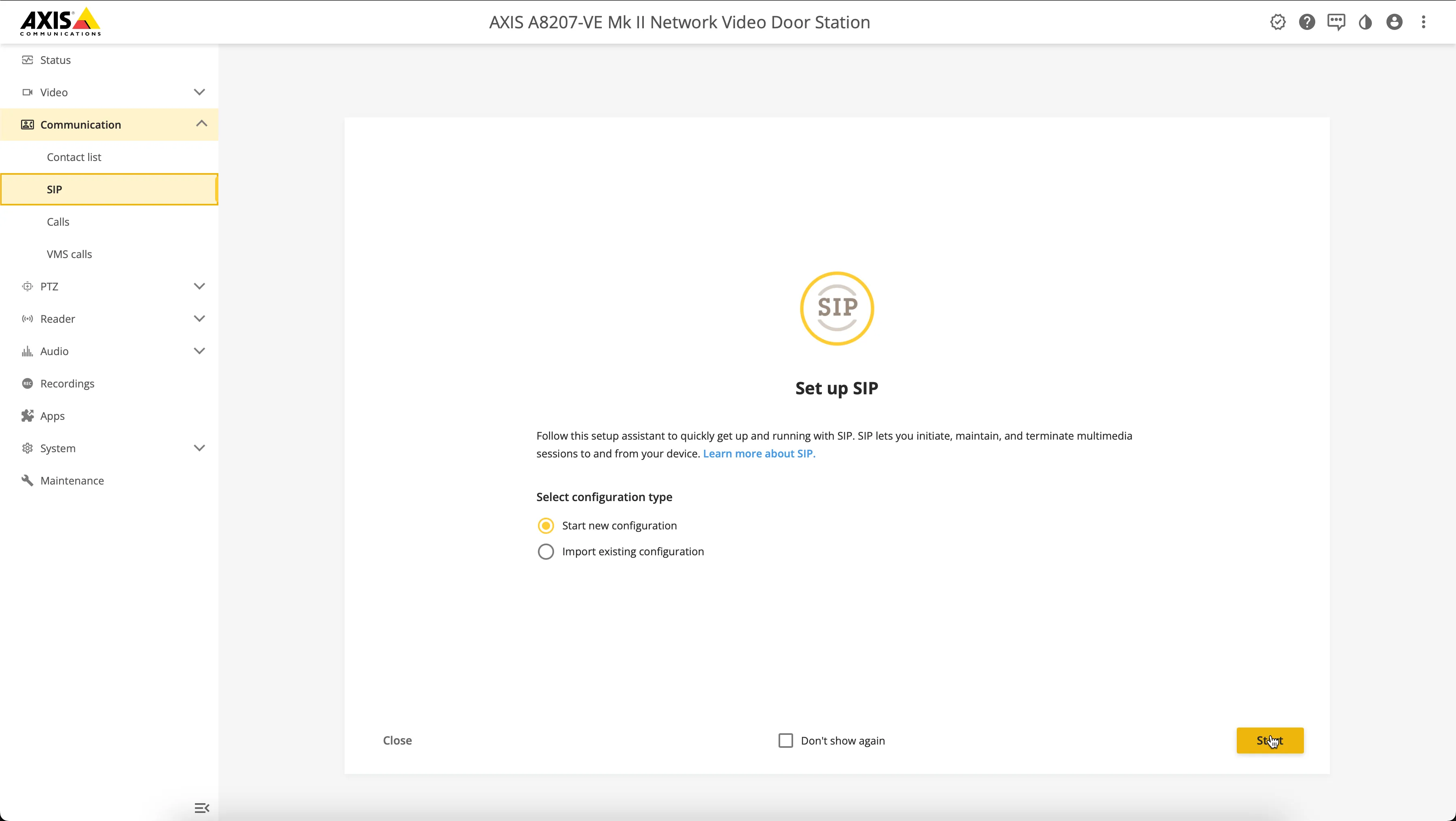
- Navigate to Communication > SIP, select Start new configuration, and click Start.
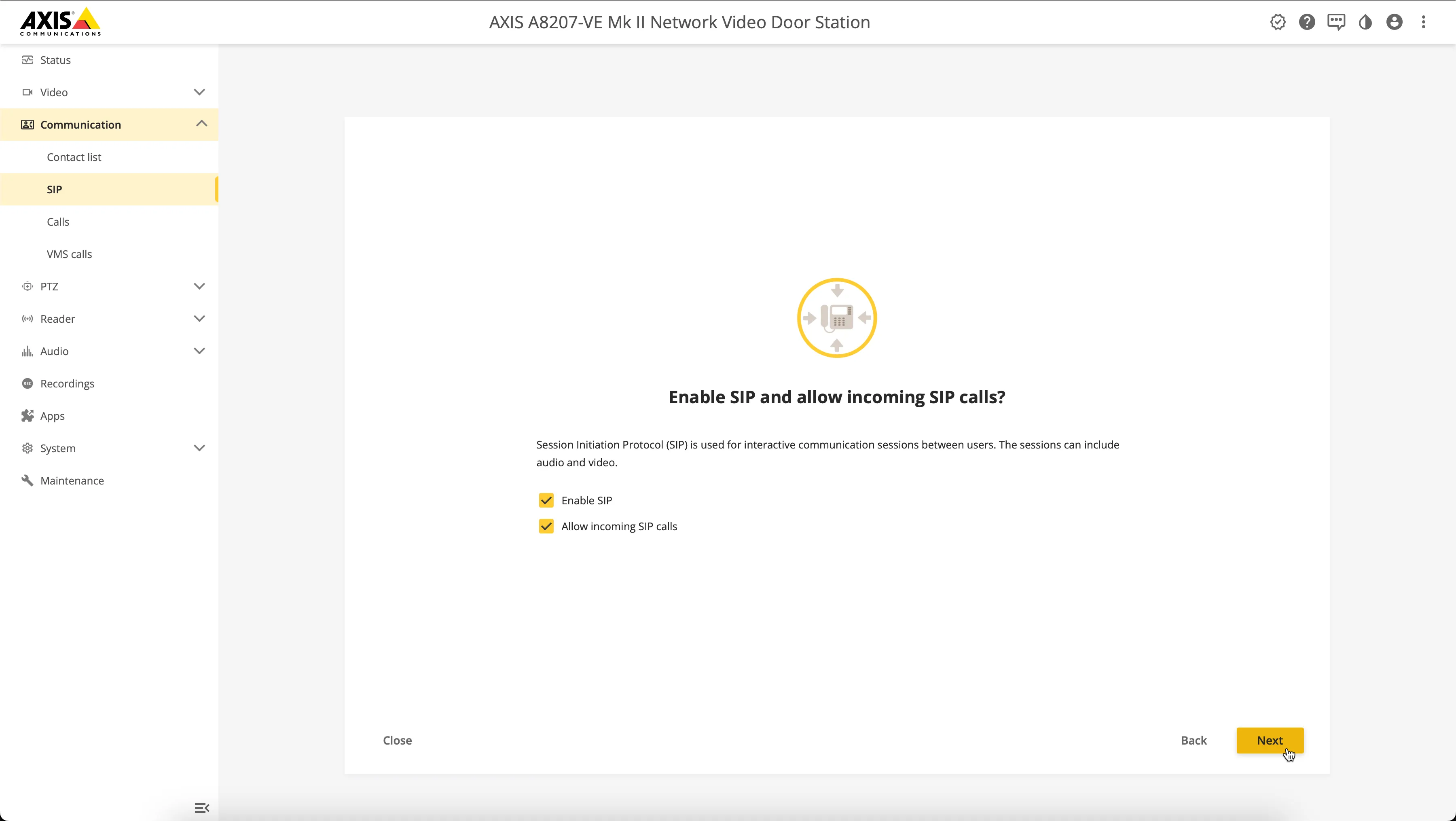
- Enable Session Initiation Protocol (SIP), allow incoming SIP calls, and click Next.
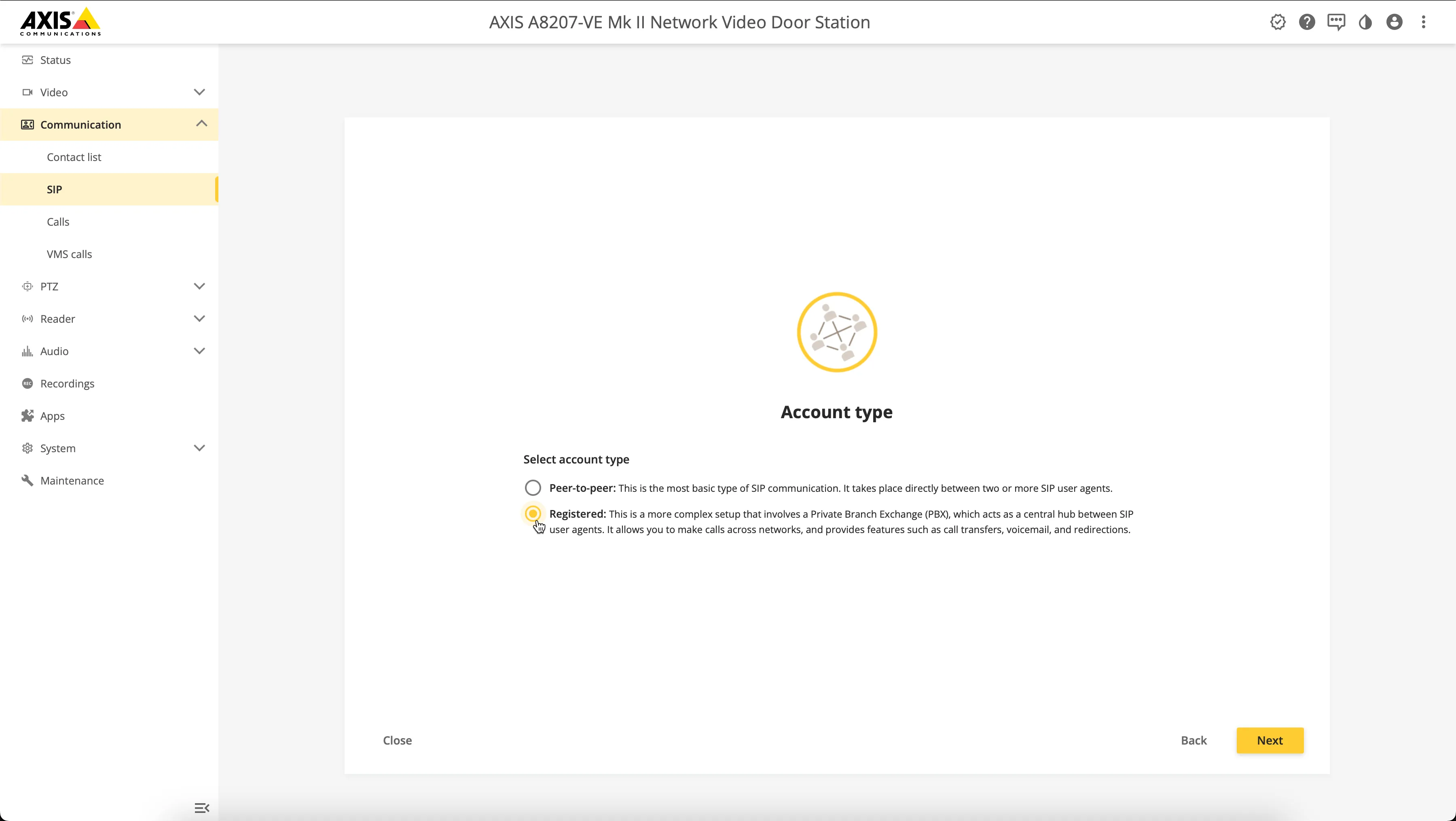
- Select the Registered account type and click Next.
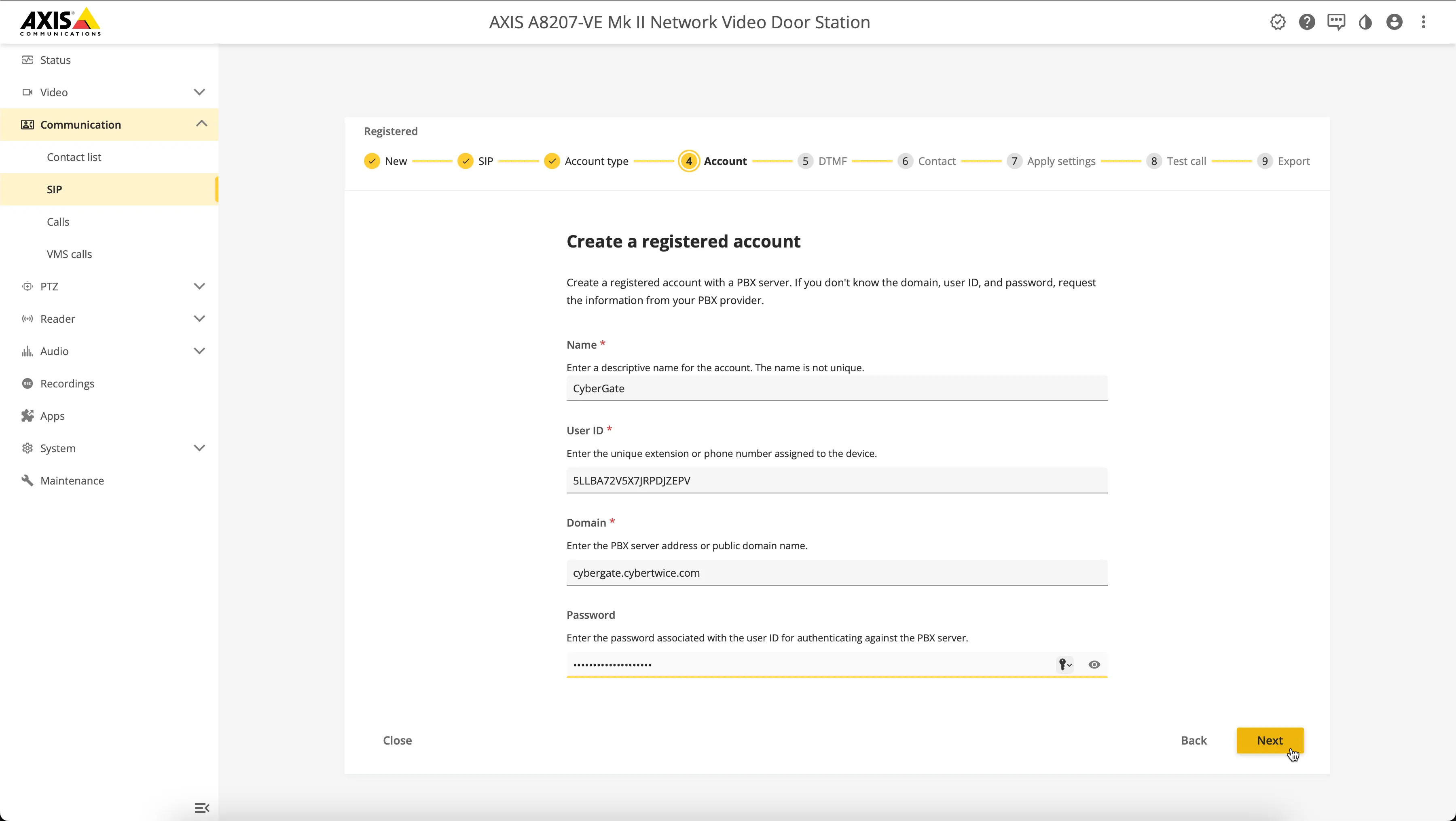
- Create a registered account by filling in the following information, then click Next.
Field | Description |
|---|---|
Name | Name of the SIP account, in this example 'CyberGate' |
User ID | Use the Username provided by the CyberGate service |
Domain | Use the domain name of your organisation |
Password | Use the Password provided by the CyberGate service |
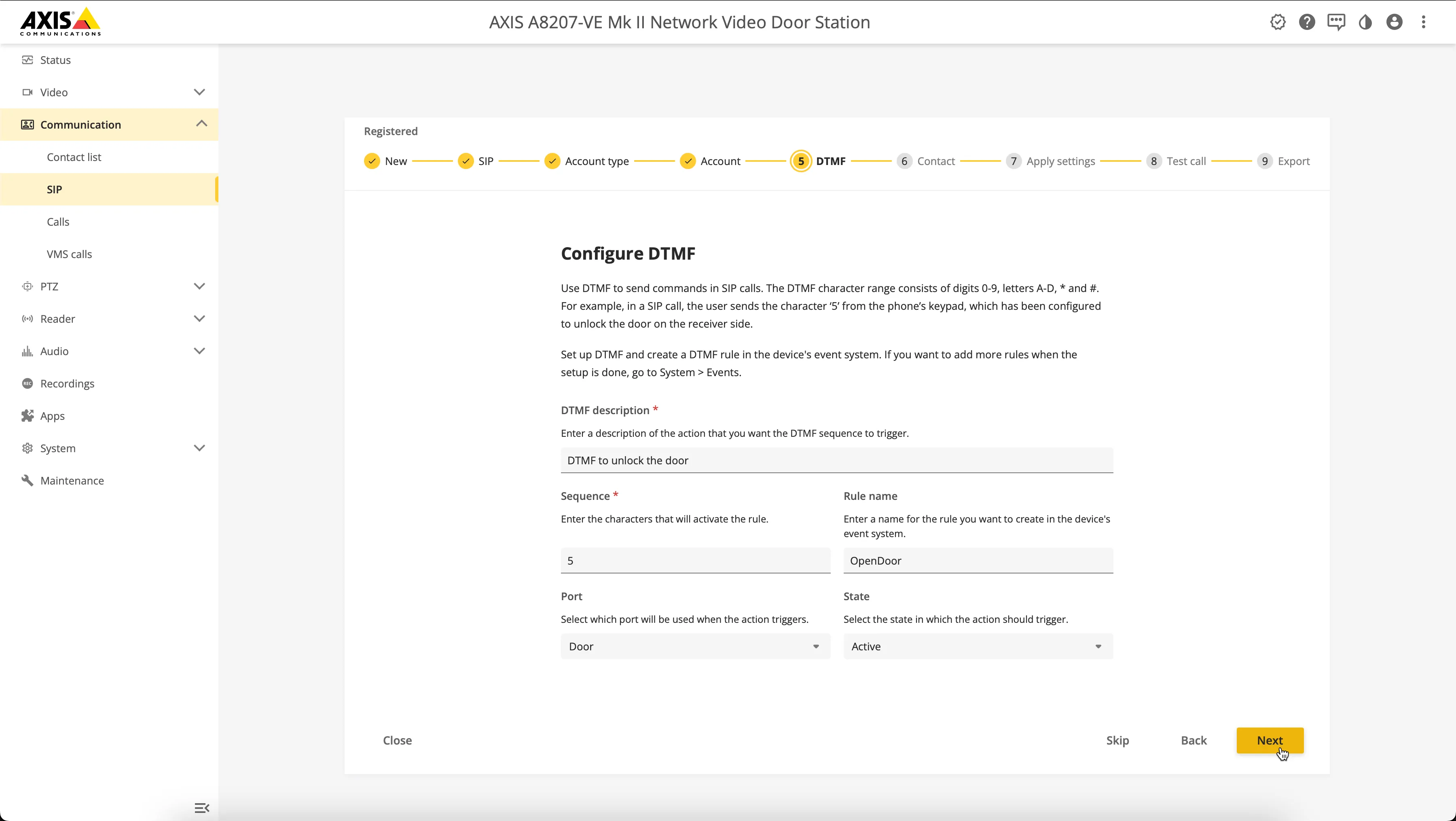
- Configure Dual-Tone Multi-Frequency (DTMF) — the signal used to open the door from a Teams call — by filling in the following information, then click Next.
Field | Description |
|---|---|
DTMF Description | Name the action that is triggered by DTMF |
Sequence | Enter the character that is used to open the door |
Rule name | Name the open-door rule |
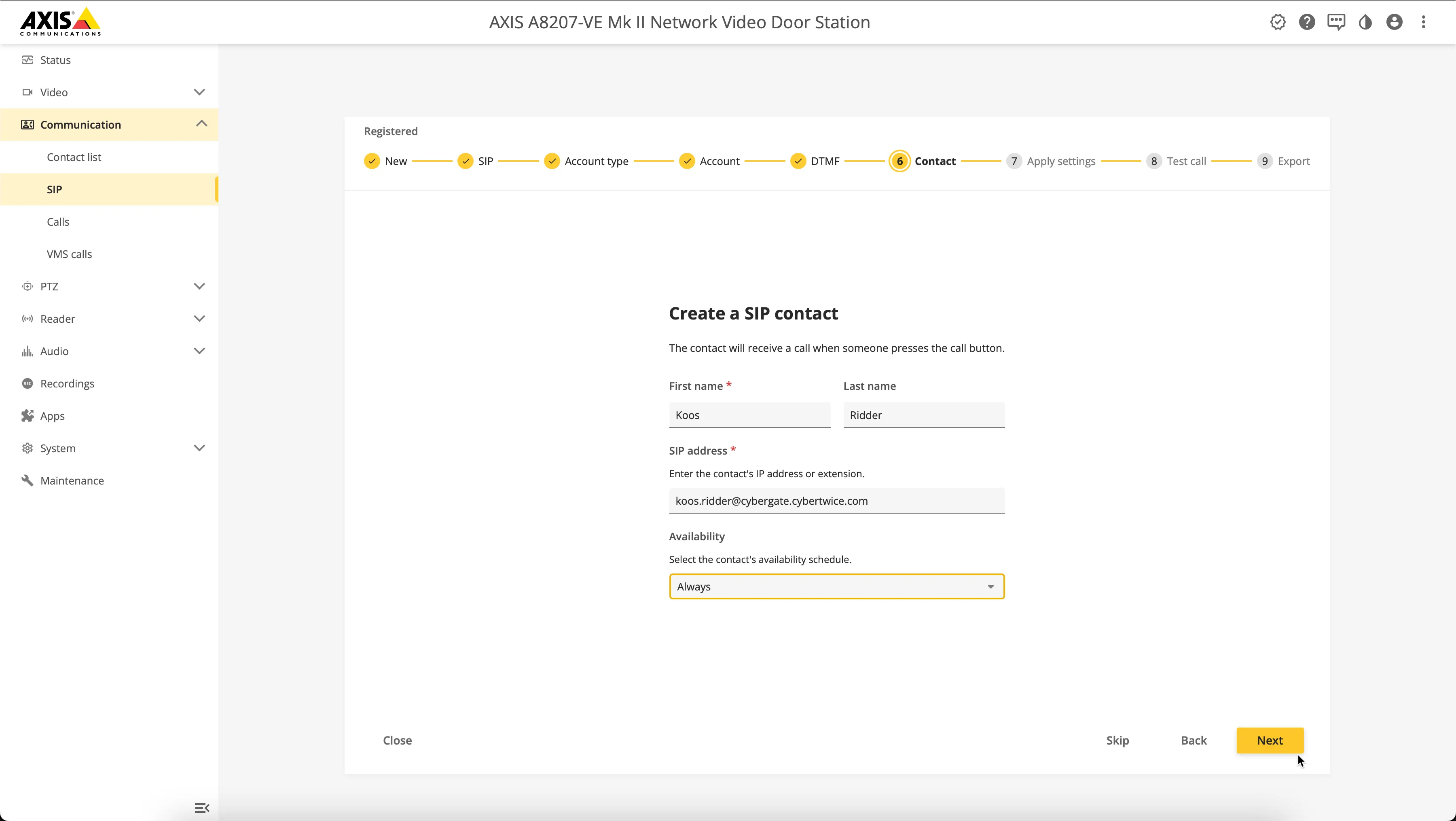
- Create the contact to call when the button is pressed by filling in the following information, then click Next.
Field | Description |
|---|---|
First name | The first name of the contact |
Last name | The last name of the contact |
SIP address | Use the Teams user name followed by the domain cybergate.cybertwice.com — <name.name>@cybergate.cybertwice.com * |
* For example, the user 'Koos Ridder', with the Teams name [email protected] will translate to this destination address: [email protected].
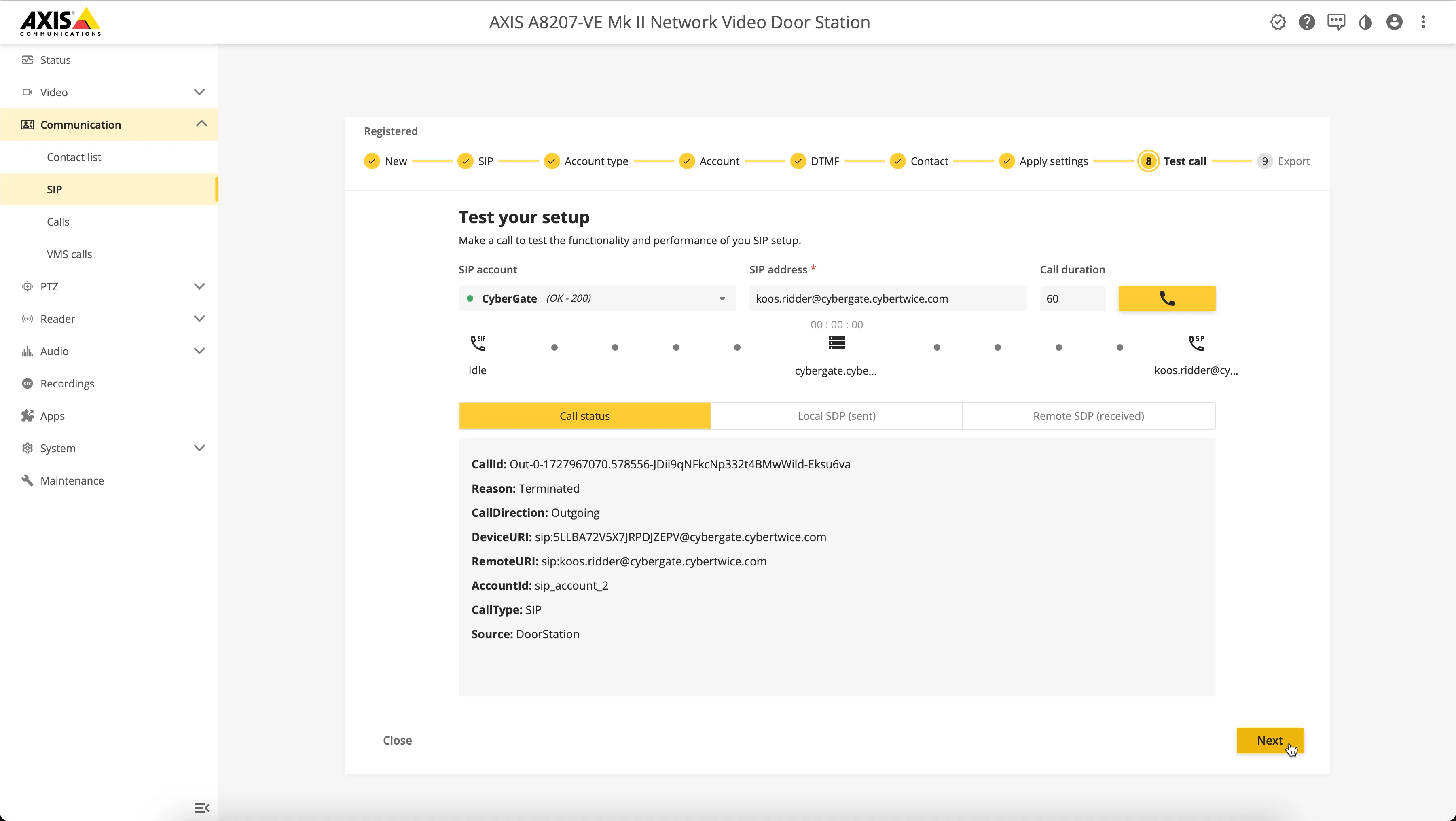
- Test your setup with the yellow phone (call) symbol. If it rings the Teams user and has working audio and video, click Next.
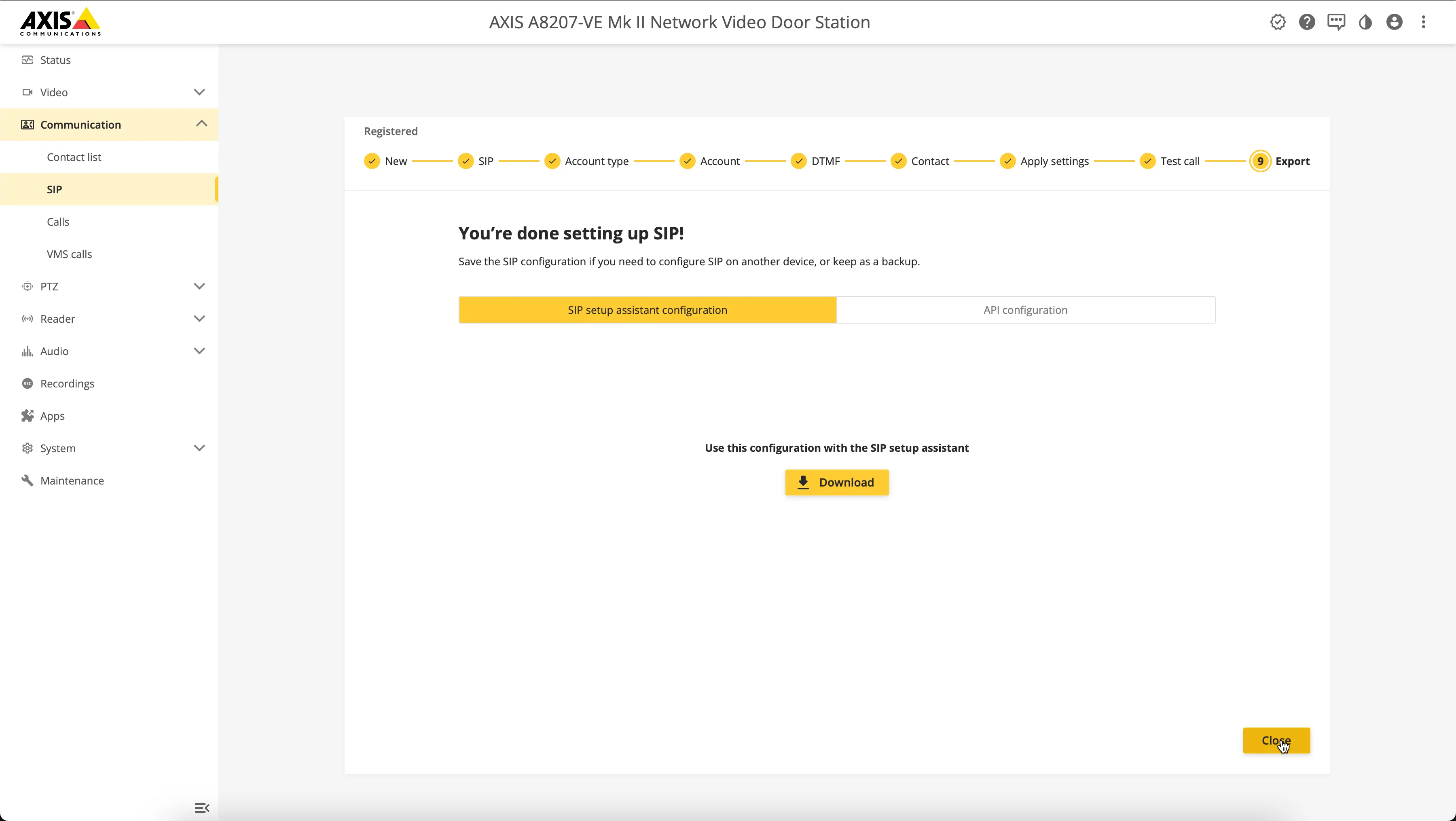
The AXIS SIP account is now set up.
Secure the connection to CyberGate with SIP-TLS
SIP-TLS (SIP over Transport Layer Security) encrypts the SIP signalling between the AXIS and CyberGate, and — combined with Secure Real-time Transport Protocol (SRTP) — also encrypts the audio and video stream. By default the AXIS uses Transmission Control Protocol (TCP) to connect to CyberGate; switch the transport to TLS when you need a secured connection.
- Navigate to Communication > SIP and close the setup assistant.
- Navigate to Communication > SIP > Accounts. Click the three vertical dots at the end of your SIP account to edit it.
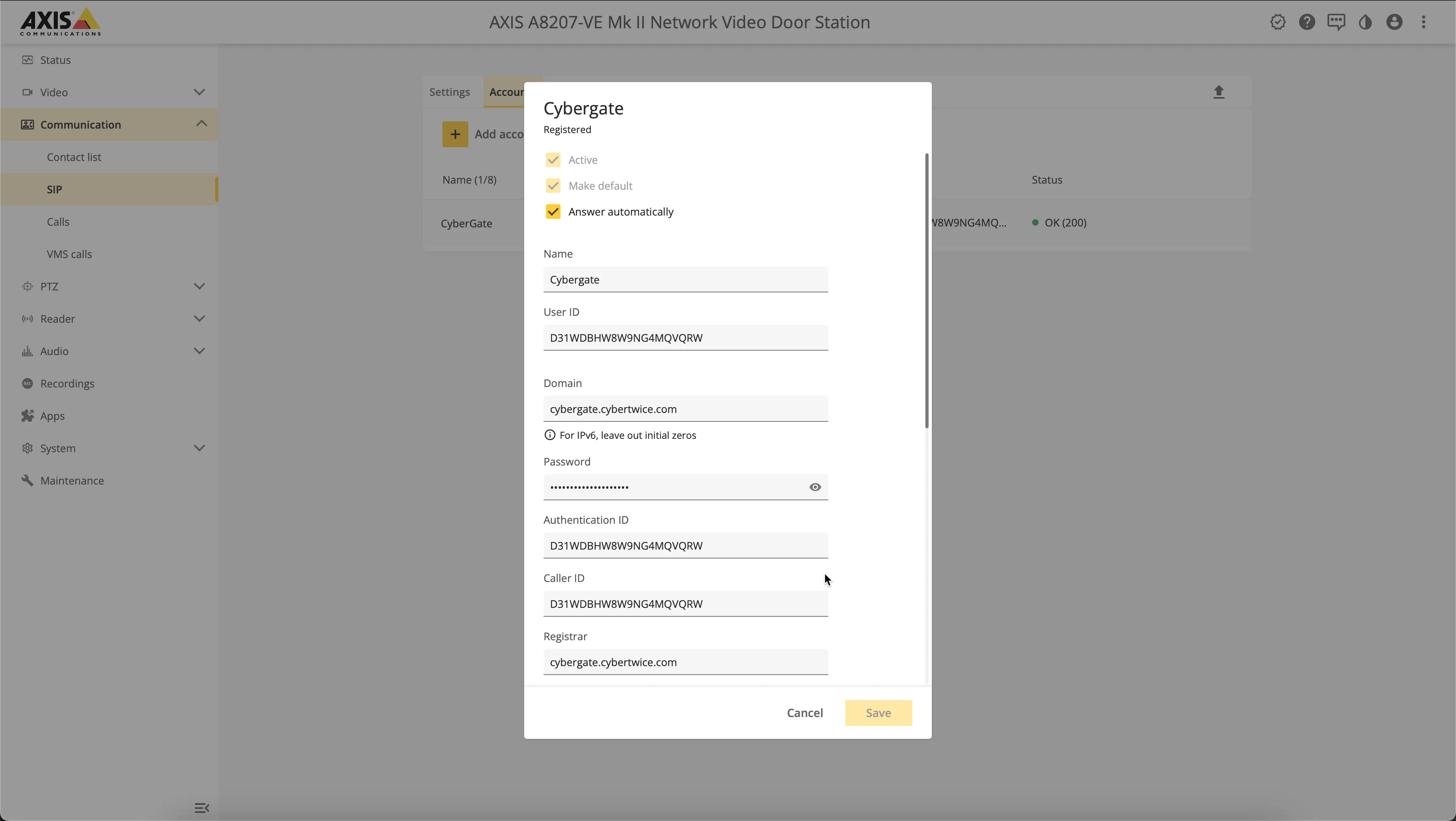
- Scroll down and modify the following information, then click Save to confirm.
Field | Value |
|---|---|
Transport Mode | Change to TLS |
TLS version | Select v1.2 |
Media Encryption | Change to SRTP Mandatory |
Client certificate | Change to Default (self-assigned) |
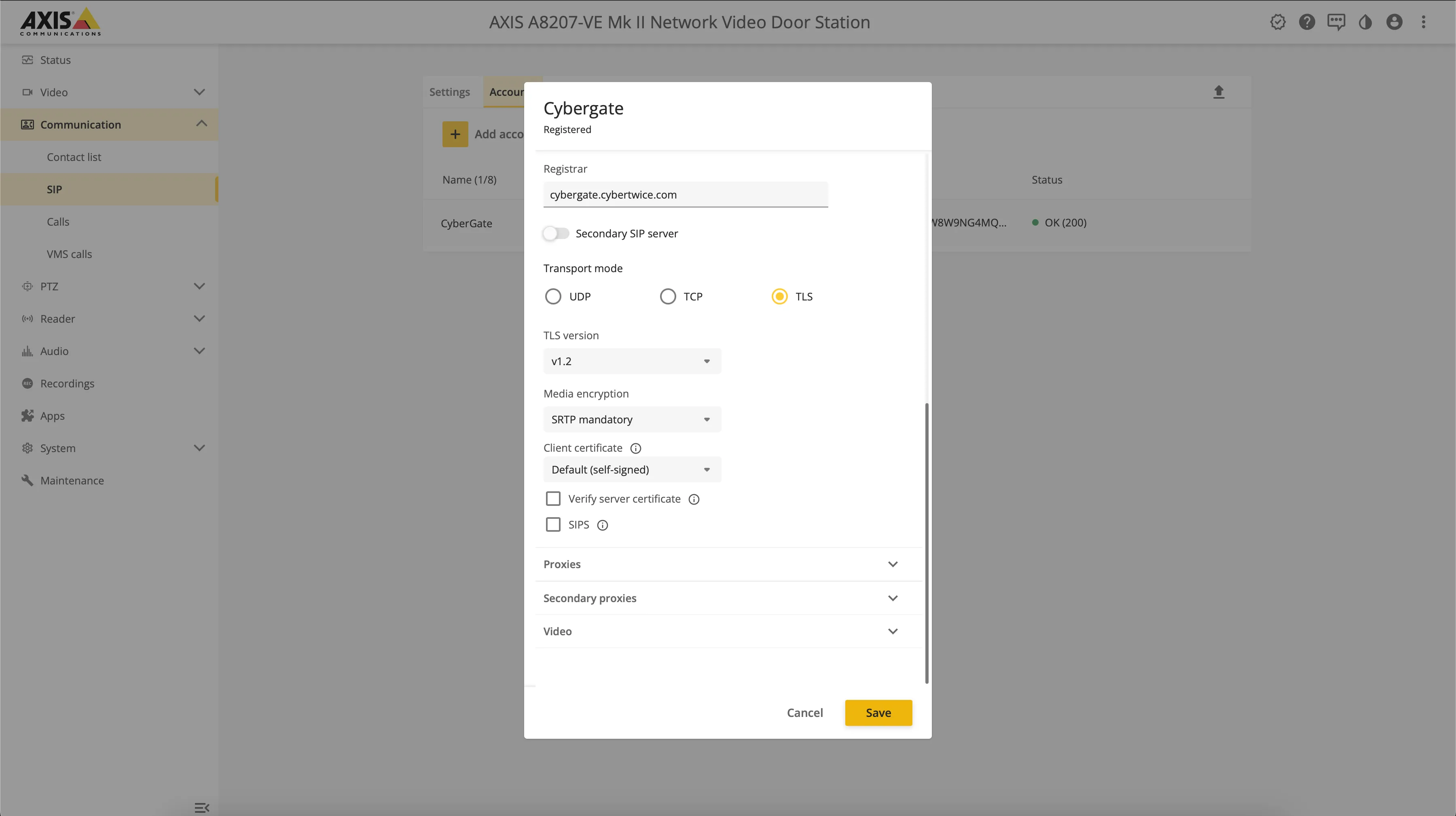
The SIP traffic and the audio/video stream are now encrypted.
Test the call from AXIS to Teams
After configuration, press the button on the AXIS to call the Teams recipient. If configured correctly, the Teams client will notify you of an incoming call. Answer it by clicking the answer button.
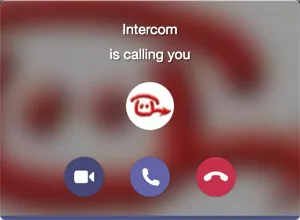
The call will be established and video will be displayed within ±3 seconds.
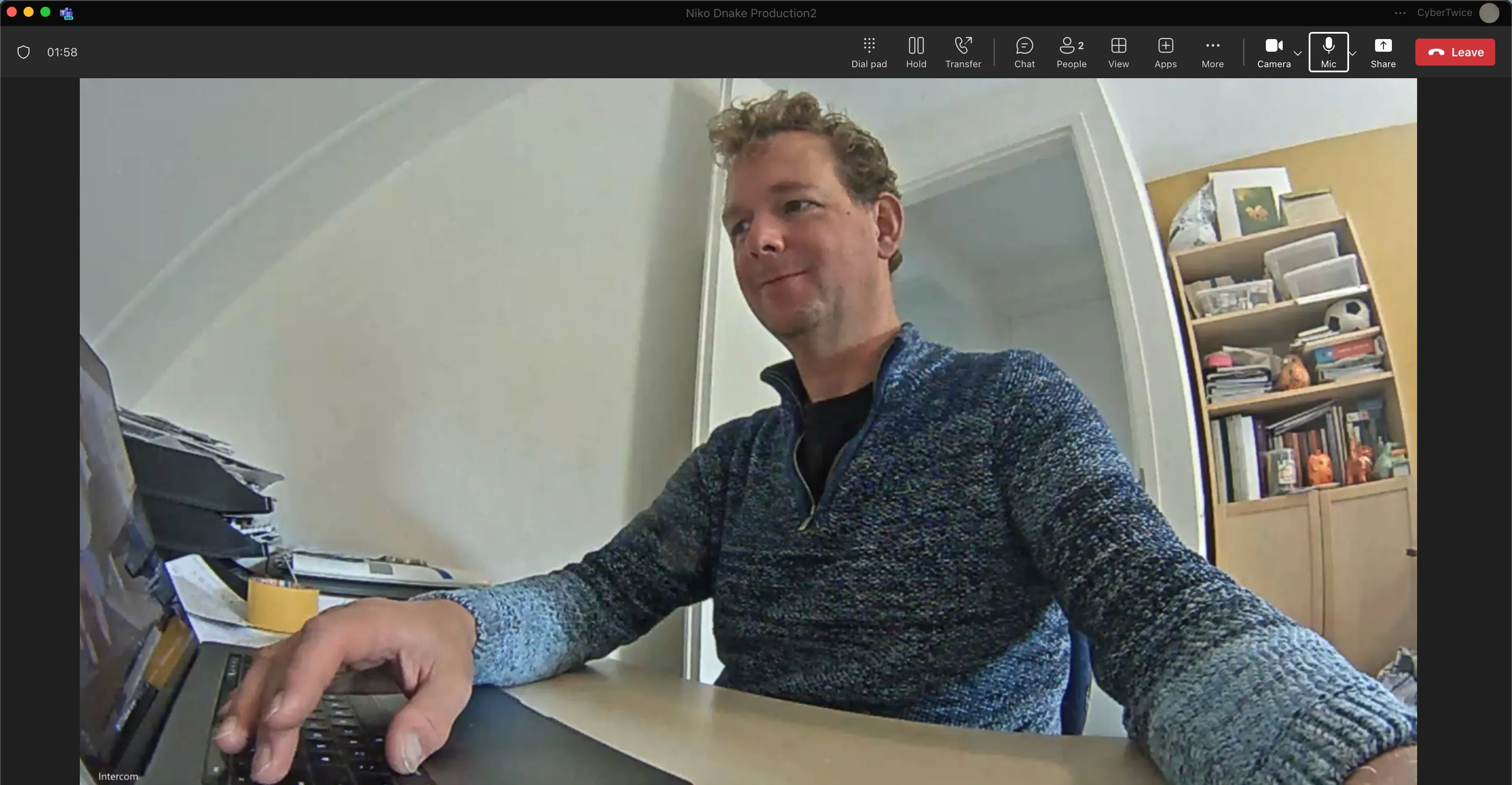
To open the door from the Teams call, click Dial pad on top of the active call screen. Use the DTMF code (as configured before) to open the door.
A more convenient way to open the door during a call is to use the CyberGate App for Microsoft Teams. See the 'Next step' section below for installation instructions.
Install the CyberGate App for Microsoft Teams
The CyberGate App for Microsoft Teams offers more CyberGate features directly from Microsoft Teams. One of these features is the Open-door button, which can be used during a call to CyberGate and lets you open the door by clicking a single button.
For installation steps and an overview of the Open-door button, see the CyberGate App for TeamsCyberGate App for Teams.