Axis cameras and CyberGate
AXIS Cameras and CyberGate
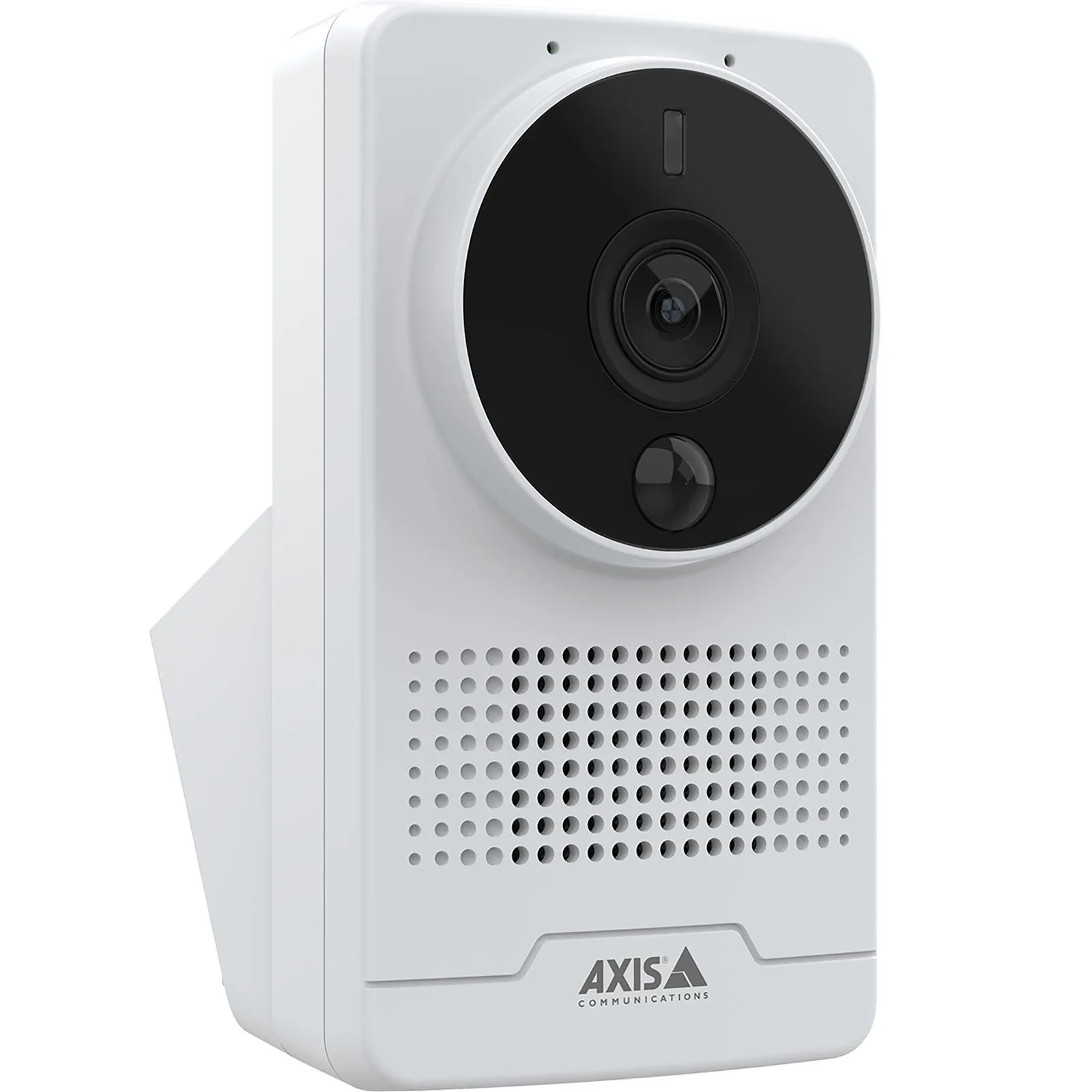
For this document the following AXIS camera is used to connect to the CyberGate service (from now on named 'CyberGate').
- AXIS M1075-L Box Camera
This document applies to all recent Axis cameras that offer SIP support. For a complete overview of all certified Axis cameras, visit the following website and apply a search filter for ' SIP ': Link to Axis cameras
After setting-up the AXIS intercom, please install the CyberGate app for Microsoft Teams.
Use the CyberGate app for Microsoft Teams to:
- See the status of your camera and calling the camera from Teams by clicking on just one button
- Set your Availability status in a configured CyberGate Calling group with one click
Installation of the CyberGate app for Microsoft Teams is highly recommended.
Connect the AXIS
Connect the AXIS to the network, power it on, and open a web browser to its IP address. Sign in with the configured or supplied password of the AXIS.
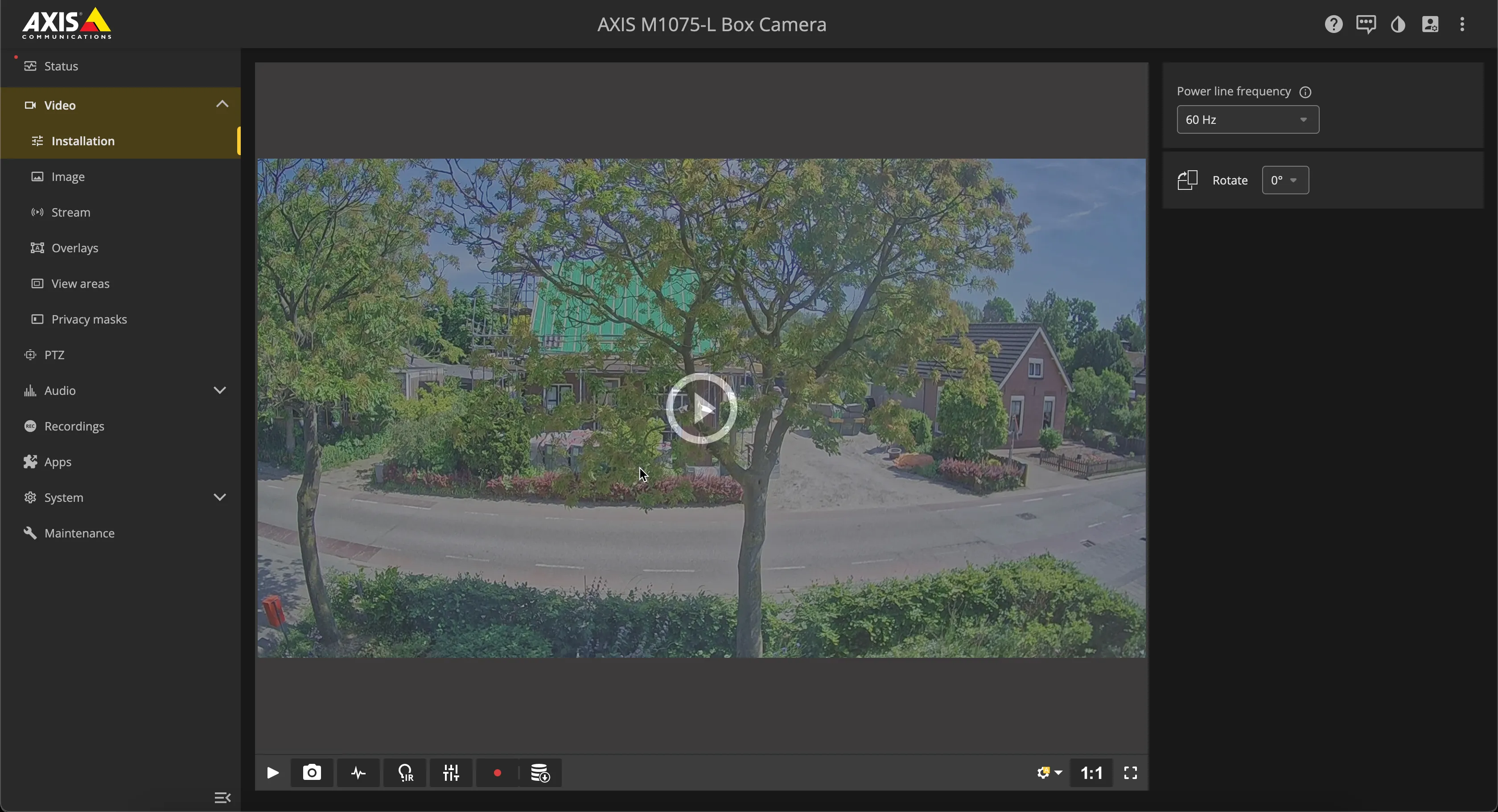
SIP connection
Navigate to the System-SIP menu.
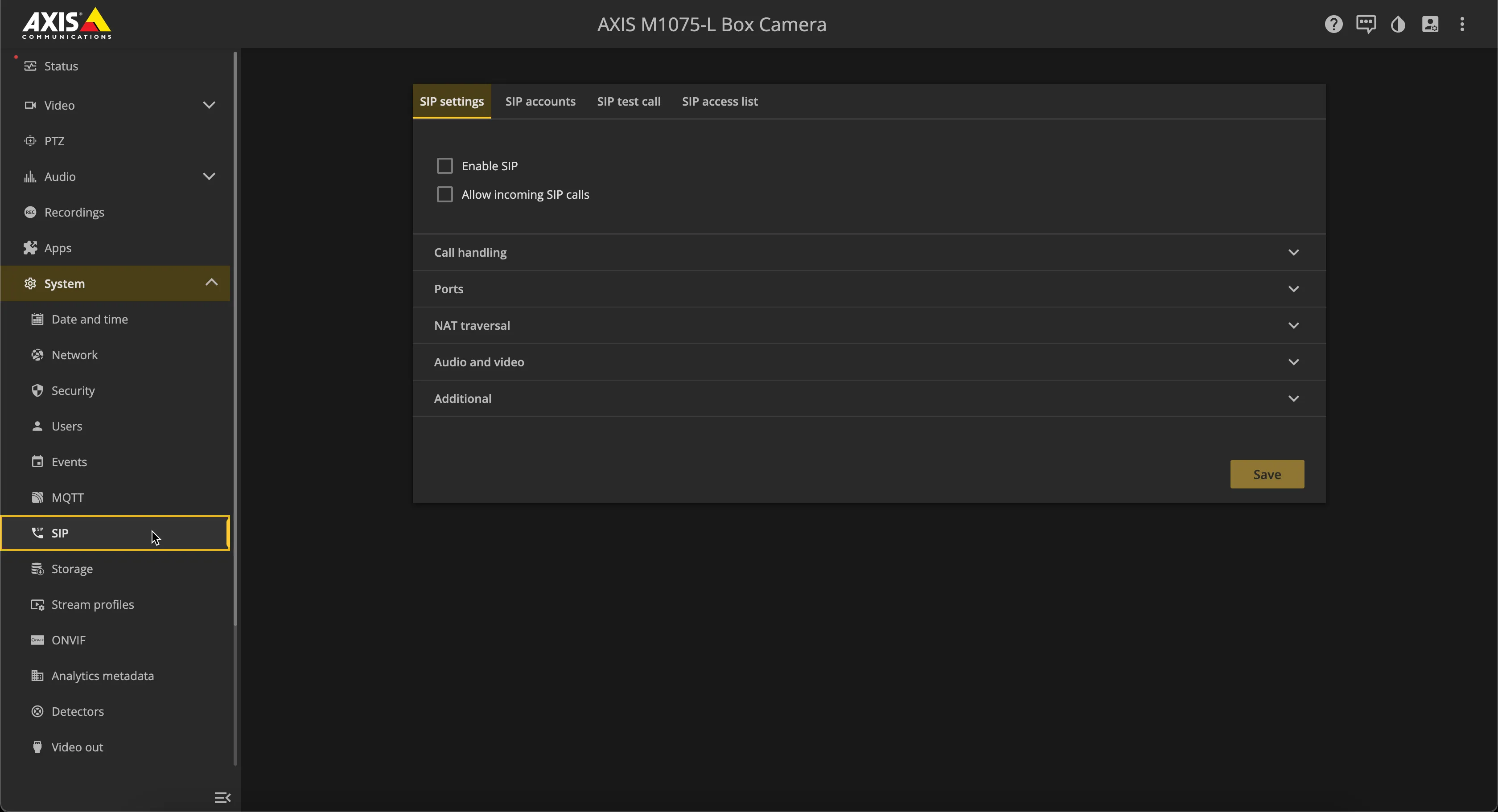
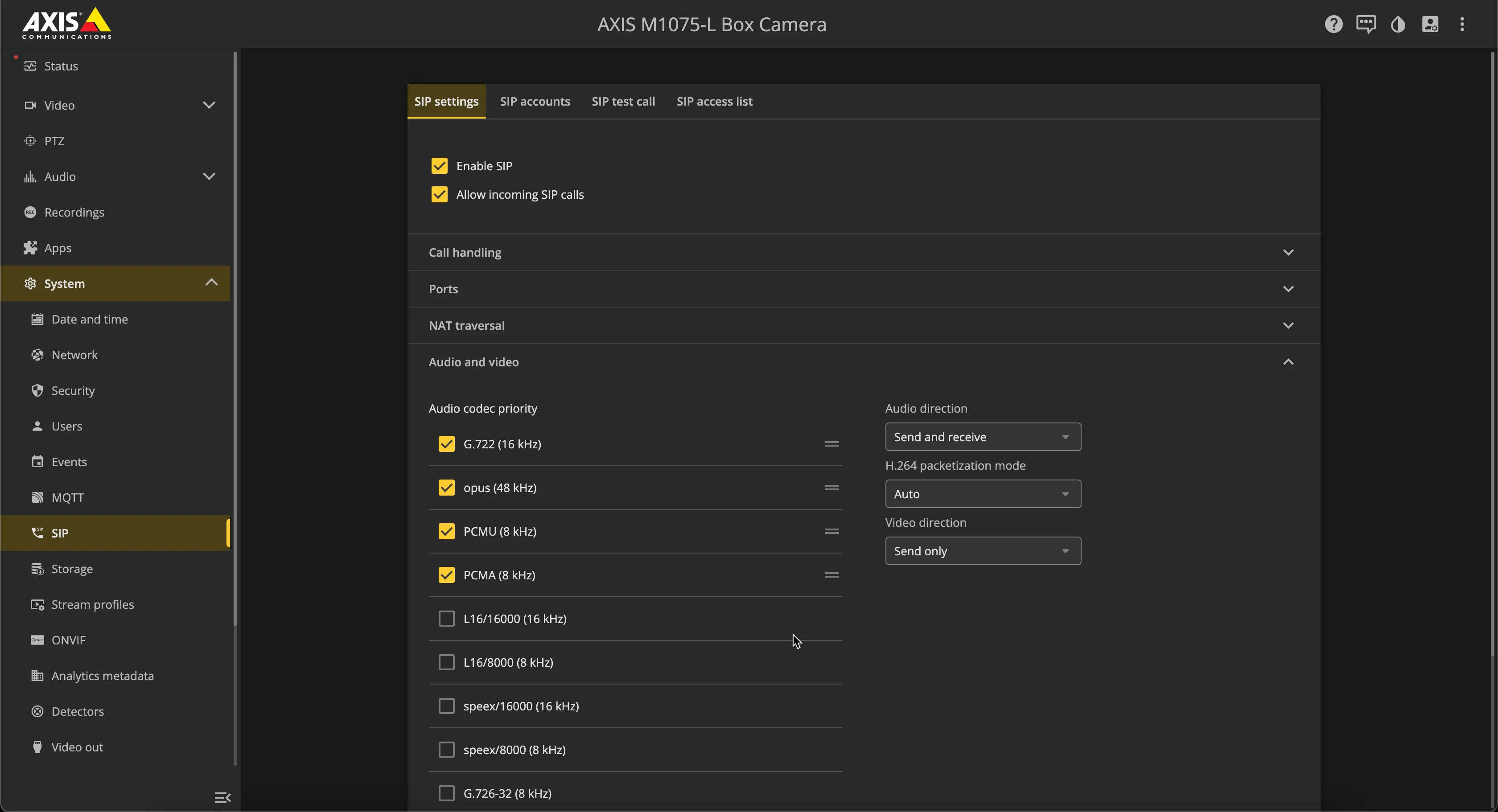
Provide / change the following information:
SIP Settings | |
|---|---|
Enable SIP | Enable |
Allow incoming SIP calls | Enable |
Audio and video | |
G.722 | Enable G.722 and move it to the top of the list |
Opus | Enable Opus and move it below G.722 |
Click the yellow 'Save' button when done.
SIP accounts
Navigate to SIP accounts.
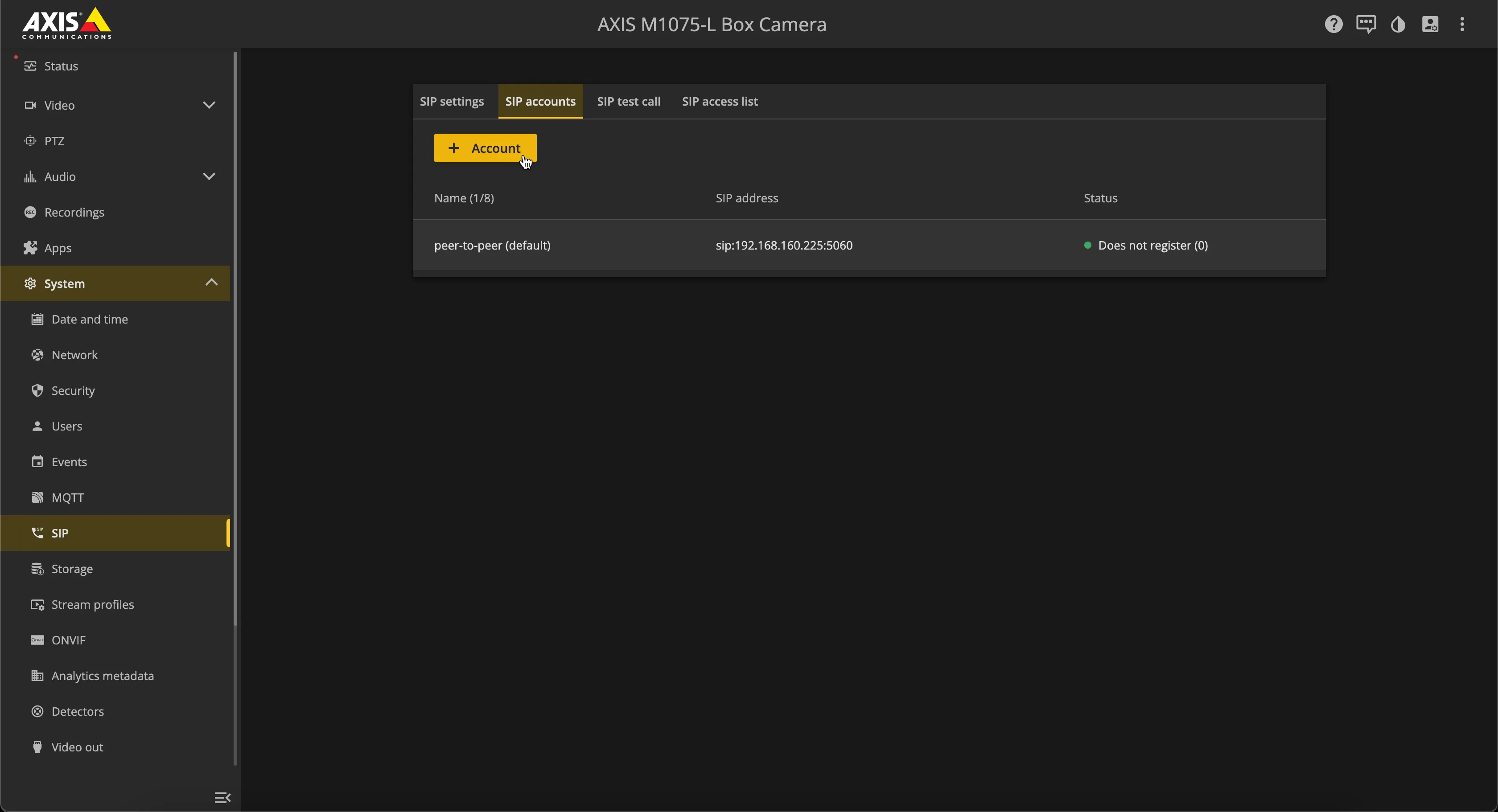
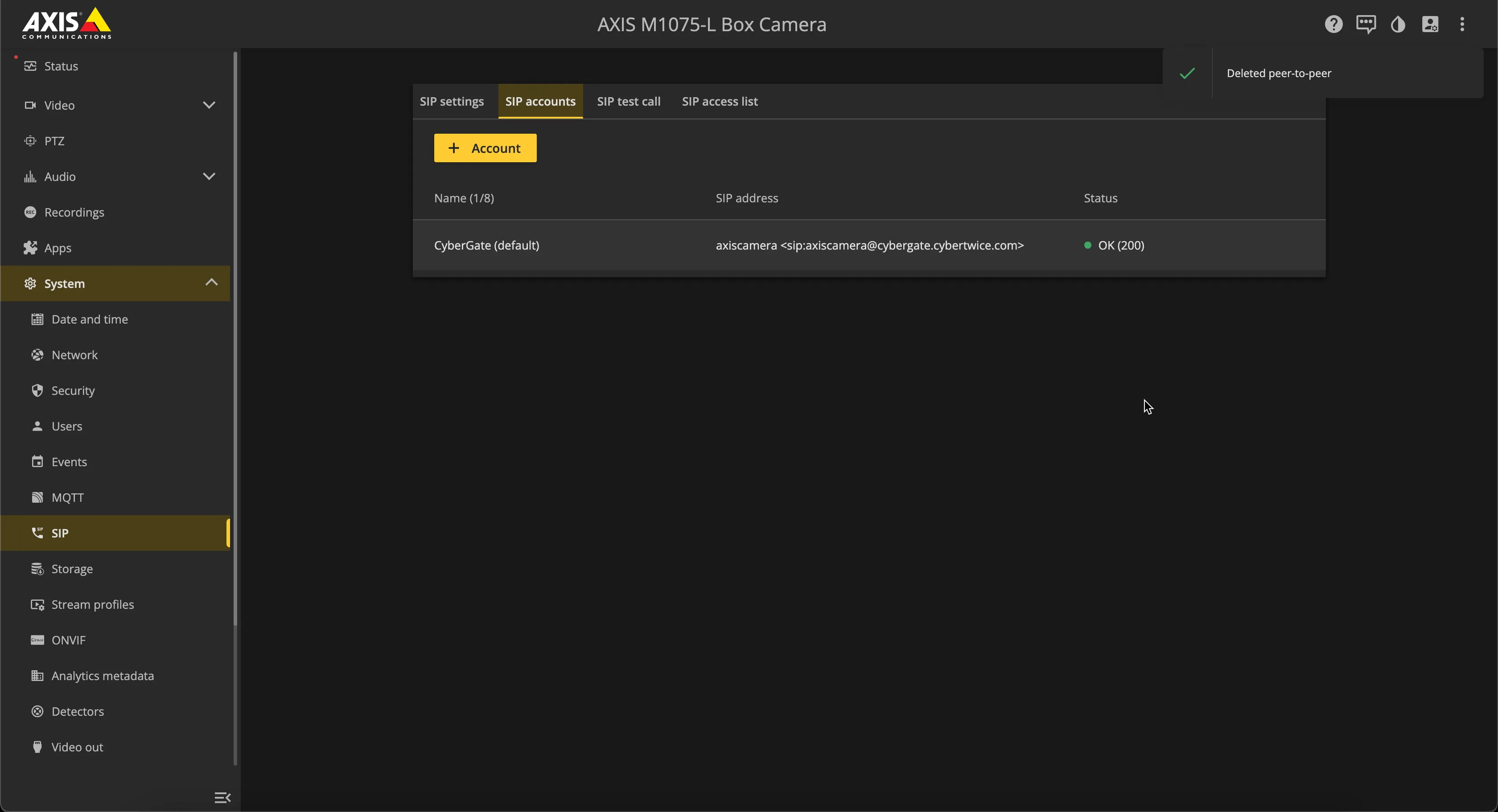
Click on the three vertical dots and select delete to remove the default peer-to-peer account.
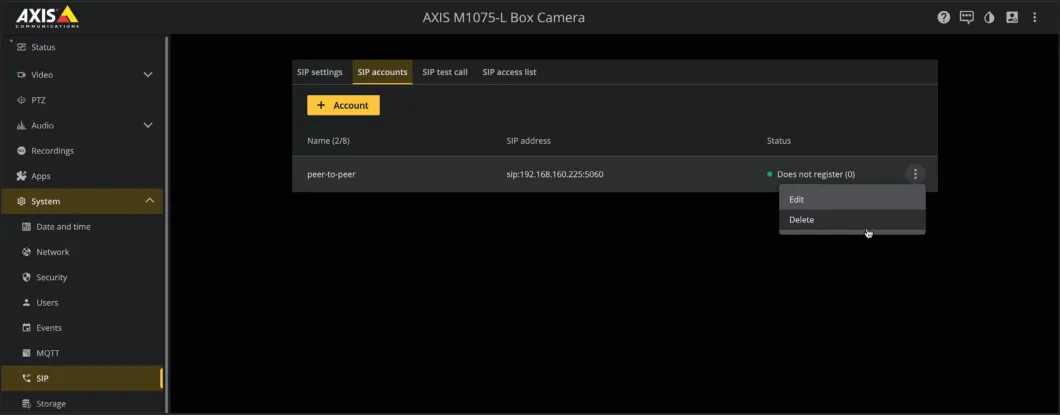
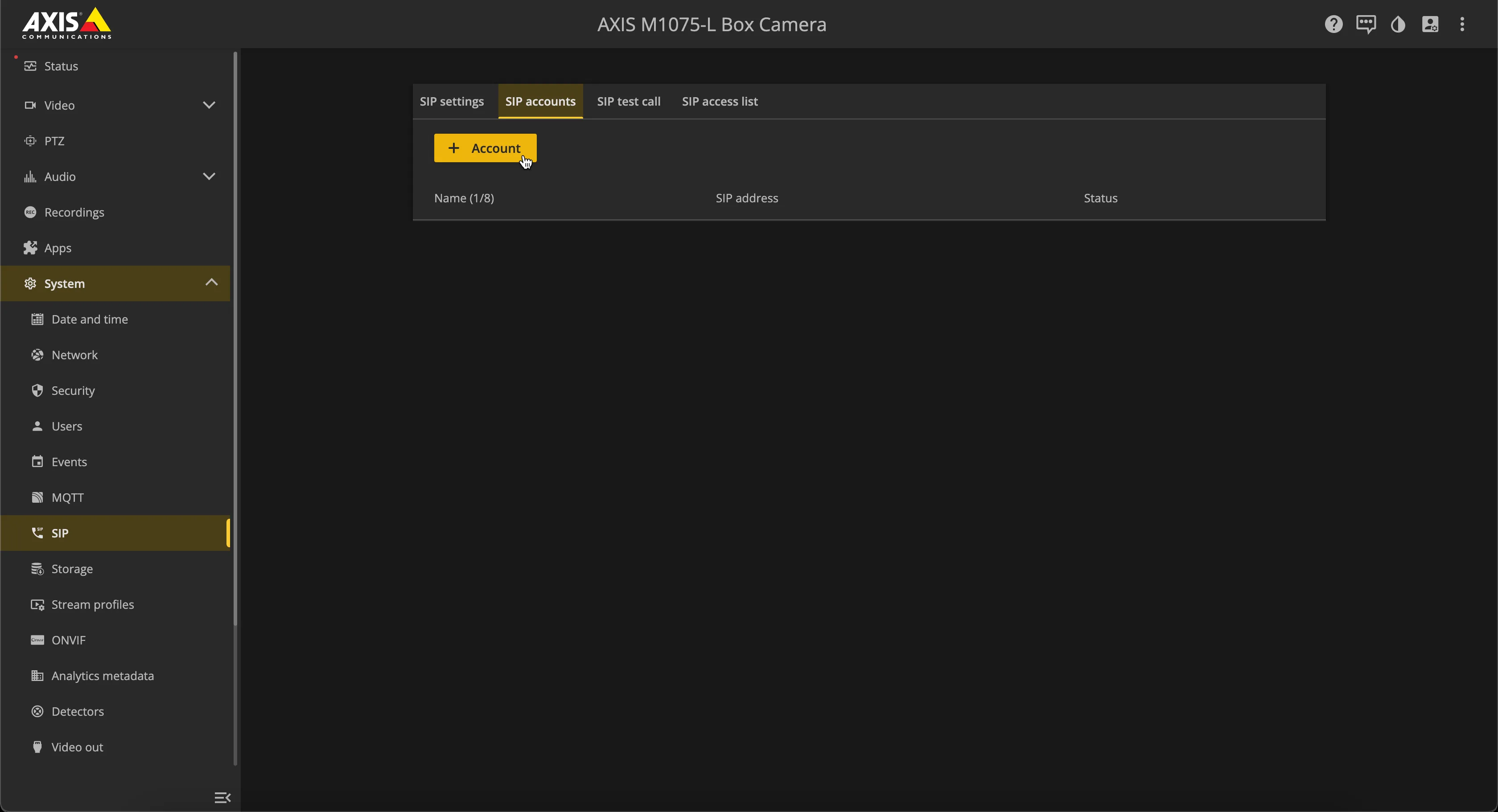
After deleting the peer-to-peer account, add a new account:
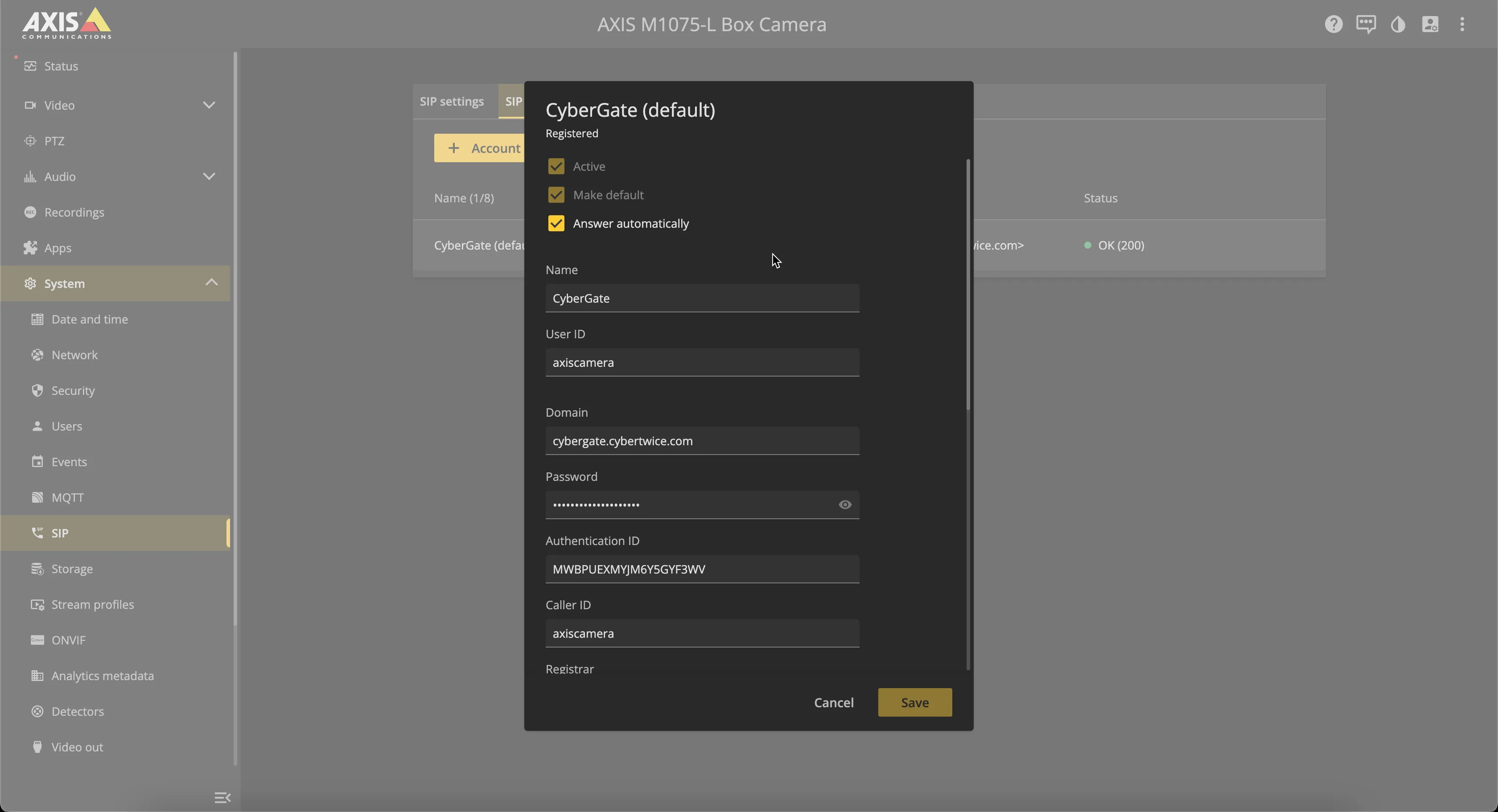
Provide / change the following information:
Active | Enable |
|---|---|
Make default | Enable |
Answer automatically | Enable |
Name | Name this SIP account entry, in this example 'CyberGate' |
User ID | Define a name for this camera (spaces not allowed) |
Domain | cybergate.cybertwice.com |
Password | Use the Password provided by the CyberGate Management Portal |
Authentication ID | Use the Username provided by the CyberGate Management Portal |
Caller ID | Use the same name as used in the User ID field |
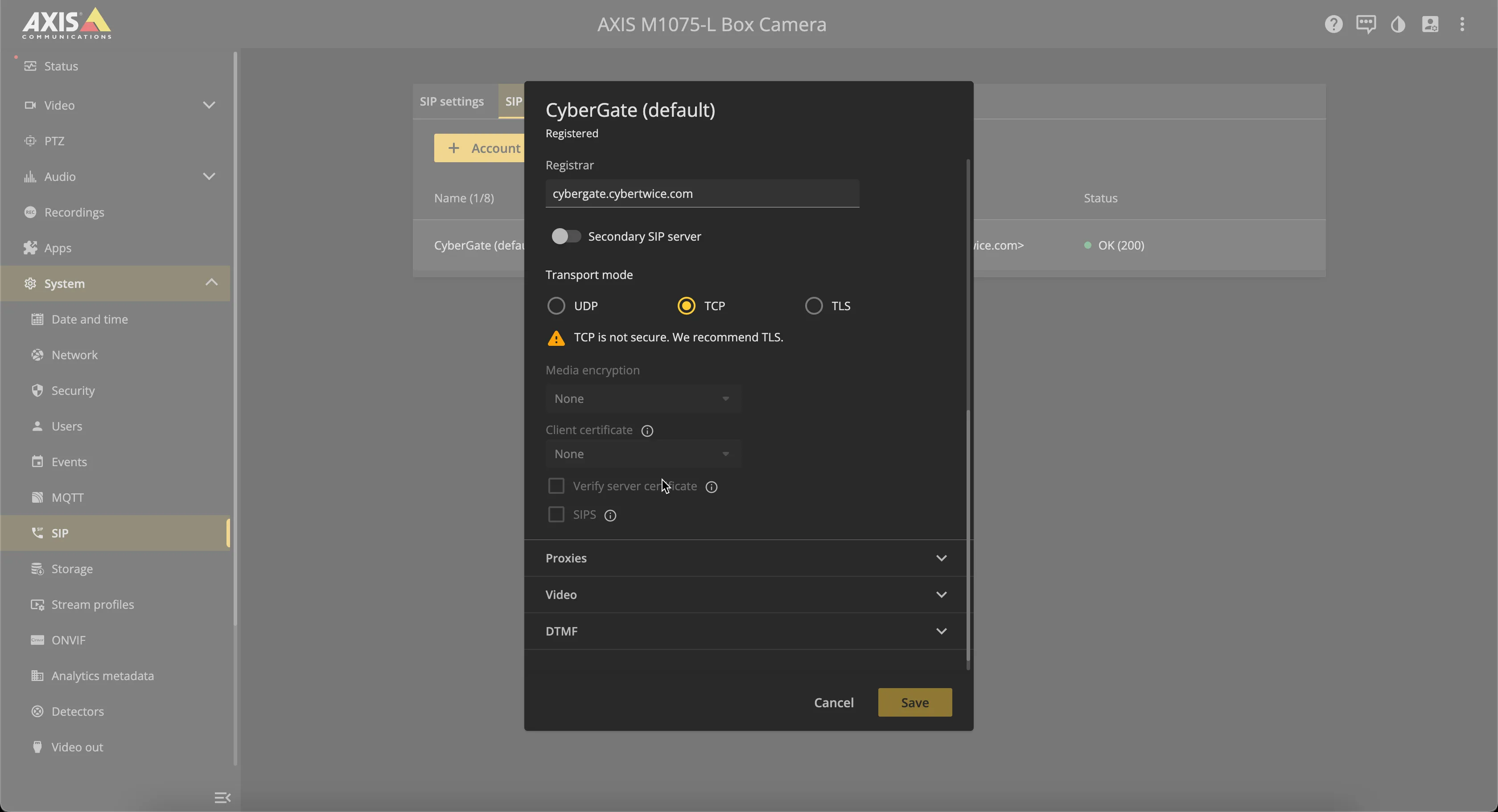
Registrar | cybergate.cybertwice.com |
Transport mode | Select TCP |
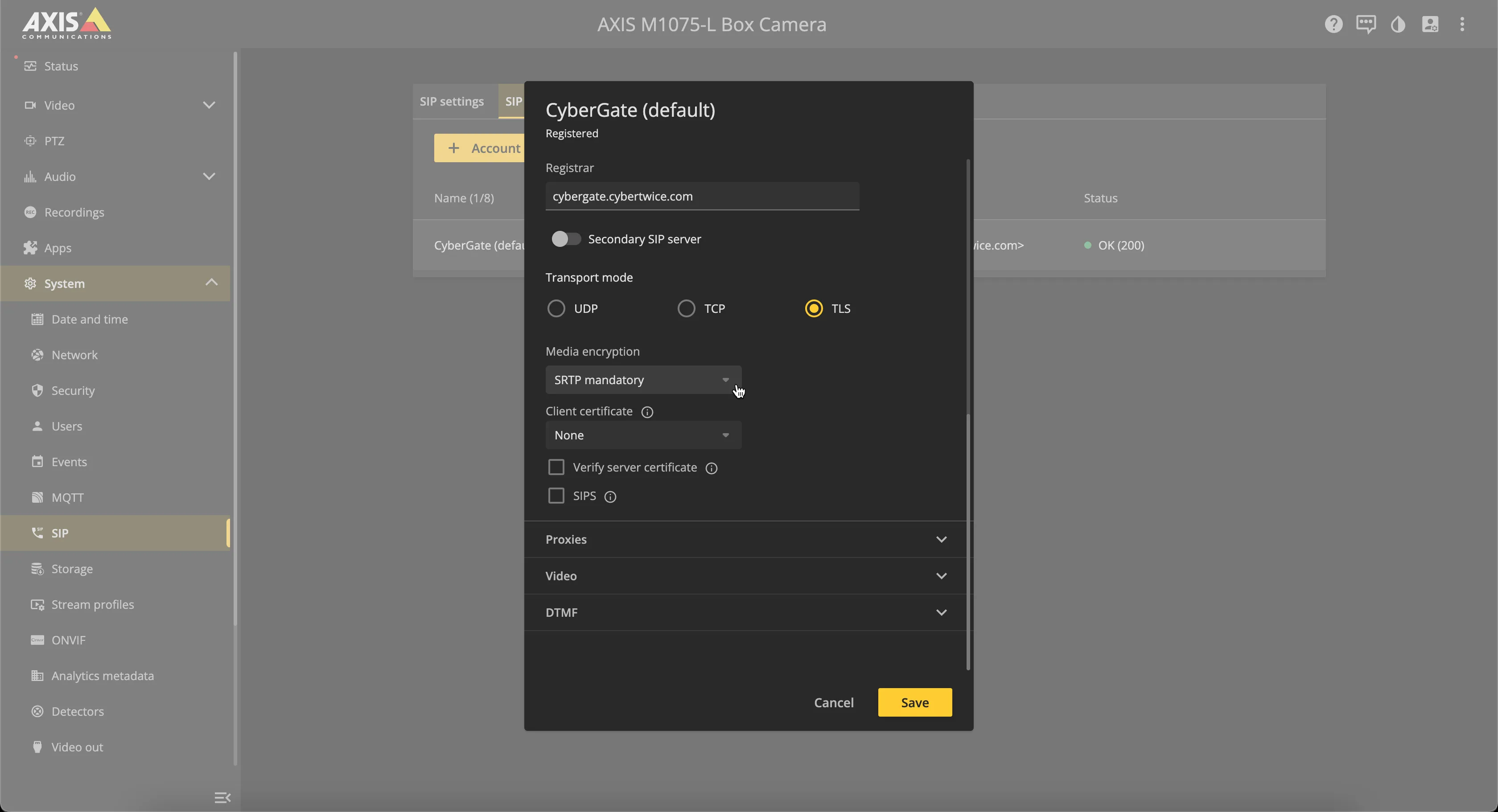
Secure SIP (optional) | |
Transport mode | Select TLS |
Media encryption | SRTP mandatory |
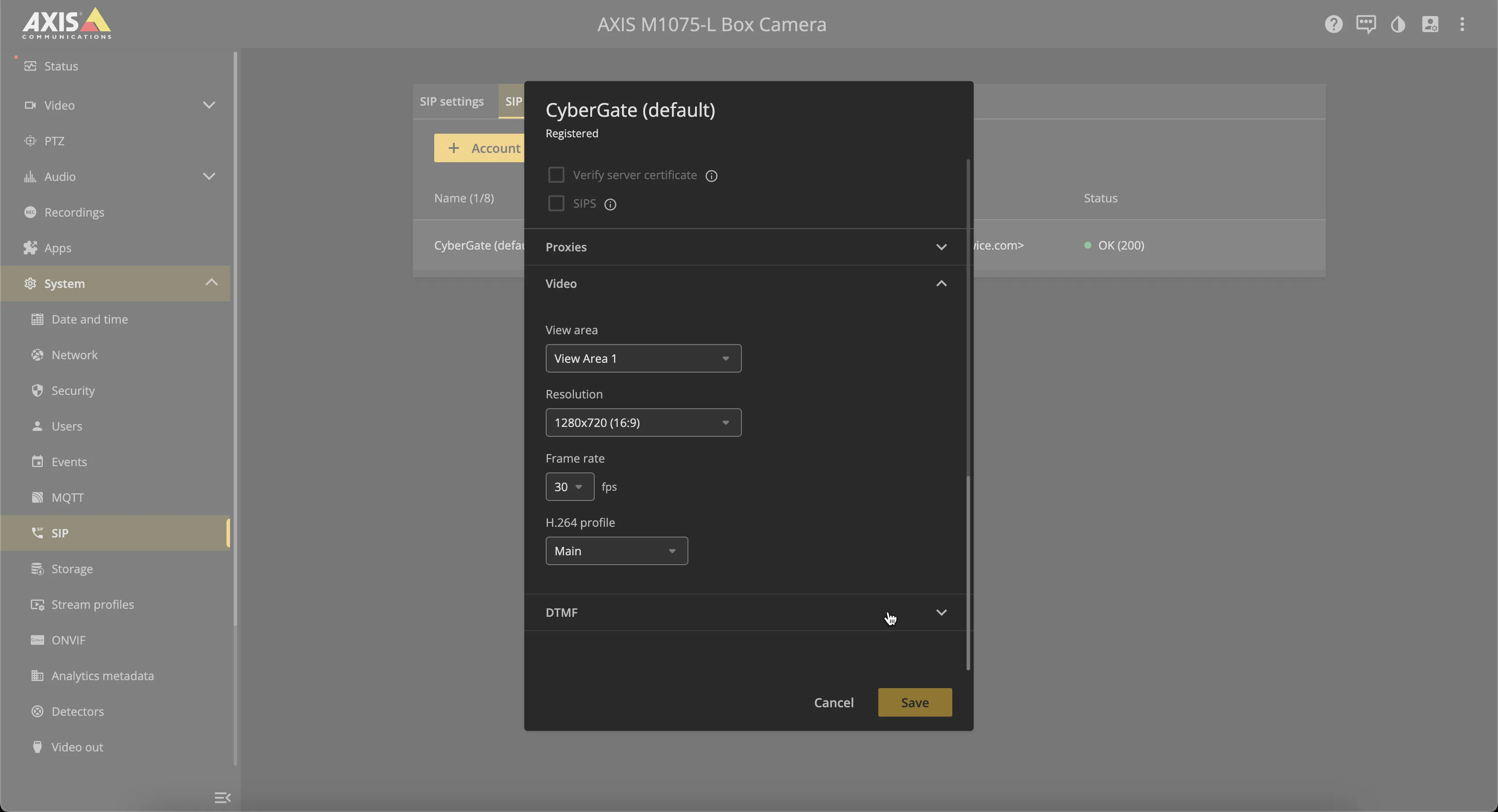
Video | |
Resolution | 1280x720 |
Click the yellow 'Save' button when done.
Audio settings
Navigate to Audio-Device settings:
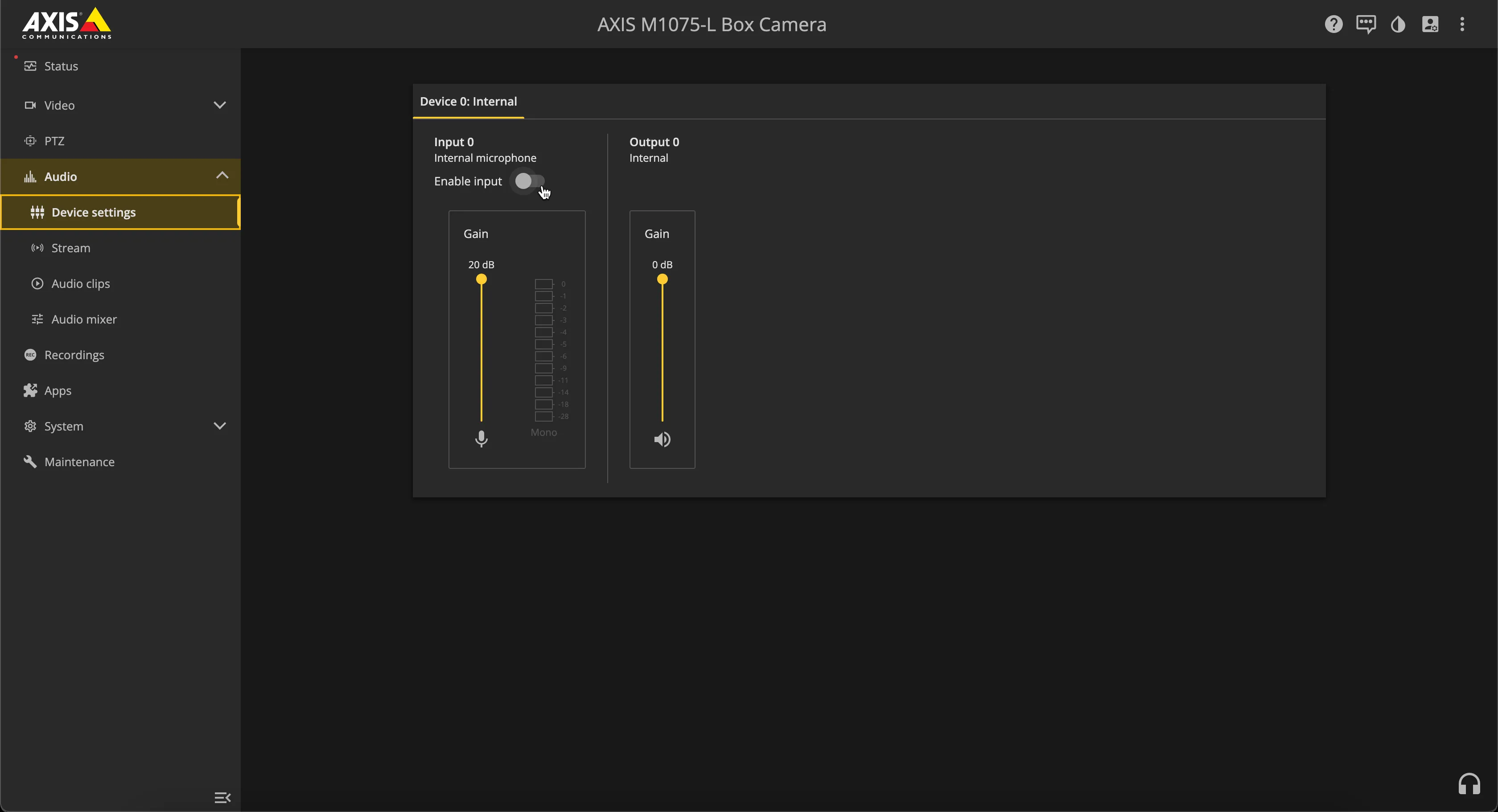
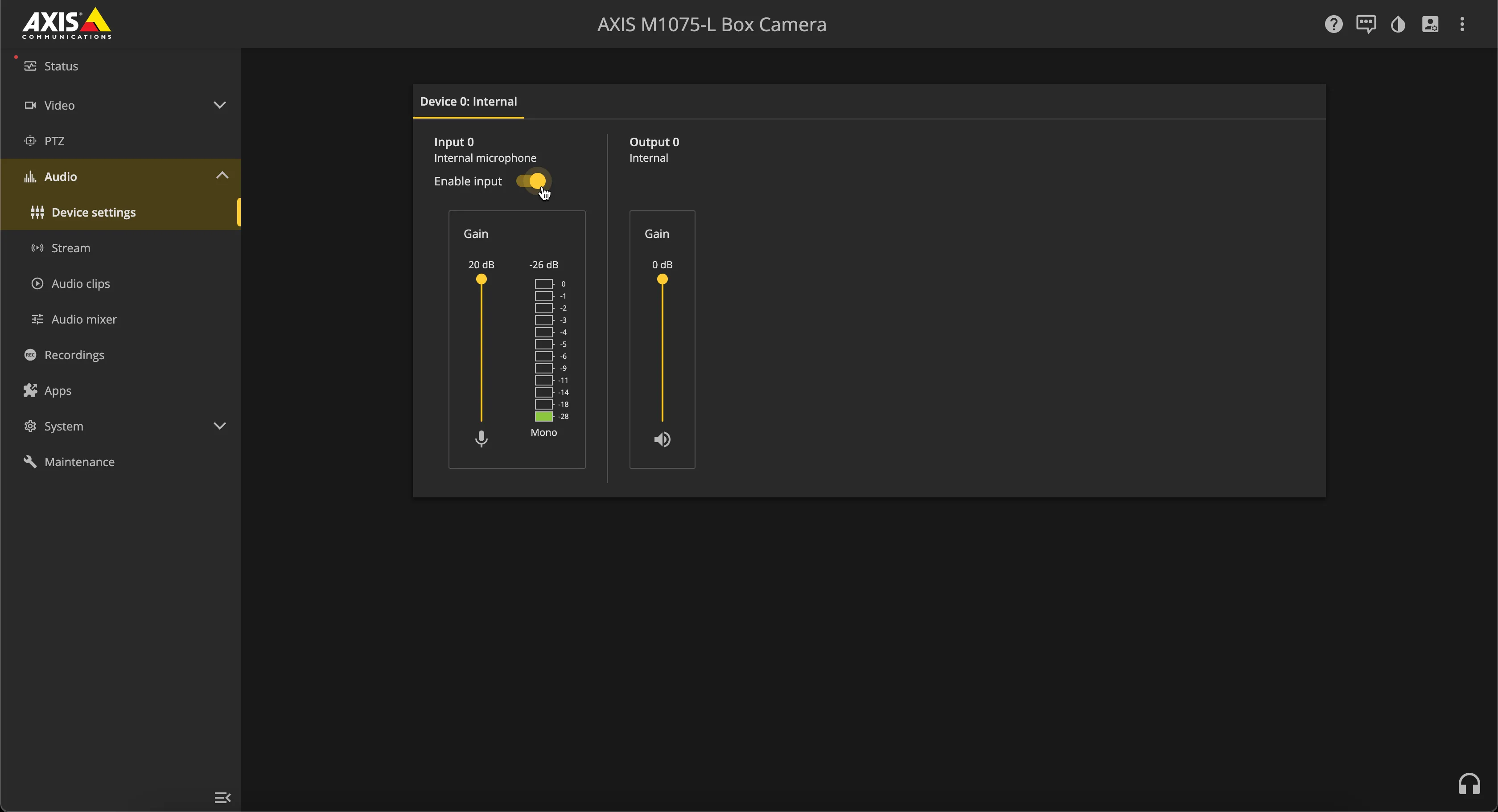
Enable the internal microphone input:
Call destination and rules-events
Navigate to System-Events:
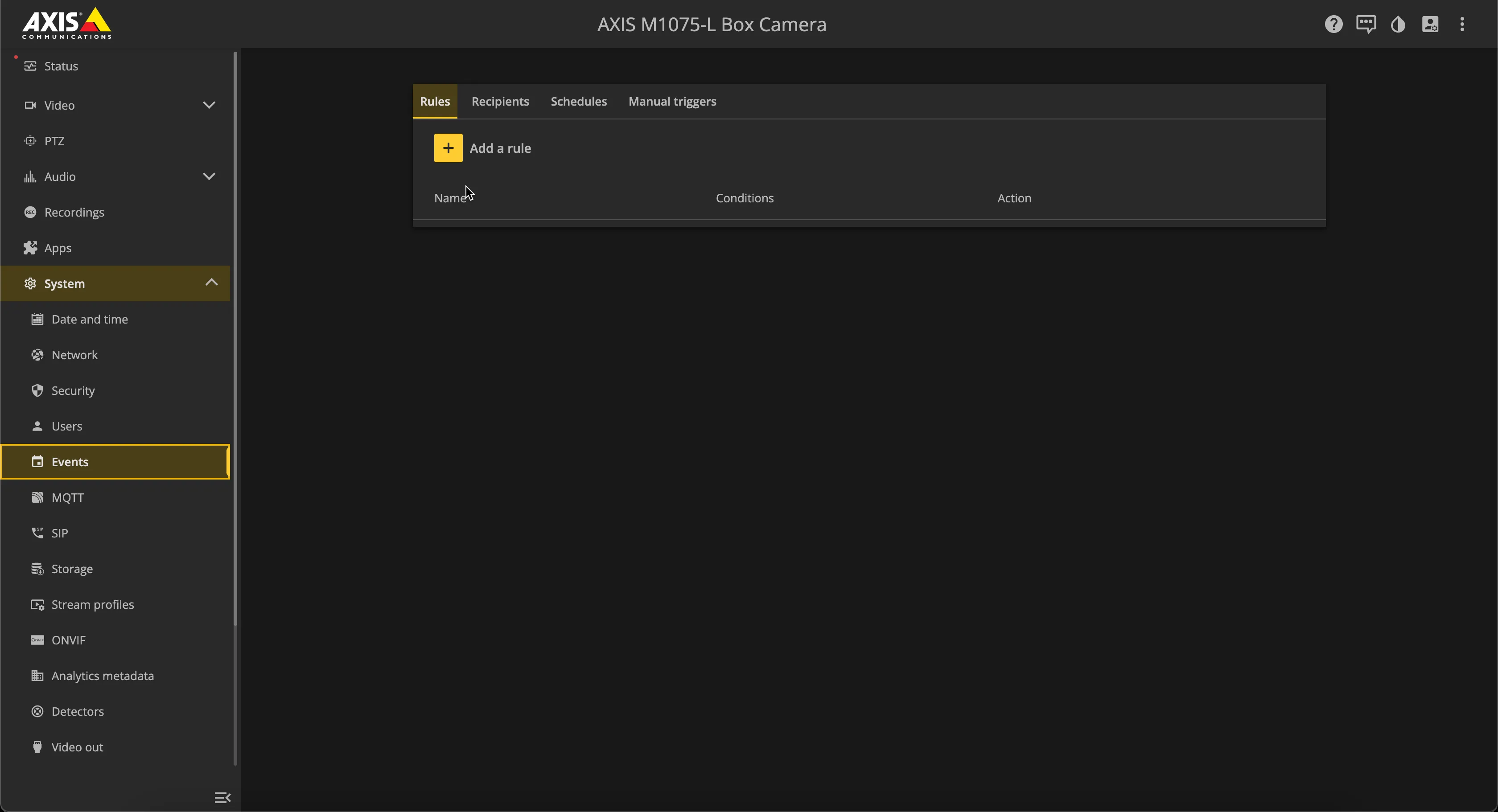
Navigate to Recipients to create a call destination:
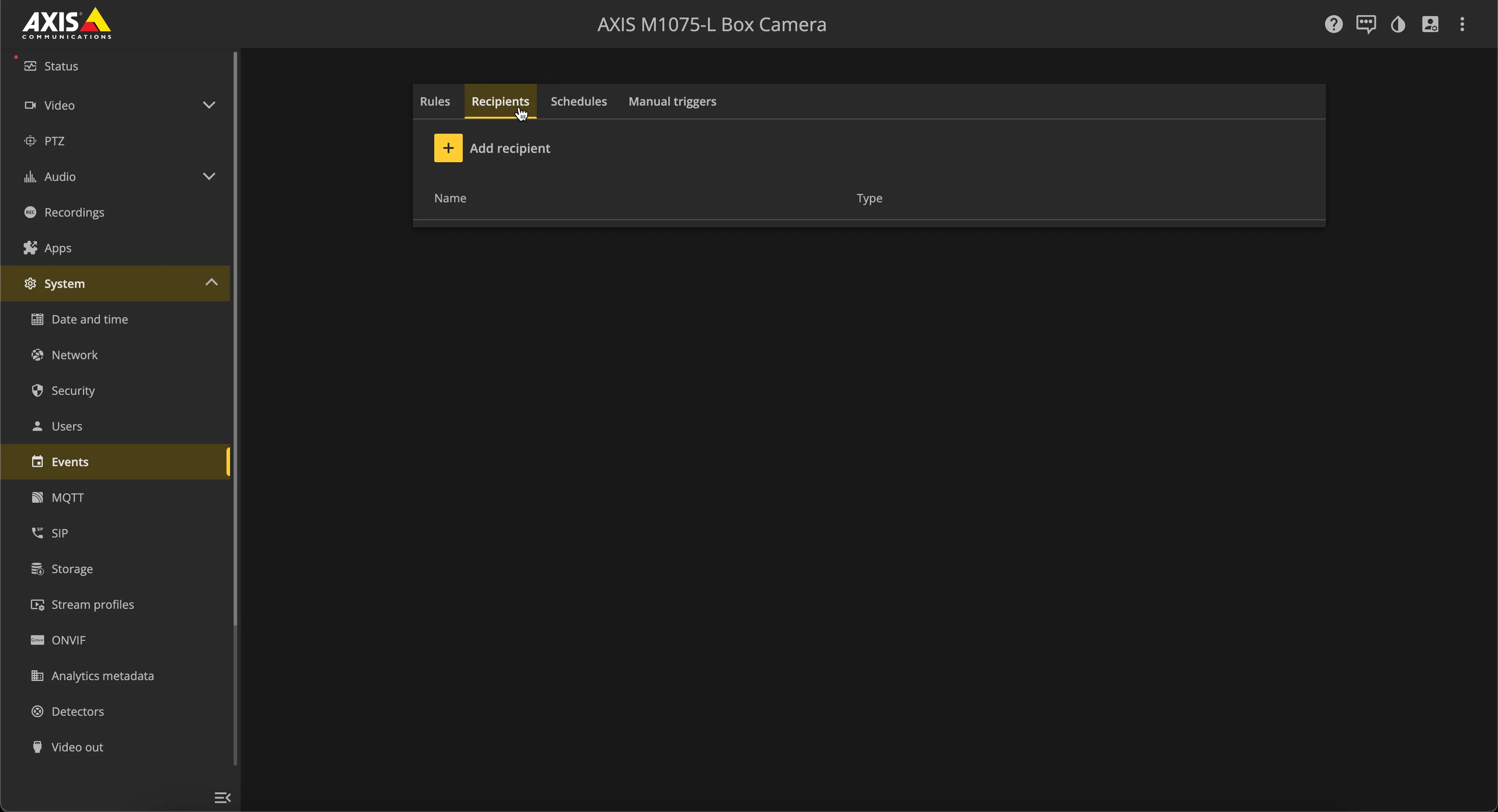
Click 'Add recipient':
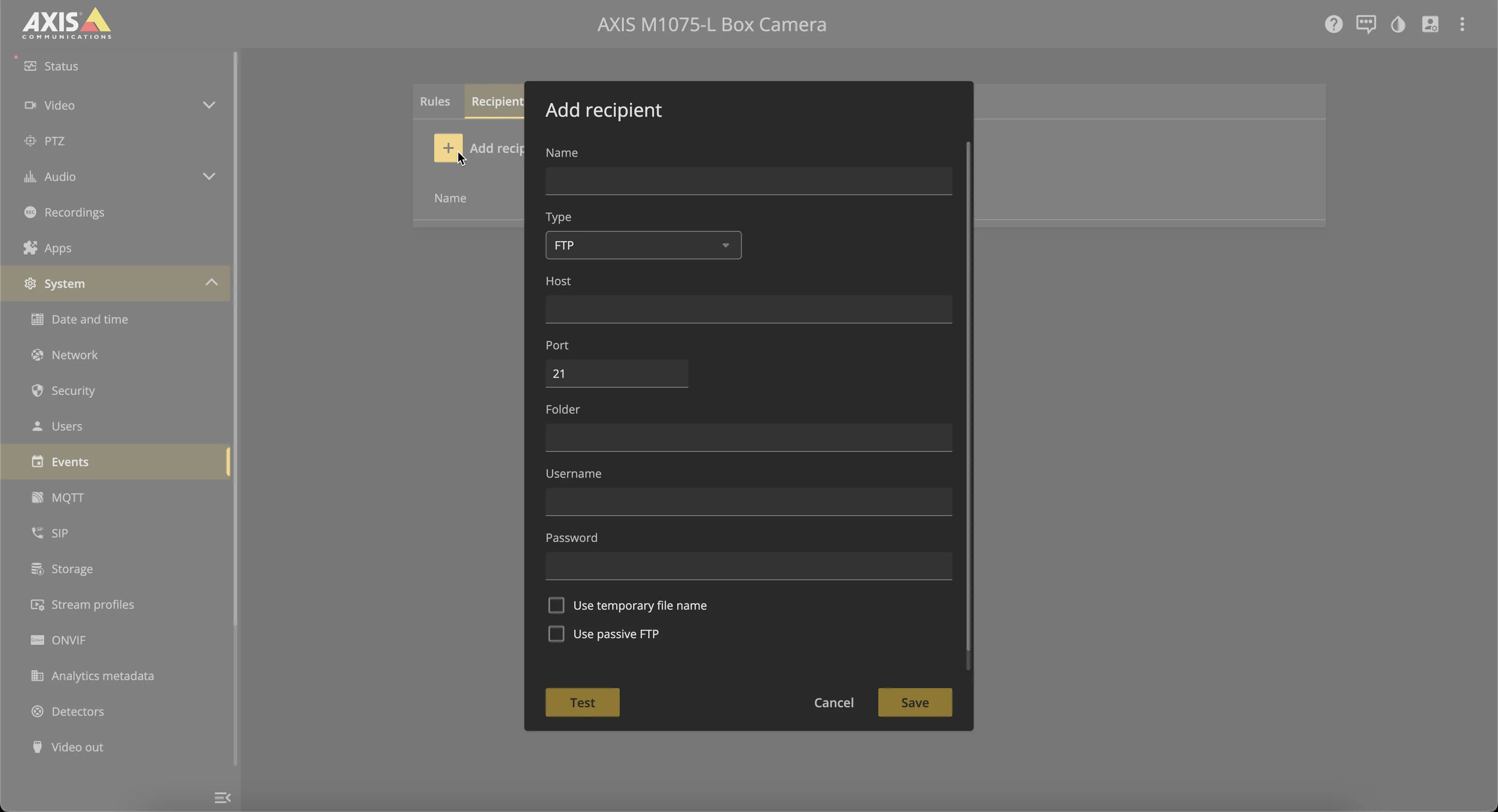
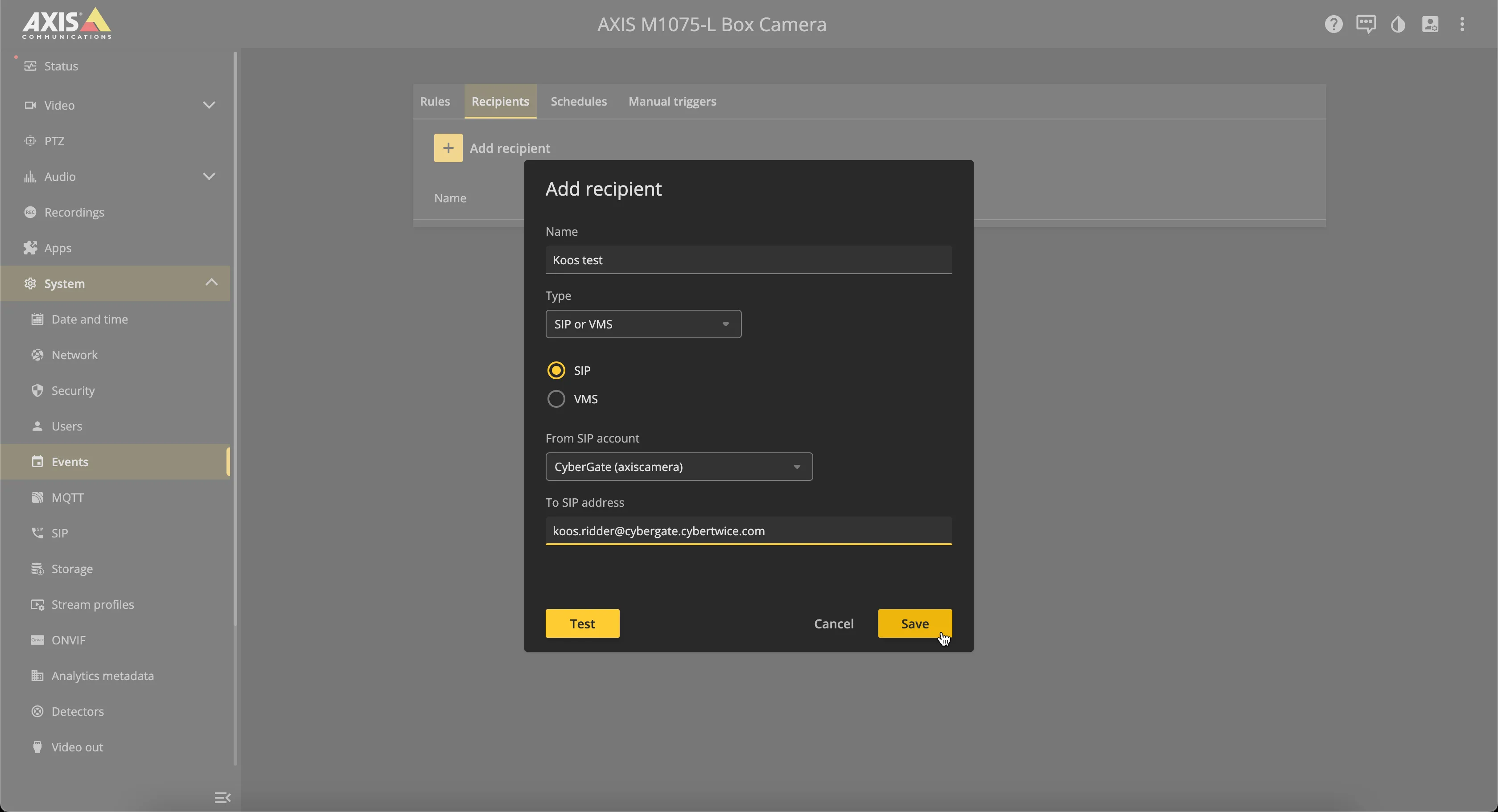
Provide / change the following information:
Name | Descriptive name of the recipient |
|---|---|
Type | Change to SIP/VMS |
SIP / VMS | Select SIP |
To SIP address | Use the Teams user address with the domain: cybergate.cybertwice.com * |
* For example, the user 'Koos Ridder', with the Teams name:
will translate to this destination address:
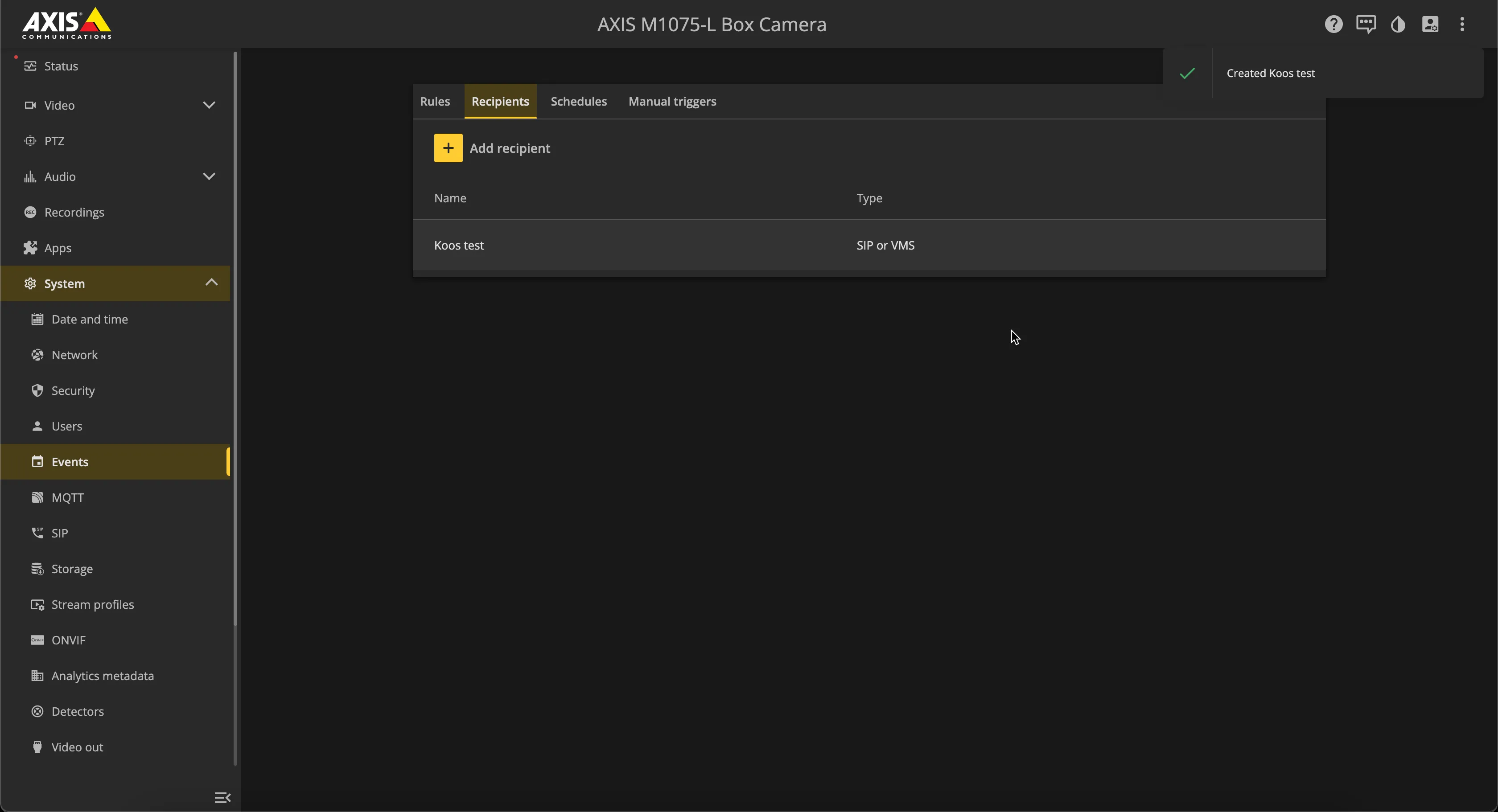
Click the yellow 'Save' button when done.
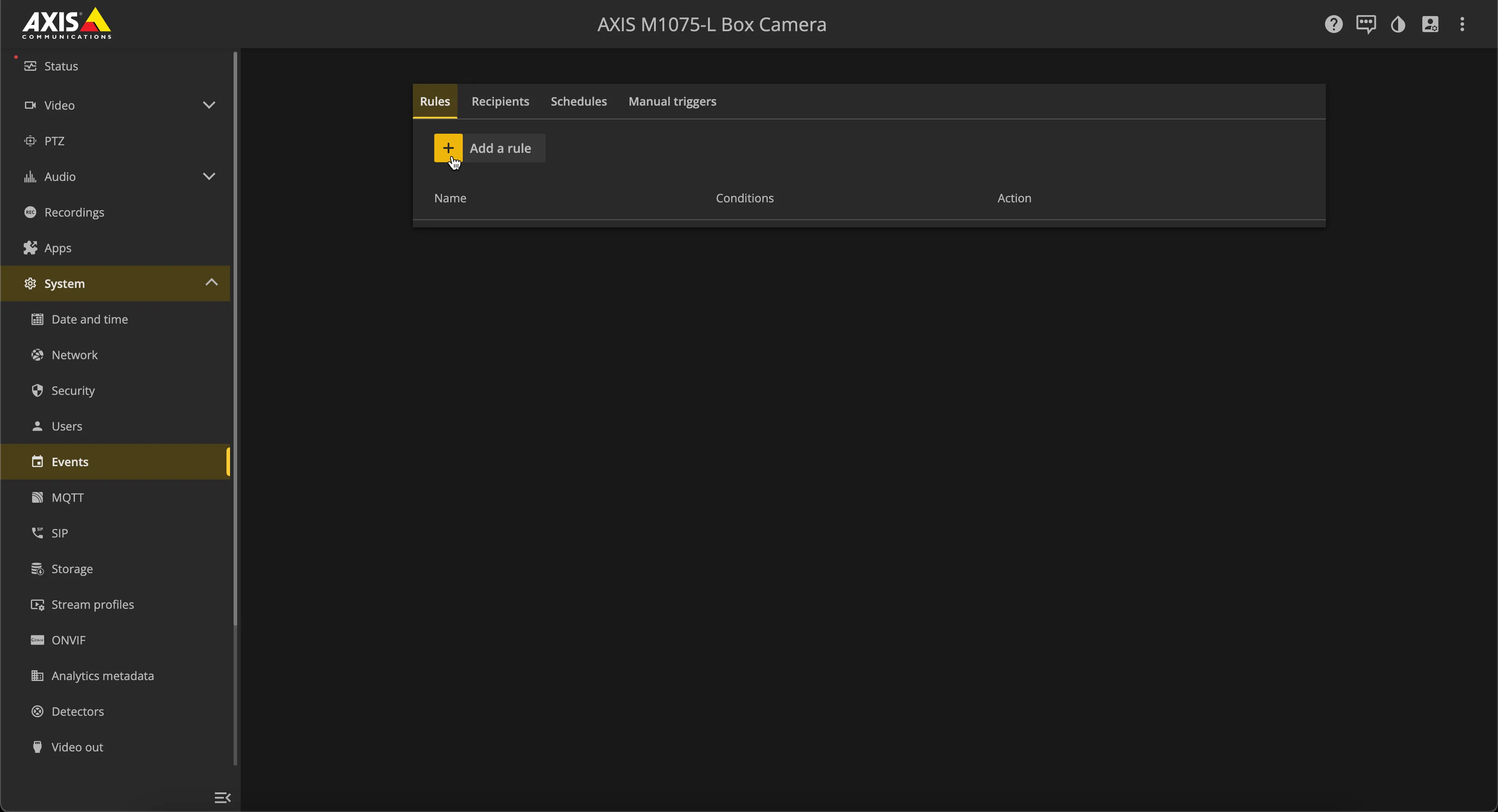
Navigate to the Rules:
Click 'Add rule':
Provide / change the following information:
Use this rule | Enable |
|---|---|
Name | Descriptive name for the rule, in this example 'Demo rule' |
Condition | Audio detection (example triggers a call to a Teams user when audio is detected) |
Action | Make a call |
Recipient | Select the recipient to call |
Click the yellow 'Save' button when done.
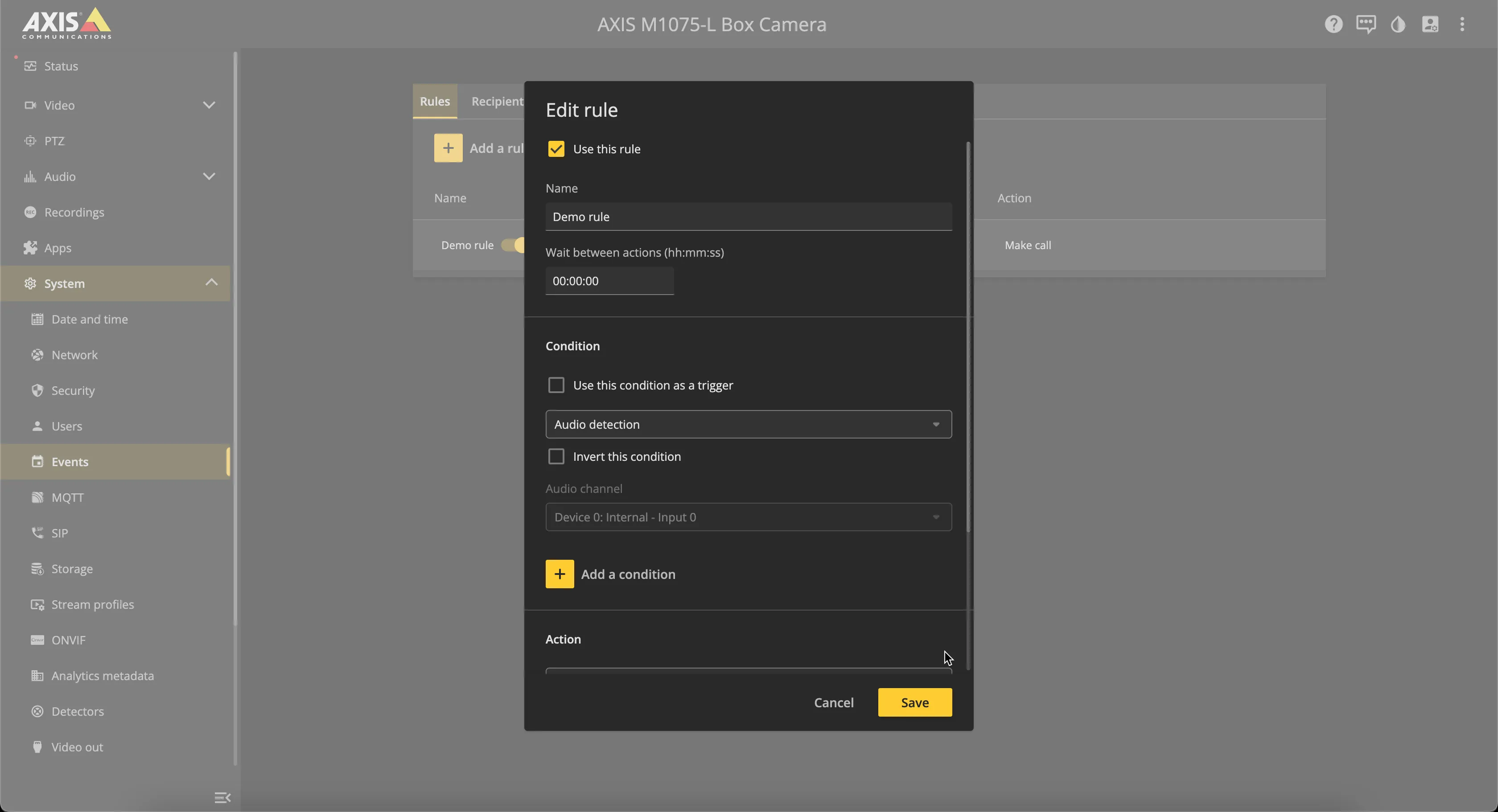
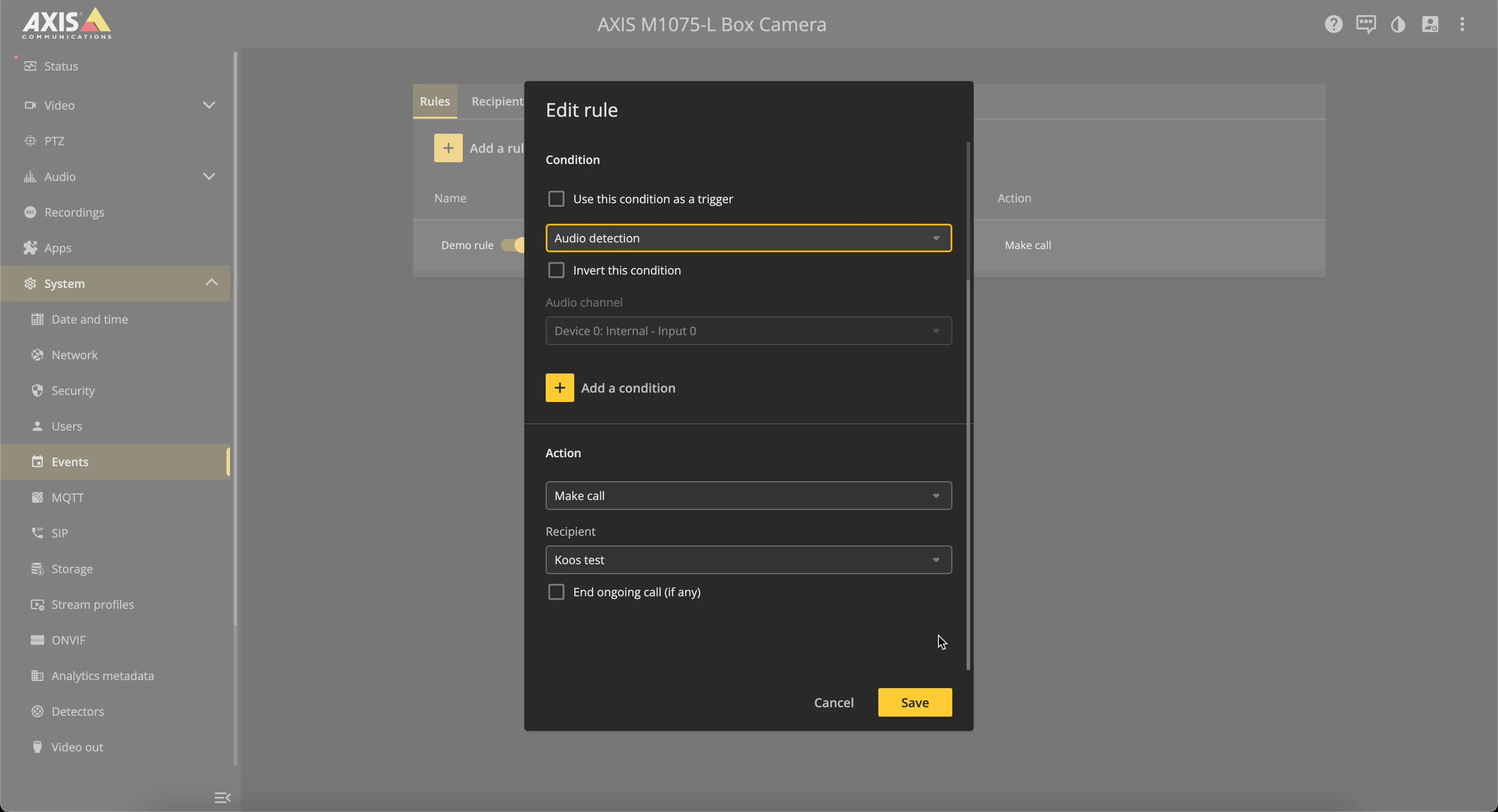
The rule is in place. As soon as the Axis camera detects sound, it will trigger the event and call the configured recipient in Microsoft Teams.
You can modify the events to match your needs, as this is just an example of how to create an outgoing call.
It is also possible to initiate a call from Microsoft Teams to the Axis camera. Before calls can be initiated from Microsoft Teams to the Axis, additional configuration in the CyberGate Admin portal is necessary.
See the CyberGate Management Portal - DeviceCyberGate Management Portal manual on how to enable the 'Teams to device' feature.
To initiate a call from Microsoft Teams, use the CyberGate for Microsoft Teams app.
CyberGate App for Microsoft Teams
The CyberGate App for Microsoft Teams offers more CyberGate features directly from Microsoft Teams. One of these features is the option to initiate a call from Teams to a device such as the AXIS camera.
For a description on how to install the CyberGate app and use the Device calling feature, please see the CyberGate App for TeamsCyberGate App for Teams manual.