AXIS Network Audio and CyberGate
AXIS Network Audio and CyberGate
Supported AXIS devices
This guide uses the following AXIS Network Audio devices to connect to the CyberGate service (from now on named 'CyberGate'):
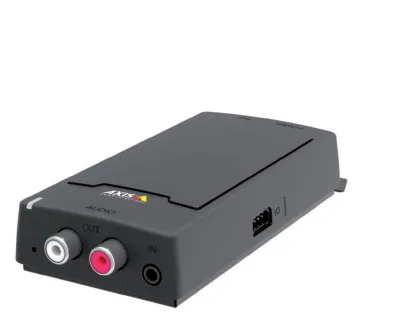
- AXIS C8110 Network Audio Bridge
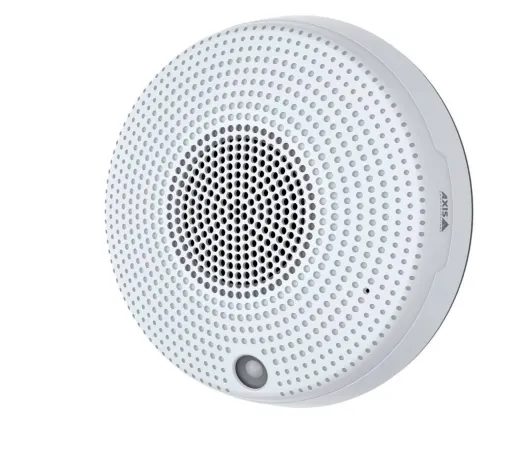
- AXIS C1410 Network Mini Speaker
All other AXIS Network Speakers and AXIS Audio System Devices are also compatible with CyberGate.
What this guide covers
- Configure a single AXIS device — connect a stand-alone AXIS device (the AXIS C1410 Network Mini Speaker in this example) to CyberGate.
- Call the AXIS device from Microsoft Teams — the additional CyberGate Admin portal configuration needed to call the device from Teams.
- Call multiple AXIS devices simultaneously with AXIS Audio Manager Edge — extend the single-device configuration so that a call also sounds on an AXIS C8110 Network Audio Bridge.
Installation of the CyberGate app for Microsoft Teams is highly recommended. Use the app to:
- See the status of your device and call the device from Teams with one click
- Set your Availability status in a configured CyberGate Multi-ring group with one click
Configure a single AXIS device
This part of the guide uses an AXIS C1410 Network Mini Speaker as a stand-alone device connected to CyberGate.
Connect the AXIS device
- Connect the AXIS device to the network and power it on.
- Open a web browser to the IP address of the device.
- Sign in with the configured or supplied password of the AXIS device.
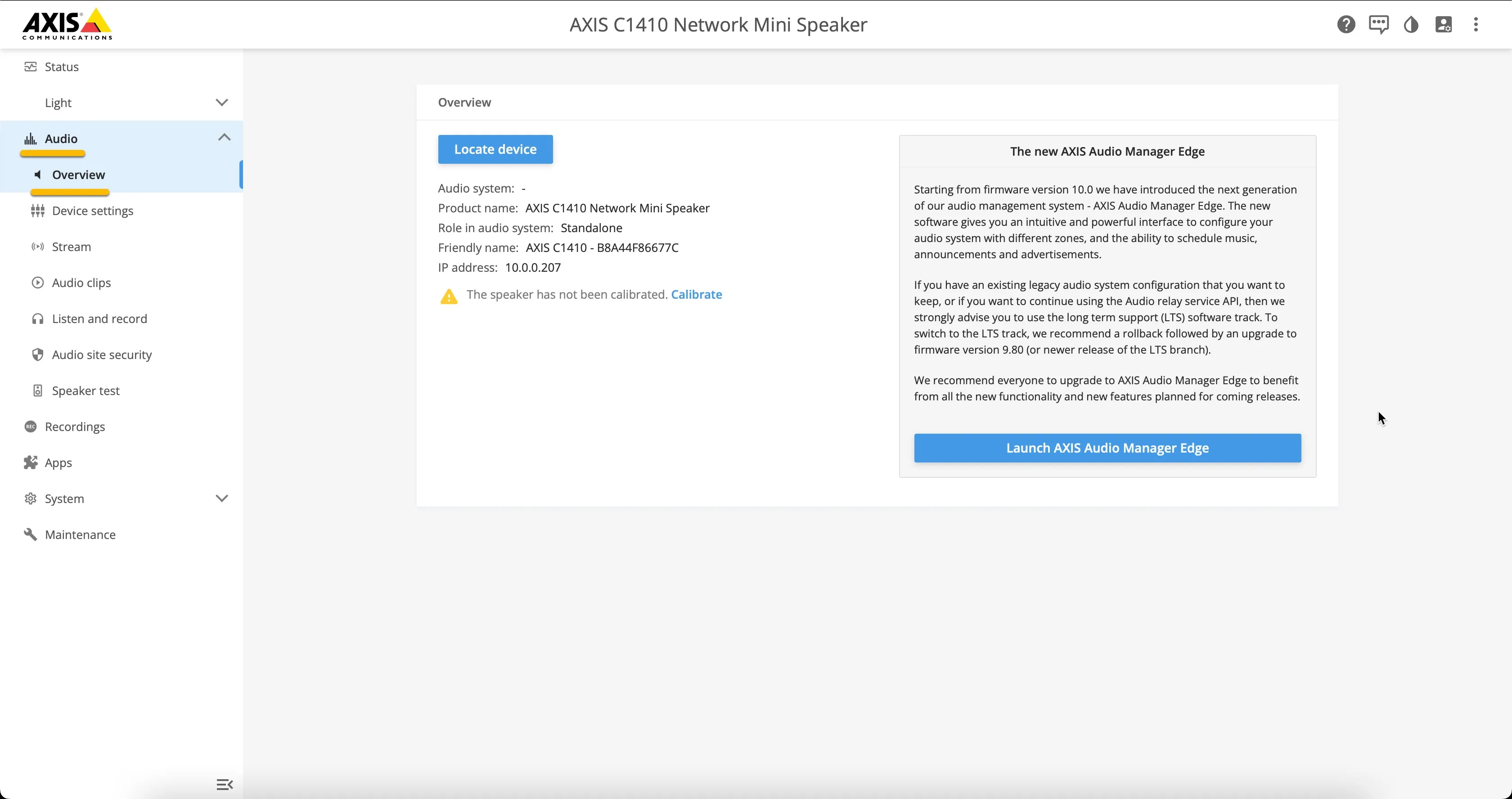
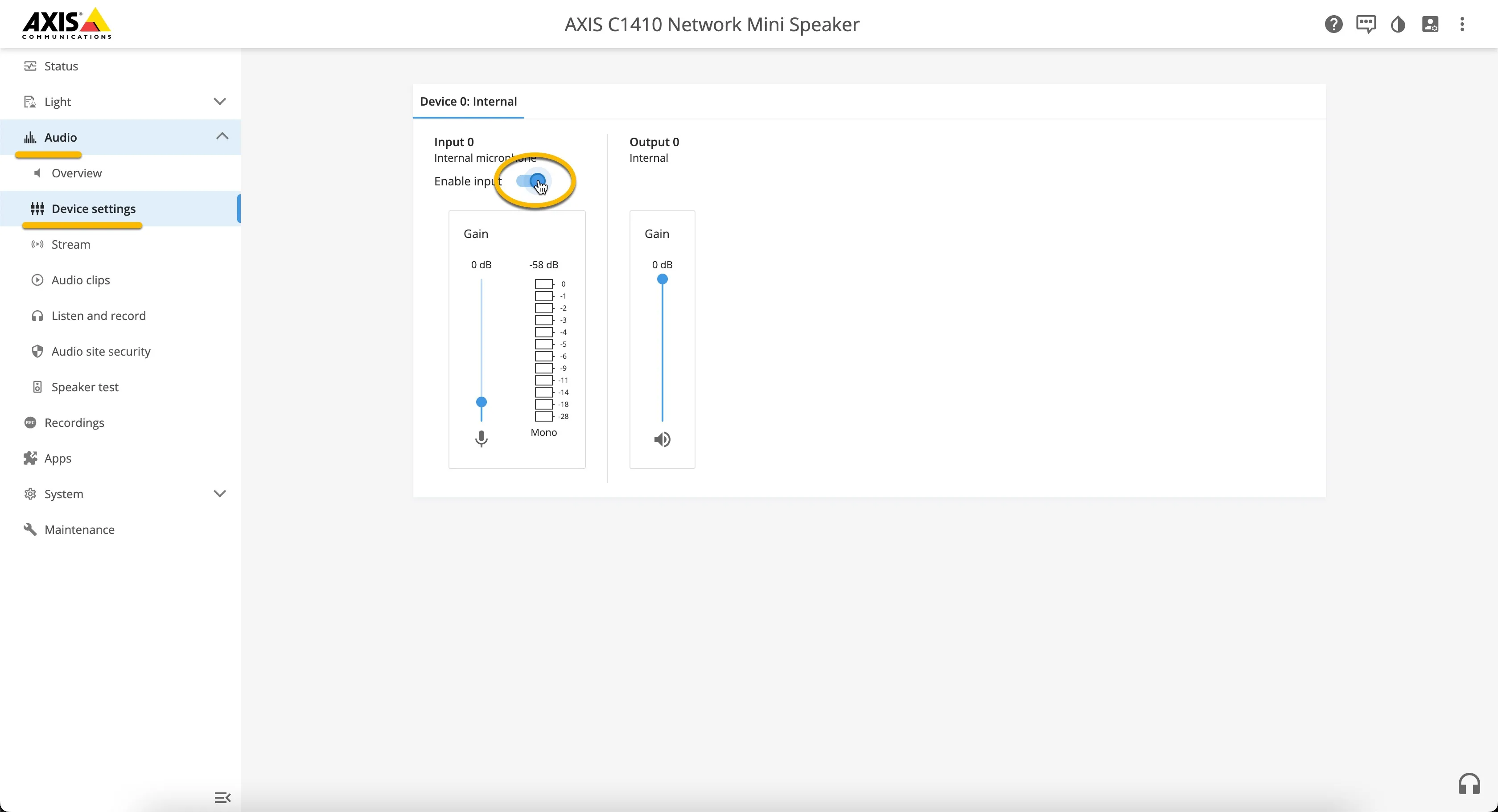
Enable the internal microphone
- Navigate to the Audio – Device Settings menu.
- Enable the internal microphone input.
Configure the SIP settings
- Navigate to the System – SIP - SIP settings menu.
- Provide or change the following information:
Setting | Value |
|---|---|
Enable SIP | Enable |
Allow incoming SIP calls | Enable |
Audio | |
G.722 | Enable G.722 and move it to the top of the list |
Opus | Enable Opus and move it below G.722 |
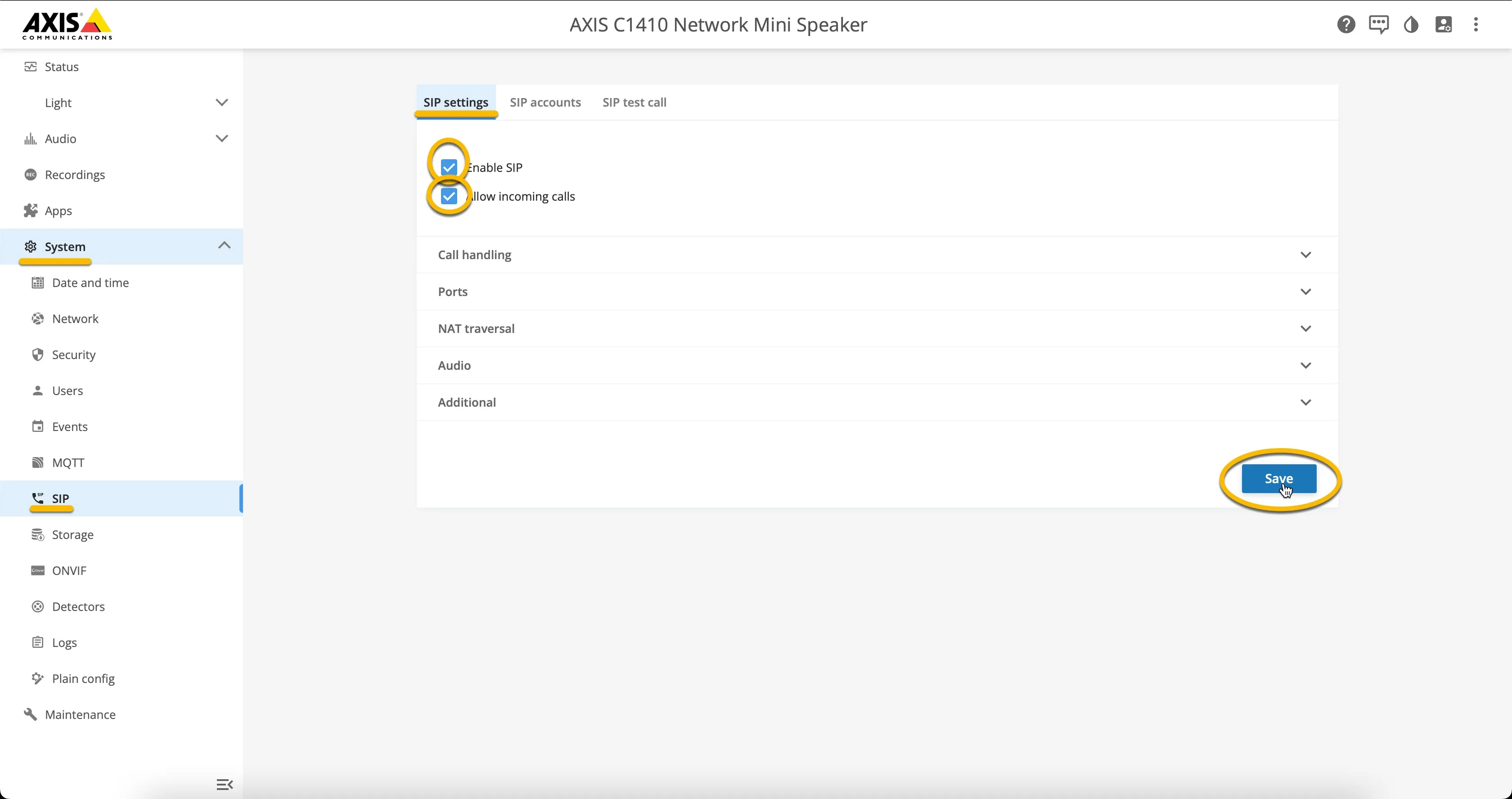
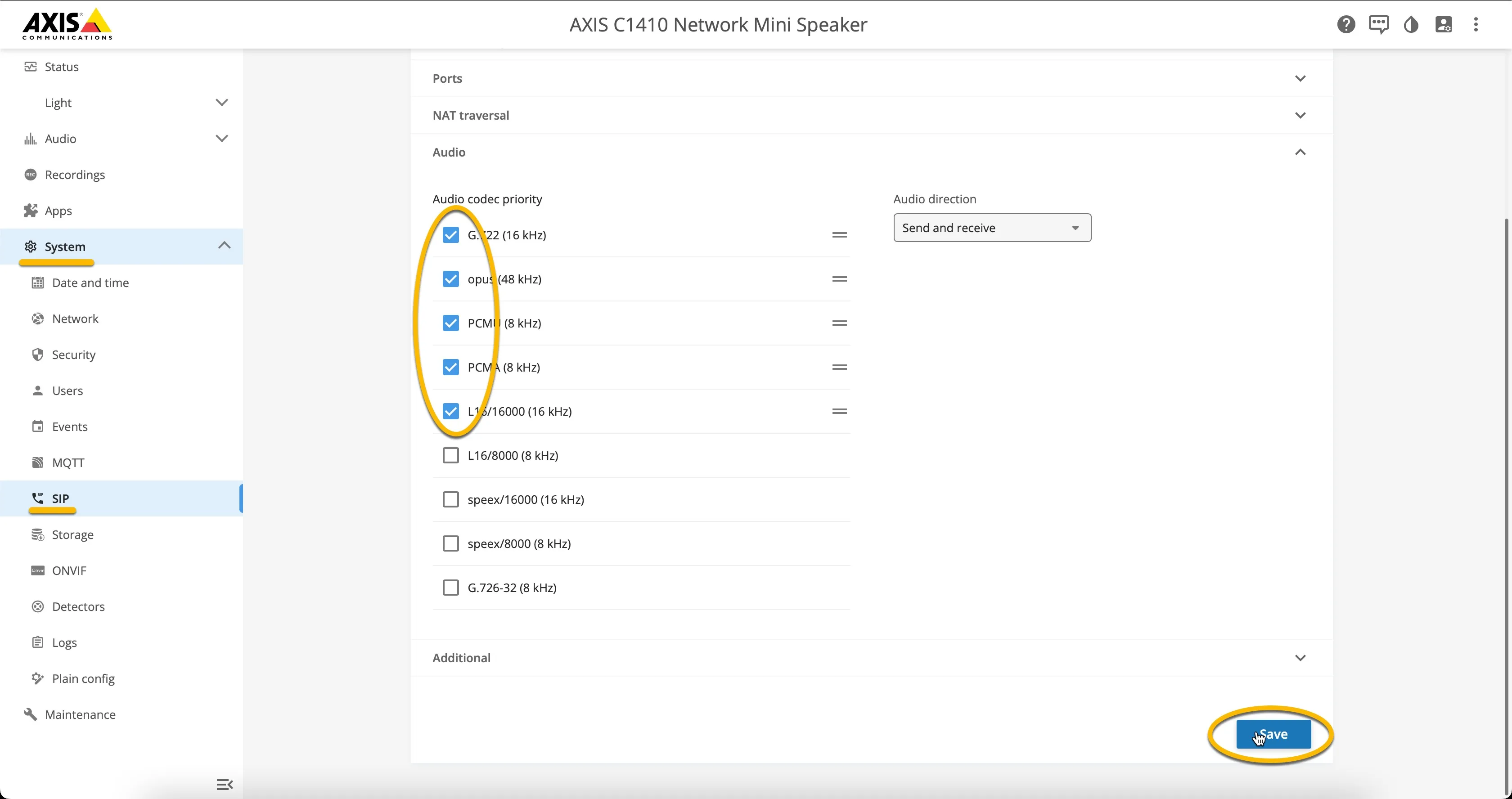
- Click the blue Save button when done.
Add the CyberGate SIP account
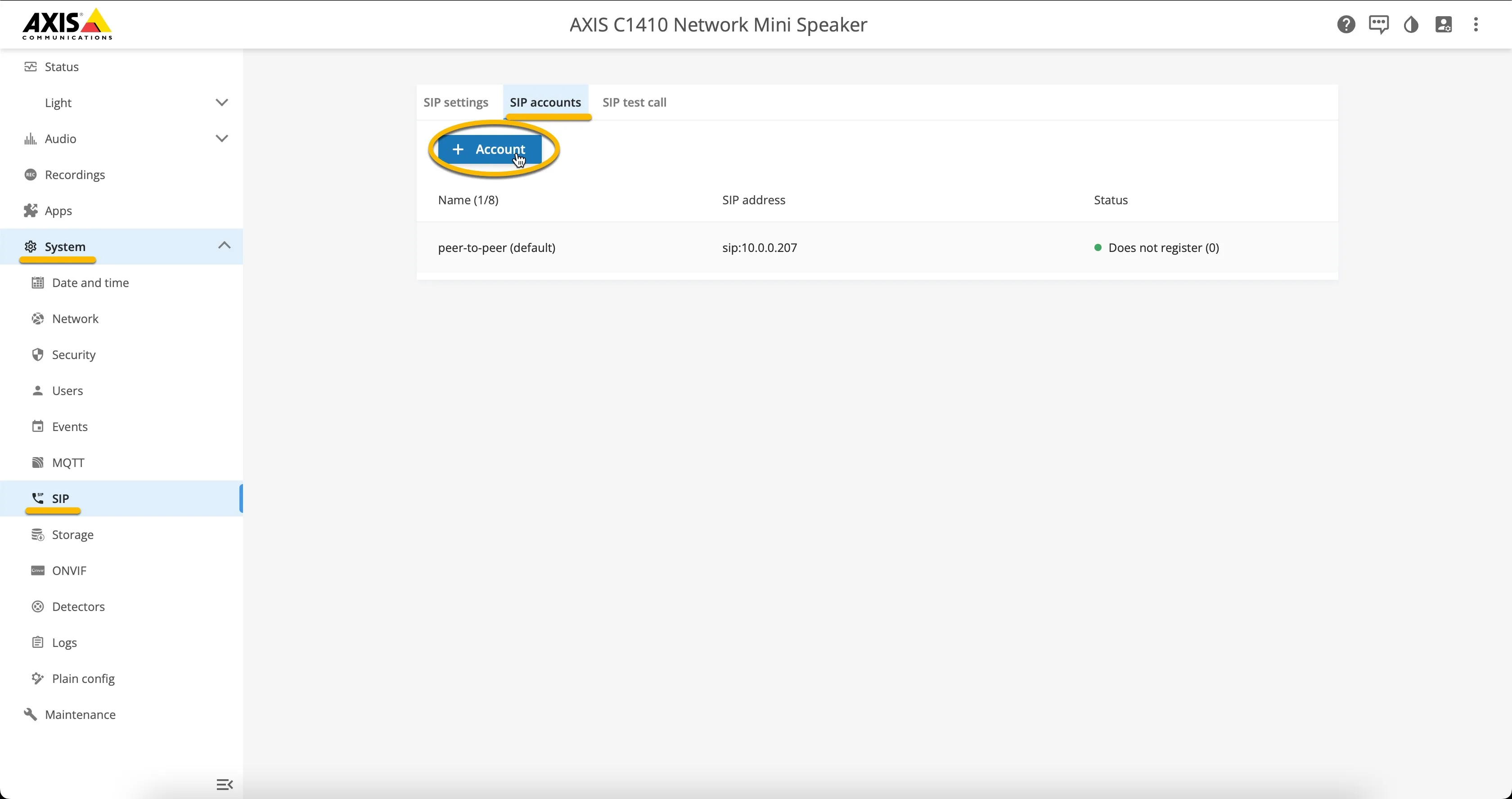
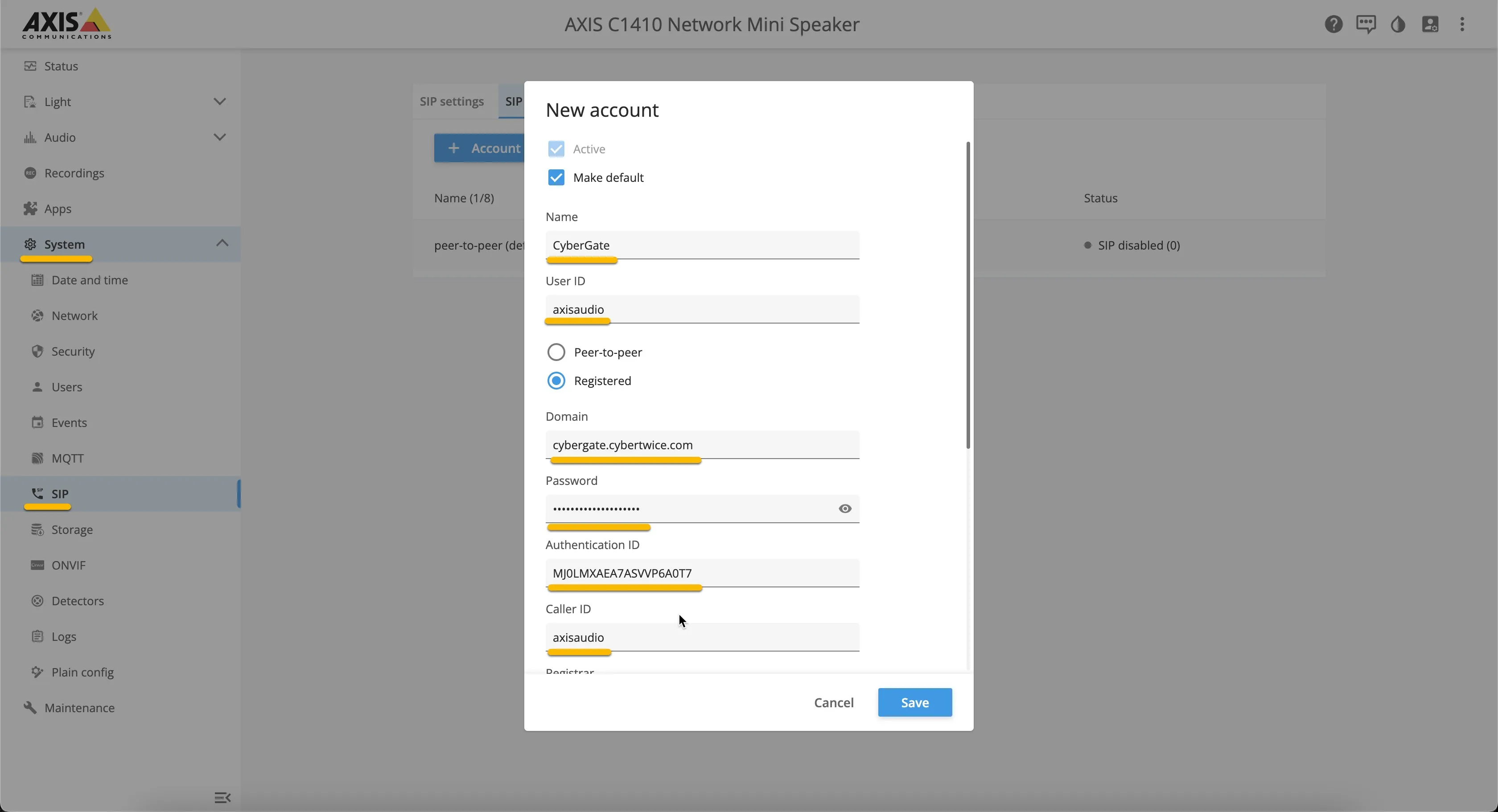
- Navigate to System – SIP - SIP accounts.
- Add a new account and provide or change the following information:
Setting | Value |
|---|---|
Active | Enable |
Make default | Enable |
Name | Name this SIP account entry, in this example 'CyberGate' |
User ID | Define a name for this device (spaces not allowed) |
Domain | cybergate.cybertwice.com |
Password | Use the Password provided by the CyberGate Management Portal |
Authentication ID | Use the Username provided by the CyberGate Management Portal |
Caller ID | Use the same name as used in the User ID field |
Registrar | cybergate.cybertwice.com |
Transport mode | Select TCP |
Secure SIP (optional) | |
Transport mode | Select TLS |
Media encryption | SRTP mandatory |
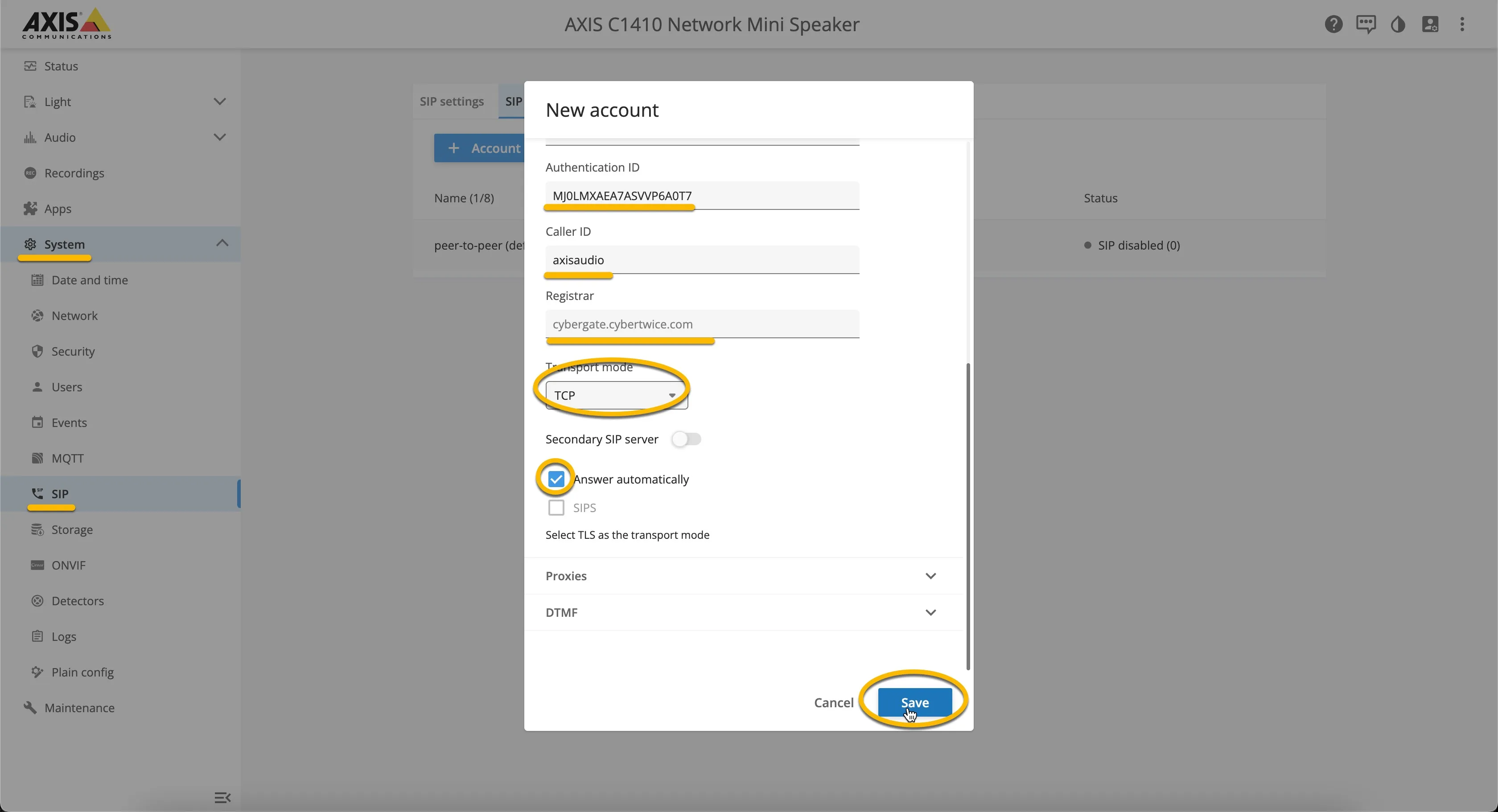
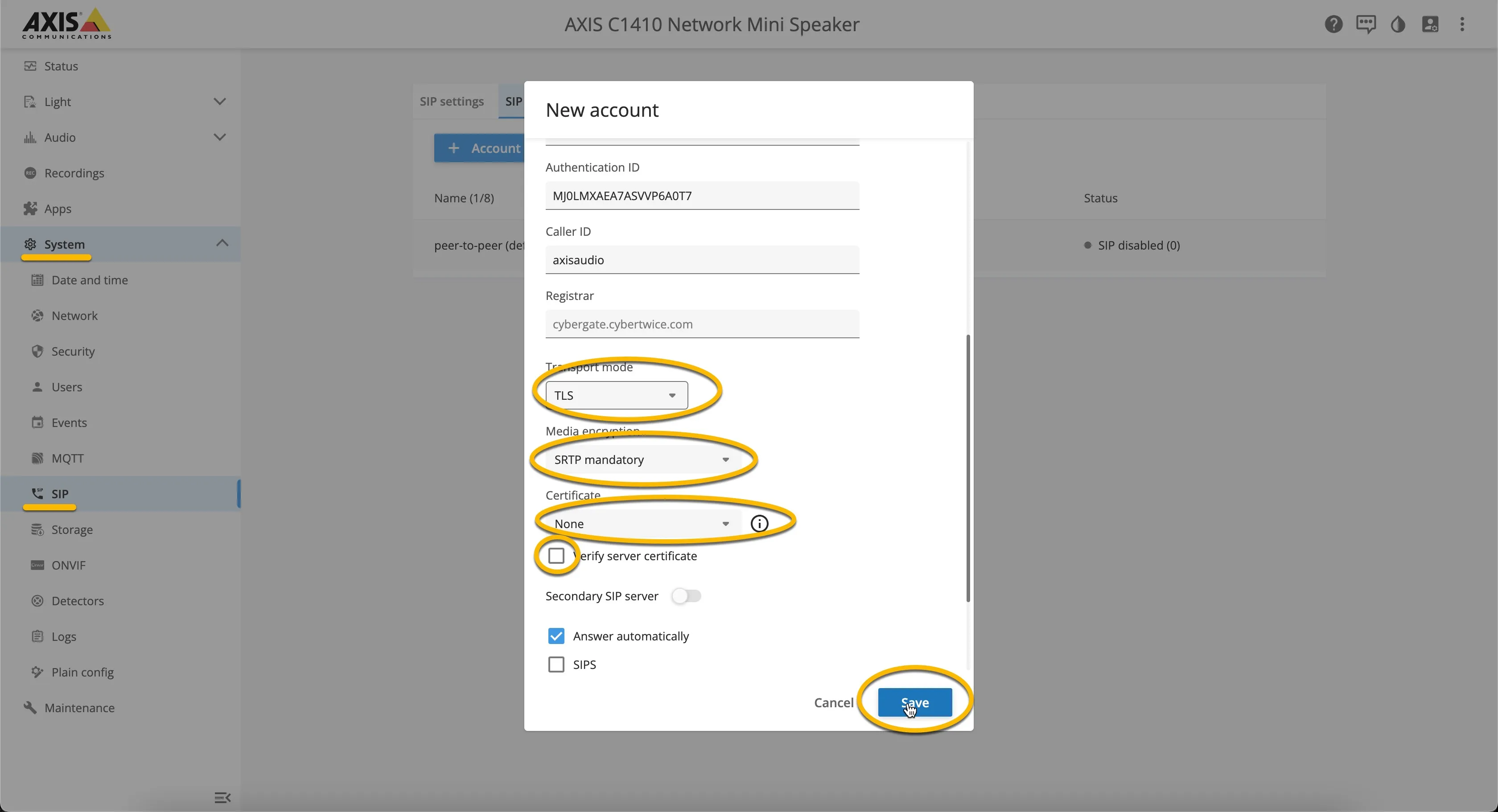
- Click the blue Save button when done.
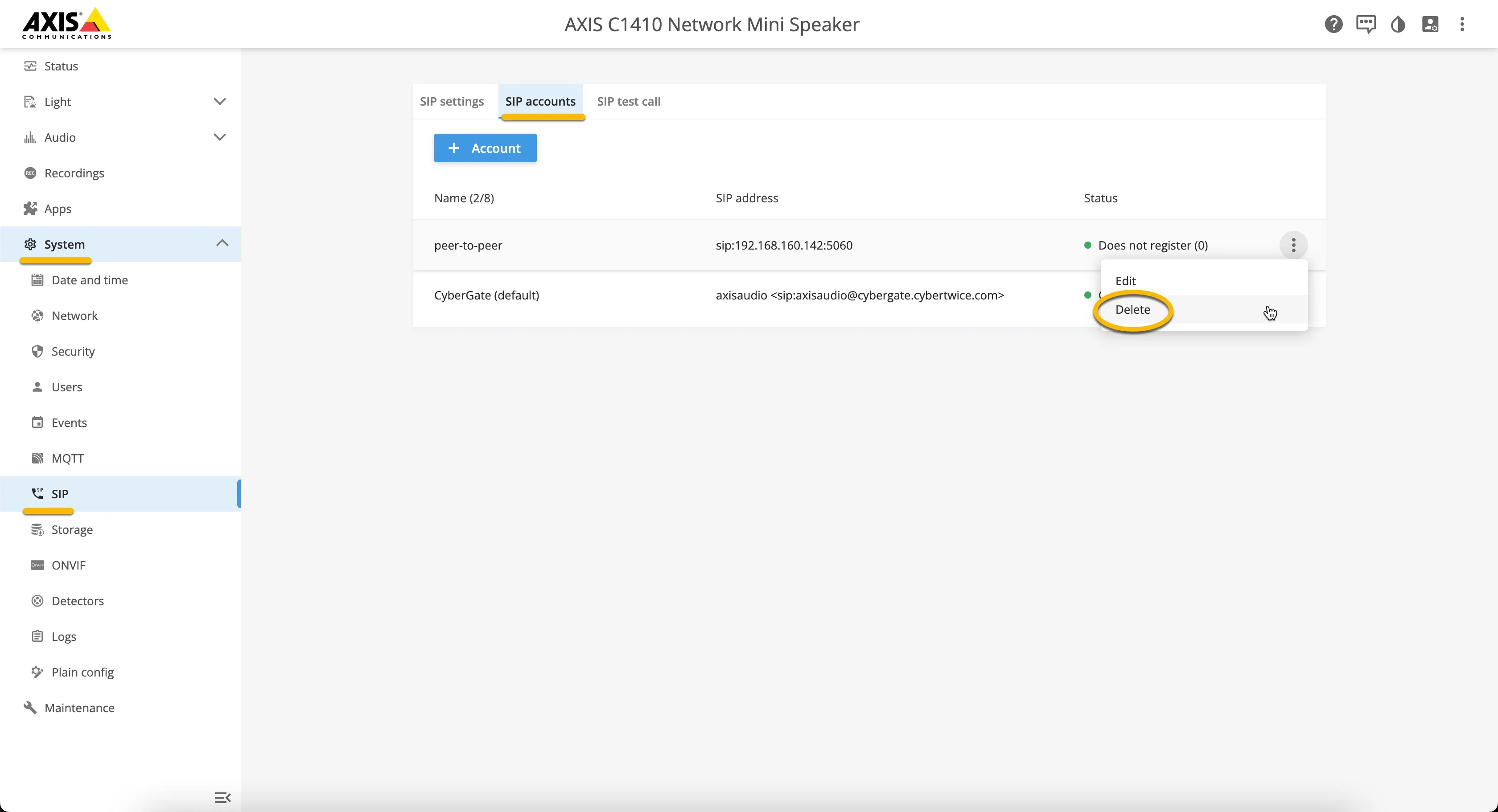
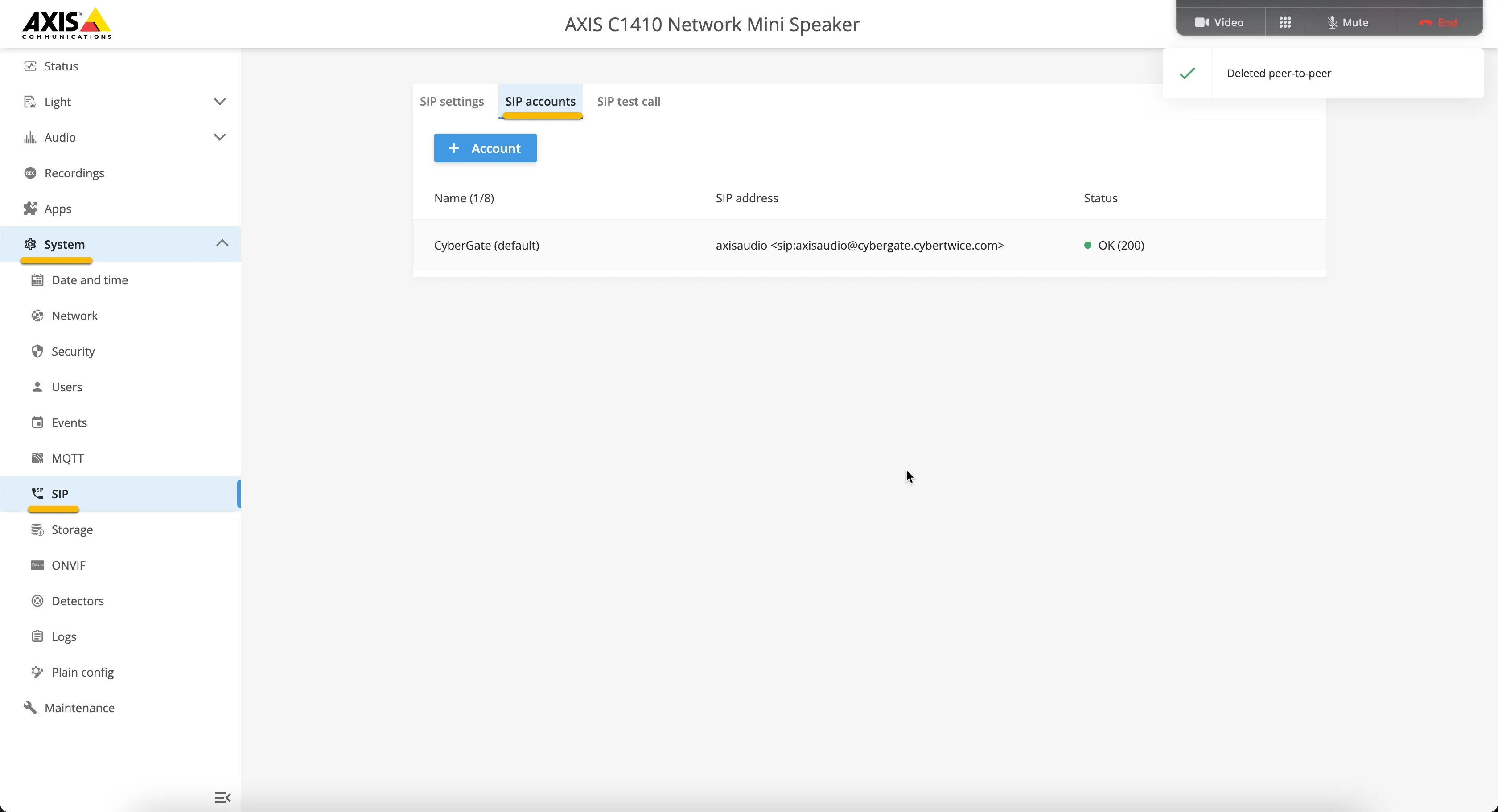
Remove the default peer-to-peer account
Click on the three vertical dots next to the default peer-to-peer account and select delete to remove it.
Add a Microsoft Teams user as call recipient
To configure the AXIS device to call a Microsoft Teams user, first add that user as a recipient:
- Navigate to the System – Events menu.
- Navigate to Recipients.
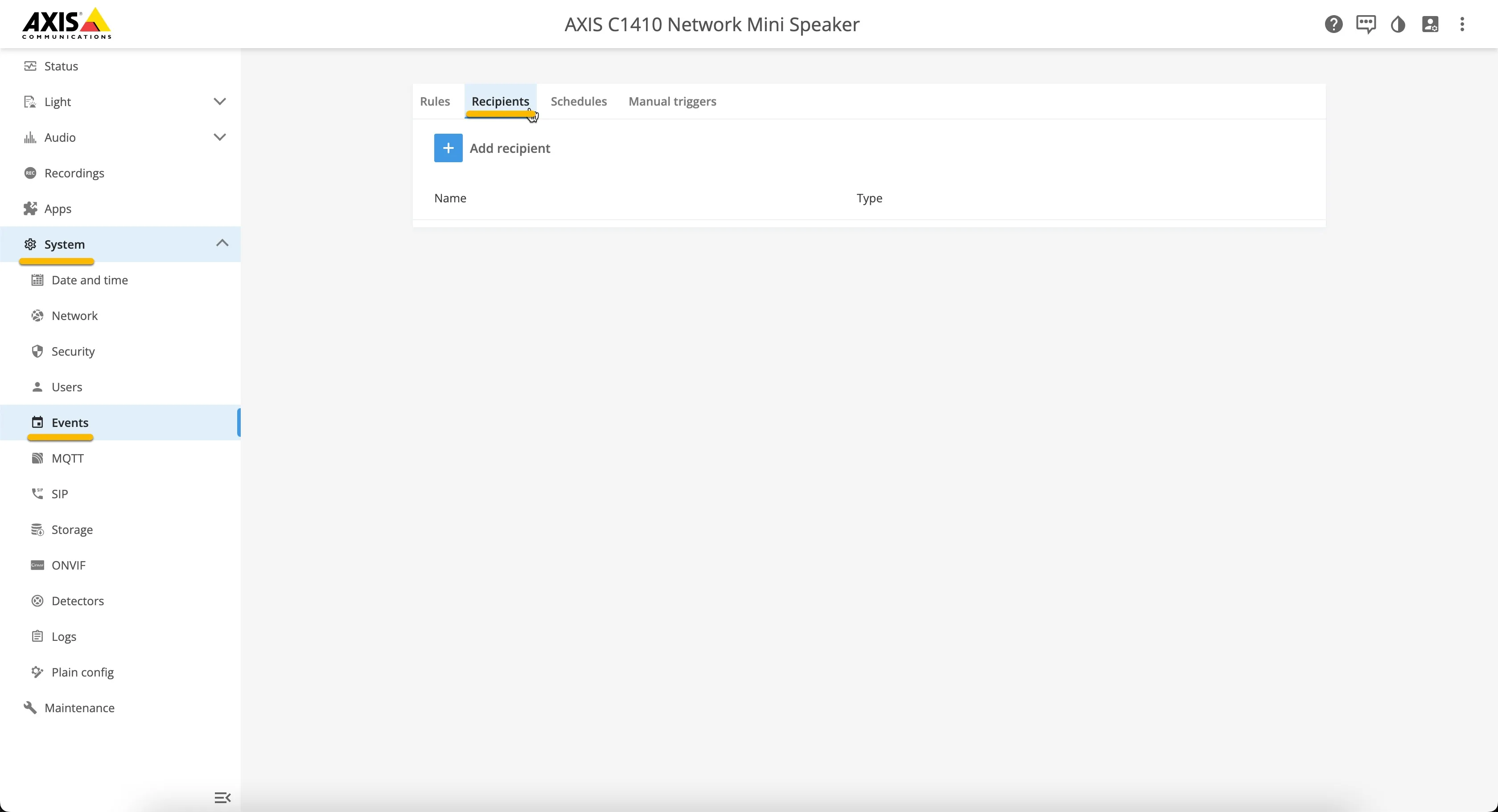
- Add a new recipient and provide or change the following information:
Setting | Value |
|---|---|
Name | Descriptive name of the recipient |
Type | Change to SIP |
To SIP address | Use the Teams user address with the domain: cybergate.cybertwice.com * |
* For example, the user 'Koos Ridder', with the Teams name:
will translate to this destination address:
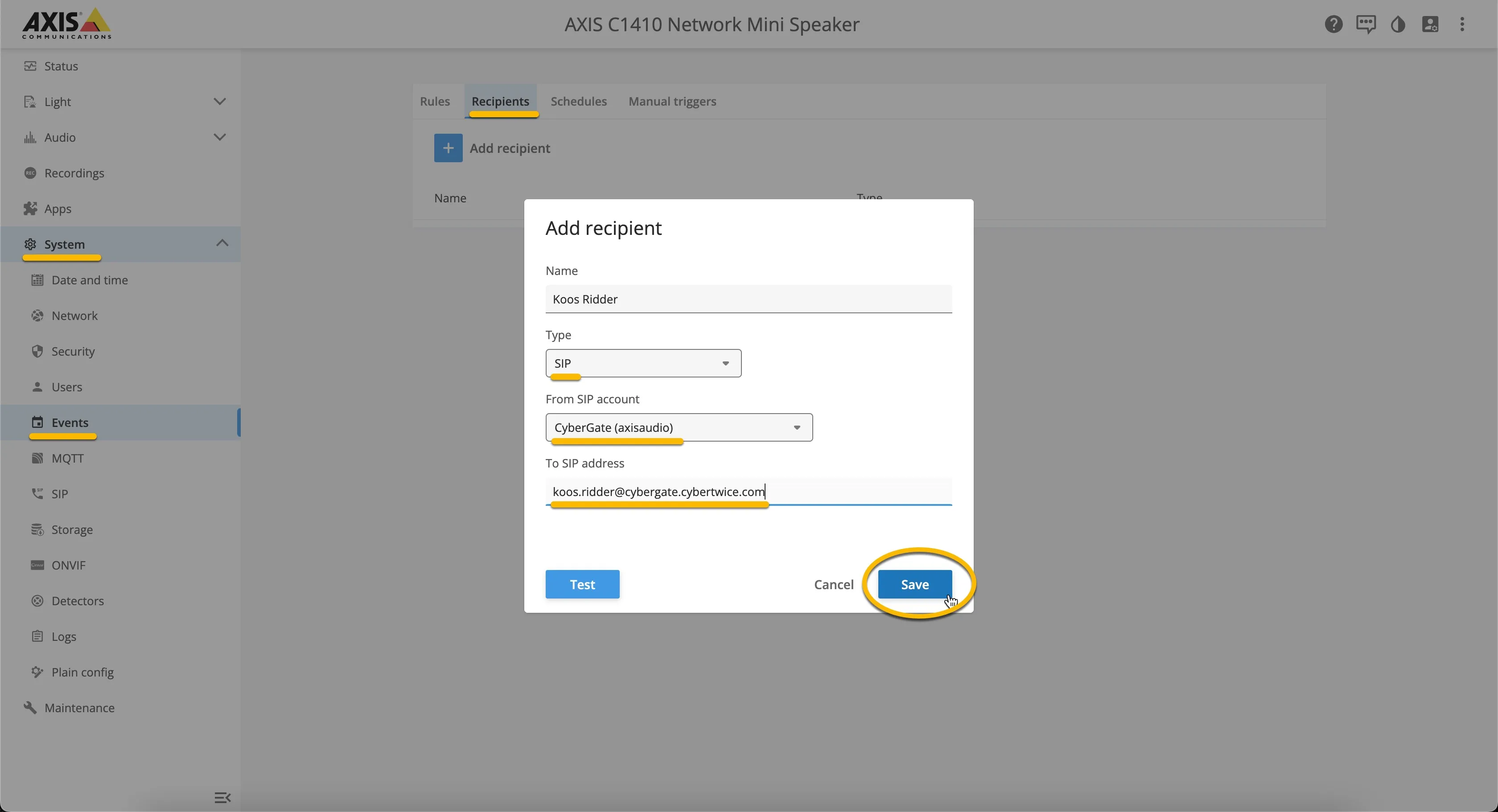
- Click the blue Save button when done.
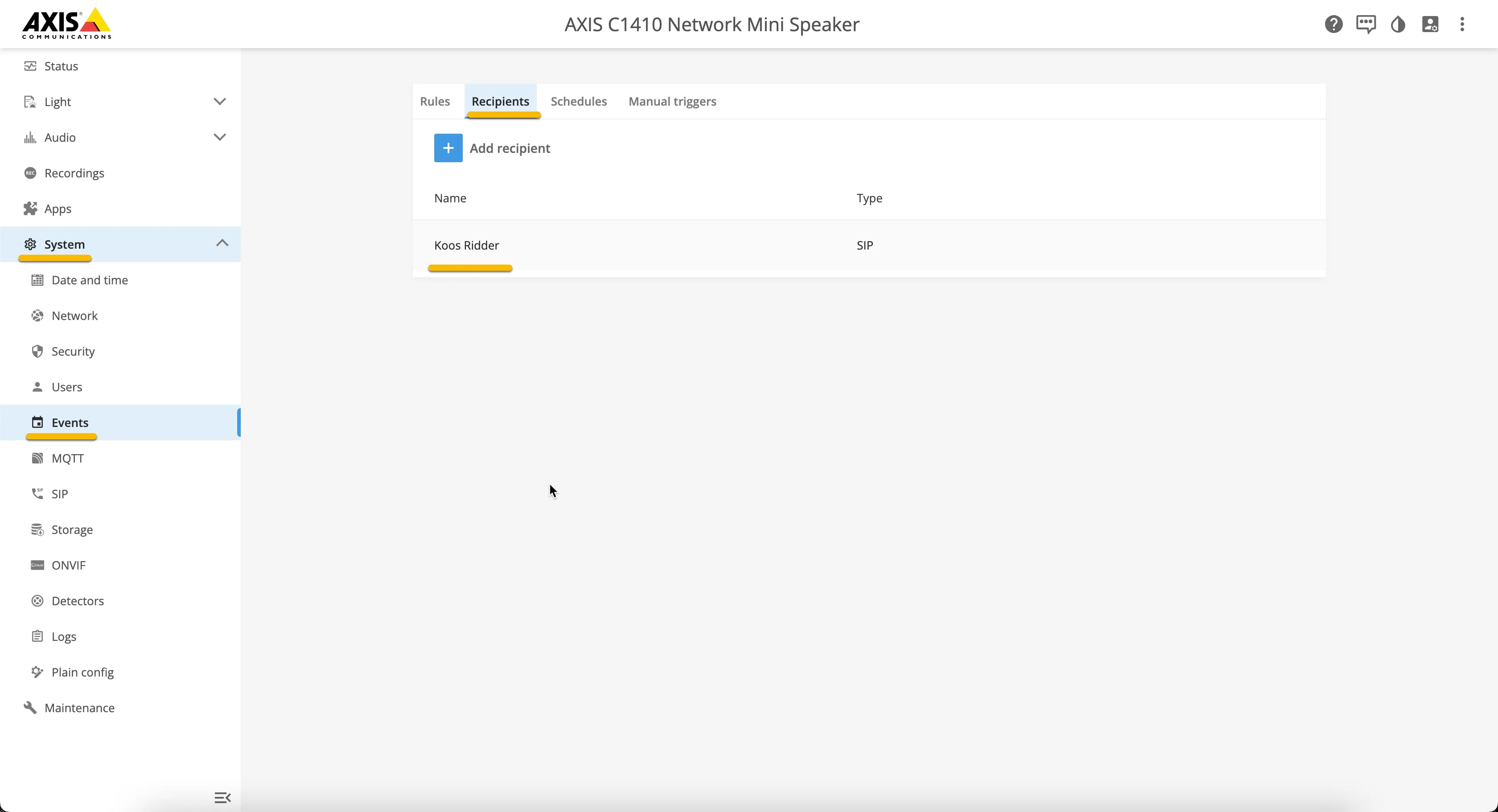
Create a rule that calls the Teams user
- Navigate to Rules and add a new rule.
- Provide or change the following information:
Setting | Value |
|---|---|
Use this rule | Enable |
Name | Descriptive name for the rule, in this example 'Demo rule' |
Condition | Audio detection (example triggers a call to a Teams user when audio is detected) |
Action | Make a call |
Recipient | Select the recipient to call |
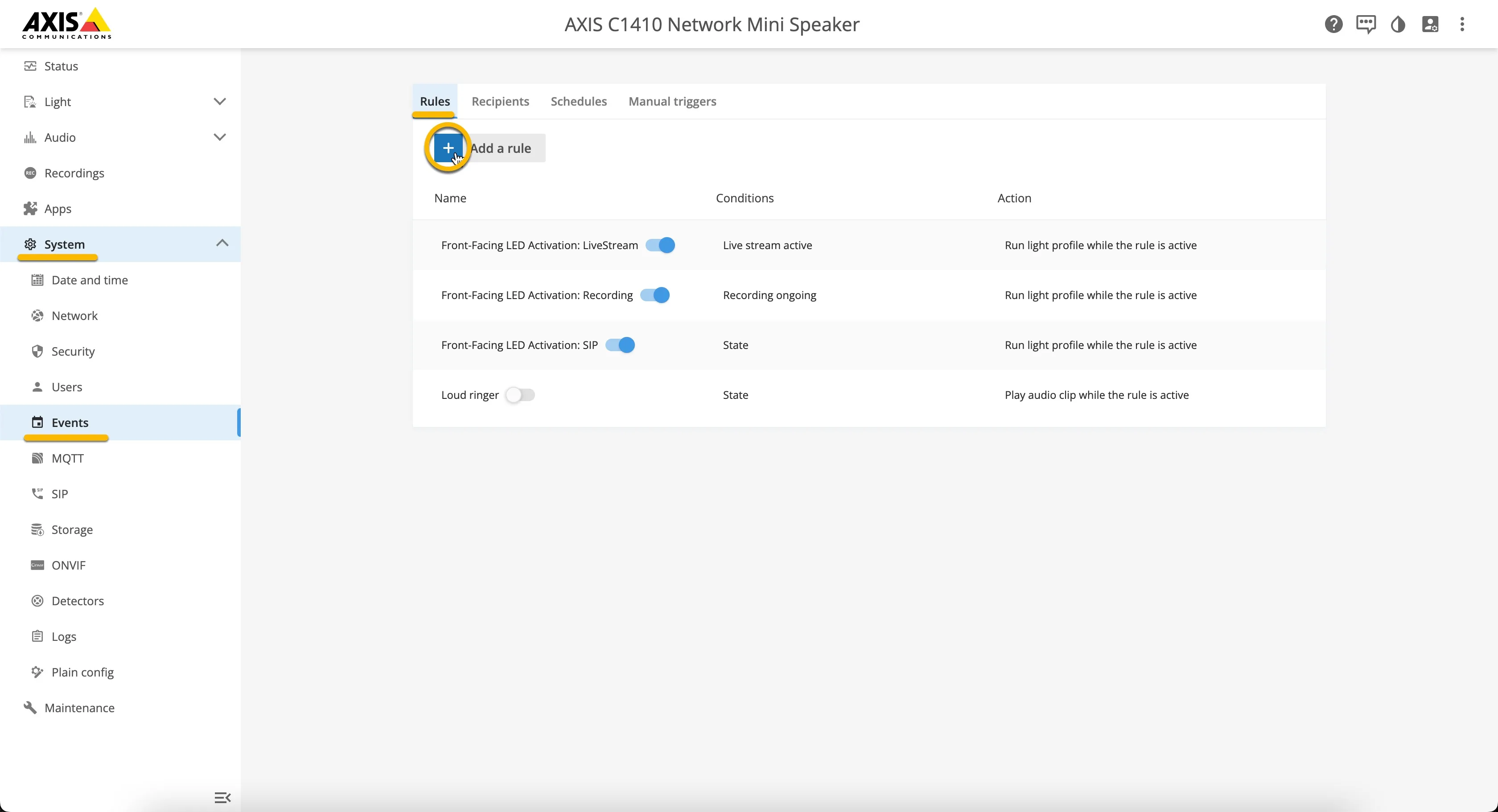
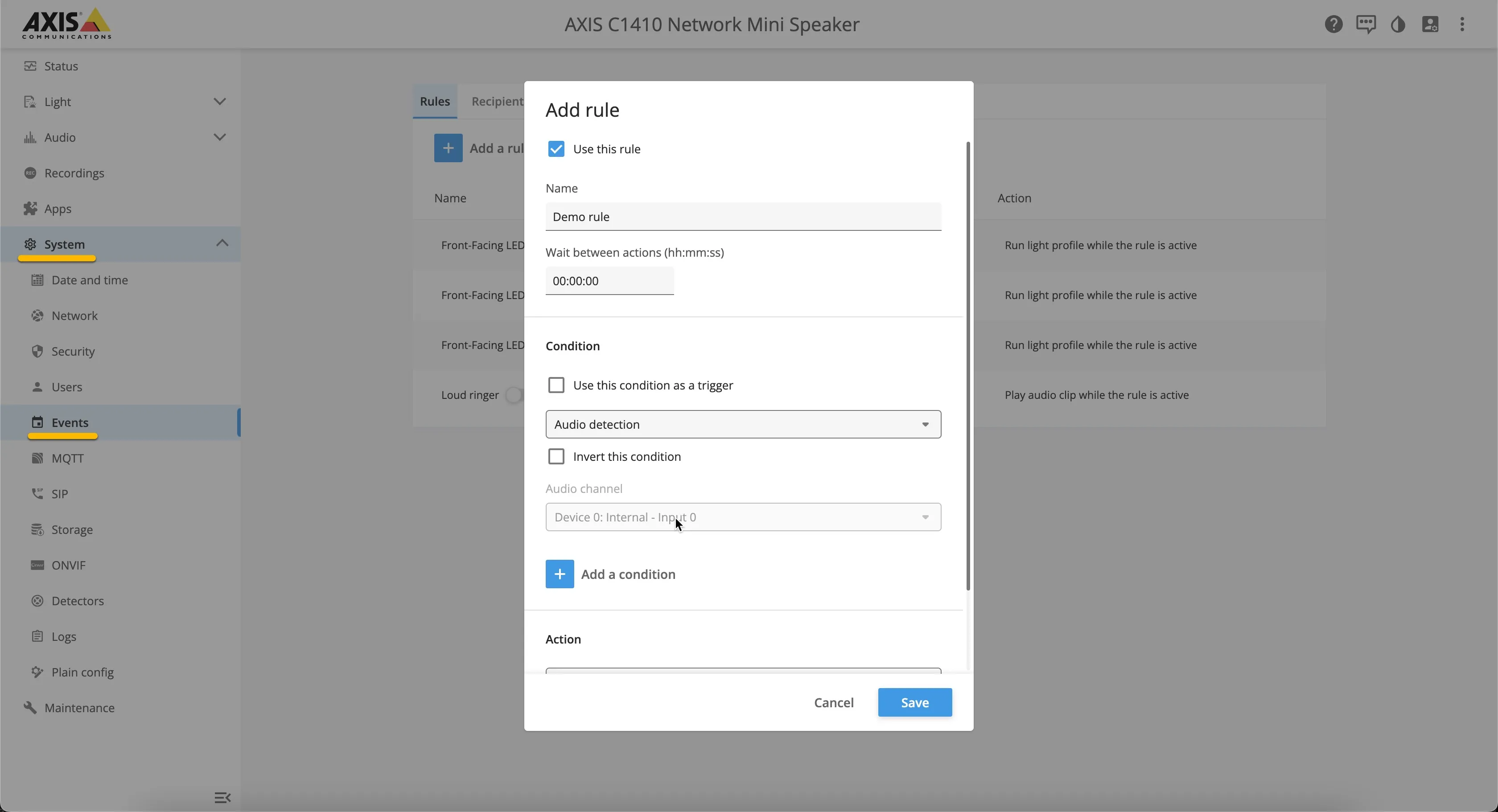
- Click the blue Save button when done.
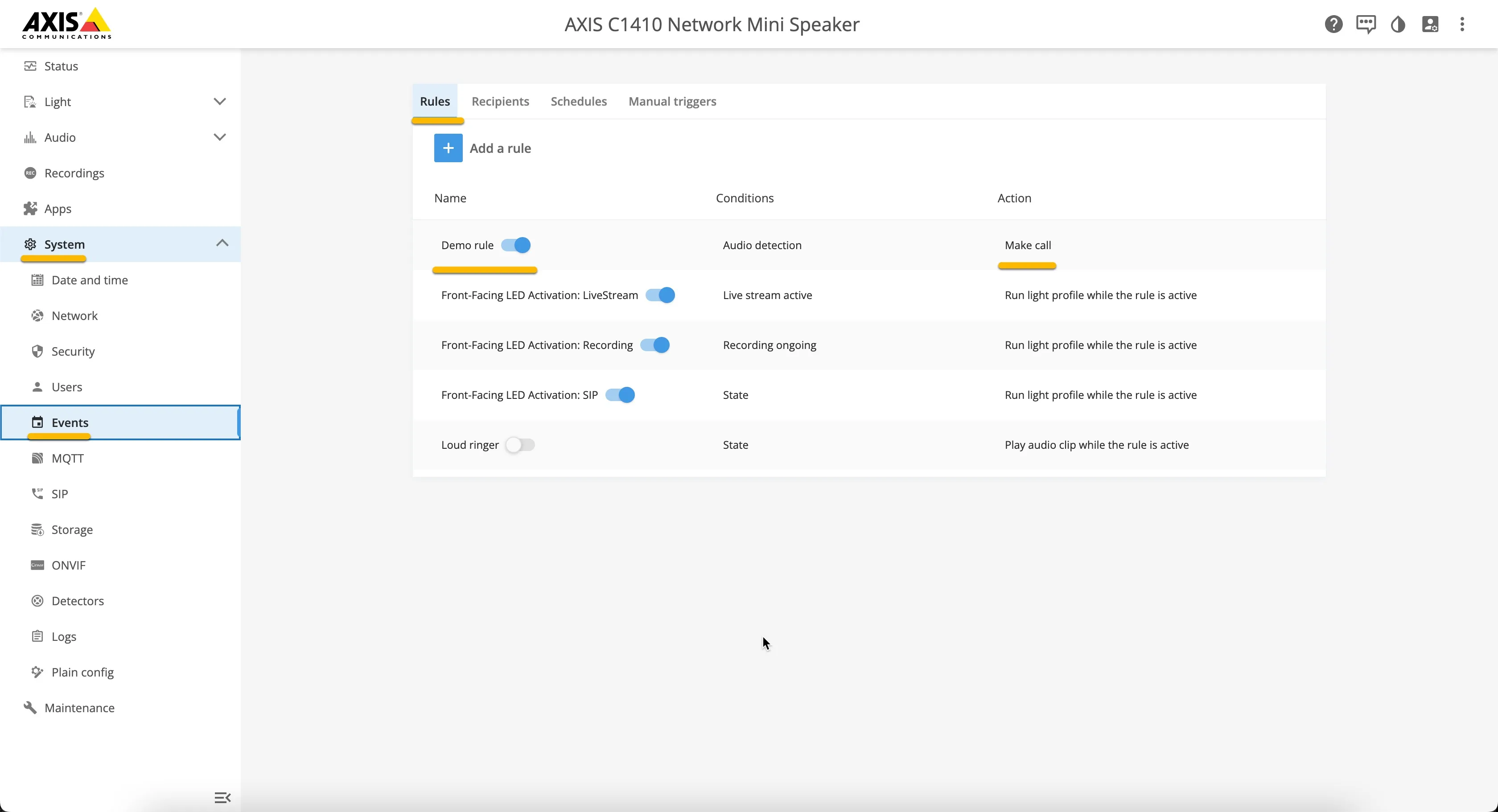
The rule is now in place. As soon as the AXIS speaker detects sound, it triggers an event and calls the configured recipient in Microsoft Teams.
You can modify the events to match your needs — this is just an example to create an outgoing call.
Call the AXIS device from Microsoft Teams
You can initiate a call from Microsoft Teams to the AXIS device. Before calls can be made from Microsoft Teams, additional configuration in the CyberGate Admin portal is necessary.
The feature configuration script
The feature configuration script is a PowerShell script that needs to be executed before certain CyberGate features are available. One of these features is the ability to call devices directly from Teams.
Follow the steps in the Feature Configuration script manual:
Call the device from the Teams Calls menu
To initiate a call from Microsoft Teams you can use one of two options:
- Call the AXIS device using the Teams Calls menu.
- Use the CyberGate for Microsoft Teams app to find the AXIS device and call it with one click.
Using the Calls menu:
- Log in to Microsoft Teams and navigate to the Calls menu.
- Type the (display) name of the AXIS device directly in the call field (at 'Type a name'), or search for 'cybergate' to show all of your CyberGate devices.
- Select the device to call and click the blue Call button. A call to the AXIS device is initiated and the device answers automatically.
When Multicast is enabled with multiple zones, select the Dial pad. With the dial pad, zone features of the AXIS device can be controlled.
Call the device from the CyberGate for Teams app
The CyberGate for Teams app offers many features that make working with CyberGate more convenient. One of these features is the ability to initiate calls directly to devices. This eliminates the need to search for your device in the Teams calls menu.
See this manual for all the information on how to install and use the CyberGate for Teams app:
- In the CyberGate for Teams app, navigate to Devices.
- Find the AXIS device.
- Click on the Connect button.
A call to the AXIS device is initiated and the device answers automatically.
When Multicast is enabled with multiple zones, select the Dial pad. With the dial pad, zone features of the AXIS device can be controlled.
Call multiple AXIS devices simultaneously with AXIS Audio Manager Edge
As an addition to the just completed single-device configuration of the AXIS C1410 Network Mini Speaker, this part of the guide describes the option to also simultaneously call an AXIS C8110 Network Audio Bridge, using AXIS Audio Manager Edge.
The description below assumes that the AXIS C8110 Network Audio Bridge is already connected to the network, in factory defaults and running the same firmware as the AXIS C1410 Network Mini Speaker.
Create an audio site
The AXIS C1410 is already connected to CyberGate.
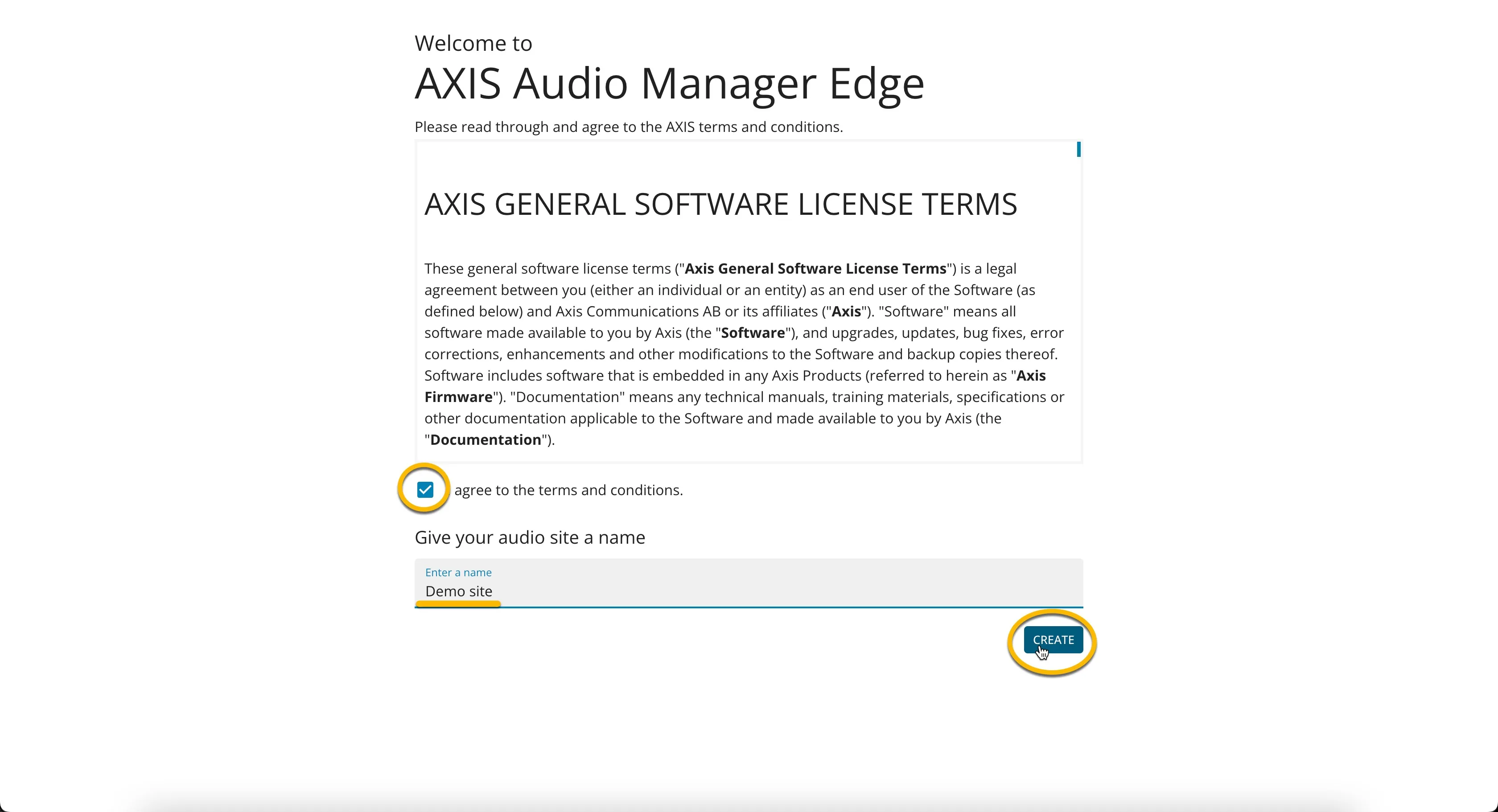
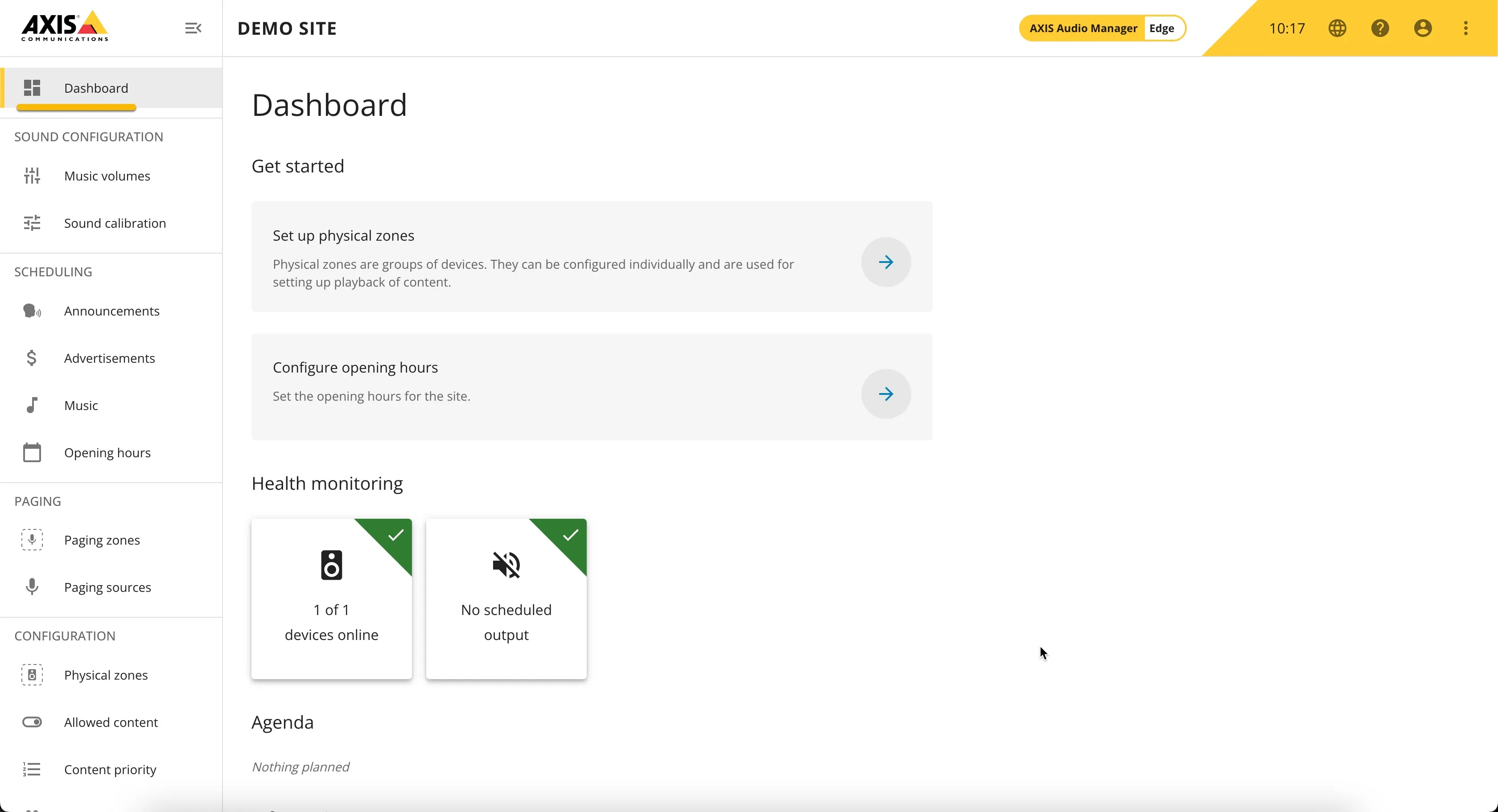
- Launch the AXIS Audio Manager Edge by clicking the blue button.
- Name the audio site, in this example 'Demo site'.
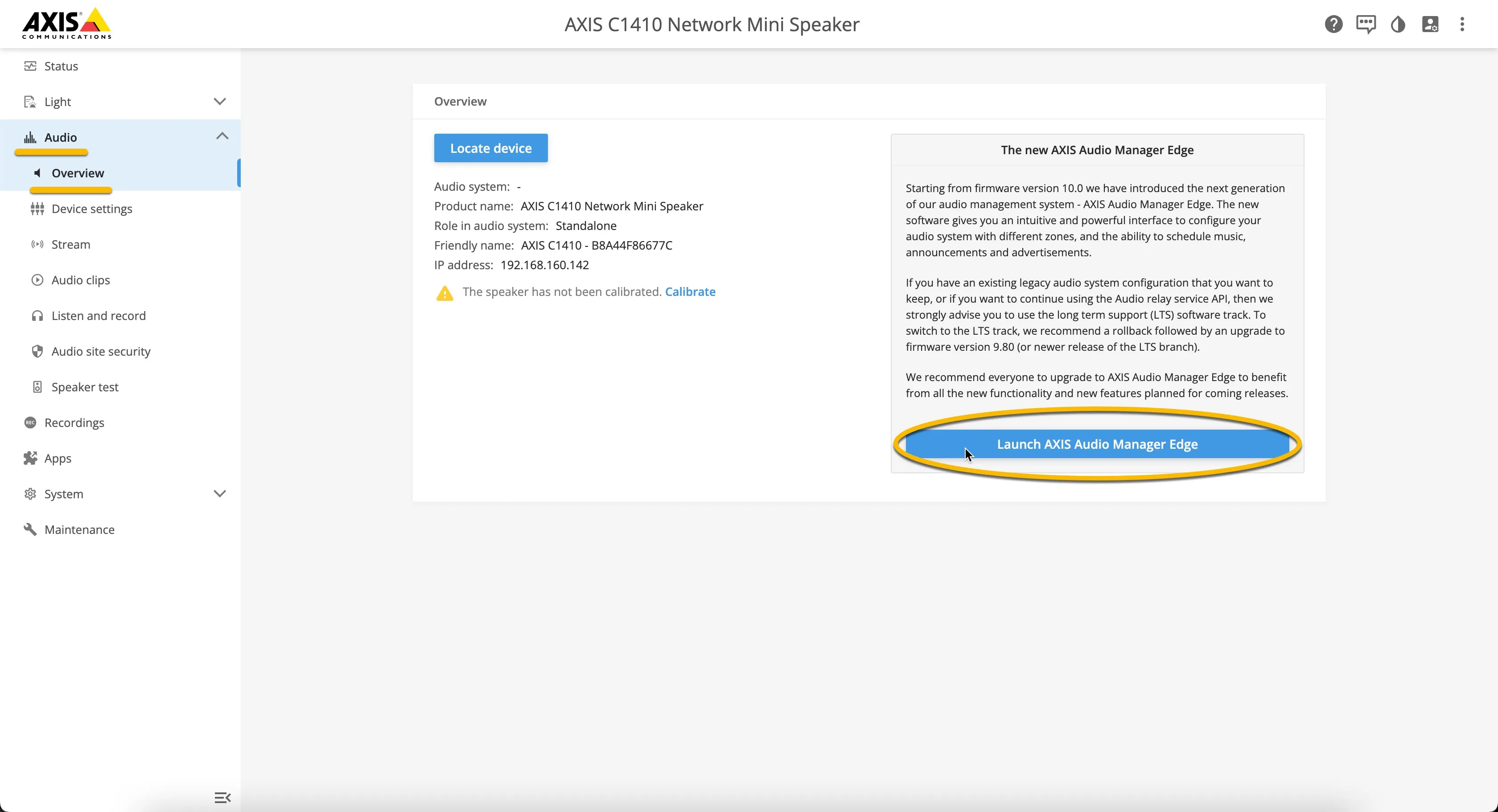
Create a Physical zone
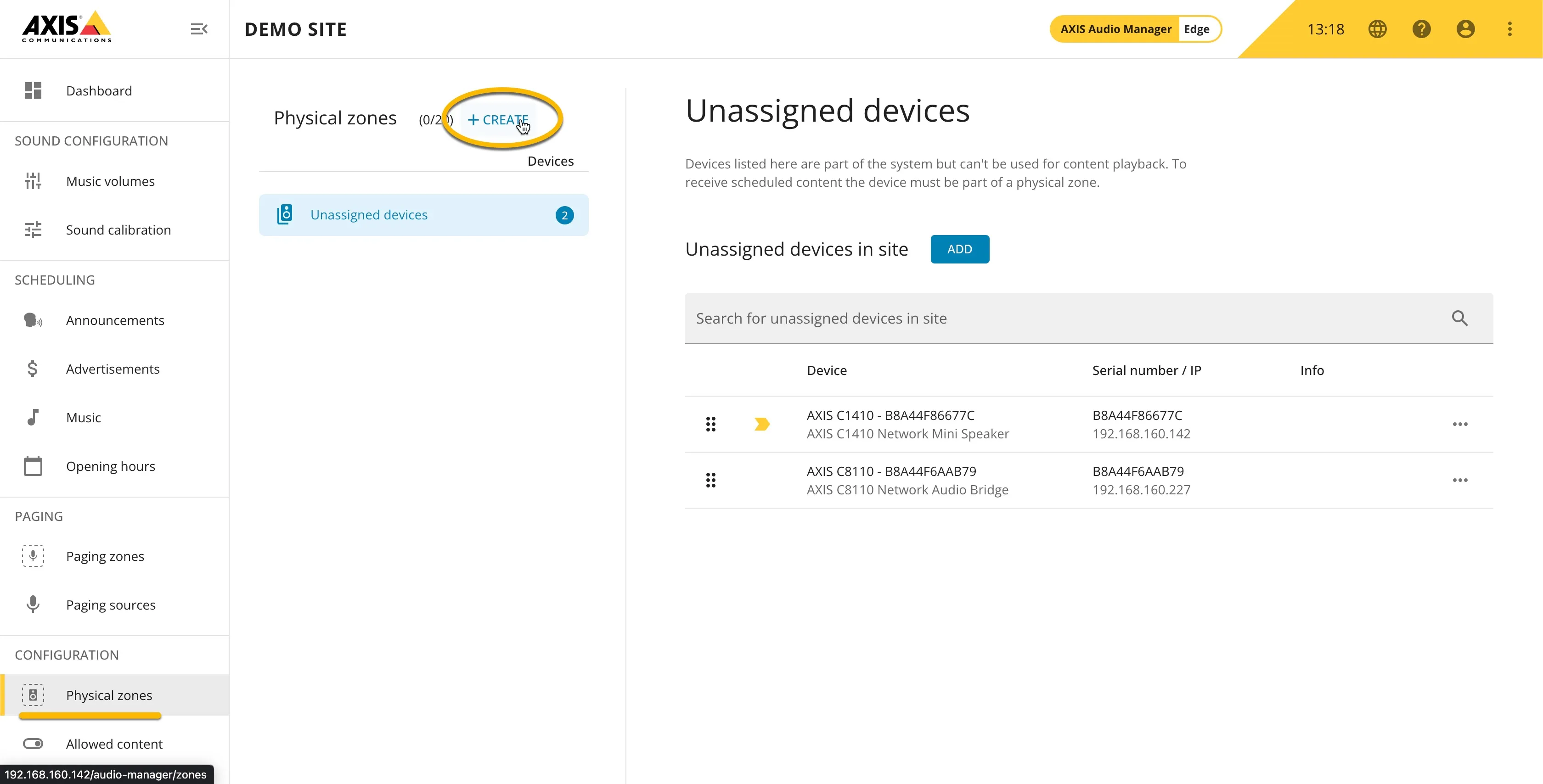
- Navigate to the Configuration – Physical zones menu.
- Click +CREATE to create a Physical zone.
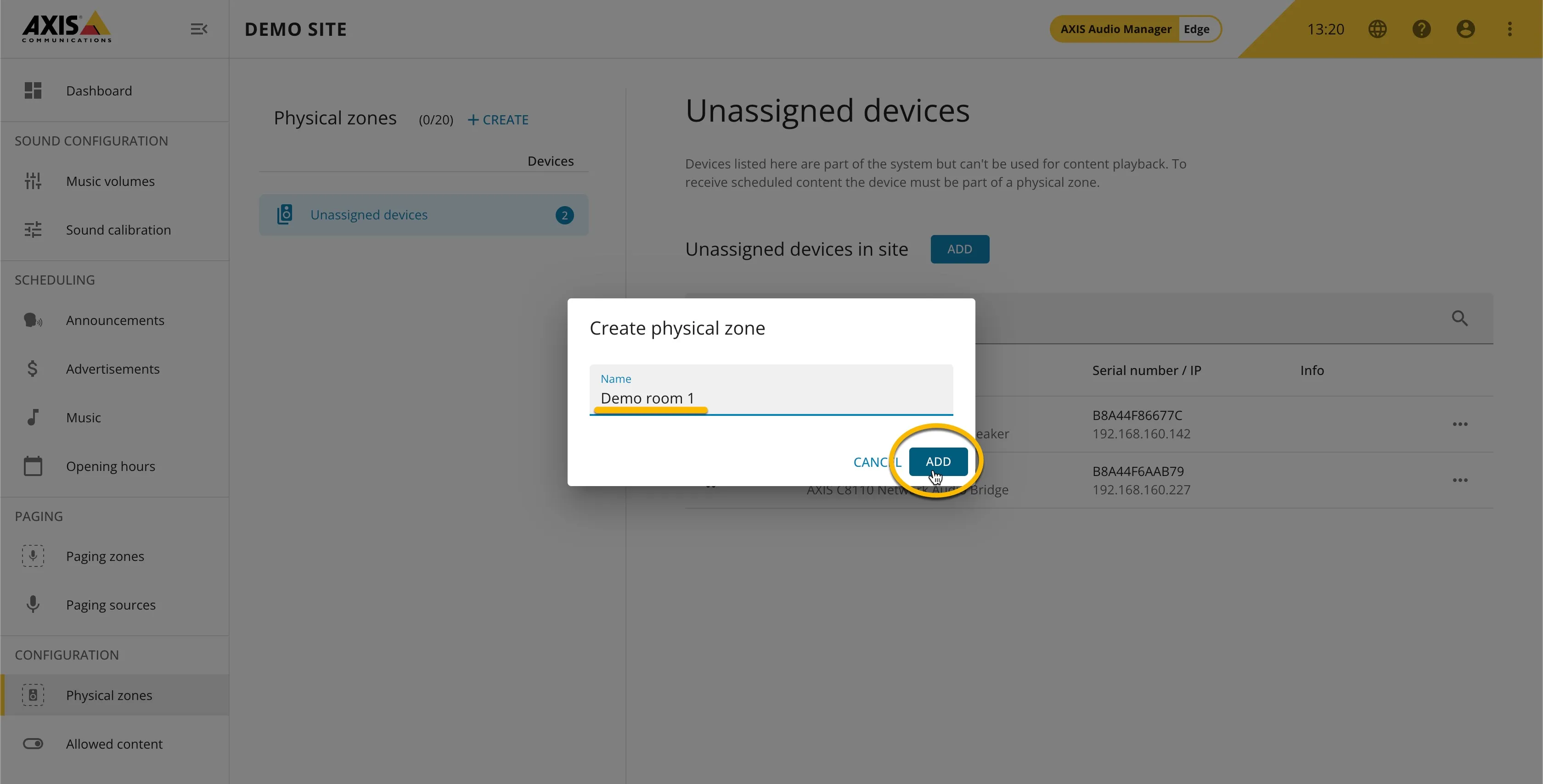
- Name the Physical zone, in this example 'Demo room 1'.
- Add the two AXIS devices to the Physical zone by clicking ADD.
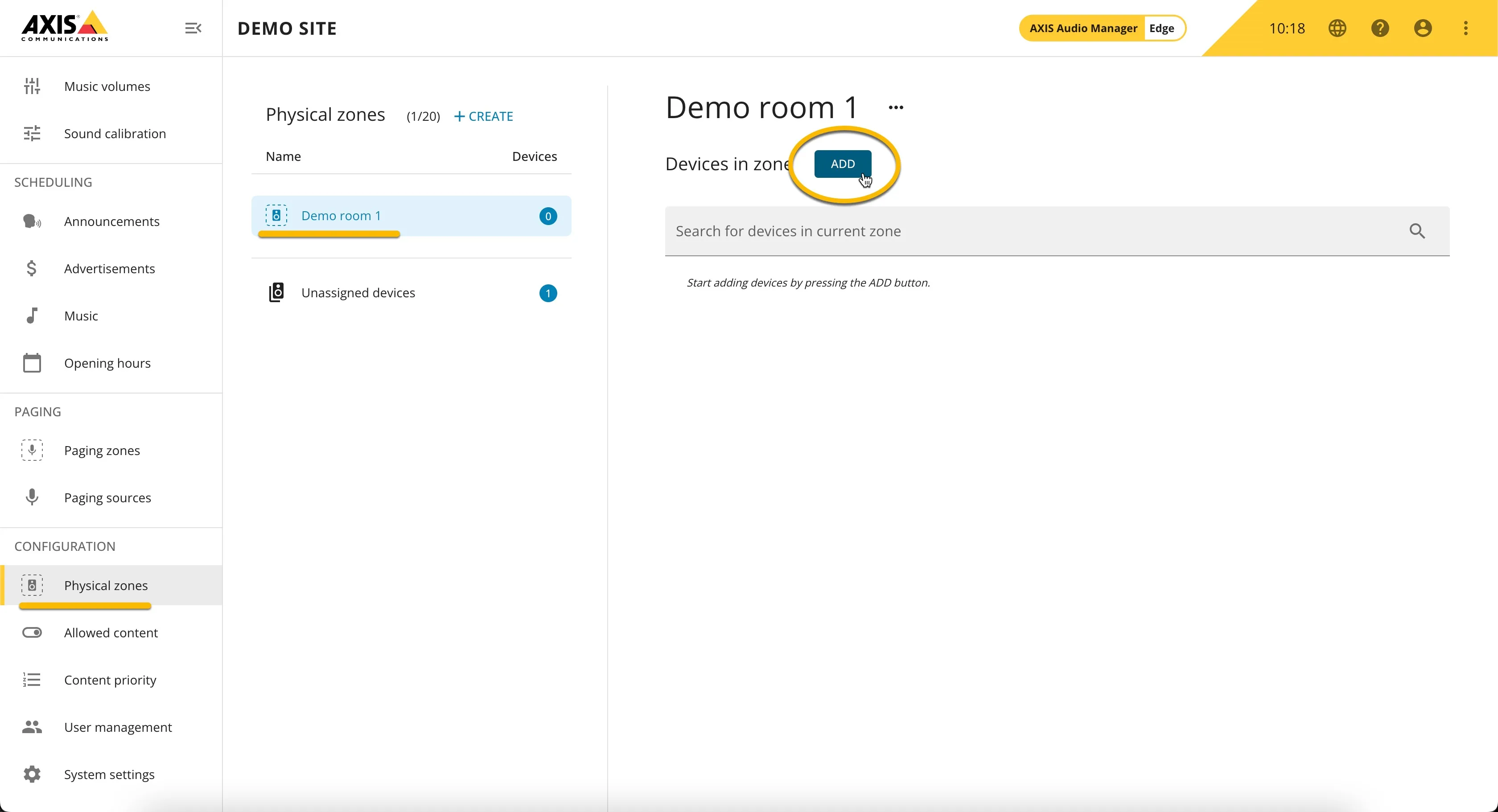
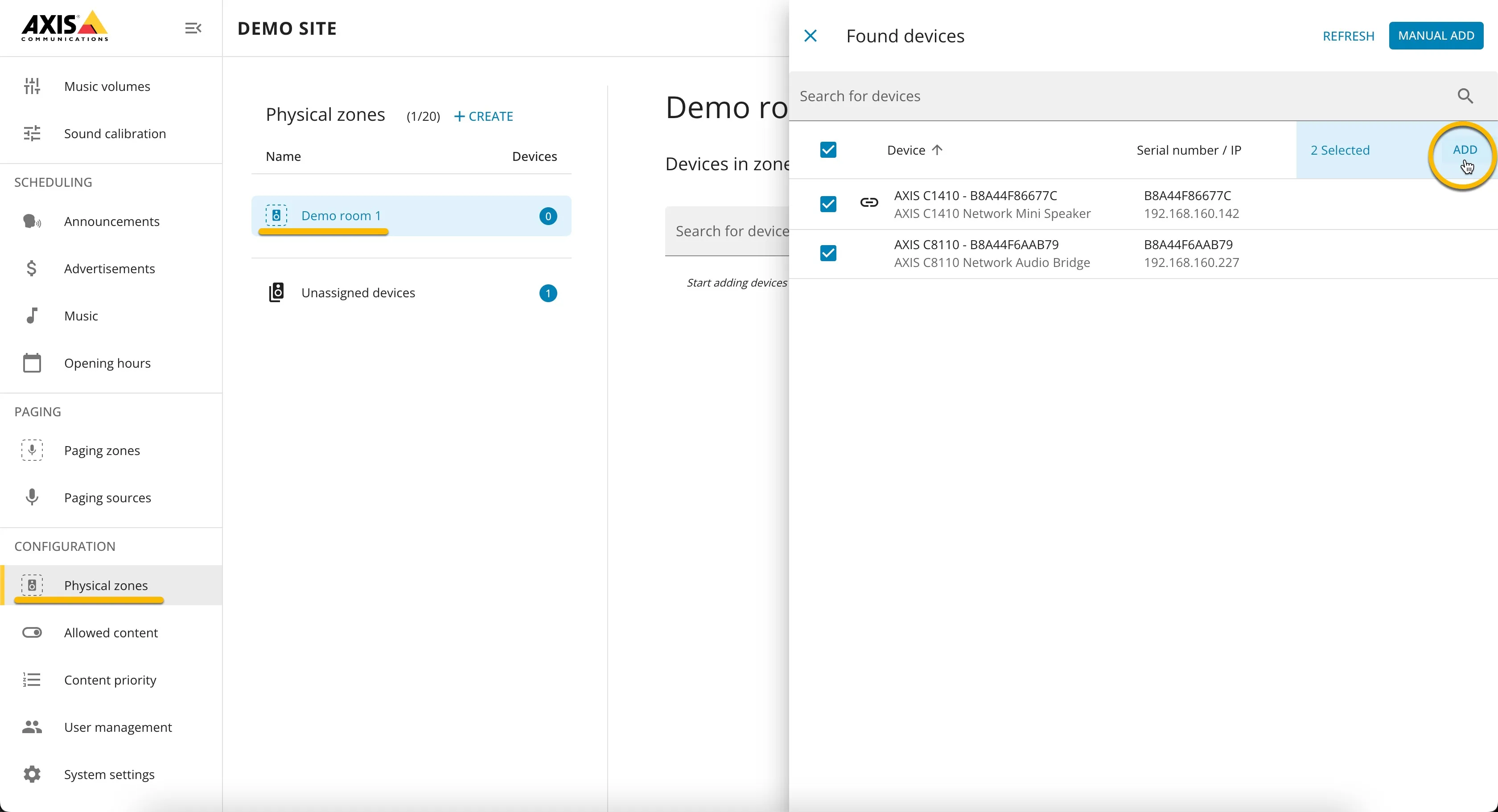
- AXIS Audio Manager Edge shows all available audio devices on the network. Select the AXIS C1410 and the AXIS C8110 and click ADD.
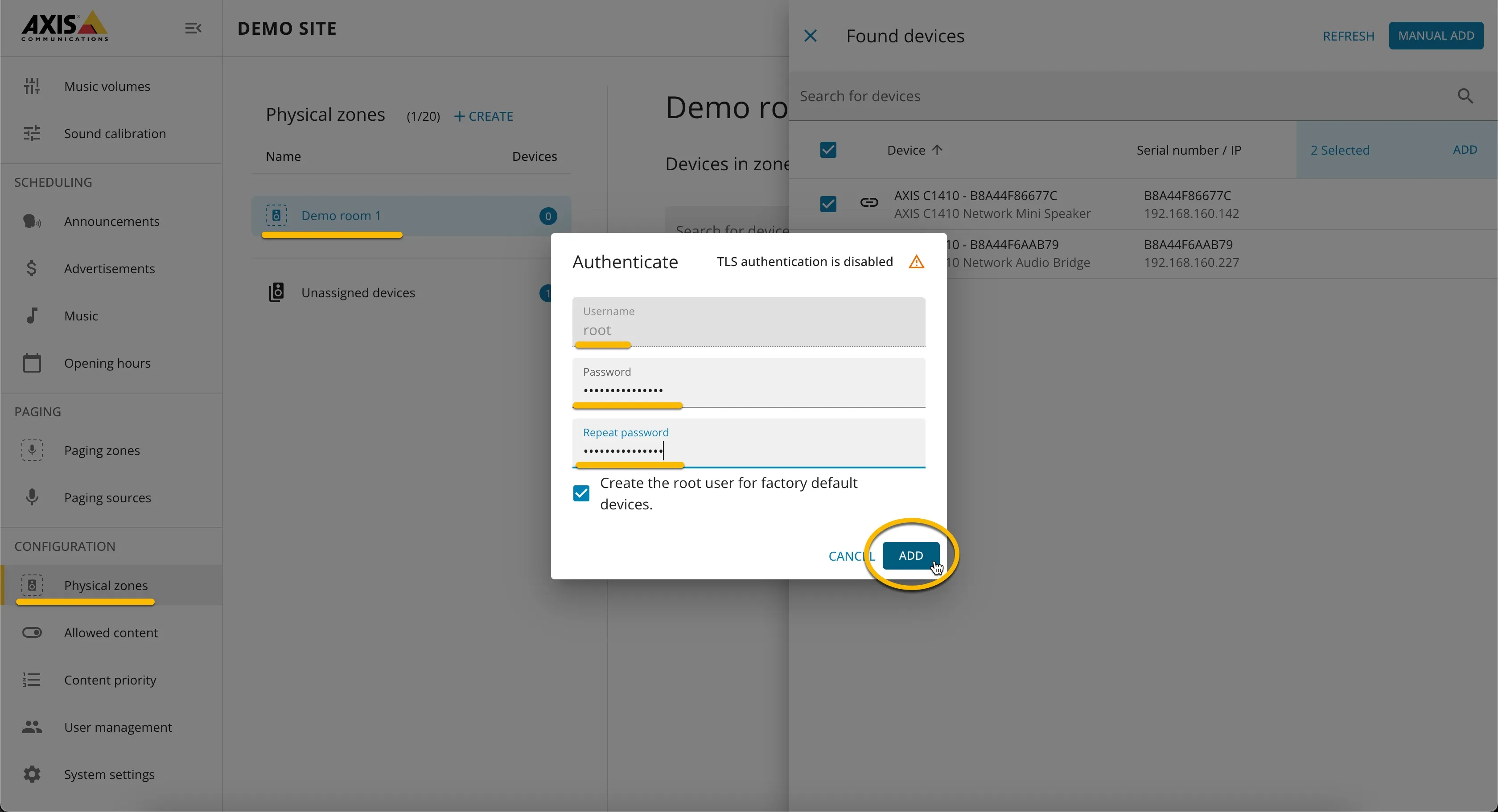
- The AXIS Audio Manager needs access to the devices. Provide the passwords for the devices.
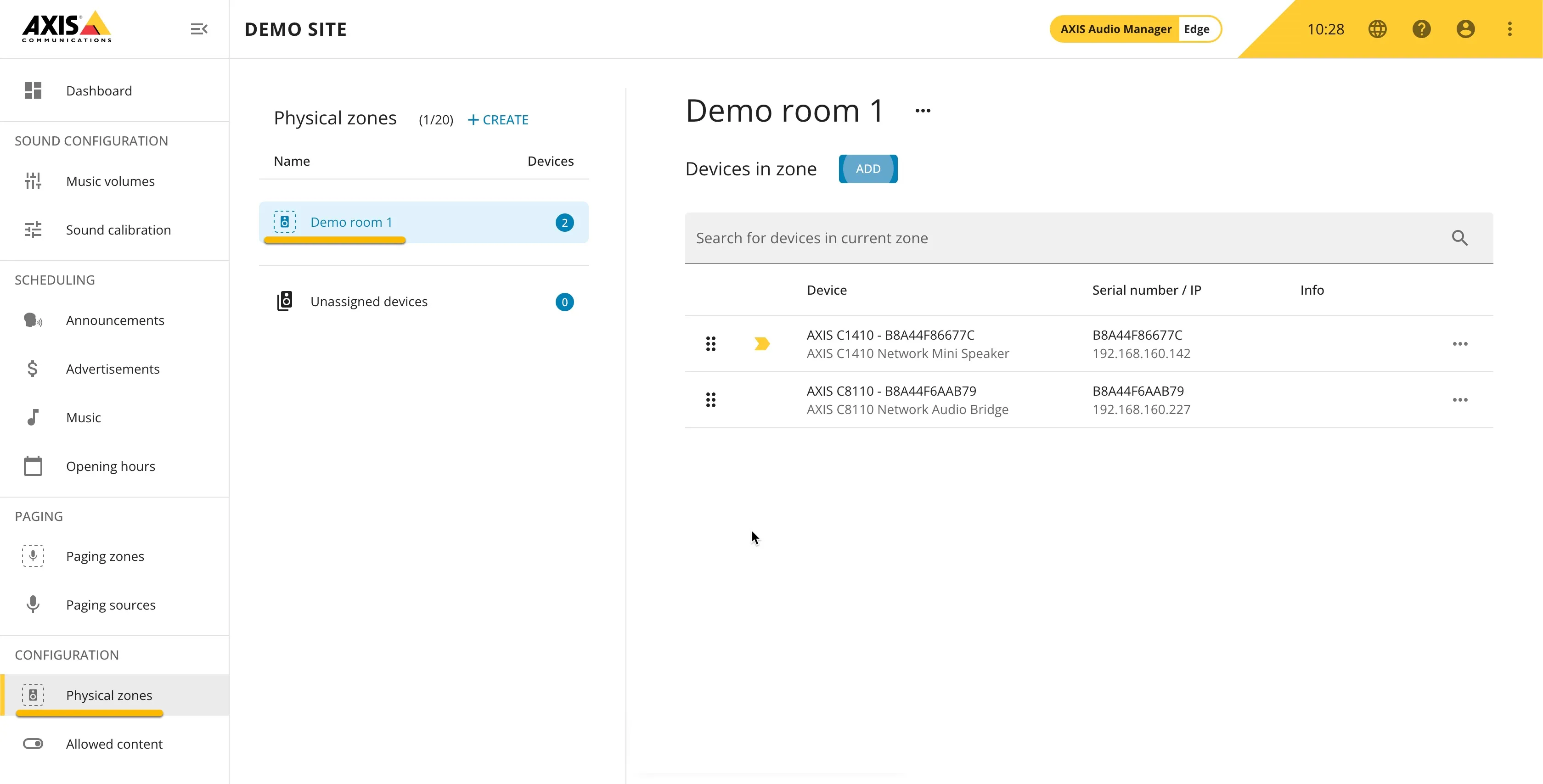
The Physical zone is now added and the devices are configured in the Physical zone.
Create a Paging zone
- Navigate to the Paging – Paging zones menu.
- Click +CREATE to create a new Paging zone.
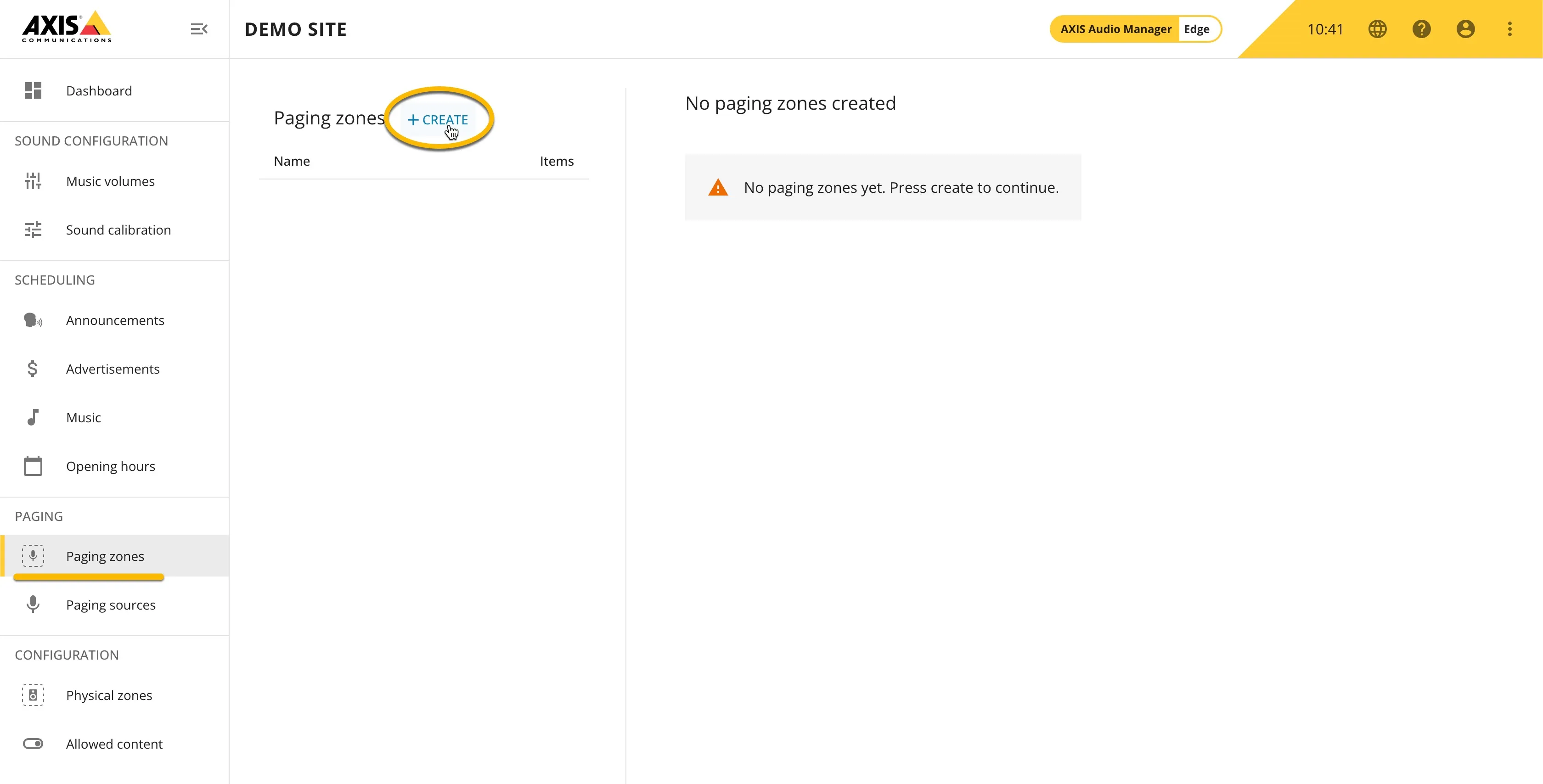
- Name the Paging zone, in this example 'All demo devices'.
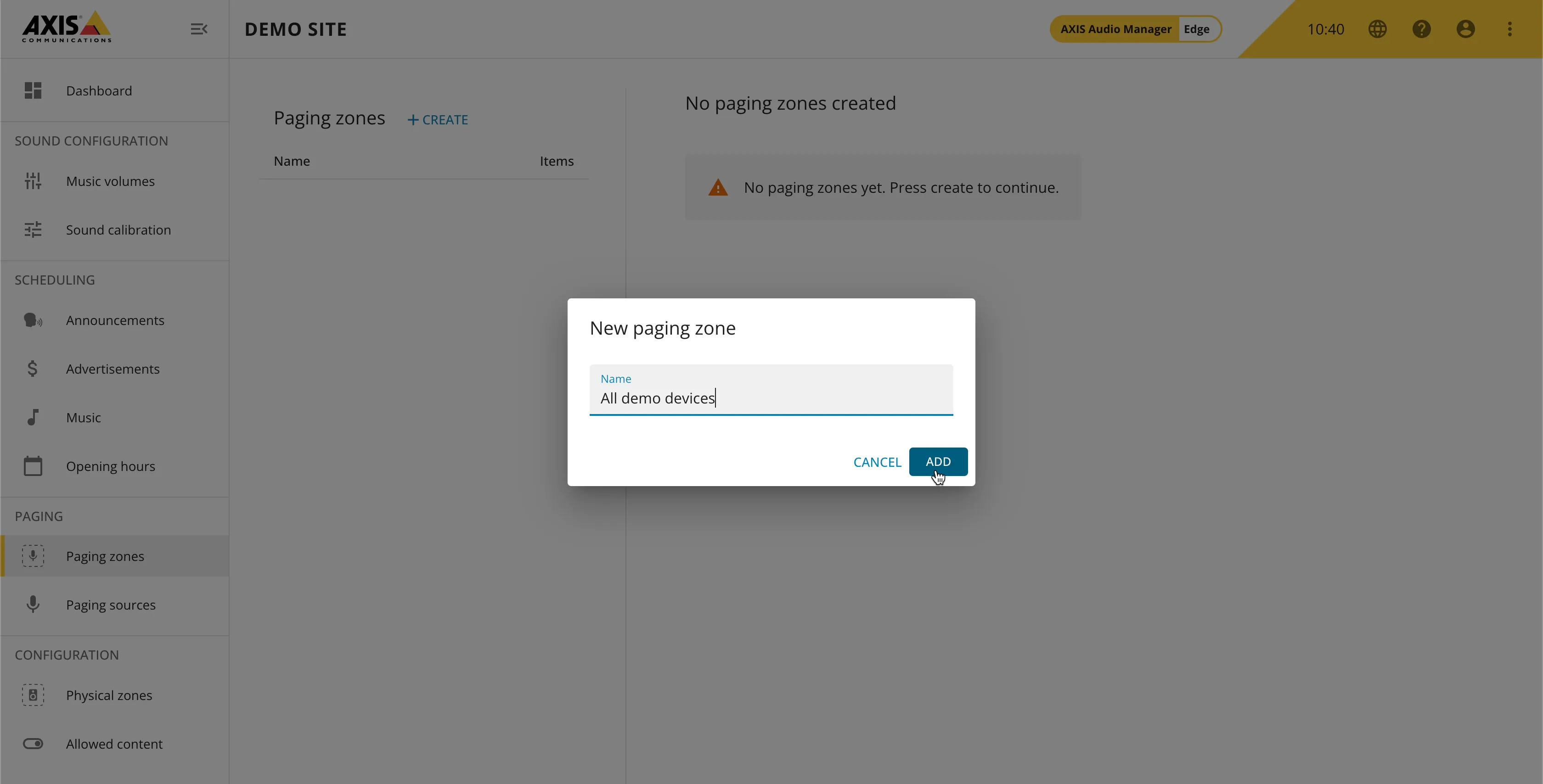
- Click ADD to add the Physical zone to the Paging zone.
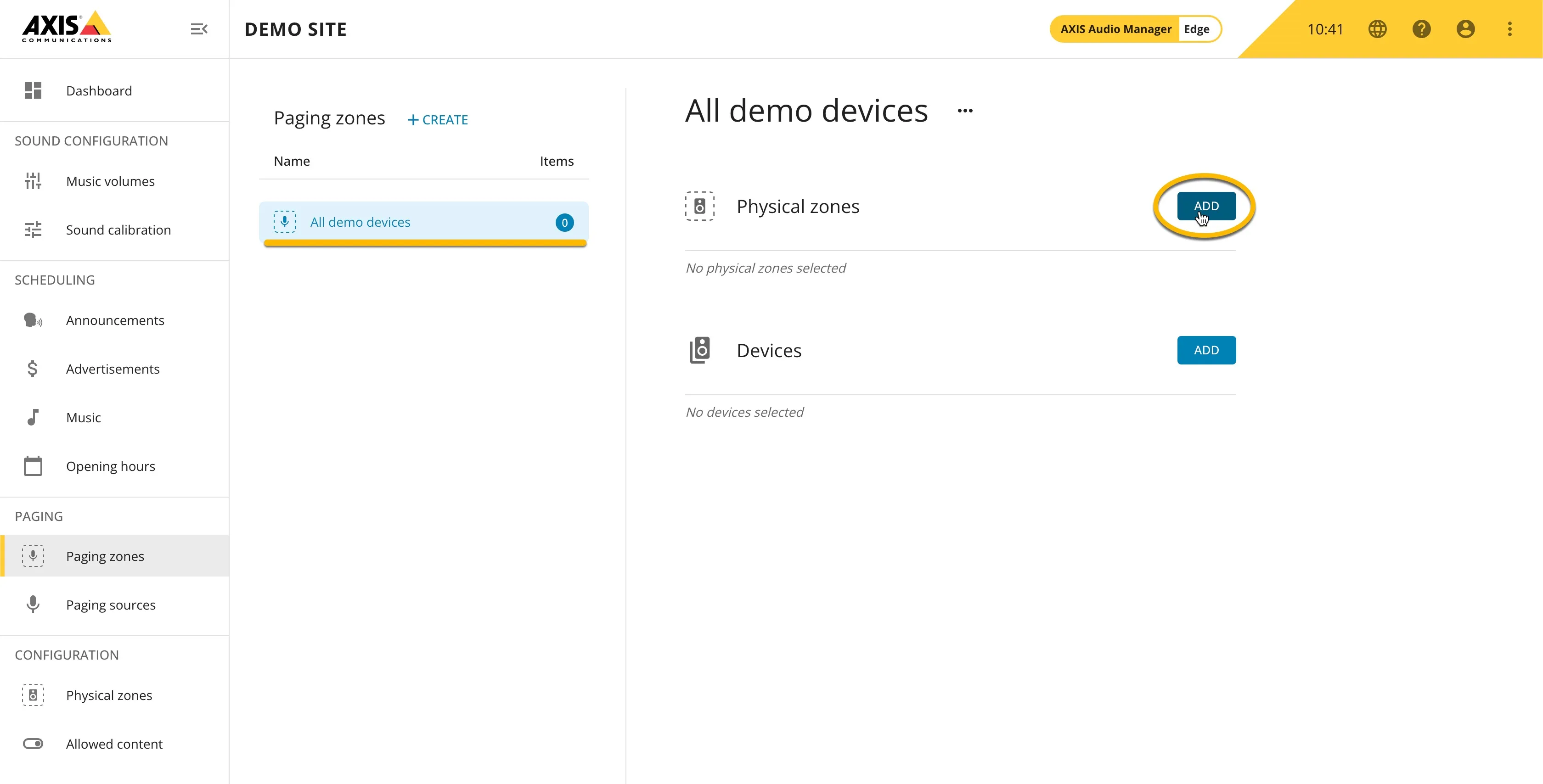
- Select the just created Physical zone.
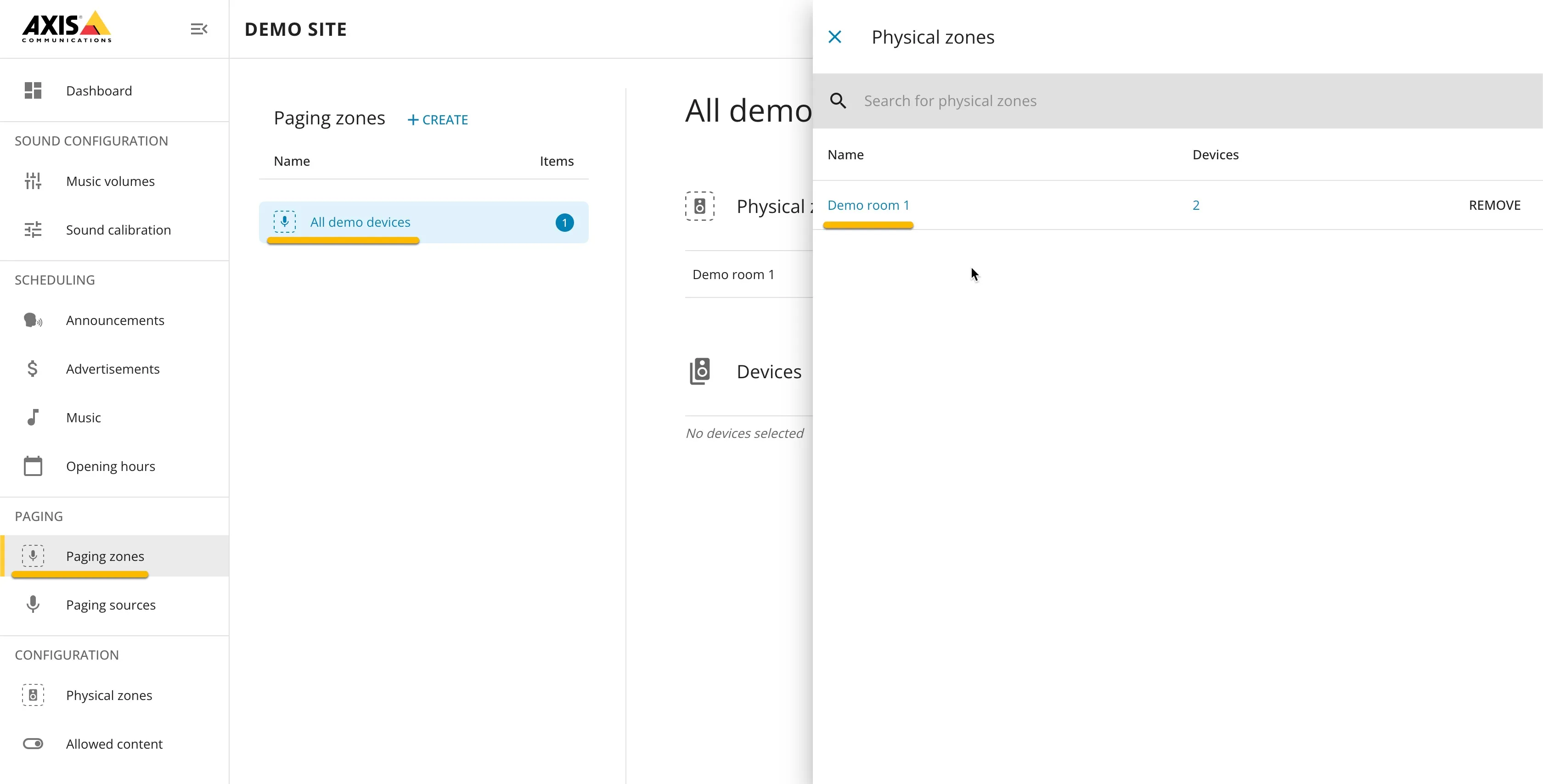
The Paging zone is now created and configured with the Physical zone.
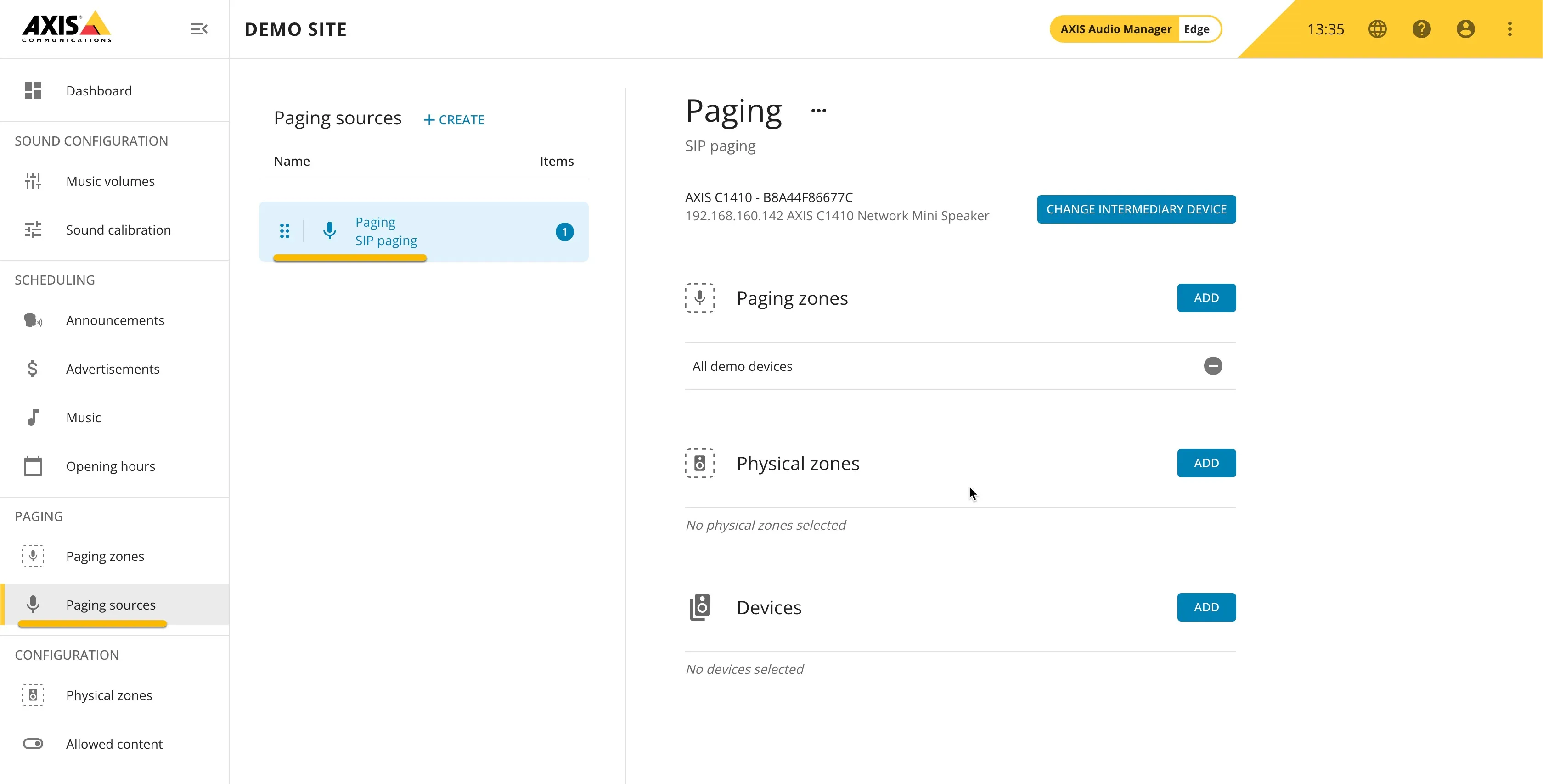
Create a Paging source
- Navigate to the Paging – Paging sources menu.
- Click +CREATE to create a new Paging source.
A Paging source is the source where the paging request is coming from. In this example, the AXIS C1410 is connected to CyberGate and is therefore the paging source.
- Select 'SIP Paging' and name the Paging source, in this example 'Paging'.
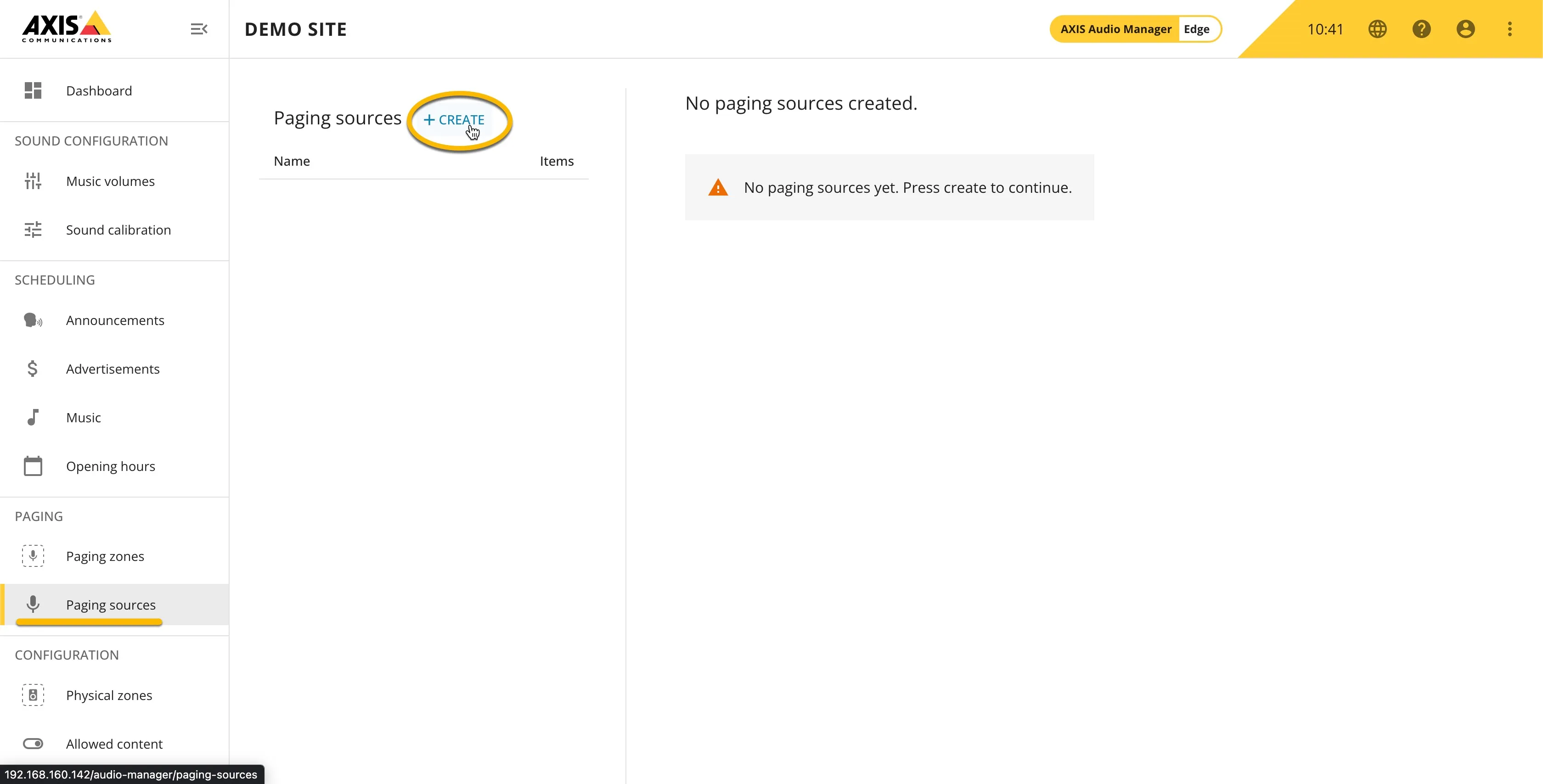
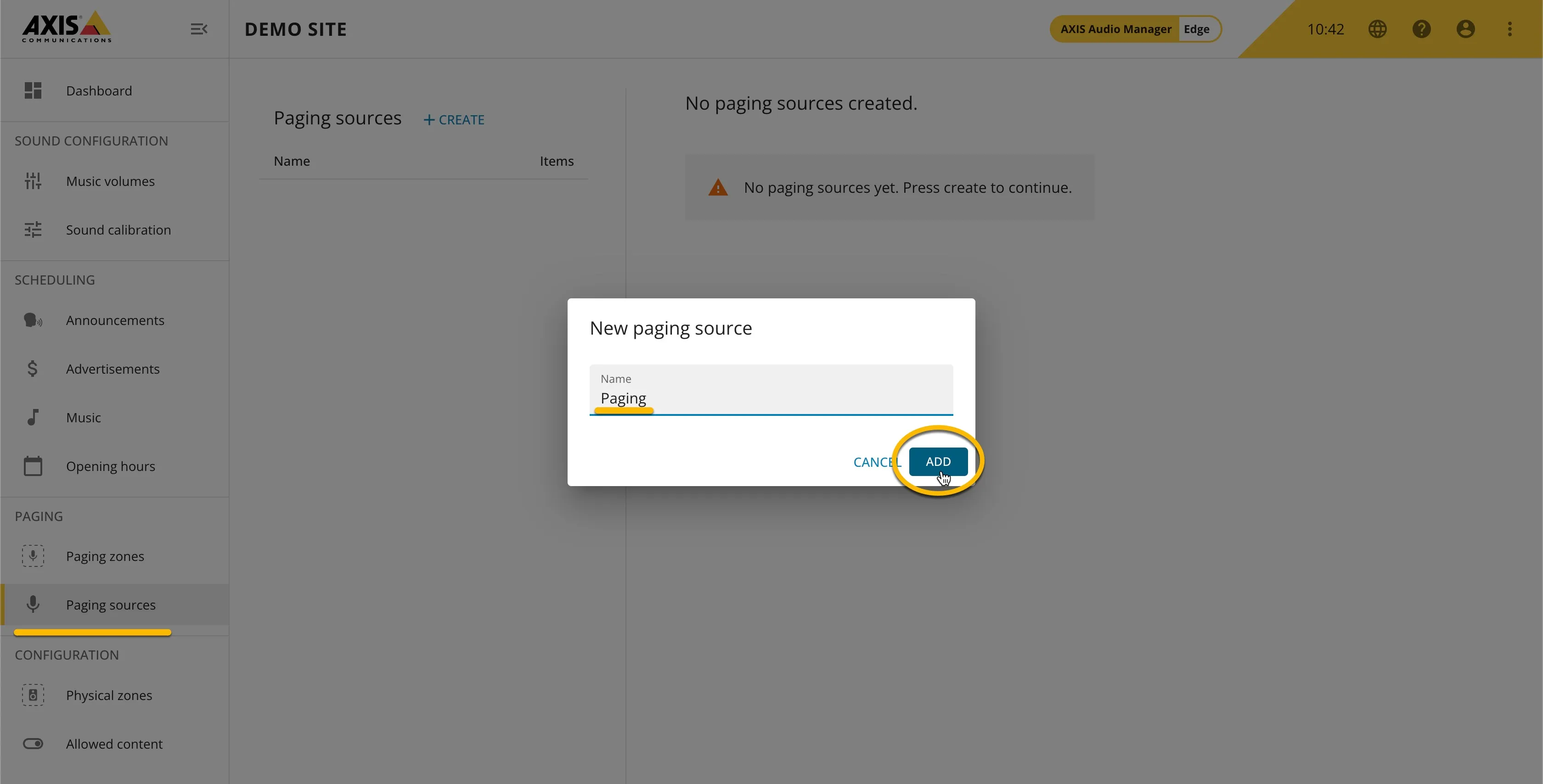
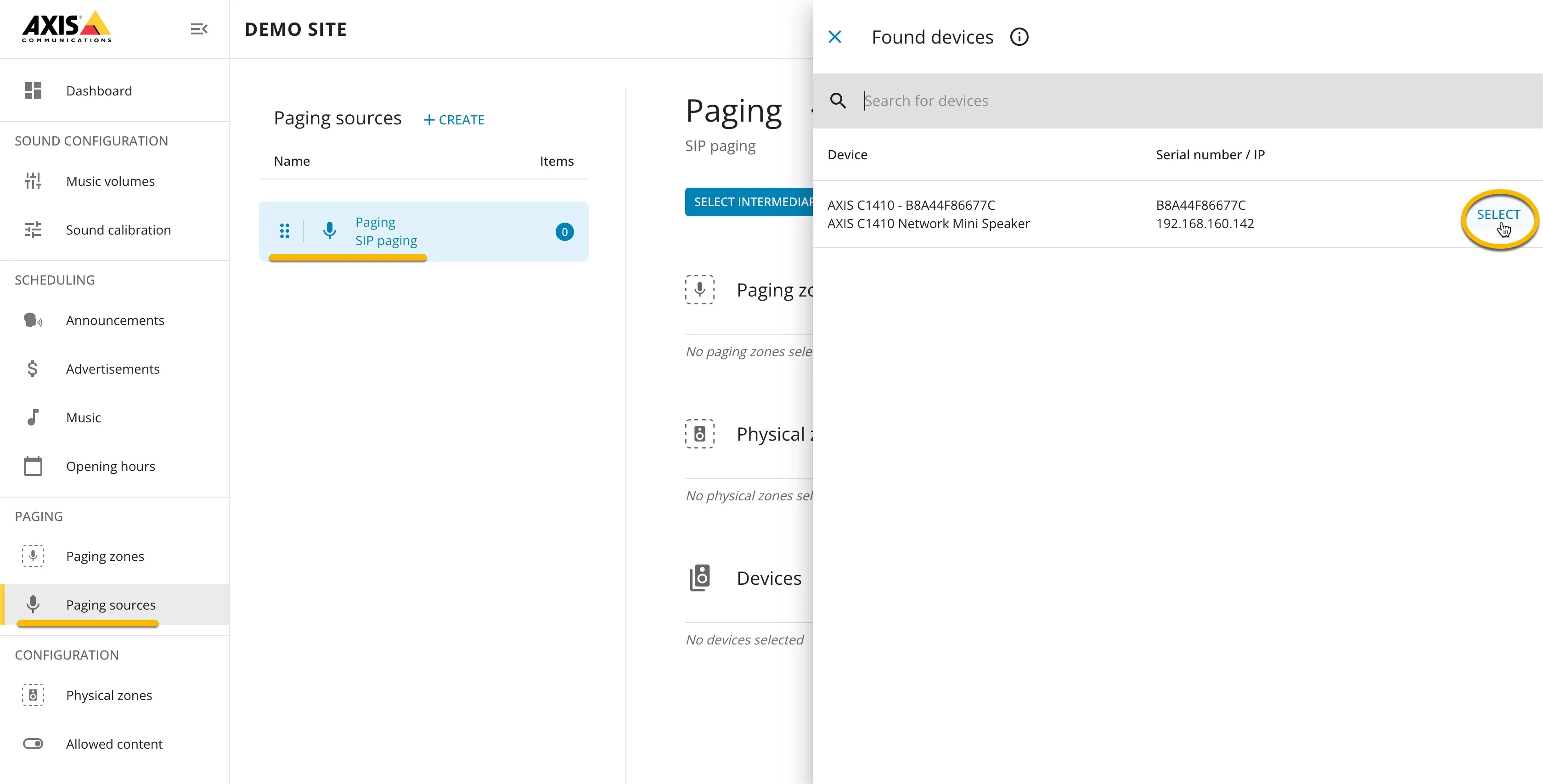
- Click 'Select intermediary device' and select the AXIS C1410.
- Click ADD and select the Paging zone that needs to be paged.
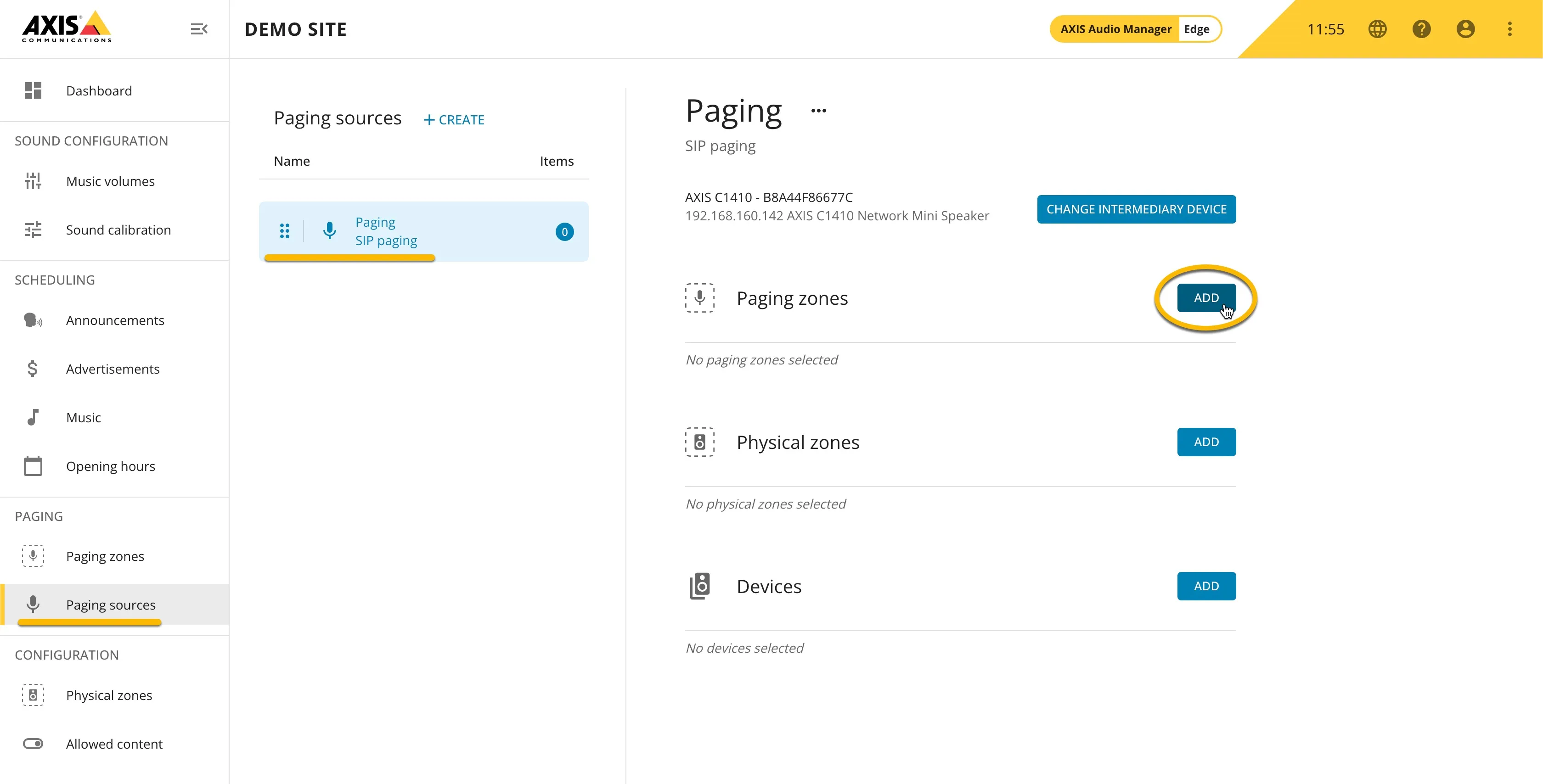
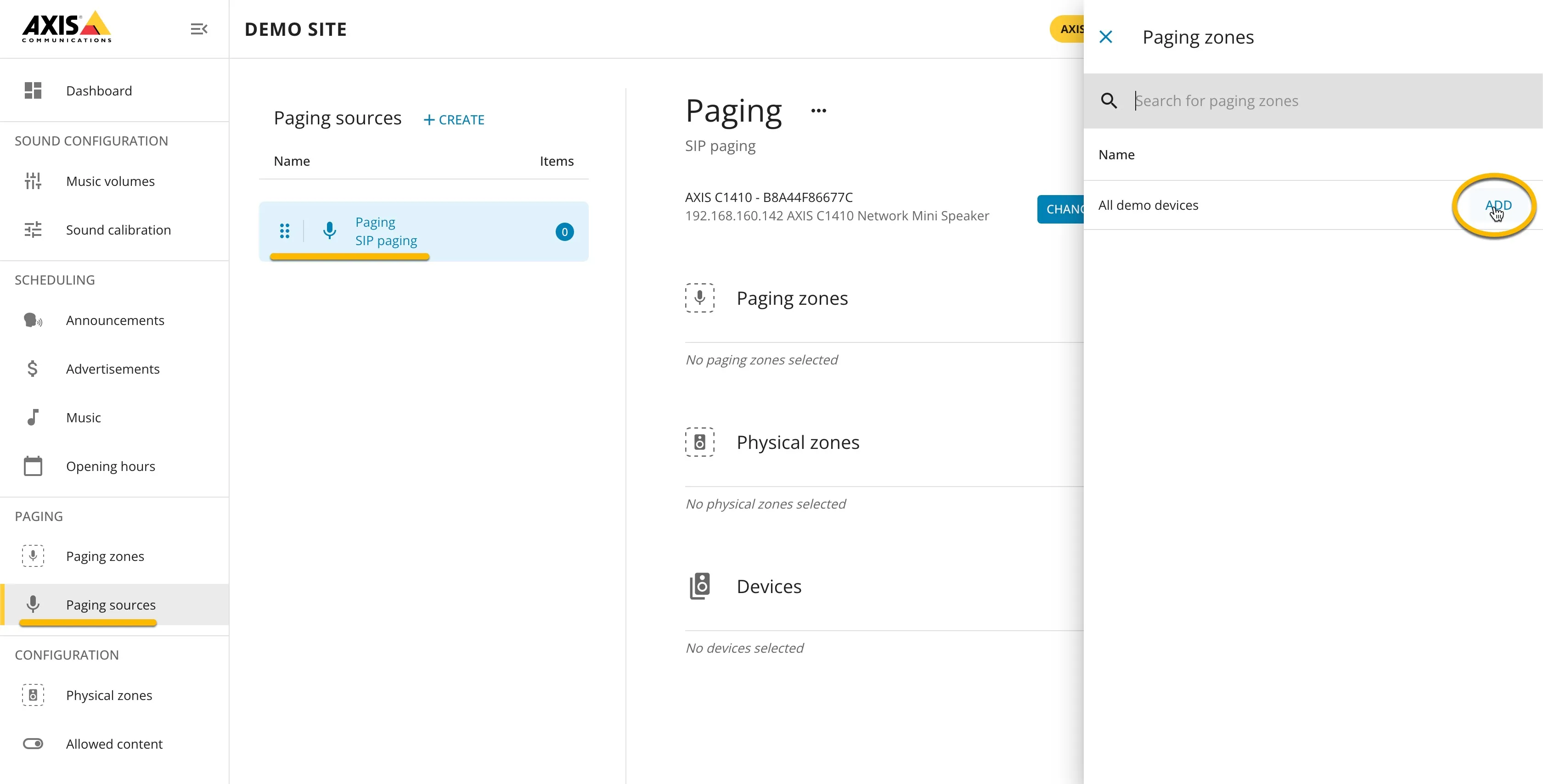
The basic configuration of the AXIS Audio Manager Edge is now done.
Verify the result
As soon as you call the AXIS C1410 from Microsoft Teams, all audio devices configured in the Paging zone will sound.
The AXIS Audio Manager Edge has many more features. For a complete instruction manual, see the AXIS Audio Manager Edge user manual.