Barix Audio over IP and CyberGate
Barix Audio over IP and CyberGate
Supported Barix devices
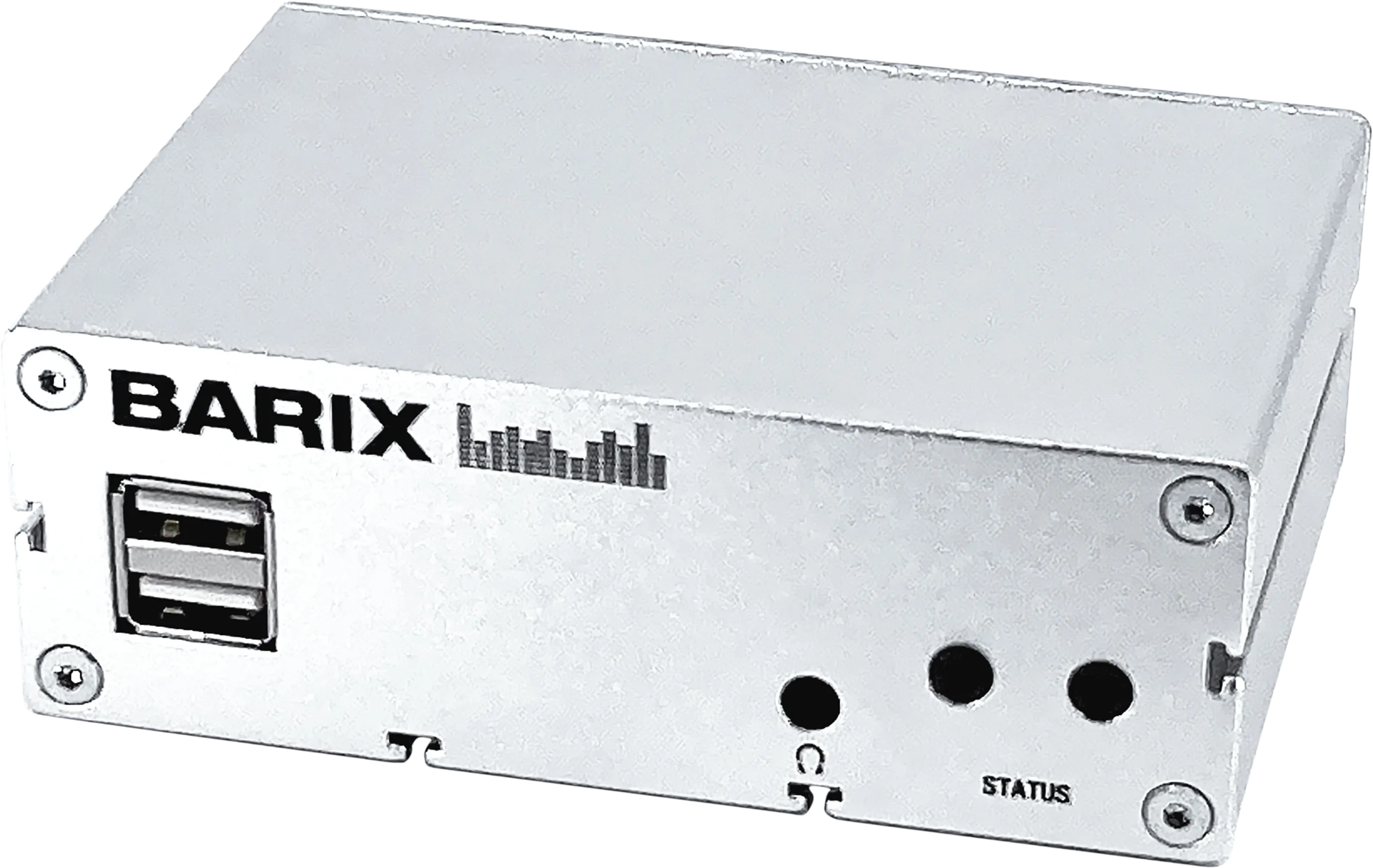
This guide uses a Barix Annuncicom MPI400 (referred to below as "Barix") connecting to the CyberGate service (referred to below as "CyberGate"). The same procedure applies to the following Barix products:
- Annuncicom: MPI400
- Exstreamer: MPA400, M400
- IP Former: TPA400
The following Barix products are certified for secure communication with CyberGate using TLS (Transport Layer Security) and SRTP (Secure Real-time Transport Protocol):
- Exstreamer MPA400
- Exstreamer M400
- IP Former TPA400
If your device is not in the certified list, fall back to UDP (User Datagram Protocol) for transport. See the SIP source step below.
Configure the Barix device
The Barix is configured through its built-in web interface. The procedure below covers the SIP source that connects the Barix to CyberGate, plus optional input and relay configuration for devices that have those.
Sign in to the Barix web interface
- Connect the Barix to the network and power it on.
- Open a web browser and go to the Barix's IP address.
- Sign in with the configured or supplied password.
Configure the SIP source
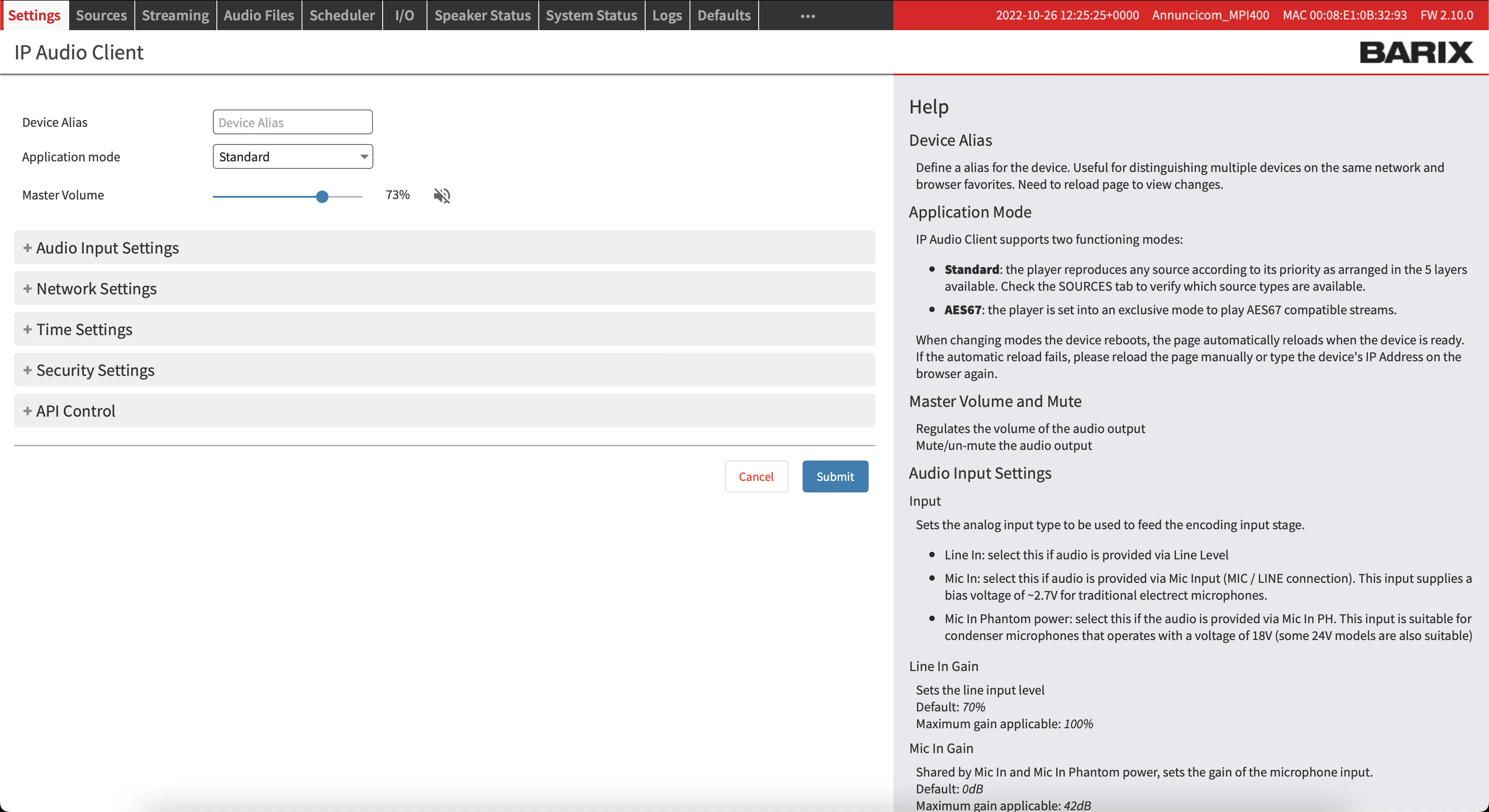
- In the Barix web interface, navigate to the Sources menu.
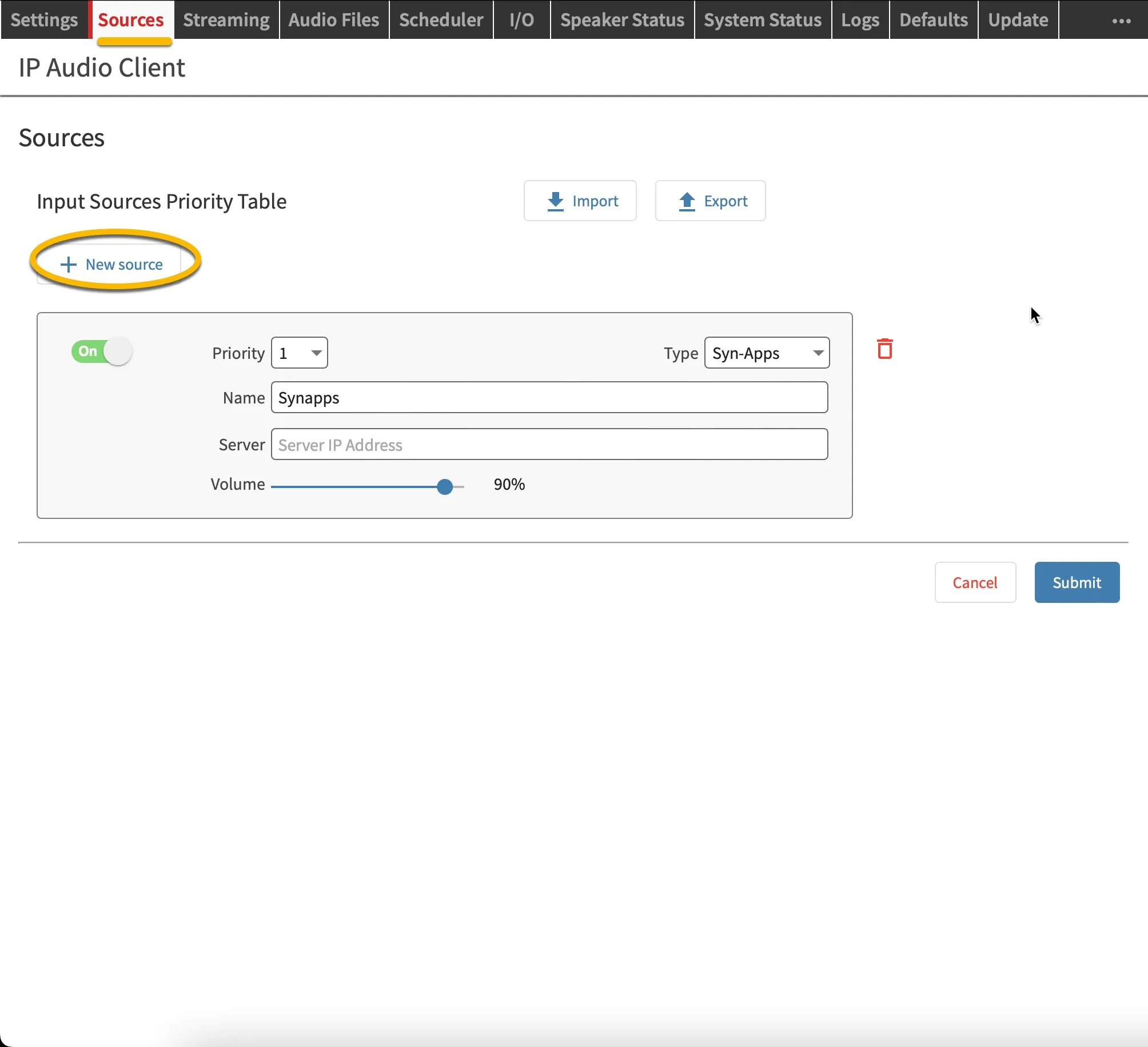
- Add a new source and enter the values below.
Field | Value |
|---|---|
Priority | 2 |
Type | SIP |
SIP mode | Server |
Server domain | cybergate.cybertwice.com |
Username | The username provided by the CyberGate Management Portal |
Password | The password provided by the CyberGate Management Portal |
Advanced settings | |
Transport & Security | TLS + SRTP if supported by your device, otherwise UDP |
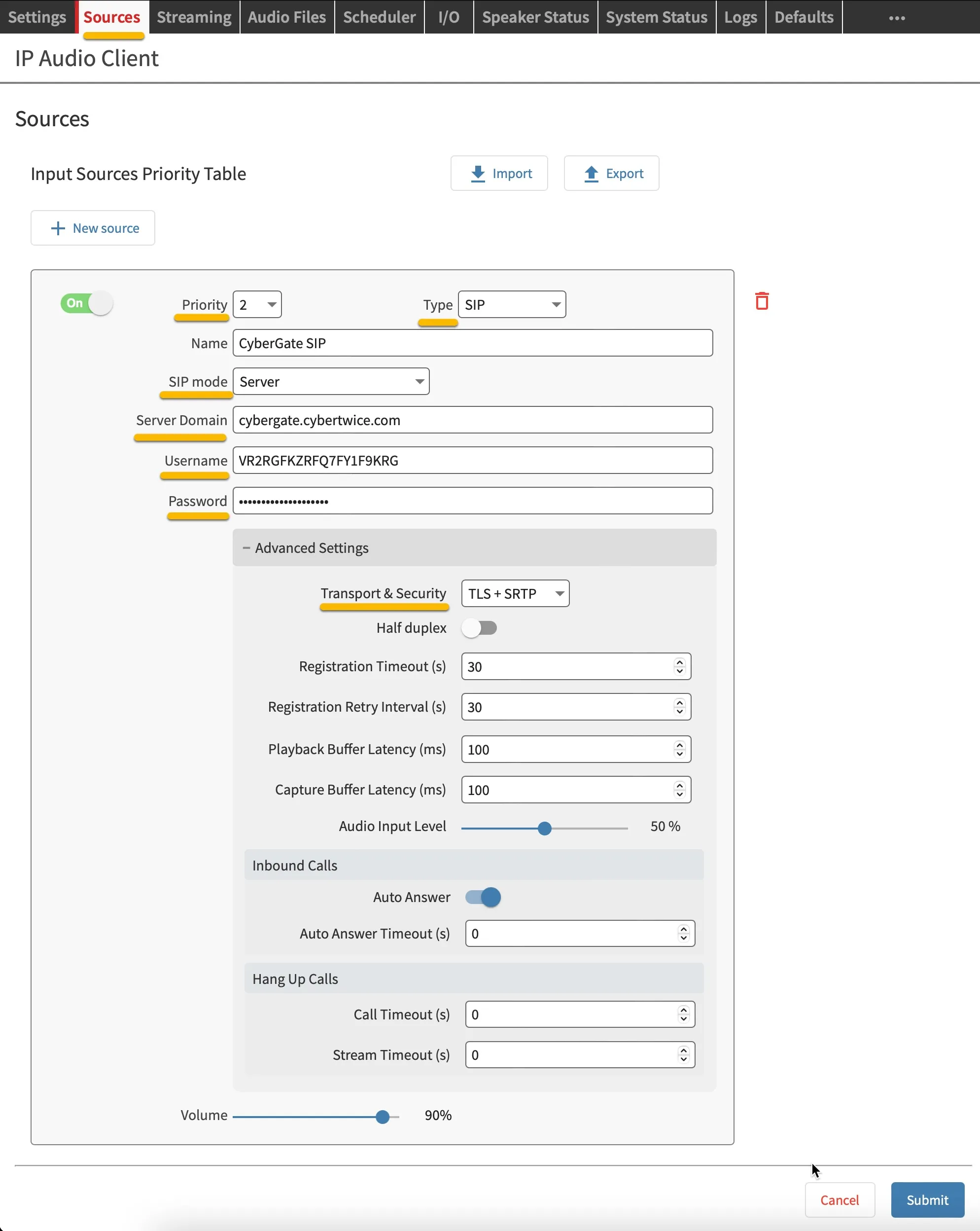
Not every certified Barix Audio over IP device supports TLS + SRTP. If your device does not support it, select UDP — the connection will still work, but without transport encryption.
- Click the blue Submit button.
The new SIP source is added to the Sources list.
Configure an input to trigger a call (optional)
Depending on the model Barix device it might support one or more physical inputs. Skip this section if your device has none. An input can be configured to start a call to a specific Microsoft Teams user when the input is closed.
- In the Barix web interface, navigate to the I/O menu.
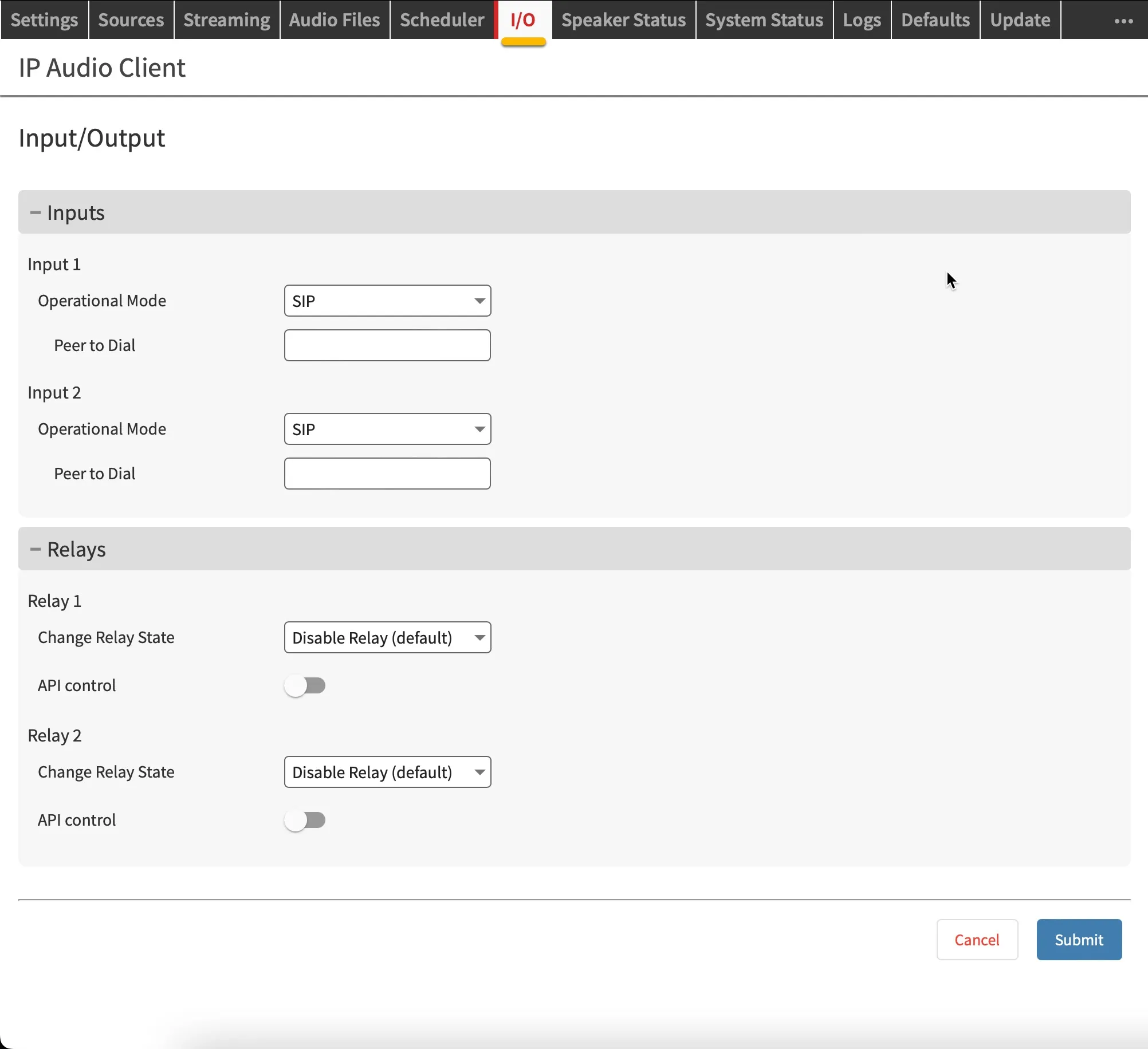
- Configure Input 1 with the value below.
Field | Value |
|---|---|
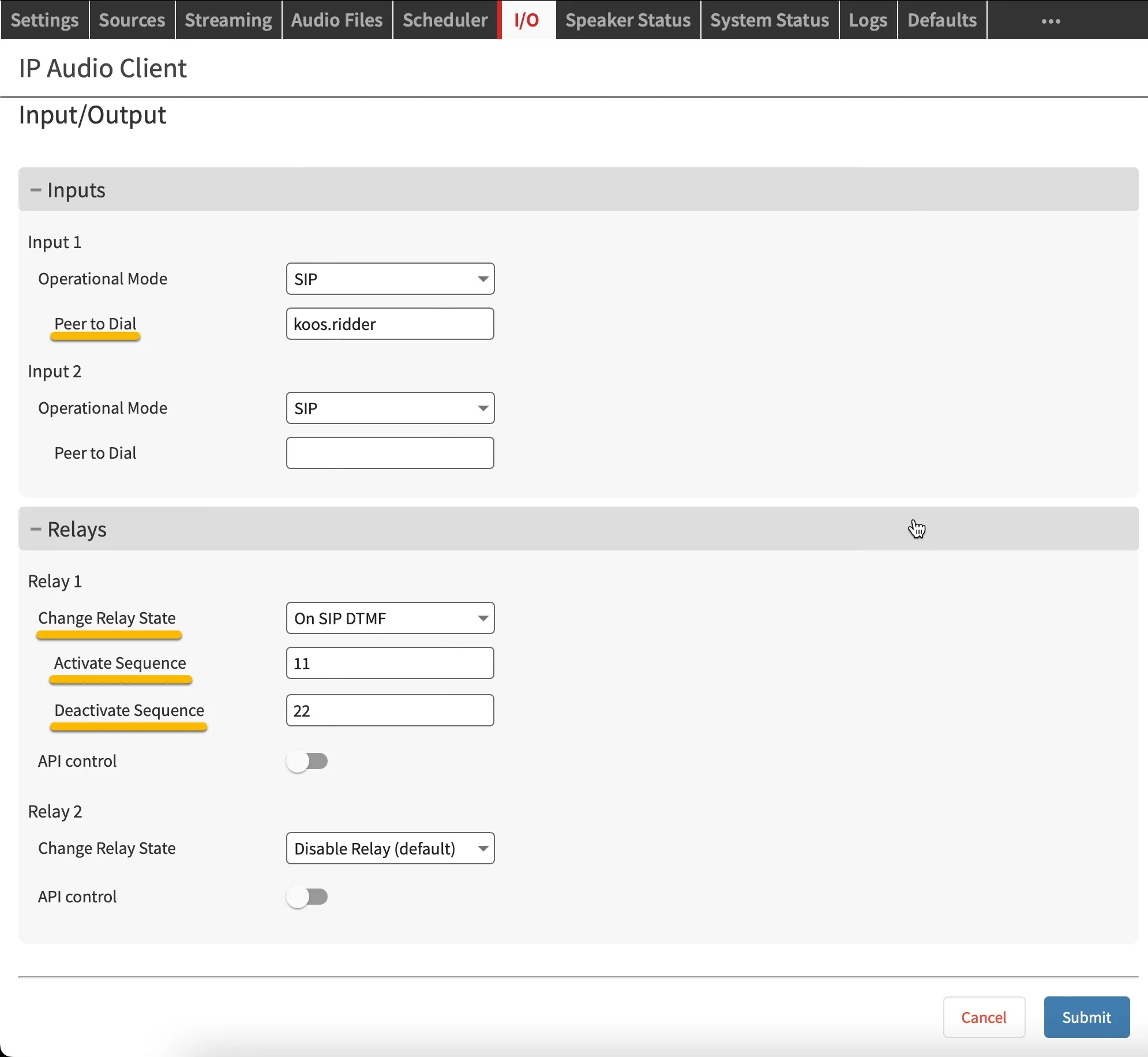
Peer to dial | The Teams username without the domain — for example, koos.ridder for [email protected] |
Configure a relay switched by DTMF (optional)
Some Barix devices have one or more physical relays. Skip this section if your device has none. A relay can be configured to switch on or off during a Teams call using DTMF (Dual-Tone Multi-Frequency) tones.
- In the I/O menu, configure Relay 1 with the values below.
Field | Value |
|---|---|
Change Relay State | On SIP DTMF |
Activate Sequence | 11 |
Deactivate Sequence | 22 |
- Click the blue Submit button.
The Barix-side configuration is now complete. Before Microsoft Teams users can call the Barix, make sure the device is set up correctly by executing the Feature Configuration script.
The Feature Configuration script
The Feature Configuration script is a PowerShell script that needs to be executed before certain CyberGate features are available. One of these features is the ability to call devices directly from Teams.
Follow the steps in the Feature Configuration script manual:
Call the Barix from Teams
There are two ways to call the Barix from Teams:
- Call the Barix device using the Teams Calls menu.
- Recommended: Using the CyberGate for Microsoft Teams app to find the Barix device and call it with one click.
Make sure the CyberGate is configured correctly. It is important to start with the Feature Configuration script.
Call the Barix using the Teams - Calls menu:
- Log in to Microsoft Teams and navigate to the Calls menu.
- Type the (display) name of the Barix device directly in the call field (at 'Type a name'), or search for 'cybergate' to show all of your CyberGate devices.
- Select the device to call and click the blue Call button. A call to the Barix device is initiated and the device answers automatically.
If you configured a relay on the Barix:
- During an active call, click the three dots (...) in the call screen.
- Select Keypad.
- Press 11 to close the relay; press 22 to open it again.
Call the Barix from the CyberGate for Teams app
The CyberGate for Teams app offers many features that make working with CyberGate more convenient. One of these features is the ability to initiate calls directly to devices. This eliminates the need to search for your device in the Teams calls menu.
See this manual for all the information on how to install and use the CyberGate for Teams app:
- In the CyberGate for Teams app, navigate to Devices.
- Find the Barix.
- Click on the Connect button.
A call to the Barix device is initiated and the device answers automatically.
If you configured a relay on the Barix:
- During an active call, click the three dots (...) in the call screen.
- Select Keypad.
- Press 11 to close the relay; press 22 to open it again.
Call a Teams user from the Barix
Certain Barix models are equipped with an input contact. This contact can be used to trigger an outgoing call to a Teams user.
Trigger a call from the Barix input
If you configured an input on the Barix:
- Close the input briefly to start a call to the configured Microsoft Teams user.
- The Teams user will be notified of an incoming call from the Barix
- Answer the call to establish a two-way audio conversation
- If you configured a relay on the Barix:
- During an active call, click the three dots (...) in the call screen.
- Select Keypad.
- Press 11 to close the relay; press 22 to open it again.
- Close the input on the Barix briefly again to end the call.