BAS-IP and CyberGate
BAS-IP and CyberGate
BAS-IP intercom system
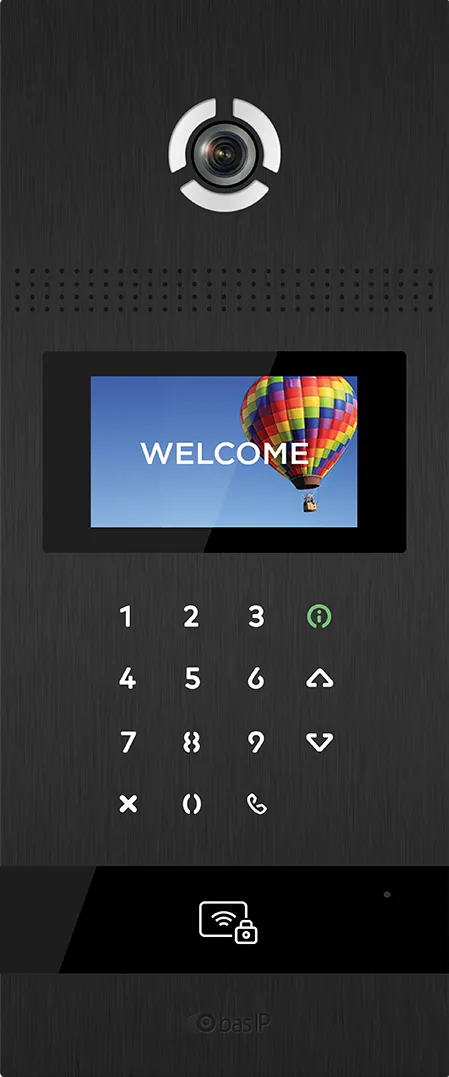
For this document we tested the BAS-IP AA-12B and the BAS-IP AV-03BD (from now on named 'BAS-IP') to connect to the CyberGate service (from now on named 'CyberGate').
This manual applies to the following BAS-IP intercom systems:
AA-series and BI-series (firmware 3.12.3 or later)
- AA-07 (B, FB, FB2M)
- AA-09B
- AA-11B
- AA-12 (B, FB, FB2M)
- AA-14 (FB, FB2M)
- BI-02FB
- BI-04FB
- BI-06FB
- BI-08FB
Above systems need at least firmware version 3.12.3.
AV-series (firmware 3.2.1 or later)
- AV-01 (D, BD, ED, MD, MFD, KD)
- AV-02D
- AV-03 (D, BD)
- AV-04 (SD, FD)
- AV-05 (SD, FD)
Above systems need at least firmware version 3.2.1.
Follow the next steps to configure the BAS-IP to connect it to CyberGate. The procedure differs per firmware family: use Configure the AA-series and BI-series for firmware 3.12.3+, and Configure the AV-series for firmware 3.2.1+.
The CyberGate App for Microsoft Teams
The CyberGate App for Microsoft Teams offers more CyberGate features directly from Microsoft Teams. One of these features is the Open-door button. This button can be utilized during a call to CyberGate and lets you open the the door by clicking just one button.
For a description on how to install the CyberGate app and use the Open door button please see the CyberGate App for Teamsmanual.
Configure the AA-series and BI-series (firmware 3.12.3 or later)
Connect to the BAS-IP web interface
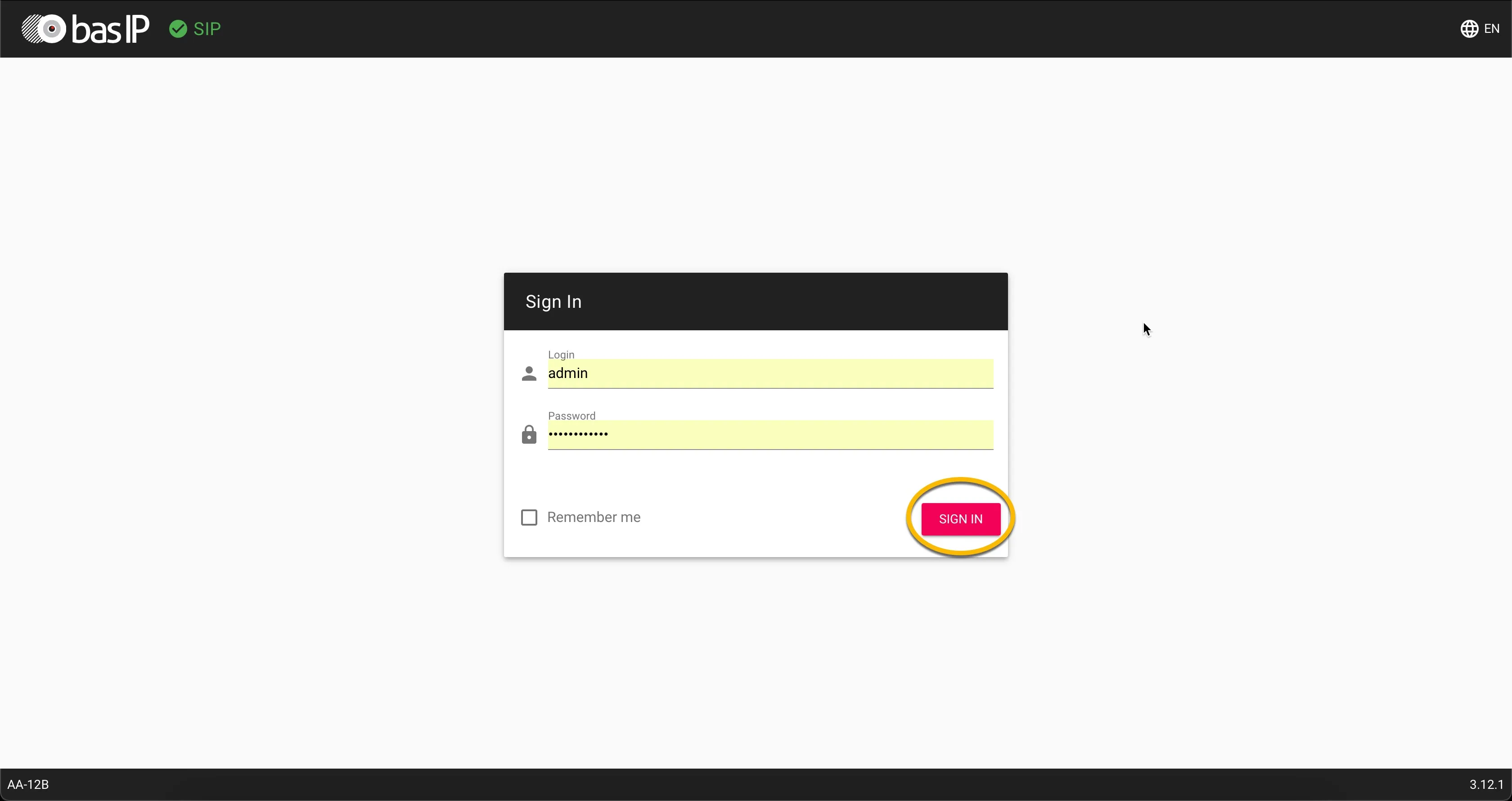
Connect the BAS-IP to the network, power it on and open a web browser to its IP address. Sign in as 'admin' with the configured or supplied password of the BAS-IP.
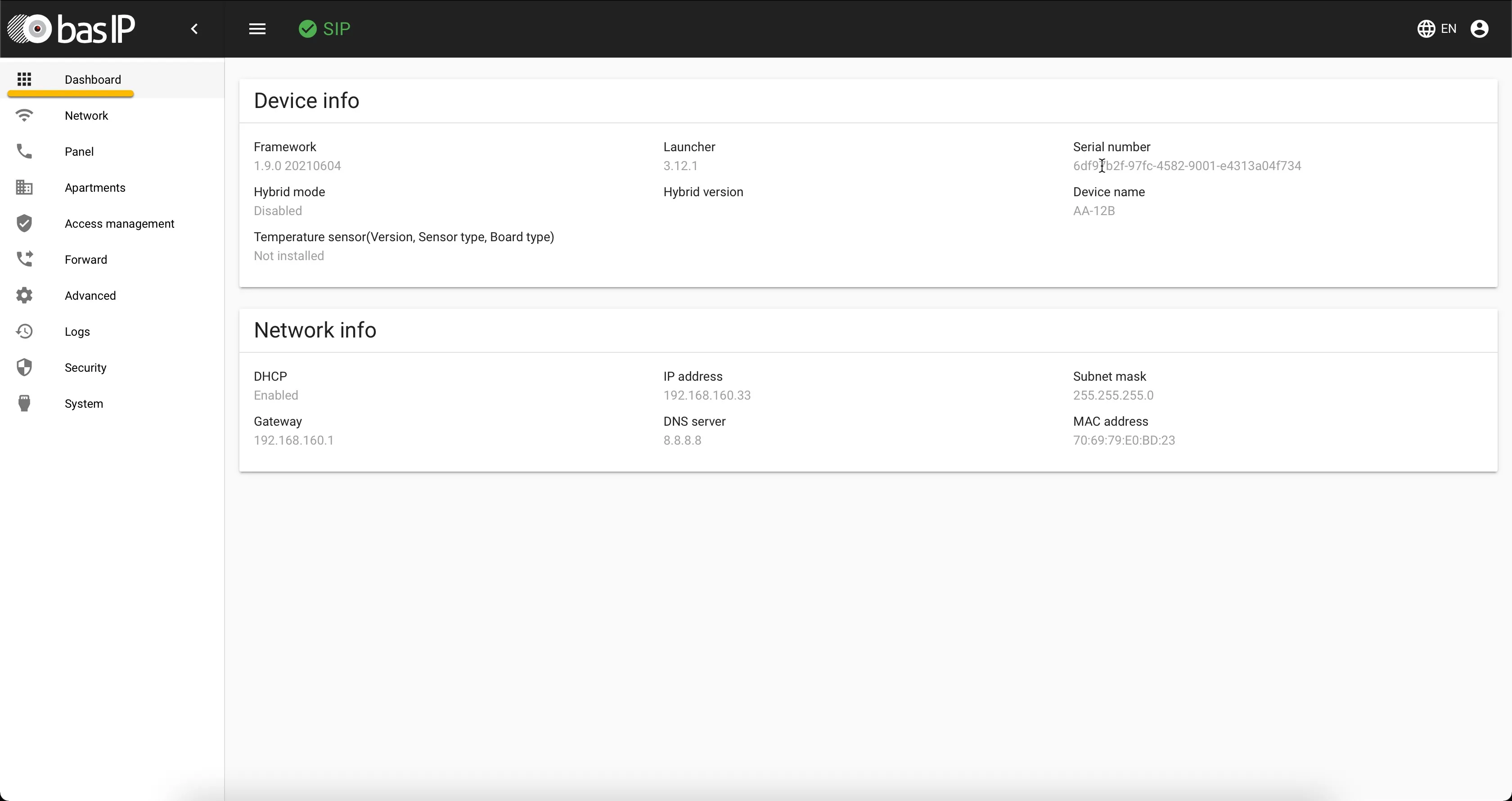
When signed in successfully, the first menu shown is the 'Dashboard' menu.
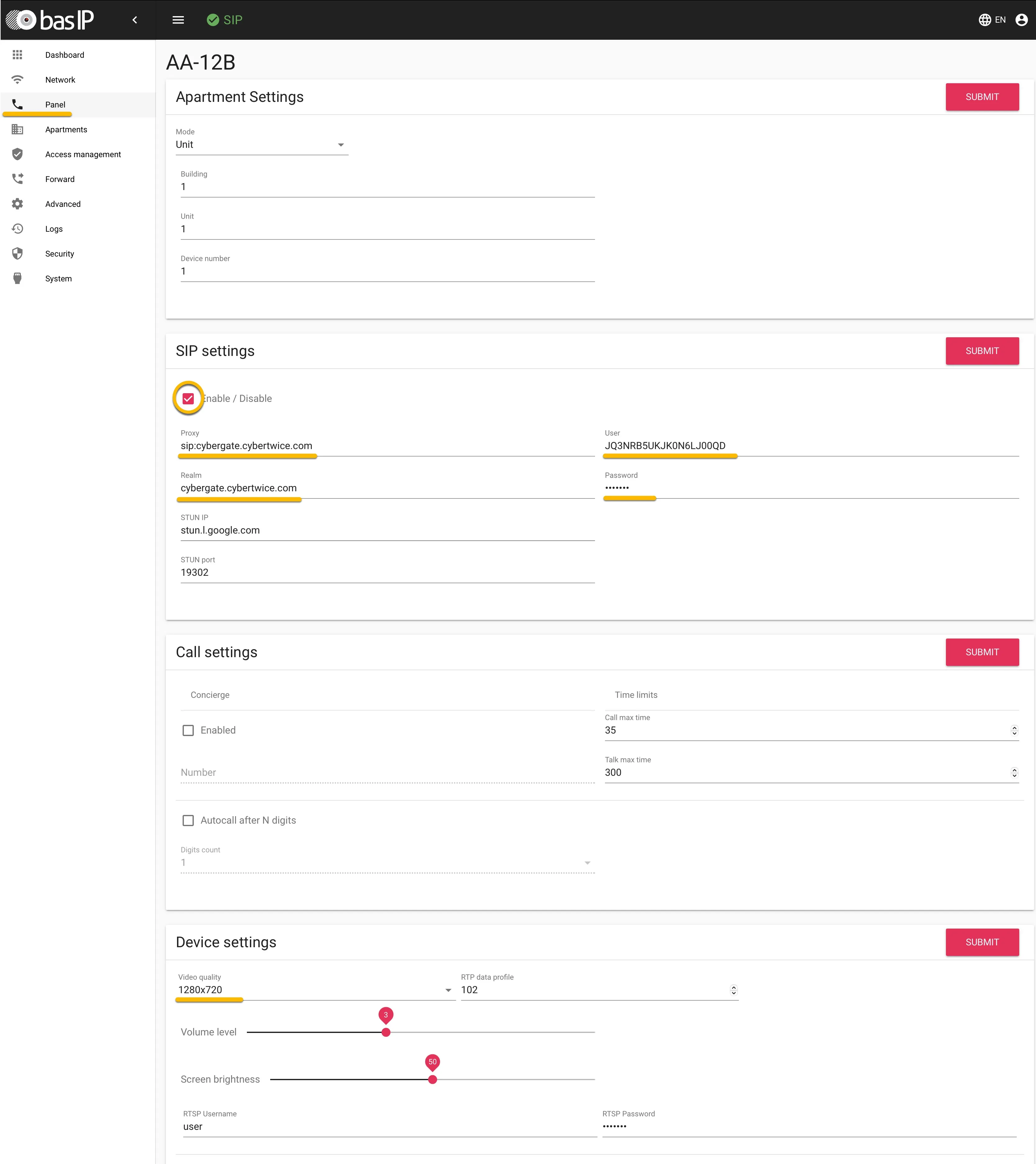
Configure SIP settings in the Panel menu
In the BAS-IP web interface, navigate to the 'Panel' menu.
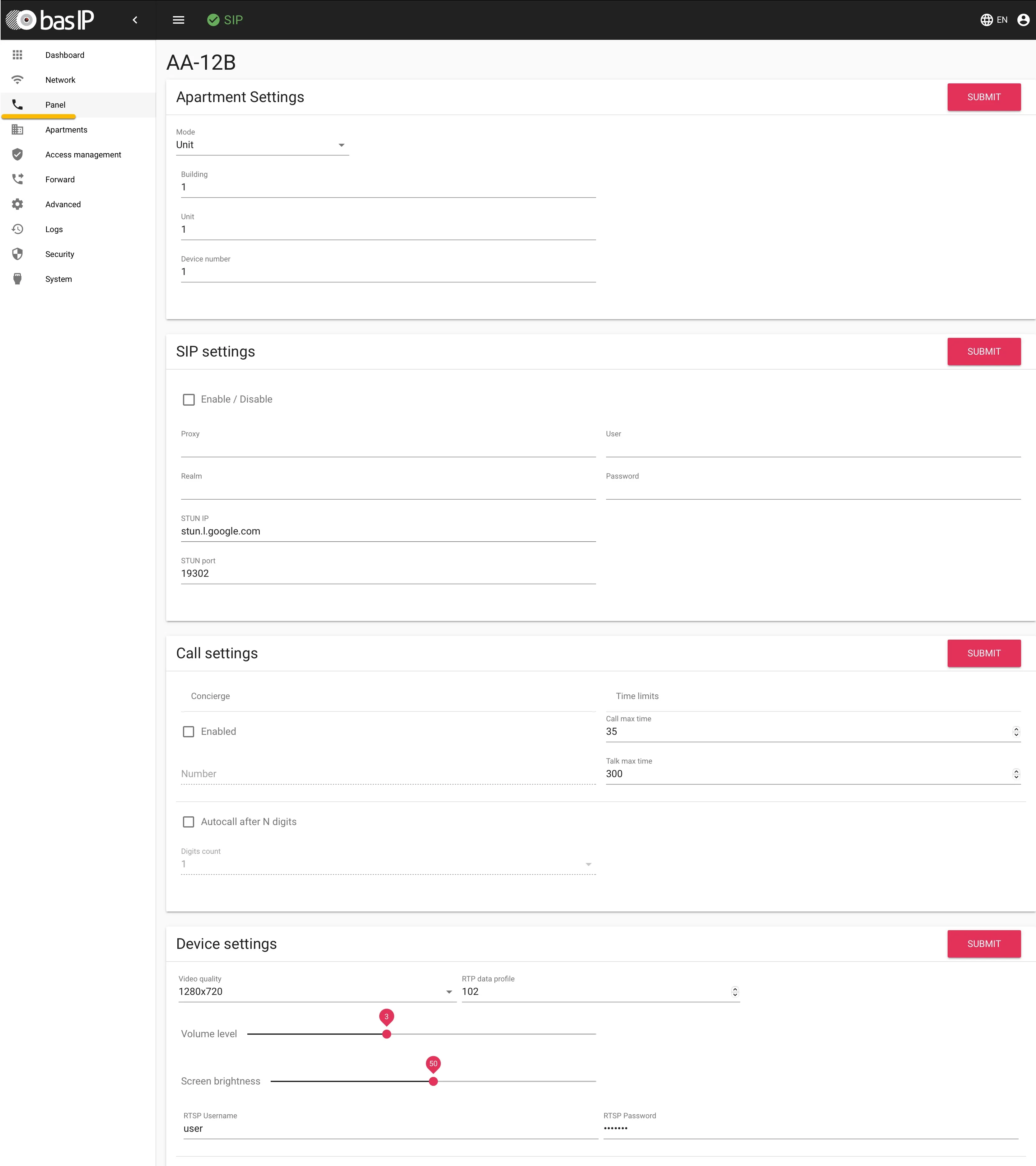
Provide / change the following information:
SIP settings | |
|---|---|
Enable / Disable | Enable |
Proxy | cybergate.cybertwice.com |
Realm | cybergate.cybertwice.com |
User | Use the Username provided by the CyberGate Management Portal |
Password | Use the Password provided by the CyberGate Management Portal |
Video Quality | Change to 1280x720 |
Click the 'Submit' button when done.
Add a call forward to a Teams user (Forward menu)
In the BAS-IP web interface, navigate to the 'Forward' menu.
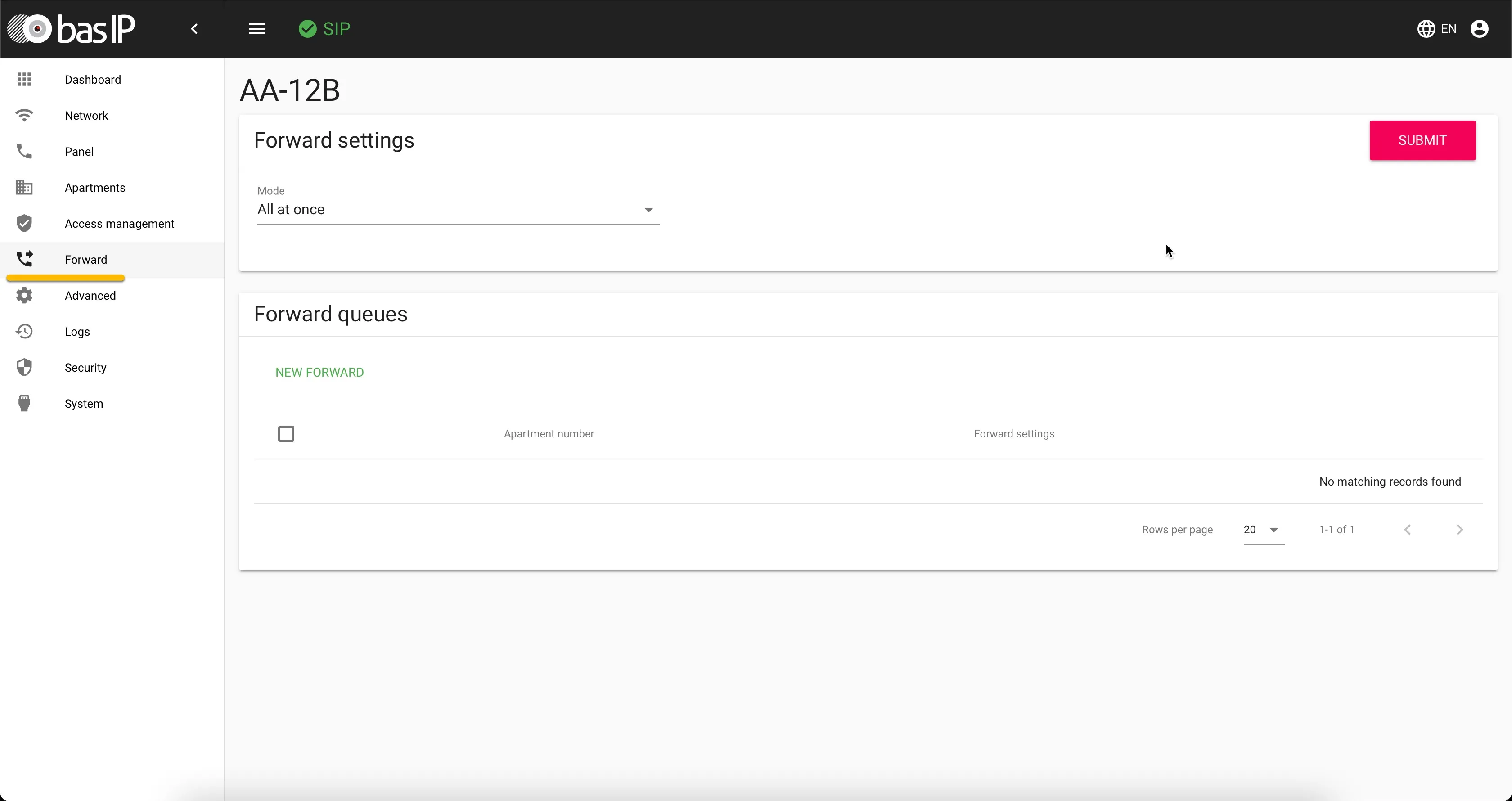
Click 'New Forward' to add the forward to the Teams user.
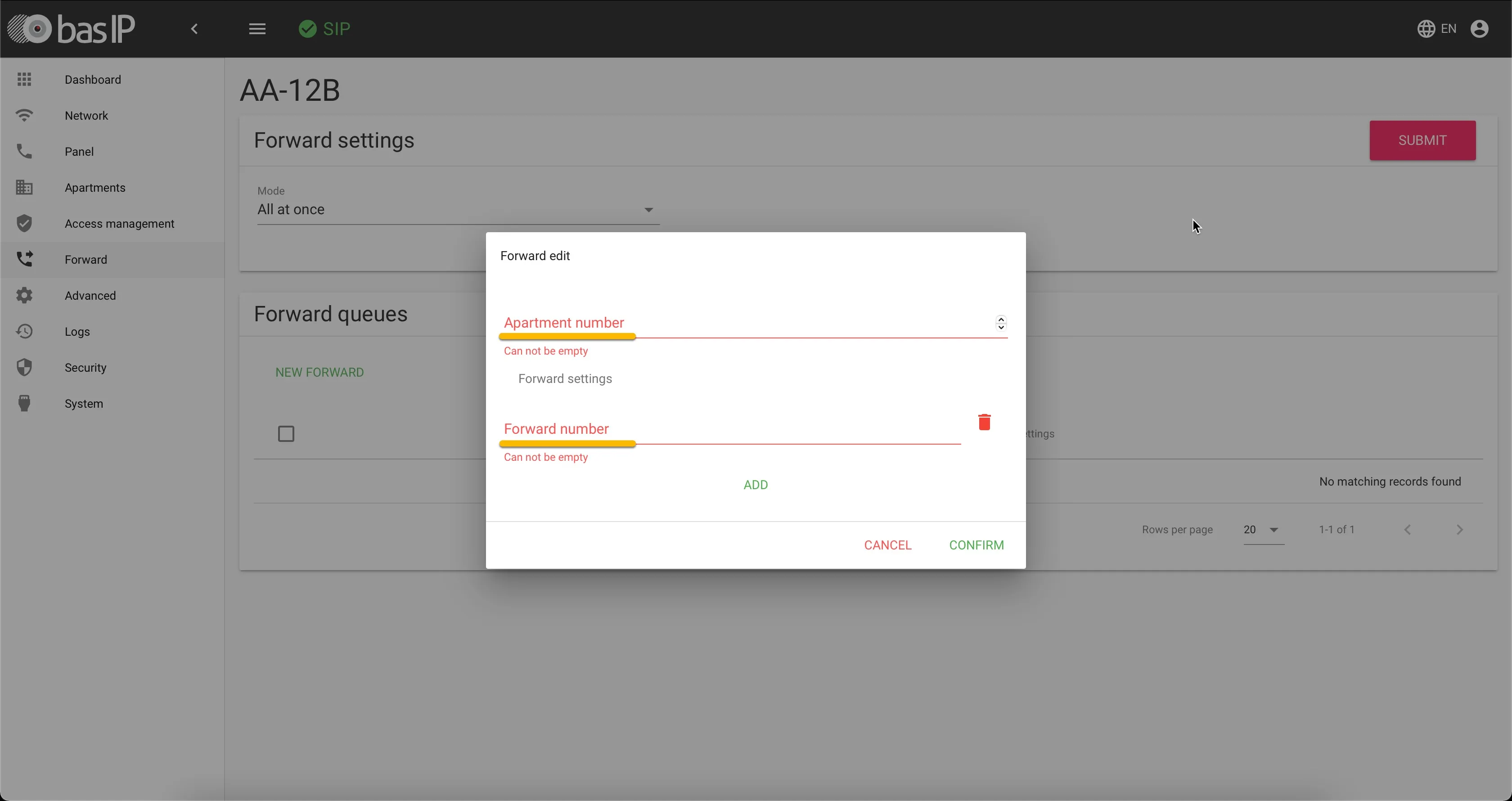
Provide the following information:
Forward edit | |
|---|---|
Apartment number | Use the apartment number you would like to call the Teams user with |
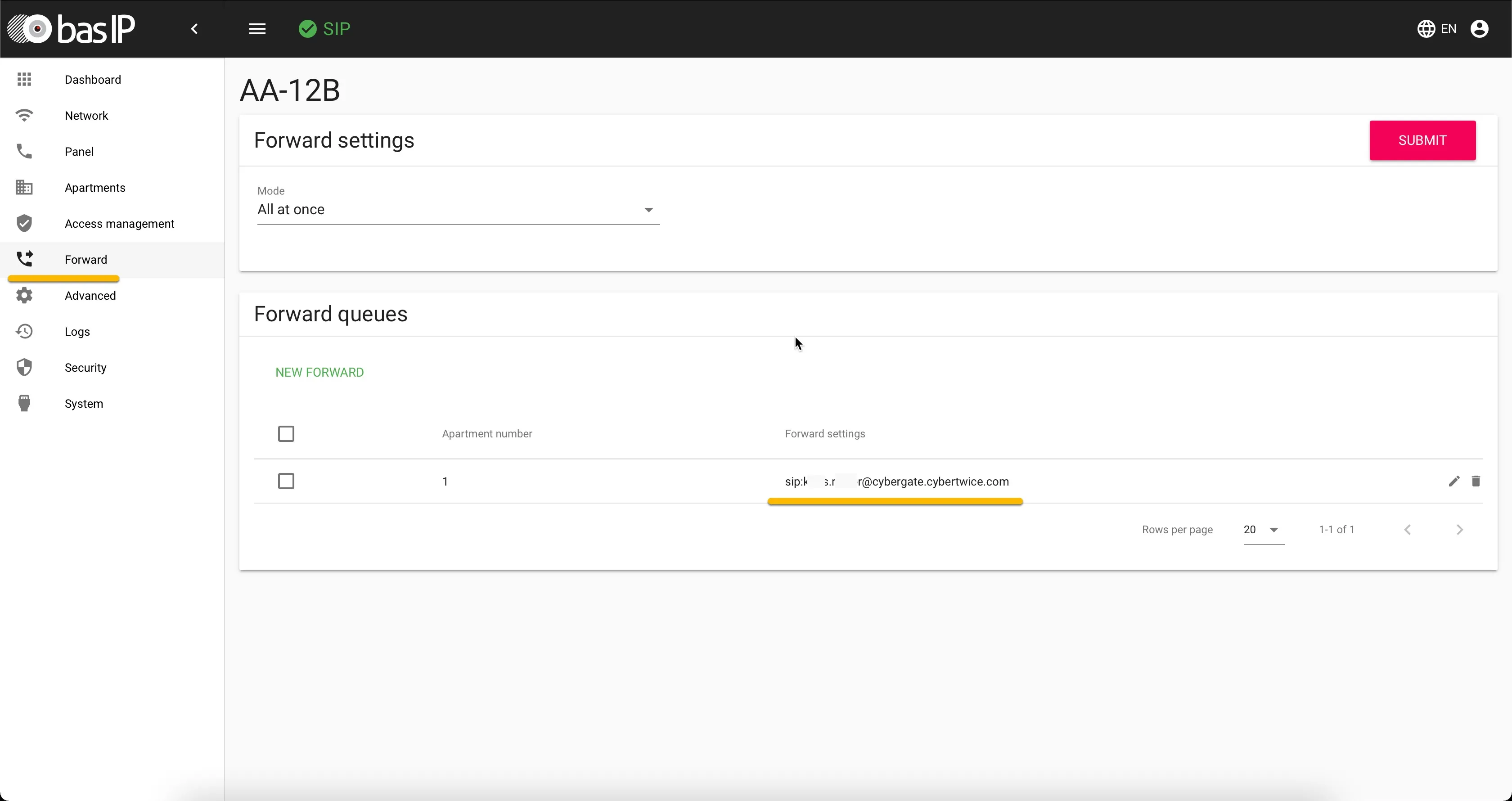
Forward number | sip: <Teams user name followed by the domain 'cybergate.cybertwice. com> sip:<name.name>@cybergate.cybertwice.com * |
- For example, the user 'John Doe', with the Teams name:
[email protected] will translate to this destination address:
sip: [email protected]
Click 'Confirm' when done.
Test the call from BAS-IP to Teams
Configuration of the BAS-IP is now finished.
Pressing the '1' and the 'call' button on the BAS-IP will initiate a call to the number that is configured in the Forward menu.
The call will be established and video will be displayed within ±3 seconds.
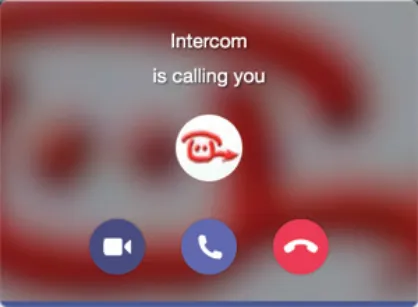
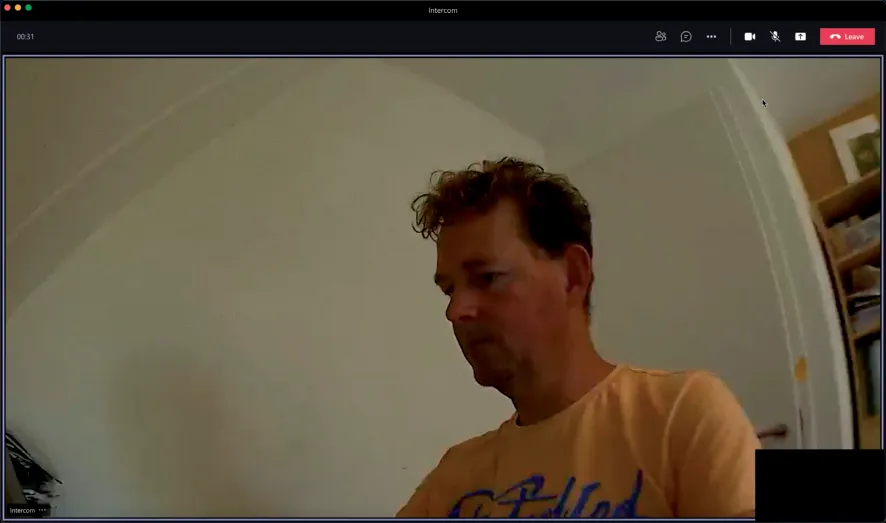
To open the door from the Teams call, click on the three dots (...) in the call screen and select the 'Keypad'. Use the '#' code, this will trigger the relay in the BAS-IP and open the door.
A more convenient way to open the door during a call is to use the CyberGate for Teams app. See the CyberGate App for Teams on how to to install and use the CyberGate for Teams app.
Configure the AV-series (firmware 3.2.1 or later)
Connect to the BAS-IP web interface
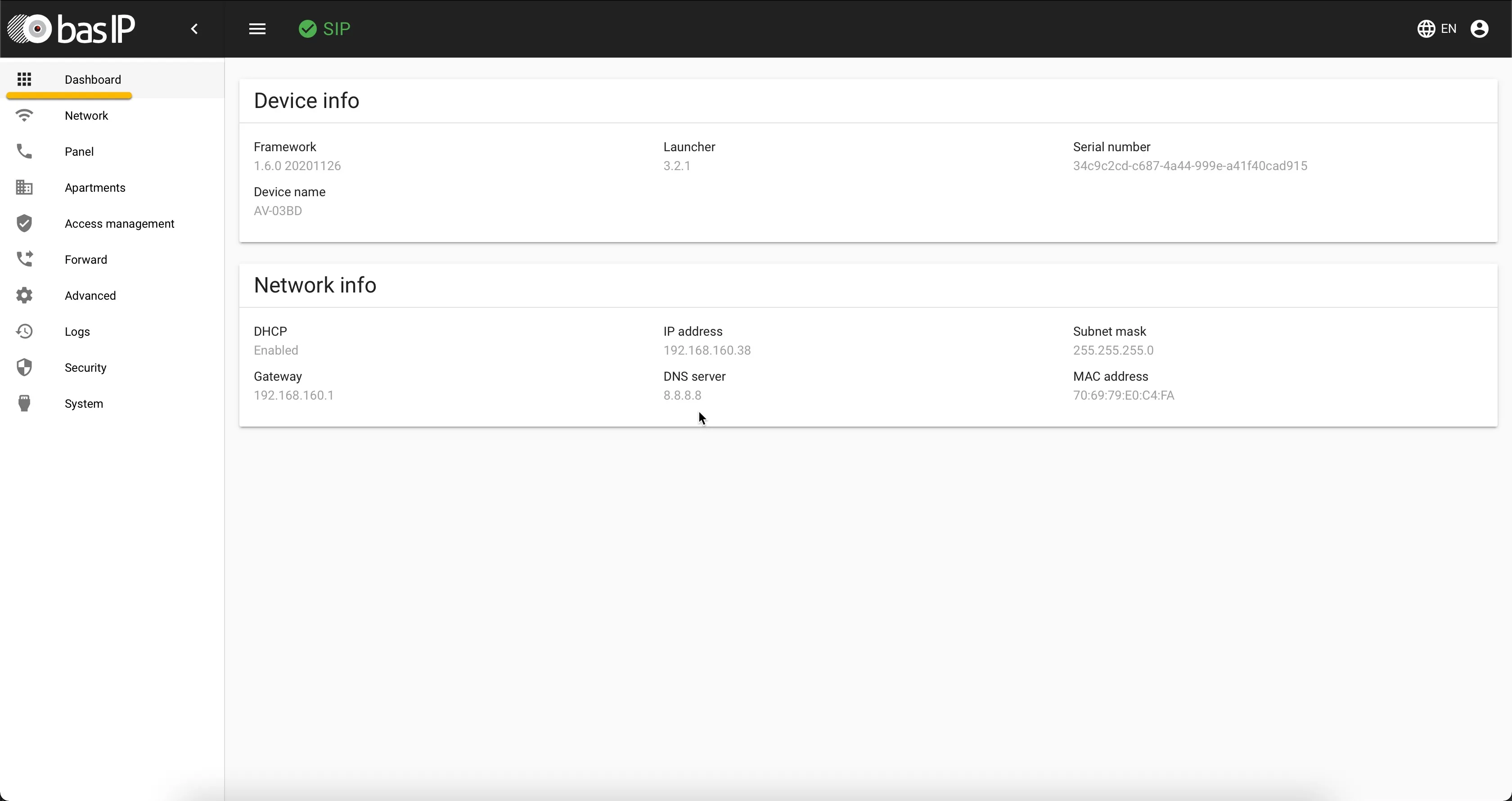
Connect the BAS-IP to the network, power it on and open a web browser to its IP address. Sign in as 'admin' with the configured or supplied password of the BAS-IP.
When signed in successfully, the first menu shown is the 'Dashboard' menu.
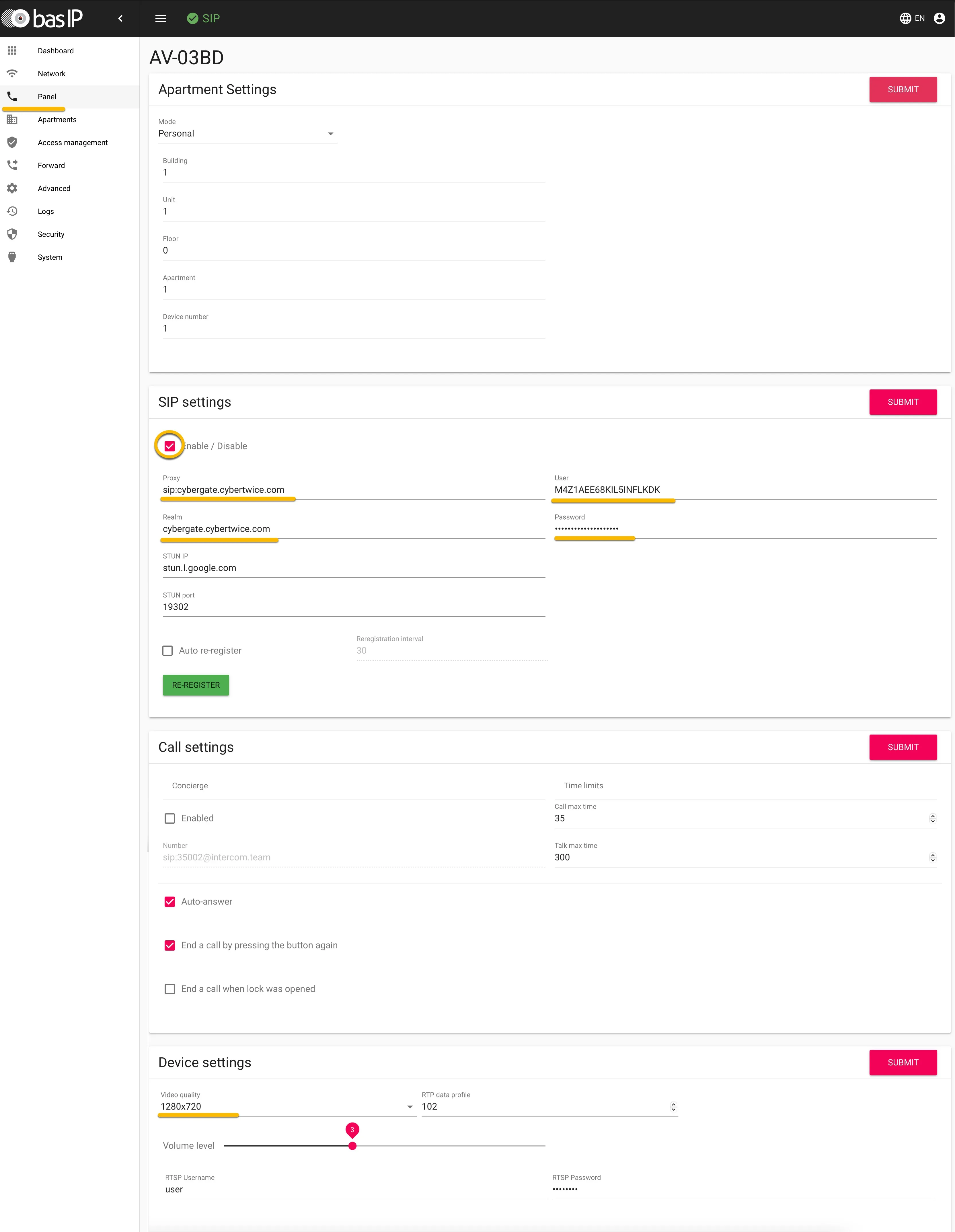
Configure SIP settings in the Panel menu
In the BAS-IP web interface, navigate to the 'Panel' menu.
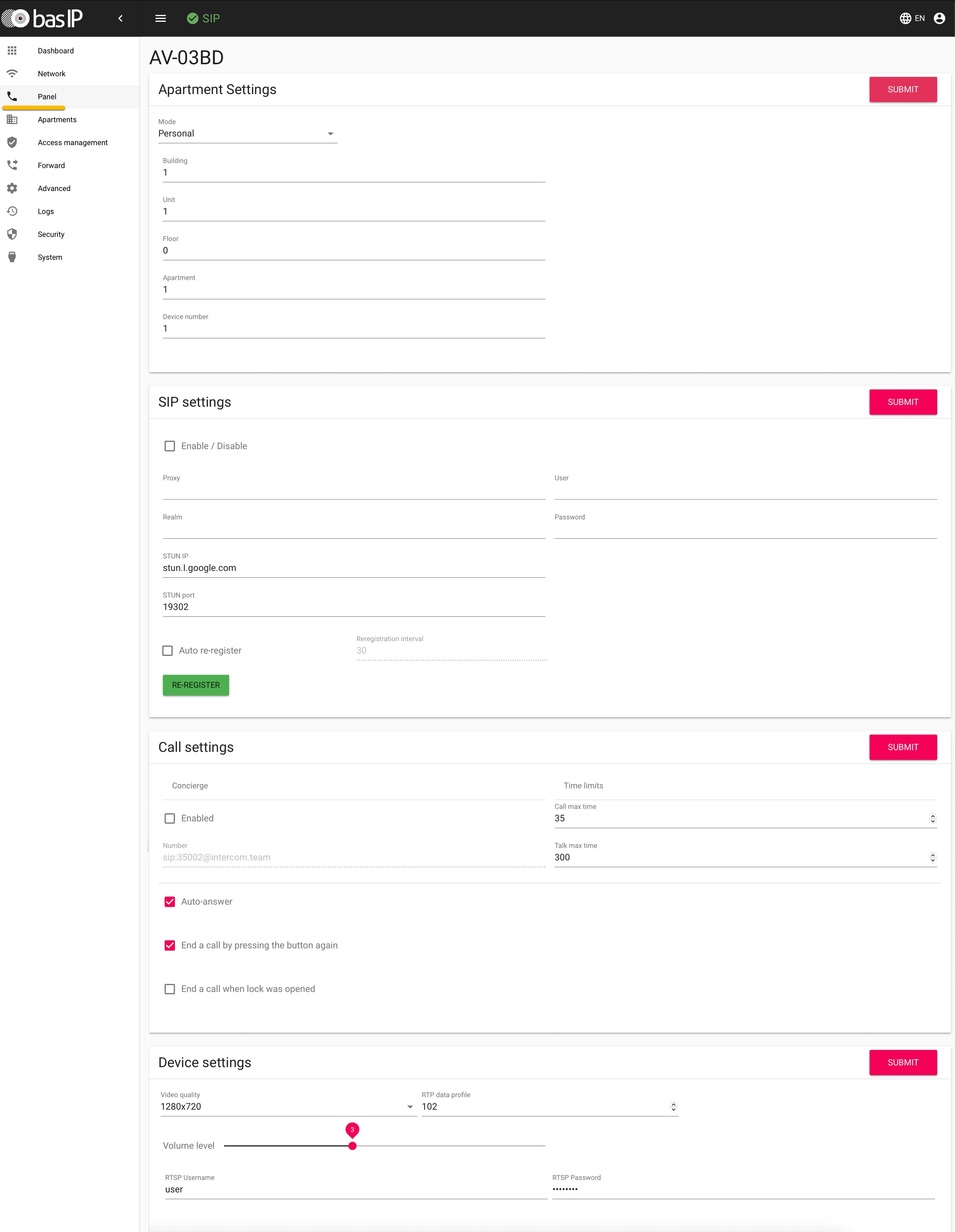
Provide / change the following information:
SIP settings | |
|---|---|
Enable / Disable | Enable |
Proxy | cybergate.cybertwice.com |
Realm | cybergate.cybertwice.com |
User | Use the Username provided by the CyberGate Management Portal |
Password | Use the Password provided by the CyberGate Management Portal |
Video Quality | Change to 1280x720 |
Click the 'Submit' button when done.
Add a call forward to a CyberGate Call group (Forward menu)
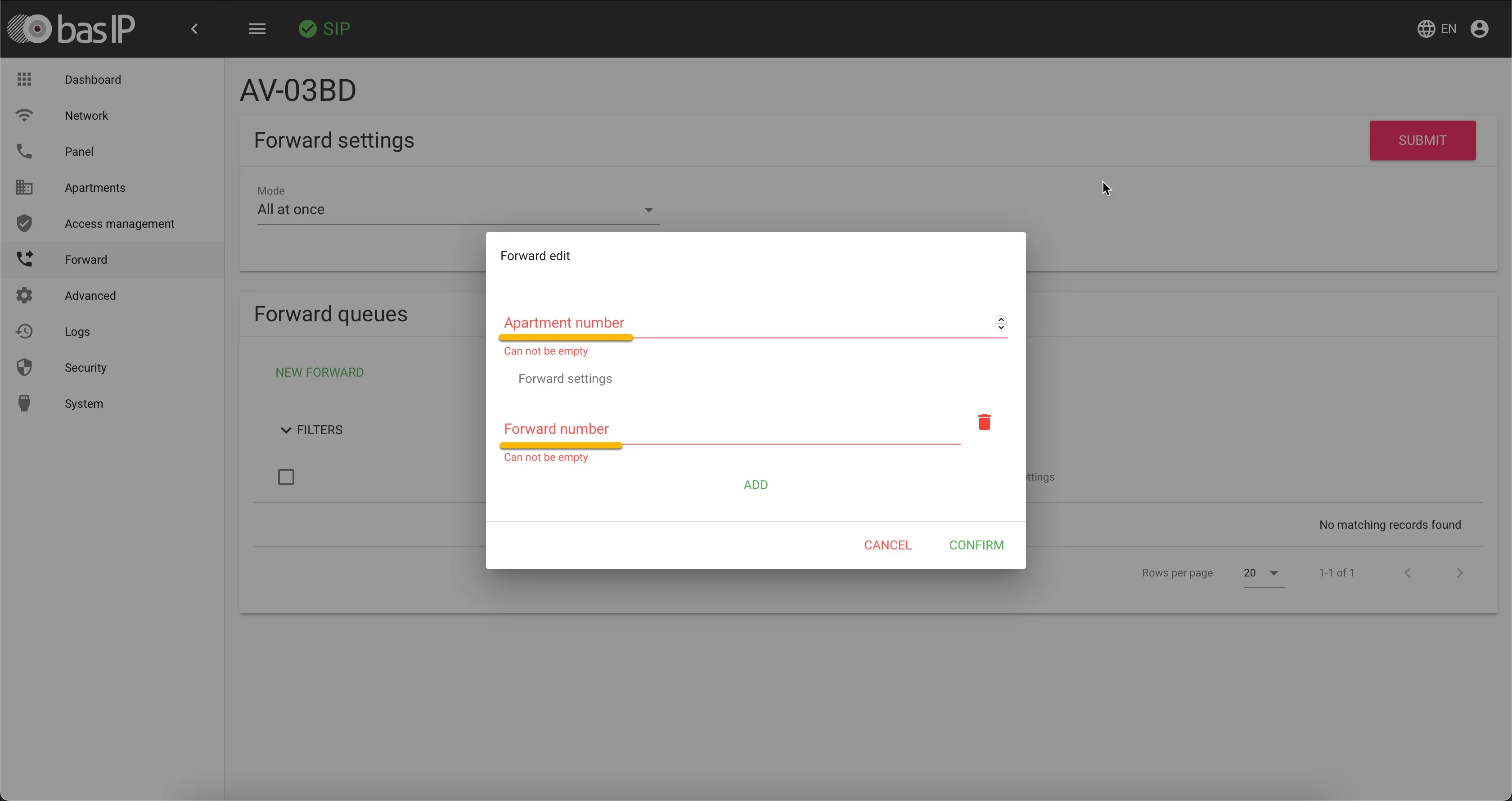
In the BAS-IP web interface, navigate to the 'Forward' menu. Click 'New Forward' to add the forward to number '123'.
Provide the following information:
Forward edit | |
|---|---|
Apartment number | Use the apartment number you would like to call the Teams user with |
Forward number |
Click 'Confirm' when done.
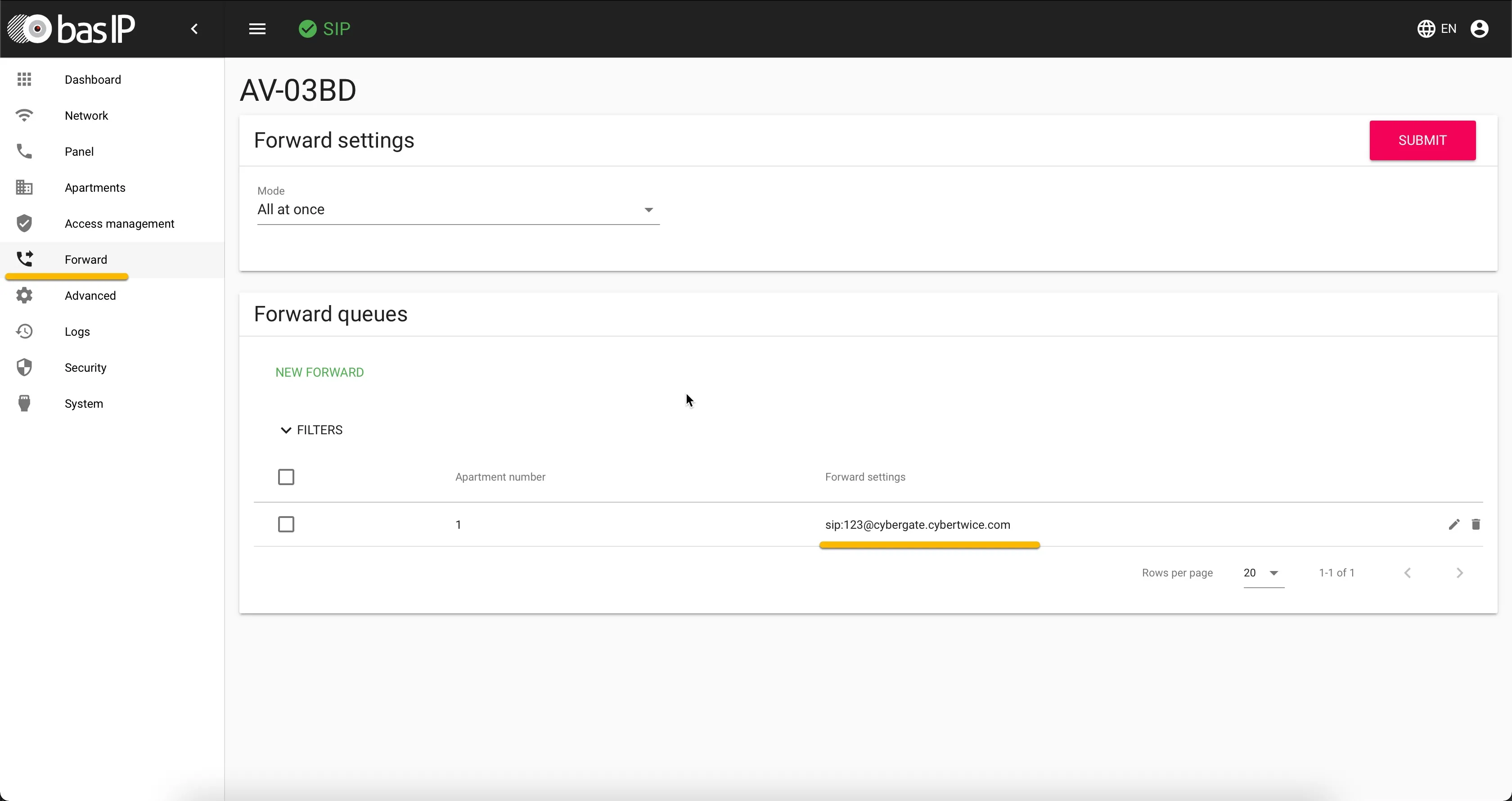
Configuration of the BAS-IP is now done. It is configured to dial '123' when the call button is pressed.
Create a Call group in the CyberGate Management portal
As this configured number (123) is not a valid Teams user within your Teams environment, you must configure a Call group via the CyberGate Management portal. The Call group enables you to 'translate' the dialed number (123) to one or more valid and existing Teams user(s). See the manual CyberGate Call Group Settings on this site on how to create a Call group.
Test the call from BAS-IP to Teams
The configuration is now done. The following sequence will take place when pressing the call button on the BAS-IP:
- The BAS-IP will place a call to the CyberGate using the number 123
- The CyberGate will answer the call to 123 and recognize the 123 number as a 'Call group.
- The CyberGate checks what Teams user(s) to call (as configured in the Call group) and will place the call to all Teams users in this group.
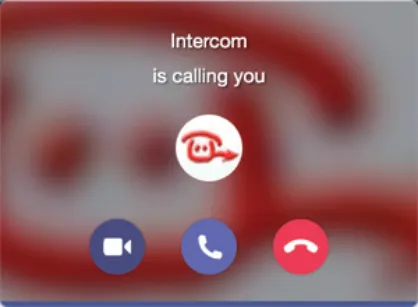
- The first Teams user that answers the incoming call in Teams (by clicking the pick-up symbol) will be connected to the BAS-IP.
The call will be established and video will be displayed within ±3 seconds.
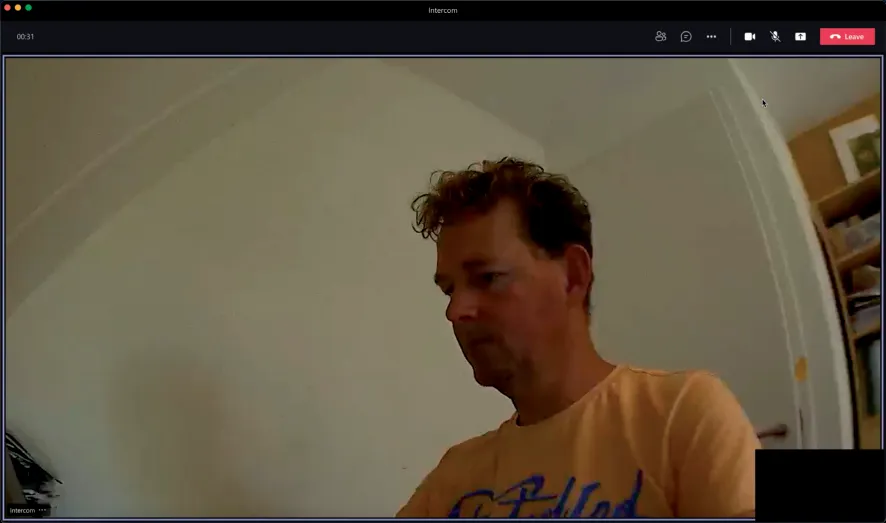
To open the door from the Teams call, click on the three dots (...) in the call screen and select the 'Keypad'. Use the '#' code, this will trigger the relay in the BAS-IP and open the door.
A more convenient way to open the door during a call is to use the CyberGate for Teams app. See the CyberGate App for Teams on how to to install and use the CyberGate for Teams app.