Behnke and CyberGate
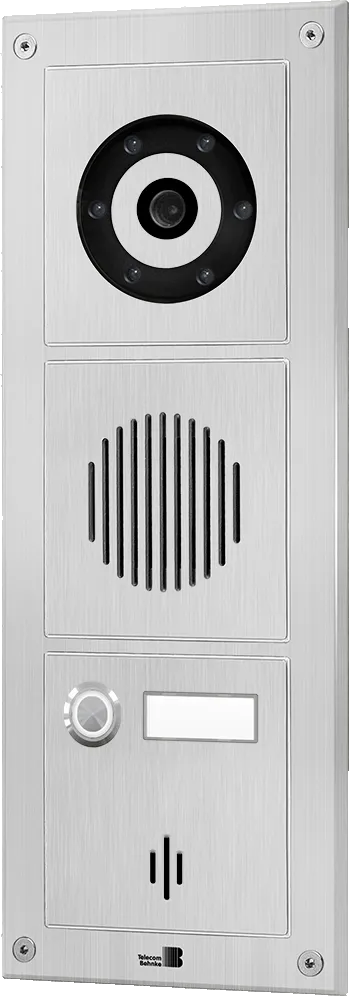
Behnke and CyberGate
Supported Behnke SIP door stations
This document uses the Behnke SIP Door Station series 20 (referred to from here on as "Behnke") to connect to the CyberGate service (referred to from here on as "CyberGate").
Compatible Behnke SIP door stations:
- Behnke SIP intercoms 3.0 - Series 20
- Behnke SIP intercoms 3.0 - Series 40
- Behnke SIP intercoms 3.0 - Series 50
The Behnke door stations are also certified for secure communication with CyberGate. Configure the Behnke on TCP first and test the communication before configuring for TLS.
Connect to the Behnke web interface
- Connect the Behnke to the network and power it on.
- Open a web browser and go to the Behnke's IP address.
- Sign in with the configured or supplied Behnke password.
The Basic configuration page opens.
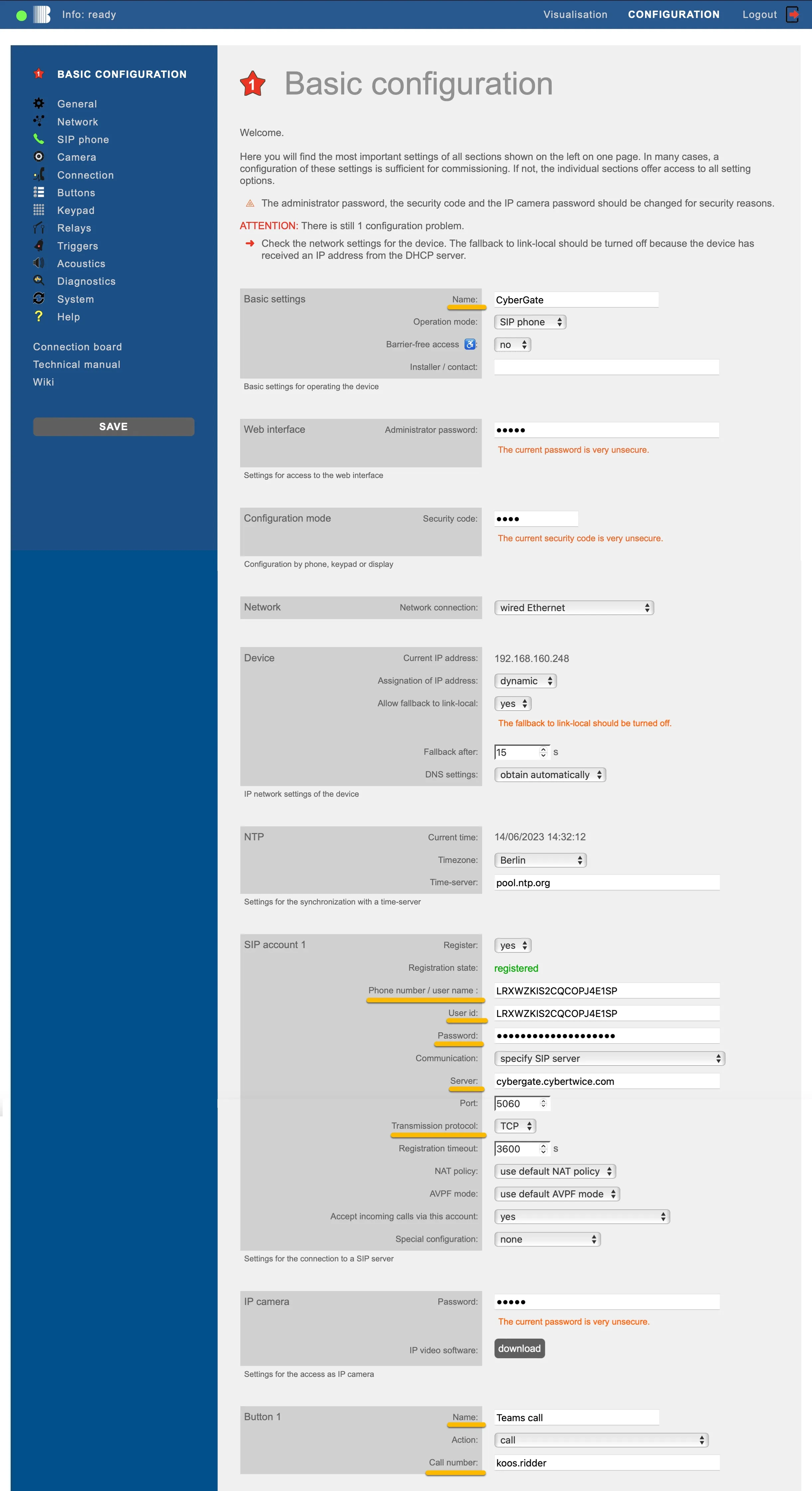
Configure the basic SIP account
On the Basic configuration page, provide or change the following:
Basic Settings | |
|---|---|
Name | Enter a name for the SIP account (e.g. CyberGate) |
SIP account 1 | |
Phone number / user name | Use the Username provided by the CyberGate Management Portal |
User id | Use the Username provided by the CyberGate Management Portal |
Password | Use the Password provided by the CyberGate Management Portal |
Server | cybergate.cybertwice.com |
Transmission protocol | Select TCP |
Button 1 | |
Name | Name the user to call |
Call number | Teams user name without the domain * |
* The call number is the Teams user name without the domain. For example, the user "John Doe" with the Teams name:
translates to this destination address:
john.doe
Click Save on the left when done.
Enable secure SIP encryption (TLS and SRTP)
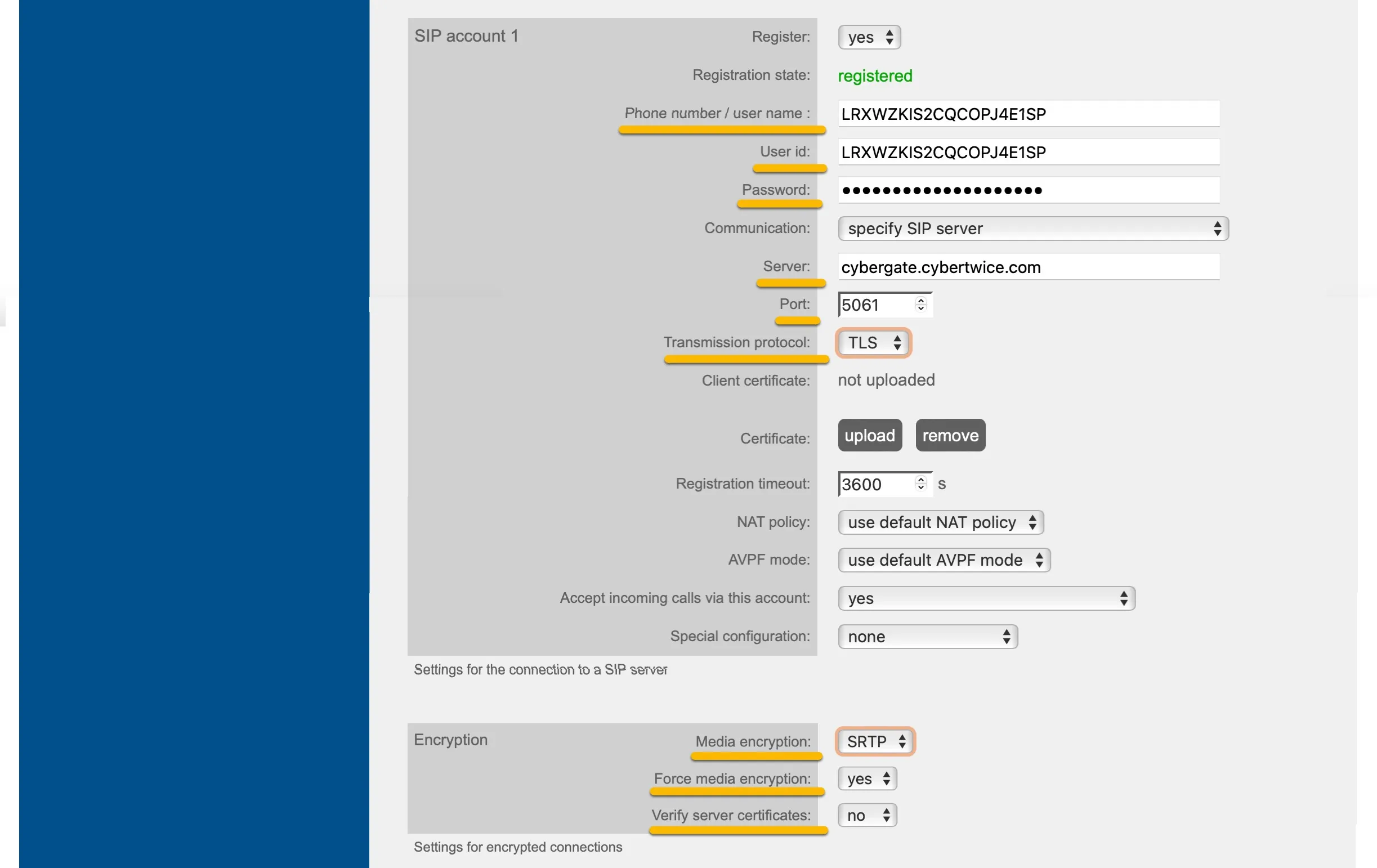
When using secure SIP — Transport Layer Security (TLS) and Secure Real-time Transport Protocol (SRTP) — provide the following:
SIP account 1 | |
|---|---|
Transmission protocol | Change to TLS |
Encryption | |
Media encryption | Select SRTP |
Force media encryption | Select yes |
Verify server certificates | Select no |
Click Save on the left when done.
Configure audio and video codecs
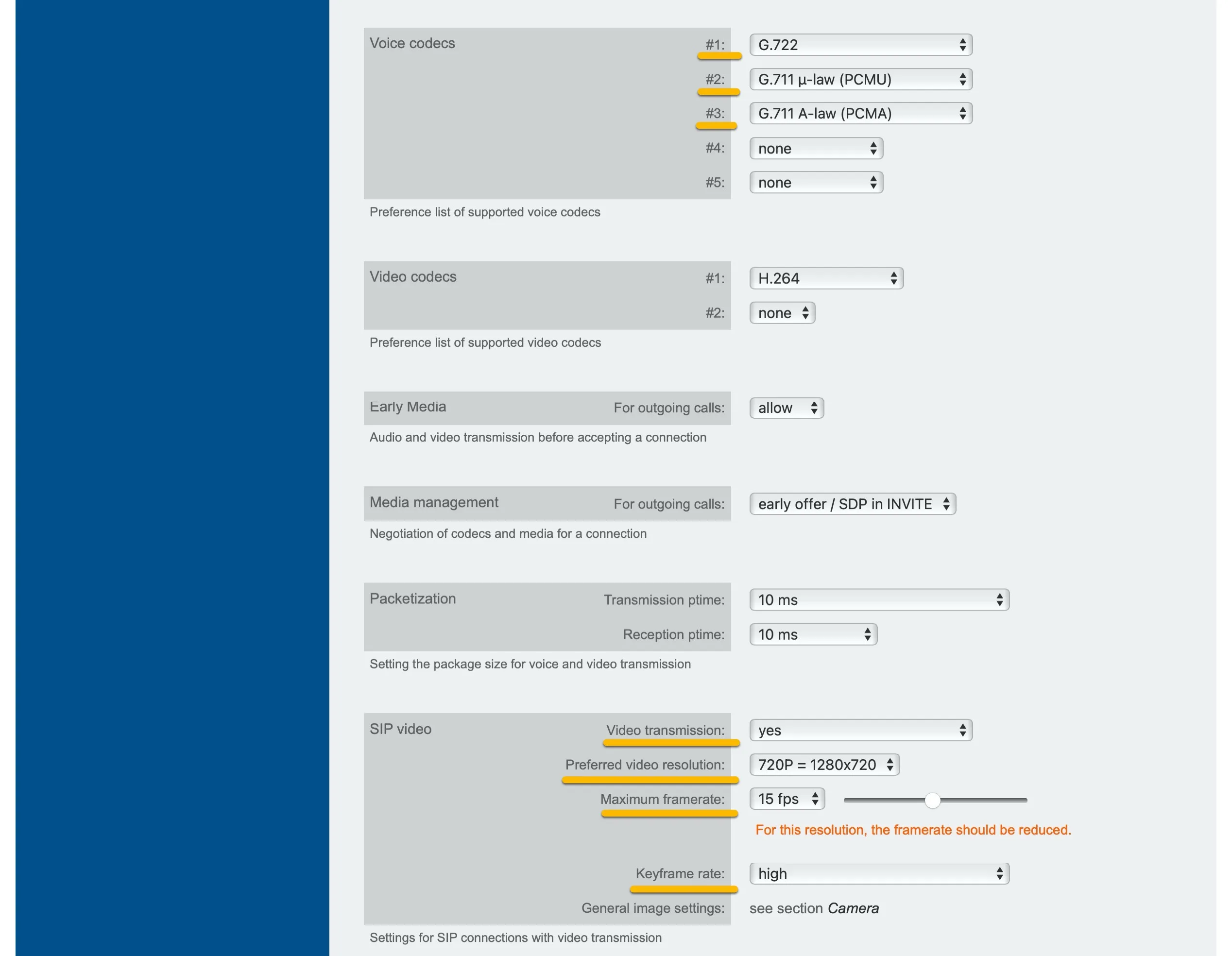
- Go to the SIP Phone menu.
- Provide or change the following:
Voice codecs | |
|---|---|
#1 | Select G.722 |
#2 | Select G.711 u-law |
#3 | Select G.711 A-law |
SIP video | |
Video transmission | Select yes |
Preferred video resolution | Select 720P = 1280x720 |
Maximum framerate | Select 15 fps |
Keyframe rate | Select high |
Click Save on the left when done.
Test the call and open the door
Configuration is now complete. Test the connection to the configured Teams user:
- Press the call button on the Behnke to initiate a call to the configured Teams user.
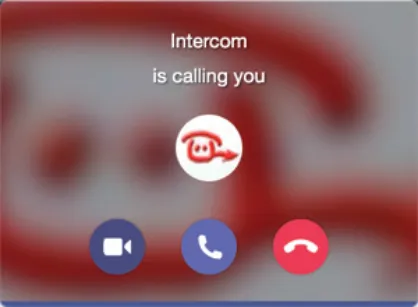
- When the Teams client notifies you of the incoming call, answer it by clicking the handset or camera symbol.
- The call is established and video is displayed within roughly 3 seconds.
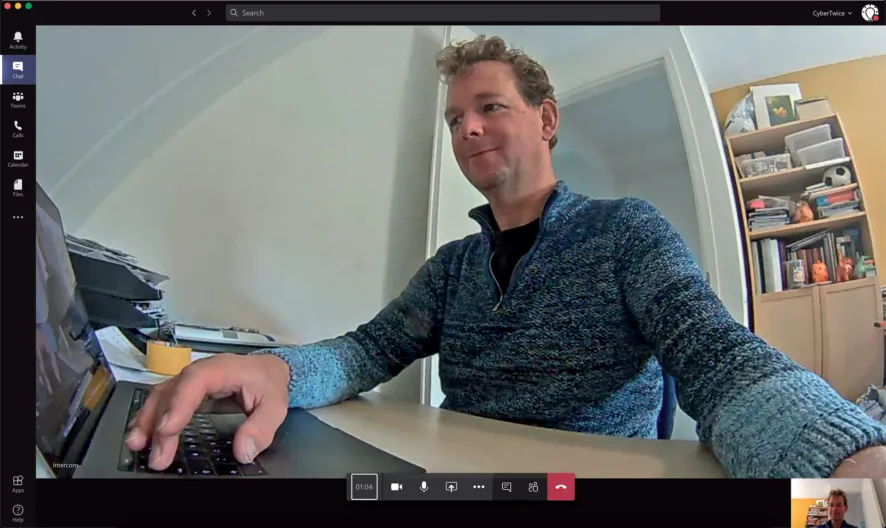
- To open the door from the Teams call, click the three dots (...) in the call screen and select Keypad.
- Enter the configured door-release code - the Behnke default is 0#- to trigger the relay in the Behnke and open the door.
CyberGate App for Microsoft Teams
The CyberGate App for Microsoft Teams offers more CyberGate features directly from Microsoft Teams. One of these features is the Open-door button. This button can be utilized during a call to CyberGate and lets you open the the door by clicking just one button.
For a description on how to install the CyberGate app and use the Open door button please see the CyberGate App for TeamsCyberGate App for Teams manual.