Busch-Jaeger and CyberGate
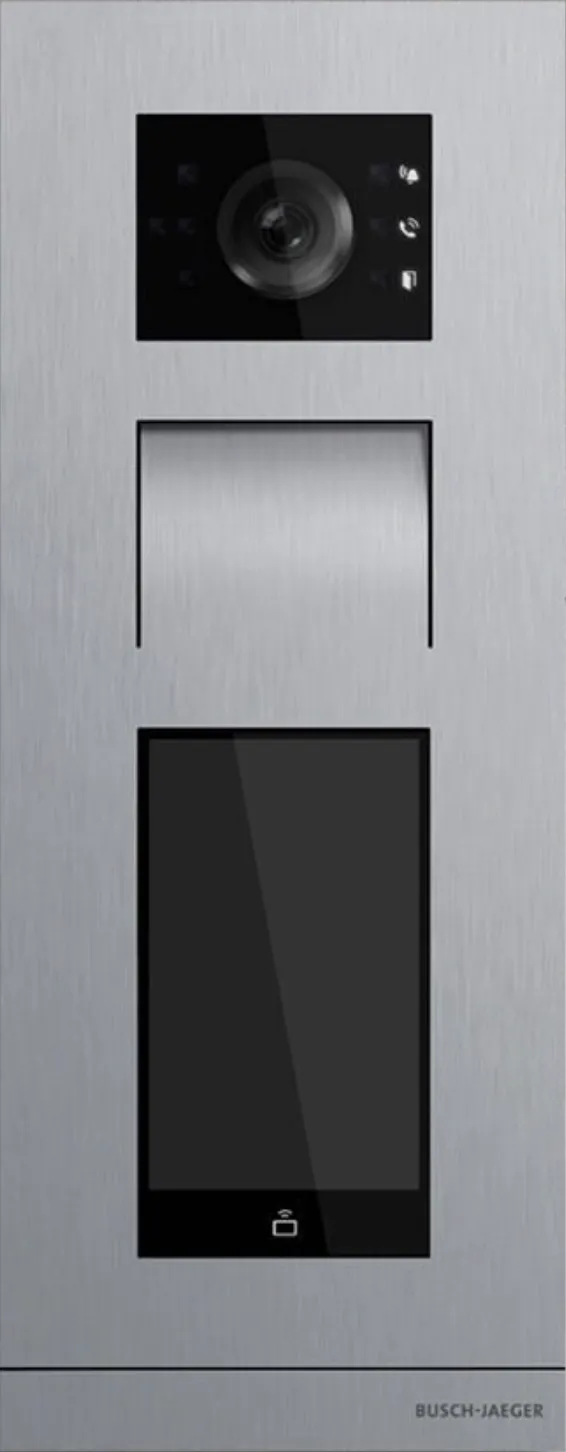
Busch Welcome® IP
For this document we used a Busch Welcome® IP with display (from now on named ‘Outdoor Station’) to connect to the CyberGate service (from now on named ‘CyberGate’).
The tested configuration also features a Smart Access Point Pro. The Outdoor Stations configuration is done from within the Smart Access Point Pro.
This document can be used for all Busch Welcome® IP Outdoor Stations. As the configuration for the Outdoor stations without display differs slightly from Outdoor stations with display both types are described in this manual.
Please upgrade the Outdoor Station to the latest available firmware!
Secure communication with CyberGate.
The Outdoor station is certified for secure communication with CyberGate. Start by configuring the Outdoor station using TCP first. If the connection and test calls are successful, modify the configuration to use secure communication using TLS.
Configure the Outdoor Station
Connect the Outdoor Station to the network, power it on. To configure the Outdoor Station, log in to the Smart Access Point Pro webinterface.
Sign in with the configured or supplied password of the Smart Access Point Pro.
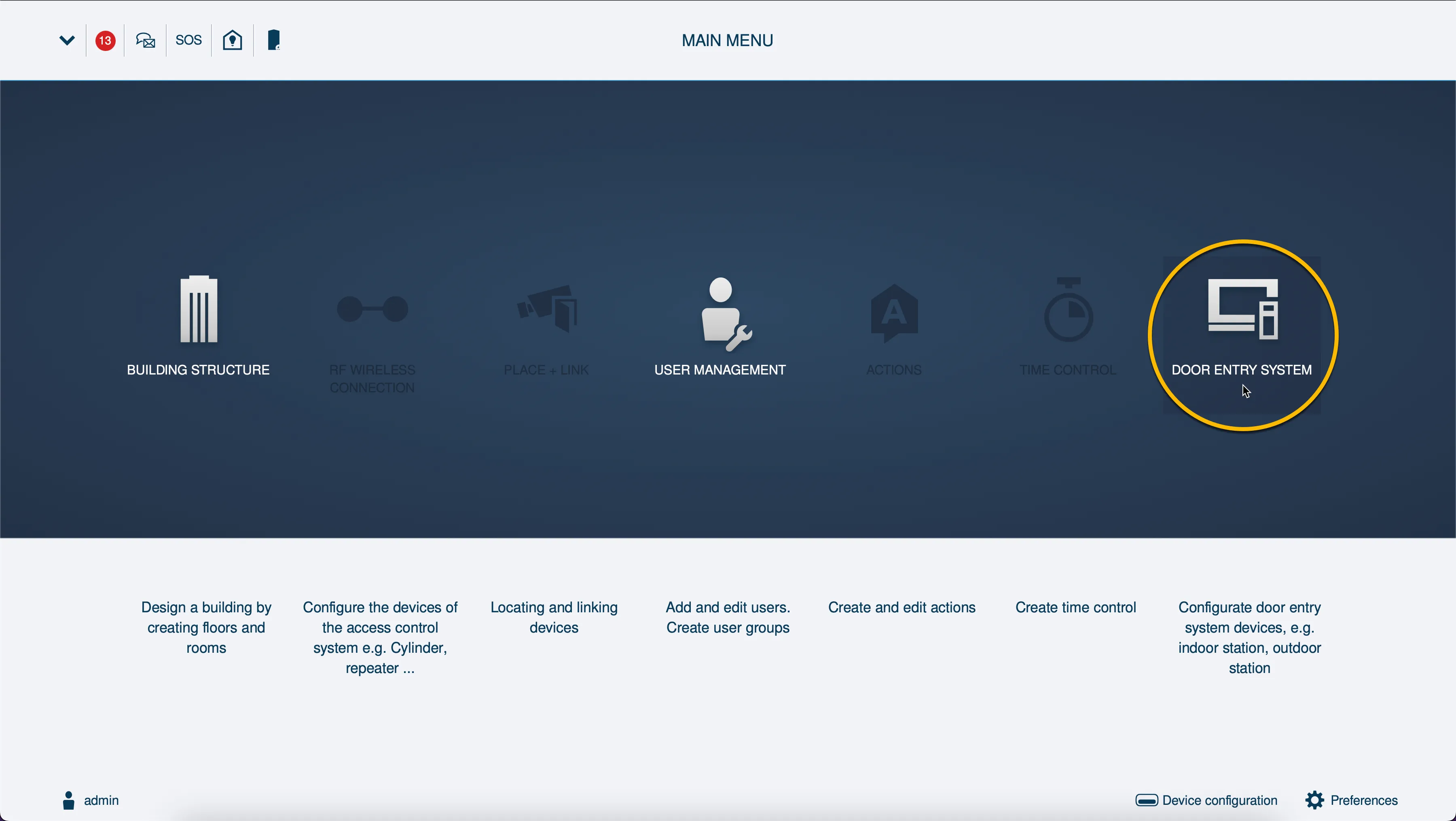
When signed-in successfully, the first menu shown is the Main Menu.
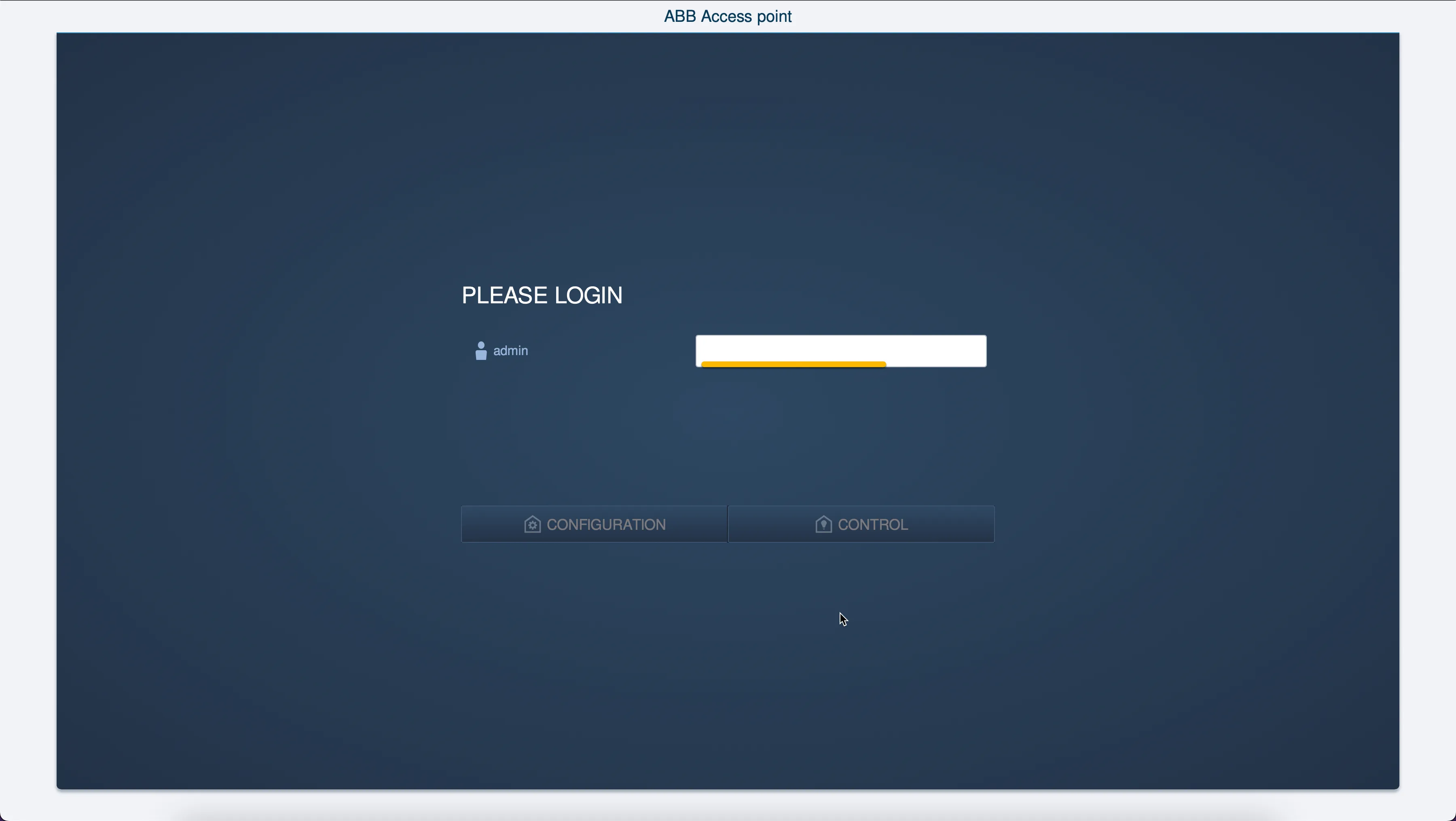
- Click on the Door Entry Sytem button.
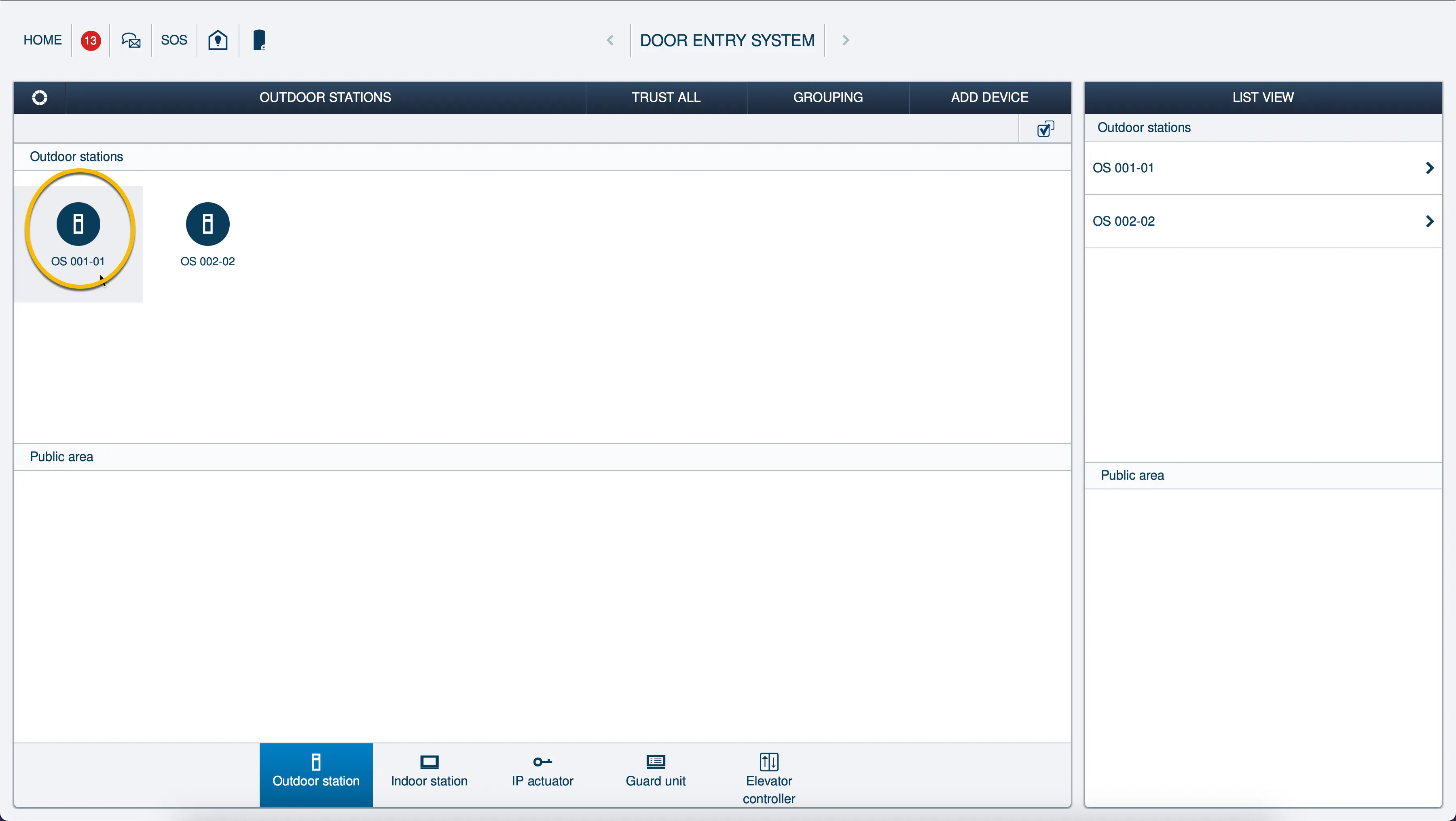
- The Door Entry System screen will show. Select the Outdoor Station to configure
SIP configuration
- Click on the SIP client settings to open the SIP settings of the Outdoor Station
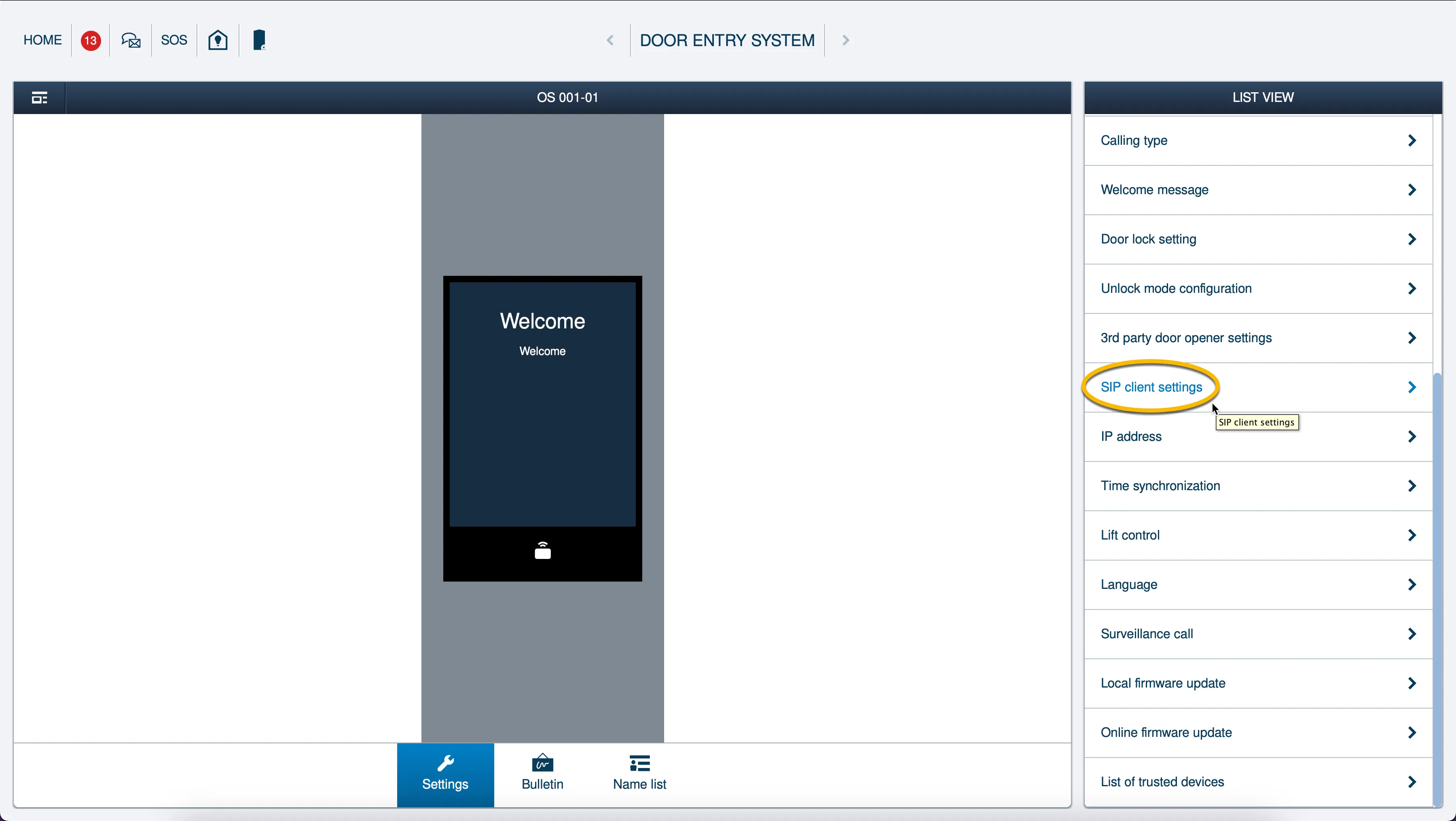
For communication over TCP, provide / change the following information:
Advanced Settings | |
|---|---|
Advanced settings | Enable the Advanced settings |
Device ID & number | |
Call number | Use the Username provided by the CyberGate Management Portal |
Domain | cybergate.cybertwice.com |
Display name | Use the Username provided by the CyberGate Management Portal |
SIP account | |
Username | Use the Username provided by the CyberGate Management Portal |
Password | Use the Password provided by the CyberGate Management Portal |
SIP server | |
IP address | cybergate.cybertwice.com |
Port | For TCP communication, use 5060 |
SIP protocol | |
SIP protocol | Select TCP |
Transport protocol | |
Transport protocol | Select RTP |
- Click ‘Save’ button when done.
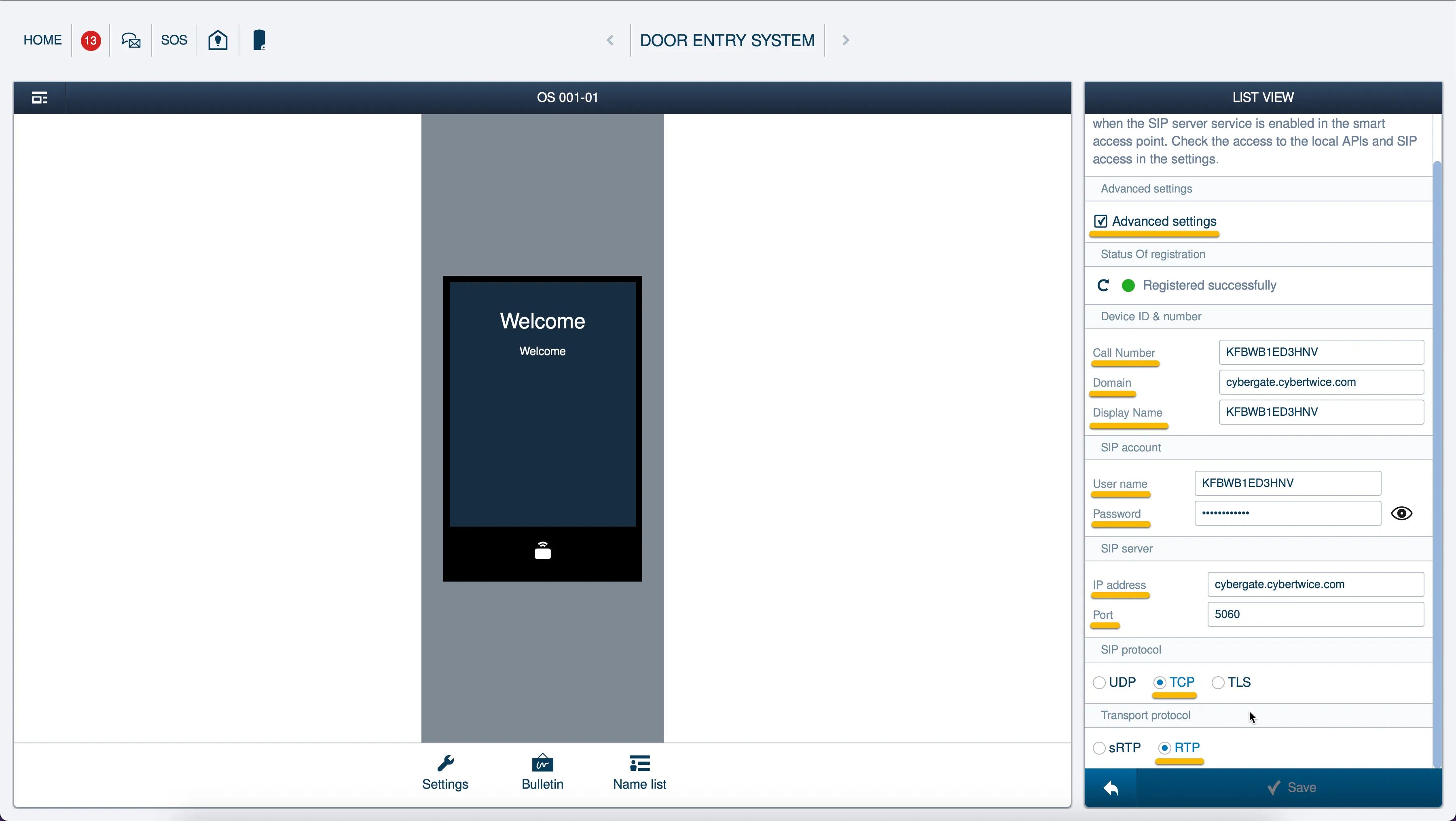
TLS configuration
For secure communication over TLS, provide / change the following information:
SIP server | |
|---|---|
Port | Use 5061 |
SIP protocol | |
SIP protocol | Select TLS |
Transport protocol | |
Transport protocol | Select sRTP |
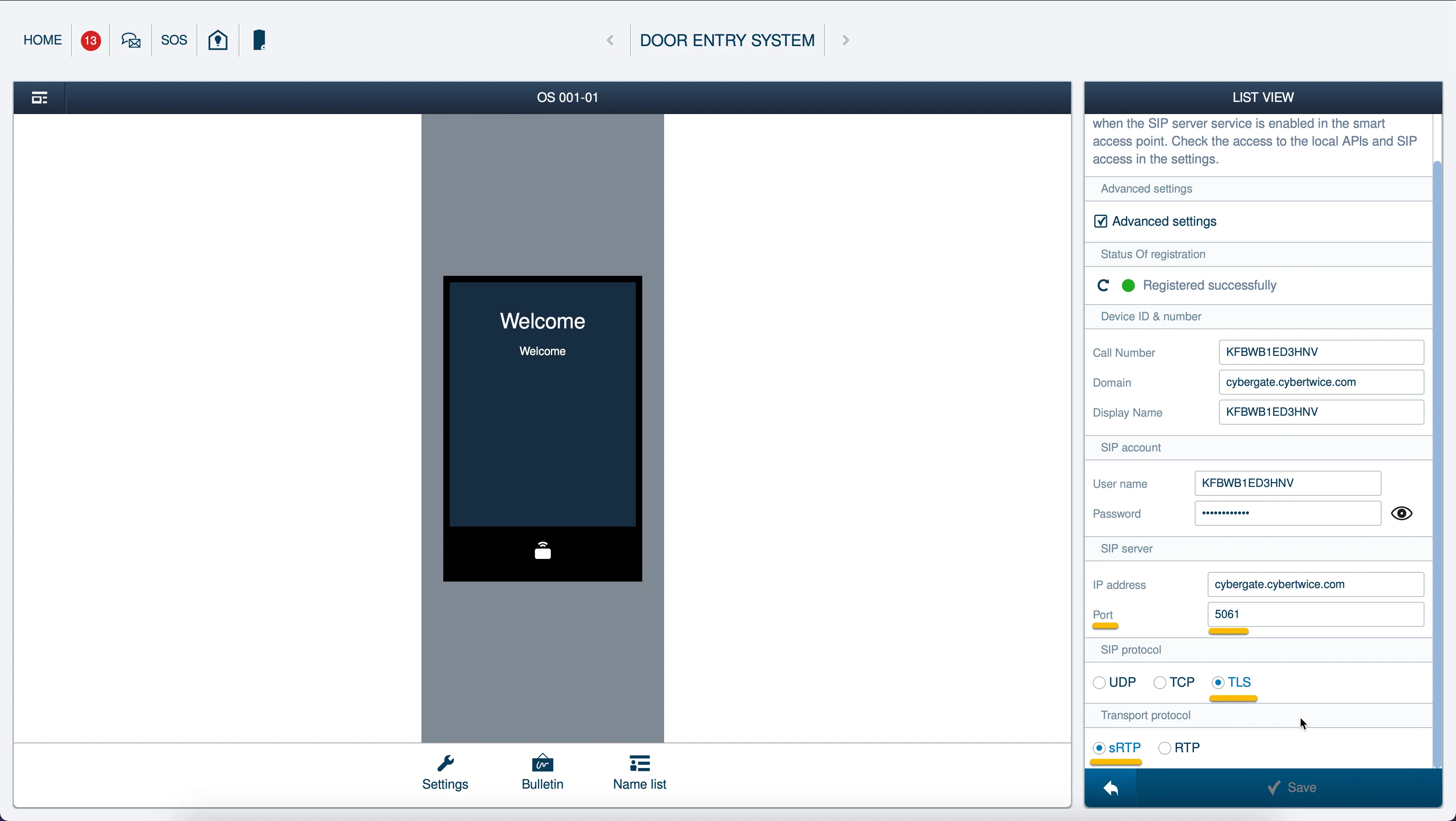
Call destination
Add a call destination for the Outdoor Station.
- Click on Name list
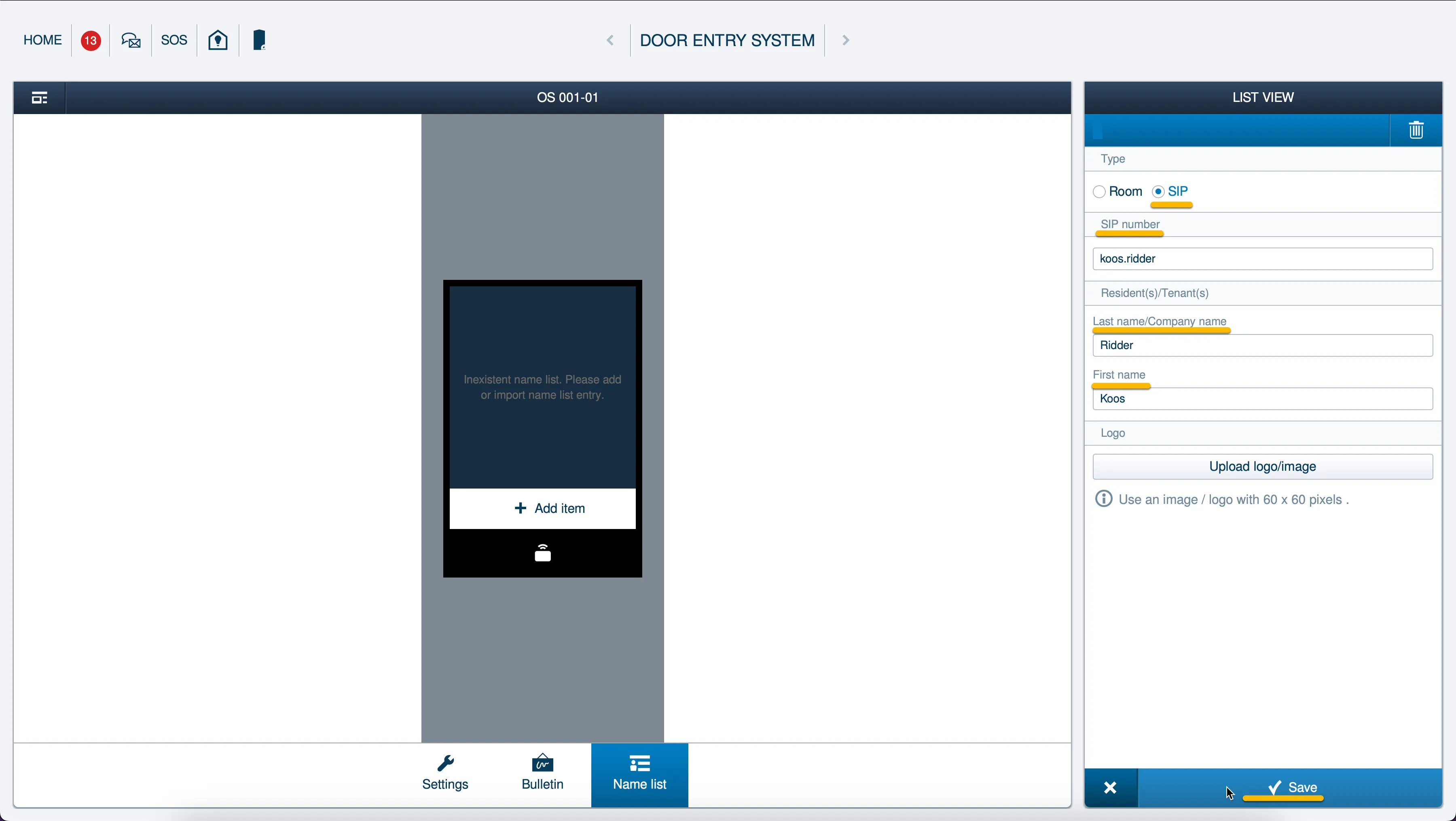
- Click on the ‘+ Add item’ to add a destination to call
- Provide / change the following information:
Type | |
|---|---|
Type | Select SIP |
SIP number | |
SIP number | Teams user name without the domain name* |
Resedent(s)/Tenant(s) | |
Last name/Company name | Last name of the destination to dial |
First name | First name of the destination to dial |
* For example, the user ‘Koos Ridder, with the Teams name:
will translate to this destination address:
koos.ridder
Click the ‘Save’ button when done.
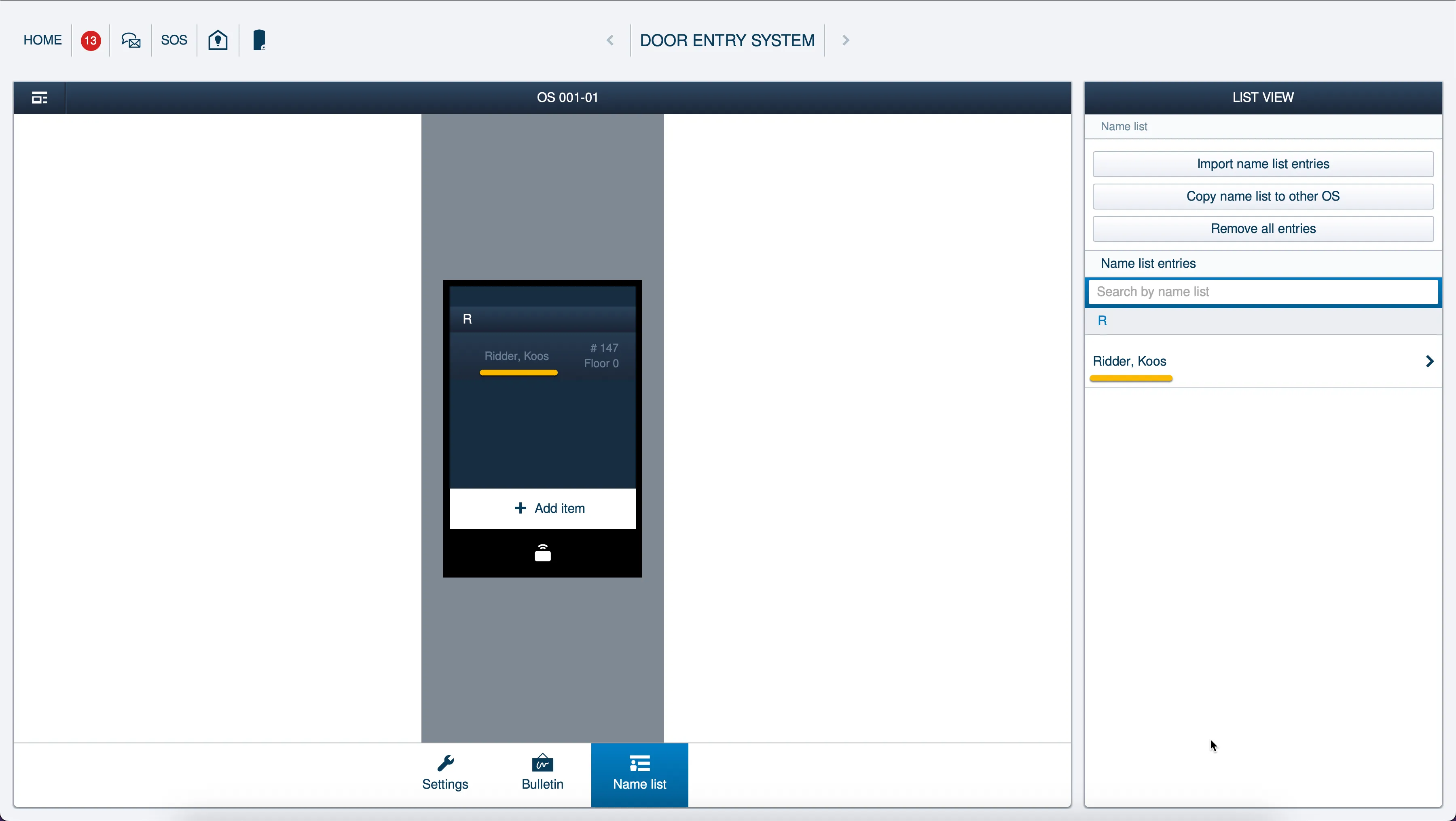
After successful adding of the call destination, the destination will be shown on the display of the Outdoor Station.
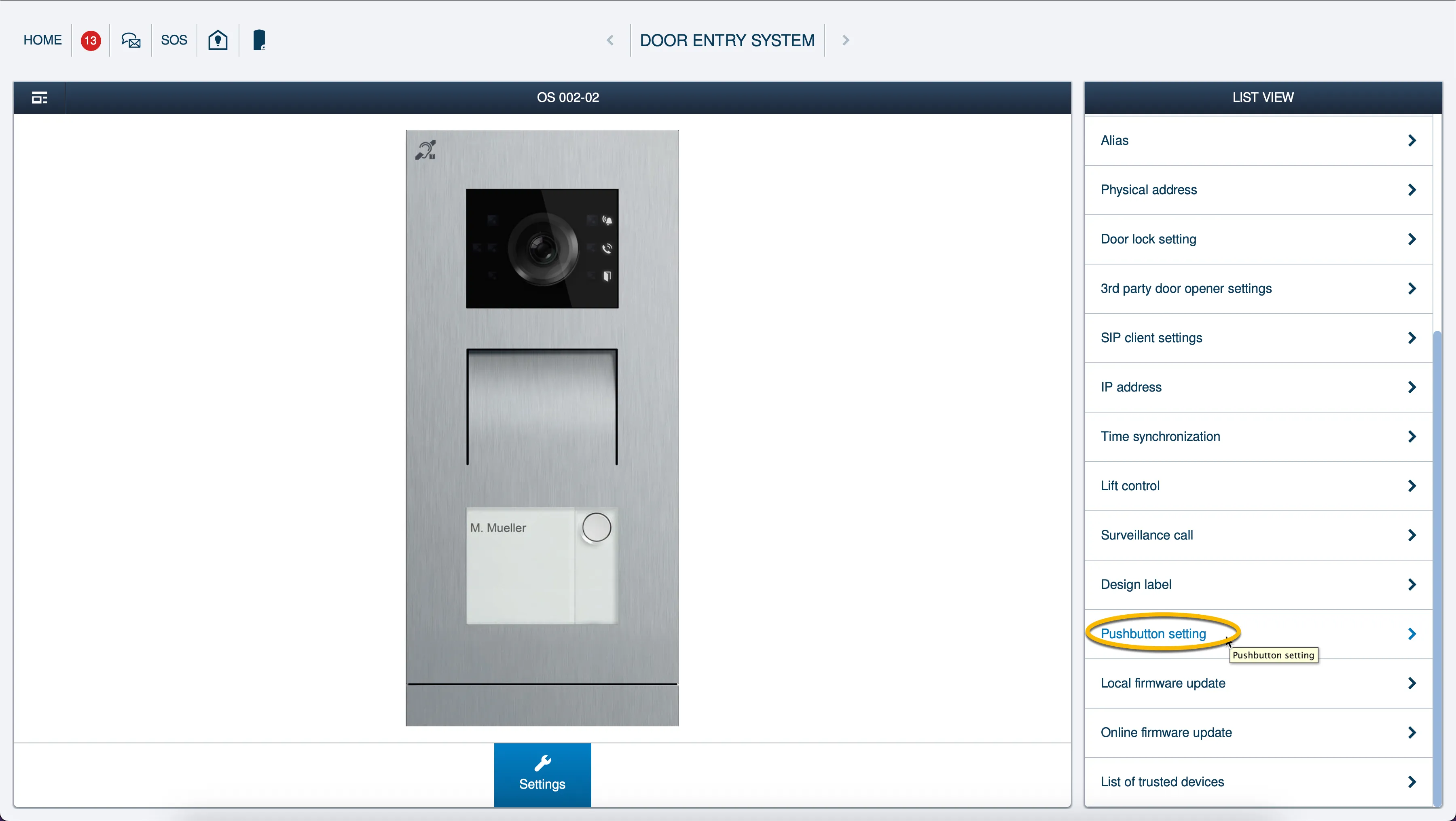
The configuration of an Outdoor Station with buttons instead of a display, follow the next steps to configure the call destination.
- Click on the Pushbutton setting
- Provide / change the following information:
Pushbutton setting | |
|---|---|
1 | Teams user name without the domain name, starting with an ‘S’* |
* For example, the user ‘Koos Ridder, with the Teams name:
will translate to this destination address:
S:koos.ridder
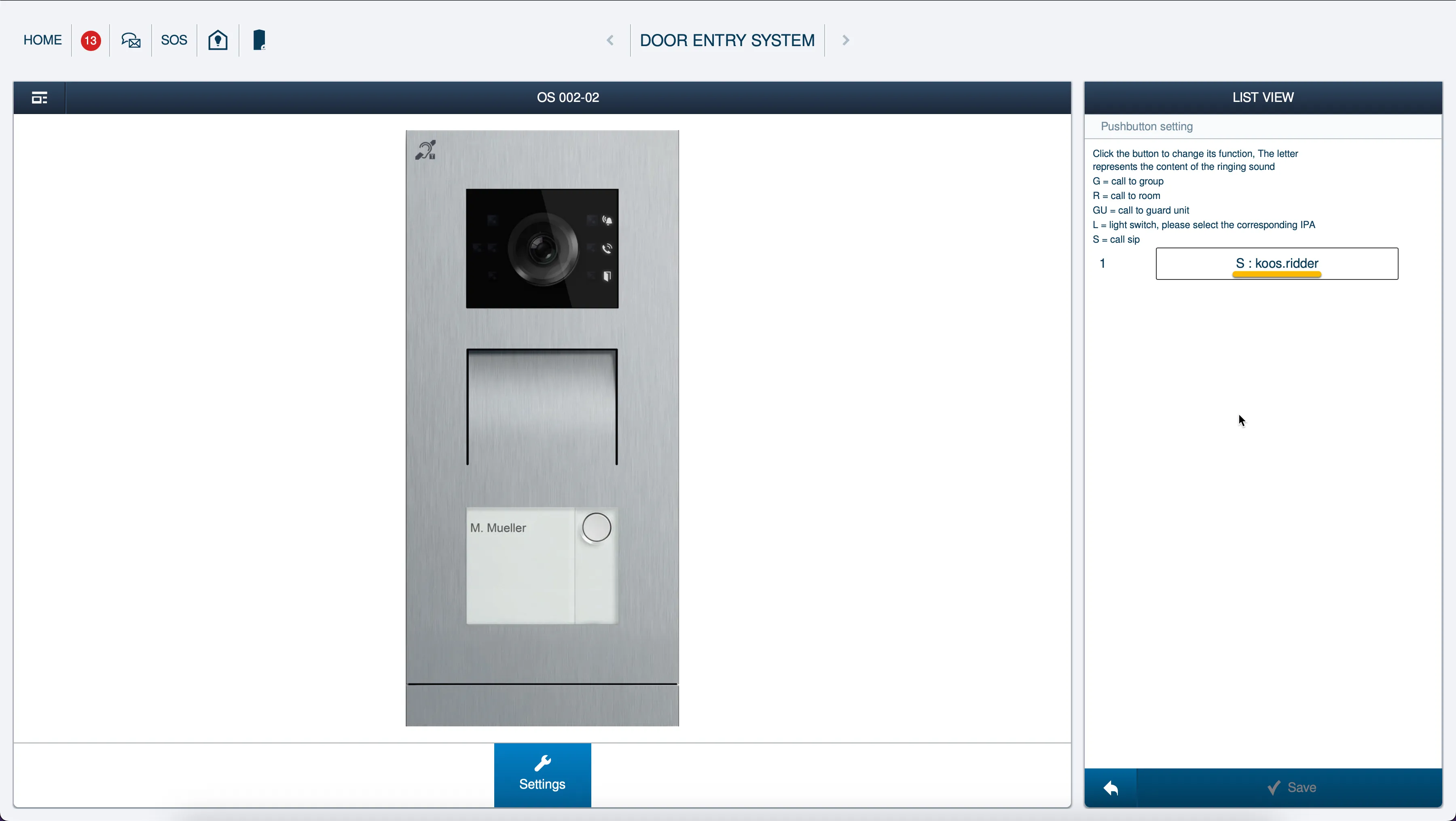
- Click the ‘Save’ button when done.
The configuration of the Outdoor station is now done.
Testing the Outdoor station
Press on the name of the destination on the Outdoor Station (or on the pushbutton) to initiate a call to the configured Teams User.
If configured correctly, the Teams client will notify you of an incoming call. Answer it by clicking the camera symbol.
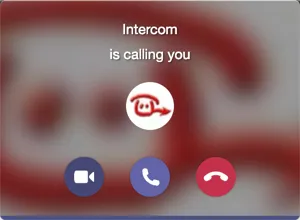
The call will be established and video will be displayed within ±3 seconds.
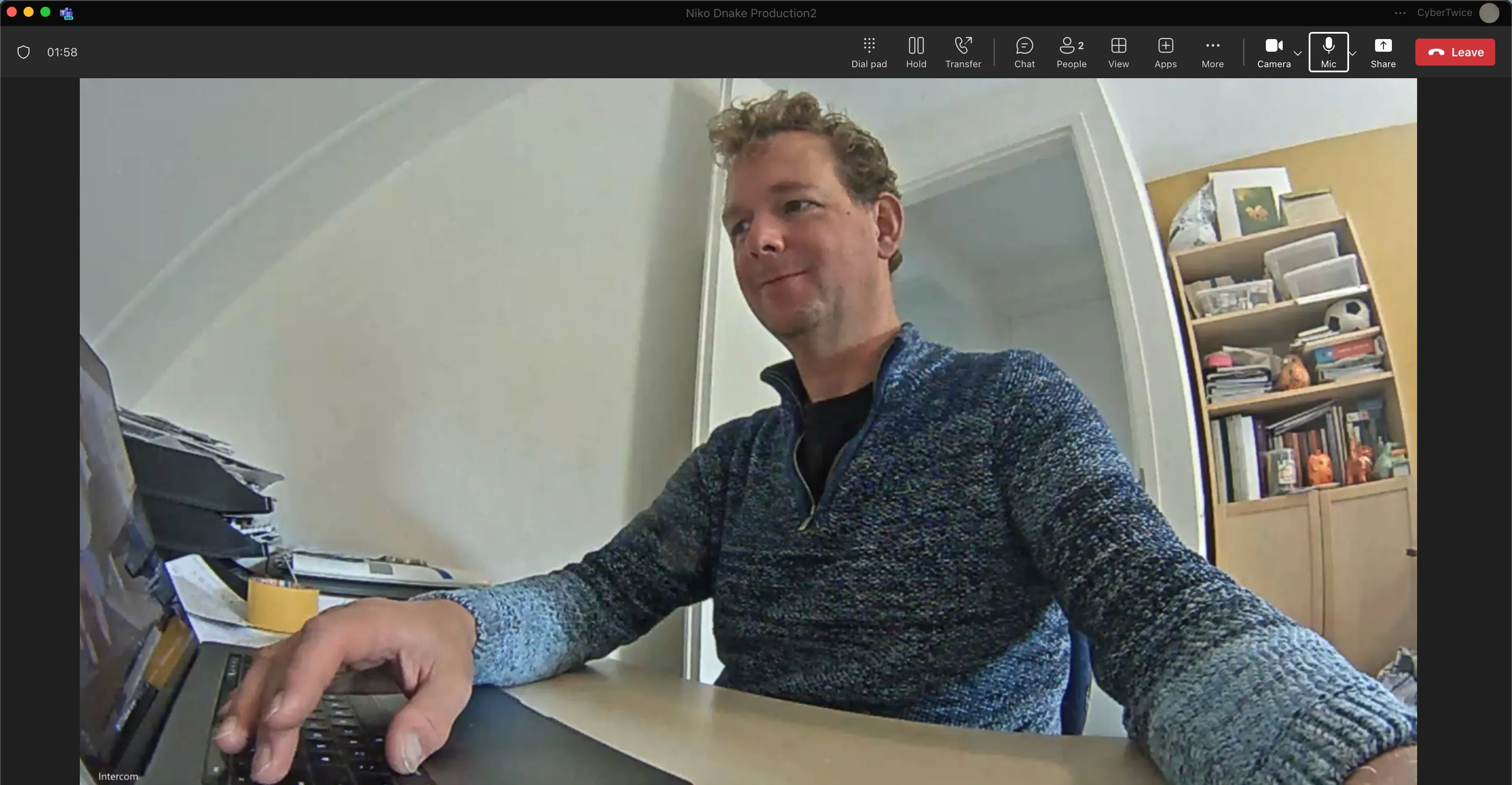
To open the door from the Teams call, click on Dial pad symbol. Use the code configured followed by a # (the default code for the Outdoor Station is ‘1’ so ‘1#’), this will trigger the relay in the Outdoor Station and open the door.
CyberGate App for Microsoft Teams
The CyberGate App for Microsoft Teams offers more CyberGate features directly from Microsoft Teams. One of these features is the Open-door button. This button can be utilized during a call to CyberGate and lets you open the the door by clicking just one button.
For a description on how to install the CyberGate app and use the Open door button please see the CyberGate App for TeamsCyberGate App for Teams manual.