Castel and Cybergate
Castel and Cybergate
Configure the CASTEL XELLIP intercom for CyberGate
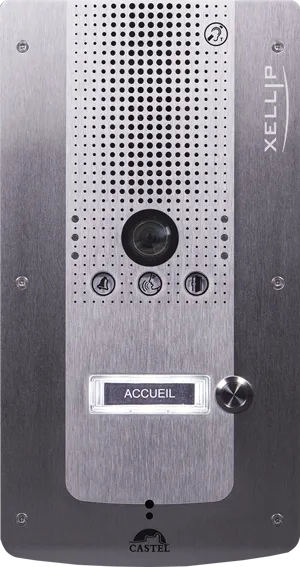
For this document we used the CASTEL XE VIDEO 1B (from now on referred to as 'Castel') to connect to the CyberGate service (from now on referred to as 'CyberGate'). All other CASTEL XELLIP Audio Video intercoms also work with CyberGate.
Connect to the network and sign in
- Connect the Castel to the network and power it on.
- Open a web browser and go to the Castel's IP address.
- Sign in with the configured or supplied username and password.
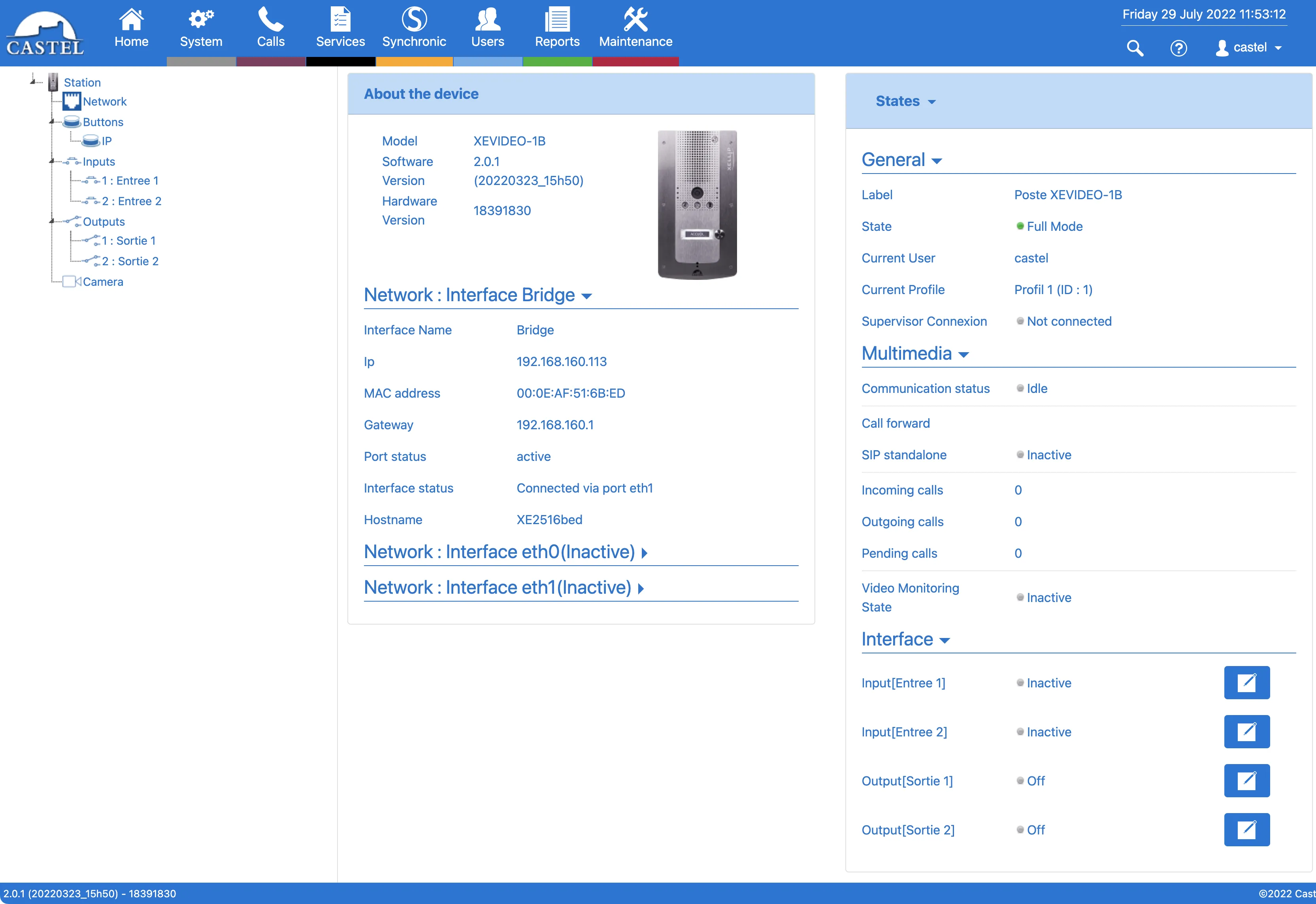
When you sign in successfully, the System Information menu is shown.
Configure the SIP server
- Navigate to the Calls menu.
- Set TCP SIP Port used for the station to 5060.
- Click the blue Save button.
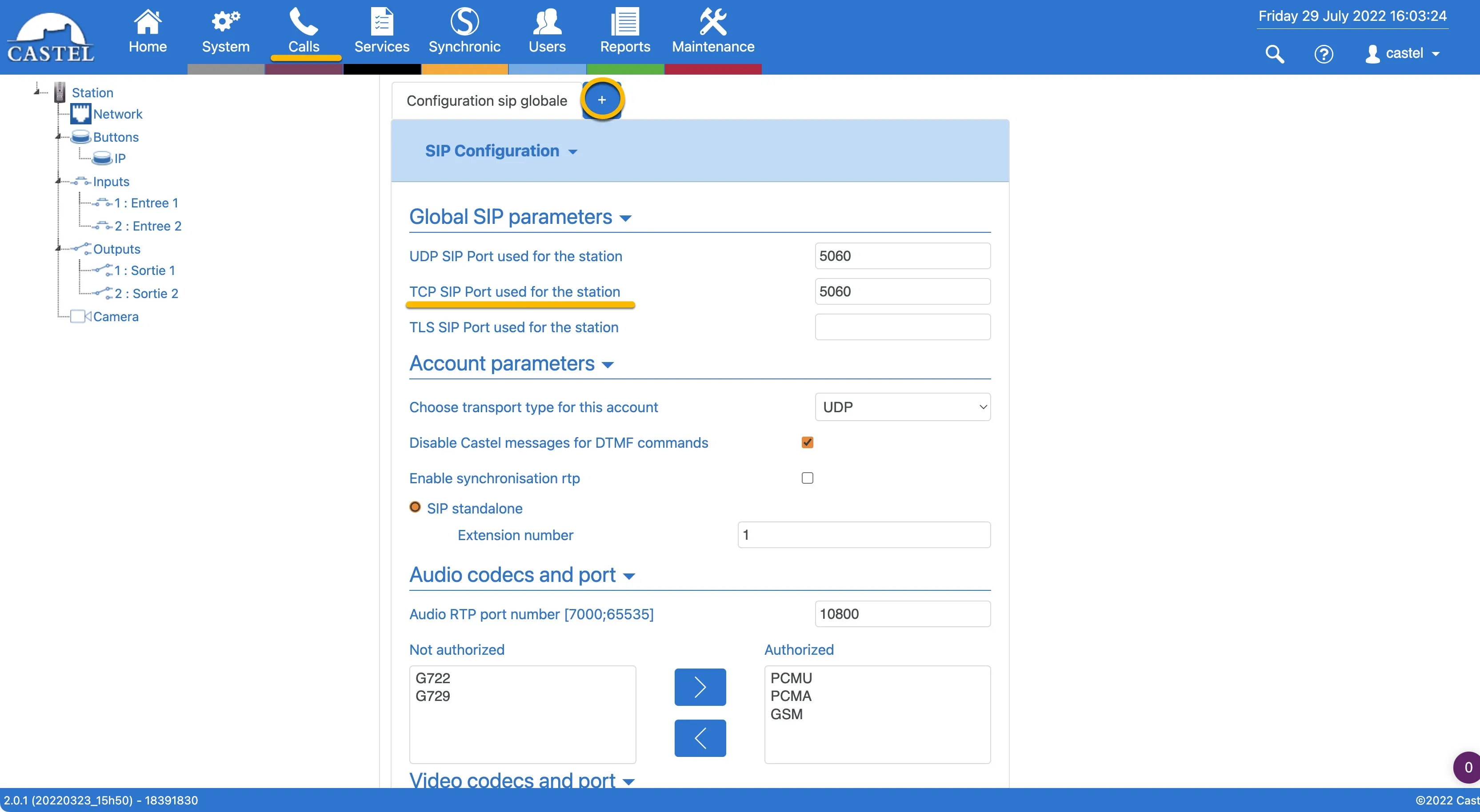
- Click the blue + symbol to add the SIP server.
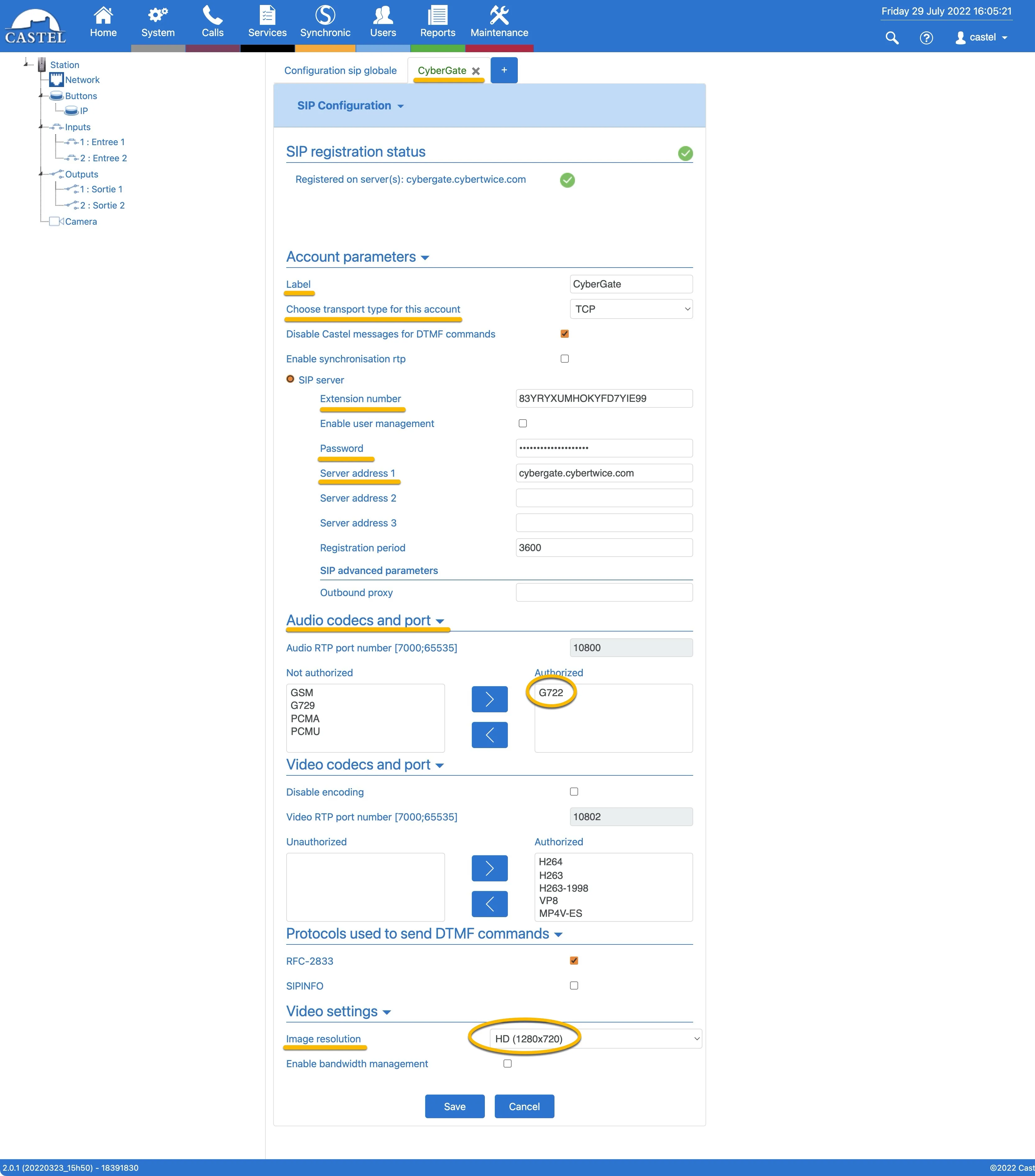
- Provide or change the following account parameters:
Account parameters | |
|---|---|
Label | Label the server CyberGate |
Choose transport type for this account | Change to TCP |
Extension number | Use the Username provided by the CyberGate Management Portal |
Password | Use the Password provided by the CyberGate Management Portal |
Server address 1 | cybergate.cybertwice.com |
Audio codecs and port | |
Authorized | Only: G722 |
Video settings | |
Image resolution | Change to HD (1280x720) |
- Click the blue Save button.
Configure the door-open DTMF code
- Navigate to Calls > DTMF commands to configure the DTMF key that opens the door.
- Click the + symbol to add a DTMF code.
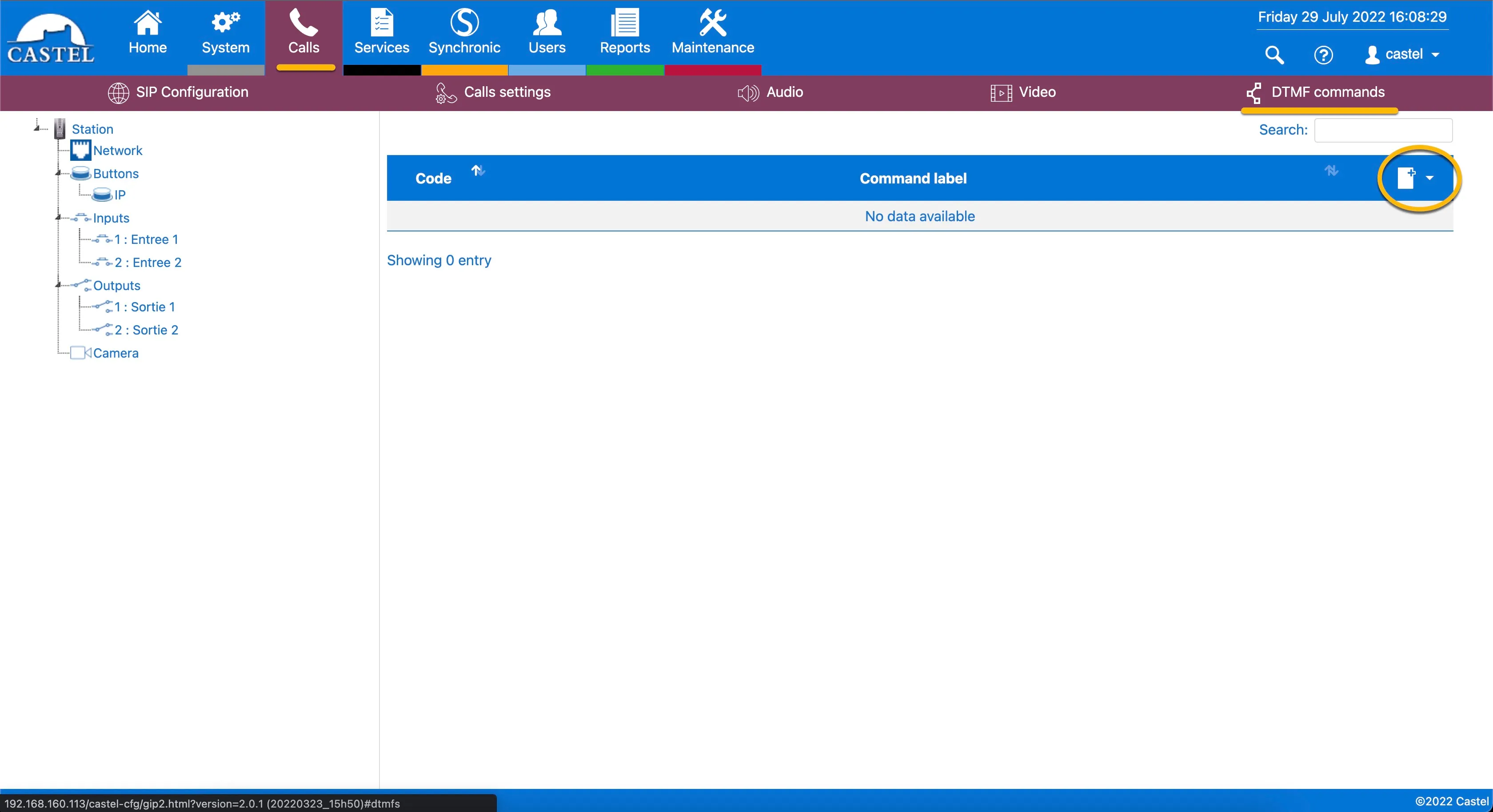
- Select the DTMF command to use for opening the door — in this example, DTMF command 0.
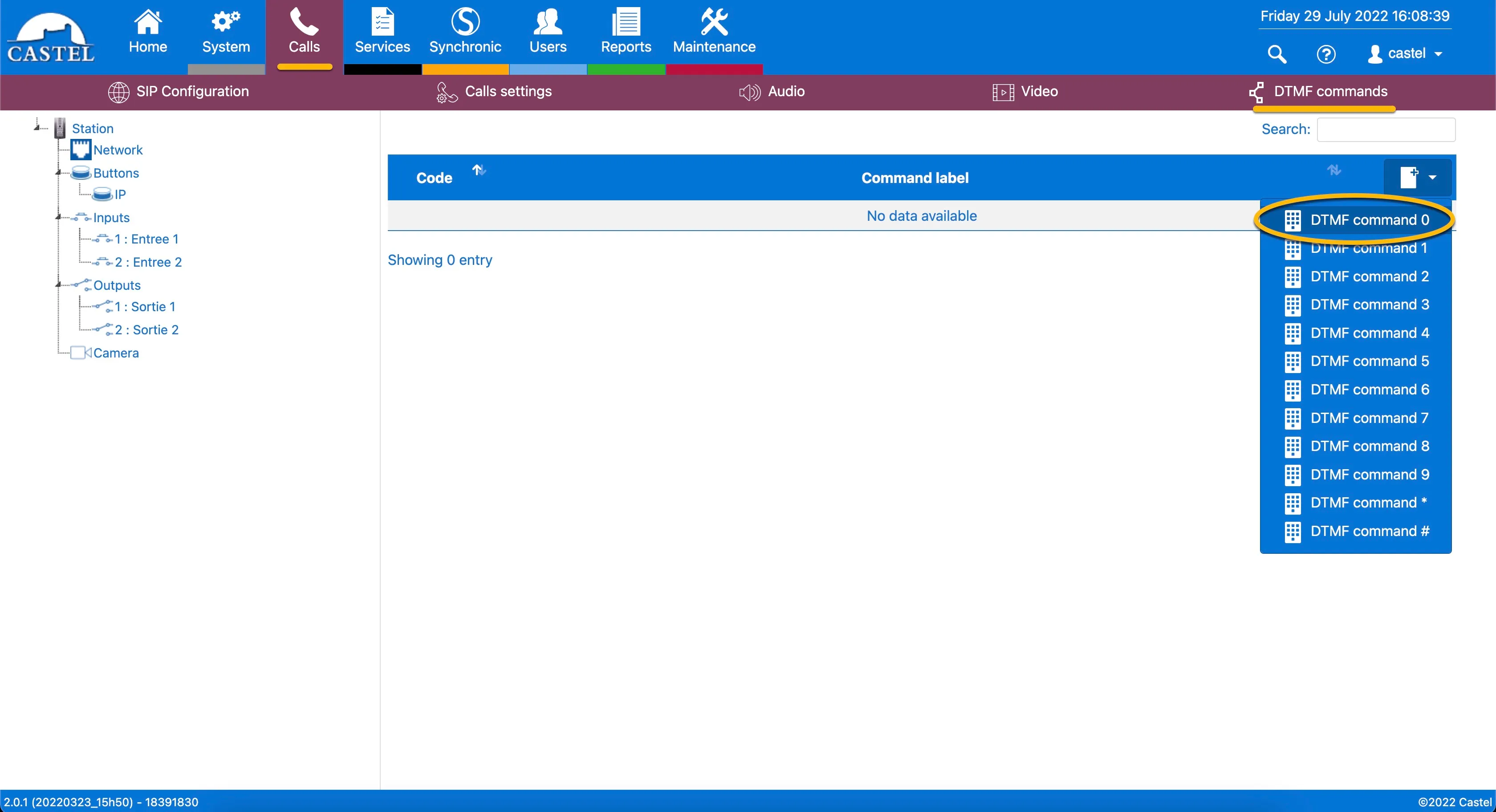
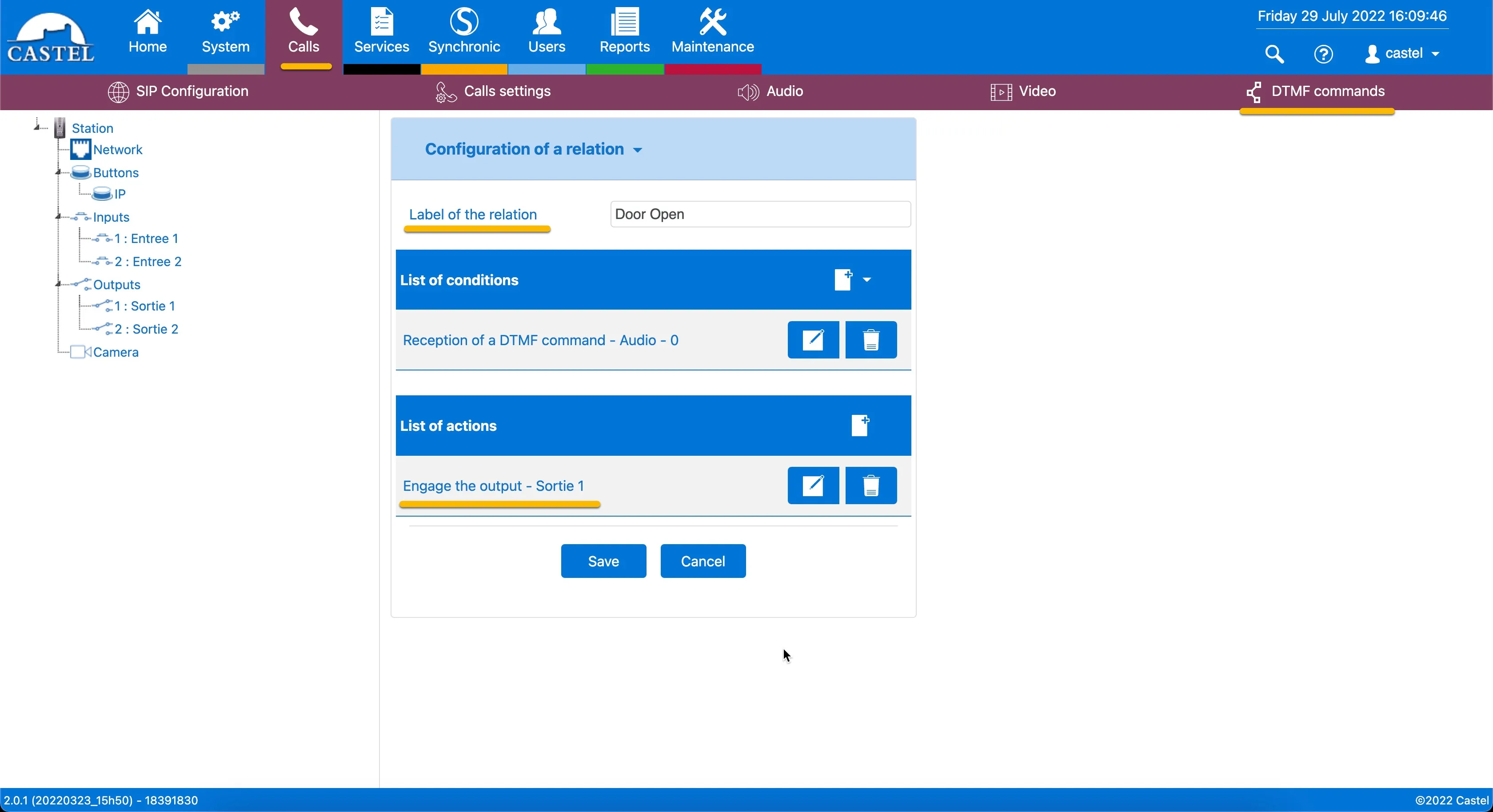
- In Label of the relation, label the door-open action (for example, Door Open).
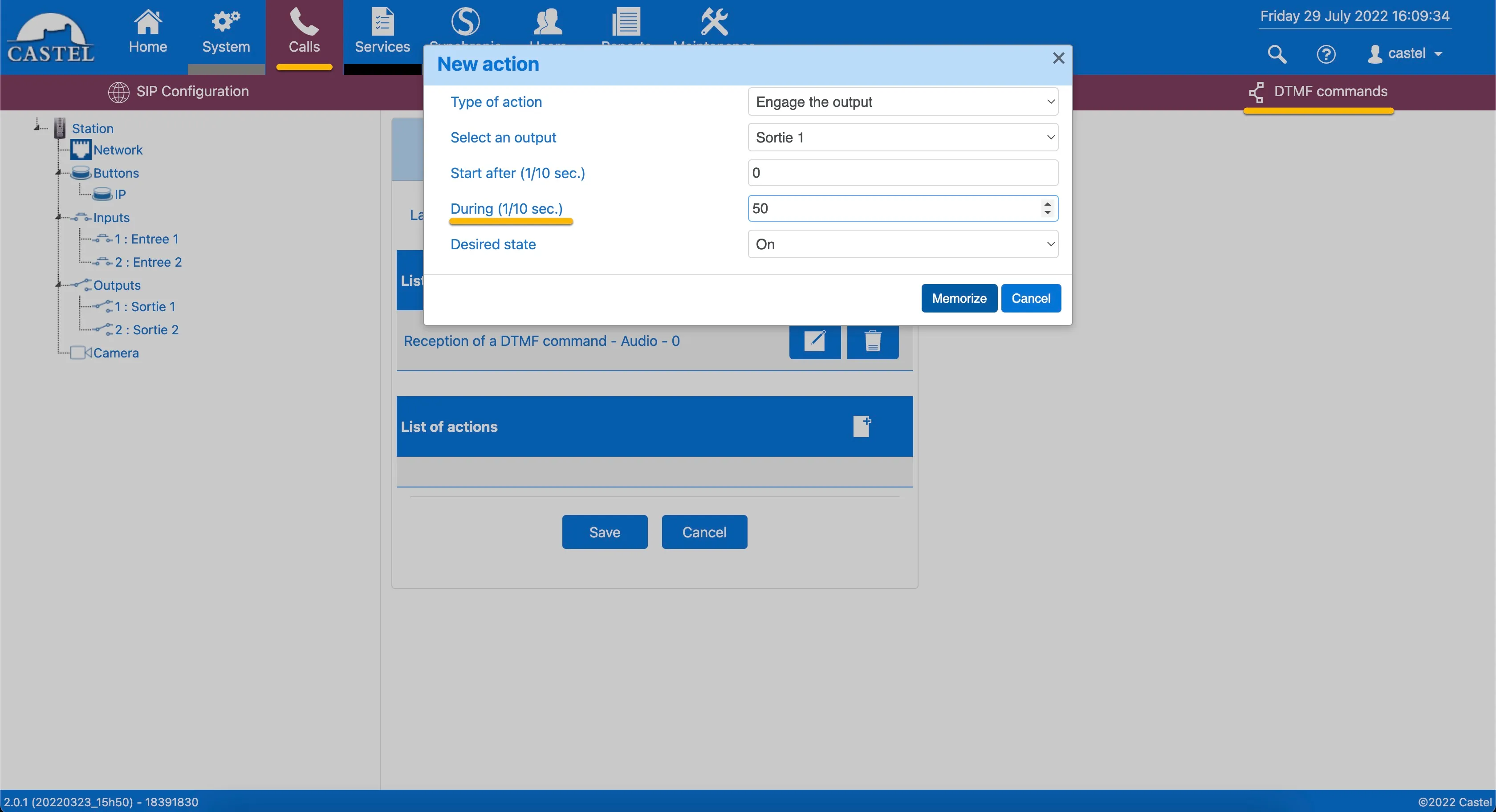
- Under List of actions, click the + symbol to add the action.
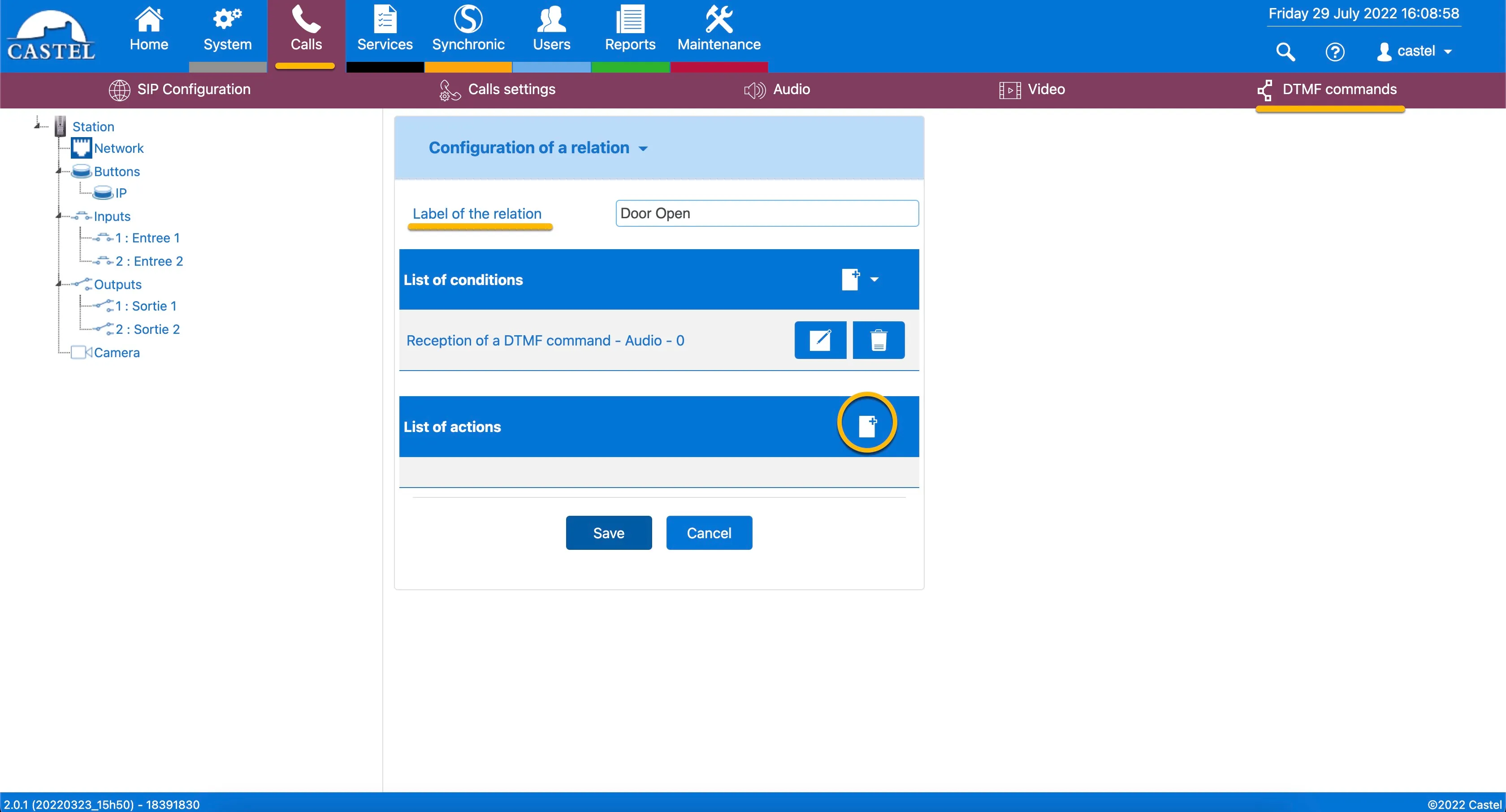
- Select the Engage the output action.
- Change During (1/10 sec.) to 50 (5 seconds door opening, in this example).
- Click the blue Memorize button to save the action.
- Click the blue Save button to save the action.
Set the Teams call destination
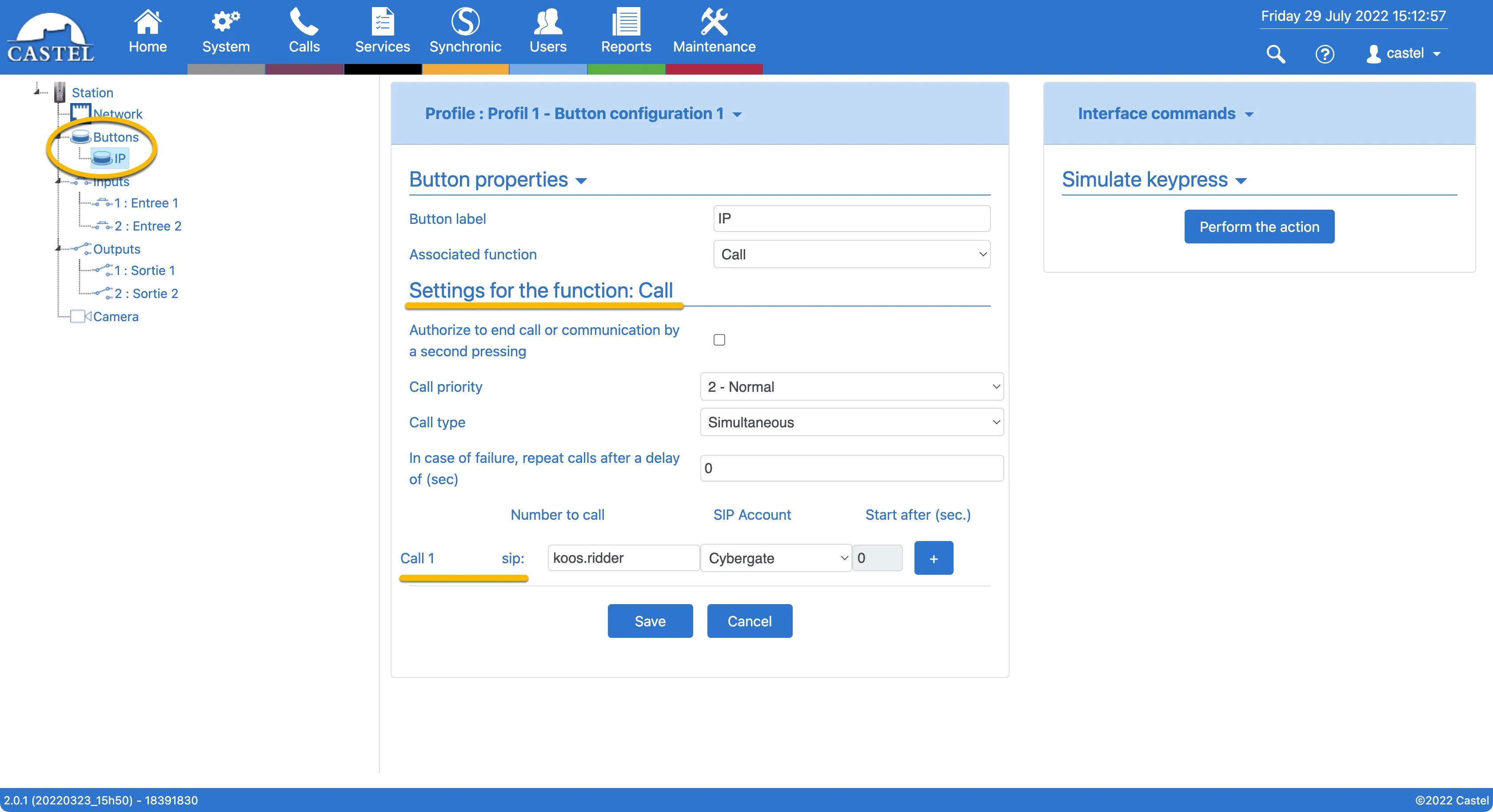
- Navigate to Station > Buttons > IP (in the left column) to configure the number to dial.
- For Call 1 sip, enter the Teams user address without the domain part. For example, the user Koos Ridder with Teams name [email protected] translates to this destination address: koos.ridder
- Click the blue Save button.
Test the configuration and open the door from Teams
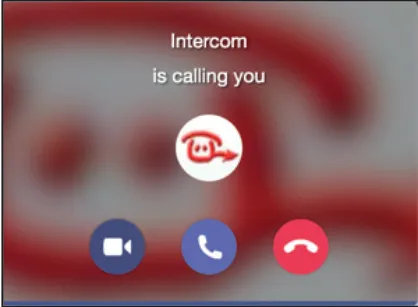
Configuration of the Castel is now finished. Press the call button on the Castel to initiate a call to the number configured in the function-key menu.
Expected result: the call is established and video is displayed within ±3 seconds.
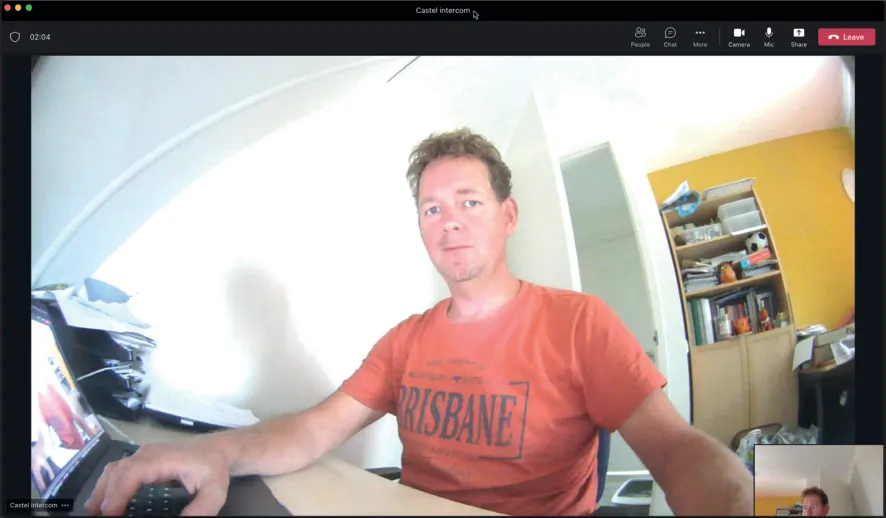
To open the door from the Teams call:
- In the call screen, click the three dots (...).
- Select Keypad.
- Enter the code 0. This triggers the relay in the Castel and opens the door.
CyberGate App for Microsoft Teams
The CyberGate App for Microsoft Teams offers more CyberGate features directly from Microsoft Teams. One of these features is the Open-door button. This button can be utilized during a call to CyberGate and lets you open the the door by clicking just one button.
For a description on how to install the CyberGate app and use the Open door button please see the CyberGate App for TeamsCyberGate App for Teams manual.