Commend and CyberGate
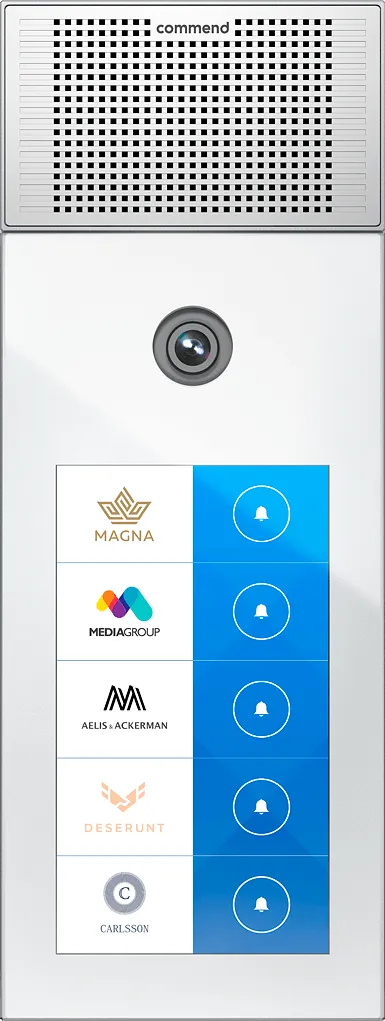
Configure the Commend SIP Intercom Station for the CyberGate service
Commend SIP Intercom Station
For this document we used the OD5 TDCM Outdoor Station (from now on named ‘Commend’). Other Commend SIP Intercom Stations (OD10, ID5, ID8, IM6) are also able to connect to the CyberGate service (from now on named 'CyberGate’).
Secure communication with CyberGate.
The Commend SIP Intercoms are certified for secure communication with CyberGate. Start by configuring the Commend using the following steps via TCP first. If the connection and test calls are successful, modify the configuration to use secure communication.
Configure the Commend
Connect the Commend to the network, power it on and open a webbrowser to its IP-address. Sign in as ‘admin’ with the configured or default password of the Commend.
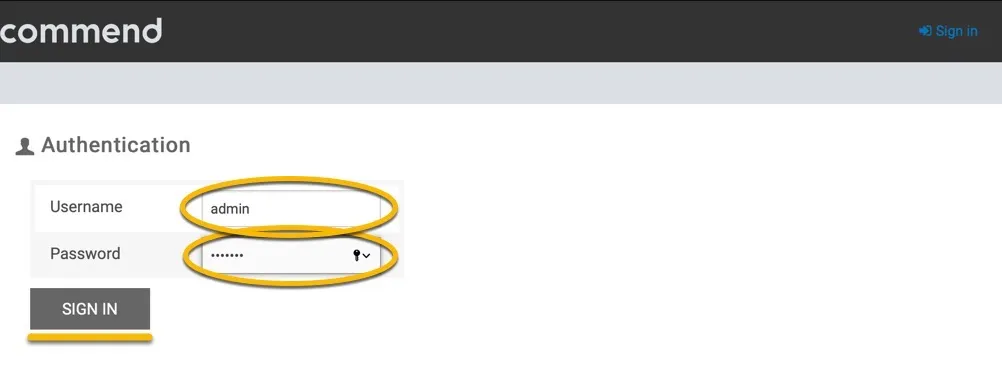
SIP configuration
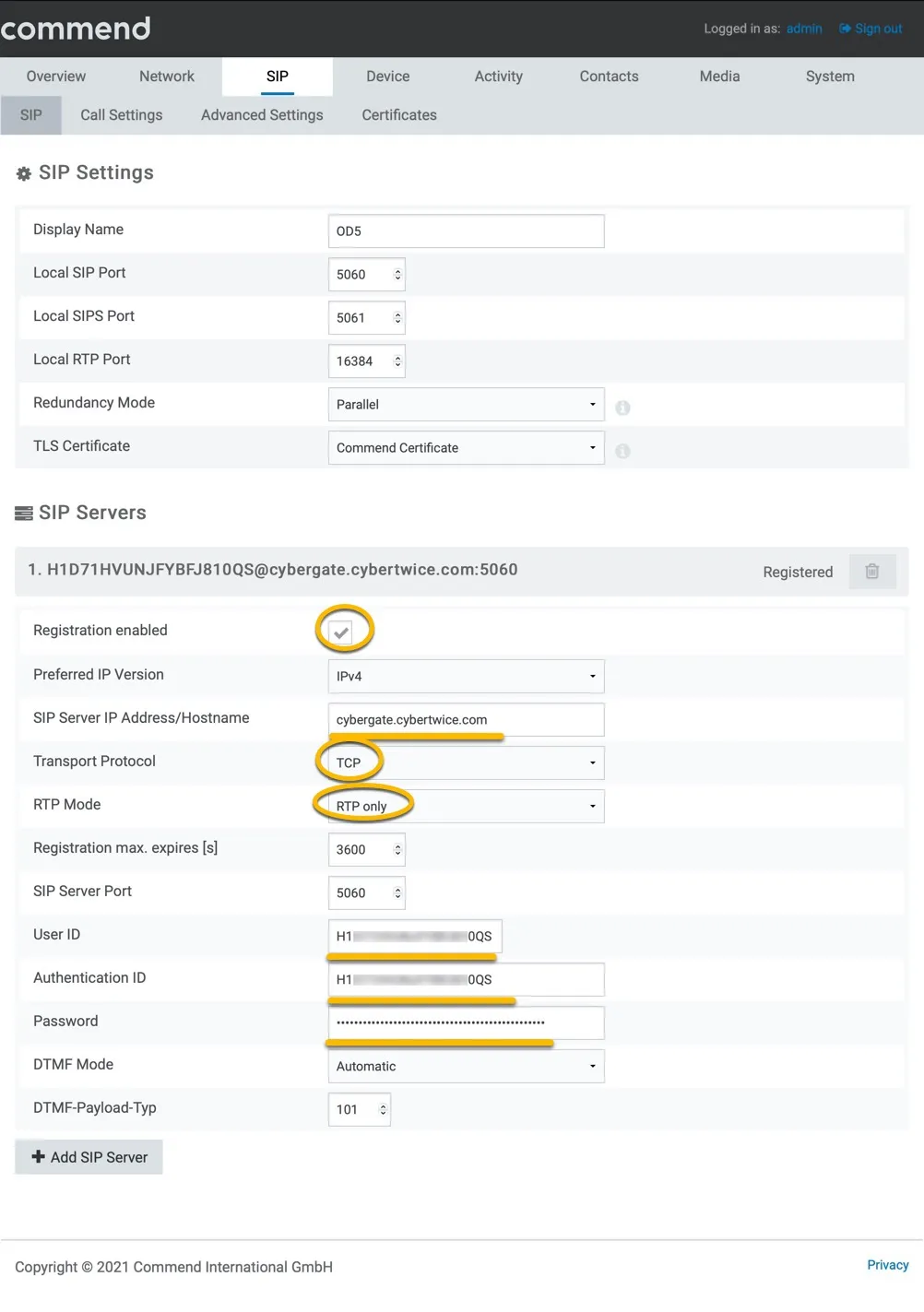
When signed-in successfully, navigate to the menu SIP-SIP.
Provide the following information:
SIP Servers | |
|---|---|
Registration enabled | Yes |
Preferred IP Version | IPv4 |
SIP server IP Address / Hostname | cybergate.cybertwice.com |
Transport Portocol | TCP |
RTP Mode | RTP only |
User ID | Use the Username provided by the CyberGate service |
Authentication ID | Use the Username provided by the CyberGate service |
Password | Use the Password provided by the CyberGate service |
Click the blue ‘Save’ button when done.
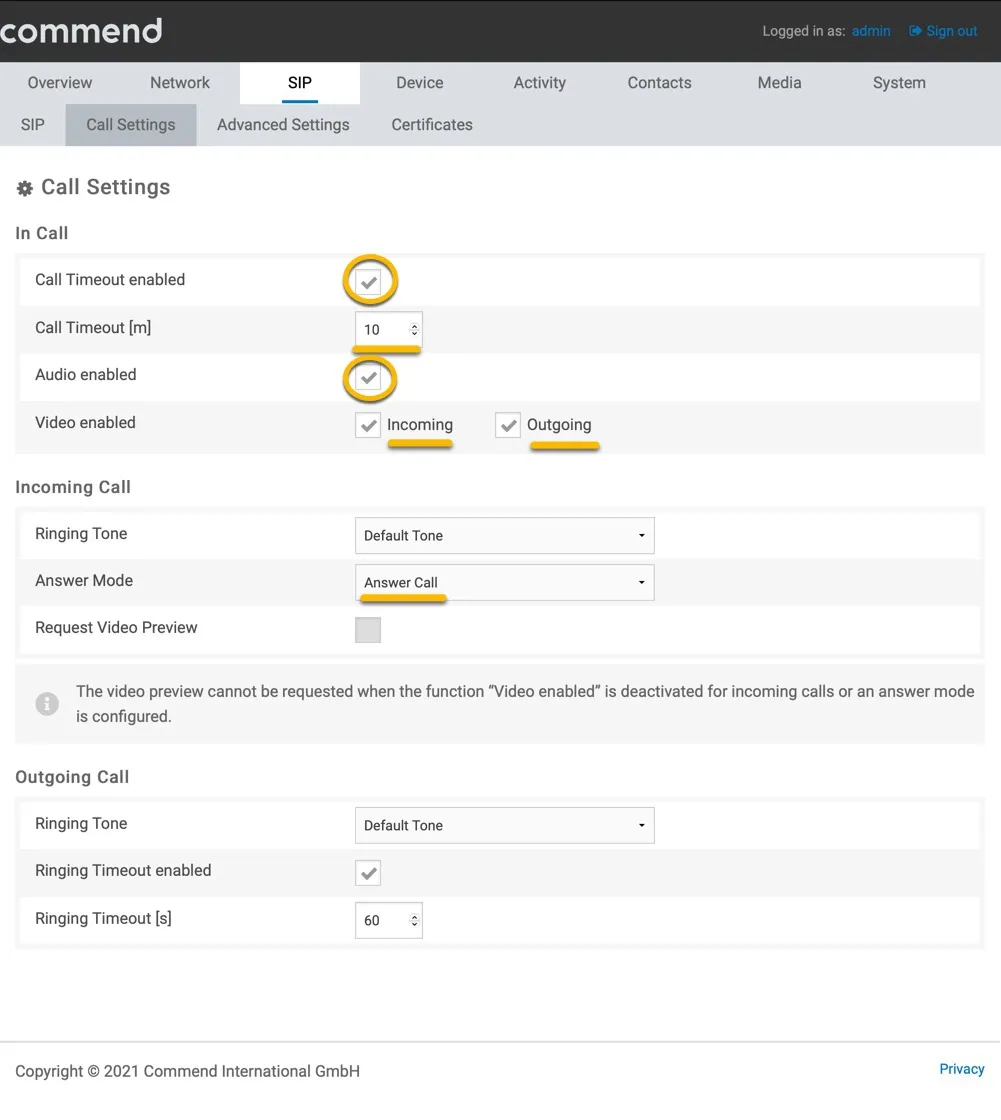
Navigate to the menu SIP-Call Settings.
Provide / change the following information:
In Call | |
|---|---|
Call Timeout enabled | Yes |
Call Timeout [m] | 10 |
Audio enabled | Yes |
Video enabled | Incoming and Outgoing |
In Call | |
Answer Mode | Answer Call |
Call destination
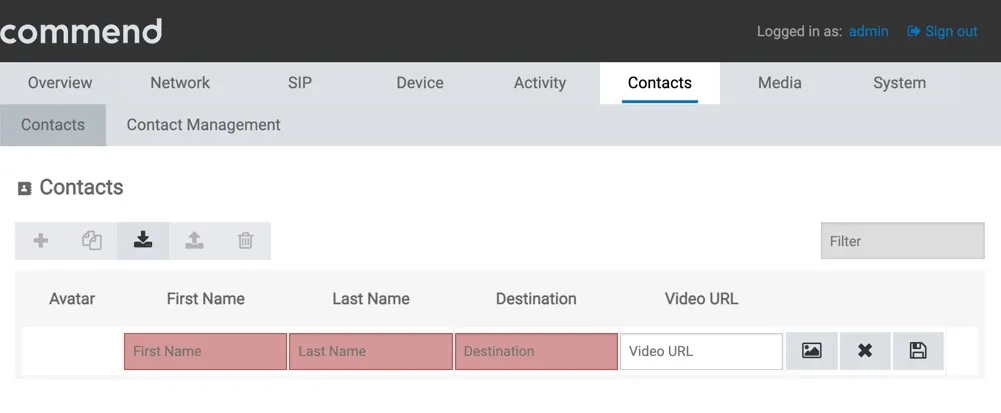
Navigate to the menu Contacts-Contacts.
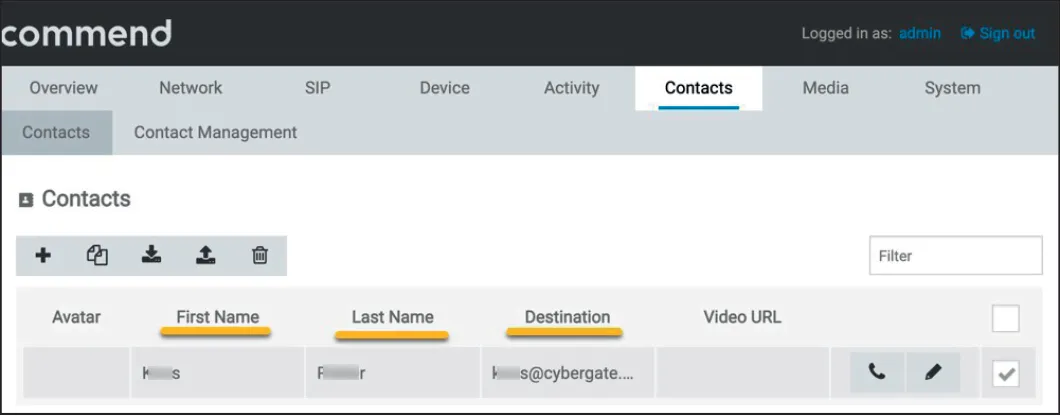
Click the ‘+’ symbol to add a contact and provide the following information:
First name | First name |
|---|---|
Last name | Last name |
Destination * | Teams user name followed by the domain ‘cybergate.cybertwice.com’ <name.name>@cybergate.cybertwice.com |
* For example, the user ‘John Doe, with the Teams name:
will translate to this destination address:
Click the ‘Save’ button when done.
Display configuration
Navigate to the menu Device-Device.
Change the layout to your preference, in this example ‘Door’.
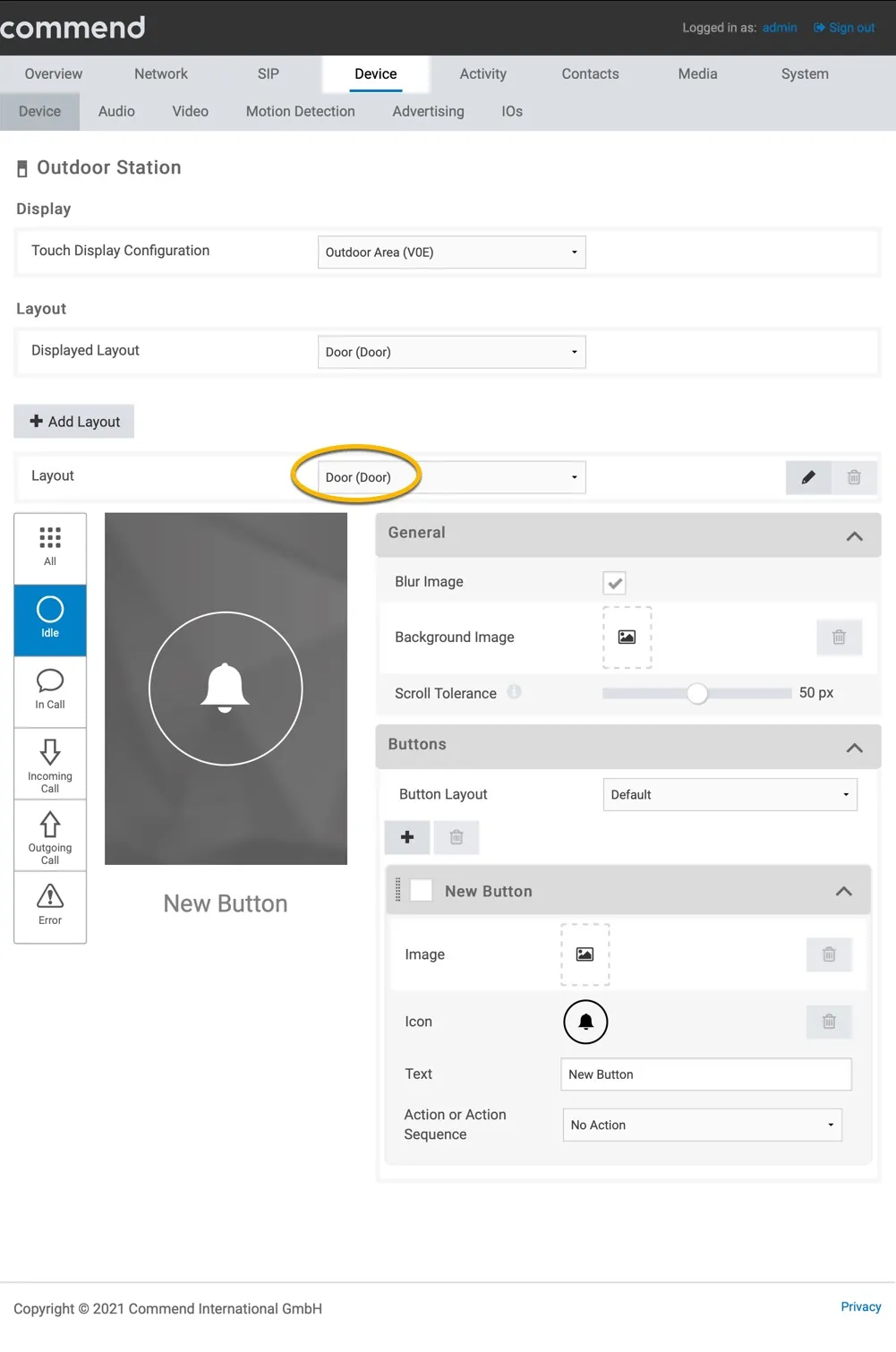
Provide the following information:
Buttons - New button | |
|---|---|
Text | Descriptive name for the person to call (eg. reception / sales / person name) |
Action or Action Sequence | Select the just created contact to call when the button is pressed |
Click the blue ‘Save’ button when done.
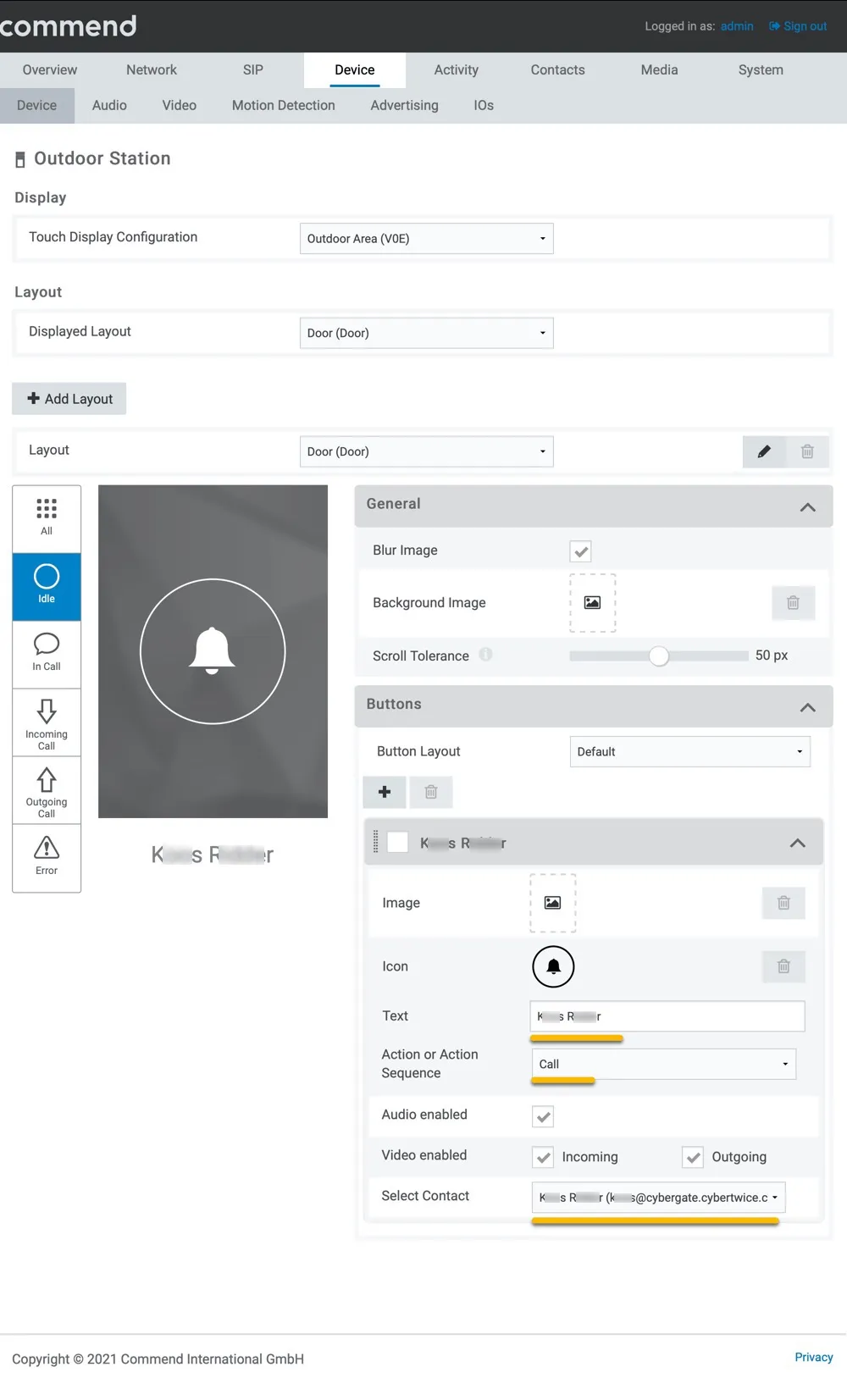
Configuration is now done.
Testing the Commend
Press the button on the Commend to initiate a call to the configured Teams User.
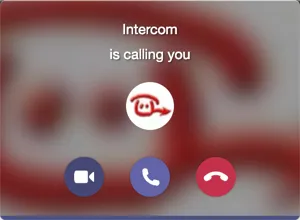
If configured correctly, the Teams client will notify you of an incoming call, answer it by clicking the camera symbol.
the call will be established and video will be displayed within ±3 seconds.
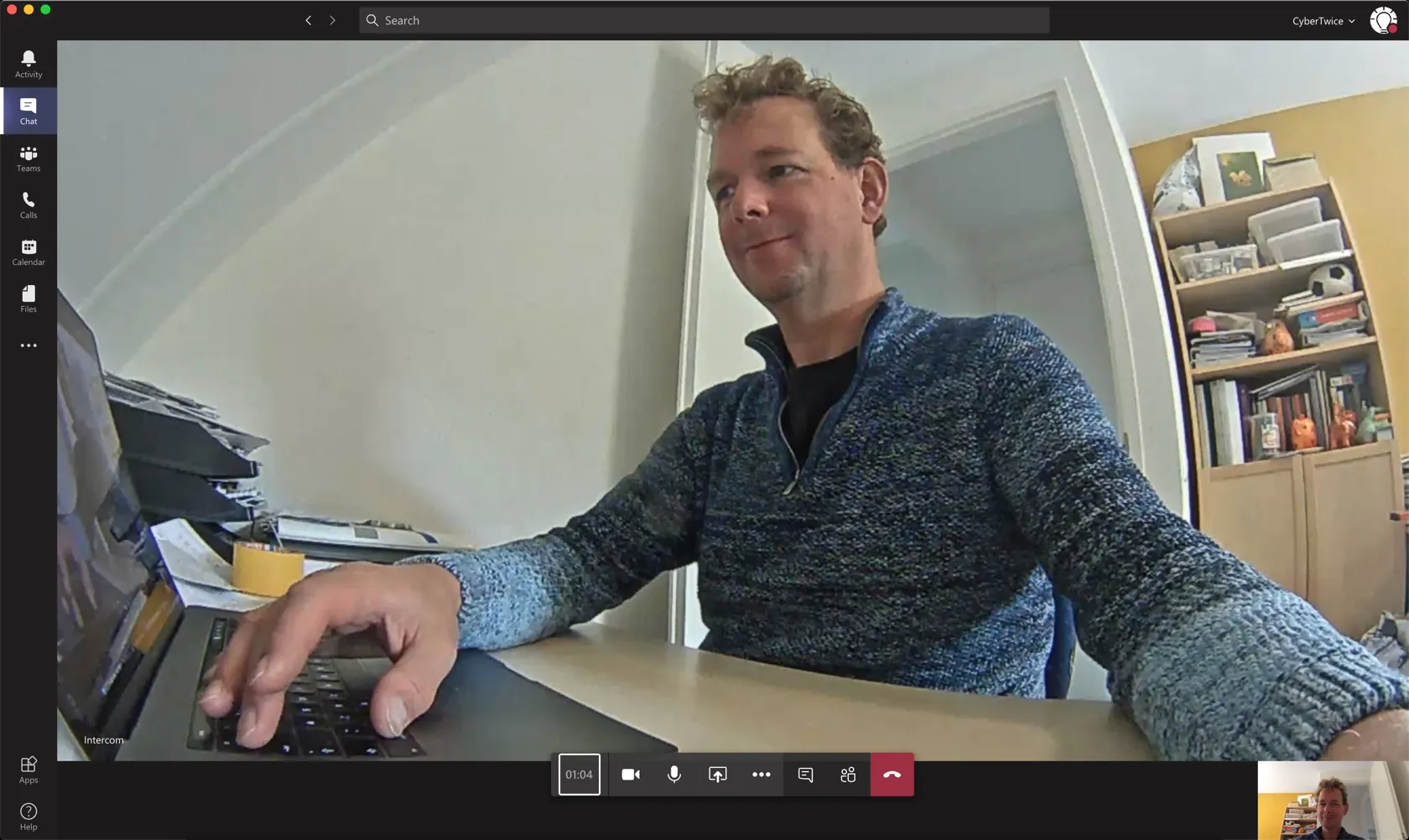
To open the door from the Teams call, click on the Dial pad symbol in the call screen. Use the default DTMF-code ‘1’ to trigger the relay in the Commend and open the door.
A more convenient way to open the door during a call is to use the CyberGate for Teams app. See the 'CyberGate App for Microsoft Teams' chapter on how to to install and use the CyberGate for Teams app.
Secure communication over SIP-TLS
If a secure connection to CyberGate is desired, modify the configuration as follows:
SIP configuration for TLS
Navigate to the menu SIP-SIP.
Provide the following information:
SIP Servers | |
|---|---|
Transport Portocol | TLS |
RTP Mode | SRTP Only |
Click 'Save' when done.
Certificates for TLS
Navigate to the menu SIP-Certificates.
Download the Root CA certificate Root CA for CyberGate.
At ‘SIP CA Certificates’, click 'Add Certificate'.
Add Certificate | |
|---|---|
Identifcation | Describe the certifcate (in this example ‘System CAs’) |
CA Certifcate | upload the CA Root Certifcate |
Click 'OK' to upload the certificate to the Commend.
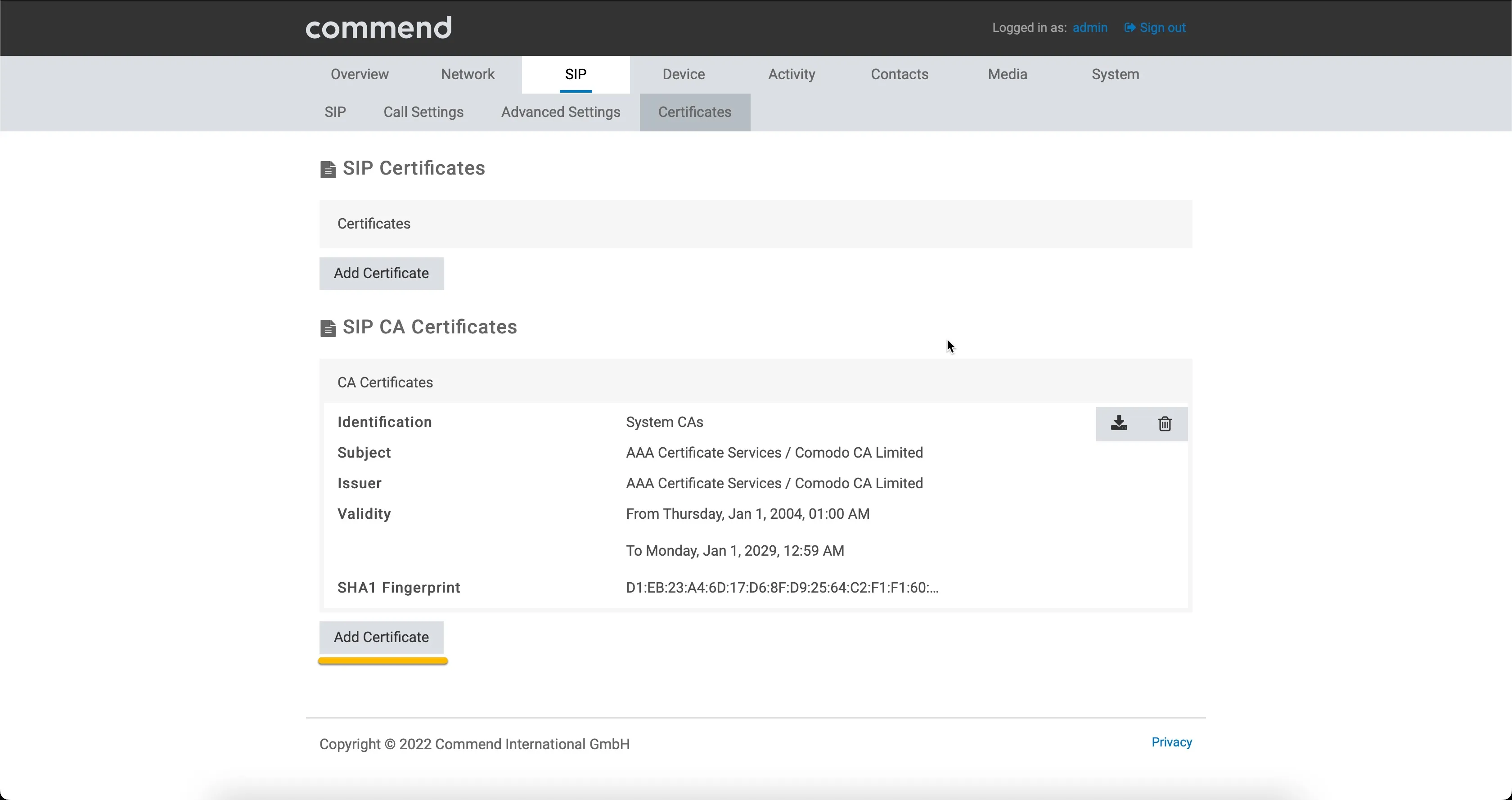
Configuration of the secure communication is done. All SIP and Audio/Video traffic to CyberGate will be encrypted.
Check the registration status in the menu ‘Overview’.
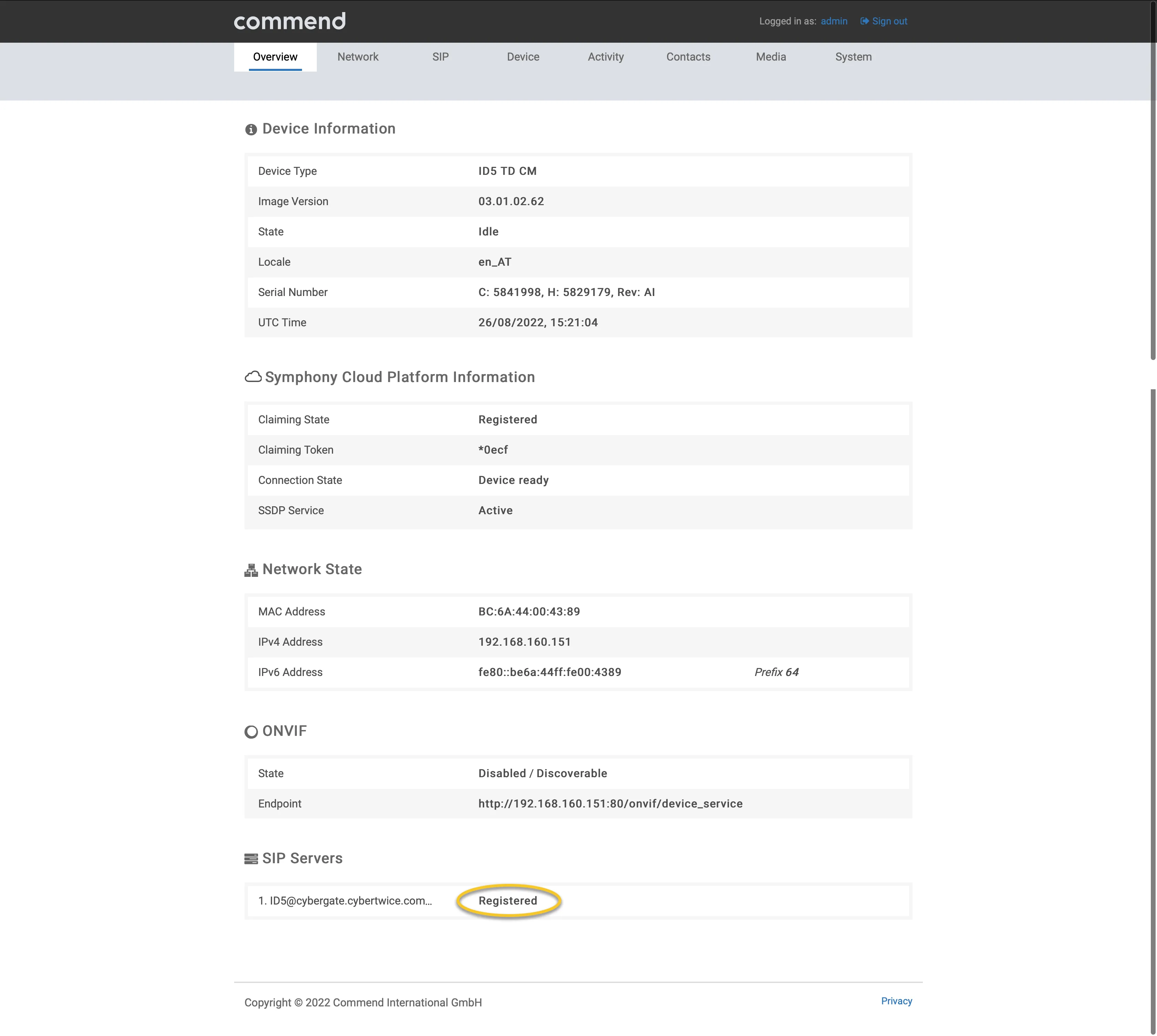
CyberGate App for Microsoft Teams
The CyberGate App for Microsoft Teams offers more CyberGate features directly from Microsoft Teams. One of these features is the Open-door button. This button can be utilized during a call to CyberGate and lets you open the the door by clicking just one button.
For a description on how to install the CyberGate app and use the Open door button please see the CyberGate App for TeamsCyberGate App for Teams manual.