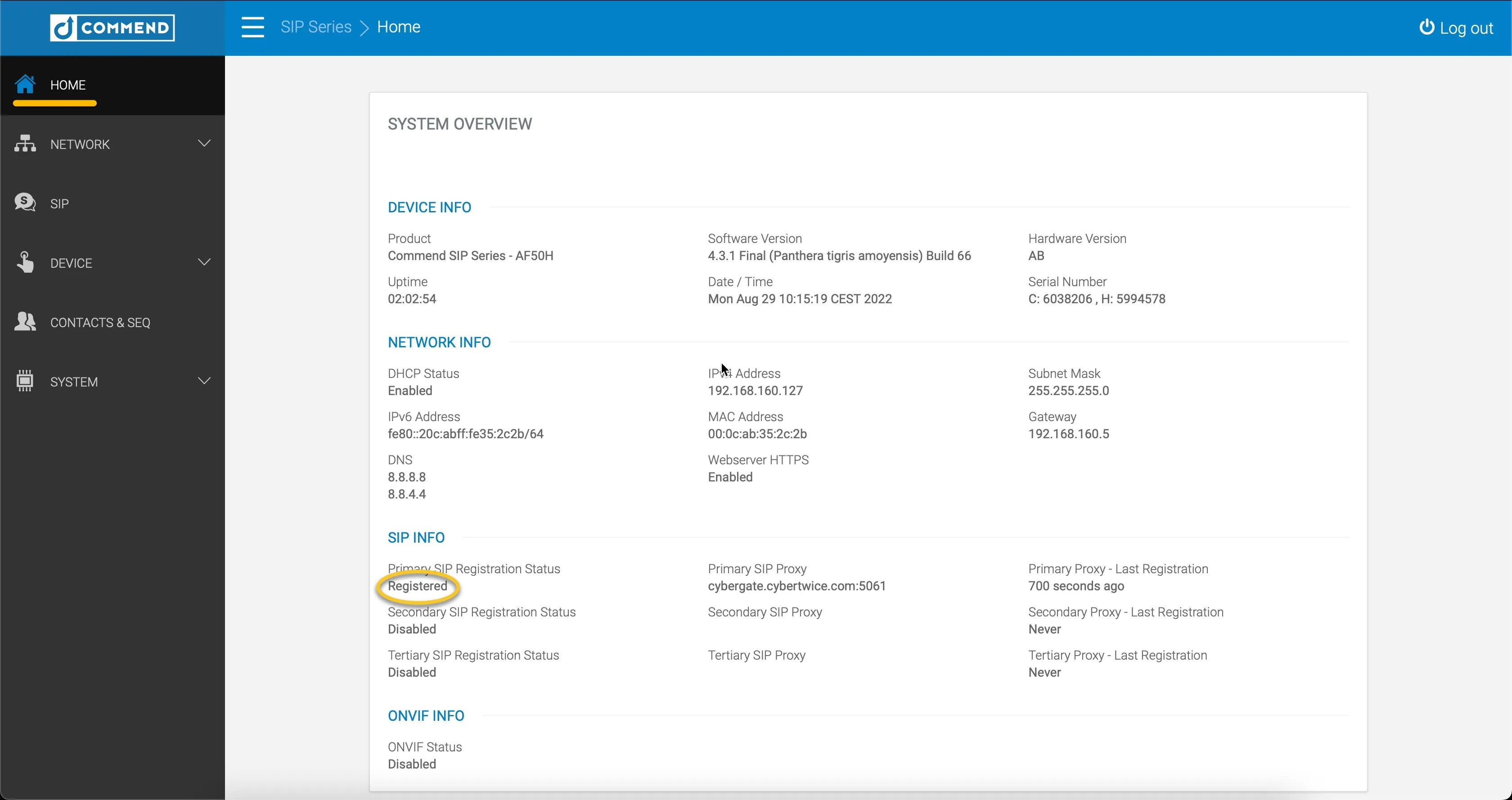
Commend IP Speakers and Cybergate
Configure Commend IP Speakers for the CyberGate service
Commend IP speakers
Supported Commend AFLS 10H models
For this guide a Commend AFLS 10H HG speaker (from now on referred to as the Commend speaker) is used to connect to the CyberGate service (from now on referred to as CyberGate).
This manual applies to the following Commend IP speakers:
- Commend AFLS 10H HG
- Commend AFLS 10H CW
- Commend AFLS 10H PW
- Commend AFLS 10H SC W
This manual describes the most basic configuration of the Commend IP speaker for use with CyberGate. The advanced Commend features can be used with CyberGate without any issues but are not described in this manual. Refer to the Commend documentation for additional configuration options.
Secure communication with CyberGate
The Commend IP speakers are certified for secure communication with CyberGate. Start by configuring the Commend speaker over TCP first. If the connection and test calls are successful, modify the configuration to use secure communication. For instructions, see Secure communication over SIP-TLS further down this page.
Configure the Commend speaker SIP settings
Follow these steps to configure the Commend speaker to connect to CyberGate.
Connect the Commend speaker to the network, power it on, and open a web browser to its IP address.
Sign in with the configured or supplied password of the Commend speaker.
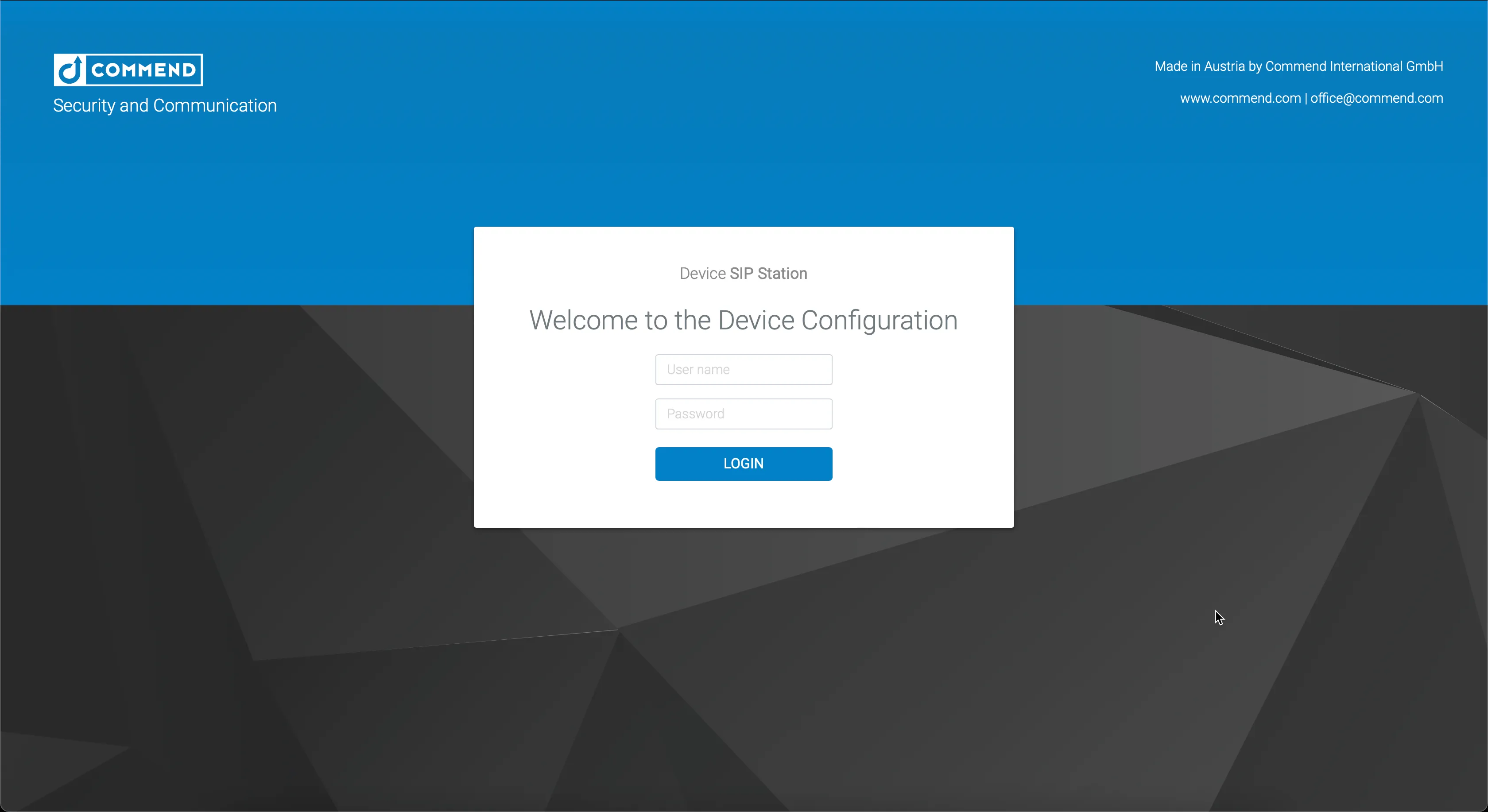
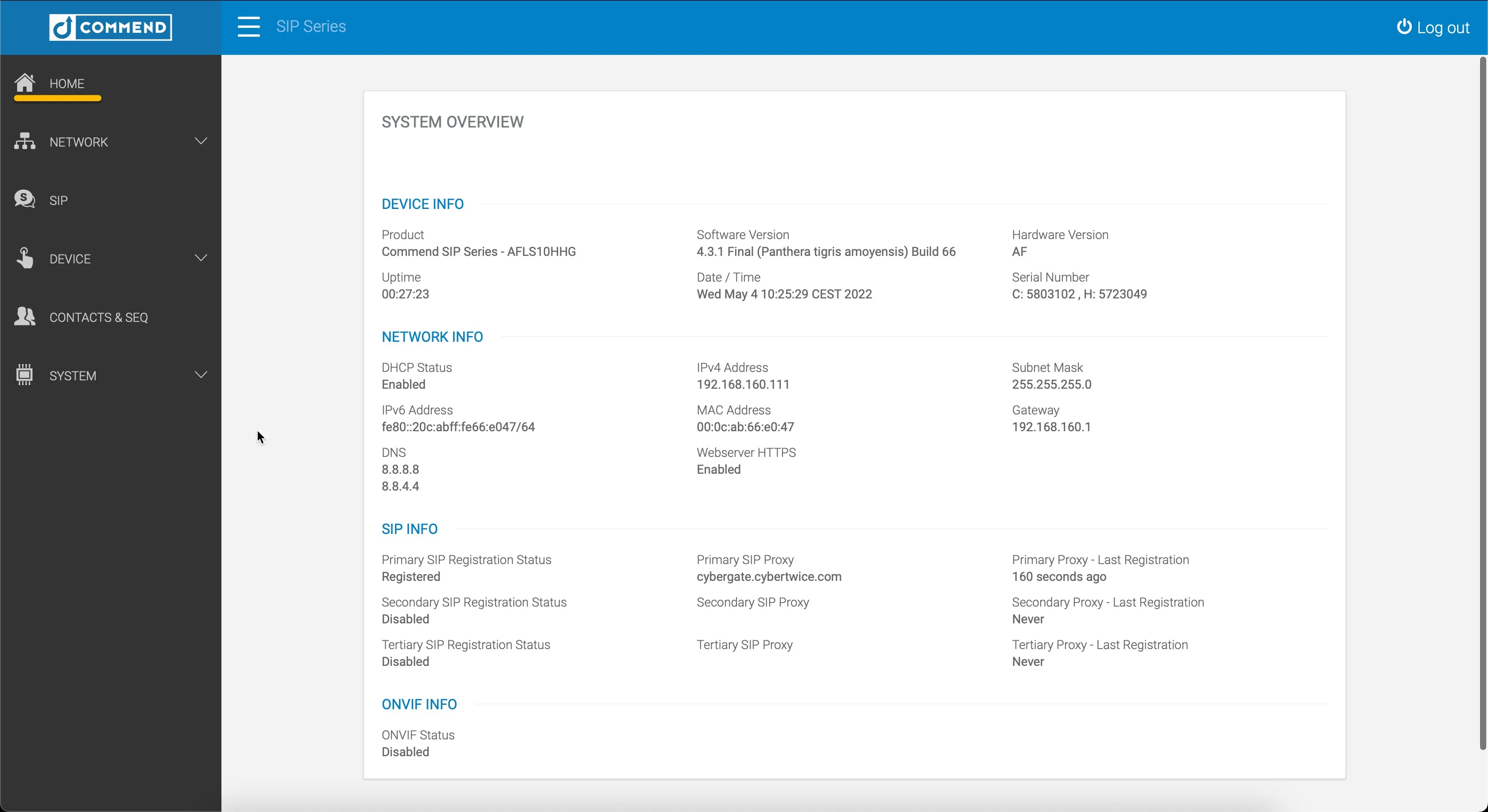
When signed in successfully, the first menu shown is the Home menu.
Navigate to the SIP menu.
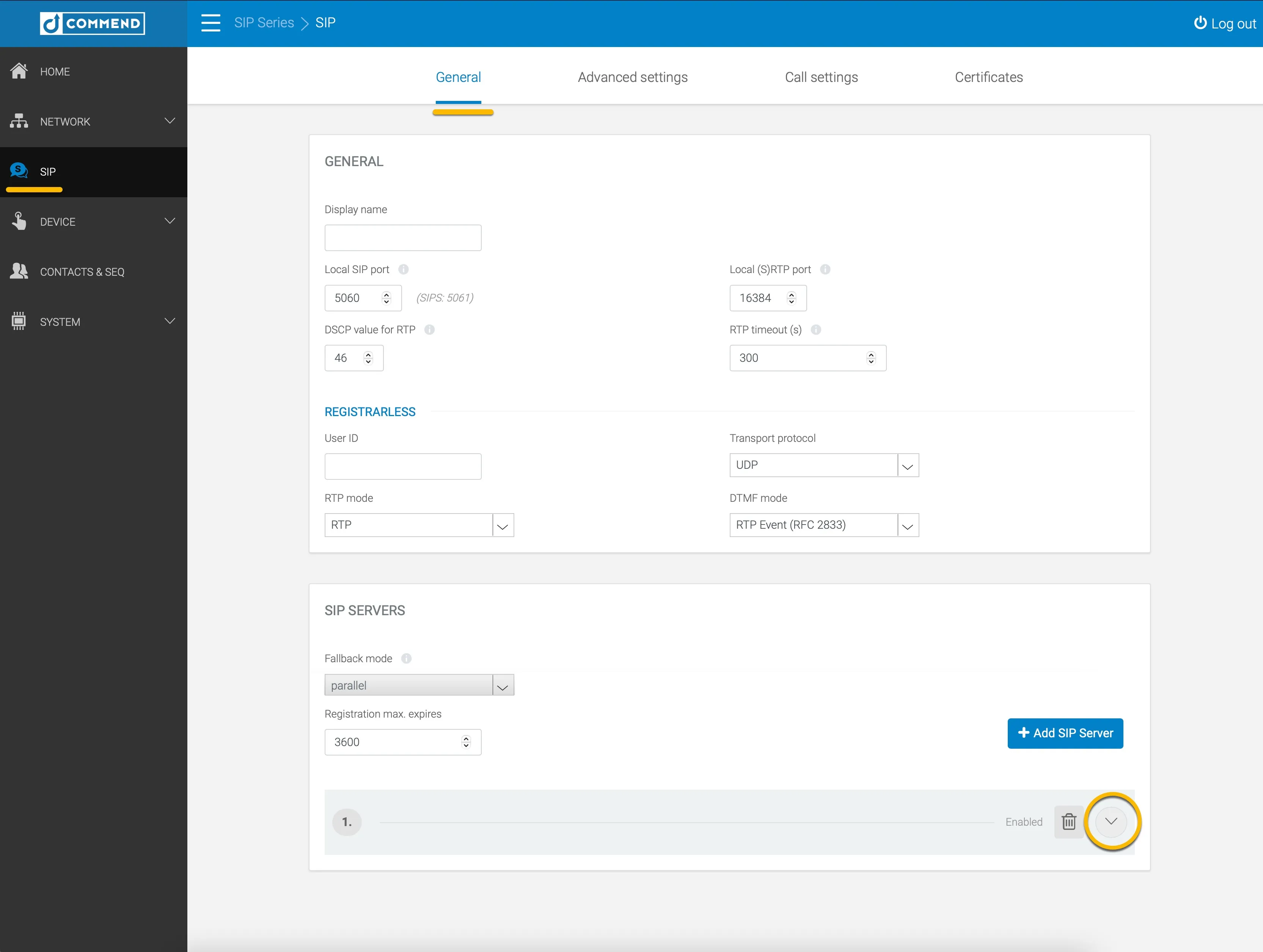
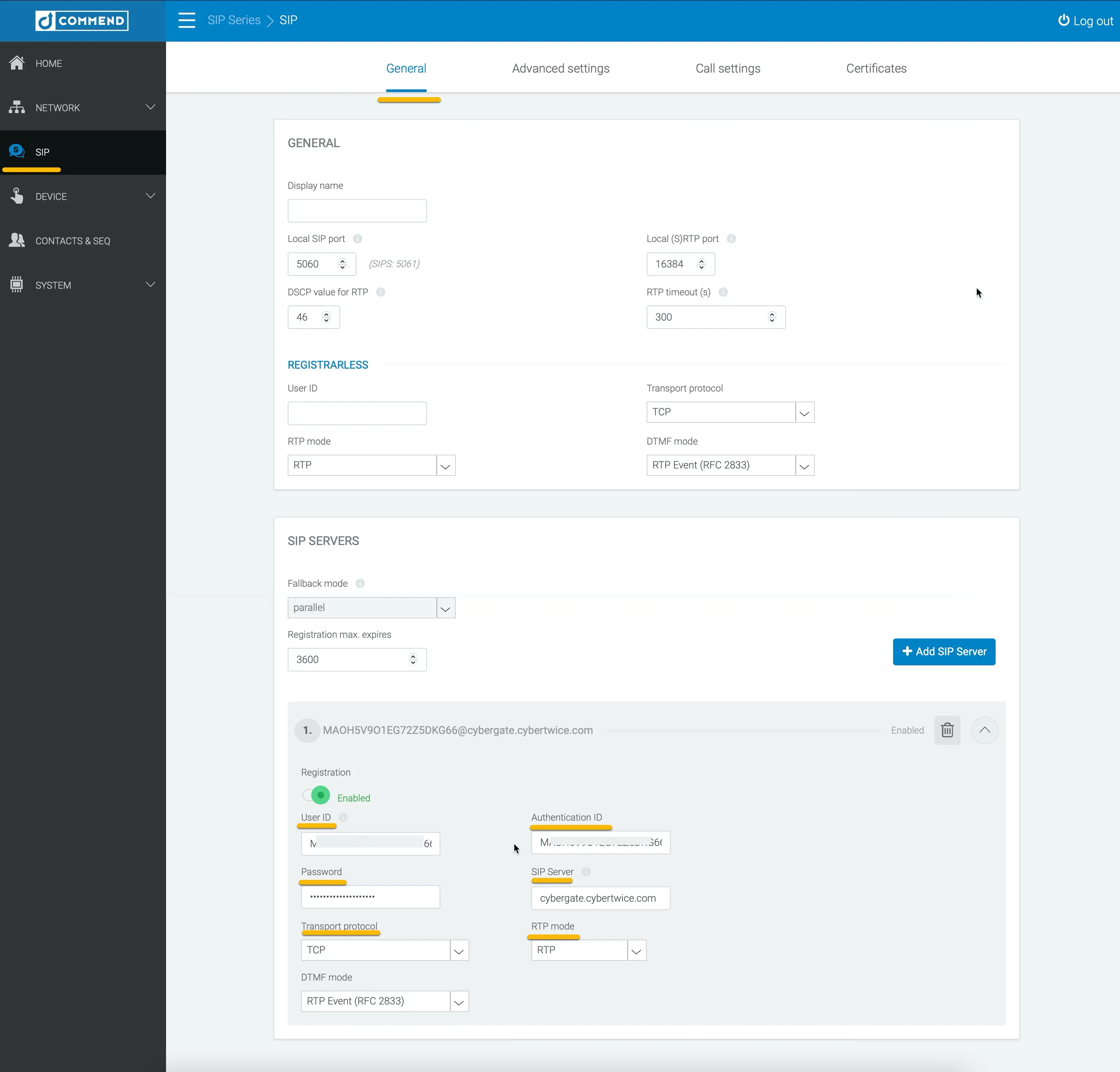
Open SIP server 1 and change or provide the following information:
SIP SERVERS | |
|---|---|
Registration | Enable registration |
User ID | Define a name (one word) for the speaker (e.g. office) |
Authentication ID | Use the Username provided by the CyberGate Management Portal |
Authentication Password | Use the Password provided by the CyberGate Management Portal |
SIP Server | cybergate.cybertwice.com |
Transport protocol | TCP |
Click Save when done.
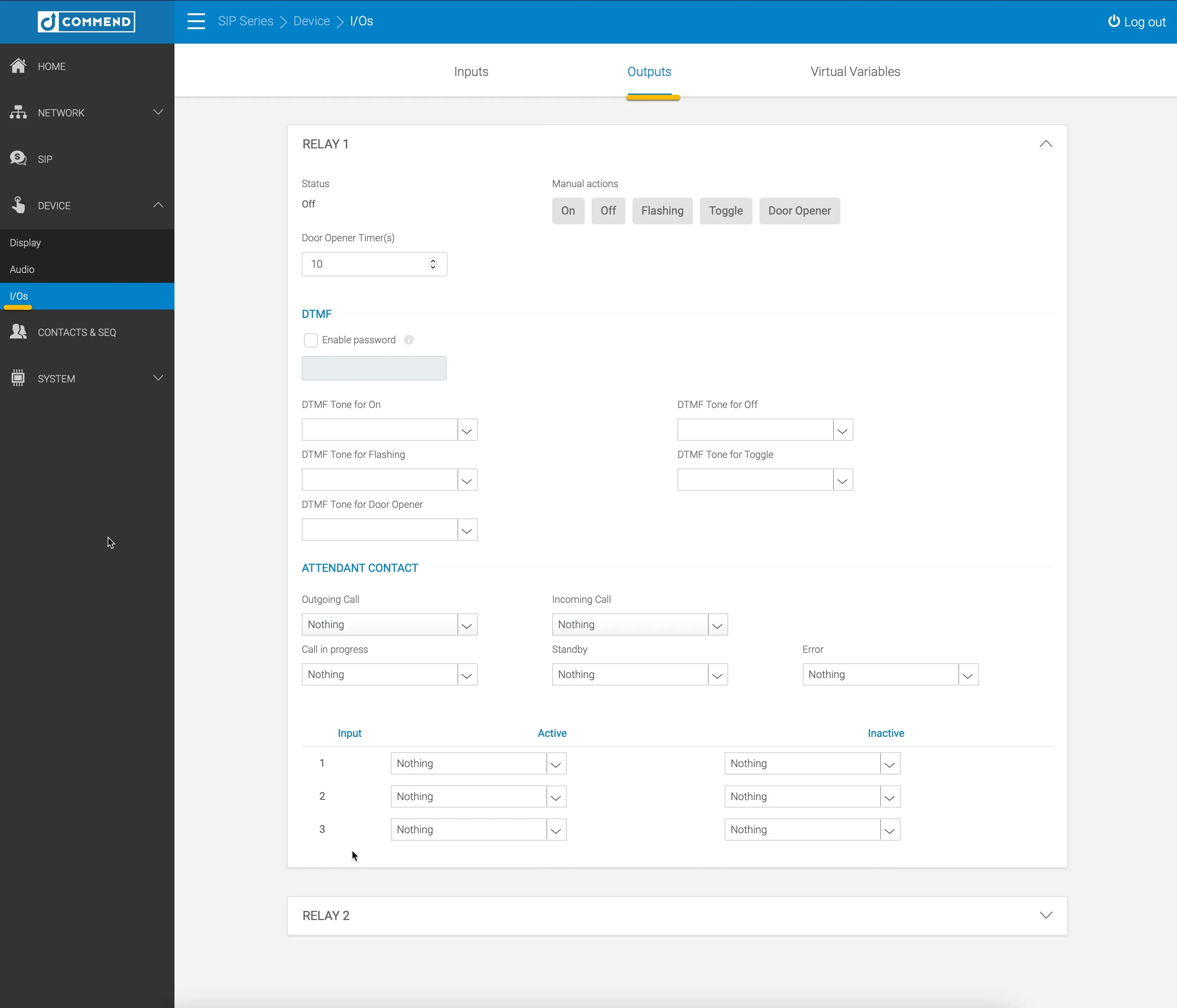
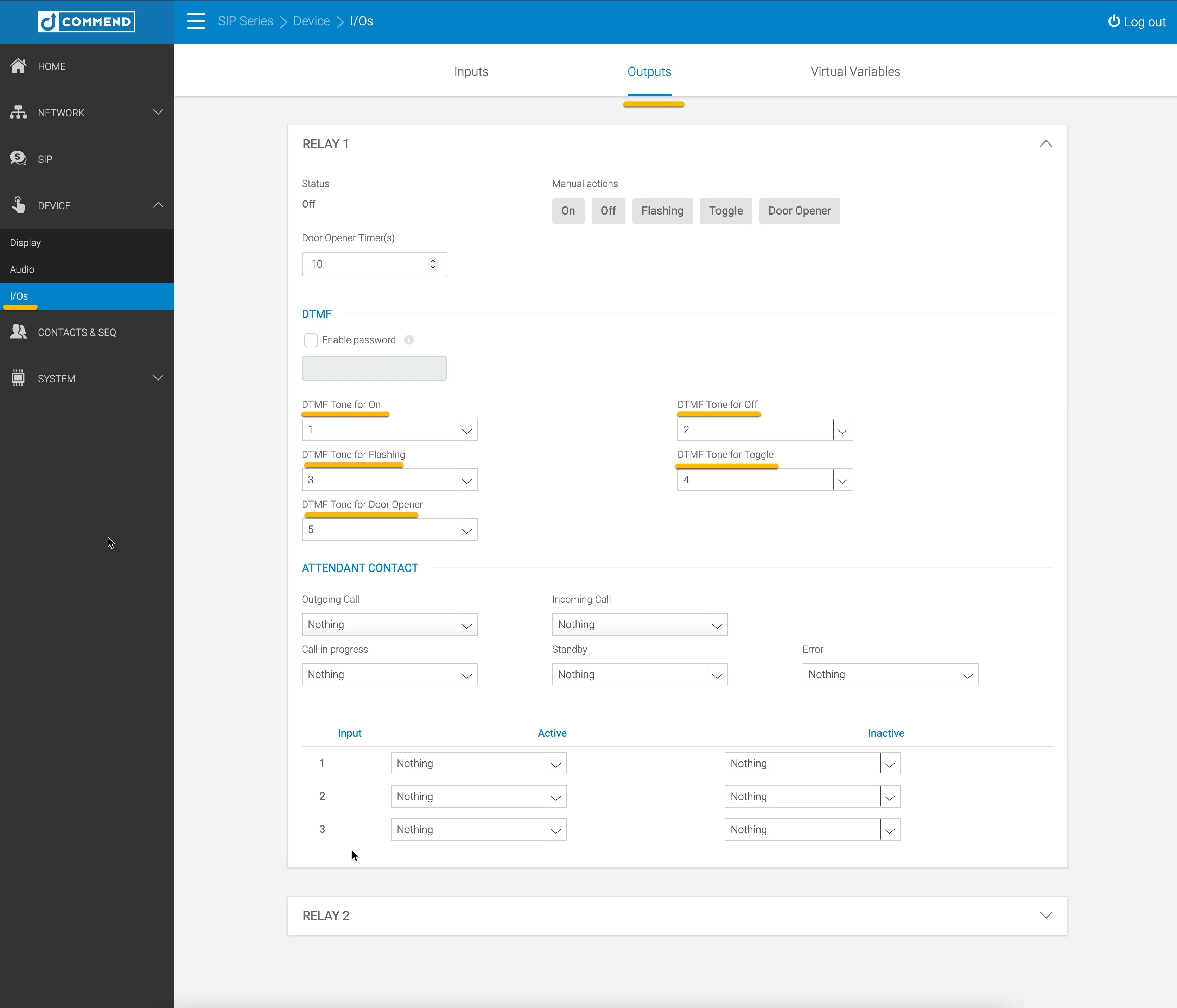
Optional — configure relay control via Dual-Tone Multi-Frequency (DTMF) tones.
Navigate to the Device-I/Os menu and define the DTMF tones for the internal relay 1, 2, or both in the Commend speaker. In this example the DTMF tones 1–5 are used for relay 1.
Test the connection with a call to a Teams user
The basic configuration of the Commend speaker for use with CyberGate is done. Test the functionality by initiating a test call from the Commend speaker to a Teams user.
Navigate to the Contacts & Seq menu.
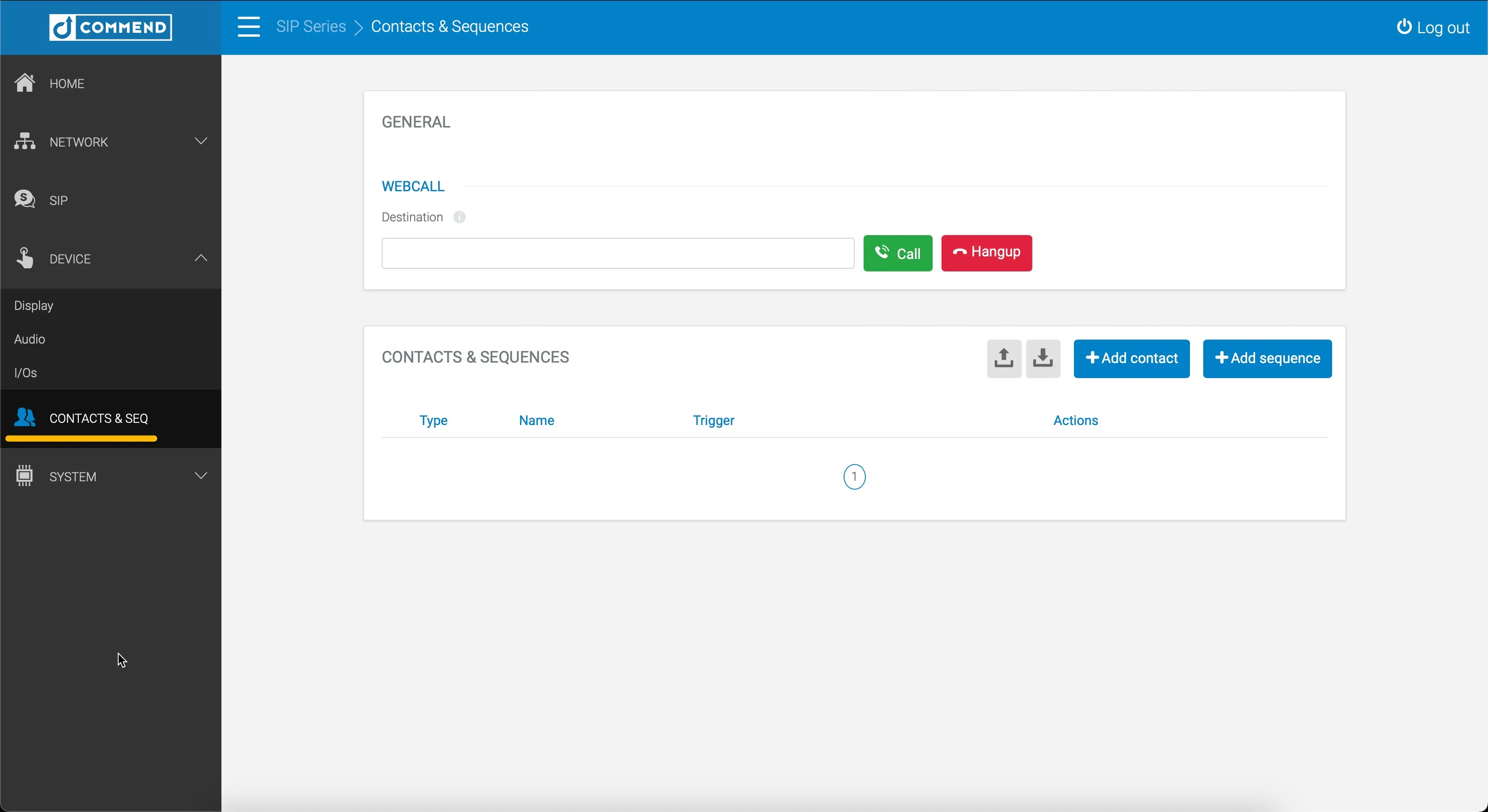
At WEBCALL, add a Destination — for example the user 'Koos Ridder', with the Teams name:
This will translate to the following destination address:
Click Call to initiate a test call to the Teams user.
Answer the call and check if the audio from Teams sounds through the Commend speaker.
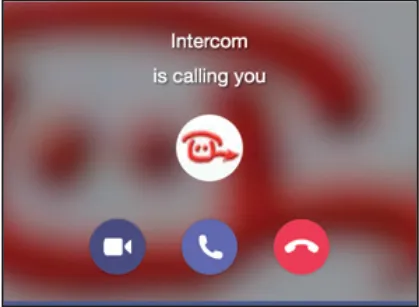
Call the Commend speaker from Microsoft Teams
There are two ways to call the Commend speaker from Teams:
- Call the Commend speaker using the Teams Calls menu.
- Recommended: Using the CyberGate for Microsoft Teams app to find the Commend speaker and call it with one click.
Make sure the CyberGate is configured correctly. It is important to start with the Feature Configuration script.
The Feature Configuration script
The Feature Configuration script is a PowerShell script that needs to be executed before certain CyberGate features are available. One of these features is the ability to call devices directly from Teams.
Follow the steps in the Feature Configuration script manual:
Call the Commend speaker using the Teams Calls menu
To initiate a call from Microsoft Teams, log in to Microsoft Teams and navigate to the Calls menu.
You can either type the (Display)name of the Commend speaker directly in the call field (at 'Type a name') or search for 'cybergate'. This will show all of your CyberGate devices. Select the Commend speaker to call and click the blue Call button.
A call to the Commend speaker will be initiated and the Commend speaker will answer automatically.
When an internal relay of the Commend speaker is used and configured, click the three dots (...) in the call screen and select the Keypad. With the keypad, operate the relay using the DTMF tones.
Call the Commend speaker from the CyberGate for Teams app
The CyberGate for Teams app offers many features that make working with CyberGate more convenient. One of these features is the ability to initiate calls directly to devices. This eliminates the need to search for your device in the Teams calls menu.
See this manual for all the information on how to install and use the CyberGate for Teams app:
- In the CyberGate for Teams app, navigate to Devices.
- Find the Commend speaker.
- Click on the Connect button.
A call to the Commend speaker is initiated and the device answers automatically.
When an internal relay of the Commend speaker is used and configured, click the three dots (...) in the call screen and select the Keypad. With the keypad, operate the relay using the DTMF tones.
Secure communication over SIP-TLS
If a secure connection between the Commend speaker and CyberGate is desired, modify the configuration as follows.
Navigate to the SIP-General menu.
Provide the following information:
SIP Servers | |
|---|---|
SIP Server | cybergate.cybertwice.com:5061 |
Transport Protocol | TLS |
Real-time Transport Protocol (RTP) Mode | Secure RTP (SRTP) |
Click Save when done.
Download the Certificate Authority (CA) root certificate from the CyberTwice support site: Root CA for CyberGate.
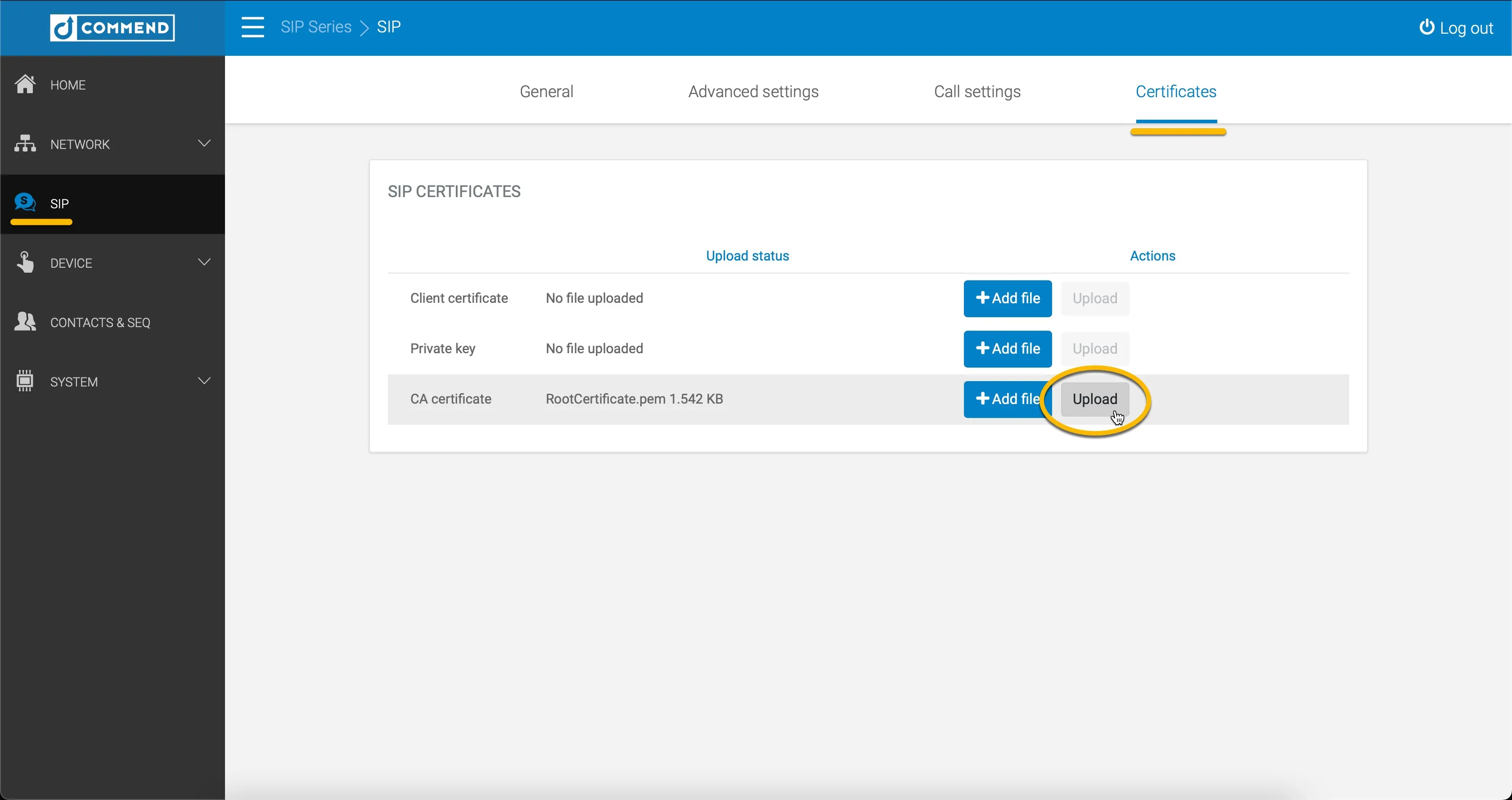
Navigate to the SIP-Certificates menu on the Commend speaker.
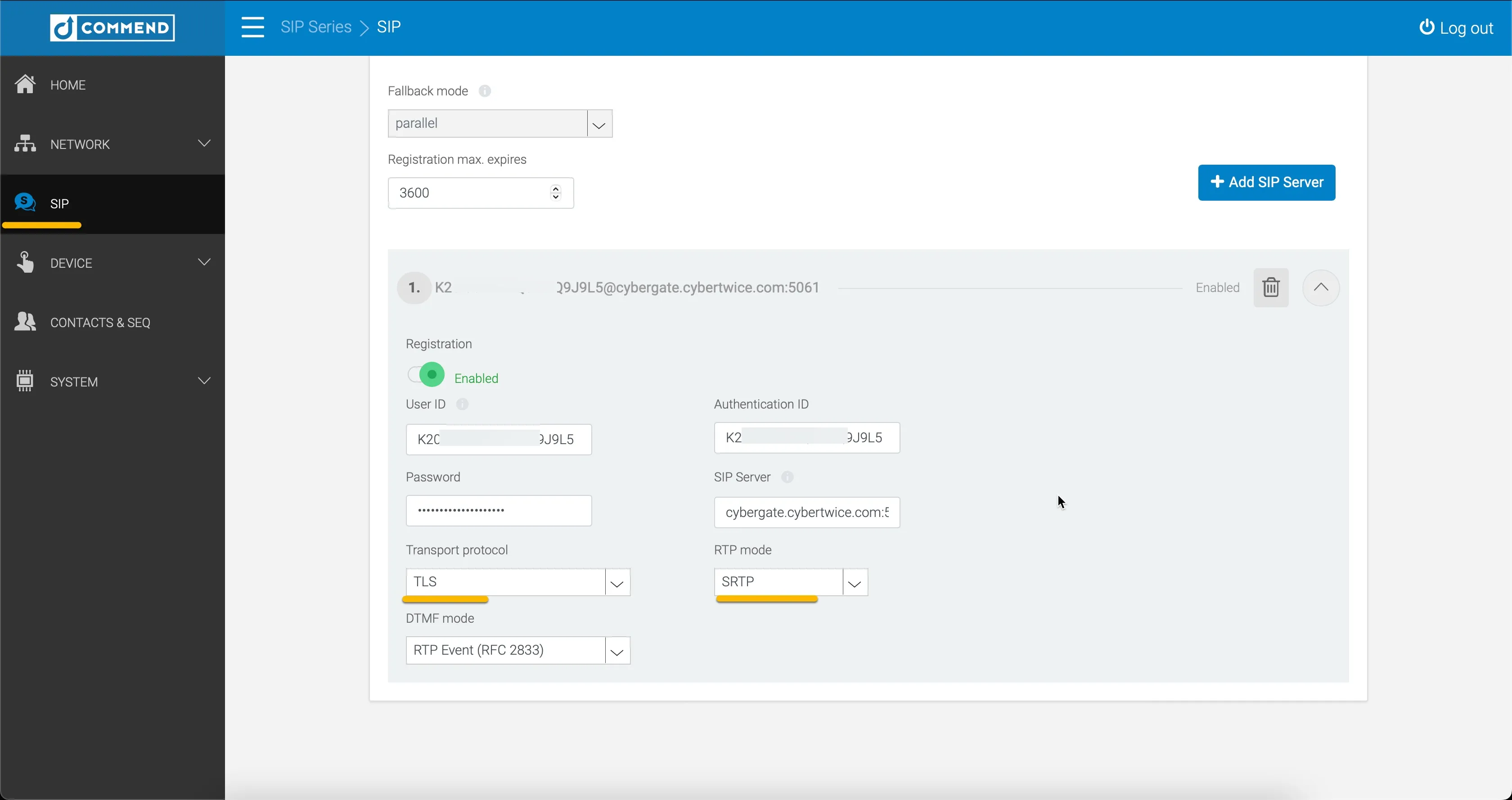
At 'CA Certificates', click Add file.
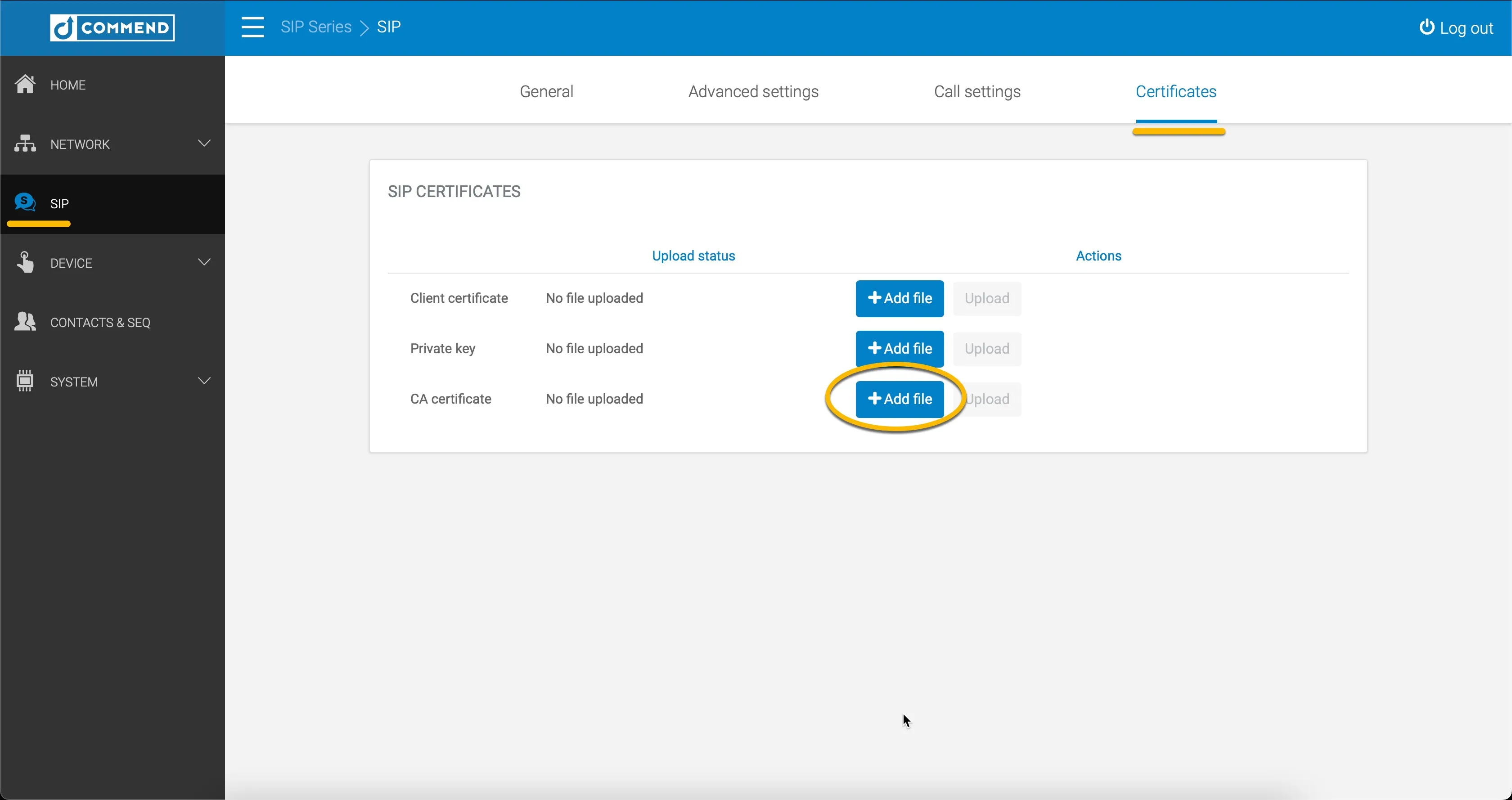
Select and upload the downloaded CA root certificate.
Click Upload to store the certificate in the Commend speaker.
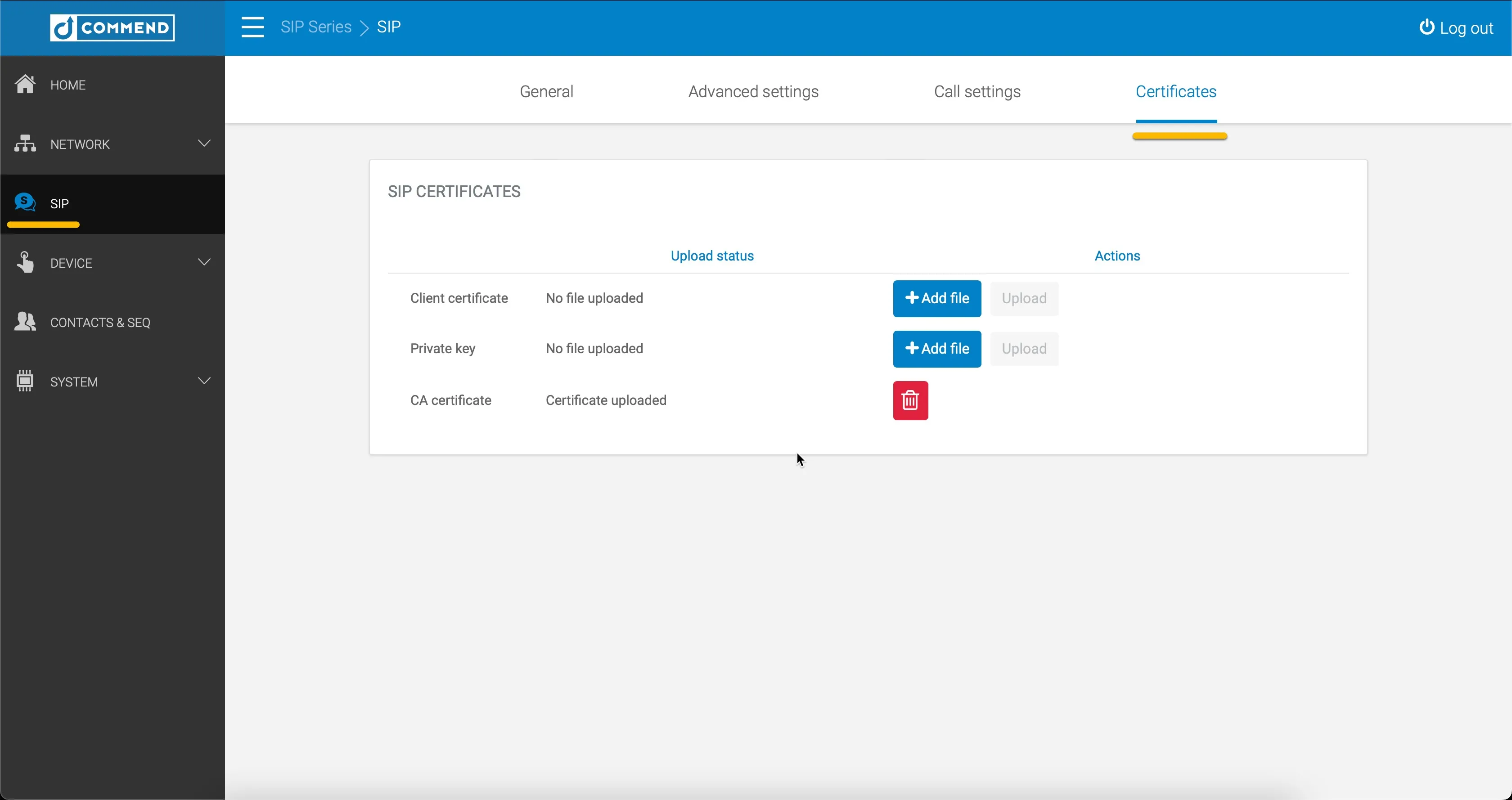
Configuration of the secure communication is done. All SIP and audio/video traffic between the Commend speaker and CyberGate will now be encrypted.
Check the registration status in the Home menu.