Commend VirtuoSIS and CyberGate
Commend VirtuoSIS and CyberGate
For this document we used an OD5 TDCM Outdoor Station configured behind a VirtuoSIS Intercom Server (from now on named 'VirtuoSIS') to connect to the CyberGate service (from now on named 'CyberGate'). All other Commend stations that can be connected to VirtuoSIS can also communicate with CyberGate. Video on Teams is only supported with video compatible devices.
How VirtuoSIS connects to CyberGate
VirtuoSIS communicates with CyberGate via a SIP trunk. The SIP trunk is one active connection to CyberGate that allows all intercom systems connected to VirtuoSIS to communicate with Microsoft Teams.
CyberGate has a SIP trunk option that needs to be enabled. It allows you to create a SIP trunk account with unique credentials. Once this SIP trunk account is configured in VirtuoSIS, each device that communicates via VirtuoSIS through the SIP trunk to CyberGate will automatically be added as a 'SIP Trunk device' in CyberGate.
This guide is divided into three sections:
- Configure CyberGate for VirtuoSIS - the necessary configuration in the CyberGate Admin Portal.
- Configure the SIP trunk in VirtuoSIS - the configuration of the SIP trunk on the VirtuoSIS side.
- Install the CyberGate App - Installation of the CyberGate app is highly recommended.
To configure VirtuoSIS for CyberGate, technical knowledge of VirtuoSIS and the connected Commend devices is required.
SIP Trunk device licensing in CyberGate
Each device connecting through the VirtuoSIS SIP Trunk is added automatically and needs a CyberGate license. Each device can be:
- Edited to change its name
- Deleted
If more devices are connecting to CyberGate via VirtuoSIS than licenses available, the newly added devices are disabled by default. You can free up licenses by deleting (no longer used) devices or by adding licenses (in the menu License Overview). Added licenses will be active within a few minutes after adding. As soon as extra licenses become available, the disabled device(s) automatically become active.
Configure CyberGate for VirtuoSIS
Follow the steps in this section to configure CyberGate for VirtuoSIS in the CyberGate Admin Portal.
Enable SIP trunk support
- Log in to the admin portal of CyberGate: https://admin.cybergate.cybertwice.com
- Navigate to the -Basic-Global- menu. At Features, enable Trunk support. It is disabled by default.
After trunk support is enabled, a new menu is added called SIP trunks.
- Navigate to the SIP trunks menu.
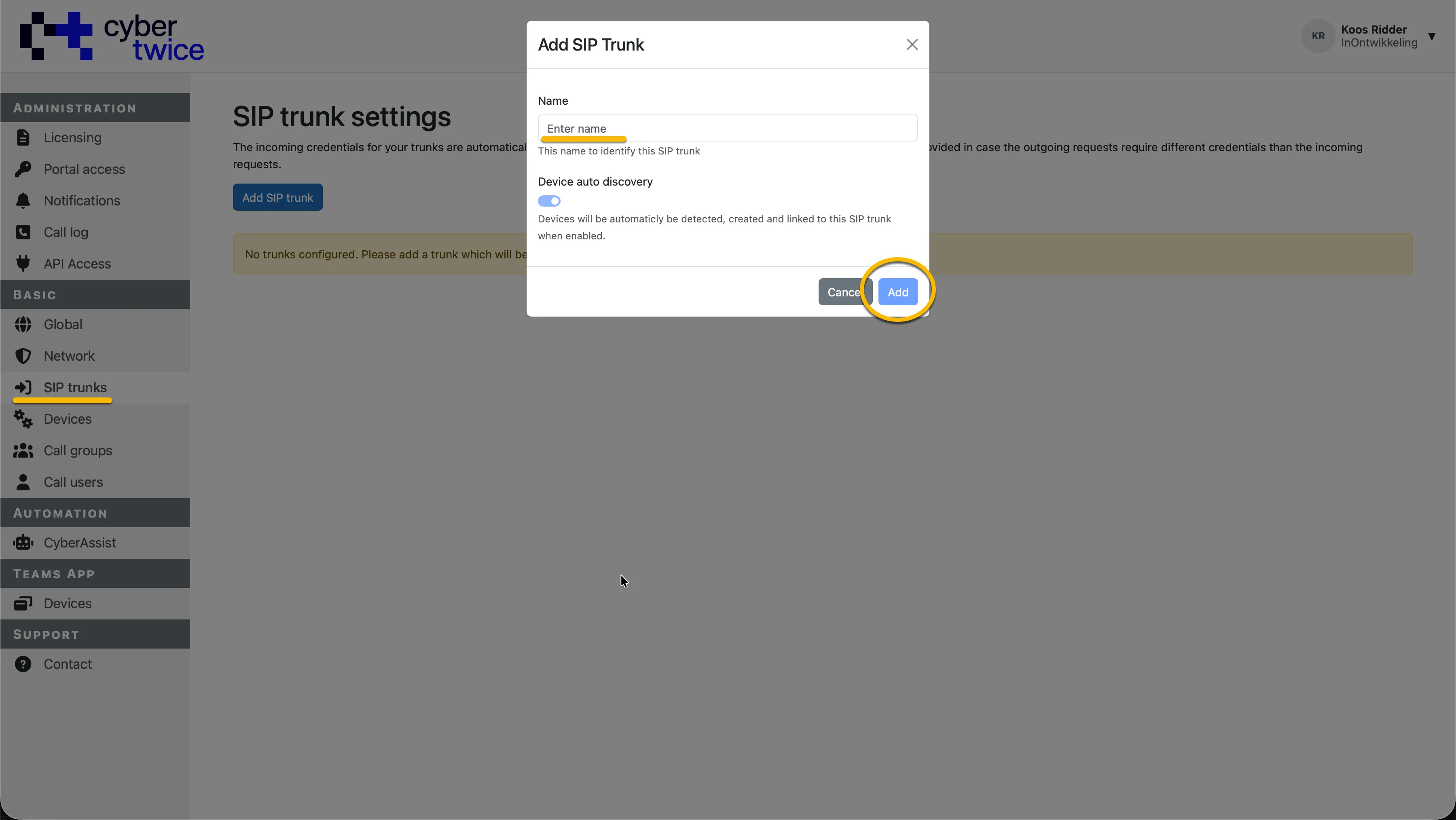
- Click the blue Add SIP trunk button to add a SIP trunk.
- Provide the following information:
Add SIP Trunk | |
|---|---|
Name | Name the SIP trunk (in this example we name it VirtuoSIS) |
- Click the blue Add button when done.
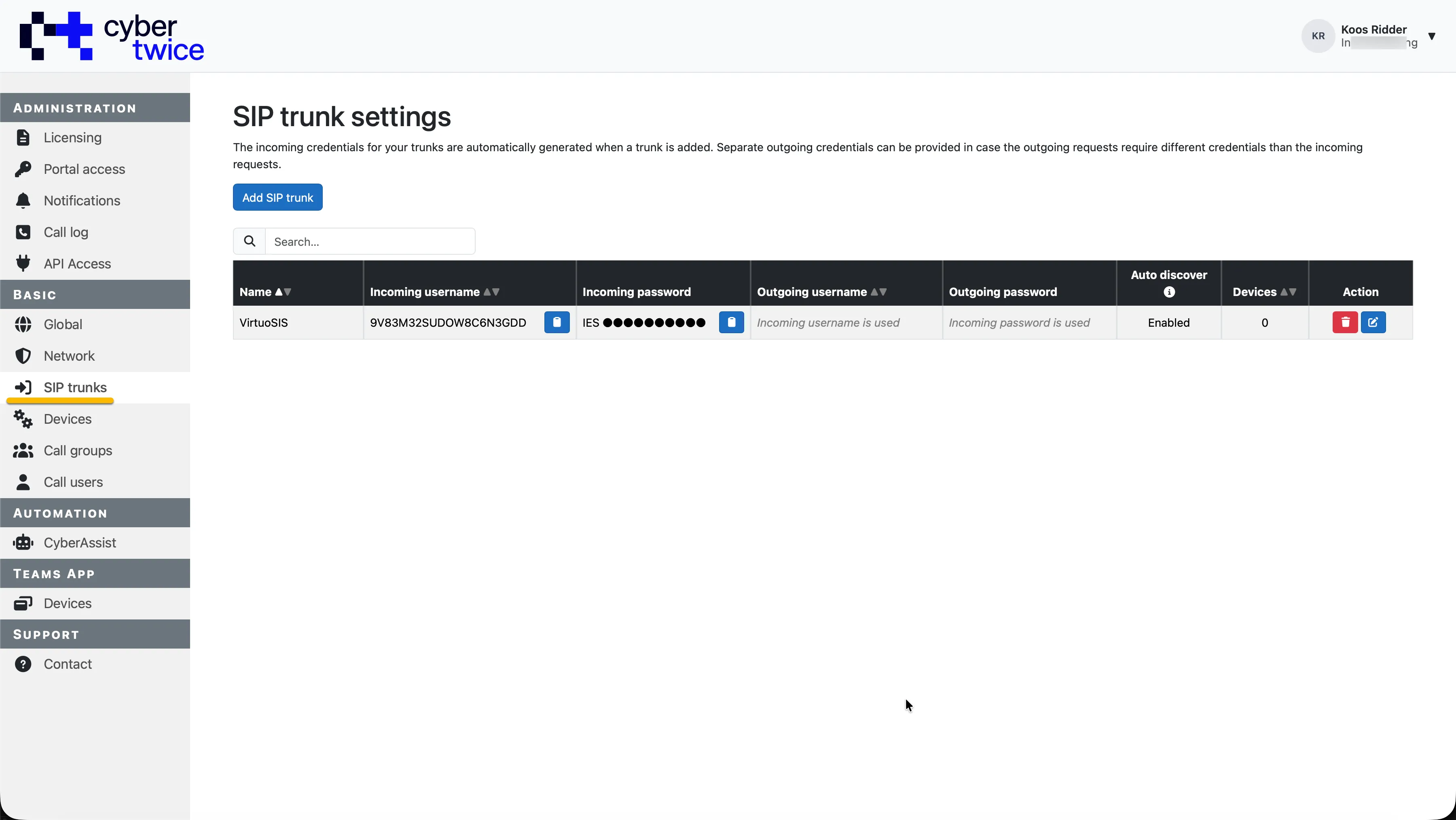
A SIP trunk with the provided name is generated. The Incoming username and Incoming password are automatically generated; you need them later to configure VirtuoSIS.
You can copy the Incoming username and Incoming password with the blue Copy buttons.
Check the SIP trunk in Device settings
Navigate to the Device settings menu.
The SIP trunk is shown, but no devices are detected yet. Each device that calls to Microsoft Teams through CyberGate will be automatically added.
Create a Call group in CyberGate
The VirtuoSIS SIP trunk and the calls that have to be routed through that SIP trunk are always addressed as numbers. As Teams only uses Teams usernames (e.g. [email protected]), you'll need to create one (or more) Call group(s) in the CyberGate Management portal. A Call group must have a number as a name (e.g. 123) so it can be addressed in the Commend devices. When called from a device behind VirtuoSIS, it will then ring the participants in the Call group.
Follow the steps in the manual CyberGate Call Group Settings on this site on how to create a Call group.
Configure the SIP trunk in VirtuoSIS
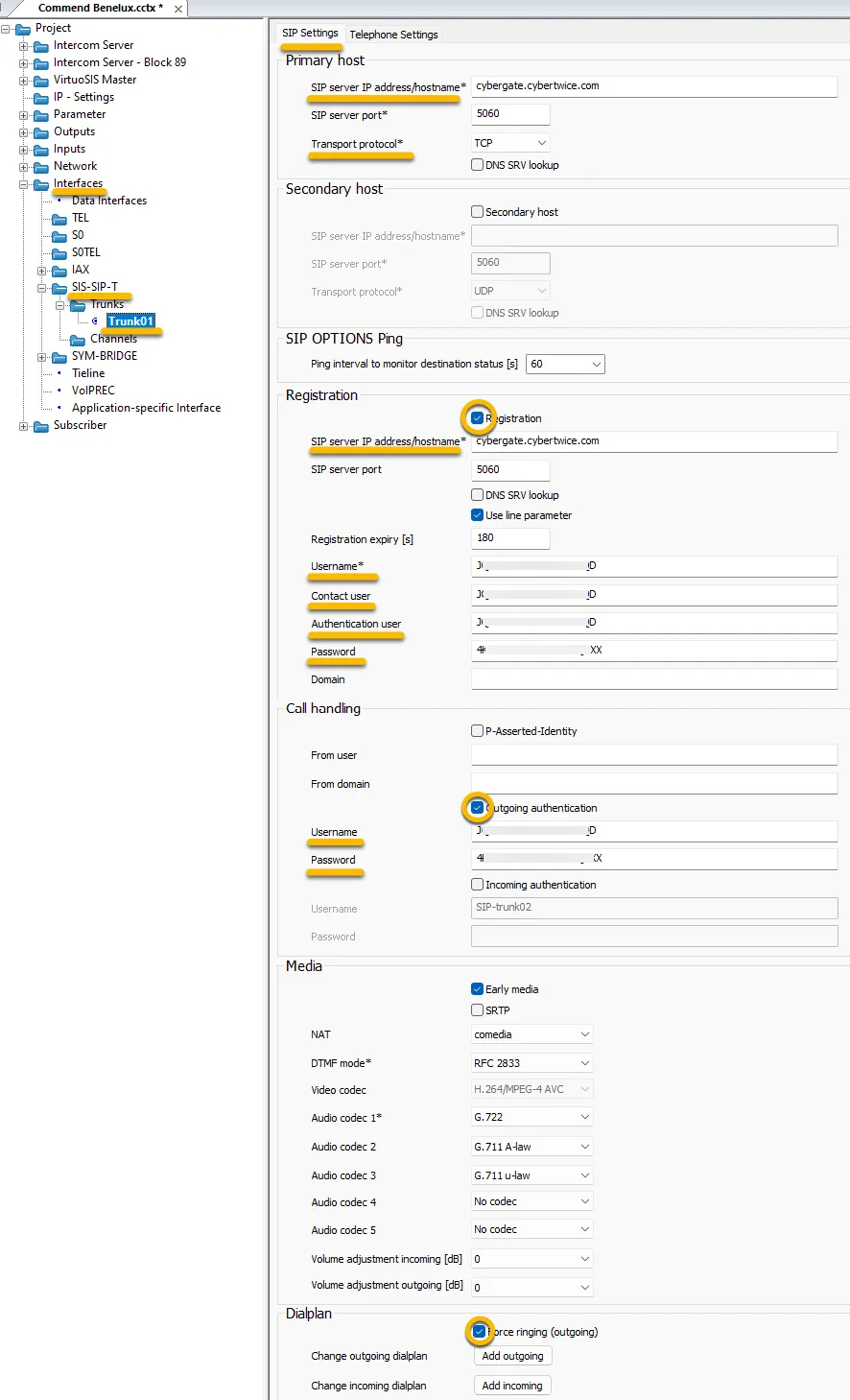
- Log in to VirtuoSIS and navigate to Interfaces - SIS-SIP-T - Trunks - Trunk01, SIP Settings.
- Provide / change the following information:
Primary host | |
|---|---|
SIP server IP address/hostname | cybergate.cybertwice.com |
Transport protocol | TCP |
Registration | |
Registration | Enable |
SIP server IP address/hostname | cybergate.cybertwice.com |
Username | Use the SIP trunk Authentication username provided by the CyberGate service |
Contact user | Use the SIP trunk Authentication username provided by the CyberGate service |
Authentication user | Use the SIP trunk Authentication username provided by the CyberGate service |
Password | Use the Password provided by the CyberGate service |
Call handling | |
Outgoing authentication | Enable Outgoing authentication |
Username | Use the SIP trunk Authentication username provided by the CyberGate service |
Password | Use the Password provided by the CyberGate service |
Dial plan | |
Force ringing | Enable Force ringing |
Assign a channel to the trunk
- Navigate to Trunks - Channels - Common.
- Provide the following information for the desired Call Number / Channel (in this case 901):
Channel > Trunk assignment | Trunk01 |
|---|
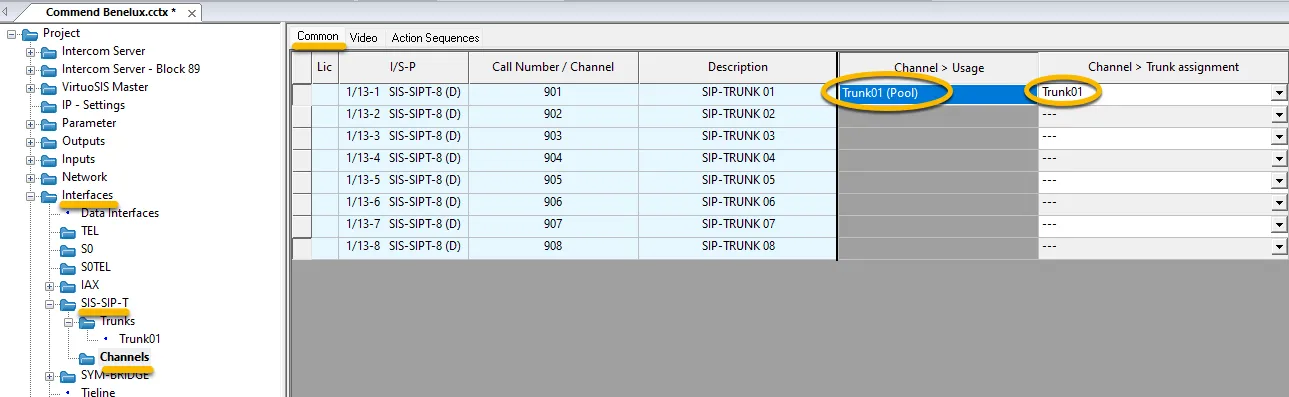
This links Channel 901 to Trunk01.
Configure video for the channel
- Navigate to Trunks - Channels - Video.
- Provide the following information for the desired Call Number (in this case 901):
Mode | Camera and Monitor |
|---|---|
Camera Number | 901 |
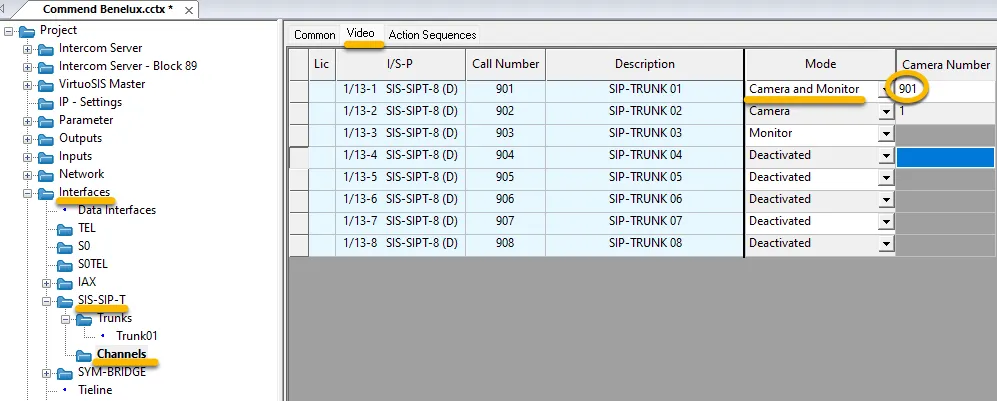
Configuration of the SIP trunk in VirtuoSIS is now completed.
Call a Teams user from a VirtuoSIS device
To call from a device behind VirtuoSIS you need two things:
- The call number for the SIP trunk. Use this as prefix to get the call routed through the SIP trunk to CyberGate.
- The number defined in the Call group in CyberGate that contains the Teams user(s) to call.
By dialing the prefix + the Call group number, the Teams user will be called.
Example:
- Trunk number: 901
- Call group number: 123
- Teams user programmed in the Call group: [email protected]
Program your device to call 901123 to dial out to Teams user [email protected].
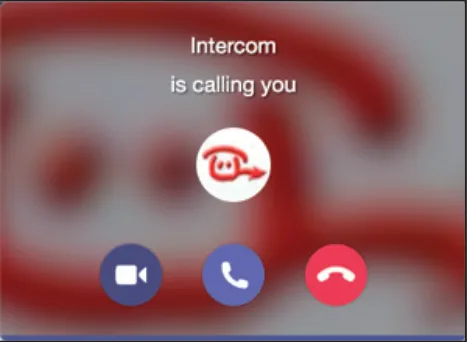
If configured correctly, the Teams client will notify you of an incoming call. Answer it by clicking the camera symbol.
The call will be established and video will be displayed within ±3 seconds.
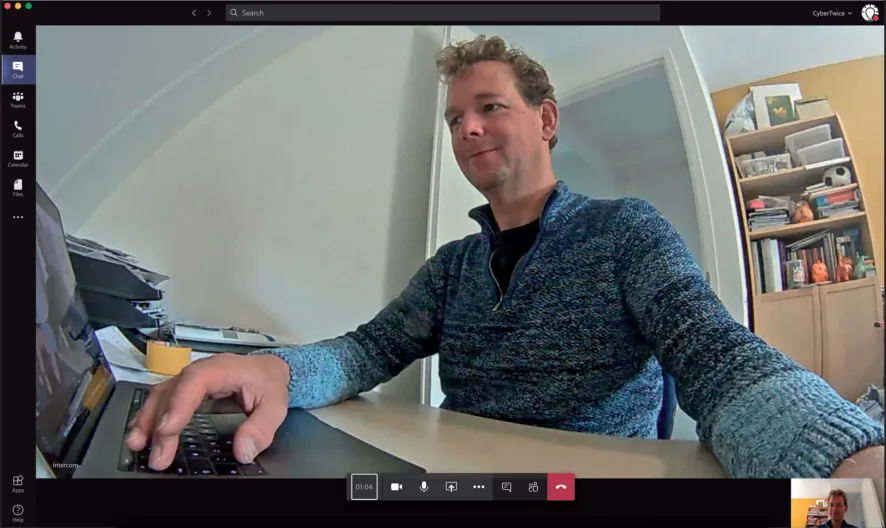
To open the door from the Teams call, click on the Dial pad symbol in the call screen. Use the default DTMF-code ‘1’ to trigger the relay in the Commend and open the door.
A more convenient way to open the door during a call is to use the CyberGate for Teams app. See the 'CyberGate App for Microsoft Teams' chapter on how to to install and use the CyberGate for Teams app.
CyberGate App for Microsoft Teams
The CyberGate App for Microsoft Teams offers more CyberGate features directly from Microsoft Teams. One of these features is the Open-door button. This button can be utilized during a call to CyberGate and lets you open the the door by clicking just one button.
For a description on how to install the CyberGate app and use the Open door button please see the CyberGate App for Teamsmanual.