2N and CyberGate
CyberTwice Configure 2N for CyberGate CyberGate
Microsoft Teams is the hub for team collaboration in Microsoft Office 365 that integrates people content, conversations and tools your team needs. Via the CyberGate application that runs in
Microsoft Azure you can now connect 2N IP Intercoms to your Microsoft Teams environment. A 2N IP Intercom can set up a call with audio and video to Microsoft Teams users and answer incoming calls from Teams using the Teams desktop client, Teams desk phone or Teams Smartphone app.
For instructions on how to purchase and configure the CyberGate service, see our CyberGate Purchase and SetupConnect a SIP Intercom to MS Teams using the CyberGate service
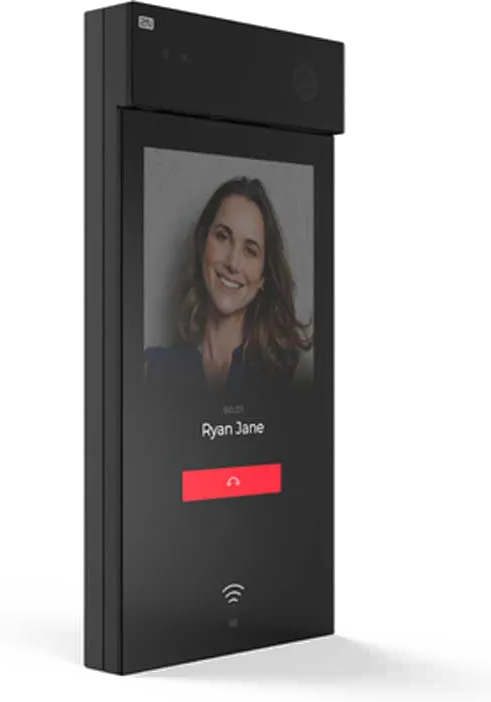
2N IP Intercoms
For this document we used an 2N IP One (from now on named ‘2N’) to connect to the CyberGate service (from now on named ‘CyberGate’).
All 2N IP Intercoms are compatible with CyberGate and will allow you to have 2-way audio, video (if equipped with a build in camera) and 2-way video in case of the 2N IP Style.
The 2N IP Intercoms are also able to setup a secure connection to CyberGate using SIP TLS and SRTP.
The 2N IP Style interface differs slightly from the other 2N intercoms. So not all screenshots represent the 2N IP Style.
Please make sure the 2N intercom has the latest available firmware installed.
Connect to the 2N
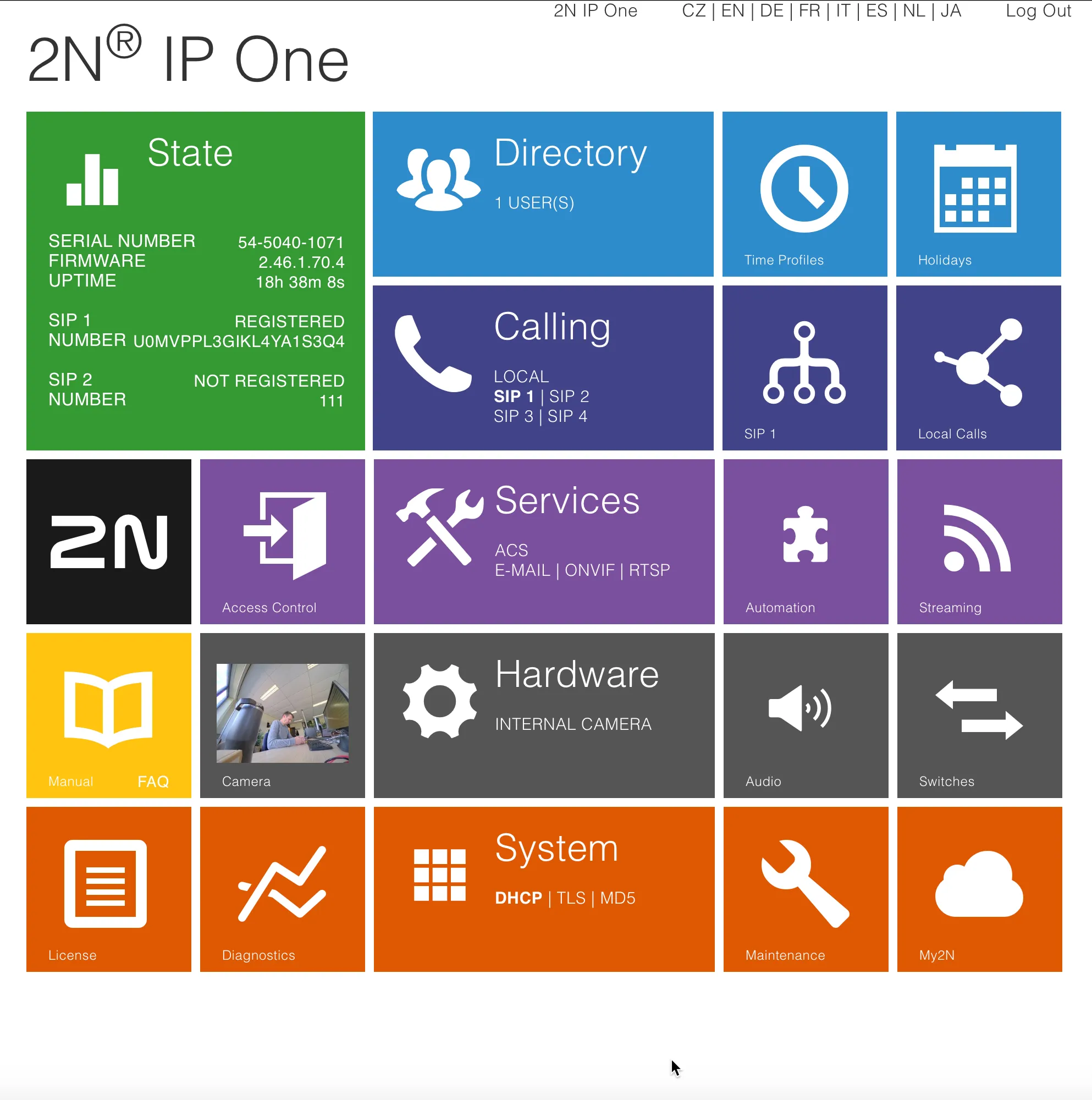
Connect the 2N to the network, power it on and open a web browser to its IP-address. Sign in as ‘admin’ with the configured or supplied password of the 2N. After successful login the start screen will show.
SIP configuration
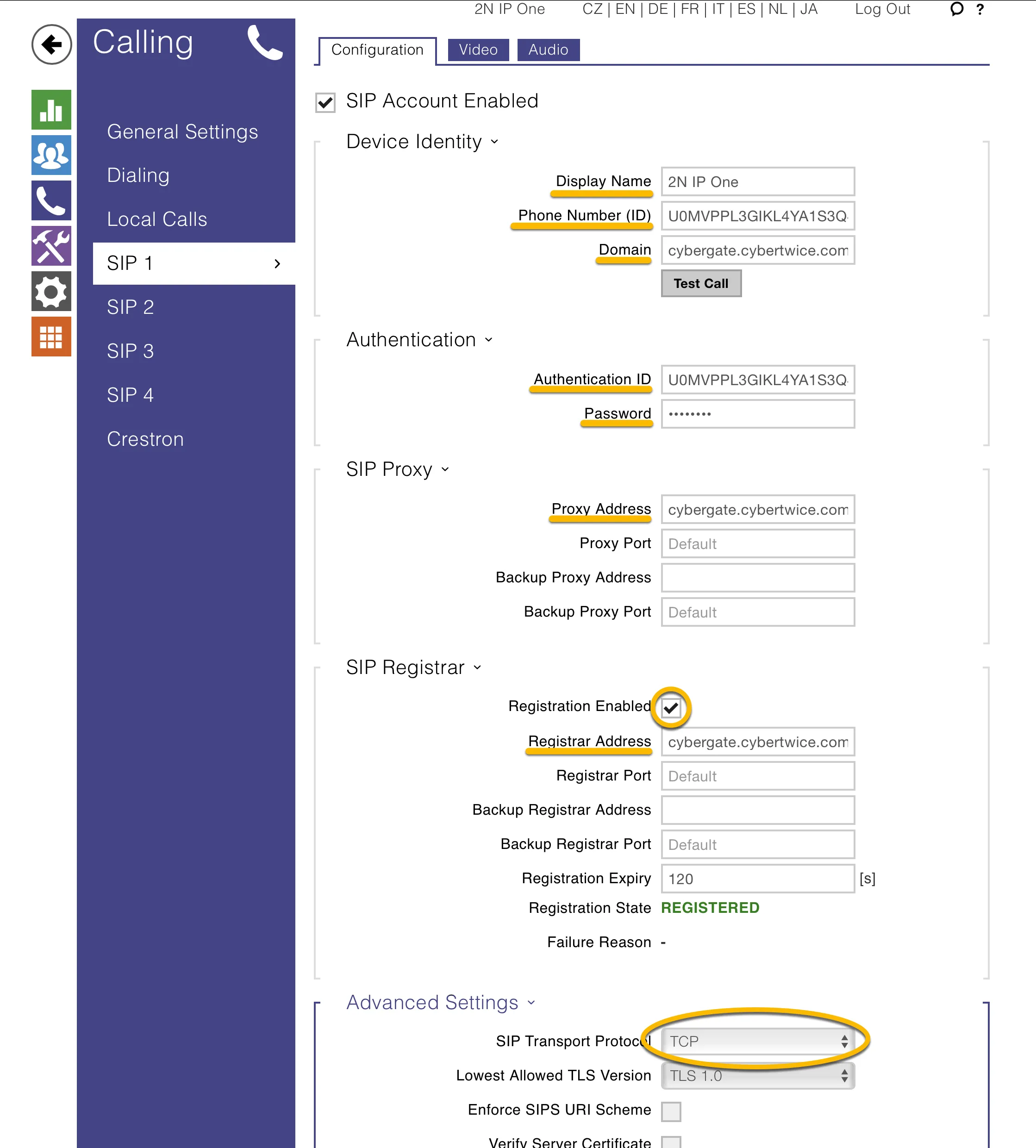
Click on the blue ‘Calling’ tile and select ‘SIP 1’.
Provide the following information:
Device Identity | |
|---|---|
Display name | Use descriptive name for this account |
Phone Number (ID) | Use the Username provided by the CyberGate Management Portal |
Domain | cybergate.cybertwice.com |
Authentication | |
Use Authentication ID | Enable |
Authorization ID | Use the Username provided by the CyberGate Management Portal |
Password | Use the Password provided by the CyberGate Management Portal |
SIP Proxy | |
Proxy Address | cybergate.cybertwice.com |
SIP Registrar | |
Registration Enabled | Enable |
Registrar Address | cybergate.cybertwice.com |
Advanced settings | |
SIP Transport Protocol | Select TCP |
Click ‘Save’ to register the 2N to CyberGate over TCP.
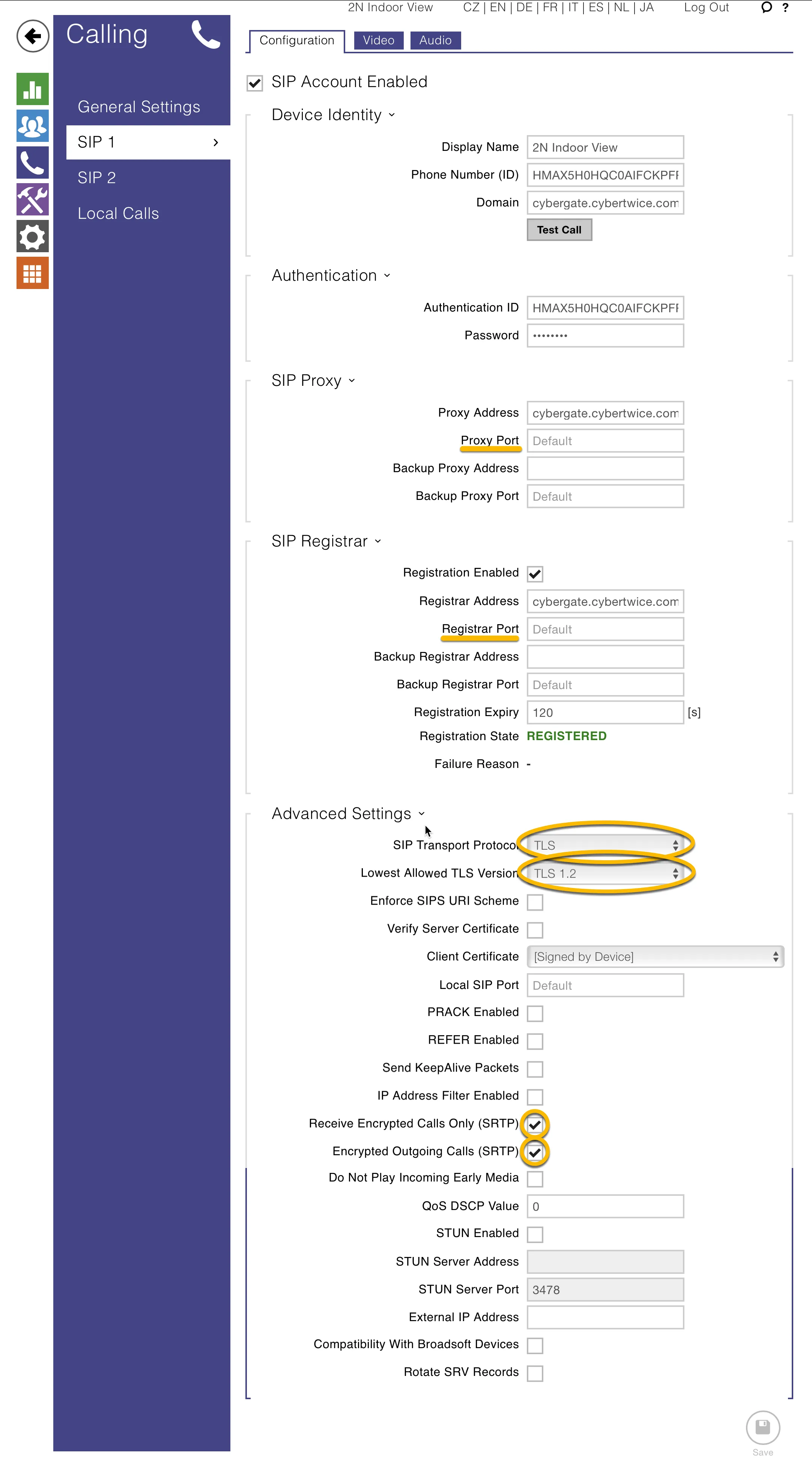
When a secure connection is required, modify the following fields:
SIP Proxy | |
|---|---|
Proxy Port | 5061 instead of 5060 (or keep it ‘Default’) |
SIP Registrar | |
Registrar Port | 5061 instead of 5060 (or keep it ‘Default’) |
Advanced settings | |
SIP Transport Protocol | Select TLS |
Lowest Allowed TLS Version | Select TLS 1.2 |
Receive Encrypted Calls Only (SRTP) | Enable |
Encrypt Outgoing Calls (SRTP) | Enable |
Click ‘Save’ to register the 2N to CyberGate over TLS.
SIP Codecs
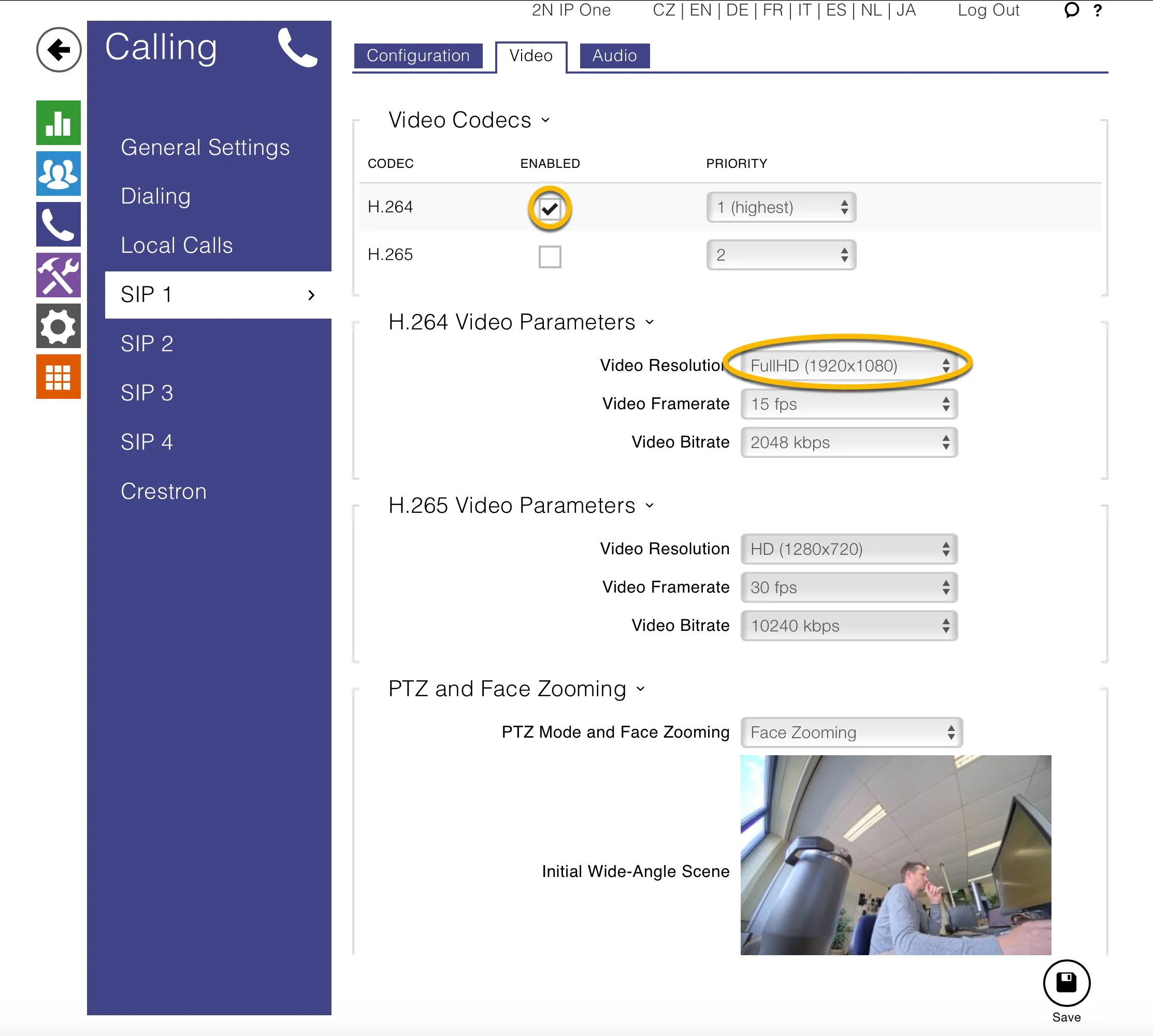
Navigate to ‘Video’.
Provide / change the following information:
Video Codecs | |
|---|---|
H.263+ | Disable |
H.263 | Disable |
H.265 | Disable |
H.264 Video Parameters | Select VGA (640x480) or higher resolution when available |
Bidirectional Video (2N IP Style only) | |
Enable Incoming Video | Enable |
Display Outgoing Video | Enable |
Calling configuration
Navigate to the light-blue ‘Directory’ section and select ‘Users’.
In this section you’ll define one or more people to call.
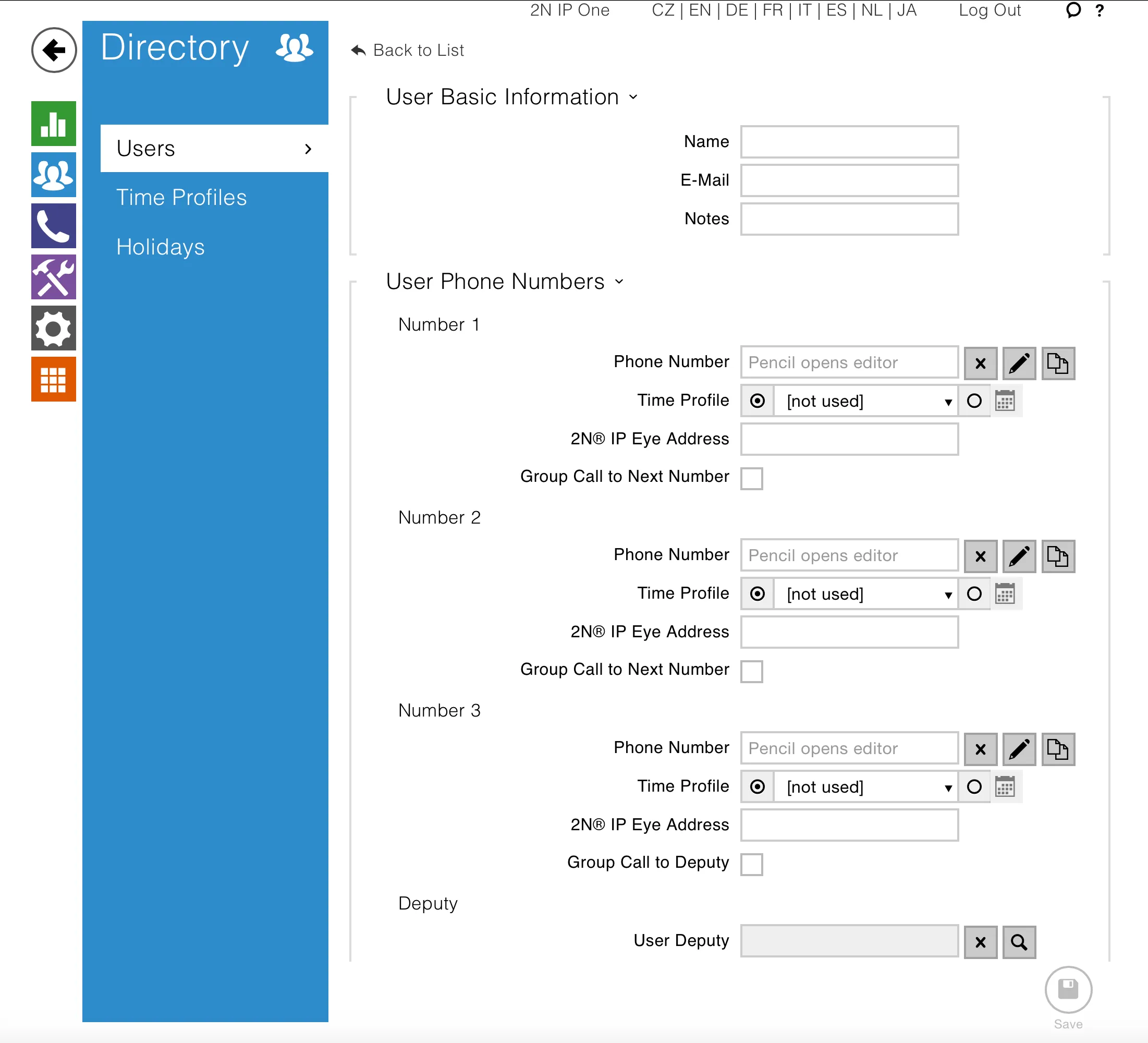
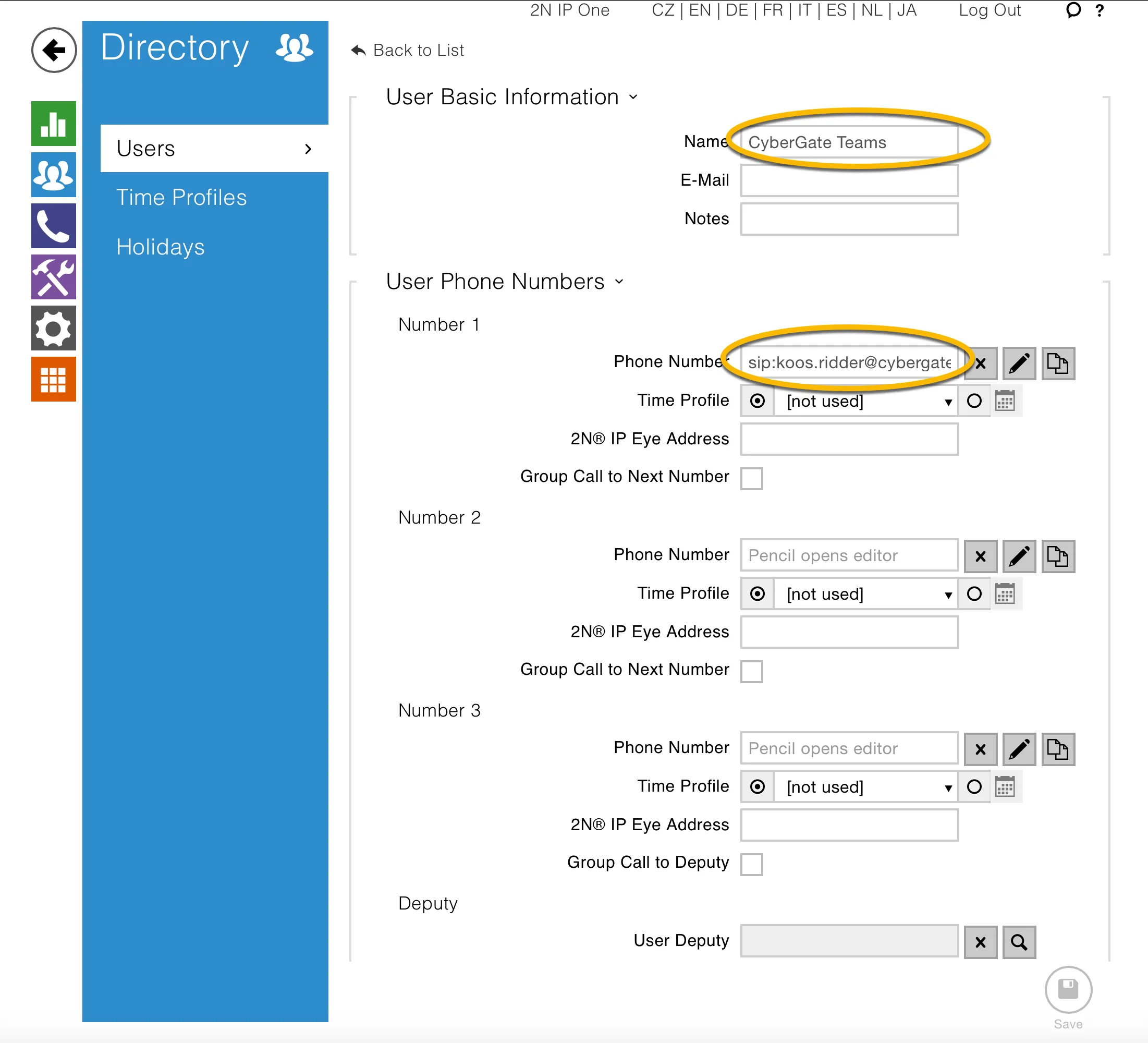
Provide / change the following information:
User Basic Information | |
|---|---|
Name | Descriptive name for this directory entry |
User Phone Numbers | |
Phone Number | Teams user to call in the format: sip:first[email protected] |
* For example, the user ‘Koos Ridder’, with the Teams name:
will translate to this destination address:
sip: [email protected]
Click the ‘Save’ button to save.
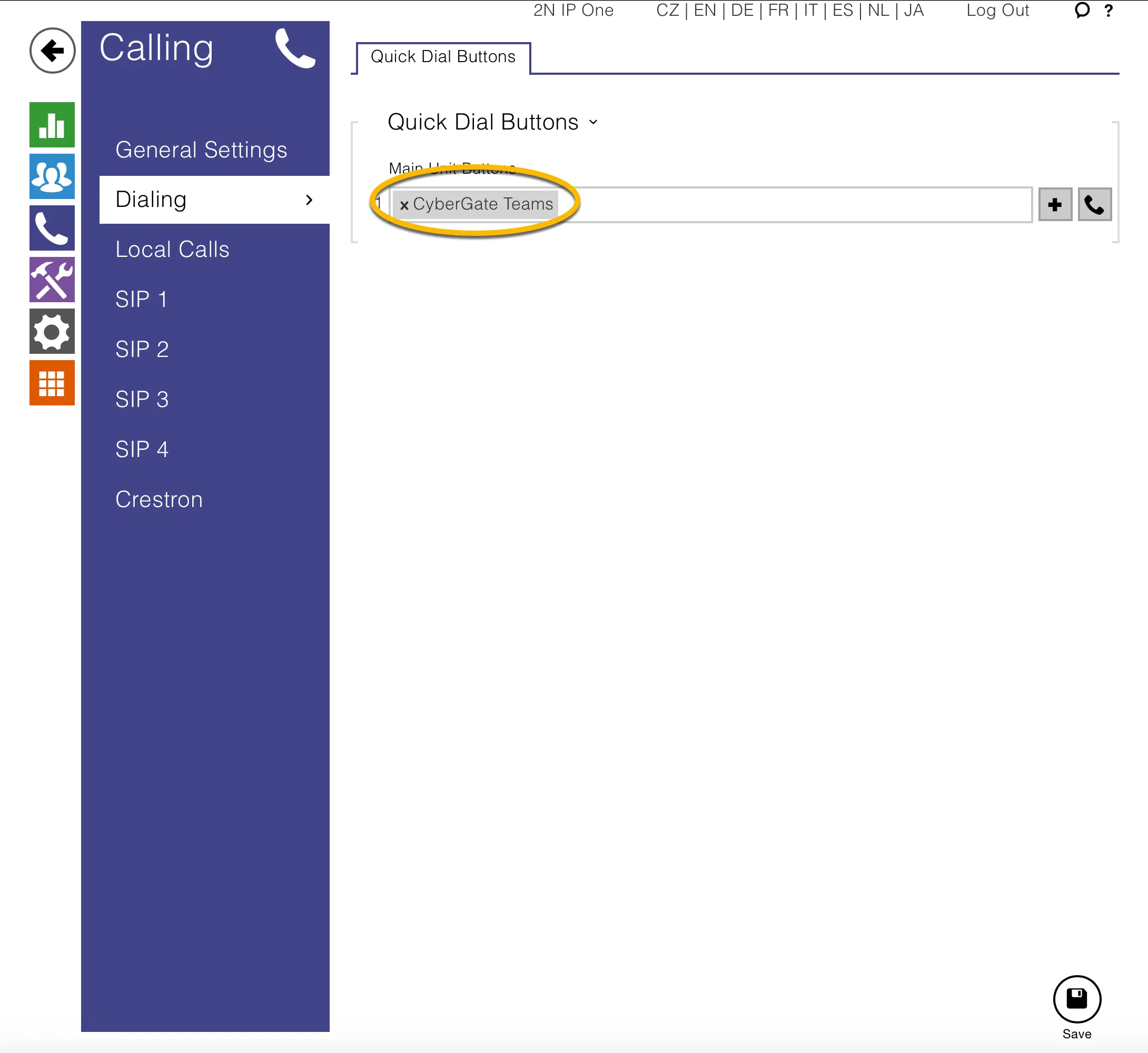
Navigate to the blue ‘Calling’ section and select ‘Dialing’.
Using the ‘+’ symbol, add the just created Directory item to the Quick Dial Buttons. This way a push on the button of the 2N will create an outgoing call to the Teams user.
Configuration of the 2N is done.
Testing the configuration
Press the button on the 2N to initiate a call to the configured Teams User.
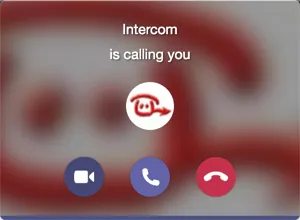
If configured correctly, the Teams client will notify you of an incoming call. Answer it by clicking the phone horn or camera symbol (to initiate two-way video for the IP-Style).
The call will now be established and video will be displayed.
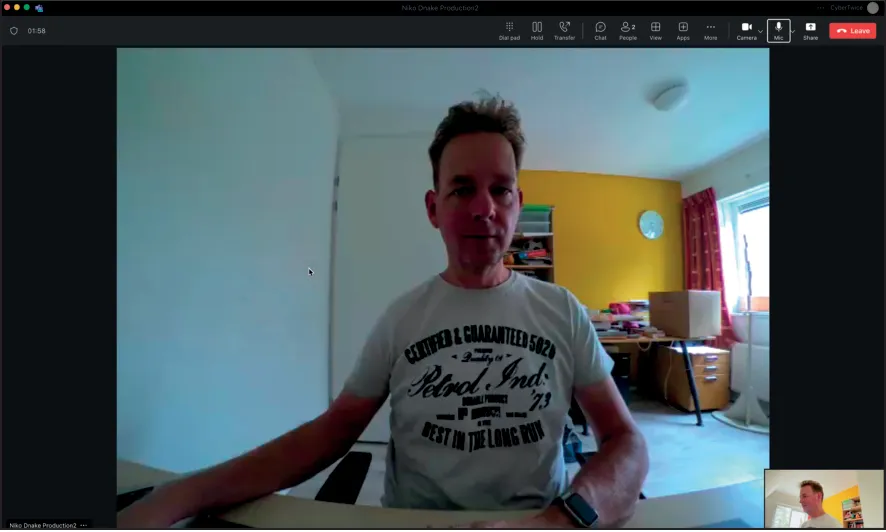
To open the door from the Teams call, use ‘Dial Pad’ button in the Teams bar and click 0* (by default) to trigger the relay of the 2N and open the door.
A more convenient way to open the door during a call is to use the CyberGate for Teams app. See the CyberGate App for Teams manual on how to to install and use the CyberGate for Teams app.
CyberGate App for Microsoft Teams
The CyberGate App for Microsoft Teams offers more CyberGate features directly from Microsoft Teams. One of these features is the Open-door button. This button can be utilized during a call to CyberGate and lets you open the the door by clicking just one button.
For a description on how to install the CyberGate app and use the Open door button please see the CyberGate App for TeamsCyberGate App for Teams manual.