CyberGate Audio Prompts
CyberGate Audio Prompts
An audio prompt is a short message that CyberGate plays to the caller, after which it ends the call. Use it for information that does not need a person, for example your opening hours outside office hours, or instructions for parcel deliveries.
You create an audio prompt in one of two ways:
- Text to speech: type the text and choose a voice. CyberGate generates the audio for you.
- Audio file: upload a recording you made yourself.
Where you can use an audio prompt
Each audio prompt has its own SIP address, built from the name you give it. A prompt named OfficeClosed gets the address [email protected]. You can use an audio prompt:
- Directly from a device: configure the SIP address of the prompt on the device.
- In a Sequential call group: as the last participant, for example to play a message when nobody answered. A Sequential group can contain at most one audio prompt.
- In a Scheduled call group: as a participant with its own schedule, or as the fallback / default group.
Multi-ring and Meeting call groups cannot contain audio prompts. See CyberGate Call Group Settings for how to add participants to a call group.
Audio prompts overview
Go to Automation - Audio prompts in the left sidebar of the CyberGate Management Portal. The page lists all audio prompts of your organization with their name (SIP address), description and type.
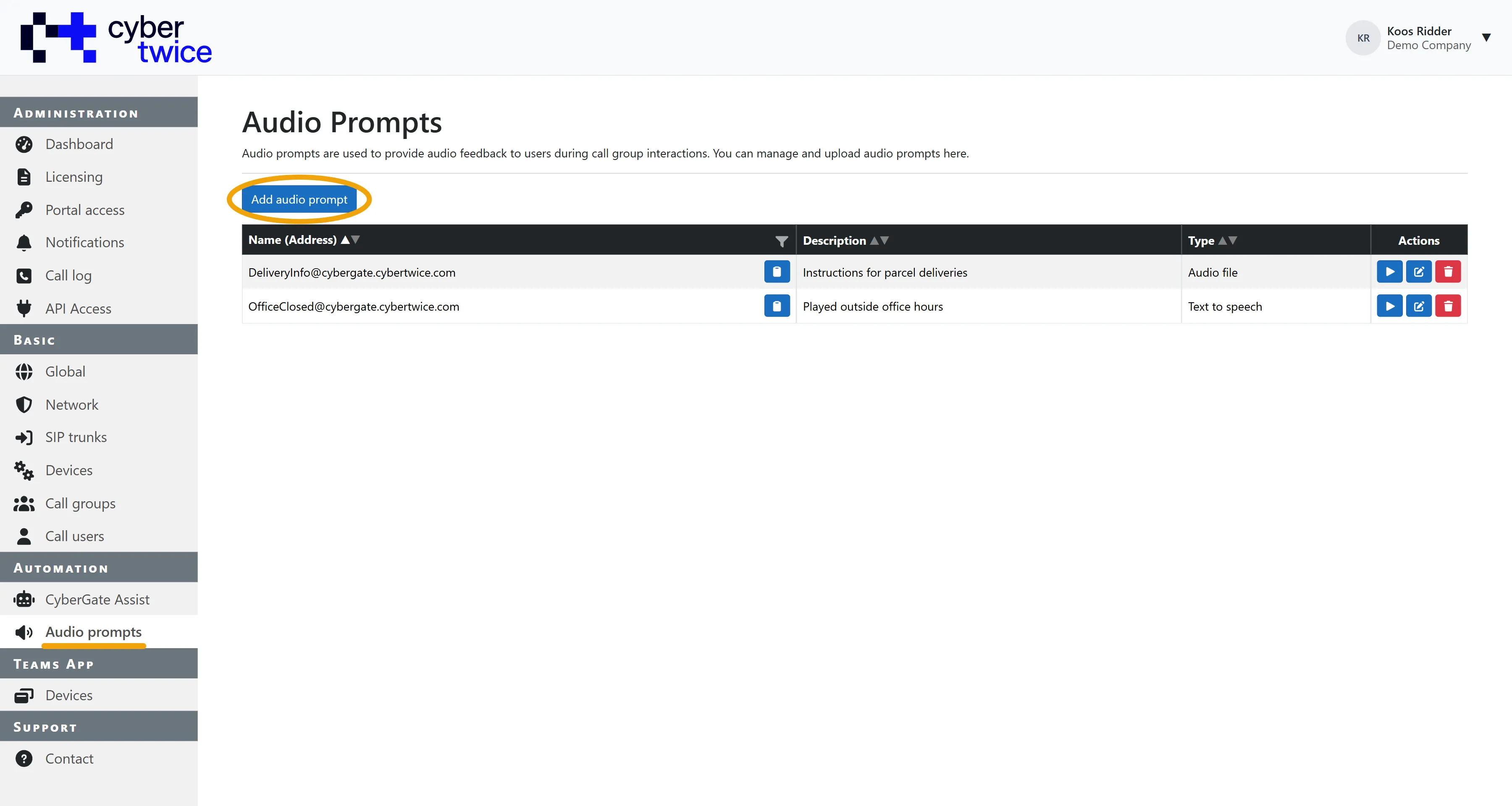
The Actions column has three buttons:
- Play: listen to the prompt in your browser. Click it again to stop. While CyberGate is still processing a new or changed prompt, the button is disabled and shows Loading....
- Edit: change the prompt.
- Delete: remove the prompt.
A warning icon next to the name means CyberGate could not process the prompt. Hover over the icon to see the reason.
Click the copy button next to a name to copy the SIP address of the prompt.
Adding an audio prompt
- Click Add audio prompt.
- Fill in the fields:
Field | Description |
|---|---|
Name | A unique name for the prompt *. |
Description | What the prompt says or when it is used. |
Type | Text to speech or Audio file. The type cannot be changed after the prompt is created. |
Text | Only for Text to speech: the text to be spoken, up to 5000 characters. |
Voice | Only for Text to speech: the voice that speaks the text. Click the play button next to it to hear a sample. |
Audio file | Only for Audio file: the recording to play, up to 25 MB. Supported formats: MP3, M4A, AAC, Opus, OGG, WebM, FLAC and WAV. |
* This name becomes part of the SIP address (e.g., entering OfficeClosed creates [email protected]). Only valid SIP characters are allowed, and the name is checked for availability as you type. All fields are required.
- Click Add to create the prompt, or Cancel to discard.
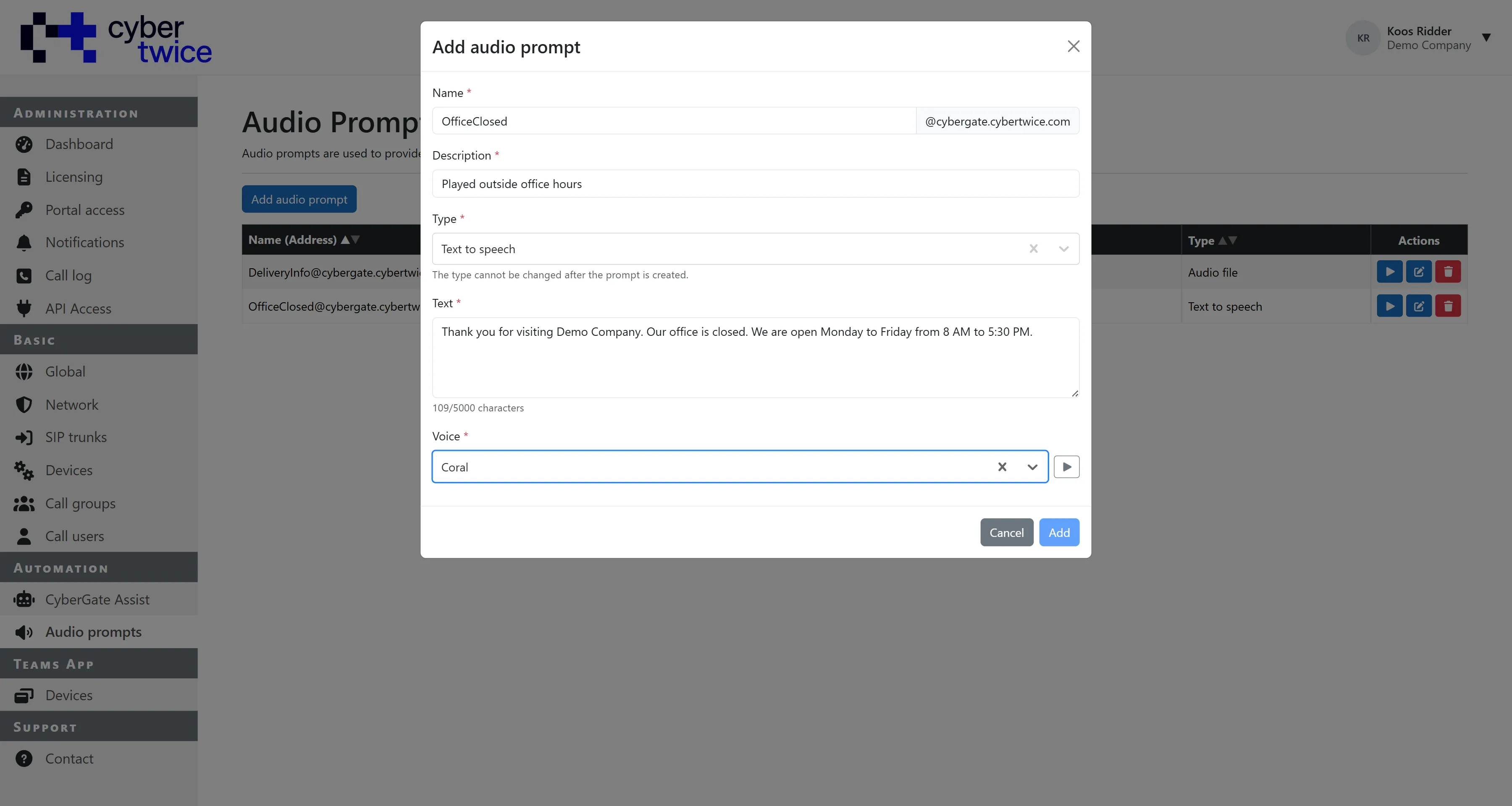
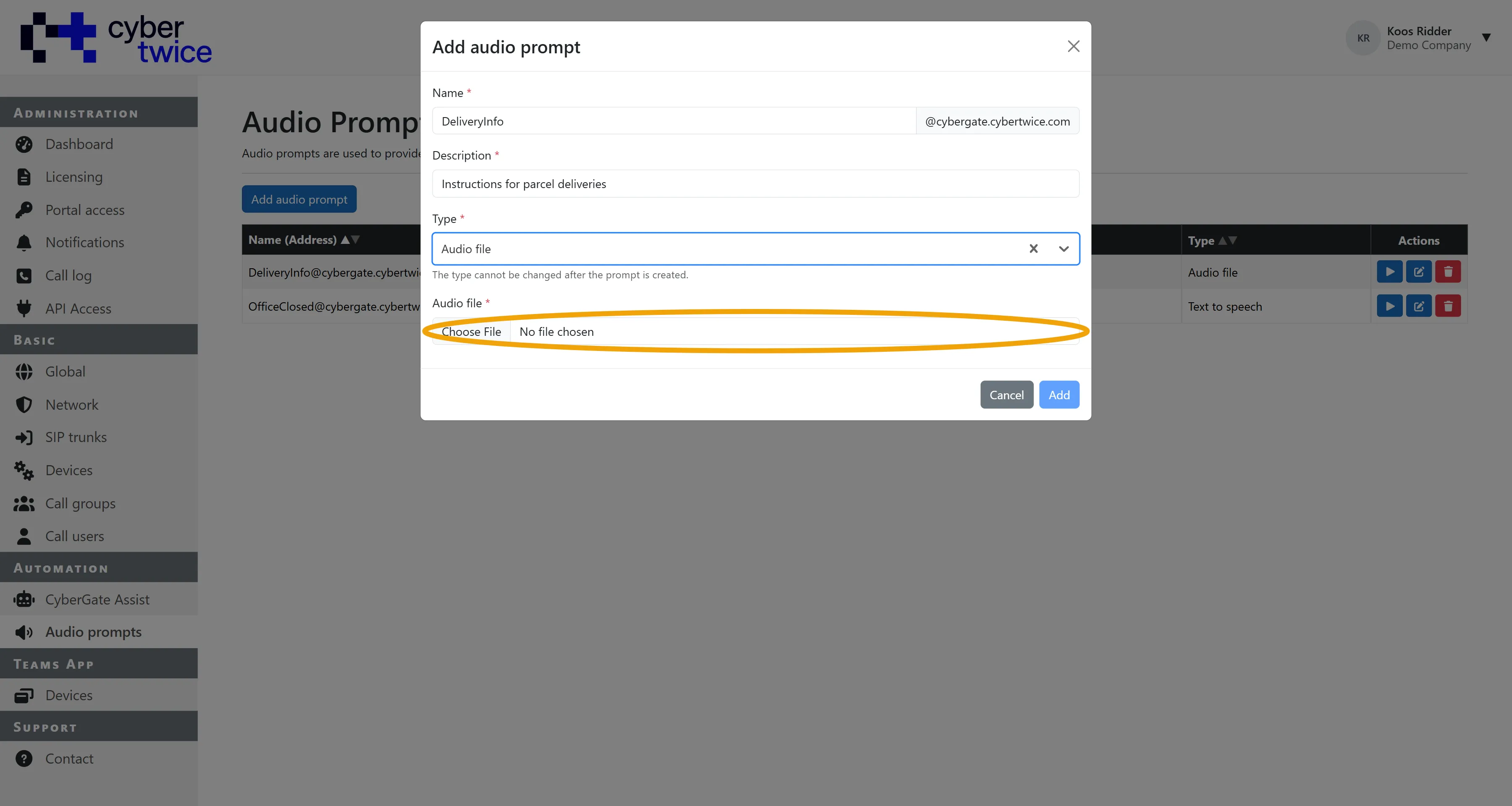
After you add a prompt, CyberGate processes the audio first. The prompt can be played once the Play button is enabled.
Editing an audio prompt
- Click the edit button in the Actions column of the prompt.
- Change the name, description, text or voice as needed. For an Audio file prompt you can upload a new file; leave the field empty to keep the current audio.
- Click Update to save your changes.
Deleting an audio prompt
- Click the delete button in the Actions column of the prompt.
- A confirmation dialog appears: "Are you sure you want to delete audio prompt PromptName?"
- Click Delete to confirm, or Cancel to keep the prompt.
Deleting a prompt is permanent. Check first whether the prompt is still used by a device or a call group.