Doorbird and CyberGate
Doorbird and CyberGate
Compatible Doorbird Doorstations
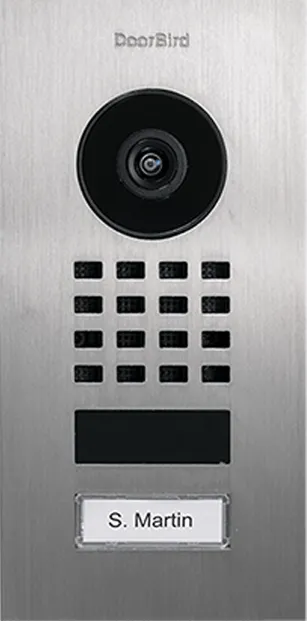
For this document we used the Doorbird D1101V Brushed V2A (from now on named 'Doorbird') running firmware version 000131, but the following Doorbird Doorstations are also compatible with CyberGate and can be configured using this manual:
- Doorbird D11x
- DoorBird D10x
- DoorBird D20x
- DoorBird D21x
- BirdGuard B10x
All Doorstations mentioned above need to be running firmware version 000131 or higher.
Follow the steps in the sections below to configure the Doorbird and connect it to CyberGate.
Connect the Doorbird and log in to the Web administration tool
- Connect the Doorbird to the network.
- Open the Doorbird Web administration tool: https://webadmin.doorbird.com
- Log in with the Administrator credentials (see the Doorbird Digital Passport for these credentials).

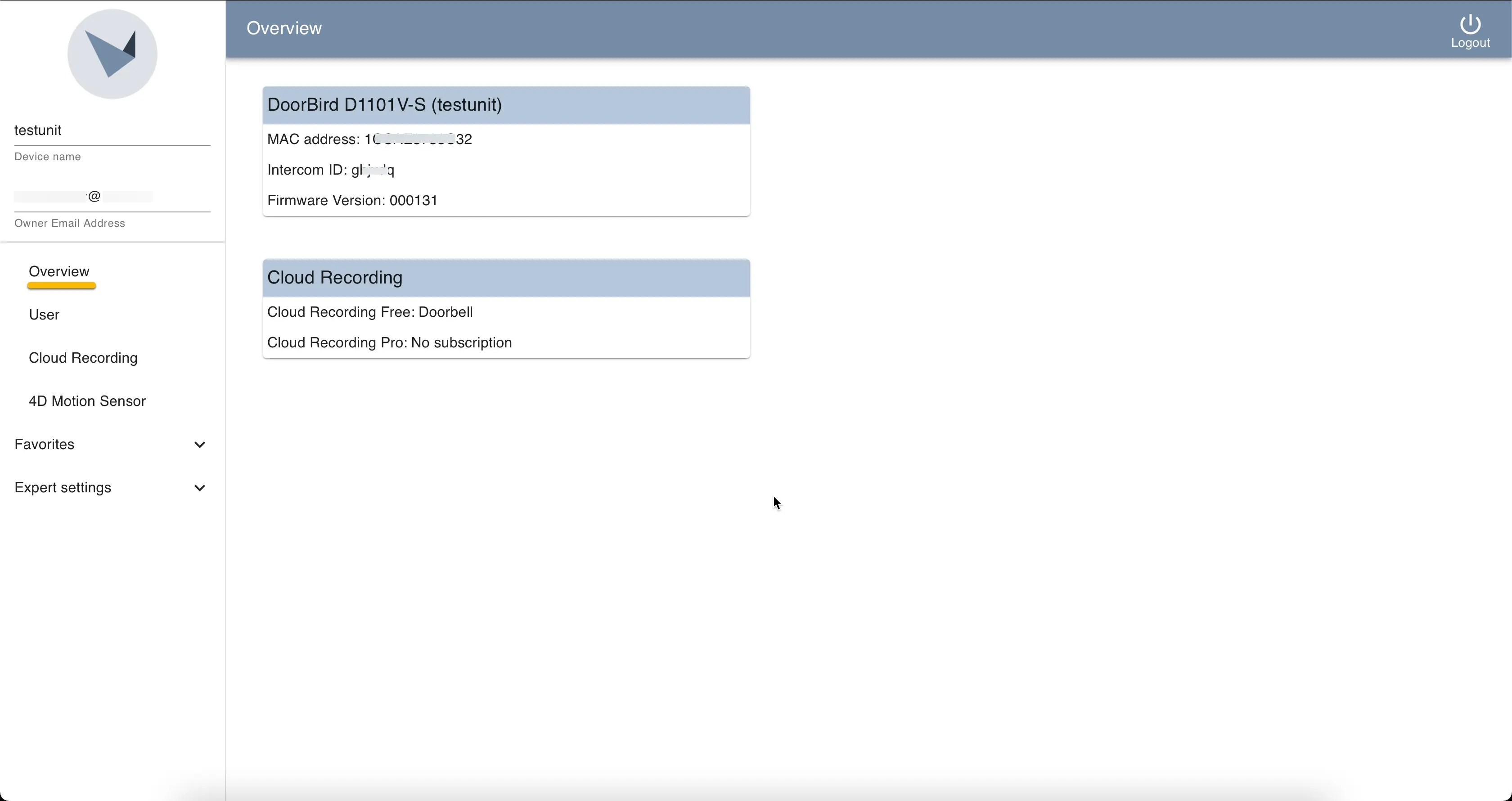
You'll be redirected to the Overview page.
Add the Teams user as a SIP call destination
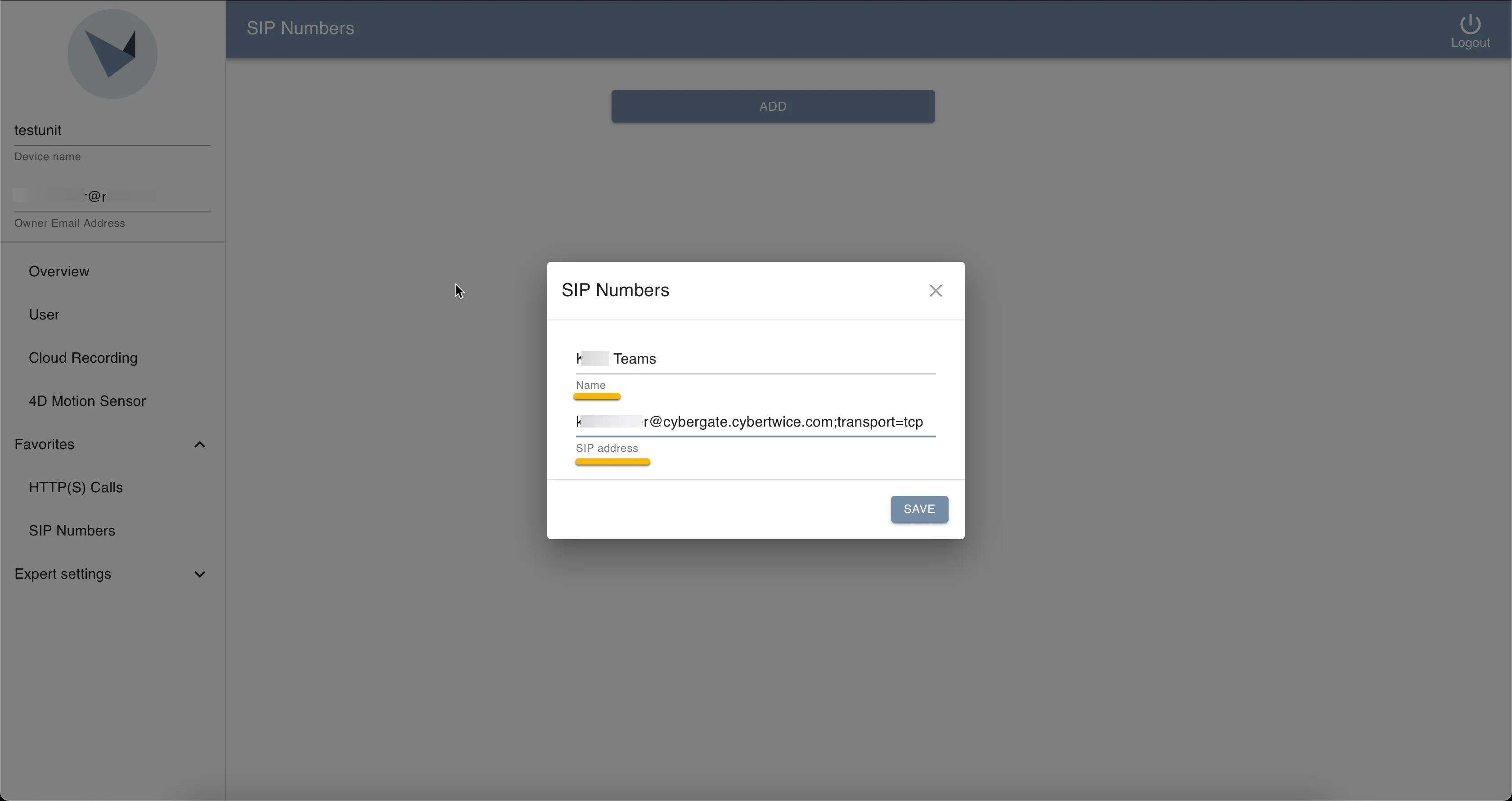
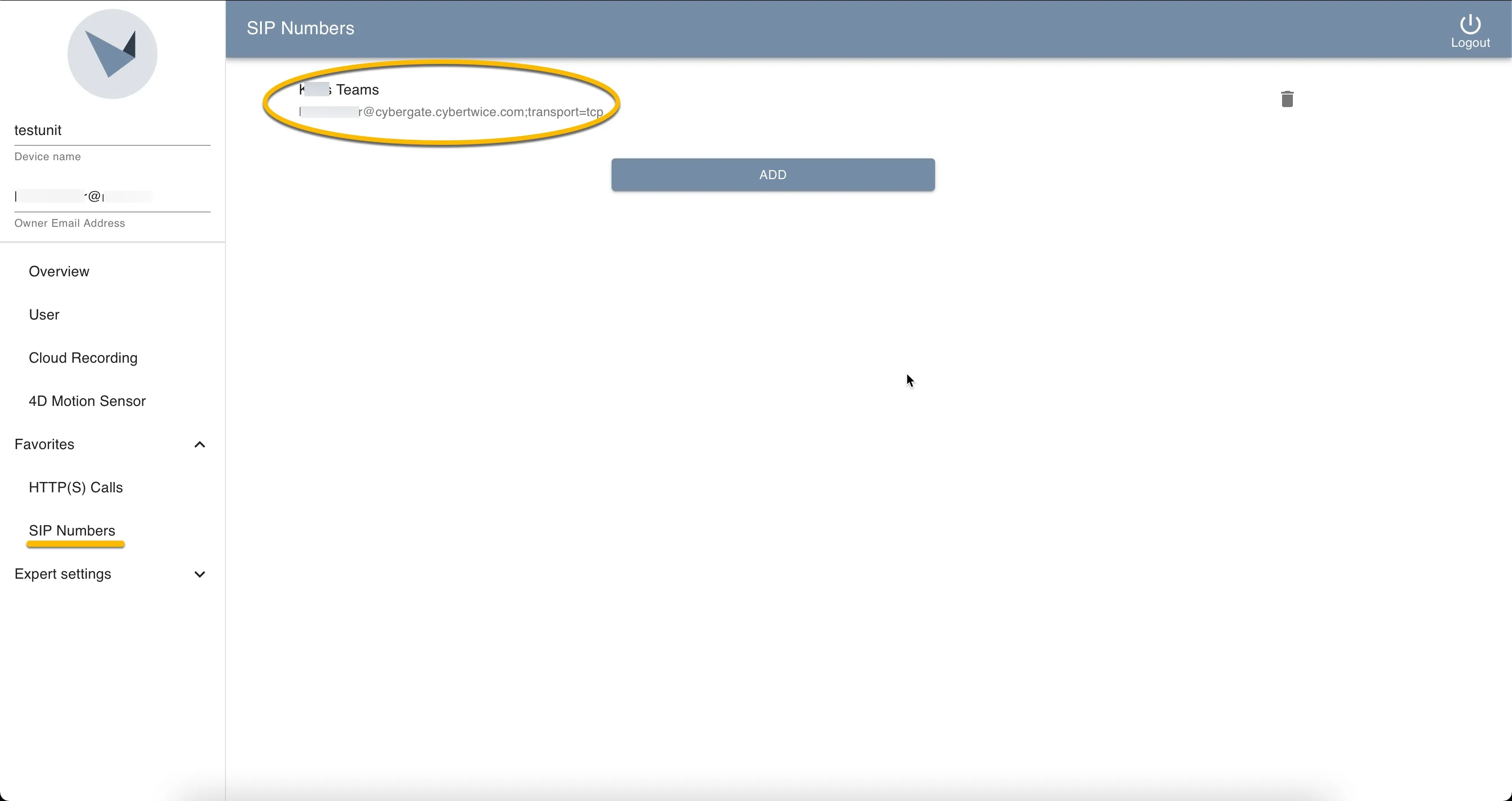
- Navigate to Favorites - SIP Numbers.
- Click 'Add' to add the call destination and provide the following information:
SIP Numbers | |
|---|---|
Name | Name of the recipient |
SIP Address | Use the Teams user address ending on cybergate.cybertwice.com and add ;transport=tcp ([email protected];transport=tcp) * |
* For example, the user 'John Doe', with the Teams name:
will translate to this destination address:
[email protected];transport=tcp
- Click 'Save'.
Configure the SIP account settings
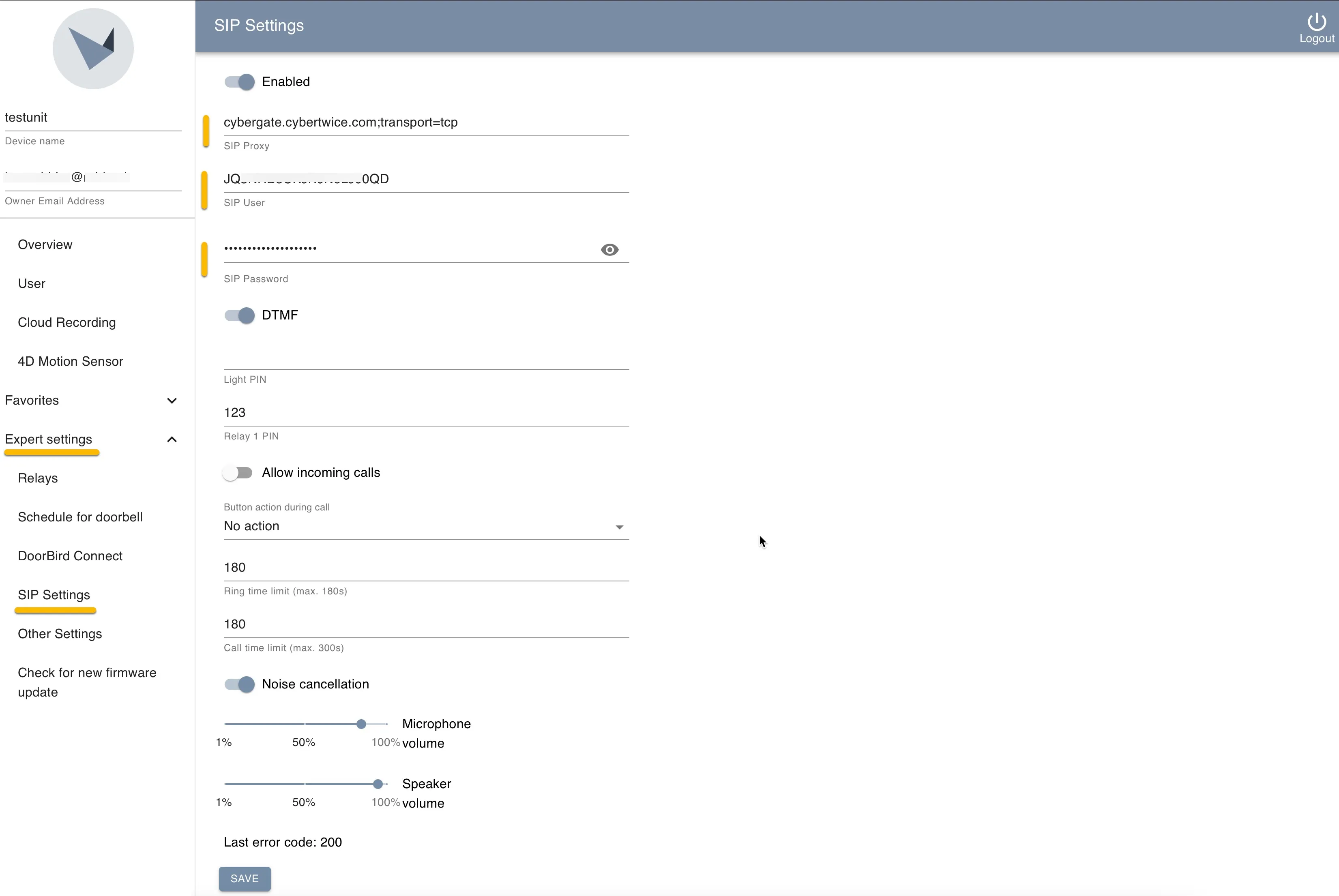
- Navigate to Expert Settings - SIP Settings.
- Provide / change the following information:
Account Settings | |
|---|---|
Enabled | Enable Session Initiation Protocol (SIP) |
SIP Proxy | cybergate.cybertwice.com;transport=tcp |
SIP User | Use the Username provided by the CyberGate Management Portal |
SIP Password | Use the Password provided by the CyberGate Management Portal |
DTMF | Enable dual-tone multi-frequency (DTMF) signaling |
Schedule when the Doorbird calls Teams
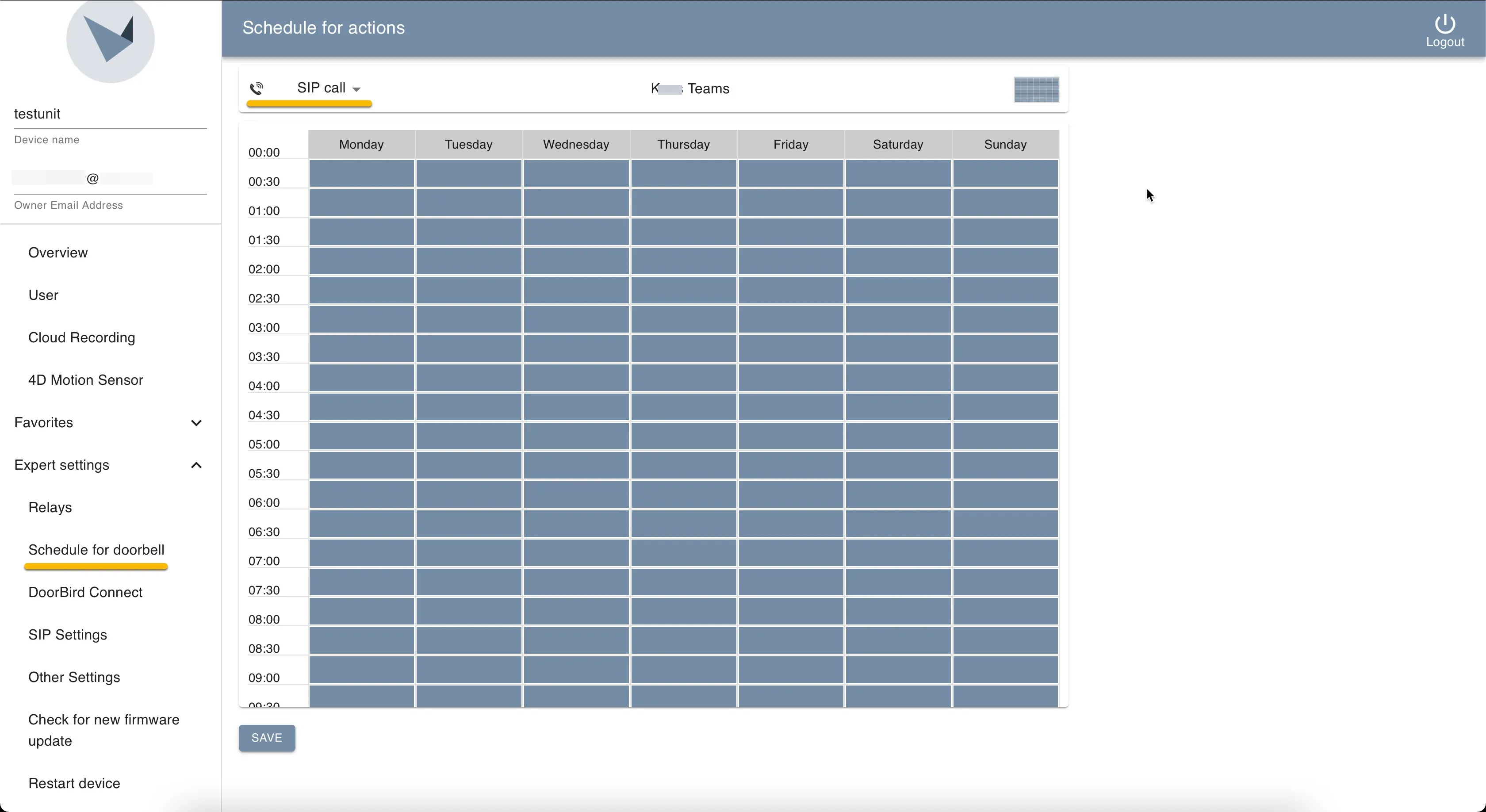
- Navigate to Expert Settings - Schedule for doorbell.
- Under Schedule for actions, select 'SIP call'.
- Select the hours and days that the Doorbird should call the Teams user(s).
The basic configuration of the Doorbird is done and calls can be made to Teams via CyberGate.
Allow incoming calls
The steps above configure the DoorBird to call Microsoft Teams when the call button is pressed. To let a Microsoft Teams user call the intercom, for example by using the call button in the CyberGate app for Microsoft Teams. The DoorBird must also be configured to accept incoming SIP calls. This is disabled by default.
These settings are located in a separate section from the basic SIP account settings configured earlier.
Enable incoming calls
- Navigate to Expert Settings → SIP Settings → Advanced Settings.
- Enable Allow incoming calls.
- The Allowed SIP Users list appears. This is a whitelist: the DoorBird only accepts incoming calls from the SIP identities listed here, and rejects all others.
Add the CyberGate nodes to the Allowed SIP Users list
CyberGate places the call to the DoorBird from a fixed service account on the CyberGate platform. The platform runs as a redundant pair of nodes (suffix a and b), and a call can originate from either node. Both must therefore be added to the whitelist.
- Under Allowed SIP Users, click Add.
- Enter the CyberGate service identity for the a and b node:
- Save the SIP settings.
Add both nodes: If only one node is whitelisted, incoming calls will work intermittently: calls routed through the whitelisted node succeed, while calls routed through the other node are silently rejected. Always add both the a and the b entry.
No wildcards: The DoorBird does not support wildcards in the Allowed SIP Users list. Each entry must be a complete SIP identity, so both nodes are listed explicitly.
Test the Doorbird call to Microsoft Teams
- Press the button on the Doorbird to call the Teams recipient.
- If configured correctly, the Teams client will notify you of an incoming call. Answer by clicking the pick-up symbol.
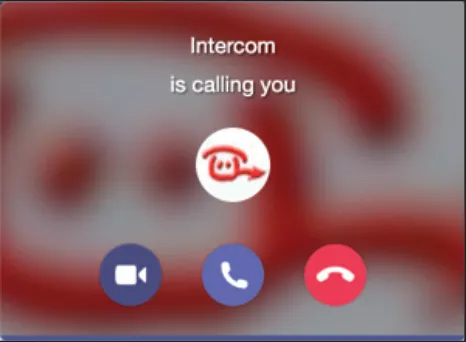
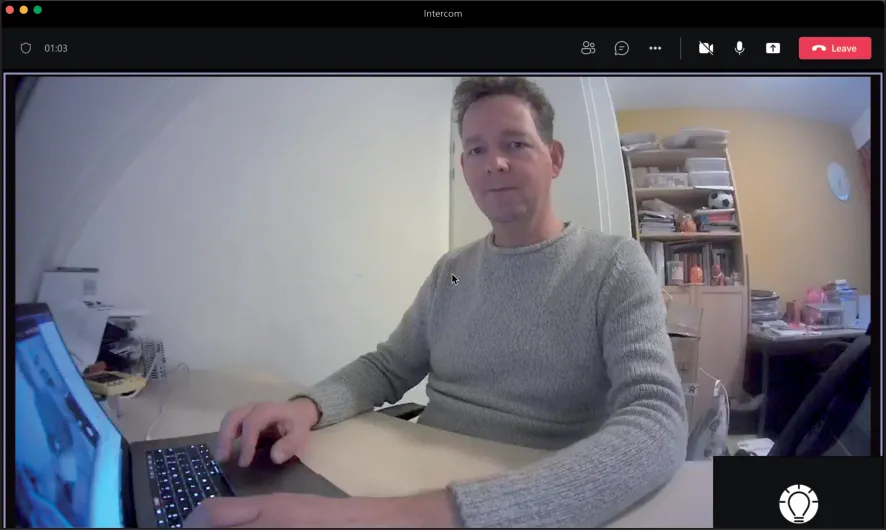
The call will be established and video will be displayed within ±3 seconds.
Open the door from the Teams call
- In the Teams call screen, click on the three dots (...) and select the 'Keypad'.
- Enter the code configured (the default code for Doorbird is '123', followed by the '#'). This will trigger the relay in the Doorbird and open the door.
A more convenient way to open the door during a call is to use the CyberGate for Teams app. See the CyberGate App for Teams manual on how to to install and use the CyberGate for Teams app.
CyberGate App for Microsoft Teams
The CyberGate App for Microsoft Teams offers more CyberGate features directly from Microsoft Teams. One of these features is the Open-door button. This button can be utilized during a call to CyberGate and lets you open the the door by clicking just one button.
For a description on how to install the CyberGate app and use the Open door button please see the CyberGate App for TeamsCyberGate App for Teams manual.