Fanvil and CyberGate
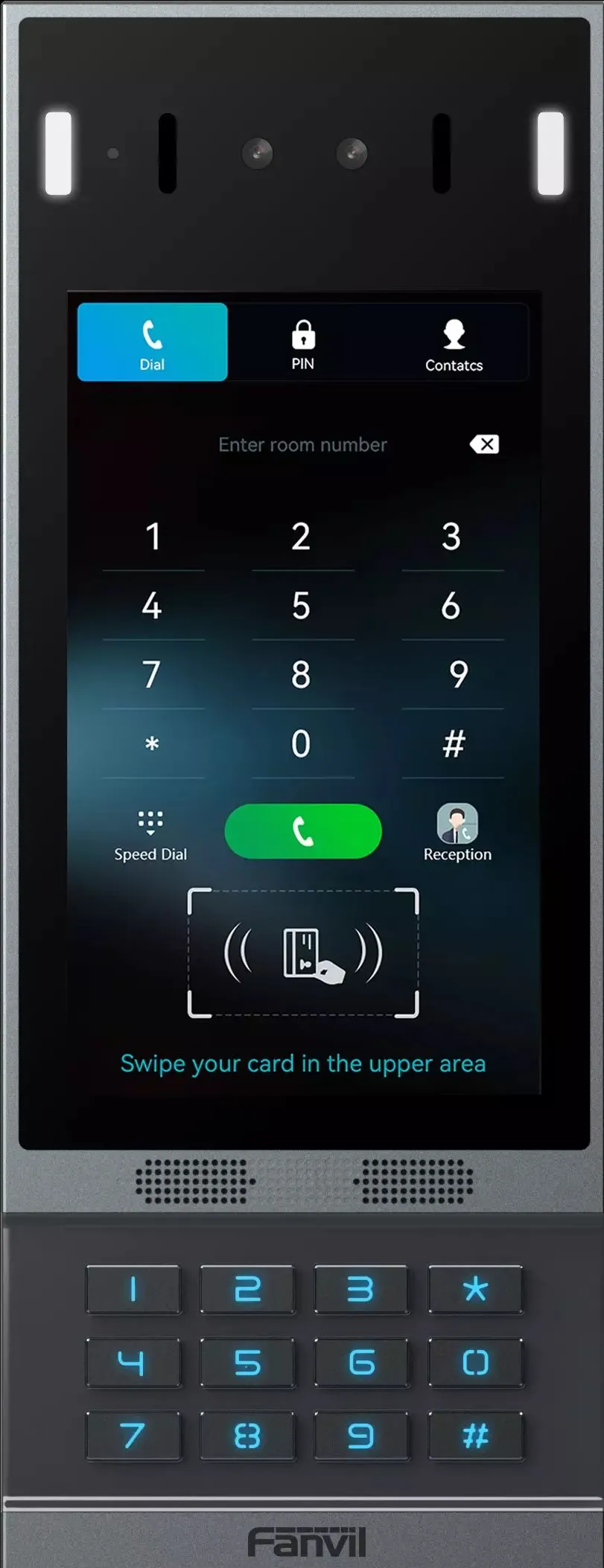
Fanvil and CyberGate
Supported Fanvil intercom models
The following Fanvil devices are successfully tested for use with CyberGate.
Tested devices:
- Fanvil i61, i62, i63 and i64
- Fanvil i66, i67 and i68 -> Support for 2-way video
- Fanvil A513W
- Fanvil A11V
Make sure you upgrade the Fanvil to the latest available firmware!
Configure TCP first, then secure. The Fanvil is certified for secure communication with CyberGate. Start by configuring the Fanvil using the steps below. If the connection and test calls are successful, modify the configuration to use secure communication as described in Enable secure communication over SIP-TLS .
Connect the Fanvil and sign in
- Connect the Fanvil to the network and power it on.
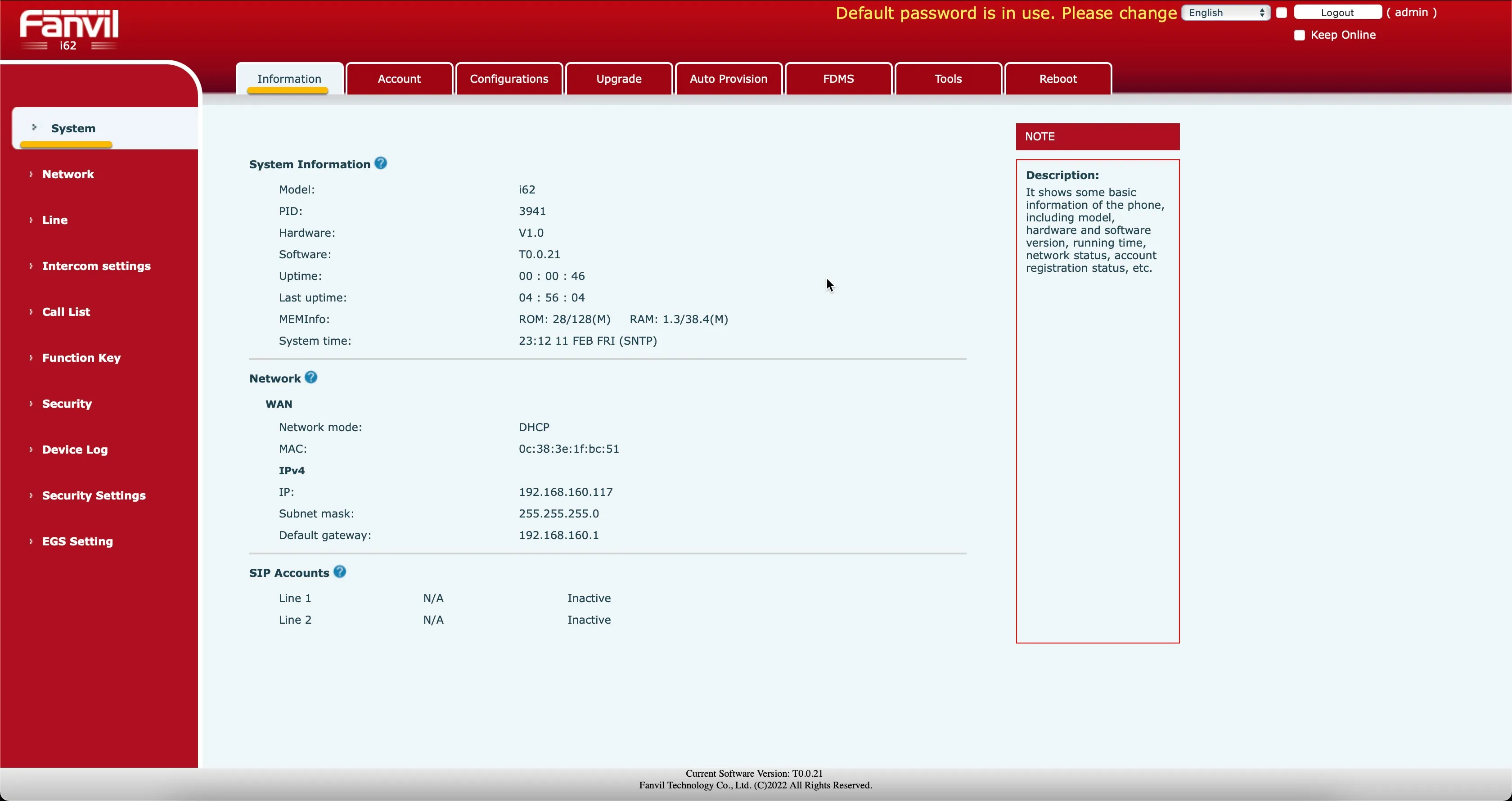
- Open a web browser to the IP address of the Fanvil.
- Sign in as admin with the configured or supplied password of the Fanvil.
When signed in successfully, the first menu shown is the System-Information menu.
Configure the SIP account
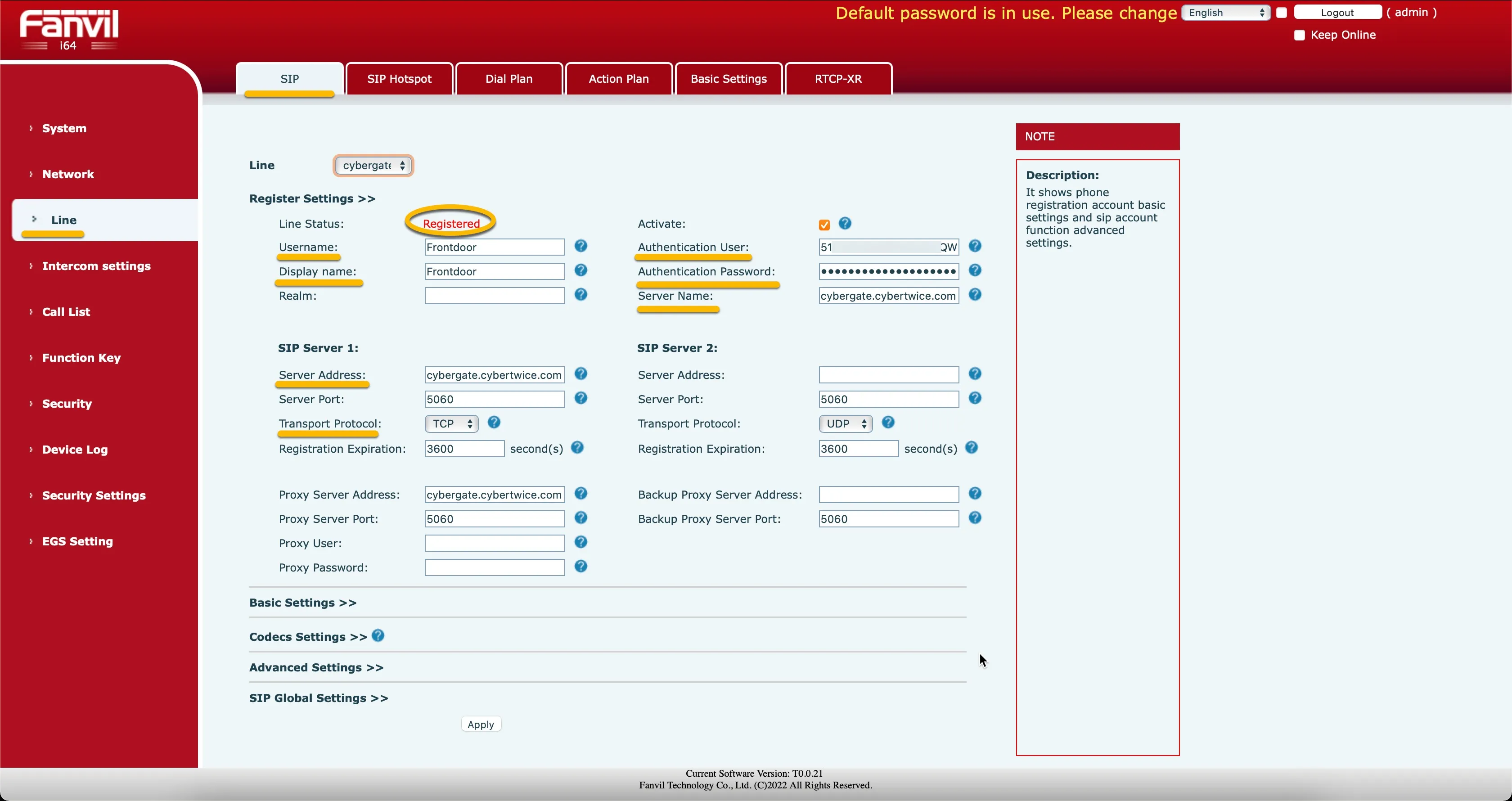
- Navigate to the Line-SIP menu.
- Provide / change the following information:
Register Settings | |
|---|---|
Activate | Enable |
Username | Define a name (one word) for the intercom (eg. Frontdoor) |
Display name | Use the same name as the Username |
Authentication User | Use the Username provided by the CyberGate Management Portal |
Authentication Password | Use the Password provided by the CyberGate Management Portal |
Server name | cybergate.cybertwice.com |
SIP Server 1 | |
Server Address | cybergate.cybertwice.com |
Transport Protocol | Change UDP to TCP |
- Click the Apply button when done.
Set the video resolution
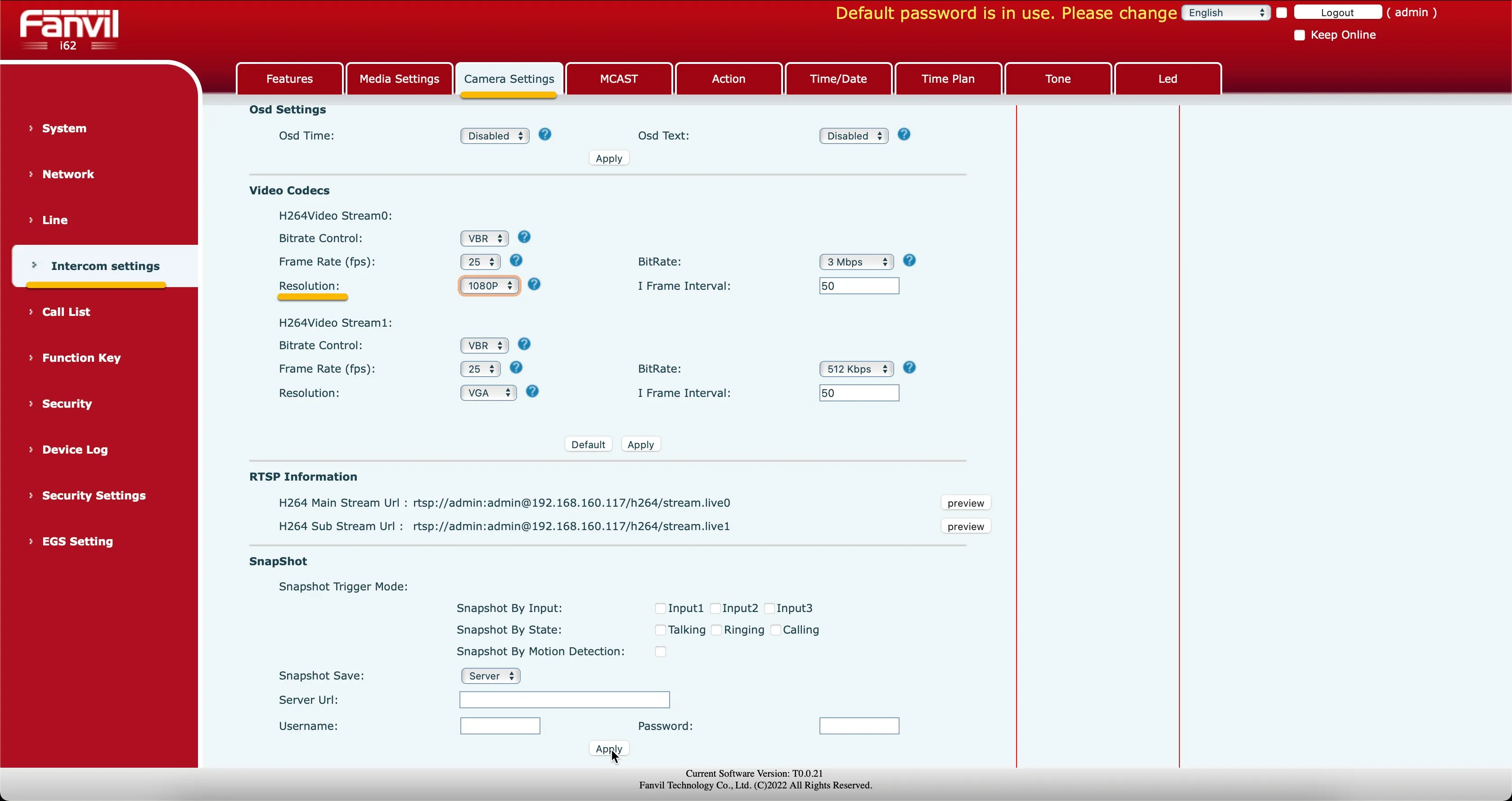
- Navigate to the Intercom settings-Camera settings menu.
- Change the following information:
Video Codecs | |
|---|---|
Resolution | Change to 1080P |
- Click the Apply button when done.
Configure the call button (Function Key)
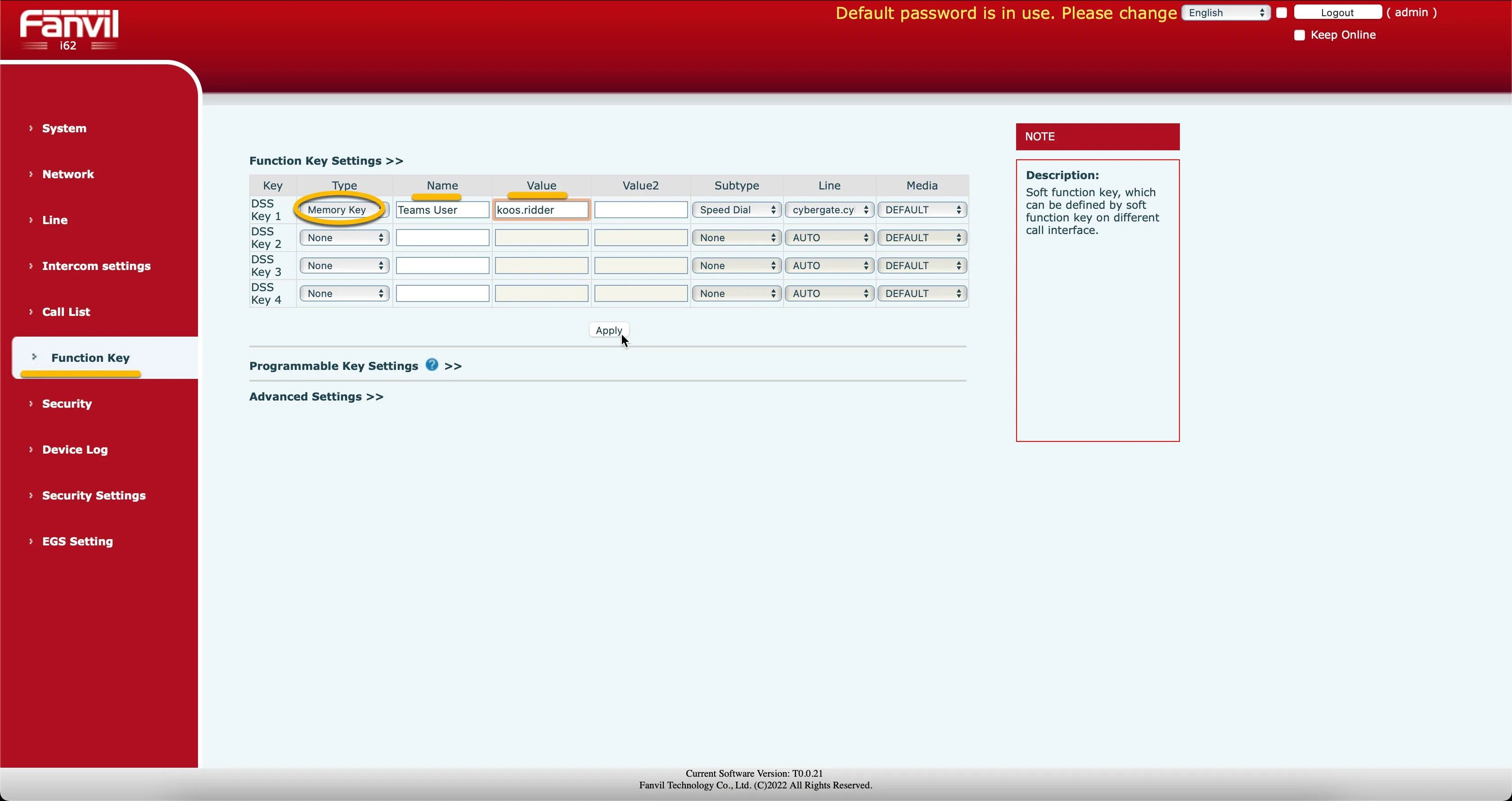
- Navigate to the Function Key menu.
- Provide / change the following information:
Function Key Settings | |
|---|---|
DSS Key 1 : Type | Change to Memory Key |
DSS Key 1 : Name | Descriptive name for the Teams user to call |
DSS Key 1 : Value | Use the Teams user address without the domain part |
For example, the user 'Koos Ridder', with the Teams name [email protected], will translate to this destination address: koos.ridder
- Click the Apply button when done.
Configuration of the Fanvil is now finished.
Test the intercom call and open the door
- Press the call button on the Fanvil. This initiates a call to the number configured in the Function Key menu. The call will be established and video will be displayed within ±3 seconds.
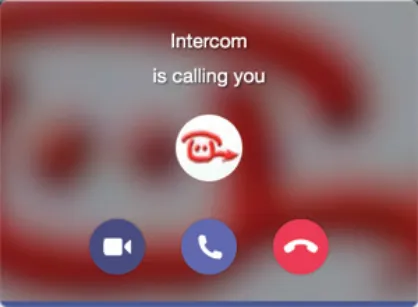
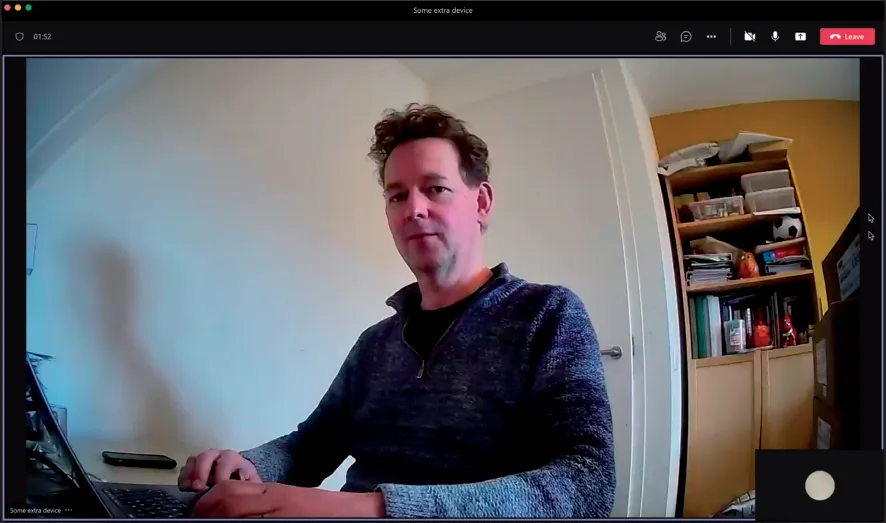
- To open the door from the Teams call, click on the three dots (...) in the call screen and select the Keypad.
- Use the * code; this will trigger the relay in the Fanvil and open the door.
A more convenient way to open the door during a call is to use the CyberGate for Teams app. See the CyberGate App for Teams manual on how to to install and use the CyberGate for Teams app.
Enable secure communication over SIP-TLS
If a secure connection to CyberGate over Transport Layer Security (TLS) is desired, modify the configuration as follows:
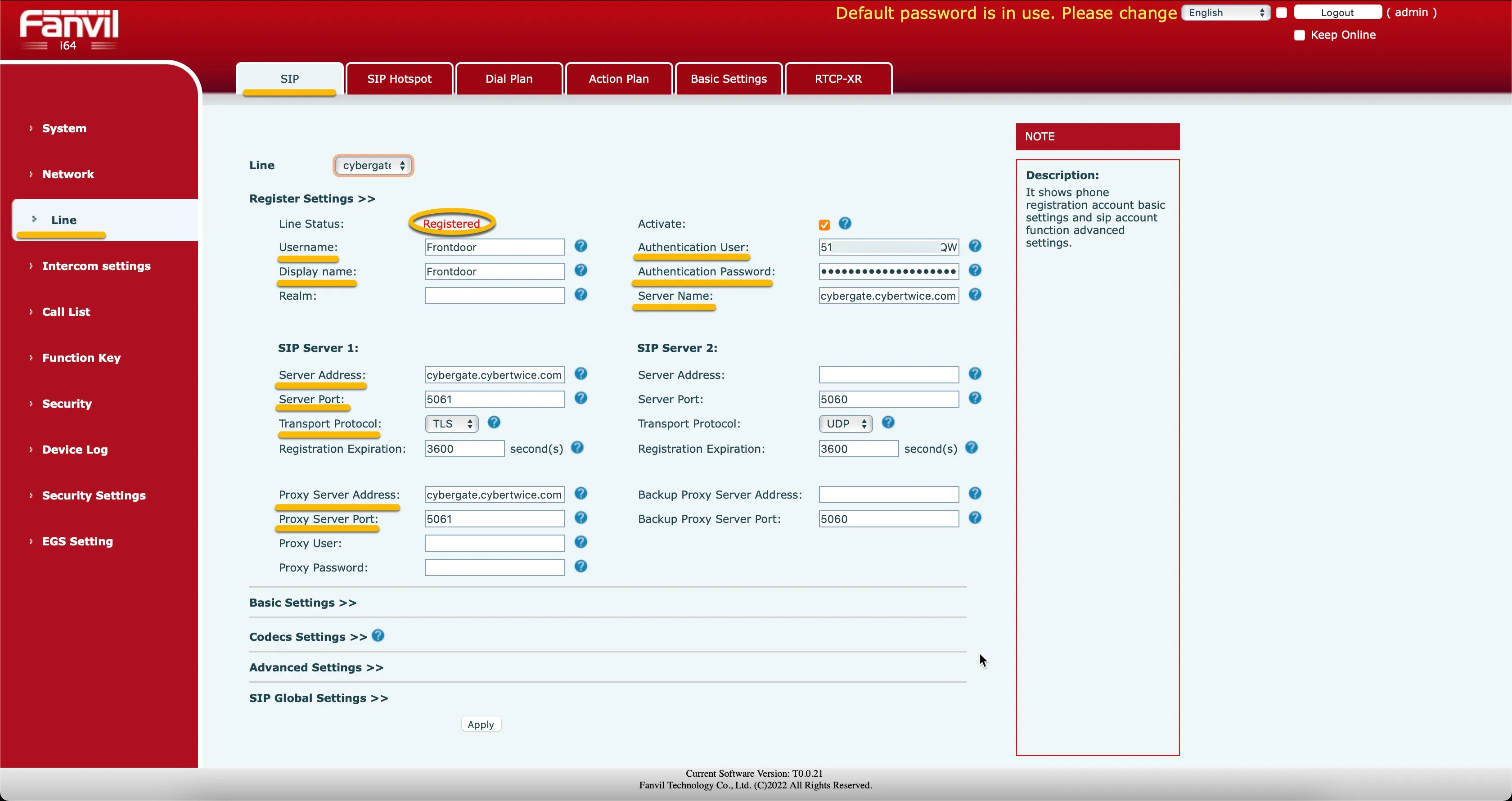
- Navigate to the Line-SIP menu and modify the following information at Register Settings:
Register Settings | |
|---|---|
Server Port | Change to 5061 |
Transport Protocol | Change to TLS |
Proxy Server Port | Change to 5061 |
- Click Apply when done.
- At Advanced Settings, enable Secure Real-time Transport Protocol (SRTP):
Advanced Settings | |
|---|---|
RTP Encryption (SRTP) | Change to Compulsory |
- Click Apply when done.
- Check the SIP Accounts registration in the System-Information menu. Make sure it is registered.
Install the CyberGate app for Microsoft Teams (recommended)
Installation of the CyberGate app for Microsoft Teams is highly recommended!
Use the CyberGate app for Microsoft Teams to:
- Open the door of the intercom by simply clicking on an Open-door button
- See the status of your intercom and call the intercom from Teams by clicking on just one button
- Set your Availability status in a configured CyberGate Multi-ring group with one click
See CyberGate App for Teams for instructions on how to install and use the CyberGate app for Teams.