Fanvil Pagers and CyberGate
Fanvil Pagers and CyberGate
Connect a Fanvil SIP pager (PA2S, PA3 or PA2) to Microsoft Teams using the CyberGate service. This guide shows administrators how to configure the pager's SIP registration, set up an optional call button, prepare the CyberGate Admin portal, and place calls between Microsoft Teams and the pager.
Supported Fanvil pagers and test setup
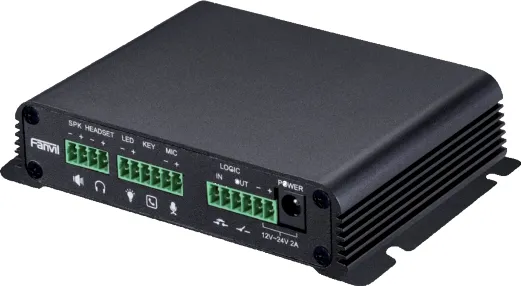
For this document we've tested the Fanvil PA2S pager (from now on named 'Fanvil') to connect to the CyberGate service (from now on named 'CyberGate'). The Fanvil PA3 and the PA2 are also compatible with CyberGate.
For this test we've attached the Fanvil PA2 kit to the PA2S (it contains a camera, button, speaker and microphone). Therefore not all of the screenshots may be applicable to your setup.
Connect to the Fanvil web interface
- Connect the Fanvil to the network and power it on.
- Open a web browser and browse to the IP address of the Fanvil.
- Sign in as admin with the configured or supplied password of the Fanvil.
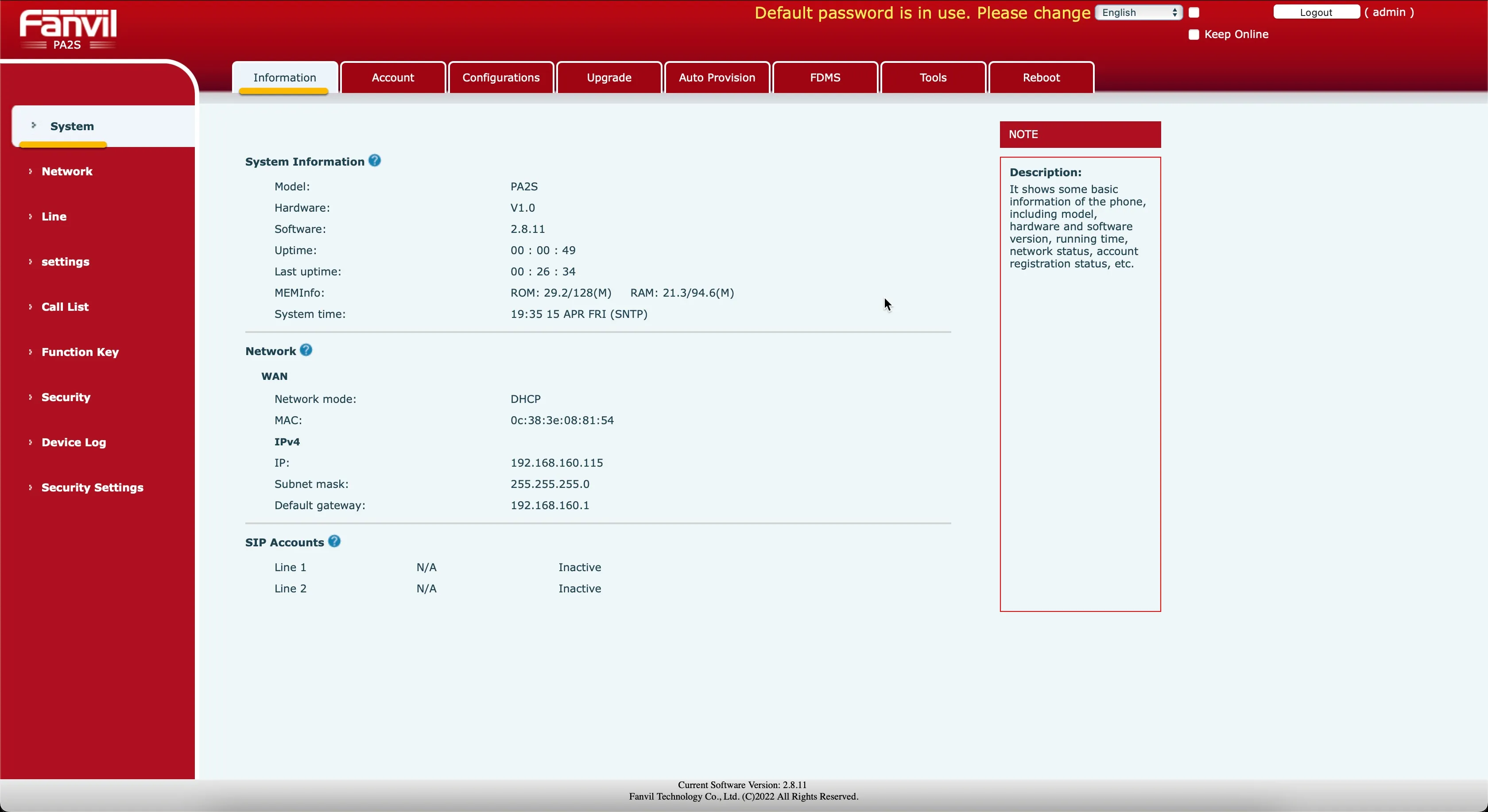
When you are successfully signed in, the first menu shown is the System Information menu.
Configure the SIP registration settings
To register the Fanvil with CyberGate, you need the Session Initiation Protocol (SIP) username and password for this device as provided by the CyberGate Management Portal.
- Navigate to the Line > SIP menu.
- Provide / change the following information:
Register Settings | |
|---|---|
Activate | Enable |
Username | Define a name (one word) for the pager (e.g. Production) |
Display name | Use the same name as the Username |
Authentication User | Use the Username provided by the CyberGate Management Portal |
Authentication Password | Use the Password provided by the CyberGate Management Portal |
Server name | cybergate.cybertwice.com |
SIP Server 1 | |
Server Address | cybergate.cybertwice.com |
Transport Protocol | Change UDP to TCP |
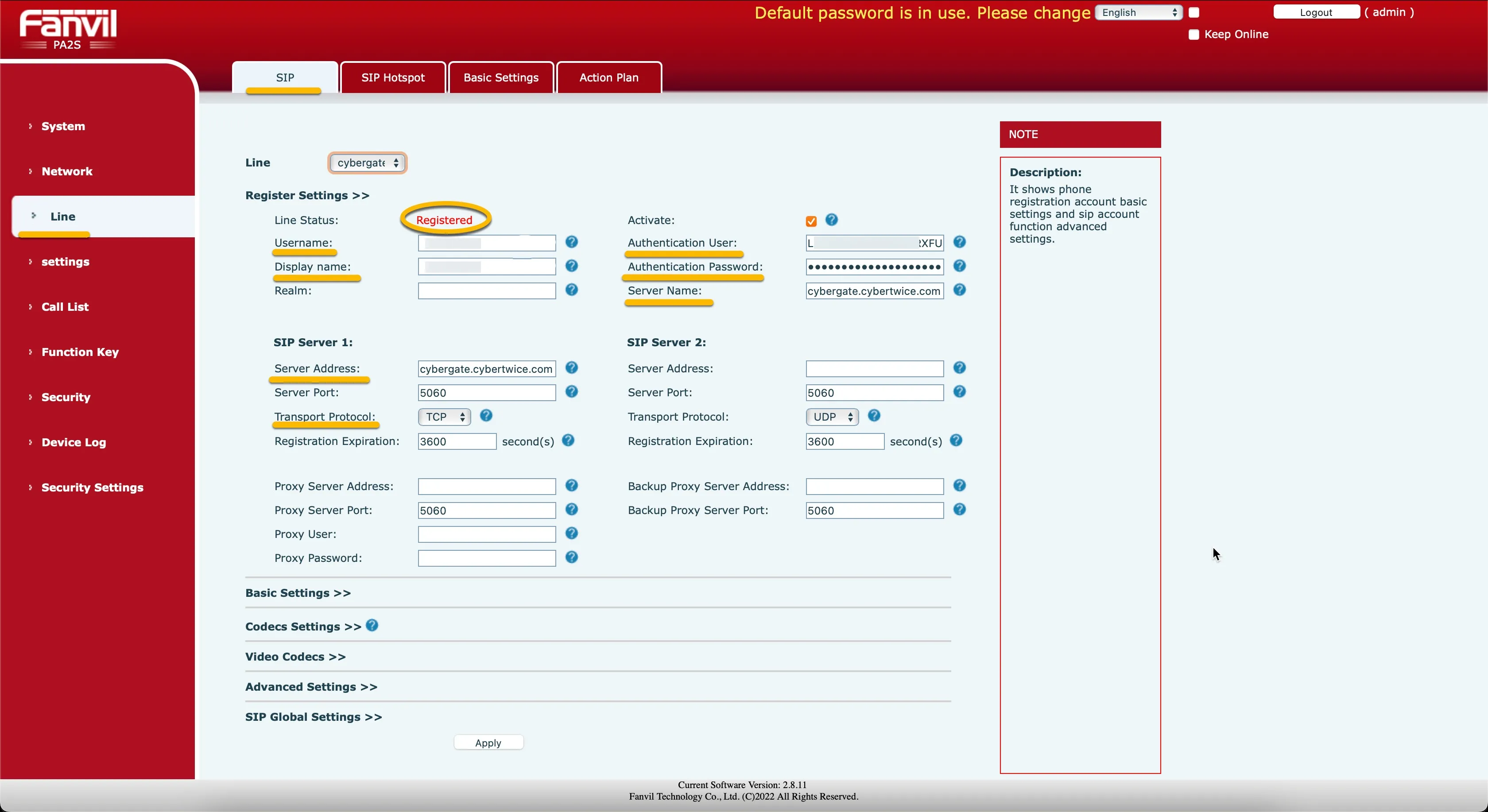
- Click the Apply button when done.
Configure the function key (optional)
If a call button is connected to the Fanvil, configure a Direct Station Selection (DSS) key so that pressing the button calls a Microsoft Teams user.
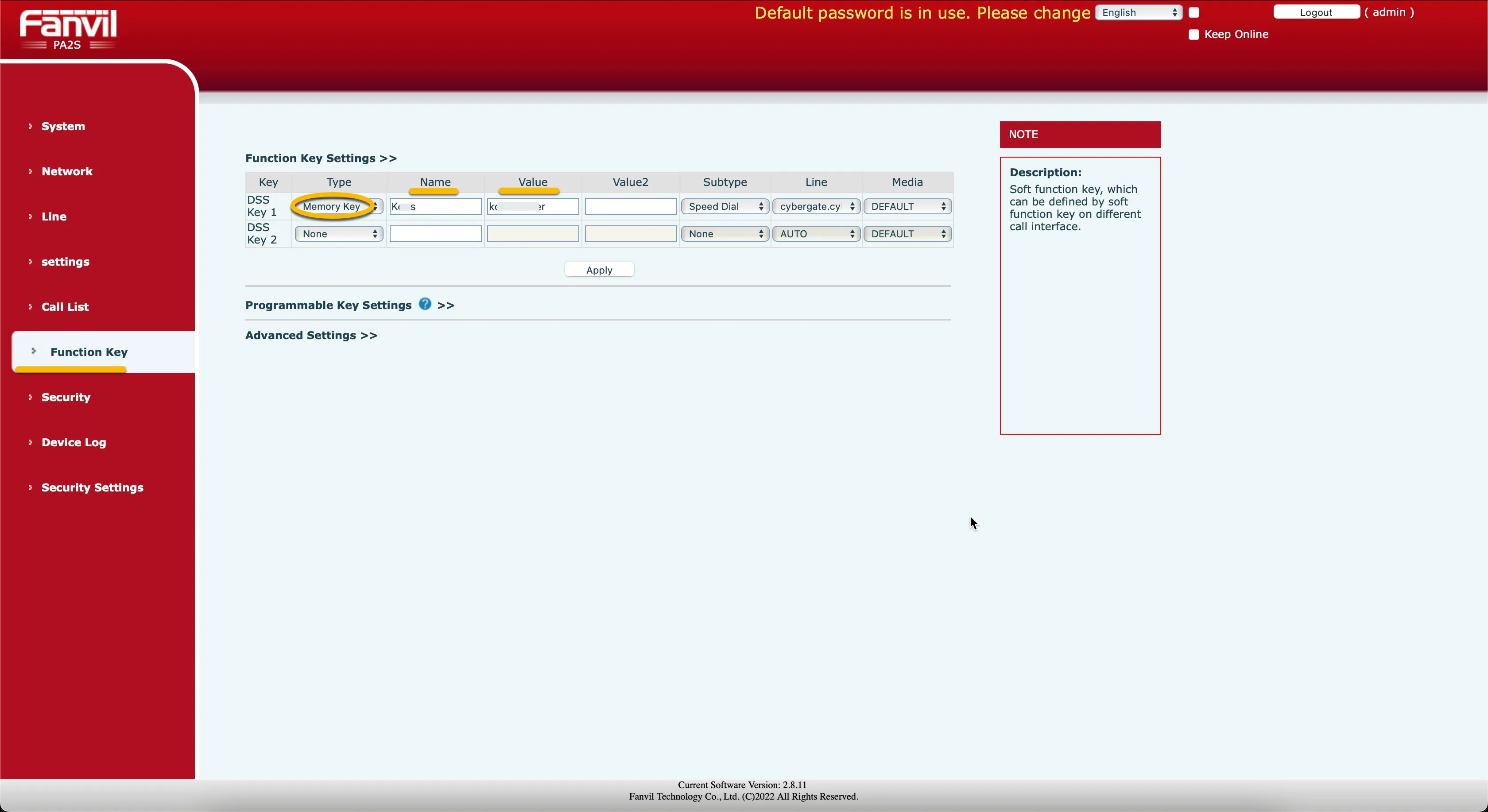
- Navigate to the Function Key menu.
- Provide / change the following information:
Function Key Settings | |
|---|---|
DSS Key 1 : Type | Change to Memory Key |
DSS Key 1 : Name | Descriptive name for the Teams user to call |
DSS Key 1 : Value | Use the Teams user address without the domain part |
For example, the user 'Koos Ridder', with the Teams name [email protected], will translate to this destination address: koos.ridder
- Click the Apply button when done.
Call a Teams user from the Fanvil pager
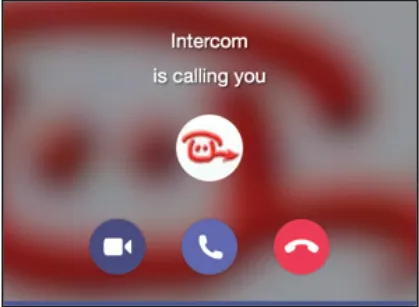
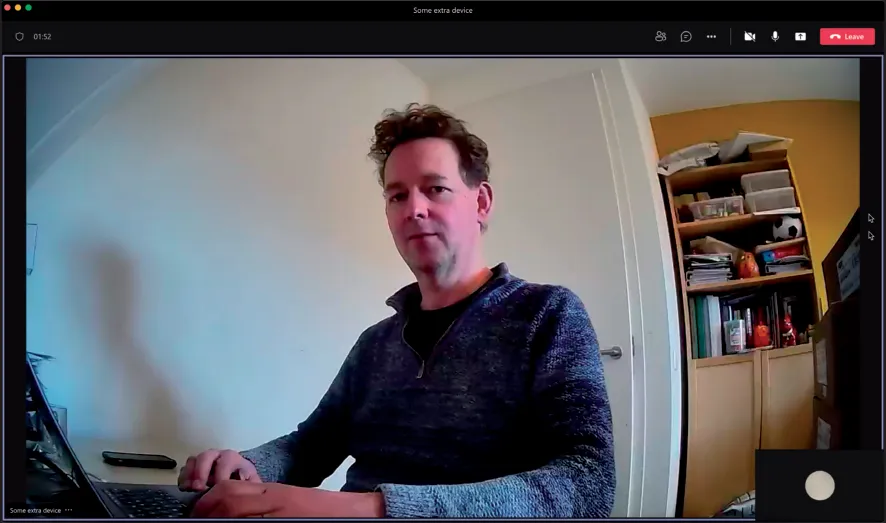
Configuration of the Fanvil is now finished. Pressing the call button connected to the Fanvil pager will initiate a call to the destination that is configured in the Function Key menu.
The call will be established and video will be displayed within ±3 seconds.
Call the Fanvil from Microsoft Teams
There are two ways to call the Fanvil from Teams:
- Call the Fanvil using the Teams Calls menu.
- Recommended: Using the CyberGate for Microsoft Teams app to find the Fanvil and call it with one click.
Make sure the CyberGate is configured correctly. It is important to start with the Feature Configuration script.
The Feature Configuration script
The Feature Configuration script is a PowerShell script that needs to be executed before certain CyberGate features are available. One of these features is the ability to call devices directly from Teams.
Follow the steps in the Feature Configuration script manual:
Call the Fanvil using the Teams Calls menu
To initiate a call from Microsoft Teams, log in to Microsoft Teams and navigate to the Calls menu.
You can either type the (Display)name of the Fanvil directly in the call field (at 'Type a name') or search for 'cybergate'. This will show all of your CyberGate devices. Select the Fanvil to call and click the blue Call button.
A call to the Fanvil will be initiated and the Commend speaker will answer automatically.
Call the Fanvil from the CyberGate for Teams app
The CyberGate for Teams app offers many features that make working with CyberGate more convenient. One of these features is the ability to initiate calls directly to devices. This eliminates the need to search for your device in the Teams calls menu.
See this manual for all the information on how to install and use the CyberGate for Teams app:
- In the CyberGate for Teams app, navigate to Devices.
- Find the Fanvil.
- Click on the Connect button.
A call to the Fanvil is initiated and the device answers automatically.