Fasttel FT800 or FT600 and CyberGate
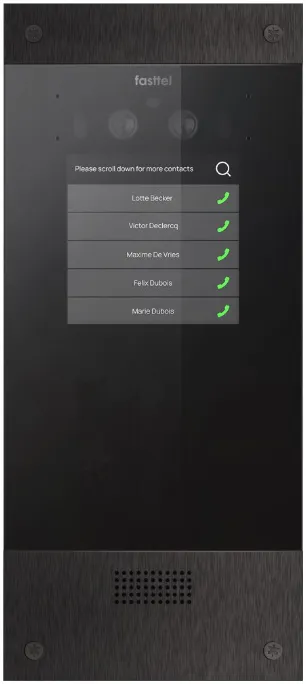
Connect a Fasttel FT800 or FT600 intercom to Microsoft Teams
What this TechNote covers
This document uses the Fasttel FT800 and the Fasttel FT600 (each from now on named 'Fasttel') to connect to the CyberGate service (from now on named 'CyberGate'). The configuration differs per model:
- Fasttel FT800Configure the Fasttel FT800
- Fasttel FT600Configure the Fasttel FT600
Configure the Fasttel FT800
Follow the steps in this section to configure the Fasttel FT800 to connect it to CyberGate. If you have a Fasttel FT600, skip to Fasttel FT600Configure the Fasttel FT600.
Sign in to the FT800 web interface
- Connect the Fasttel to the network and power it on.
- Open a web browser to the IP address of the Fasttel.
- Sign in as admin with the configured or supplied password of the Fasttel.
When signed in successfully, the first menu shown is the Intercom - Basic menu.
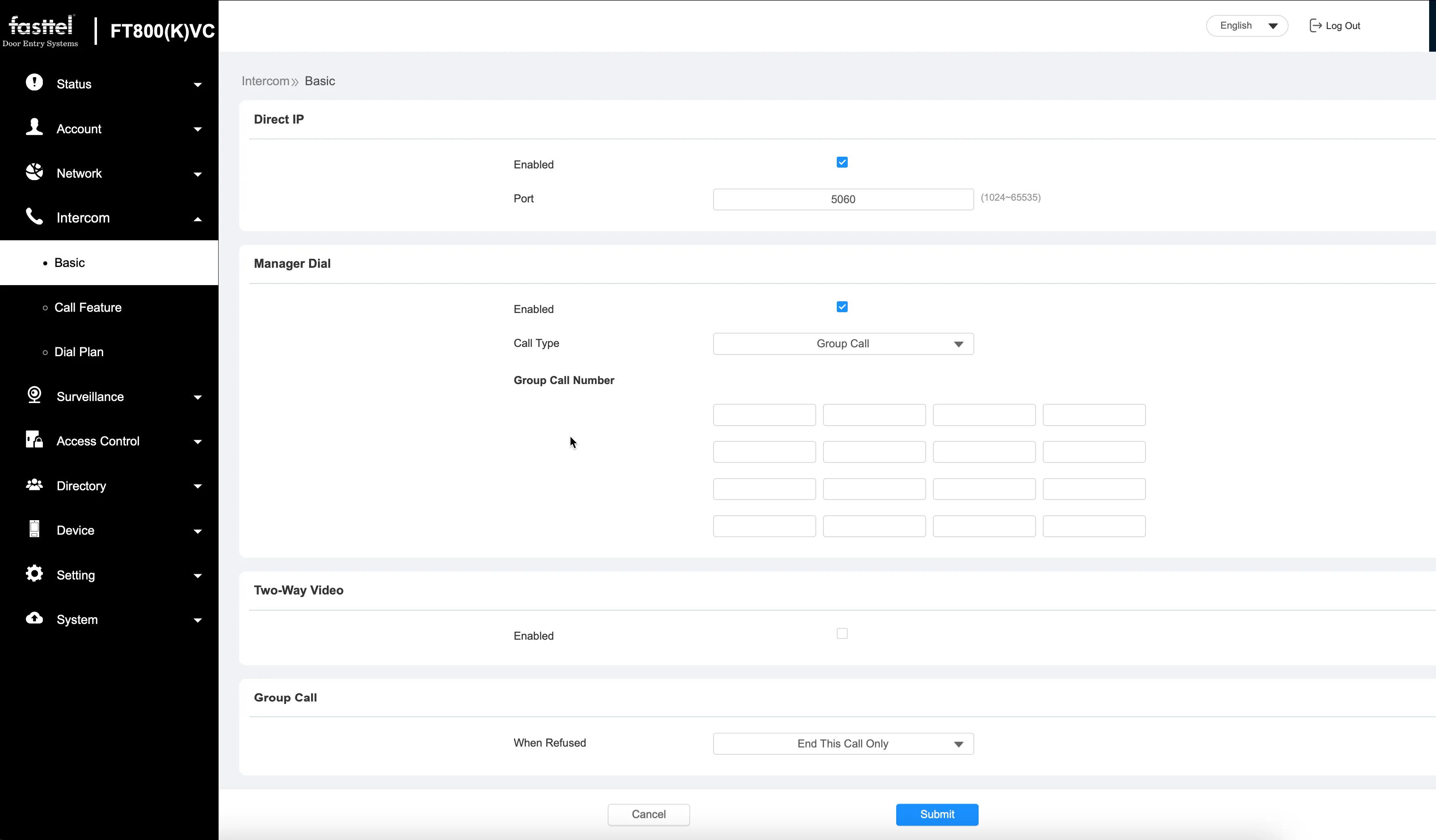
Enable two-way video (Intercom - Basic)
Provide the following information:
Two-Way Video | |
|---|---|
Enabled | Enable the two-way video option to show the Teams video on the display of the intercom (optional) |
Click the blue 'Submit' button when done.
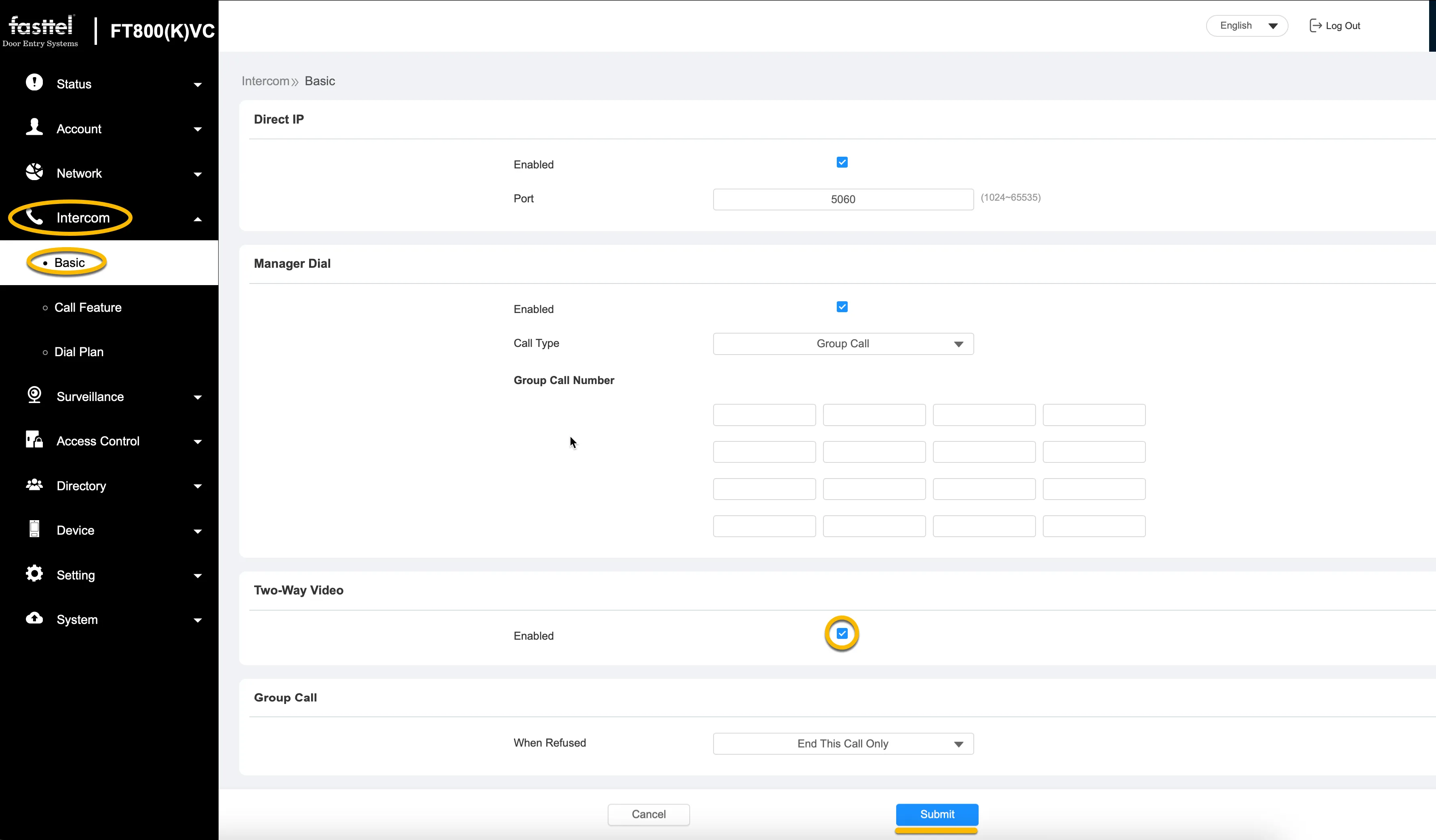
Set the display theme to Directory (Setting - Key/Display)
Navigate to the Setting - Key/Display menu.
Change the following information:
Theme | |
|---|---|
Theme | Change to 'Directory' |
Click the blue 'Submit' button when done.
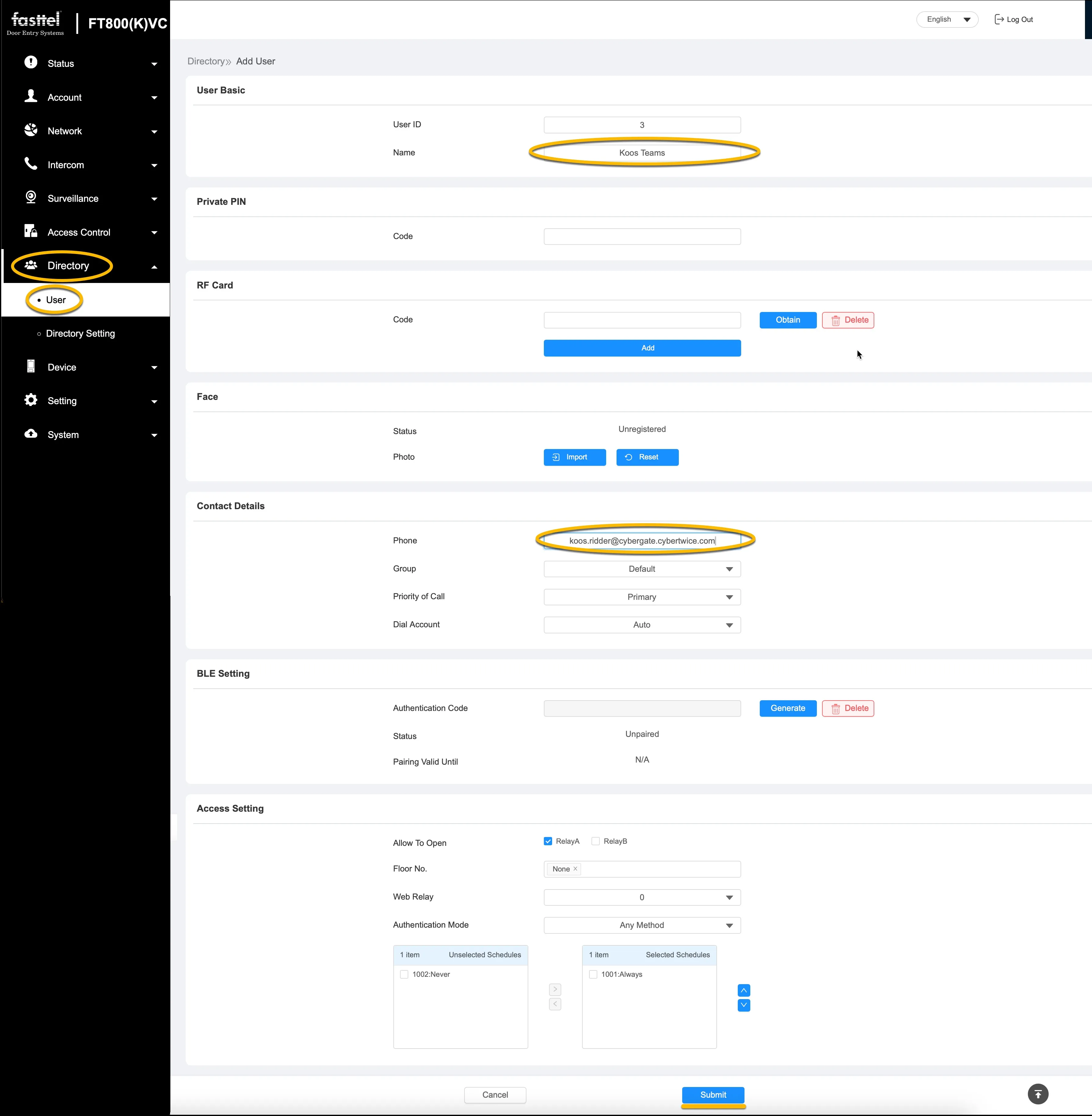
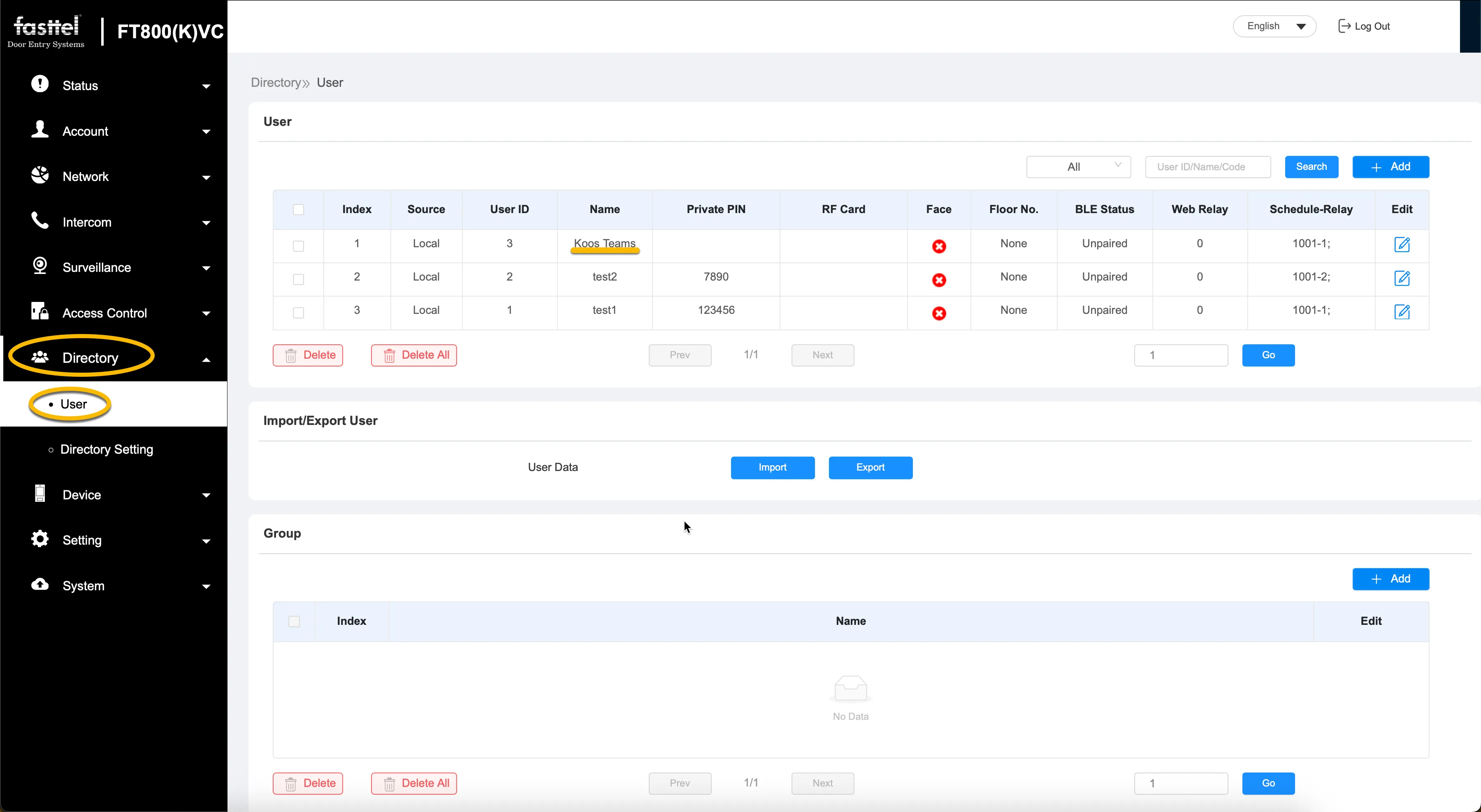
Add a Teams user to the directory (Directory - User)
Navigate to the Directory - User menu.
- Click the blue '+ Add' button to add a user to the directory.
- Provide the following information:
User Basic | |
|---|---|
Name | Descriptive name for the user to call in Teams |
Contact Details | |
Phone | Fill in the Teams user name to call (see the example below) |
For example, to call the user 'Koos Ridder' with the Teams name [email protected], enter this destination address:
- Click the blue 'Submit' button when done.
Configure the SIP account (Account - Basic)
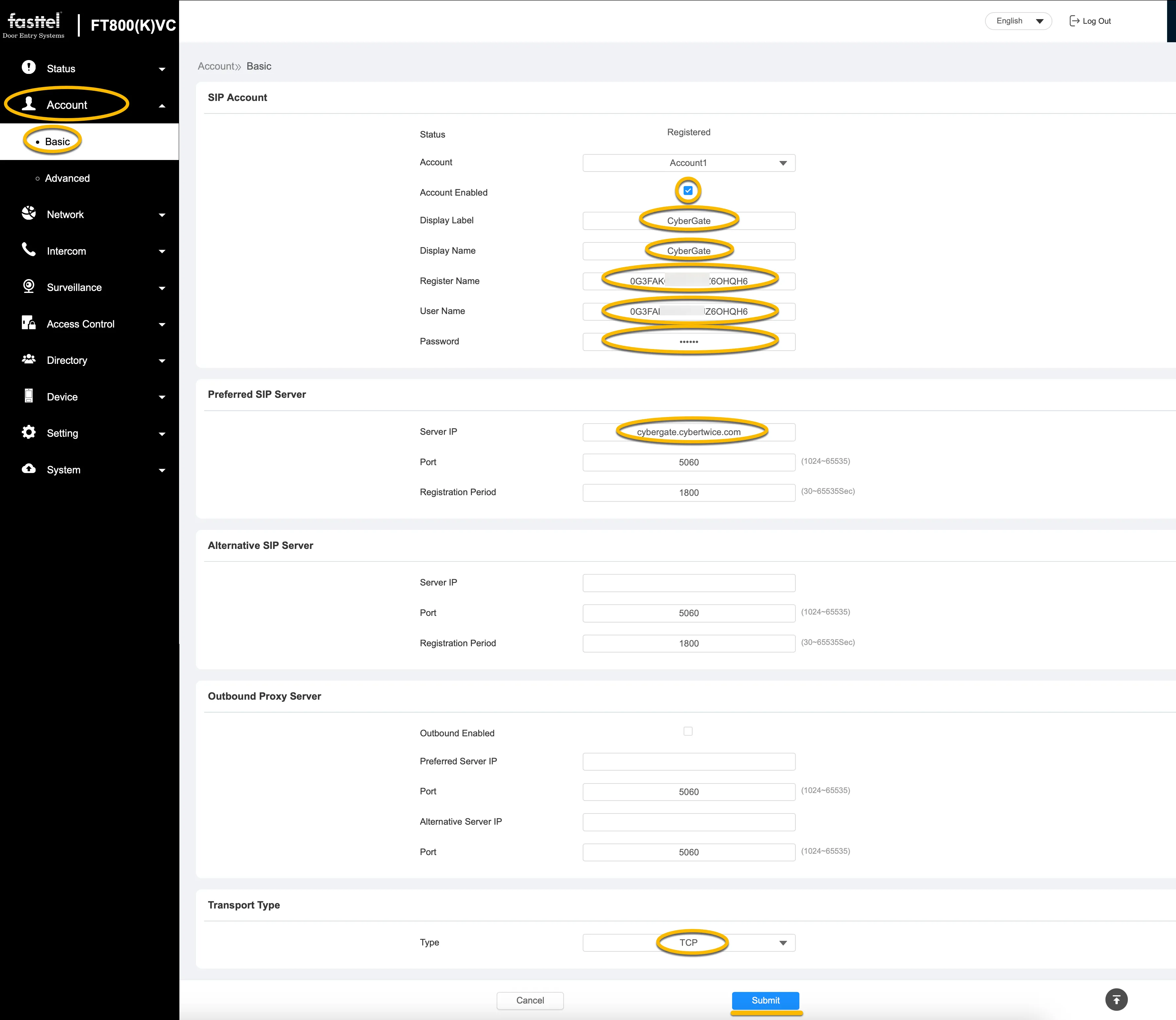
Navigate to the Account - Basic menu.
Provide / change the following information:
SIP Account | |
|---|---|
Account Enabled | Enable the account |
Display Label | CyberGate |
Display Name | CyberGate |
Register Name | Use the Username provided by the CyberGate Management Portal |
User Name | Use the Username provided by the CyberGate Management Portal |
Password | Use the Password provided by the CyberGate Management Portal |
Preferred SIP Server | |
Server IP | cybergate.cybertwice.com |
Transport Type | |
Type | Change UDP to TCP |
Click the blue 'Submit' button when done.
Configure the audio and video codecs (Account - Advanced)
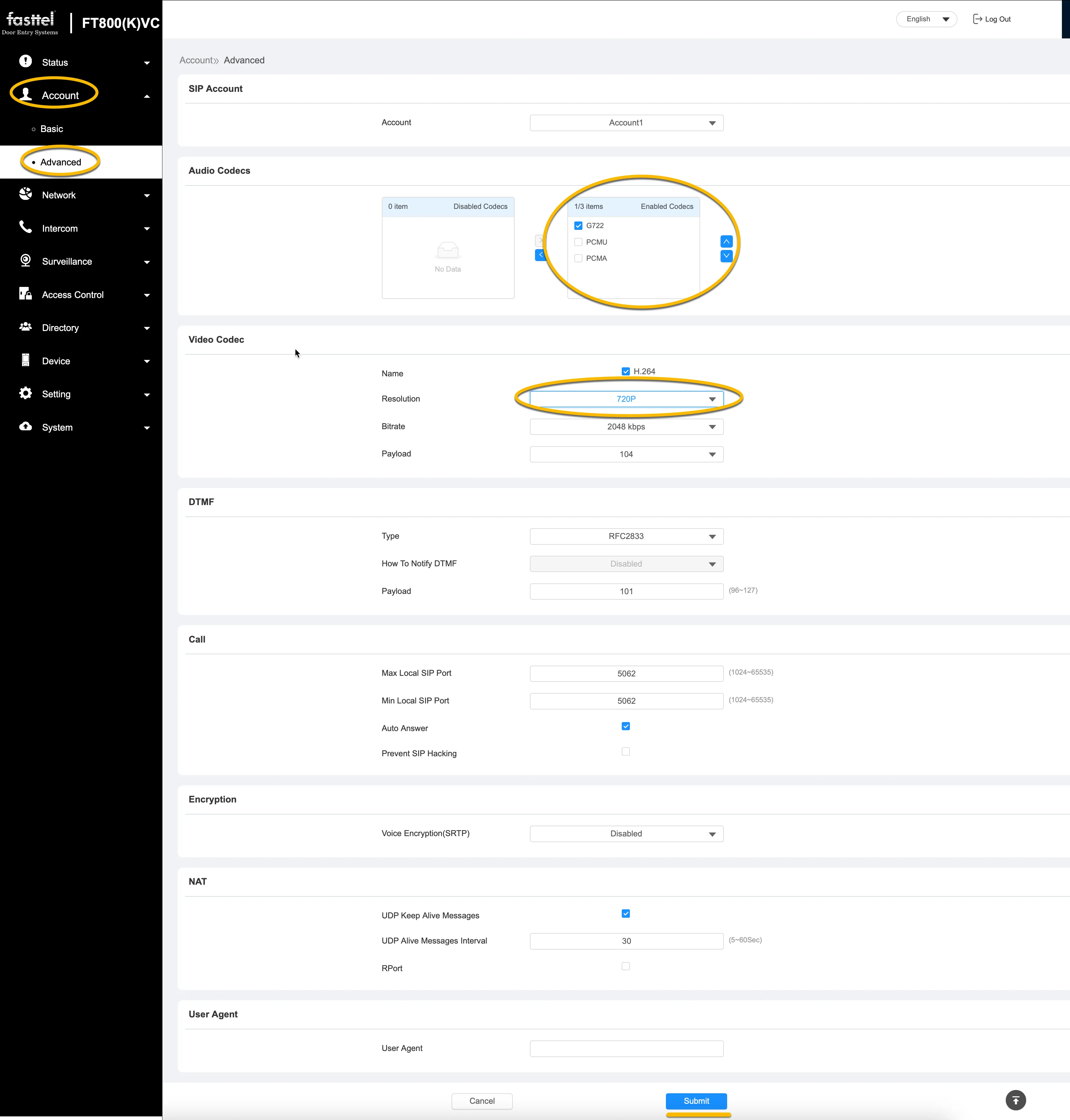
Navigate to the Account - Advanced menu.
Provide / change the following information:
Audio Codecs | |
|---|---|
Enabled Codecs | Make sure the G722 codec is on top of the list |
Video Codec | |
Resolution | Change to 720P |
Click the blue 'Submit' button when done.
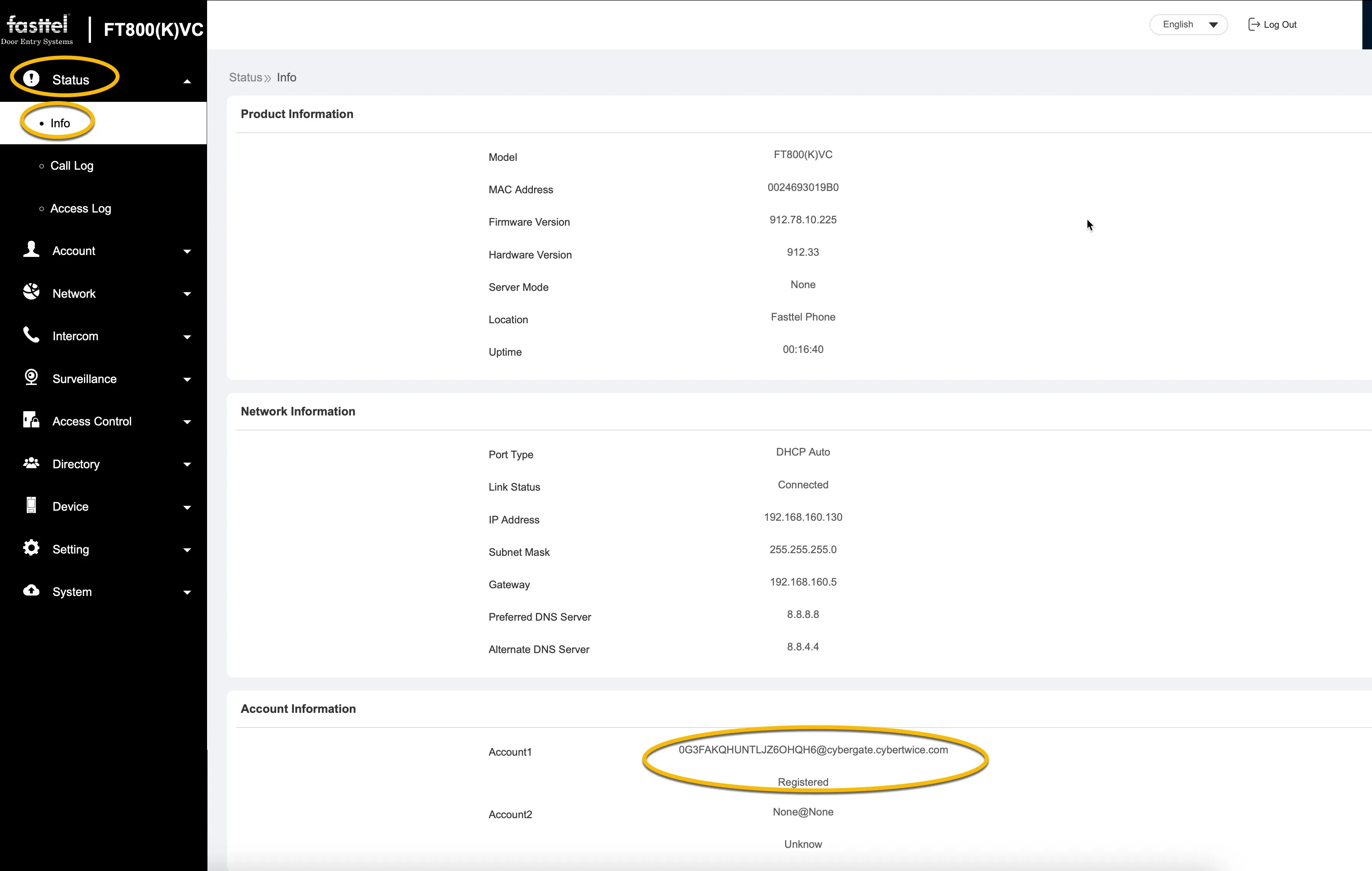
Verify the SIP registration (Status - Info)
Navigate to the Status - Info menu.
At Account Information, Account1 should show 'Registered'.
Fasttel FT800 - Status - Info (successful registration)
Configuration of the Fasttel FT800 is now done. Continue with Configure the Fasttel FT600Test the intercom call and open the door.
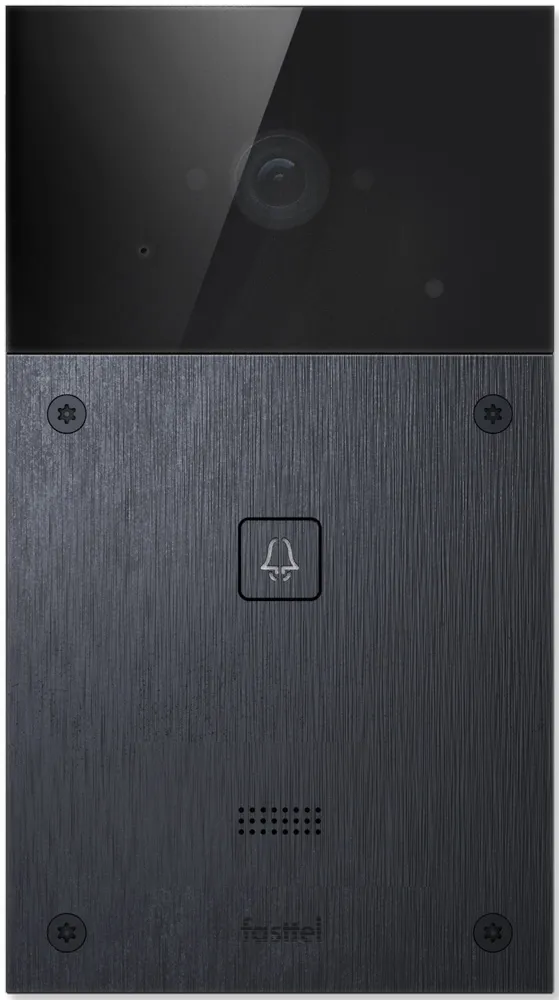
Configure the Fasttel FT600
Follow the steps in this section to configure the Fasttel FT600 to connect it to CyberGate.
Sign in to the FT600 web interface
- Connect the Fasttel to the network and power it on.
- Open a web browser to the IP address of the Fasttel.
- Sign in as admin with the configured or supplied password of the Fasttel.
When signed in successfully, the first menu shown is the Status - Basic menu.
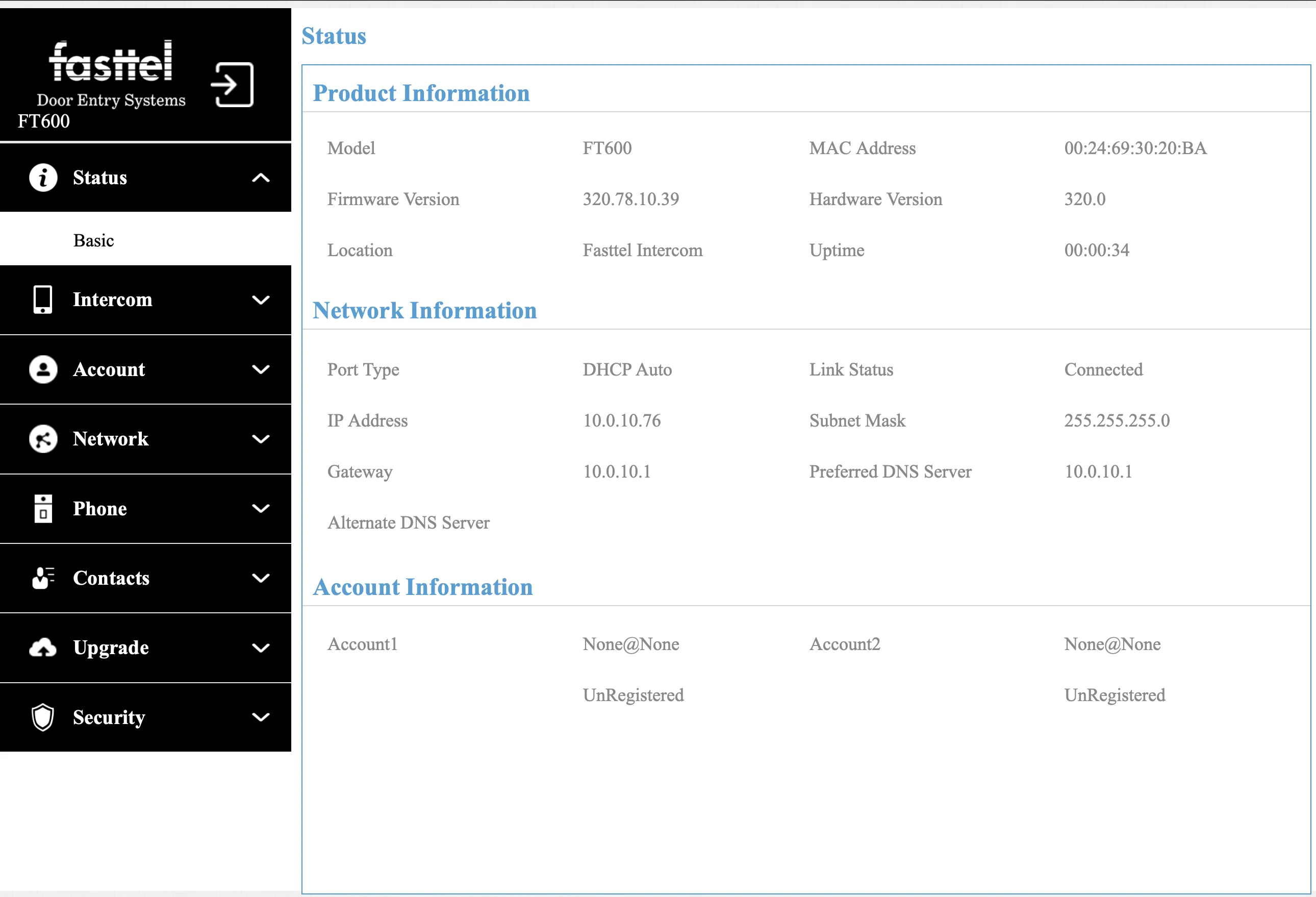
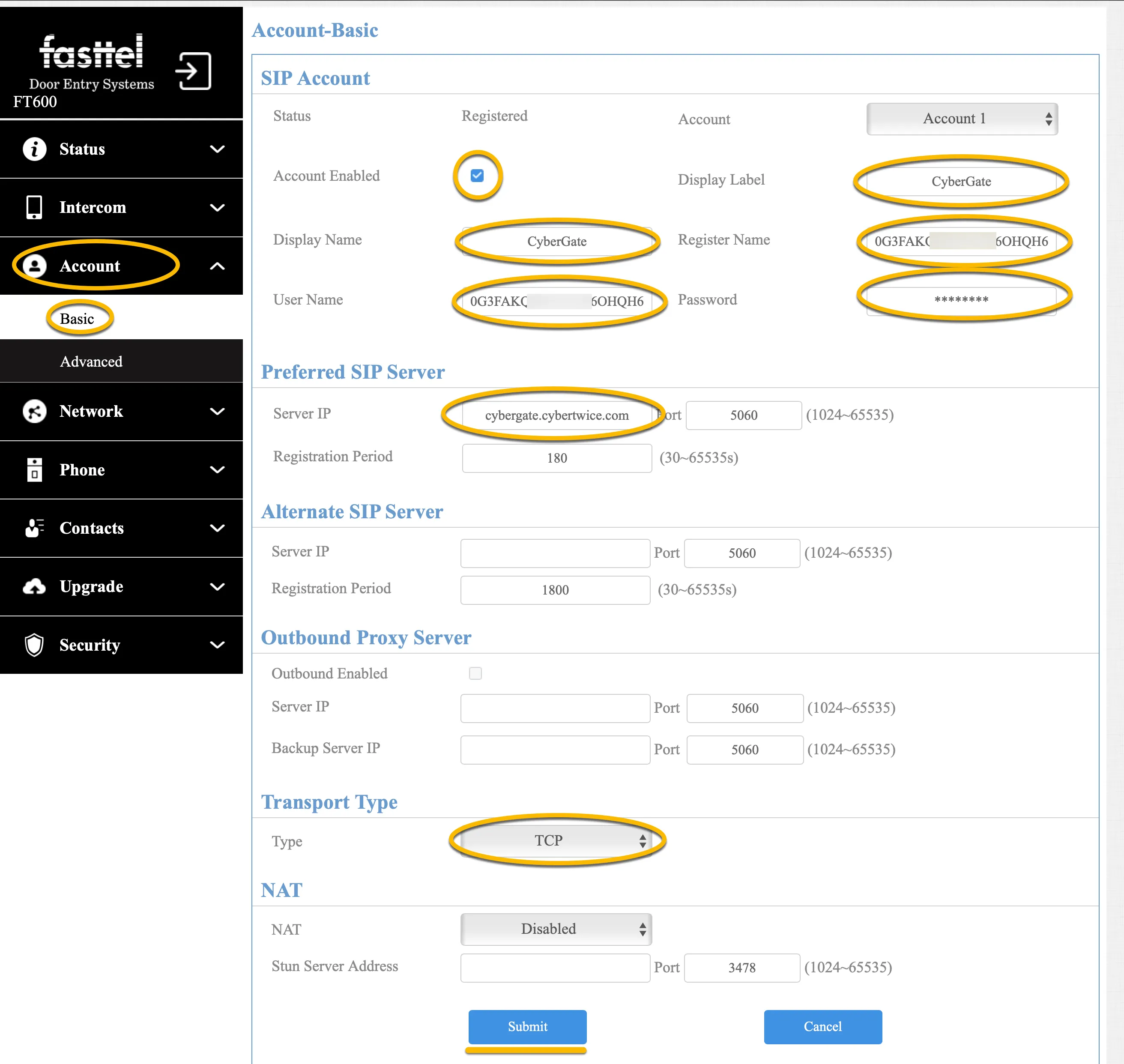
Configure the SIP account (Account - Basic)
Navigate to the Account - Basic menu.
Provide / change the following information:
SIP Account | |
|---|---|
Account Enabled | Enable the account |
Display Label | CyberGate |
Display Name | CyberGate |
Register Name | Use the Username provided by the CyberGate Management Portal |
User Name | Use the Username provided by the CyberGate Management Portal |
Password | Use the Password provided by the CyberGate Management Portal |
Preferred SIP Server | |
Server IP | cybergate.cybertwice.com |
Transport Type | |
Type | Change UDP to TCP |
Click the blue 'Submit' button when done.
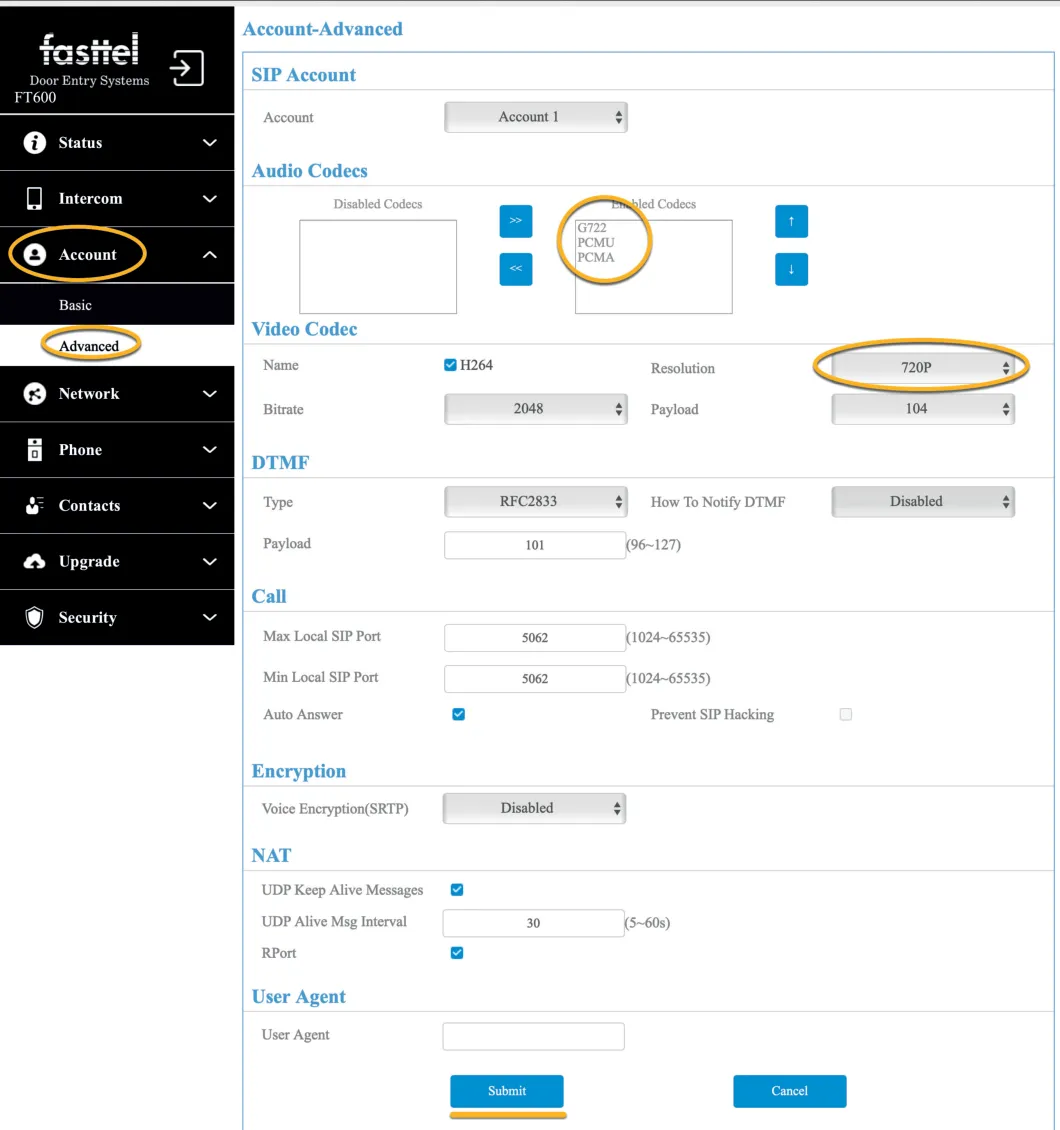
Configure the audio and video codecs (Account - Advanced)
Navigate to the Account - Advanced menu.
Provide / change the following information:
Audio Codecs | |
|---|---|
Enabled Codecs | Make sure the G722 codec is on top of the list |
Video Codecs | |
Resolution | Set the resolution to 720P |
Click the blue 'Submit' button when done.
Set the Teams destination (Intercom - Basic)
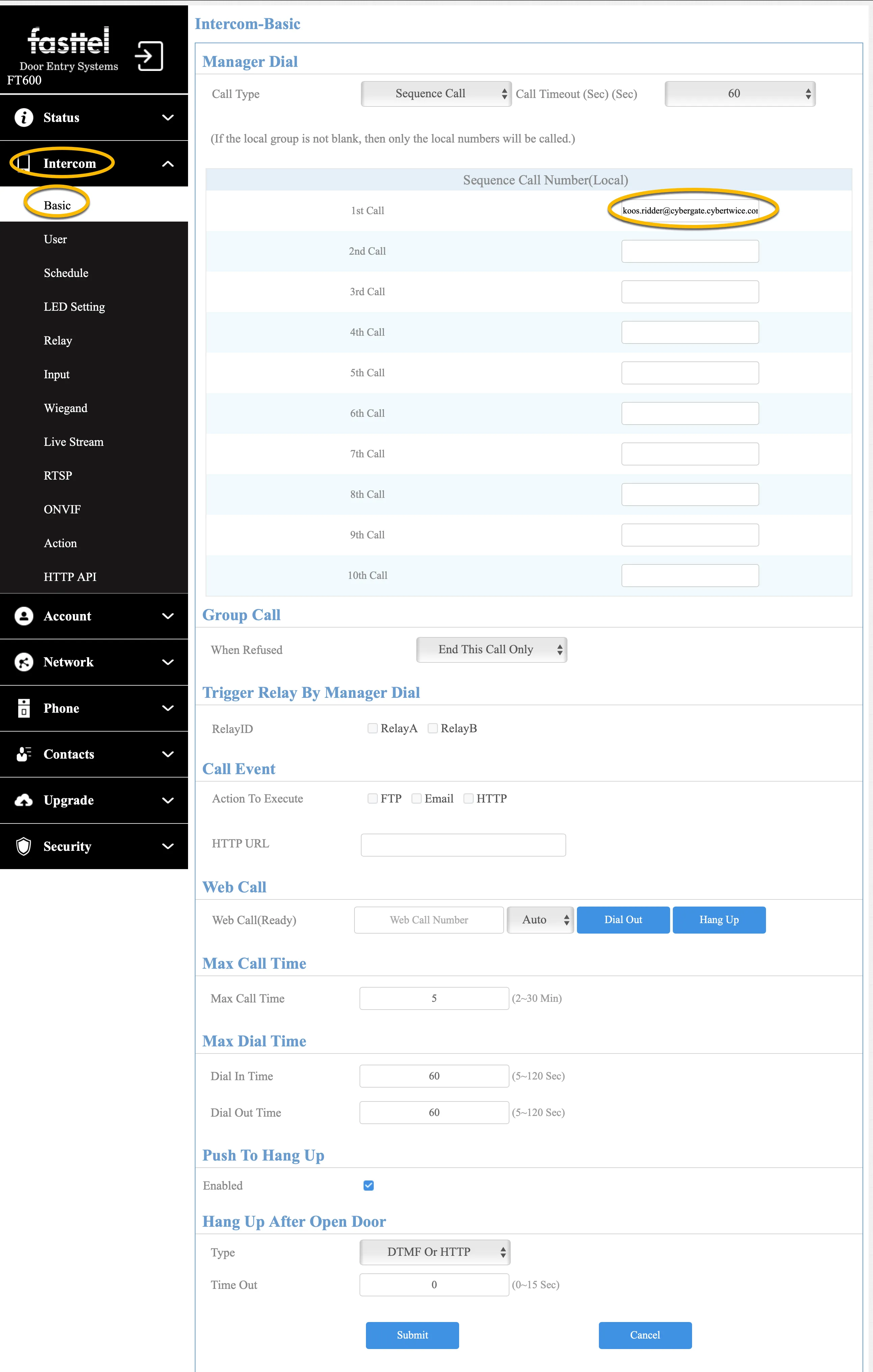
Navigate to the Intercom - Basic menu.
Provide the following information:
Manager Dial | |
|---|---|
Group Call Number (local) | In the top left box, fill in the Teams user name to call (see the example below) |
For example, to call the user 'Koos Ridder' with the Teams name [email protected], enter this destination address:
Click the blue 'Submit' button when done.
Verify the SIP registration (Status - Basic)
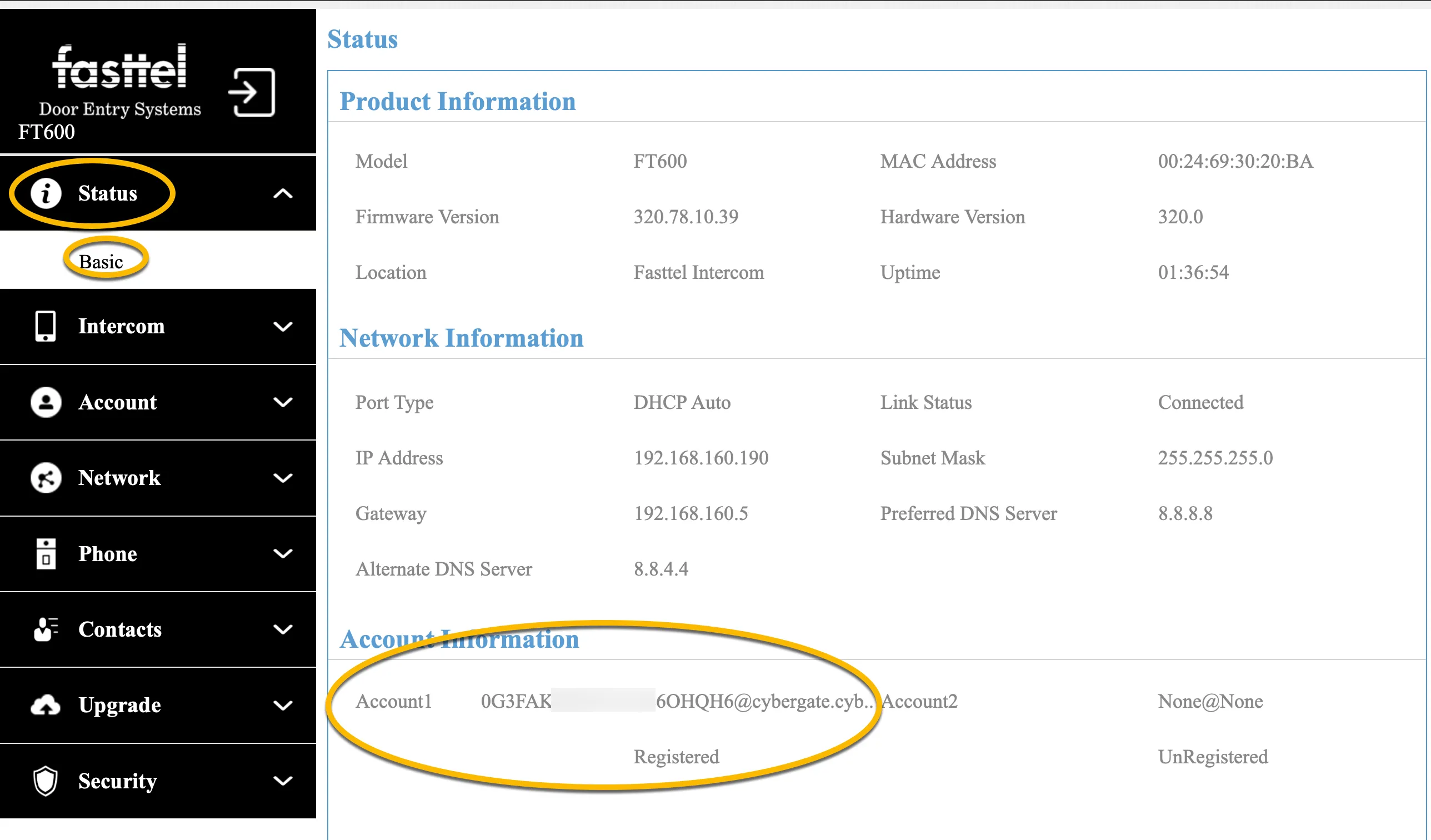
Navigate back to the Status - Basic menu.
The SIP Registration Status should show 'Registered'.
Reboot the FT600 (Upgrade - Basic)
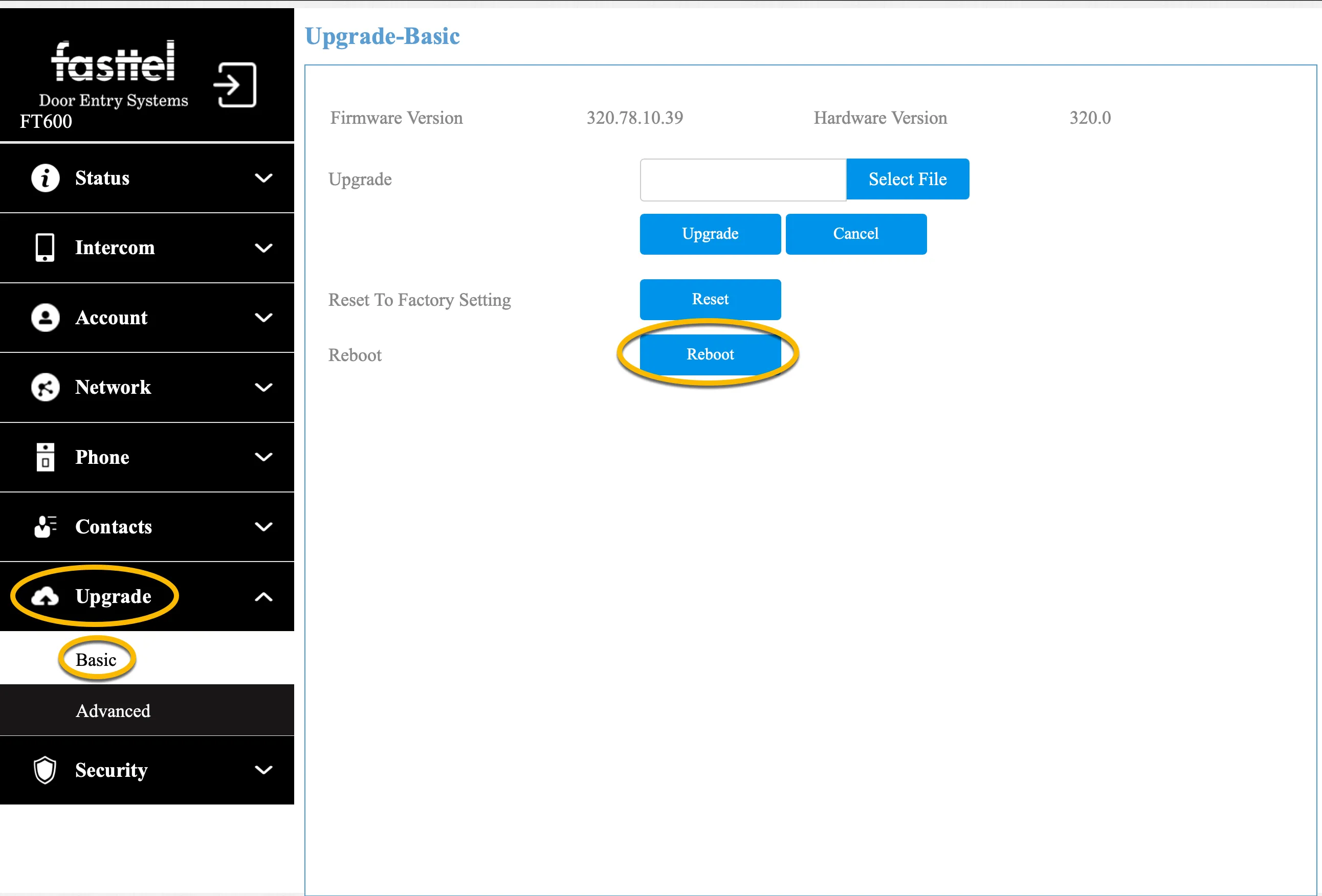
Navigate to the Upgrade - Basic menu.
Click the blue 'Reboot' button to reboot the Fasttel.
Fasttel FT600 - Upgrade - Basic
Configuration of the Fasttel FT600 is now done. After the Fasttel is back online.
Test the intercom call and open the door
- Initiate a call to the configured Teams user:
- FT800: press the entry on the display of the Fasttel.
- FT600: press the button on the Fasttel.
- If configured correctly, the Teams client will notify you of an incoming call. Answer it by clicking the camera symbol. The call will be established and video will be displayed within ±3 seconds.
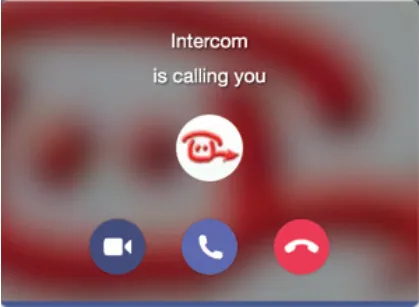
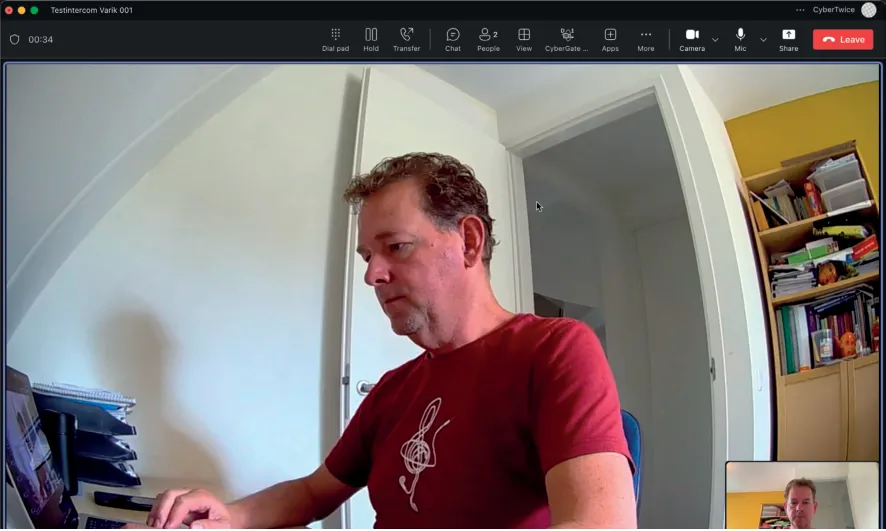
- To open the door from the Teams call, click on the three dots (...) in the call screen and select the 'Keypad'.
- Use the code configured (the default code for Fasttel is 2). This will trigger the relay in the Fasttel and open the door.
A more convenient way to open the door during a call is to use the CyberGate for Teams app. See the CyberGate App for Teams manual on how to to install and use the CyberGate for Teams app.
CyberGate App for Microsoft Teams
The CyberGate App for Microsoft Teams offers more CyberGate features directly from Microsoft Teams. One of these features is the Open-door button. This button can be utilized during a call to CyberGate and lets you open the the door by clicking just one button.
For a description on how to install the CyberGate app and use the Open door button please see the CyberGate App for TeamsCyberGate App for Teams manual.