Hanwha and CyberGate
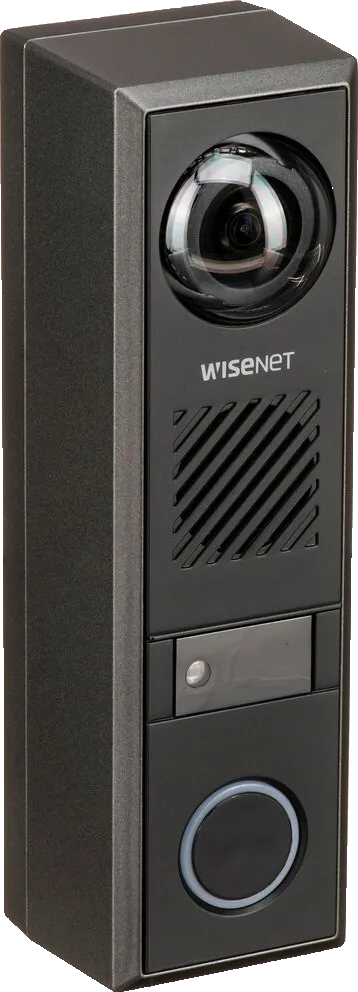
Configure the Hanwha Techwin Network Intercom for the CyberGate service
Before you begin
In this guide, the Hanwha Techwin Network Intercom is referred to as 'the Hanwha', and the CyberGate service as 'CyberGate'.
Make sure the firmware of the Hanwha is updated to its latest available version.
Connect to the Hanwha web interface
- Connect the Hanwha to the network and power it on.
- Open a web browser and browse to the IP address of the Hanwha.
- Log in as the admin user with the provided or configured password.
- Click the Setup button.
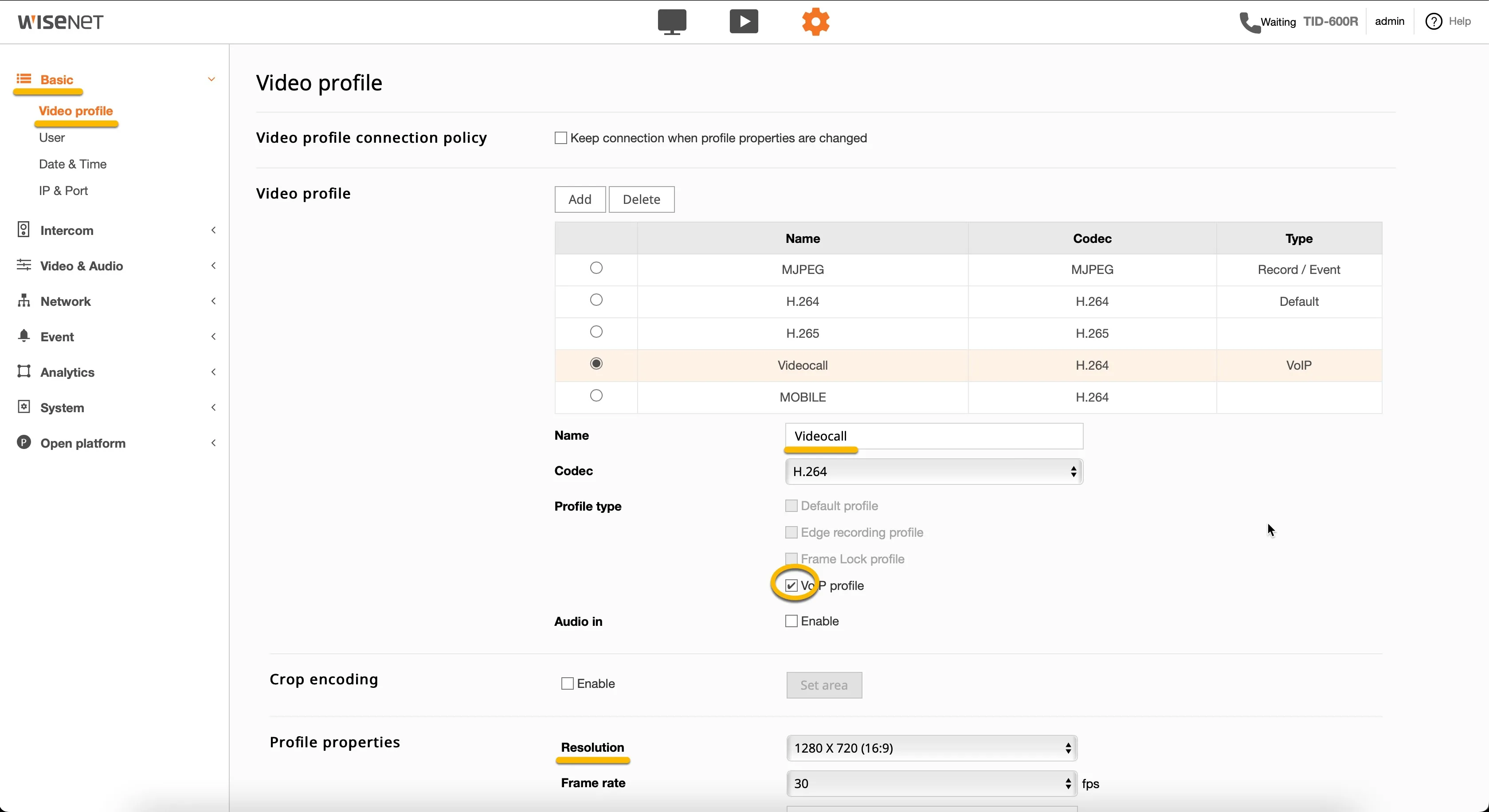
Step 1: Create a VoIP video profile
The Voice over IP (VoIP) video profile is used during a VoIP call to CyberGate and contains specific video settings.
- Navigate to the Basic-Video Profile menu.
- Click Add to add a VoIP profile.
- Add or modify the following information:
Name | Name of the VoIP profile (in this example 'Videocall') |
|---|---|
Codec | H264 |
Profile type | VoIP Profile |
Resolution | 1280 x 720 (16:9) |
- Click the Apply button to confirm.
Step 2: Enable the SIP protocol
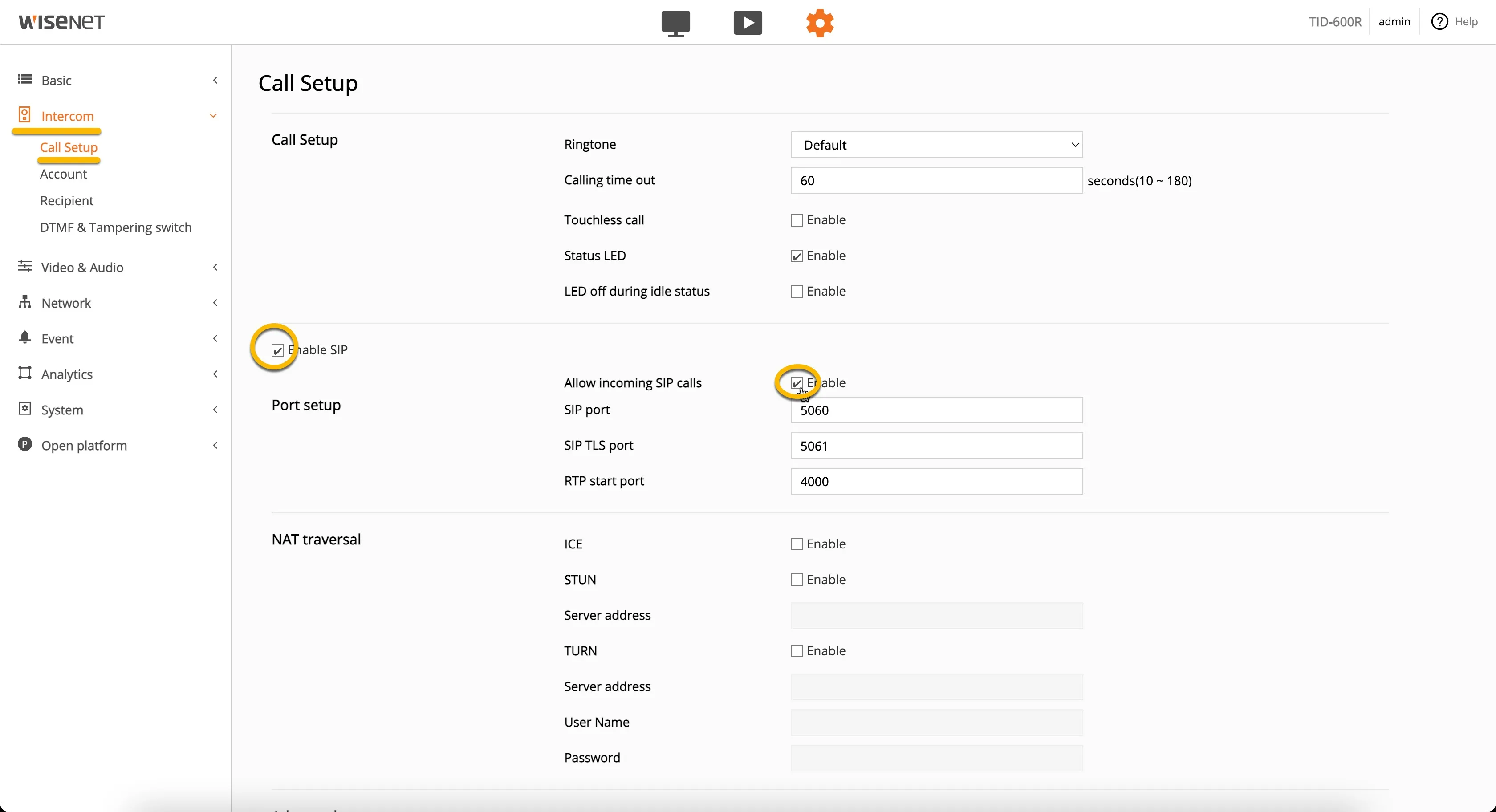
SIP is necessary for communication with CyberGate.
- Navigate to the Intercom-Call Setup menu.
- Modify the following information:
Enable SIP | Enable |
|---|---|
Allow incoming SIP calls | Enable |
- Click the Apply button to confirm.
Step 3: Configure the SIP account
- Navigate to the Intercom-Account menu.
- Click Add to add an Account.
- Add or modify the following information:
Account Information | |
|---|---|
Name | Name of the SIP Account (in this example 'CyberGate') |
User ID | Descriptive ID for the intercom (in this example 'Frontdoor') |
Authentication ID | Use the Authentication username provided by the CyberGate service |
Password | Use the Password provided by the CyberGate service |
Domain name | cybergate.cybertwice.com |
Advanced Setup | |
Caller ID | Use the Authentication username provided by the CyberGate service |
Registrar address | cybergate.cybertwice.com |
Transport mode | TCP or TLS * |
Media Encryption (SRTP) | Only when using TLS - Force |
When selecting TLS, make sure Media Encryption (SRTP) is set to Force
- Click the OK button to confirm.
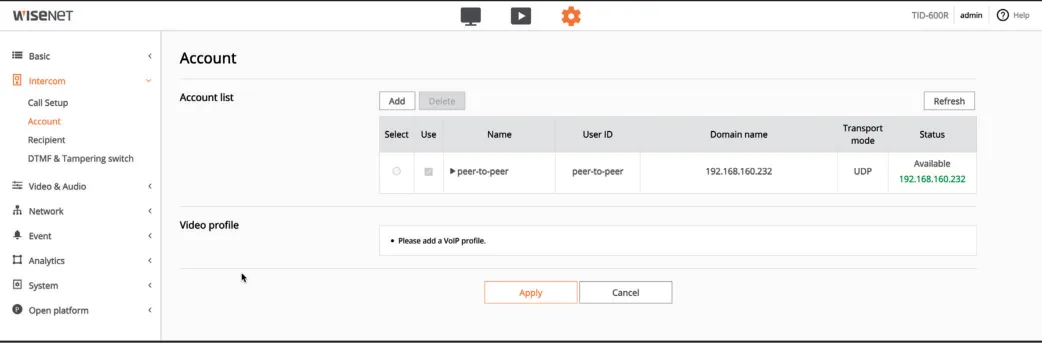
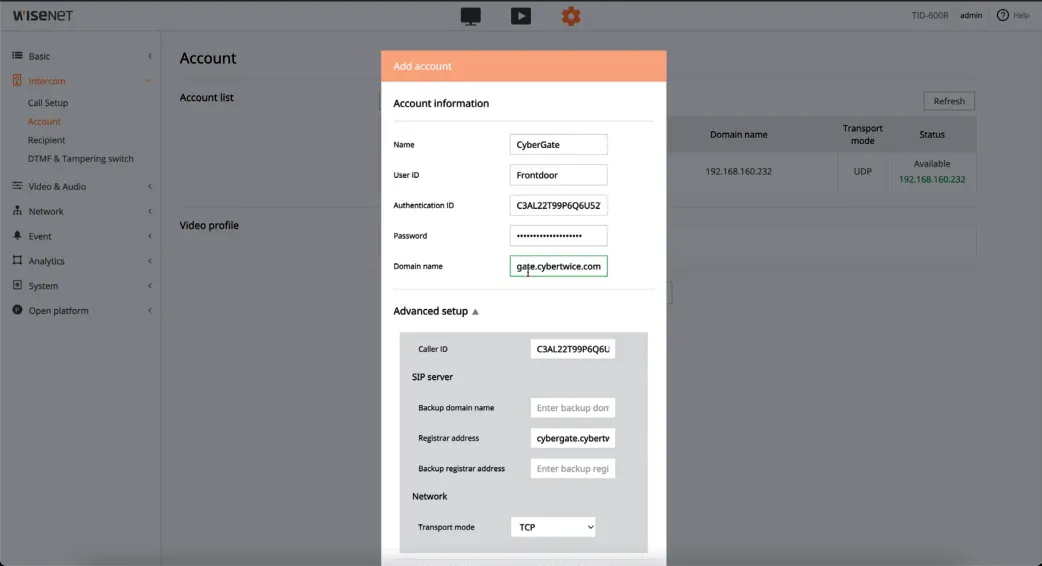
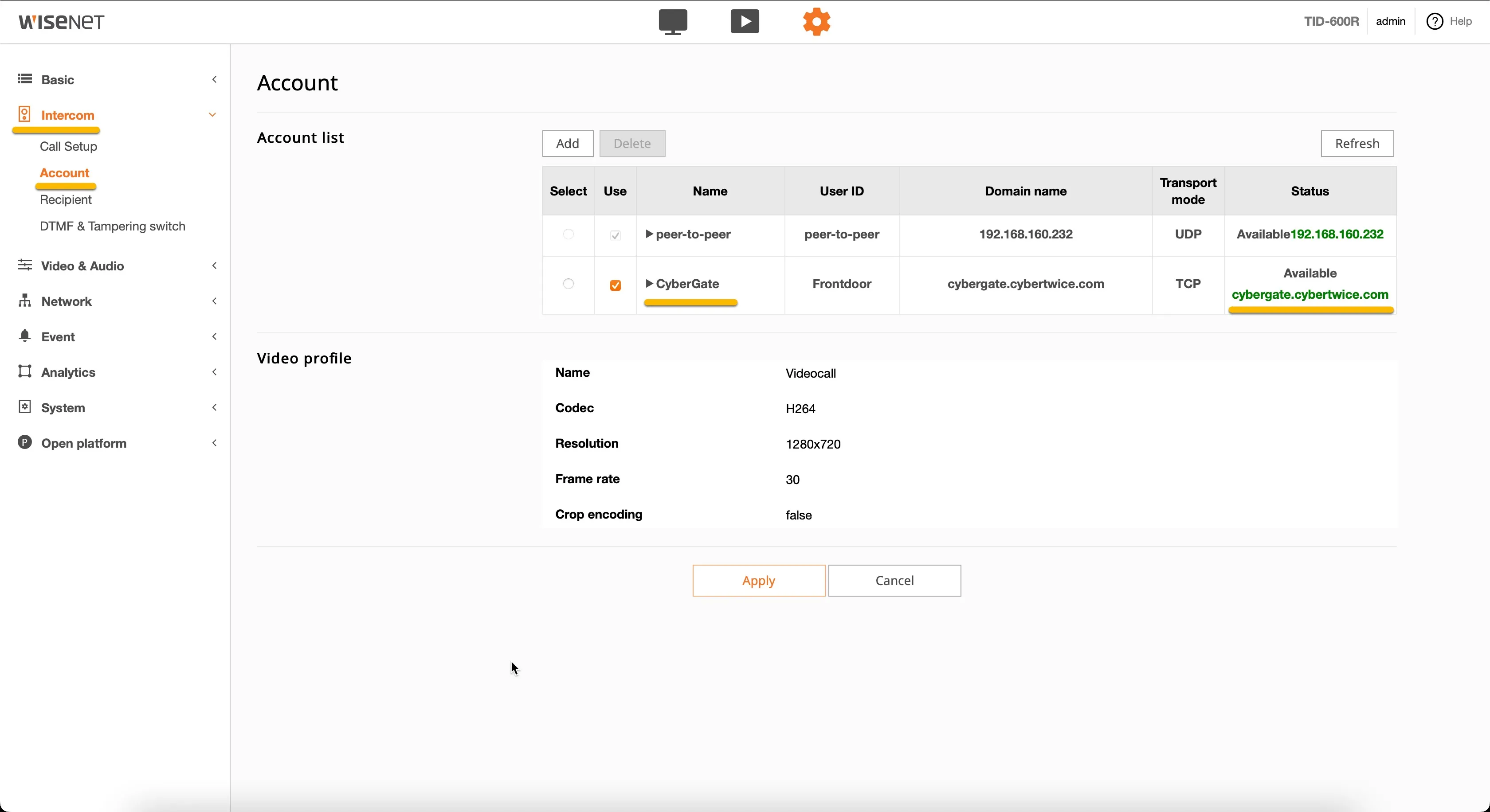
The SIP connection to CyberGate is now added.
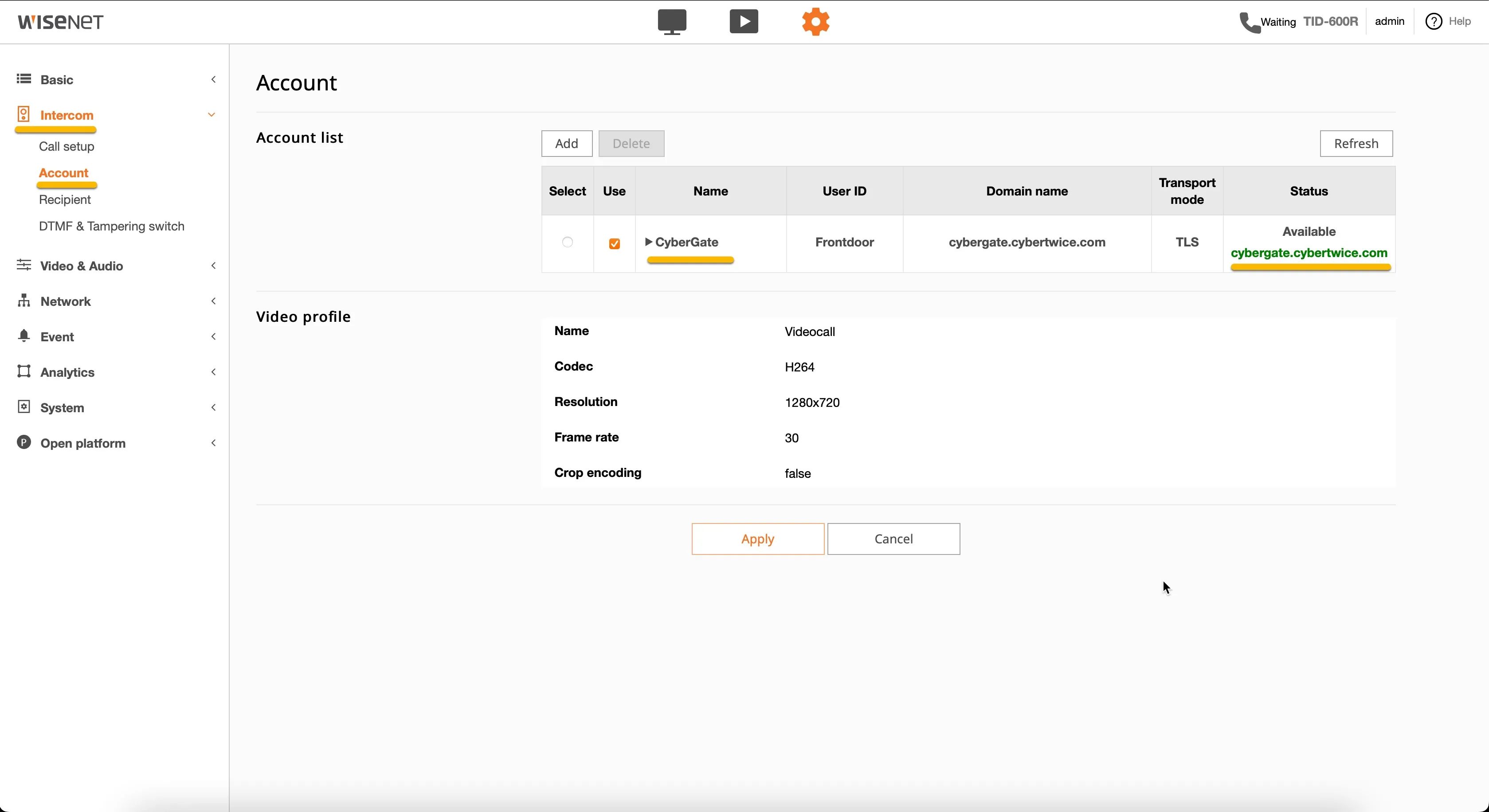
- Remove the default 'peer-to-peer' account by selecting and deleting it.
- Click the Apply button to confirm, and check the status to see if the registration was successful.
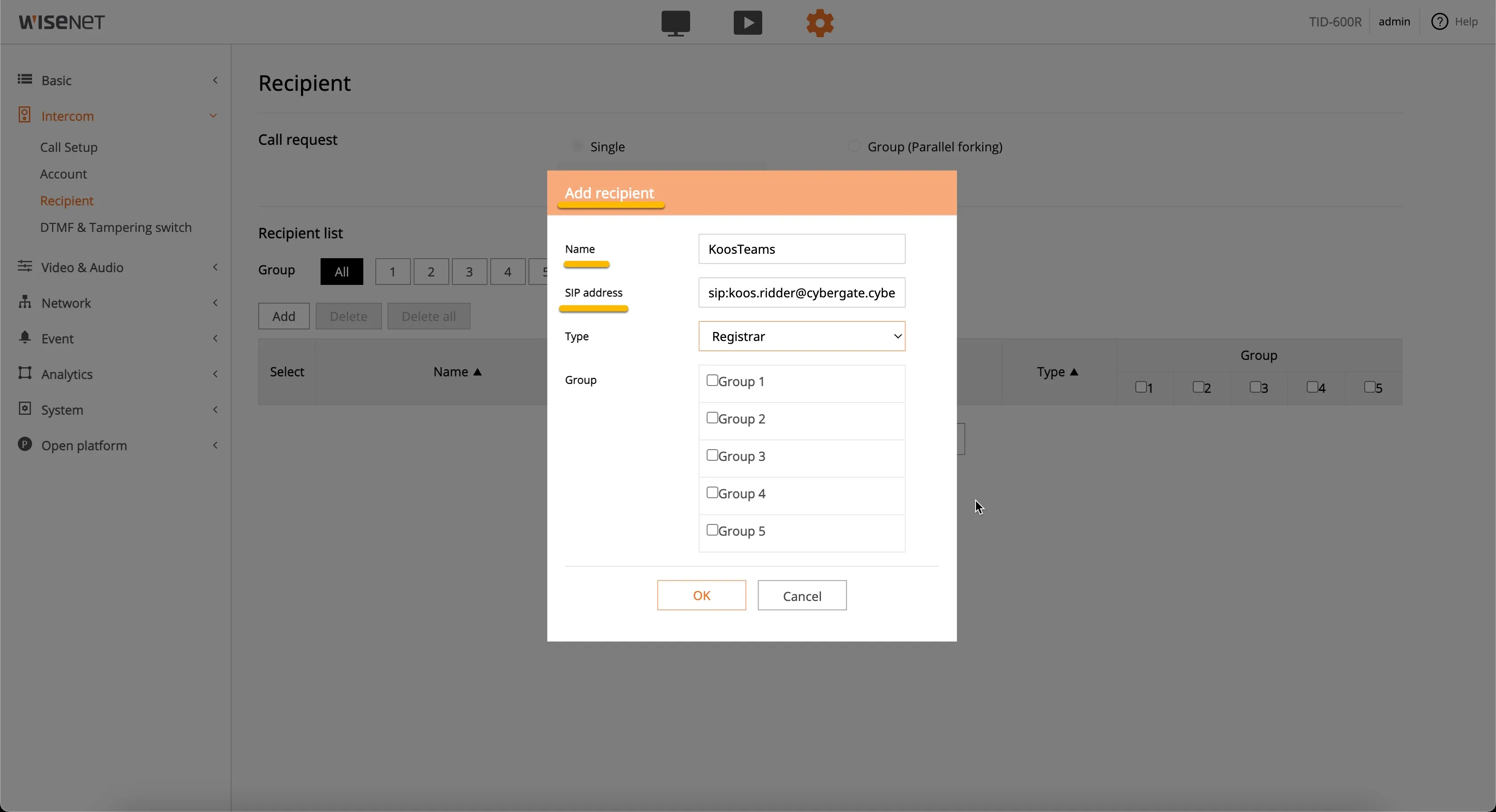
Step 4: Add a Teams recipient
The recipient is called when the call button on the Hanwha is pressed.
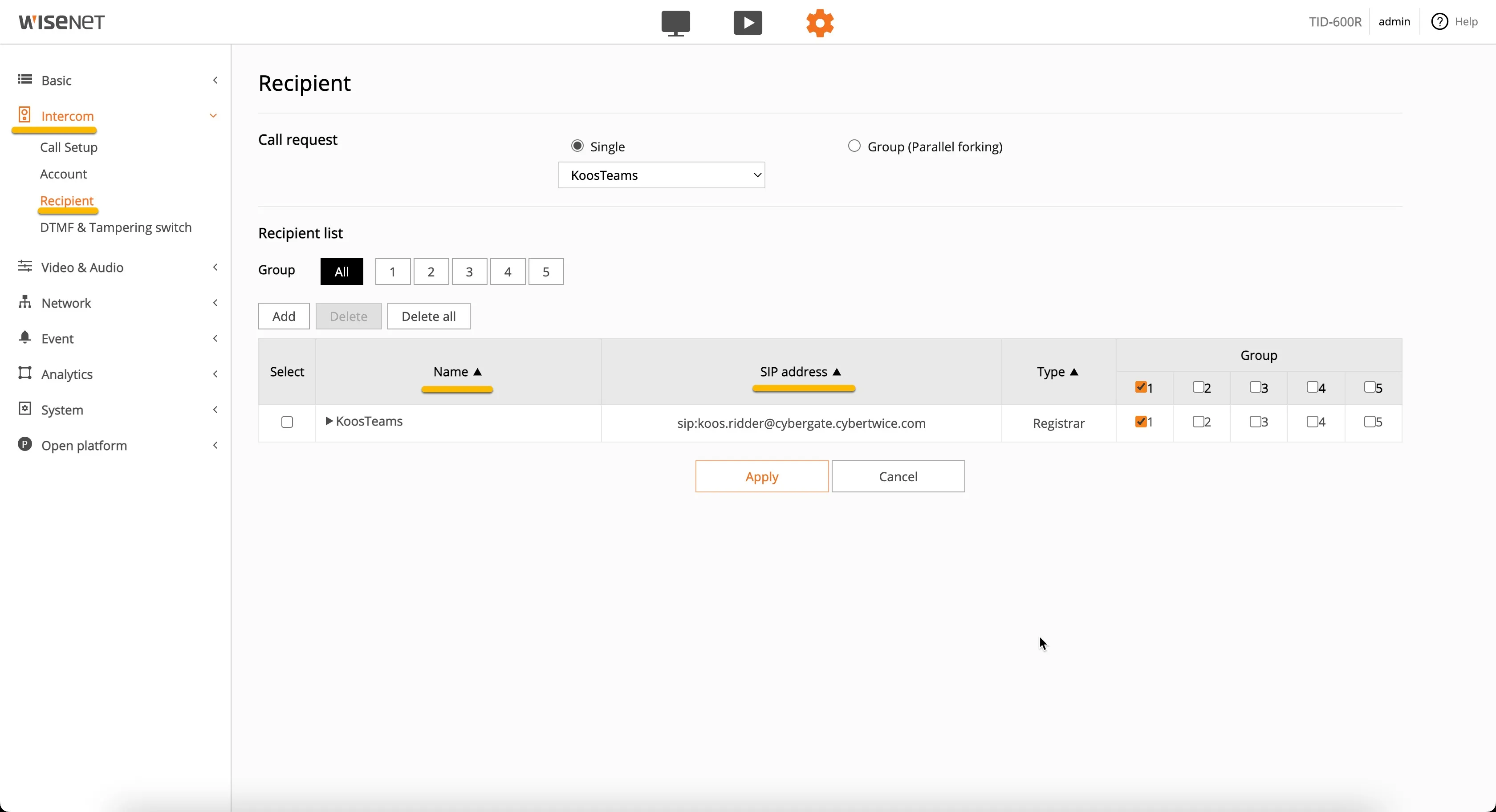
- Navigate to the Intercom-Recipient menu.
- Click Add to add a Recipient.
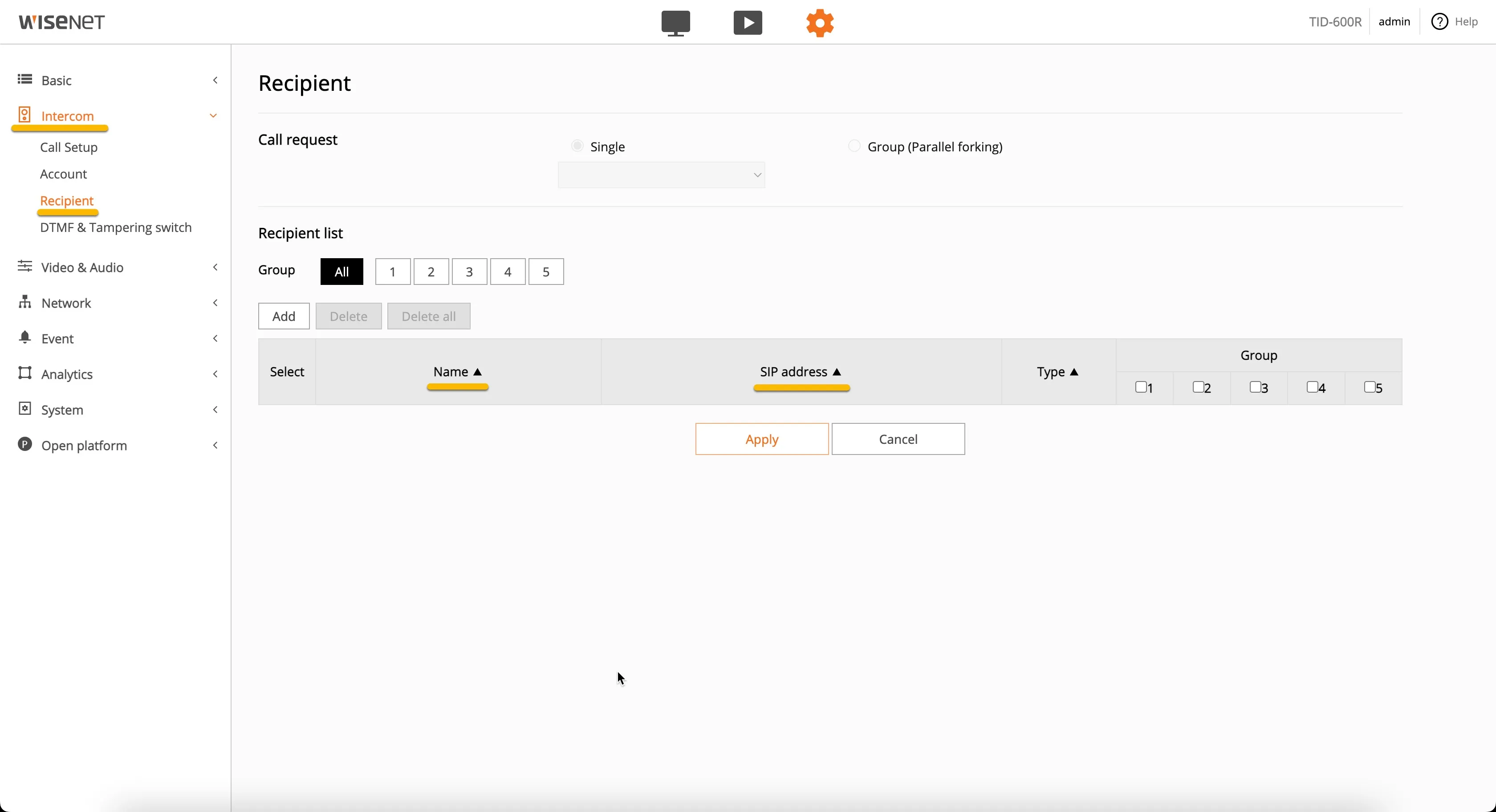
- Add or modify the following information:
Name | Name of the Recipient (in this example 'KoosTeams') |
|---|---|
SIP address | The Teams address of the user: start with sip:, followed by the Teams user name and the domain cybergate.cybertwice.com, in the format sip:<name.name>@cybergate.cybertwice.com * |
* For example, the user Koos Ridder, with the Teams name [email protected], translates to this destination address: sip:[email protected]
- Click the OK button to confirm.
- Click the Apply button to confirm.
Step 5: Configure the DTMF code to open the door
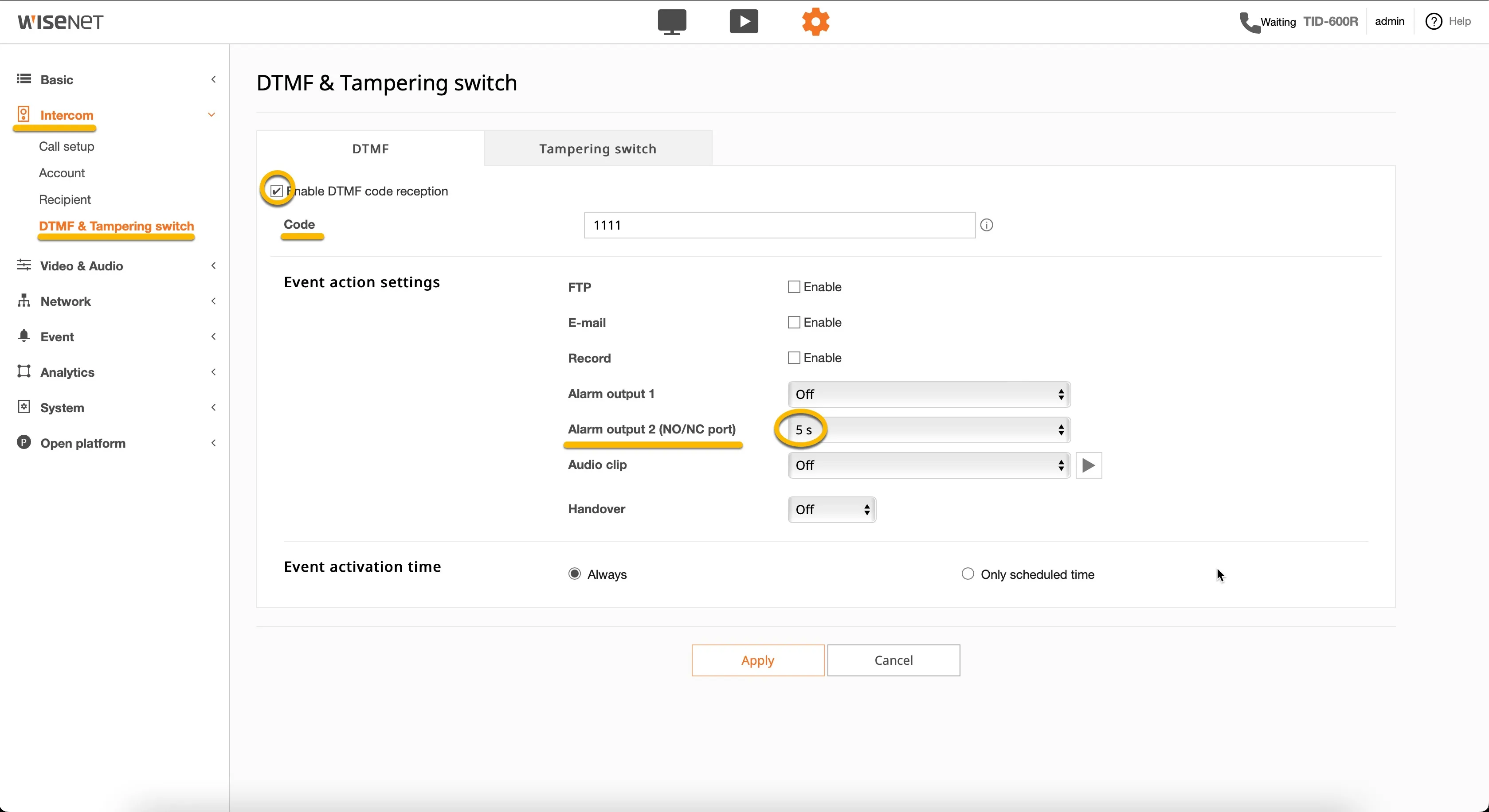
A DTMF code allows a Teams user to open the door during a call.
- Navigate to the Intercom-DTMF & Tampering switch menu.
- Add or modify the following information:
Enable DTMF code reception | Enable |
|---|---|
Code | Define a DTMF code to use (in this example '1111') |
Alarm Output 1 or 2 | Select the output to use and select the preferred switch duration |
- Click the Apply button to confirm.
Configuration of the Hanwha is now finished.
Test the intercom: call Teams and open the door
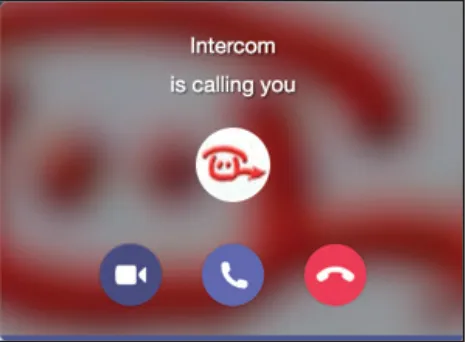
- Press the button on the Hanwha to call the configured Teams recipient. If configured correctly, the Teams client will ring.
- Answer the call by clicking the answer button. The call will be established and video will be displayed within ±3 seconds.
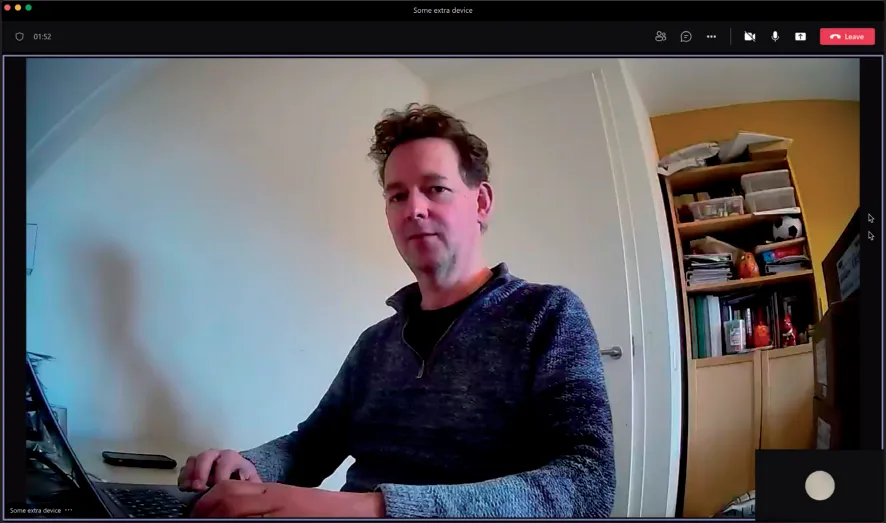
- To open the door from the Teams call, click on the three dots (...) in the call screen and select the Keypad.
- Enter the DTMF code (as configured in the Intercom-DTMF & Tampering switch menu) to open the door.
A more convenient way to open the door during a call is to use the CyberGate for Teams app. See the CyberGate App for Teams manual on how to to install and use the CyberGate for Teams app.
CyberGate App for Microsoft Teams
The CyberGate App for Microsoft Teams offers more CyberGate features directly from Microsoft Teams. One of these features is the Open-door button. This button can be utilized during a call to CyberGate and lets you open the the door by clicking just one button.
For a description on how to install the CyberGate app and use the Open door button please see the CyberGate App for TeamsCyberGate App for Teams manual.