Grandstream and CyberGate
Connect the Grandstream to Microsoft Teams
Supported Grandstream models and naming in this guide
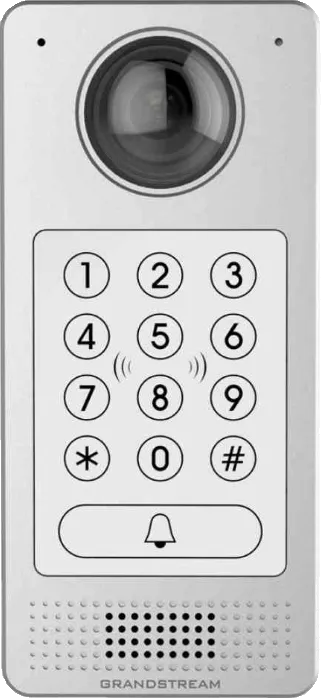
This guide uses the Grandstream GDS3710 (from now on named 'Grandstream') to connect to the CyberGate service (from now on named 'CyberGate'). The Grandstream GDS3712 is also compatible with CyberGate.
The Grandstream is certified for secure communication with CyberGate. First configure the standard connection using the steps in this guide. If the connection and test calls are successful, modify the configuration as described in Configure secure communication over SIP-TLS .
Configure the Grandstream
Connect the Grandstream and sign in
- Connect the Grandstream to the network and power it on.
- Open a web browser and go to the IP address of the Grandstream.
- Sign in as admin with the configured or supplied password of the Grandstream.
After signing in successfully, the Grandstream shows the Status → System Info menu.
Configure the door system settings
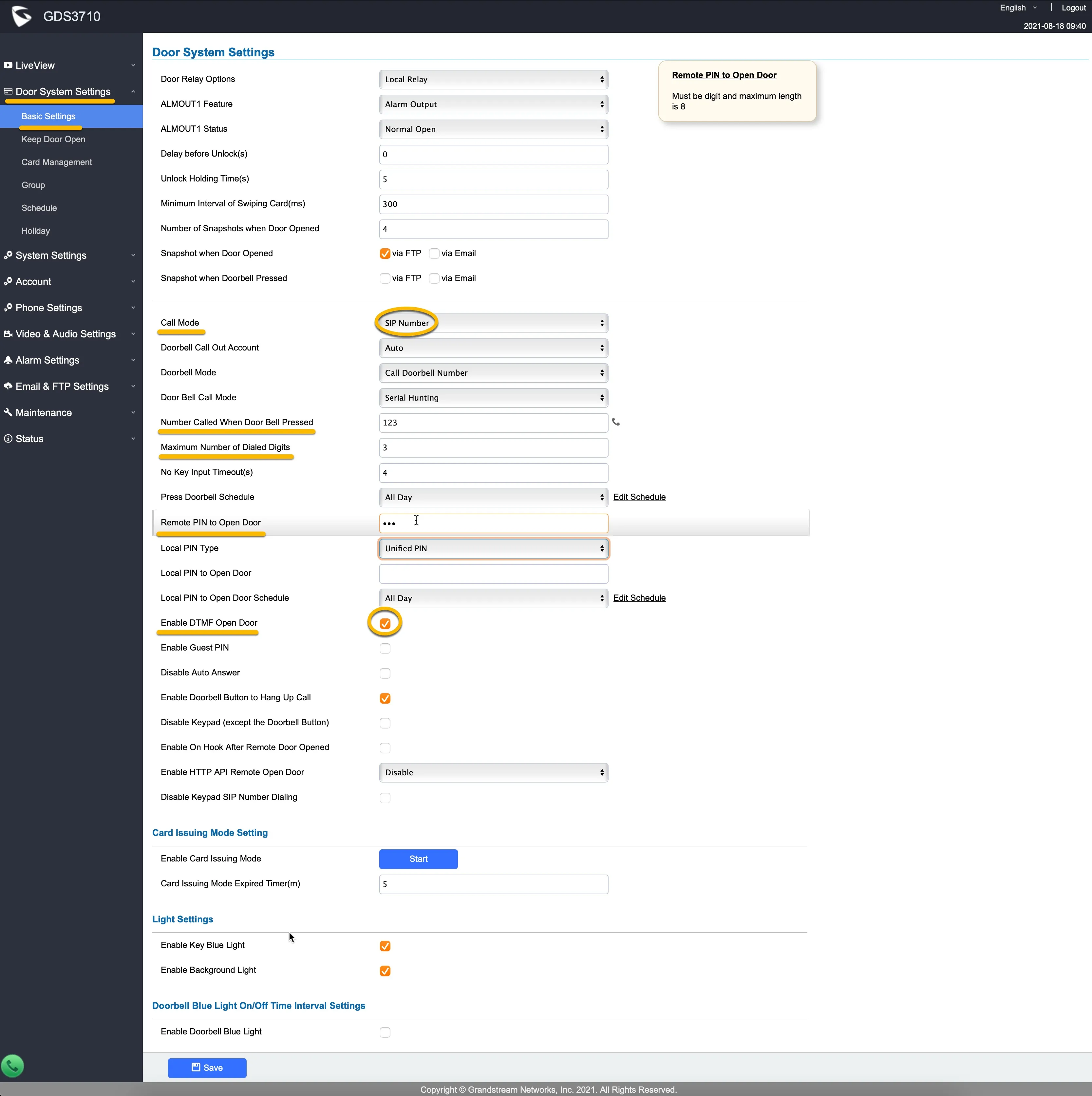
- Navigate to the menu Door System Settings → Basic Settings.
- Provide or change the following information:
Door System Settings | |
|---|---|
Call Mode | SIP Number |
Number Called When Doorbell Pressed | Make up a number to be dialed, for example 123 as in this screenshot |
Maximum Number of Dialed Digits | In this case 3, because 123 contains 3 digits. Modify it to match the chosen number above |
Remote Pin to Open Door | Choose a code to remotely open the door from Microsoft Teams |
Enable DTMF Open Door | Enable. This enables opening the door from Microsoft Teams using dual-tone multi-frequency (DTMF) tones |
- Click the blue Save button when done.
Configure the SIP account
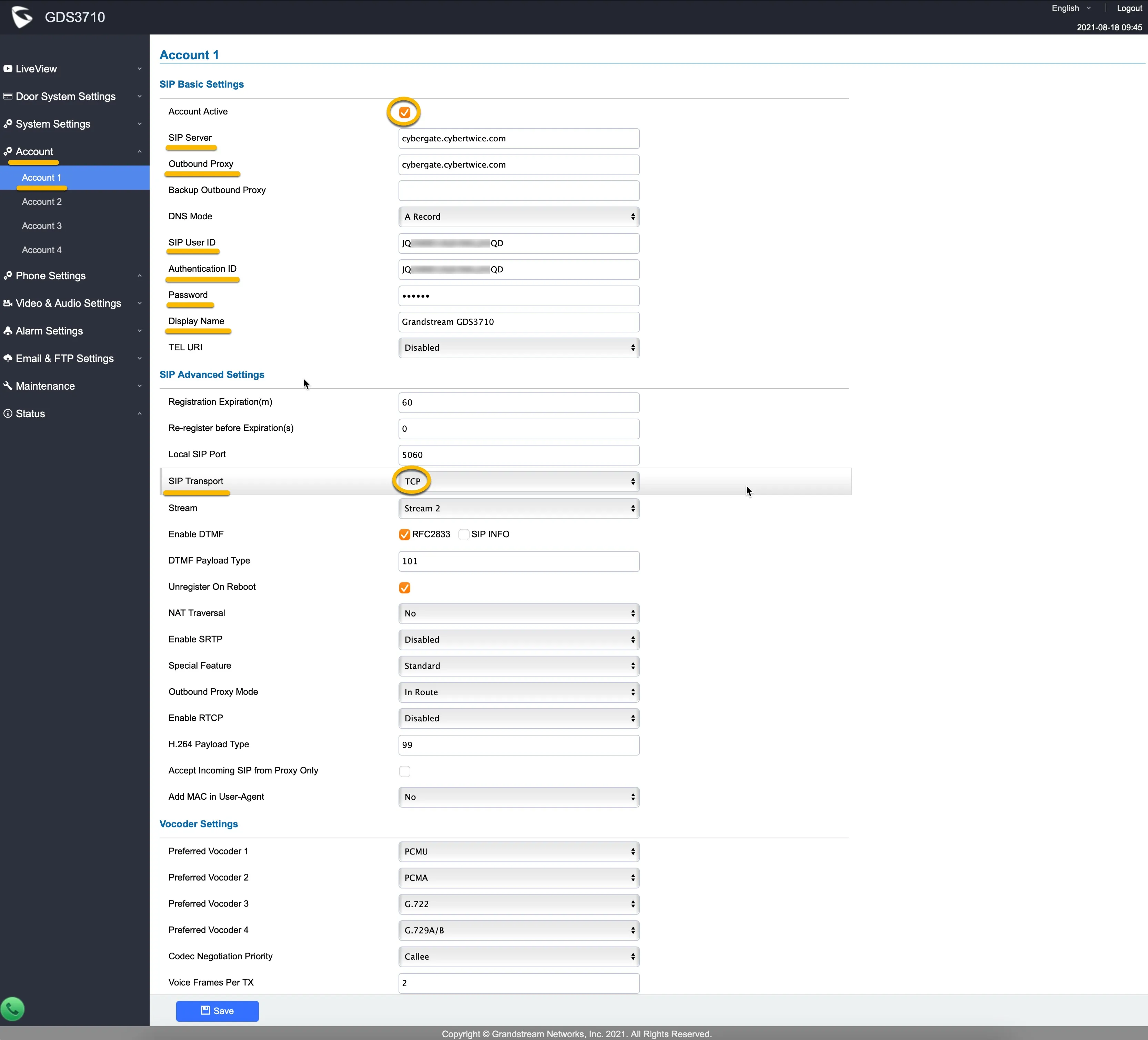
- Navigate to the menu Account → Account 1.
- Provide or change the following information:
SIP Basic Settings | |
|---|---|
Account Active | Enable |
SIP Server | cybergate.cybertwice.com |
Outbound Proxy | cybergate.cybertwice.com |
SIP User ID | Use the Username provided by the CyberGate Management Portal |
Authentication ID | Use the Username provided by the CyberGate Management Portal |
Password | Use the Password provided by the CyberGate Management Portal |
Display Name | The display name for this Grandstream (can be anything) |
SIP Advanced Settings | |
SIP Transport | Change the UDP setting to TCP |
- Click the blue Save button when done.
Verify the SIP registration status
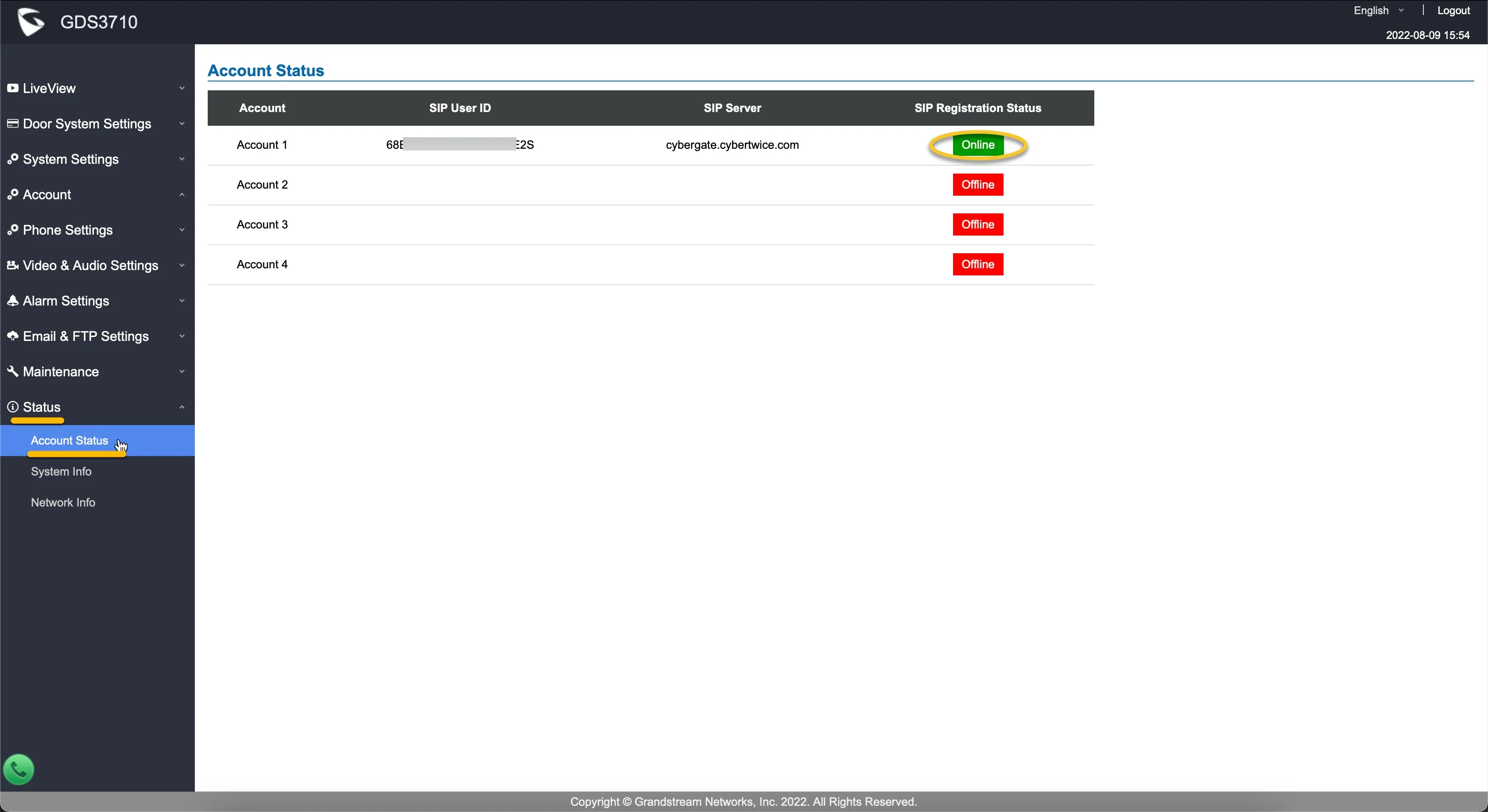
- Navigate to the menu Status → Account Status.
- Check the SIP Registration Status of Account 1. If the provided SIP information is correct, Account 1 displays the SIP Registration Status Online.
Configuration of the Grandstream is now finished.
Create a Call group in the CyberGate Management portal
As the configured number (123) is not a valid Teams user within your Teams environment, you must configure a Call group via the CyberGate Management portal. The Call group enables you to 'translate' the dialed number (123) to one or more valid and existing Teams user(s). See the manual CyberGate Call Group Settings on this site on how to create a Call group and add Teams users to this group.
What happens when a visitor presses the call button?
The following sequence takes place when the call button on the Grandstream is pressed:
- The Grandstream places a call to CyberGate using the number configured in the Grandstream - in our example 123.
- CyberGate answers the call to 123 and recognizes the 123 number as a Call group.
- CyberGate checks which Teams user(s) to call (as configured in the Call group) and places the call to all Teams users in this group.
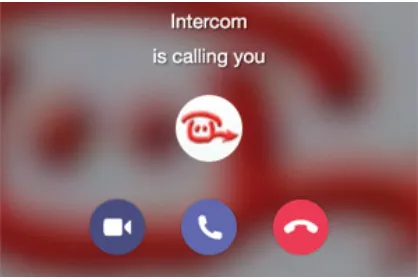
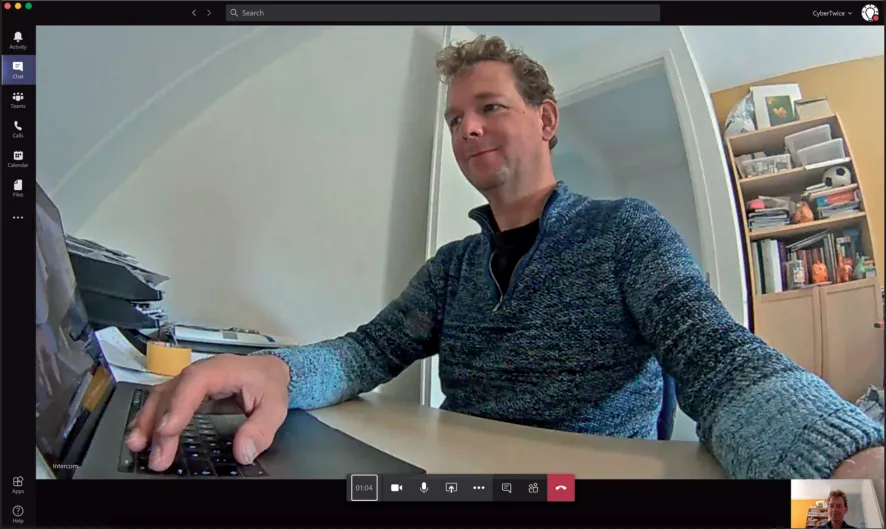
- The Teams user that answers the incoming call in Teams (by clicking the camera symbol) is connected to the Grandstream.
The call is established and video is displayed within ±3 seconds.
Open the door from a Teams call
- In the Teams call screen, click the dial pad symbol.
- Enter the 'Remote Pin to Open Door' code configured earlier in the Grandstream. This triggers the relay in the Grandstream and opens the door.
A more convenient way to open the door during a call is to use the CyberGate for Teams app. See the CyberGate App for Teams manual on how to to install and use the CyberGate for Teams app.
Configure secure communication over SIP-TLS
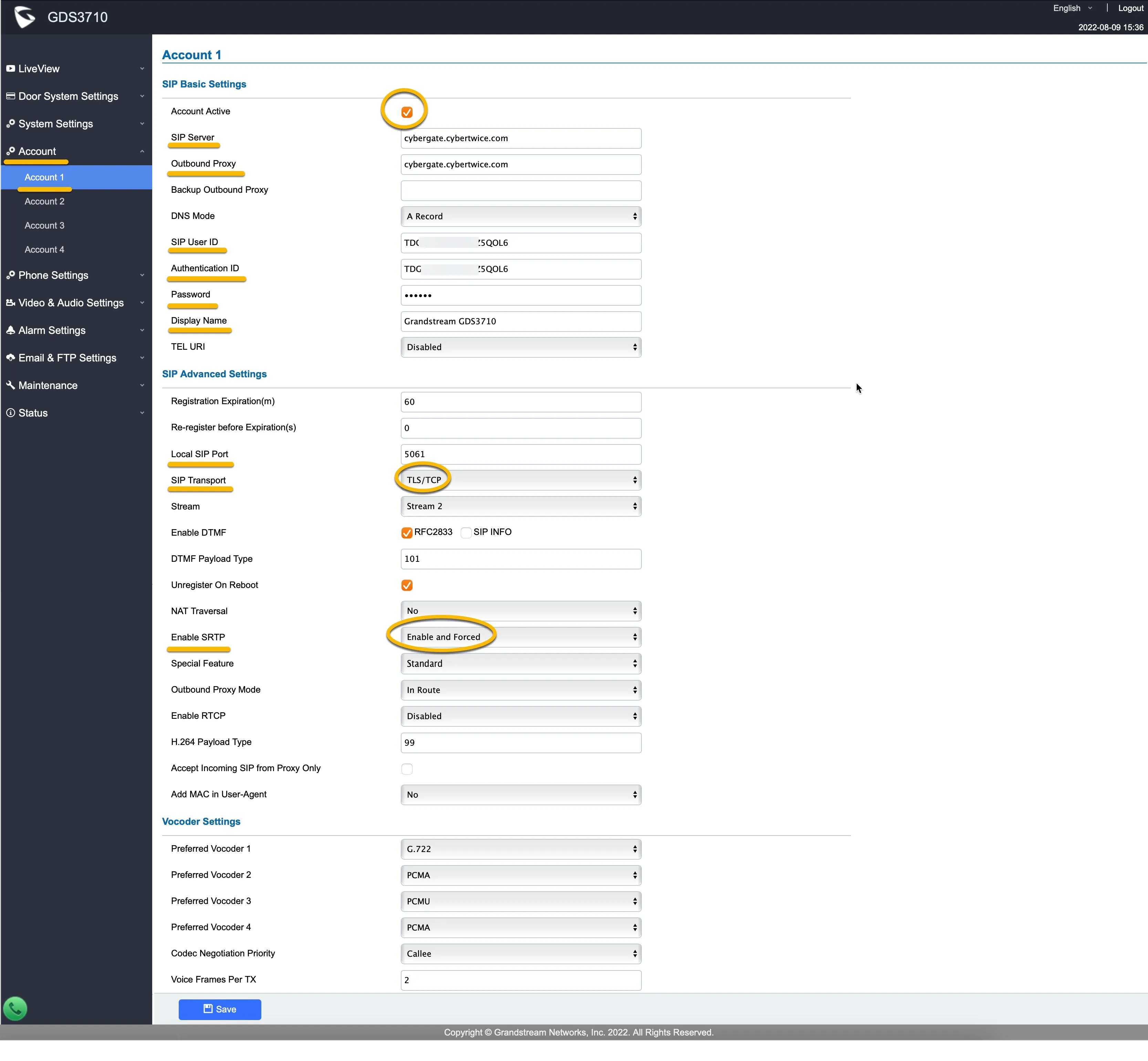
If a secure connection to CyberGate is desired, switch the SIP transport from TCP to Transport Layer Security (TLS) and force Secure Real-time Transport Protocol (SRTP) for the audio stream, as follows:
- Navigate to the menu Account → Account 1.
- Modify the following information at SIP Advanced Settings:
Setting | Value |
|---|---|
Local SIP Port | Change to 5061 |
SIP Transport | Change to TLS |
Enable SRTP | Enable and Forced |
- Click Save when done.
- Check the registration status in the menu Status → Account Status.
Configuration of the secure communication is done. All SIP and audio traffic to and from CyberGate is now encrypted.
CyberGate App for Microsoft Teams
The CyberGate App for Microsoft Teams offers more CyberGate features directly from Microsoft Teams. One of these features is the Open-door button. This button can be utilized during a call to CyberGate and lets you open the the door by clicking just one button.
For a description on how to install the CyberGate app and use the Open door button please see the CyberGate App for TeamsCyberGate App for Teams manual.