IpDoor and CyberGate
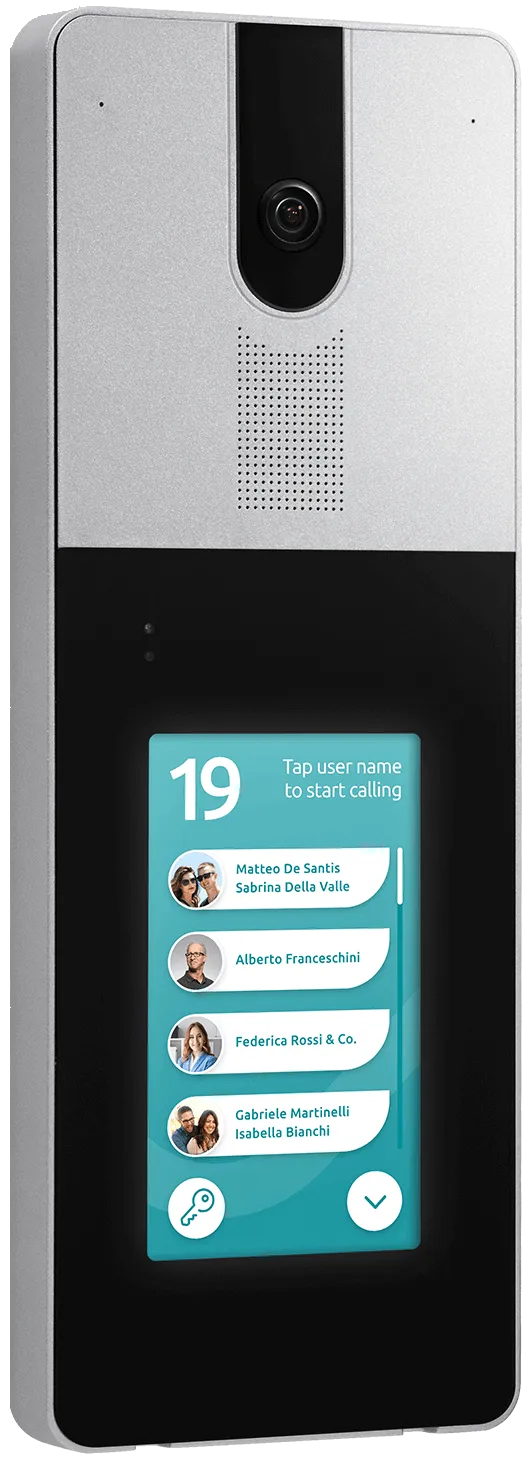
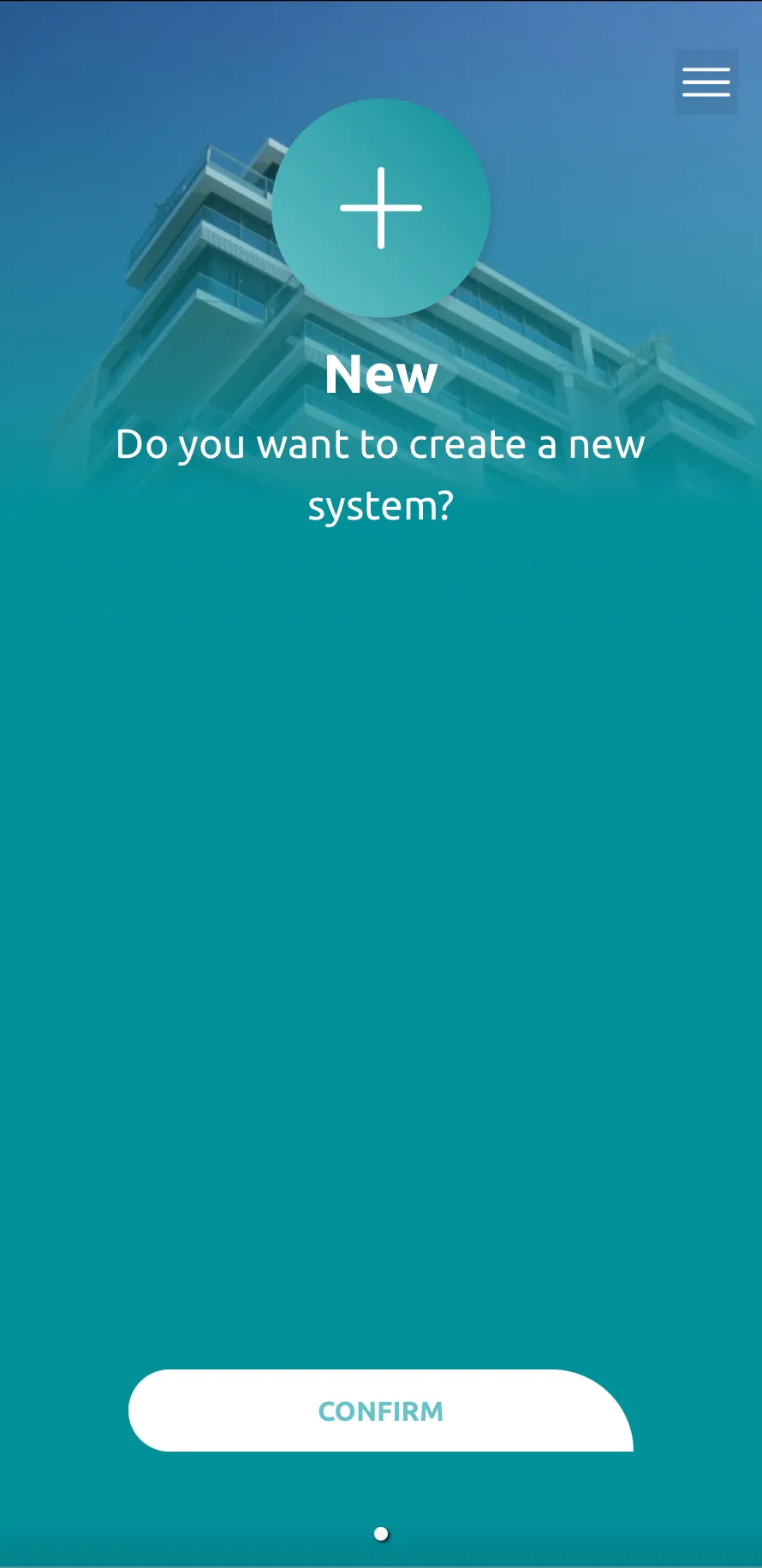
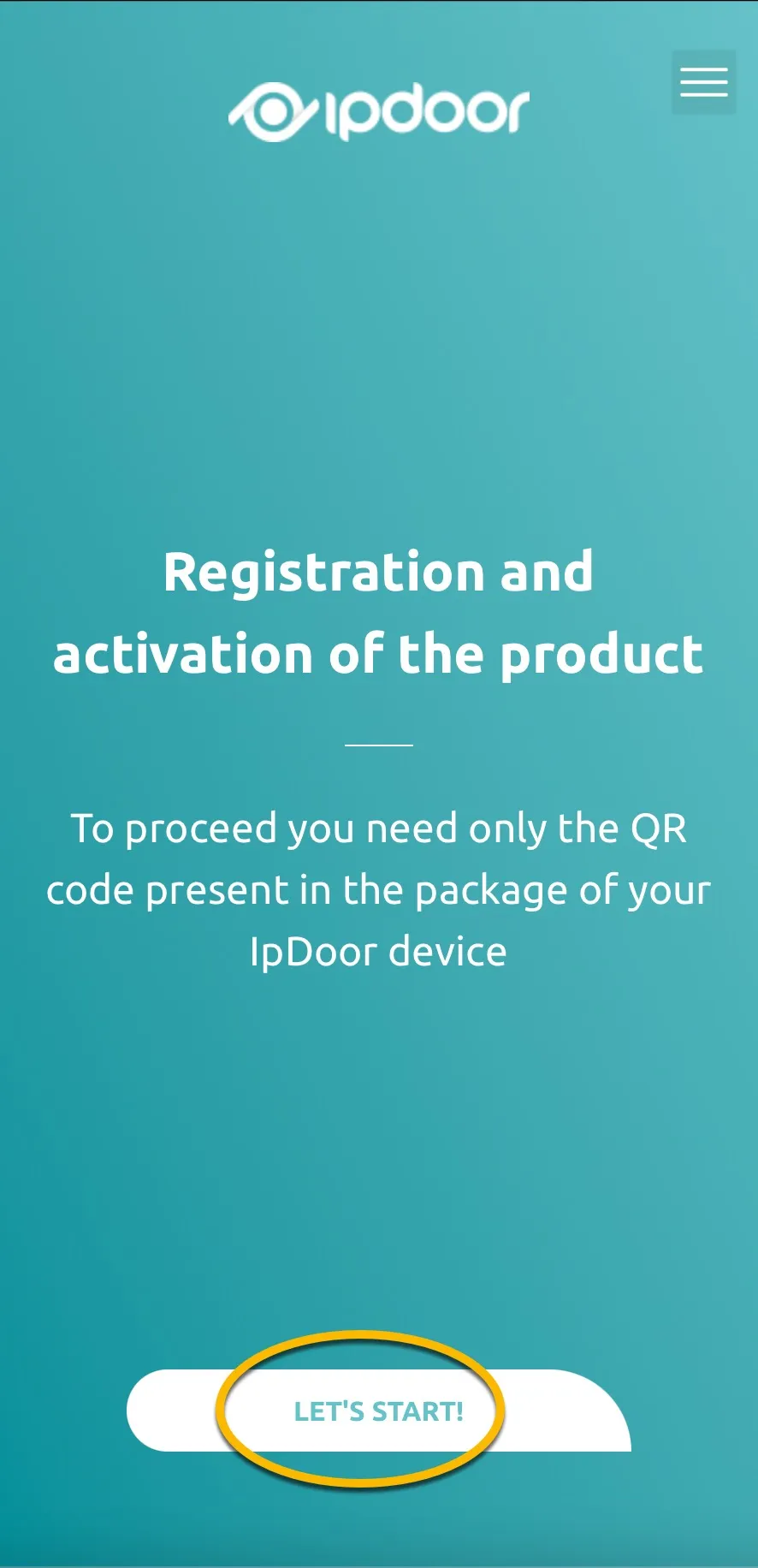
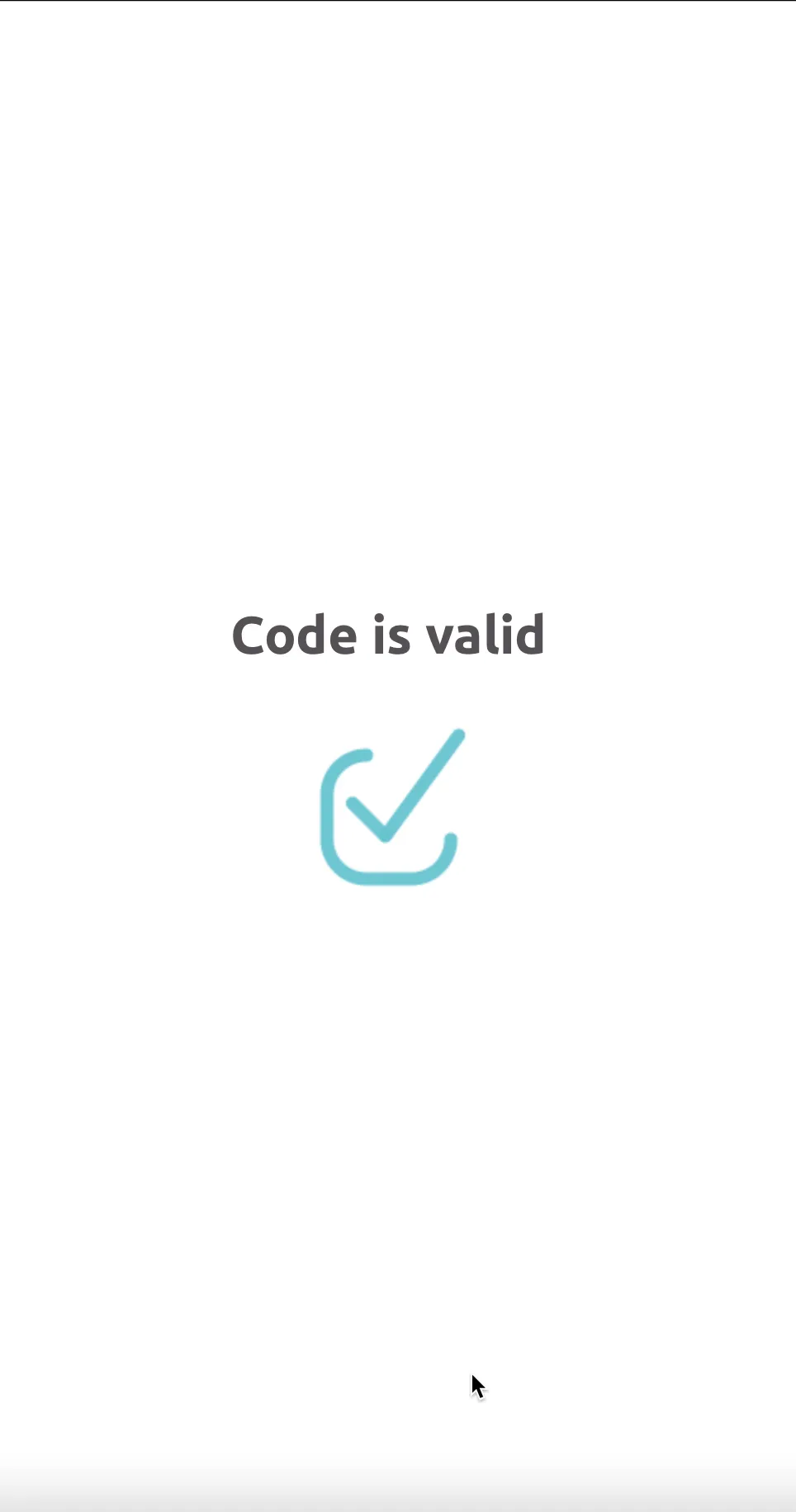
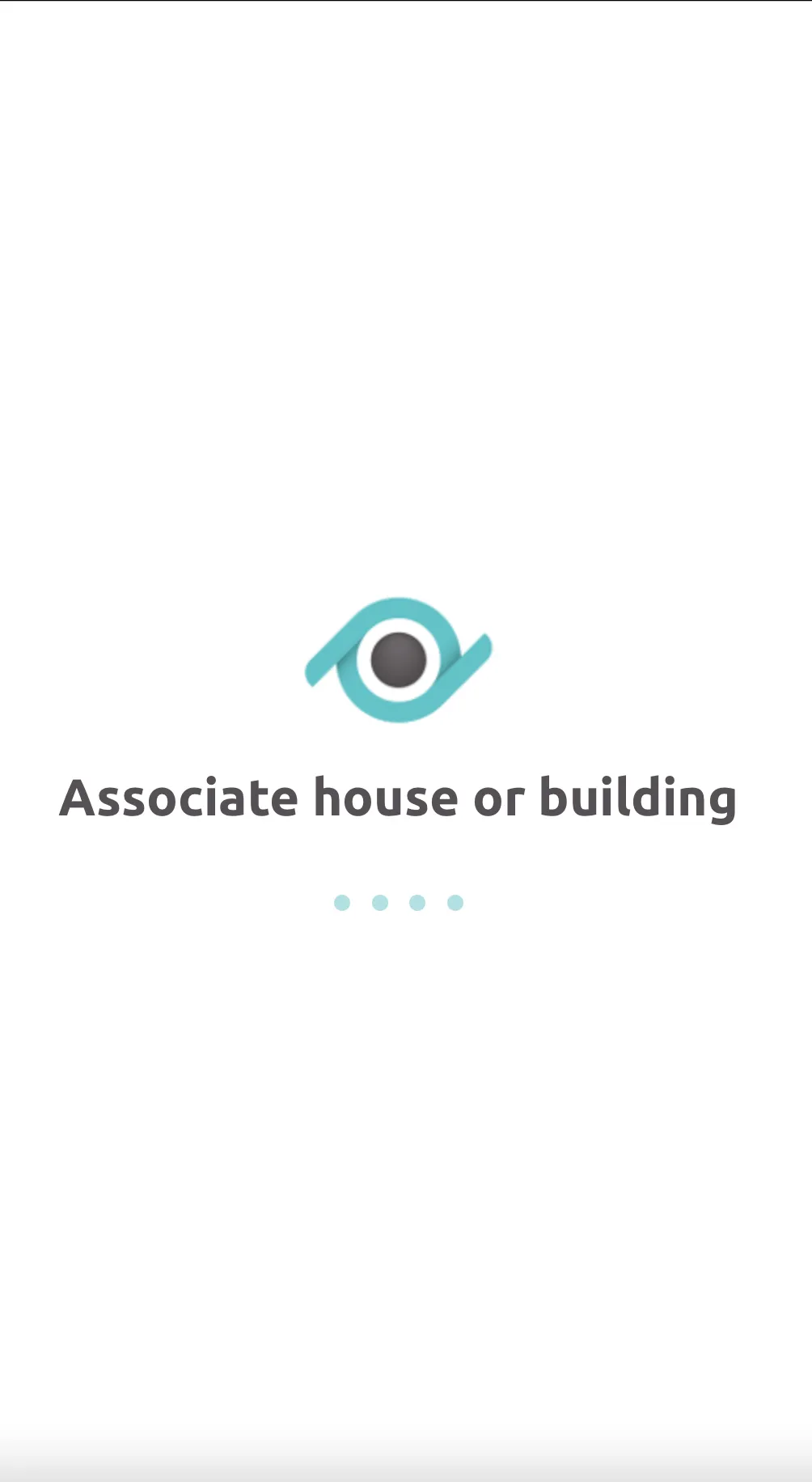
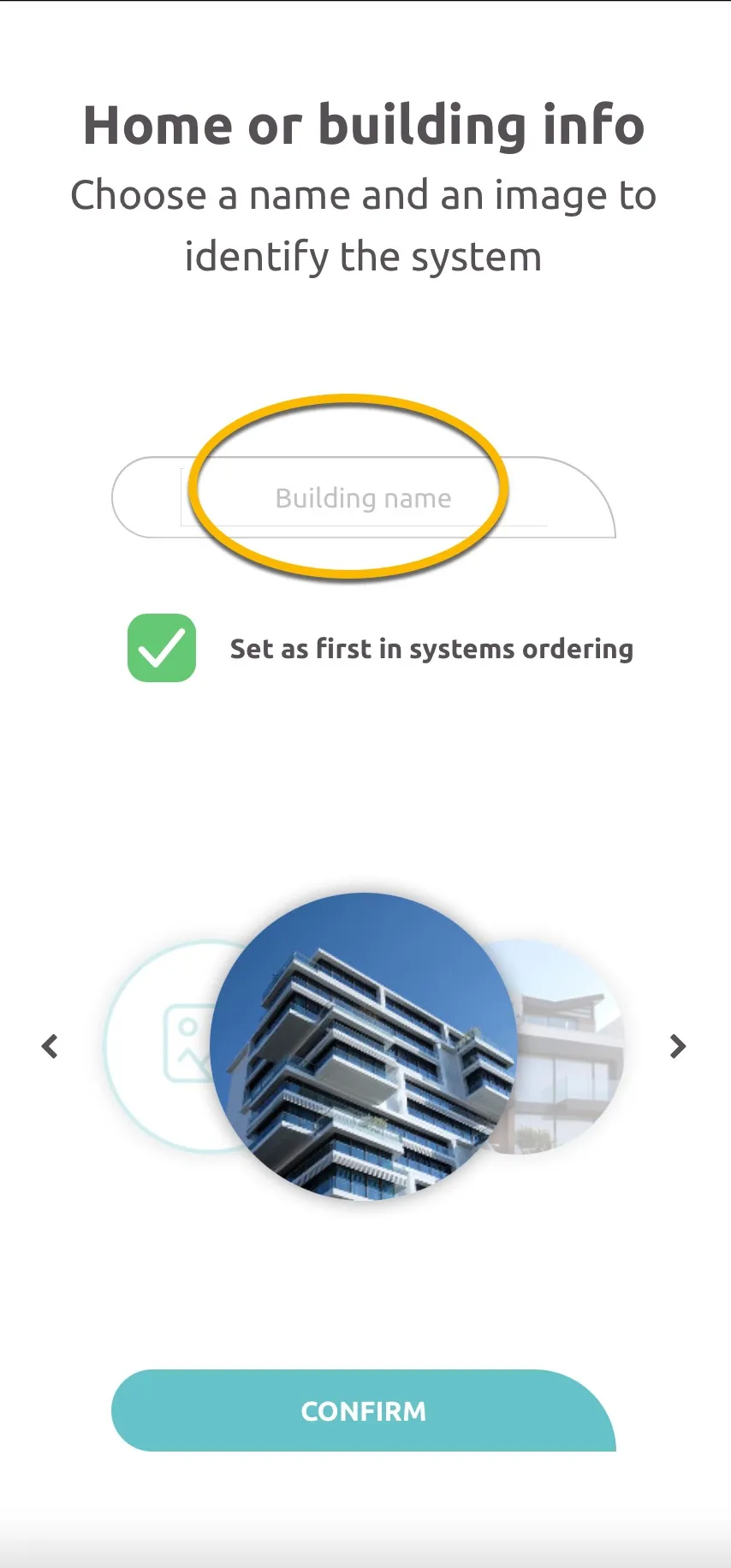
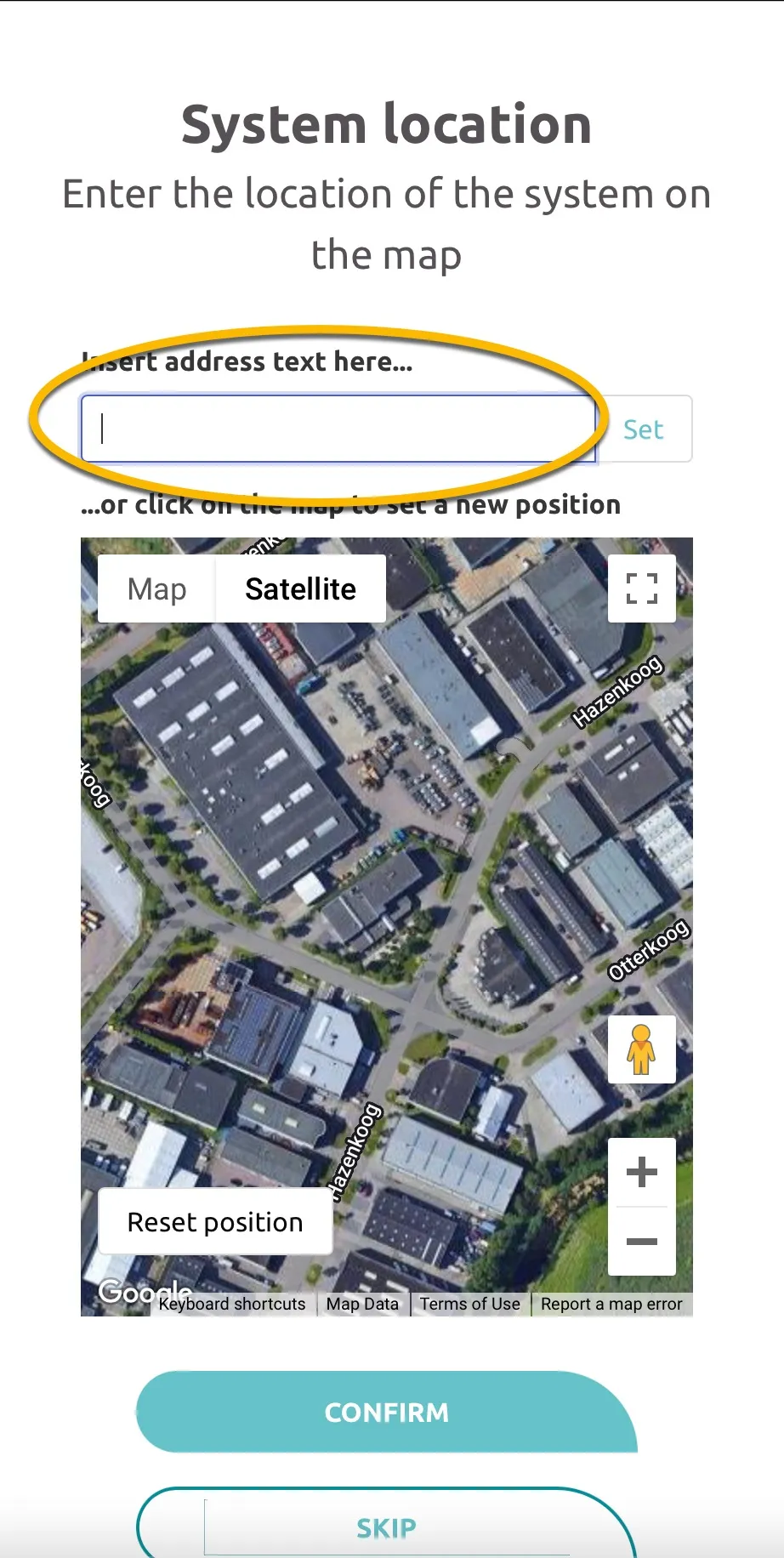
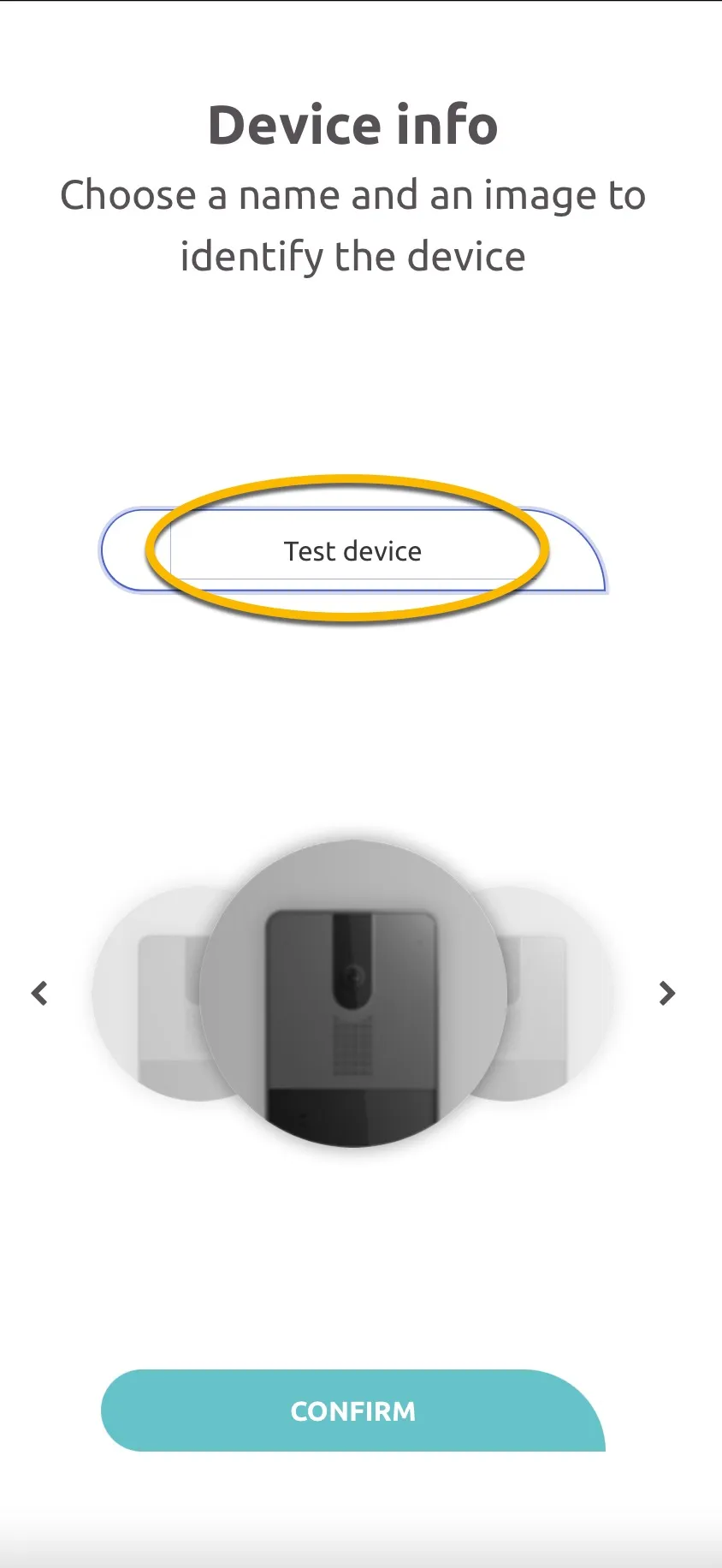
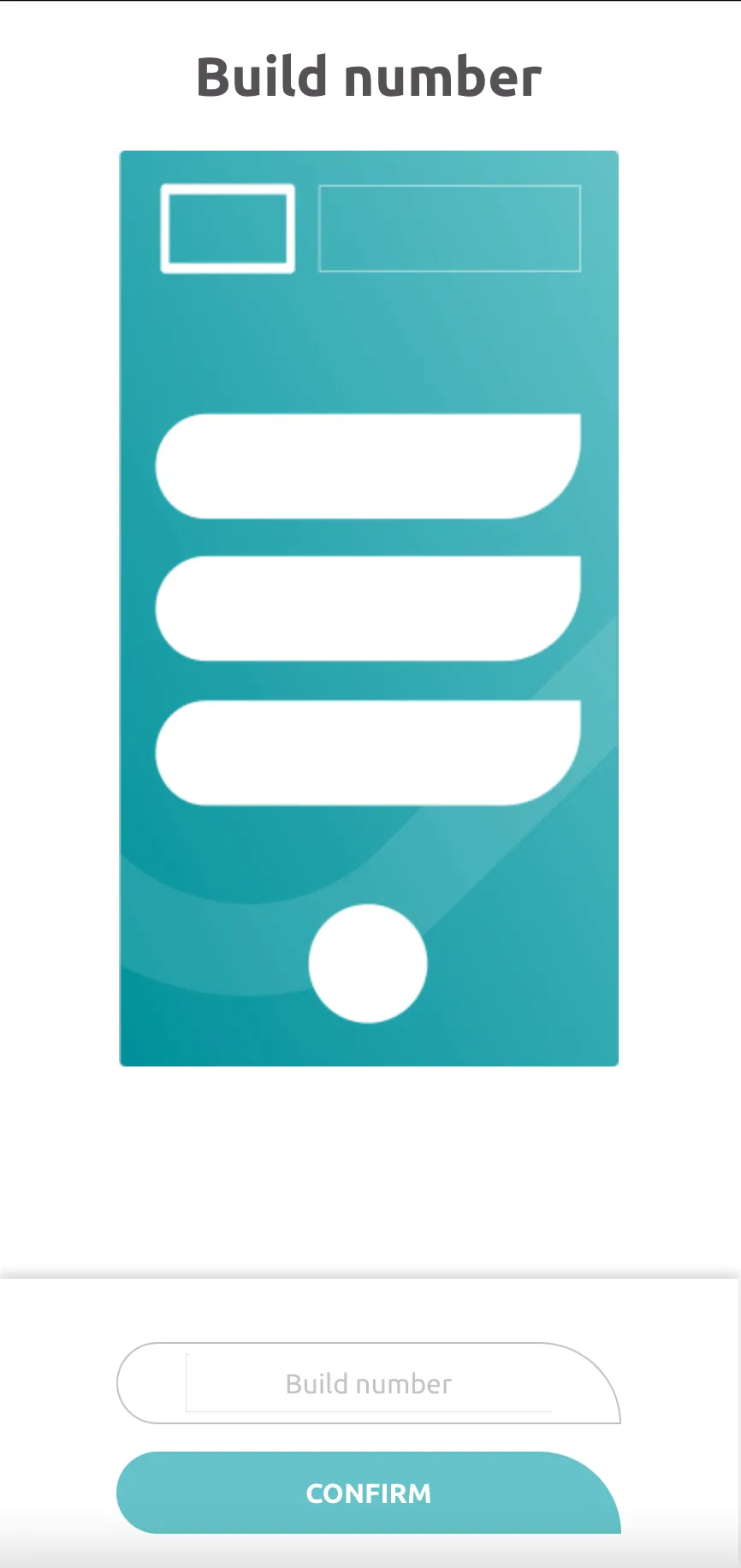
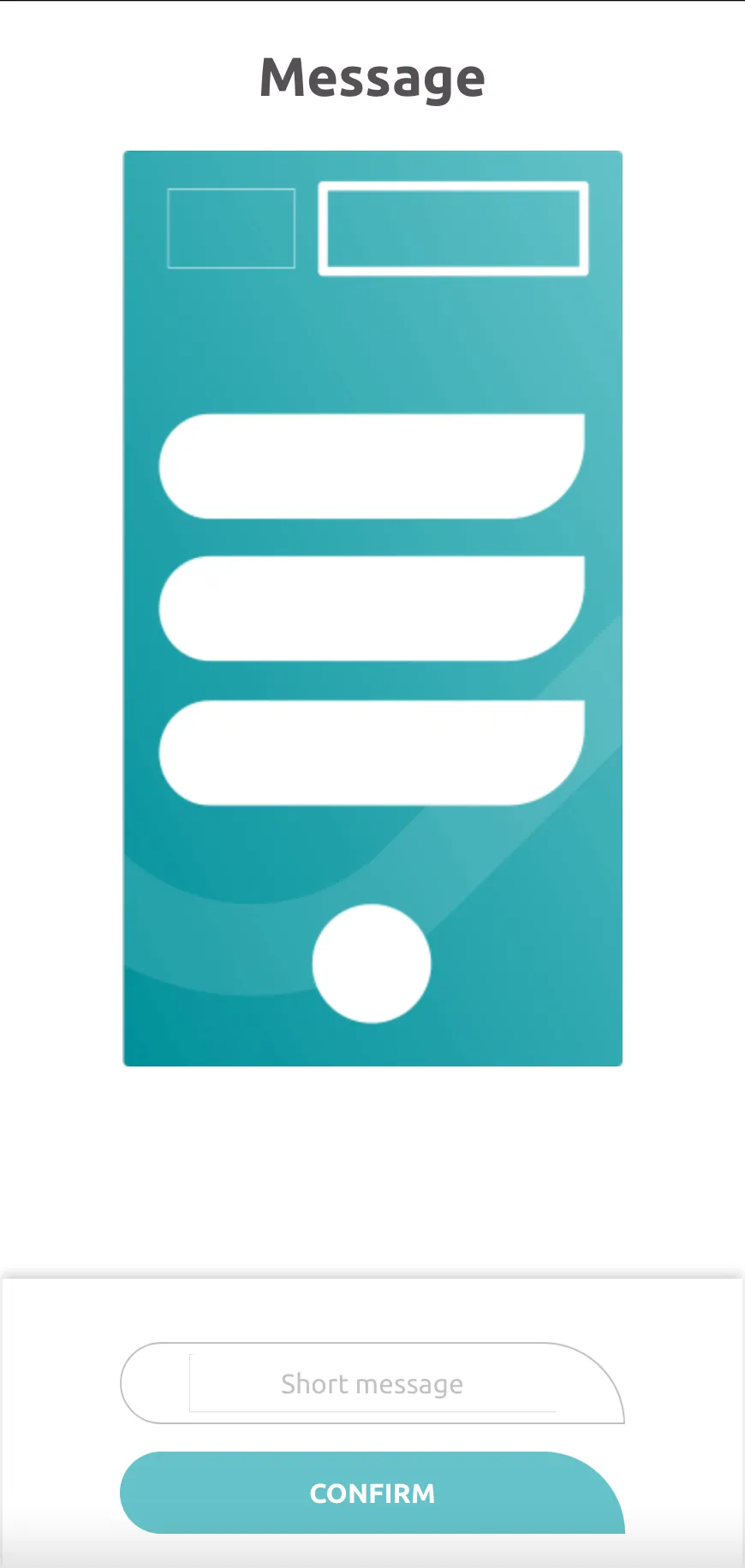
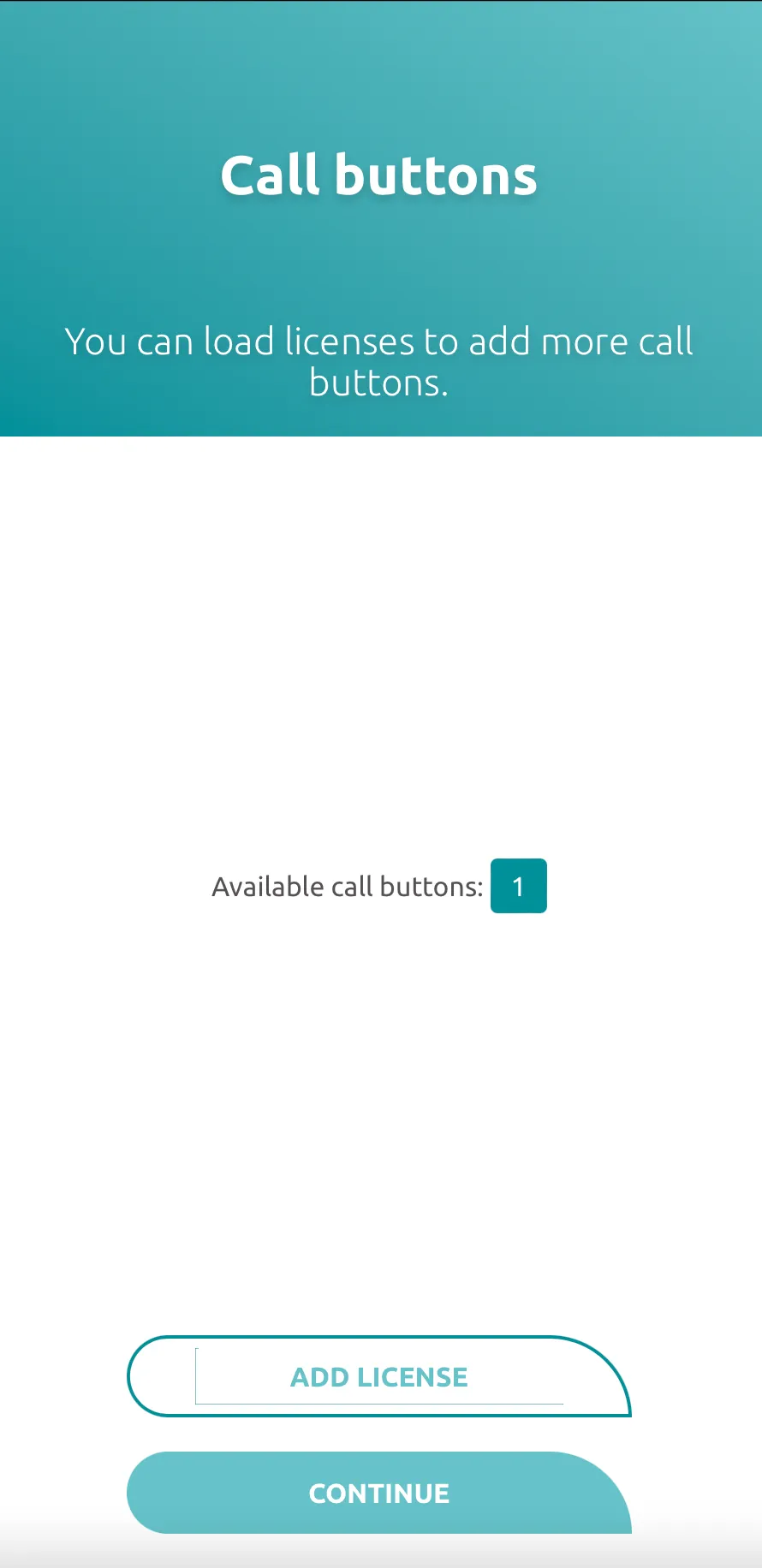
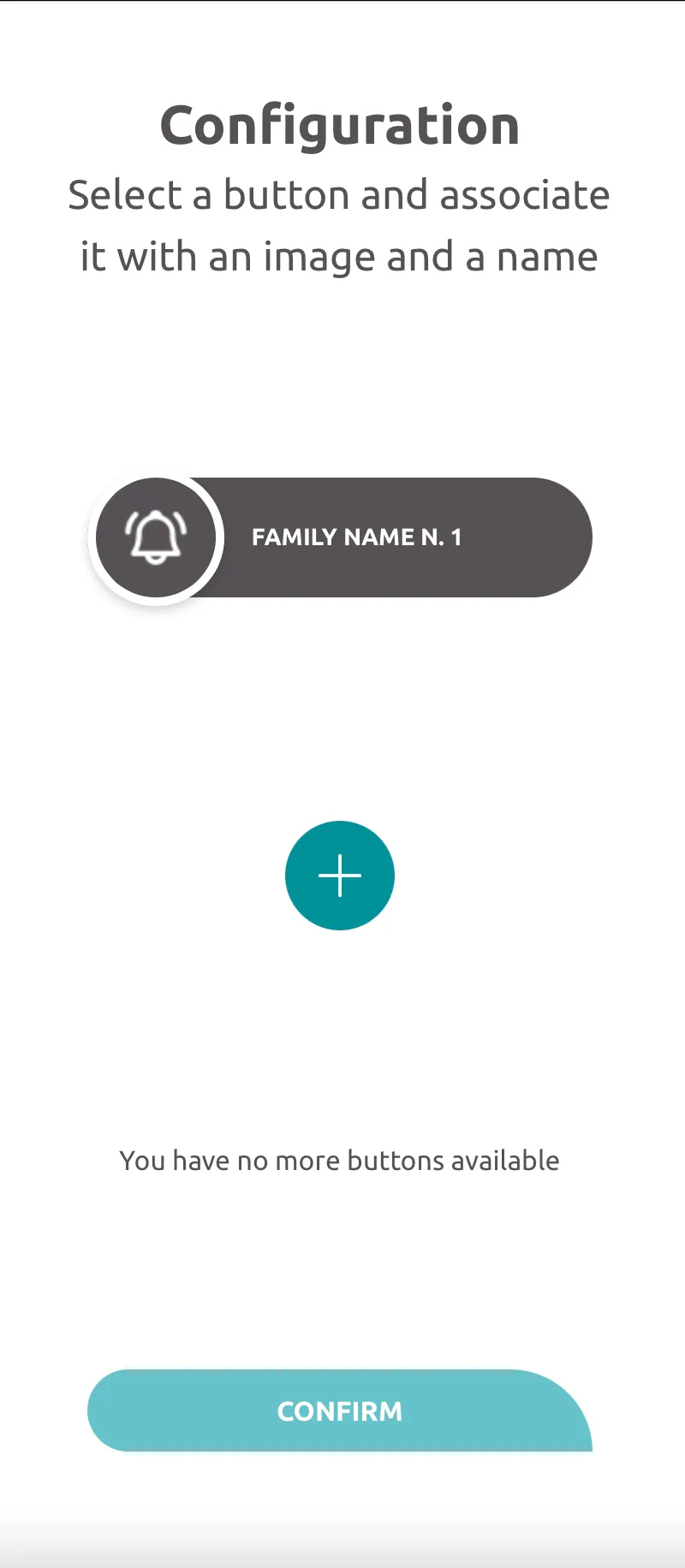
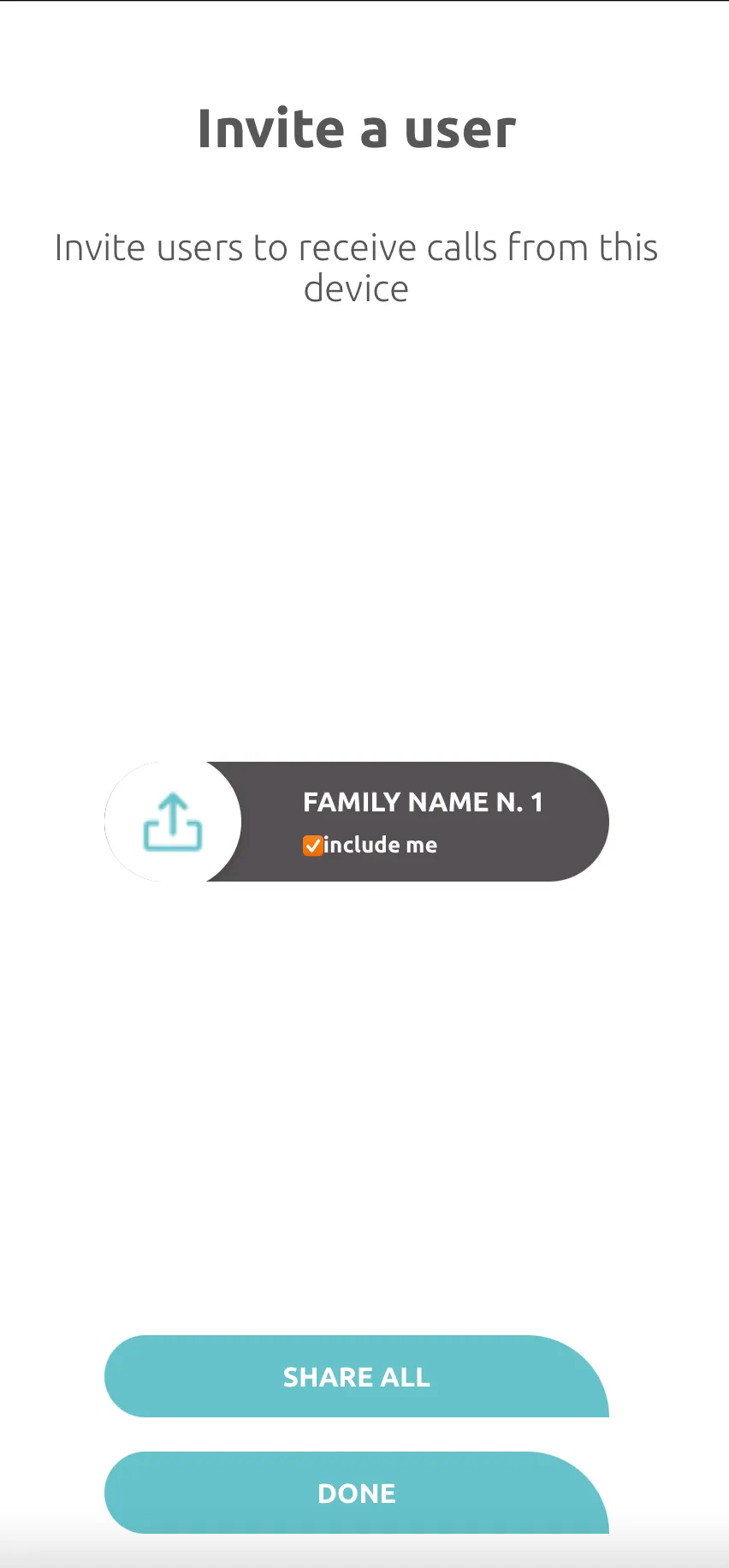
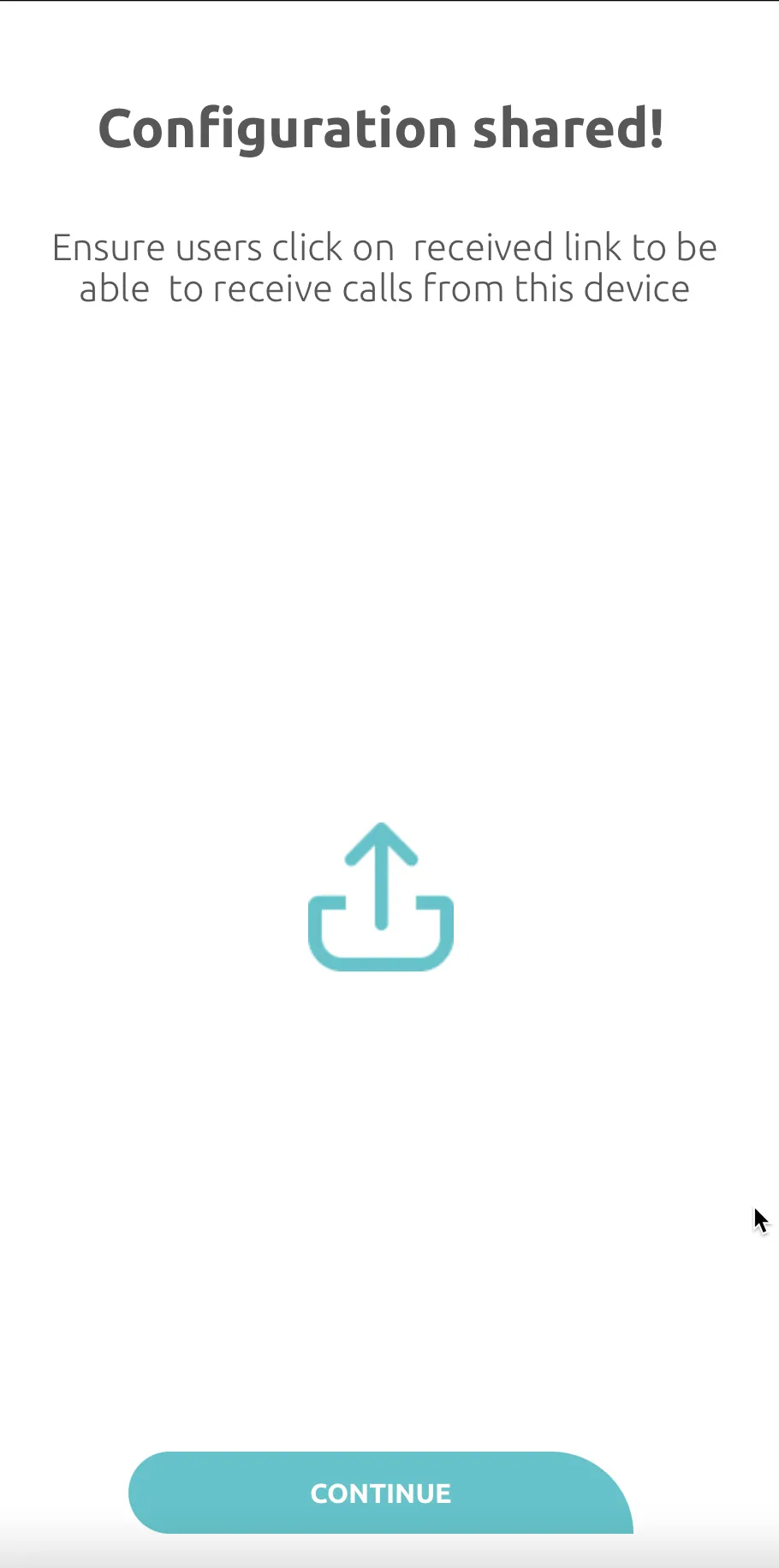
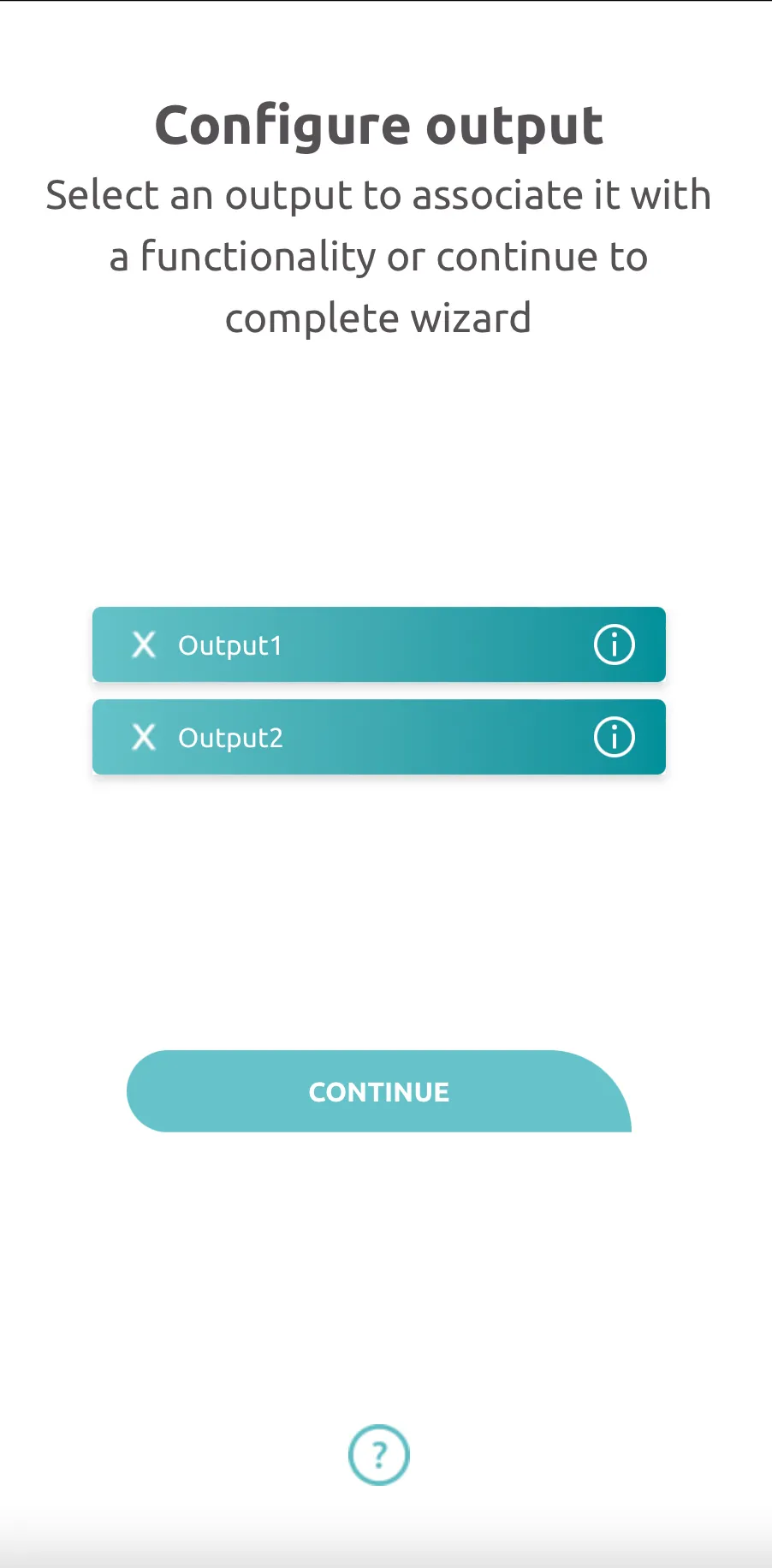
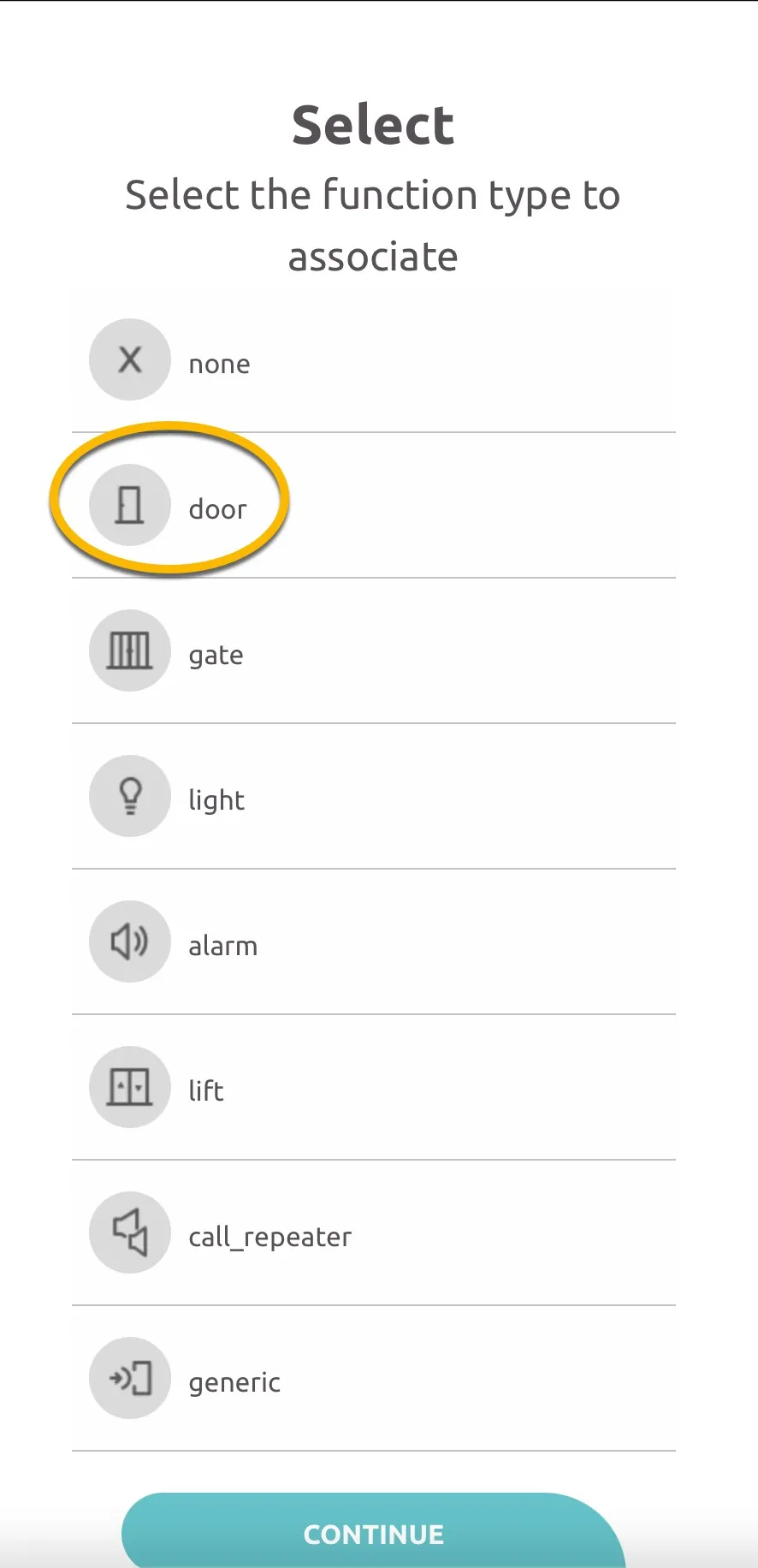
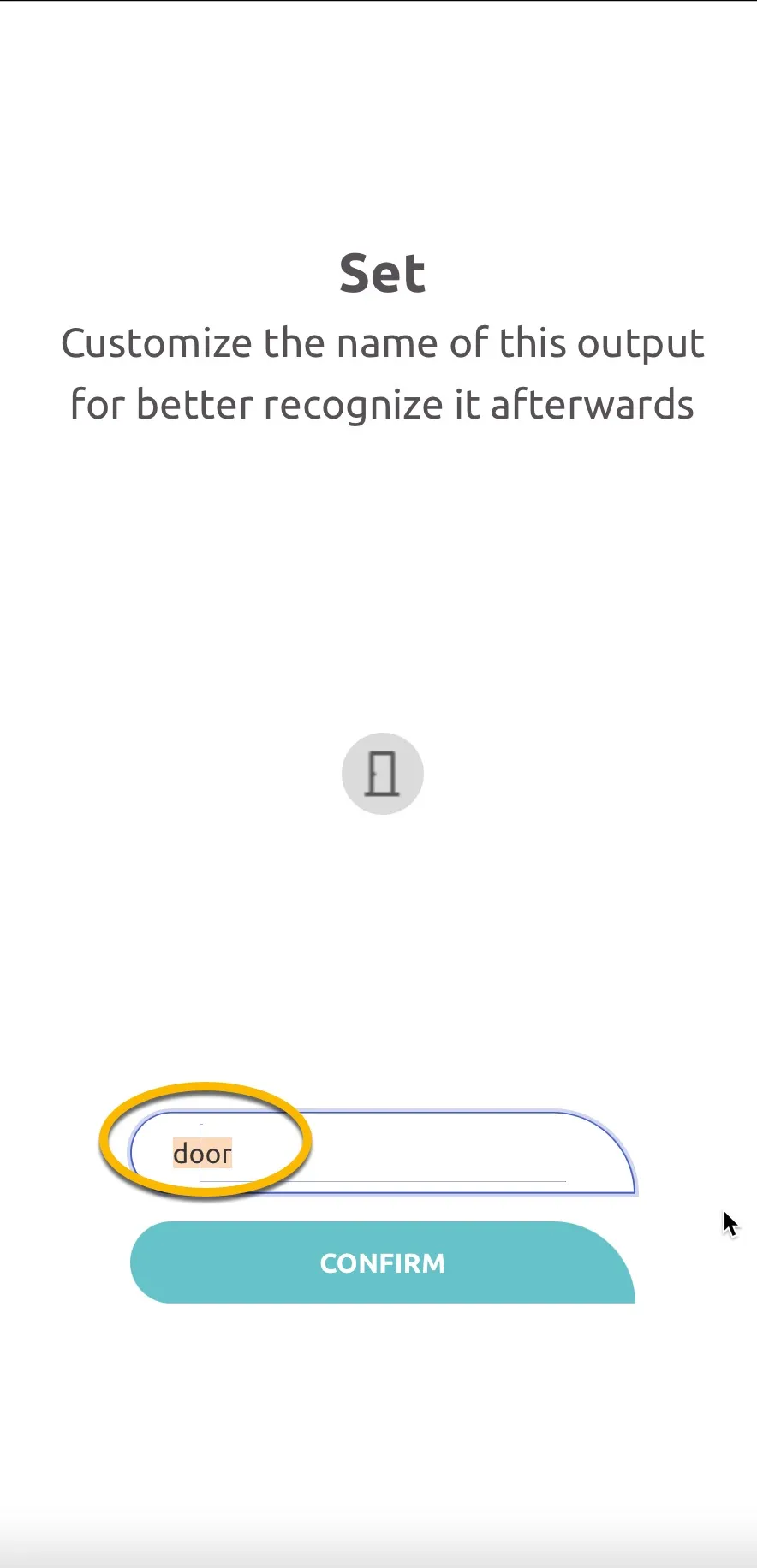
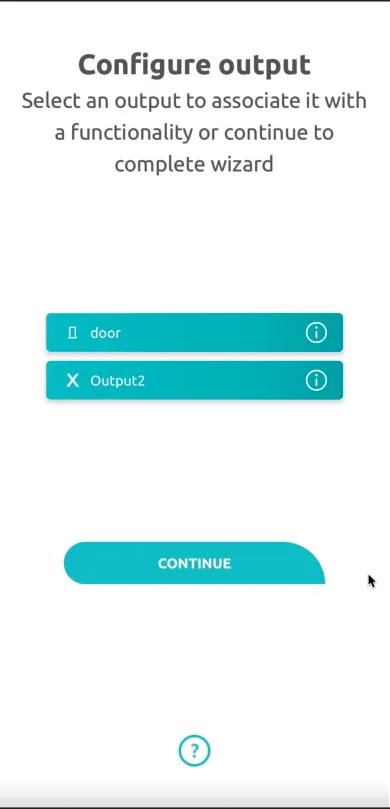
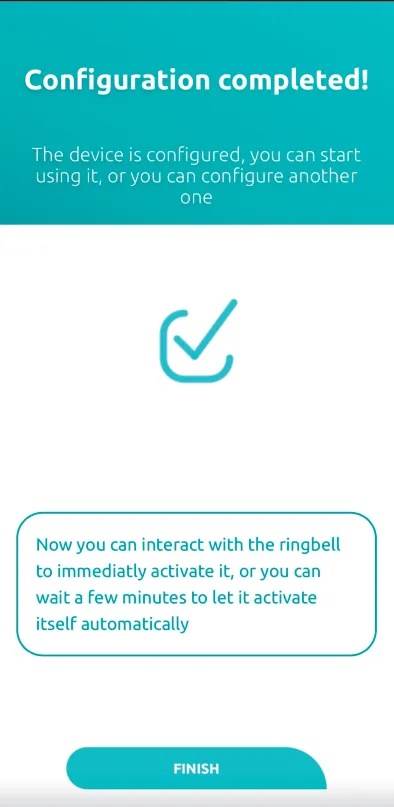
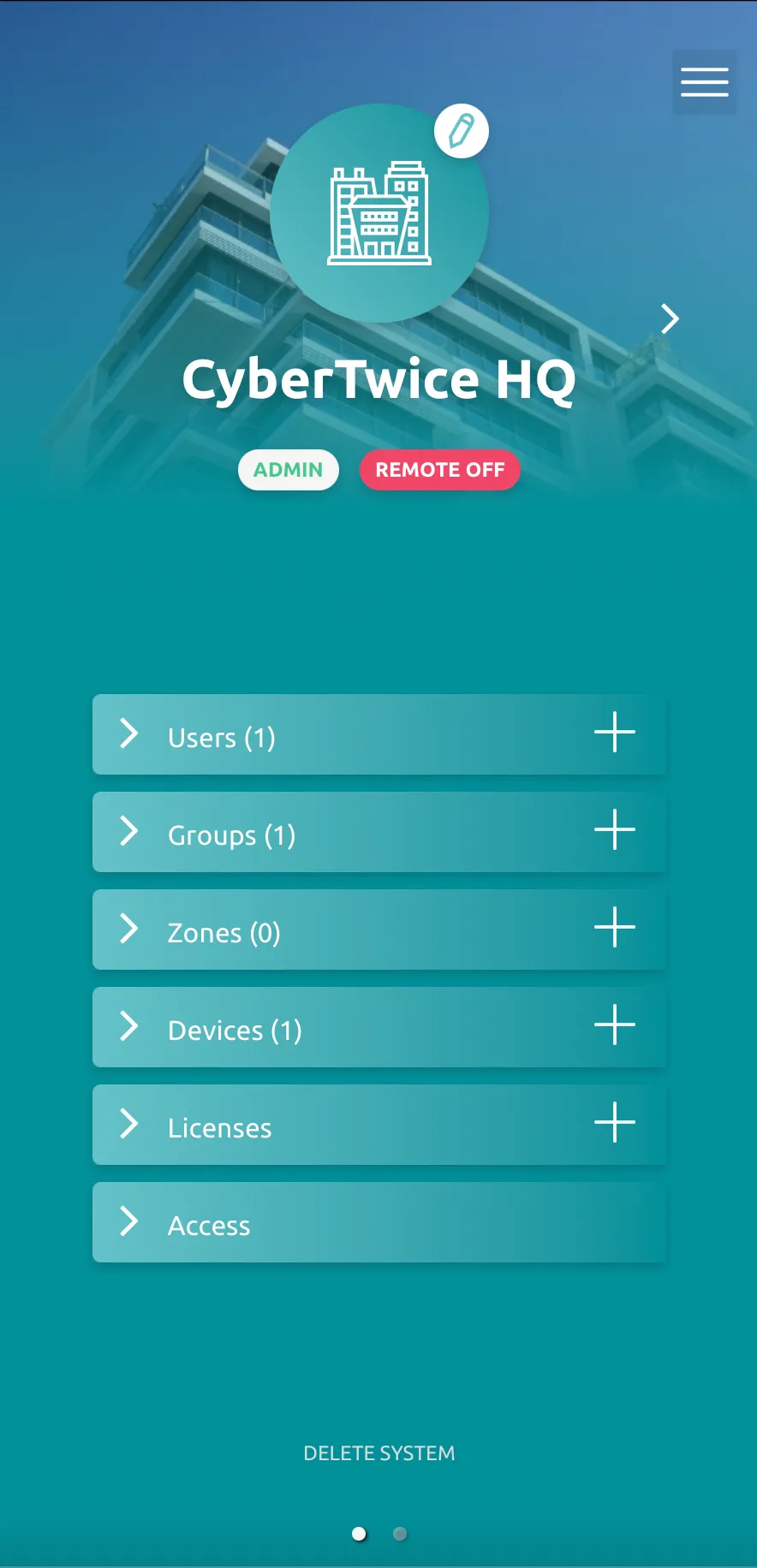
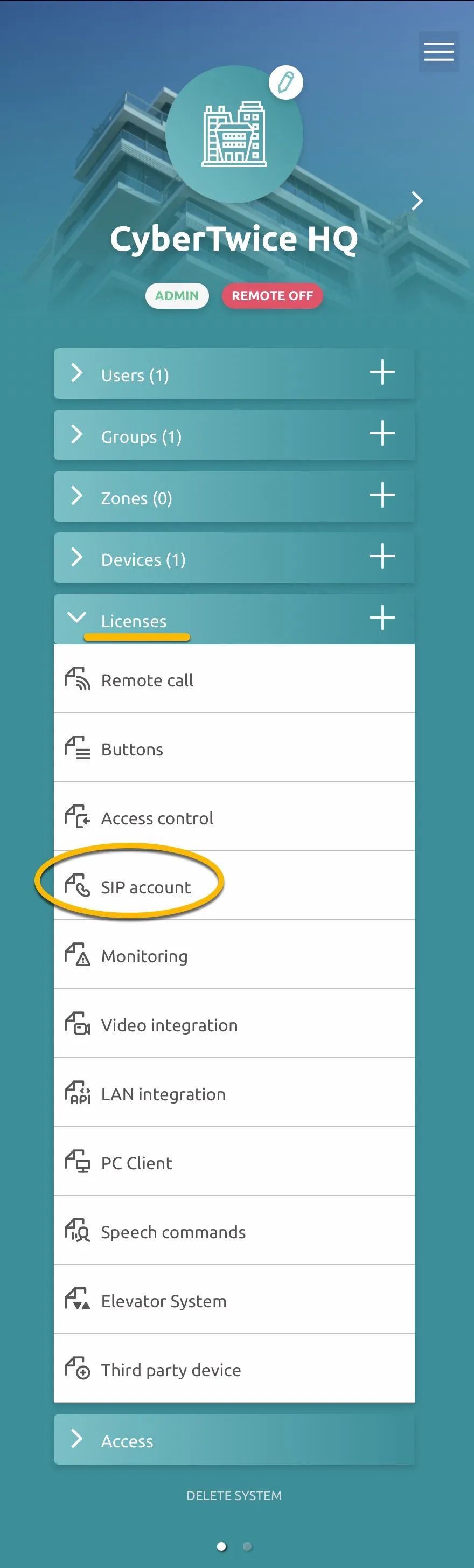
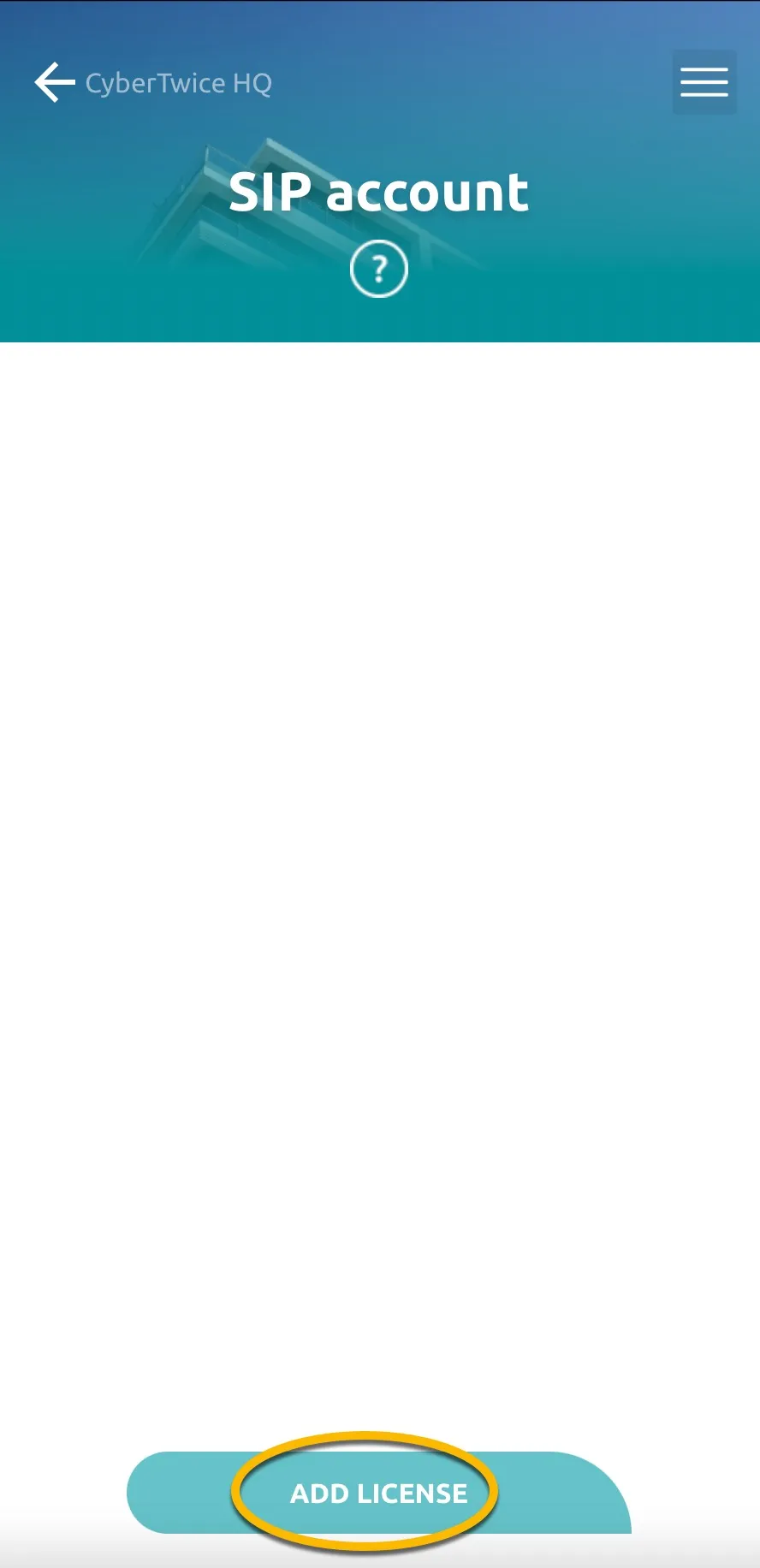
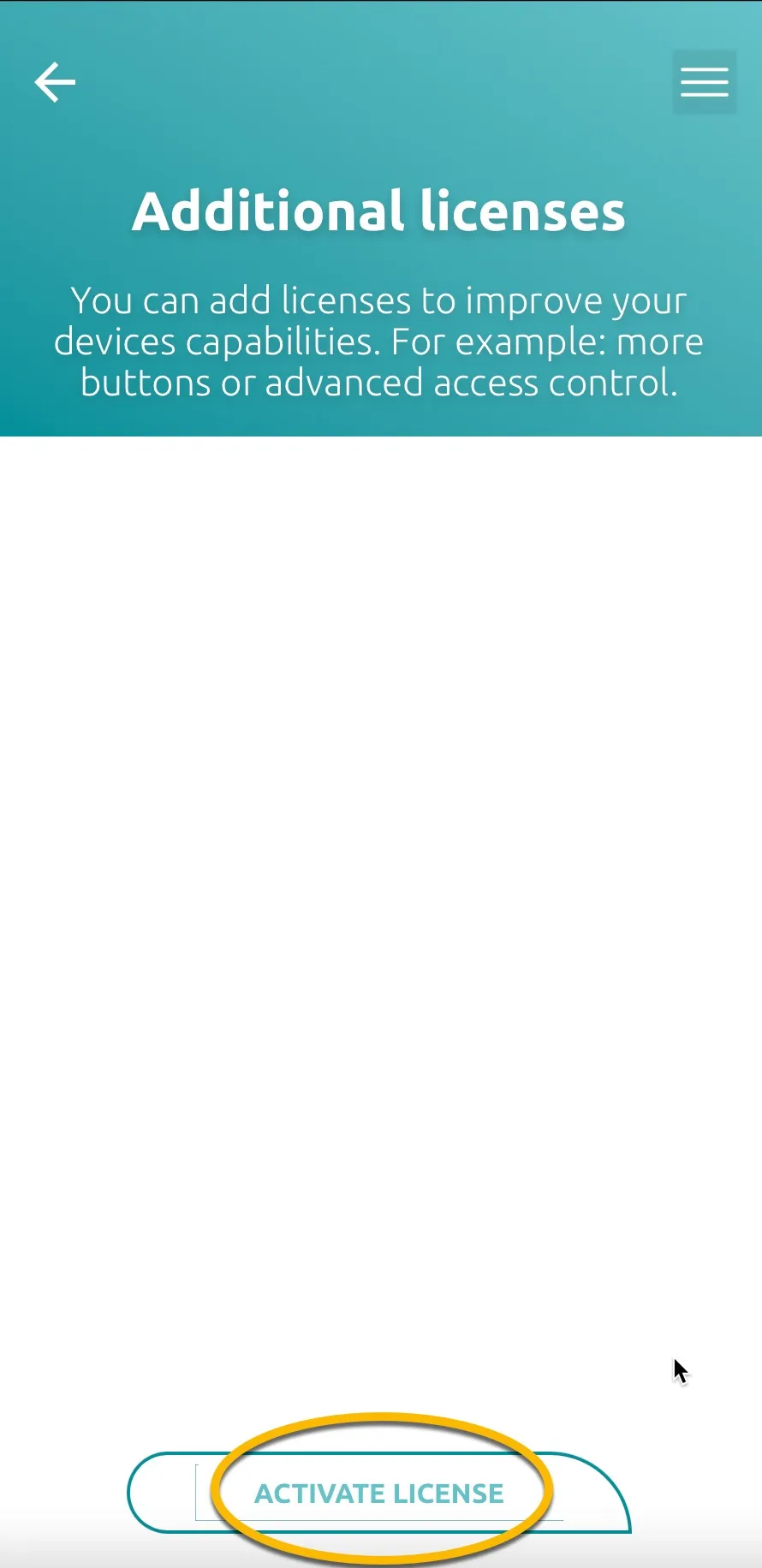
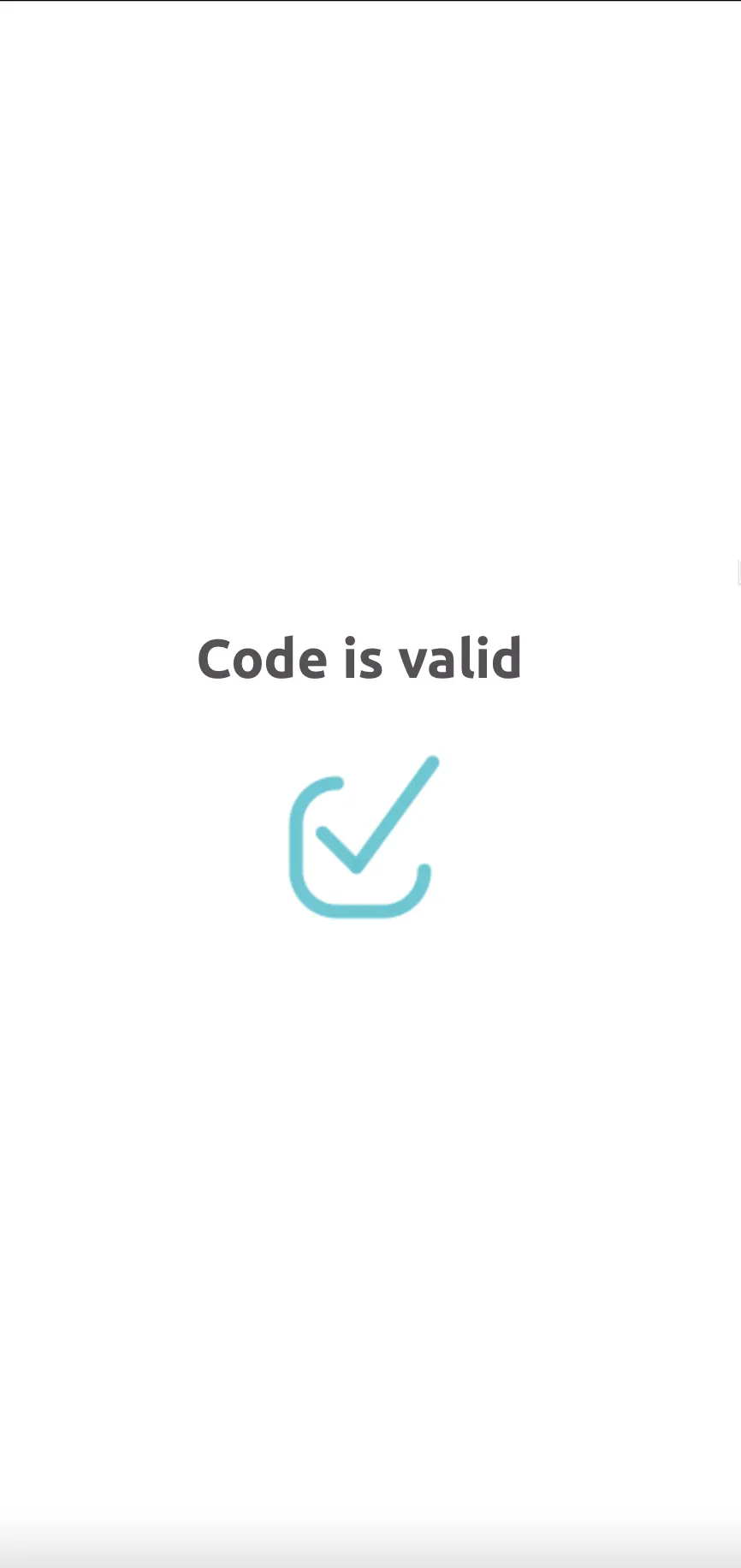
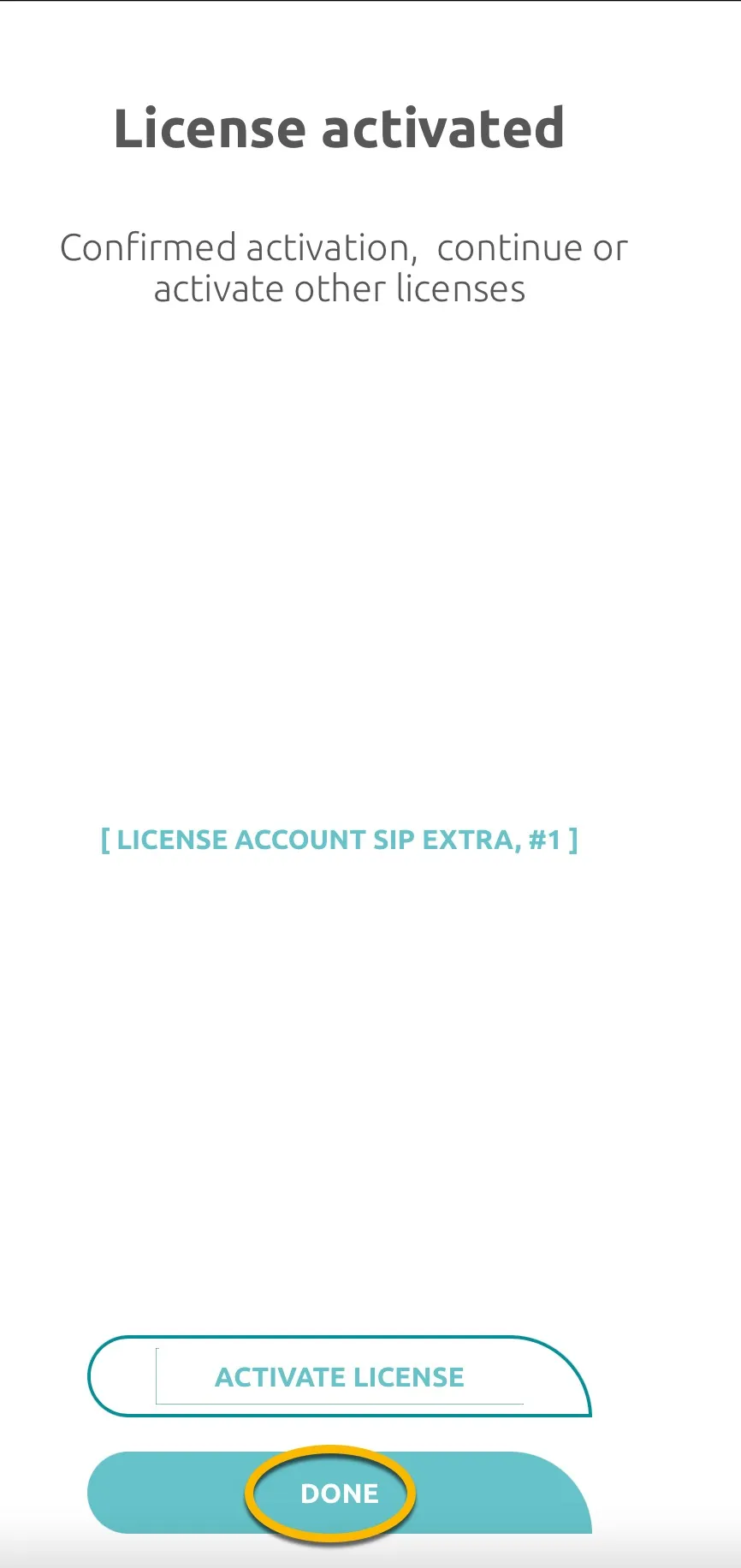
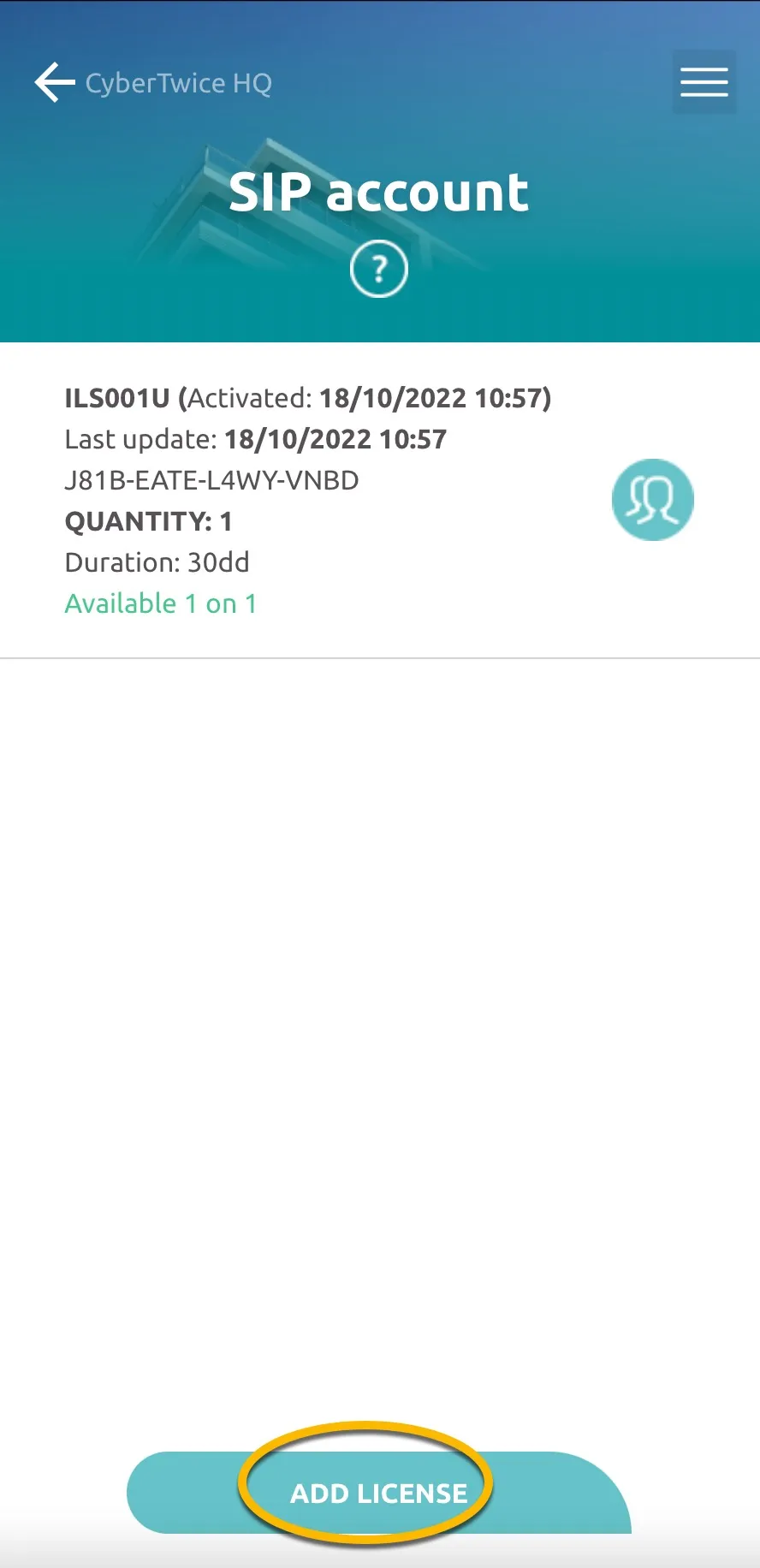
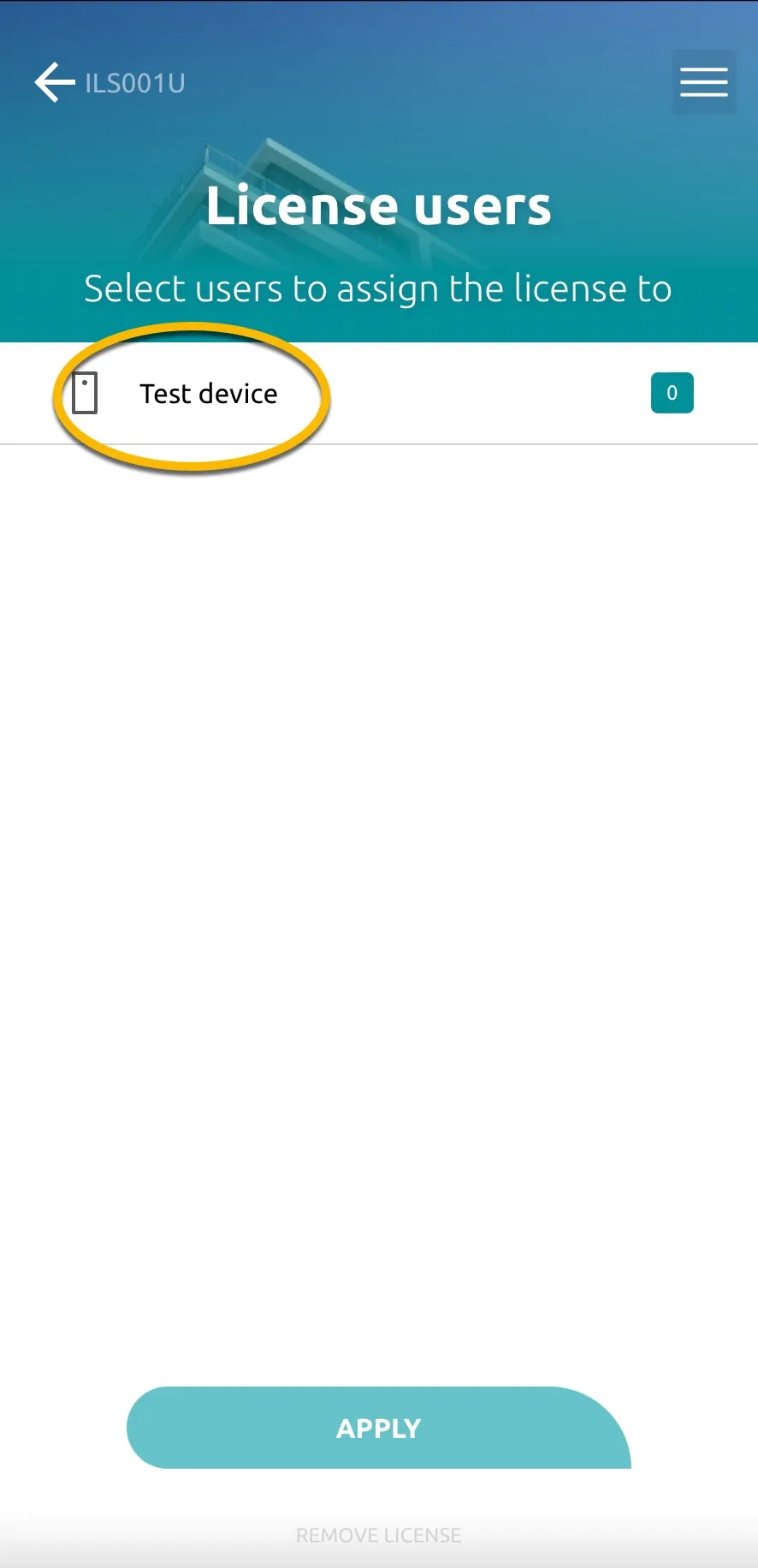
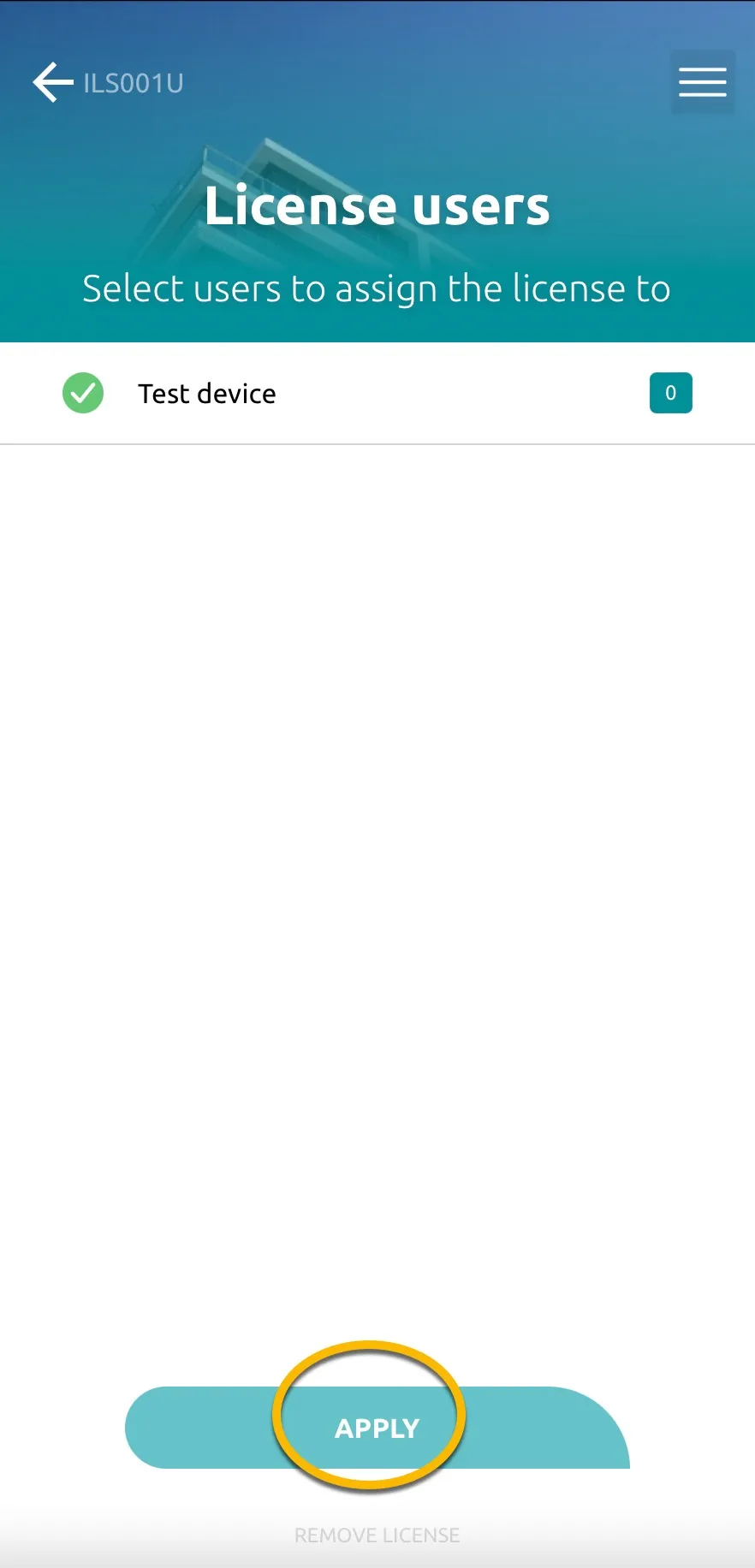
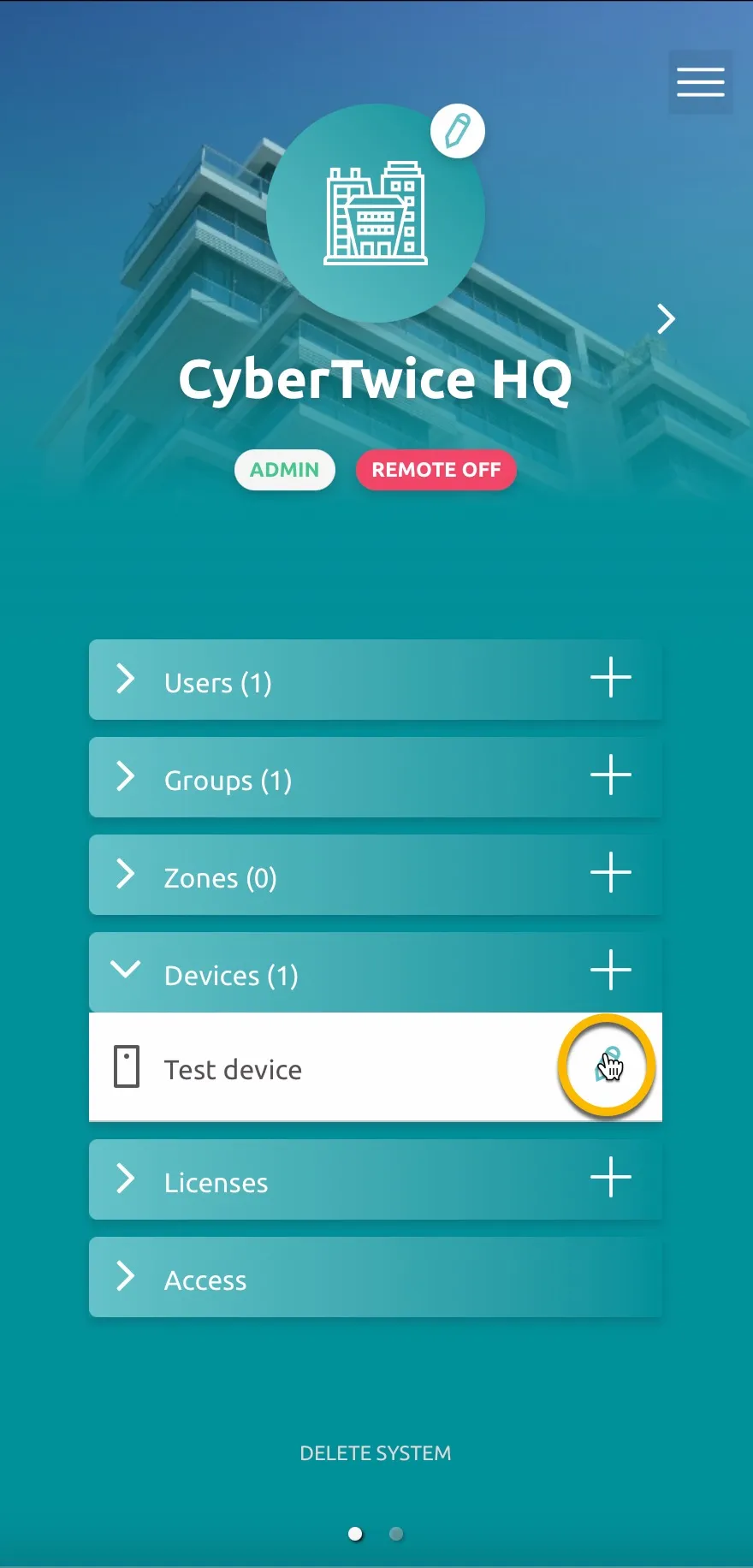
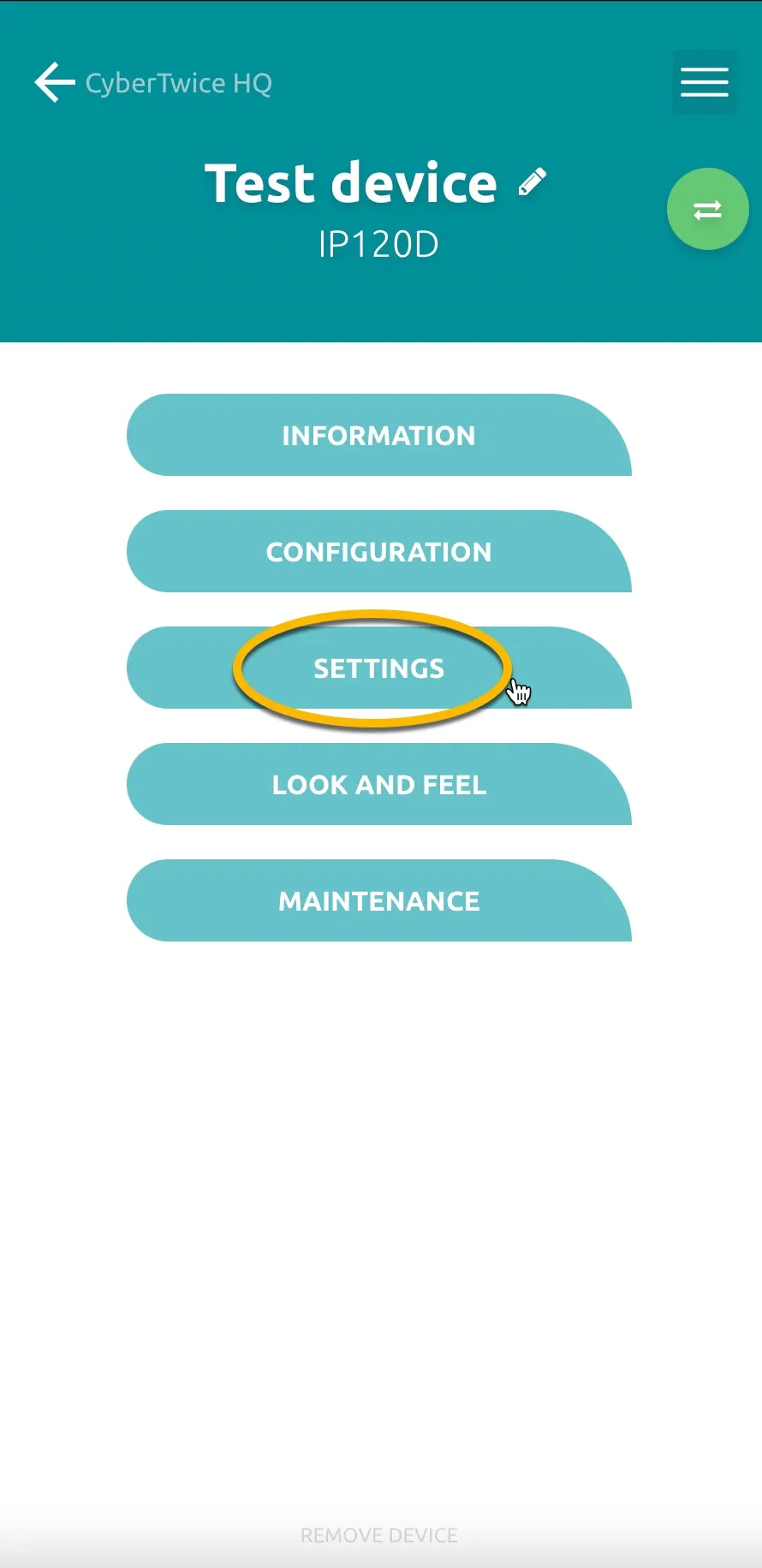
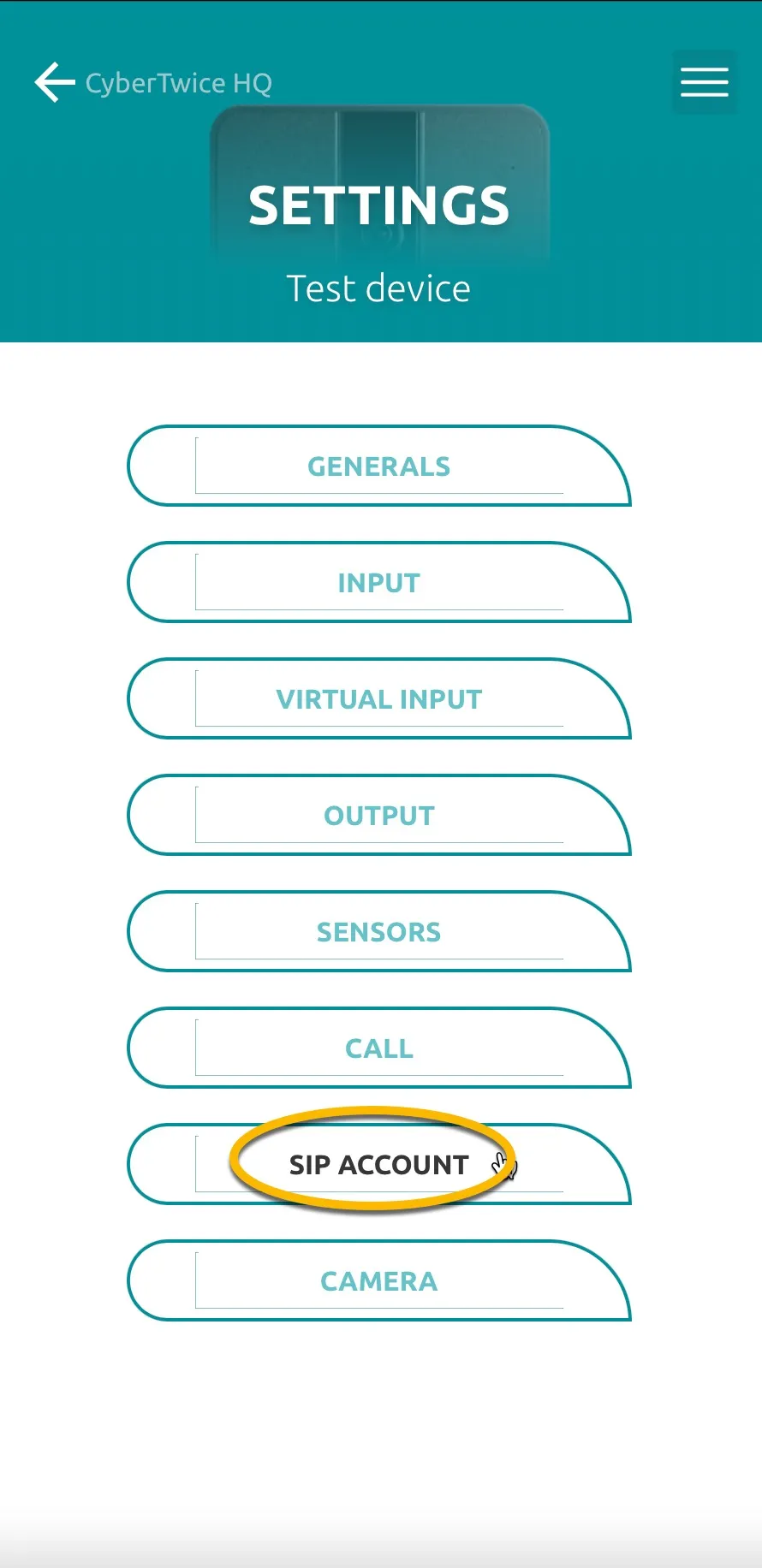
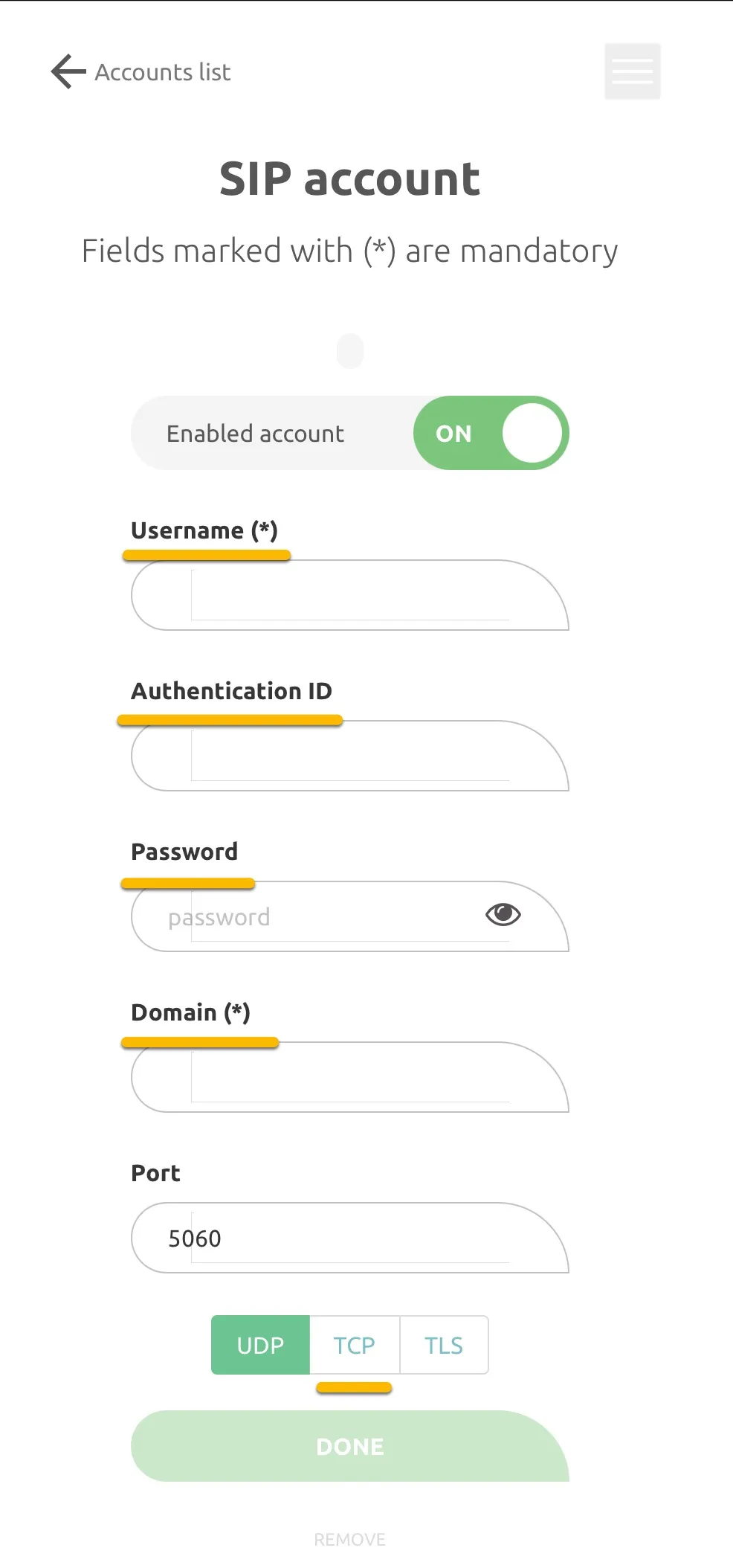
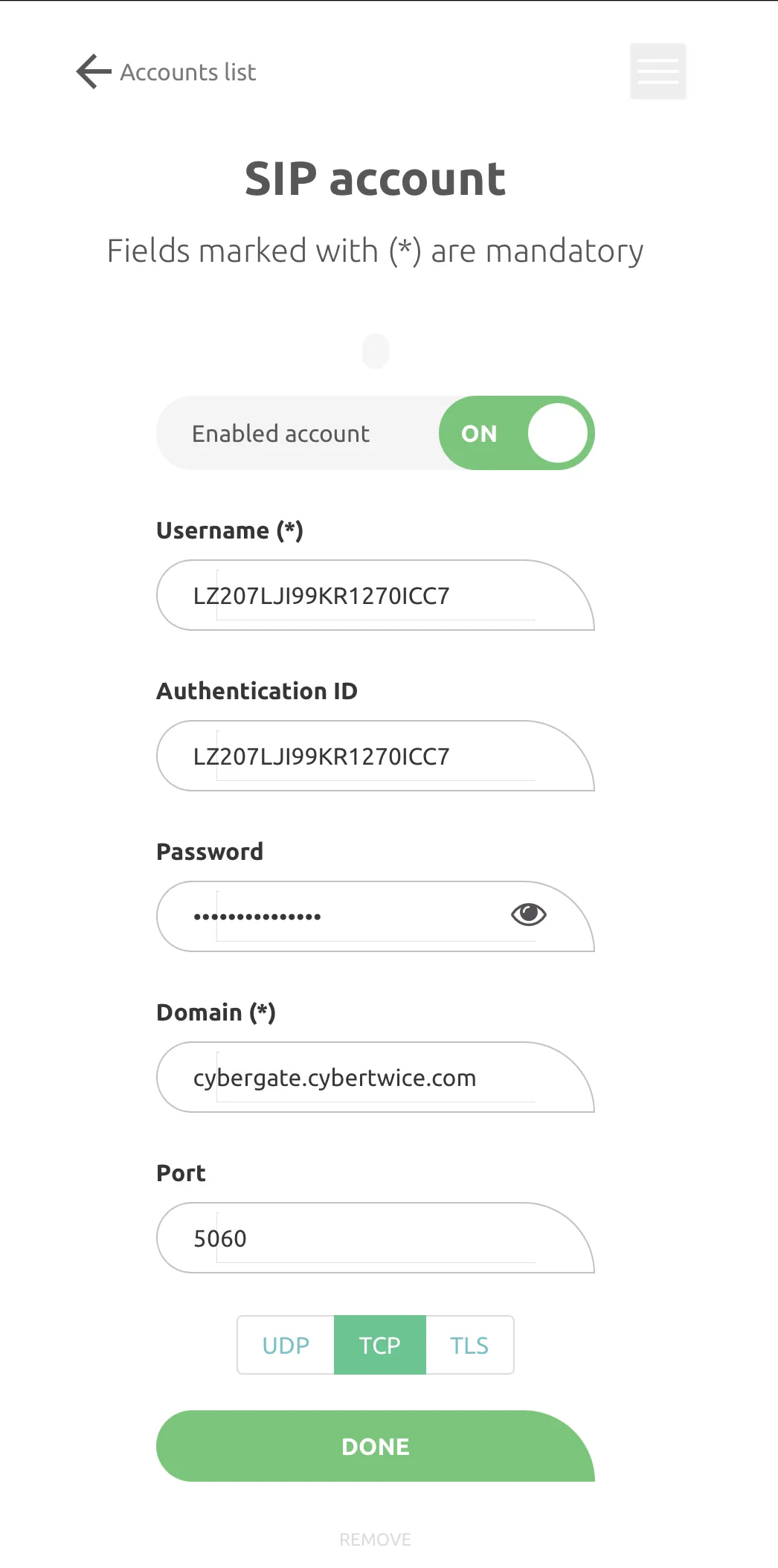
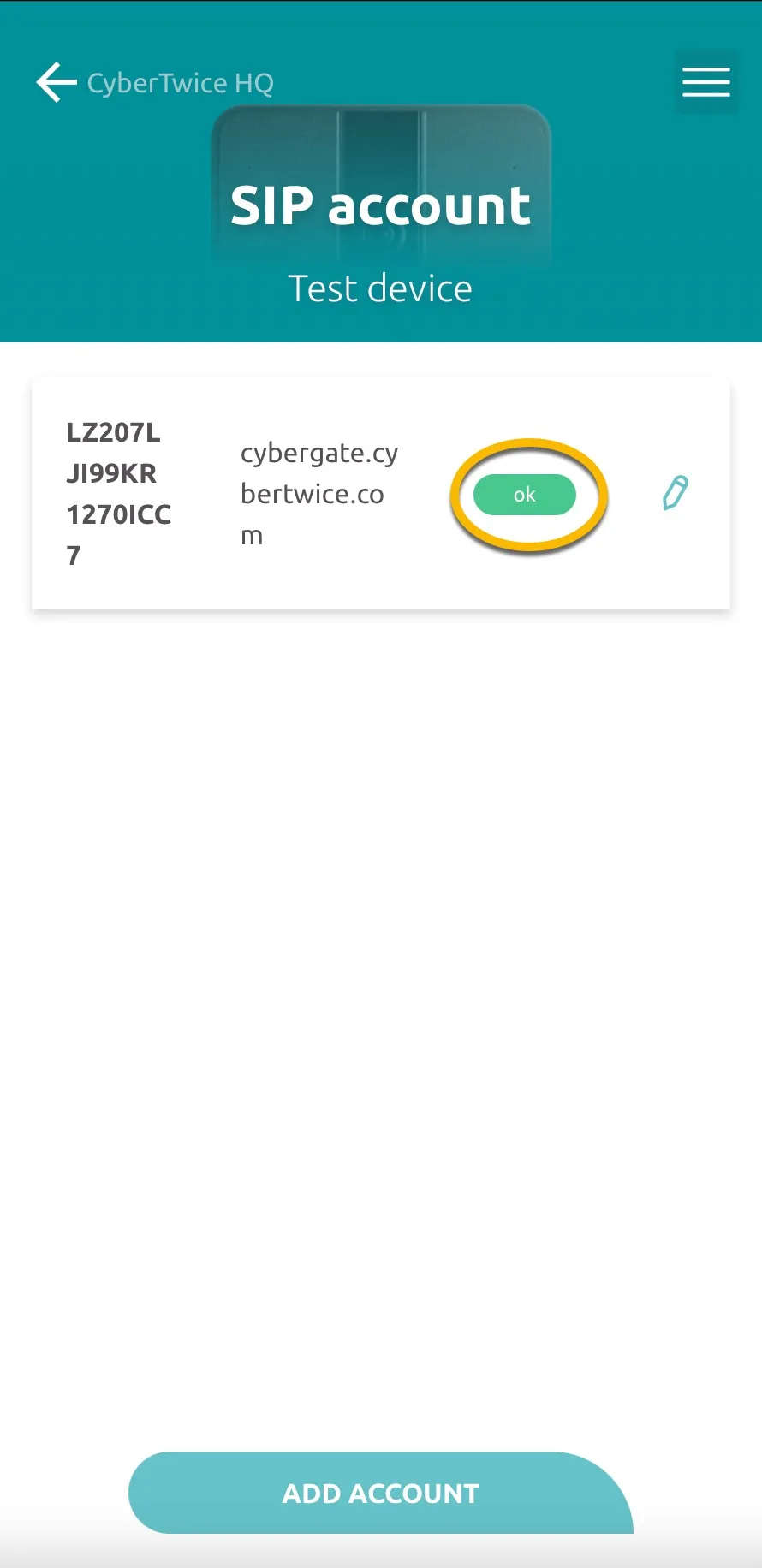
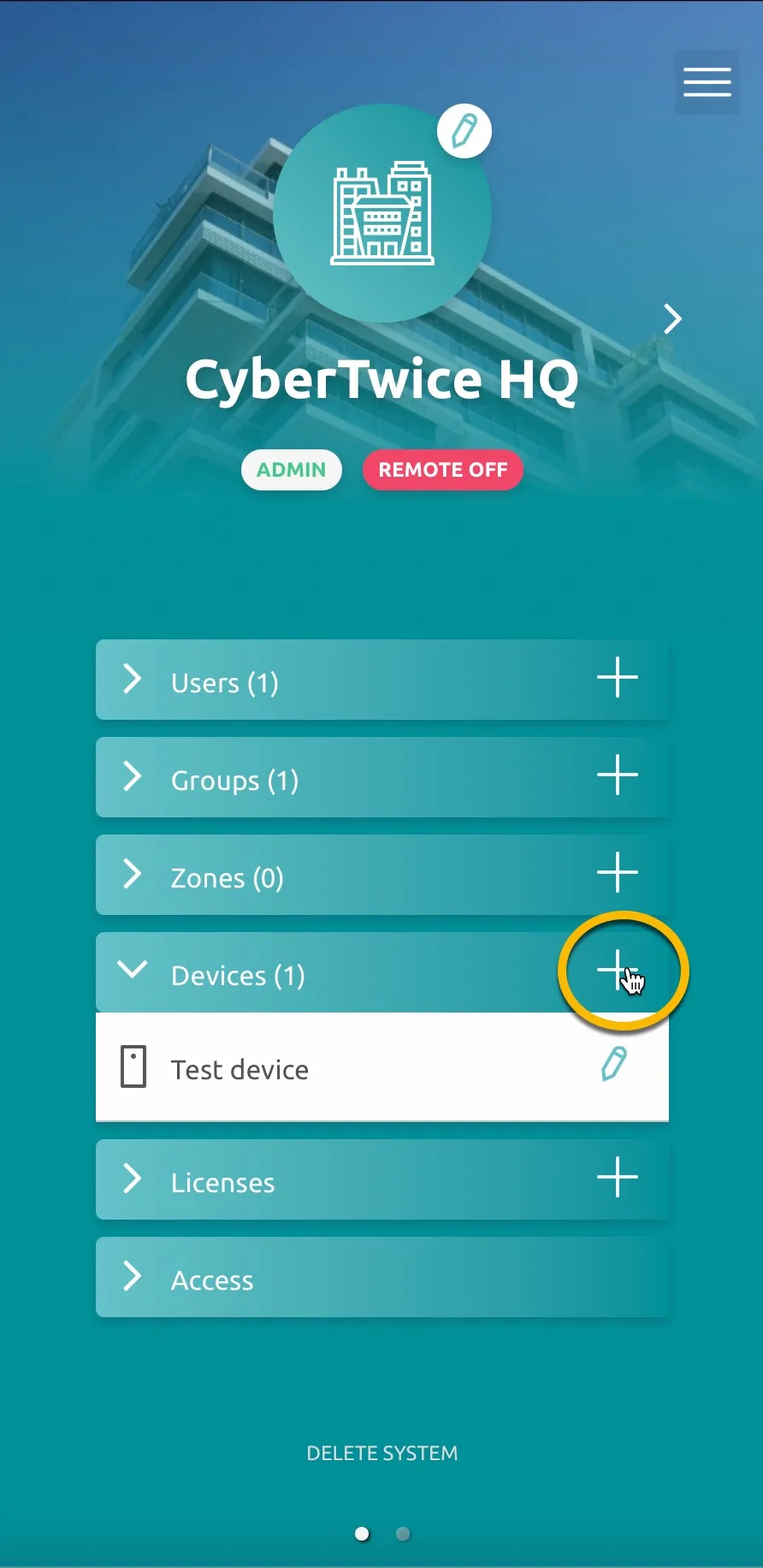
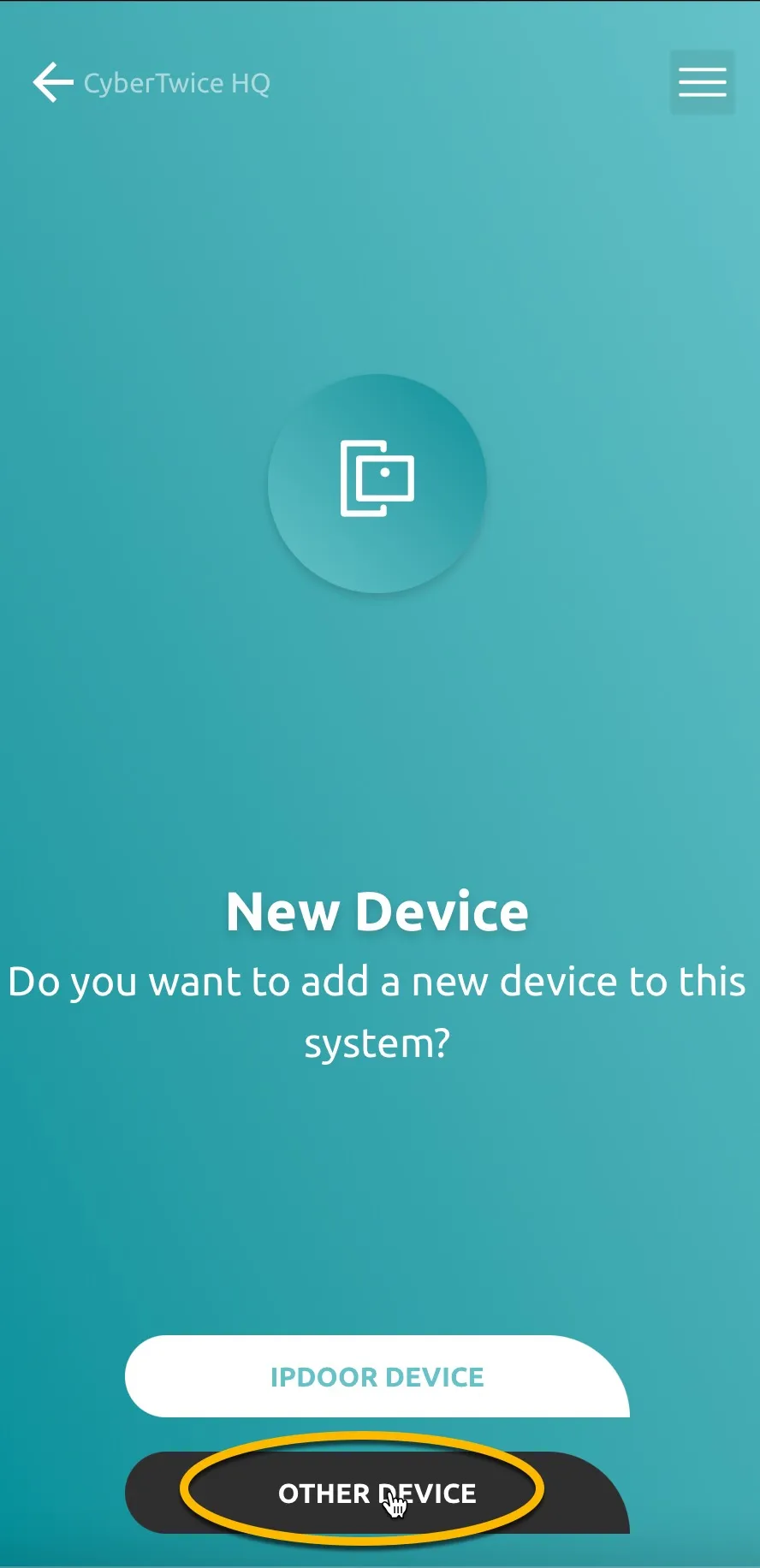
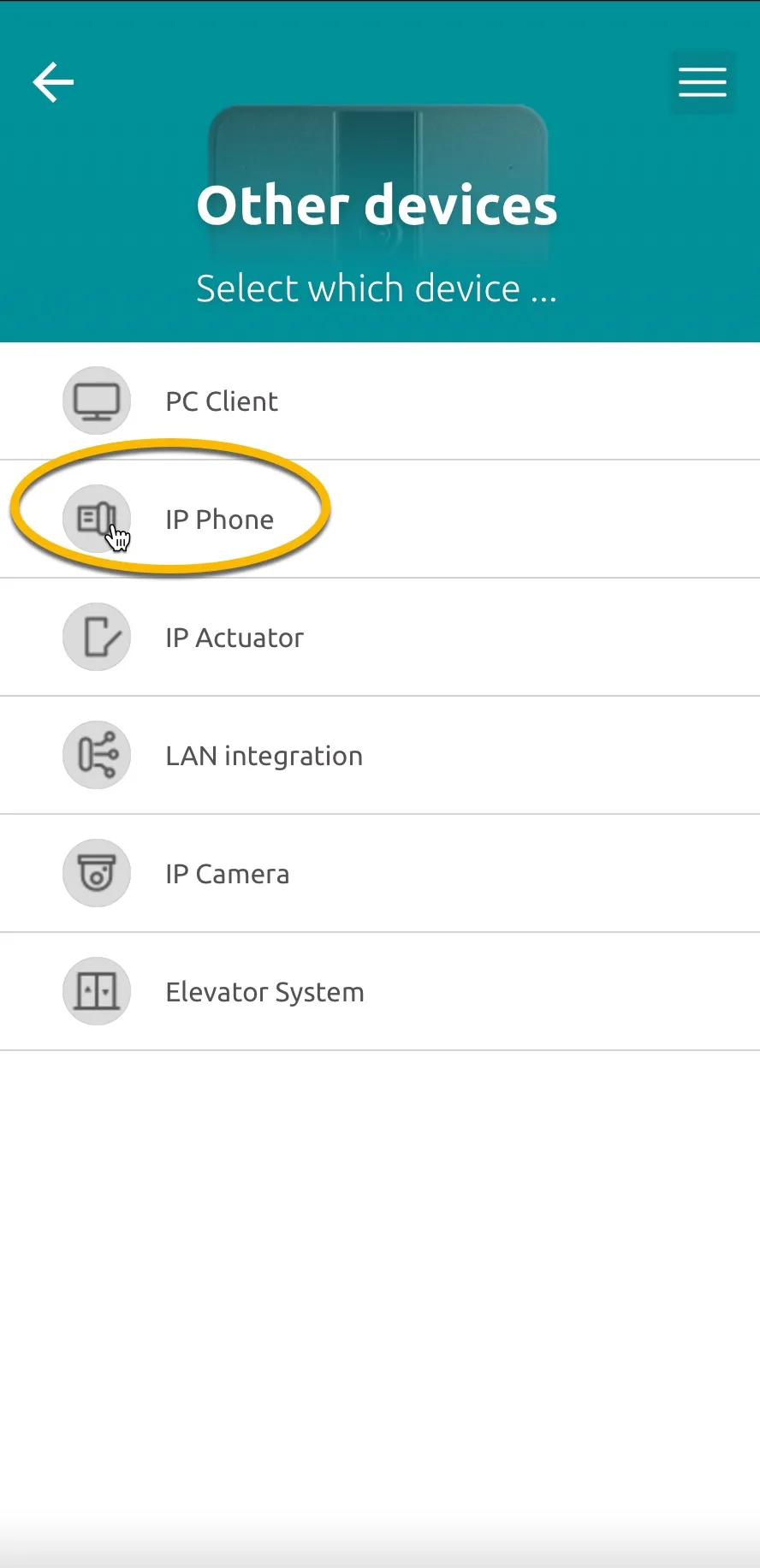
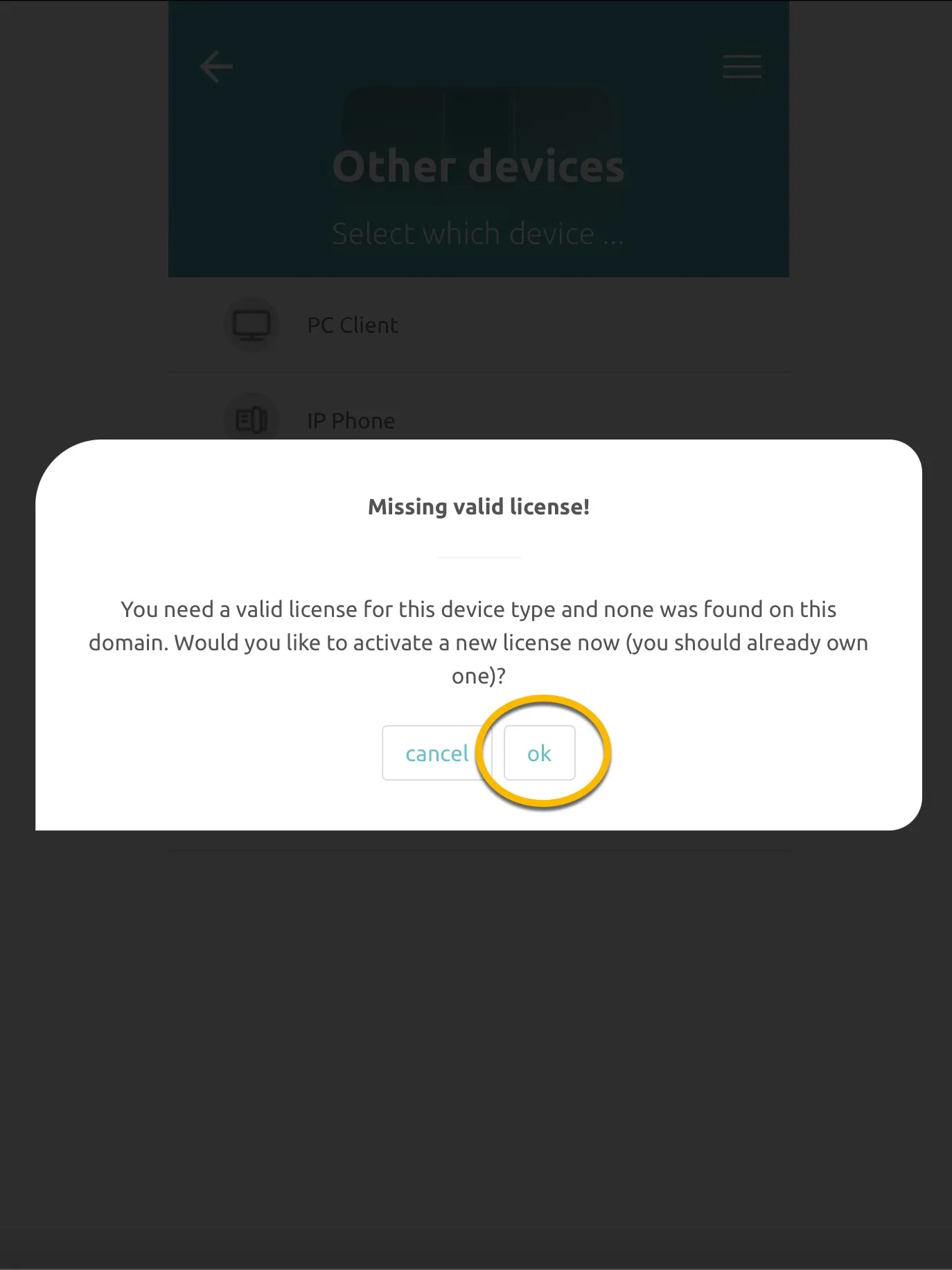
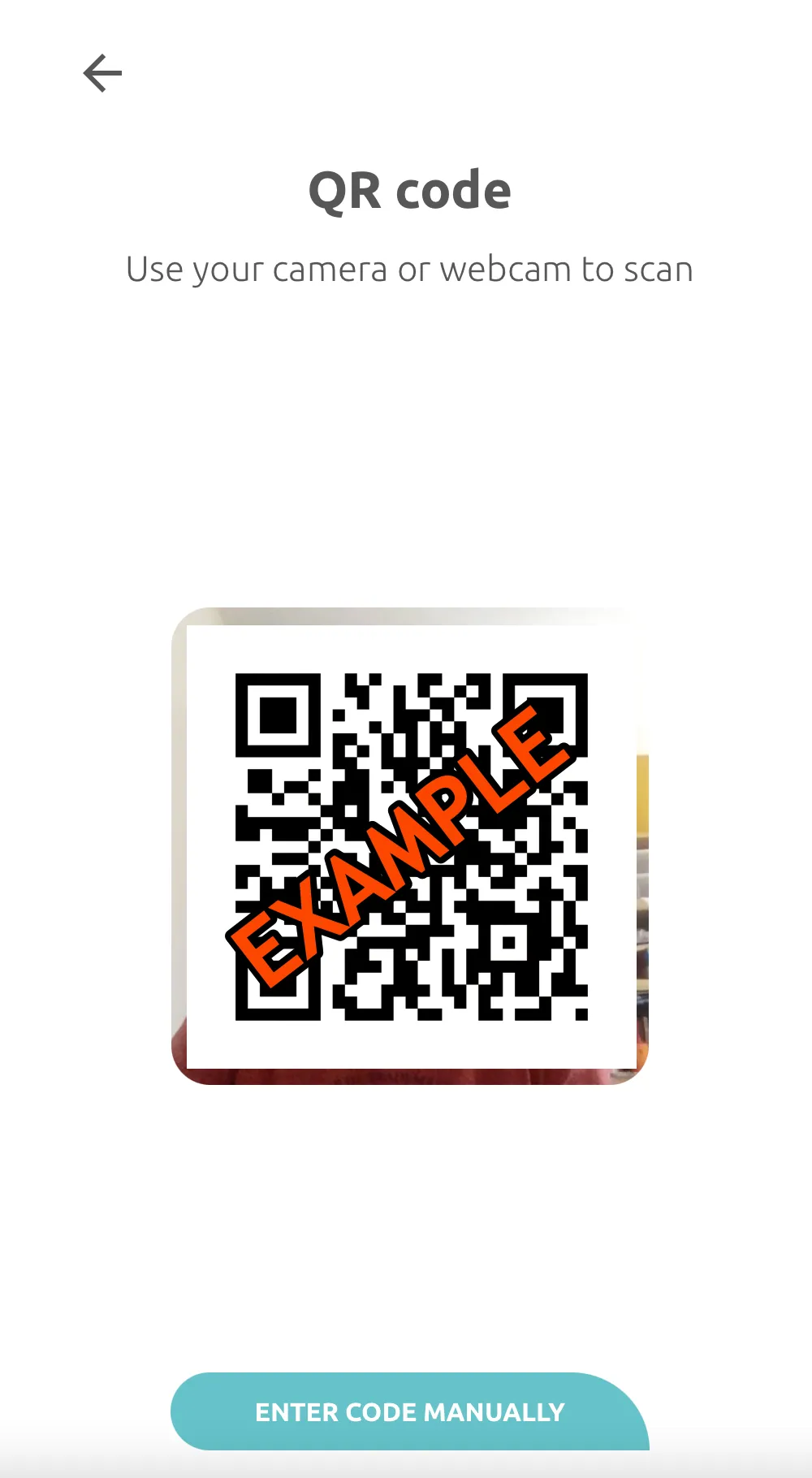
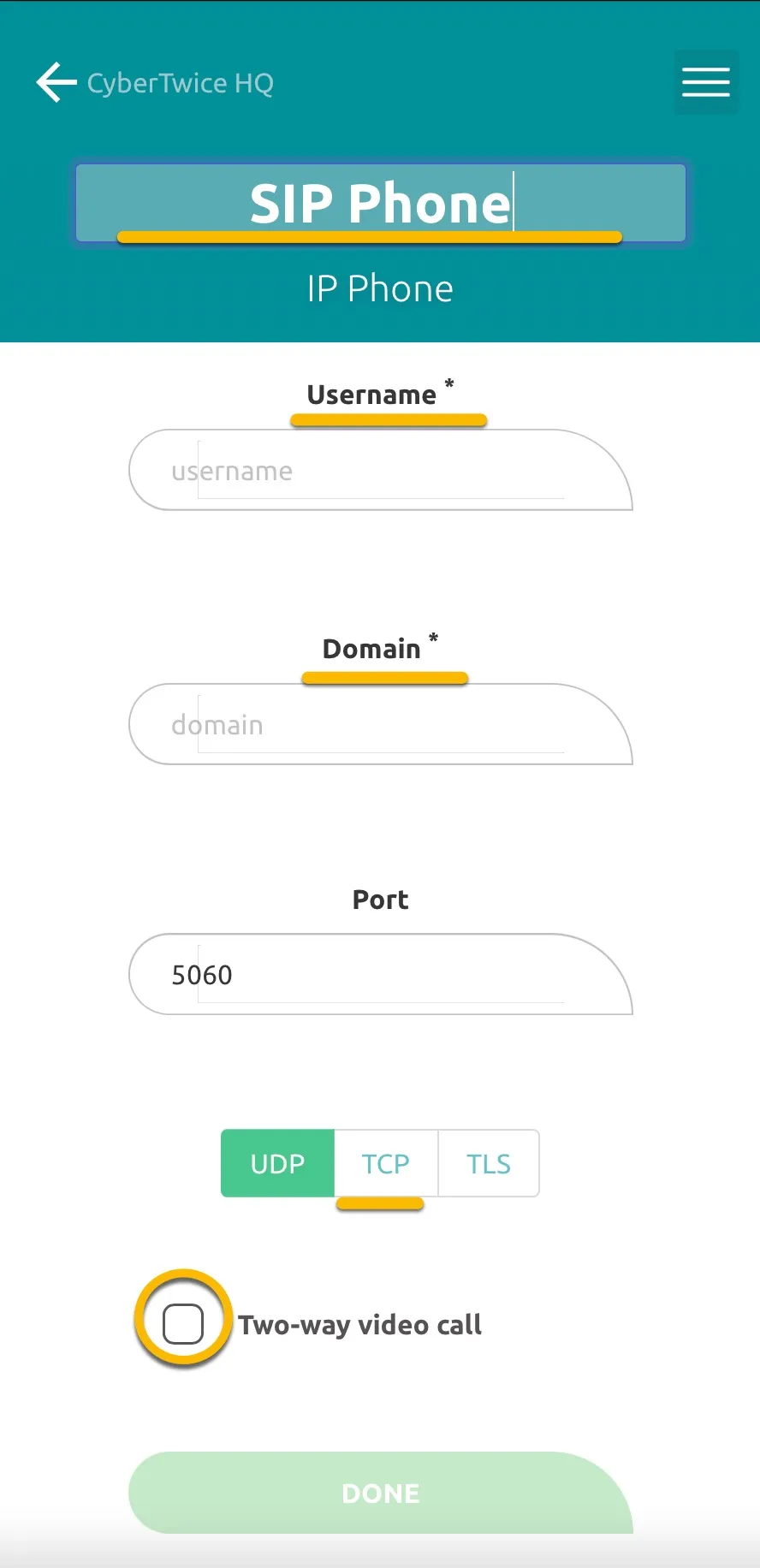
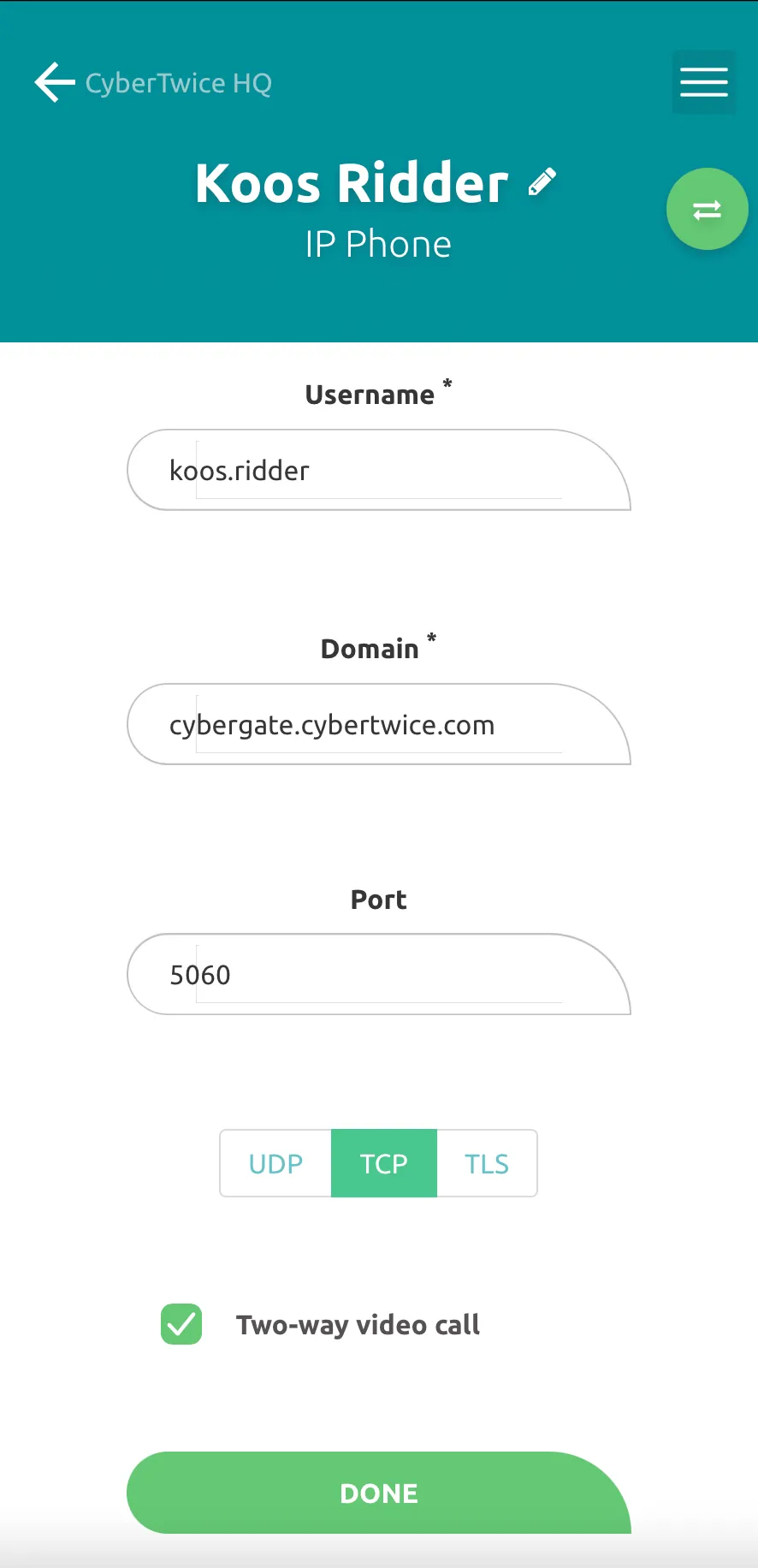
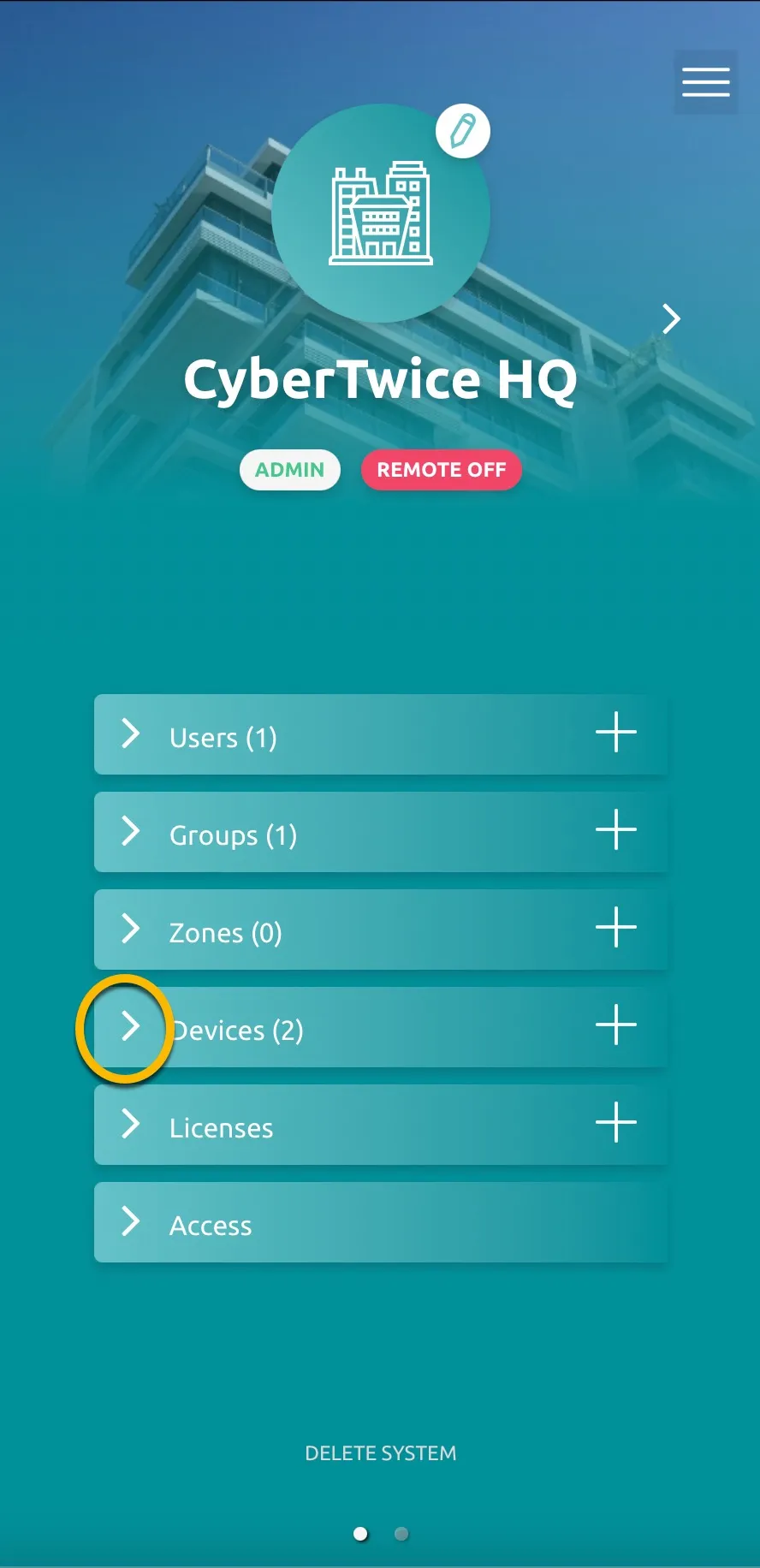
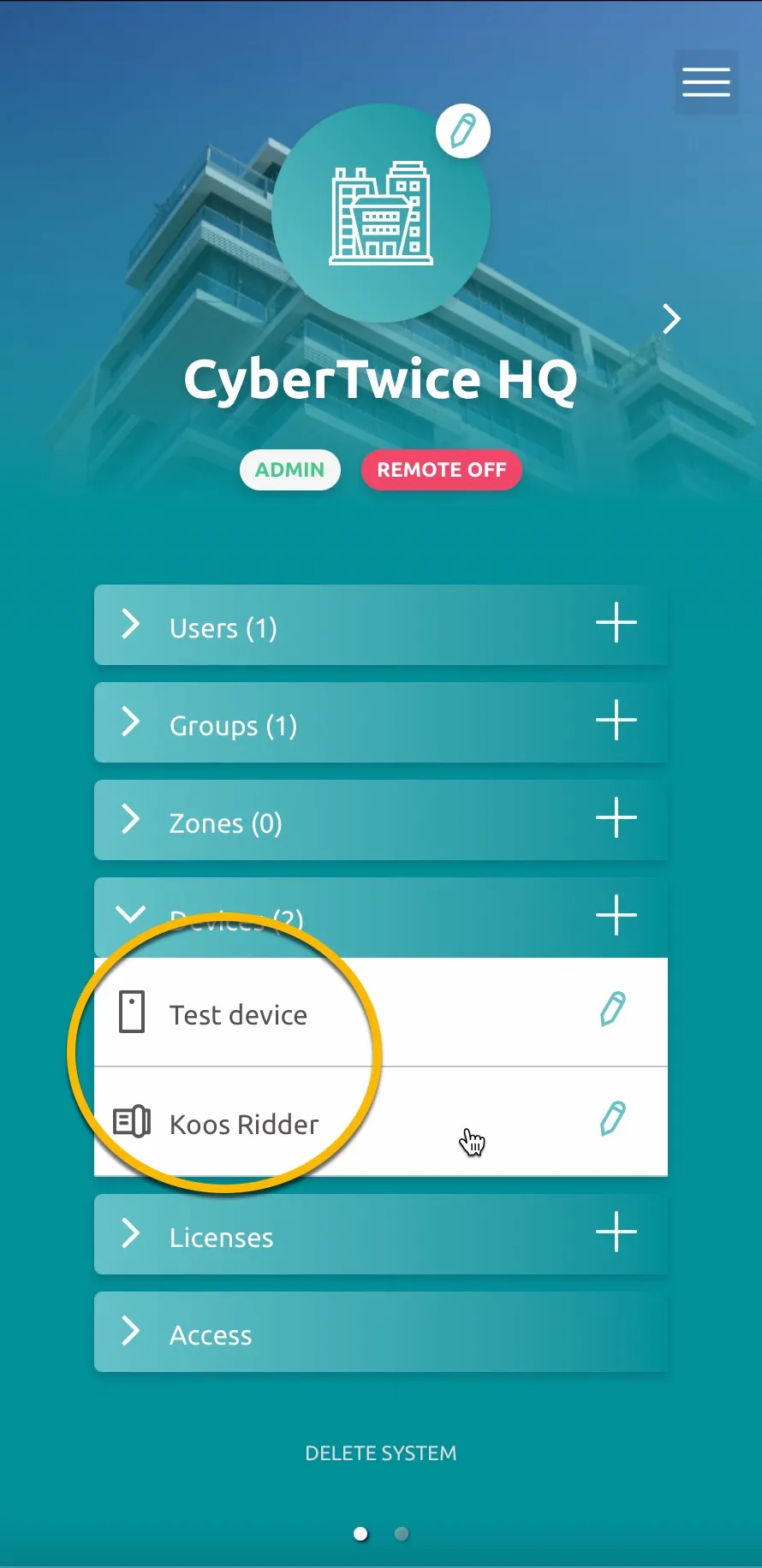
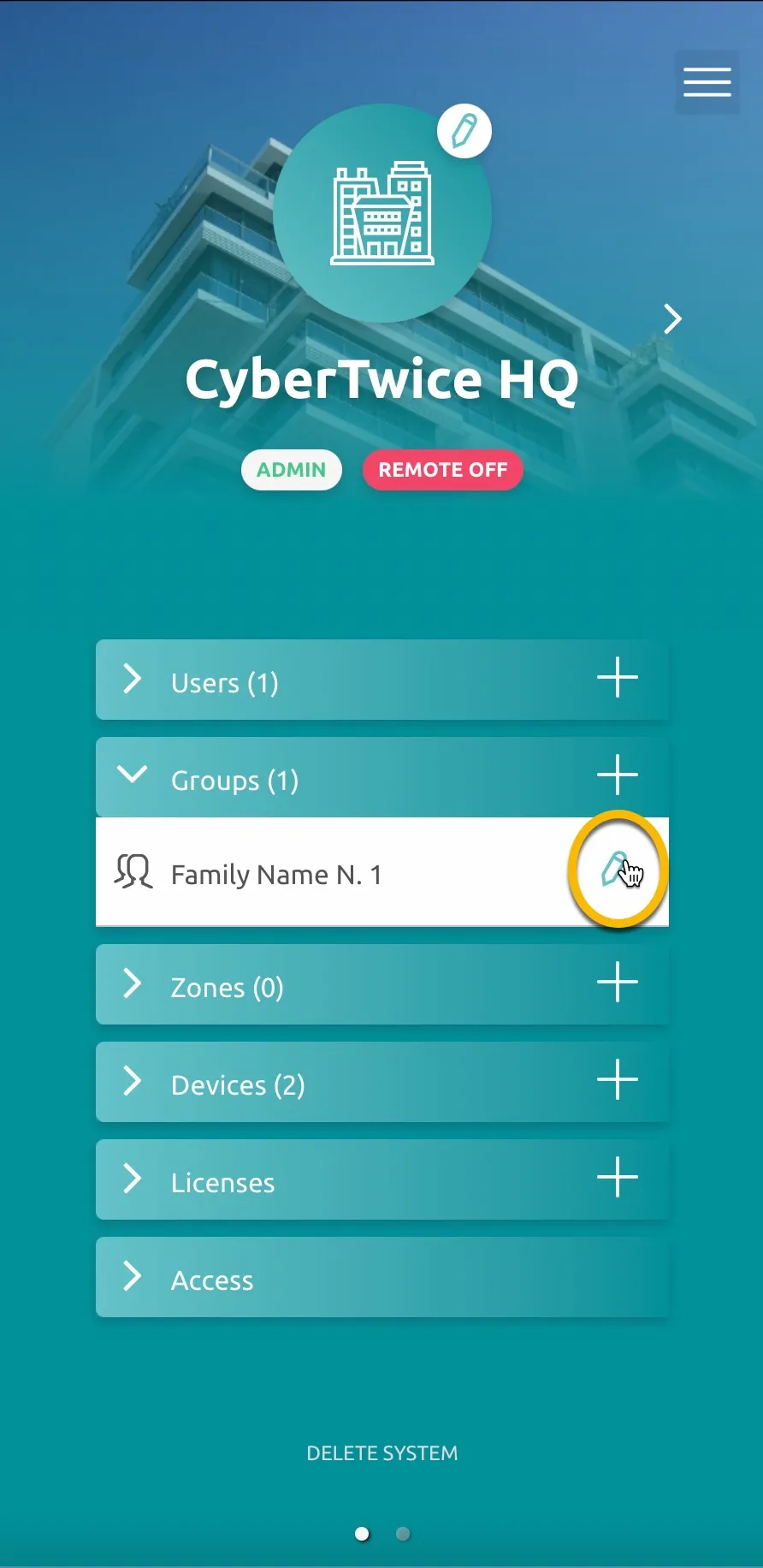
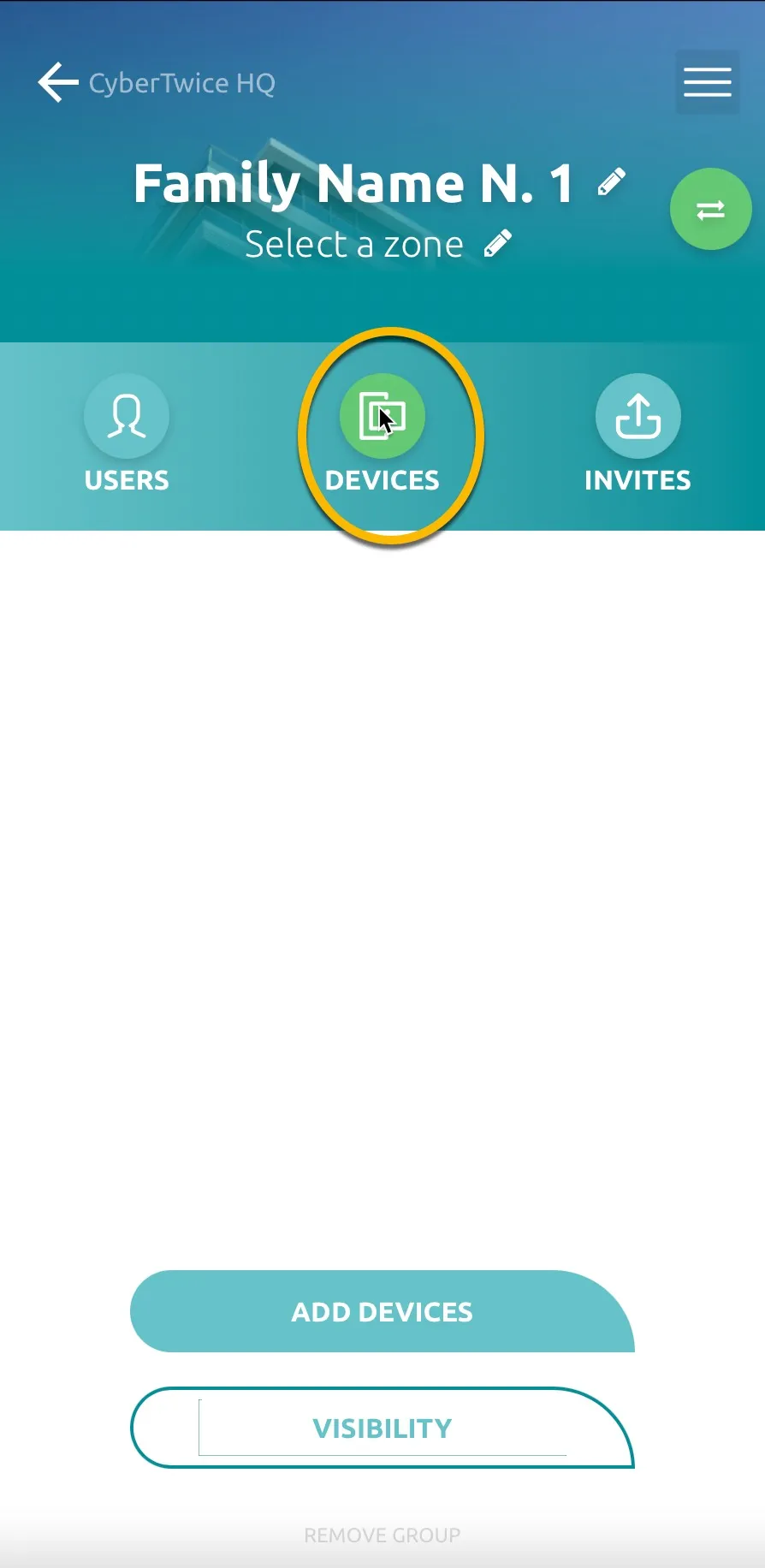
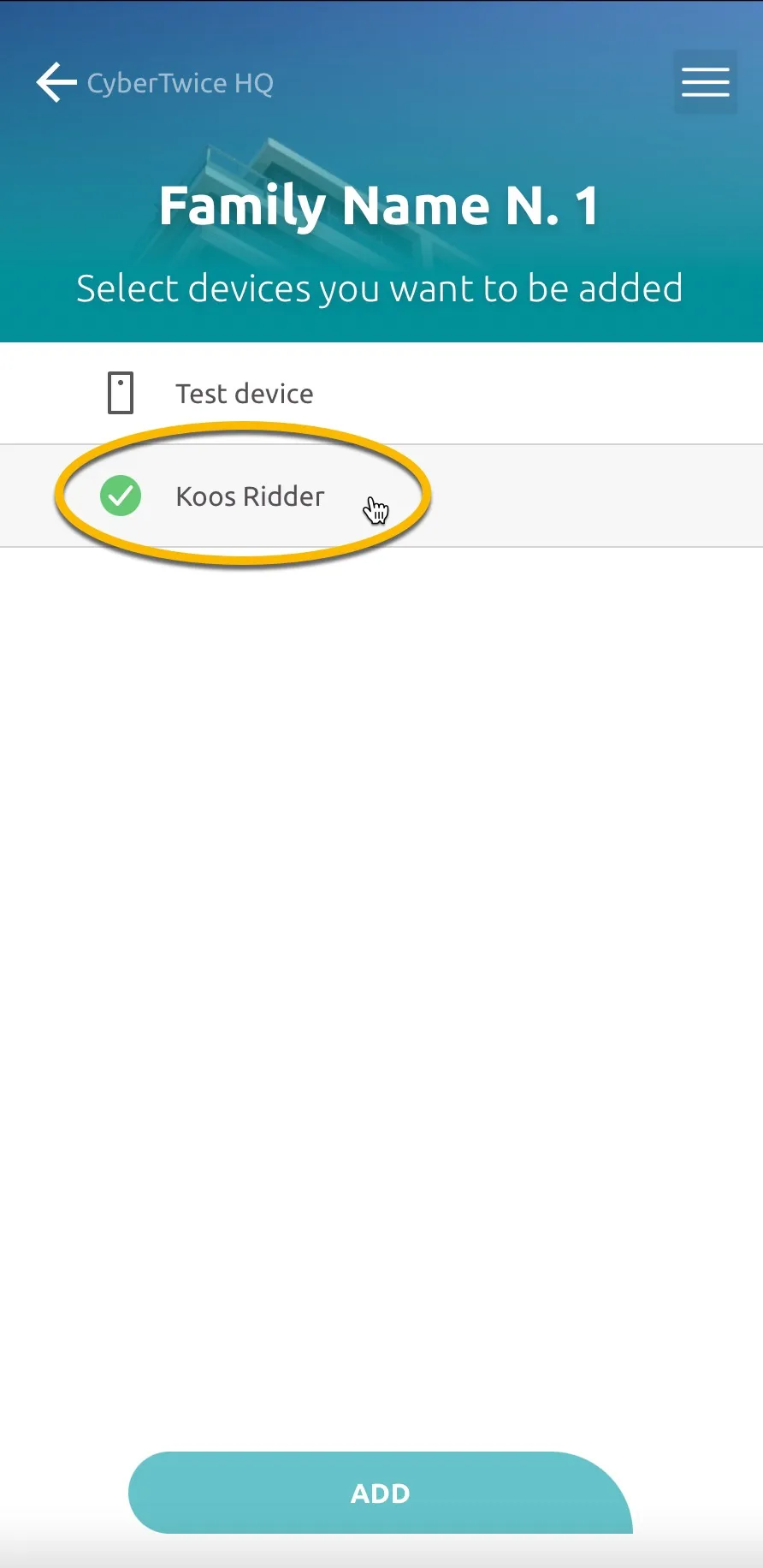
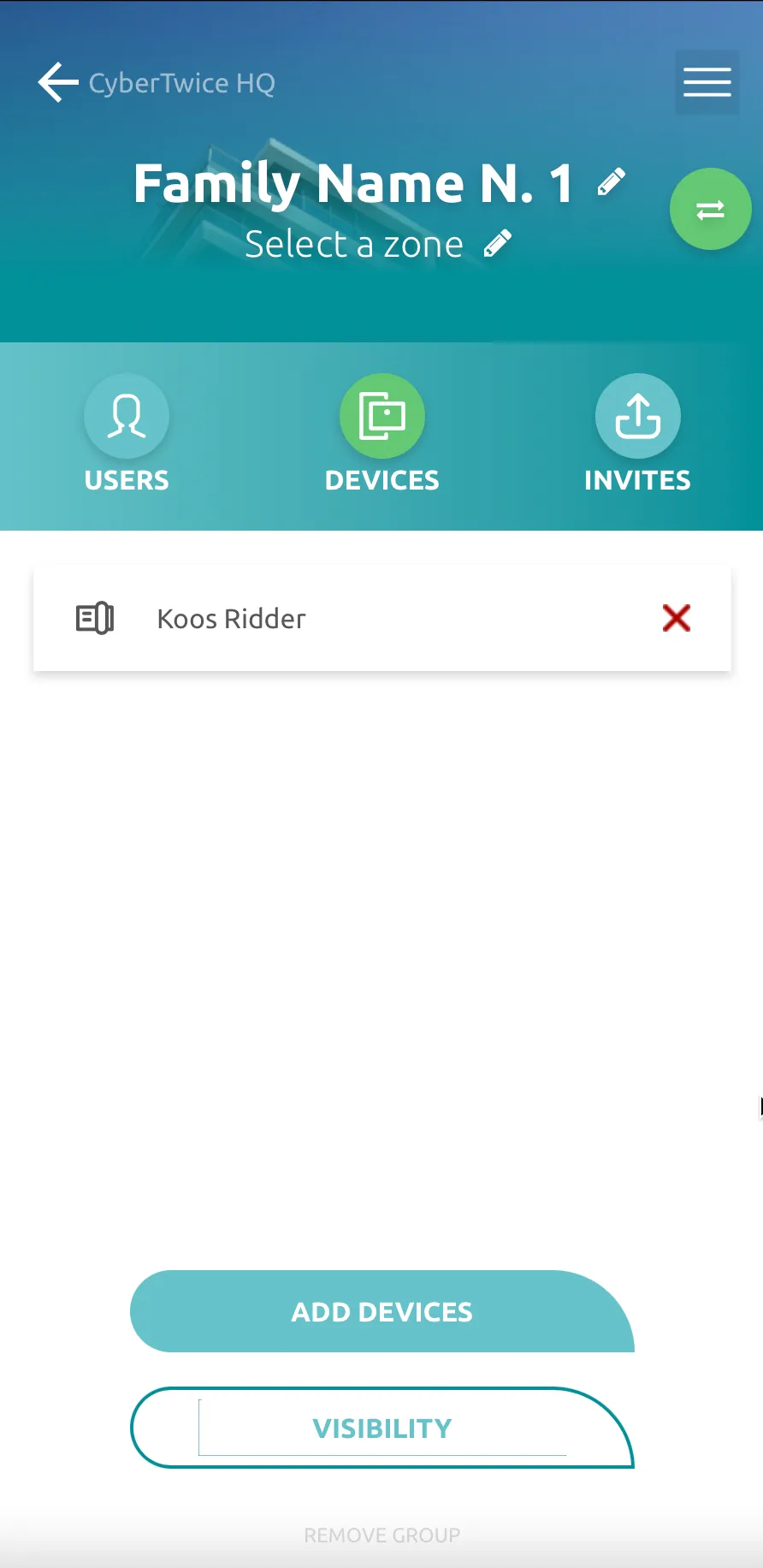
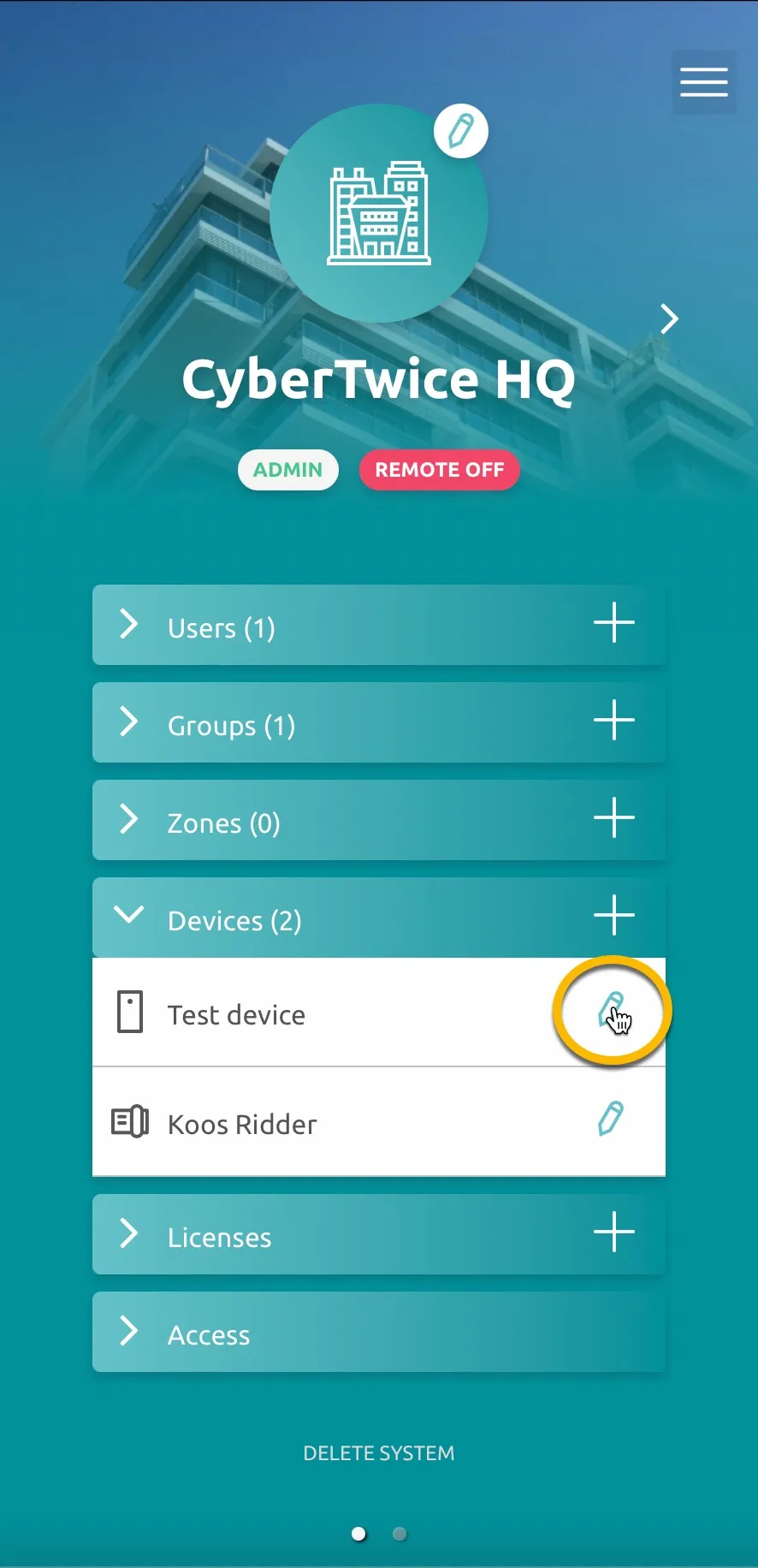
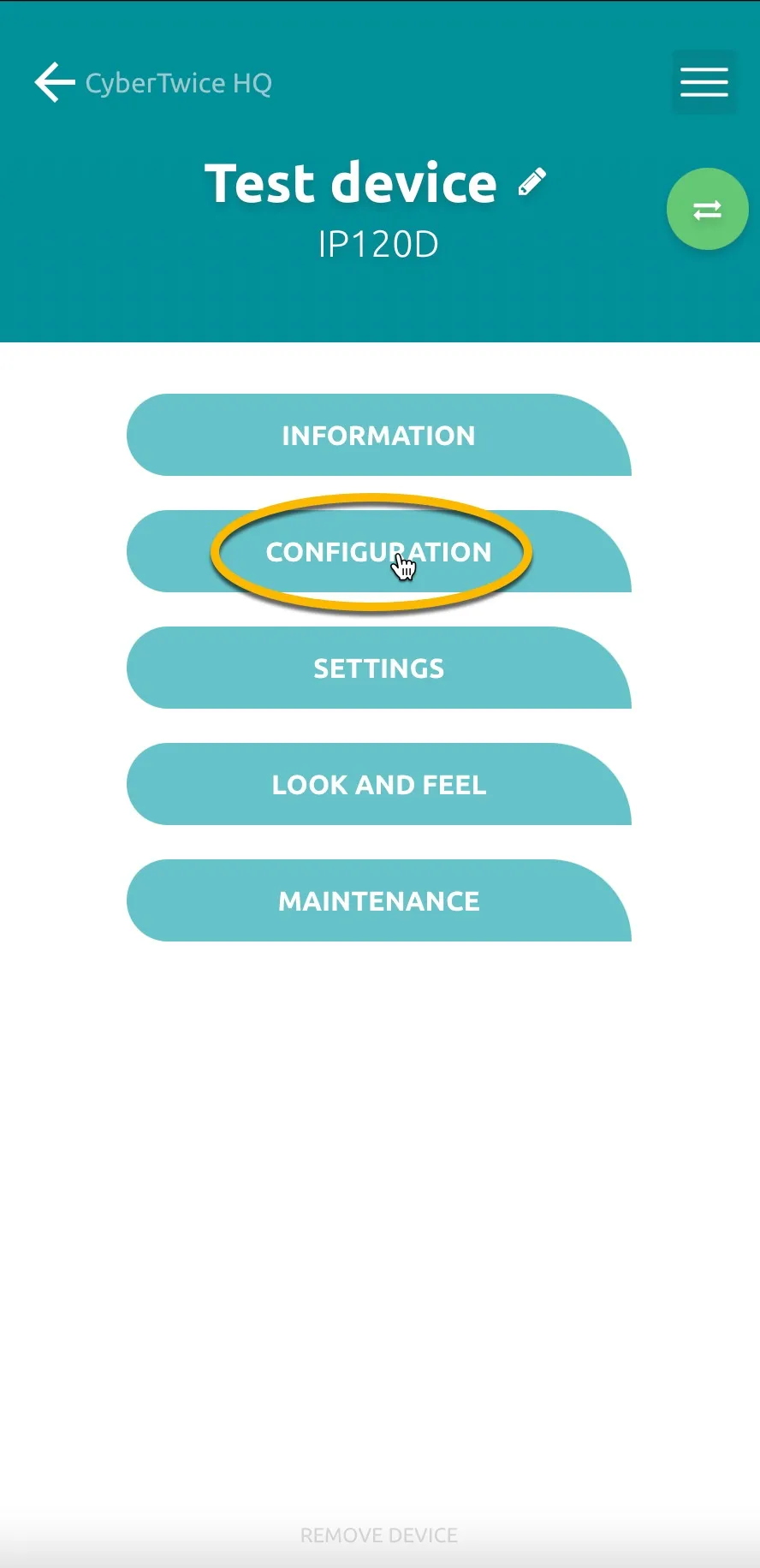
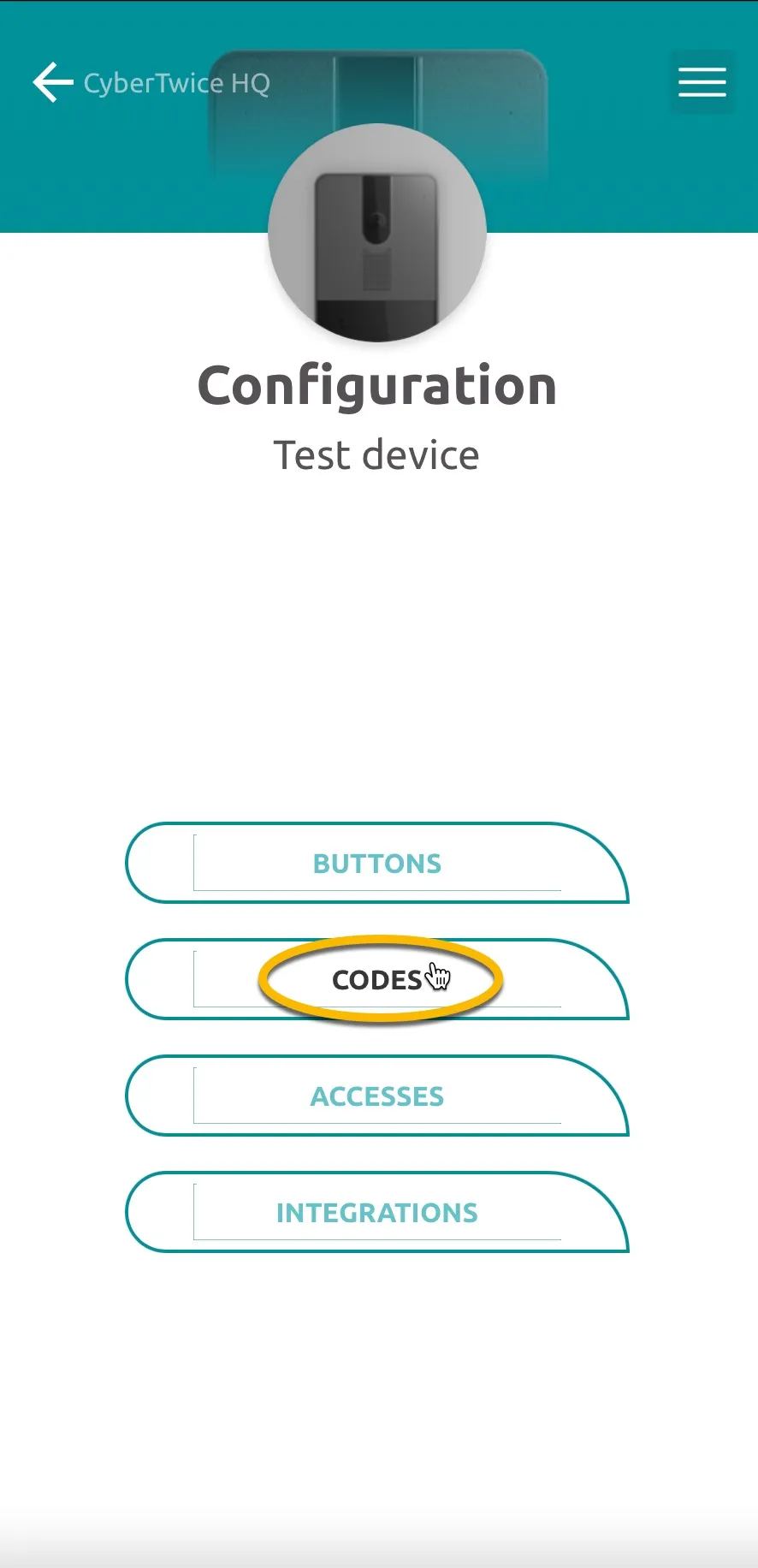
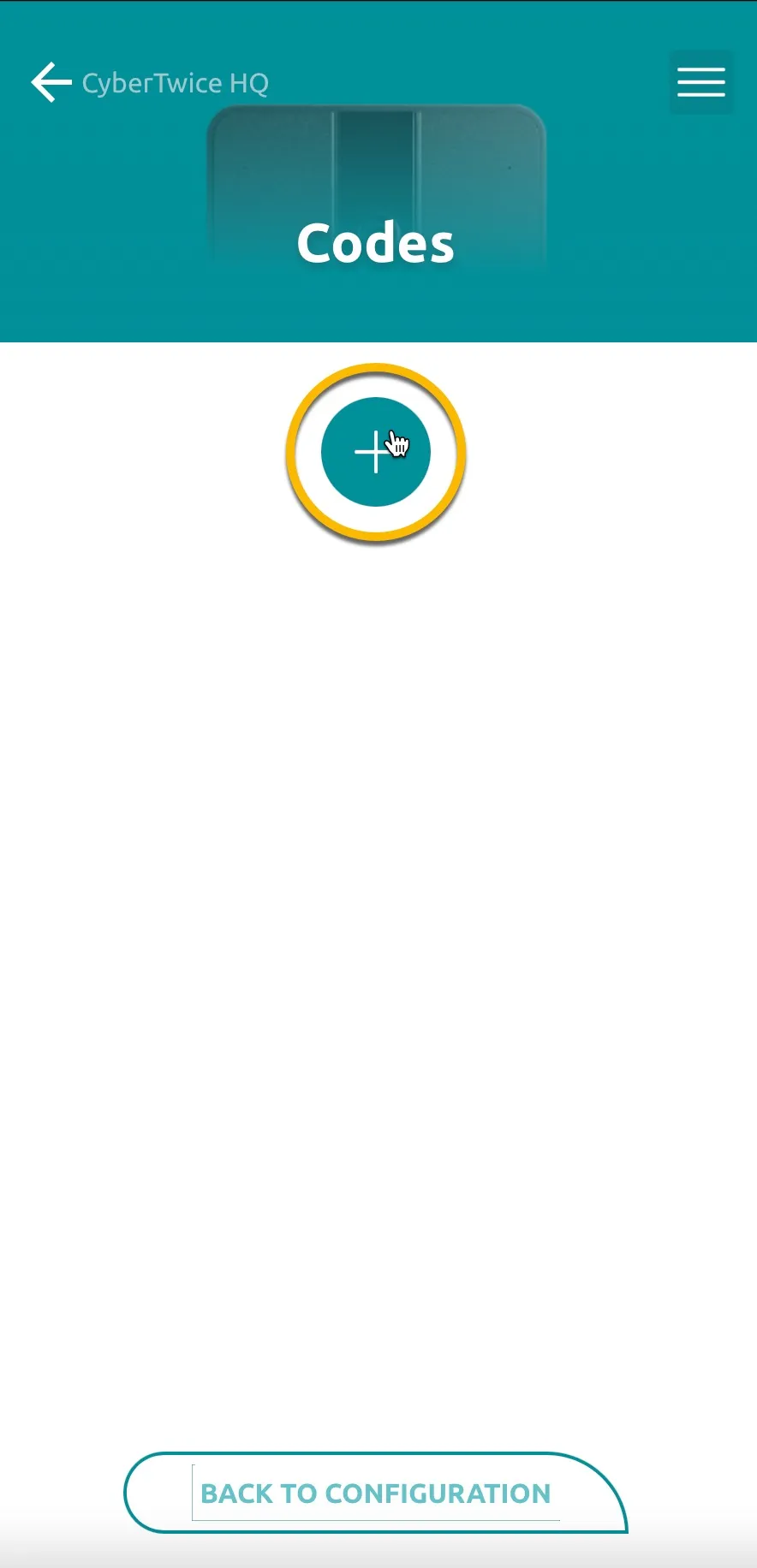
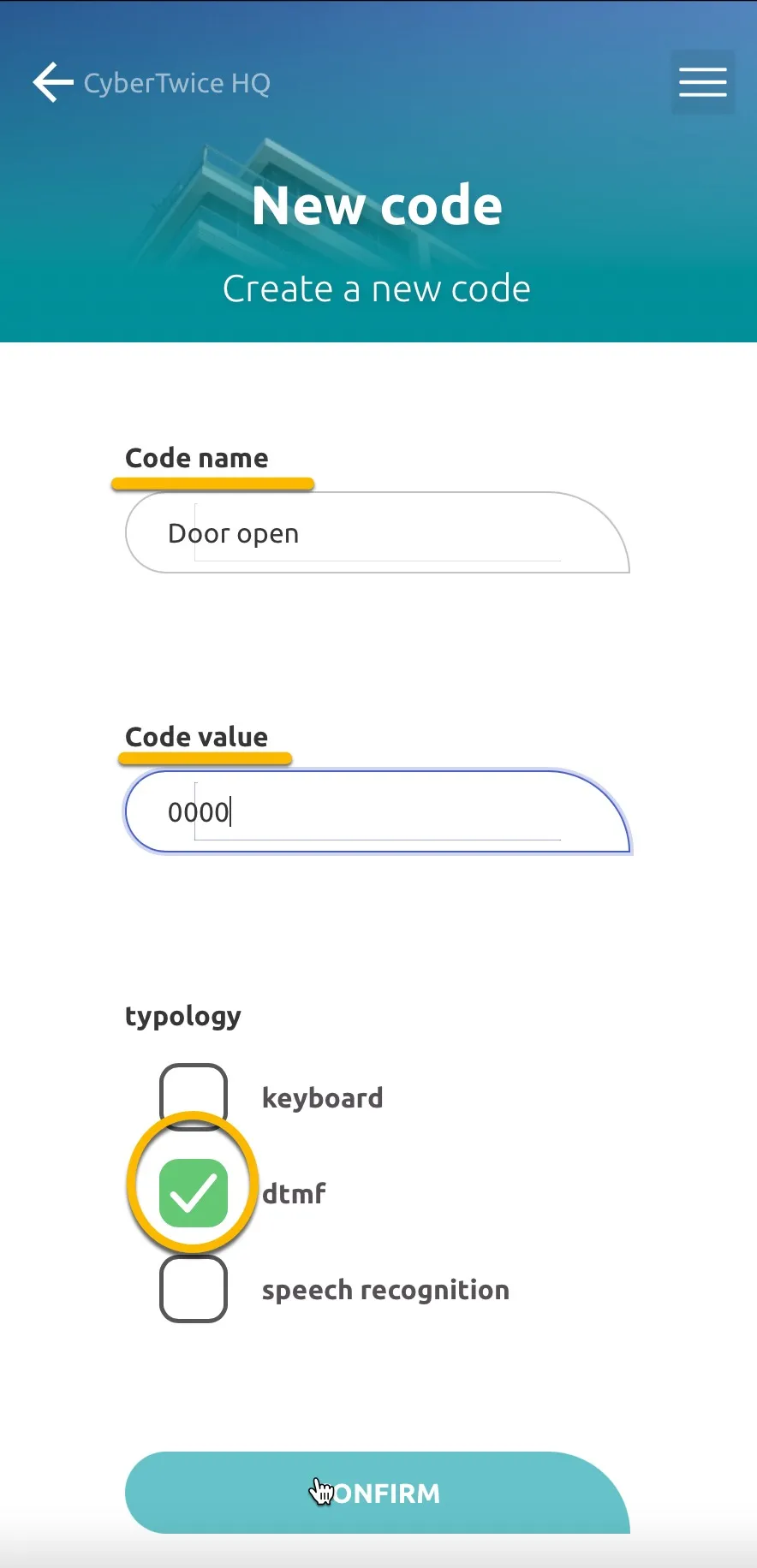
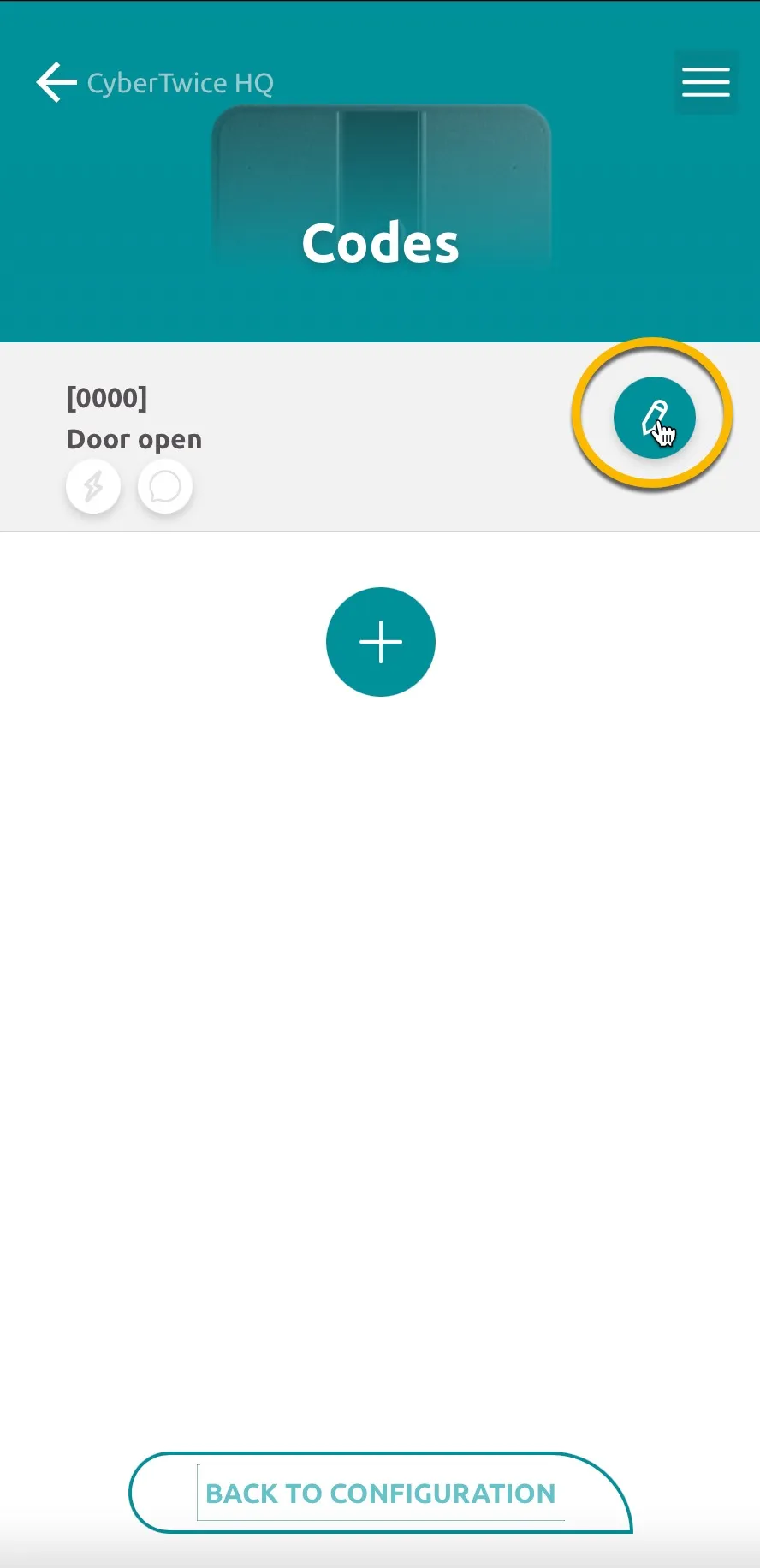
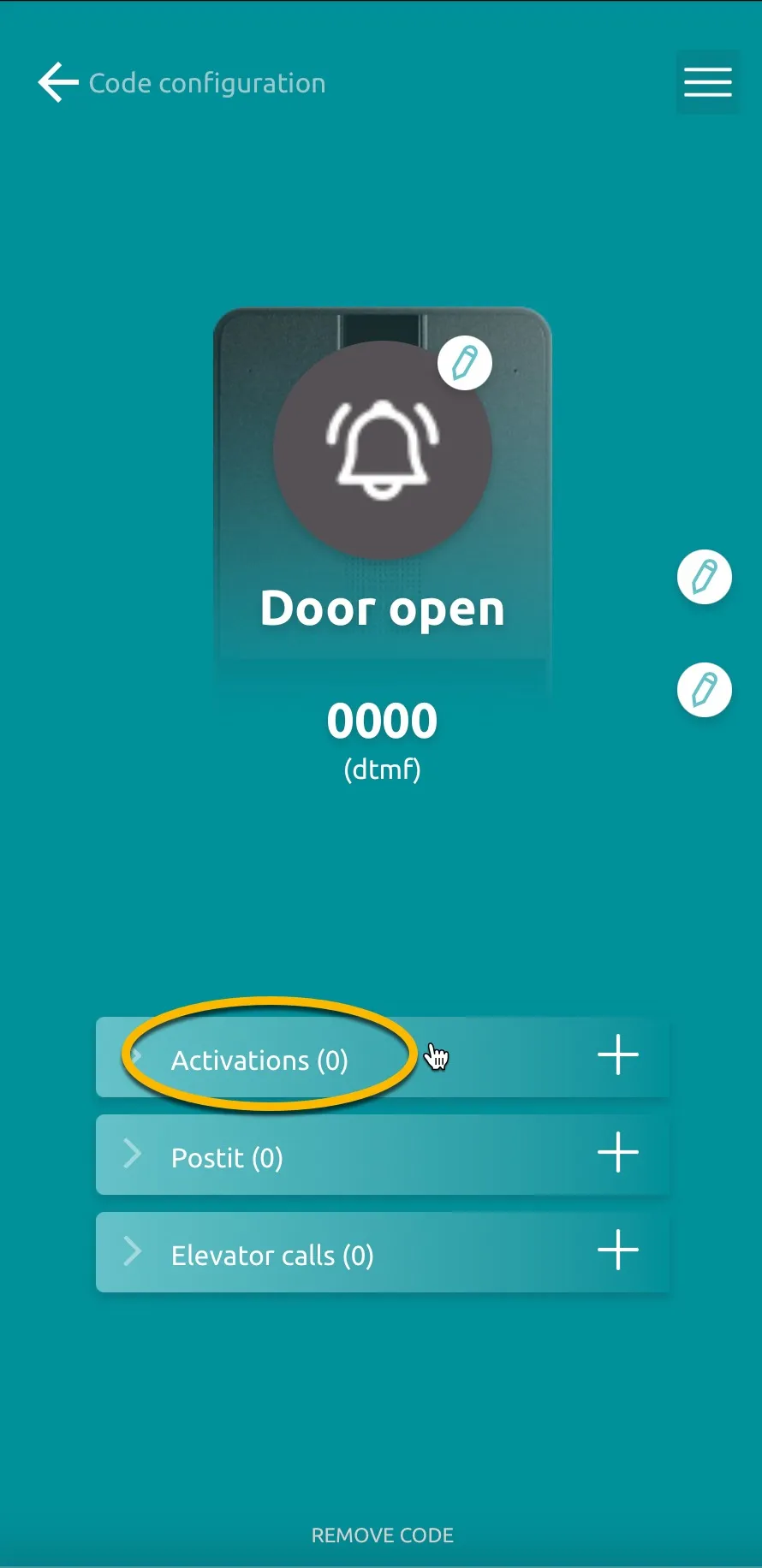
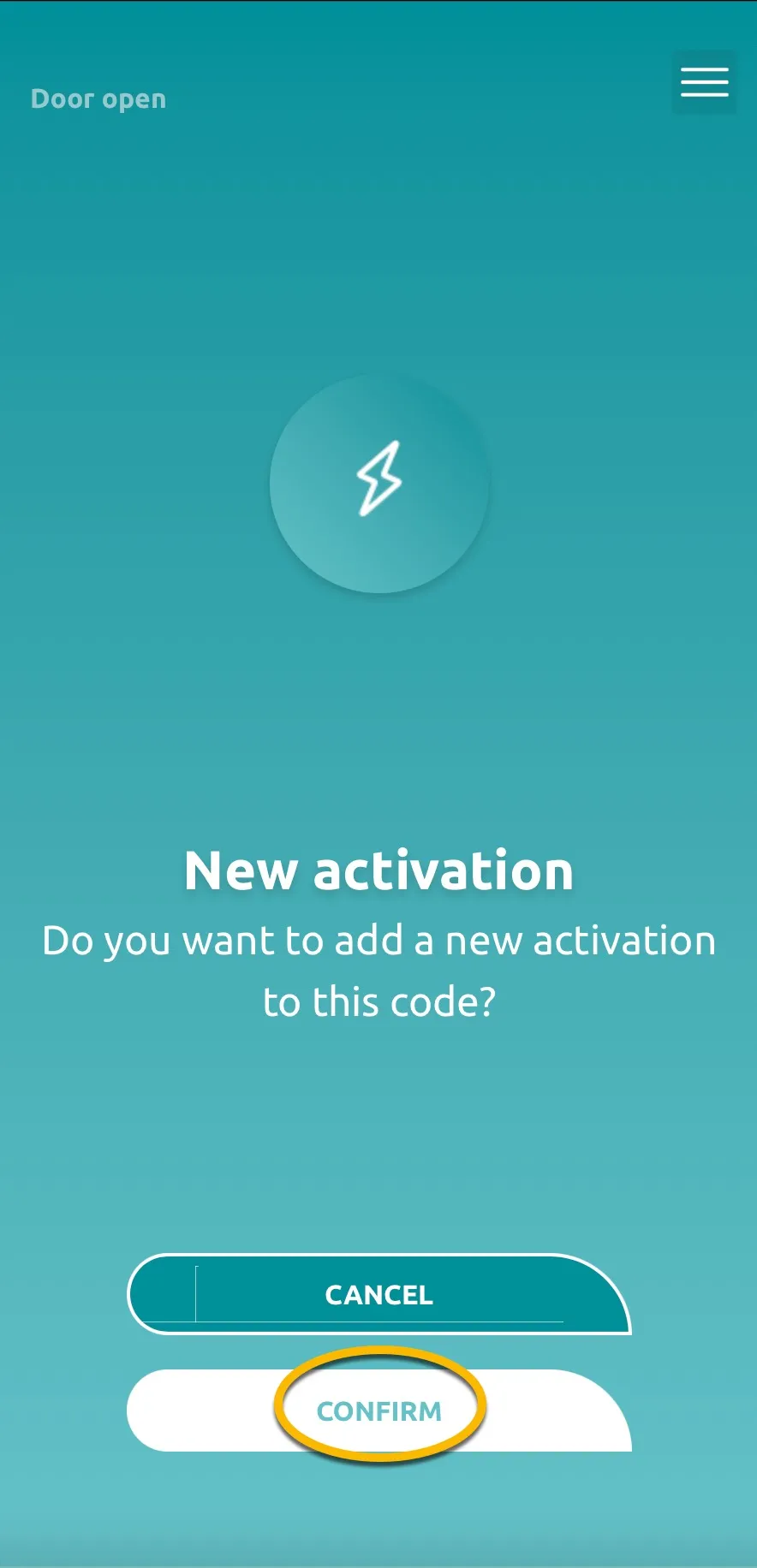
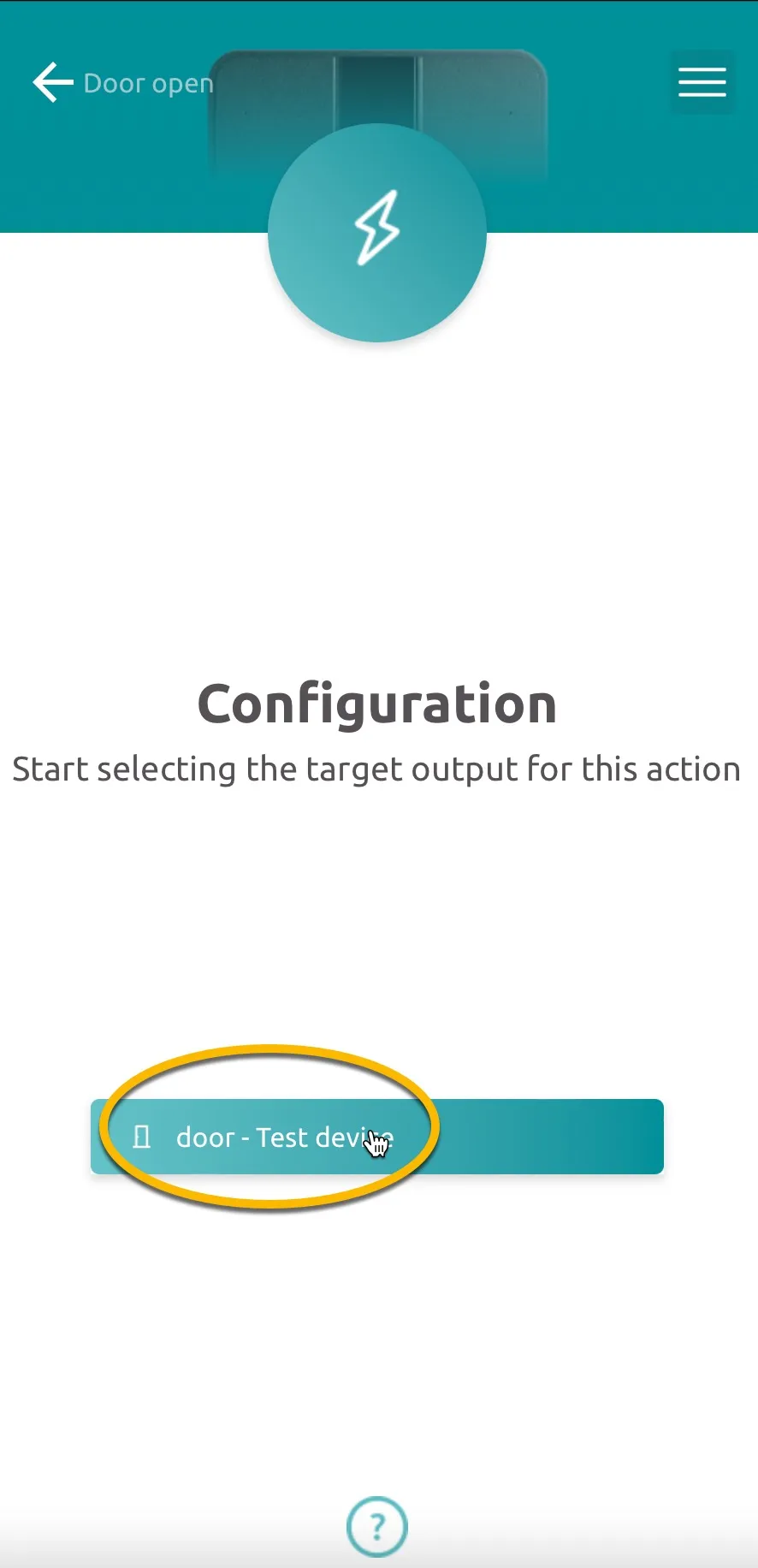
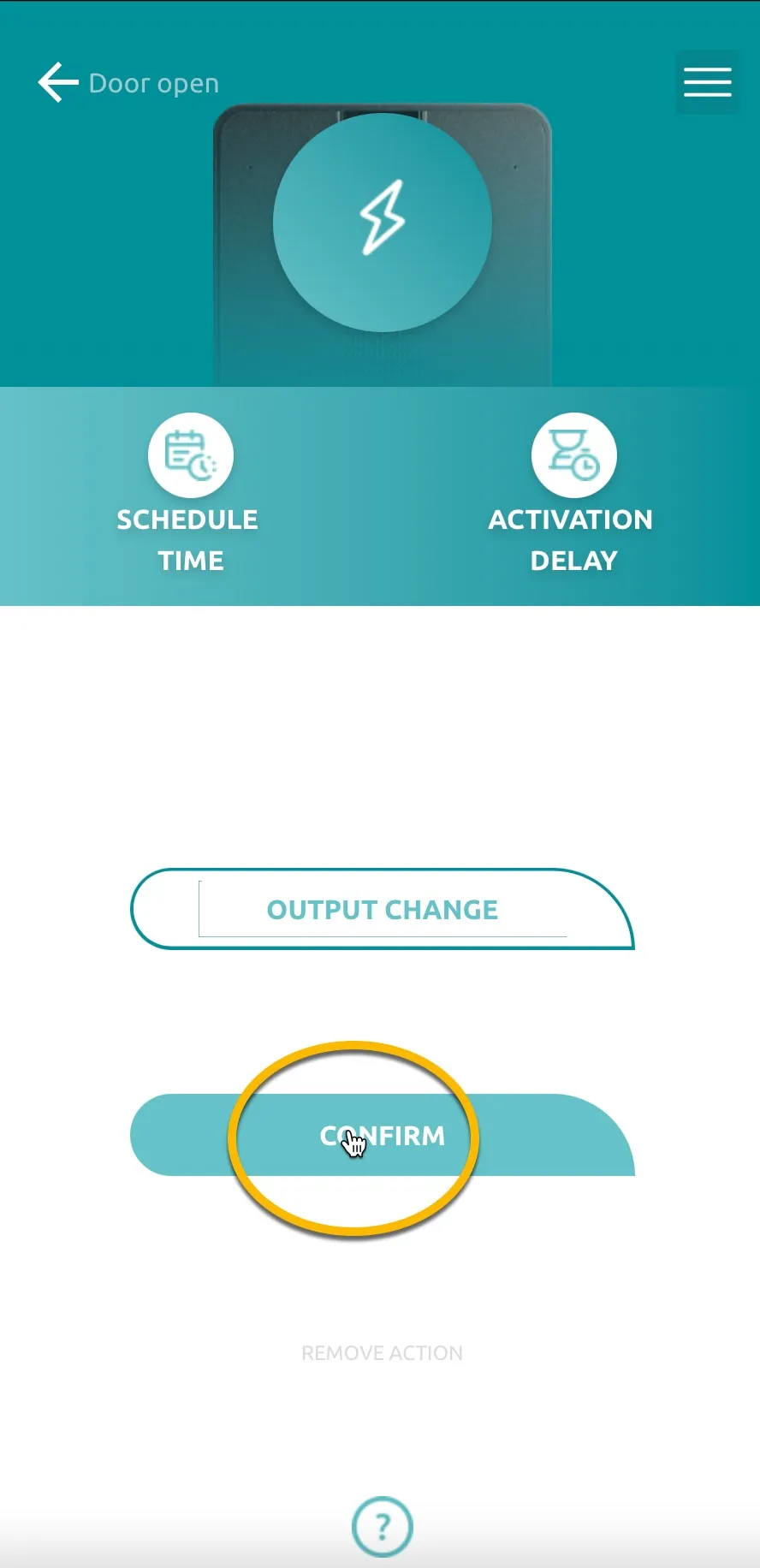
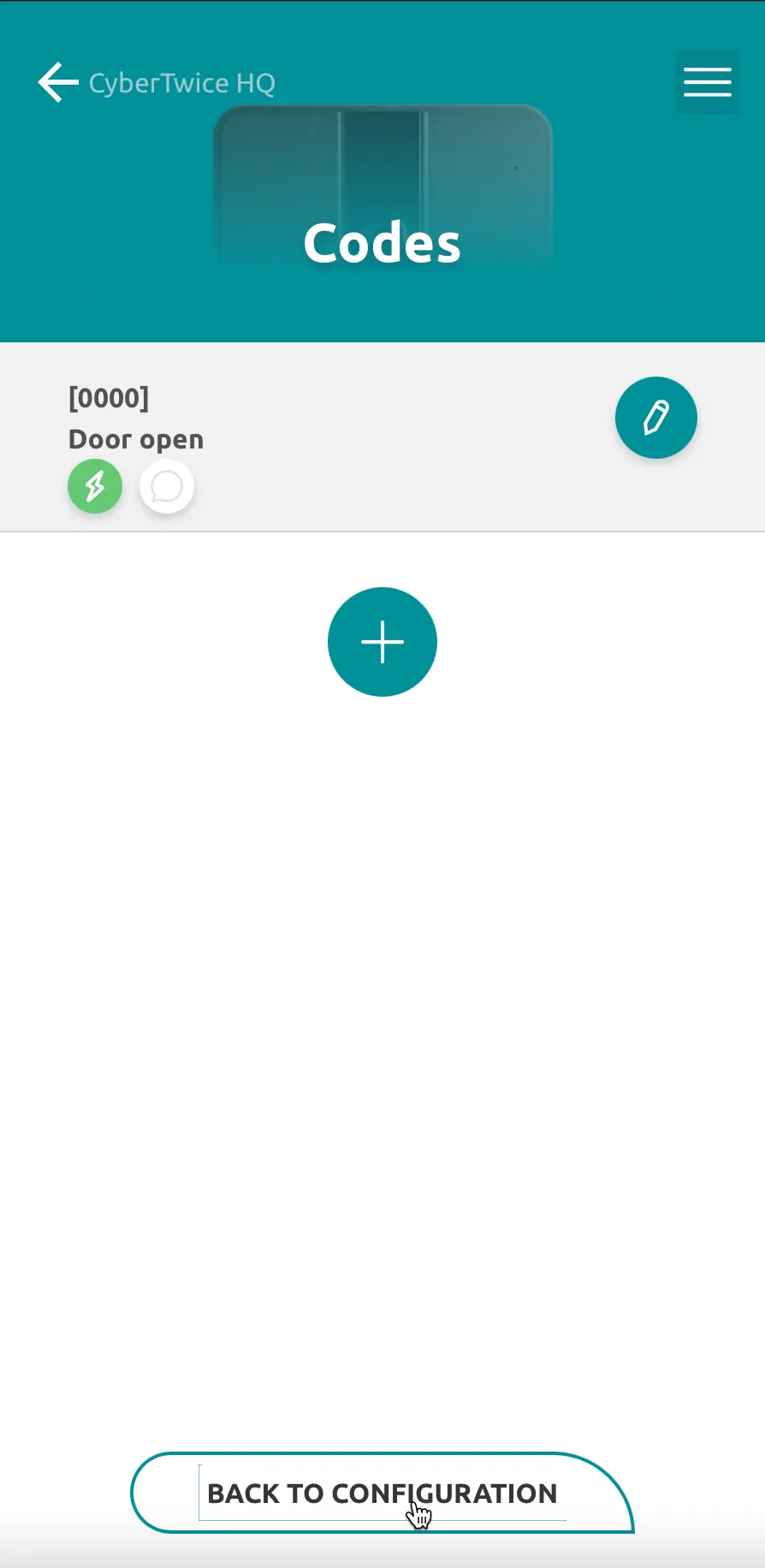
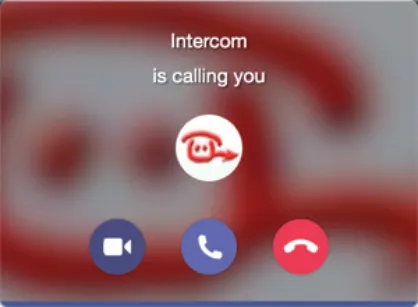
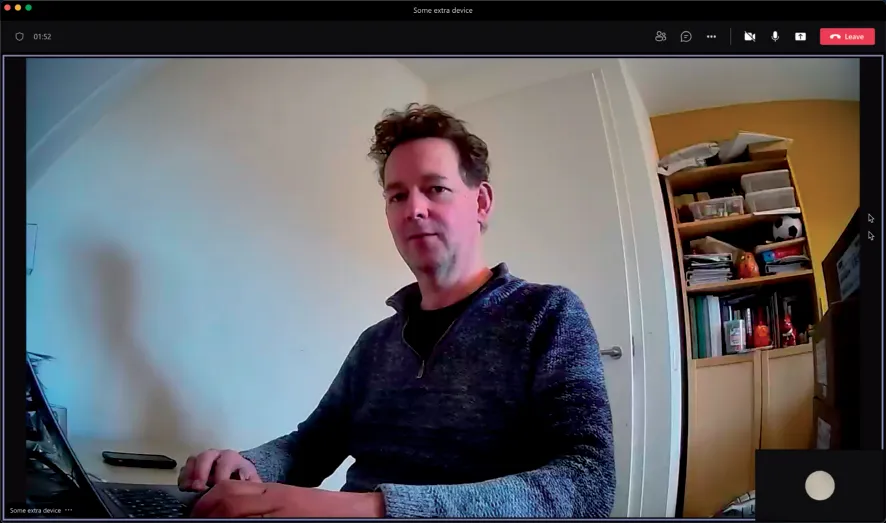
configure the ipdoor video door phone for the cybergate service microsoft teams is the hub for team collaboration in microsoft office 365 that integrates people, content, conversations, and tools your team needs via the cybergate application that runs in microsoft azure, you can now connect an ipdoor video door phone to your microsoft teams environment microsoft teams users can answer incoming intercom calls – with 2 way audio and live video – on the teams desktop client, teams desk phone, or teams smartphone app and open the door for visitors cybergate is a subscription based software as a service (saas) hosted in azure with cybergate there is no need to set up a hosting environment, no need to download or install any software from cybertwice or a 3rd party, no need to install additional virtual machines, no need for a session border controller (sbc) or extra licenses for your existing sbc, no need to get additional pstn like phone numbers for your sip intercoms for instructions on how to purchase and configure the cybergate service, see our tech note 'connect a sip intercom to ms teams using the cybergate service' ipdoor video door phone for this document we used the ipdoor touch video door phone (from now on named 'ipdoor') to connect to the cybergate service (from now on named 'cybergate') the ipdoor flush video door phone will also work with cybergate follow these steps to configure the ipdoor to connect it to cybergate pre configuration steps the ipdoor needs two additional licenses to connect to cybergate a sip license an ip phone license both licenses can be purchased from your ipdoor supplier note the ipdoor can call a configured teams user, but it is not possible to call the ipdoor from microsoft teams this manual also contains an appendix install the cybergate app it describes the installation and usage of the cybergate app for microsoft teams use the cybergate app for microsoft teams to open the door of the intercom by simply clicking on an open door button see the status of your intercom and call the intercom from teams by clicking on just one button set your availability status in a configured cybergate multi ring group with one click installation of the cybergate app for microsoft teams is highly recommended connect the ipdoor connect the ipdoor to the network, power it on, and open a web browser to https //console ipdoor com sign in with your ipdoor account to configure the ipdoor when successfully signed in, the main menu is shown create a new system using the qr code supplied with the ipdoor \[image cybergate ipdoor page 4, image 1] file cybergate ipdoor pdf 3 0 png \[image cybergate ipdoor page 4, image 2] file cybergate ipdoor pdf 3 1 png activate the product \[image cybergate ipdoor page 5, image 1] file cybergate ipdoor pdf 4 0 png \[image cybergate ipdoor page 5, image 2] file cybergate ipdoor pdf 4 1 png in this manual our building is called 'cybertwice hq' define the location of the system \[image cybergate ipdoor page 6, image 1] file cybergate ipdoor pdf 5 0 png \[image cybergate ipdoor page 6, image 2] file cybergate ipdoor pdf 5 1 png create a device optionally supply a building number and/or message; these will be displayed on the ipdoor's display \[image cybergate ipdoor page 7, image 1] file cybergate ipdoor pdf 6 0 png \[image cybergate ipdoor page 7, image 2] file cybergate ipdoor pdf 6 1 png continue with the button configuration \[image cybergate ipdoor page 8, image 1] file cybergate ipdoor pdf 7 0 png \[image cybergate ipdoor page 8, image 2] file cybergate ipdoor pdf 7 1 png in this example we keep the default name for the button 'family name n 1' invitation of users is optional \[image cybergate ipdoor page 9, image 1] file cybergate ipdoor pdf 8 0 png \[image cybergate ipdoor page 9, image 2] file cybergate ipdoor pdf 8 1 png configure the output to use the built in relay switch \[image cybergate ipdoor page 10, image 1] file cybergate ipdoor pdf 9 0 png \[image cybergate ipdoor page 10, image 2] file cybergate ipdoor pdf 9 1 png select the function type (in this example 'door') and customize the name \[image cybergate ipdoor page 11, image 1] file cybergate ipdoor pdf 10 0 png \[image cybergate ipdoor page 11, image 2] file cybergate ipdoor pdf 10 1 png when the 'configuration completed!' screen shows, the base configuration is done next is the configuration of the ipdoor to communicate with cybergate \[image cybergate ipdoor page 12, image 1] file cybergate ipdoor pdf 11 0 png \[image cybergate ipdoor page 12, image 2] file cybergate ipdoor pdf 11 1 png for the ipdoor to function with cybergate, two licenses are needed a sip license and an ip phone license (both can be purchased from your ipdoor supplier) first, add the sip license (in the licenses menu, sip account) \[image cybergate ipdoor page 13, image 1] file cybergate ipdoor pdf 12 0 png \[image cybergate ipdoor page 13, image 2] file cybergate ipdoor pdf 12 1 png add and activate the sip license \[image cybergate ipdoor page 14, image 1] file cybergate ipdoor pdf 13 0 png \[image cybergate ipdoor page 14, image 2] file cybergate ipdoor pdf 13 1 png add and activate the sip license \[image cybergate ipdoor page 15, image 1] file cybergate ipdoor pdf 14 0 png \[image cybergate ipdoor page 15, image 2] file cybergate ipdoor pdf 14 1 png when added, select the user to use this license (in this example 'test device') \[image cybergate ipdoor page 16, image 1] file cybergate ipdoor pdf 15 0 png \[image cybergate ipdoor page 16, image 2] file cybergate ipdoor pdf 15 1 png open the device section and edit the device \[image cybergate ipdoor page 17, image 1] file cybergate ipdoor pdf 16 0 png \[image cybergate ipdoor page 17, image 2] file cybergate ipdoor pdf 16 1 png click on 'settings' and 'sip account' \[image cybergate ipdoor page 18, image 1] file cybergate ipdoor pdf 17 0 png \[image cybergate ipdoor page 18, image 2] file cybergate ipdoor pdf 17 1 png provide/change the following information sip account username use the username provided by the cybergate management portal authentication id use the username provided by the cybergate management portal password use the password provided by the cybergate management portal domain cybergate cybertwice com protocol switch to tcp click 'done' \[image cybergate ipdoor page 19, image 1] file cybergate ipdoor pdf 18 0 png \[image cybergate ipdoor page 19, image 2] file cybergate ipdoor pdf 18 1 png the configured sip account will automatically register the registration state will be shown (can take some time) go back to the start screen and, within the devices section, add a device \[image cybergate ipdoor page 20, image 1] file cybergate ipdoor pdf 19 0 png \[image cybergate ipdoor page 20, image 2] file cybergate ipdoor pdf 19 1 png select 'other device', then select 'ip phone' \[image cybergate ipdoor page 21, image 1] file cybergate ipdoor pdf 20 0 png \[image cybergate ipdoor page 21, image 2] file cybergate ipdoor pdf 20 1 png for the ip phone, you will need a license (available from your ipdoor supplier) scan the qr code for the license \[image cybergate ipdoor page 22, image 1] file cybergate ipdoor pdf 21 0 png \[image cybergate ipdoor page 22, image 2] file cybergate ipdoor pdf 21 1 png when successfully added, provide/change the following information ip phone sip phone descriptive name for the call destination (in this example 'koos ridder') username use the teams user address without the domain part domain cybergate cybertwice com protocol switch to tcp two way video call enable to also display the teams user on the display of the ipdoor for example, the user 'koos ridder', with the teams name mailto\ koos ridder\@mycompany com will translate to this destination address koos ridder click 'done' \[image cybergate ipdoor page 23, image 1] file cybergate ipdoor pdf 22 0 png \[image cybergate ipdoor page 23, image 2] file cybergate ipdoor pdf 22 1 png when finished, the device section contains a device and an ip phone (in this example 'test device' and 'koos ridder') \[image cybergate ipdoor page 24, image 1] file cybergate ipdoor pdf 23 0 png \[image cybergate ipdoor page 24, image 2] file cybergate ipdoor pdf 23 1 png in the group section, edit the group displayed click on the 'devices' button \[image cybergate ipdoor page 25, image 1] file cybergate ipdoor pdf 24 0 png \[image cybergate ipdoor page 25, image 2] file cybergate ipdoor pdf 24 1 png select the ip phone (in our case 'koos ridder') to take part in this group navigate back to the main menu \[image cybergate ipdoor page 26, image 1] file cybergate ipdoor pdf 25 0 png \[image cybergate ipdoor page 26, image 2] file cybergate ipdoor pdf 25 1 png to configure the code to open the door during a call, open the device section and edit the device ('test device') select 'configuration' \[image cybergate ipdoor page 27, image 1] file cybergate ipdoor pdf 26 0 png \[image cybergate ipdoor page 27, image 2] file cybergate ipdoor pdf 26 1 png select 'codes' and add a new code \[image cybergate ipdoor page 28, image 1] file cybergate ipdoor pdf 27 0 png \[image cybergate ipdoor page 28, image 2] file cybergate ipdoor pdf 27 1 png provide/change the following information new code code name descriptive name for this code (in this example 'door open') code value in this example '0000' (any other code is possible, as long as it starts with a '0') typology deselect 'keyboard' to use this code only for dtmf click 'confirm' edit the newly created code \[image cybergate ipdoor page 29, image 1] file cybergate ipdoor pdf 28 0 png \[image cybergate ipdoor page 29, image 2] file cybergate ipdoor pdf 28 1 png select 'activations' and confirm \[image cybergate ipdoor page 30, image 1] file cybergate ipdoor pdf 29 0 png \[image cybergate ipdoor page 30, image 2] file cybergate ipdoor pdf 29 1 png select the already configured switch (in this example 'door') and confirm \[image cybergate ipdoor page 31, image 1] file cybergate ipdoor pdf 30 0 png \[image cybergate ipdoor page 31, image 2] file cybergate ipdoor pdf 30 1 png the newly created code is now configured to operate the built in switch \[image cybergate ipdoor page 32, image 1] file cybergate ipdoor pdf 31 0 png configuration of the ipdoor is now finished pressing the call button on the ipdoor touch screen will initiate a call to the number configured in the ipdoor the call will be established and video will be displayed within ±3 seconds to open the door from the teams call, click on the three dots ( ) in the call screen and select the 'keypad' use the '0000' code (as set in the ipdoor earlier); this will trigger the switch in the ipdoor and open the door \[image cybergate ipdoor page 33, image 1] file cybergate ipdoor pdf 32 0 png \[image cybergate ipdoor page 33, image 2] file cybergate ipdoor pdf 32 1 png