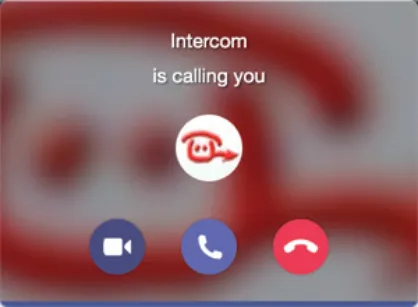
MOBOTIX and CyberGate
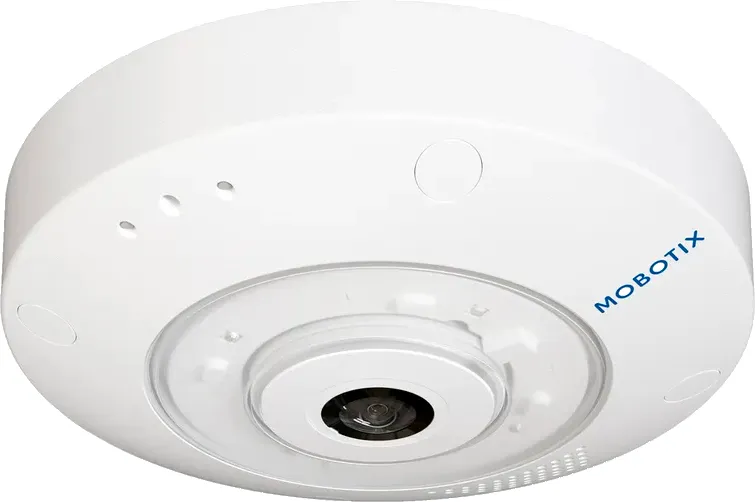
This guide explains how to connect a MOBOTIX C71 Indoor Ceiling Camera to Microsoft Teams using the CyberGate service, so the camera can place calls to Teams users and answer incoming Teams calls with two-way audio. It is written for administrators configuring the camera's SIP registration and outgoing call destination.
This guide uses a MOBOTIX C71 Indoor Ceiling Camera (referred to from here as the "MOBOTIX") to connect to the CyberGate service (referred to as "CyberGate").
MOBOTIX cameras can place Session Initiation Protocol (SIP) calls when certain events occur. This guide describes the most basic configuration for use with CyberGate: SIP registration and the call destination. It does not describe how to create the events that trigger the call, as this varies per use case — see MOBOTIX and CyberGateConfigure events to trigger calls below and the MOBOTIX manual for details.
Configure the MOBOTIX SIP client
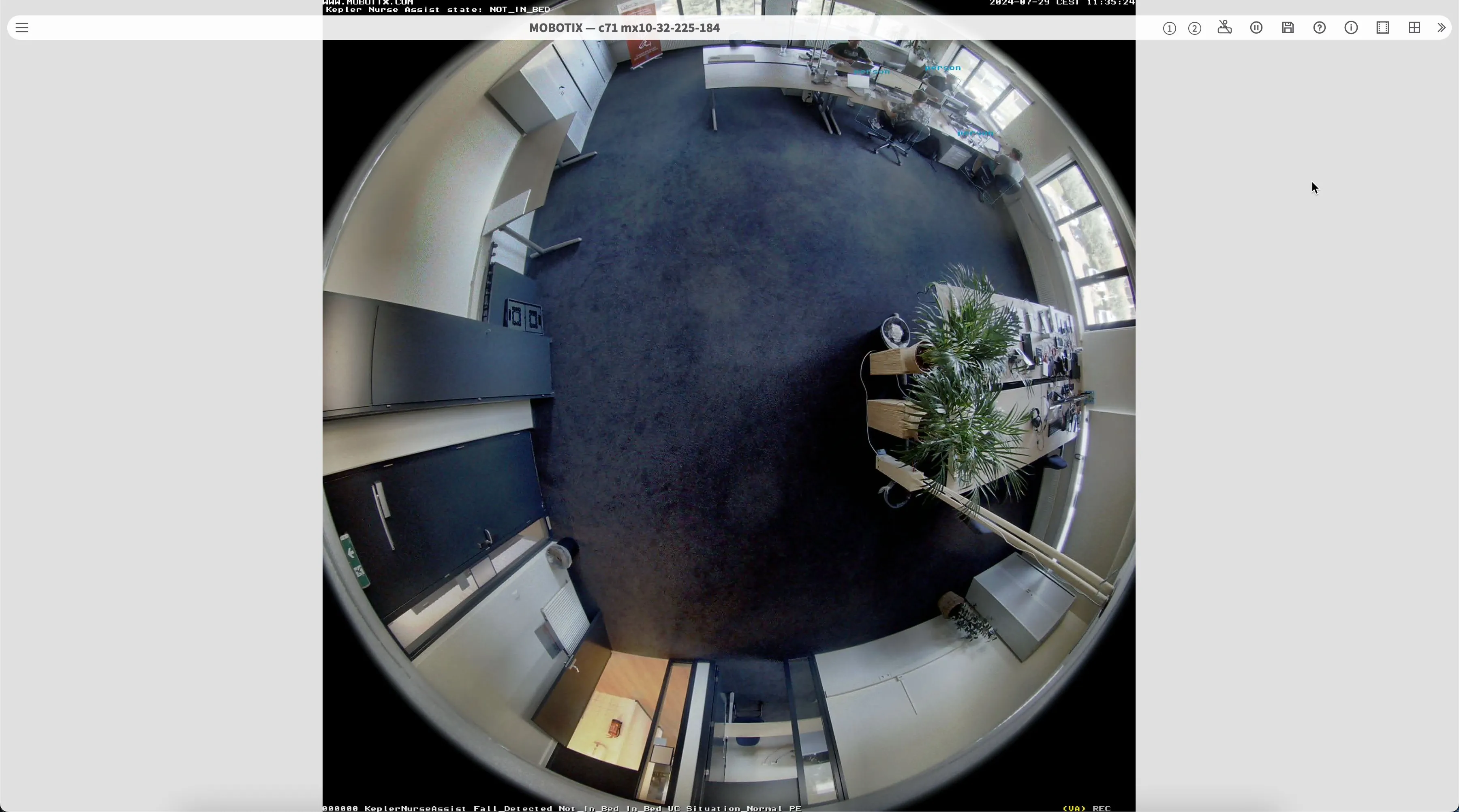
Connect the camera and open the web interface
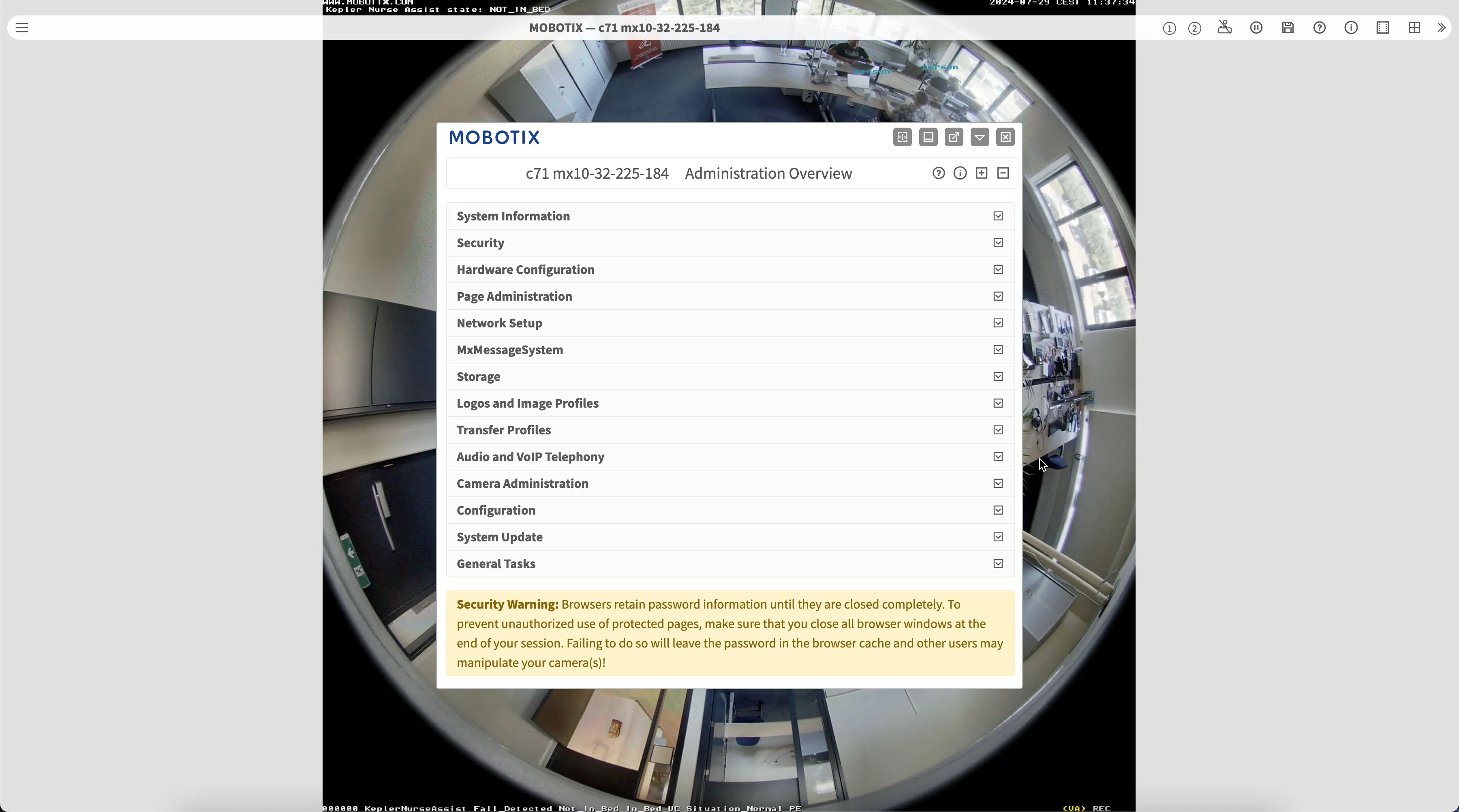
- Connect the MOBOTIX to the network, power it on, and open a web browser to its IP address.
- Navigate to the Admin menu and log in with the configured MOBOTIX password.
Enable Expert Setup
- Go to Audio and VoIP Telephony > SIP Client Settings.
- Set the Setup Mode:
Setting | Value |
|---|---|
Setup Mode | Change to Expert Setup |
- Click Set to enable the additional setup features.
Configure the SIP account and video
- Under General Phone Settings, enable the SIP client:
Setting | Value |
|---|---|
SIP Client | Enable the SIP client |
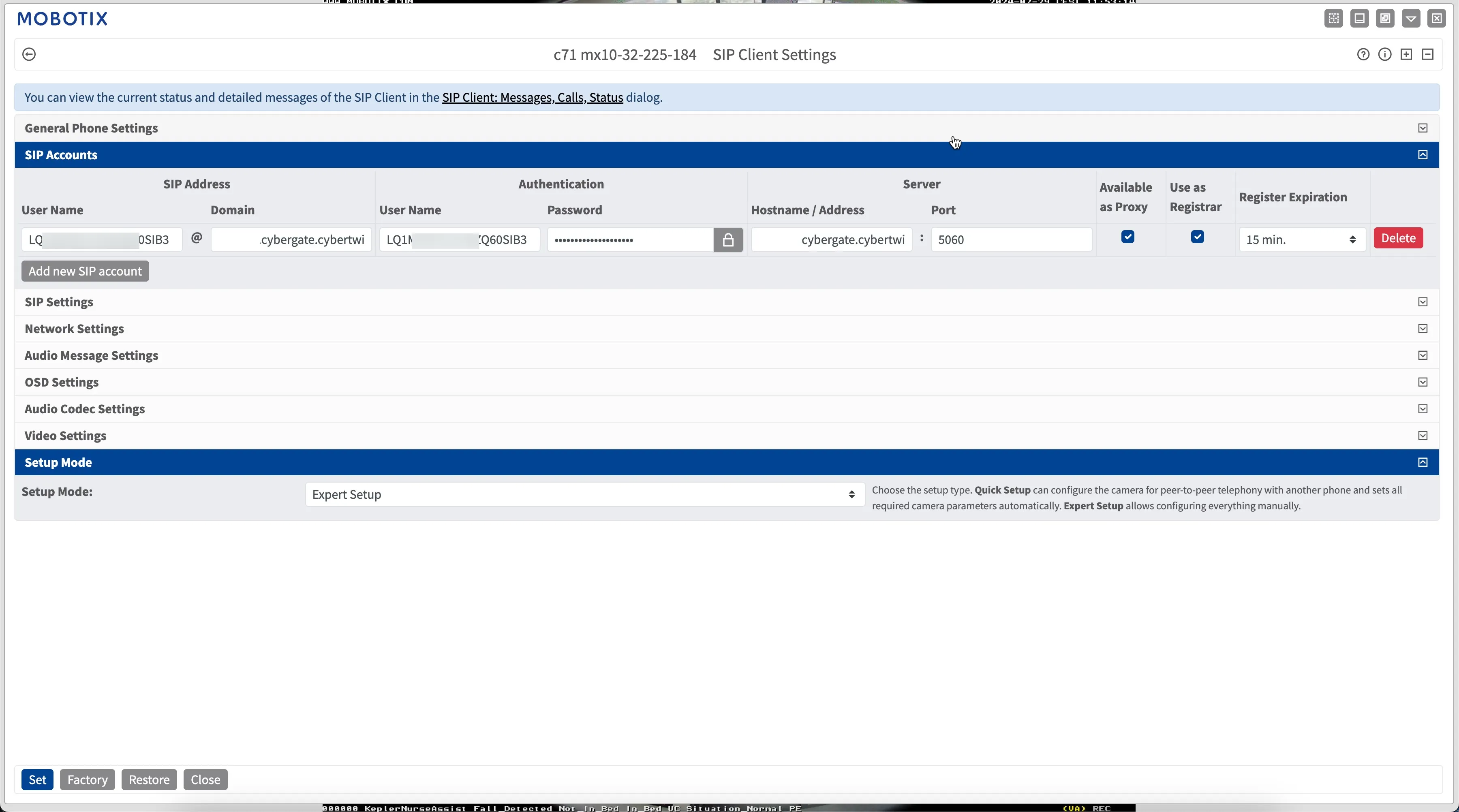
- Under SIP Accounts, click Add new SIP account and enter:
Setting | Value |
|---|---|
SIP address – User Name | The Username provided by the CyberGate Management Portal |
Domain | cybergate.cybertwice.com |
Authentication – User Name | The Username provided by the CyberGate Management Portal |
Password | The Password provided by the CyberGate Management Portal |
Server – Hostname / Address | cybergate.cybertwice.com |
Server – Port | 5060 |
Available as Proxy | Enable |
Use as Register | Enable |
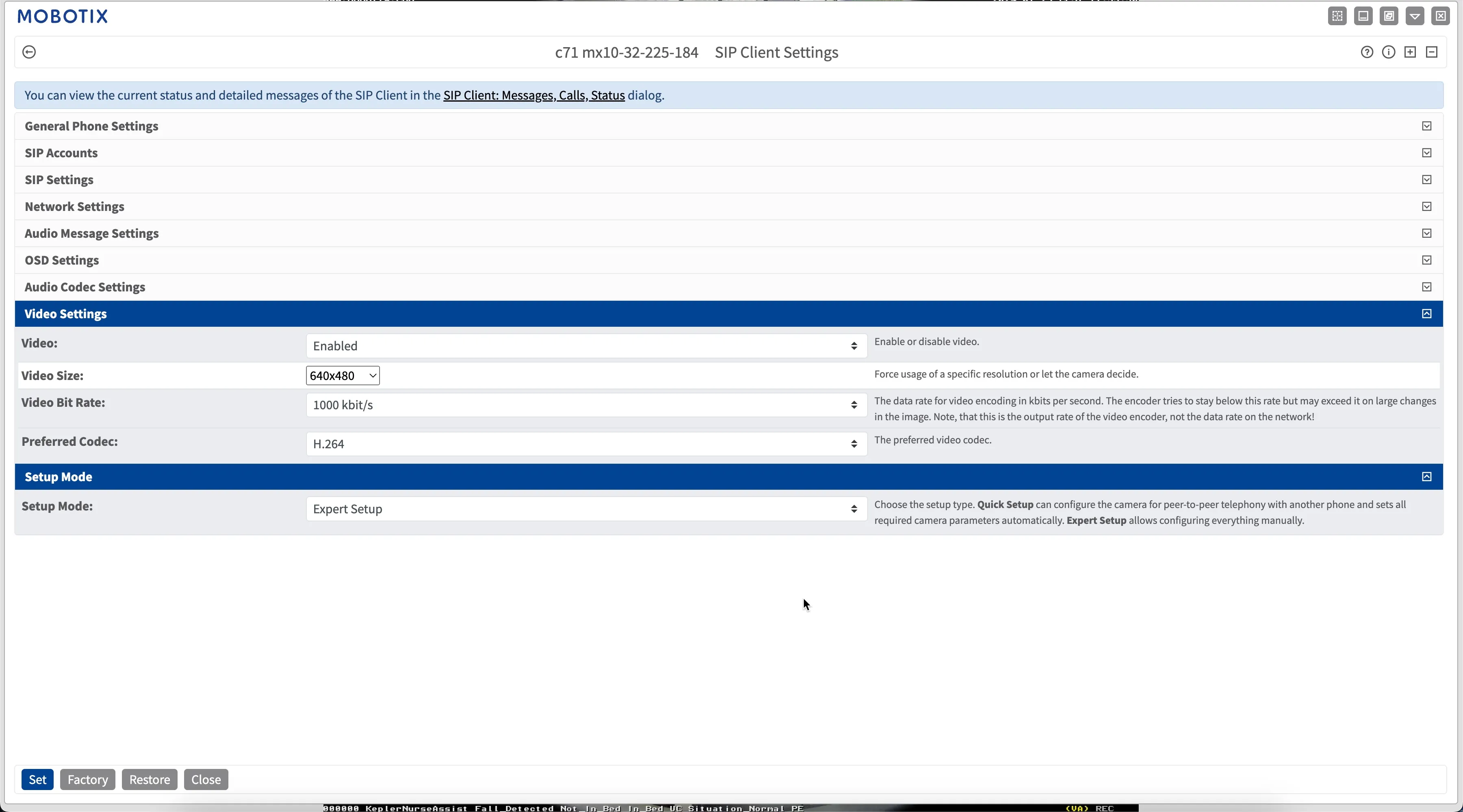
- Under Video Settings, enter:
Setting | Value |
|---|---|
Video | Enable video |
Video Size | 640x480 |
Video Bit Rate | 1000 kbit/s |
- Click Set to apply the settings, then click Close to save the configuration.
Configure the outgoing call destination
- In the Admin menu, go to Audio and VoIP Telephony > Outgoing Calls Settings.
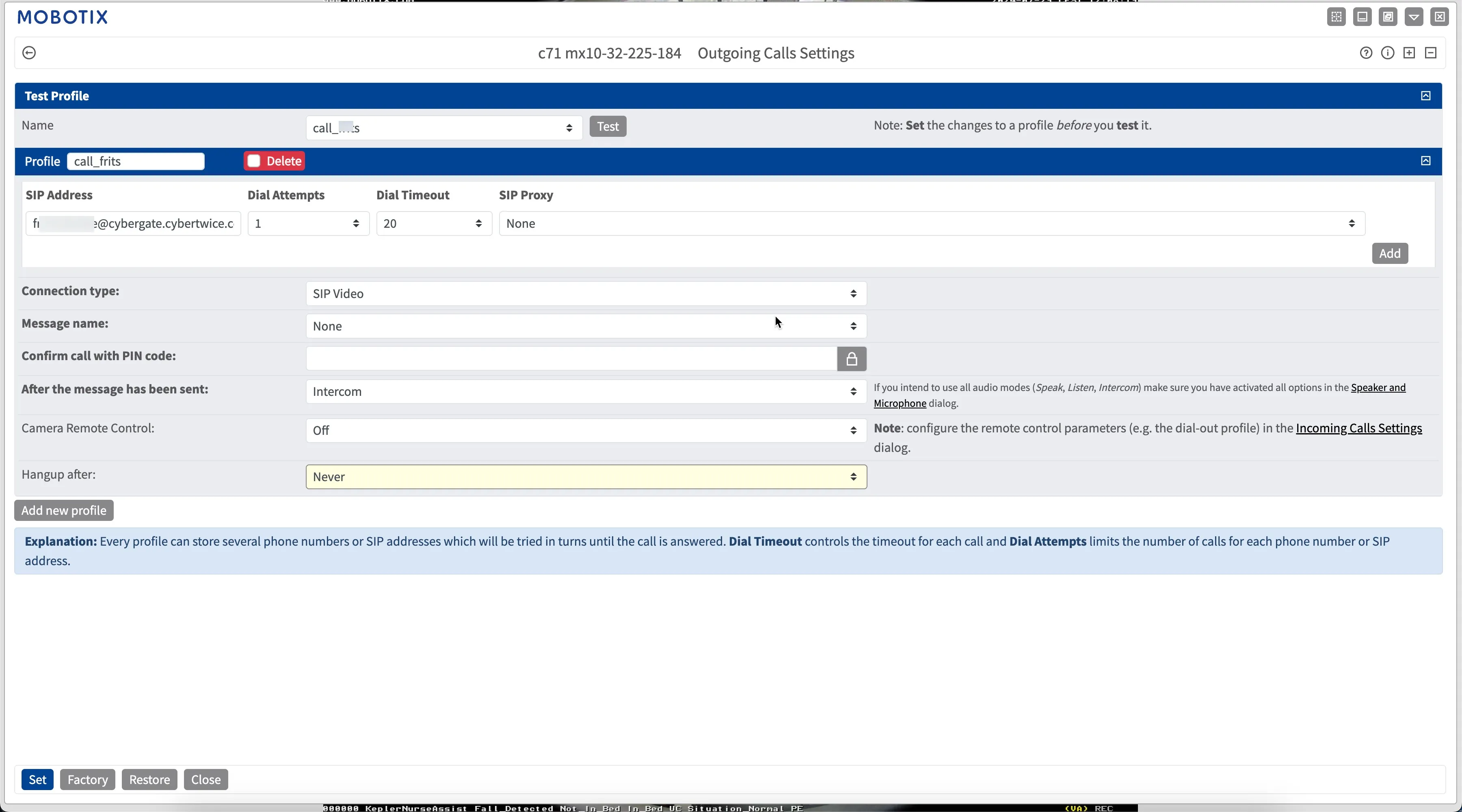
- Create a profile and enter:
Setting | Value |
|---|---|
SIP Address | The Teams user address with the domain cybergate.cybertwice.com (see the example below) |
SIP Proxy | Select the SIP proxy you just created |
Connection type | Change to SIP Video |
After the message has been sent | Change to Intercom |
The SIP address uses the Teams user name with the CyberGate domain. For example, the Teams user Koos Ridder:
translates to this destination address:
Store the configuration to Flash. After configuring the MOBOTIX, store the configuration to Flash (in the main menu, under Configuration). Otherwise the MOBOTIX might not function as expected.
Configure events to trigger calls
To configure the events that will call the Teams user, navigate to the Setup menu and see the Event Control section to create Events and Actions. For more information about MOBOTIX events, see the MOBOTIX manual.
Test the call to Microsoft Teams
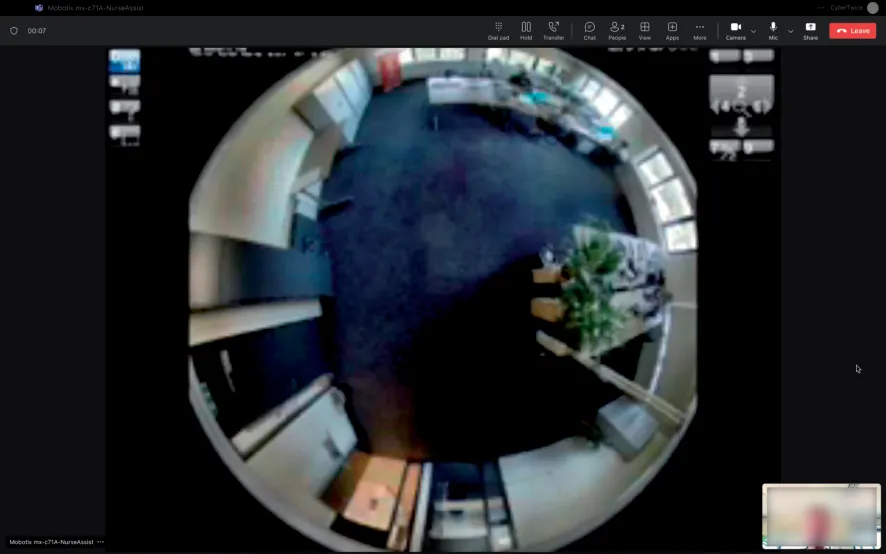
- Click Test to initiate a call to the number configured in the Outgoing Call Settings. The call connects and video appears within roughly 3 seconds.
- To control the MOBOTIX camera, click Dial pad.
- If the test call was successful, click Set to apply the settings, then Close to save the configuration.
Configuration of the MOBOTIX for use with CyberGate is now finished.