PortaDial and CyberGate
PortaDial and CyberGate
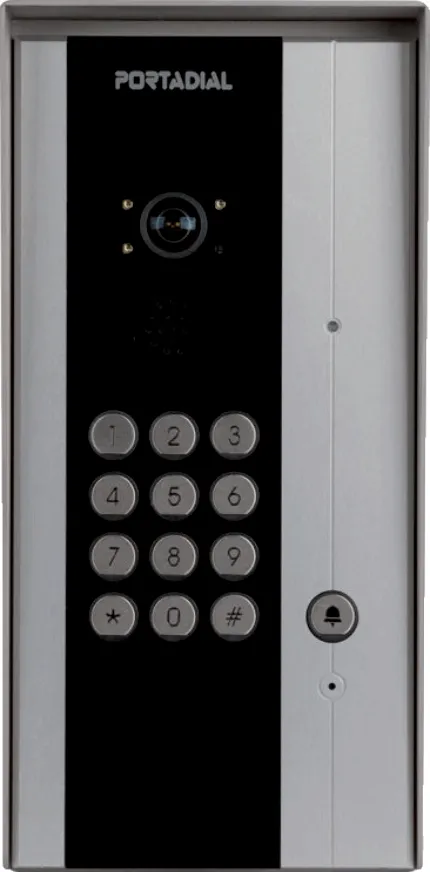
This guide explains how to configure two PortaDial intercoms — the PortaDial Elego cam and the PortaVision SIP — to connect to Microsoft Teams through the CyberGate service. It is targeted at administrators that manage CyberGate and the intercom hardware.
Devices covered in this guide
This guide covers two PortaDial intercoms, configured separately:
- PortaDial Elego cam
- PortaVision SIP
Configure the PortaDial Elego cam
These steps configure the PortaDial Elego cam to register with CyberGate and call a Microsoft Teams user directly. You need the SIP username and password issued by the CyberGate Management Portal.
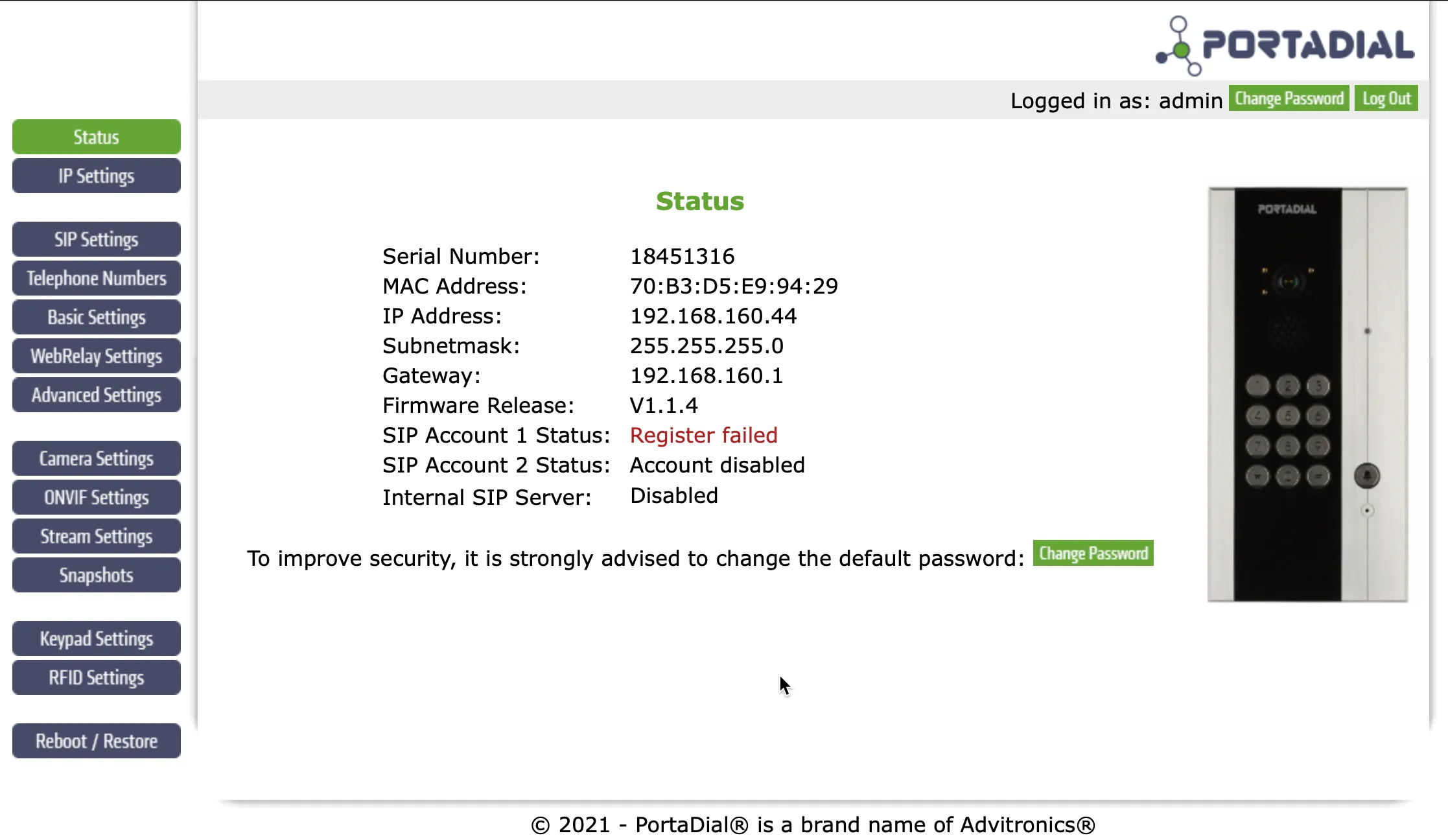
Connect and sign in to the PortaDial Elego cam
- Connect the PortaDial Elego cam to the network and power it on.
- Open a web browser to the device's IP address.
- Sign in as admin using the configured or supplied password.
The Status menu appears first after a successful sign-in.
SIP Settings
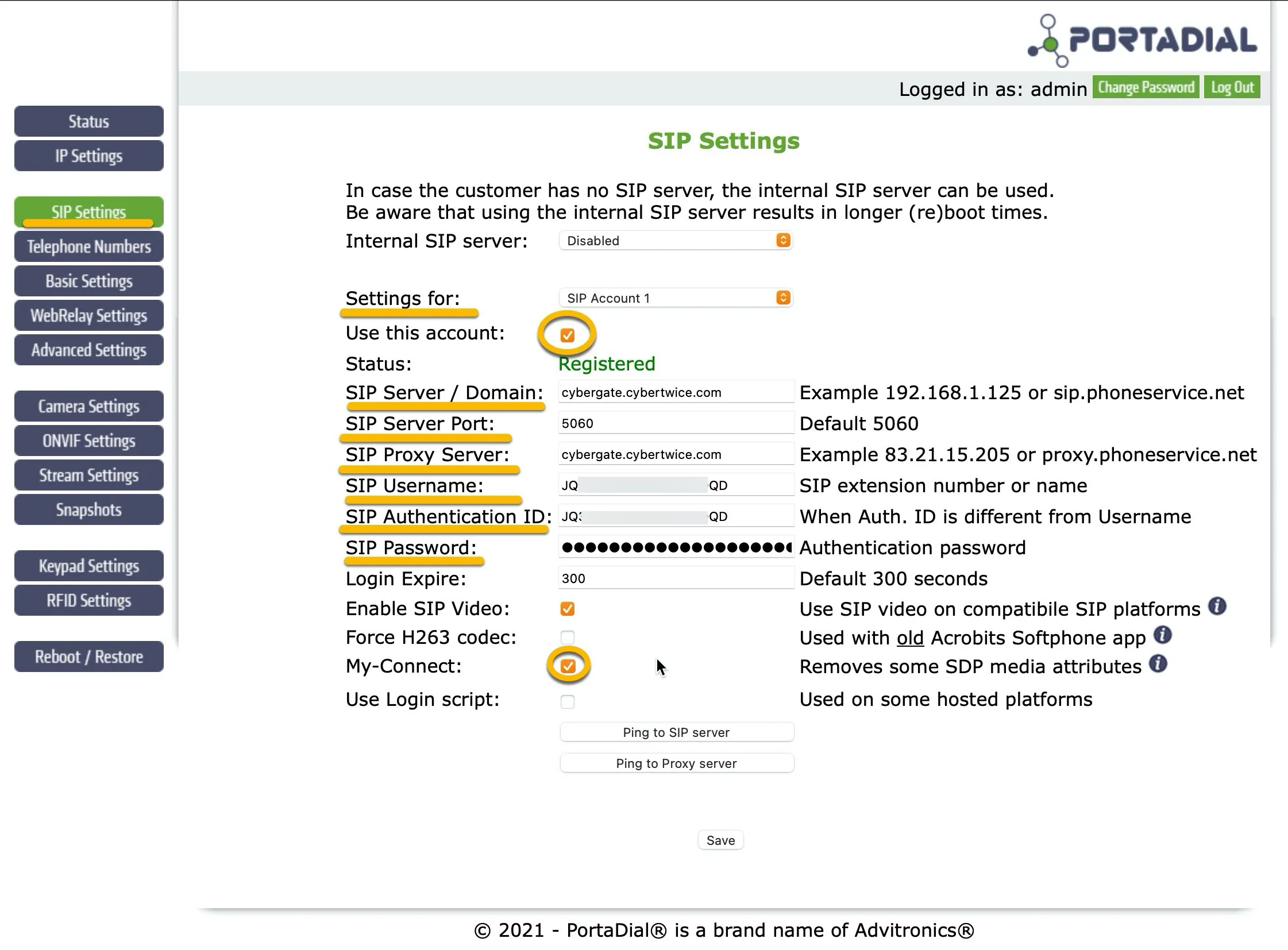
Open the SIP Settings menu, enter the values in the table below, and click Save.
Setting | Value |
|---|---|
SIP Server / Domain | cybergate.cybertwice.com |
SIP Proxy Server | cybergate.cybertwice.com |
SIP Username | Use the username provided by the CyberGate Management Portal |
SIP Authentication ID | Use the username provided by the CyberGate Management Portal |
SIP Password | Use the password provided by the CyberGate Management Portal |
My-Connect | Enable the My-Connect option |
Telephone Numbers
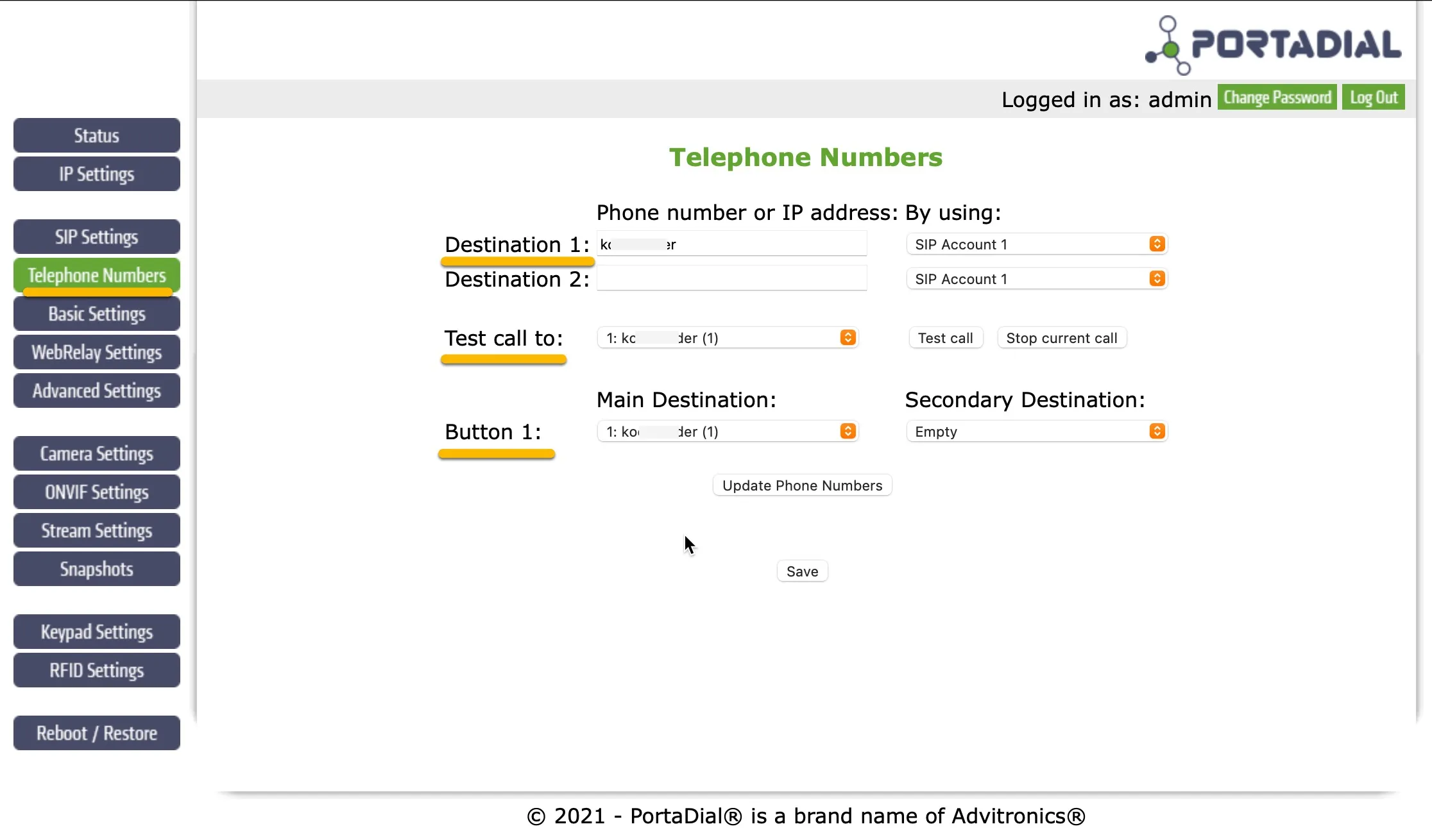
Open the Telephone Numbers menu, enter the value below, and click Save.
Setting | Value |
|---|---|
Destination 1 | The Teams user name to call, without the @domain part |
Enter only the local part of the Teams user name. For example, instead of [email protected], enter only koos.ridder.
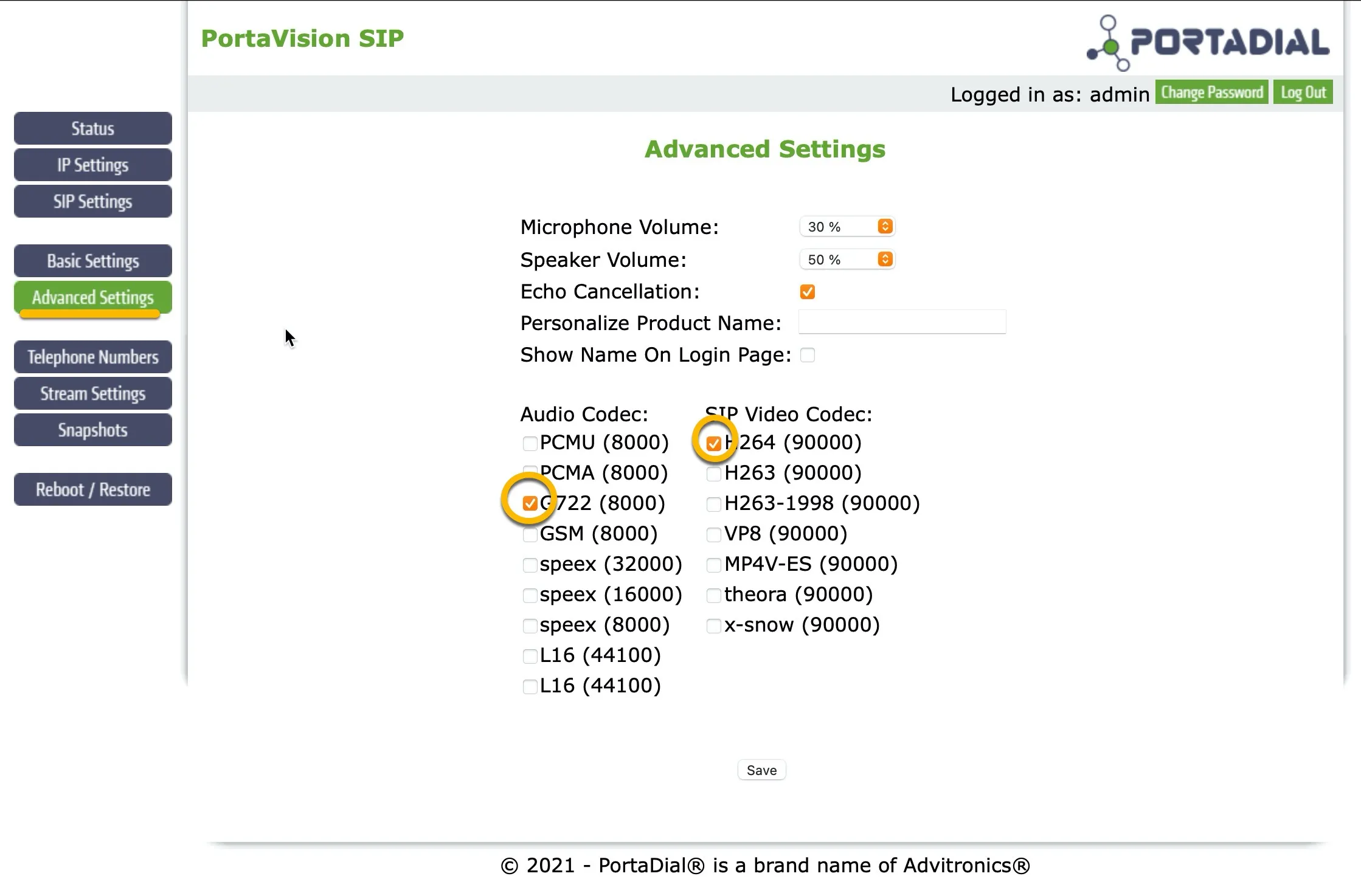
Advanced Settings
Open the Advanced Settings menu, change the values below, and click Save.
Setting | Value |
|---|---|
SIP Video Resolution | Change to 640x480 (VGA) |
Audio Codec | Disable both PCMU and PCMA |
SIP Video Codec | Disable both H263 and H263-1998 |
Stream Settings
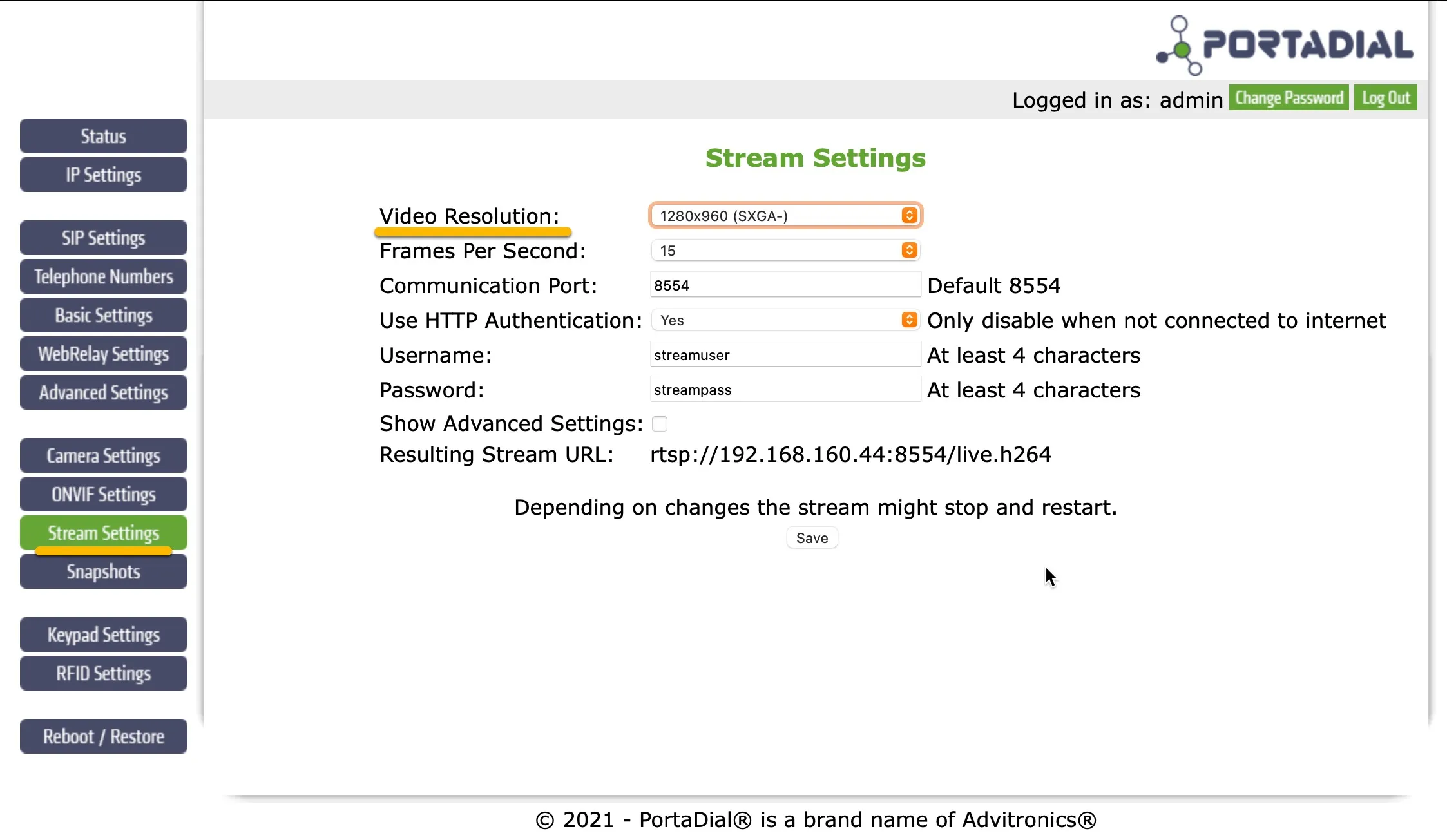
Open the Stream Settings menu, change the value below, and click Save.
Setting | Value |
|---|---|
Video Resolution | Change to 1280x960 (VGA) |
Test the call and open the door
Configuration of the PortaDial Elego cam is now complete.
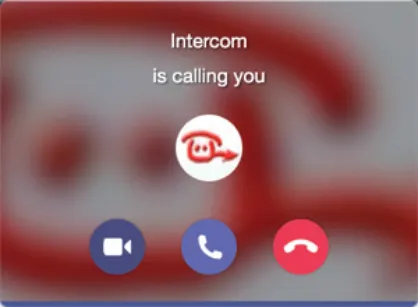
- Press the call button on the PortaDial Elego cam to call the configured Teams user.
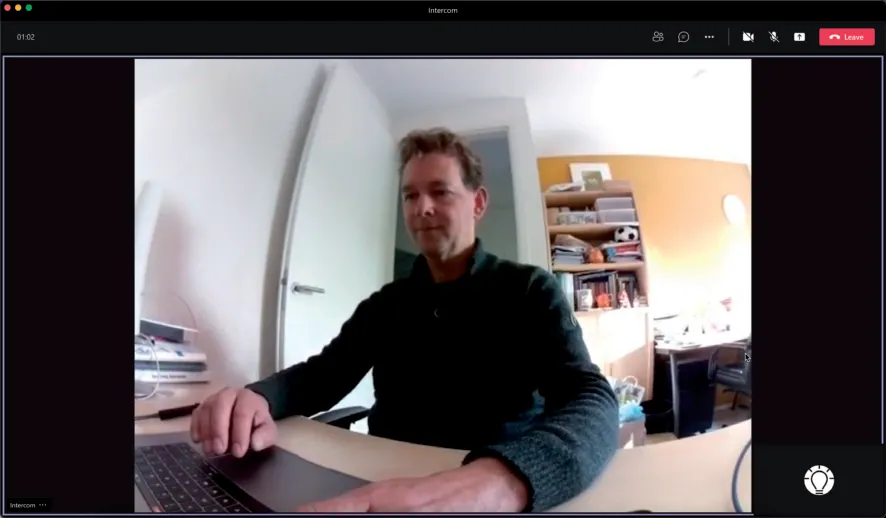
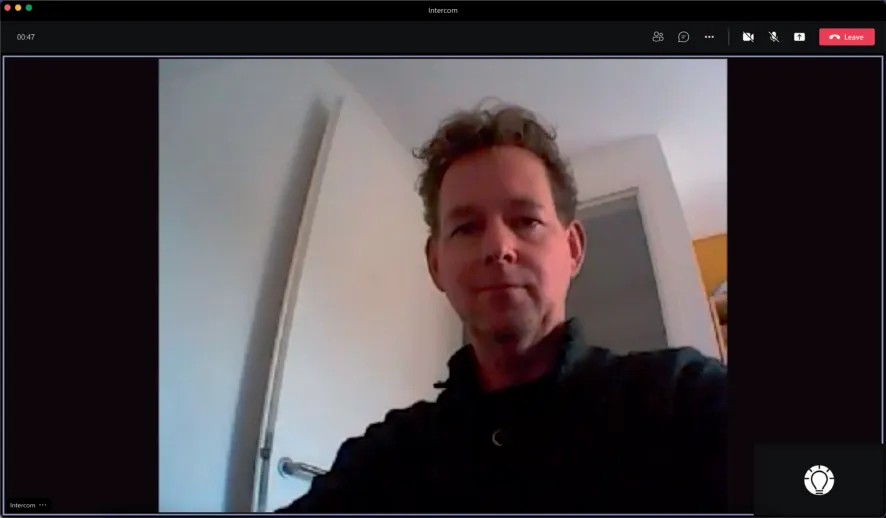
- In Microsoft Teams, answer the incoming call by clicking the pick-up symbol. Video is displayed within ±3 seconds.
- To open the door, click the three-dots menu (...) in the call screen and select Keypad.
- Enter the configured code (the PortaDial default is #) to trigger the relay and open the door.
Configure the PortaVision SIP
These steps configure the PortaVision SIP. Unlike the PortaDial Elego cam, the PortaVision SIP dials a fixed number (123) rather than a Teams user name, so you also create a Multi-ring group in CyberGate to map that number to one or more Teams users. You need the SIP username and password issued by the CyberGate Management Portal.
Connect and sign in to the PortaVision SIP
- Connect the PortaVision SIP to the network and power it on.
- Open a web browser to the device's IP address.
- Sign in as admin using the configured or supplied password.
The Status menu appears first after a successful sign-in.
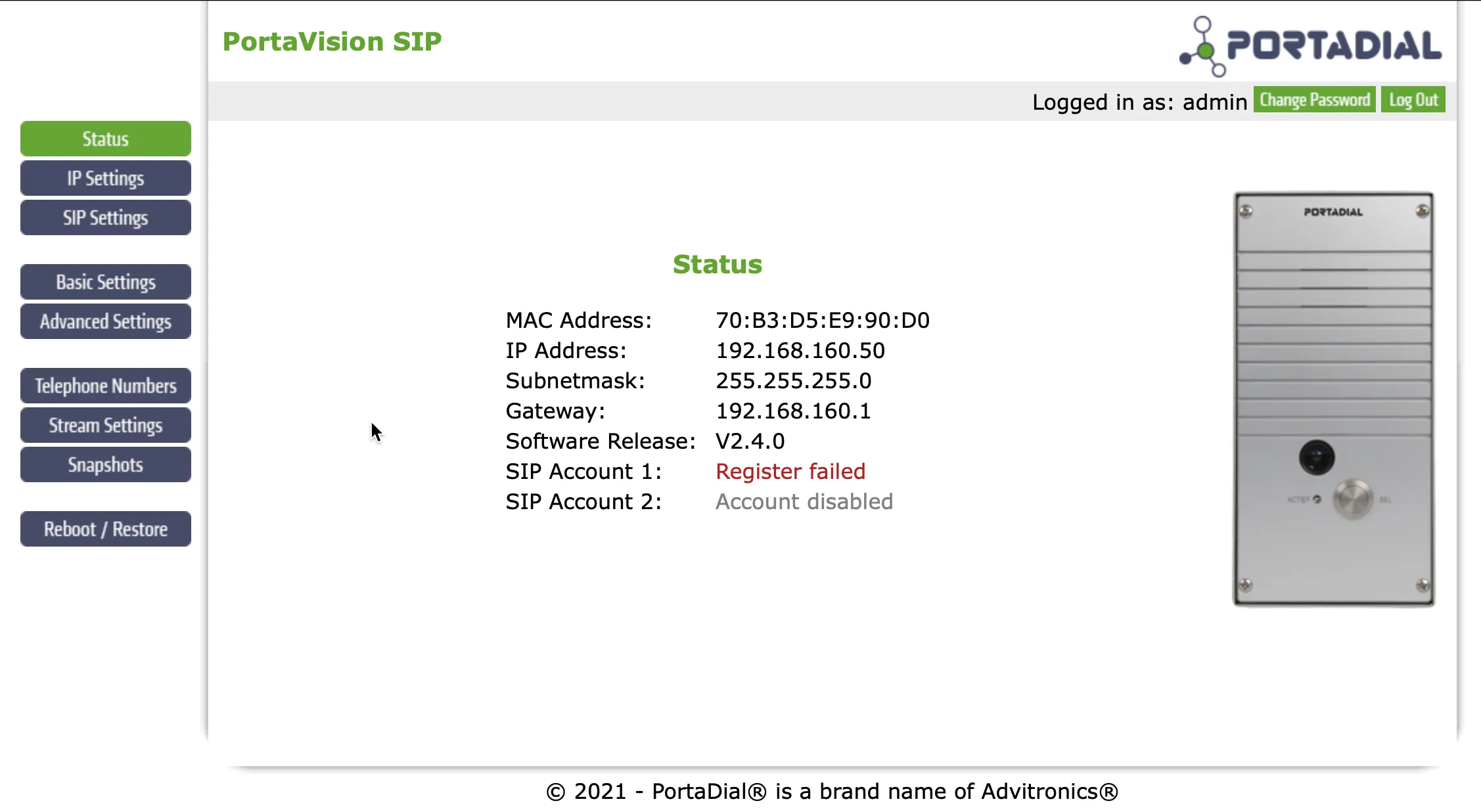
SIP Settings
Open the SIP Settings menu, enter the values in the table below, and click Save.
Setting | Value |
|---|---|
SIP Server / Domain | cybergate.cybertwice.com |
SIP Proxy Server | cybergate.cybertwice.com |
SIP Username | Use the username provided by the CyberGate Management Portal |
SIP Authentication ID | Use the username provided by the CyberGate Management Portal |
SIP Password | Use the password provided by the CyberGate Management Portal |
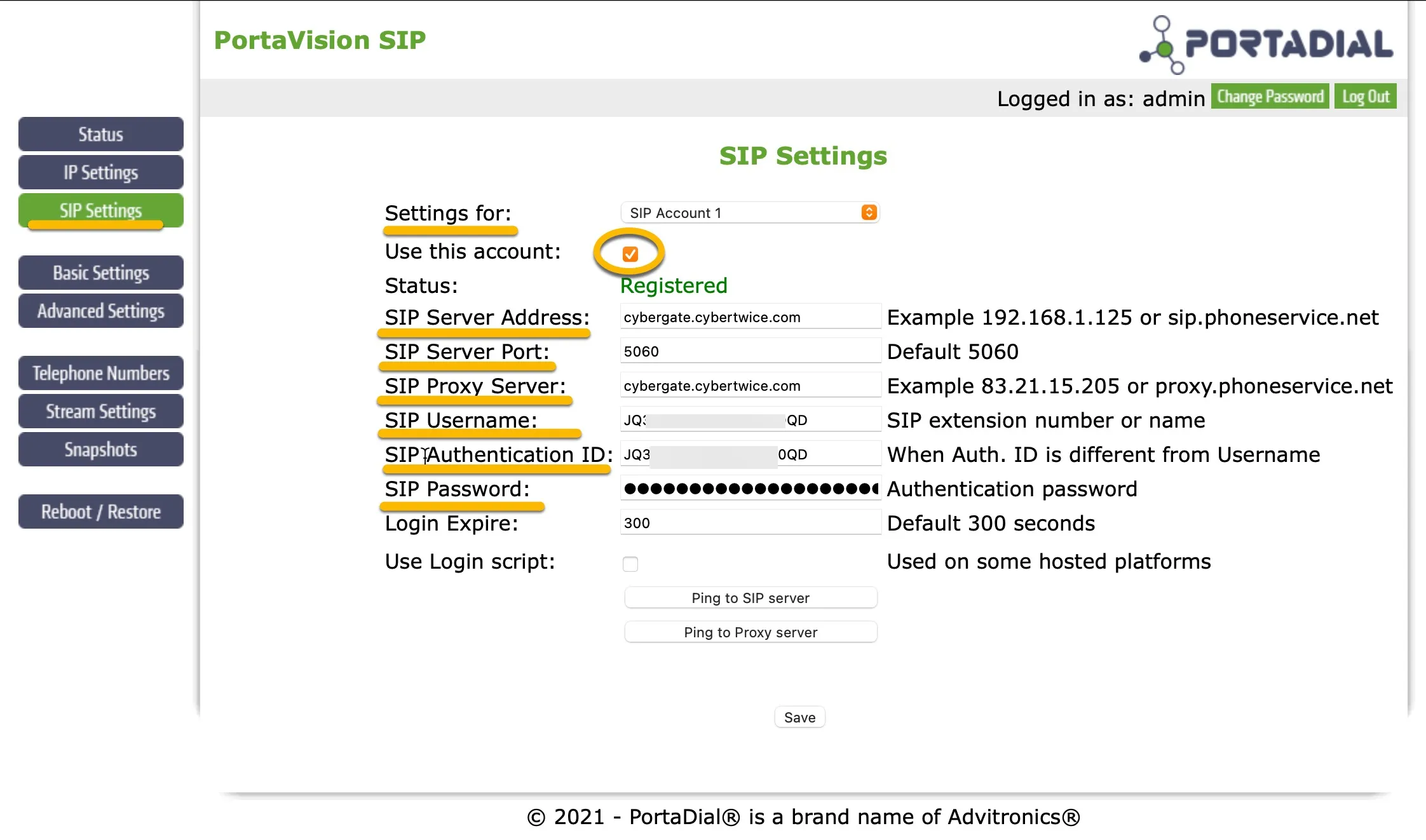
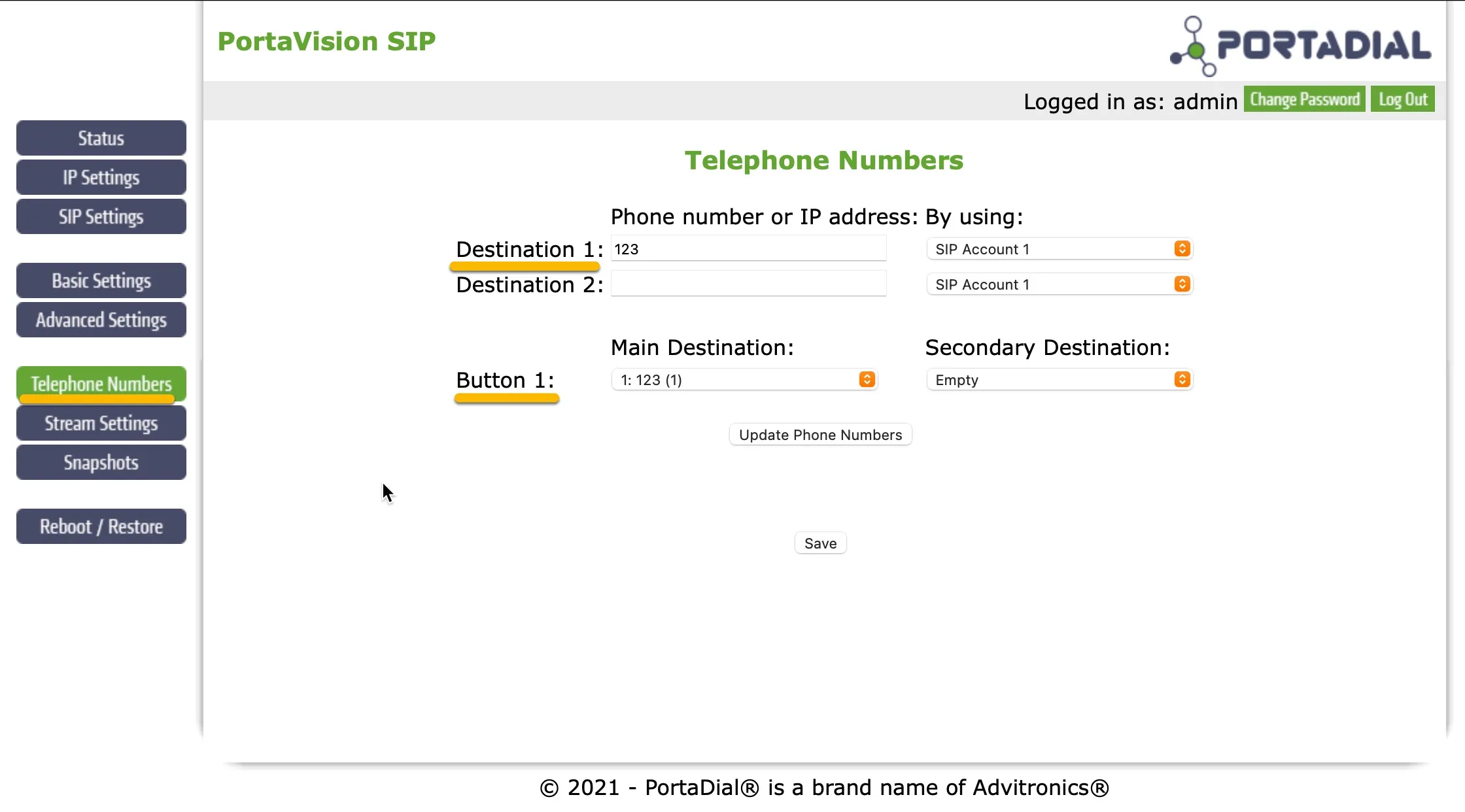
Telephone Numbers
Open the Telephone Numbers menu, enter the value below, and click Save.
Setting | Value |
|---|---|
Destination 1 | 123 |
Advanced Settings
Open the Advanced Settings menu, change the values below, and click Save.
Setting | Value |
|---|---|
SIP Video Resolution | Change to 640x480 (VGA) |
Audio Codec | Disable both PCMU and G722 |
SIP Video Codec | Disable both H263 and H263-1998 |
Create a Call group in the CyberGate Management portal
As the configured number (123) is not a valid Teams user within your Teams environment, you must configure a Call group via the CyberGate Management portal. The Call group enables you to 'translate' the dialed number (123) to one or more valid and existing Teams user(s). See the manual CyberGate Call Group Settings on this site on how to create a Call group and add Teams users to this group.
Test the call and open the door
Configuration of the PortaVision SIP is now complete. When someone presses the call button on the PortaVision SIP, the following sequence takes place:
- The PortaVision SIP places a call to CyberGate using the number 123.
- CyberGate answers the call to 123 and recognises it as a Multi-ring group.
- CyberGate checks which Teams user(s) to call (as configured in the Multi-ring group) and places the call to all Teams users in that group.
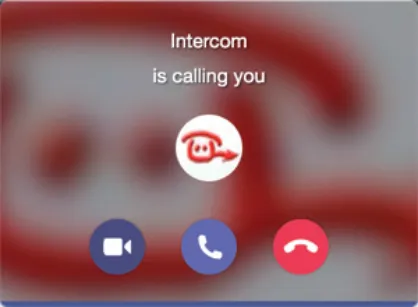
- The first Teams user to answer (by clicking the pick-up symbol) is connected to the PortaVision SIP.
To answer the call and open the door:
- Answer the incoming Teams call by clicking the pick-up symbol. Video is displayed within ±3 seconds.
- Click the three-dots menu (...) in the call screen and select Keypad.
- Enter the configured code (the PortaVision default is #) to trigger the relay and open the door.
CyberGate App for Microsoft Teams
The CyberGate App for Microsoft Teams offers more CyberGate features directly from Microsoft Teams. One of these features is the Open-door button. This button can be utilized during a call to CyberGate and lets you open the the door by clicking just one button.
For a description on how to install the CyberGate app and use the Open door button please see the CyberGate App for TeamsCyberGate App for Teams manual.