René Koch and CyberGate
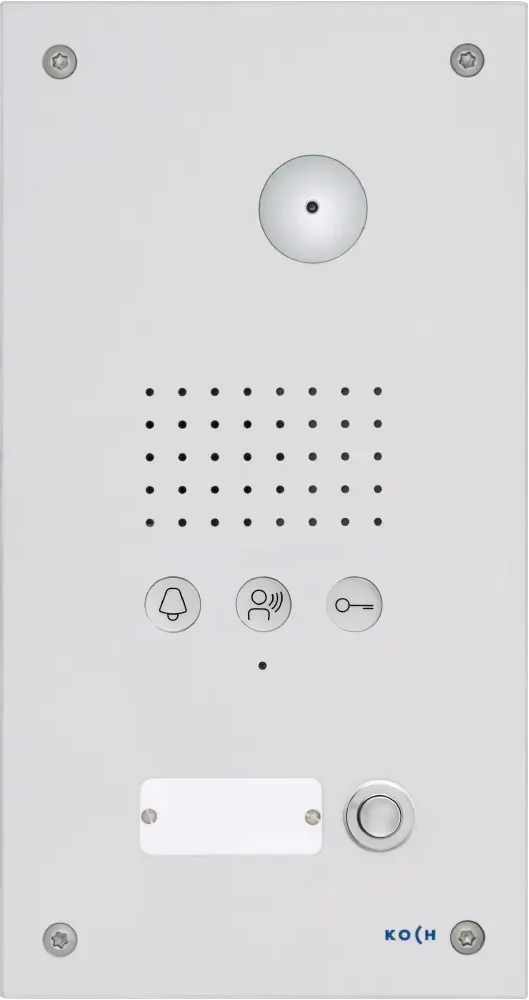
René Koch doorphone
This guide was written and tested with the René Koch doorphone and AVS2100. Other René Koch doorphone connected to a AVS2100 are also able to connect to CyberGate.
CyberGate App for Microsoft Teams
The CyberGate App for Microsoft Teams offers more CyberGate features directly from Microsoft Teams. One of these features is the Open-door button. This button can be utilized during a call to CyberGate and lets you open the the door by clicking just one button.
For a description on how to install the CyberGate app and use the Open door button please see the CyberGate App for Teamsmanual.
Configure the René Koch doorphone
Complete the following steps in order. All steps are performed in the René Koch web interface.
Connect the René Koch to the network, power it on, and open a web browser to its IP address.
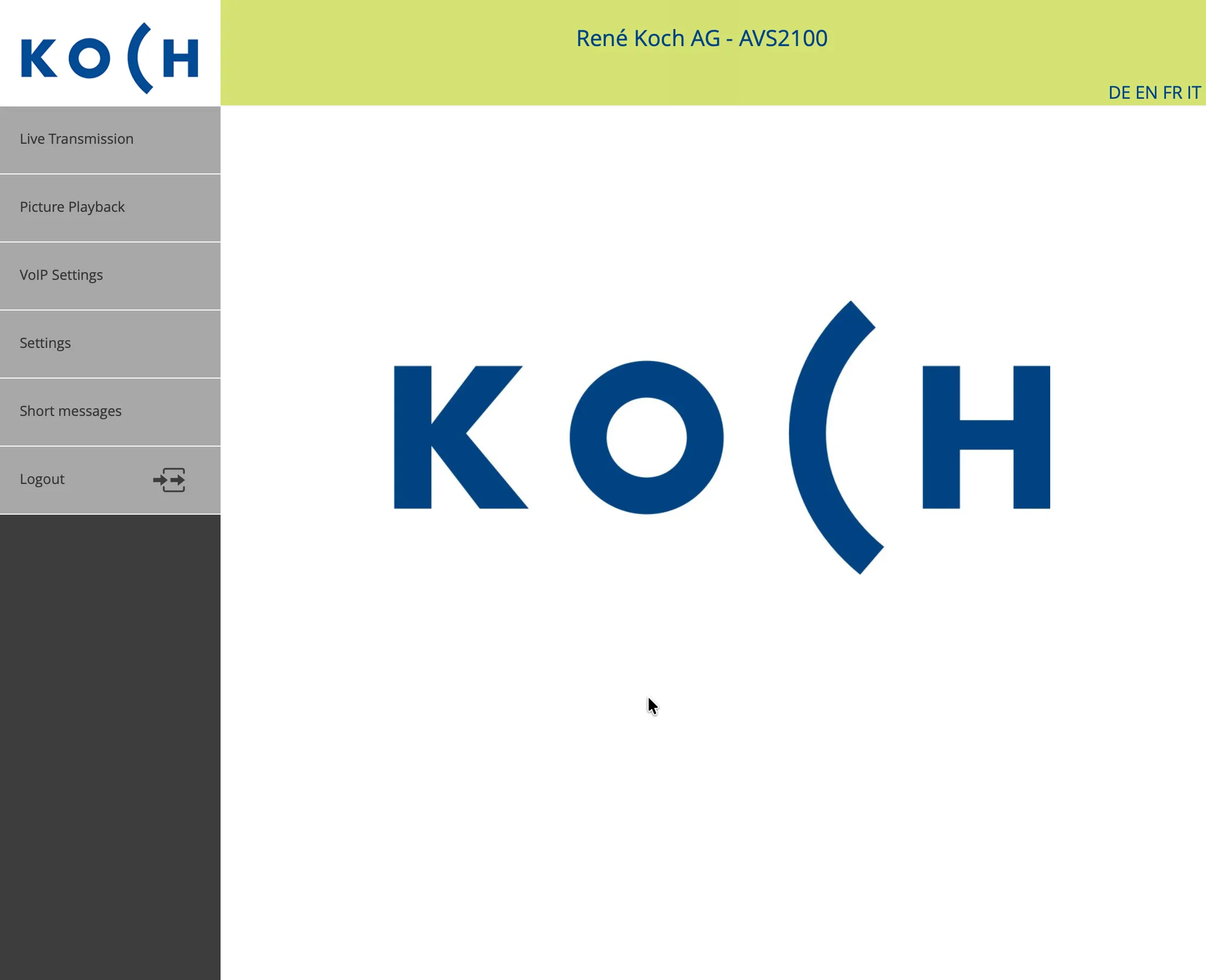
Video settings
Navigate to the Settings-Video menu.
Log in with the password of the AVS2100 and click Login.
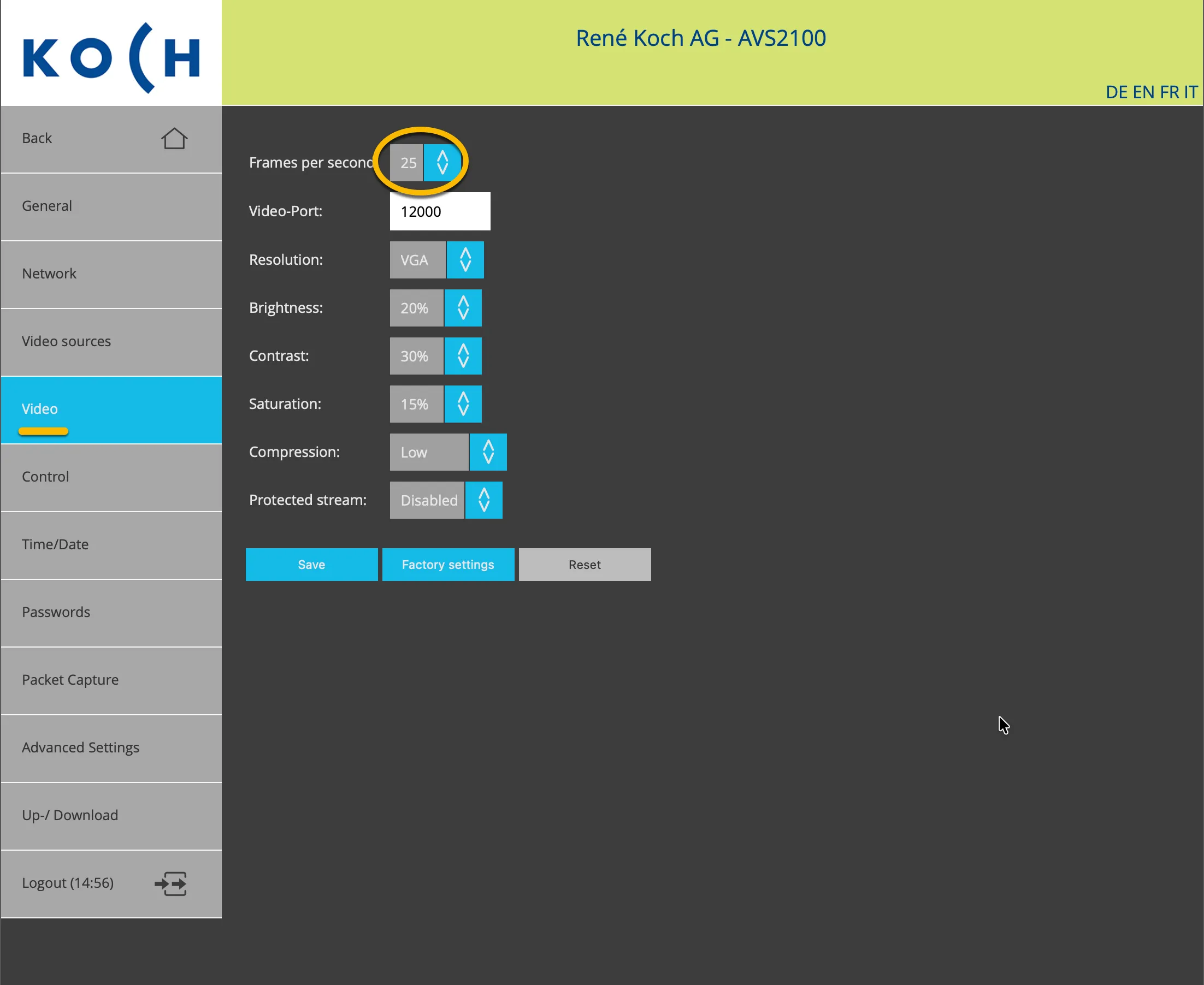
Modify the following value.
Frames per second | Change to 25 |
|---|
Click Save.
Call destination
Click Back and navigate to the VoIP settings menu.
The Door calls menu is shown.
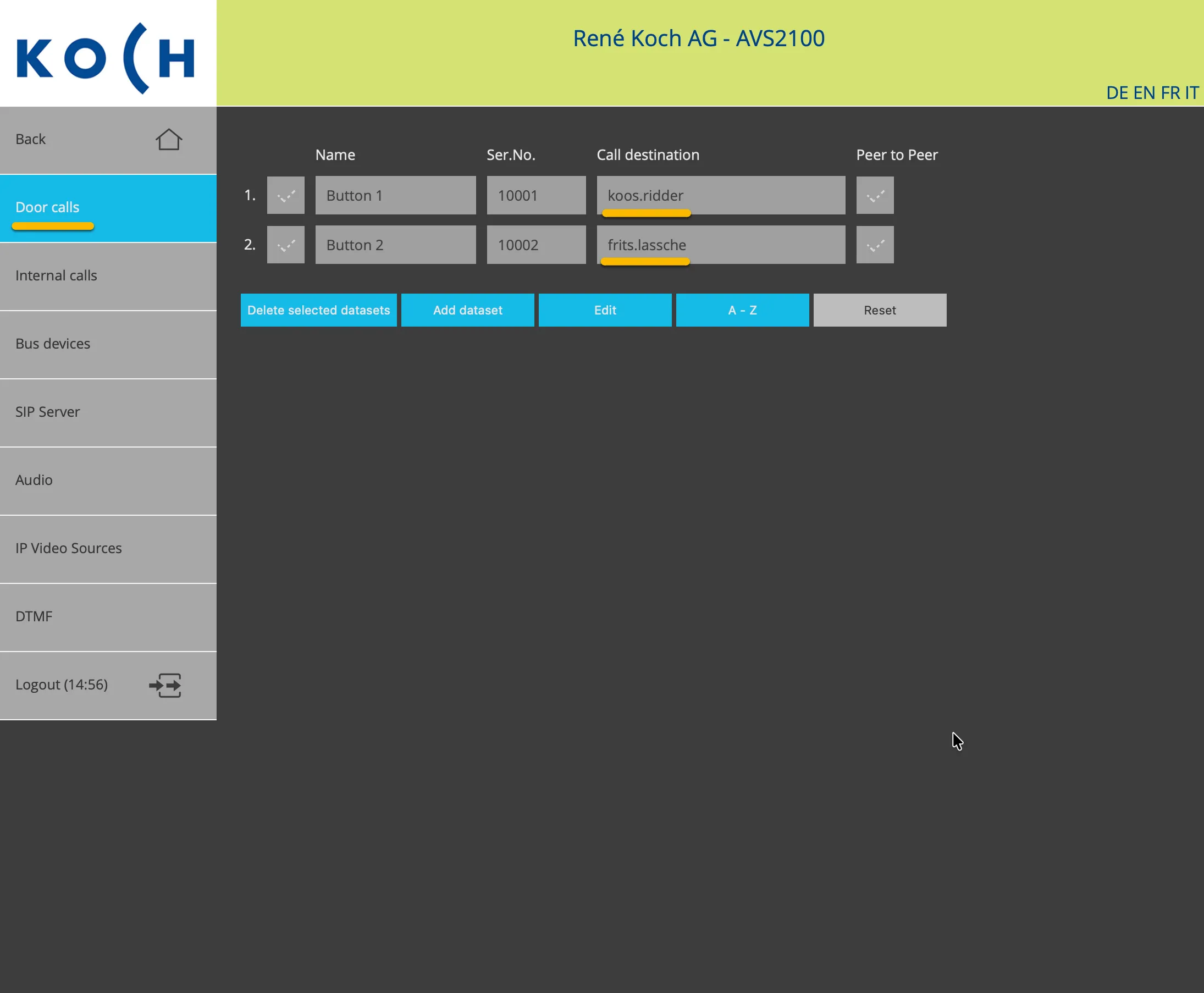
Depending on the amount of buttons on the intercom, modify the following values.
Name | (Optional) Modify the name of the button |
|---|---|
Call destination | The Teams user to call, in the format first.last (see example below) |
The Teams user [email protected] translates to the PBX Call Destination koos.ridder (So without the domainname)
Click Save.
SIP settings
Navigate to the SIP Server menu.
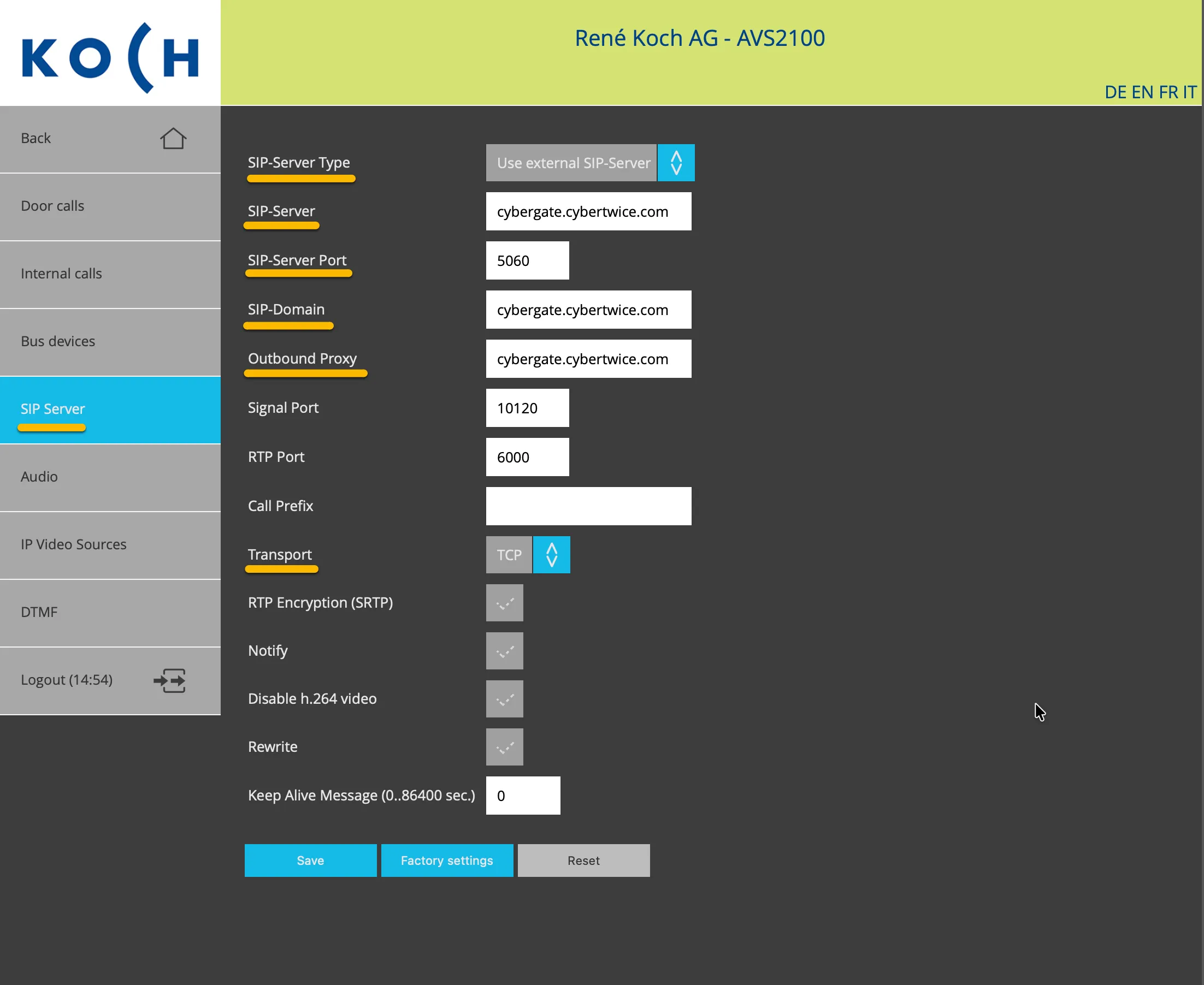
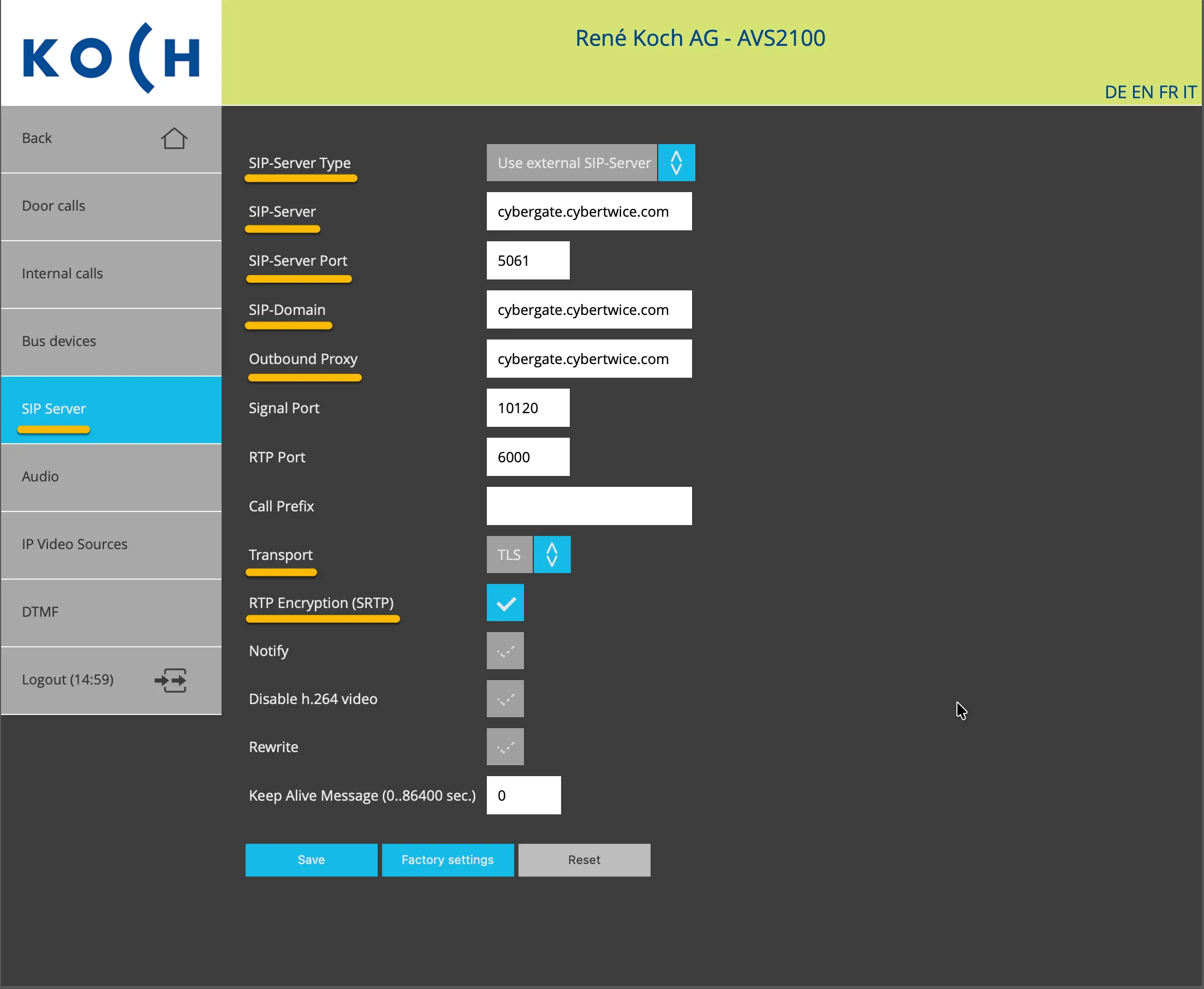
Provide the following values.
SIP-Server Type | Select Use external SIP server |
|---|---|
Sip-Server | cybergate.cybertwice.com |
SIP-Server port | Use 5060 for TCP or 5061 for TLS (TLS for encrypted communication) |
SIP-Domain | cybergate.cybertwice.com |
Outbound proxy | cybergate.cybertwice.com |
Transport | Use TCP or TLS (TLS for encrypted communication) |
RTP Encryption (SRTP) | When using TLS, also enable RTP Encryption (SRTP) |
Click Save.
Navigate to the Bus devices menu.
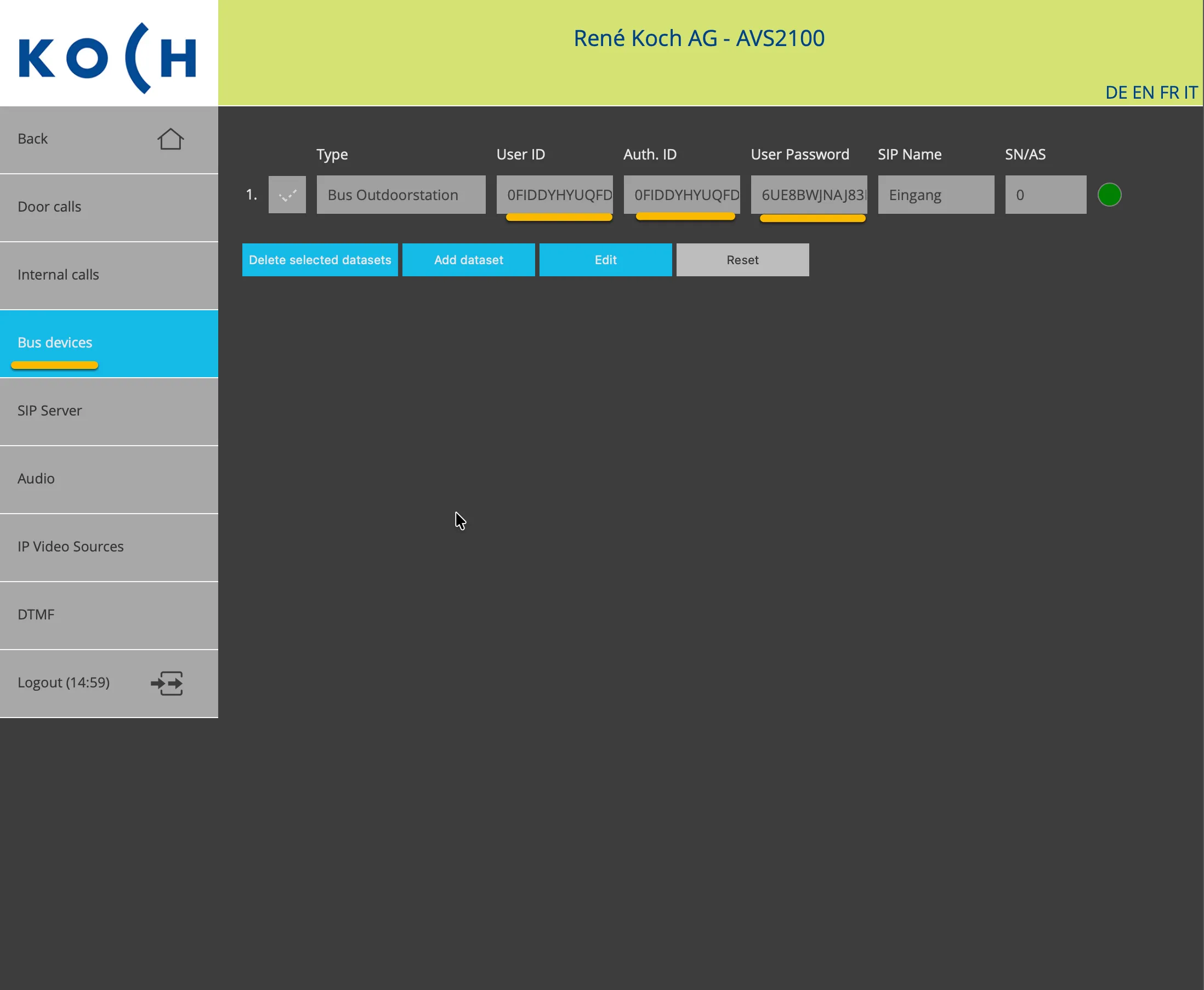
Provide the following values.
User ID | The Username from the CyberGate Management Portal |
|---|---|
Auth. ID | The Username from the CyberGate Management Portal |
User Password | The Password from the CyberGate Management Portal |
Click Save.
Audio configuration
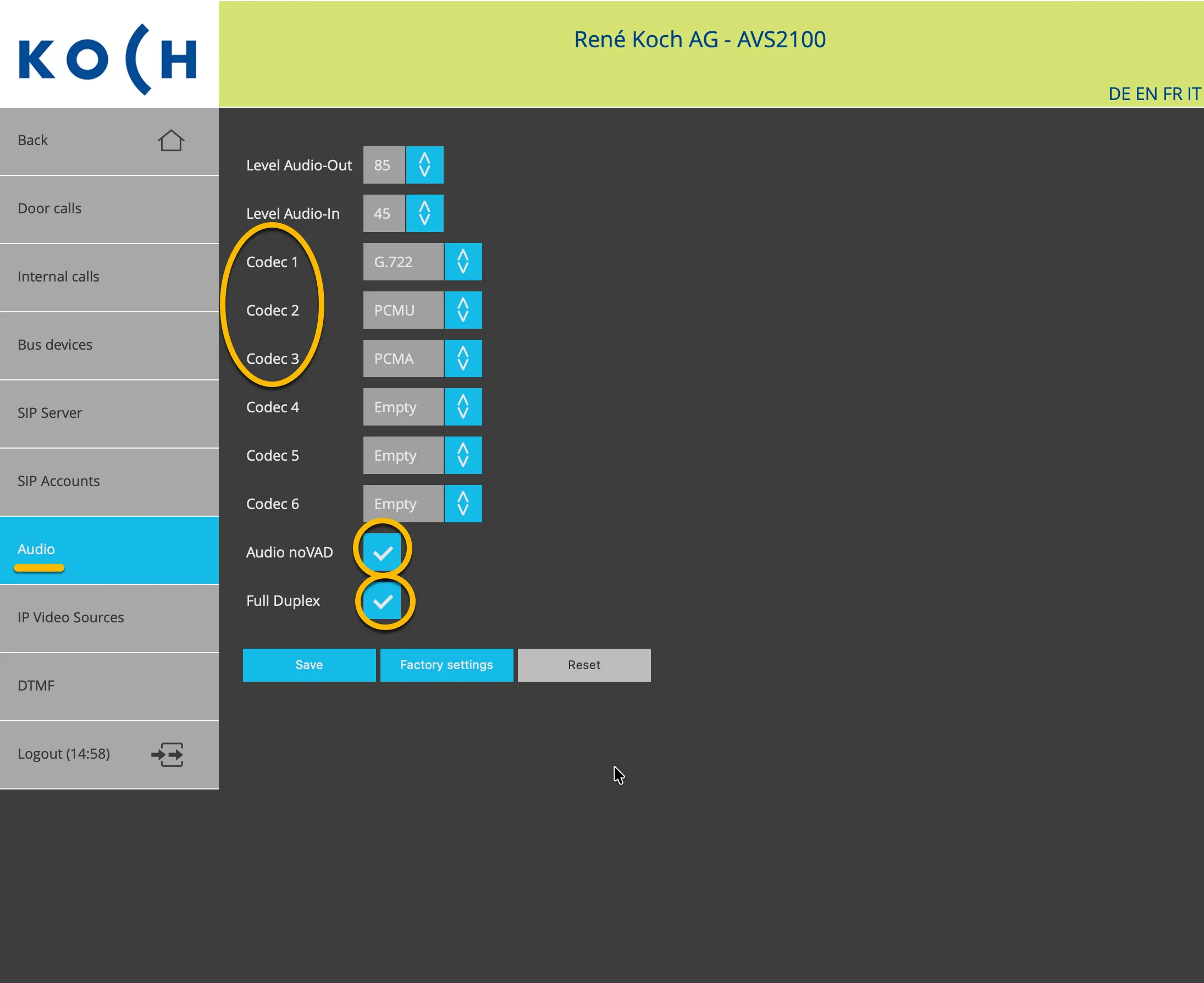
Navigate to the Audio menu.
Provide / modify the following values.
Codec 1 | Select G.722 |
|---|---|
Codec 2 | Select PCMU |
Codec 3 | Select PCMA |
Audio noVAD | Enable |
Full Duplex | Enable |
Click Save.
Test the René Koch intercom
Configuration is now complete. Press the button on the intercom to initiate a call to the configured Teams user.
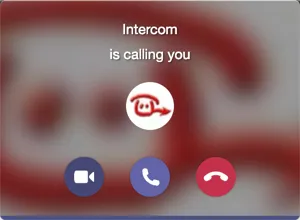
If everything is configured correctly, the Teams client notifies the user of an incoming call. Answer it by clicking the camera symbol. The call is established and video is displayed within roughly 3 seconds.
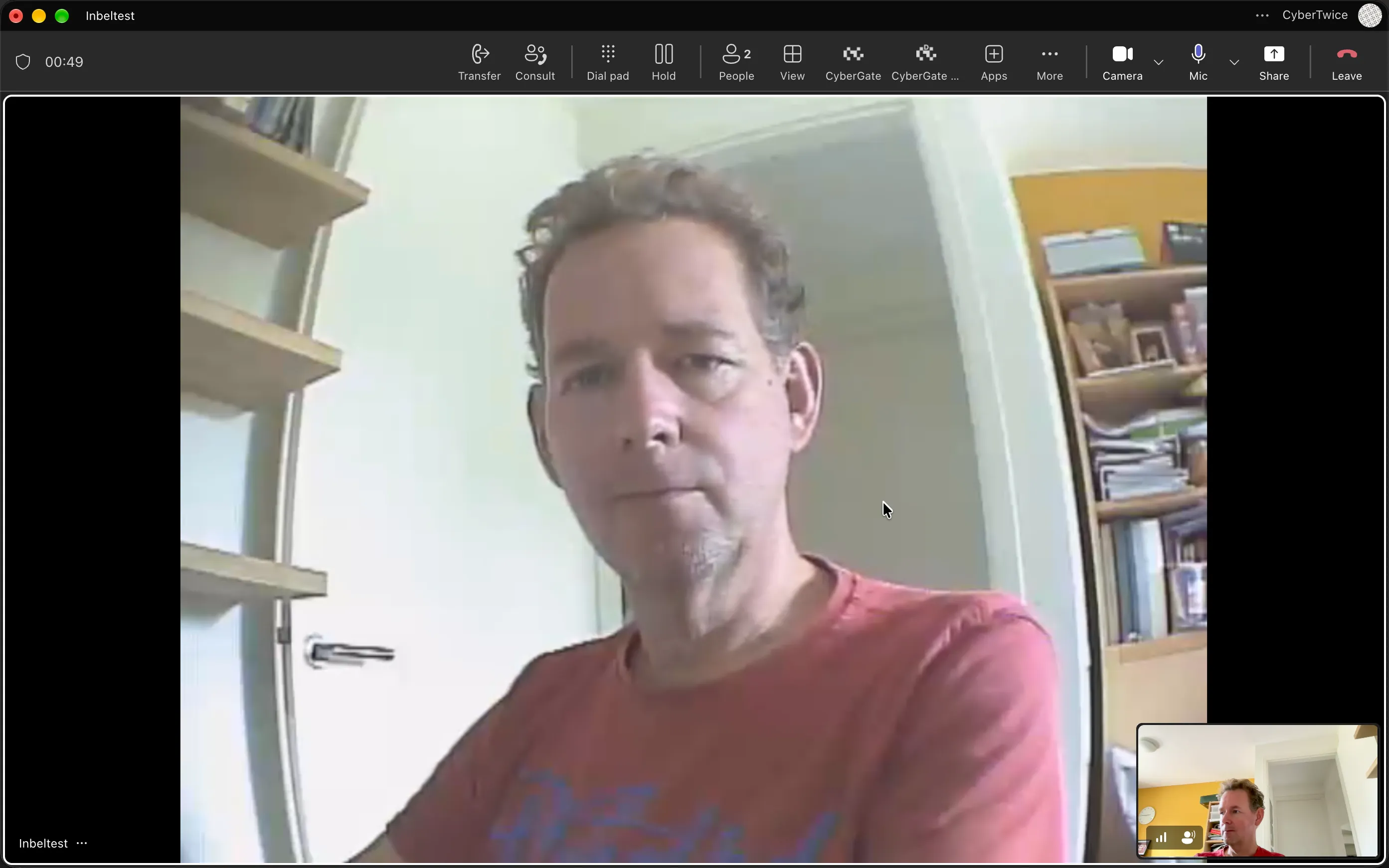
To open the door from the Teams call, use ‘Dial Pad’ button in the Teams bar and click 7 (by default) to trigger the relay of the intercom and open the door.
CyberGate App for Microsoft Teams
The CyberGate App for Microsoft Teams offers more CyberGate features directly from Microsoft Teams. One of these features is the Open-door button. This button can be utilized during a call to CyberGate and lets you open the the door by clicking just one button.
For a description on how to install the CyberGate app and use the Open door button please see the CyberGate App for TeamsCyberGate App for Teams manual.