Robin and CyberGate
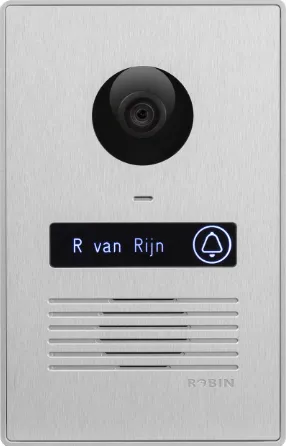
Configure the Robin SIP intercom for CyberGate
Supported Robin intercoms and firmware
For this document, we used the Robin ProLine SIP Compact 5 MP IP camera Silver (from now on named 'Robin'), but all Robin SIP intercoms with a built-in camera running firmware version 3.6.10 or higher can be used to connect to the CyberGate service (from now on named 'CyberGate').
Connect to the Robin web interface
- Connect the Robin to the network and power it on.
- Open a web browser and browse to the Robin's IP address.
- Log in as the admin user — with either the default password (123qwe) or the already modified password — and click Login.
After logging in, you are redirected to the Telephony-SIP page.
Configure the SIP settings
- On the Telephony-SIP page, provide the following information:
SIP settings | |
|---|---|
Enable Teams mode | Enable by checking the checkbox |
SIP protocol | Use TCP |
SIP proxy / Registrar | cybergate.cybertwice.com |
Line ID | Define a name (one word) for the intercom (e.g. Frontdoor) |
Authentication Username | Use the Username provided by the CyberGate service |
Password | Use the Password provided by the CyberGate service |
Register | Enable by checking the checkbox |
SIP advanced | |
Outbound proxy | Enable by checking the checkbox |
Outbound proxy host | cybergate.cybertwice.com |
- Click Apply settings.
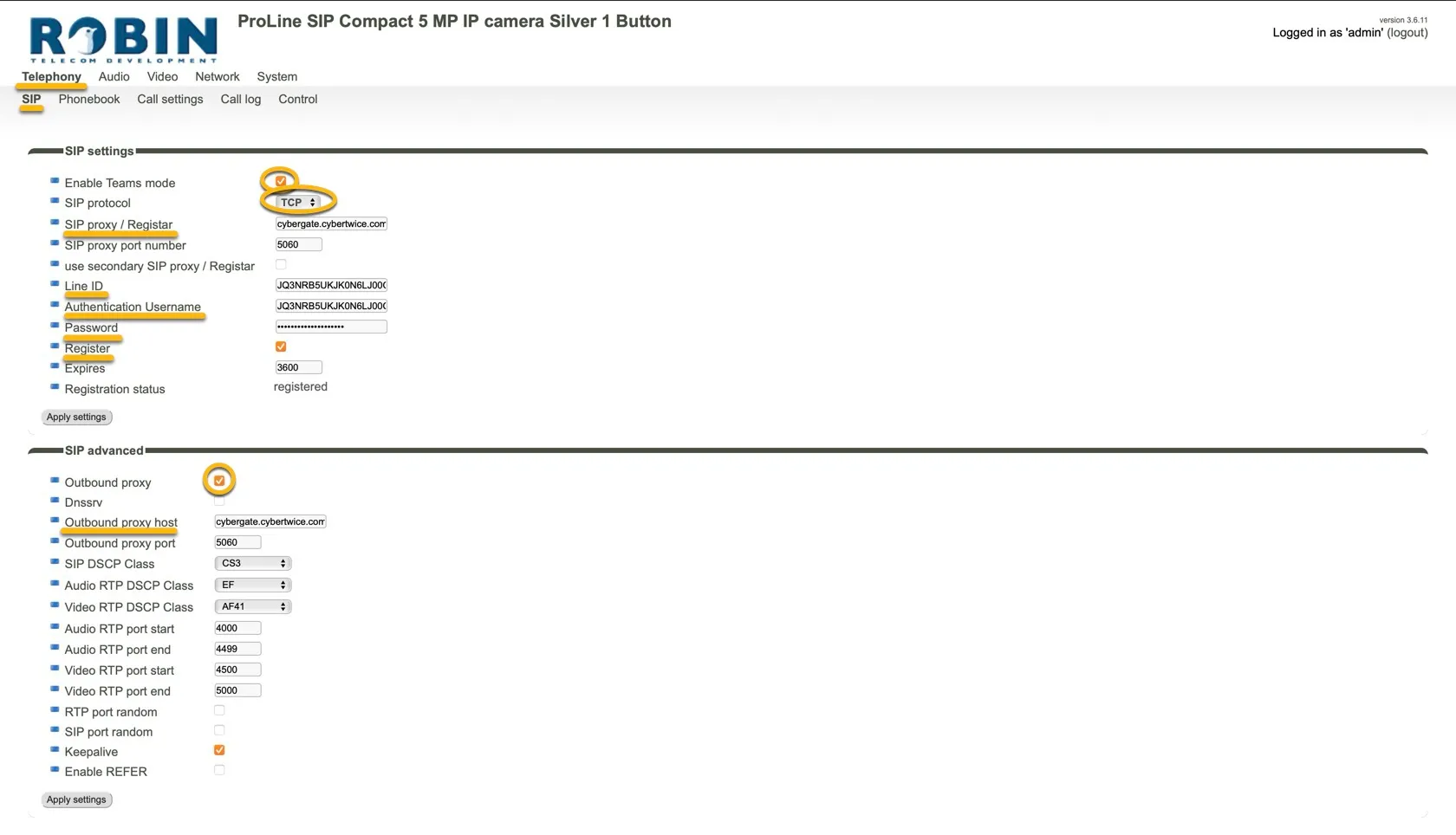
- At 'SIP settings', verify that the Registration status changes to Registered. If this is not the case, check the account and server details for possible typos.
Add a phonebook entry for the Teams user
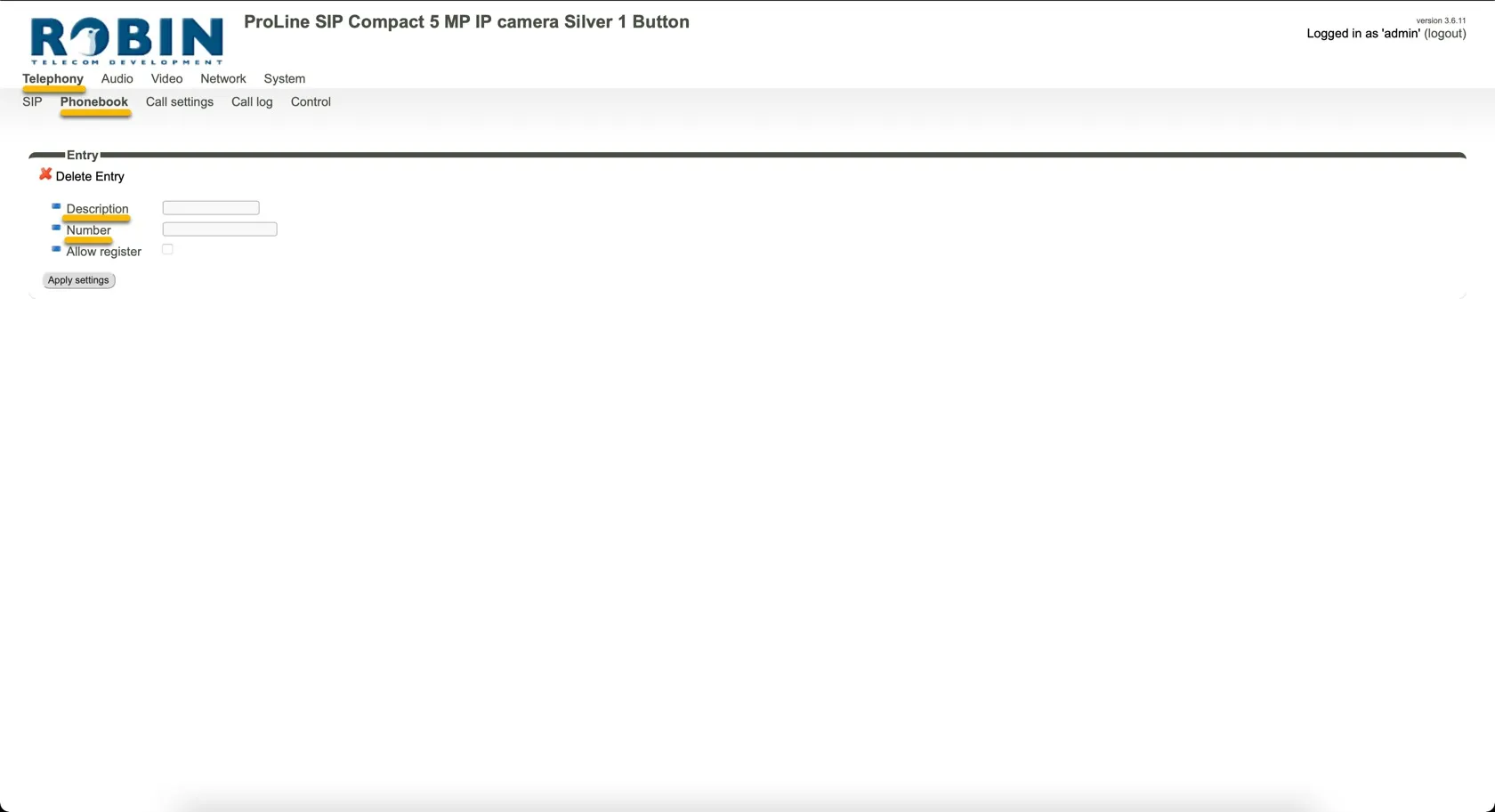
- Navigate to the Telephony-Phonebook menu.
- Click the + symbol to add a phone book entry
- Provide the following information:
Entry | |
|---|---|
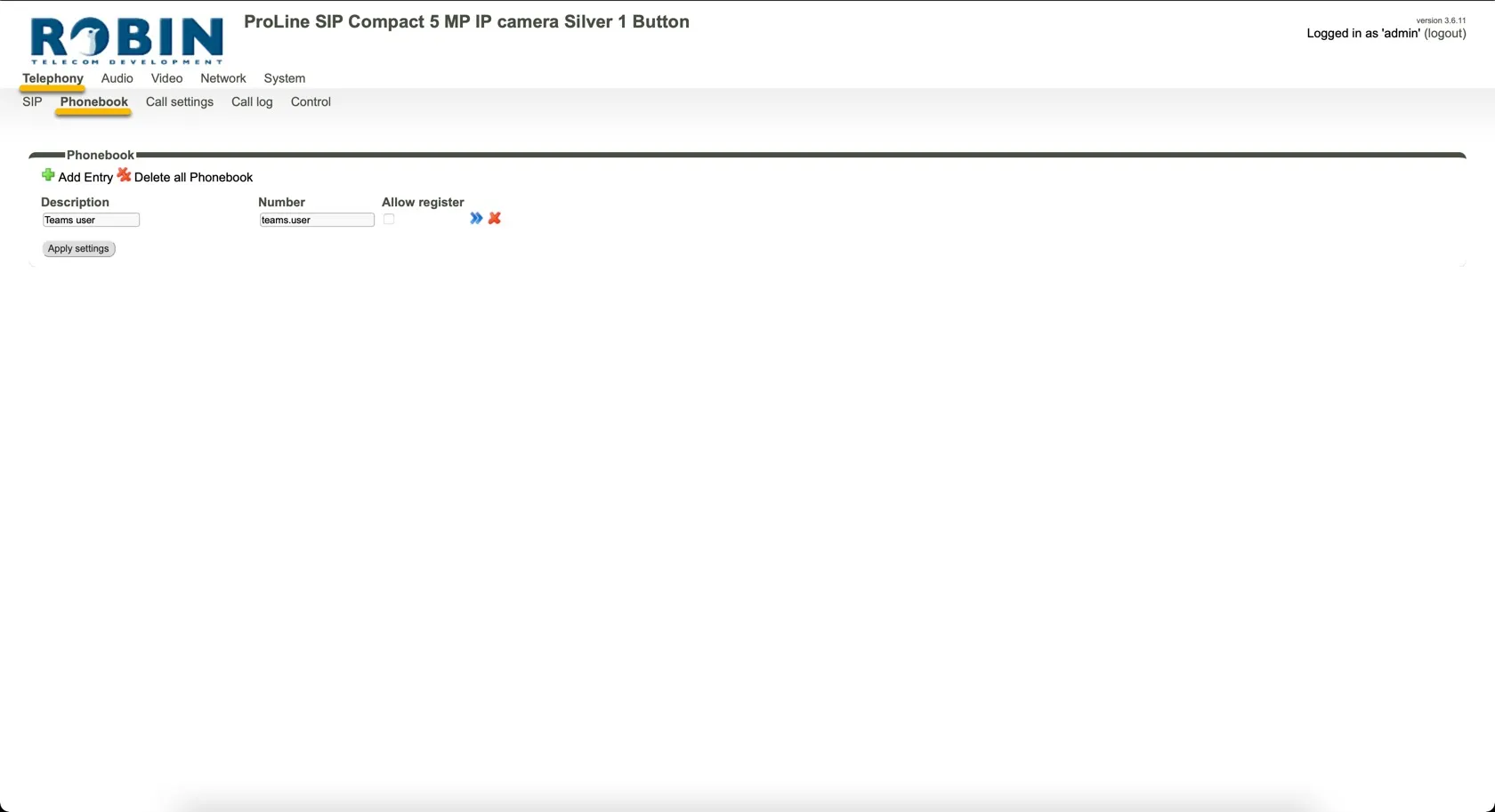
Description | Name of the recipient, in this example 'Teams user' |
Number | Use the Teams user address (either: [email protected] or only the 'name.name' part.) |
- Click Apply settings.
Configure the call settings
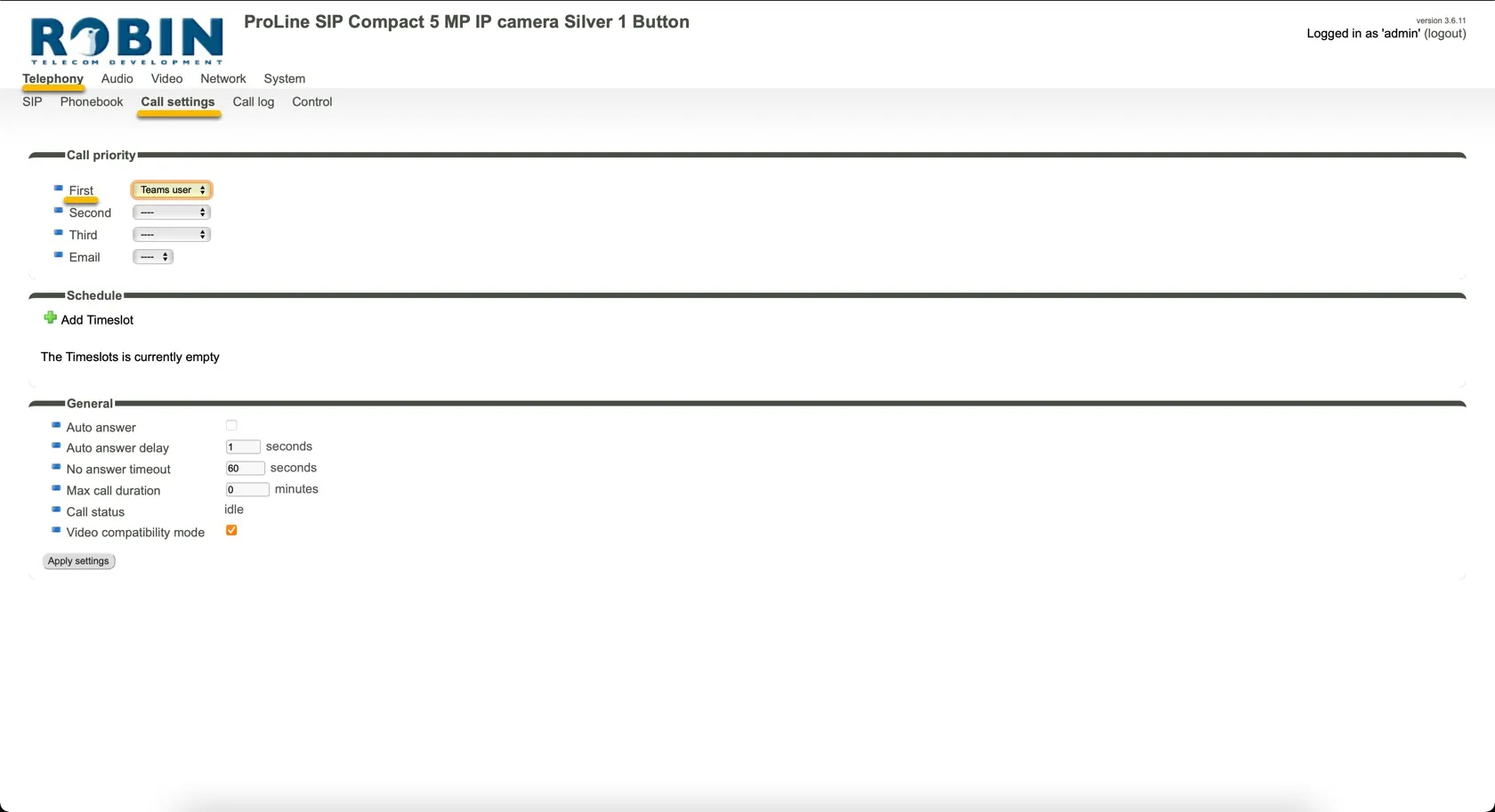
- Navigate to the Telephony-Call settings menu.
- Select:
Call priority | |
|---|---|
First | Select the Teams user to call when the button is pressed |
The basic configuration of the Robin is now done and calls can be made to CyberGate.
Test the call from the Robin to Teams
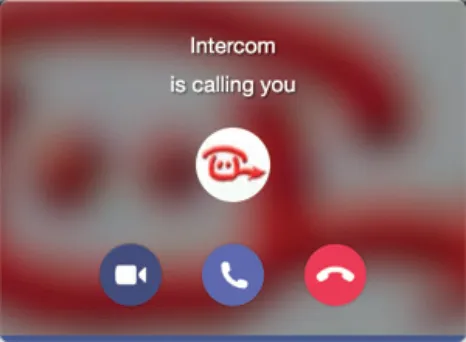
- Press the button on the Robin to call the Teams recipient.
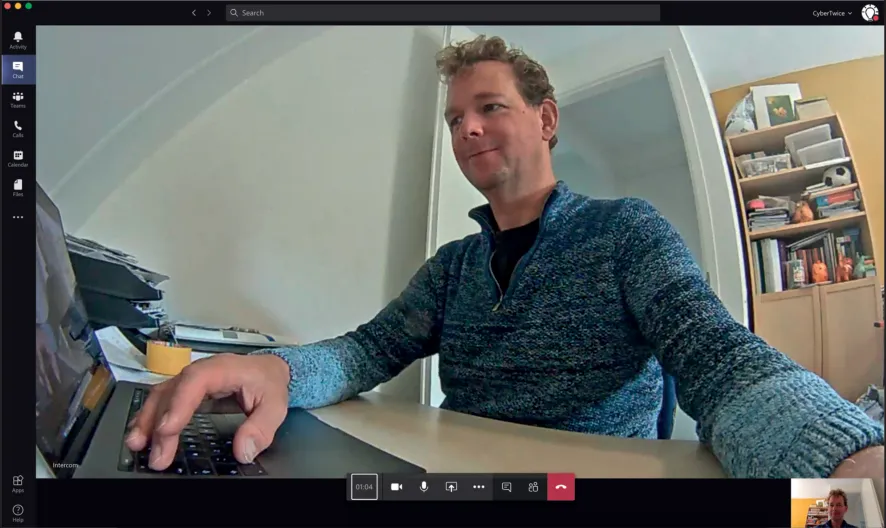
- If the Robin is configured correctly, the Teams client notifies you of an incoming call. Answer it by clicking the camera symbol.
The call will be established and video will be displayed within ±3 seconds.
Open the door from the Teams call
- In the Teams call screen, click the Dial pad symbol.
- Enter the default dual-tone multi-frequency (DTMF) code ## to trigger the relay in the Robin and open the door.
A more convenient way to open the door during a call is to use the CyberGate for Teams app. See the CyberGate App for Teams manual on how to to install and use the CyberGate for Teams app.
CyberGate App for Microsoft Teams
The CyberGate App for Microsoft Teams offers more CyberGate features directly from Microsoft Teams. One of these features is the Open-door button. This button can be utilized during a call to CyberGate and lets you open the the door by clicking just one button.
For a description on how to install the CyberGate app and use the Open door button please see the CyberGate App for TeamsCyberGate App for Teams manual.