Robin 1080p and CyberGate
Configure the Robin 1080p for CyberGate
Supported Robin intercom models
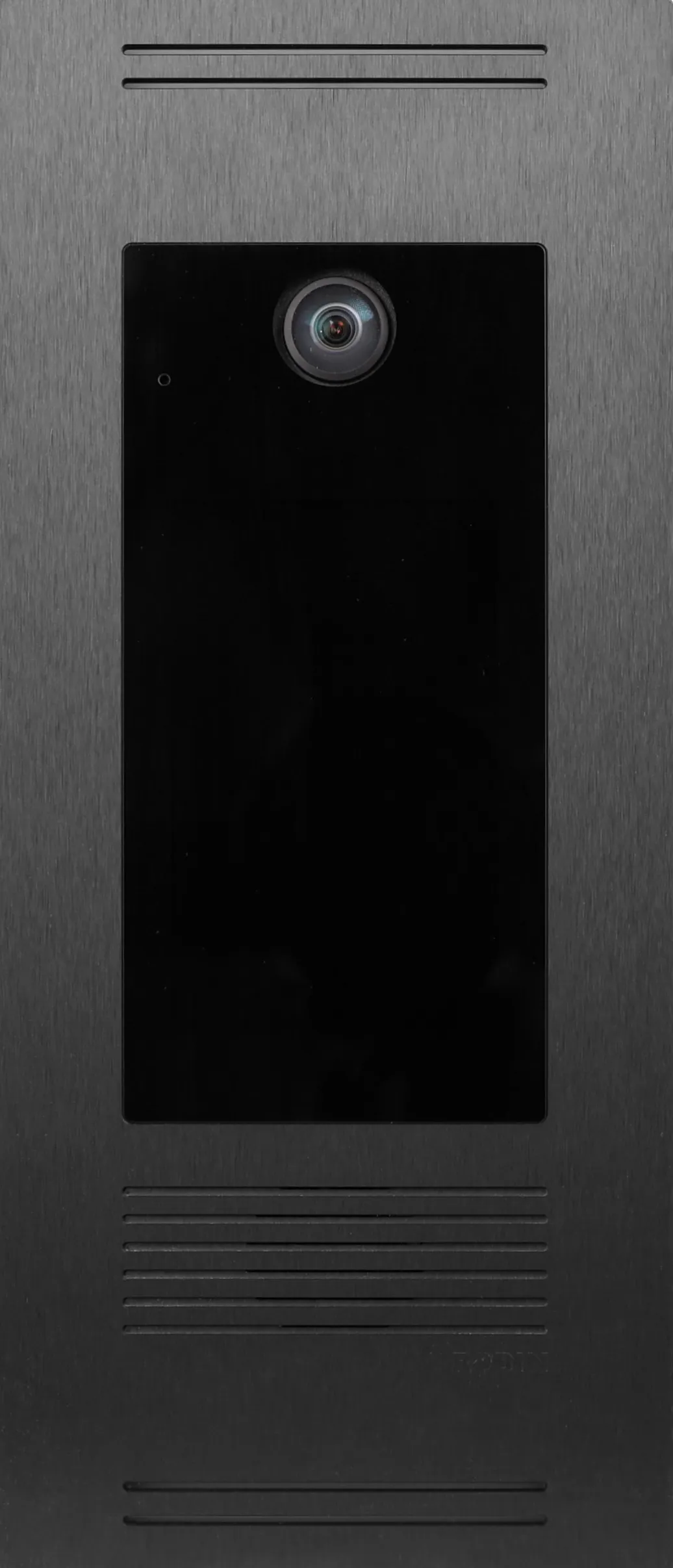
For this document we used the Robin Proline SIP SV Touchscreen HD 1080p (from now on named ‘Robin’), but all Robin Proline SIP SV 1080p Intercoms with a built-in camera can be used to connect to the CyberGate service (from now on named ‘CyberGate’).
Connect to the Robin web interface
- Connect the Robin to the network and power it on.
- Open a web browser and browse to the IP address of the Robin.
- Log in as the admin user, with either the default password (123qwe) or the already modified password, and click Login.

You are redirected to the Home page.
Configure the SIP account on the Robin
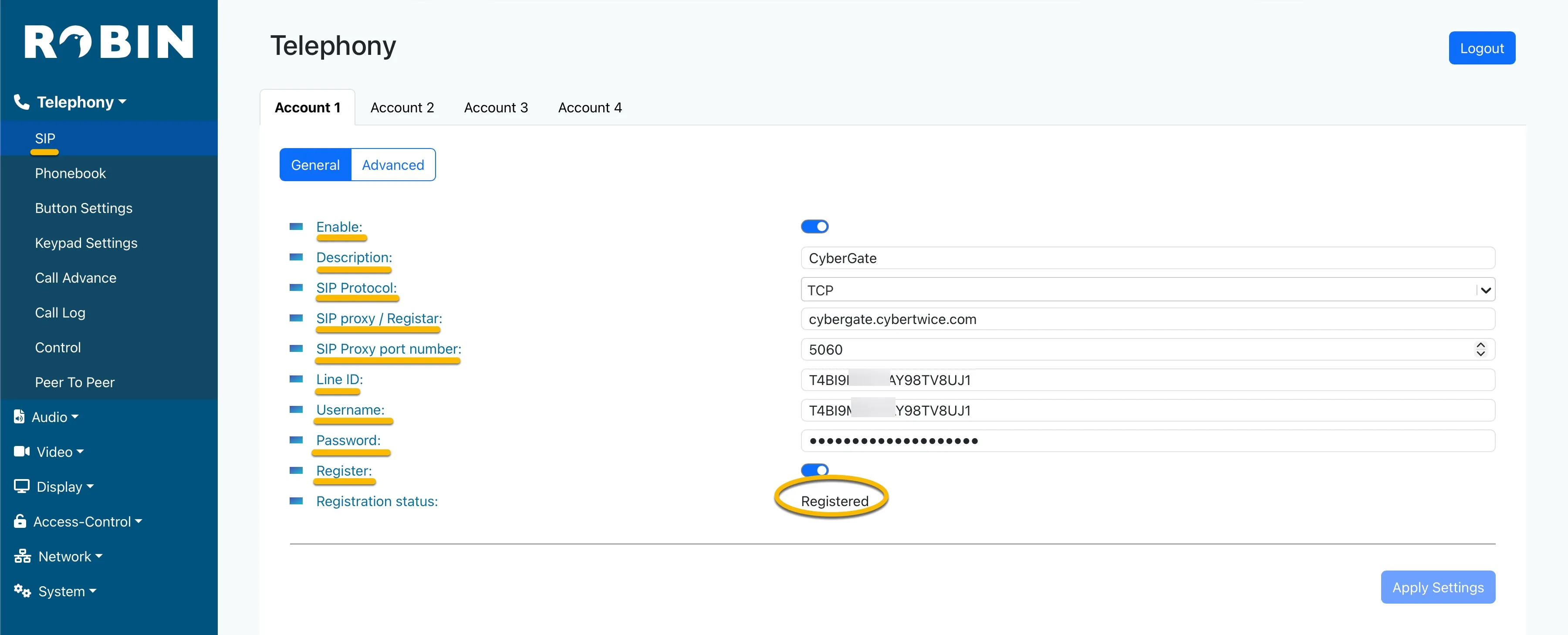
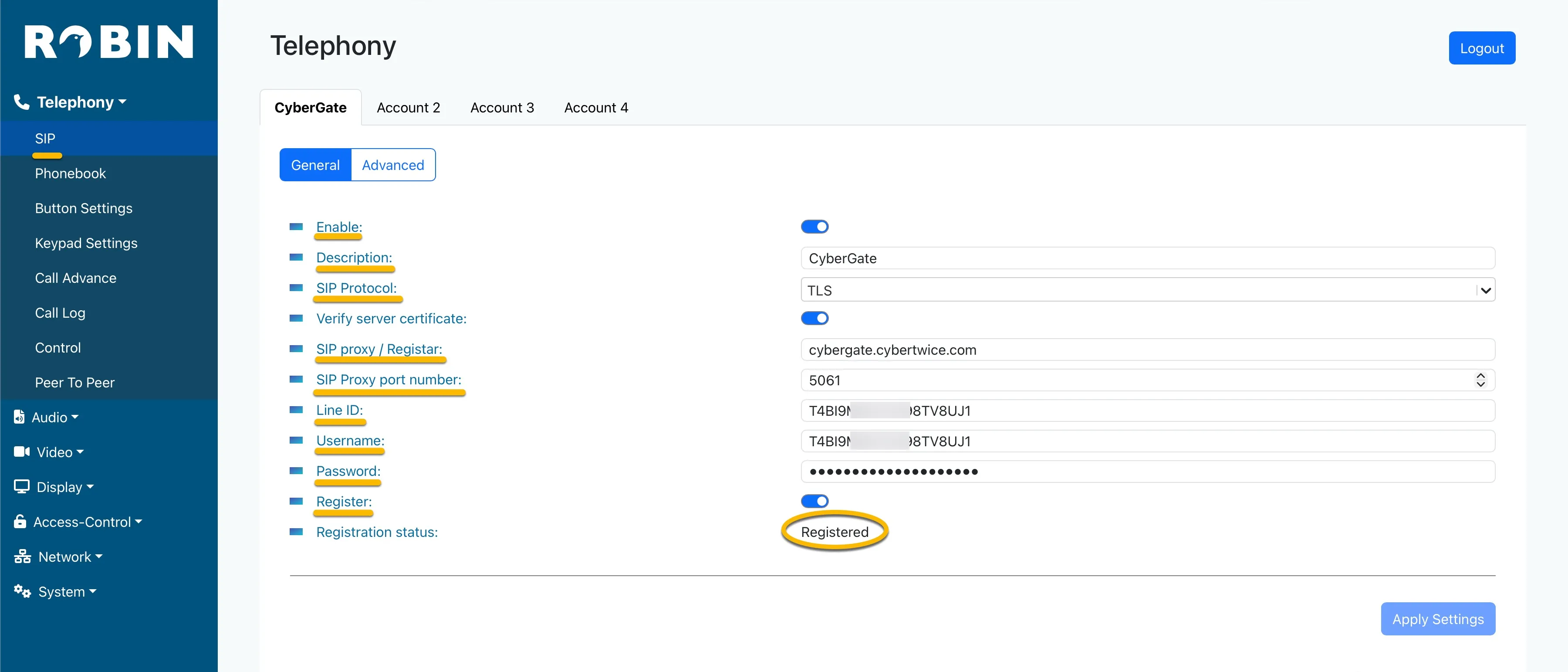
- Navigate to the Telephony-SIP menu.
- Provide the following information:
Account | |
|---|---|
Enable Teams mode | Enable by checking the checkbox |
Description | Description of this SIP account (e.g. CyberGate) |
SIP Protocol | Use TCP or TLS |
SIP proxy / Registar | cybergate.cybertwice.com |
SIP Proxy port number | 5060 (for TCP) or 5061 (for Transport Layer Security (TLS)) |
Line ID | Use the Username provided by the CyberGate service |
Username | Use the Username provided by the CyberGate service |
Password | Use the Password provided by the CyberGate service |
Register | Enable by checking the checkbox |
- Click Apply settings. The Registration status should change to Registered. If this is not the case, check the account and server details for possible typos.
Add a phonebook entry for the Teams recipient
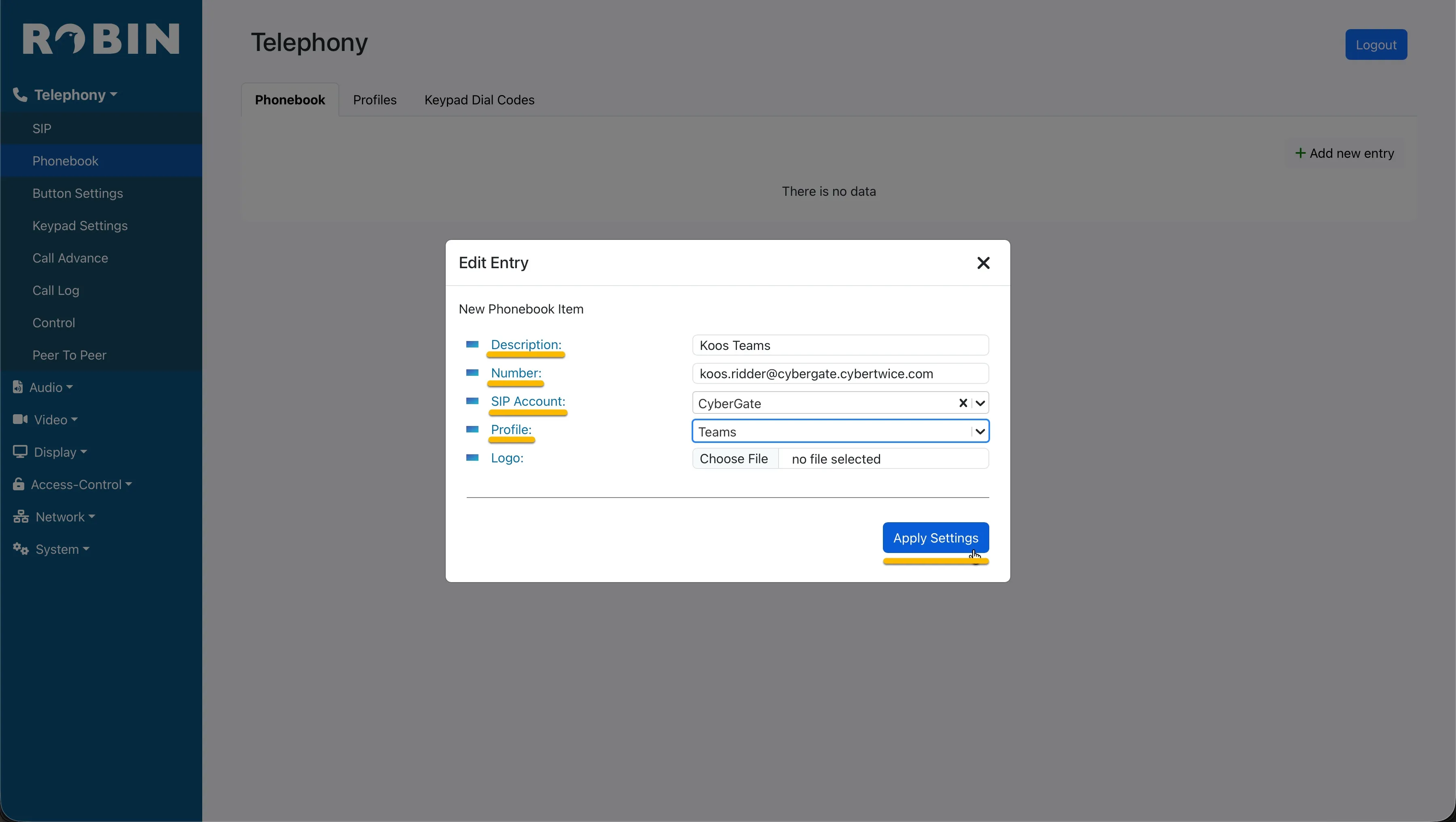
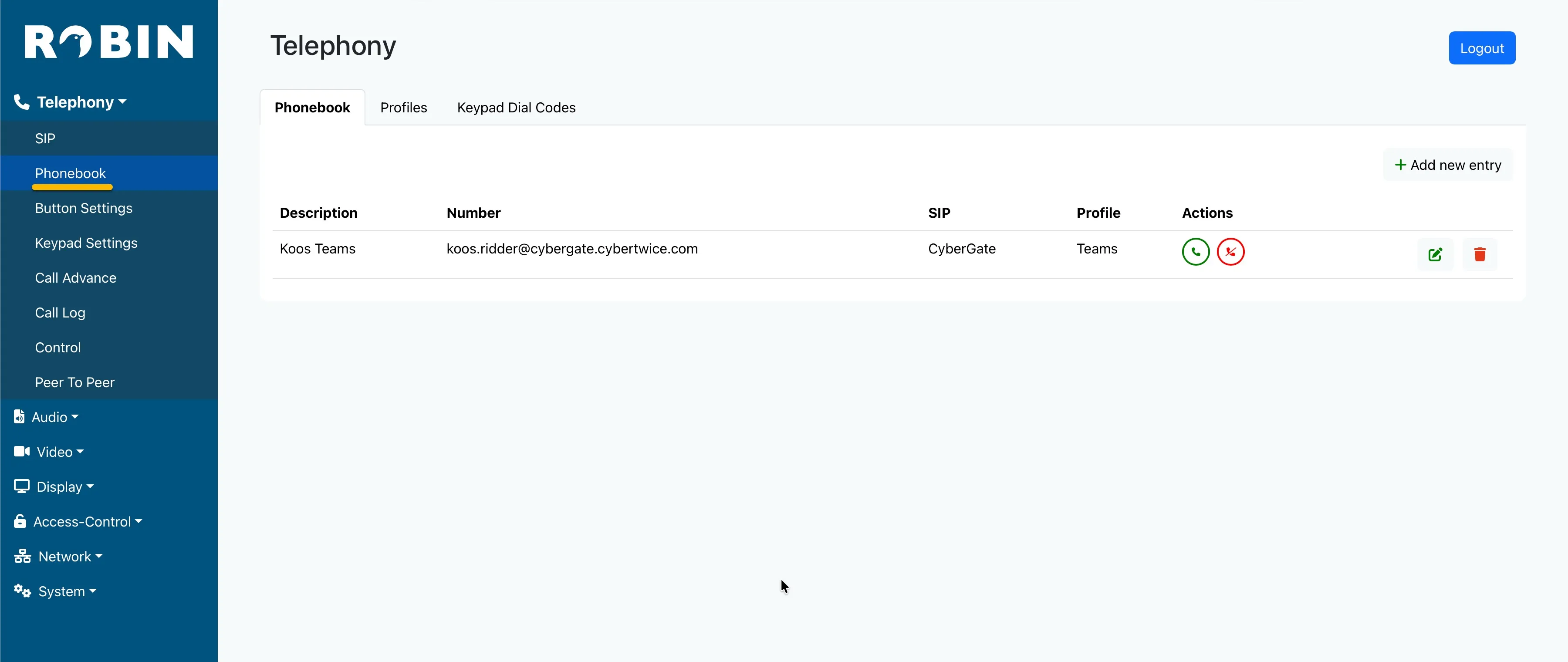
- Navigate to the Telephony-Phonebook menu.
- Click the + Add new entry button to add a Phonebook entry.
- Provide the following information:
Entry | |
|---|---|
Description | Name of the recipient, in this example Teams user |
Number | The Teams user to call, in the format sip:[email protected] (see the example below) |
SIP Account | Select the SIP account used to register to CyberGate |
Profile | Select the Teams profile |
For example, the user ‘Koos Ridder’, with the Teams name [email protected], translates to this destination address: sip:[email protected]
- Click Apply settings.
Assign the Teams recipient to the call button
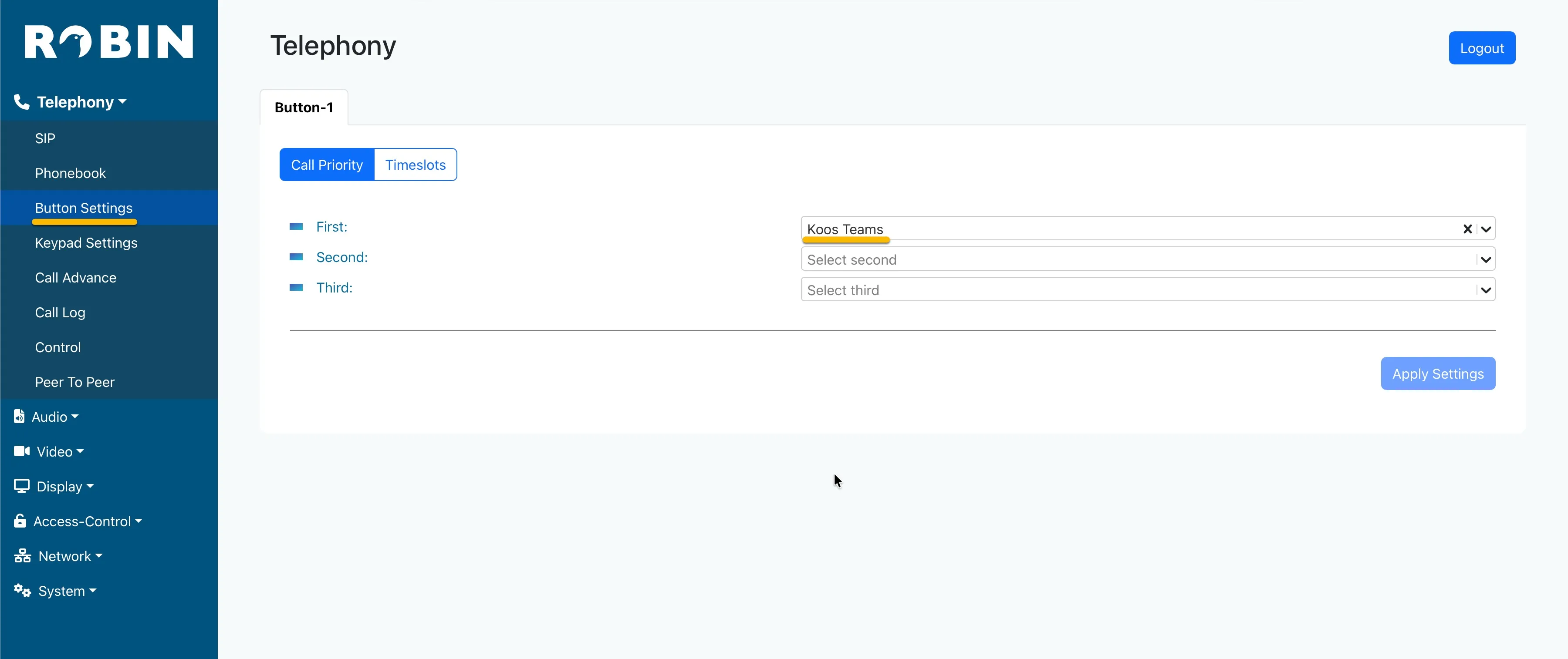
- Navigate to the Telephony-Button Settings menu.
- Select the following:
Call priority | |
|---|---|
First | Select the Teams user to call when the button is pressed |
The basic configuration of the Robin is done and calls can be made to CyberGate.
Test the call and open the door from Teams
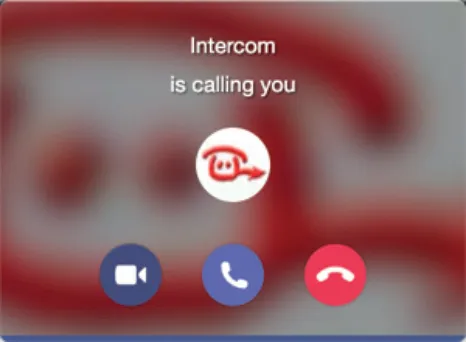
- Press the button on the Robin to call the Teams recipient. If configured correctly, the Teams client notifies you of an incoming call.
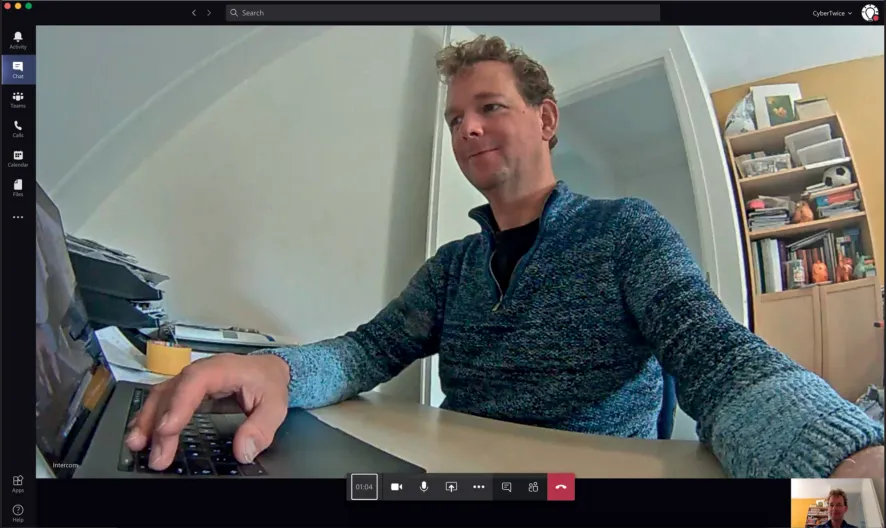
- Answer the call by clicking the camera symbol. The call is established and video is displayed within ±3 seconds.
- To open the door from the Teams call, click the Dial pad symbol in the call screen and use the default Dual-Tone Multi-Frequency (DTMF) code ## to trigger the relay in the Robin and open the door.
A more convenient way to open the door during a call is to use the CyberGate for Teams app. See the CyberGate App for Teams manual on how to to install and use the CyberGate for Teams app.
CyberGate App for Microsoft Teams
The CyberGate App for Microsoft Teams offers more CyberGate features directly from Microsoft Teams. One of these features is the Open-door button. This button can be utilized during a call to CyberGate and lets you open the the door by clicking just one button.
For a description on how to install the CyberGate app and use the Open door button please see the CyberGate App for TeamsCyberGate App for Teams manual.