Verkada and CyberGate
Verkada and CyberGate
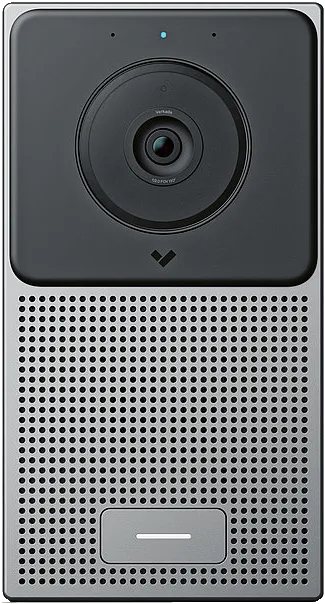
Verkada TD52 Video Intercom
For this document we tested the Verkada TD52 Video Intercom (from now on named ‘Verkada’) to connect to the CyberGate service (from now on named ‘CyberGate’).
Follow the next steps to configure the Verkada to connect it to CyberGate.
Connect the Verkada
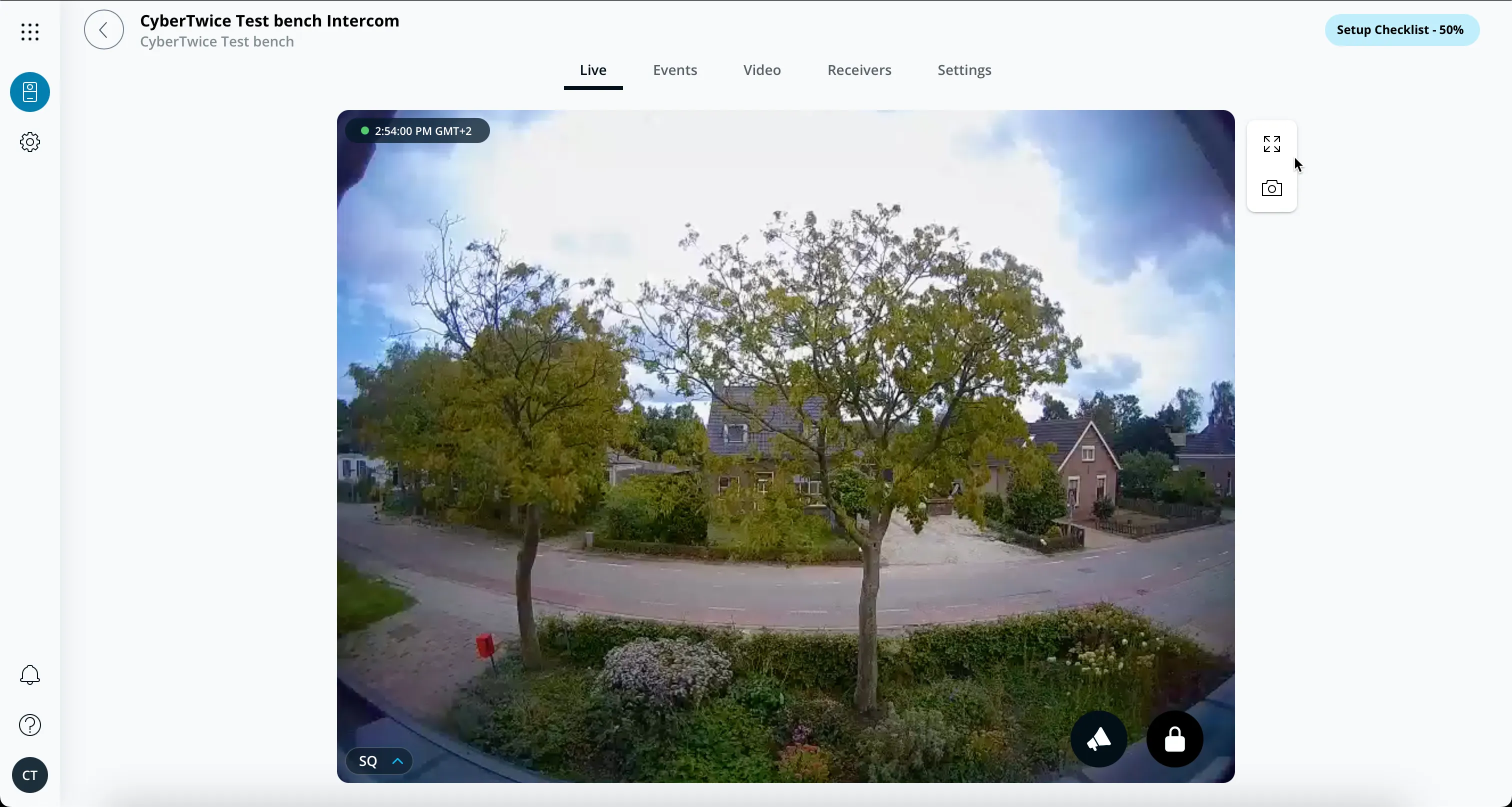
Connect the Verkada to the network, power it on and open a webbrowser to https://command.verkada.com.
- Create a new organization or log in to your existing organization.
- Add the Verkada TD52 to your organization.
- Configure the Verkada TD52.
Add the CyberGate SIP account
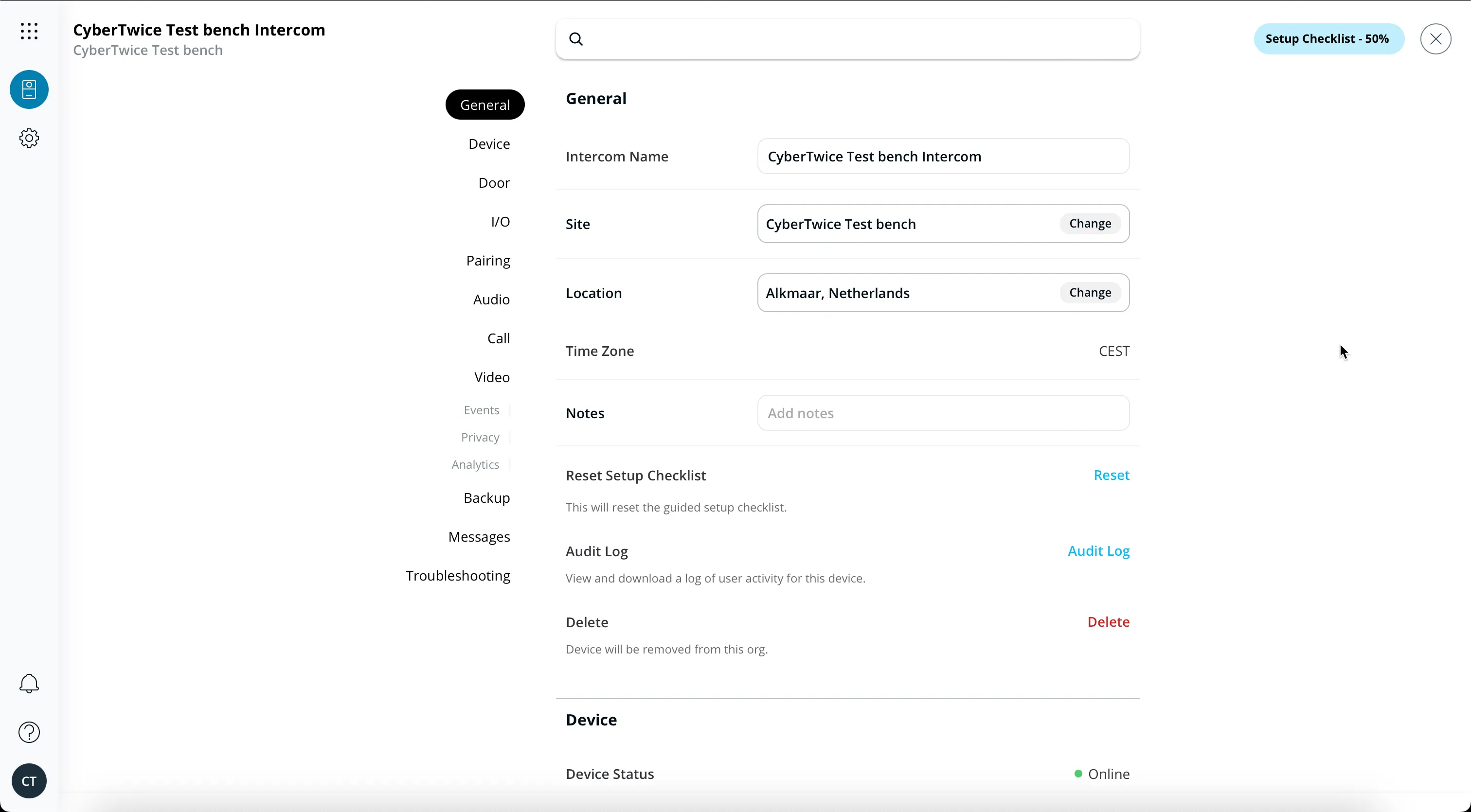
- Navigate to the Settings menu.
- Scroll down to Call.
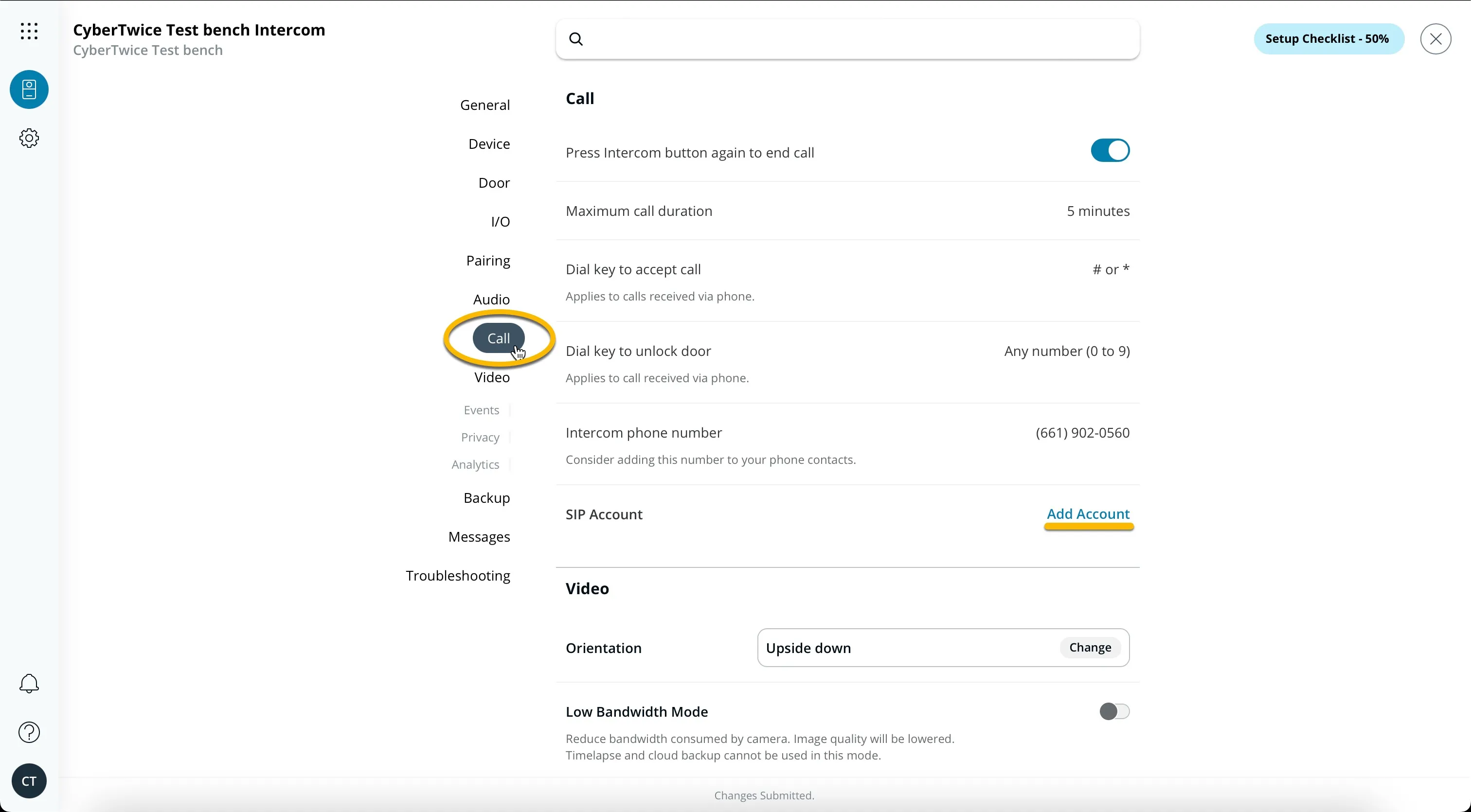
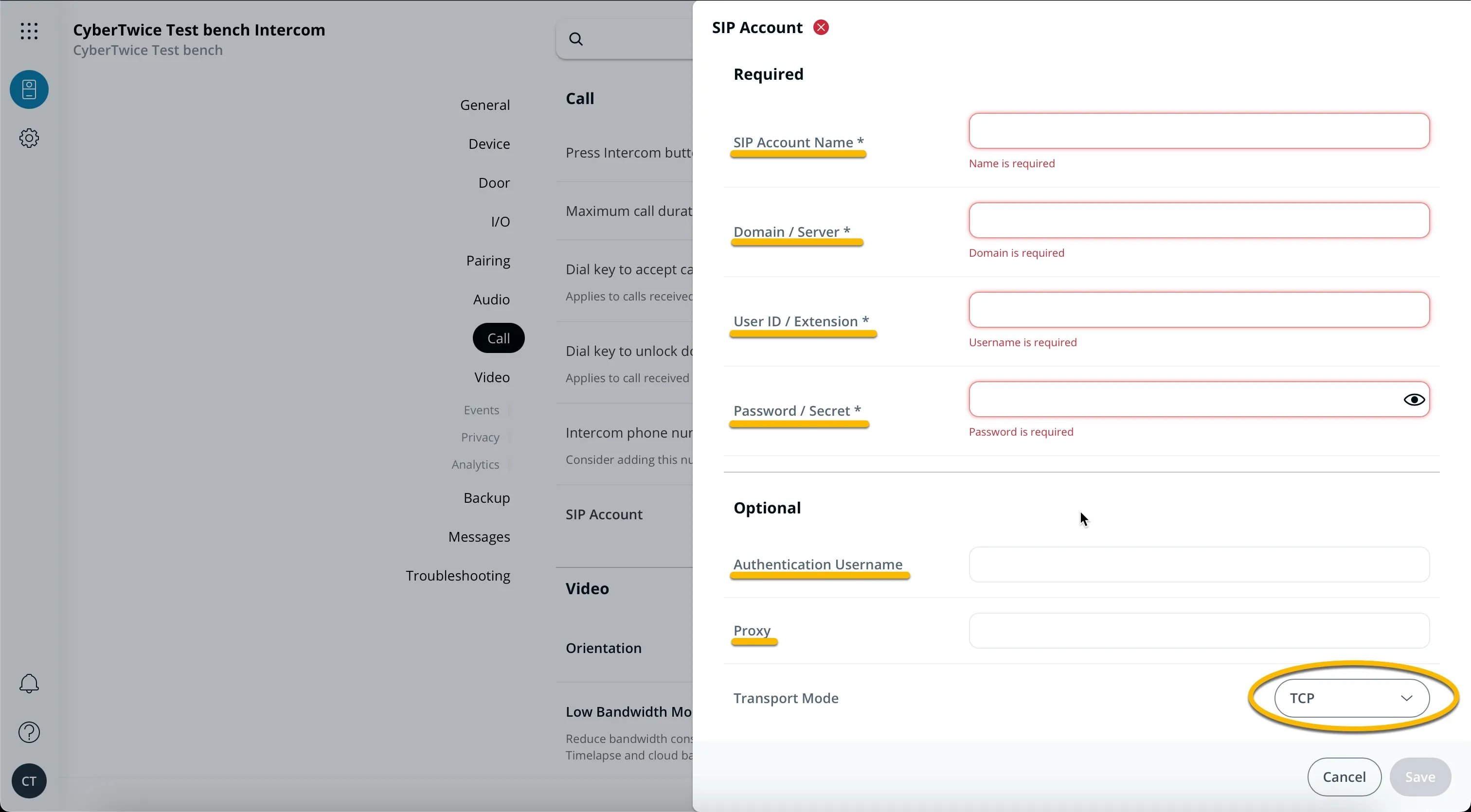
- Click ‘Add Account’ to add the CyberGate SIP account.
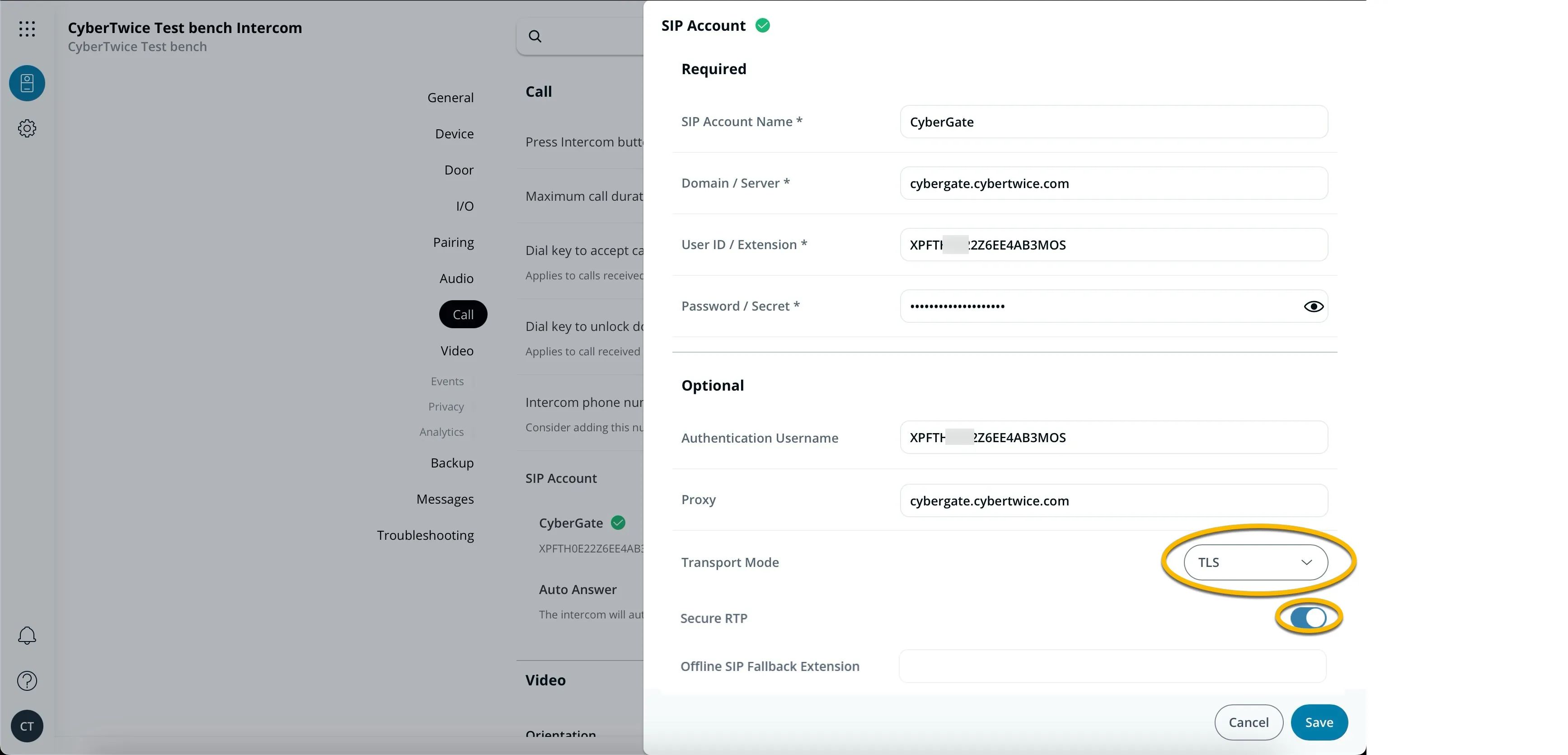
- Provide / change the following information:
SIP Account | |
|---|---|
SIP Account Name | Enter a name for the SIP account (e.g. CyberGate) |
Domain / Server | cybergate.cybertwice.com |
User ID / Extension | Use the Username provided by the CyberGate Management Portal |
Password / Secret | Use the Password provided by the CyberGate Management Portal |
Authentication Username | Use the Username provided by the CyberGate Management Portal |
Proxy | cybergate.cybertwice.com |
Transport Mode | Select TCP (unencrypted) or TLS (encrypted) |
Secure RTP | Enable (when TLS is selected) |
- Click the blue ‘Save’ button to confirm.
Enable Auto Answer
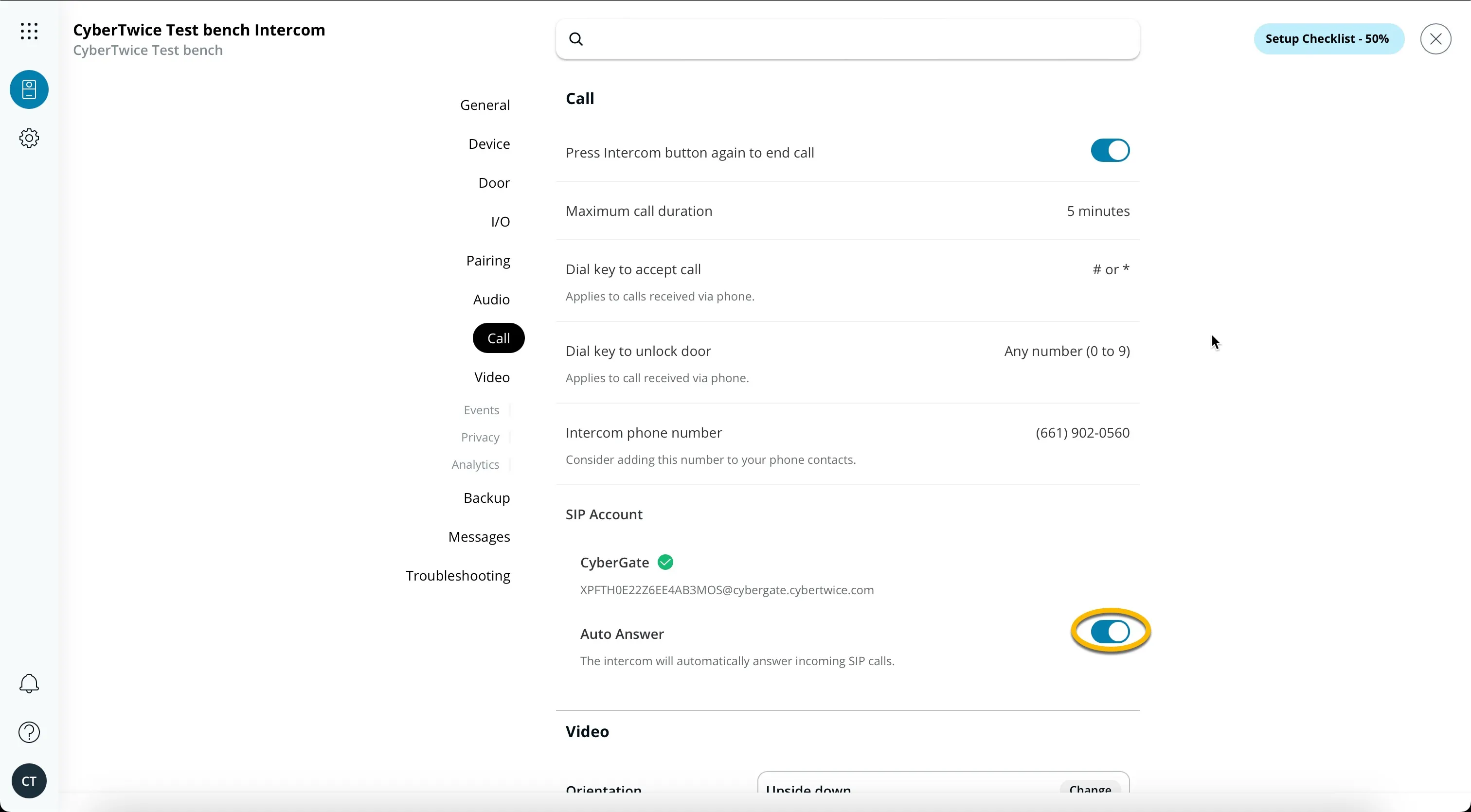
- Enable the ‘Auto Answer’ option.
Add a receiver for the Teams user
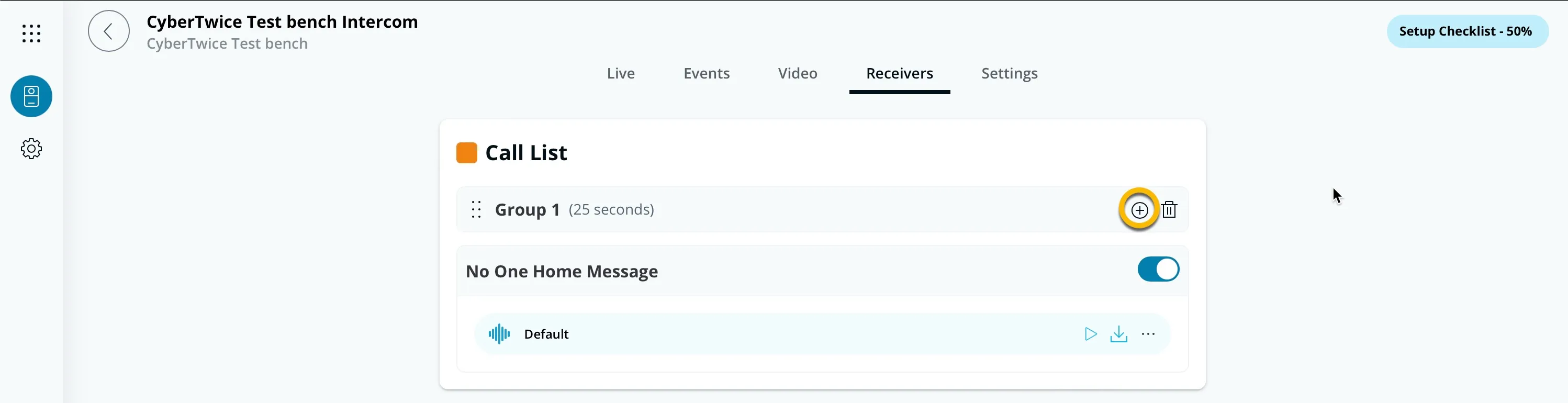
- Navigate to the Receivers menu.
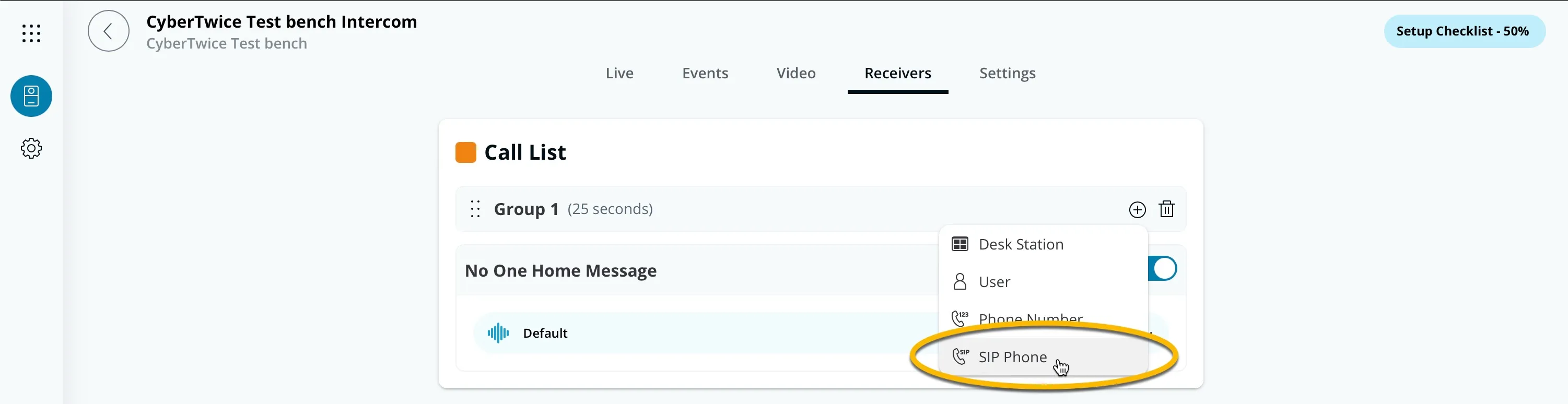
- Click the + symbol to add a receiver for the SIP Phone.
- Add the Teams user to dial. Use the Teams user name but without the domain *
* For example, the user Koos Ridder, with the Teams name [email protected] will translate to this destination address: koos.ridder
- Confirm the input by clicking the ‘Check mark’.
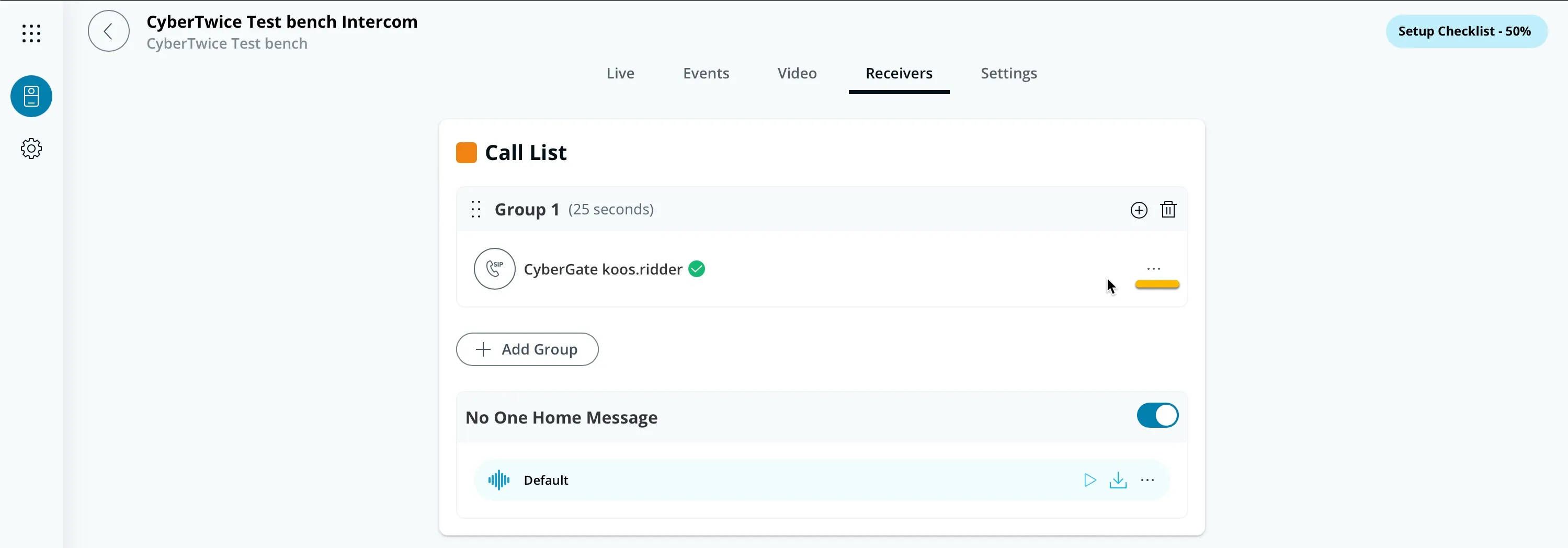
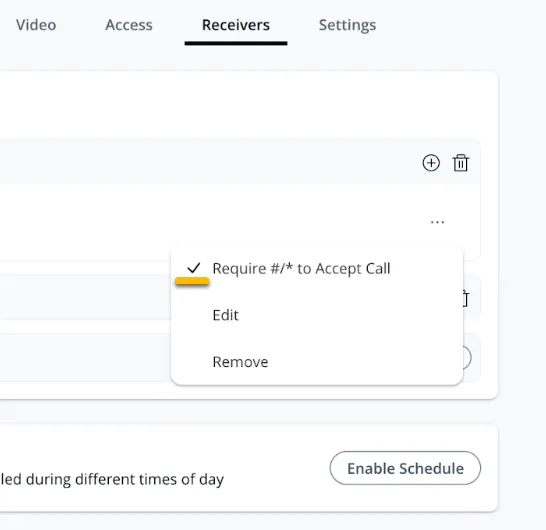
- Click on the three dots (...) right of the name to open options.
- Disable the option ‘Require #/* to Accept Call’.
The configuration of the Receiver (user that receives the call) is now done.
Test the call and open the door
Configuration of the Verkada TD52 is now done. Press the green button symbol on the touchscreen of the Verkada to initiate a call to the configured Teams User.
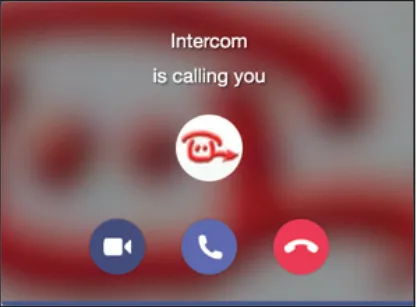
If configured correctly, the Teams client will notify you of an incoming call. Answer it by clicking the phone horn or camera symbol.
The call will now be established and video will be displayed.
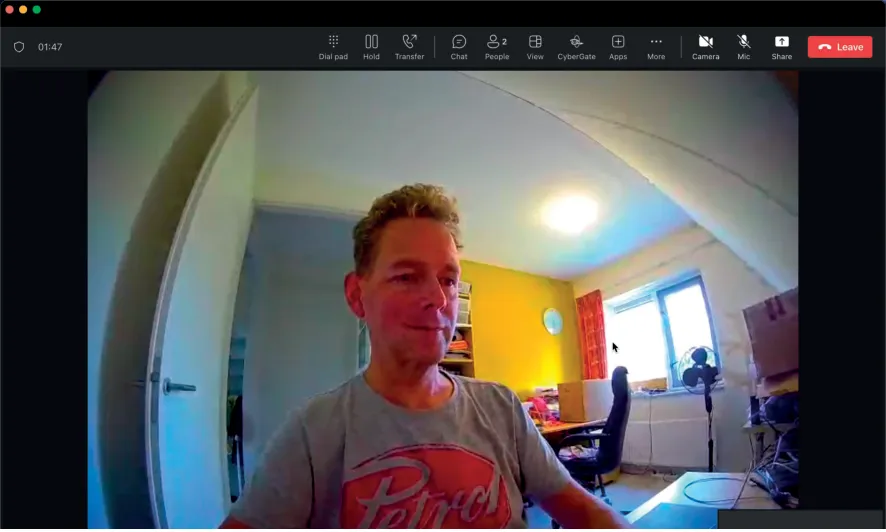
To open the door from the Teams call, use the -already open- dial pad and click on one of the numbers (0 - 9) to trigger the relay in the Verkada TD52 and open the door.
A more convenient way to open the door during a call is to use the CyberGate for Teams app. See the CyberGate App for Teams manual on how to to install and use the CyberGate for Teams app.
CyberGate App for Microsoft Teams
The CyberGate App for Microsoft Teams offers more CyberGate features directly from Microsoft Teams. One of these features is the Open-door button. This button can be utilized during a call to CyberGate and lets you open the the door by clicking just one button.
For a description on how to install the CyberGate app and use the Open door button please see the CyberGate App for TeamsCyberGate App for Teams manual.