TOA IP Audio Systems and CyberGate
TOA IP Audio Systems and CyberGate
This document describes how to connect TOA IP Audio Systems to Microsoft Teams using the CyberGate service: registering the TOA device with CyberGate over SIP, configuring zone-paging via the TOA IP Paging Gateway, and completing the required setup in the CyberGate Management Portal. It is intended for administrators installing TOA IP audio equipment in a Microsoft Teams environment.
Supported TOA devices and tested scenarios
For this document the following TOA IP Audio equipment is used to connect to the CyberGate service (from now on named 'CyberGate'):
- TOA IP Paging Gateway IP-A1PG
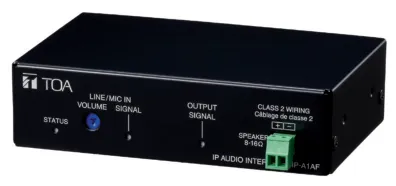
- TOA IP Audio Interface IP-A1AF
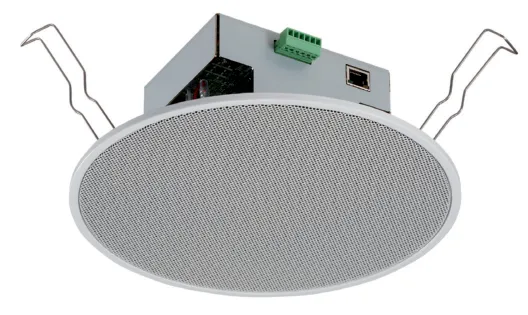
- TOA IP Ceiling speaker IP-A1PC238
- TOA IP Ceiling Speaker IP-A1PC580R
The following scenarios are tested:
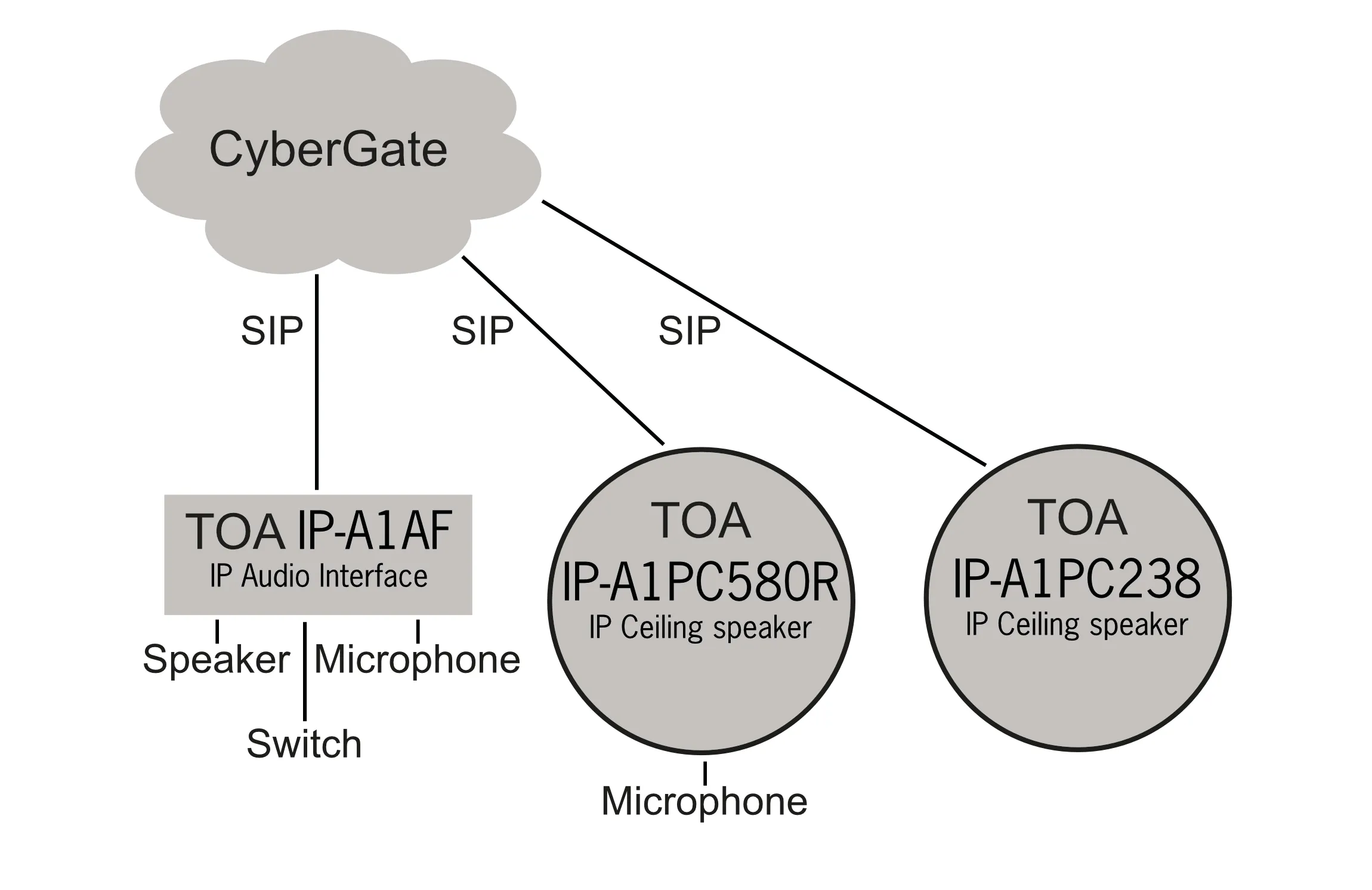
- The IP Audio Interface and the two IP Ceiling speakers each have an individual SIP connection to CyberGate. The IP Audio Interface has an attached speaker, microphone and switch, so initiating calls to Teams using the switch is also possible (it will act as an intercom).
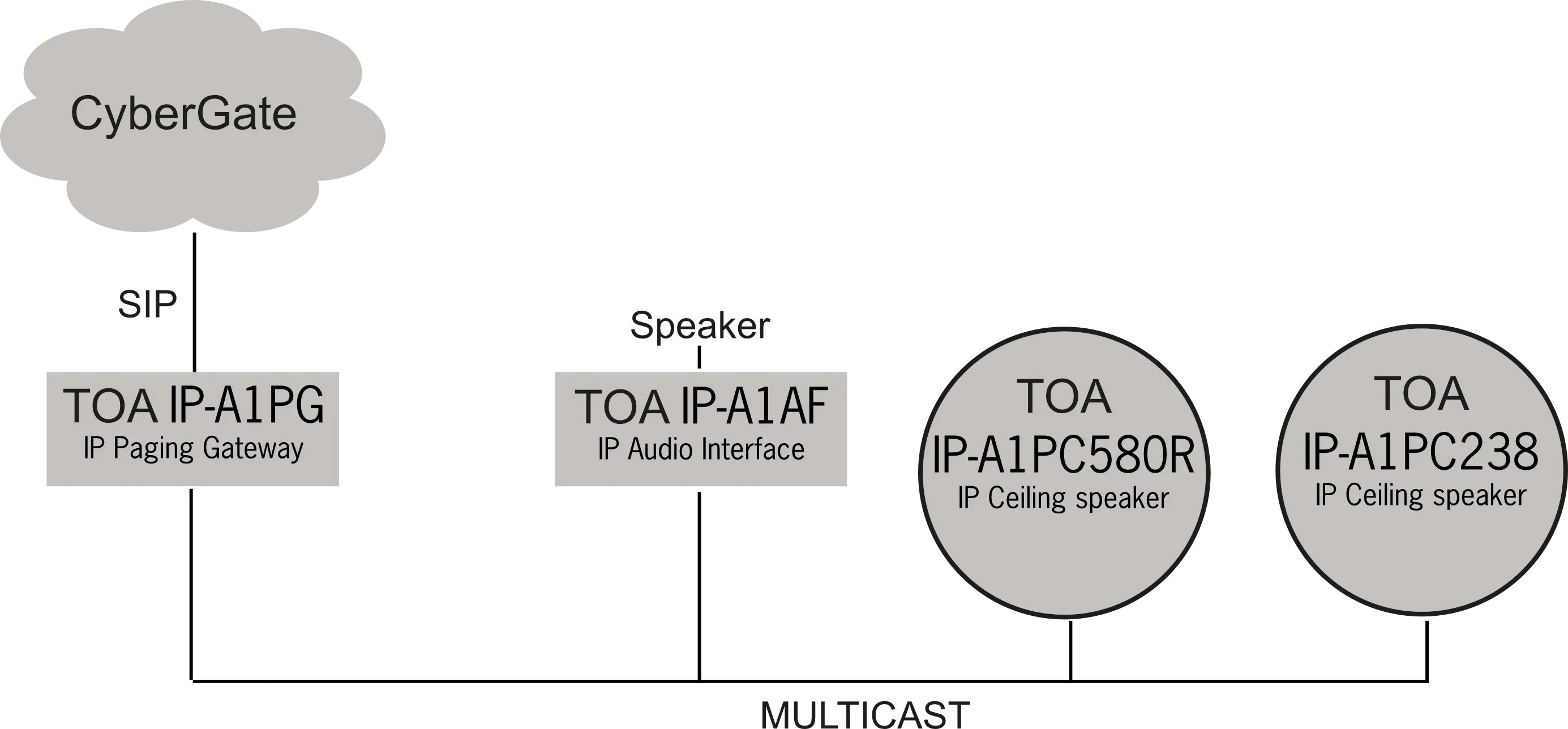
- The IP Paging Gateway has a SIP connection to CyberGate and uses Multicast to connect to the IP Audio Interface and the two IP Ceiling speakers (zone-paging).
In scenario 2 (using the IP Paging Gateway) the audio is Paging only (one-way audio). Scenario 1 also supports audio from a microphone to Microsoft Teams (two-way audio).
Scenario 1 — direct calling to an IP Speaker or IP Audio Interface — is described in Connect the TOA device and register it with CyberGate Scenario 2 — configuring the IP Paging Gateway to call different IP Paging devices using Dual-Tone Multi-Frequency (DTMF) keys (zone-paging) — is described in Configure the TOA IP Paging Gateway for zone-paging
Scenario 1: direct SIP connection (two-way audio)
Scenario 2: zone-paging via the IP Paging Gateway (one-way audio)
Connect the TOA device and register it with CyberGate
Follow these steps to register the TOA device with CyberGate over SIP:
- Connect the TOA to the network, power it on and open a webbrowser to its IP-address.
- Sign in with the configured or supplied password of the TOA.
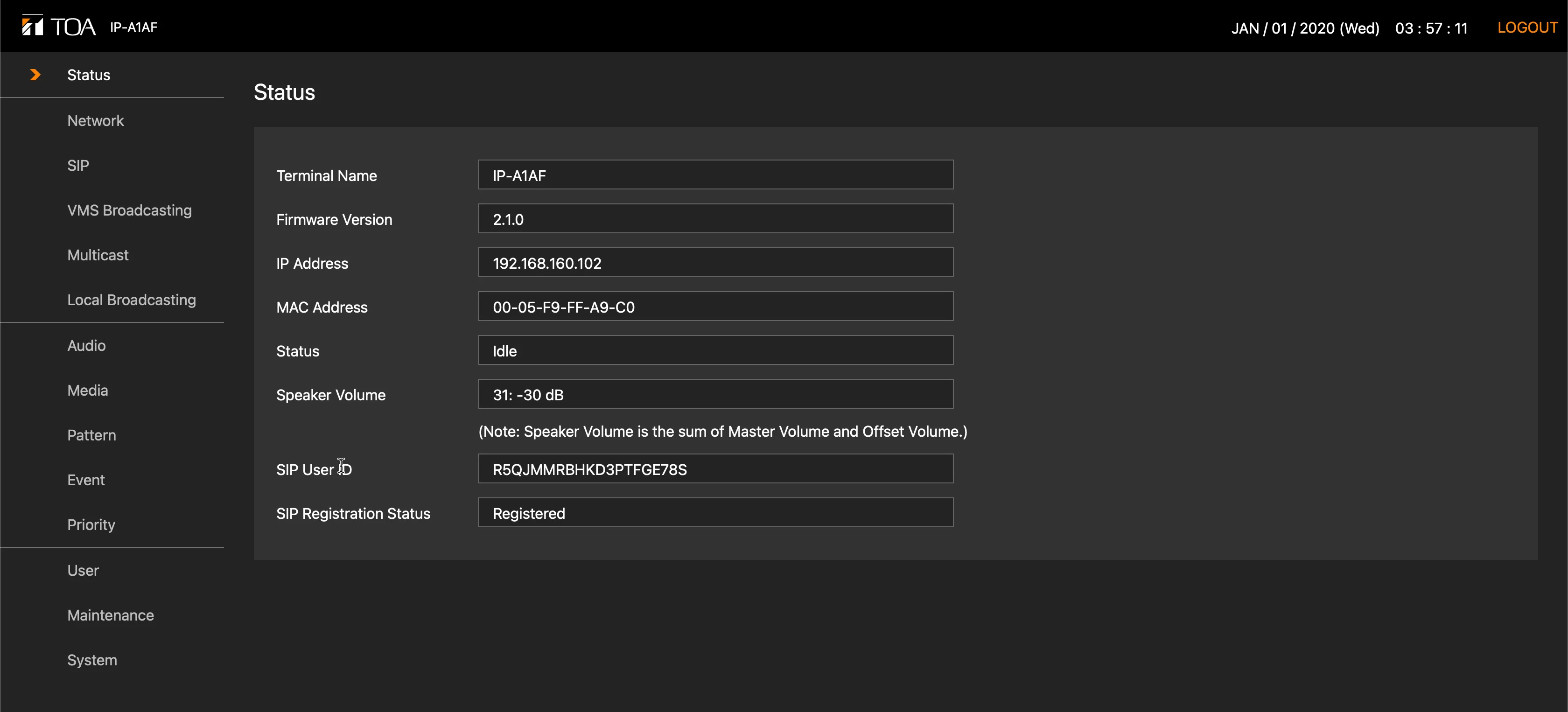
- Navigate to the SIP menu and provide the following information:
SIP Account Settings | |
|---|---|
SIP Server Address | cybergate.cybertwice.com |
User ID | Choose a User ID that describes this device (in this example testdevice) |
Display Name | Same as the User ID |
Password | Use the Password provided by the CyberGate Management Portal |
Authentication ID | Use the Username provided by the CyberGate Management Portal |
- Click the orange Save button when done.
- Reboot the TOA to activate the settings (see the Maintenance menu for the Reboot button).
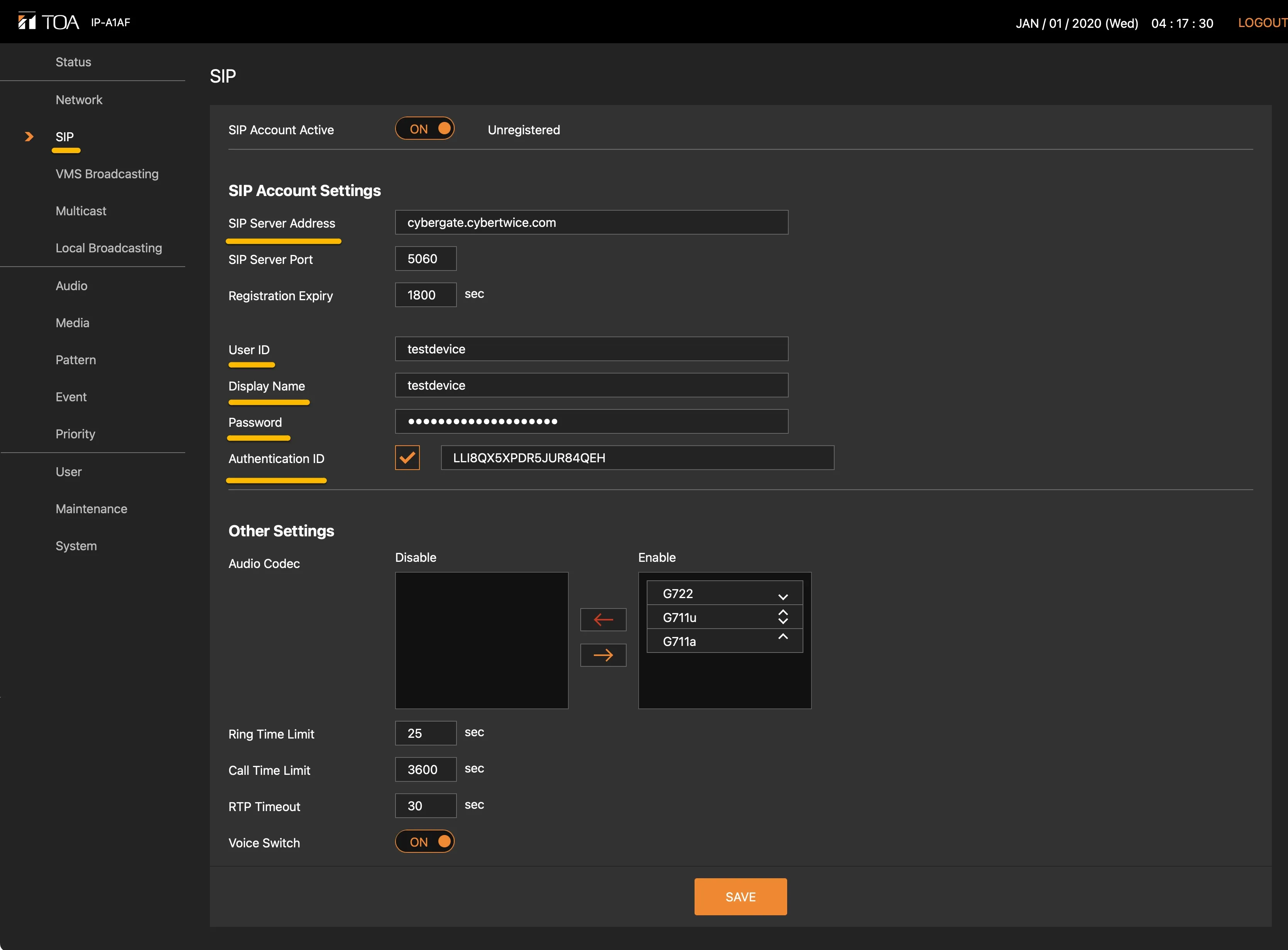
After the reboot, the SIP status of the TOA should be changed to Registered.
Configure an outgoing call from an external switch
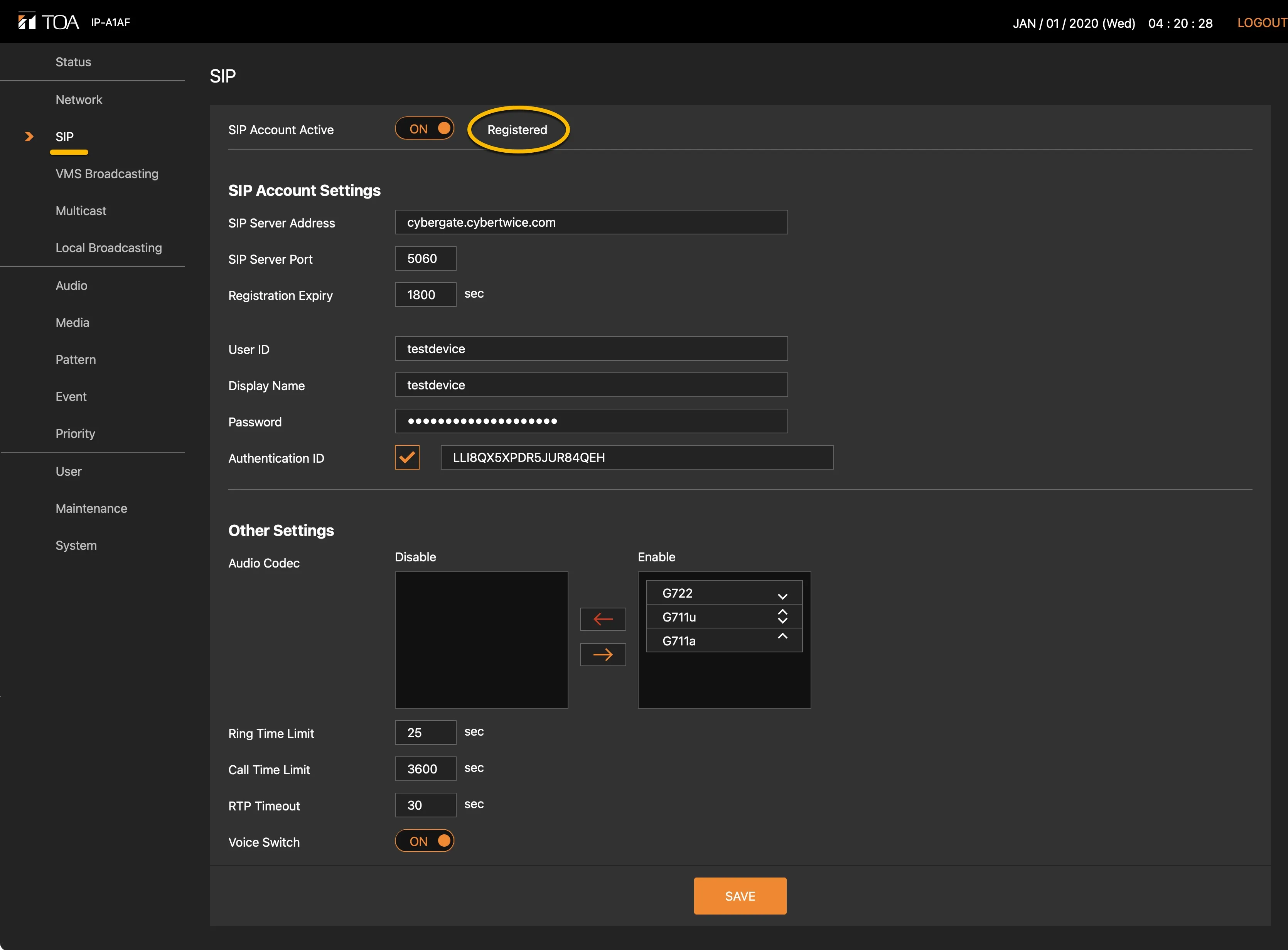
If an external switch is connected to the TOA, configure a TOA Event to trigger an outgoing call:
- Navigate to the Event menu.
- Provide the following information:
Control-in | |
|---|---|
Control-in 1 Action | cybergate.cybertwice.com |
Action Settings | |
SIP Target 1 | 123 |
- Click the orange Save button when done.
- Reboot the TOA to activate the settings (see the Maintenance menu for the Reboot button).
SIP Target 1 is the destination address the TOA calls as soon as the switch connected to Control-in 1 is pushed. The configured number 123 has to correspond with a CyberGate Call group, called 123, configured in the CyberGate admin portal. This Call group can contain one or more Teams users in your organisation. As soon as this Call group is dialed, the configured Teams users in this Call group will be called; the one who answers will be connected to the TOA.
See the manual CyberGate Call Group Settings on this site for instructions on how to create a Call group.
The basic configuration of the TOA for use with CyberGate is done!
Call the TOA from Microsoft Teams
You can initiate a call from Microsoft Teams to the TOA. Before calls can be made from Microsoft Teams, additional configuration in the CyberGate Admin portal is necessary.
The feature configuration script
The feature configuration script is a PowerShell script that needs to be executed before certain CyberGate features are available. One of these features is the ability to call devices directly from Teams.
Follow the steps in the Feature Configuration script manual:
Call the device from the Teams Calls menu
To initiate a call from Microsoft Teams you can use one of two options:
- Call the TOA using the Teams Calls menu.
- Use the CyberGate for Microsoft Teams app to find the TOA and call it with one click.
Using the Calls menu:
- Log in to Microsoft Teams and navigate to the Calls menu.
- Type the (display) name of the TOA directly in the call field (at 'Type a name'), or search for 'cybergate' to show all of your CyberGate devices.
- Select the device to call and click the blue Call button. A call to the TOA is initiated and the device answers automatically.
Call the device from the CyberGate for Teams app
The CyberGate for Teams app offers many features that make working with CyberGate more convenient. One of these features is the ability to initiate calls directly to devices. This eliminates the need to search for your device in the Teams calls menu.
See this manual for all the information on how to install and use the CyberGate for Teams app:
Configure the TOA IP Paging Gateway for zone-paging
The TOA IP Paging Gateway can broadcast audio from Microsoft Teams to different TOA IP Paging devices using Multicast. Each TOA IP Paging device has its own Multicast address. During the Teams call you can select the desired TOA Paging Device using DTMF keys in Teams.
Prerequisite: Register the TOA IP Paging Gateway with CyberGate as described above. After that, start the configuration of the different devices in the IP Paging Gateway as described below.
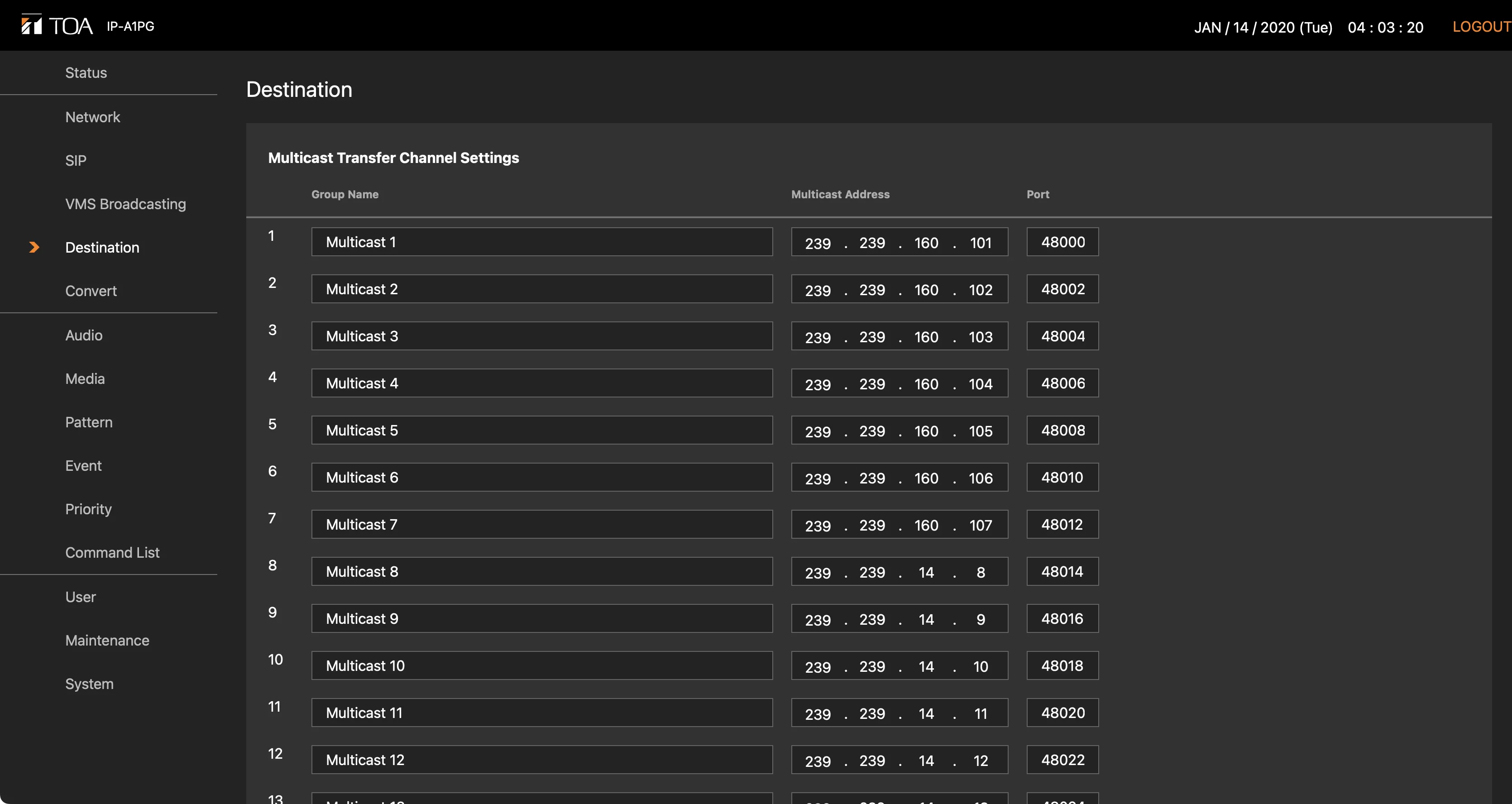
Configure Multicast destinations
In the TOA Paging Gateway you'll need to address the individual Paging Devices. Each Paging device has its own Multicast address. Use that address in this configuration section.
- Navigate to the Destination menu.
- Modify the following information:
Destination | |
|---|---|
Group Name | Provide a name for the Multicast group (in this example the names re- mained default 'Multicast 1, Multicast 2 etc) |
Multicast Address | Provide the correct Multicast address for this Multicast group * |
* Each IP Paging Device has its own Multicast address. To address a specific IP Paging Device, use its Multicast address in this overview.
- Click the orange Save button when done.
Map DTMF key combinations to IP Paging devices
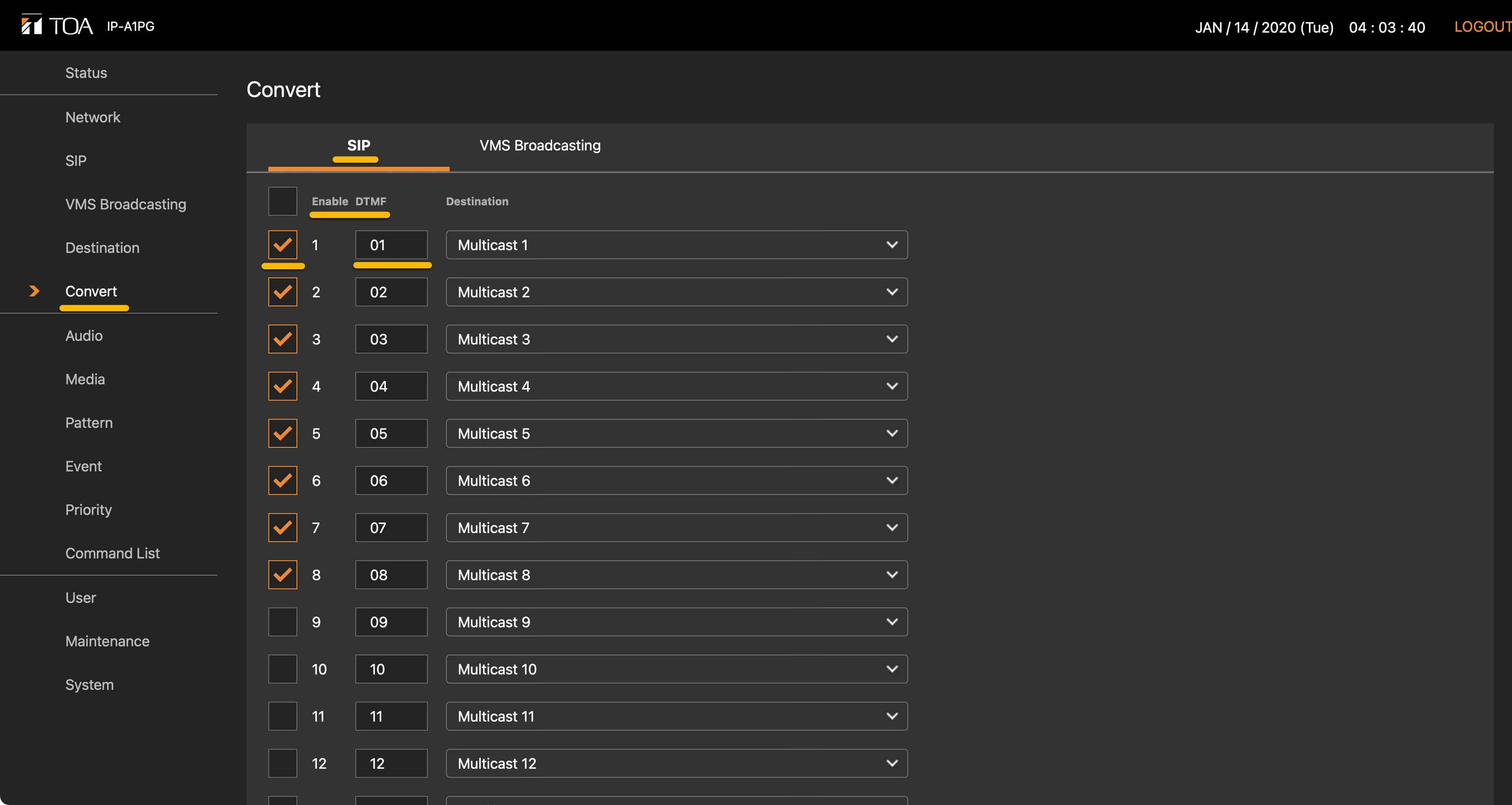
- Navigate to the Convert menu. Use the settings in this menu to configure a DTMF key combination for a specific IP Paging Device (zone-paging).
- Modify the following information:
SIP | |
|---|---|
Enable DTMF | Enable DTMF for a specific Multicast group |
DTMF | Select the DTMF key combination |
- Click the orange Save button when done.
Configuration of the TOA IP Paging Gateway is now done.
Page a zone from a Microsoft Teams call
- Place a call from Teams to the TOA IP Paging Gateway. The Gateway will answer automatically.
- After answering, click the ‘Dial Pad’ button in the Teams bar on top of the calling screen.
- When the Dial pad appears, type the code of the desired TOA IP Paging device to be connected to that device.
When connected to that device, the TOA IP Paging Gateway will play a confirmation sound through Microsoft Teams so you know that you're connected and can start paging.